 UPDF
UPDF
 UPDF for Windows
 UPDF for Mac
 UPDF for iPhone/iPad
 UPDF for Android
 Nomostar
 UPDF AI Online
 UPDF Sign
 IvyCraft
 Edit PDF
 Annotate PDF
 Create PDF
 PDF Form
 Edit links
 Convert PDF
 OCR
OCR PDF to Word
 PDF to Image
 PDF to Excel
 Organize PDF
 Merge PDF
 Split PDF
 Crop PDF
 Rotate PDF
 Protect PDF
 Sign PDF
 Redact PDF
 Sanitize PDF
 Remove Security
 Read PDF
 UPDF Cloud
 Compress PDF
 Print PDF
 Batch Process
 About UPDF AI
 UPDF AI Solutions
 AI User Guide
 FAQ about UPDF AI
 Summarize PDF
 Translate PDF
 Chat with PDF
 Chat with AI
 Chat with image
 PDF to Mind Map
 Explain PDF
 PDF AI Tools
 Image AI Tools
 AI Chat Tools
 AI Writing Tools
 AI Study Tools
 AI Working Tools
 Other AI Tools
 AI Bookmark Generation
 AI Bookmark Summary
 AI Watermark Generation
 AI Background Generation
 AI Sticker Generation
 AI Stamp Generation
 AI Editing Suite
 UPDF Copilot
 AI Page Management
 AI Semantic Search
 PDF to Word
 PDF to Excel
 PDF to PowerPoint
 Enterprise Solution
 Enterprise Sign
 Enterprise AI
 Enterprise Plan
 Enterprise User Guide
 Enterprise Webinar
 IT
IT Education
 Construction
 Financial Service
 Healthcare
 Insurance
 Legal
Legal Manufacturing
 Government
 Researchers & PhDs
 Solopreneurs & Freelancers
 Lawyers & Legal Professionals
 Real Estate Agents & Brokers
 Education Solution
 Customer Stories
 User Guide
 UPDF Tricks
 FAQs
FAQs UPDF Reviews
 Download Center
 Blog
Blog Newsroom
 Tech Spec
 Updates
 UPDF vs. Adobe Acrobat
 UPDF vs. Foxit
 UPDF vs. PDF Expert

Quick Answer:
A signature drawn on a phone is not automatically a certificate-based digital signature. Most mobile signature apps place a visible electronic signature on a document. A digital signature uses a Digital ID and can help recipients verify the signer and detect changes made after signing. This distinction matters when a contract, government form, or regulated workflow requires more than a visible mark.
This guide compares six current options by the work they actually handle: signing your own PDF, preparing forms, collecting signatures, and managing agreement workflows.
Part 1. Which Signature App Fits Your Workflow?
| What you need to do | Best starting point | Main limitation |
|---|---|---|
| Fill, edit, annotate, and sign one PDF on your phone | UPDF | A visible signature is not the same as a certificate-based digital signature |
| Send a PDF to other people and track their signatures | UPDF Sign | Separate web product from the UPDF PDF editor |
| Build proposals or quotes and collect signatures | PandaDoc | Mobile editing is less complete than its web editor |
| Run established, multi-recipient agreement workflows | DocuSign | More workflow than a one-off self-signature needs |
| Fill and sign a PDF in the Adobe ecosystem | Adobe Acrobat Reader Mobile | The old standalone Adobe Fill & Sign app is retired |
| Send simple contracts from iOS or Android | Signeasy | Primarily an e-sign workflow, not a full PDF editor |
If your only goal is to put your own signature on a PDF and return it, a local PDF editor is usually the shortest path. If you are the sender and need assigned fields, reminders, signer order, or an audit trail, use a request-based e-signature service.
Part 2. 6 of the Best Document Signing App
1. UPDF Signature App
Best for:
- People who receive a PDF on their phone and need to correct text, fill fields, annotate pages, add a signature, and send the finished PDF back.
Not for:
- A sender who needs to assign fields to several recipients and monitor who has or has not signed. That is a signature-request workflow rather than local PDF signing.
The UPDF app is a powerful PDF reader, file manager, and signature tool designed for seamless productivity.
With its practical signing features, users can add both electronic and digital signatures to PDF documents effortlessly. For electronic signatures, you can draw, type, or import a signature image directly into your file. The digital signing feature ensures secure, legally-binding signatures, perfect for professional use.
Additionally, UPDF's cross-platform compatibility and signature synchronization allow you to save and reuse your signature across devices, including Windows, Mac, iPhone/iPad, and Android, for a consistent workflow.
Download the UPDF app now and experience hassle-free PDF management and signing on the go!
Windows • macOS • iOS • Android 100% secure
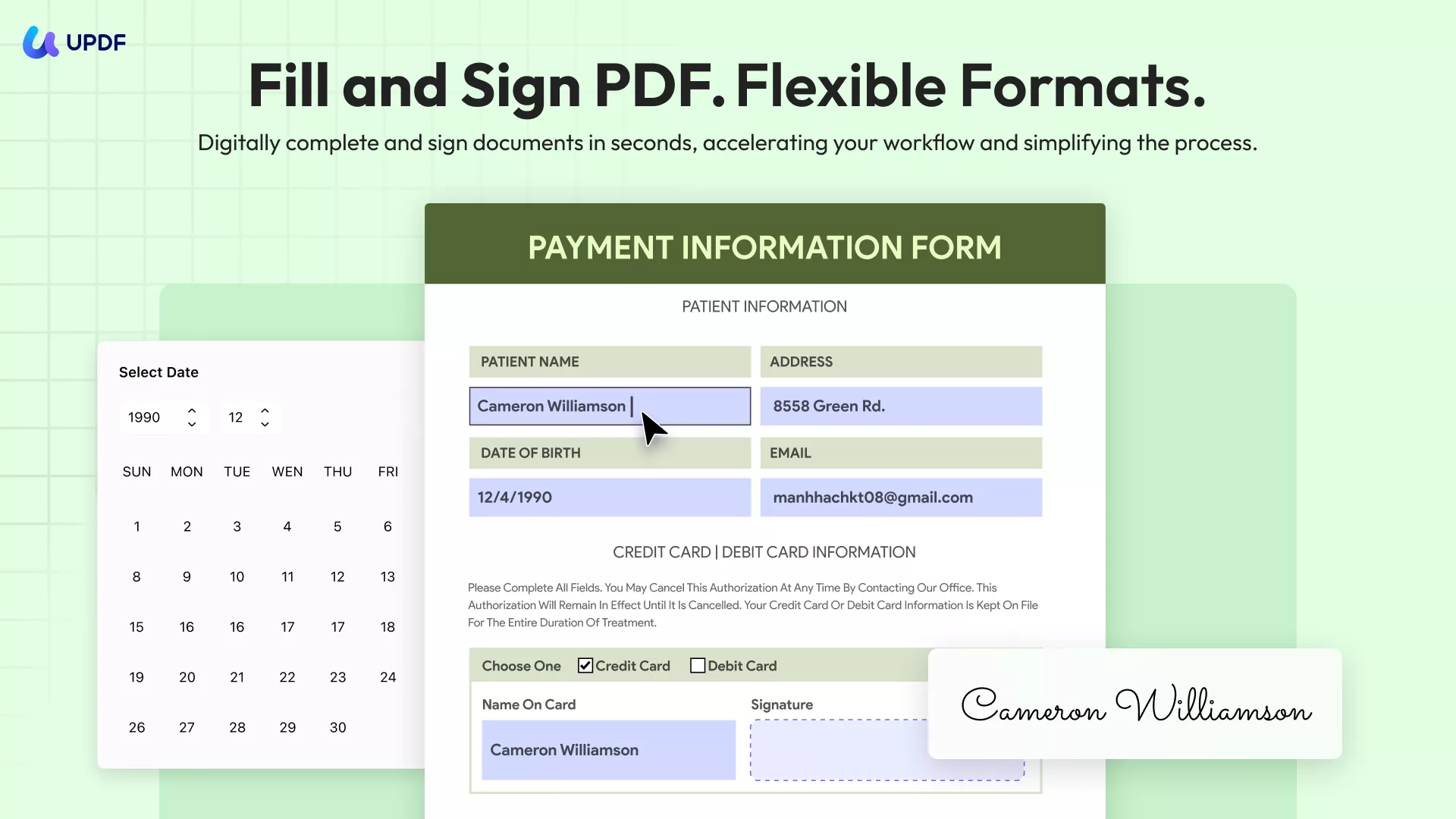
A key differentiator of Adobe is that it incorporates paper documents. While other apps focus entirely on digitally-created documents, UPDF supports scanning, uploading, and converting hard copies into digital formats. You can then edit the scanned document and correct and sign it.
Similarly, you are not limited to the format of documents that you can apply the e-signature application. For example, you can also sign images in such formats as JPG and PNG.
A notable downside you get with many other e-signature apps is that they mainly focus on providing electronic signature services. UPDF is, however, different. It comes with a full suite of features from document creation and annotation to compression and general management.
In addition, the signature app focuses on the security of the sensitive documents that you deal with.
2. UPDF Sign
Best for:
- A sender who needs to add recipients, assign signature or date fields, send a request, and track completion online.
Not for:
- Editing PDF text, reorganizing pages, or performing a quick local self-signature inside the UPDF mobile editor.
UPDF Sign is a web-based online signing platform accessible anytime, anywhere, on any device. Offering features similar to DocuSign, it allows users not only to sign documents but also to send them to recipients and collect their signatures. You can add legally-binding digital signatures, making it quick and secure to sign documents online. Plus, registered users can enjoy a free trial with no credit card required. Click the button below to try it out!
3. PandaDoc
Best for:
- Sales and operations teams that create proposals, quotes, agreements, or pricing documents and then send them for approval and signature.
Not for:
- Someone who only wants to place a signature on one local PDF without entering a broader document workflow.
PandaDoc is an electronic signature app best suited for business and other corporate users. The app works on a comprehensive document workflow system via which it oversees all aspects of document use and management. PandaDoc enables you to create documents for business use such as proposals, quotes, and agreements all from scratch. You can also edit and fill these documents from the PandaDoc app.
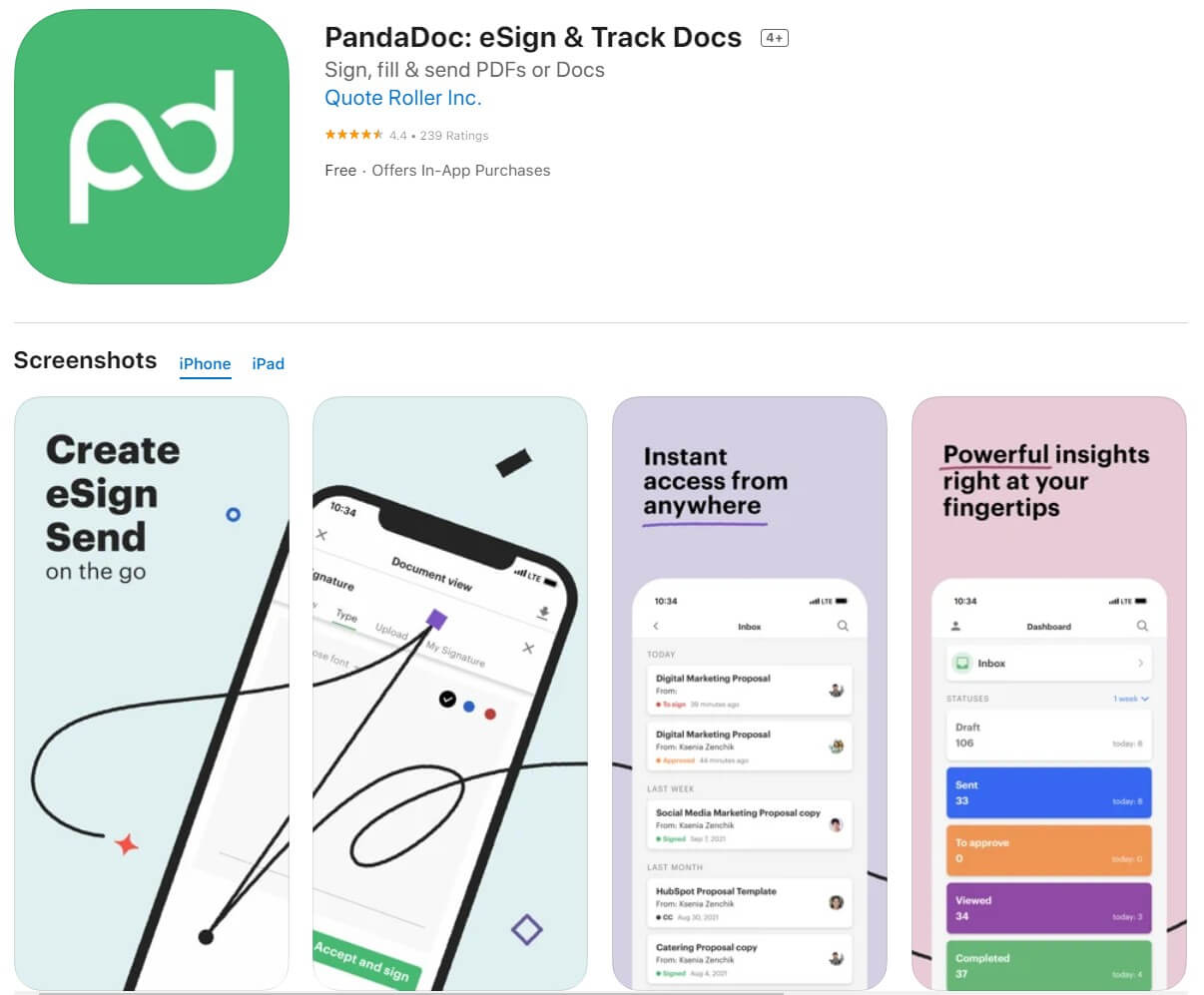
To prevent any complications arising from document editing, the app offers a tracking tool that records all activity carried out on it. With this feature, users have access to the history of changes in a document. They can then go back in time to check the status of a document at a time. In addition, the app offers standard document templates for someone looking to create files for any purpose.
Other commendable features to look out for on PandaDoc include its seamless drag and drop editor and audit trails. From the above, you can safely guess that PandaDoc was built to fulfill the needs of a business audience. The developers, however, took that further by including a payments support tool. The feature enables users to conduct transactions using payment processors such as PayPal, Stripe, and Square, all from the app's interface.
Nonetheless, a key downside is that it has a poor user interface. Having a wide range of product offerings makes it difficult to navigate the various product sections. Then, the premium plan that contains some of these features is quite expensive.
4. DocuSign
Best for:
- Organizations that need recipient routing, required fields, reminders, templates, status tracking, integrations, and a widely established e-signature process.
Not for:
- A one-off local PDF where one person only needs to draw a signature and email the file back.
DocuSign is a document-signing app with hundreds of millions of individual and corporate users and an exciting set of features.
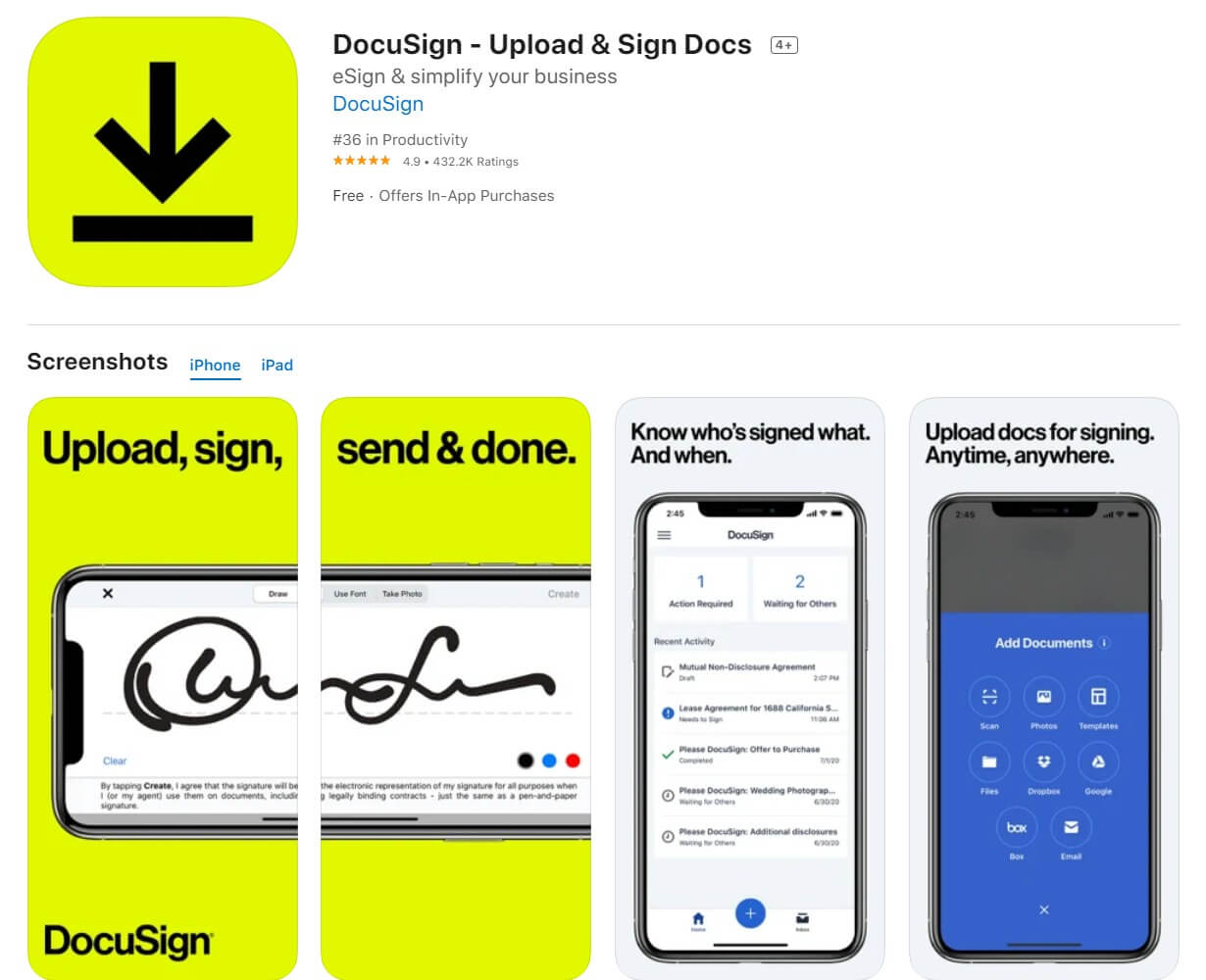
Its primary tool is the drawing feature giving users the ability to use freehand to develop their custom signature.
Then, we have multi-file support enabling users to work across Doc, Docx, XLS, TXT and above all, PDF. Thus, no matter what format your document is in, rest assured that you are covered. Additionally, the collaborative tool empowers users to work on the same files together simultaneously. DocuSign provides users with an e-envelope feature to group documents together into a folder, making it possible to incorporate additional information.
Furthermore, there is the "Comments' tool. While concurrently working on documents, there are times when you need to make notes and exchange conversations. You necessarily don't need to fill up your calendar, setting another meeting. You can comment and exchange feedback right from the mobile app.
You also get immediate notifications of comments and access the conversation trail. Other valuable features include “Templates” for preparing documents and the Bulk Send tool. With Bulk Send, users can batch-send a single copy to several persons with just a few clicks.
One of the unique highlights of the DocuSign app is its top-notch focus on security and authentication. For example, when collaborating on a document, the app ensures that the persons signing are the ones you invited to do the signing. Authentication channels include email, SMS, phone, Federated Identity Protection, and third-party authentication using tools from Google or Microsoft, among others.
5. Adobe Acrobat Reader Mobile
Best for:
- People who already use Adobe Acrobat and want to fill fields, create a signature or initials, and sign PDFs on iOS or Android.
Not for:
- Anyone searching for the old standalone Adobe Fill & Sign app. Adobe retired that app and moved its fill-and-sign workflow into Acrobat Reader Mobile.
Acrobat Reader Mobile can add text, select form controls, create a signature or initials, and place the signature in a PDF. Adobe's current mobile guidance says the workflow can work offline; locally saved data can sync after the device reconnects.
How to fill and sign in Acrobat Reader Mobile
- Open the PDF in Acrobat Reader Mobile.
- Select Fill & Sign from the bottom menu.
- Complete the required text, checkbox, or radio-button fields.
- Create and place your signature or initials.
- Check the document carefully before saving the signed version.
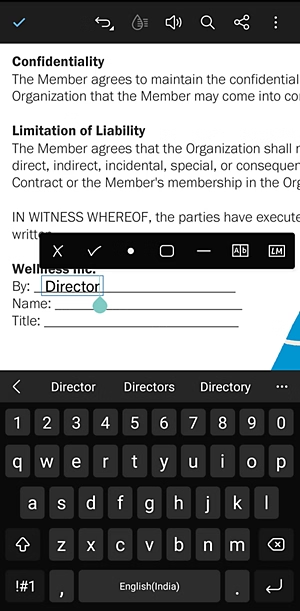
Adobe states that signatures and initials become permanent once saved and that the PDF is flattened on save in this mobile workflow. Keep an unsigned original if you may need to revise the form. Users migrating from Adobe Fill & Sign must move old documents manually; the old app's files and signature assets are not automatically migrated.
If your file needs editing or form cleanup before signing, UPDF can keep those PDF tasks and the visible signature in one mobile workflow.
Download UPDF for free to edit, fill, and sign the PDF in one app — installation is free, and Pro removes the trial watermark from exported files.
6. SignEasy
Best for:
- Small teams that want a focused mobile app for self-signing, in-person signing, or sending contracts to remote signers.
Not for:
- Complex PDF editing, OCR, page management, or detailed form repair before the document is sent.
SignEasy is a digital signature app aimed at helping businesses to make the signing process less strenuous. Using SignEasy, you can get legally binding signatures and add custom fields for signees to fill.
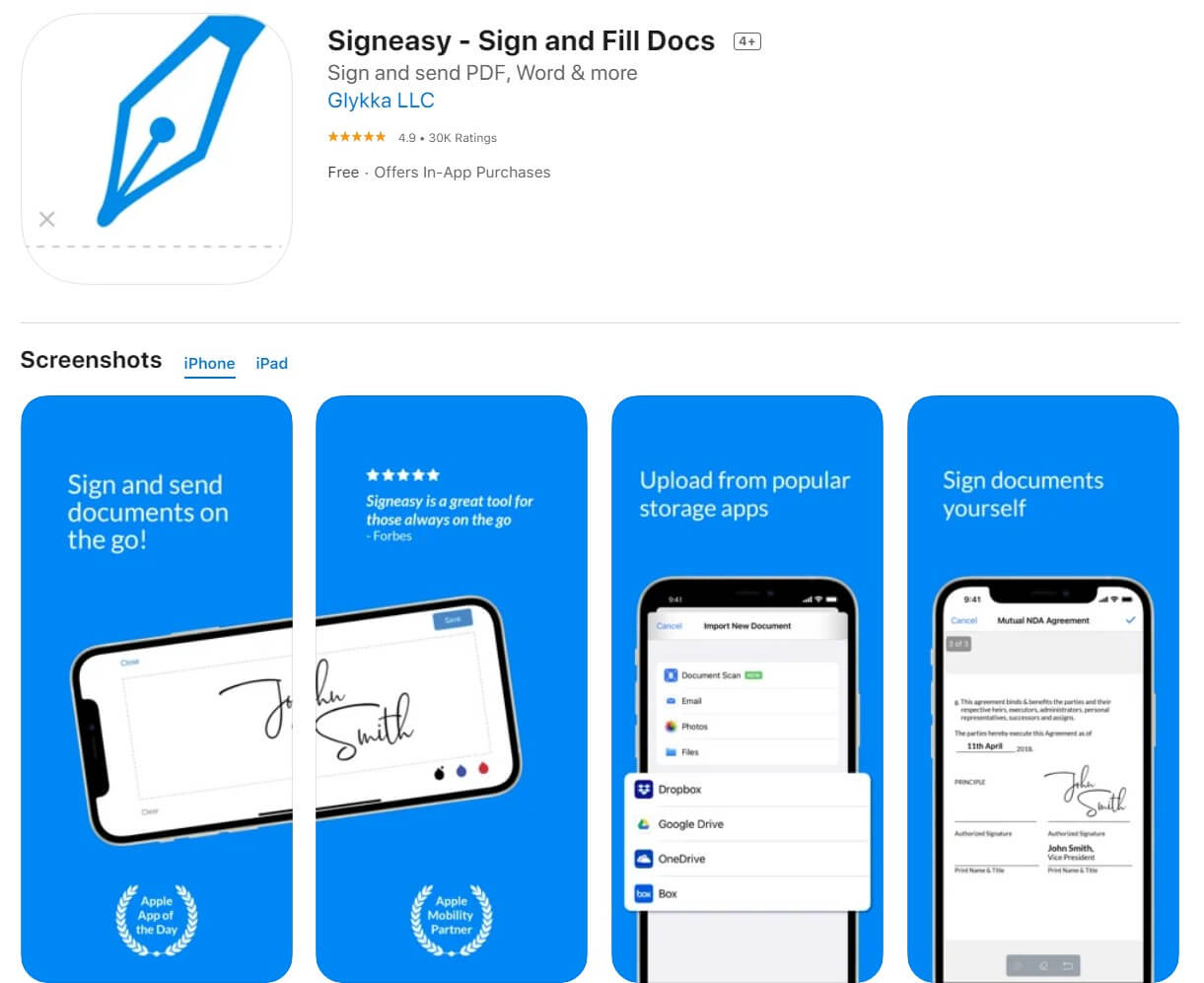
Then, there is multi-source integration. Often, the document to be signed may be in a drive platform such as Google Drive, OneDrive, Box, and others. SignEasy makes it possible to edit and manage these documents directly from their apps without requiring you to download them to the app.
A further feature of this free signature app is first-rate user-friendliness as the interface is attractive. But, then, it is seamless to navigate the app. Moreover, you can categorize documents into groups and colour-code the various segments for easy access.
Part 3. Electronic Signature vs. Digital Signature vs. Signature Request
| Term | What it does | Best fit | What it does not prove by itself |
|---|---|---|---|
| Electronic signature | Places a visible typed, drawn, scanned, or image-based mark | Routine approvals and self-signing | That a certificate verified the signer |
| Digital signature | Uses a Digital ID and certificate-based cryptography | Documents that require identity and integrity checks | That every jurisdiction accepts the document for every transaction |
| Signature request | Sends assigned fields to recipients and records the workflow | Collecting and tracking other people's signatures | That the source PDF was correctly edited or prepared |
A useful analogy is: an electronic signature is the mark on the page; a digital signature is the mark plus a tamper-evident certificate; a signature request is the delivery and tracking system around the document.
For a local certificate-based workflow, read the complete guide to adding a digital signature to a PDF. If you only need to sign a contract from an Apple device, follow the focused tutorial on how to sign contracts on iPhone.
FAQs
Q1. Can I sign a PDF on my phone without printing it?
Yes. Open the PDF in a mobile app with a fill-and-sign tool, create or import a signature, place it, and save a new copy. If the PDF contains a required certificate-based field, use that field's signing workflow rather than placing an image over it.
Q2. Should I use a signature image for sensitive contracts?
Not by itself. A reusable signature image can be copied if someone gains access to it. Protect the phone and app, avoid keeping the image in an exposed gallery, and use a request-based audit trail or certificate-based digital signature when identity and document integrity matter.
Q3. Can I remove a signature after saving the PDF?
Only in some files. A recently placed editable signature object may be removable before finalizing, but a flattened or digitally signed PDF may not allow clean removal. Removing or editing a certificate-signed document can invalidate it. For authorized corrections, see how to remove a signature from a PDF on iPhone.
Conclusion
The best signature app is the one that matches who starts the workflow. Use UPDF when the PDF is already on your phone and needs filling, editing, or a visible signature. Use UPDF Sign, PandaDoc, DocuSign, or Signeasy when you need to send assigned fields to other people and track completion. Adobe users should use Acrobat Reader Mobile because the standalone Adobe Fill & Sign app has been retired.
For a one-file mobile workflow, UPDF keeps PDF preparation and signing together instead of making you repair the document in a second app.
Download UPDF for free to prepare and sign your next PDF — installation is free, and Pro removes the trial watermark from exported files.










 Enola Davis