 UPDF
UPDF
 UPDF for Windows
 UPDF for Mac
 UPDF for iPhone/iPad
 UPDF for Android
 Nomostar
 UPDF AI Online
 UPDF Sign
 IvyCraft
 Edit PDF
 Annotate PDF
 Create PDF
 PDF Form
 Edit links
 Convert PDF
 OCR
OCR PDF to Word
 PDF to Image
 PDF to Excel
 Organize PDF
 Merge PDF
 Split PDF
 Crop PDF
 Rotate PDF
 Protect PDF
 Sign PDF
 Redact PDF
 Sanitize PDF
 Remove Security
 Read PDF
 UPDF Cloud
 Compress PDF
 Print PDF
 Batch Process
 About UPDF AI
 UPDF AI Solutions
 AI User Guide
 FAQ about UPDF AI
 Summarize PDF
 Translate PDF
 Chat with PDF
 Chat with AI
 Chat with image
 PDF to Mind Map
 Explain PDF
 PDF AI Tools
 Image AI Tools
 AI Chat Tools
 AI Writing Tools
 AI Study Tools
 AI Working Tools
 Other AI Tools
 AI Bookmark Generation
 AI Bookmark Summary
 AI Watermark Generation
 AI Background Generation
 AI Sticker Generation
 AI Stamp Generation
 AI Editing Suite
 UPDF Copilot
 AI Page Management
 AI Semantic Search
 PDF to Word
 PDF to Excel
 PDF to PowerPoint
 Enterprise Solution
 Enterprise Sign
 Enterprise AI
 Enterprise Plan
 Enterprise User Guide
 Enterprise Webinar
 IT
IT Education
 Construction
 Financial Service
 Healthcare
 Insurance
 Legal
Legal Manufacturing
 Government
 Researchers & PhDs
 Solopreneurs & Freelancers
 Lawyers & Legal Professionals
 Real Estate Agents & Brokers
 Education Solution
 Customer Stories
 User Guide
 UPDF Tricks
 FAQs
FAQs UPDF Reviews
 Download Center
 Blog
Blog Newsroom
 Tech Spec
 Updates
 UPDF vs. Adobe Acrobat
 UPDF vs. Foxit
 UPDF vs. PDF Expert

Quick answer:
A Linux PDF viewer should be chosen by workflow, not by the length of its feature list. A browser may be enough for opening and signing a form, while students, LaTeX users, and people editing existing text need very different tools.
I compared the current native availability, reading features, annotation workflow, form support, editing scope, and main limitation of each option. UPDF does not currently offer a native Linux desktop app, so the Linux recommendations come first; the cross-device UPDF option is included later only for readers who also use Windows, macOS, iOS, or Android.
How We Chose the Best PDF Readers for Linux
I evaluated each Linux PDF viewer against five questions:
- Is there a current native Linux build or an actively maintained distribution package?
- Can it search, navigate, print, and open password-protected PDFs?
- Does it support annotations, forms, or signatures?
- Is it a reader, an annotation tool, or a full PDF editor?
- What limitation is most likely to make a user switch to another tool?
Feature and platform claims were checked against official product documentation on September 20, 2026. Performance claims are excluded unless they can be reproduced with the same files on the same Linux device.
Which Linux PDF Viewer Should You Choose?
| Your main task | Best pick | Why it fits |
|---|---|---|
| Everyday reading, forms, and annotations | Okular | The strongest all-around balance for most Linux desktops |
| Reading PDFs on Linux Mint | Xreader | The native Mint choice for straightforward viewing and navigation |
| Reading on a current GNOME desktop | Papers | The modern GNOME Document Viewer that replaced Evince in GNOME 49 |
| Opening and marking up a PDF without another app | Firefox | Built into the browser and supports forms, highlights, comments, images, and visible signatures |
| Handwriting or stylus annotation | Xournal++ | Built around pen input and annotations placed over PDF pages |
| Reading research papers and technical books | Sioyek | Provides research-oriented navigation and reference-reading tools |
| Keyboard-driven reading and LaTeX work | Zathura | Minimal interface, keyboard navigation, automatic reload, and SyncTeX |
| Editing existing PDF text, images, forms, or scans | Master PDF Editor | The full commercial PDF editor in this shortlist |
Top 8 PDF Readers for Linux
1. Okular — Best Overall PDF Reader for Linux
Best for:
- Linux users who want one native viewer for everyday reading, annotations, forms, bookmarks, and multiple document formats.
Not for:
- You expect to rewrite existing PDF paragraphs or replace page images as if you were using a full PDF editor.
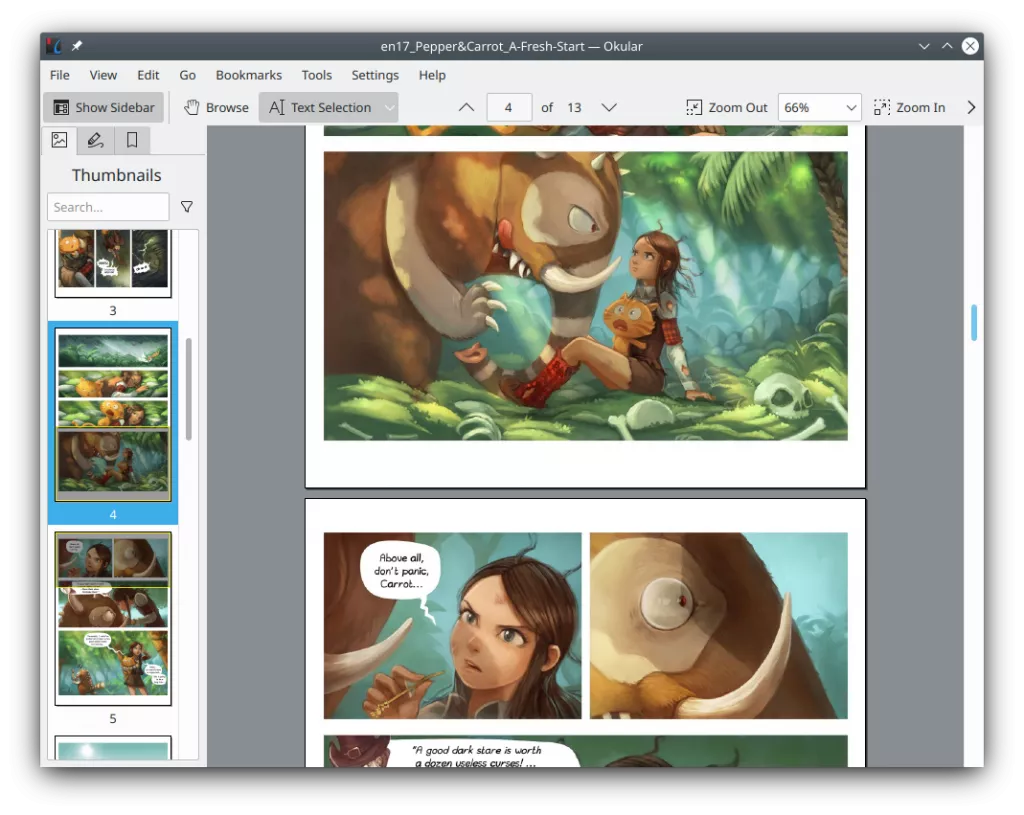
Okular is the safest default recommendation for most Linux users. It is available through the software stores of most Linux distributions and supports PDF navigation, search, annotations, forms, printing, and several non-PDF document formats. Its main boundary is content editing: annotations can be added, but it is not designed to rewrite the original text and images already embedded in a PDF.
The official Okular download page recommends installing it through Discover, GNOME Software, or the distribution's software store. This makes it easier to receive updates from the package source you already trust.
2. Xreader — Best PDF Reader for Linux Mint
Best for:
- Linux Mint users who want a familiar, uncomplicated viewer for opening, searching, navigating, and printing PDFs.
Not for:
- You need extensive markup tools, stylus notes, OCR, or direct text editing.
Xreader is maintained by the Linux Mint project and is the natural first choice for Mint users. It handles PDF and PostScript documents, supports text search, copying, document outlines, bookmarks, password-protected files, and printing. It is a reader rather than a complete editor, which keeps the interface simple but limits advanced PDF changes.
The official Xreader project recommends installing it through the system package manager. Users searching specifically for a Linux Mint PDF reader should try the installed Xreader app before adding another tool.
3. Papers / Evince — Best for GNOME Desktops
Best for:
- GNOME users who want a clean document viewer that follows their desktop environment.
Not for:
- You need extensive PDF editing or a workflow centered on advanced annotations.
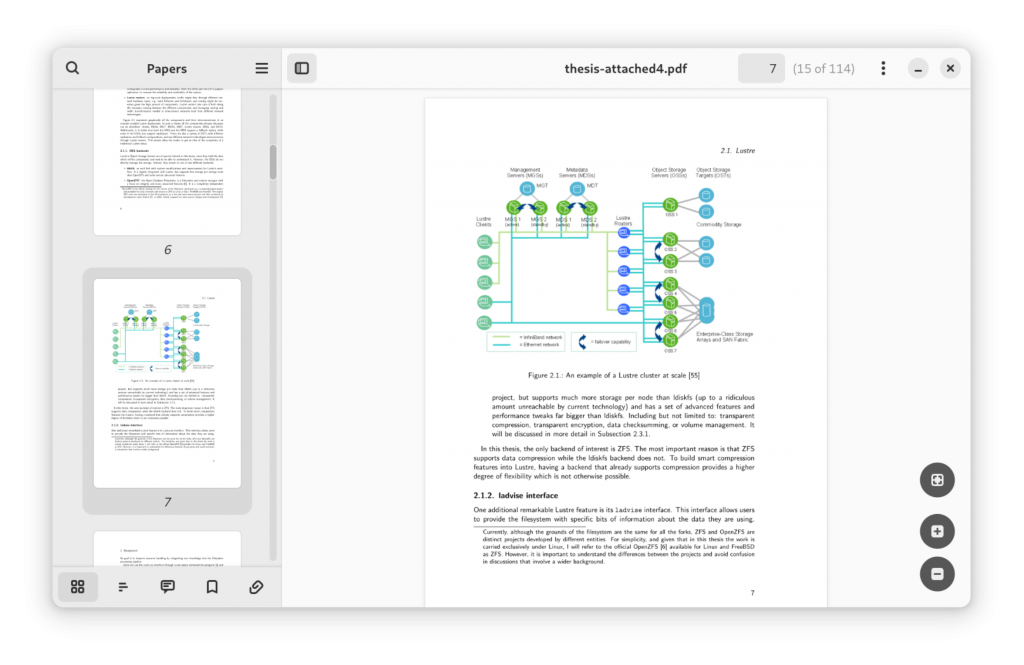
Papers is the current GNOME Document Viewer and replaced Evince as the default viewer in GNOME 49. Older distributions may still provide Evince, so the name users see depends on their GNOME and distribution version. Treat both as streamlined readers rather than full PDF editors.
This naming difference matters when following older tutorials: a guide may say Evince while a current GNOME installation shows Papers or simply Document Viewer. The GNOME 49 release notes confirm the change.
4. Firefox — Best No-Install PDF Viewer on Linux
Best for:
- Opening a PDF quickly, filling common forms, or adding lightweight annotations without installing a separate PDF app.
Not for:
- You manage long documents every day or need OCR, page organization, or direct editing of existing PDF text.
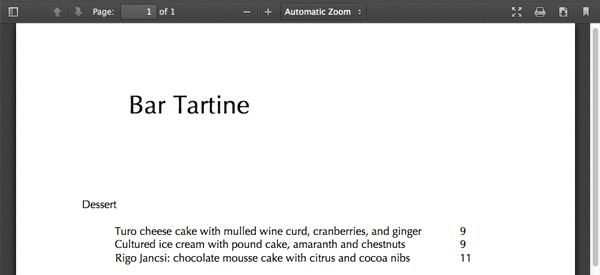
Firefox's built-in PDF viewer now does more than display documents. It can fill supported form fields and add text, drawings, highlights, comments, images, and a visible signature before saving a new copy. The signature is an annotation, not a certificate-based digital signature, so it should not be treated as identity verification.
Mozilla documents these capabilities in its current Firefox PDF Viewer guide. Firefox is therefore a credible default for occasional PDF work, not a viewing-only fallback.
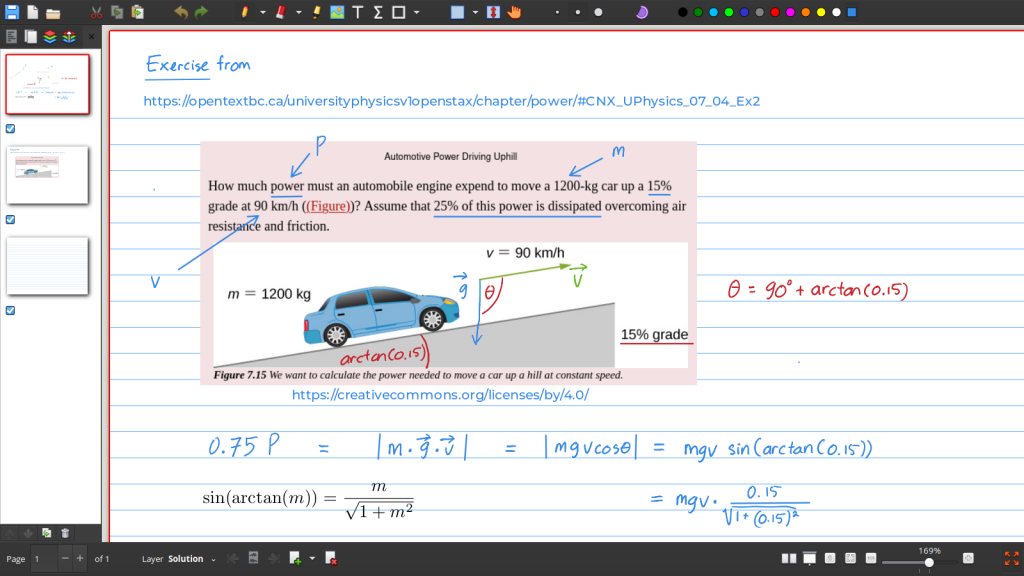
5. Xournal++ — Best for Handwritten PDF Notes
Best for:
- Students, teachers, and tablet users who annotate PDFs with a stylus or add diagrams and handwritten notes.
Not for:
- You need to preserve and continue editing every native annotation or interactive form already stored in the original PDF.
Xournal++ uses a PDF as the background of a separate journal, making it especially useful for handwriting, highlighting, shapes, text boxes, and pen input. Its editable working file is saved separately in the Xournal++ format. When exported back to PDF, the added annotations are flattened, and built-in PDF notes or forms may not be preserved.
That limitation is easy to miss if you expect Xournal++ to modify the original PDF annotation structure. Read the official Xournal++ PDF guide before using it for a form or a document that must remain editable.
If your task is specifically adding a signature rather than general note-taking, see the separate guide to signing a PDF in Linux.
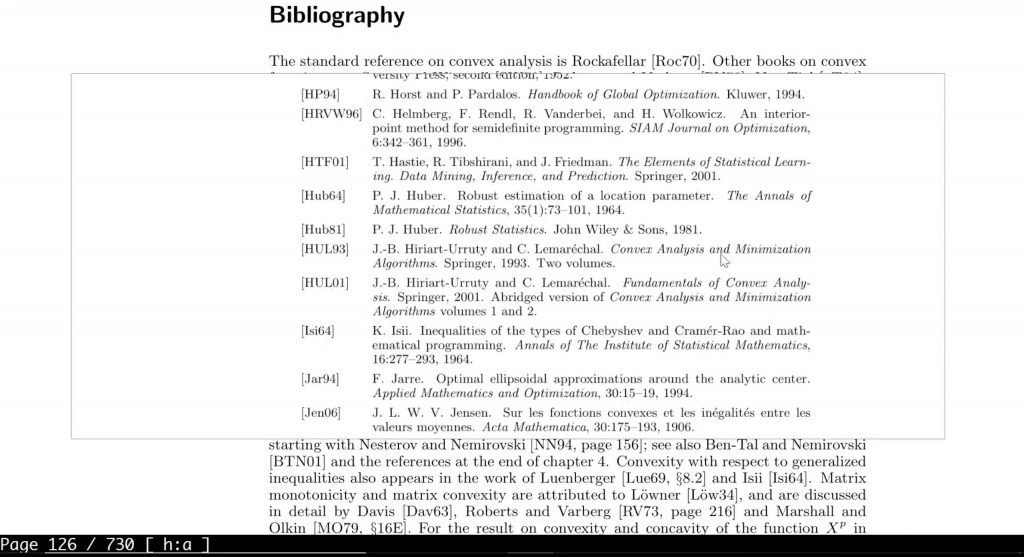
6. Sioyek — Best for Research Papers and Technical Books
Best for:
- Researchers and technical readers who frequently follow references, definitions, figures, and links across long papers.
Not for:
- You want a conventional office-style interface or need to edit the document itself.
Sioyek is designed specifically for research papers and technical books. Its workflow emphasizes navigating references and revisiting connected passages rather than general PDF editing. This makes it a stronger specialist choice than a basic viewer for academic reading, but less suitable for users who only want familiar menus and buttons.
The focus is stated clearly in the official Sioyek documentation. Choose it for the reading workflow, not because you expect an Acrobat-style editor.
7. Zathura — Best Keyboard-Driven Linux PDF Viewer
Best for:
- Keyboard-focused users, developers, and LaTeX writers who need SyncTeX and automatic document reloading.
Not for:
- You prefer a conventional toolbar-driven interface or need a rich visual annotation workspace.
Zathura uses a minimal interface centered on keyboard navigation. It supports bookmarks, quickmarks, encrypted documents, search, printing, automatic reload, and forward and inverse SyncTeX navigation. PDF support is supplied through a Poppler or MuPDF plugin, so installation packages can vary by distribution.
The official Zathura project page also documents its link navigation and configuration options. It is one of the clearest choices when the PDF is an output you repeatedly rebuild from LaTeX.
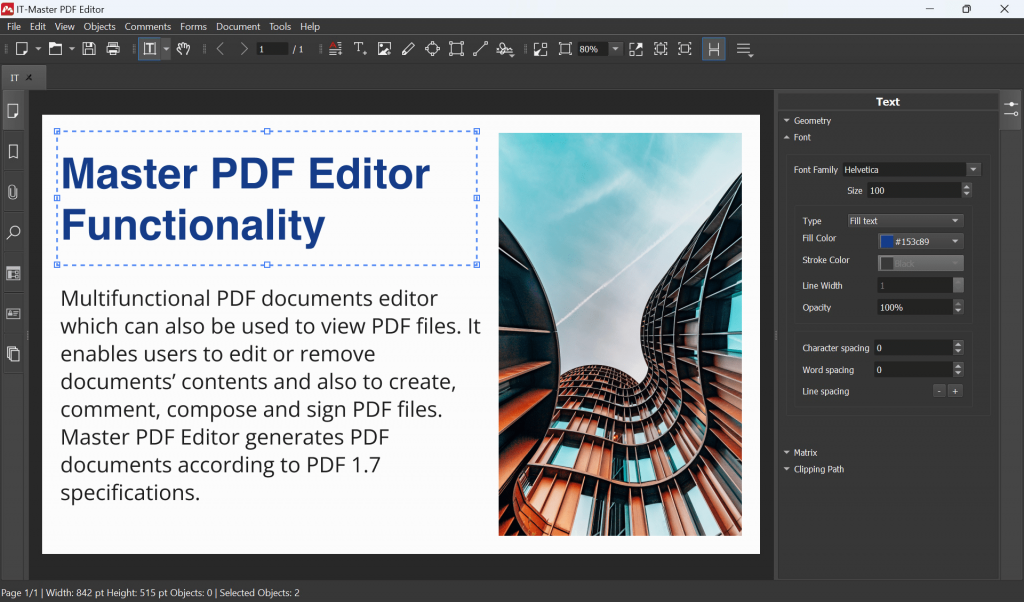
8. Master PDF Editor — Best Full PDF Editor for Linux
Best for:
- Users who must edit existing text and images, create forms, run OCR, manage pages, or apply certificate-based digital signatures.
Not for:
- You only need to read and highlight PDFs, or you want a fully open-source tool.
Master PDF Editor is the most complete editing option in this shortlist. It supports Linux, Windows, and macOS and can modify existing text and objects, create and fill forms, run OCR, manage pages, and work with digital signatures. The demo has no functional restriction other than adding a watermark to output files. A single full-version license currently costs US$79.95 and includes one year of updates and support.
These terms come from the current Master PDF Editor product page and official purchase page. If viewing and annotations are not enough, also compare these native Linux PDF editors for changing text, images, and page content.
Linux PDF Reader Comparison
| Linux PDF reader | Best use | Annotations | Forms | Edit existing text | Main limitation |
|---|---|---|---|---|---|
| Okular | Best overall | ✓ | ✓ | ✗ | Not a full content editor |
| Xreader | Linux Mint | Limited | Limited | ✗ | Few advanced tools |
| Papers / Evince | GNOME desktops | Basic | Version-dependent | ✗ | Designed mainly for viewing |
| Firefox | No-install viewing | ✓ | ✓ | ✗ | Limited document-management tools |
| Xournal++ | Stylus notes | ✓ | ✗ | ✗ | Uses a separate journal and flattens exported annotations |
| Sioyek | Research papers | Specialized | ✗ | ✗ | Specialist workflow and learning curve |
| Zathura | Keyboard and LaTeX | Limited | Backend-dependent | ✗ | Minimal interface |
| Master PDF Editor | Full PDF editing | ✓ | ✓ | ✓ | Commercial; demo output is watermarked |
Need a native Linux application? Stay with the eight options above. If you also handle the same PDFs on Windows, macOS, iOS, or Android and need text editing, OCR, conversion, or page management, UPDF can cover that part of your cross-device workflow.
UPDF does not currently offer a native Linux desktop app. Download it only on a supported device; installation is free, and Pro removes the trial watermark from exported files.
Windows • macOS • iOS • Android 100% secure
Where UPDF Fits in a Linux-Centered Workflow
UPDF should not be presented as a Linux PDF reader. It is relevant when a Linux user also owns a supported Windows, macOS, iOS, or Android device and needs capabilities beyond native Linux viewers, such as editing existing text and images, OCR, conversion, redaction, or page organization.
For example, you can read and annotate a file with Okular on Linux, then perform a larger content edit with UPDF on a supported device. If Linux is your only operating system, choose a native Linux tool from the comparison above instead.
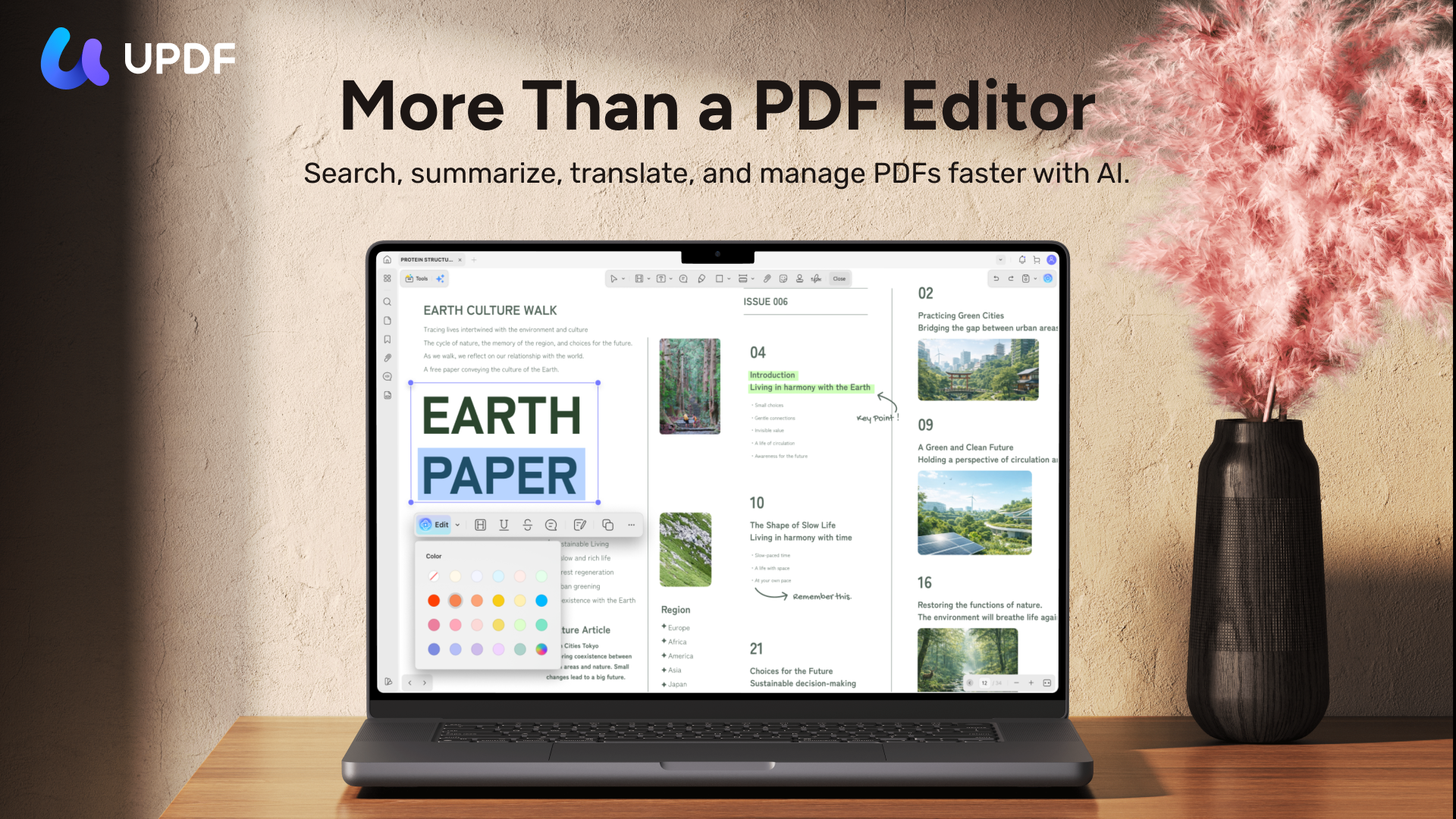
Use UPDF on a supported device to edit or OCR the file. Installation is free, and Pro removes the trial watermark from exported files.
Windows • macOS • iOS • Android 100% secure
FAQs About PDF Readers for Linux
1. What is the best PDF reader for Linux?
Okular is the best overall choice. It covers viewing, navigation, search, printing, annotations, and forms without pretending to be a full text-and-image editor. A specialist tool may be better for stylus notes, research papers, or LaTeX.
2. What is the default PDF reader in Linux Mint?
Linux Mint uses Xreader. It is maintained by the Linux Mint project and handles everyday viewing, search, navigation, password-protected documents, and printing. Install another reader only when Xreader lacks a feature you need.
3. Does Adobe Acrobat Reader work on Linux?
There is no current native Linux app. Adobe's current Reader system requirements list Windows and macOS for desktop installations. Do not follow old tutorials that install Reader 9.5.5 from discontinued download locations.
4. Does Foxit PDF Reader support Linux?
Not as a current consumer desktop app. Foxit's current Reader page lists Windows, macOS, iOS, Android, and web access. Foxit offers a Linux SDK for developers, but that is not the downloadable desktop reader most users are looking for.
Conclusion
Okular is the best starting point for most people looking for a PDF reader for Linux. Xreader is the natural choice on Linux Mint, Papers fits current GNOME desktops, Firefox handles quick no-install viewing and markup, and Xournal++ is better for handwritten notes. Sioyek and Zathura serve more specialized research and LaTeX workflows, while Master PDF Editor is the strongest option here for editing existing PDF content.
If your PDF workflow extends beyond Linux, use UPDF on Windows, macOS, iOS, or Android for editing, OCR, conversion, and page management. Installation is free, and Pro removes the trial watermark from exported files.
Windows • macOS • iOS • Android 100% secure







 Enola Davis