UPDF
UPDF
 UPDF for Windows
 UPDF for Mac
 UPDF for iPhone/iPad
 UPDF for Android
 Nomostar
 UPDF AI Online
 UPDF Sign
 IvyCraft
 Edit PDF
 Annotate PDF
 Create PDF
 PDF Form
 Edit links
 Convert PDF
 OCR
OCR PDF to Word
 PDF to Image
 PDF to Excel
 Organize PDF
 Merge PDF
 Split PDF
 Crop PDF
 Rotate PDF
 Protect PDF
 Sign PDF
 Redact PDF
 Sanitize PDF
 Remove Security
 Read PDF
 UPDF Cloud
 Compress PDF
 Print PDF
 Batch Process
 About UPDF AI
 UPDF AI Solutions
 AI User Guide
 FAQ about UPDF AI
 Summarize PDF
 Translate PDF
 Chat with PDF
 Chat with AI
 Chat with image
 PDF to Mind Map
 Explain PDF
 PDF AI Tools
 Image AI Tools
 AI Chat Tools
 AI Writing Tools
 AI Study Tools
 AI Working Tools
 Other AI Tools
 AI Bookmark Generation
 AI Bookmark Summary
 AI Watermark Generation
 AI Background Generation
 AI Sticker Generation
 AI Stamp Generation
 AI Editing Suite
 UPDF Copilot
 AI Page Management
 AI Semantic Search
 PDF to Word
 PDF to Excel
 PDF to PowerPoint
 Enterprise Solution
 Enterprise Sign
 Enterprise AI
 Enterprise Plan
 Enterprise User Guide
 Enterprise Webinar
 IT
IT Education
 Construction
 Financial Service
 Healthcare
 Insurance
 Legal
Legal Manufacturing
 Government
 Researchers & PhDs
 Solopreneurs & Freelancers
 Lawyers & Legal Professionals
 Real Estate Agents & Brokers
 Education Solution
 Customer Stories
 User Guide
 UPDF Tricks
 FAQs
FAQs UPDF Reviews
 Download Center
 Blog
Blog Newsroom
 Tech Spec
 Updates
 UPDF vs. Adobe Acrobat
 UPDF vs. Foxit
 UPDF vs. PDF Expert

Quick answer:
I had a folder of PDFs I needed to get onto a website — and every converter I tried turned them into either a wall of fused text or a mess of junk-filled code that fell apart the moment the browser resized. If you're trying to move PDF content into a web page, a CMS, or an archive and the output keeps breaking, you've hit the same thing I did.
The single biggest predictor of a good conversion isn't the tool's brand — it's whether the engine rebuilds layout with real CSS or fakes it with hard-coded spacing. The hard-coded ones look fine until the page resizes, then shatter. I graded all ten on exactly that.
Part 1. How I Picked the Test File (and Graded Each Tool)
Most PDF to HTML converters look fine on a plain, single-column file — a contract, an essay, a text-and-tables report — because the engine just splits text and images and wraps them in tags. The differences only show up under a little more structure. So I used a standard text-heavy, flowing document — the kind of plain-text file most people actually convert. The test file (an extract of Romeo and Juliet) is nothing exotic; it's ordinary flowing text with the everyday structure that quietly trips converters up: centered titles, left-aligned body text, hanging indents, hard line breaks, and tight line spacing. If a converter can hold that together, it can handle the documents you convert every day.
A note on design-heavy PDFs:
Every tool below got the same source file and was judged on five things, not on marketing claims:
| Criterion | What it measures |
|---|---|
| Text fidelity | Is every character preserved — no dropped letters, no garbling? |
| Line-break / hard-break handling | Are the document's hard line breaks kept, or fused into one long paragraph? |
| Indent & alignment | Are hanging indents and centered titles preserved, or flattened left? |
| DOM order | Do elements stay in the right reading order (e.g. an intro line under its heading, not above it)? |
| Code cleanliness | Is the HTML clean CSS, or junk-filled hard-coded spacing that breaks on resize? |
A quick map before the details: if you want layout that looks identical to the PDF, CloudConvert, Convertio, and Codex scored highest. If you want clean, lightweight code to build on, pdftohtml and Codex lead. If you want a finished, polished web reading experience, Claude went furthest — with one caveat. And if you want an all-in-one desktop PDF tool that also edits, OCRs, and batch-converts whole folders to HTML afterward, UPDF is the practical pick.
Part 2. The 10 PDF to HTML Converters, Ranked by What They Preserve
1. UPDF — Best All-in-One Converter
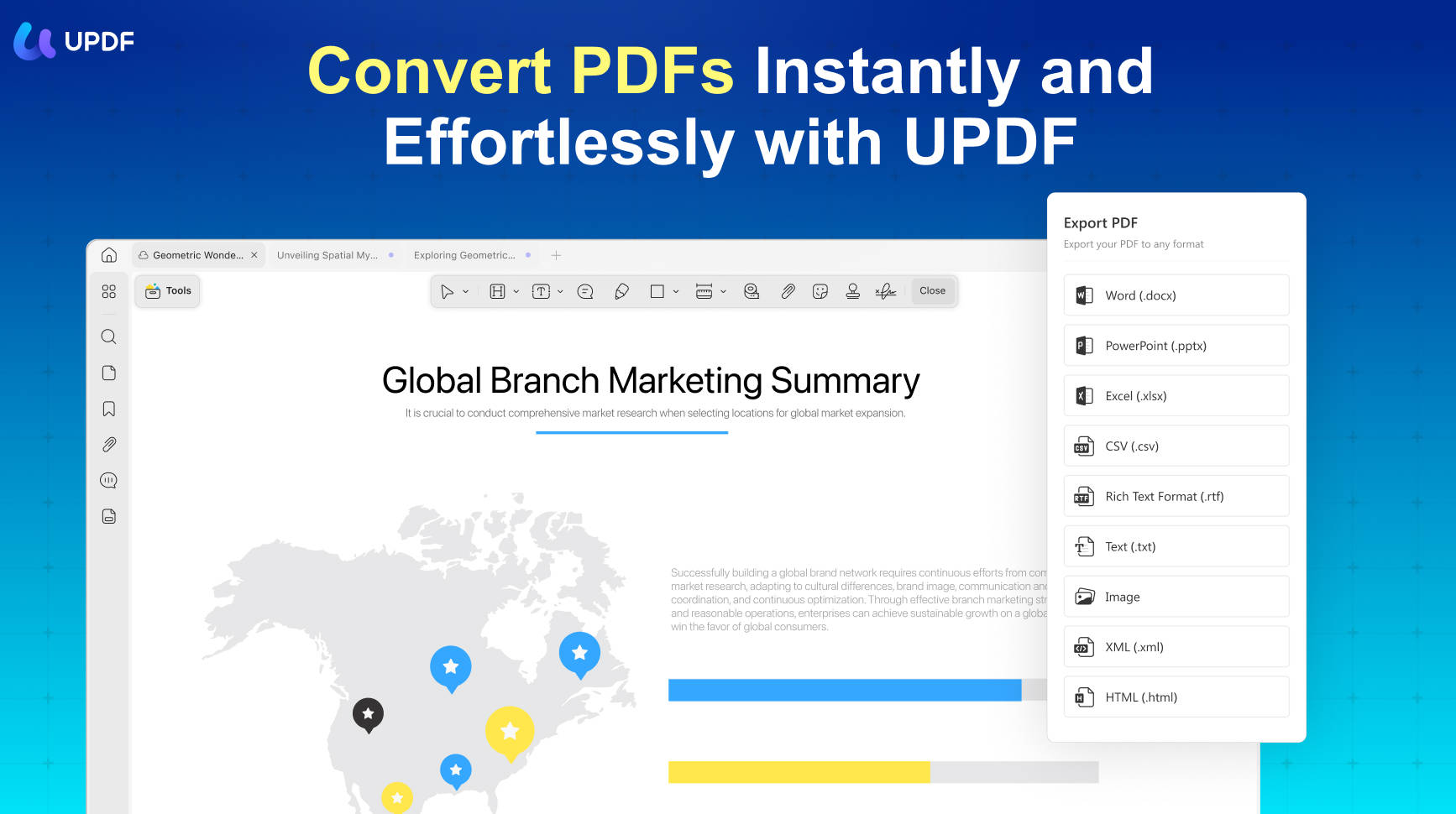
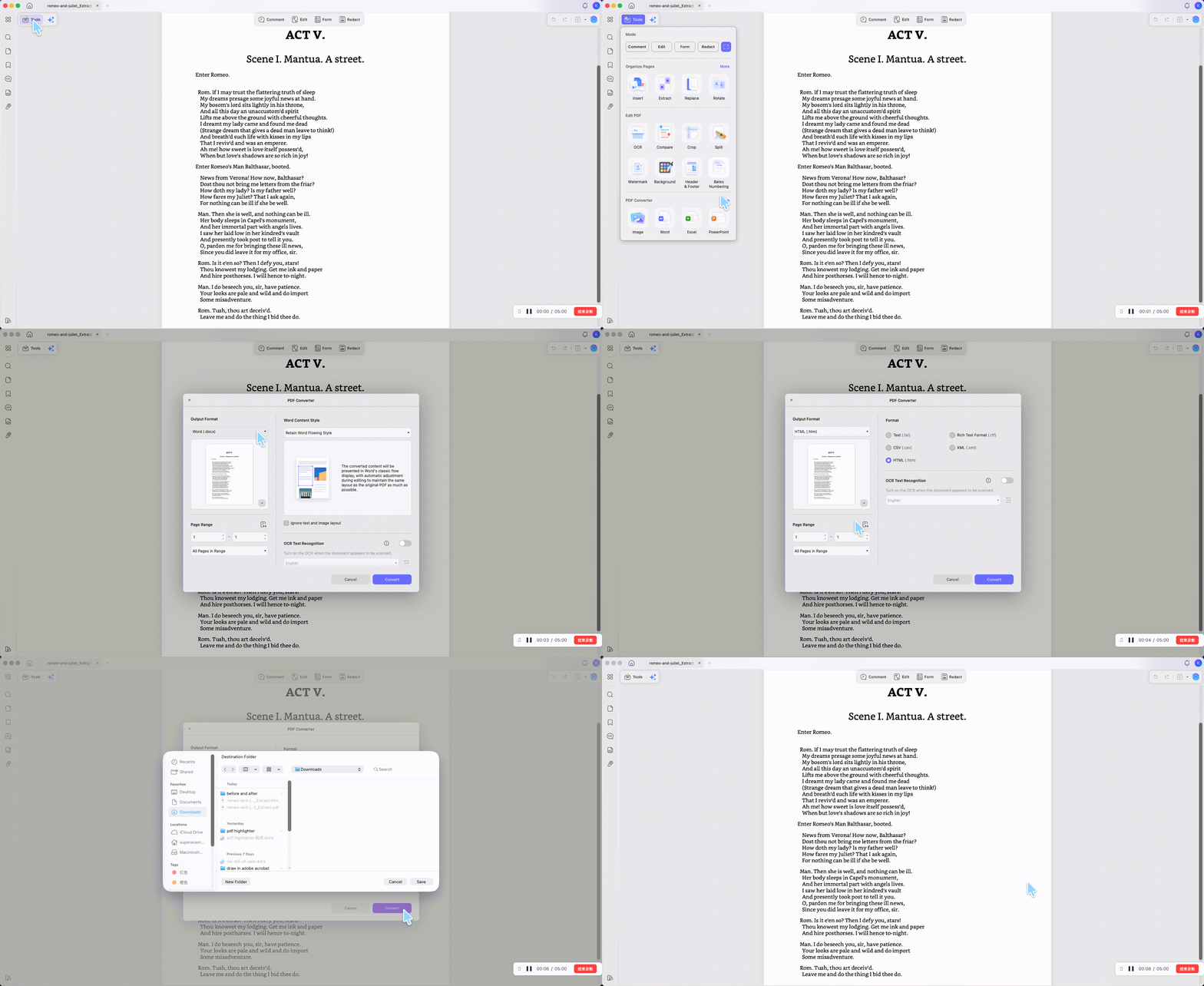
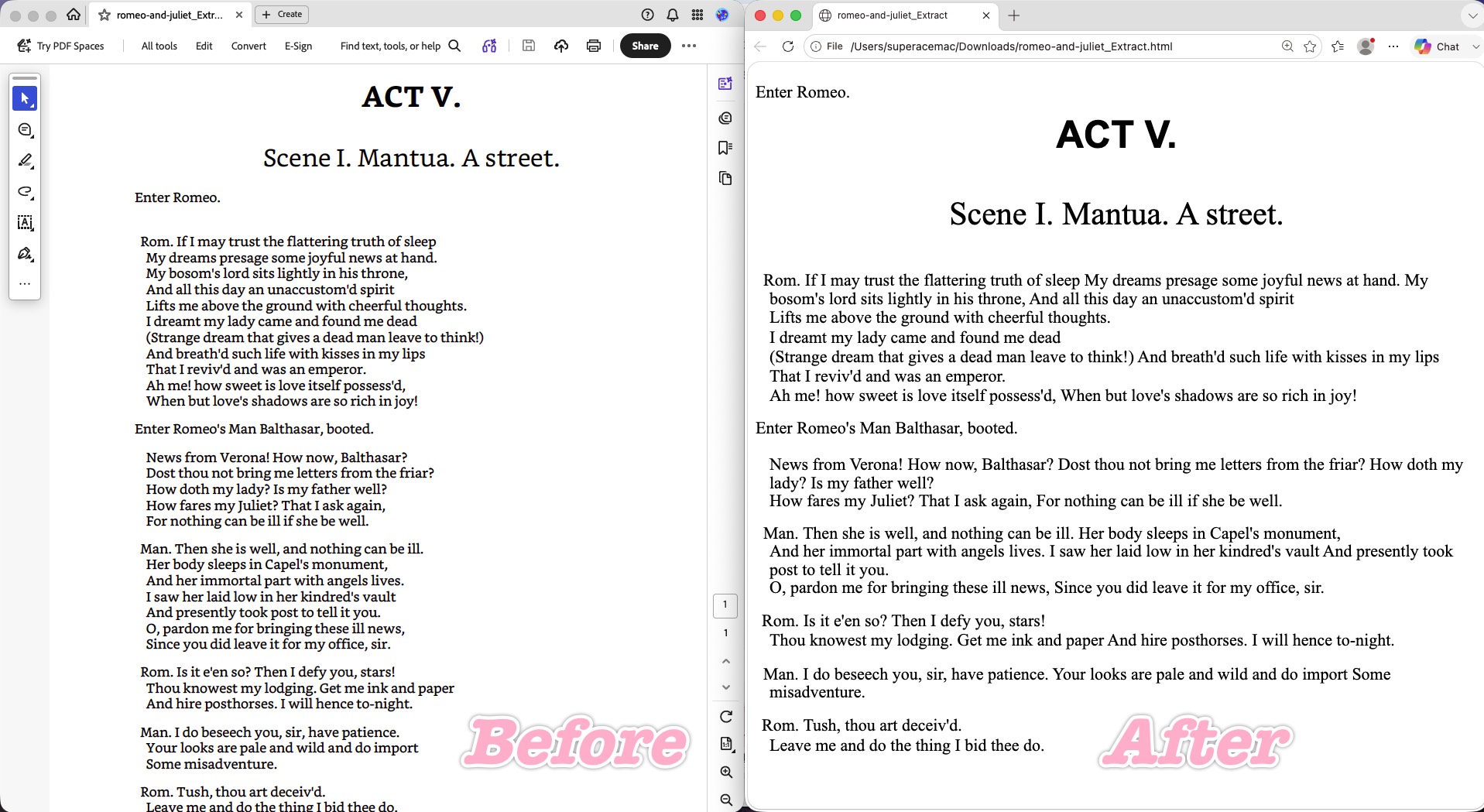
UPDF is a PDF editor available on Windows, Mac, iOS, and Android; on desktop, conversion is one tool among many — edit, OCR, annotate, and export all live in the same app, so you're not bouncing between a converter and an editor. It also handles bulk work locally: if you have a folder of 30 PDFs to put online, UPDF's Batch Process can turn the whole set into HTML in one pass on your own machine — no per-file uploading. For the export menus and OCR preparation, follow the step-by-step PDF to HTML guide.
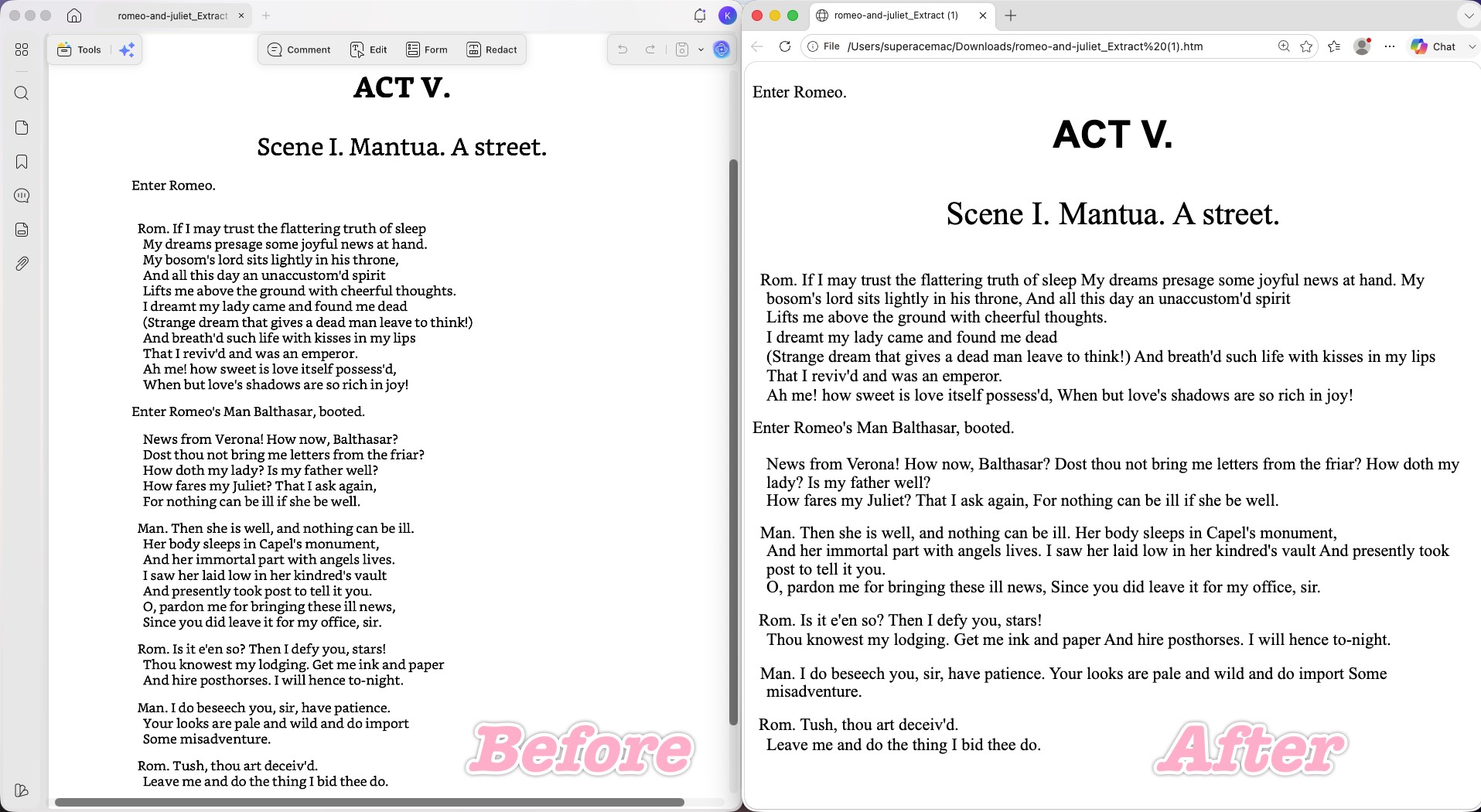
On the text-heavy test, UPDF preserved text content 100% — no dropped characters, no garbling — and correctly kept the heading styling: the title's larger, bold, centered formatting carried over intact.
Where it stumbled: UPDF's paragraph-block (bounding-box) merging is aggressive. Faced with tightly-spaced, left-aligned lines, it treated them as one long article paragraph and merged them. The line-by-line structure collapsed into a dense block of text, which hurt readability whenever the original relied on deliberate line breaks. (Adobe Acrobat, below, made the exact same mistake.)
Best for:
- users who want to convert and then keep working on the file — editing text, running OCR on a scan, or exporting to Word/Excel afterward — without uploading anything to a website.
Skip if:
- your document depends on exact line-by-line layout in the HTML; a block-merging engine isn't built for that.
UPDF's free tier lets you convert and export with a trial watermark, includes 100 free AI uses, and 5 OCR uses; UPDF Pro (US$49.99/year or US$79.99 one-time perpetual) removes the watermark and unlocks all PDF tools. A useful shortcut: dragging a Word, Excel, PowerPoint, or image file straight into the UPDF desktop app auto-converts it to PDF first.
Download UPDF for free to try converting your file and editing the result in the same app — installation is free, and Pro features are available when you need watermark-free export or advanced tools.
Windows • macOS • iOS • Android 100% secure
2. Adobe Acrobat — Strong Text, Same Layout Flaw
Adobe Acrobat Pro (US$19.99/month, billed annually — about US$239.88/year, across Windows, Mac, web, iOS, and Android) is the reference-grade converter, and on raw information it delivered: zero text loss, every line of text intact, and the heading hierarchy (large bold centered "ACT V", subtitle below) well preserved. The head-to-tail page order was correct.
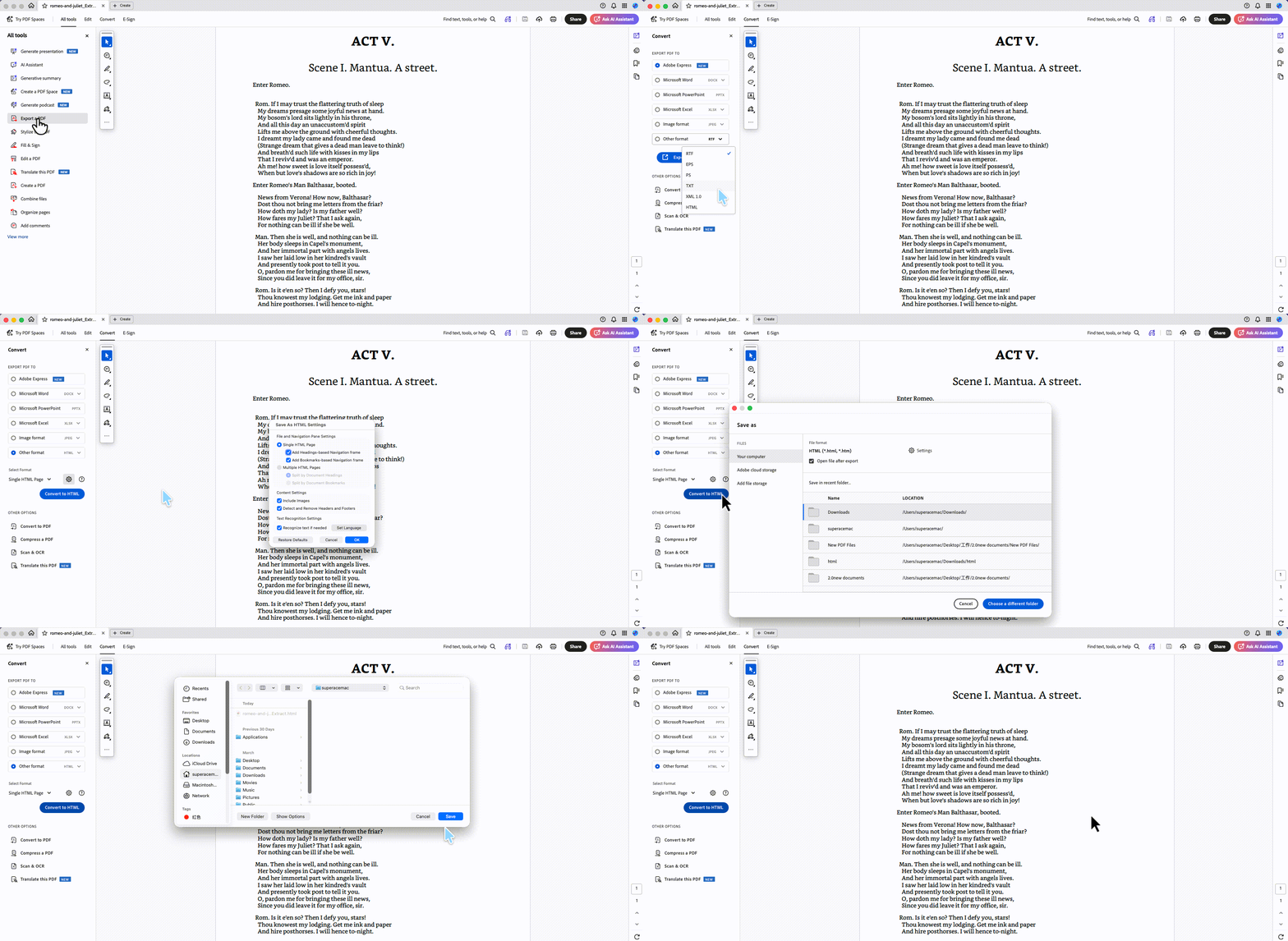
Where it stumbled: Acrobat repeated UPDF's underlying error. With no recognition of intentional line breaks, it strictly followed the "text is left-aligned" rule and stitched lines that should stay separate into continuous paragraphs, destroying the visual layering. It also had one DOM-order glitch — the line "Enter Romeo." that belongs under the title jumped to the very top, above the heading.
Best for:
- users who already pay for Acrobat and need reliable, complete text extraction from standard documents.
Skip if:
- you're price-sensitive (Adobe no longer offers a perpetual license), or your document depends on exact line-by-line layout — its engine flattens it.
3. Microsoft Word — Tries to Keep Layout, Drowns in Junk Code
Opening the PDF in Microsoft Word and saving as HTML produced a genuinely different parsing logic from Adobe and UPDF — and a more interesting failure.
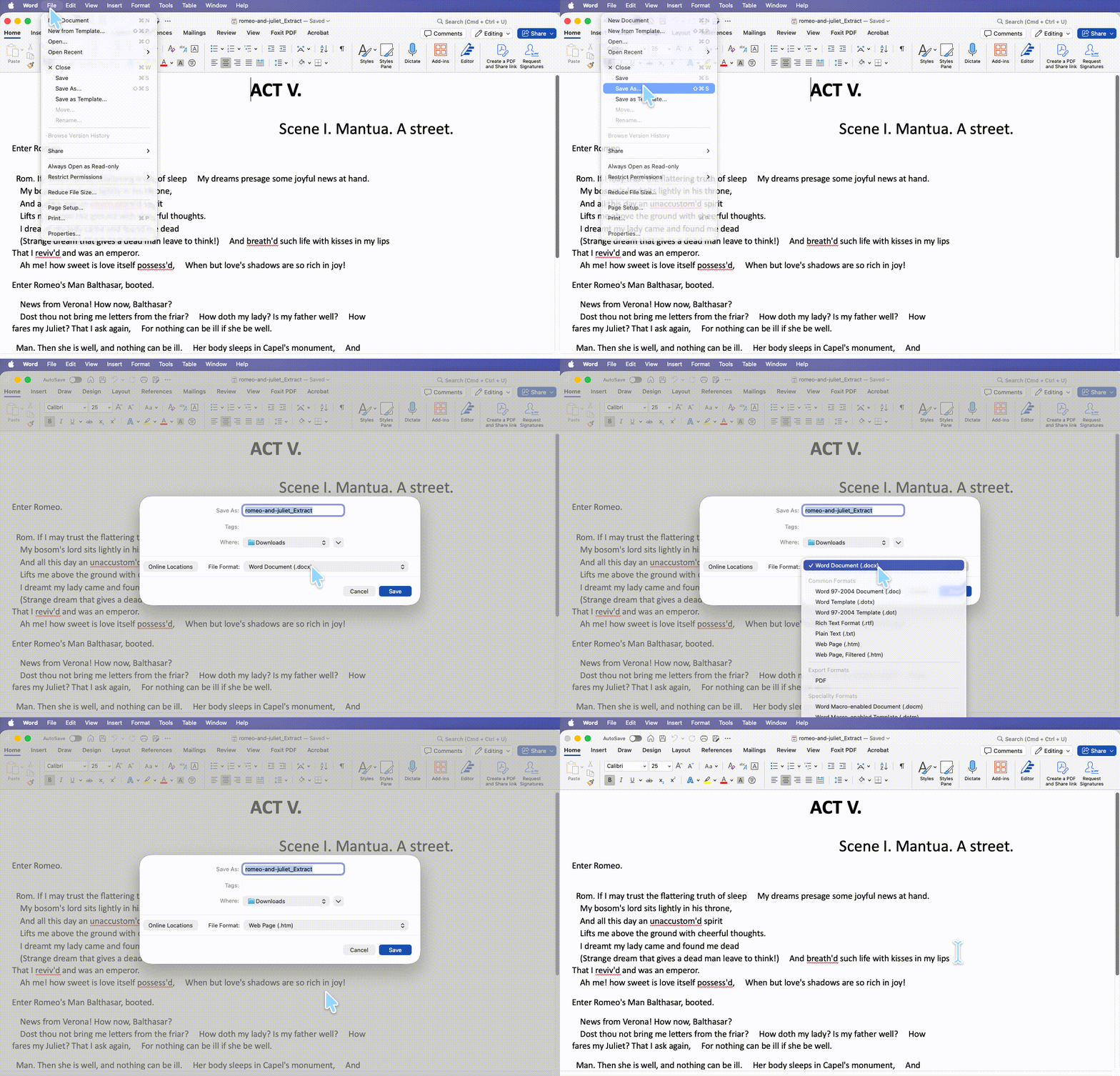
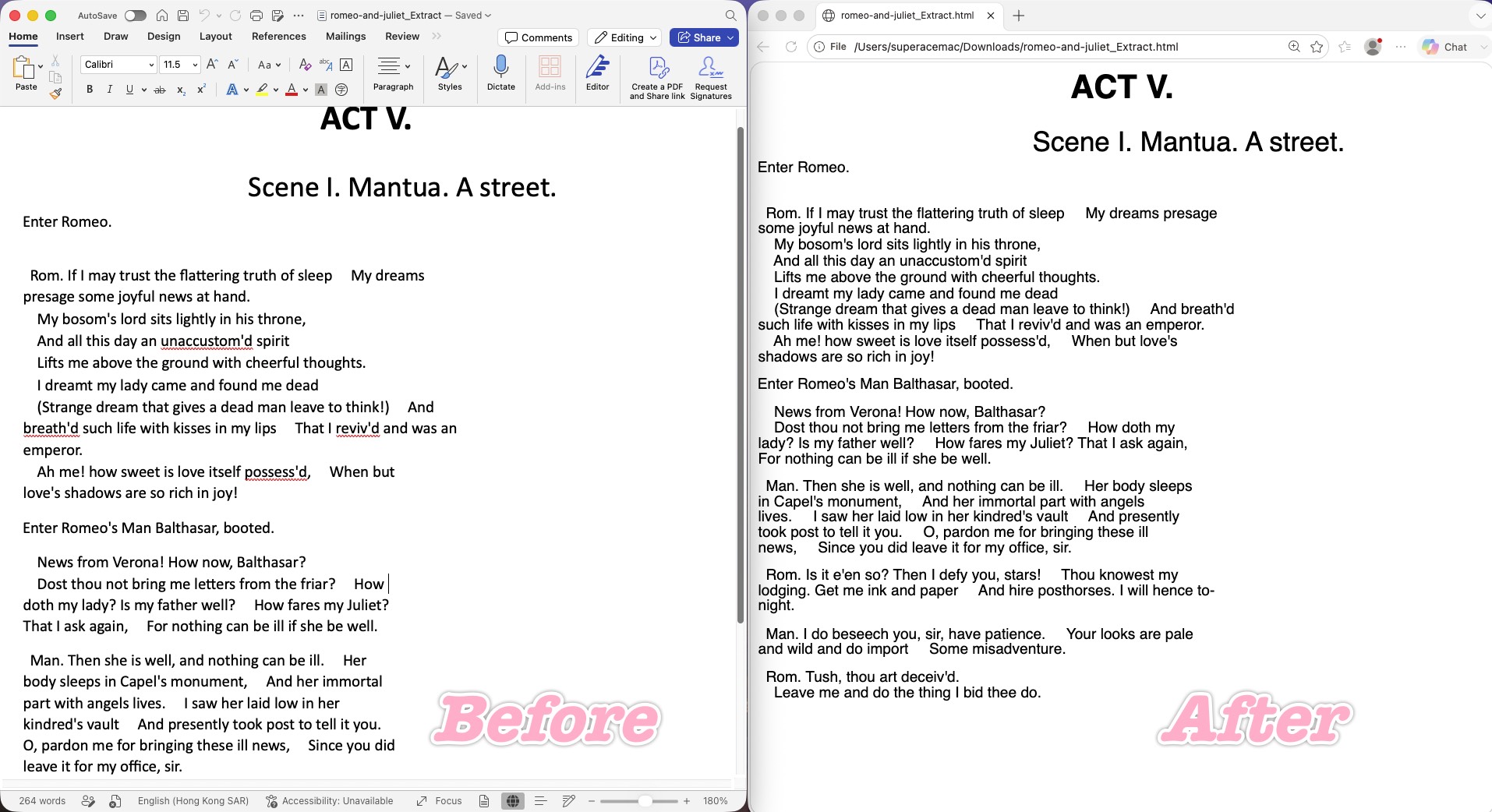
The upside: Word respected the breaks. The hard line breaks in the body mostly survived rather than fusing into one article, and Word even attempted to preserve the hanging indent, trying to keep the document's visual hierarchy.
Where it stumbled — badly: Word doesn't implement layout with clean CSS. It "rebuilds" the look with hard-coded spacing and absolute positioning, so the page fractures at different resolutions. It invented phantom gaps — a huge blank space appeared mid-line where the original had only a normal line break, because Word miscalculated text-block coordinates and dumped hard-coded spacing in. Continuous text also broke mid-phrase ("presage / some") because the exported HTML carries heavy junk tags and a fixed width restriction, so the moment a browser renders it slightly narrow, text snaps awkwardly.
Best for:
- a one-off where you have Word open and just need a rough HTML copy you'll clean up.
Skip if:
- the HTML has to be responsive or maintainable — the code is too bloated to build on.
4. CloudConvert — Near-Perfect Visual Replica
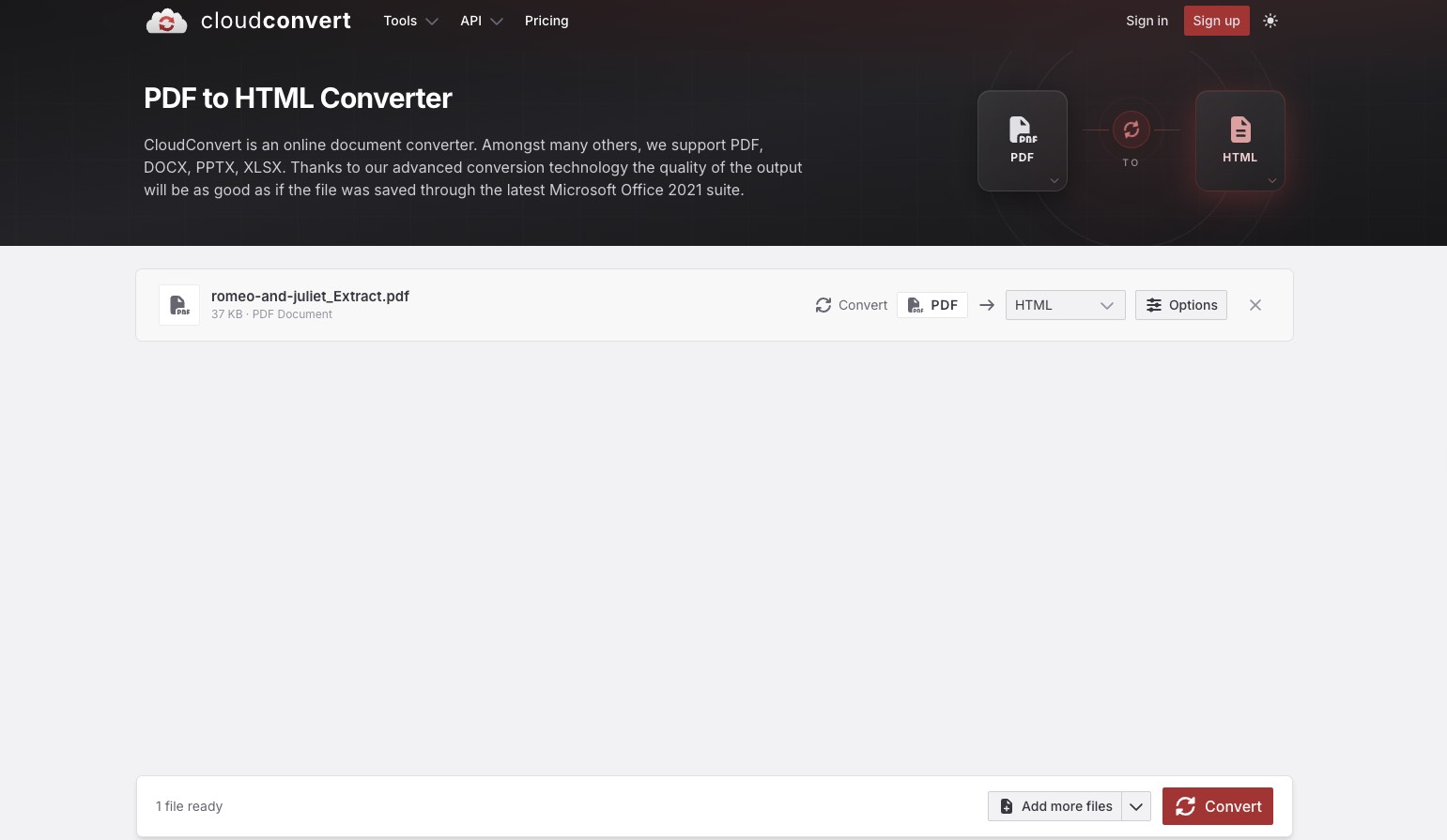
CloudConvert is an online converter (free tier 10 conversions/day with a 5-minute processing cap; paid plans run on conversion credits, packages from ~US$8). On the text-heavy test it produced one of the cleanest visual replicas of the whole field.
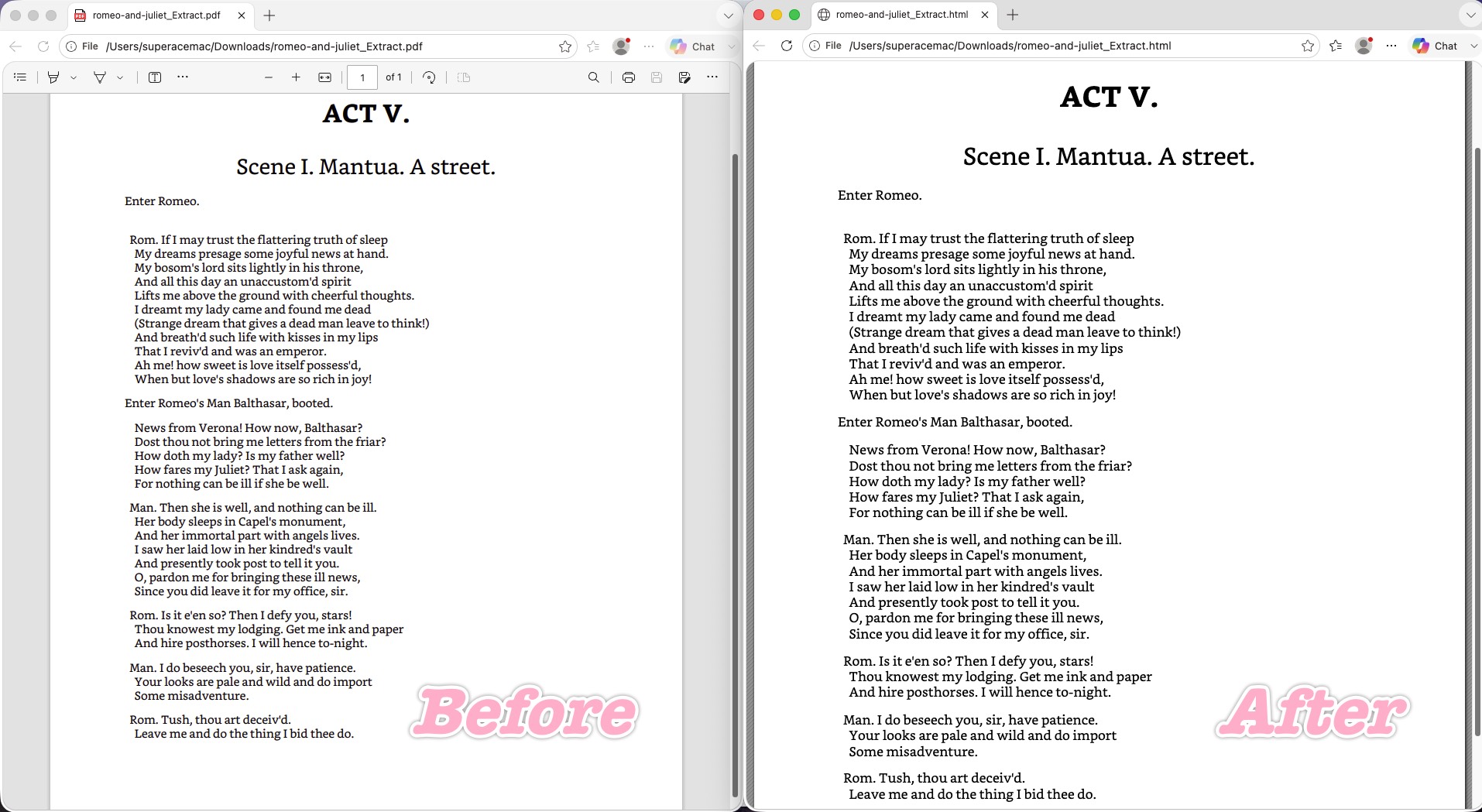
It preserved the hard breaks at 100% — every line and independent break matched the original PDF exactly, keeping the reading rhythm intact. It nailed the hanging indent: the deeply indented passage ("News from Verona!...") kept its block-level indentation cleanly, achieved through sensible CSS rather than Word's junk spacing, so the page stays roomy and doesn't snap on resize. And it broke the "first-line drift" curse — the "Enter Romeo." line sat obediently below the title, exactly where it belongs, showing a rigorous DOM tree even when centered headings and left-aligned body text are interleaved.
Best for:
- anyone who wants the HTML to look like the PDF — line breaks, indents, and reading rhythm preserved — without installing software.
Skip if:
- you handle sensitive files and don't want to upload them, or you need a desktop tool that also edits the result.
5. Convertio — Pixel-Faithful, but Drags in a Junk Sidebar
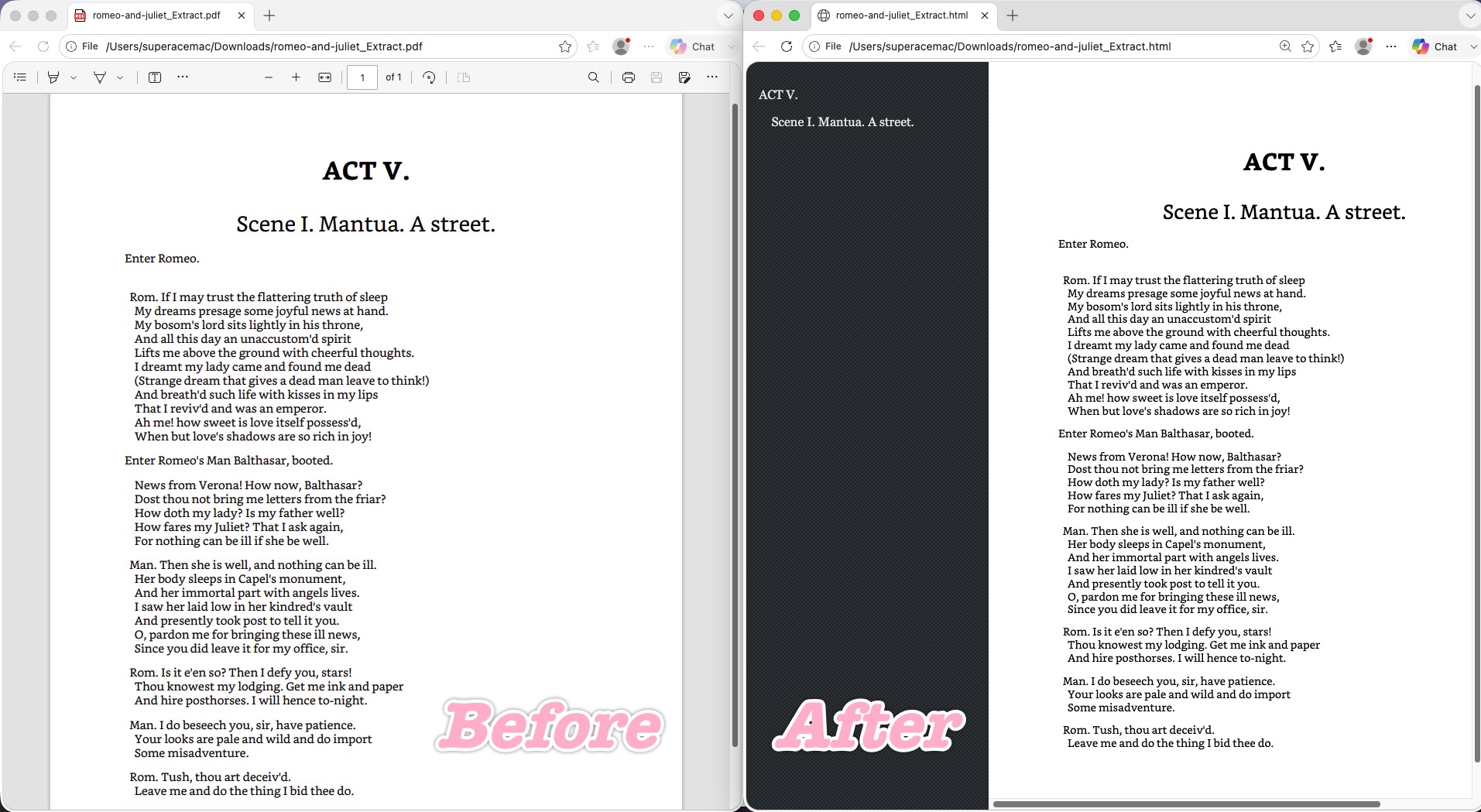
Convertio is another online converter (free tier: 10 conversion minutes/24h, 100 MB max file; paid plans Lite $11.99, Basic $22.99, and Pro $44.99 per month, with the Pro annual plan working out to about $25.99/month). Its visual fidelity was almost a one-to-one clone: line breaks and the hanging indent landed in exactly the right places, the "Enter Romeo." drift curse was avoided, and it preserved the font-size and hierarchy gap between "ACT V." and the subtitle nicely.
Where it stumbled: The most visible problem is a large dark gray/black sidebar dumped down the left of the page, with the act title re-rendered in tiny white text at its top. The cause: Convertio's engine mistook the PDF's bookmark/outline (TOC) panel for page content and forcibly rendered it into the web page.
Best for:
- quick, faithful single conversions where you can delete the stray sidebar afterward.
Skip if:
- you need clean output out of the box, or you're converting files with an outline/bookmark panel that the engine will misread.
6. Google Docs — Smart, Clean Reflow with One Word-Wrap Bug
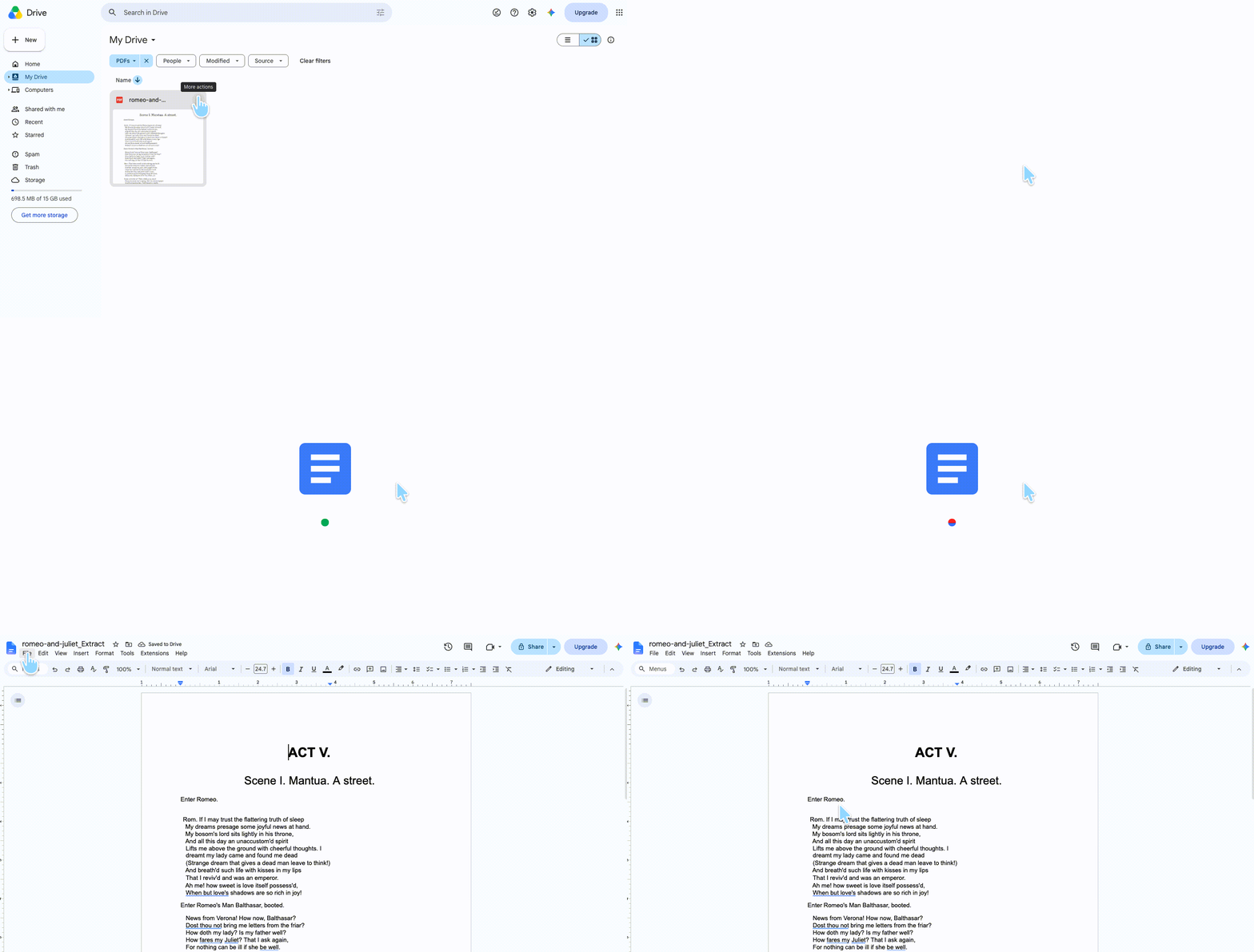
Uploading the PDF to Google Docs and exporting as HTML produced an impressively native HTML reflow — much smarter than Word at the same job.
For the hanging indent ("News from Verona!..."), Google Docs used standard HTML paragraph indentation/padding rather than hard-coded spaces, so the text flows naturally and doesn't break oddly when you resize the viewport. It broke the first-line drift curse — "Enter Romeo." stayed under the centered title — proving strong linear-layout analysis. And it largely preserved the document's hard breaks.
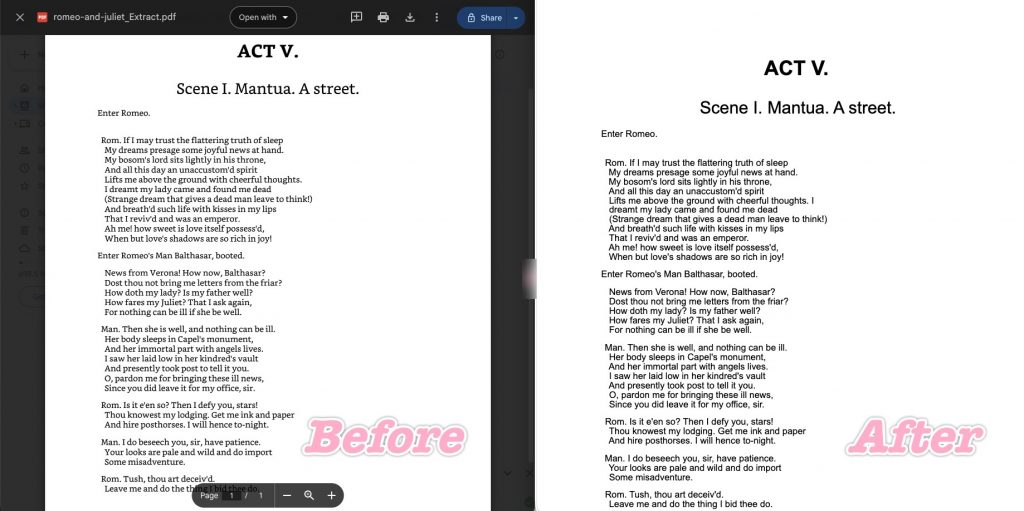
Where it stumbled: a line-wrapping bug. In one passage, a capital "I" that should begin the next line ("I dreamt my lady came...") got yanked up to the end of the previous line (after "thoughts."), so the following line wrongly started with "dreamt." Because "I" is an extremely narrow single-letter word, the bounding-box boundary check shifted and the engine wrongly decided the prior line had room for it. It's a small but real break in textual precision.
Best for:
- a free, no-install conversion where clean, responsive reflow matters more than absolute character-position precision.
Skip if:
- you need exact line integrity for archival or legal text — the word-wrap bug can misplace short words.
7. pdftohtml (Command Line) — Cleanest Code, but No Visual Hierarchy
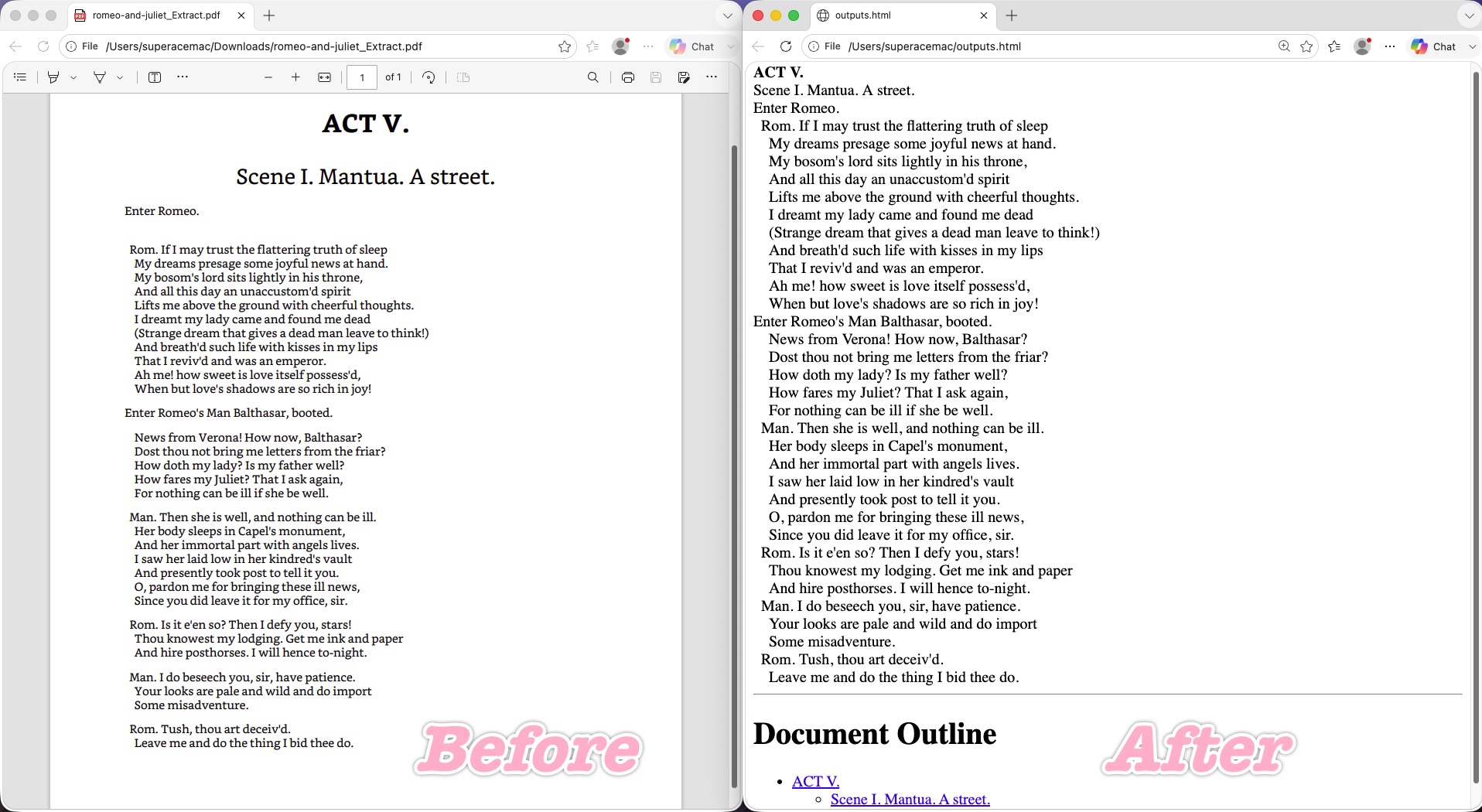
pdftohtml (the Poppler command-line tool, free and open source) exports straight from the PDF's internal text stream, and on the structural basics it did well. The hard breaks were preserved 100% — no single-word fragmentation, no dropped characters, no invented spacing — the hanging indents were kept (each speaker's lines stayed indented under the cue), and the code is about as clean as it gets, with no position: absolute; lock-ins. It even generated a navigable Document Outline of native <a> tags at the page foot, linking to "ACT V." and "Scene I."
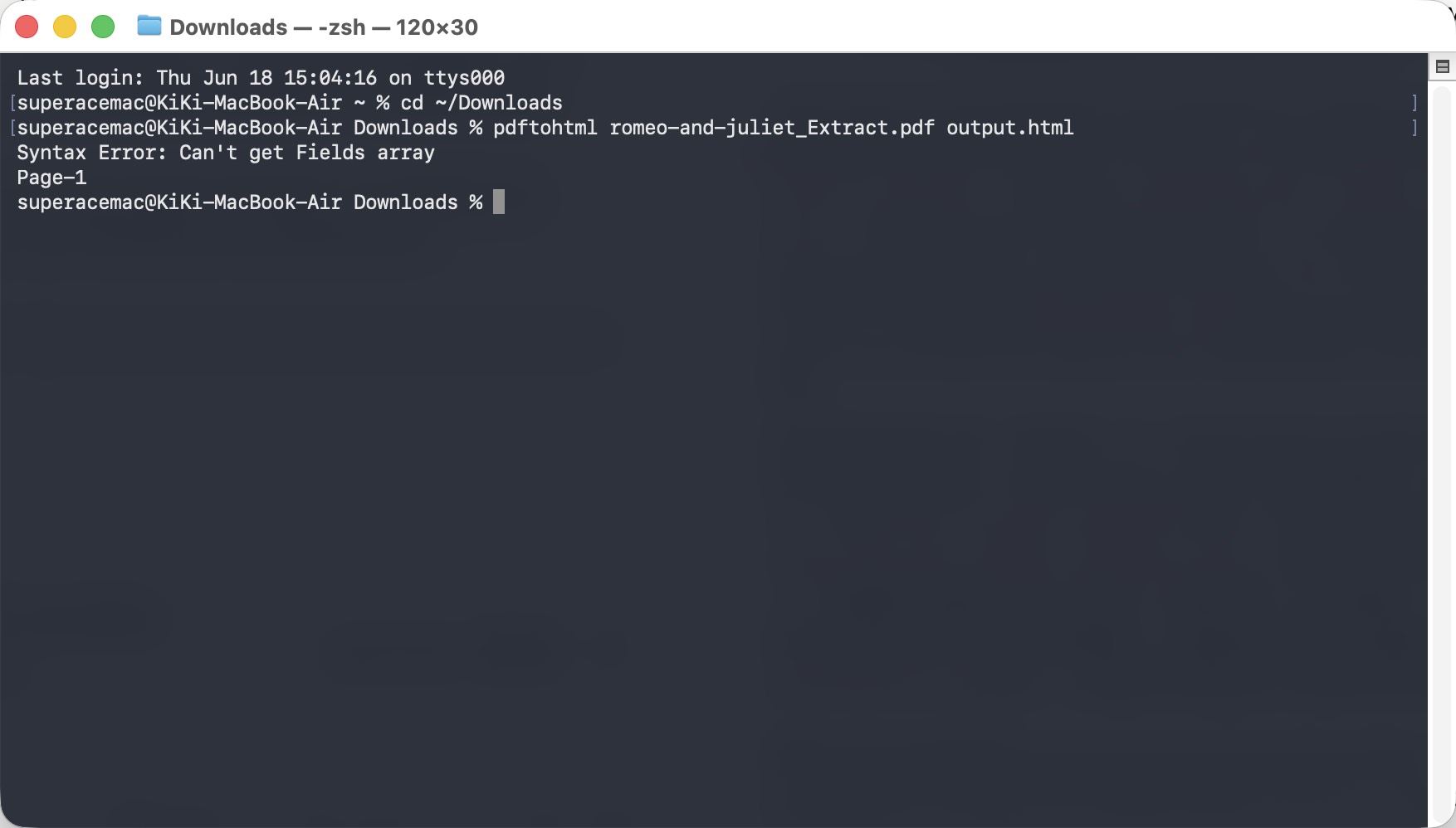
One practical caveat before you reach for it: setup is painless on Mac and Linux but fiddly on Windows. On Mac it's a single brew install poppler; on Linux, sudo apt-get install poppler-utils. Windows has no official installer — you download a third-party Poppler binary, unzip it, and add its bin folder to your PATH (or call the full pdftohtml.exe path every time), which puts it out of reach for anyone not comfortable on the command line.
Where it stumbled: it preserves text layout but drops typographic styling. The centered titles ("ACT V.", "Scene I. Mantua. A street.") were pulled hard to the left margin, and the font-size hierarchy was gone — headings render at the same size and weight as the body, so the page reads as one flat stream of text. You get accurate, correctly-indented text and a clean outline, but the visual hierarchy of the original is lost.
Best for:
- developers on Mac or Linux who want clean, dependency-free HTML text and intend to apply their own CSS.
Skip if:
- you're on Windows and don't want the PATH/binary setup, or you need the converted page to look like the original without writing styling yourself.
8. Claude — The "Editor" That Rebuilds the Document Beautifully
Feeding the PDF to Claude (an AI model) produced the most polished reading experience of the entire field — it behaved less like a converter and more like an editor cleaning up the document.
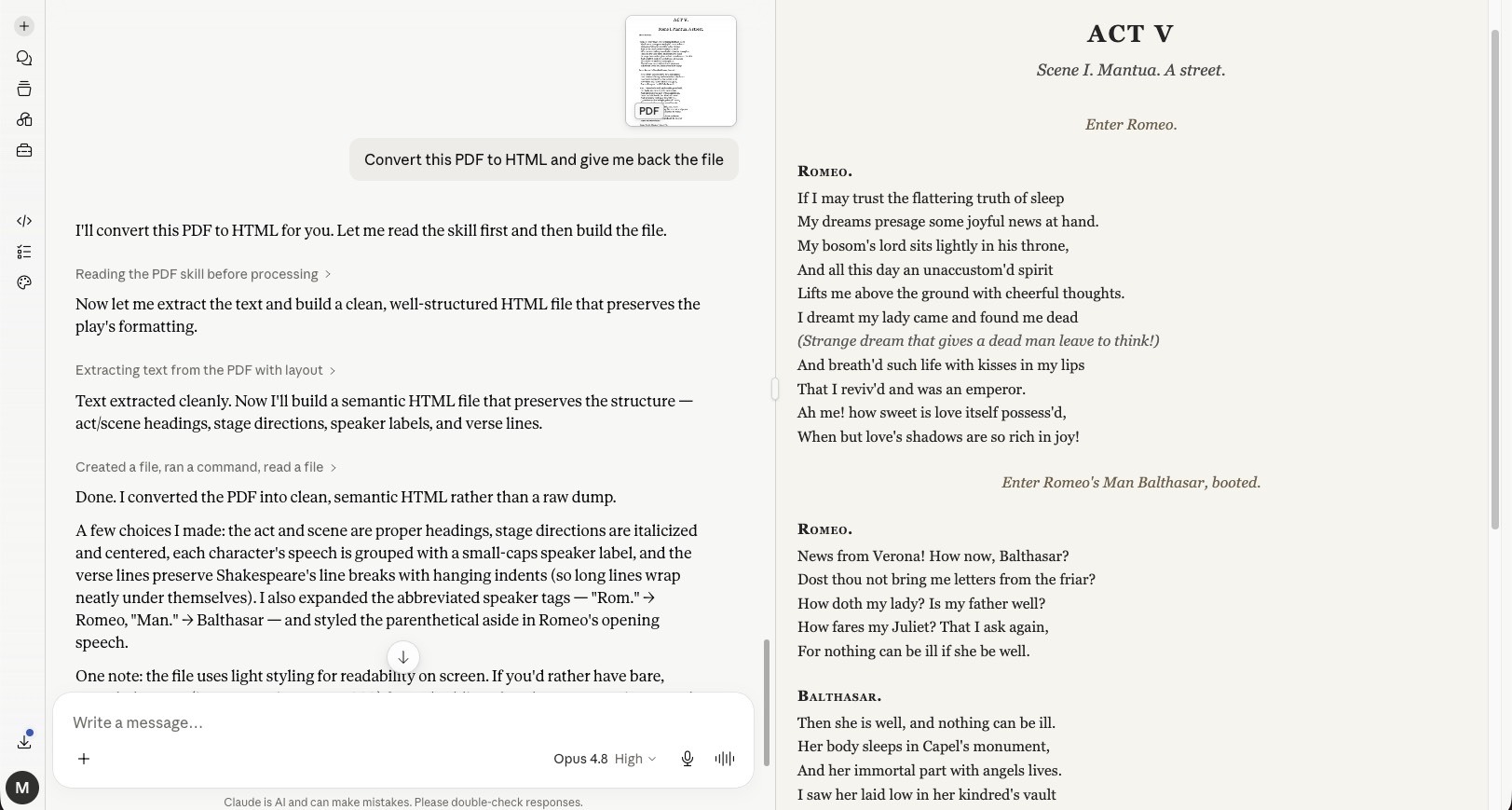
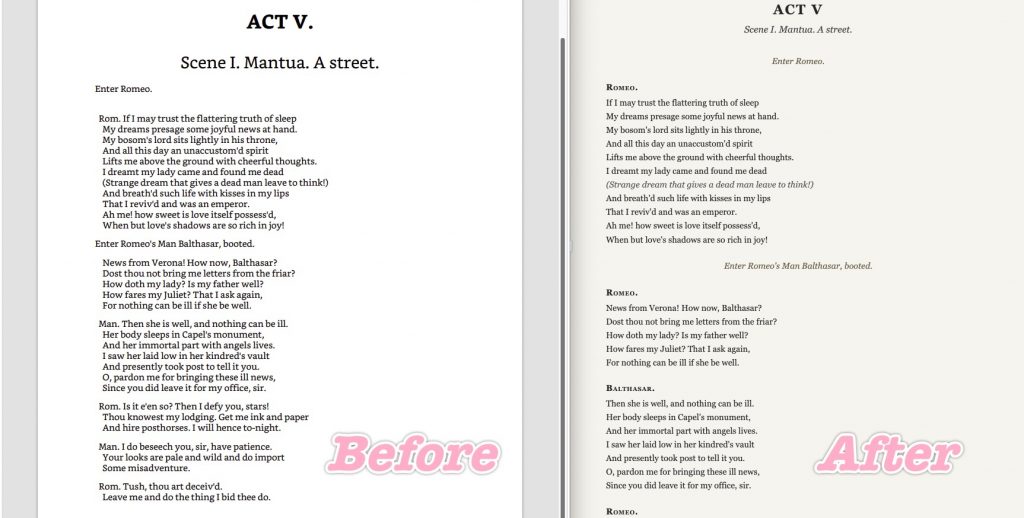
It intelligently normalized the speaker labels: cramped abbreviations like "Rom." and "Man." were promoted to their own lines, expanded to full names (ROMEO., BALTHASAR.), and styled in bold small-caps. It was the only tool that used context to recognize that "Man." referred to Balthasar and filled in the full name. It rendered modern, responsive hanging indents via real CSS (negative text-indent with padding-left), so long lines wrap and align cleanly on narrow or mobile screens. And it isolated the inline directions and parenthetical asides into their own elegant italic styling.
Where it stumbled: because a large language model has a strong "creator" instinct, it carries a real risk of non-objective alteration. The literal source text was "Rom.", and Claude expanded it to "ROMEO." — text that didn't literally appear on that line. For polished reading that's an upgrade; for strict, 100%-faithful industrial data migration or archival, that unauthorized expansion is a mild form of content alteration that could introduce risk into an automated pipeline.
Best for:
- turning a plain document into a clean, modern, readable web page where polish matters more than literal fidelity.
Skip if:
- you need a verbatim, character-for-character copy — AI may "improve" text you needed left exactly as written.
9. Codex — Pixel-Faithful Reproduction with Zero Embellishment
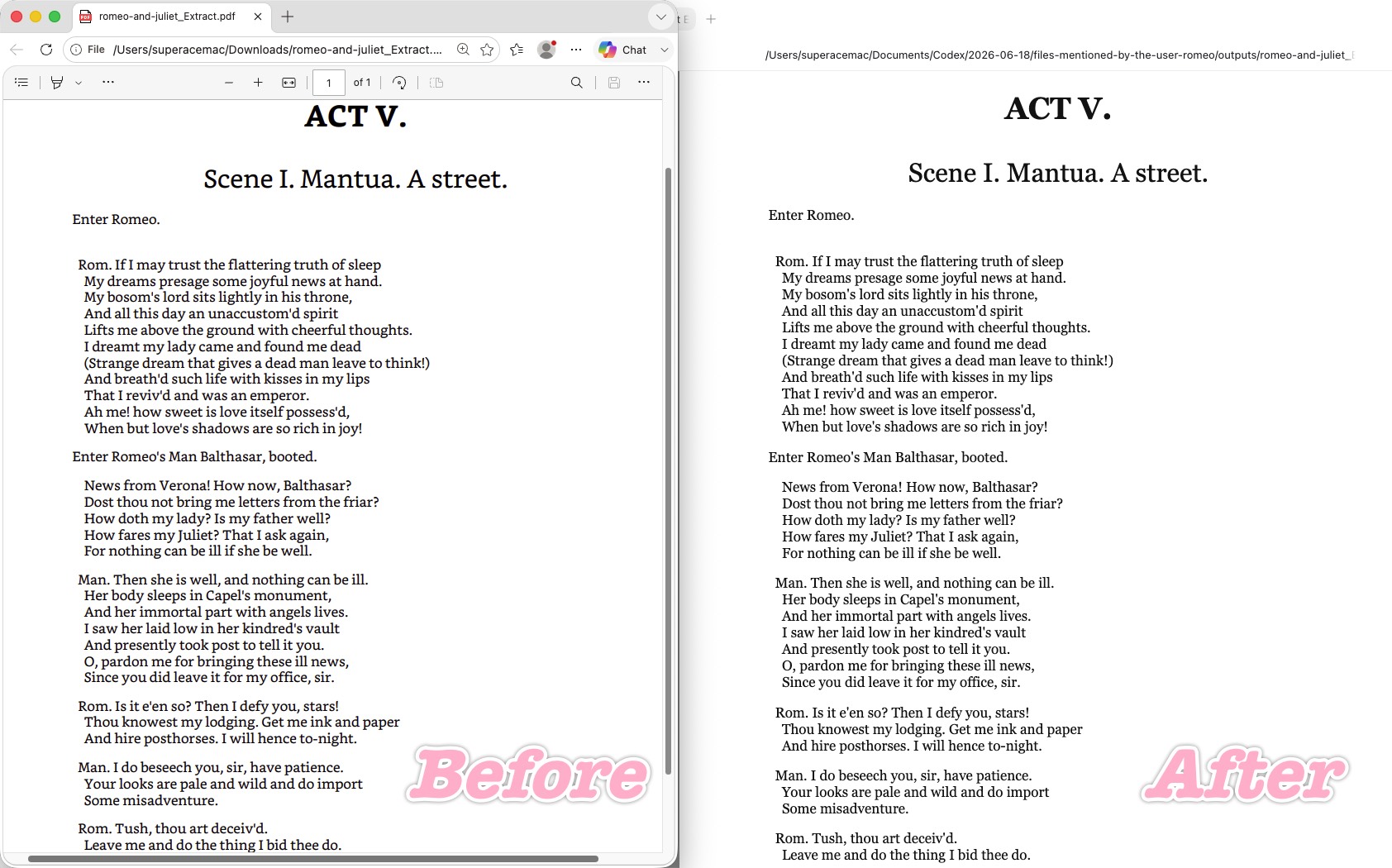
Codex (an AI coding model) took the opposite philosophy to Claude and produced a flawless, pixel-level fluid replica that respects the data absolutely.
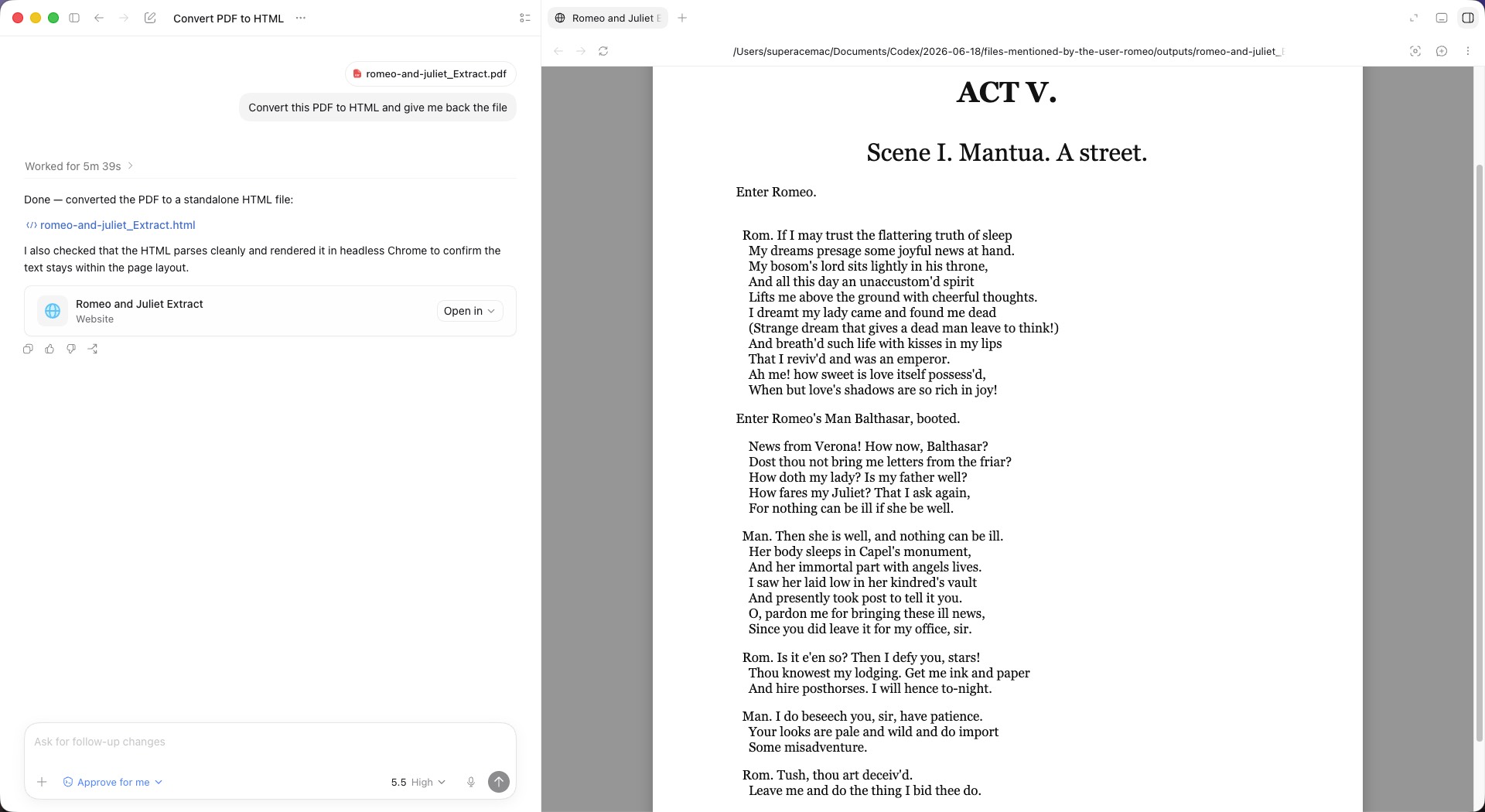
It kept 100% to the objective source — all the speaker abbreviations ("Rom.", "Man.") preserved exactly, nothing invented or rewritten — which sidesteps Claude's content-alteration risk entirely. For industrial data migration, academic archiving, or a strict CMS, that no-additions, no-subtractions discipline is exactly right. The deep hanging indent of the "News from Verona!..." passage was reproduced perfectly using pure CSS — no Word-style phantom spaces, no Poppler-style left flattening — so the page stays elastic on resize. The centered "ACT V." and subtitle kept pixel-accurate font size, weight, and line-height, and the italic intro line locked into place directly under the centered heading.
Where it stumbled: the only nitpick is that its strict-replica route means it stays low-semantic. It won't interpret the content and lift out speaker labels or asides for special styling the way Claude does; on the code side it leans on clean <div>/<span> CSS wrappers rather than restructuring the document.
Best for:
- faithful, high-fidelity conversion for archival, data migration, or CMS use where the original must not be "improved."
Skip if:
- you want the converter to understand the document's structure and style it for you — pulling out speaker labels or asides into their own formatting the way Claude does. Codex faithfully reproduces what's there; it won't add that interpretive layer.
10. LibreOffice — Clean Text, Flattened Styling
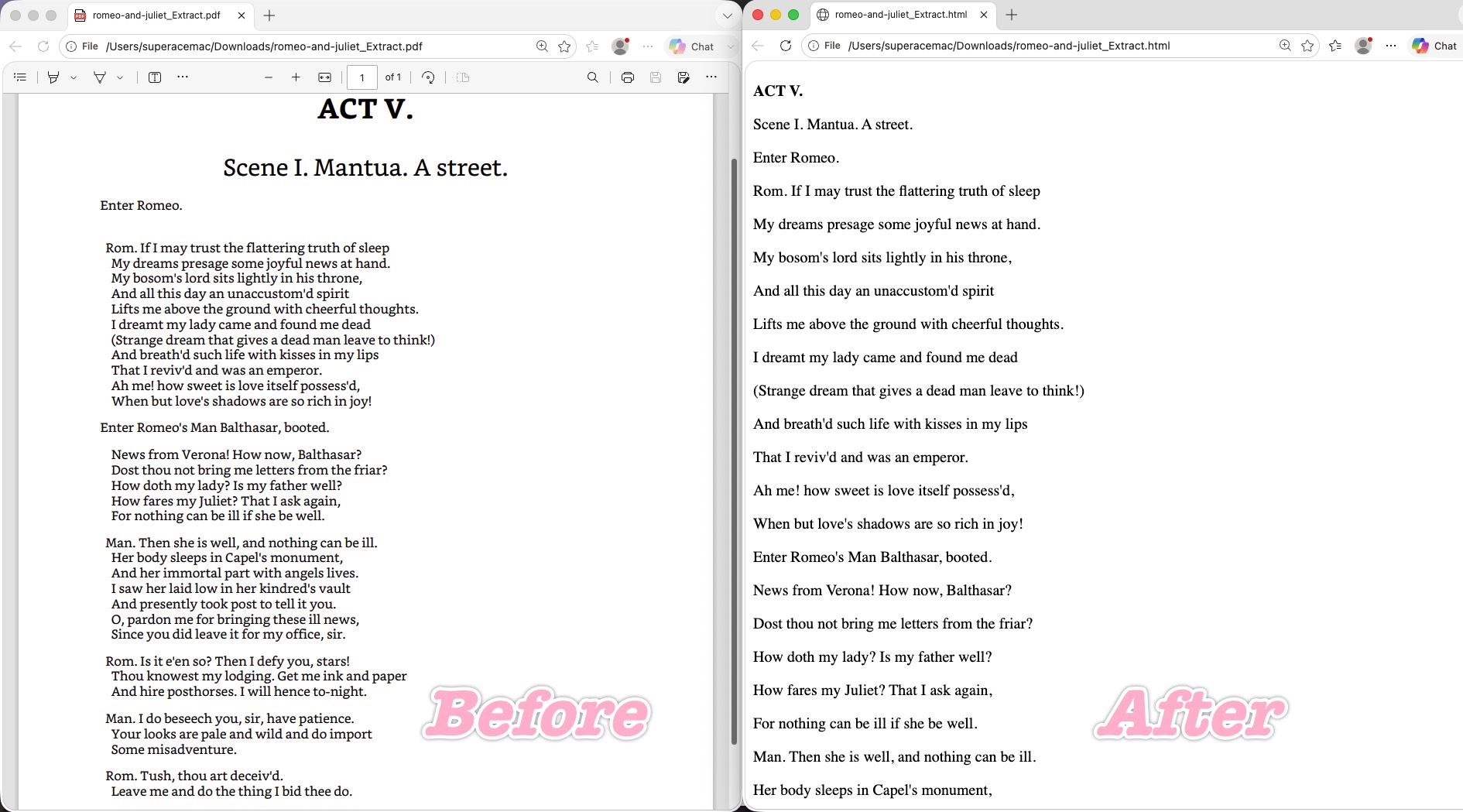
LibreOffice (free, open source) opens the PDF and exports HTML with admirable text discipline: every line kept its independent break at 100%, with no single-word garbling — break accuracy on par with Poppler or Codex. And it avoided Word's junk entirely; the exported HTML leans toward standard, lightweight text markup.
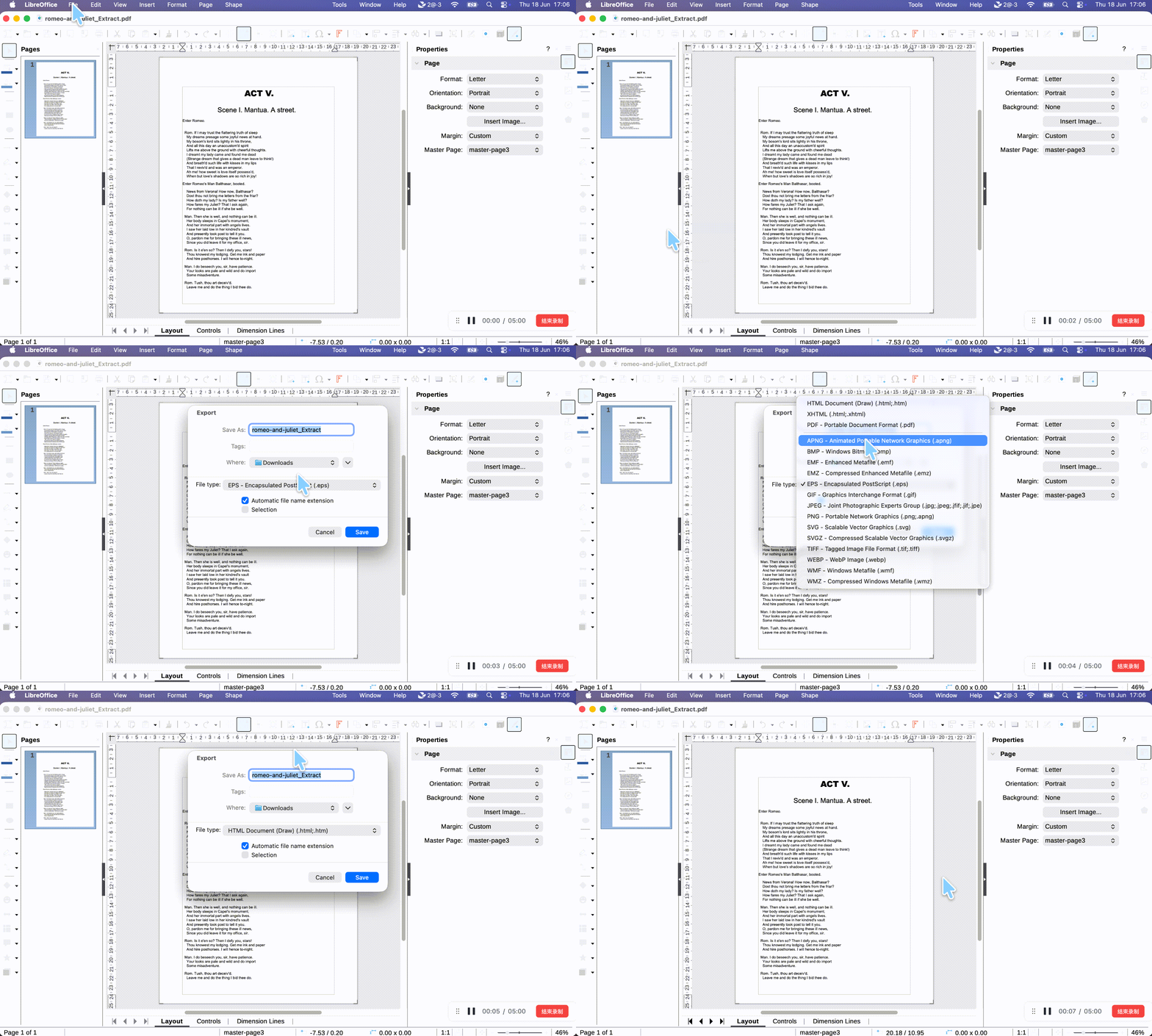
Where it stumbled: the styling went flat. The core visual hierarchy collapsed — the centered "ACT V." and "Scene I..." titles were flattened hard left (the same fate they met in pdftohtml), and unlike pdftohtml it also wiped the hanging indents, snapping all text back to a 0-pixel start. On top of that, the line spacing is too wide, so the whole page reads sparse and monotonous, with none of the original's compactness.
Best for:
- a free desktop conversion where accurate text and lightweight code matter more than visual layout.
Skip if:
- you need centered titles and indents preserved — LibreOffice flattens them.
Part 3. Layout Fidelity vs. Clean Code vs. Polish — What's the Difference?
These three goals pull in different directions, and choosing the wrong tool for your goal is why conversions "fail" even when the text is fine:
Layout fidelity means the HTML looks like the PDF — indents, centering, breaks intact (CloudConvert, Convertio). Clean code means lightweight, maintainable HTML you'll style yourself — fidelity sacrificed for a blank, buildable slate (pdftohtml, LibreOffice). Polish means a rebuilt, modern, responsive reading experience that may rewrite the source to look better (Claude).
A useful analogy: a layout-fidelity tool is a photocopier — it reproduces the page as-is, smudges and all. A clean-code tool is a transcript — accurate words, no formatting. A polish tool is a book editor — it makes the text read beautifully, but it makes editorial choices you didn't ask for. Pick the one whose job matches yours.
Part 4. Comparison: 10 PDF to HTML Converters at a Glance
| Tool | Type / Platform | Cost | Layout fidelity | Code cleanliness | Main limitation |
|---|---|---|---|---|---|
| UPDF | Desktop app (Win/Mac/iOS/Android) | Free (watermark); Pro $49.99/yr or $79.99 once | Fair (merges lines) | n/a (app output) | Block-merges tightly-spaced lines |
| Adobe Acrobat | Desktop, Web, iOS, Android | Pro ~$239.88/yr | Fair (merges lines) | n/a (app output) | Same flattening; one DOM-order glitch |
| Microsoft Word | Desktop app | Microsoft 365 $99.99/yr or Office 2024 $179.99 once | Tries, then breaks | Poor | Phantom , fixed-width snapping |
| CloudConvert | Online | Free 10/day (5-min cap); credit packages from ~$8 | Excellent | Good (clean CSS) | Files uploaded to server |
| Convertio | Online | Free 10 min/24h; Pro $44.99/mo (≈$25.99/mo billed yearly) | Excellent | Good, but drags in TOC sidebar | Misreads bookmark panel as content |
| Google Docs | Online (free) | Free | Good (native reflow) | Good | Word-wrap bug misplaces short words |
| pdftohtml | Command line (Mac/Linux easy; Windows manual setup) | Free | Fair (indents kept, centering/sizes lost) | Excellent | No centered titles or font hierarchy; tricky on Windows |
| Claude | AI model | Varies by plan | Polished (rebuilt) | Modern CSS | May alter/expand source text |
| Codex | AI model | Varies by plan | Excellent (faithful) | Clean <div>/<span> | No semantic enhancement |
| LibreOffice | Desktop app (open source) | Free | Poor (flattened) | Good (lightweight) | Centering & indents wiped; sparse spacing |
This article focuses on PDF → HTML specifically. If you also need to move PDFs into Word, Excel, images, or other formats, see our guide to the free PDF converter options and how to keep layouts intact across formats. You can also watch the video tutorial below.
Part 5. Edge Cases the Body Doesn't Cover
A few situations that the per-tool grades above don't address:
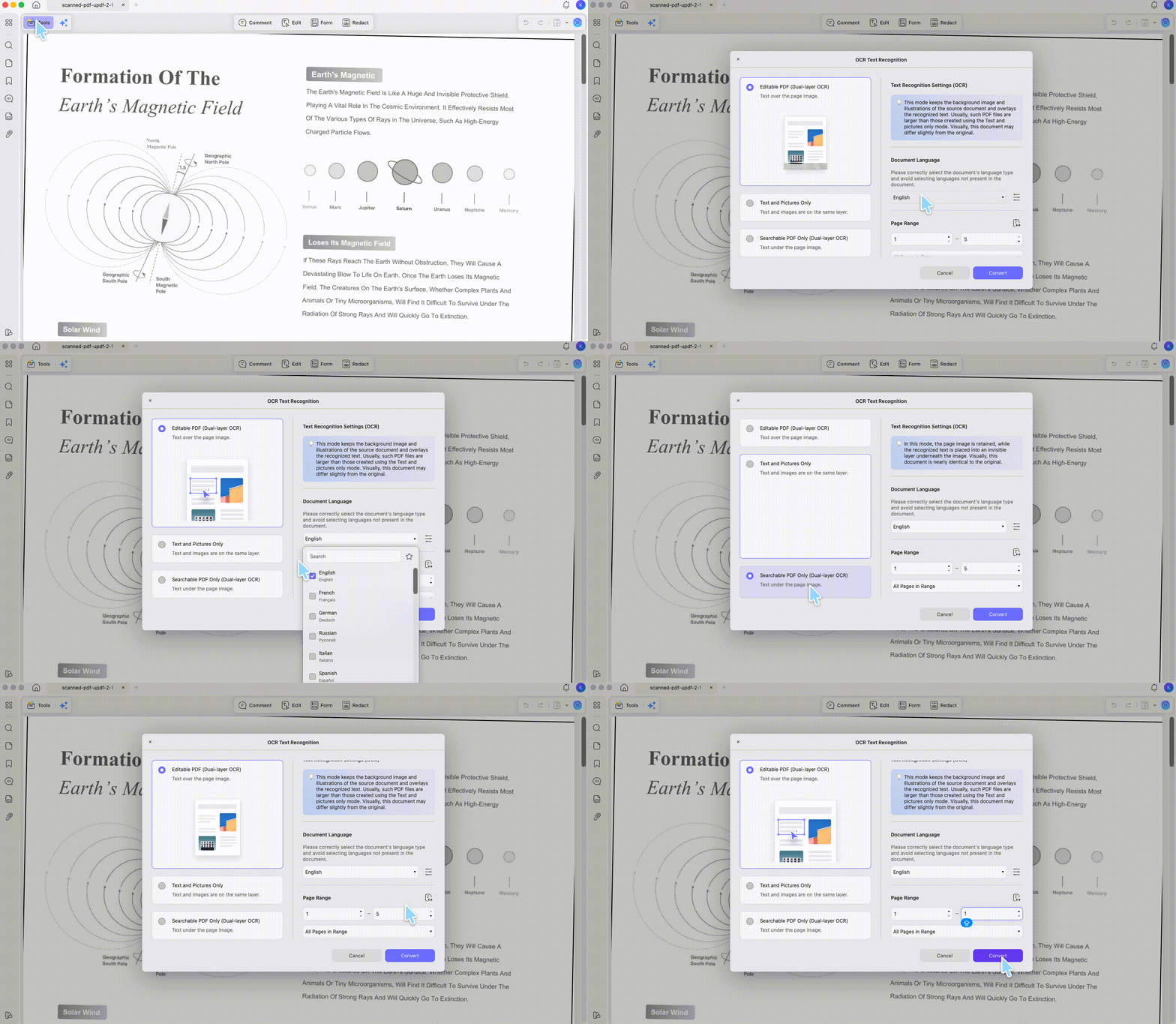
The PDF is a scanned image, not real text. You have to run OCR first to add a text layer, then convert. On UPDF that's Top toolbar → leftside Tools → OCR; the free tier includes 5 OCR uses. UPDF's OCR covers 38+ languages, with a 300-page single-file limit — split larger files, OCR each part, then merge.
The conversion drags in a phantom sidebar or duplicate title (Convertio). That's the engine misreading the PDF's bookmark/outline panel as page content. Before converting, remove or collapse the bookmarks/TOC in a PDF editor, then convert — or simply delete the stray sidebar element from the exported HTML.
Lines collapse into one block (UPDF, Adobe). Block-merging engines fuse tightly-spaced left-aligned lines. If you need the breaks kept, route the file through a hard-break-faithful tool instead — CloudConvert, pdftohtml, or Codex.
You can't upload the file because it's confidential. Online tools (CloudConvert, Convertio, Google Docs) upload your document to a server. For contracts, financials, or anything sensitive, use a desktop tool that processes locally — UPDF, Word, LibreOffice, or pdftohtml.
You have dozens of PDFs to convert, not one. Feeding them one at a time through an online uploader is slow, and free tiers cap you at 10 conversions a day. A desktop tool with batch conversion — UPDF's Batch Process — runs the whole folder to HTML in a single job, locally, with no daily limit.
Part 6. Frequently Asked Questions
1. Is converting PDF to HTML free?
Yes, several tools are fully free. Google Docs, pdftohtml, and LibreOffice Draw cost nothing; CloudConvert and Convertio have free tiers with daily limits. Desktop editors like UPDF convert free with a trial watermark, while Adobe Acrobat requires a paid subscription.
2. Why does my converted HTML look broken on different screen sizes?
Usually it's hard-coded layout. Tools like Microsoft Word rebuild the page with fixed widths and spacing instead of responsive CSS, so the page fractures when the browser window changes size. A tool that uses real CSS (CloudConvert, Google Docs, Codex) avoids this.
3. What happens to images and charts in the PDF when I convert to HTML?
They're extracted as separate image files and linked from the HTML, not redrawn as code. Most converters dump them into a companion folder (or inline them as base64), so the page still displays them — but a chart that was vector art in the PDF becomes a flat raster image you can't edit or re-style in the HTML.
4. Will links inside my PDF still work after conversion to HTML?
Some converters carry URL targets into HTML links, while others render the visible link text only. Open the exported HTML, click a sample external link and an internal jump, and inspect the generated href values before publishing; repair broken links in your CMS.
Conclusion
For most people converting everyday text-heavy documents, UPDF is the converter to reach for first — it handles the conversion accurately, processes locally, batch-converts a whole folder of PDFs to HTML in one pass, and keeps editing, OCR, and export in the same app, at a one-time price that undercuts Adobe Acrobat's yearly subscription. Where you need something more specialized, match the tool to the job: CloudConvert or Codex when pixel-faithful layout is the priority, pdftohtml for clean code you'll style yourself on Mac or Linux, and Claude for a polished modern rebuild.
Download UPDF for free to try converting your PDF and working on the result in the same app — installation is free, and Pro features are available when you need watermark-free export or advanced tools.
Windows • macOS • iOS • Android 100% secure
Test conditions (June 2026). All findings below come from hands-on testing in June 2026 with the versions listed. Software updates may change behavior, menus, or pricing after this date.
| Adobe Acrobat | V2026.001.21662 |
| Microsoft Word | V16.109.3 |
| UPDF | V2.5.4 |
| LibreOffice | V26.2.4.2 |


 Lizzy Lozano

 Enola Miller