UPDF
UPDF
 UPDF for Windows
 UPDF for Mac
 UPDF for iPhone/iPad
 UPDF for Android
 Nomostar
 UPDF AI Online
 UPDF Sign
 IvyCraft
 Edit PDF
 Annotate PDF
 Create PDF
 PDF Form
 Edit links
 Convert PDF
 OCR
OCR PDF to Word
 PDF to Image
 PDF to Excel
 Organize PDF
 Merge PDF
 Split PDF
 Crop PDF
 Rotate PDF
 Protect PDF
 Sign PDF
 Redact PDF
 Sanitize PDF
 Remove Security
 Read PDF
 UPDF Cloud
 Compress PDF
 Print PDF
 Batch Process
 About UPDF AI
 UPDF AI Solutions
 AI User Guide
 FAQ about UPDF AI
 Summarize PDF
 Translate PDF
 Chat with PDF
 Chat with AI
 Chat with image
 PDF to Mind Map
 Explain PDF
 PDF AI Tools
 Image AI Tools
 AI Chat Tools
 AI Writing Tools
 AI Study Tools
 AI Working Tools
 Other AI Tools
 AI Bookmark Generation
 AI Bookmark Summary
 AI Watermark Generation
 AI Background Generation
 AI Sticker Generation
 AI Stamp Generation
 AI Editing Suite
 UPDF Copilot
 AI Page Management
 AI Semantic Search
 PDF to Word
 PDF to Excel
 PDF to PowerPoint
 Enterprise Solution
 Enterprise Sign
 Enterprise AI
 Enterprise Plan
 Enterprise User Guide
 Enterprise Webinar
 IT
IT Education
 Construction
 Financial Service
 Healthcare
 Insurance
 Legal
Legal Manufacturing
 Government
 Researchers & PhDs
 Solopreneurs & Freelancers
 Lawyers & Legal Professionals
 Real Estate Agents & Brokers
 Education Solution
 Customer Stories
 User Guide
 UPDF Tricks
 FAQs
FAQs UPDF Reviews
 Download Center
 Blog
Blog Newsroom
 Tech Spec
 Updates
 UPDF vs. Adobe Acrobat
 UPDF vs. Foxit
 UPDF vs. PDF Expert

Quick Answer
Chrome PDF to PDF usually does not require conversion: a Chrome PDF is already a normal PDF. The Chrome icon only means that Google Chrome is set as the default app for opening PDF files. In most cases, you do not need to convert the file—you only need to change its default PDF viewer.
If you want PDFs to open in a dedicated reader where you can also edit, annotate, convert, and organize them, download UPDF and set it as your default PDF app. The steps below show you how to fix the Chrome PDF association on Windows and Mac.
Windows • macOS • iOS • Android 100% secure
Part 1. Why Are My PDFs Showing as Chrome PDF?
Windows or macOS associates each file type with a default app. If Chrome is assigned to .pdf files, your PDFs display a Chrome icon and open in the browser. This does not change the file format or damage the document.
- Chrome may have been selected when you previously used Open with.
- A browser or system update may have changed the default PDF association.
- You may not have selected a dedicated PDF editor as the default app.
Before changing anything, check the filename or file properties. If it ends in .pdf, you don’t need to convert the file—you need a proper PDF app. Download UPDF, set it as your default PDF viewer, and open, read, print, annotate, or edit your PDFs without relying on Chrome.
Windows • macOS • iOS • Android 100% secure
Also Read: How to Convert Microsoft Edge HTML Document to PDF? (Easy Guide)
Part 2. How to Change a Chrome PDF to a Normal PDF
Because a Chrome PDF is already a PDF, the fix is to choose a dedicated PDF reader as the default app. UPDF is available on Windows and Mac and can open PDFs as well as edit text and images, annotate pages, convert files, and run OCR when needed.
Download UPDF below, install it, and then set it as the app that always opens your PDF files.
Windows • macOS • iOS • Android 100% secure
Change the Default PDF App to UPDF
- Visit UPDF and download the software on your system.
- Once the file is downloaded, open it in the relevant folder and install it.
- After that, try opening any PDF on your computer. If UPDF pops up, you're all set.
- If you are still seeing the Chrome icon, you need to change the default PDF viewer manually.
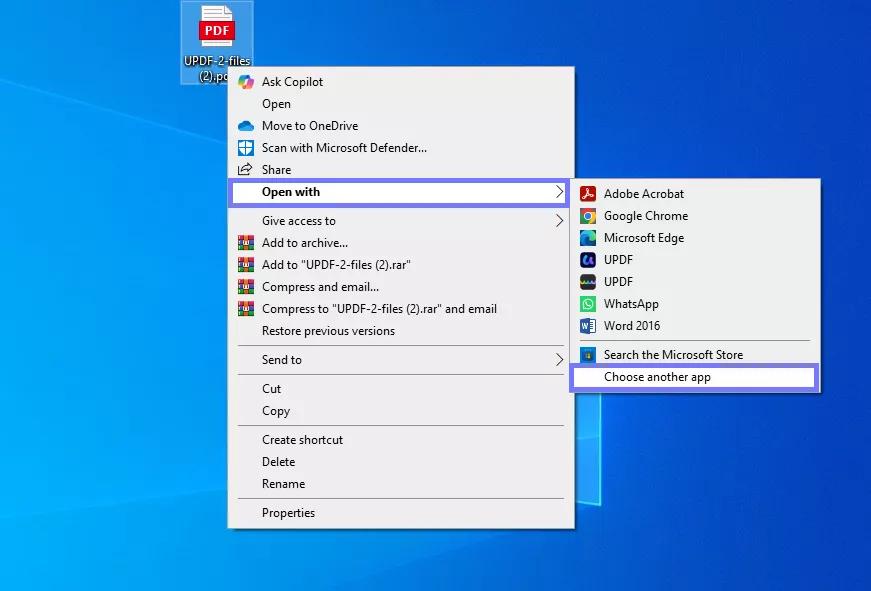
- On Windows, right-click a PDF, click "Open with" > "Choose another app."
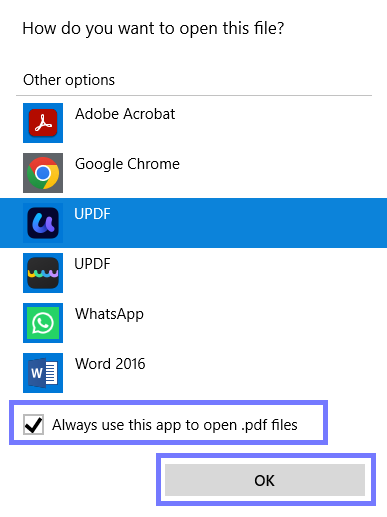
- Then, select "UPDF," enable Always use this app, then hit "OK."
- On Mac, right-click a PDF, click "Get Info," find Open with, pick "UPDF," then hit "Change All."
If You Mean Save a Chrome Webpage as a PDF
If you are trying to turn a webpage into a PDF, open the page in Chrome, press Ctrl + P on Windows or Command + P on Mac, select Save as PDF, adjust the pages and layout, and click Save.
Once UPDF is set as the default viewer, you can do more than open the file. It lets you edit existing PDF text and images, highlight and comment on content, rearrange or delete pages, convert PDFs to common formats, and use OCR to make scanned PDFs searchable and editable. These tools are useful when the document needs real changes rather than only a new default icon.
Watch the video below for a detailed overview and user feedback.
Part 3. FAQs About Chrome PDF to PDF
How do I change a PDF from Chrome to Adobe?
Right-click the PDF file, choose Open with > Adobe Acrobat, select Always use this app, and click OK.
Is a Chrome PDF the same as a PDF?
Yes. A “Chrome PDF” is a regular PDF associated with Google Chrome as its default opening app. Changing the default viewer does not convert or alter the file.
How do I convert a Chrome PDF to PDF online?
Normally, no online conversion is needed because the file is already a PDF. Change the default PDF app in Windows or macOS. To save a webpage as a PDF, use Chrome’s Print > Save as PDF command.
Conclusion
A Chrome PDF is not a separate format—it is a normal PDF that currently opens in Chrome. Confirm the .pdf extension, then change the default app if you want the file to open in a dedicated reader.
Download UPDF if you want a default PDF app that can also edit, annotate, organize, convert, and OCR your documents.
Windows • macOS • iOS • Android 100% secure



 Enola Miller
 Enrica Taylor