 UPDF
UPDF
 UPDF for Windows
 UPDF for Mac
 UPDF for iPhone/iPad
 UPDF for Android
 Nomostar
 UPDF AI Online
 UPDF Sign
 IvyCraft
 Edit PDF
 Annotate PDF
 Create PDF
 PDF Form
 Edit links
 Convert PDF
 OCR
OCR PDF to Word
 PDF to Image
 PDF to Excel
 Organize PDF
 Merge PDF
 Split PDF
 Crop PDF
 Rotate PDF
 Protect PDF
 Sign PDF
 Redact PDF
 Sanitize PDF
 Remove Security
 Read PDF
 UPDF Cloud
 Compress PDF
 Print PDF
 Batch Process
 About UPDF AI
 UPDF AI Solutions
 AI User Guide
 FAQ about UPDF AI
 Summarize PDF
 Translate PDF
 Chat with PDF
 Chat with AI
 Chat with image
 PDF to Mind Map
 Explain PDF
 PDF AI Tools
 Image AI Tools
 AI Chat Tools
 AI Writing Tools
 AI Study Tools
 AI Working Tools
 Other AI Tools
 AI Bookmark Generation
 AI Bookmark Summary
 AI Watermark Generation
 AI Background Generation
 AI Sticker Generation
 AI Stamp Generation
 AI Editing Suite
 UPDF Copilot
 AI Page Management
 AI Semantic Search
 PDF to Word
 PDF to Excel
 PDF to PowerPoint
 Enterprise Solution
 Enterprise Sign
 Enterprise AI
 Enterprise Plan
 Enterprise User Guide
 Enterprise Webinar
 IT
IT Education
 Construction
 Financial Service
 Healthcare
 Insurance
 Legal
Legal Manufacturing
 Government
 Researchers & PhDs
 Solopreneurs & Freelancers
 Lawyers & Legal Professionals
 Real Estate Agents & Brokers
 Education Solution
 Customer Stories
 User Guide
 UPDF Tricks
 FAQs
FAQs UPDF Reviews
 Download Center
 Blog
Blog Newsroom
 Tech Spec
 Updates
 UPDF vs. Adobe Acrobat
 UPDF vs. Foxit
 UPDF vs. PDF Expert

Quick Answer
Scanning documents on iPhone is useful for applications, receipts, contracts, and handwritten notes. However, capturing a page is only the first step. You still need a readable document, the correct page order, and a file that your recipient can open.
Apple’s built-in tools handle occasional scans. UPDF becomes useful when the task continues with OCR, page organization, compression, annotation, or signing.
This guide shows you where the scanner is on different iOS versions, how to combine pages into one PDF, and how to save or email the actual file. It also explains how to fix missing controls, blurry scans, oversized PDFs, and text you cannot copy.
Part 1. How to Scan Documents on iPhone
Choose your starting point by where you want the document to go.
| Your goal | Start with |
|---|---|
| Save a PDF directly into a folder | Files |
| Keep a scan alongside notes | Notes |
| Scan in Apple’s PDF application on supported versions | Preview |
| Scan and continue processing the PDF | UPDF |
1. Scan with Notes
Best for:
- Open Notes and create or open a note.
- Tap the attachment control and select Scan Documents.
- Position the paper within the camera view.
- Let automatic capture work, or use the shutter or a volume button.
- Adjust the corners and keep the scan.
- Capture additional pages before finishing.
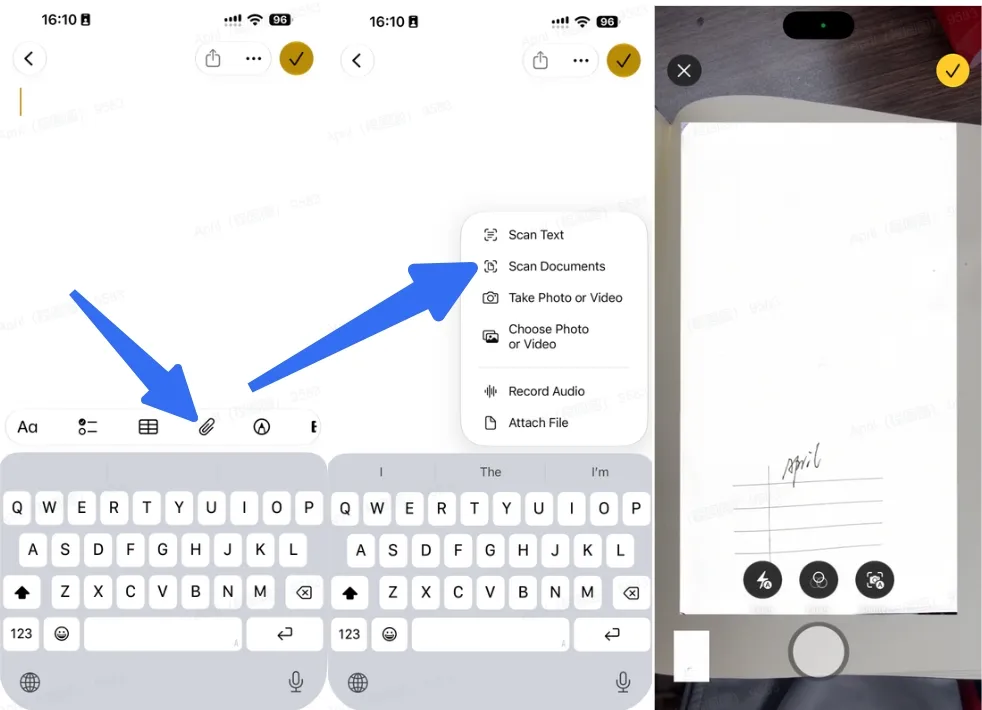
Apple provides separate instructions for iOS 17 and earlier. Those interfaces may use a camera button instead of the newer attachment control. Follow the instructions for your installed version rather than searching for an identical icon.
Pros:
- Convenient for paperwork that belongs with other notes.
Cons:
- Sending the document requires selecting the scan attachment, rather than accidentally sharing the entire note.
2. Scan with Files
Best for:
- Open Files and navigate to your intended folder.
- Tap More, then Scan Documents.
- Capture the first page automatically or manually.
- Check the crop and continue with the remaining pages.
- Finish scanning, select the destination, and save.
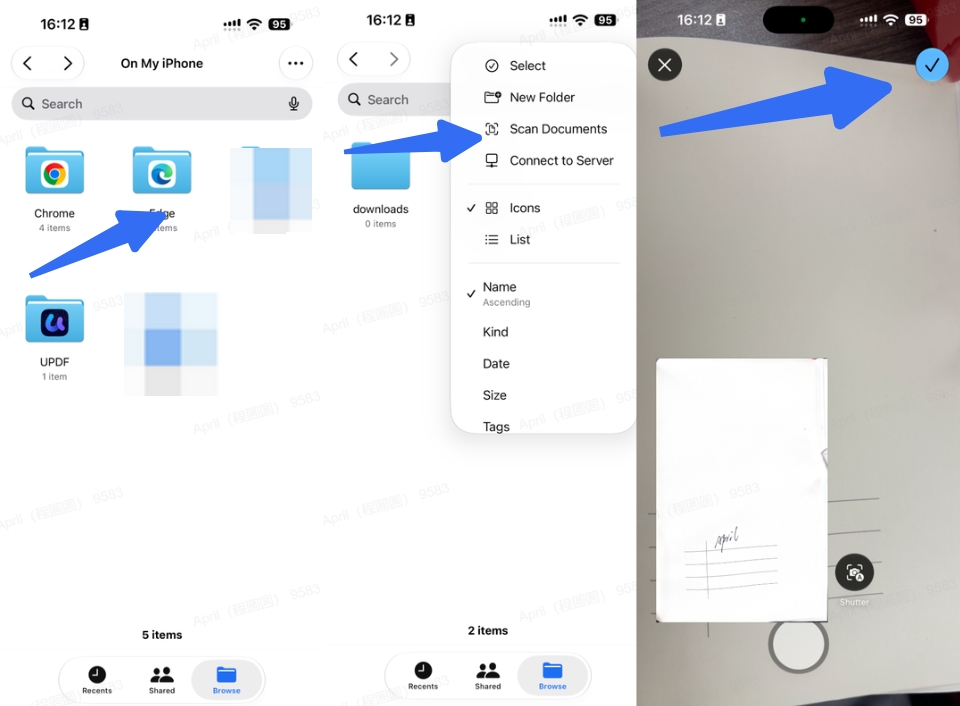
This is a useful route when you want to scan without Notes. Confirm whether the selected location is On My iPhone, iCloud Drive, or another connected provider.
3. Scan with Preview
Best for:
Apple’s iOS 26 guide documents this workflow:
- Open Preview and tap Scan Documents.
- Position the page in the camera view.
- Use automatic capture or switch to Manual.
- Repeat for additional pages, then finish.
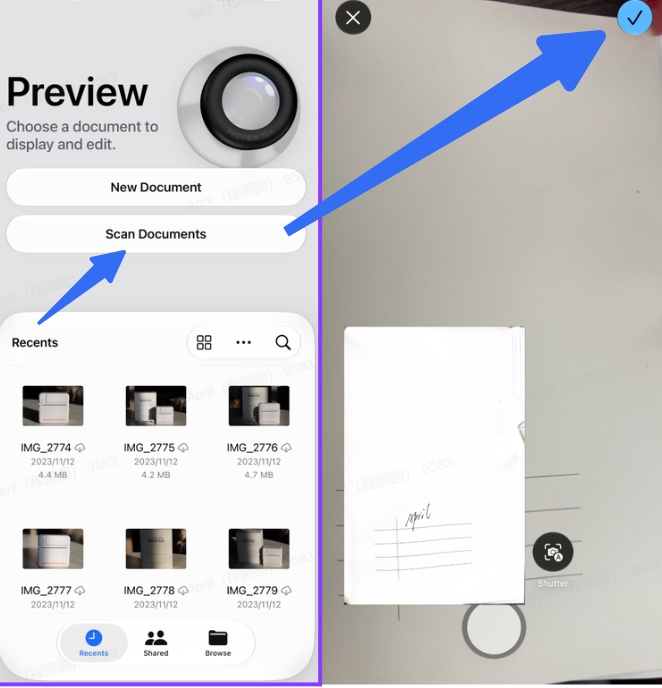
Do not assume this application is available on every older system. Check your installed version and use Notes or Files if needed.
4. Scan with UPDF
Best for:
- Open UPDF and choose Scan from the plus menu, or select Scan Document.
- Choose Document mode.
- Capture the paper, using auto-capture and auto-crop if helpful.
- Inspect each image and retake unsatisfactory pages.
- Add the remaining pages, then review rotation, cropping, and filters.
- Save the scan.
- In the Scanner section, open its menu and choose Convert to PDF.
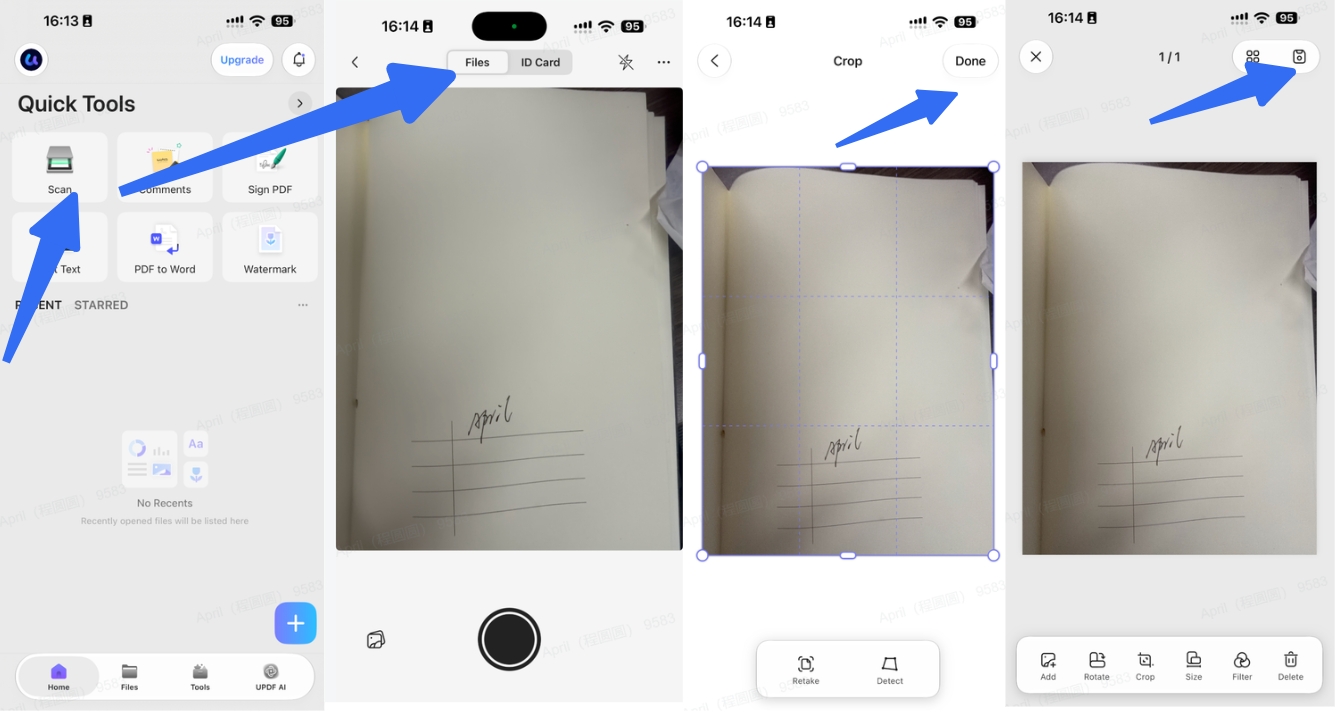
UPDF also documents an ID Card mode that places front and back captures on one PDF page. This differs from scanning an ordinary double-sided document.
Check Multiple and Double-Sided Pages
Continue capturing within the same session to build one document. For double-sided sheets, capture each front and back in the intended order; the phone does not turn the paper for you.
Before saving, compare the page count with the originals. Remove duplicates and inspect cropped margins.
Tip: For five sheets printed on both sides, expect ten captured pages unless the recipient requests otherwise.
Part 2. How to Save and Send the Scanned PDF
Open the completed scan before sharing. Check the filename, page count, and orientation.
In Notes, select the scanned attachment and use its sharing controls. Choose the PDF attachment workflow rather than assuming that sharing a note sends only the document.
Save a clearly named copy, such as Application_Name_Date.pdf. Attach that file through the recipient’s required email or upload service.
UPDF provides sharing options including Save to Files, AirDrop, and email. These let you capture and prepare the document before selecting its destination.
Warning:
- A messaging preview may differ from the actual attachment. Reopen the exported PDF and, for important submissions, confirm successful receipt.
Part 3. How to Finish the Scan in UPDF
Consider a practical example: you have three application pages and two supporting documents. Capturing them creates five images; preparing a usable submission requires additional checks.
Copy or Edit the Words with OCR
A scan can look readable while containing no selectable text. OCR recognizes the characters.
UPDF’s iOS OCR documentation describes extracting or copying content from scanned PDFs. Use it when you need a reference number, receipt detail, or passage without retyping.
For longer revisions, its PDF-to-Word workflow includes OCR Recognition and a document-language setting. Select the appropriate language and inspect the converted result.
OCR does not guarantee correct names, amounts, or dates. Compare critical information with the scan.
Reduce an Oversized PDF
Large output files are a real user concern. In an older iOS 17 discussion, one person reported a five-page scan of 19.1 MB. That is an individual observation, not a benchmark for current phones.
In UPDF, open the PDF, access its menu, and choose the PDF compression function. Compare the available settings and save a separate reduced copy. Check the actual size and readability afterward.
Warning:
- Creating a ZIP archive is different from reducing the PDF. Use the document-compression workflow when an upload portal requires a smaller .pdf file.
Prepare One Submission-Ready Document
For the five-page application example, confirm that the form appears first and supporting material follows. Check for missing pages, complete required fields or signatures where appropriate, and inspect the exported document.
UPDF’s iOS tools include page handling, annotation, signing, and other PDF functions. Check availability and plan conditions for your application version.
Its practical advantage is continuing from capture into preparation within one document workflow.
Part 4. Fix Common iPhone Scanning Problems
The Scan Button Is Missing
First identify the application and iOS version. A tutorial showing a camera icon may describe an earlier Notes interface. Preview instructions also apply only where that application is available.
Pages Are Blurry or Poorly Cropped
Place the paper flat, keep the phone parallel, and use even lighting. Leave space around the edges and inspect small text before accepting the capture.
If automatic detection struggles, try manual capture. Retake unreadable pages rather than expecting OCR to reconstruct missing detail.
Colors or Highlights Look Wrong
A community user described difficulty preserving highlighted notes while keeping text sharp. This identifies a useful checking requirement, not a universal scanner defect.
Compare filters with the original paper. Strong contrast adjustments can remove faint marks or alter meaningful colors.
Different Phones Produce Different Results
The instructions here do not establish which model scans best. Camera hardware, lighting, distance, software, and settings can all affect the result.
Use your own document to judge readability; do not assume a newer or Pro model guarantees a better scan.
FAQs
Do I need a Pro iPhone?
Choose a device and application that support the required scanning workflow. The basic instructions do not require purchasing a Pro model.
Is Scan Text the same as Scan Documents?
No. Capturing text and creating a page-based document serve different purposes. Choose Scan Documents when you need a PDF resembling the paper.
Must I use iCloud?
No. Where available, choose local storage or another suitable destination. Check the location before saving.
Can I use an existing photo?
UPDF’s scanning guide includes importing gallery images. Review their quality before creating the PDF. A finished scan should have every required page, readable content, an acceptable file size, and a usable export. Inspect that final copy before sending.
Conclusion
A successful scan is a complete, readable file that reaches its destination in the required format.
Use Apple’s built-in scanner for straightforward capture, or use UPDF when the task extends into document preparation. Review every page, preserve the original, and inspect the final exported PDF before sharing.
Windows • macOS • iOS • Android 100% secure






 Delia Meyer
 Enola Miller
 Enrica Taylor

 Lizzy Lozano
