 UPDF
UPDF
 UPDF for Windows
 UPDF for Mac
 UPDF for iPhone/iPad
 UPDF for Android
 Nomostar
 UPDF AI Online
 UPDF Sign
 IvyCraft
 Edit PDF
 Annotate PDF
 Create PDF
 PDF Form
 Edit links
 Convert PDF
 OCR
OCR PDF to Word
 PDF to Image
 PDF to Excel
 Organize PDF
 Merge PDF
 Split PDF
 Crop PDF
 Rotate PDF
 Protect PDF
 Sign PDF
 Redact PDF
 Sanitize PDF
 Remove Security
 Read PDF
 UPDF Cloud
 Compress PDF
 Print PDF
 Batch Process
 About UPDF AI
 UPDF AI Solutions
 AI User Guide
 FAQ about UPDF AI
 Summarize PDF
 Translate PDF
 Chat with PDF
 Chat with AI
 Chat with image
 PDF to Mind Map
 Explain PDF
 PDF AI Tools
 Image AI Tools
 AI Chat Tools
 AI Writing Tools
 AI Study Tools
 AI Working Tools
 Other AI Tools
 AI Bookmark Generation
 AI Bookmark Summary
 AI Watermark Generation
 AI Background Generation
 AI Sticker Generation
 AI Stamp Generation
 AI Editing Suite
 UPDF Copilot
 AI Page Management
 AI Semantic Search
 PDF to Word
 PDF to Excel
 PDF to PowerPoint
 Enterprise Solution
 Enterprise Sign
 Enterprise AI
 Enterprise Plan
 Enterprise User Guide
 Enterprise Webinar
 IT
IT Education
 Construction
 Financial Service
 Healthcare
 Insurance
 Legal
Legal Manufacturing
 Government
 Researchers & PhDs
 Solopreneurs & Freelancers
 Lawyers & Legal Professionals
 Real Estate Agents & Brokers
 Education Solution
 Customer Stories
 User Guide
 UPDF Tricks
 FAQs
FAQs UPDF Reviews
 Download Center
 Blog
Blog Newsroom
 Tech Spec
 Updates
 UPDF vs. Adobe Acrobat
 UPDF vs. Foxit
 UPDF vs. PDF Expert

Quick Answer:
The important distinction is not how the signature looks. It is what must happen after the mark is placed. A visible electronic signature records approval on the page, a certificate-based digital signature can reveal later document changes, and an online signature request controls who signs which field and in what order.
That distinction matters when a one-page approval form becomes a contract for three departments. Choosing the correct workflow before anyone signs prevents the two most expensive mistakes: locking the file too early and changing a PDF after a digital signature has already protected its current state.
Windows • macOS • iOS • Android 100% secure
Part 1. Which PDF Signing Workflow Do You Need?
| Your situation | Recommended path | What it provides | Main limit |
|---|---|---|---|
| You need to place your own signature on a local PDF quickly | UPDF electronic signature | A visible typed, drawn, or image signature | It does not automatically include a signing certificate or sender-side audit trail |
| You need certificate information and a way to detect later document changes | UPDF digital signature with a Digital ID | Certificate properties and document-integrity verification | Editing or reorganizing the PDF after signing can invalidate the signature |
| The PDF is complete and recipients should not normally edit, copy, or print it | UPDF permissions password | Restrictions on selected PDF actions | Reader apps must enforce the restrictions; this is not redaction or certificate verification |
| You need one or more other people to sign assigned fields | UPDF Sign | Recipient routing, signing order, email delivery, and status tracking | It is an online, separately licensed product rather than the local UPDF editor |
Part 2. How to Add an Electronic Signature to a PDF with UPDF? (3 Ways)
Best for:
- Adding your own visible signature to approvals, acknowledgements, routine forms, and documents where the recipient has not required a certificate-based signature.
Not for:
- A compliance process that requires the recipient to inspect a Digital ID, verify certificate information, or review a sender-managed audit trail.
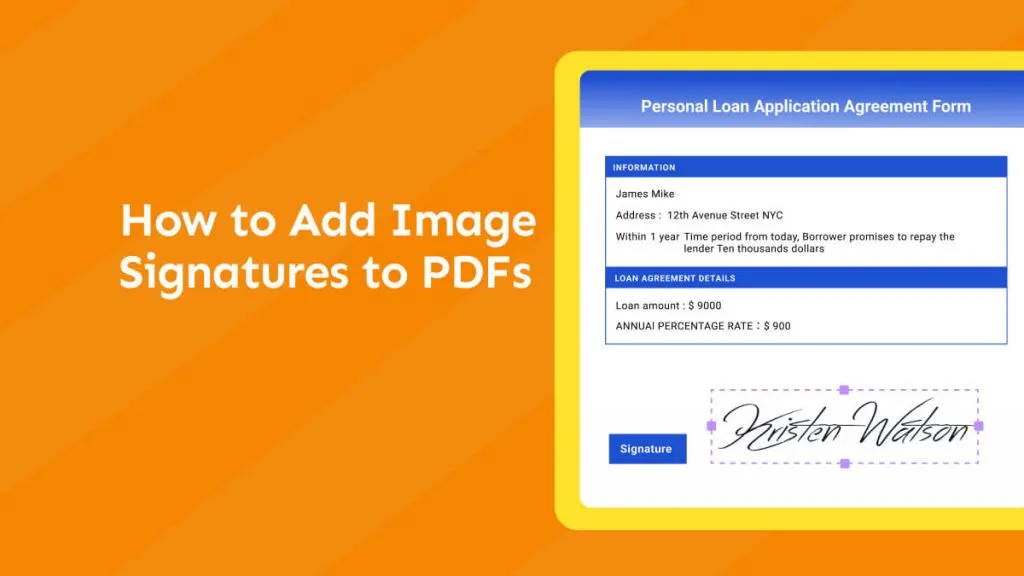
Electronically signing means adding handwritten or image-based signatures to your PDF. If you’re looking to sign a document that is not legally binding, an electronic signature is the way to go. UPDF gives you three easy solutions for it.
Let’s explore these below!
Way 1. Via Creating Signature
UPDF's signature tool lets you sign PDFs using your mouse, keyboard, or images. You can also customize and upload your signature to the cloud for easy access across platforms.
Here’s how to sign a PDF using this method.
Step 1: Launch UPDF and click “Open File” to import your PDF.
Step 2: Click “Comment” from the "Tools". Then select “Signature” from the top and click “Create.”
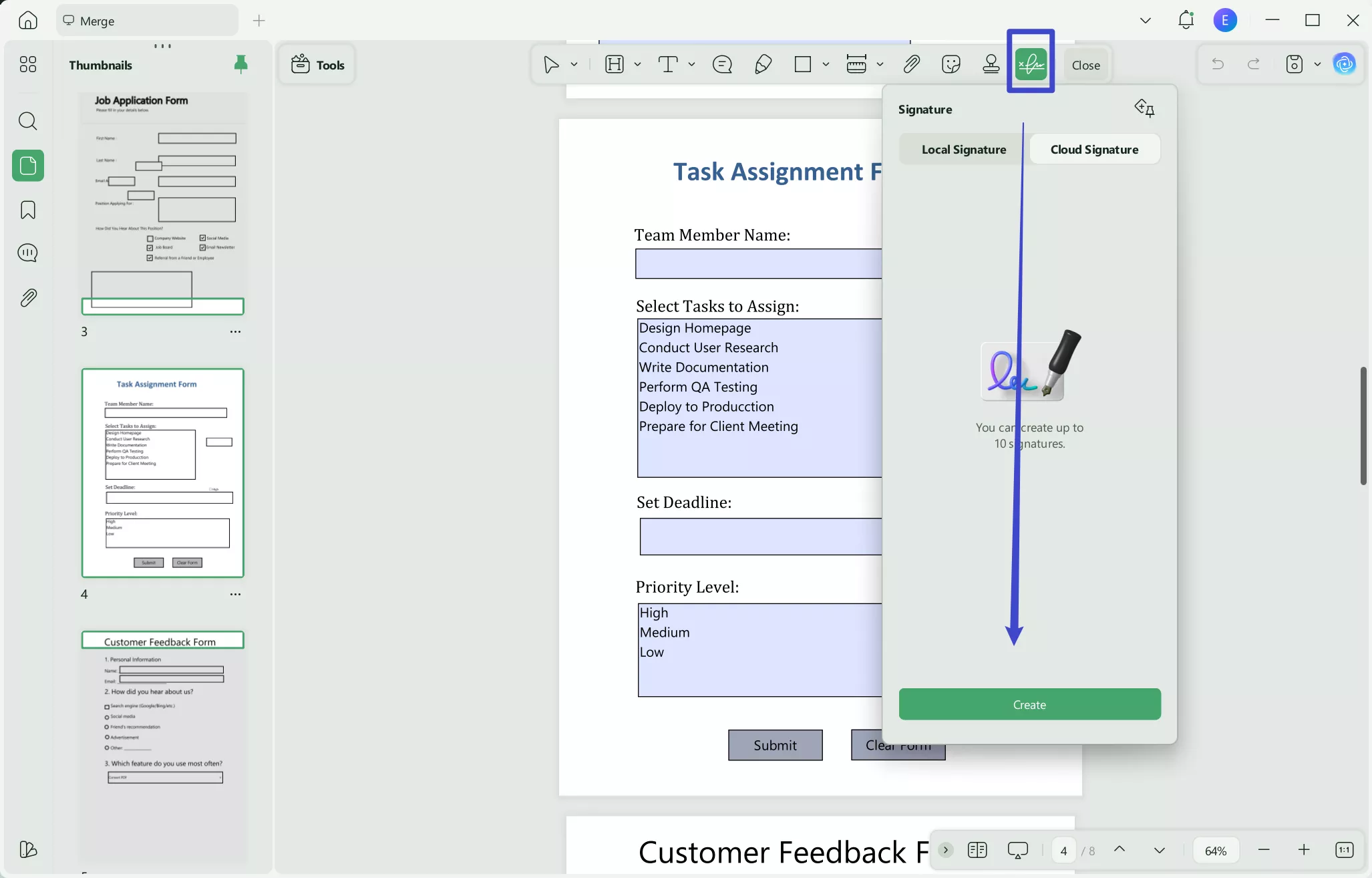
Step 3: Select a method to create a signature from the popup.
- Handwritten Signature: Select “Mouse” from the top and choose the signature’s color and thickness. Then, draw it using your mouse/trackpad.
- Typed Signature: Select the "Keyboard" option. Then, write your name and customize its color using the option in the bottom right.
- Image-based Signature: Select the "Image" option and click "Choose File" to upload your signature. Then, crop it and click "Create" to add it to the PDF.
Step 4: Click "Save to Cloud" at the bottom left to store and sync your signature across platforms.
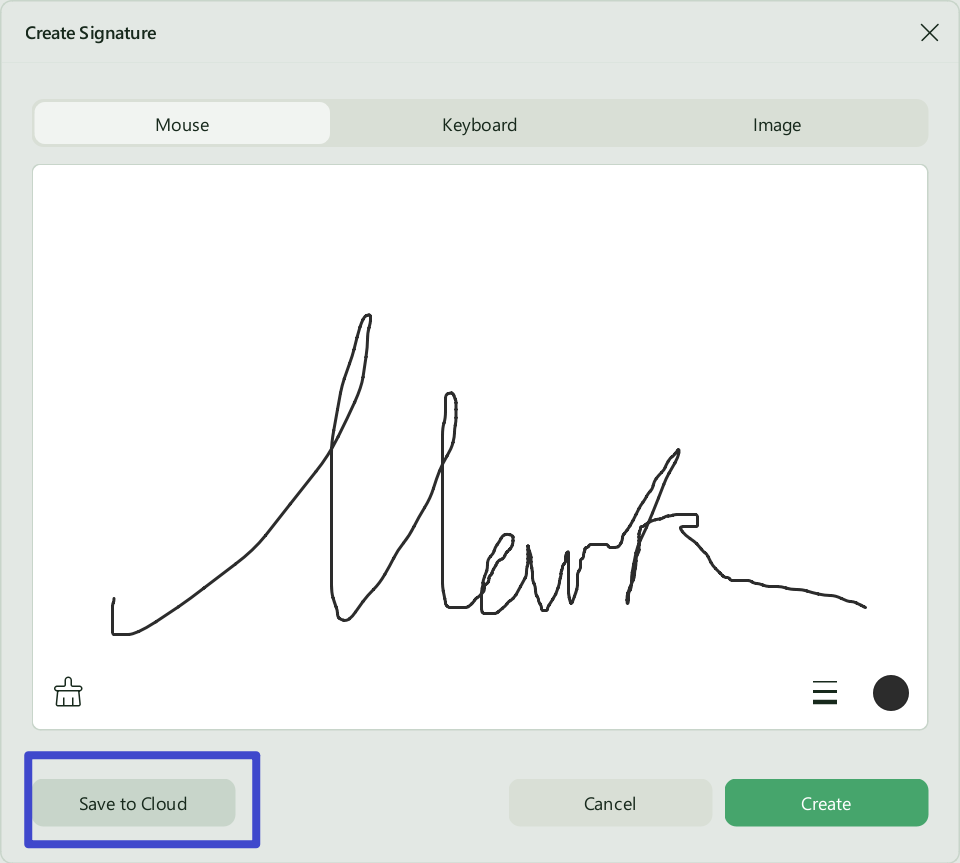
Let’s explore another way to sign your PDFs!
Way 2. Via Pencil
You can also create a handwritten signature using the Pencil tool in UPDF. Here’s how to sign a PDF using it.
Step 1: Open your PDF with UPDF. Then, select the “Pencil” icon in the “Comment” toolbox.
Step 2: Select the pencil's color, opacity level, and thickness as needed.
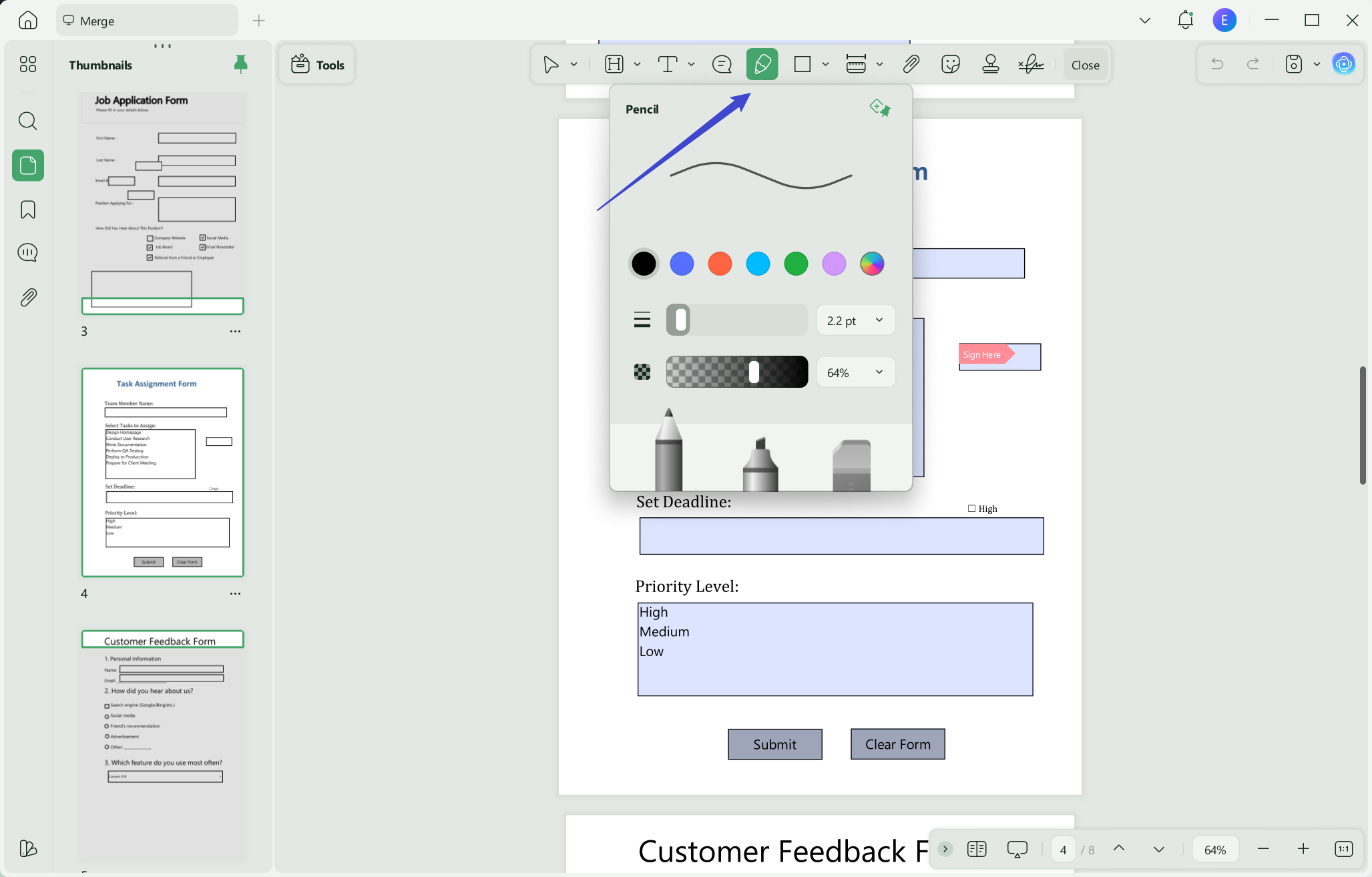
Step 3: Use your mouse to draw the signature in the relevant field to sign the PDF.
Keep reading for another solution to sign PDFs!
Way 3. Via Adding Image
If your signature is saved in a transparent image format, you can upload it and add it to your PDF. This can be useful for various scenarios, such as adding a consistent signature to a large volume of documents or reusing a signature for routine documents.
Here’s what to do.
Step 1: Download the UPDF via the below button firstly. After importing your PDF in UPDF, select “Edit PDF” from the left. Then click “Image” from the top.
Windows • macOS • iOS • Android 100% secure
Step 2: Click where you need to add the signature and import your image.
Step 3: Drag the borders to resize the signature, or use the toolbar to crop, rotate, or replace it.
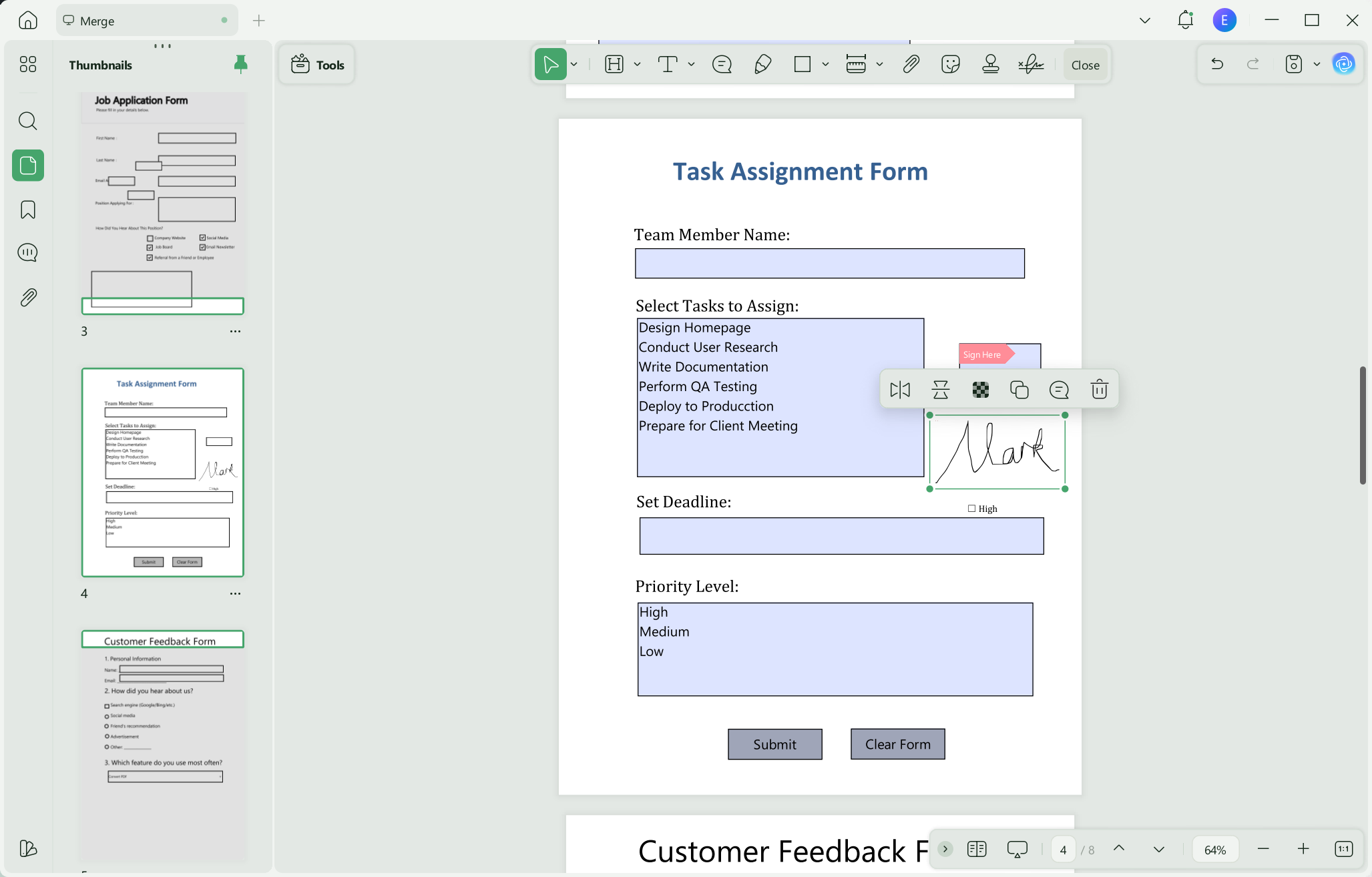
So, that’s how to electronically sign a PDF! Now, let’s see how to add digital signatures.
Also Read: Electronic Signature vs. Digital Signature: Unraveling the Key Differences
Adding a signature to a PDF is a crucial step in contract signing and document approval. Return to How to Annotate PDF to learn how the signature feature works alongside other annotation tools—such as stamps and sticky notes—to create a more comprehensive signing workflow.
Part 3. How to Digitally Sign a PDF?
Best for:
- Contracts, approvals, and professional forms where recipients need to inspect signer certificate details or detect changes made after the signed revision.
Not for:
- A casual workflow where the recipient only expects a visible signature, or a process whose policy requires a specific external certificate provider that the signer does not possess.
Unlike electronic signatures, digital signatures are more secure and legally recognized. They show the signer’s identity and ensure the document has not changed. UPDF lets you digitally sign a PDF with and without a signature field. Let’s see how.
Way 1. With Signature Field
Do you need to fill out an interactive PDF form with a fillable signature field? With UPDF, you can digitally sign it in just a few steps.
A visual example can make the move from reviewing a document to signing it less confusing. Watch the video below for a closer look at working with PDF forms in UPDF.
Here’s how to digitally sign a PDF with a signature field.
Step 1: Open your PDF with UPDF. Then, click the signature field. This will open a popup. From here:
- Import a Digital Signature: Click the “Import” button. Then, click “Browse” to import your ID. Type its password and click “Save.”
- Add a New ID: Click the “Create” button. Enter your name, email, and organization details. Then click “Create” and proceed.
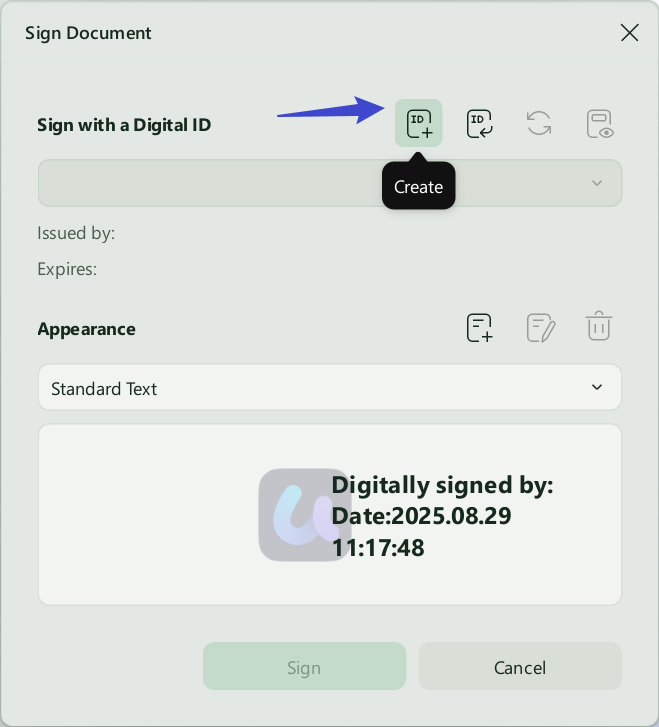
Step 2: Select a location to save your ID and add a six-digit password to protect it. Once you've done this, click "Save”.
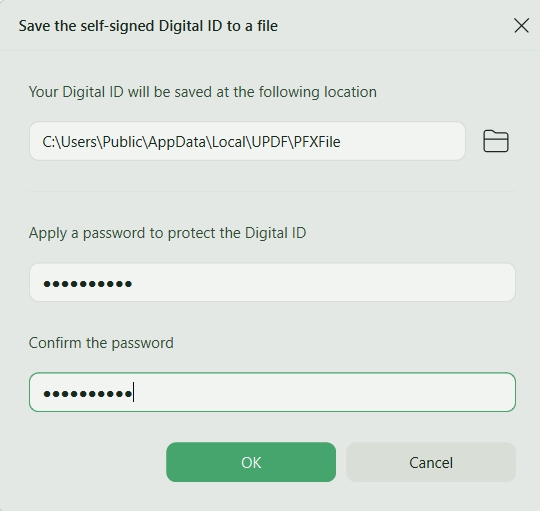
Step 3: Your digital signature will be created. Click “Sign” to add it to the PDF.
Way 2. Without Signature Field
Do you have a static PDF form or contract without fillable fields? UPDF lets you create a signature field to sign the PDF digitally.
Here’s how it’s done.
Step 1: Launch UPDF and click “Form” from the "Tools".
Step 2: Select “Digital Signature” from the top. Then click anywhere to add the signature field.
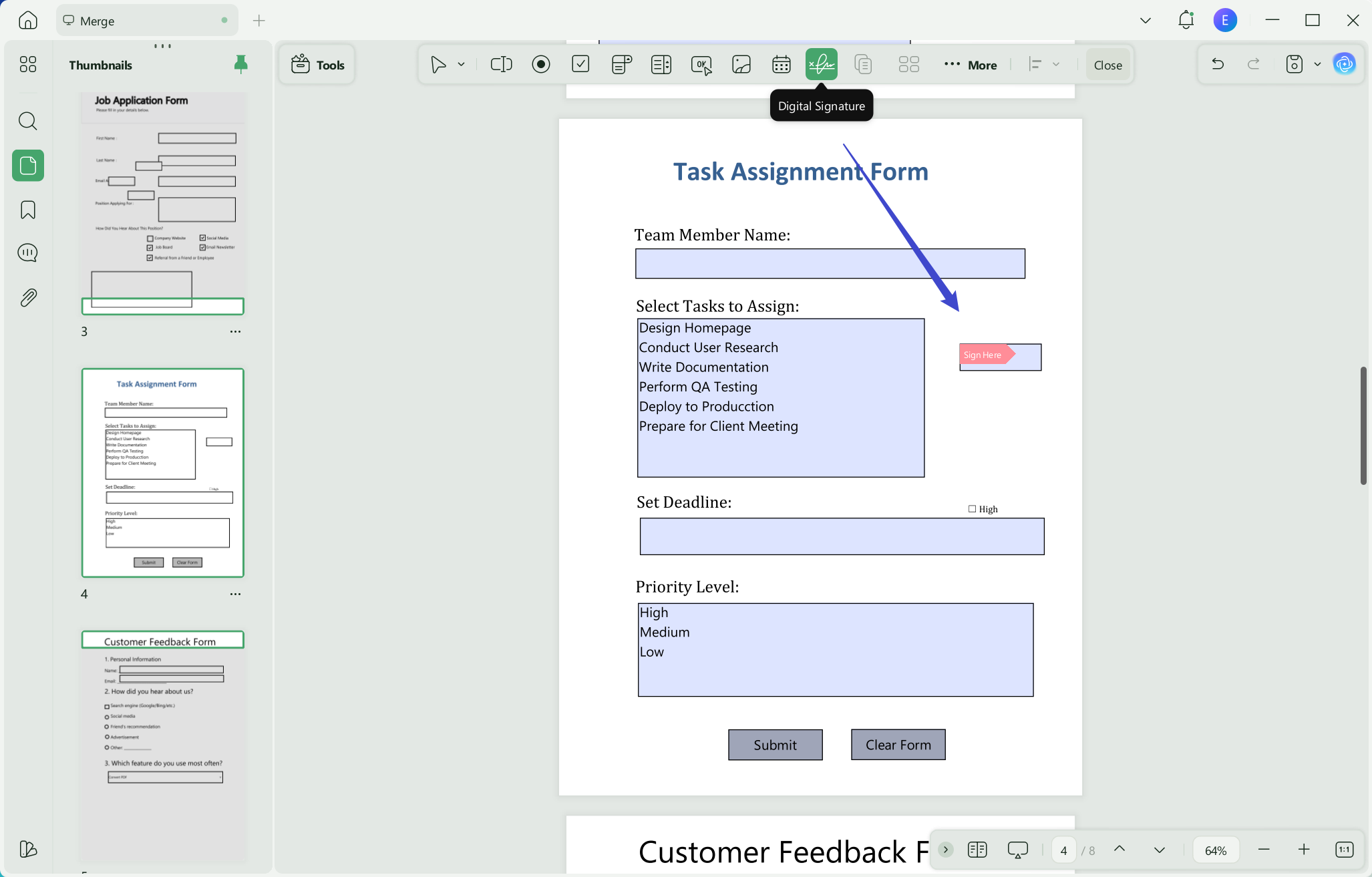
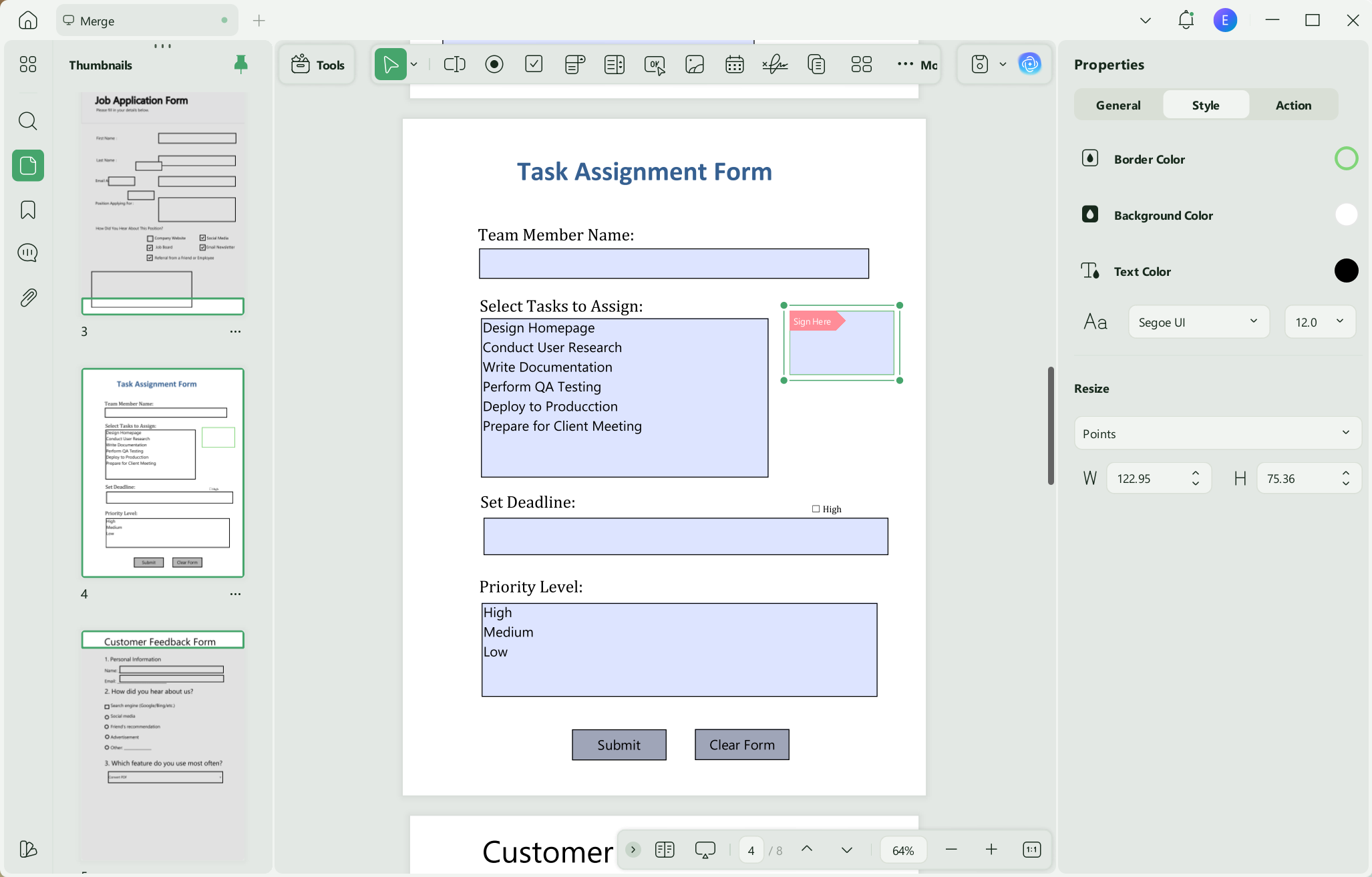
Step 3: Resize the signature field and enable “Properties” from the top right. Click the “Sign Here” box. Then, create or import your digital ID.
So, that’s how to digitally sign a PDF! Signing is just one of the many capabilities of UPDF. Watch the video below or read this review to explore everything you can do with it.
So try it out yourself!
Also Read: How to Add Signature to PDF in Microsoft Edge? (Easy Guide)
Part 4. Sign PDF Online and Send for Signatures
Best for:
- Sending contracts, approvals, onboarding forms, and multi-department documents when the sender must assign fields and monitor progress.
Not for:
- A single local signature where no one needs recipient routing, email delivery, or status tracking; the local UPDF Signature tool is lighter for that job.
For users needing to collect multiple signatures and track signing status anytime, anywhere, UPDF Sign is the perfect solution. It’s an online platform that lets you send, sign, and track PDF documents with ease. You can send up to 50 PDFs to up to 50 recipients at once and monitor the signing process on any device. If you already have a UPDF account, simply log in to UPDF Sign without any additional registration to enjoy a free trial. Click the button below to get started.

For the following section, we will show you how to sign PDFs using UPDF Sign:
Step 1. Access to UPDF Sign website and log in to it.
Step 2. From the homepage, click the "+" icon and upload the documents you need to send for signature.
Step 3: Enter the details of the first signer in the "Recipient 1" section. To add more signers, click "Add Recipient" and enter their information.

Step 4: Choose "Set Signing Order" if the document needs to be signed in a specific sequence, or select "Just Need My Signature" if you are the only signer.
Step 5: Provide a document name and write a custom message for the recipients. Click "Continue."

Step 6: Drag and drop signature fields onto the document for the first signer.
Step 7: Switch to the next signer from the top left corner and customize their signature fields. Ensure fields do not overlap.

Step 8: Click "Finish" when done. Review the document and click "Send." You can track the signing process on the home page.
Step 9: Recipients will receive an email with a "Review Document" button. They need to click the link to access the document.
Step 10: Recipients can sign using one of three options: Font, Draw, or Upload. Click "Confirm" to complete the signing process.
Part 5. Electronic Signature vs. Digital Signature vs. UPDF Sign
| Signing path | What appears in or around the PDF | Identity and integrity evidence | Local or online | Routing and tracking | Best fit | Main limit |
|---|---|---|---|---|---|---|
| UPDF electronic signature | A typed, drawn, or image-based visible signature | Shows a signature mark and apparent intent; no certificate is implied | Local desktop workflow | No sender-managed routing | Signing your own local PDF quickly | A visible mark alone does not provide Digital ID verification |
| UPDF digital signature | A signed field linked to a Digital ID | Certificate properties and checks for changes after signing | Windows and Mac | Multiple prepared fields are possible, but no email-request dashboard | Certificate-based signing of a controlled PDF revision | Later edits can invalidate verification; acceptance policies vary |
| UPDF Sign | Assigned signature fields plus an online request record | Sender-managed recipient, field, completion, and workflow records | Online web service | Sequential or simultaneous delivery and status tracking | Collecting signatures from one or many people | Separate product and license; documents are uploaded for the online workflow |
In the United States, the federal ESIGN framework generally prevents a contract or signature from being denied legal effect solely because it is electronic. That principle does not mean every typed name, signature image, Digital ID, or platform workflow satisfies every rule. Enforceability and the required signature level can depend on the jurisdiction, document type, intent, consent, attribution, record retention, and the receiving organization's policy. This article is operational guidance, not legal advice.
FAQs
Q1: Can I edit a PDF after signing it?
A visible e-signed PDF may remain editable. However, editing a digitally signed PDF can invalidate the certificate-based signature because the document no longer matches the signed revision. Keep an unsigned working copy and sign only after all required changes are complete.
Q2: Can several people digitally sign the same PDF?
Yes, if the PDF is prepared correctly. Add the required signature fields before signing begins and avoid content or page changes between signers. For email delivery, assigned fields, signing order, and status tracking, use a multi-recipient service such as UPDF Sign.
Q3: Does locking a PDF make its signature verifiable?
No. Locking and verification are different. A permissions password restricts selected actions in compatible readers. A Digital ID signature supplies certificate and integrity information. Apply the control that matches the actual requirement, or use both in the correct order when the workflow calls for both.
Conclusion
The right way to sign a PDF depends on who signs and what must be proven or controlled afterward. Use UPDF's Signature tool for your own visible electronic signature. Use a Digital ID when certificate details and later-change detection matter. Add permissions only after the file is complete. Use UPDF Sign when other people need assigned fields, delivery, signing order, and status tracking.
For a local PDF that still needs preparation, signing, or final protection, UPDF keeps those steps in one desktop workflow. Download UPDF for free to sign and protect your PDF — installation is free, and Pro removes the trial watermark from exported files.
For a document that must move between several signers, open UPDF Sign and build the recipient workflow before the first request is sent.
Windows • macOS • iOS • Android 100% secure





 Delia Meyer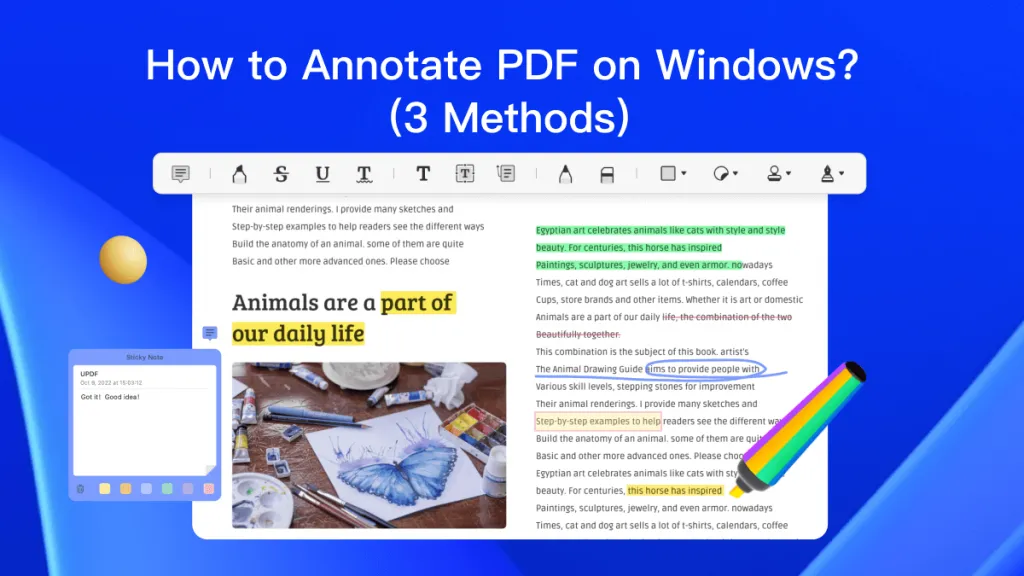
 Enid Brown
 Enya Moore
 Enola Miller