 UPDF
UPDF
 UPDF for Windows
 UPDF for Mac
 UPDF for iPhone/iPad
 UPDF for Android
 UPDF AI Online
 UPDF Sign
 Edit PDF
 Annotate PDF
 Create PDF
 PDF Form
 Edit links
 Convert PDF
 OCR
OCR PDF to Word
 PDF to Image
 PDF to Excel
 Organize PDF
 Merge PDF
 Split PDF
 Crop PDF
 Rotate PDF
 Protect PDF
 Sign PDF
 Redact PDF
 Sanitize PDF
 Remove Security
 Read PDF
 UPDF Cloud
 Compress PDF
 Print PDF
 Batch Process
 About UPDF AI
 UPDF AI Solutions
 AI User Guide
 FAQ about UPDF AI
 Summarize PDF
 Translate PDF
 Chat with PDF
 Chat with AI
 Chat with image
 PDF to Mind Map
 Explain PDF
 PDF AI Tools
 Image AI Tools
 AI Chat Tools
 AI Writing Tools
 AI Study Tools
 AI Working Tools
 Other AI Tools
 AI Bookmark Generation
 AI Bookmark Summary
 AI Watermark Generation
 AI Background Generation
 AI Sticker Generation
 AI Stamp Generation
 AI Editing Suite
 UPDF Copilot
 AI Page Management
 AI Semantic Search
 PDF to Word
 PDF to Excel
 PDF to PowerPoint
 Enterprise Solution
 Enterprise Sign
 Enterprise AI
 Enterprise Plan
 Enterprise User Guide
 Enterprise Webinar
 Banking
 Healthcare
 Insurance
 Legal
Legal Manufacturing
 Government
 Education Solution
 Customer Stories
 User Guide
 UPDF Tricks
 FAQs
FAQs UPDF Reviews
 Download Center
 Blog
Blog Newsroom
 Tech Spec
 Updates
 UPDF vs. Adobe Acrobat
 UPDF vs. Foxit
 UPDF vs. PDF Expert

Removing white space is essential for mobile reading and tablet users, as it maximizes the text size on smaller screens and eliminates the need for constant zooming.
In this article, we'll cover three of the best methods for removing blank space from PDF documents to make them more easily digestible. Firstly, UPDF, an advanced, intuitive software designed to make PDF editing easy and quick. Next, Adobe Acrobat, a well-loved yet complicated software. Finally, Sejda, an online tool that makes cropping PDFs possible without downloading any software.
Read on to discover how to remove white space from PDF documents with these three methods.
Method 1. How to Remove White Space from PDF with UPDF
If you have white space on your PDF that you want to remove, it's quick and easy to do so with UPDF. It is an extensive PDF toolset to help you deal with all kinds of PDF problems, including PDF editing, annotating, OCR, converting, and more! Here's how to remove white space in PDF documents:
Step-by-Step Guide on Removing Blank Space from PDF
Step 1. Download and Install UPDF
Download and install UPDF by clicking the "Free Download" button below. Follow the on-screen instructions to successfully install the software. Once the installation is complete, open your PDF file.
Windows • macOS • iOS • Android 100% secure
Step 2. Select the White Space for Cropping
Go to the "Crop" tool on the toolbar in "Tools" from the top of your screen.
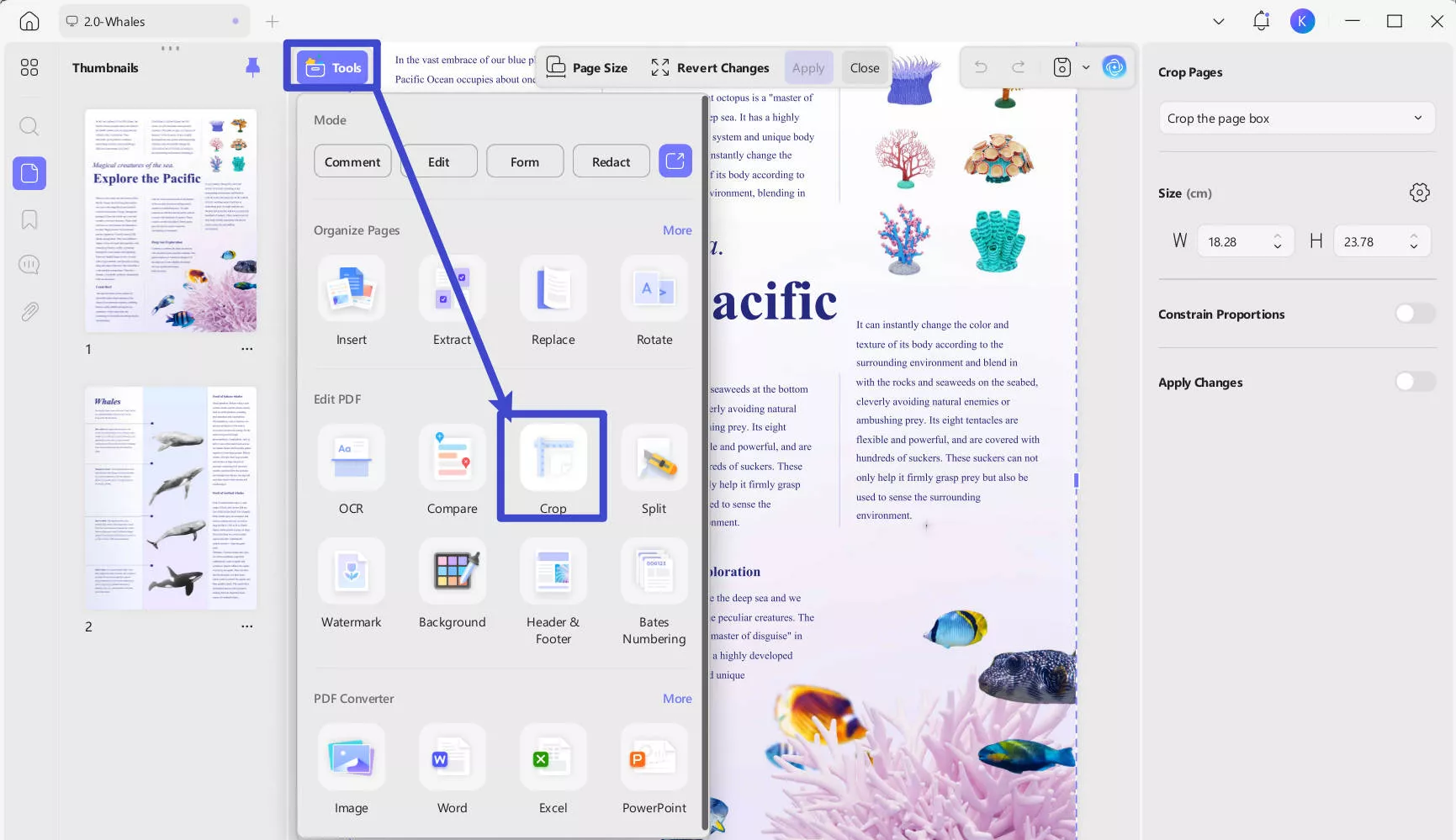
Adjust the cropping area by dragging the cropping box or simply click on "Remove White Margins" so that all of your white space is removed. Using this tool, you can also set defined cropping proportions, a defined height and width, or a set margin width. You can determine the margin of the page by entering a specific number.
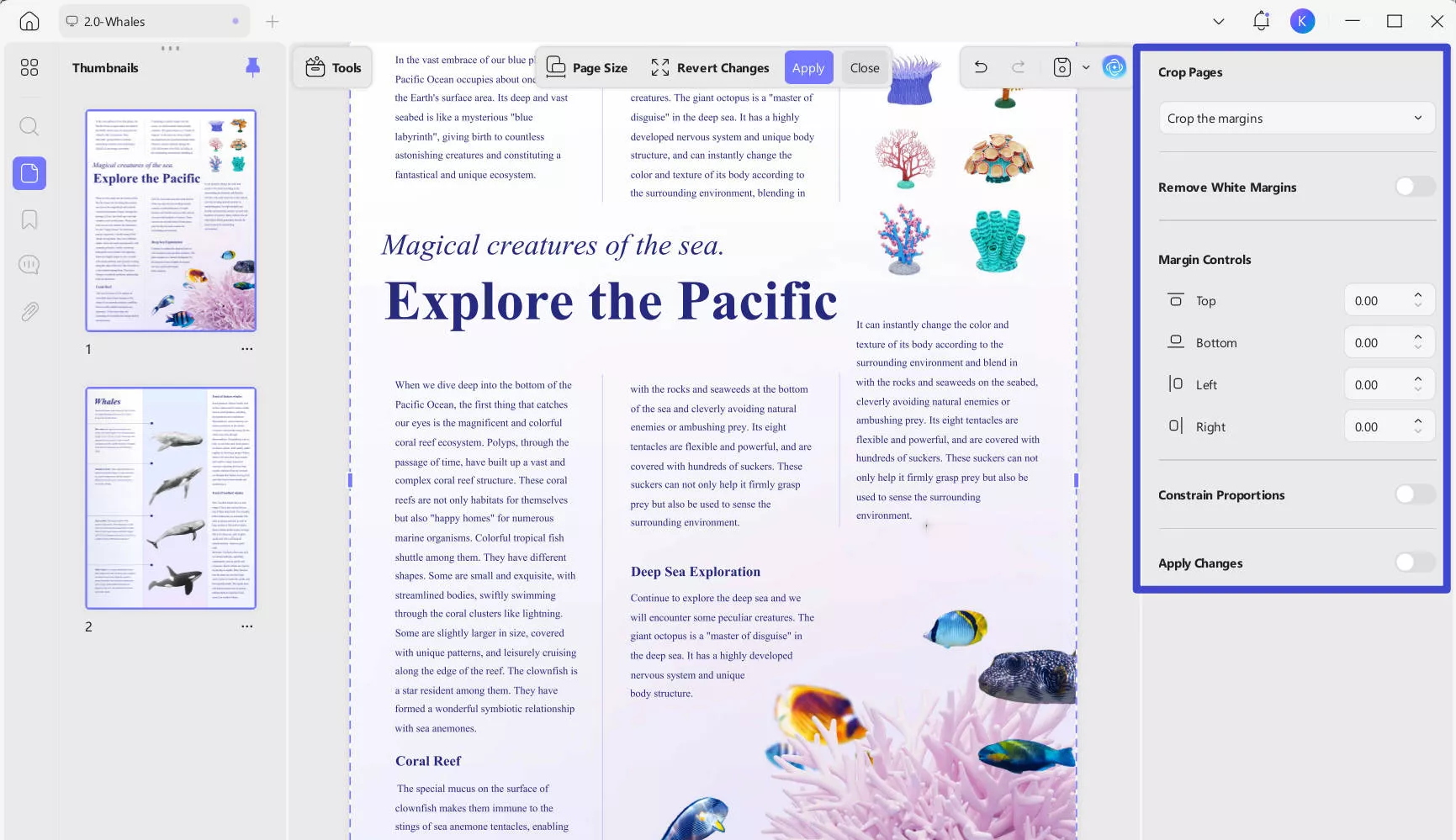
Step 3. Crop White Space from All PDF Pages
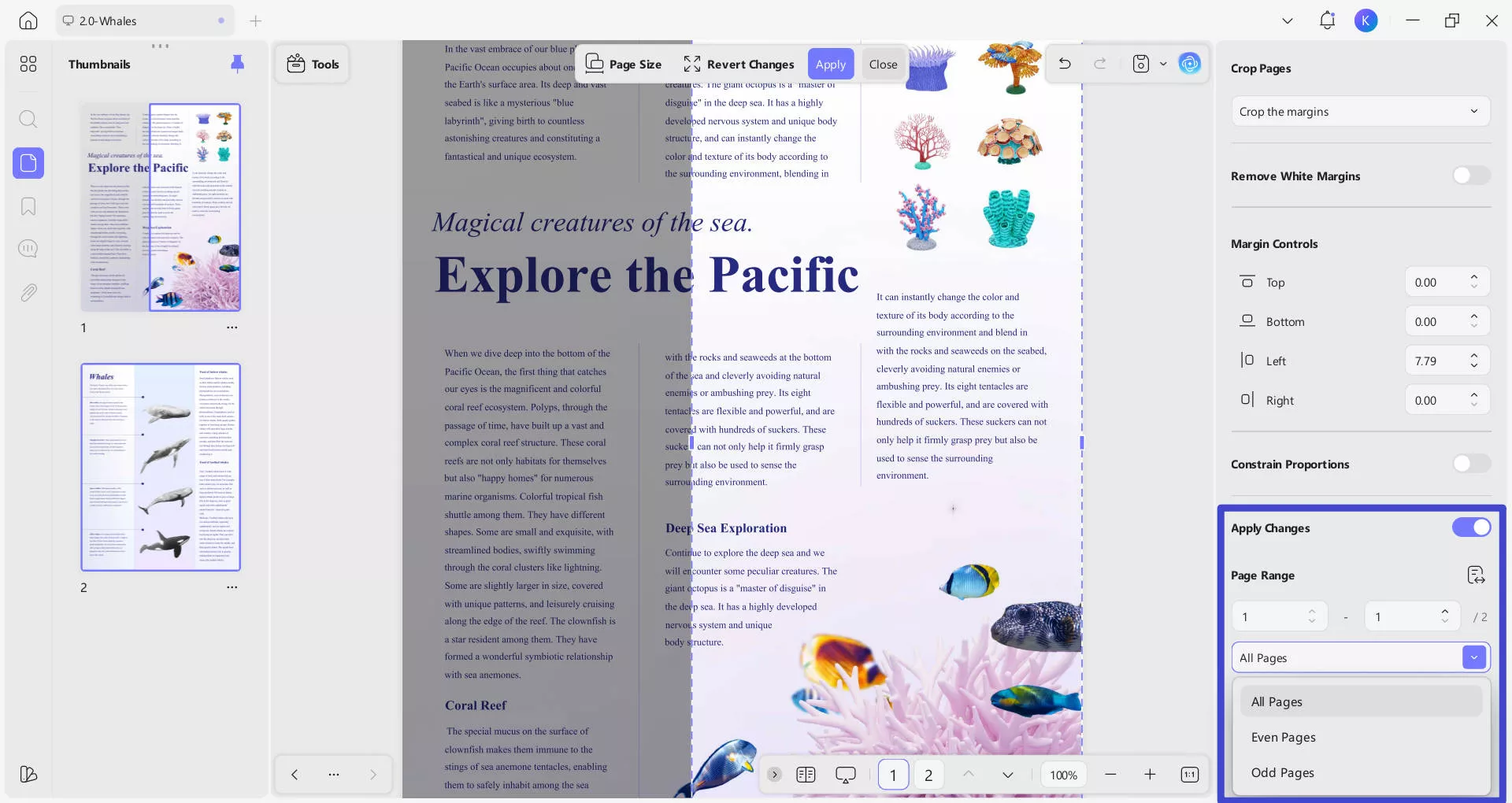
Click "Apply Changes" and choose the page range of "All Pages", "Even Pages", "Odd Pages" or enter a specific page range to apply this change to just one page or for more pages of the PDF. Don't forget to save your new PDF file and name it.
Why Do I Need to Remove White Space from PDF
There are a few reasons why you might want to do this:
- Master Mobile Reading: Removing margins maximizes text size on smaller screens. It’s the best way to make PDFs perfectly compatible with Kindle, iPad, and smartphones without constant zooming.
- Enhance Visual Focus: By eliminating visual clutter, you align your study habits with "Minimalist Reading." This draws immediate attention to critical text, complex diagrams, and key images.
- Improve Formatting Consistency: Ensure a uniform look across all pages. UPDF’s Crop tool allows you to apply precise margins to the entire document in seconds for a seamless transition between pages.
- Eco-Friendly Printing: Reduce paper waste and ink consumption. A tighter crop ensures your content fits perfectly on the page, saving resources during physical printing.
In addition to removing white space from your PDF document, UPDF has a number of other great features:
More Features of UPDF
- View PDFs: Open any PDF file and read through it without any trouble or delay. You can also change PDF background color as you like. Moreover, UPDF supports multi-tab reading and eye-protection mode.
- Edit PDF: One of the stand-out features of UPDF is how easy it is to make edits to your document. Edit text, fonts, colors, and more, as if you were editing a Word document.
- Annotate PDF: Choose from hundreds of beautifully designed stickers and stamps, signatures, watermarks, and more to fully personalize your document.
- PDF Creation: Effortlessly create stunning PDFs from Word, images, or even clipboard content. Merge files or create a PDF Portfolio—all in just a few clicks!
- Compress and Convert PDFs: Need to make your file smaller or change it to a different format? No problem! Compress your file in just a few clicks, or change it to an image, Microsoft, or HTML format for use elsewhere. You can batch convert, compress PDF files to save your time.
- UPDF AI: Powered by ChatGPT-5 and DeepSeek R1, you can take the most of artificial intelligence (AI) with UPDF's summarizing, translating, and explaining features. UPDF AI can act as your own personal assistant, explaining key terms and writing new text from scratch to improve your document.
- OCR: UPDF can pull out the text from your scanned file so you can work with it.
If you want to know more about UPDF, check the video tutorial below:
Download UPDF today and try out the free trial to experience all of these great features and more.
Windows • macOS • iOS • Android 100% secure
🚀Unlock More Features
Method 2. How to Remove White Space in PDF with Adobe Acrobat
If you have access to Adobe Acrobat software and want to use this option instead, then removing white space can be done fairly simply by following these steps.
Here's how to use Adobe Acrobat's PDF white space remover:
- Open your PDF document in Adobe Acrobat. If you don't already have it downloaded, then you will need to do so before continuing with the next steps.
- Select "Tools" from the toolbar at the top and then "Edit PDF".
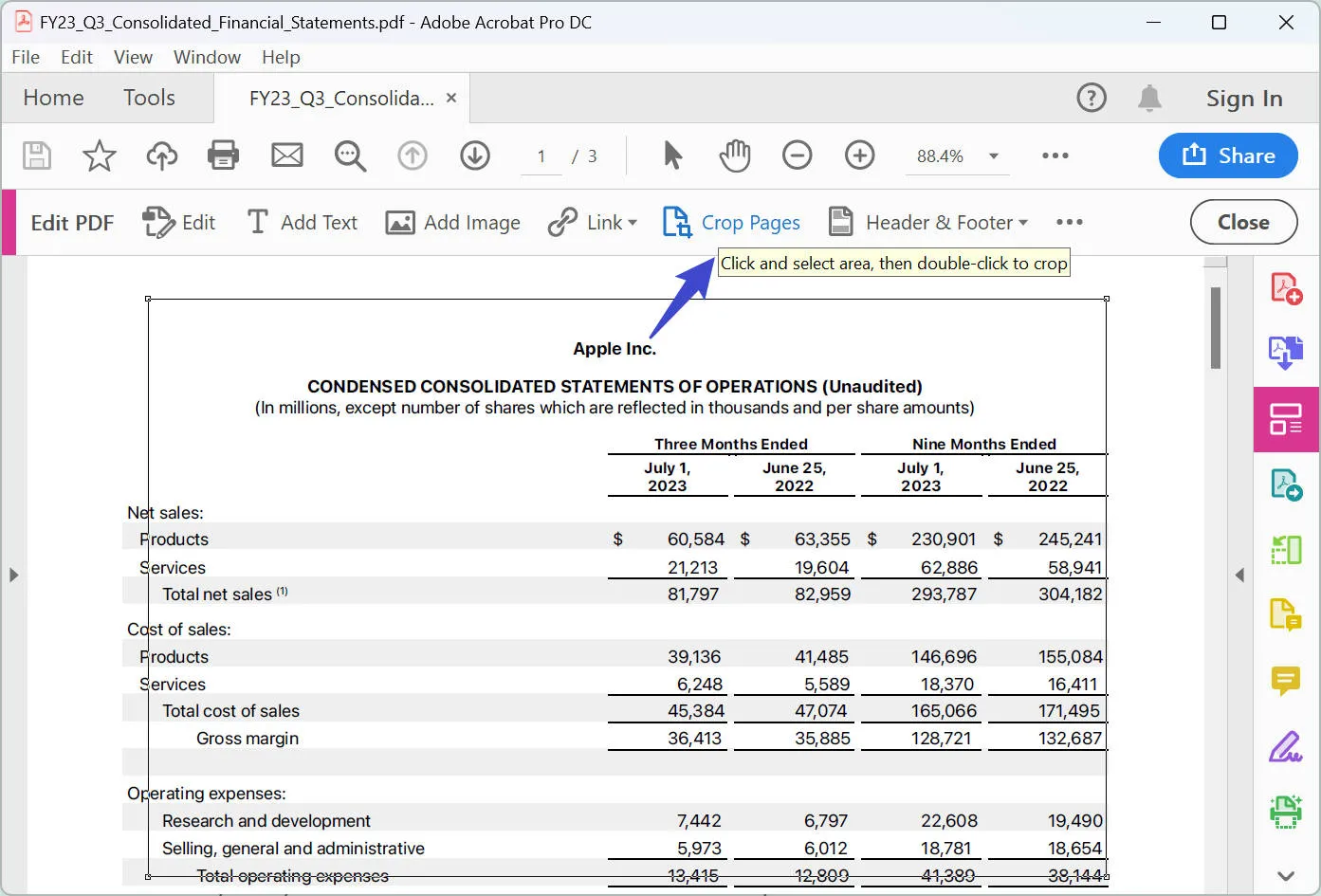
- From the second toolbar that appears, click "Crop Pages". From here, you can drag a rectangular shape on the page that you want to crop.
- When you're happy with your cropping area, double-click inside the rectangle to bring up the additional settings.
- You can adjust the margins of your cropping area here and adjust the other settings too.
- When you're happy with the settings, set the page range that you want to remove this white space and click "All under page range". Finally, click "OK" to apply the changes and save your PDF.
Should I use Adobe Acrobat to remove white space?
Overall, Adobe Acrobat is a good option for removing white space in your PDF document. However, it's not the best software for this purpose. Some users have reported that the editing feature doesn't always work as it should, and that Adobe's customer support can prove tricky. Perhaps the biggest drawback of using Adobe Acrobat is that it's expensive to purchase and the free version is very limited. It also requires familiarity with other Adobe products, since the user interface is not intuitive.
A better option for removing white space in PDF documents is UPDF. With a well-designed user interface and a wide variety of features, it's much easier to use than Adobe Acrobat. If that wasn't enough, it costs significantly less to purchase than Adobe Acrobat, and you can purchase on a one-off basis with an exclusive discount so you can use the software forever. If you want to try UPDF for yourself, download the free trial version here.
Windows • macOS • iOS • Android 100% secure
Method 3. How to Remove White Space in PDF Online
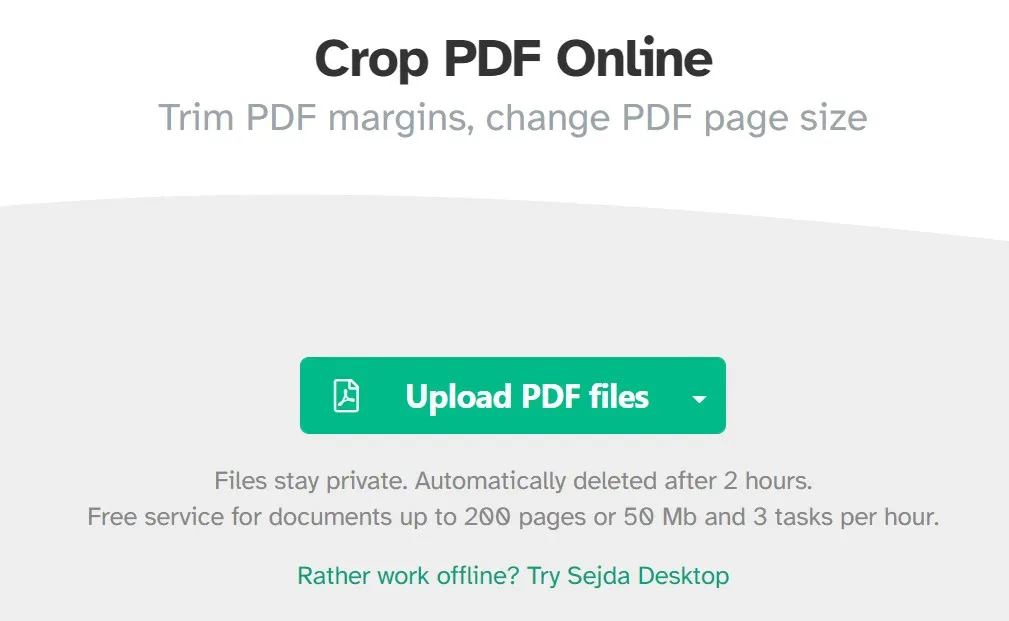
If you don't need to edit your PDF documents offline and want a quick way to remove white space, then consider using an online tool like Sejda. Although this tool may be less secure, it is significantly faster than installing software like Adobe Acrobat.
Follow these steps to learn how to remove blank spaces in PDF online:
- Go to Sejda and click "Crop" from the menu at the top of the page.
- Click "Upload PDF files" and choose the file from your device.
- Choose from one of the options: "Automatic", "Automatic Maximum Crop", or "Preview Pages & Select".
- When the PDF has loaded, select "Crop", and draw the crop area.
- When you've made all of your edits, click "Download" to save the newly cropped file to your device.
Should I use Sejda to remove white space from PDFs?
Sejda is a convenient way to remove white space in your PDF document. However, it does have some limitations, the first being that, because it's an online tool, you can't be sure that your data will be secure. If your PDF contains sensitive or confidential information, then you'll want to use an offline tool like UPDF. In addition to this, Sejda requires an internet connection, so you won't be able to remove white space offline. Some users have reported that the online tool is somewhat limited and can take a long time to process more complicated functions, like OCR. Check the detailed comparison between Sejda and UPDF.
Comparing the 3 Tools to Remove White Space from a PDF
So, which of these three tools is the best to (PDF) remove white space? Here's a handy comparison table:
| UPDF | Adobe Acrobat | Sejda | |
| Pricing | Free trial then $49.99 per year or $79.99 one-off cost | $239.88 per year, no one-off price available | Free with limitations, and US$63 per year |
| Add Blank Pages to PDF | |||
| Reorder Pages | |||
| Crop PDF Pages | |||
| Edit PDF | |||
| Annotate PDF | |||
| AI-Integration | |||
| Ease of Use | Excellent | Complicated | Excellent |
| Interface | Excellent | Good | Good |
| Pros | User-friendly Affordable pricing Intuitive UI AI features integrated Available for offline use | Advanced features Wide range of uses Available for offline use | Quick to use User-friendly Free |
| Cons | It is a new product but with powerful features | Expensive Not user-friendly Issues with free version | Data may not be secure Limited features |
| Rating/5 | 4.8 | 4.7 | 4.0 |
Ultimately, UPDF is the best editing tool for removing blank spaces in PDF documents. When it comes to usability, price, and variety of features, it's the best option available on the market. When compared with Adobe Acrobat, UPDF is more cost-effective and intuitive to use, and when compared with Sejda, UPDF has more advanced features like OCR, AI, and more.
FAQs About Removing White Space from PDF
1. Will removing white space delete the content of my PDF?
No. UPDF’s cropping feature only hides the unwanted margins or peripheral areas you select. Your original text and images remain intact, and you can undo or readjust the crop area at any time before saving.
2. Can I remove white space from all pages at once?
Yes! Once you have set your desired crop area on one page, you can go to the "Apply Changes" settings in UPDF to apply the same dimensions to a specific page range or the entire document with a single click.
3. Does UPDF have an automatic margin removal feature?
Absolutely. In the Crop tool interface, you can simply click the "Remove White Margins" button. UPDF will intelligently detect the content edges and crop the empty space for you automatically.
4. Is it better to remove white space online or with software like UPDF?
While online tools are convenient for quick tasks, professional software like UPDF is safer for sensitive documents and offers more precision. Additionally, UPDF provides extra features like AI Summarization and Dark Mode to further enhance your reading after cropping.
5. Will cropping a PDF reduce the file size?
Cropping primarily changes the visual display area. To significantly reduce file size, you should use UPDF’s "Compress PDF" feature after cropping, which optimizes the document for sharing via email or cloud storage.
Conclusion
So, now you know how to use three PDF white space removers: UPDF, Adobe Acrobat, and Sejda. Whether you choose to use a rapid online tool or trusted software, removing blank space is simple and quick to do. Do this to make your PDFs more easily readable and to allow your readers to focus on the key text, images, and diagrams within your document.
If you're confused about which tool should you choose, pick UPDF, which is the best option among the three. It is a cost-effective, high-performance, and all-in-one PDF solution that you will love. Read the UPDF review on PDF association to learn more about it. We highly recommend integrating UPDF into your system to enjoy the benefits of this exceptional PDF solution. Simply click the download button below and upgrade to the UPDF Pro version to get significant discounts on your purchase.
Windows • macOS • iOS • Android 100% secure







 Enola Miller
 Enya Moore

 Delia Meyer