 UPDF
UPDF
 UPDF for Windows
 UPDF for Mac
 UPDF for iPhone/iPad
 UPDF for Android
 Nomostar
 UPDF AI Online
 UPDF Sign
 IvyCraft
 Edit PDF
 Annotate PDF
 Create PDF
 PDF Form
 Edit links
 Convert PDF
 OCR
OCR PDF to Word
 PDF to Image
 PDF to Excel
 Organize PDF
 Merge PDF
 Split PDF
 Crop PDF
 Rotate PDF
 Protect PDF
 Sign PDF
 Redact PDF
 Sanitize PDF
 Remove Security
 Read PDF
 UPDF Cloud
 Compress PDF
 Print PDF
 Batch Process
 About UPDF AI
 UPDF AI Solutions
 AI User Guide
 FAQ about UPDF AI
 Summarize PDF
 Translate PDF
 Chat with PDF
 Chat with AI
 Chat with image
 PDF to Mind Map
 Explain PDF
 PDF AI Tools
 Image AI Tools
 AI Chat Tools
 AI Writing Tools
 AI Study Tools
 AI Working Tools
 Other AI Tools
 AI Bookmark Generation
 AI Bookmark Summary
 AI Watermark Generation
 AI Background Generation
 AI Sticker Generation
 AI Stamp Generation
 AI Editing Suite
 UPDF Copilot
 AI Page Management
 AI Semantic Search
 PDF to Word
 PDF to Excel
 PDF to PowerPoint
 Enterprise Solution
 Enterprise Sign
 Enterprise AI
 Enterprise Plan
 Enterprise User Guide
 Enterprise Webinar
 IT
IT Education
 Construction
 Financial Service
 Healthcare
 Insurance
 Legal
Legal Manufacturing
 Government
 Researchers & PhDs
 Solopreneurs & Freelancers
 Lawyers & Legal Professionals
 Real Estate Agents & Brokers
 Education Solution
 Customer Stories
 User Guide
 UPDF Tricks
 FAQs
FAQs UPDF Reviews
 Download Center
 Blog
Blog Newsroom
 Tech Spec
 Updates
 UPDF vs. Adobe Acrobat
 UPDF vs. Foxit
 UPDF vs. PDF Expert

Finance teams processing 40 weekly invoices need PAID stamps that look consistent and professional. Every stamp should also show correct dates without requiring staff to enter them manually. Different software handles these needs differently, explaining why available stamping options often seem widely scattered.
A PDF stamp creator can be a built-in editor feature or an online graphic generator. Both approaches let users design, import, and apply custom status marks across electronic documents. Common examples include PAID, APPROVED, CONFIDENTIAL, company seals, and stamps displaying real-time timestamps clearly. Choosing between these main workflows depends on how stamps need to function within documents:
- Direct PDF Stamp Creators: Users create text, date, or AI stamps directly inside PDFs. Dynamic timestamps require PDF editors supporting automatic stamp information updates.
- Graphic Stamp Designers: Designers create transparent PNG or SVG stamps for PDF importing. This approach offers visual freedom but cannot update information automatically.
Need to design custom text, dynamic date, or AI-generated stamps in seconds? Download UPDF for free and customize your PDF stamps today!
Windows • macOS • iOS • Android 100% secure
#1: Create Custom & AI PDF Stamps with UPDF
Best For:
- Users needing offline PDF editing, custom stamps, logo imports, and AI-generated rubber seals.
Not For:
- Anyone seeking lightweight browser-based PDF stamping without installing additional software on their device.
UPDF combines both workflows within one application for Windows, Mac, iOS, and Android users. Its Comment toolset supports rubber seals, automatic PAID dates, and text-to-artwork stamp generation features. Our PDF stamp guide explains their behavior across broader markup and document approval workflows. Here is how to create PDF stamp designs and apply them using UPDF:
Step 1. Once you open UPDF, press "Open File" to import your PDF file. After that, press the "Tools" option and choose the "Comment" option.
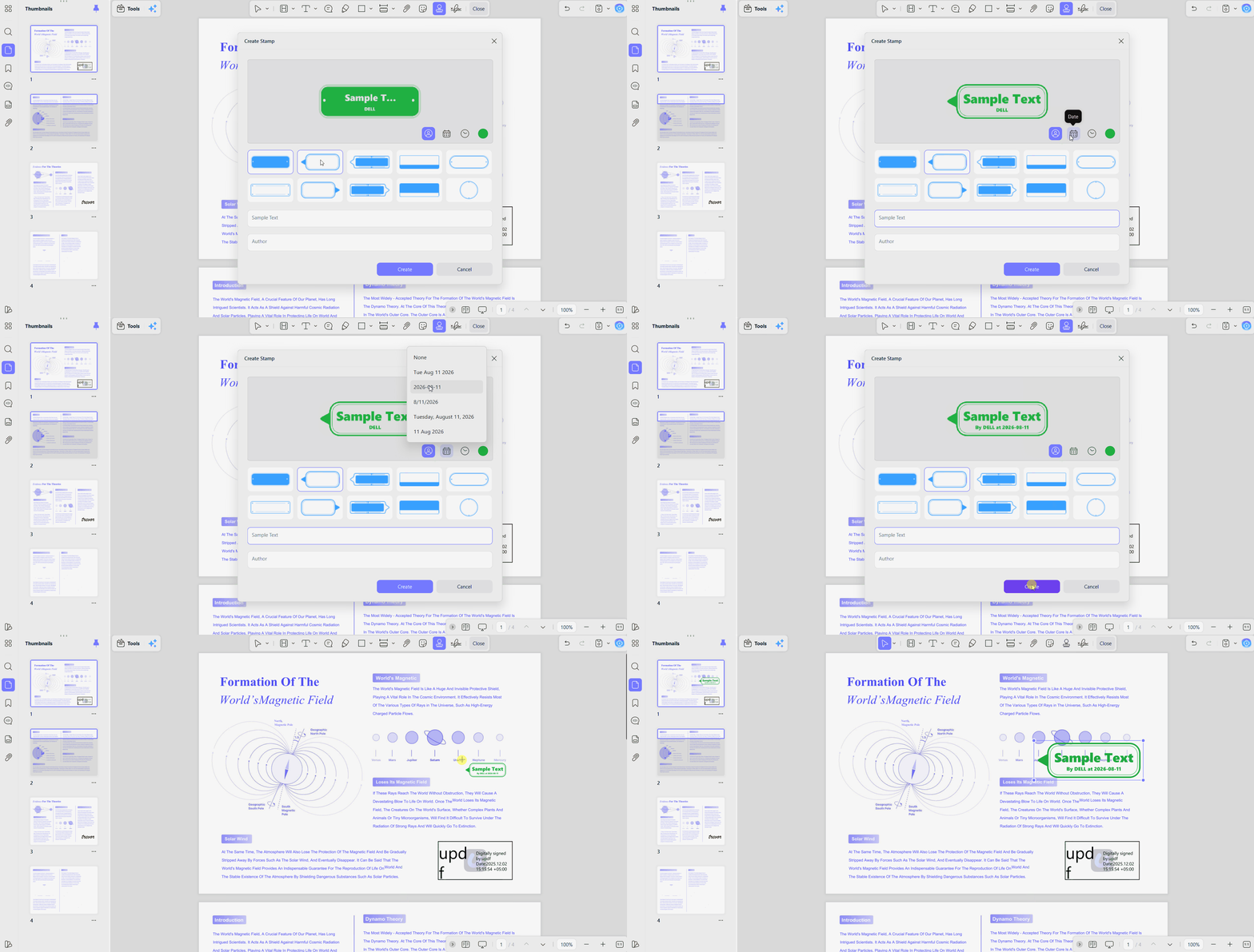
Step 2. Next, choose the "Stamps" feature and select "Custom." After that, press the "Create" button to start creating a stamp manually. Adjust these 3 groups of controls that sit in that dialog:
- Text String: Enter your preferred wording, such as PAID, RECEIVED, or REVIEWED BY [Name].
- Dynamic Date and Time: Click the calendar and clock icon to enable dates that update automatically. Then select your preferred date format, either YYYY-MM-DD or MM/DD/YYYY, from available options.
- Appearance: Choose rectangular, rounded, or oval borders, then select background colors and font styles. Move the opacity slider between 0% and 100% for realistic ink texture effects. Finally, click "Create" when the stamp preview looks correct and meets your requirements.
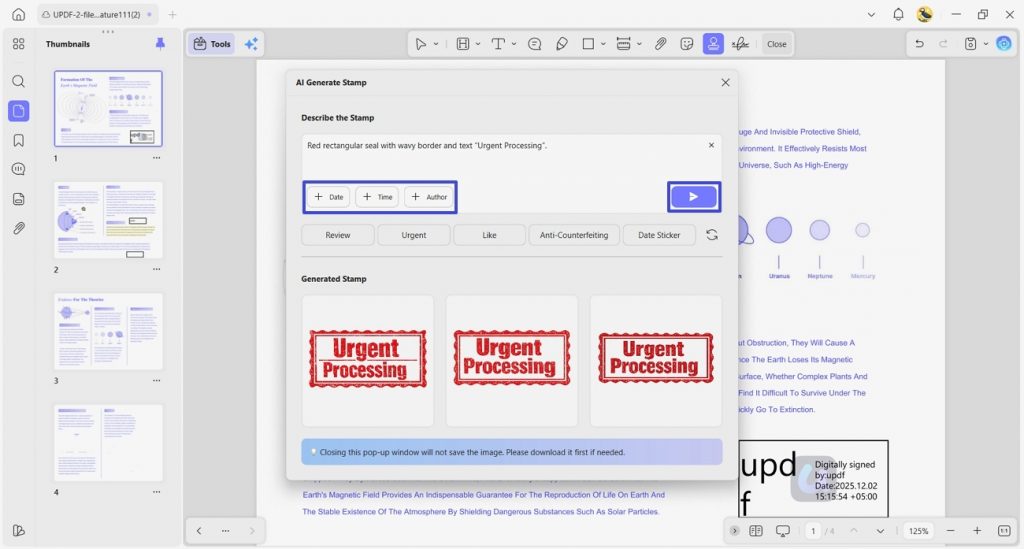
Step 3. If you opt for "AI Stamps," enter a prompt in the text box and choose a template like "Void" or "Attachment." Once done, press the "Send" button. After that, you’ll get 3 high-resolution transparent PNG options at 1024 by 1024 pixels. Click "+" to use directly on your PDF or press "Download" to save it for future use.
Note:
#2: Create Custom Stamps in Adobe Acrobat Pro
Best For:
- Teams importing standard image stamps inside an established Adobe Acrobat workflow.
Not For:
- Budget-conscious buyers, beginners wanting AI stamp generation, or anyone needing a custom dynamic date without writing code.
Acrobat handles stamping awkwardly by separating ready-made dynamic stamps from custom stamp creation. Its Dynamic category automatically adds dates, times, and usernames to existing stamp designs. Custom artwork needs external creation because Acrobat lacks design tools and AI generation features. Follow the steps below to add a paid stamp on PDF files using Acrobat:
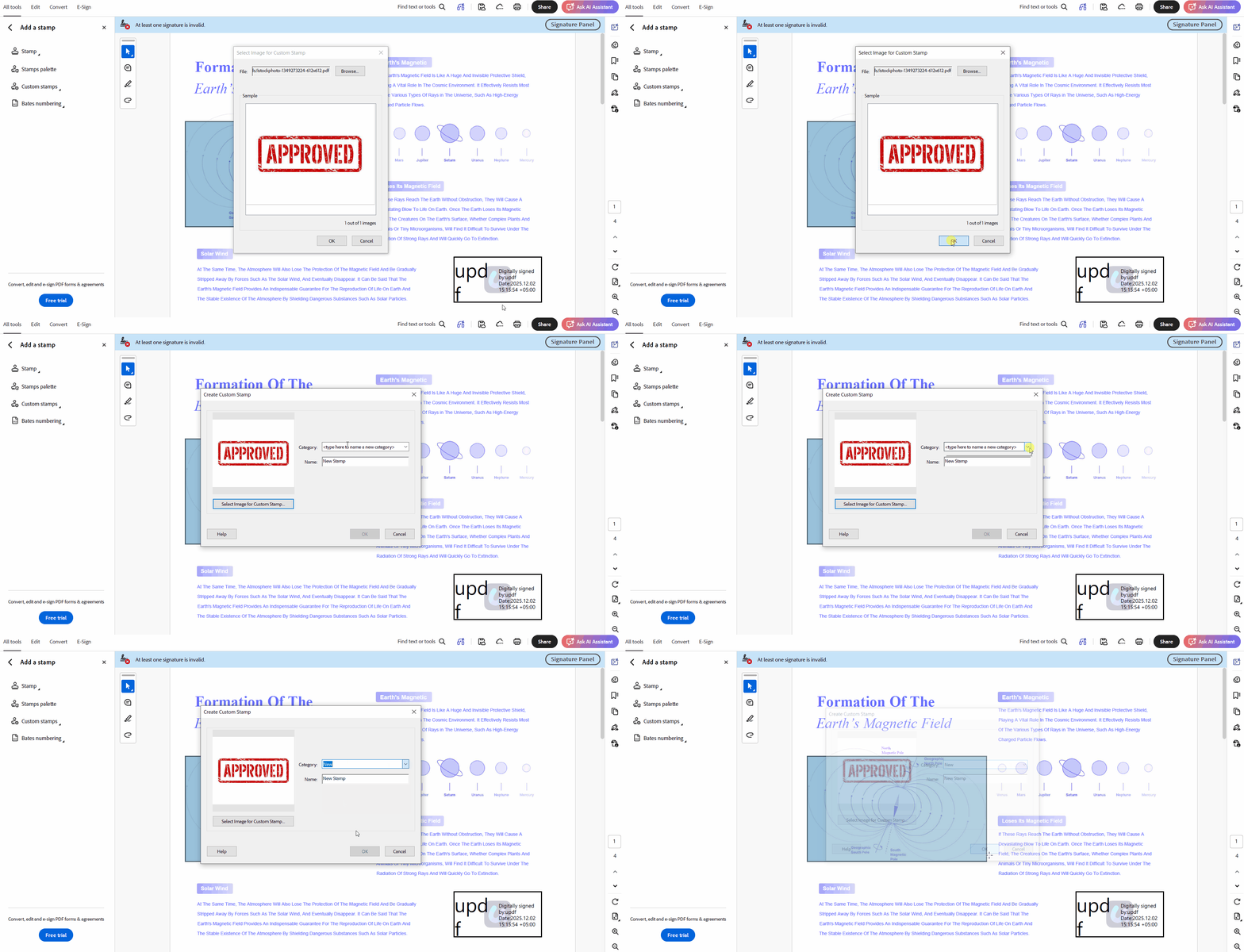
Step 1. Once you open Adobe Acrobat, access the "Tools" menu and choose the "Add a Stamp" option. Then, press the "Custom Stamps" option and click "Create."
Step 2. After that, choose the PDF file you want to convert into a stamp and press "Ok."
Step 3. Pick an existing category such as Standard Business or Dynamic or type a new category name. Title the stamp and click "OK" again to add it to your palette. Then place your stamp onto your PDF page.
This approach creates extra costs through both technical setup and ongoing subscription requirements overall. Dynamic custom dates require selecting Dynamic and opening files from your local Stamps folder. Next, Prepare Form adds a text field requiring custom JavaScript calculation scripts for automation.
Acrobat Pro also requires an expensive recurring subscription for continued access to its features. The complete configuration sequence is set out under how to create a stamp in Adobe.
#3: Add Online Stamps with pdfforge (PDFCreator Online)
Best For:
- Casual users overlaying basic text or image stamps quickly, without installing anything.
Not For:
- Confidential documents, complex dynamic dates, or editing that must happen offline.
Browser tools work well on shared machines where installing desktop software remains restricted. pdfforge provides an online PDF stamp maker that handles basic stamping without installation. Its customization options remain limited compared with desktop tools offering advanced dynamic date controls. Go through the steps below to create and apply your stamp using pdfforge:
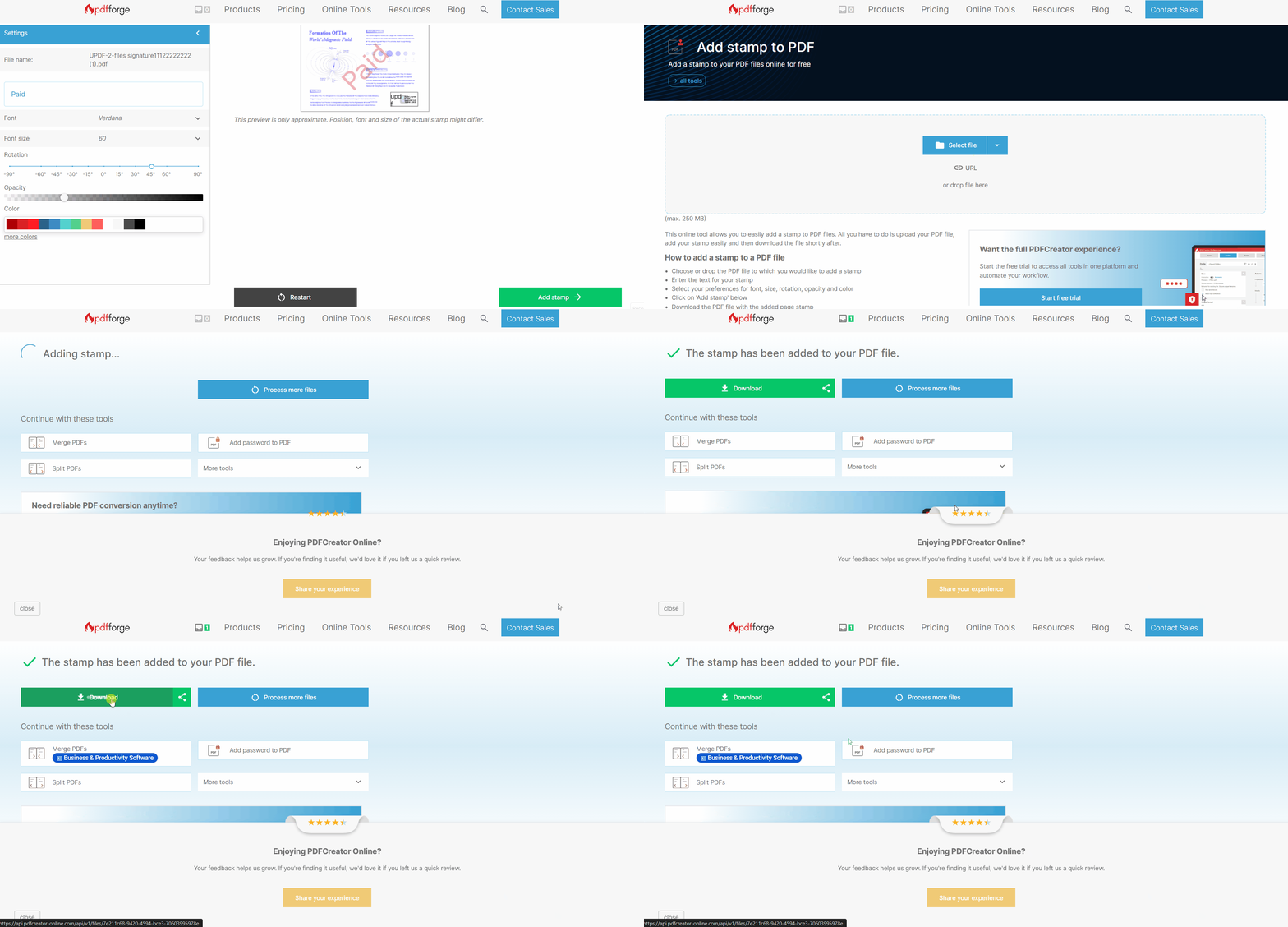
Step 1. Upload your PDF with the "Select File" button and enter the text you need for the stamp.
Step 2. Select the font size and color, then press the "Add Stamp" button. After that, press the "Download" button to directly download the file with the stamp.
This approach has 3 limitations, including file size caps, internet requirements, and server processing. Sensitive legal documents leave your device, which creates privacy concerns during third-party online handling. Our create stamp online for PDF guide compares browser-based options for different stamping needs.
#4: Create & Stamp PDFs in Foxit PDF Editor
Best For:
- Corporate Windows users needing PAID, APPROVED, VOID stamps, plus standard image importing features.
Not For:
- Anyone seeking generative AI stamp creation or lightweight tools across multiple platforms.
Foxit follows an approach that feels much closer to Acrobat than UPDF. Its built-in business stamp library provides many useful options for regular corporate workflows. Many teams can find suitable stamps without needing to design their own versions. Now, follow the steps below for creating and applying custom stamps in Foxit:
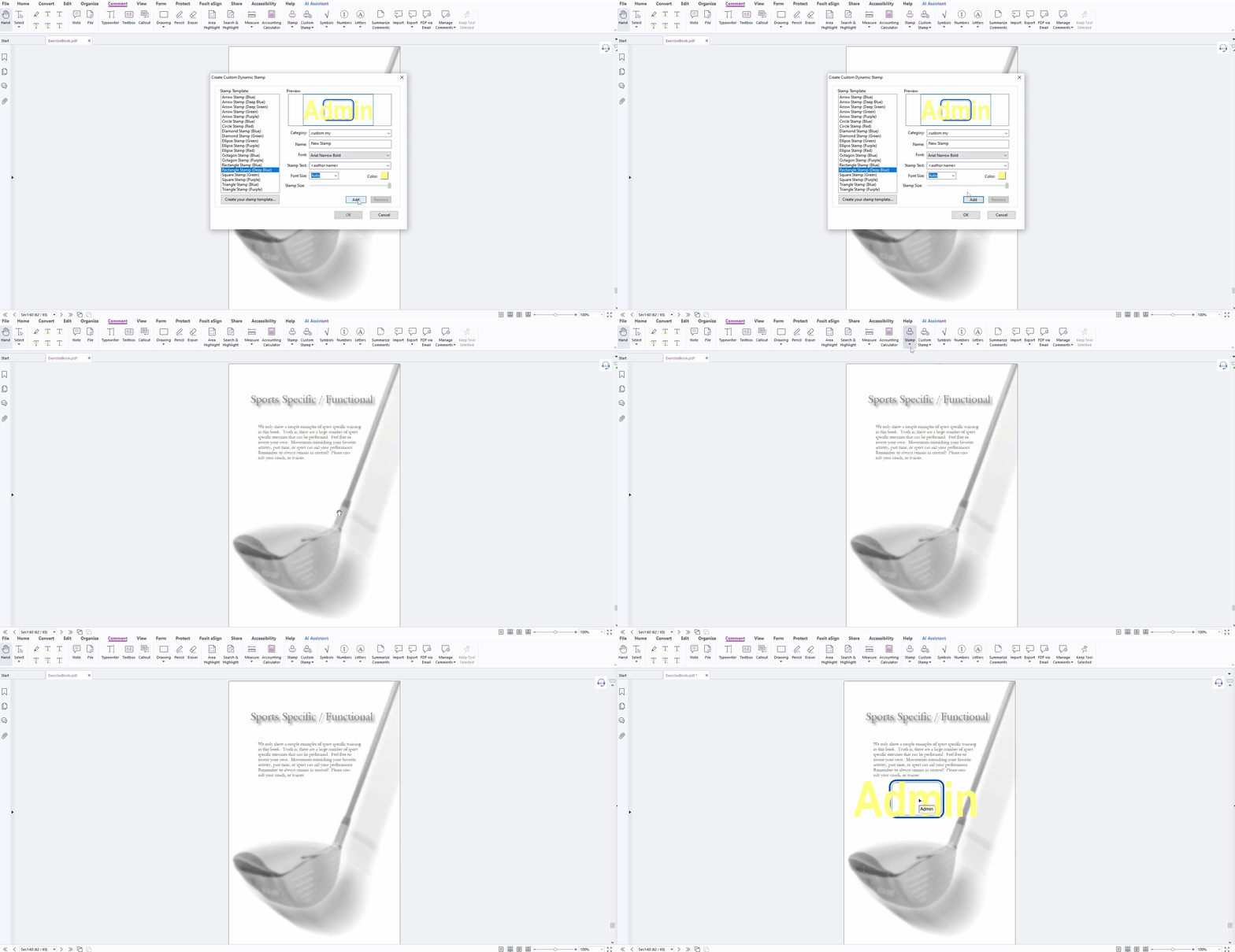
Step 1. Once you open Foxit PDF Editor, press the "Comment" tab and choose the "Custom Stamp" option. Then, press the "Create Custom Dynamic Stamp" option.
Step 2. Next, choose a stamp template and select the category, stamp text, size, and color. Once done, press the "Ok" button.
Step 3. After that, press "Stamps" and find your newly created stamp under this section. Choose your stamp and press anywhere on the PDF page to apply it.
#5: Design Graphic Stamp Logos in Canva
Best For:
- Designers creating company seals, rubber badges, or custom logo stamps from scratch.
Not For:
- Users needing direct PDF editing or stamps with automatically updating date fields.
Canva clearly belongs within the second stamp workflow explained earlier in this guide. Its templates and design controls provide greater creative freedom than standard PDF editors. However, finished artwork requires exporting before users can create PDF stamp designs. Next, look at the steps below for designing and exporting stamps:
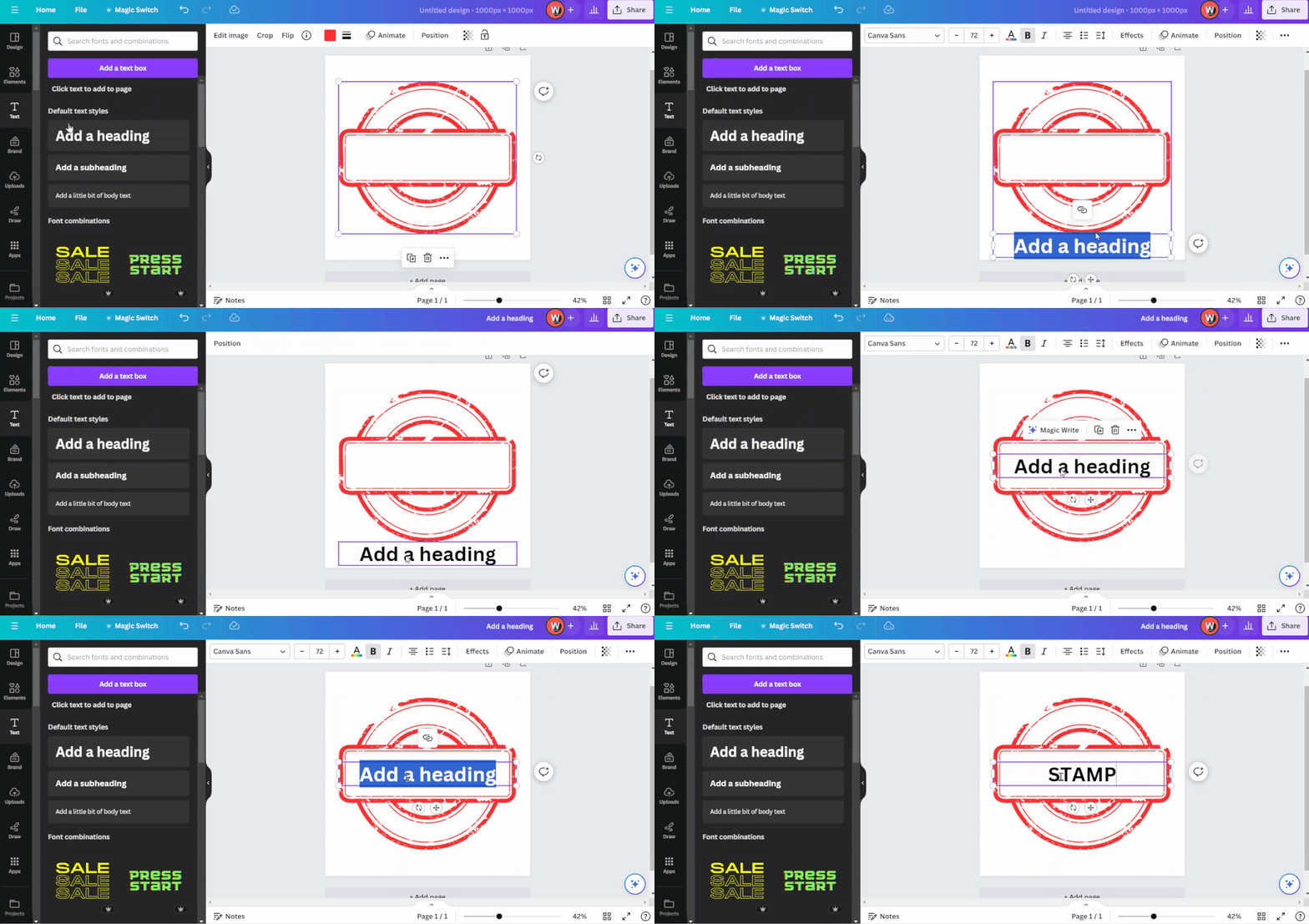
Step 1. After you enter Canva’s main working interface, press the "Elements" option and search for "Stamps." Next, switch to the "Graphics" category and choose a stamp style.
Step 2. Now, edit the stamp by adding text and adjusting colors, and click the "Share" button at the top right corner to download the stamp.
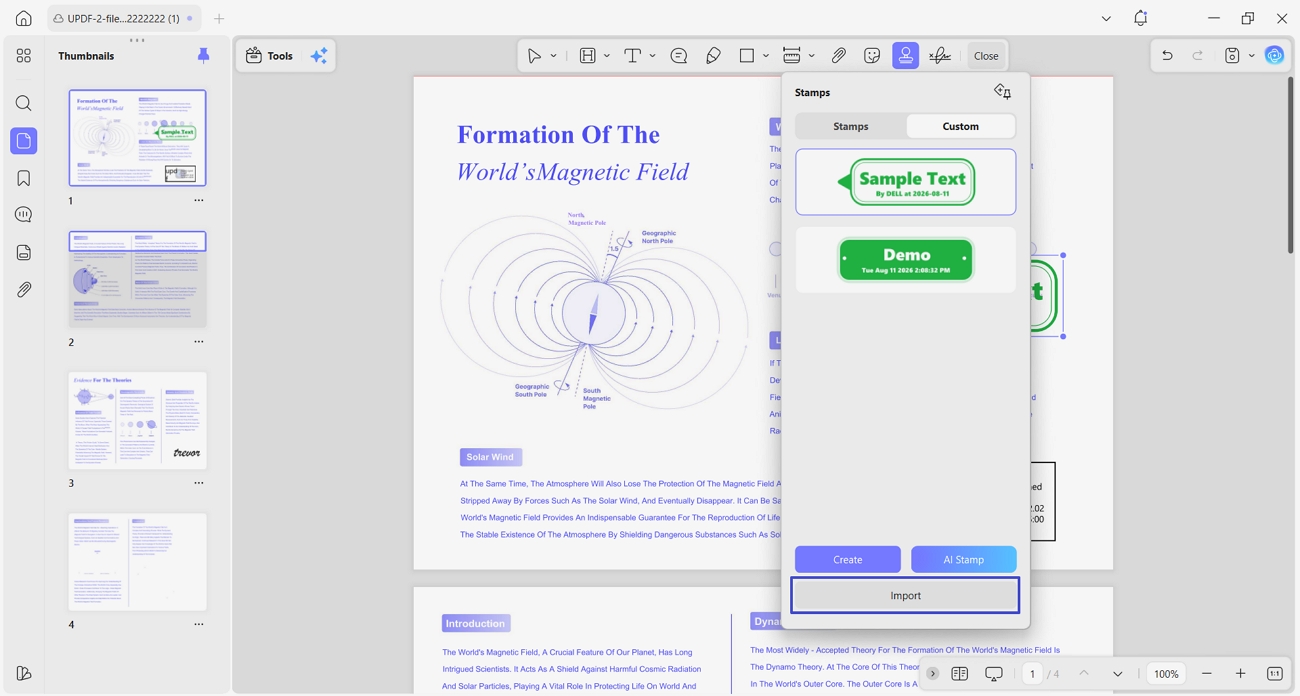
Step 3. Open a PDF in UPDF and access the "Stamps" section. Choose the "Import" option, add your Canva PNG, and stamp your document.
Free design tools and online seal generators are weighed up against each other in our guide to the stamp maker online free options currently worth using.
Feature & Parameter Comparison Matrix
After reviewing all 5 PDF stamp tools, look at the table below to compare their key features:
| Product/Creator | Best For | Custom Text & Dynamic Date Support | AI Stamp Generator | Free Tier & Pricing Limits |
| UPDF (Desktop) | Complete PDF editing, custom dynamic date stamps, and instant AI prompt stamp generation | Yes (custom text, auto-updating date formats, opacity, color, border shapes) | Yes (3 transparent 1024x1024 options from one prompt) | Free trial available; budget-friendly license; AI generation draws on credits |
| Adobe Acrobat Pro | Enterprise legacy workflows | Built-in Dynamic stamps included; custom ones need form fields plus JavaScript | No | Paid subscription required |
| pdfforge Online | Quick online browser stamping | Basic text only (no dynamic real-time date triggers) | No | Free web tool; file size and server limits apply |
| Foxit PDF Editor | Corporate business stamping | Yes (standard dynamic business template library) | No | Paid commercial license required |
| Canva | Graphic rubber badge design | No (static graphic design canvas only) | Yes (general AI image generation tools) | Free design canvas; transparent PNG requires Pro |
Want to design dynamic PAID stamps, custom dynamic date seals, or generate unique AI rubber stamps in seconds? Download UPDF for free today!
Windows • macOS • iOS • Android 100% secure
Frequently Asked Questions
How can I create a PDF stamp for free?
Load the document in UPDF, then go to Comment, Stamp, Custom, and Create. From there, you can design a text or dynamic date stamp with your own colors and opacity. Designing a graphic seal in Canva or using pdfforge for basic online stamping are alternatives.
Is there a free AI stamp generator available?
UPDF includes an AI Stamp Creator built into the editor. Enter a short description such as a round red approval seal, pick a style, and it returns high-resolution transparent stamps without leaving your PDF. Generation consumes UPDF AI credits, so it is built in rather than unlimited.
How do I create a custom stamp in Adobe Acrobat?
The Adobe stamp creator workflow starts in Acrobat Pro under Tools, Stamp, Custom Stamps, and Create. Click Browse to upload a PNG or PDF design, assign a category name, then click OK to save it into your local palette.
How do I convert a PNG image or PDF into a reusable stamp?
Open UPDF and navigate to Comment, then Stamp, Custom, and Import. Select your transparent PNG, JPG, or PDF file, and UPDF turns it into a reusable stamp that can be resized, rotated, and placed across any document.
Where can I download free pre-made PDF stamps?
UPDF ships a built-in library of business stamps covering PAID, APPROVED, COMPLETED, and SIGN HERE. Stamp packs can also be downloaded from third-party sites, and custom vector templates can be designed in Canva when nothing off the shelf fits.
Conclusion
To conclude, choosing a PDF stamp creator depends on your specific stamping needs. Acrobat and Foxit handle images well, but dynamic dates require extra scripting work. Pdfforge limits file sizes, while Canva focuses only on creating visual stamp artwork. UPDF combines custom text, automatic timestamps, AI seals, and broader PDF annotator tools together.
Ready to generate custom AI stamps, dynamic rubber seals, and markup your PDF documents effortlessly? Download UPDF for free or upgrade today!
Windows • macOS • iOS • Android 100% secure




 Enrica Taylor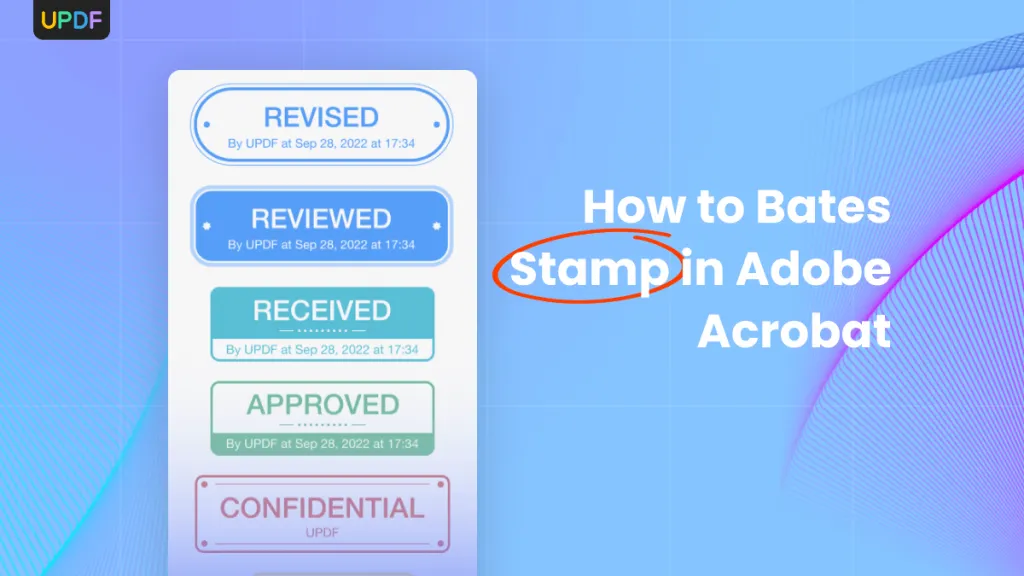
 Enya Moore
 Enola Davis
 Enola Miller