 UPDF
UPDF
 UPDF for Windows
 UPDF for Mac
 UPDF for iPhone/iPad
 UPDF for Android
 Nomostar
 UPDF AI Online
 UPDF Sign
 IvyCraft
 Edit PDF
 Annotate PDF
 Create PDF
 PDF Form
 Edit links
 Convert PDF
 OCR
OCR PDF to Word
 PDF to Image
 PDF to Excel
 Organize PDF
 Merge PDF
 Split PDF
 Crop PDF
 Rotate PDF
 Protect PDF
 Sign PDF
 Redact PDF
 Sanitize PDF
 Remove Security
 Read PDF
 UPDF Cloud
 Compress PDF
 Print PDF
 Batch Process
 About UPDF AI
 UPDF AI Solutions
 AI User Guide
 FAQ about UPDF AI
 Summarize PDF
 Translate PDF
 Chat with PDF
 Chat with AI
 Chat with image
 PDF to Mind Map
 Explain PDF
 PDF AI Tools
 Image AI Tools
 AI Chat Tools
 AI Writing Tools
 AI Study Tools
 AI Working Tools
 Other AI Tools
 AI Bookmark Generation
 AI Bookmark Summary
 AI Watermark Generation
 AI Background Generation
 AI Sticker Generation
 AI Stamp Generation
 AI Editing Suite
 UPDF Copilot
 AI Page Management
 AI Semantic Search
 PDF to Word
 PDF to Excel
 PDF to PowerPoint
 Enterprise Solution
 Enterprise Sign
 Enterprise AI
 Enterprise Plan
 Enterprise User Guide
 Enterprise Webinar
 Banking
 Healthcare
 Insurance
 Legal
Legal Manufacturing
 Government
 Researchers & PhDs
 Solopreneurs & Freelancers
 Lawyers & Legal Professionals
 Real Estate Agents & Brokers
 Education Solution
 Customer Stories
 User Guide
 UPDF Tricks
 FAQs
FAQs UPDF Reviews
 Download Center
 Blog
Blog Newsroom
 Tech Spec
 Updates
 UPDF vs. Adobe Acrobat
 UPDF vs. Foxit
 UPDF vs. PDF Expert

Quick Answer: How to Annotate a PDF in 30 Seconds
Windows (Edge): Open PDF in Edge → Click pen icon → Annotate → Save
Mac (Preview): Open in Preview → Click markup pencil → Annotate → Save
iPhone/iPad (Files): Open in Files → Tap markup → Annotate → Save
For advanced features: Use UPDF → Tools → Comment → Annotation tools → Save
Windows • macOS • iOS • Android 100% secure
PDF annotation lets you highlight text, add comments, write notes, draw on pages, and mark important information without changing the original document content.
The best way to annotate a PDF depends on what you need to mark and where you are working. Desktop PDF editors offer the widest range of tools, while online and built-in apps can be more convenient for quick annotations.
Below, we'll cover the main ways to annotate a PDF, what each annotation tool is best for, and how to choose the right method.
Part 1. Which PDF Annotation Tool Should You Use?
PDF annotation tools serve different purposes. Use highlights and underlines to emphasize text, comments to explain a change, and shapes or drawings to point to a specific area. Choosing the right tool keeps the document clear and makes feedback easier to understand.
| What you want to do | Annotation tool | Example |
|---|---|---|
| Emphasize important text | Highlight | Mark a key definition or finding |
| Draw attention without highlighting | Underline | Emphasize a sentence or clause |
| Suggest deleting content | Strikethrough | Mark outdated or unnecessary text |
| Ask a question or explain a change | Sticky note or comment | Add feedback without covering the page |
| Add visible words to the page | Text box | Insert a label or short instruction |
| Point to an exact area | Arrow, shape, or callout | Identify an issue in a chart or image |
| Add handwritten feedback | Pencil or drawing tool | Circle an item or sketch a correction |
| Show document status | Stamp | Mark a file as Approved or Reviewed |
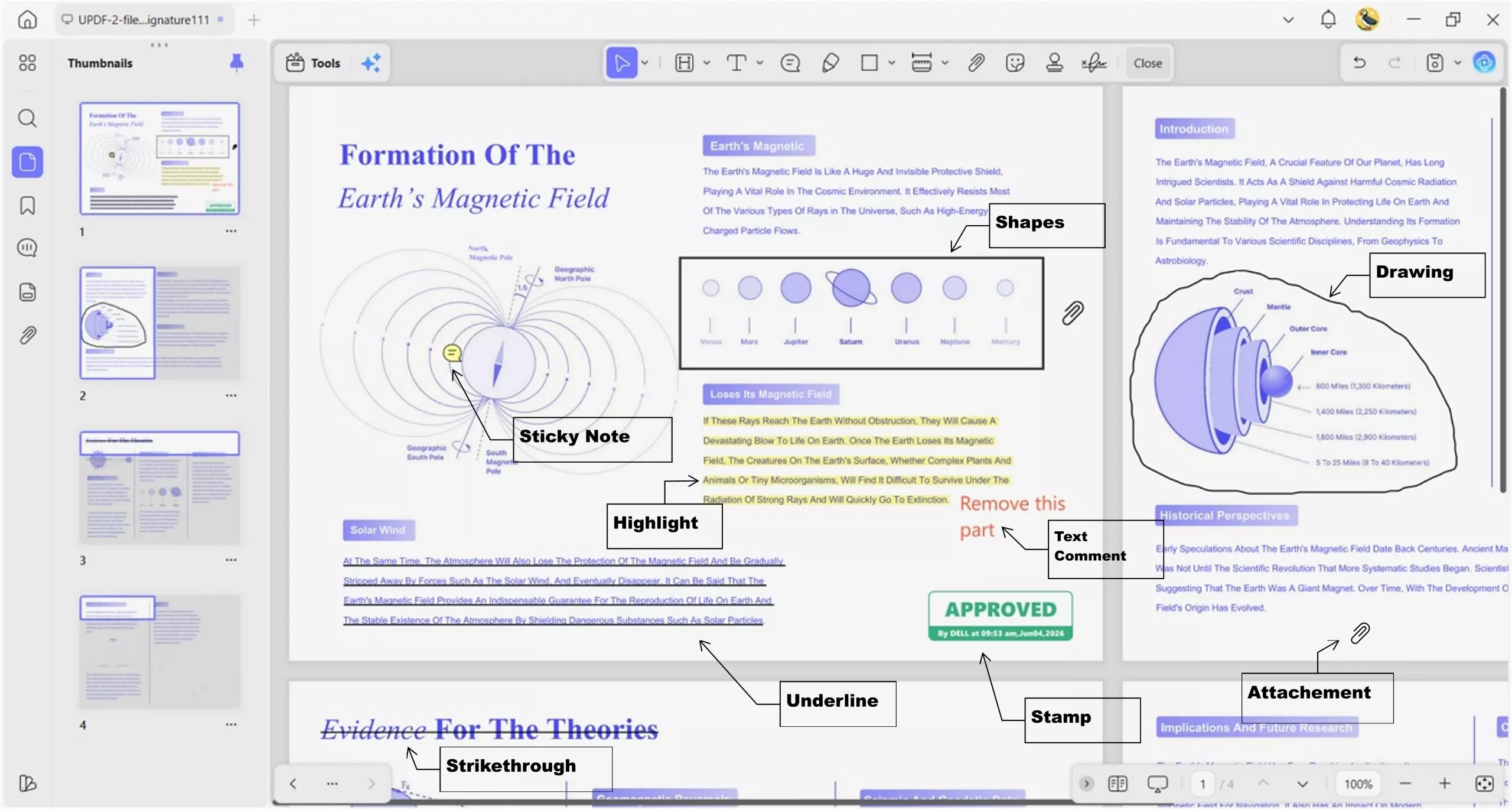
In the PDF above, reviewers have marked important scientific sentences, so they clearly stand out from the surrounding text. Key terms are underlined to guide readers toward concepts they should easily remember during later study sessions. Several lines are highlighted in yellow, helping users quickly spot the main explanation without rereading the whole page.
A small comment saying “Remove this part” points to the sentence that should be deleted in the next revision. Near the bottom, an approval stamp and other notes record that someone has already reviewed and accepted these changes.
Here you can check the chart below to choose the PDF annotator for your needs after knowing the usage of different annotation tools, then which kind of annotators you need is easy to choose in the following chart.
| Tool | Platform | Price | Key Annotation Features | Best For |
|---|---|---|---|---|
| Microsoft Edge | Windows | Free (built-in) | Highlight, draw, add text | Quick, no-install markups |
| macOS Preview | Mac | Free (built-in) | Highlight, notes, shapes, signatures | Mac users |
| Google Drive | Web, Android, iOS | Free | Highlight, comment, draw | Google Drive users |
| Files app (iOS) | iPhone, iPad | Free (built-in) | Markup, signatures | Apple mobile users |
| UPDF | Win, Mac, iOS, Android | Paid ($49.99 per year or $79.99 for lifetime license) | Full annotation + AI summary | Cross-platform professionals |
| Adobe Acrobat | Win, Mac | Paid (~$240 per year) | Full annotation + OCR | Enterprise users |
| PDFgear | Win, Mac, iOS, Web | Free | Highlight, underline, shapes | Budget-conscious users |
Then let's see how to annotate PDF step by step and in different devices.
Part 2. How to Annotate a PDF in 5 Simple Steps
No matter which app or device you use, the basic annotation steps stay similar. Look at the steps below:
1. Open or Upload the PDF
Open the PDF in a desktop PDF editor, a browser-based PDF viewer, or an online annotation tool. If you are working with confidential material, use a local desktop application instead of uploading the file to an online service.
2. Open the Annotate, Comment, or Markup Toolbar
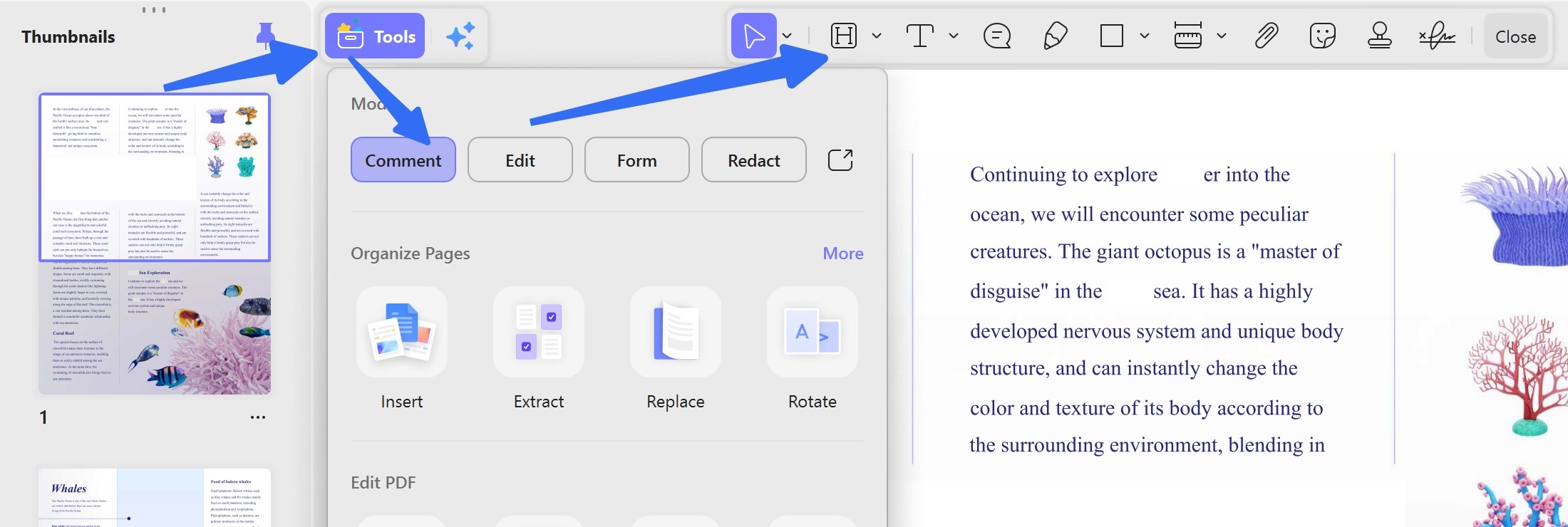
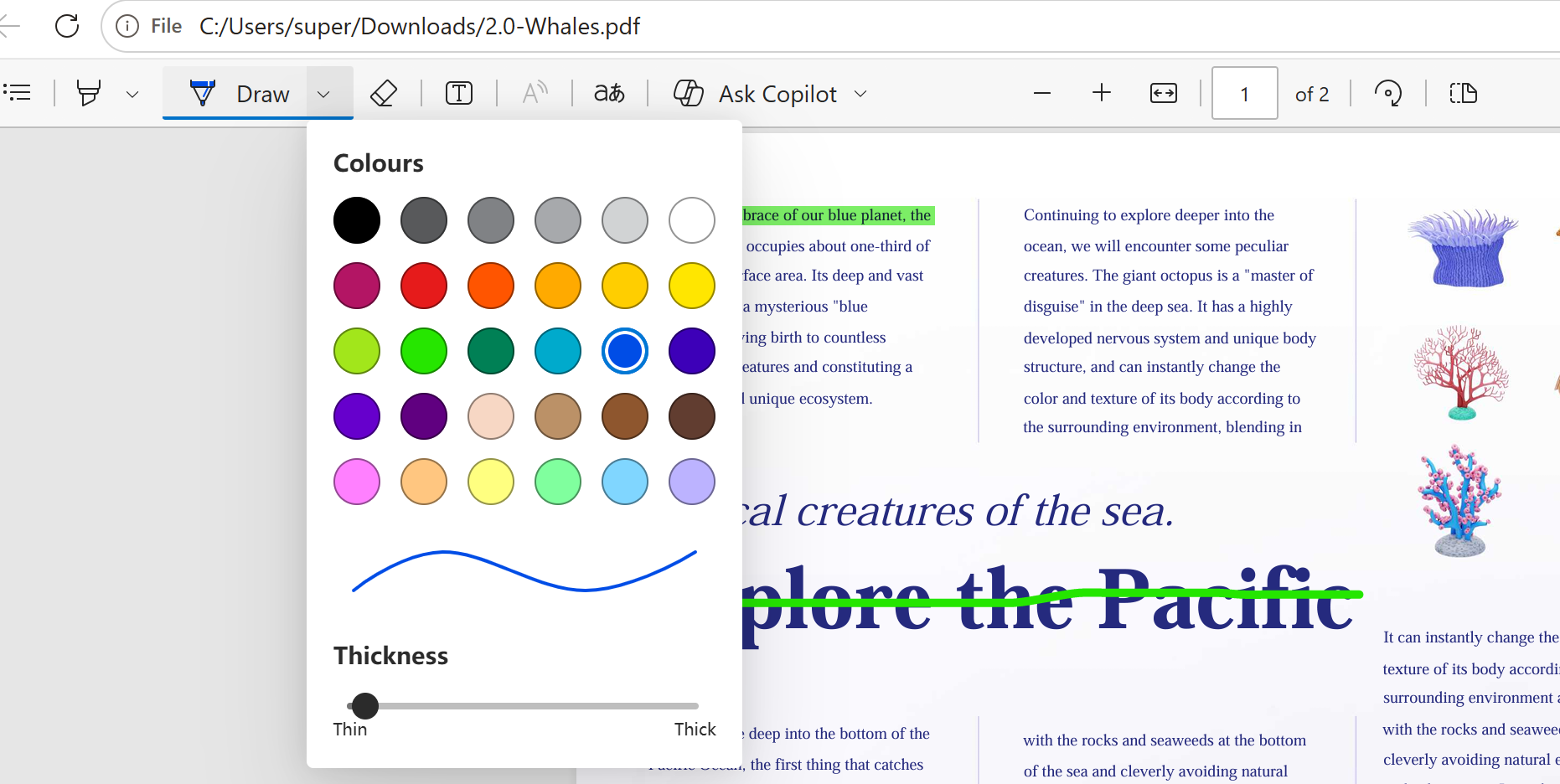
Look for a toolbar labeled Annotate, Comment, Markup, or Draw. The exact name varies by application, but these menus normally contain highlights, notes, text boxes, shapes, and drawing tools. In UPDF, this is done by Comment Mode, in Edge, this is from Draw”
3. Choose and Apply an Annotation
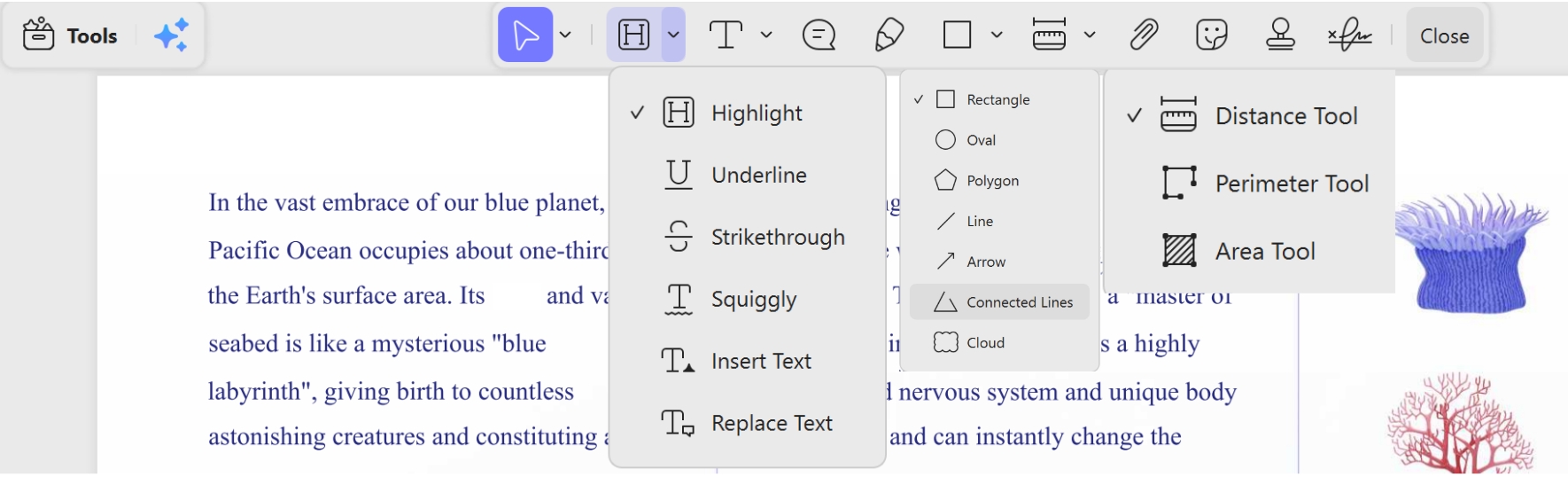
Select the text or area you want to mark. Use Highlight, Underline, or Strikethrough for selectable text. Use a sticky note, text box, arrow, shape, or pencil tool when you need to add feedback to a specific area of the page.
4. Review and Manage the Annotations
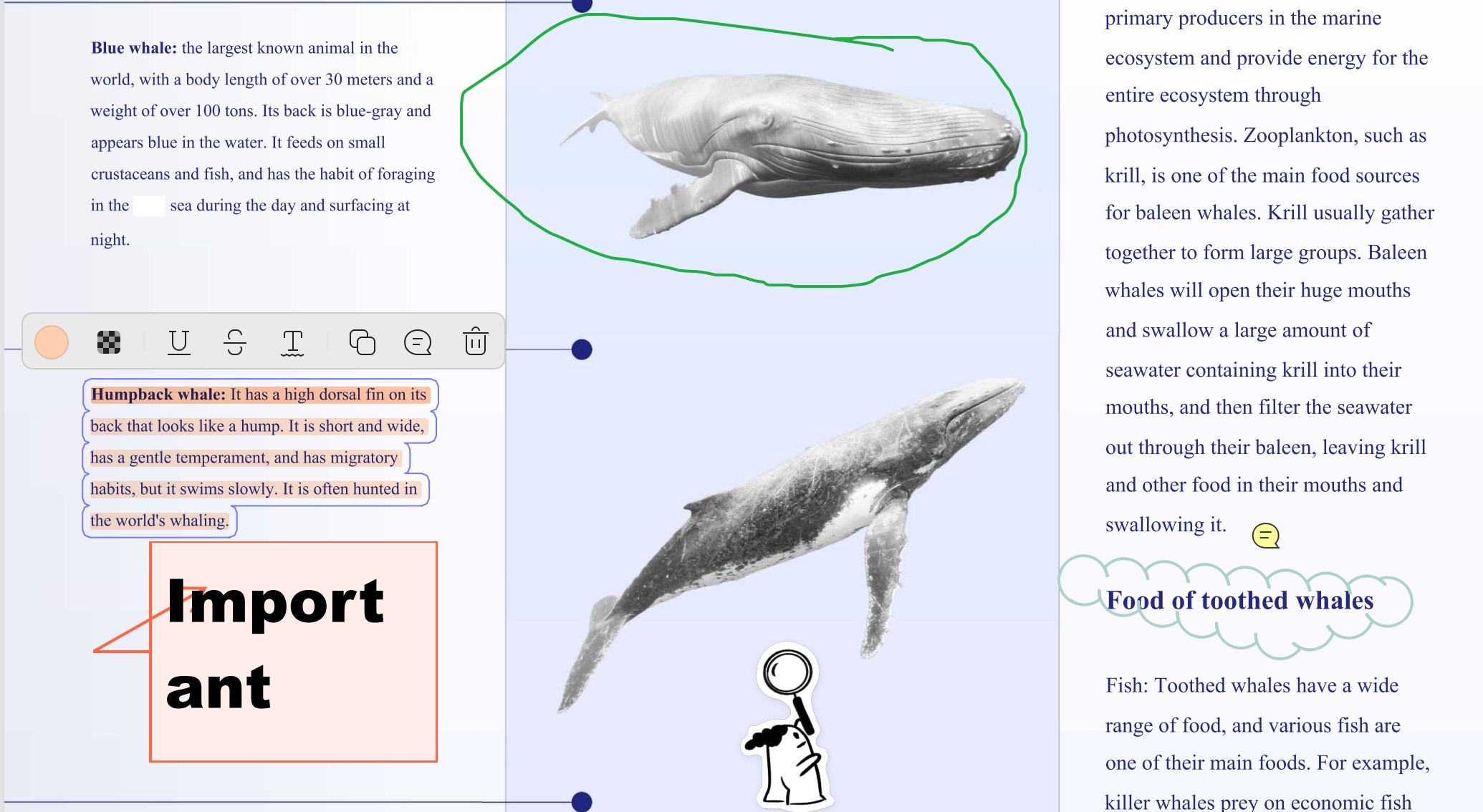
Check that each annotation is easy to understand. Edit its color, position, author name, or comment text when needed. Delete duplicated marks and avoid highlighting entire paragraphs unless every sentence is relevant.
5. Save, Export, or Share the PDF
Save a separate copy so the original PDF remains unchanged. Before sharing, reopen the file in another PDF reader to confirm that the annotations are visible. Flatten the annotations only when you want to make them difficult to edit or remove.
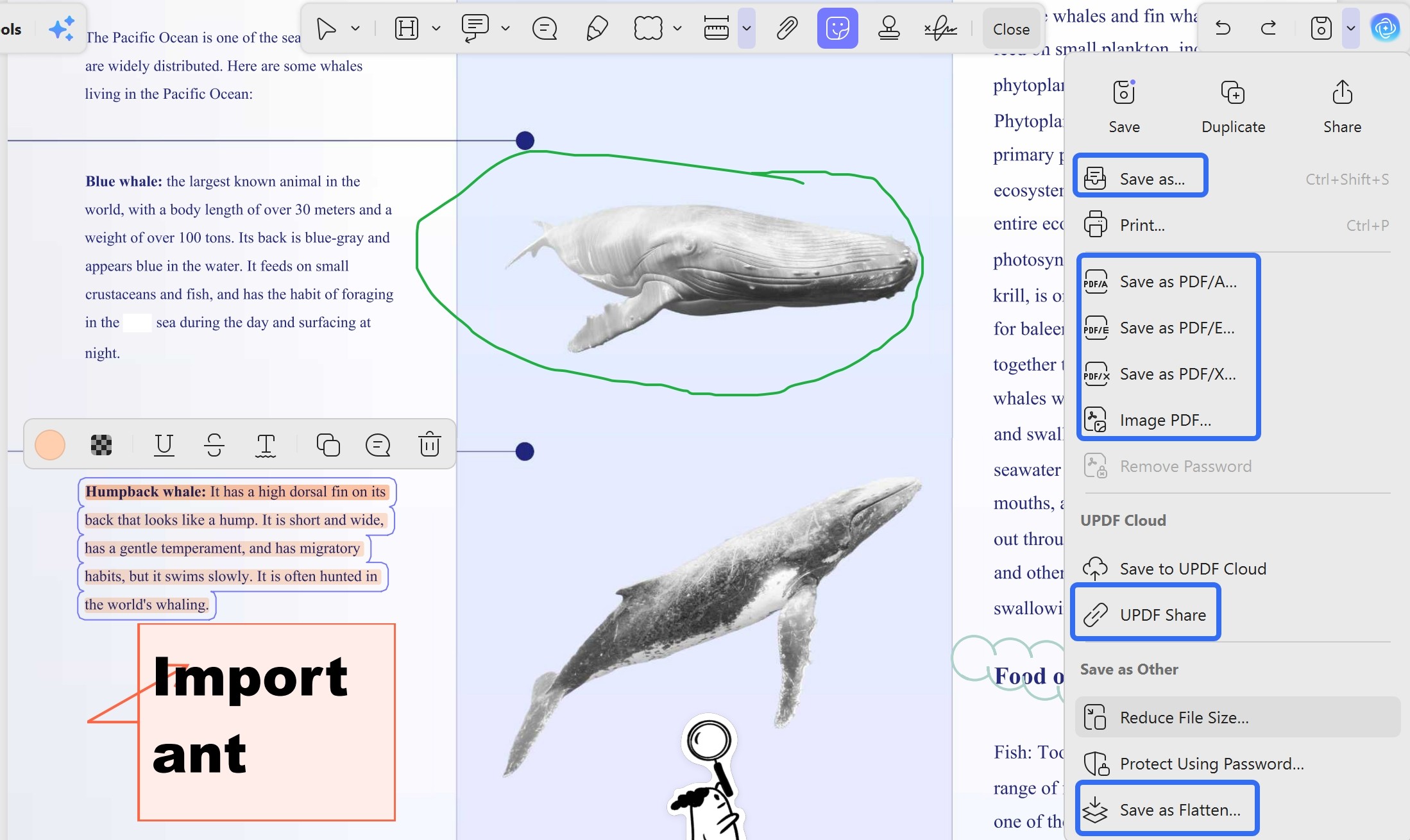
These basic steps apply whether you annotate PDF files on Windows, macOS, mobile, or the web, and whether you are a student, researcher, or part of a business team.
Part 3. How to Annotate a PDF on Different Devices
Cross‑device annotation keeps your notes and feedback consistent wherever you open the same document. It helps users move between your laptop and phone without losing important markings. Now, we will look at how each type of device supports different PDF annotation needs.
| Device or method | Best for | Main limitation |
|---|---|---|
| Desktop PDF editor | Detailed review and many annotations | Requires installation |
| Preview on Mac | Free built-in Mac annotation | Not a full PDF text editor |
| Chrome or Edge | Quick local markup | Limited review features |
| Mobile app | Notes and approvals on the go | Smaller screen |
| Online annotator | One-time tasks without installation | Upload, privacy, or usage limits |
How to Annotate a PDF on Windows
On Windows, open the PDF in professional PDF annotator like UPDF for a complete annotation workflow or use Microsoft Edge for quick text, drawing, and markup tasks. For detailed steps covering multiple Windows tools, see our guide to annotating PDFs on Windows.
Open PDF file in Edge and then you can click the Draw/Highlight in the toolbar, choose color and customize the thickness, then you can save the changes.
On Linux, annotation helps researchers and other professionals organize technical specifications, marking requirements, constraints, and implementation notes with annotate PDF Linux. It suits reviewers who open reference PDFs alongside main documents while checking consistency between sections.
For a professional PDF editor, take UPDF as an example: Open PDF file from upload or drag in Home interface, then click Tools to enter Comment Mode, choose the annotation tools to markup file, finally click save on the right corner.
Windows • macOS • iOS • Android 100% secure
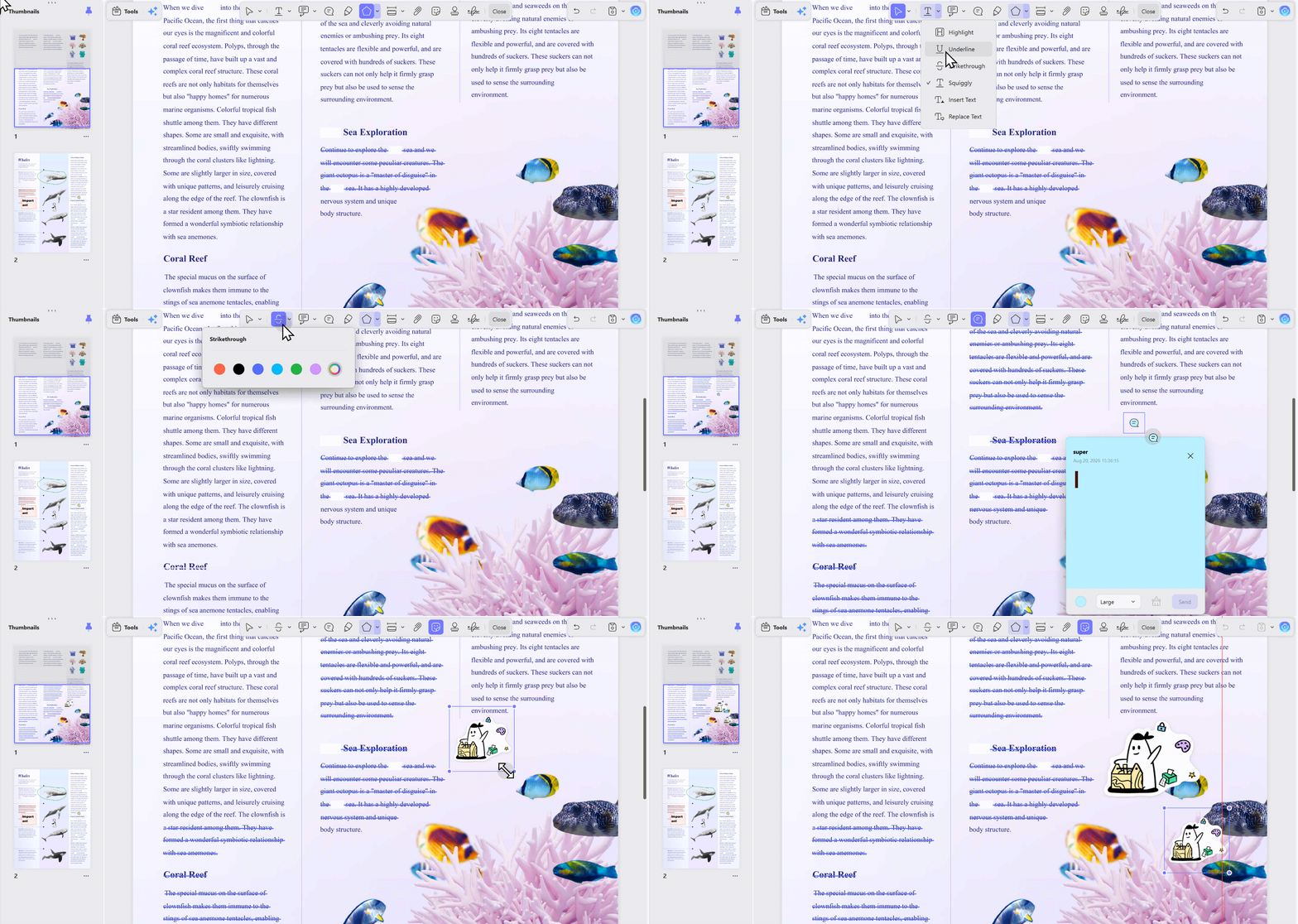
Here you can check the video guide.
How to Annotate a PDF on Mac with Preview
Annotating a PDF on Mac works well when professionals analyze detailed reports or structured presentations.
- Open the PDF in Preview.
- Click Show Markup Toolbar if the tools are hidden.
- Select Highlight, Text, Note, Shape, Draw, or Sign.
- Add the annotation and move or format it as needed.
- Choose File > Save or Export to keep annotations editable.
Note:
Preview can annotate a PDF, but it does not directly edit the PDF’s original text. To flatten the annotations, use File > Print > Save as PDF.
How to Annotate a PDF in Google Chrome
The steps to annotate a PDF in Chrome are simple and easy,
- Open the PDF in Chrome, preferably in a new tab.
- Select Draw.
- Choose the pen or highlighter.
- Select a color and line size, then mark the PDF.
- Click Download and choose With your changes.
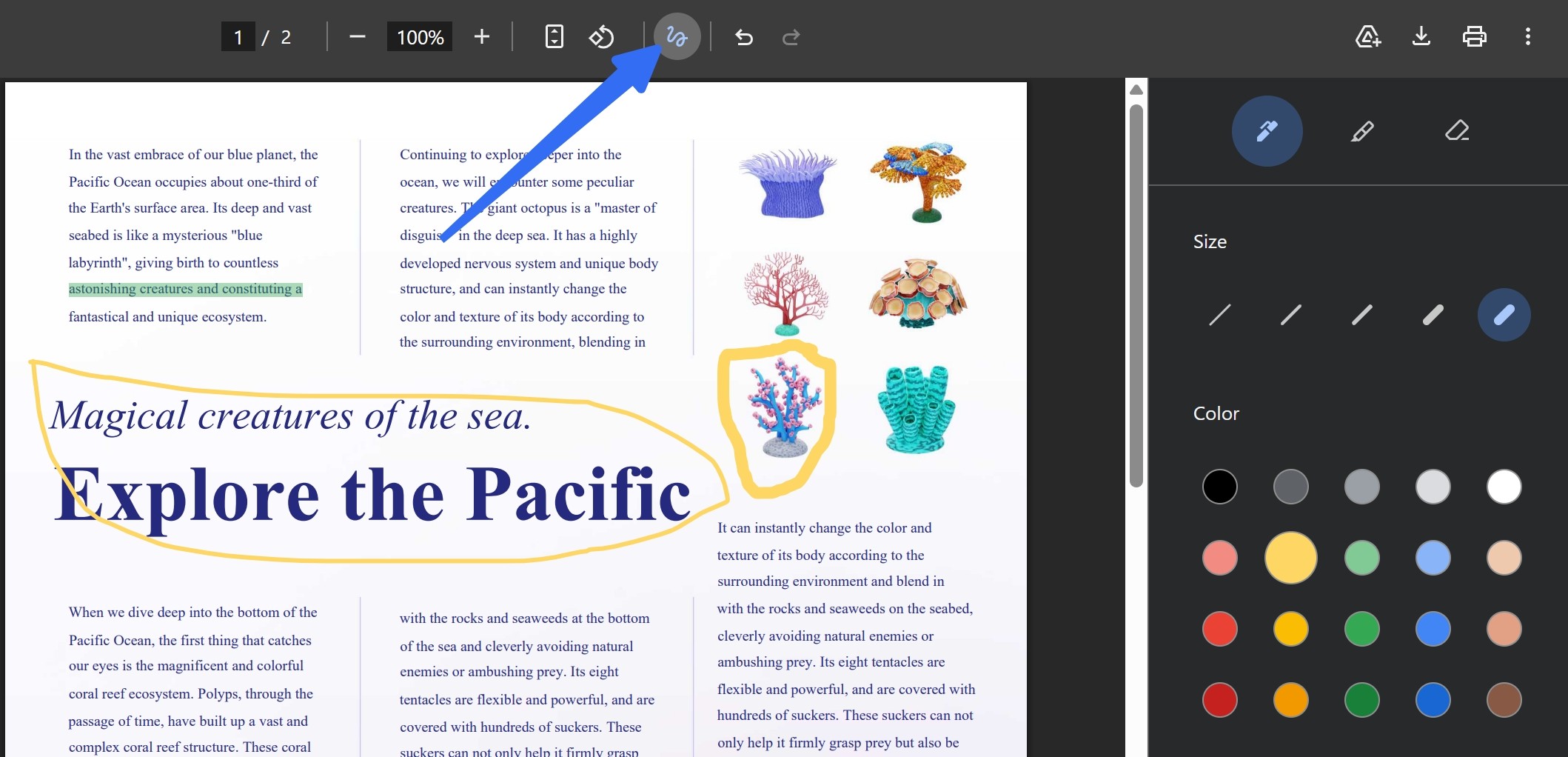
Chrome is useful for quick highlighting, drawing, and signatures, but it does not provide the same range of review and comment-management tools as a full PDF editor.
How to Annotate a PDF on iPhone, iPad, or Android
Office managers and other professionals annotate a PDF on Android or iOS when they are away from their desks. Phones are handy for highlighting single lines that need attention before a call or quick discussion. They often add very short comments to clarify numbers, correct wording, or remind themselves about follow‑up.
Option 1: Use Apple Markup on iPhone or iPad (Free, Built‑In)
Apple's Markup tool works inside the Files app, Mail, Books, and other apps that can open a PDF. It is the fastest way to draw, highlight, add text, or sign a PDF without installing anything.
- Open the PDF in the Files app (or tap a PDF attachment in Mail).
- Tap the Markup button (the pen‑tip icon) to show the drawing toolbar.
- Choose a pen, highlighter, or pencil, then adjust the color and line thickness.
- To add typed text or a signature, tap the Add (+) button and select Text or Signature.
- Tap Done to save the changes to the file.
Note
Finger vs. Apple Pencil: You can annotate with your finger on any iPhone or iPad, which is fine for short marks and signatures. On a supported iPad, an Apple Pencil gives you finer control for handwriting, precise underlines, and detailed drawings, and lets you rest your palm on the screen while writing. If you annotate PDFs regularly on an iPad, a stylus is worth using.
Option 2: Use Google Drive on Android (Free, Built‑In)
Android does not include a system‑wide markup tool like Apple Markup, but the Google Drive app provides a basic, free annotation option on most Android devices.
- Open the Google Drive app and locate the PDF.
- Tap the PDF to open it.
- Tap the pen icon in the bottom‑right corner.
- Choose a highlighter, pen, or add text.
- Annotate the PDF with your finger or stylus.
- Tap Save or the checkmark to save changes.
Android Tip
Option 3: Use a Dedicated PDF App - UPDF for Full Annotation Features
Use a dedicated PDF app when you need highlights tied to selected text, sticky notes, text boxes, shapes, stamps, and a way to review all annotations in one place. It can remove highlighted text in PDF just in clicks! These apps work on both iOS and Android.
Windows • macOS • iOS • Android 100% secure
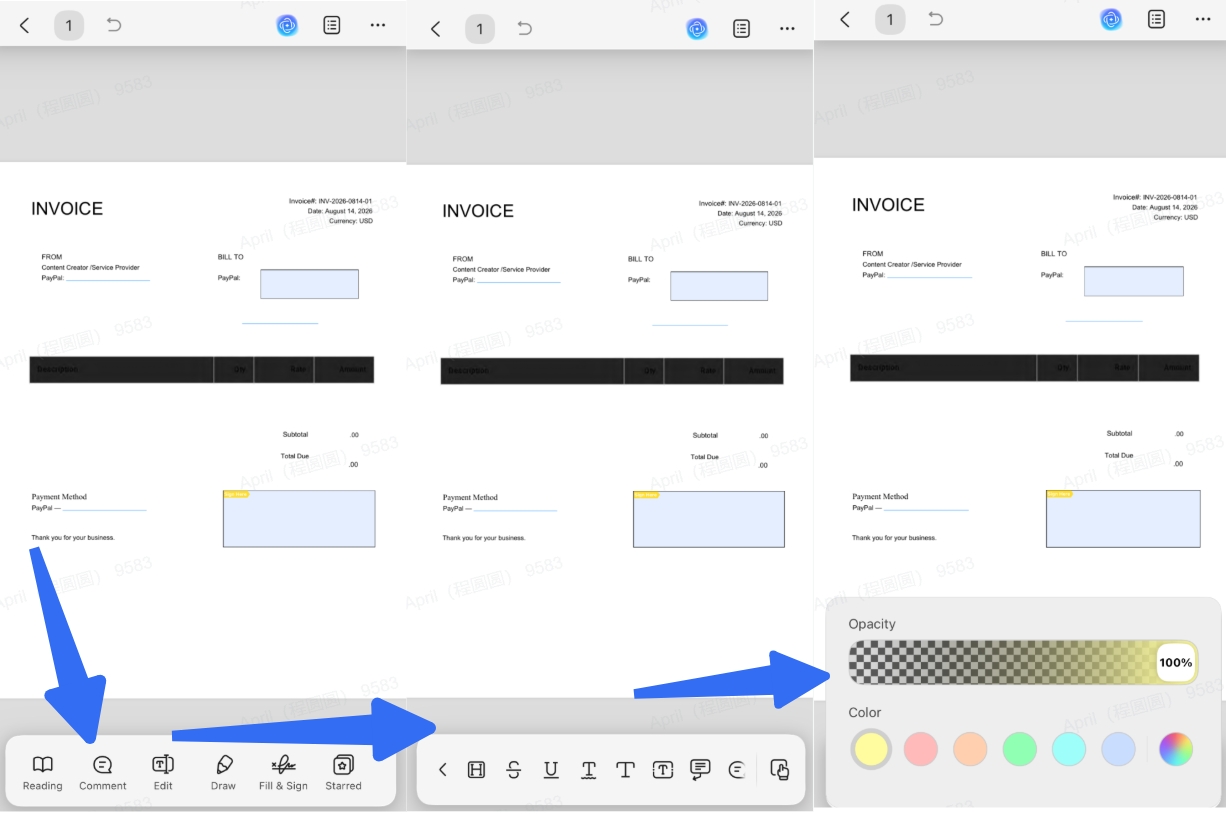
- Open the PDF in your chosen app (for example, UPDF).
- Tap the annotation or markup tool in the toolbar.
- Select text to apply Highlight, Underline, or Strikethrough, or tap the page to add a Sticky Note, Text Box, or Shape.
- Use the pencil tool for handwritten notes — with your finger, an Apple Pencil, or a stylus.
- Save the file, or sync it through cloud storage to continue reviewing on your desktop.
Pro Tip:
Save, Sync, and Share from a Mobile Device – What to Check
Before you send an annotated PDF from your phone or tablet, check these three things to avoid surprises:
- Save a copy. Some mobile apps write annotations directly into the original file. If you need a clean version, duplicate the PDF before you start marking it up.
- Sync across devices. Store the PDF in a cloud service (or use an app with its own sync) so annotations added on your phone appear when you reopen the file on your computer.
- Check before sharing. Open the annotated PDF in a different PDF reader, or on another device, to confirm the highlights and comments are visible to recipients. If compatibility matters, share a flattened copy.
How to Annotate a PDF Online for Free
Browser‑based tools support article markups similar to how to annotate an article online. Real‑time updates reduce delays because teammates immediately see each new note, reply, or change request together.
- Open an online PDF annotator in your browser.
- Upload the PDF from your device or cloud storage.
- Select a highlight, text, note, shape, or drawing tool.
- Add the required annotations.
- Download the annotated PDF and reopen it to check the result.
Before uploading
Check the provider’s current privacy, deletion, file-size, account, and free-usage policies. For contracts, financial records, medical documents, or confidential company files, a local desktop application may be more appropriate.
Best Practices for Effective PDF Annotation
Read the relevant section once before adding annotations. This reduces unnecessary highlights and helps you identify the main argument or action item.
1: Create a Consistent Color-Coding System
Researchers and lawyers like color systems as they show meaning at a glance. Use yellow for key concepts, blue for references, and green for supporting examples. Remember to keep your colors simple to make every document feel organized.
| Yellow | Key concepts / main arguments |
| Green | Supporting evidence / examples |
| Red | Errors / contradictions / issues |
| Blue | Definitions / terminology |
| Orange | Questions / unclear points |
Rule of thumb: Use no more than 4‑5 colors per document. Too many colors = no meaningful signal.
2: Use Annotations as Part of a Workflow
Students might highlight and turn notes into exam study cards. Researchers can mark methods and gaps, then export notes into literature matrices. Moreover, legal and business teams can flag risks and track decisions directly inside documents.
5‑Step Annotation Workflow Checklist
- First read: Read the PDF once without marking anything. Understand the big picture.
- Second read: Highlight only key ideas, main arguments, or important data. (Resist the urge to highlight everything!)
- Add context: Write short notes or questions in comments for anything important, unclear, or surprising.
- Connect ideas: Look for patterns, recurring themes, or relationships. Use shapes/arrows to show connections.
- Review & export: Review your annotations. Decide what to keep, what to remove, and how to use them for your next task (study, write, present, approve).
3: Common Annotation Mistakes to Avoid
- Excessive highlighting makes everything look important, and nothing actually helps later.
- Using too many colors confuses readers and hides your main message or structure.
- Writing long notes and mixing personal and team comments creates clutter and misunderstandings.
Together, these habits help you annotate clearly instead of cluttering your PDFs with confusing marks. In the next section, we will see how real users apply these practices in everyday study, research, legal, and business scenarios.
Common PDF Annotation Use Cases
Users utilize annotations in different ways, based on their daily documents and decisions. A textbook, a legal contract, or a project brief all need their own clear annotation approach. Let’s explore how real‑world roles turn PDF markups into smoother study, review, and approval workflows together.
| Use case | What to annotate | Recommended tools | Output |
|---|---|---|---|
| Study and exam preparation | Definitions, arguments, questions | Highlight, note, drawing | Revision notes |
| Research papers | Claims, methods, evidence, citations | Highlight, comment, tag | Literature review notes |
| Contract review | Risks, unclear clauses, proposed deletions | Highlight, comment, strikethrough | Reviewed contract draft |
| Teaching and grading | Errors, strengths, next steps | Callout, stamp, drawing | Actionable student feedback |
| Team review | Changes, questions, approvals | Comments, replies, stamps | Consolidated review file |
Students use annotations to manage heavy readings and find key ideas faster, whether they are working with printed PDFs or Kindle book annotations.
Researchers use annotations to understand papers, connect sources, and turn many articles into a clear literature review.
Lawyers review complex contracts and need a clear way to track every change. Next, we will see how to annotate PDF files with a PDF annotator to make this work easier:
With heavy marking loads, teachers rely on quick annotations to review work and give students clear feedback.
In busy teams, shared PDF comments keep projects moving, so everyone understands decisions without long meetings. Many proposal documents sit in shared folders, so teammates often need to annotate PDFs in Google Drive during review.
Knowledge 1. What Is PDF Annotation?
PDF annotation means adding a review layer to a PDF without replacing its original content. Annotations can include highlights, underlines, strikethroughs, comments, text boxes, drawings, shapes, stamps, and signatures. They are commonly used to record notes, suggest revisions, explain issues, and collect feedback.
Annotation is different from PDF editing. Annotation adds marks or comments on top of the document, while editing changes the underlying text, images, links, or page content.
Knowledge 2. PDF Annotation Limitations and Problems
Scanned PDFs
You can usually place annotations on scanned PDFs, but selecting or editing the scanned text may require OCR.
Password-Protected PDFs
Document permissions may restrict some annotation actions.
Annotation Compatibility
Different PDF viewers may display or handle certain annotation types differently.
Flattened Annotations
Flattening can merge annotations into the document content, which may prevent users from editing those annotations later.
Printing
Not every interactive annotation behaves exactly the same way on paper as it does on screen.
When to Save, Share, or Flatten an Annotated PDF
Here you can check when to use save/save as or flatten after annotating PDF, and can annotations still be edited or not.
| Method | Use it when | Can annotations still be edited? |
|---|---|---|
| Save or Save As | You want to continue reviewing later | Usually yes |
| Share for review | Multiple people need to comment | Depends on the review platform |
| Flatten and export | The marks should remain fixed | Usually no |
- Save an editable working copy.
- Close and reopen the file to confirm the annotations were saved.
- Open it in a second PDF reader to check compatibility.
- Share the editable copy when collaborators need to reply or revise comments.
- Create a flattened copy only for final distribution or printing.
FAQs
Can I annotate a PDF for free?
Yes, it is possible to annotate PDFs for free using tools like UPDF and other basic editors. Core features like highlighting, comments, and shapes are usually available without any payment. However, some free plans limit exporting or add a watermark to exported PDFs unless a paid license is activated.
Can I annotate scanned PDFs?
Yes, apps like UPDF use OCR to recognize text in scanned PDFs before adding annotations. Once converted, you can highlight, comment, and mark scanned pages just like regular digital documents.
What's the difference between annotating and editing a PDF?
Annotating adds comments, highlights, or shapes on top of the document without changing the original content. Editing changes the actual text, images, or layout inside the PDF itself, permanently modifying content.
Can the Annotations Be Seen after Being Exported or Shared?
Yes, if you export with annotations included, most PDF viewers will display them correctly. Some tools can also “flatten” annotations, baking them into the PDF so they appear everywhere.
Conclusion
To conclude, strong annotation habits turn dense PDFs into useful resources for everyday work. Now this article has shown how to annotate PDF files with better tools and fewer mistakes.
With the right methods, annotations support faster reading and smoother collaboration across document types. If you are ready to put this into practice, pick one PDF you use today and apply these annotation techniques from start to finish in UPDF.
Windows • macOS • iOS • Android 100% secure





 Lizzy Lozano
 Enid Brown
 Grace Curry