 UPDF
UPDF
 UPDF for Windows
 UPDF for Mac
 UPDF for iPhone/iPad
 UPDF for Android
 Nomostar
 UPDF AI Online
 UPDF Sign
 IvyCraft
 Edit PDF
 Annotate PDF
 Create PDF
 PDF Form
 Edit links
 Convert PDF
 OCR
OCR PDF to Word
 PDF to Image
 PDF to Excel
 Organize PDF
 Merge PDF
 Split PDF
 Crop PDF
 Rotate PDF
 Protect PDF
 Sign PDF
 Redact PDF
 Sanitize PDF
 Remove Security
 Read PDF
 UPDF Cloud
 Compress PDF
 Print PDF
 Batch Process
 About UPDF AI
 UPDF AI Solutions
 AI User Guide
 FAQ about UPDF AI
 Summarize PDF
 Translate PDF
 Chat with PDF
 Chat with AI
 Chat with image
 PDF to Mind Map
 Explain PDF
 PDF AI Tools
 Image AI Tools
 AI Chat Tools
 AI Writing Tools
 AI Study Tools
 AI Working Tools
 Other AI Tools
 AI Bookmark Generation
 AI Bookmark Summary
 AI Watermark Generation
 AI Background Generation
 AI Sticker Generation
 AI Stamp Generation
 AI Editing Suite
 UPDF Copilot
 AI Page Management
 AI Semantic Search
 PDF to Word
 PDF to Excel
 PDF to PowerPoint
 Enterprise Solution
 Enterprise Sign
 Enterprise AI
 Enterprise Plan
 Enterprise User Guide
 Enterprise Webinar
 Banking
 Healthcare
 Insurance
 Legal
Legal Manufacturing
 Government
 Researchers & PhDs
 Solopreneurs & Freelancers
 Lawyers & Legal Professionals
 Real Estate Agents & Brokers
 Education Solution
 Customer Stories
 User Guide
 UPDF Tricks
 FAQs
FAQs UPDF Reviews
 Download Center
 Blog
Blog Newsroom
 Tech Spec
 Updates
 UPDF vs. Adobe Acrobat
 UPDF vs. Foxit
 UPDF vs. PDF Expert

Quick answer:
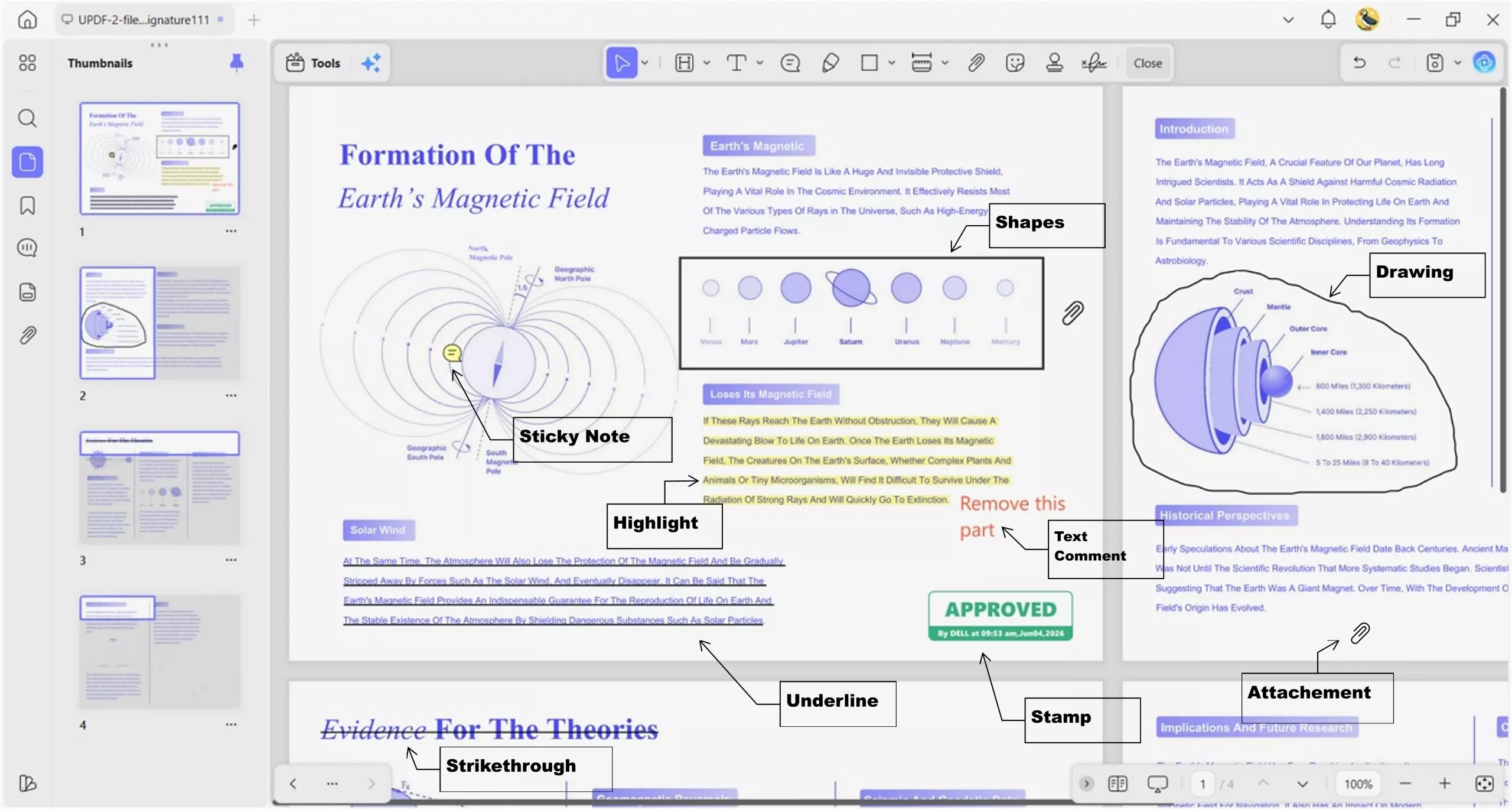
One distinction worth knowing first: a line you draw here is an annotation — it sits on its own layer above the page, so you can move, restyle, or delete it without touching the text underneath. That is not the same as underlining selectable text (an underline follows the text) and not the same as a scaled measurement line (which reports a real-world distance). For markup, review, and pointing, the annotation line below is what you want, on every platform.
Part 1. Choose the right way to draw a line
| What you need | Use | Best for | Main limitation |
|---|---|---|---|
| A precise straight line | Comment > Line | Separators, callouts, diagrams, and pointing to exact areas | Not suitable for curves or handwriting |
| A curved or irregular line | Comment > Pencil | Circling details, sketching, and freehand marks | Harder to keep perfectly straight |
| A pointer with direction | Comment > Arrow | Pointing from a comment to a specific object | Directional, so distracting as a neutral divider |
| A quick line without installing an app | Browser-based PDF drawing tool | An occasional mark on a machine you can't install to | File must be uploaded; controls vary by service |
Use the Line shape when alignment matters. Use Pencil when the path matters more than geometric precision. Neither is the same as underlining selectable text: an underline follows the text, while a line annotation can be placed anywhere on the page.
For the broader set of markup options beyond lines, see UPDF's complete guide to annotate PDF.
Part 2. How to draw a straight line on a PDF with UPDF (Windows, Mac, iOS & Android)
UPDF's Comment workspace provides a dedicated Line shape for a straight mark, and the same tool is available on desktop and mobile — so a line you place on your laptop stays intact when you reopen the file on your phone.
Open the document in UPDF — if you don't have it yet, download UPDF for free and install it in under a minute — then follow the steps for your device.
Windows • macOS • iOS • Android 100% secure
On Windows and Mac
Step 1. Open the PDF in UPDF and click Comment in the top toolbar.
Step 2. Open Shapes and choose Line. Choose Arrow instead only when the mark needs to show direction.
Step 3. Click at the line's starting point, drag to the ending point, and release. Hold Shift while dragging to lock the line horizontal, vertical, or to 45°.
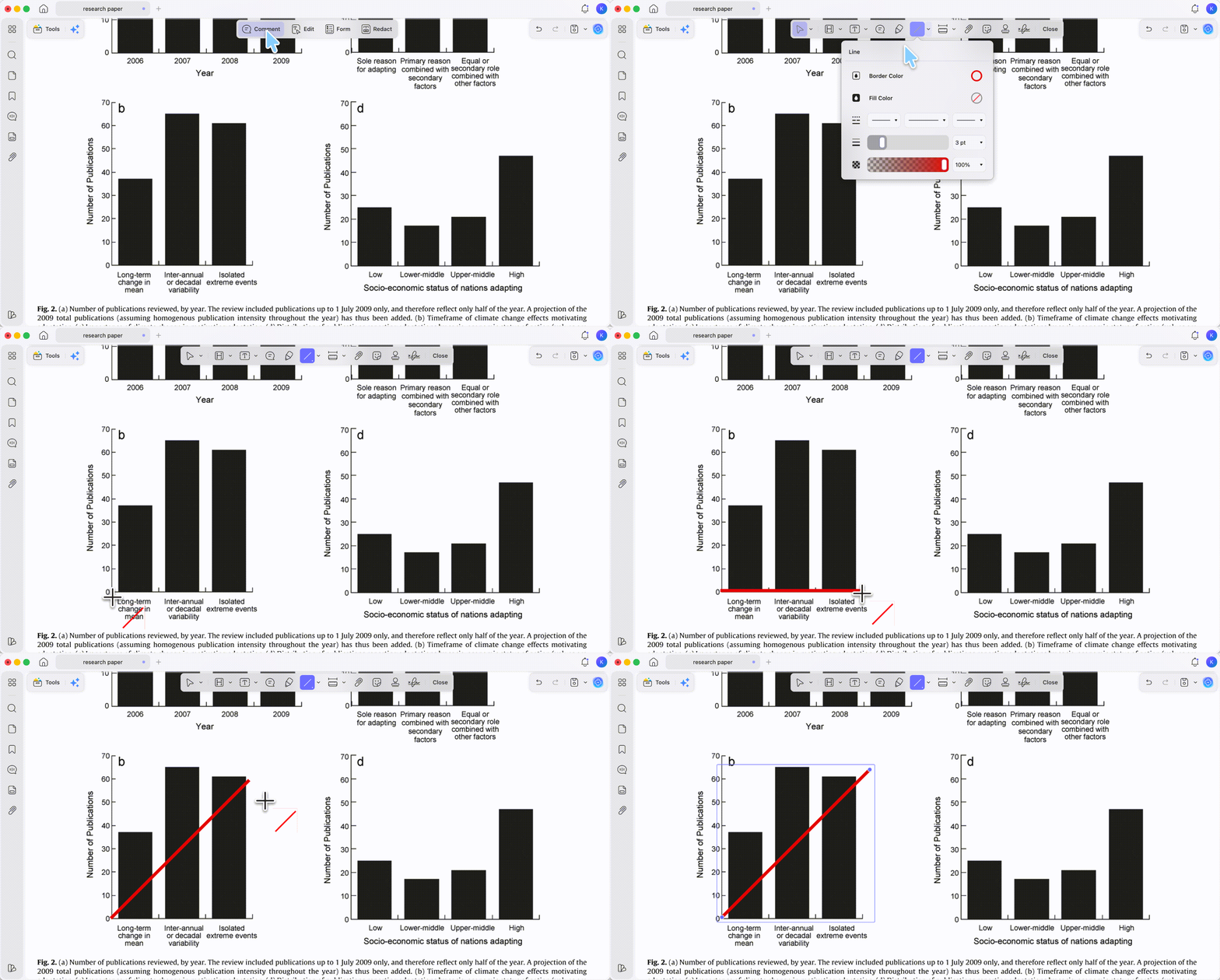
Step 4. With the line selected, use the object controls shown in your version to change its appearance, move it, or delete it.
If the line needs to separate two rows, mark a diagram, or point to one exact sentence, zoom in before dragging — the extra page detail makes it easier to place both endpoints precisely.
On iOS and Android
The UPDF mobile apps carry the same Comment toolset, so you can draw with a finger or stylus.
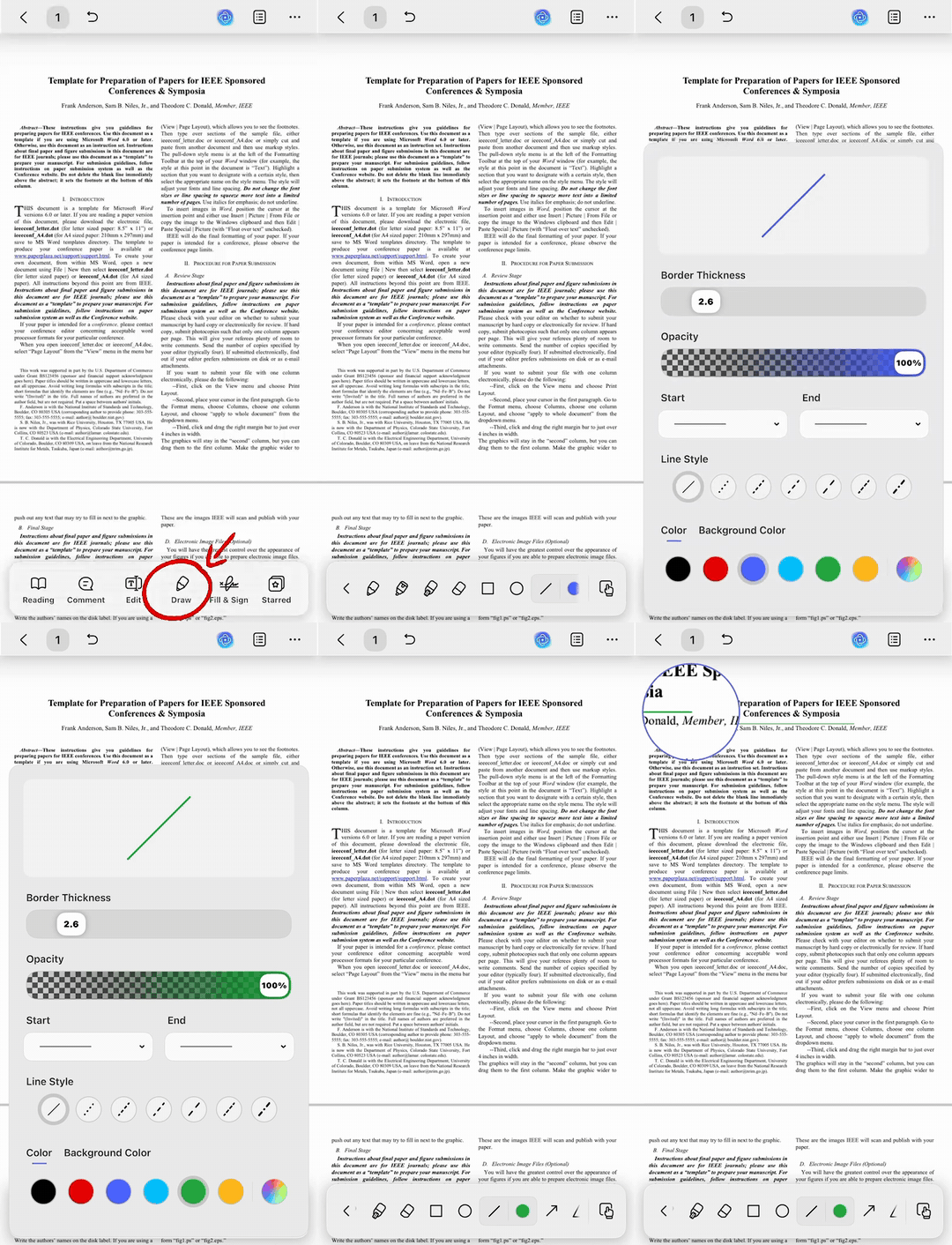
Step 1. Open the PDF in the UPDF app and tap the Draw icon.
Step 2. Choose Line and set color, thickness, and opacity.
Step 3. Drag your finger or stylus from the start point to the end point. Tap a finished line to move, restyle, or delete it.
A stylus on an iPad or Android tablet makes this feel close to ruling a line by hand on paper — useful for separating rows on a form or connecting a margin note to a clause before a call.
Best for:
- review marks, form separators, diagrams, and straight callouts.
Not for:
- a curved or handwritten mark — the Line shape stays geometric instead of following your pointer (use Pencil for that).
Download UPDF for free to try the Line tool on a copy of your document — installation is free, and Pro features are available when you need watermark-free export or advanced tools.
Windows • macOS • iOS • Android 100% secure
Part 3. How to draw a freehand or curved line
UPDF's Pencil tool creates a freehand stroke rather than a straight shape. Choose Pencil when you need a curved or irregular path.
Step 1. Open the PDF and select Comment. On mobile, tap the Comment icon.
Step 2. Choose Pencil.
Step 3. Set the Pencil color, thickness, and opacity for the mark you want.
Step 4. Drag across the page (or with your finger/stylus on mobile) to create the curve or freehand line.
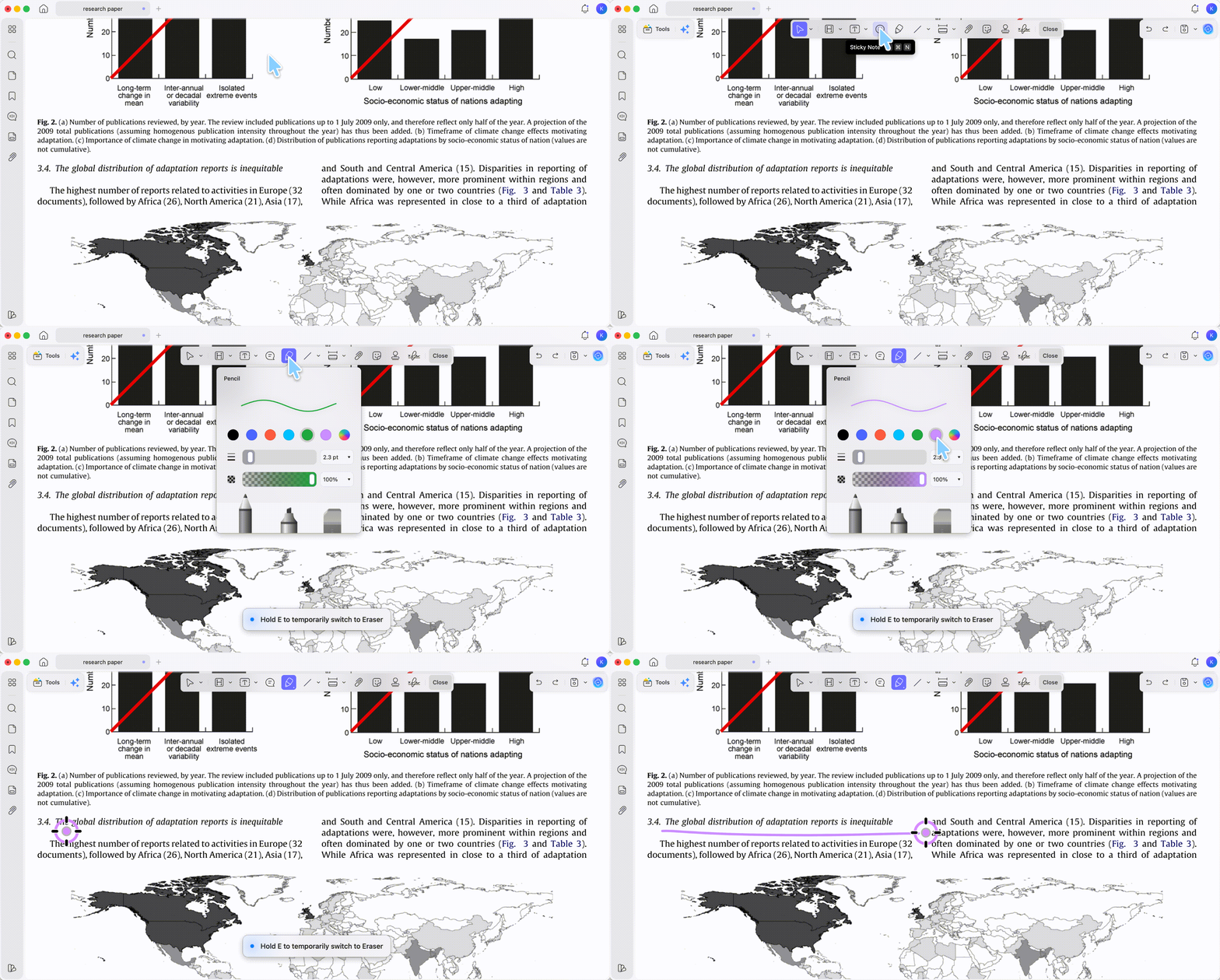
Step 5. If part of the stroke is wrong, choose Eraser and use partial or whole removal as appropriate.
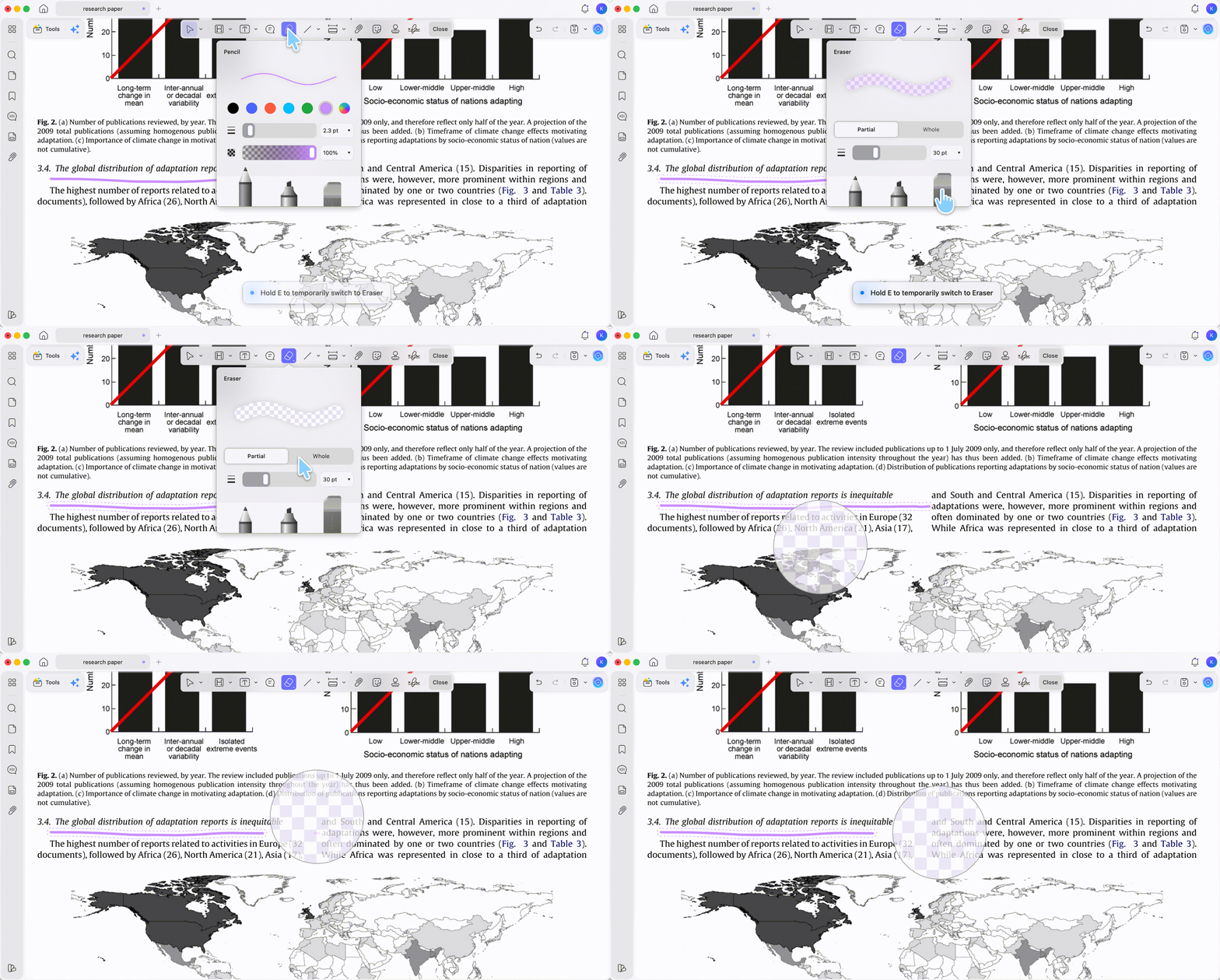
Choose Pencil settings that keep the mark visible without covering nearby text. For a ruler-straight divider, switch to the Line shape instead of trying to steady the Pencil manually. For a broad highlight across text, use the dedicated PDF highlighting workflow rather than forcing Pencil to act like a highlighter.
Best for:
- curves, circles, handwriting, rough sketches, and irregular emphasis marks.
Not for:
- a line that must stay perfectly straight or align exactly with a table, form field, or diagram edge.
Part 4. Draw a line online, or in Adobe — and when to use each
If you can't install software, a browser editor works on any device. If Adobe Acrobat is already on your machine, its commenting tools include a line option too.
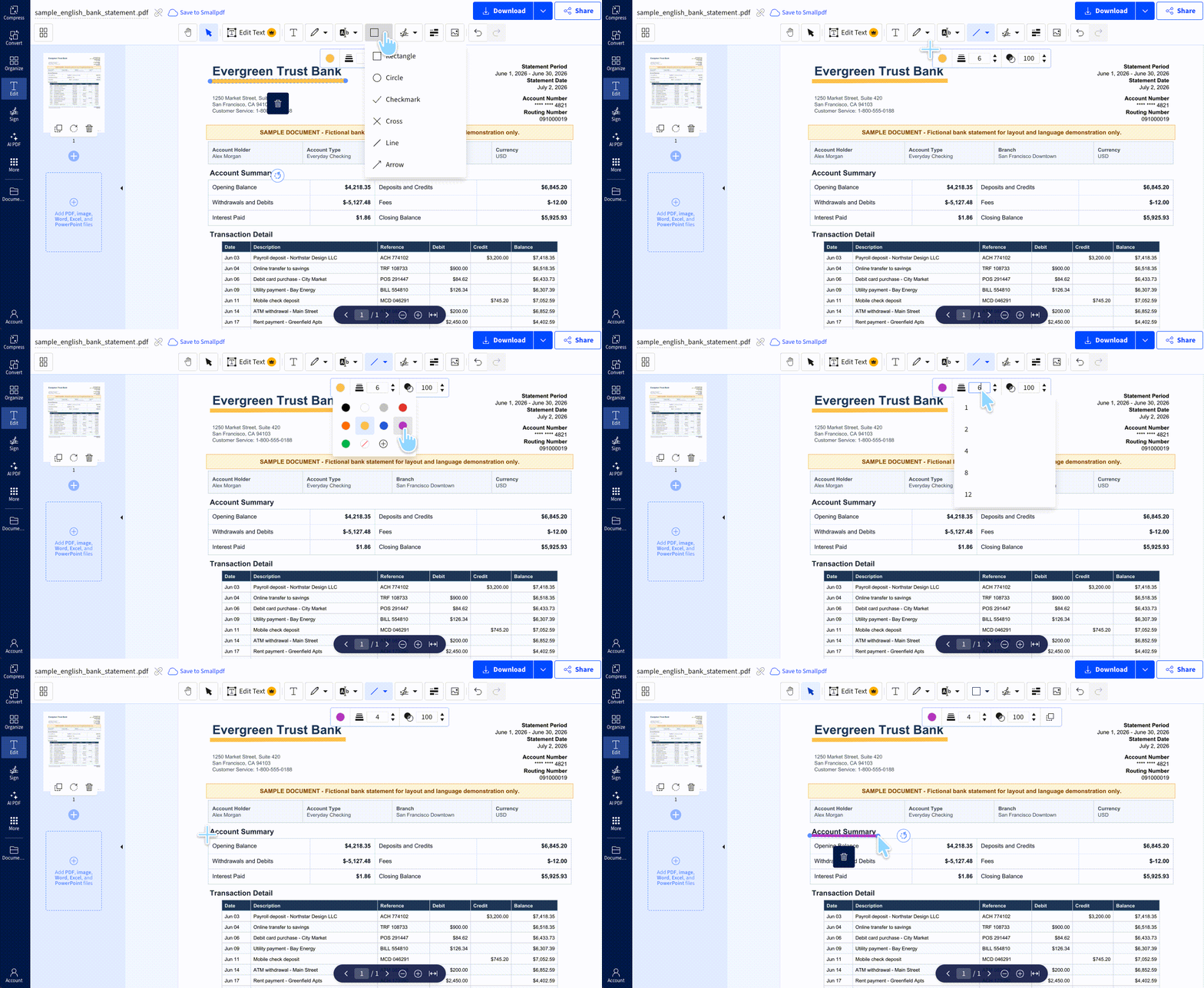
Online (Smallpdf): open the Smallpdf editor, upload your PDF, open the shapes tool, and choose Line, or pick the pencil for freehand. Draw, then download.
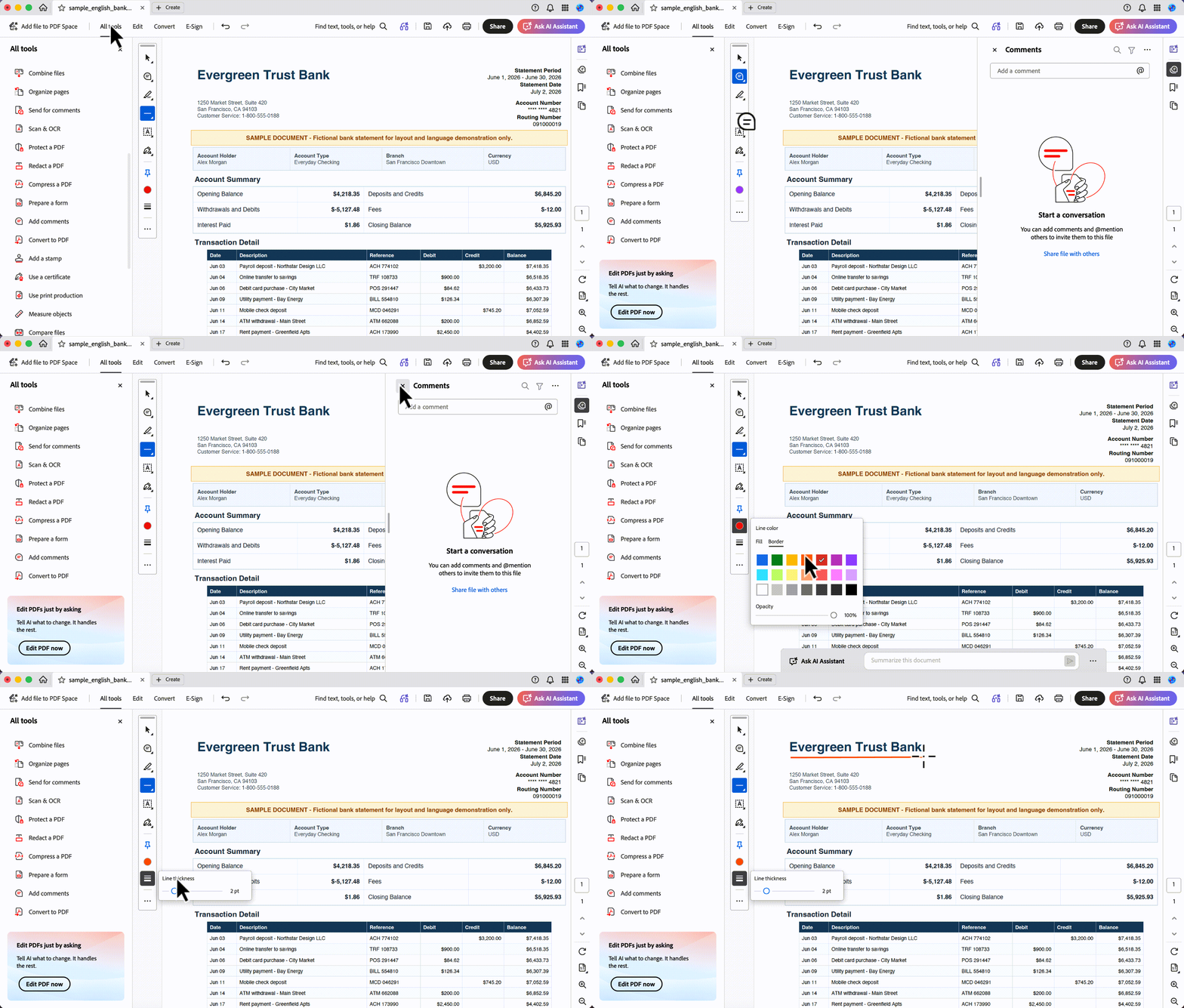
Adobe Acrobat: open the PDF, choose All tools > Add comments > Draw Freehand > Line. Click at the line's starting point, drag to the ending point, and release. Acrobat Pro runs about $19.99/month (~$239.88/year) with no lifetime license, so it's mainly worth it for users already inside the Adobe ecosystem.
Local app or online — how to choose:
| Decision factor | Local desktop app (UPDF / Acrobat) | Browser tool (Smallpdf) |
|---|---|---|
| Straight line tool | ✓ | ✓ |
| File handling | Opens the file locally; nothing uploaded to draw | Requires uploading the PDF to a web service |
| Sensitive documents | Avoids uploading merely to draw a line | Evaluate the service's terms before uploading |
| Repeated work | Tools stay installed for many files | Convenient for occasional access |
| Access | Requires installation | Requires a browser and internet |
Download UPDF for free to draw straight and freehand lines on your own PDF — installation is free, and Pro features unlock when you need watermark-free export.
Windows • macOS • iOS • Android 100% secure
Part 5. Edge cases: when drawing or saving won't work
The line tool is greyed out, or nothing places. The PDF likely has a permissions password restricting annotation. You'll need the owner's authorization to unlock editing — only remove restrictions on files you have the right to edit. Request an editable copy rather than trying to bypass the restriction.
Dragging selects text or pans the page instead of drawing. The wrong tool is active. Return to Comment mode and choose Line (or Pencil for a curve).
The line won't select or move. If it was added as page content (drawn in an editor, or flattened on export) rather than as an annotation, it's baked into the page. Use the Edit tool to select it as a page object, or redraw it as an annotation.
The lines disappeared when opened elsewhere. Some viewers hide annotation layers by default, or the file was exported without comments. Re-export with annotations included, or flatten the lines into the page if they must show in every viewer (flattening makes them permanent).
Note: A line annotation is not a measurement line
Part 6. FAQ
1. Can I draw a straight line on a PDF for free?
Yes. UPDF's Line tool draws straight lines for free; exporting adds a trial watermark until you upgrade. Smallpdf's free browser editor also has a Line shape tool, subject to file-size and daily-task limits.
2. Can I place an arrow instead of a plain line?
Yes. Choose Arrow under Shapes in UPDF when the mark needs to show direction.
3. Can I draw lines on a scanned PDF?
Yes. A drawn line is an annotation on top of the page, so it works on a scanned image the same as on digital text — no OCR needed just to draw. You'd only need OCR to select or search the underlying text.
Conclusion
To draw a line on a PDF cleanly, use the Line tool for a precise straight segment and Pencil for an irregular stroke — across Windows, Mac, iOS, and Android — then use the Eraser for unwanted Pencil marks. For scaled plans or diagrams, use a dedicated measurement workflow instead of a visual line. Keep a copy of the original before a large review pass, and test one straight line and one freehand mark to confirm the look you want.
For the full picture of highlighting, commenting, stamping, and drawing together, see our complete guide to annotate PDF.
Download UPDF for free to add straight and freehand line annotations to a copy of your PDF — installation is free, and Pro features are available when you need watermark-free export or advanced tools.
Windows • macOS • iOS • Android 100% secure




 Engelbert White
 Enrica Taylor

 Enya Moore