 UPDF
UPDF
 UPDF for Windows
 UPDF for Mac
 UPDF for iPhone/iPad
 UPDF for Android
 Nomostar
 UPDF AI Online
 UPDF Sign
 IvyCraft
 Edit PDF
 Annotate PDF
 Create PDF
 PDF Form
 Edit links
 Convert PDF
 OCR
OCR PDF to Word
 PDF to Image
 PDF to Excel
 Organize PDF
 Merge PDF
 Split PDF
 Crop PDF
 Rotate PDF
 Protect PDF
 Sign PDF
 Redact PDF
 Sanitize PDF
 Remove Security
 Read PDF
 UPDF Cloud
 Compress PDF
 Print PDF
 Batch Process
 About UPDF AI
 UPDF AI Solutions
 AI User Guide
 FAQ about UPDF AI
 Summarize PDF
 Translate PDF
 Chat with PDF
 Chat with AI
 Chat with image
 PDF to Mind Map
 Explain PDF
 PDF AI Tools
 Image AI Tools
 AI Chat Tools
 AI Writing Tools
 AI Study Tools
 AI Working Tools
 Other AI Tools
 AI Bookmark Generation
 AI Bookmark Summary
 AI Watermark Generation
 AI Background Generation
 AI Sticker Generation
 AI Stamp Generation
 AI Editing Suite
 UPDF Copilot
 AI Page Management
 AI Semantic Search
 PDF to Word
 PDF to Excel
 PDF to PowerPoint
 Enterprise Solution
 Enterprise Sign
 Enterprise AI
 Enterprise Plan
 Enterprise User Guide
 Enterprise Webinar
 Banking
 Healthcare
 Insurance
 Legal
Legal Manufacturing
 Government
 Researchers & PhDs
 Solopreneurs & Freelancers
 Lawyers & Legal Professionals
 Education Solution
 Customer Stories
 User Guide
 UPDF Tricks
 FAQs
FAQs UPDF Reviews
 Download Center
 Blog
Blog Newsroom
 Tech Spec
 Updates
 UPDF vs. Adobe Acrobat
 UPDF vs. Foxit
 UPDF vs. PDF Expert

Quick Answer
In this article, we will explore 6 effective techniques to effortlessly jump to any desired page in a PDF. Whether you're using a PDF viewer or working with PDF links, these methods will streamline your reading and research experience. So let's dive in and discover the easy steps.
- Method 1–2 (toolbar, thumbnails) — everyday reading in any viewer.
- Method 3 (bookmarks) — long documents with chapters you revisit.
- Method 4–6 (links, URL trick) — sharing and publishing.
Method 1. How to Jump to a Specific Page in PDF using the Navigation Toolbar
Every PDF viewer has a page-number field. The location varies, but the process is the same: type the page number, press Enter, and the viewer jumps instantly.
Regarding efficient PDF management, UPDF stands out as the ultimate tool. With comprehensive features, it offers an all-in-one solution for your PDF needs. It offers a wide range of features, including PDF document creation, viewing, annotation, signing, editing, and much more.
How to Jump to a Specific Page in PDF
Every PDF viewer has a page-number field — in UPDF it's the Navigation Toolbar; in Acrobat and most readers it's in the top toolbar or bottom status bar.
By following these simple steps, you can quickly jump to any desired page in your PDF document:
- Open the PDF document in UPDF.
- Locate the Navigation Toolbar at the top of the interface.
- Look for the page number input field within the Navigation Toolbar.
- Enter the page number you want to jump to.
- Press the narrow key on the input field.
- UPDF will instantly jump to the specified page, displaying it on your screen.
Windows • macOS • iOS • Android 100% secure
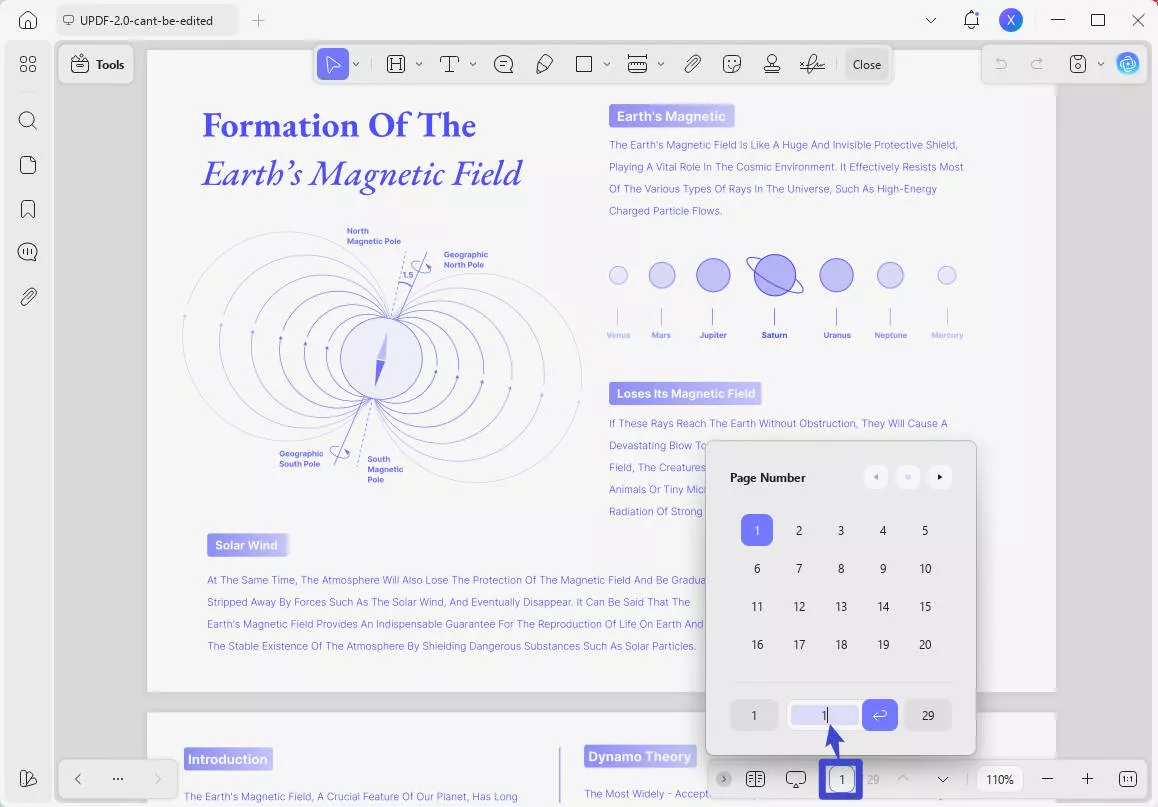
How to Jump to the Front or Last Page in PDF
If you want to jump directly to the front page or the last page in PDF, follow these steps:
- Choose "Page Number" and select the number of the front page and Last Page.
- UPDF will instantly jump to the respective page based on the button you clicked.
You can also use the shortcuts to do jump to the next/previous page and then go to the front or last page:
- Jump to the next page: Ctrl + Down (Windows) or Command + Down (Mac)
- Jump to the previous page: Ctrl + Up (Windows) or Command + Up (Mac)
Download UPDF and try it for free by yourself, and you will be surprised by its amazing performance.
Windows • macOS • iOS • Android 100% secure
Method 2. How to Jump to Page in PDF using the Thumbnail
Best for
PDF jump to a page becomes effortless with the use of thumbnails. Thumbnails provide a visual representation of each page in the document, allowing you to quickly jump to the desired page. Follow these steps to jump to a page in a PDF using the thumbnail feature:
- Look for the thumbnail icon after opening your PDF file, represented by three stacked squares, located on the left-bottom panel.
- Click the Thumbnail icon to reveal the thumbnail view of the PDF pages.
- Browse through the thumbnails to locate the specific page you want to jump to.
- Once you find the desired page, click on its corresponding thumbnail.
- The main reading interface will automatically display the selected page, bringing it into focus.
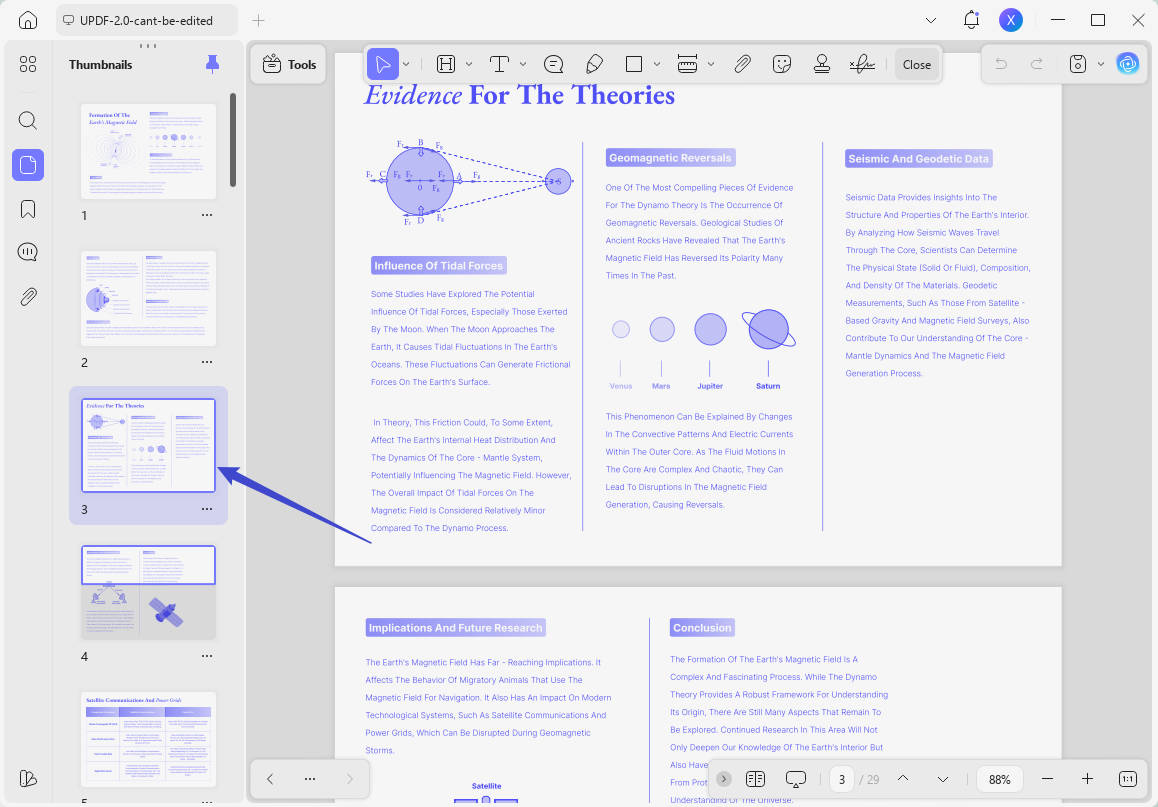
Tip: In UPDF and most readers, you can adjust the thumbnail size using zoom controls in the thumbnail panel. Larger thumbnails make it easier to identify pages with distinctive layouts or images.
Method 3: How to Jump to a Page in PDF using Bookmarks
Bookmarks in a PDF document provide a convenient way to quickly jump to specific pages. By following these steps, you can effortlessly jump to desired pages using bookmarks:
Step 1. Add Bookmarks to Each Page
Jumping between chapters: If your PDF is a book, report, or thesis with chapters, create one bookmark per chapter title page — readers can then jump straight to any chapter from the bookmark panel instead of scrolling through the table of contents.
- Click the Bookmarks icon. Navigate to the page you want to bookmark.
- Click the Add Bookmark button located in the top left area. And add the bookmark you want. Then UPDF will automatically add a bookmark for your requirement. Repeat this process to add bookmarks for other pages, if desired.
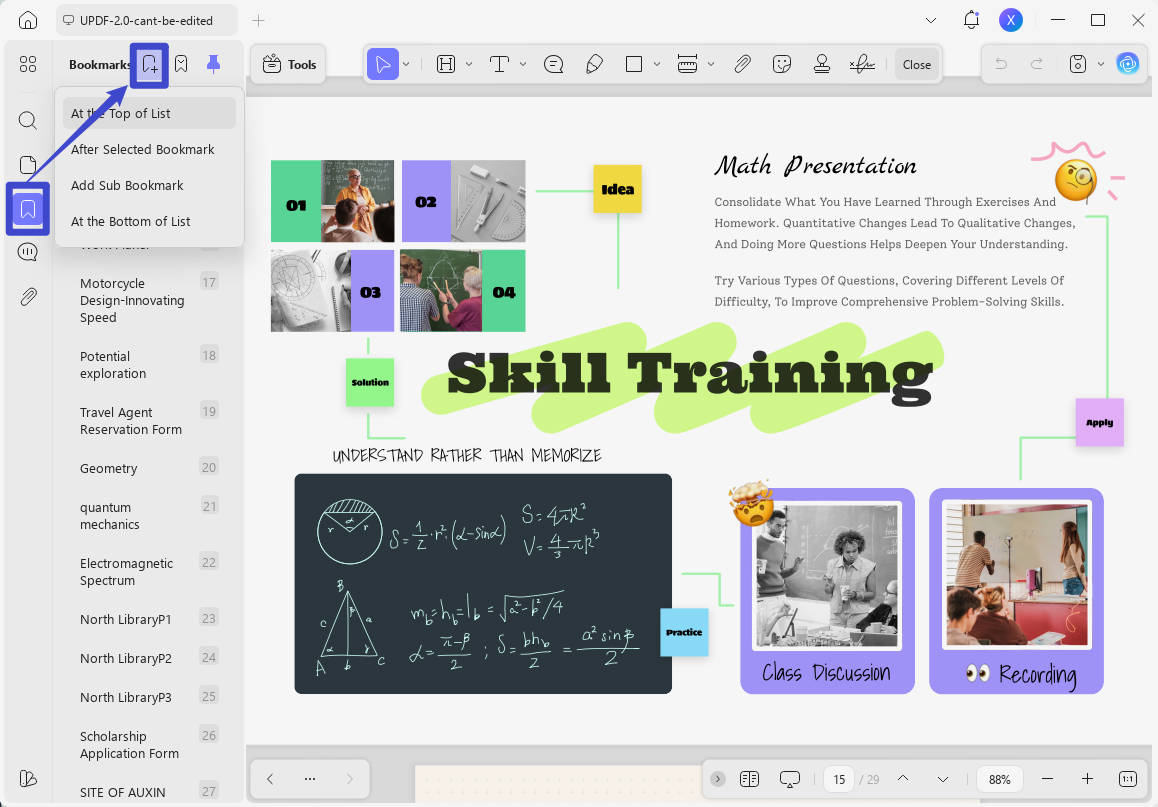
Step 2. Click the Corresponding Bookmark to Jump
After revealing the bookmarks, you can click the bookmark and it will jump to the specific page instantly.
How to add jump to page in PDF chapters: In UPDF, after adding bookmarks to each chapter, the bookmarks panel becomes a functional table of contents. You can rename bookmarks to match chapter titles, making navigation intuitive even for readers who are not familiar with the document.
Method 4: How to Jump to a Page in PDF with Links
Links in a PDF document serve as a convenient means to jump to specific pages. By adding links, you can create clickable references that directly take you to the desired page. Follow these steps to jump to a page in a PDF using this method:
Step 1. Add the Links
- Click the "Edit" icon in "Tools" on the left toolbar. Click the "Insert & Edit Link Page" icon on the top toolbar.
- Select the area you want to add the link to. Enter the number of the page you want to jump and press enter to confirm.
To jump to a page in another PDF, use the "Open a file / Go to a page view" action and select the target file and page — useful for portfolios and multi-file reports.
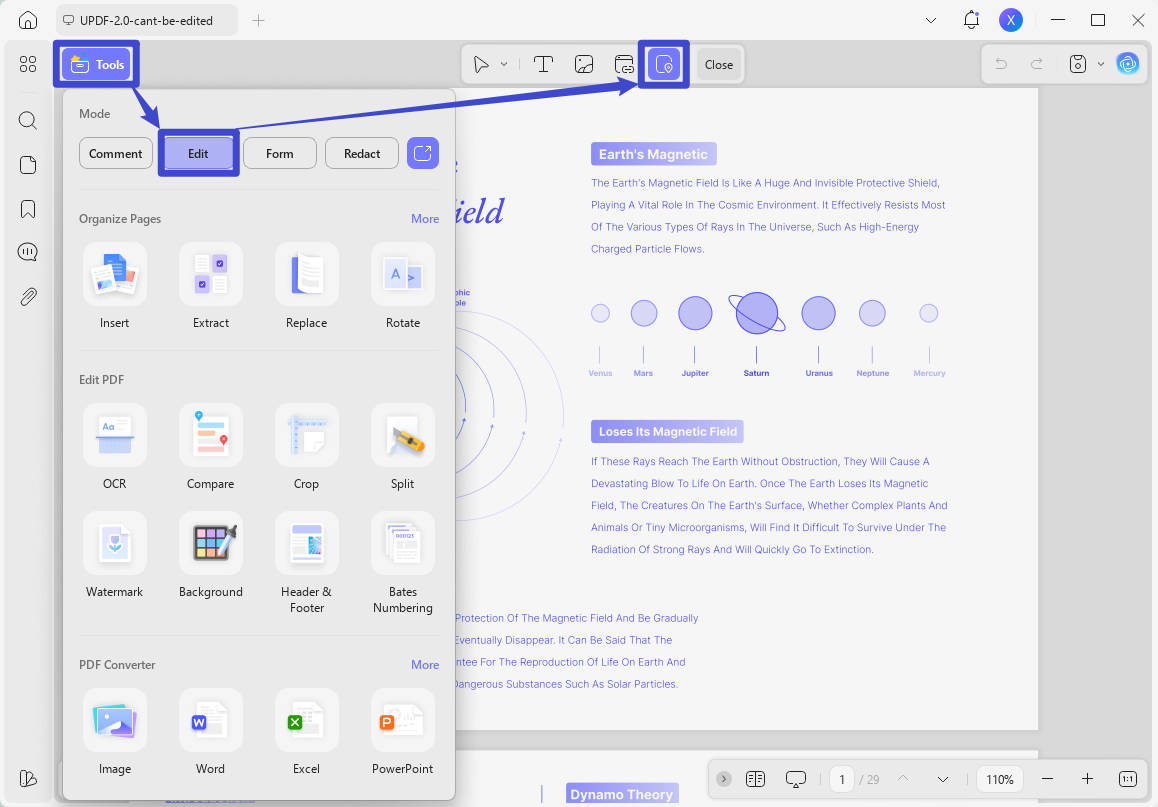
Step 2. Jump to a Specific Page in PDF using the Created link
- Simply click on the linked text or image within the PDF.
- UPDF will instantly jump to the specified page, displaying it on the screen.
You can apply the same link to a shape or button to build an interactive PDF (e.g., a "Back to Contents" button on every page).
How to add jump to page in PDF chapters: This is the core technique for building clickable tables of contents. Add a link to each chapter title in your TOC, point it to the corresponding page, and readers can navigate the entire document from a single page.
Now you may want to use UPDF yourself. Click the button below and install this software on your device. You can jump to a specific page in PDF easily.
Method 5: How to Share a Link That Jumps to a Specific Page in PDF (#page=N)
Best for
No software needed. Append #page=N to the PDF's URL: https://example.com/report.pdf#page=12 opens the file directly on page 12 in most browsers and viewers.
Steps: Upload/share the PDF link; add #page=12; send it — recipients land on page 12.
Warning: #page=N is ignored by some in-browser/embedded viewers (e.g., certain SharePoint or web preview modes) — the file may open on page 1. If the link must work everywhere, direct recipients to download and open the PDF in a desktop viewer.
Real-world example: A university professor shares a 300-page textbook PDF with students. Instead of telling them to “open to Chapter 7,” the professor sends a link ending with #page=142. Students click once and land on the exact page.
Method 6: How to jump to a page in UPDF by searching
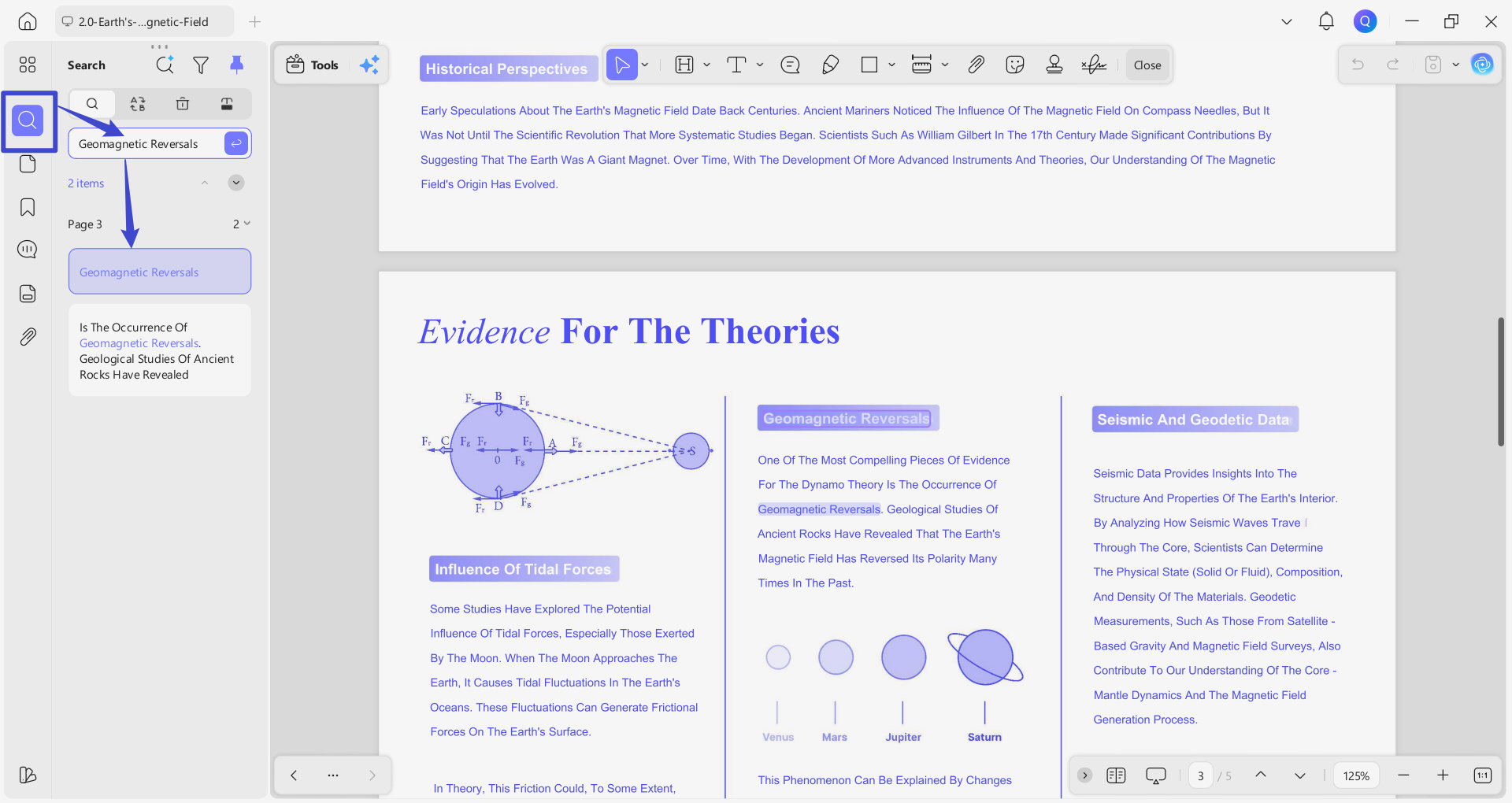
Searching is an efficient way to jump to a specific page. UPDF supports two search modes: Keyword Search and AI Semantic Search. Keyword Search locates content based on the exact words you type, while AI Semantic Search, the new feature in UPDF 2.5, goes further — finding relevant content by meaning, even when you don't know the precise wording used in the document. With simple steps below, you can jump to the page you want:
Way 1: Keywords Search
Click the Search icon in Tools on the left toolbar and type in your keyword. UPDF will automatically navigate to the first page where a match is found — use the arrows to browse through additional results if there are more.
Way 2: AI Search
Click the Search icon in Tools on the left toolbar, select AI Search and type in the content you want to look for. UPDF will automatically navigate to the first page where a match is found by meaning.
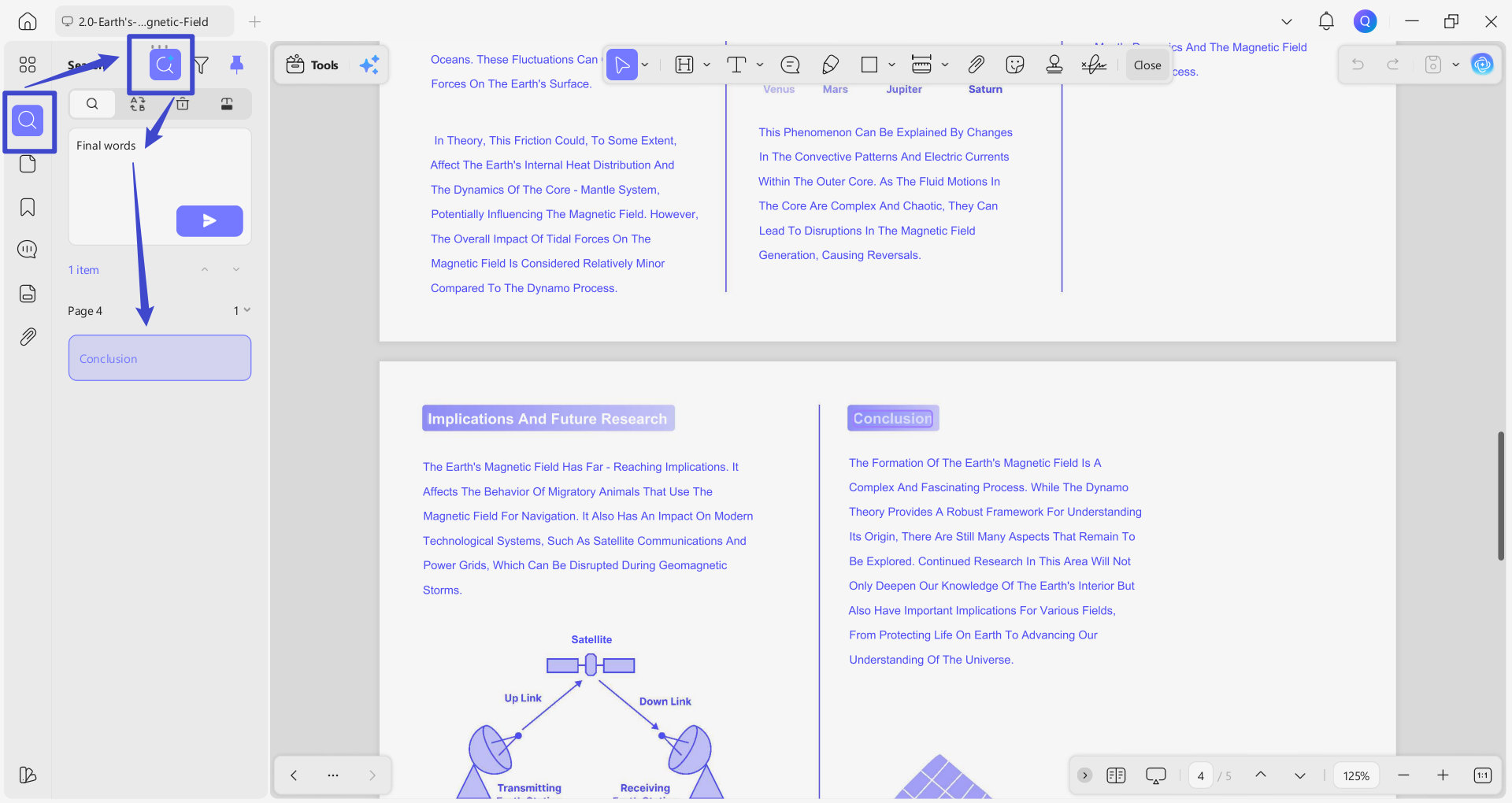
You are reading a legal contract and need to find the clause about “termination due to force majeure,” but the document uses “unforeseeable events preventing performance.” Keyword search fails. AI Semantic Search finds the correct page by understanding the meaning.
Windows • macOS • iOS • Android 100% secure
Bonus:
When Will You Need to Jump to a Specific Page in PDF?
The ability to jump to a specific page in a PDF document is a valuable feature that can enhance your reading, research, and document management experiences. Here are some real-world scenarios where this feature becomes particularly useful:
Research and Reference
When conducting research or referencing information in a lengthy PDF document, being able to jump directly to the relevant page saves time and improves efficiency. Whether you're analyzing data, studying a specific section, or verifying citations, the ability to quickly jump to the desired page streamlines your workflow.
Collaborative Document Review
In collaborative settings, such as team projects or document reviews, multiple individuals may be working on different sections of a PDF. Jumping to specific pages allows team members to provide feedback, make edits, or address specific content without having to scroll through the entire document. This feature enhances document collaboration and simplifies the review process.
Table of Contents
Many PDF documents include a table of contents that lists the main sections or chapters. By jumping to specific pages referenced in the table of contents, you can quickly access the desired areas for a comprehensive overview of focused reading.
Large Documents and eBooks
It can be cumbersome to scroll through numerous pages when reading lengthy PDF documents, such as eBooks, manuals, or reports. You can easily navigate to chapters, sections, or referenced content by jumping to specific pages, allowing for a more seamless reading experience.
In all these scenarios, the ability to jump to a specific page in a PDF using various methods provides users with a precise and efficient way to access desired information within the document.
FAQ
How do I jump to a specific page in a PDF?
Open the PDF, click the page-number field in the toolbar or status bar, type the page number, and press Enter. In Acrobat, press Ctrl+Shift+N. In Foxit, press Ctrl+G. In UPDF, click the page field in the navigation toolbar.
How do I add a jump to page link in a PDF?
Open the PDF in an editor like UPDF. Click Edit, then Insert & Edit Link. Select the area for the link, enter the target page number, and confirm. Clicking the linked area will jump to that page.
Can I make a link that opens a PDF on a specific page?
Yes. Add #page=N to the end of the PDF’s URL. For example, report.pdf#page=12 opens the file on page 12 in most browsers. Note that some embedded viewers ignore this fragment.
Why does #page=N not work in Edge?
Edge has a “resume last page” feature that can override the #page=N request. Go to Edge Settings > PDF documents and turn off “Resume reading where you left off.”
How do I jump to a page in a PDF on Mac?
In Preview, press Cmd+Option+G to open the Go to Page dialog. In Acrobat on Mac, press Cmd+Shift+N. In UPDF on Mac, click the page field in the toolbar and type the page number.
Wrap Up!
Jumping to a page in a PDF is a small skill that saves a disproportionate amount of time, especially when you work with long documents regularly. The method you choose depends on your situation: toolbar for speed, thumbnails for visual memory, bookmarks for recurring chapters, links for interactive documents, #page=N for sharing, and AI Search for when you do not know where to look.
Ready to navigate PDFs smarter? UPDF combines all six methods in one tool, with AI Semantic Search that finds content by meaning. Download UPDF and experience the fastest way to jump to any page.
Windows • macOS • iOS • Android 100% secure







 Enola Miller
 Delia Meyer
 Enrica Taylor
 Enid Brown