 UPDF
 UPDF for Windows
 UPDF for Mac
 UPDF for iPhone/iPad
 UPDF for Android
 Nomostar
 UPDF AI Online
 UPDF Sign
 IvyCraft
 Edit PDF
 Annotate PDF
 Create PDF
 PDF Form
 Edit links
 Convert PDF
 OCR
 PDF to Word
 PDF to Image
 PDF to Excel
 Organize PDF
 Merge PDF
 Split PDF
 Crop PDF
 Rotate PDF
 Protect PDF
 Sign PDF
 Redact PDF
 Sanitize PDF
 Remove Security
 Read PDF
 UPDF Cloud
 Compress PDF
 Print PDF
 Batch Process

 About UPDF AI
 UPDF AI Solutions
 AI User Guide
 FAQ about UPDF AI
 Summarize PDF
 Translate PDF
 Chat with PDF
 Chat with AI
 Chat with image
 PDF to Mind Map
 Explain PDF
 PDF AI Tools
 Image AI Tools
 AI Chat Tools
 AI Writing Tools
 AI Study Tools
 AI Working Tools
 Other AI Tools
 AI Bookmark Generation
 AI Bookmark Summary
 AI Watermark Generation
 AI Background Generation
 AI Sticker Generation
 AI Stamp Generation
 AI Editing Suite
 UPDF Copilot
 AI Page Management
 AI Semantic Search
 PDF to Word
 PDF to Excel
 PDF to PowerPoint
 Enterprise Solution
 Enterprise Sign
 Enterprise AI
 Enterprise Plan
 Enterprise User Guide
 Enterprise Webinar
 IT
 Education
 Construction
 Financial Service
 Healthcare
 Insurance
 Legal
 Manufacturing
 Government
 Researchers & PhDs
 Solopreneurs & Freelancers
 Lawyers & Legal Professionals
 Real Estate Agents & Brokers
 Education Solution
 Customer Stories
 User Guide
 UPDF Tricks
 FAQs
 UPDF Reviews
 Download Center
 Blog
 Newsroom
 Tech Spec
 Updates
 UPDF vs. Adobe Acrobat
 UPDF vs. Foxit
 UPDF vs. PDF Expert


If you only open an occasional PDF, Android's built-in viewer may be enough. If you regularly read, highlight, search, sign, edit, or organize PDFs on your phone, a dedicated PDF reader for Android will give you a much smoother workflow.
This guide compares five popular Android PDF readers by reading experience, annotation support, editing tools, platform coverage, and free limitations. For an all-in-one option, UPDF for Android combines comfortable PDF viewing with annotation, editing, OCR, conversion, signing, and AI-assisted reading.
Choose a view that keeps text comfortable on your screen. The short video below introduces the core PDF reading experience in UPDF; menu placement may vary slightly as the app continues to evolve.
Use the quick comparison first, then jump to the detailed review that best matches your needs.
5 Best Free PDF Readers for Android
Quick Comparison: Which Android PDF Reader Fits You?
| PDF Reader | Best For | Highlights Saved to PDF | Editing/OCR | Main Free Limitation |
|---|---|---|---|---|
| UPDF | Reading plus complete PDF work | Yes | Both available | Advanced saved results may carry trial limits |
| Adobe Acrobat Reader | Adobe ecosystem users | Yes | Paid tools | Many advanced tools require a subscription |
| Android built-in viewer | Opening an occasional PDF | Limited or device-dependent | No | Basic viewing only |
| Xodo | Reading and annotation | Yes | Plan-dependent | Some advanced tools require an upgrade |
| Foxit PDF Editor | Business reading workflows | Yes | Plan-dependent | Advanced features require payment |
1. UPDF - Best for Reading, Annotating, and Editing PDFs on Android
Best for: People who want one Android app for comfortable reading and complete PDF work instead of switching between separate viewers, scanners, editors, and converters.
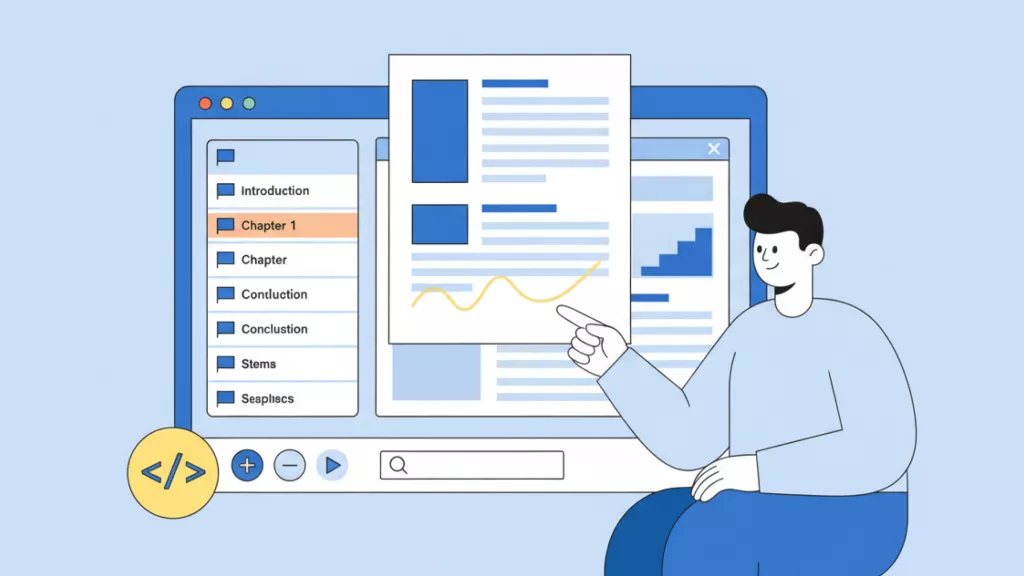
UPDF for Android supports single-page and two-page viewing, horizontal or vertical scrolling, zoom controls, page navigation, keyword search, bookmarks, and split-screen viewing. Split screen is especially useful when comparing two PDFs or reading a document while taking notes in another app. For the complete viewing workflow, see the Android PDF viewing guide.
Download UPDF free to test the reading experience on your own Android phone or tablet.
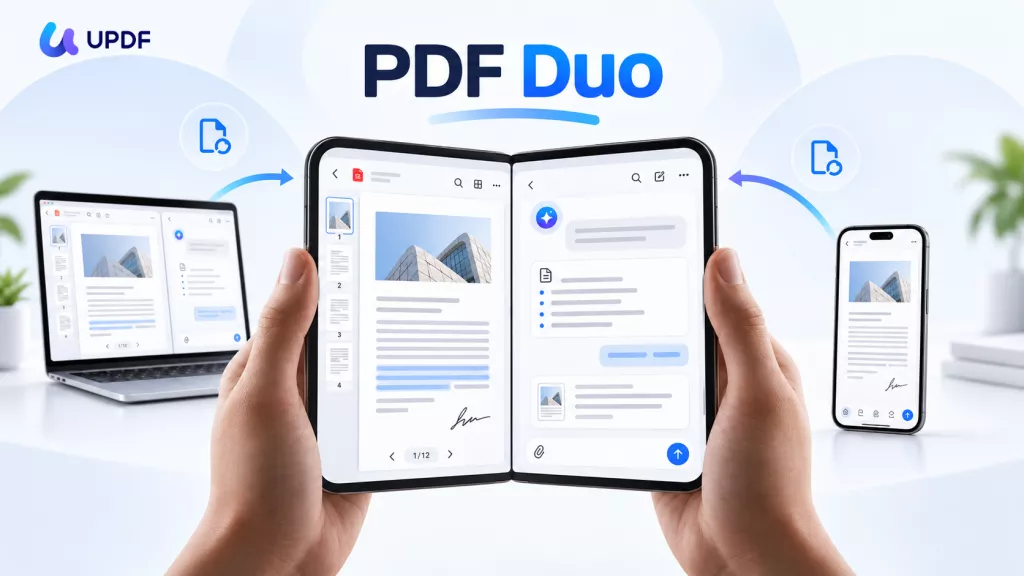
See how UPDF 3.0 connects mobile reading with a broader cross-platform PDF workflow, and learn about the limited-time Black Friday offer.
Windows • macOS • iOS • Android 100% secure
🛍️ Get the limited-time Black Friday deal — save up to 48% and receive a free lifetime PDF Password Remover for Windows.
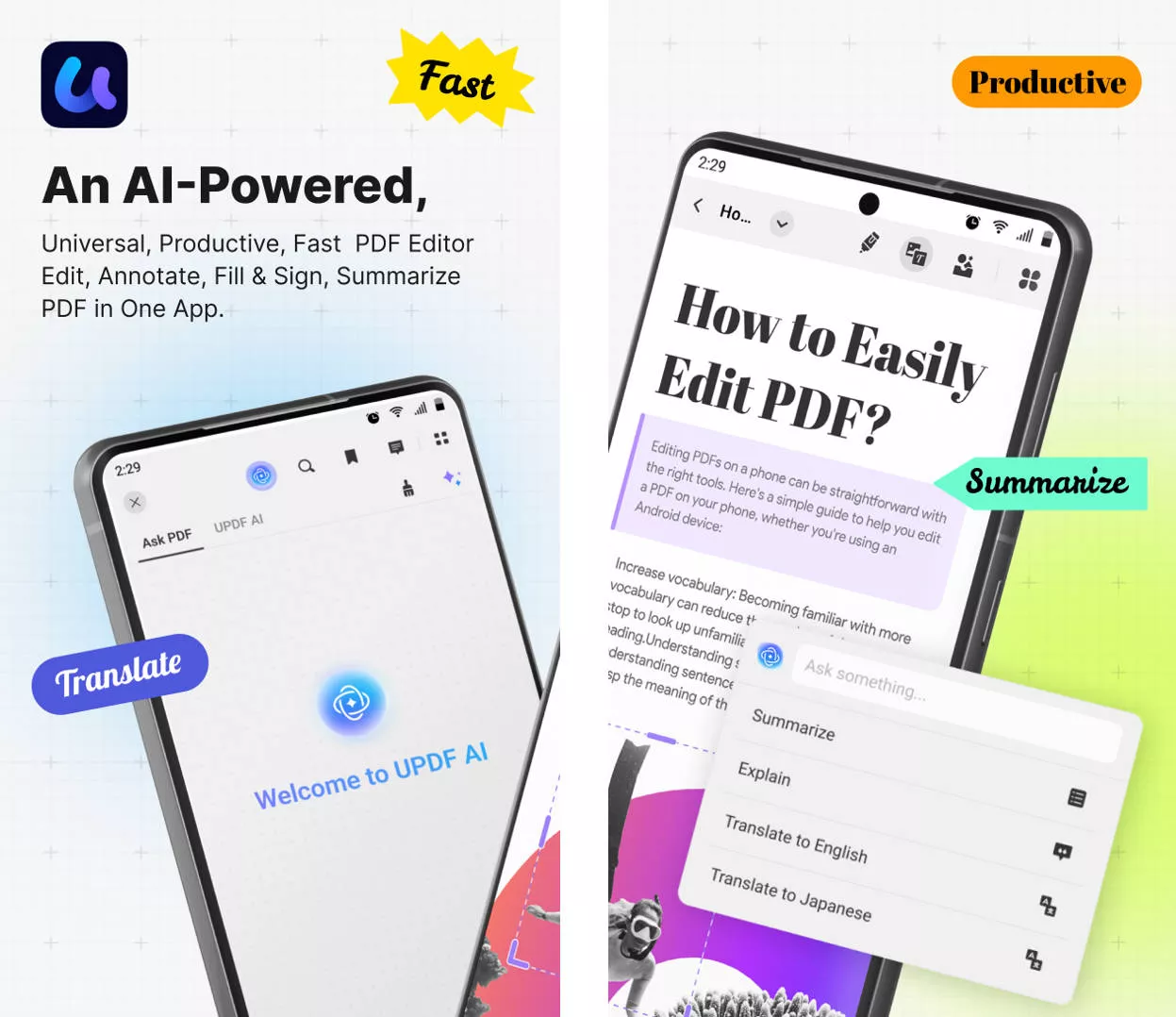
Key Android PDF Reading and Editing Features
- Read and navigate: switch page modes and scroll direction, search text, add bookmarks, jump to a page, and use split screen.
- Highlight and take notes: add highlights, underlines, text boxes, sticky notes, drawings, stamps, and stickers with the tools covered in this Android PDF annotation guide.
- Edit PDF content: change existing text, add new text, and insert, crop, rotate, resize, or replace images. Learn more about how to edit a PDF on Android.
- Handle scanned documents: use OCR to turn supported scanned PDFs into searchable or editable content, then continue reading, editing, translating, or converting in the same app.
- Organize and convert: manage pages, compress files, and convert PDFs to common office and image formats.
- Use AI while reading: summarize long PDFs, explain selected content, translate documents, chat with a PDF, and search academic papers with UPDF AI.
- Continue across devices: one UPDF license works across Android, iOS, Windows, and macOS, while UPDF Cloud helps keep files available between devices.
Pros:
- Free for opening, reading, searching, and viewing PDFs on Android.
- Combines reading, annotation, editing, OCR, conversion, signing, and AI tools.
- One account works across Android, iOS, Windows, and macOS.
- Clear interface for both casual reading and document-heavy workflows.
Cons:
- Some advanced saved results and premium tools require an upgrade.
If you want to test the full workflow before choosing a plan, download UPDF free. You can also compare the options on the UPDF pricing page.
Windows • macOS • iOS • Android 100% secure
Also read: How to change the default PDF viewer on Android.
2. Adobe Reader for Android - The Traditional PDF Reader for Android
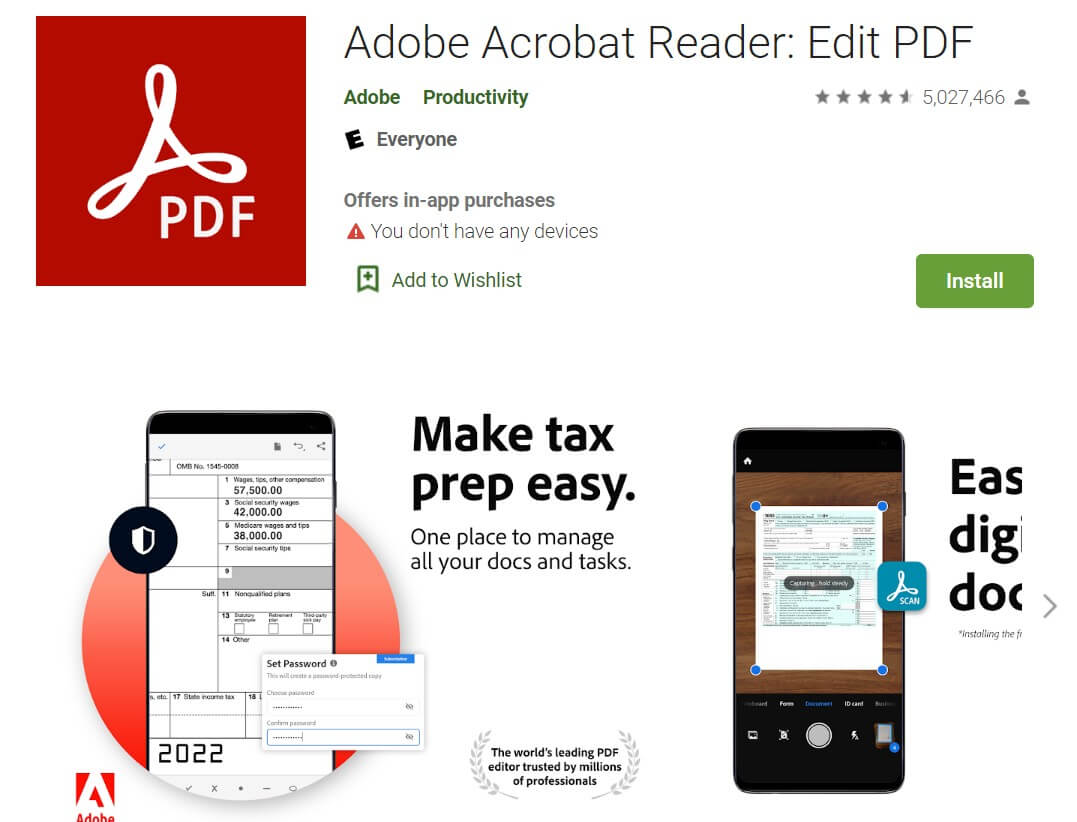
Next one of the best PDF viewers for Android you can have is the Adobe Acrobat Reader. It has a free version and a premium version. In the free version, you can view, print, share, annotate, fill and sign, store, and manage PDF files. Advanced tools such as editing, conversion, and file combination require a paid Acrobat plan.
Pros:
- It is free to use for many features like reading, annotating, sharing, etc.
- Can sync across other Adobe platforms.
- It supports scanning to PDF.
Cons:
- You can not edit on the free version.
- Subscription is costly to manage.
3. Android Built-In PDF Viewer - Best for Occasional PDF Opening
Many Android phones can open PDFs through the system file viewer, Google Drive, or the Files app without installing a dedicated reader. This is convenient for quickly checking a ticket, receipt, or attachment, but the available controls vary by device and Android version. If you need reliable highlighting, advanced search, editing, OCR, signing, or page management, use a dedicated PDF app instead. See how to read a PDF on Android for the built-in and app-based options.

Pros:
- No separate app may be required on supported Android devices.
- Convenient for quickly opening local files and email attachments.
- Beginner-friendly.
Cons:
- Annotation, editing, and file-management tools are limited and vary by device.
4. Xodo PDF Reader Android
Next in line is another free PDF reader for Android you should try which is the Xodo PDF Reader. The variety and depth of this Xodo's feature set distinguish it from the crowd of common PDF readers. Despite its name, the app is not just for viewing PDFs: you can also use your camera to produce new PDFs from photographs or Office documents. You may fill out, save, and distribute PDF forms, or you can highlight text and add your own notes. Using Xodo's connect feature, you may even collaborate on your work with others (no registration required).

Xodo Android also has its very own file manager which enables you to quickly retrieve the documents you need with thumbnail previews and a Recent Files list, and you can rename, copy, transfer, or delete any document. The basic PDF reading engine, on the other hand, is what matters, and Xodo's invention performs admirably. High zoom factors, page cropping, and a full-screen mode help you focus on the material; Night Mode makes reading in low-light conditions more pleasant; and sophisticated search features and table of contents support allow you to dive down to essential sections of the file.
Pros:
- A versatile PDF reader
- Annotate documents easily
- Also has cloud integration
Cons:
- OCR and other advanced tools may require a paid plan.
- The interface may feel busy if you only need a simple reader.
5. Foxit PDF Reader for Android
Another PDF reader you can have that deserves a spot on this list is the Foxit Android. Originally created for desktop versions, the mobile version for Android also stays true to what a versatile tool for PDF reading does as it lets you do a lot of things. One can access standard or password-protected documents, annotate texts, and more using Foxit Mobile PDF ConnectedPDF is also integrated into this app for collaborative work, annotations, comments, and revisions on a team's document and also supports cloud storage as well, allowing you to download and upload PDFs from a variety of sources. Paper documents may also be scanned, captured, and converted to PDFs.
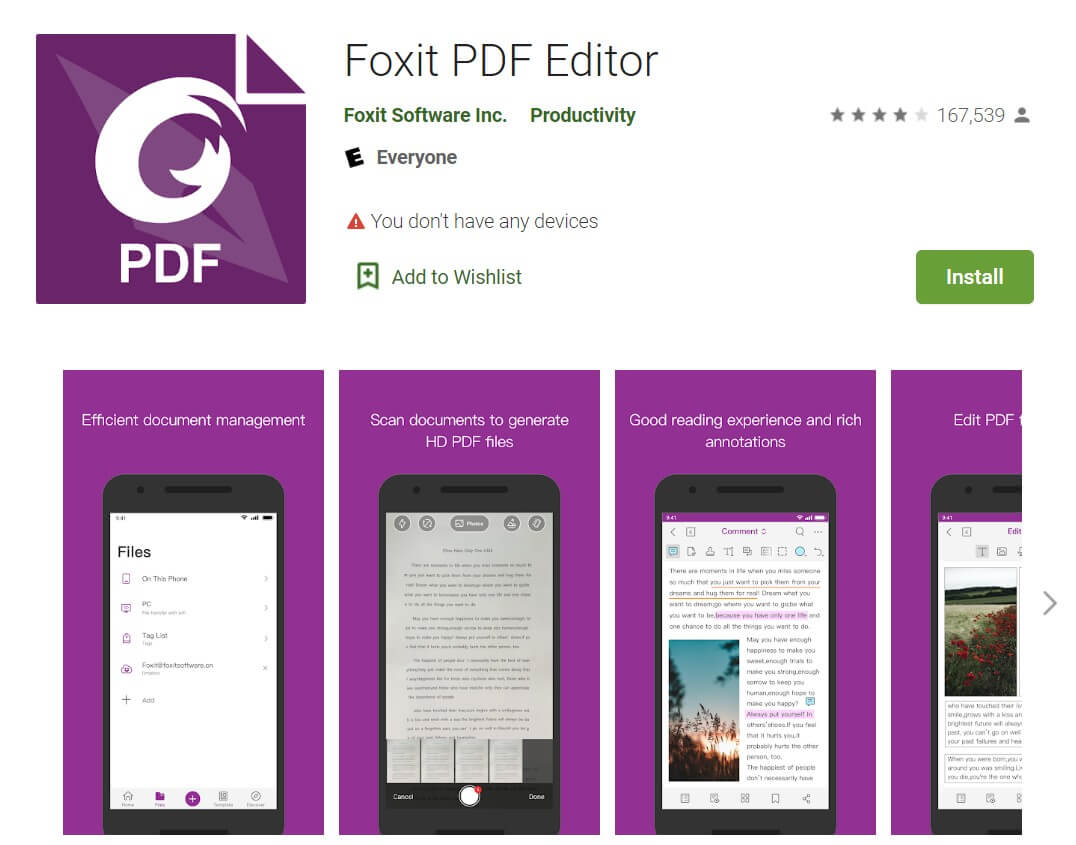
Although it is a great reader for tablets, it also works well on tiny displays like smartphones, due to the text's bespoke readjustment and redistribution. It also includes a premium version with extra features including text and picture editing in any PDF document.
Pros:
- Lightweight app size.
- Editing and reading PDFs is ideal for beginners.
- Built-in file manager.
Cons:
- Some business and editing tools require a paid subscription.
Which Android PDF Reader Should You Choose?
- Choose the built-in Android viewer if you only open PDFs occasionally and do not need to save annotations.
- Choose Adobe Acrobat Reader if your team already relies heavily on Adobe services and you accept a subscription for advanced tools.
- Choose Xodo or Foxit if their annotation or business workflows closely match your existing setup.
- Choose UPDF if you want comfortable reading plus annotation, editing, OCR, conversion, signing, AI tools, and cross-platform access in one app.
For a broader comparison beyond Android, review our guide to the best free PDF readers.
Conclusion
The best PDF reader for Android depends on whether you only need to open a file or want to work with it. Built-in viewing is enough for occasional use, while Adobe, Xodo, and Foxit serve established workflows. UPDF is the strongest all-in-one choice when you need reading, annotation, editing, OCR, conversion, signing, AI assistance, and access across desktop and mobile devices. Download UPDF free to test it with your own documents.
Windows • macOS • iOS • Android 100% secure






 Enya Moore

 Lizzy Lozano
 Enid Brown