 UPDF
UPDF
 UPDF for Windows
 UPDF for Mac
 UPDF for iPhone/iPad
 UPDF for Android
 Nomostar
 UPDF AI Online
 UPDF Sign
 IvyCraft
 Edit PDF
 Annotate PDF
 Create PDF
 PDF Form
 Edit links
 Convert PDF
 OCR
OCR PDF to Word
 PDF to Image
 PDF to Excel
 Organize PDF
 Merge PDF
 Split PDF
 Crop PDF
 Rotate PDF
 Protect PDF
 Sign PDF
 Redact PDF
 Sanitize PDF
 Remove Security
 Read PDF
 UPDF Cloud
 Compress PDF
 Print PDF
 Batch Process
 About UPDF AI
 UPDF AI Solutions
 AI User Guide
 FAQ about UPDF AI
 Summarize PDF
 Translate PDF
 Chat with PDF
 Chat with AI
 Chat with image
 PDF to Mind Map
 Explain PDF
 PDF AI Tools
 Image AI Tools
 AI Chat Tools
 AI Writing Tools
 AI Study Tools
 AI Working Tools
 Other AI Tools
 AI Bookmark Generation
 AI Bookmark Summary
 AI Watermark Generation
 AI Background Generation
 AI Sticker Generation
 AI Stamp Generation
 AI Editing Suite
 UPDF Copilot
 AI Page Management
 AI Semantic Search
 PDF to Word
 PDF to Excel
 PDF to PowerPoint
 Enterprise Solution
 Enterprise Sign
 Enterprise AI
 Enterprise Plan
 Enterprise User Guide
 Enterprise Webinar
 IT
IT Education
 Construction
 Financial Service
 Healthcare
 Insurance
 Legal
Legal Manufacturing
 Government
 Researchers & PhDs
 Solopreneurs & Freelancers
 Lawyers & Legal Professionals
 Real Estate Agents & Brokers
 Education Solution
 Customer Stories
 User Guide
 UPDF Tricks
 FAQs
FAQs UPDF Reviews
 Download Center
 Blog
Blog Newsroom
 Tech Spec
 Updates
 UPDF vs. Adobe Acrobat
 UPDF vs. Foxit
 UPDF vs. PDF Expert

You can annotate PDFs in Obsidian, but not through its core PDF viewer alone. Depending on your workflow, you can use plugins such as PDF++ or Annotator, or use a dedicated PDF editor alongside Obsidian.
If your goal is highlighting passages, linking them to notes, and building a personal knowledge base, Obsidian can be enough.
If you need advanced PDF editing, handwriting, OCR, forms, signatures, or AI-assisted document workflows, a dedicated PDF tool like UPDF may be a better fit. for precision drawing, AI summarization of long chapters, or OCR for scanned images (all of which are laggy in Obsidian).
Windows • macOS • iOS • Android 100% secure
Part 1. Can You Annotate a PDF in Obsidian?
Yes—but there are limitations. Obsidian's core PDF viewer is not a full PDF annotation environment, so advanced workflows depend on plugins.
| Capability | Obsidian Core | With Plugins |
|---|---|---|
| View PDF | ✅ | ✅ |
| Highlight | ❌ | ✅ |
| Notes/comments | ❌ | ✅ |
| Link highlights to notes | ❌ | ✅ |
| Draw/handwriting | Limited | Depends on plugin |
| PDF editing | ❌ | Limited |
| OCR | ❌ native | Depends on external workflow |
| AI PDF analysis | ❌ native | Requires other tools/plugins |
| Forms/signatures | ❌ | Not the main use case |
Obsidian is designed around notes and linked knowledge, while a dedicated PDF editor is designed around the PDF itself.
In contrast, UPDF is a better alternative to annotating a PDF directly without plugins. It is a powerful PDF reader and annotator tool that allows you to highlight, mark, strikethrough, underline, add stickers/stamps, and do more with PDFs directly.
So, if you want a seamless PDF annotation experience, then download UPDF and use it to read and annotate PDF content.
Windows • macOS • iOS • Android 100% secure
Part 2. How to Do PDF Annotation in Obsidian? Three Methods Explained
For Obsidian PDF annotation, you have to choose the right plugin and then use it to annotate a PDF. Below, we have shortlisted three methods/plugins you can use to annotate a PDF in Obsidian.
| Plugin | Main purpose |
|---|---|
| PDF++ | Annotate + link PDF to Obsidian |
| Annotator | Lightweight annotation inside Obsidian |
| Extract PDF Annotations | Import existing PDF annotations into Obsidian |
1. PDF++: Best for Obsidian-Centered Knowledge Work
PDF++ is a powerful Obsidian plugin that enhances your PDF experience by empowering you to annotate and edit PDFs. Best for users who want annotations to connect tightly with their Obsidian notes and backlinks.
With the PDF++ plugin, you can add backlink highlighting in customized colors. Simply put, you can transform backlinks to PDF files in the form of highlight annotations. Besides that, you can also add annotations directly into PDF files.
Strengths
- Obsidian-native workflow
- PDF highlights can connect to notes
- Backlinks
- Suitable for knowledge management
Limitations
- Requires Obsidian
- Plugin setup required
- Not a complete PDF editor
- Advanced PDF workflows may still require another tool
Tip
Windows • macOS • iOS • Android 100% secure
Here's how to annotate a PDF in Obsidian with the PDF++ plugin:
Step 1. Install the PDF++ Plugin
You have to first install the plugin. To do so, launch Obsidian and go to Settings > Community plugins > Browse. Search for "PDF++" and install the plugin.
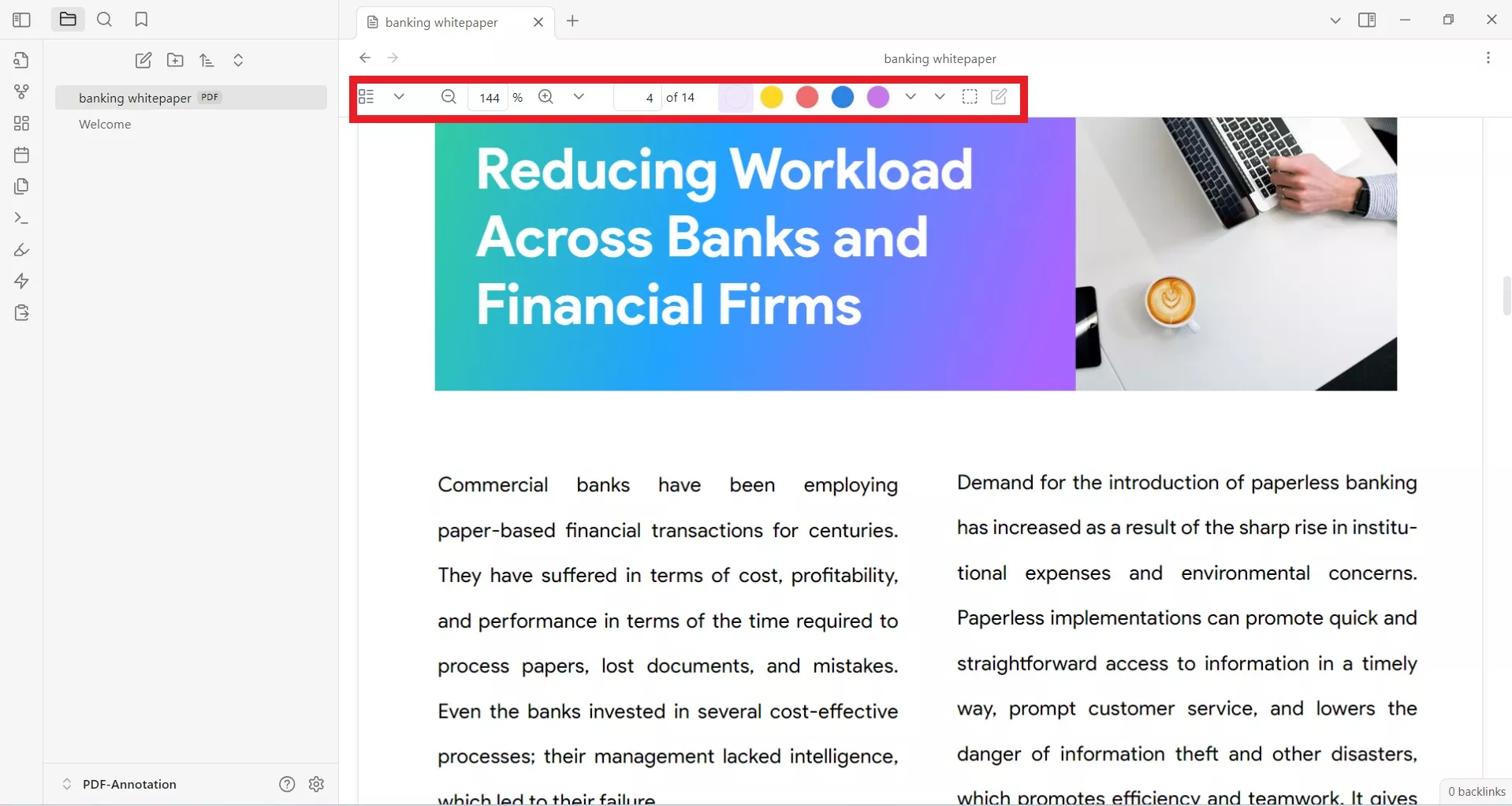
Once the plugin is installed, you will see a new toolbar at the top of the PDF.
Step 2. Add Backlink Highlighting
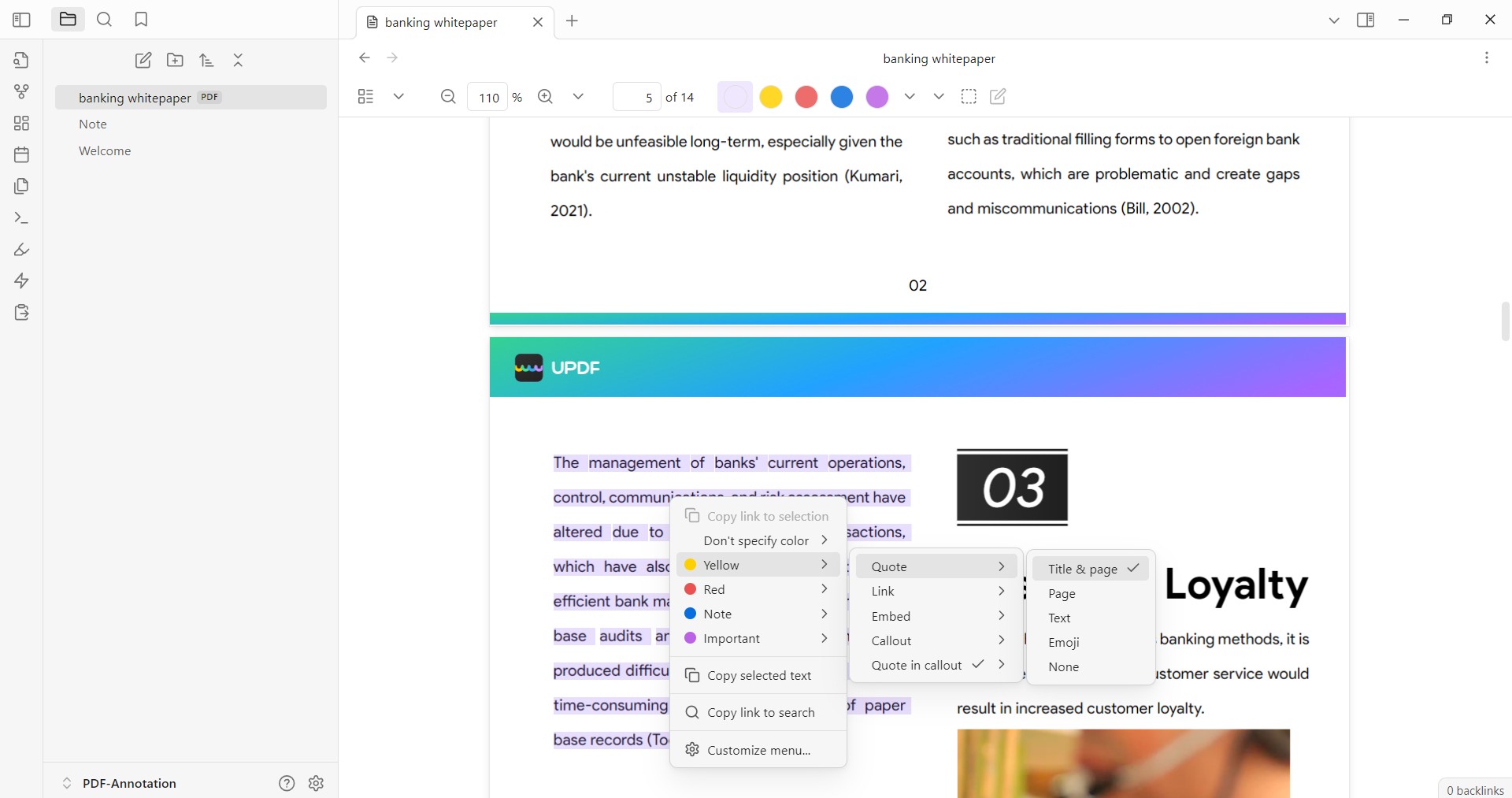
To add backlink highlighting, select the PDF text and right-click the mouse.
Under "Copy link to selection", select the color, the type of backlink annotation (Quota, Link, Embed, Callout, etc.), and the detail of the backlink (Title & page, Page, Text, Emoji, or None).
Afterward, paste the copied link in another note.
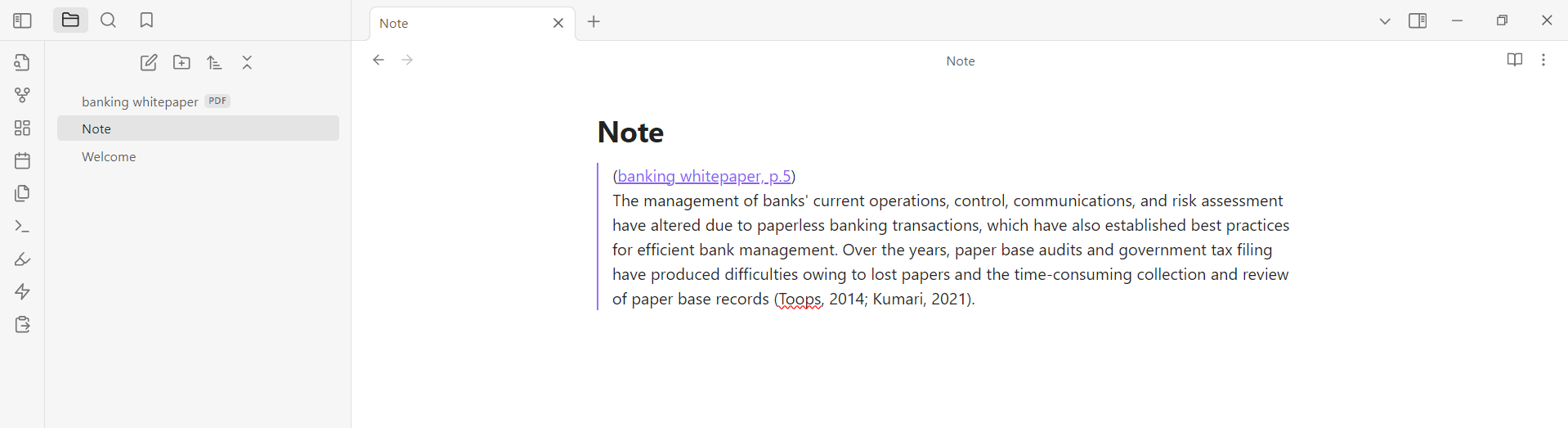
Now, when you click the highlighted text in the PDF, you will be taken to the above note.
Step 3. Add Highlight Within PDF
To add highlights within PDF, you have to first enable it. So, click its icon from the top menu bar and select "Enable PDF editing".
Next, select the PDF text and right-click the mouse. Under "Add highlight to file", select the color and other options as you did in backlink highlighting.
Once done, you will see the text highlighted. To add a note within the highlighted text, click the text and then tap the "Edit" icon.
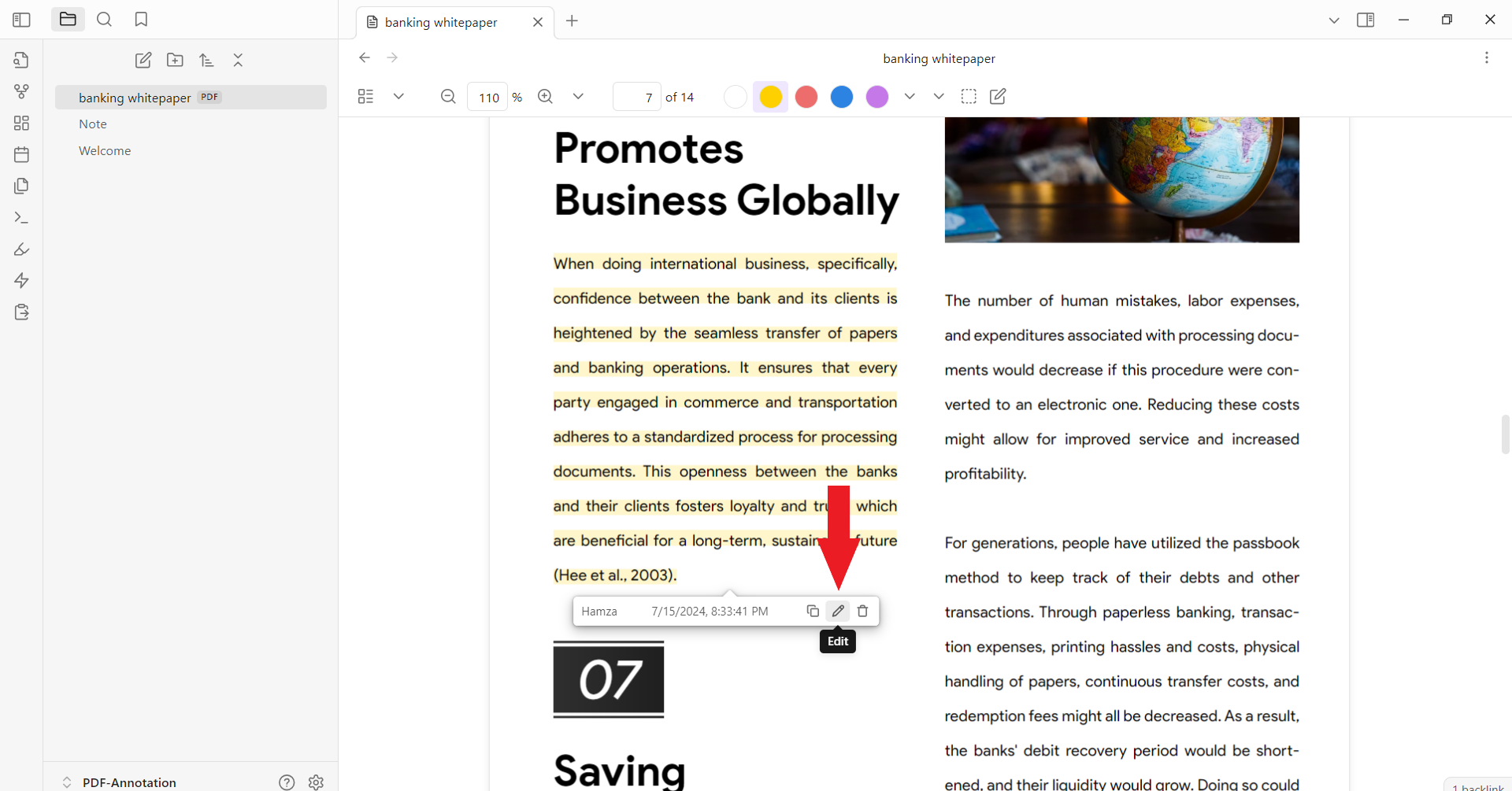
Add the content and click "Save".

This way, you can use PDF++ to annotate a PDF in Obsidian.
2. Annotator Plugin
Annotator is another useful Obsidian PDF annotation plugin. This plugin helps to read and annotate PDFs and EPUB files. You can use it to highlight texts or add annotations (notes).
Here's how to annotate a PDF in Obsidian with Annotator plugin:
Step 1. Install Annotator Plugin
Launch Obsidian and go to Settings > Community plugins > Browse. Search for "Annotator" and install the plugin.
Step 2. Write Annotator Command
Create a new note and also place your PDF in the same folder.
From the new note, write the below command:
---
annotation-target: PDF Title (you can drag and drop the PDF here to auto-fill the title)
---

Afterward, click the "3-dots" icon from the top right corner and tap "Annotate".
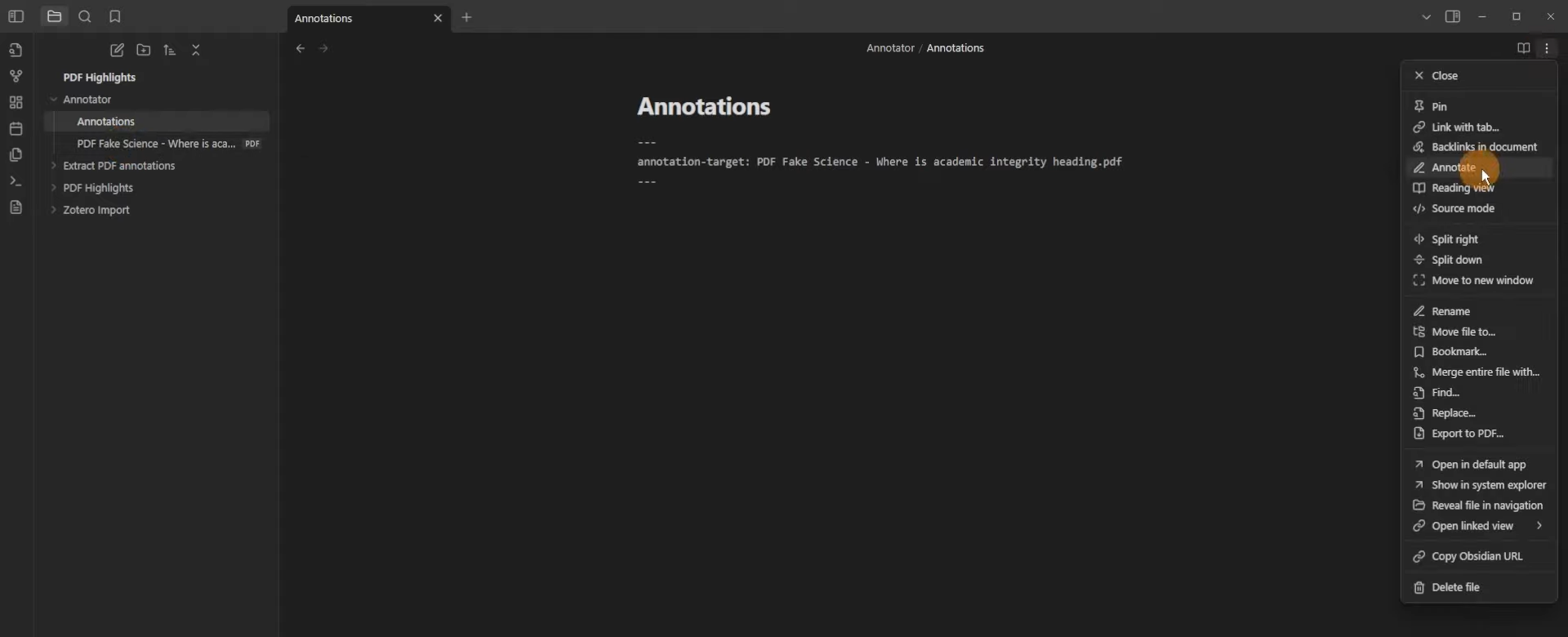
The plugin will load the PDF and prepare it for annotation.
Step 3. Annotate the PDF
Now, you simply have to annotate the PDF. You can select a text and then choose between "Highlight" or "Annotate". The Highlight option will simply highlight the selected text, while the Annotate option will let you add notes/comments for the selected text.

This way, you can easily use the Annotator plugin to annotate a PDF in Obsidian. The major downside of this plugin is that it limits annotation to only highlights and notes. Secondly, it does not add annotation to the main PDF file.
Limitations:
- Limited annotation types (Highlight + notes)
- Annotation workflow differs from editing the original PDF
- Better for note-linked annotation than full PDF editing
Choose Annotator if you want a lightweight Obsidian annotation workflow. Choose a dedicated PDF editor if you need a broader set of PDF markup and editing tools.
UPDF is another PDF annotator tool that offers 10+ annotation functionalities, including highlights, underlining, marking, drawing, strikethrough, or adding stamps/stickers. Furthermore, it can directly add annotation to the main PDF file.
So, why settle for less when UPDF offers a complete PDF annotation experience? Download UPDF and try its feature-rich annotation functionality yourself.
Windows • macOS • iOS • Android 100% secure
3. Extract PDF Annotations: Turning Existing Highlights into Obsidian Notes
Extract PDF Annotations is another Obsidian PDF annotation plugin that can help extract PDF annotations. In simple words, it will intelligently extract all the annotations (highlights and notes) currently present in the PDF and sort them by topics.
Suppose that you have highlighted important points on the PDF while reading it through the Edge browser. Now, when you have uploaded the PDF in Obsidian, you can use Extract PDF Annotation to extract those annotations from the PDF into Obsidian.
Follow the below steps to use Extract PDF Annotations:
Step 1. Launch Obsidian and go to Settings > Community plugins > Browse. Search for "Extract PDF Annotations" and install the plugin.
Step 2. Open the PDF in Obsidian whose annotations you want to extract. Afterward, open the command palette from the left sidebar.
Step 3. Search for "Extract PDF Annotations" and click it.
You will see that it instantly extracts and sorts all the annotations from the PDF.
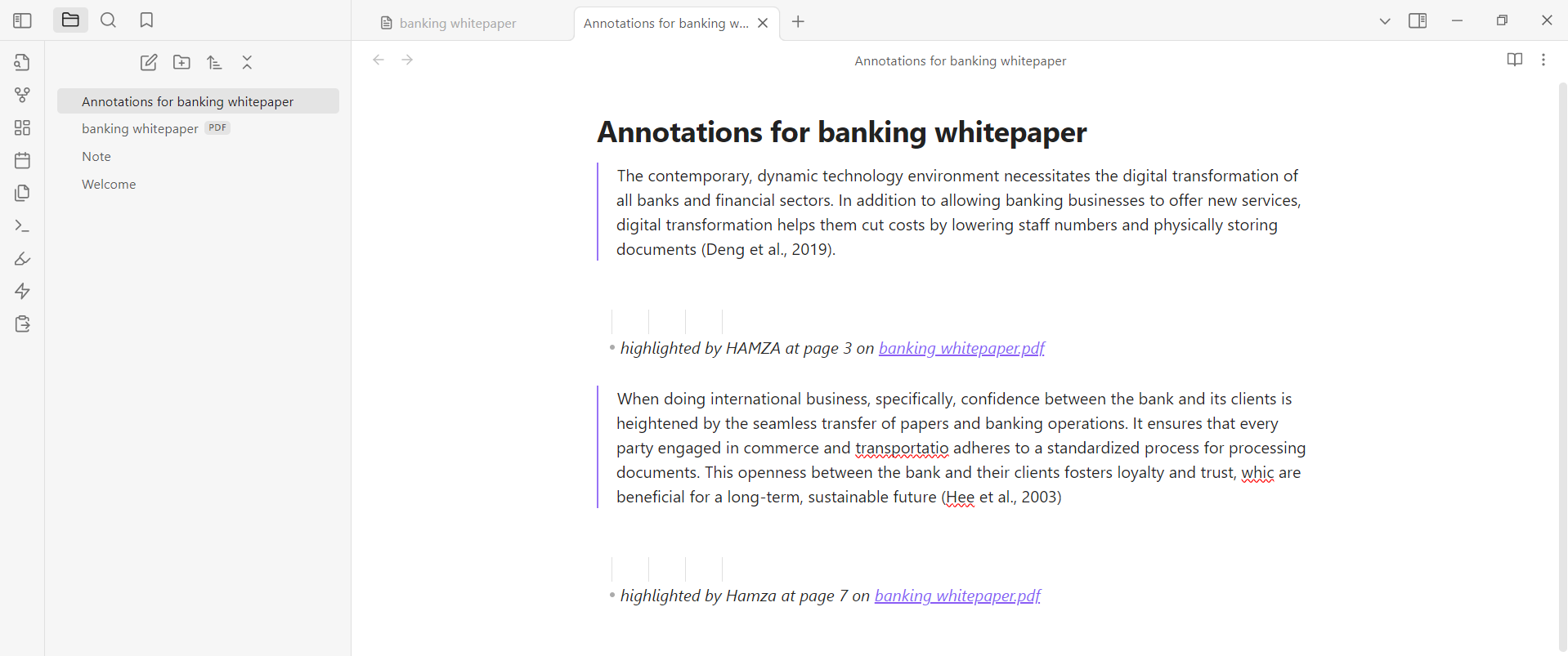
Part 3. Best Alternatives to Annotate a PDF without Obsidian
From the above discussion, we have seen that it is possible to annotate a PDF in Obsidian, but the experience is limited. You need a plugin, but you still get limited annotation functionalities.
So, what if we told you that there is an even better alternative to Obsidian PDF annotation that is easy to use and offers a wide range of annotation functions? This alternative is known as UPDF.
| Tool | PDF Editing | OCR | AI | Pricing | Main Limitation |
|---|---|---|---|---|---|
| Obsidian + PDF++ | Limited | — | Plugin-dependent | Free + optional Sync | Plugin dependency |
| Zotero | Limited | — | —/varies | Free + storage options | Less focused on general PDF editing |
| UPDF | ✓ | ✓ | ✓ | Paid plans $49.99 per year or $79.99 for lifetime | Advanced AI features depend on plan |
| Acrobat | ✓ | ✓ | ✓ | Subscription ~$240 per year | Higher cost |
| Annotator | Limited | — | — | Free/plugin | Limited annotation types |
UPDF is a PDF annotator and editor tool that offers a wide range of annotating functions to customize PDFs. Whether it's highlighting and marking or adding stickers/stamps, all its annotation functions are accessible with simple clicks. UPDF is compatible with Windows, macOS, iOS, and Android, so you can use it on any device as you want.
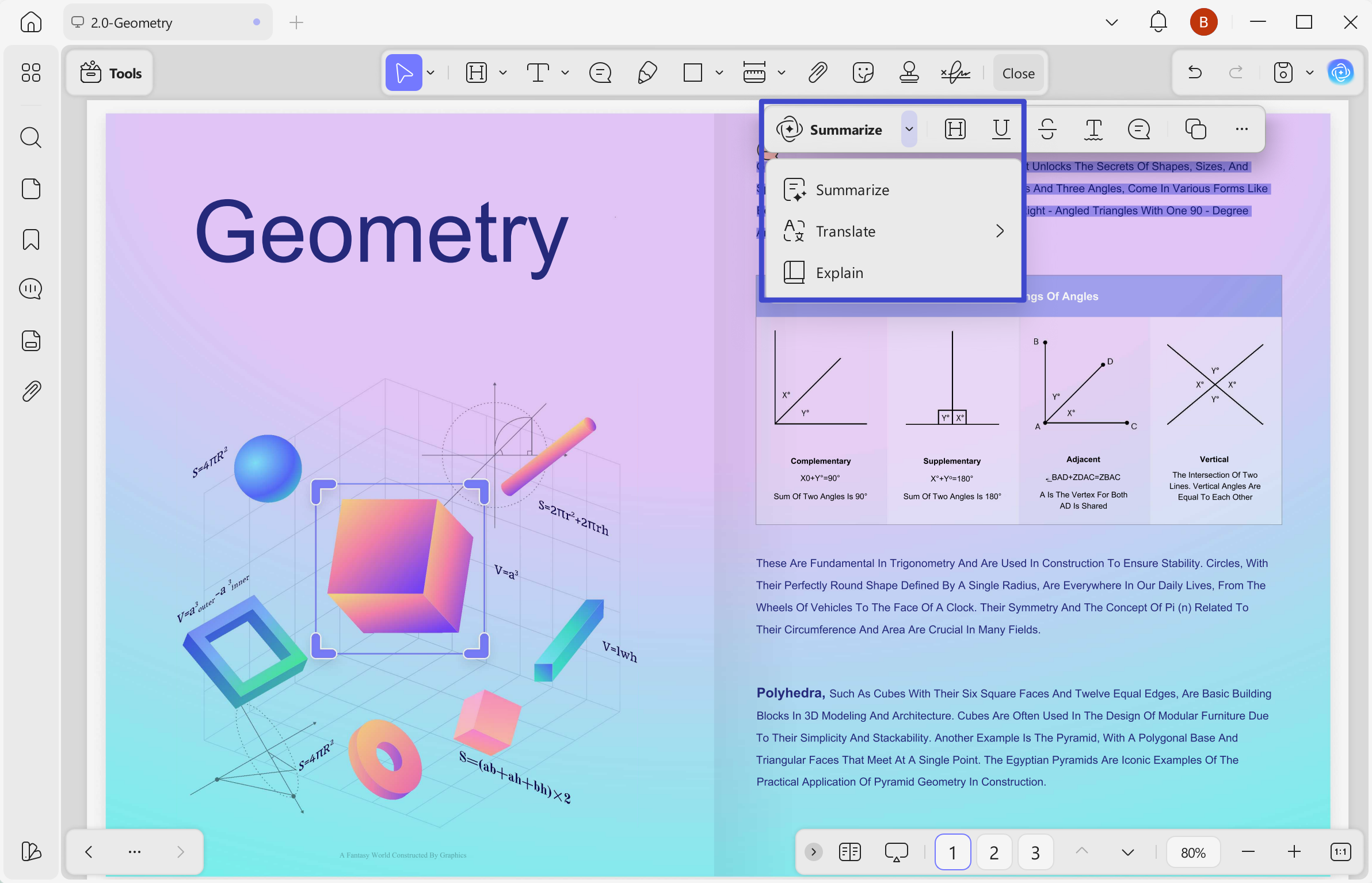
Moreover, UPDF is integrated with AI, making it possible to take AI notes: You are able to select a word, phrase, sentence, or paragraph to get AI summarization, translation, explanation, and then save the generated content as a sticky notes - which is extremely helpful.
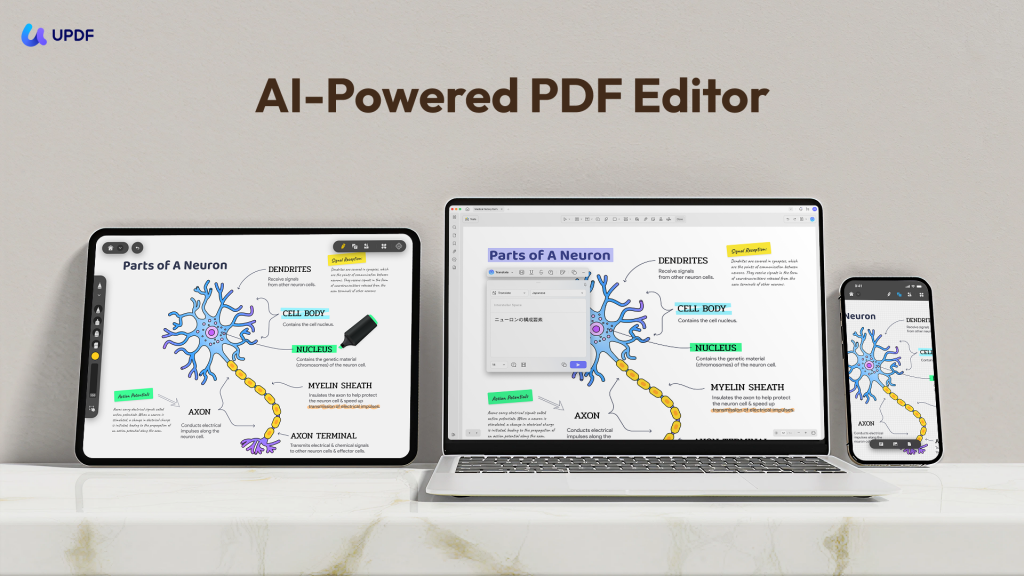
Here's how to annotate a PDF with UPDF's different annotation tools. But first, it is suggested to download UPDF, it is free to try.
The video below demonstrates UPDF's annotation workspace, including highlights, comments, drawing, and other markup tools that offer a broader workflow than Obsidian plugins.
Windows • macOS • iOS • Android 100% secure
1. Read and Understand PDFs with AI-Powered Annotation
- Intelligent Summarization Before You Annotate: Don't waste time annotating "fluff." Before you start your deep read, ask UPDF AI to "Summarize the core arguments of this chapter." Use the AI-generated summary as a roadmap to decide which sections actually deserve a highlight in Obsidian.
- Real-Time "Explain & Elaborate": Encountered a complex chart or a dense paragraph of academic jargon? Simply select the text and use the "Explain" feature. UPDF AI breaks down the complexity in the sidebar. You can then copy this simplified explanation directly into an Obsidian callout alongside your original highlight, ensuring your future self understands the context instantly.
- Instant Translation for "Raw" Research: For global researchers, language should never be a barrier. If you've downloaded a paper in Japanese or German from a Z-Library alternative, UPDF AI provides side-by-side translation. Annotate in your native language while preserving the original source—a workflow that is significantly smoother and more accurate than using separate web-based translators.
2. Highlight and Take Notes
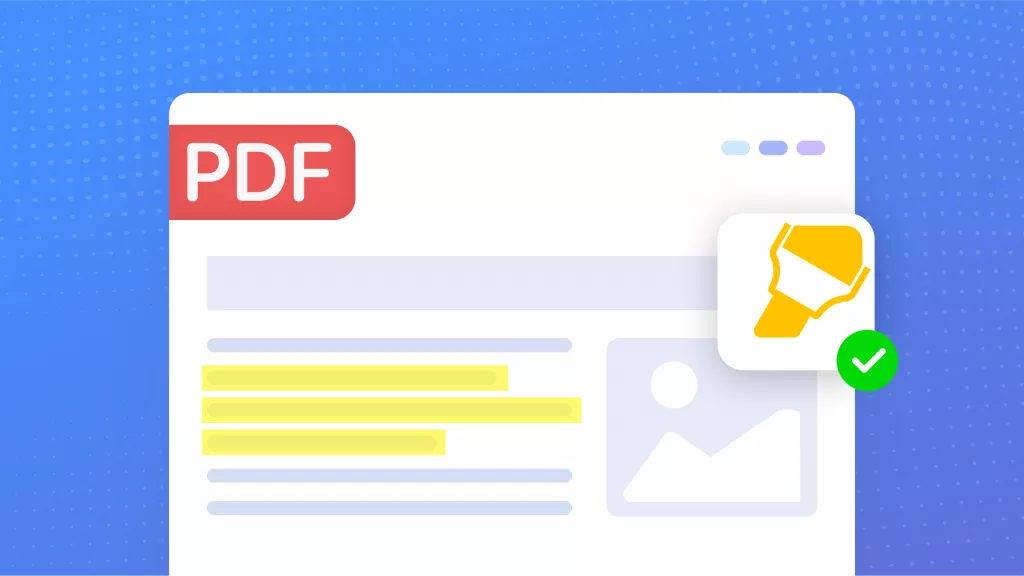
UPDF, an all-in-one PDF highlighter, supports four types of text markups, including:
- Highlight
- Strikethrough
- Underline
- Squiggly
To use them, install and launch UPDF first and open the PDF file you want to annotate.
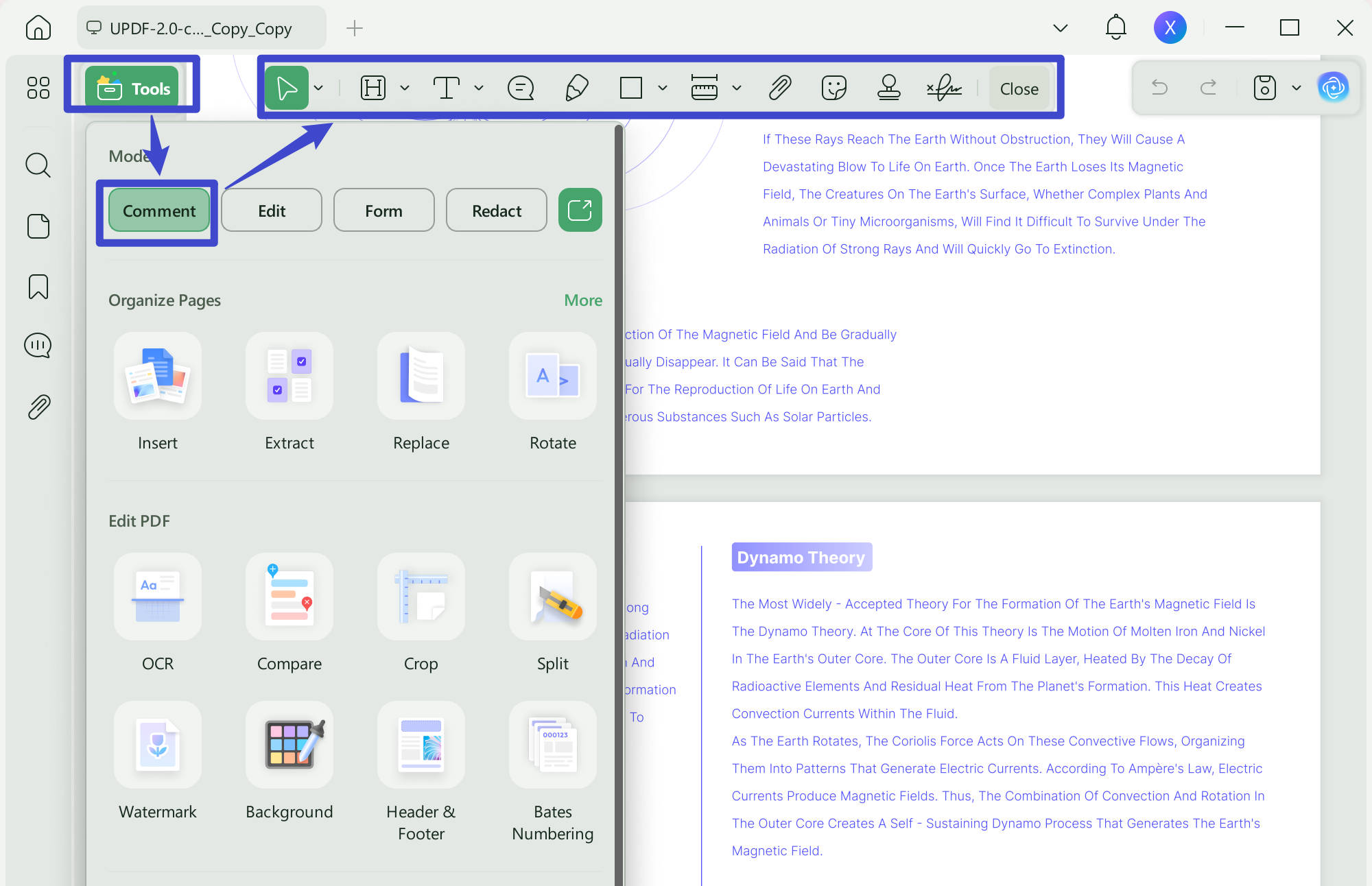
Click the "Comment" menu from the left sidebar. Afterward, you can choose the highlight, strikethrough, underline, and squiggly icon from the top menu bar and annotate accordingly.
You can also change the color when choosing any of the above markup options.
UPDF lets you add three types of comments, i.e., text comment, text box, and sticky note. You can access them from the same Comment menu, as follows:
- Text Comment
- Text Box
- Sticky Note
UPDF also lets you draw in the PDF with a pencil. You can customize the pencil color, opacity, and thickness and then draw easily.
To access this annotation function, click the "Pencil" icon from the top menu bar, choose the color, opacity, and thickness, and use the cursor to draw freely.
To erase some drawings, click the "Erase" icon in "Pencil", choose its thickness, and then erase the drawing.
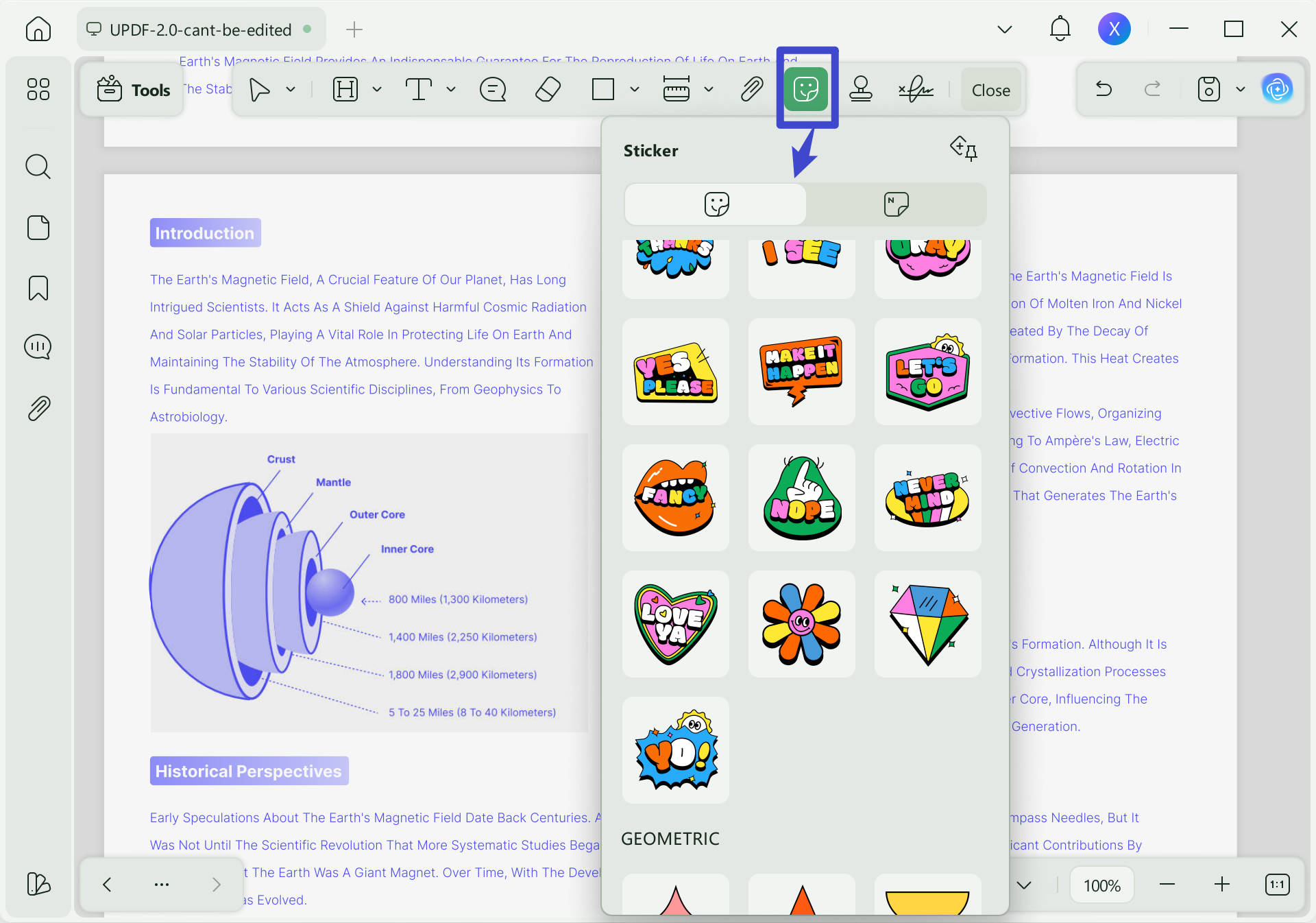
UPDF also includes stickers and custom stamps for visual review and document markup. To access stickers, click the "Stickers" icon and choose the sticker of your liking for classroom materials, design review, document review or personal study...
Afterward, tap on the PDF where you want to add the sticker and then adjust its dimensions.
UPDF lets you add different types of stamps, such as revised, reviewed, approved, etc. It even lets you create or import custom stamps as well.
To access them, click the "Stamps" icon and choose the right stamp. Place it in the PDF and adjust its dimensions.
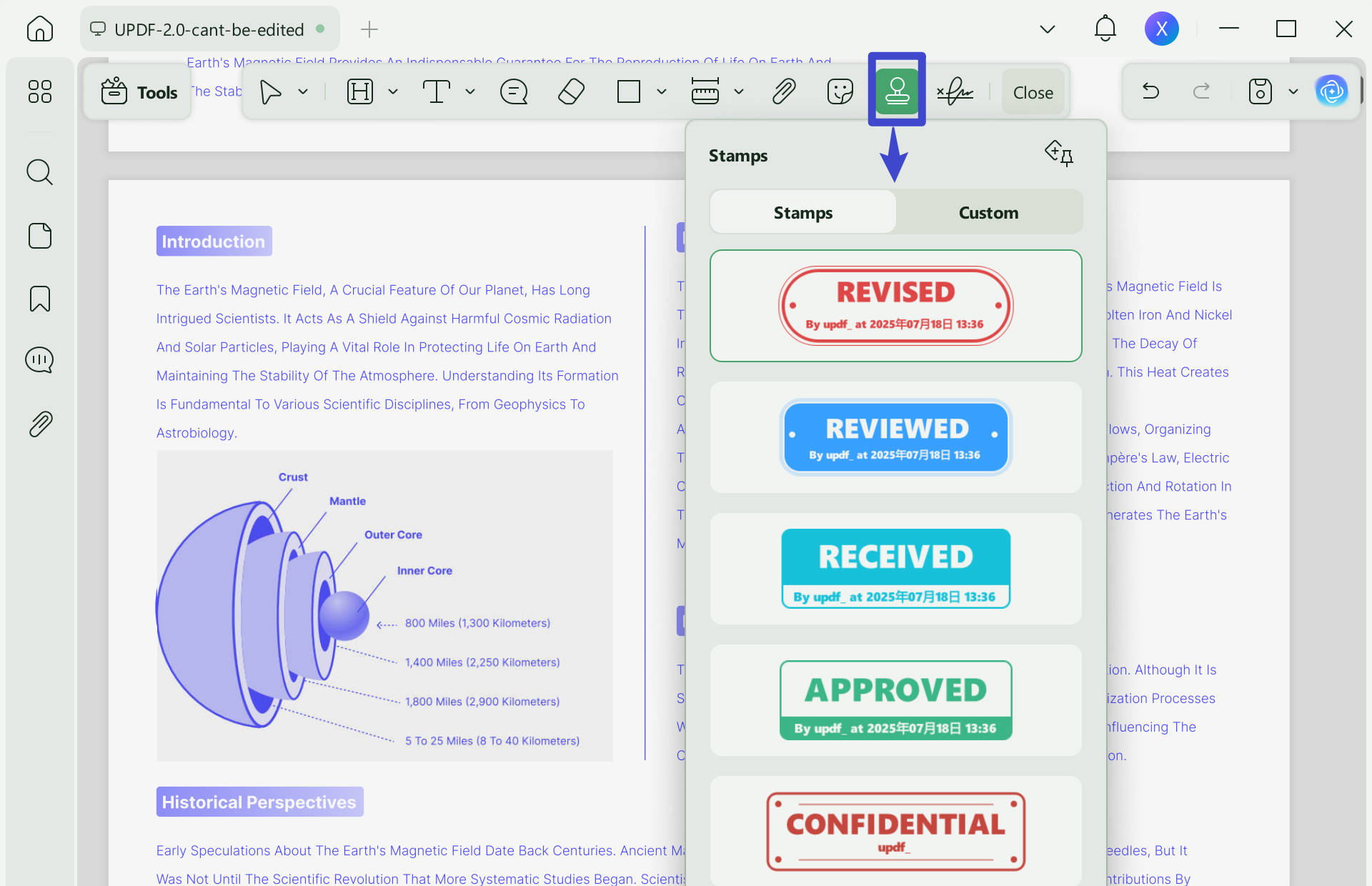
To create a custom stamp, click the "Custom" tab and then click "Create". Customize the stamp text and design and click the "Create" button.
3. Draw and Review
UPDF supports adding various shapes, such as lines, rectangles, arrows, ovals, etc. To access them, click the "Rectangle" icon. Select the shape, color, and thickness. Afterward, drag your cursor into the PDF where you want to insert the shape.
Another unique annotation feature of UPDF is its ability to measure PDFs. It can help measure distance, perimeter, and area. These parameters are useful for analyzing the PDF's nature and adding stickers and shapes precisely.
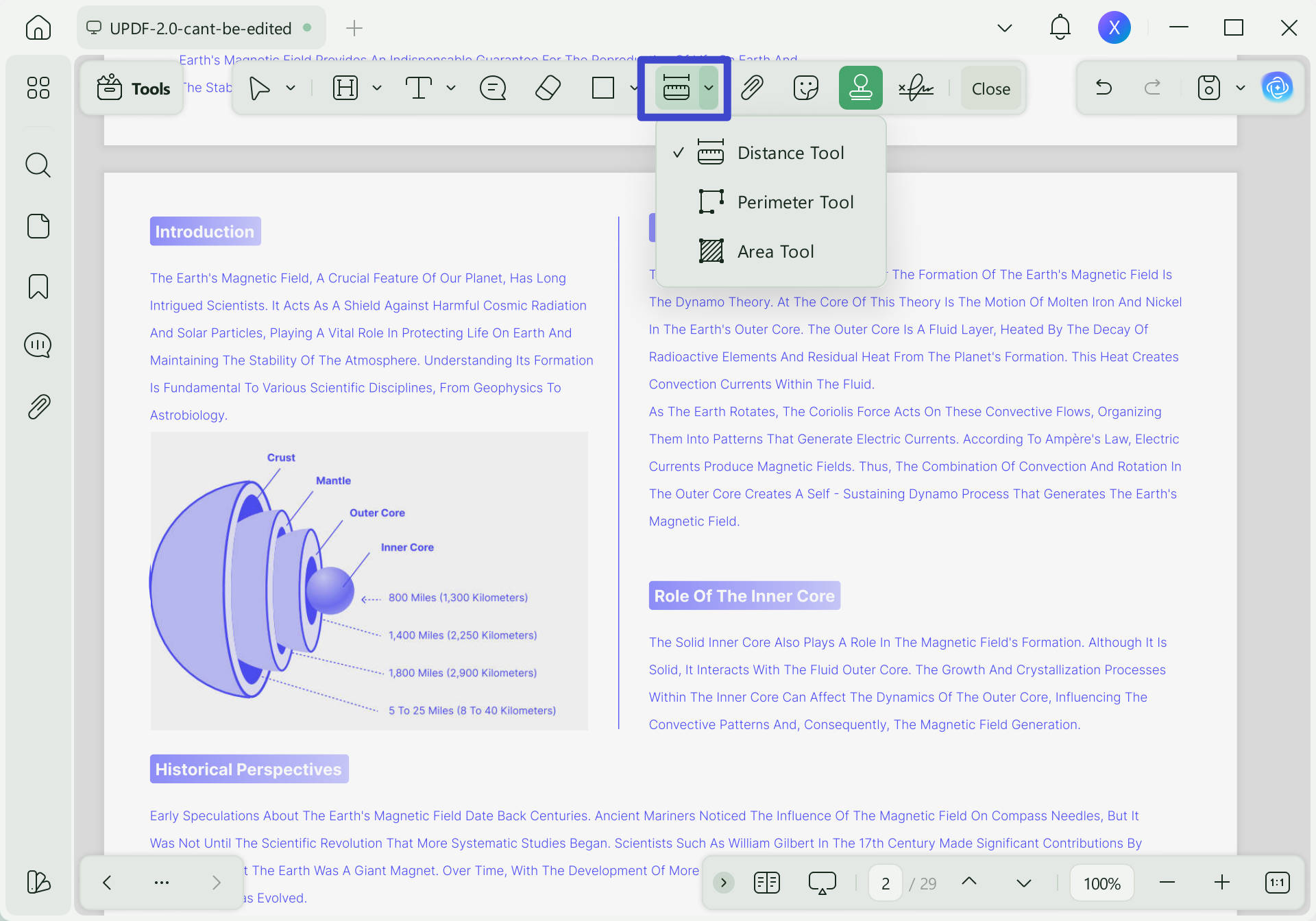
To access measurement options, click its icon from the top menu bar and choose one of the measurement types, as follows:
- Distance: It tells the distance between two specific regions.
- Perimeter: It tells the distance, angle, perimeter, X and Y axis details, precision, and aspect ratio.
- Area: It tells the area, distance, scale ratio, angle, X and Y axis details, and precision.
When is PDF measurement useful?
- Engineering drawings
- Floor plans
- Architecture
- Technical documents
- Design review
UPDF also allows you to add other documents within the PDF. To access that, click the "Attachment" icon and tap anywhere in the PDF. Select the file you want to add as an attachment.
4. Edit and Process PDFs
In addition to the powerful and extensive annotation features mentioned above, essential editing functions are also indispensable.
- Edit PDF
- Organize pages
- Convert
- OCR
- Forms
- Sign
- Protect
That's it. All the above annotation and edition functionalities make UPDF an all-in-one tool to annotate PDFs while reviewing documents, sharing feedback, or working collaboratively.
So, why wait? Install UPDF on your Windows/Mac or iOS/Android device and enjoy a modernized and powerful PDF annotation experience.
Windows • macOS • iOS • Android 100% secure
FAQ
Can I share Obsidian PDF annotations?
Yes, but compatibility depends on how the annotations are stored. For cross-app sharing, annotations saved directly in the PDF are generally more portable.
What happens if I remove a PDF plugin?
It depends on how the plugin stores annotations. Back up your PDFs and notes before removing or replacing a plugin.
Can Obsidian handle scanned PDFs?
Scanned PDFs may require OCR before you can search or highlight their text. If you work with many scanned documents, OCR should be an important factor when choosing a PDF tool. UPDF is a better option.
How do I manage hundreds of annotated PDFs?
For a small library, Obsidian may be enough. For large research collections, consider using a reference manager for PDFs and Obsidian for notes and knowledge connections.
Can I move annotations from another PDF app to Obsidian?
Yes, if the annotations can be exported or extracted. Test a few PDFs first to make sure highlights and comments are preserved.
Conclusion
Obsidian remains a strong choice if your main goal is to connect PDF highlights with notes and build a personal knowledge base. PDF++ is particularly useful for this workflow, while Annotator and Extract PDF Annotations provide alternative ways to work with PDFs inside Obsidian.
If your workflow goes beyond note-taking—such as advanced annotation, handwriting, OCR, PDF editing, AI-assisted reading, or document review— UPDF may be a better fit.
For many users, the best solution isn't replacing Obsidian at all. You can use a dedicated PDF tool for reading and editing, then keep Obsidian as your long-term knowledge base. Download UPDF and try it now!
Windows • macOS • iOS • Android 100% secure






 Engelbert White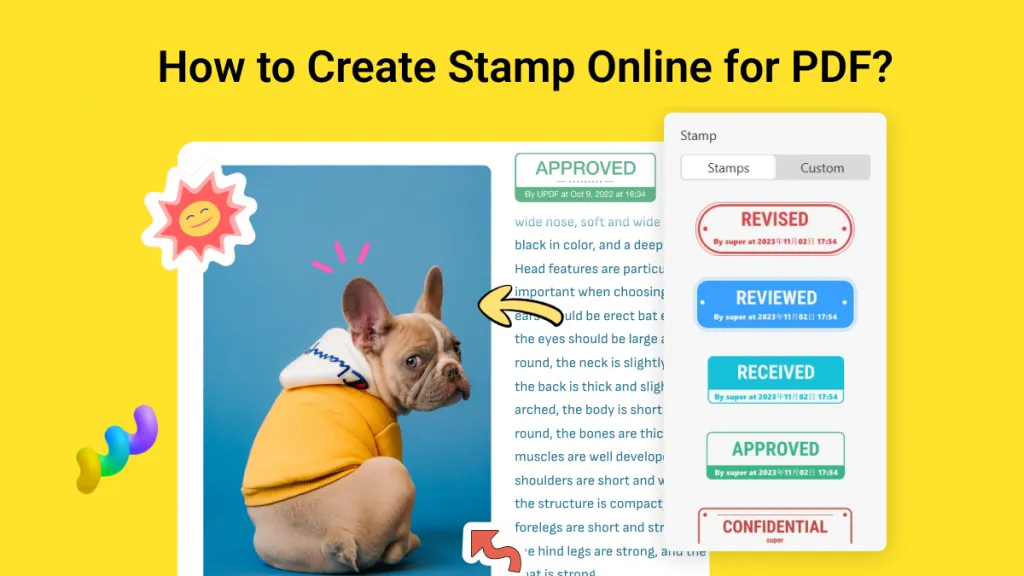
 Grace Curry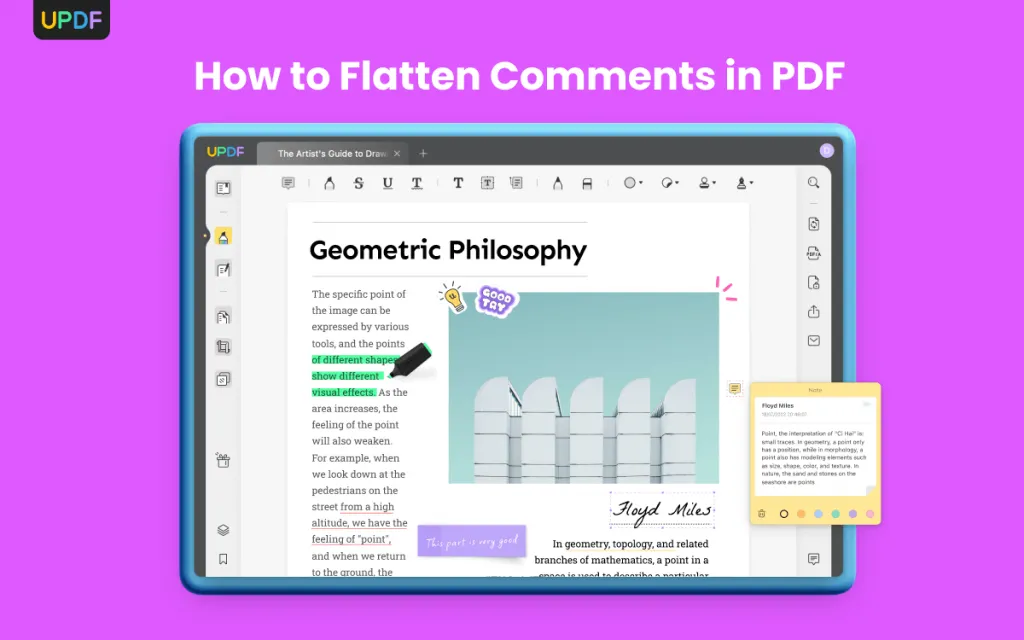
 Enrica Taylor
 Enola Davis