 UPDF
UPDF
 UPDF for Windows
 UPDF for Mac
 UPDF for iPhone/iPad
 UPDF for Android
 Nomostar
 UPDF AI Online
 UPDF Sign
 IvyCraft
 Edit PDF
 Annotate PDF
 Create PDF
 PDF Form
 Edit links
 Convert PDF
 OCR
OCR PDF to Word
 PDF to Image
 PDF to Excel
 Organize PDF
 Merge PDF
 Split PDF
 Crop PDF
 Rotate PDF
 Protect PDF
 Sign PDF
 Redact PDF
 Sanitize PDF
 Remove Security
 Read PDF
 UPDF Cloud
 Compress PDF
 Print PDF
 Batch Process
 About UPDF AI
 UPDF AI Solutions
 AI User Guide
 FAQ about UPDF AI
 Summarize PDF
 Translate PDF
 Chat with PDF
 Chat with AI
 Chat with image
 PDF to Mind Map
 Explain PDF
 PDF AI Tools
 Image AI Tools
 AI Chat Tools
 AI Writing Tools
 AI Study Tools
 AI Working Tools
 Other AI Tools
 AI Bookmark Generation
 AI Bookmark Summary
 AI Watermark Generation
 AI Background Generation
 AI Sticker Generation
 AI Stamp Generation
 AI Editing Suite
 UPDF Copilot
 AI Page Management
 AI Semantic Search
 PDF to Word
 PDF to Excel
 PDF to PowerPoint
 Enterprise Solution
 Enterprise Sign
 Enterprise AI
 Enterprise Plan
 Enterprise User Guide
 Enterprise Webinar
 IT
IT Education
 Construction
 Financial Service
 Healthcare
 Insurance
 Legal
Legal Manufacturing
 Government
 Researchers & PhDs
 Solopreneurs & Freelancers
 Lawyers & Legal Professionals
 Real Estate Agents & Brokers
 Education Solution
 Customer Stories
 User Guide
 UPDF Tricks
 FAQs
FAQs UPDF Reviews
 Download Center
 Blog
Blog Newsroom
 Tech Spec
 Updates
 UPDF vs. Adobe Acrobat
 UPDF vs. Foxit
 UPDF vs. PDF Expert

Quick answer:
Before picking a tool, check what it actually hands back to you. Flipsnack and FlippingBook are built around a hosted flipbook — a web page with a page-turn animation — not a PDF file. Flipsnack can export a conventional PDF, but its own documentation notes that PDF export drops animations, and the print-optimized export removes links, buttons, and videos outright; keeping the interactions intact requires the HTML5 export on the Business plan. FlippingBook states its hosted flipbooks can't be downloaded as an equivalent file at all — readers can only pull the original PDF back out. If your client needs to email the file, attach it to a proposal, or open it offline, a flipbook link is the wrong deliverable.
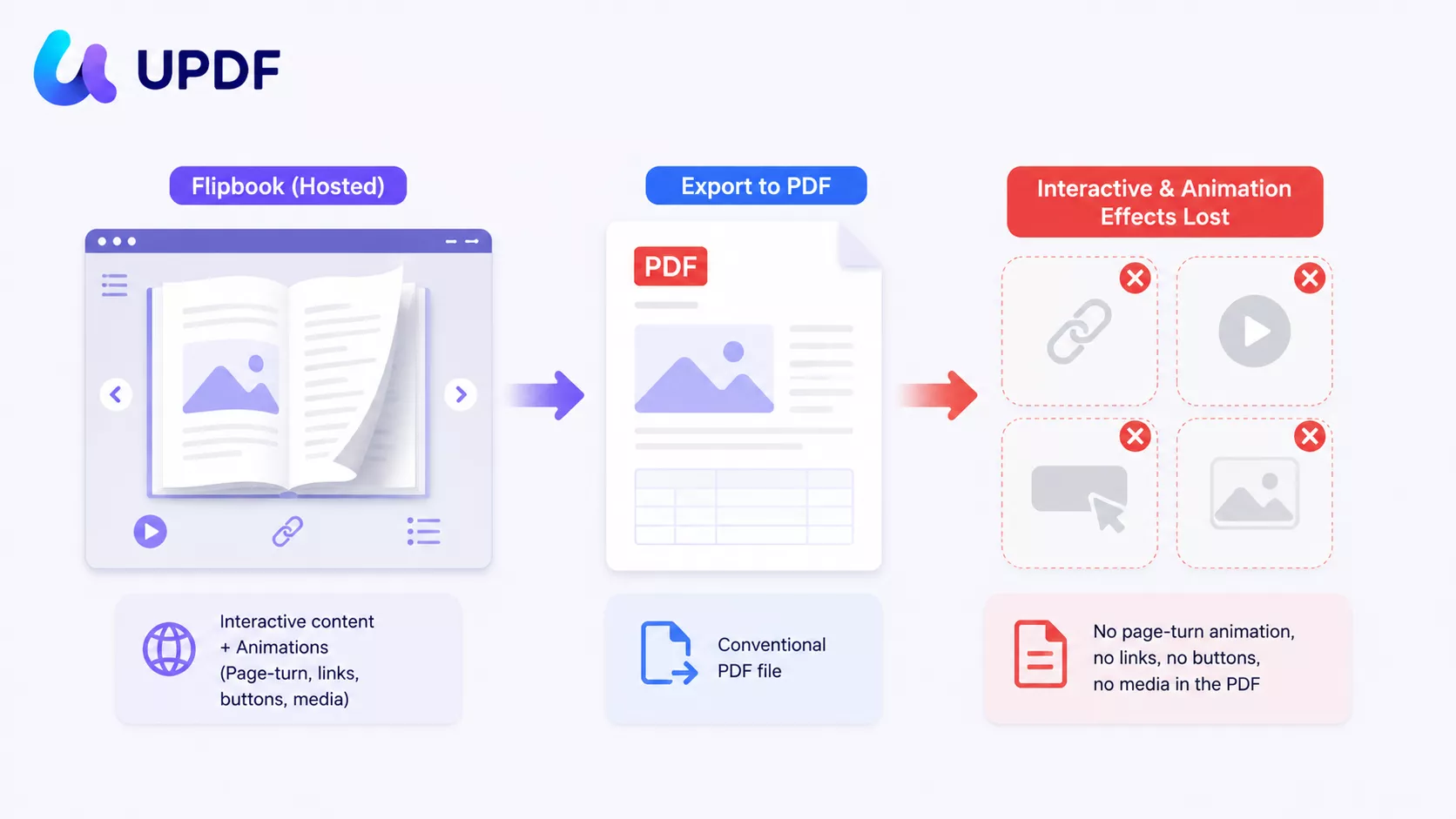
This guide splits the four tools by what they actually output, so you don't spend a week building in the wrong category.
Part 1. Which Interactive PDF Creator Matches Your Deliverable?
Interactive PDF work splits into two output formats that search results constantly blur together. Match your deliverable first, then pick the tool.
| What you're delivering | What you actually need | Tool to use | Best for |
|---|---|---|---|
| A file the client opens, emails, or archives offline | A real .pdf with embedded links, buttons, form fields | UPDF | Proposals, onboarding packets, price lists, internal handbooks |
| A form recipients type into and send back | Fillable form fields (text, checkbox, dropdown) inside the PDF | UPDF or Adobe Acrobat | Application forms, intake sheets, order forms, HR paperwork |
| A designed layout built from scratch, exported with links | A design canvas that exports clickable PDF | Canva | Lookbooks, event programs, one-page menus, portfolios |
| A web page with a page-flip effect and reader analytics | A hosted flipbook (not a PDF file) | Flipsnack | Retail catalogs, digital magazines, public marketing issues |
The distinction that matters: the first three rows produce a file you own. The fourth produces a URL you rent. Hosted availability and premium interactions depend on the vendor and plan — cancelling can disable paid features or take excess publications offline, while a real PDF on your drive keeps working regardless.
Part 2. Interactive PDF vs. Flipbook vs. Fillable Form — What's the Difference?
Three terms get used interchangeably in search results, and picking the wrong one wastes real work.
- Interactive PDF → a
.pdffile with clickable links, navigation buttons, and a clickable table of contents baked in. Standard links open in most PDF readers, online or offline; support for scripted actions and media varies by reader. - Fillable form → a specific type of interactive PDF where recipients type into named fields, tick checkboxes, and pick from dropdowns, then save and return the file.
- Flipbook → a hosted web page that displays your PDF with a page-turn animation. Lives at a URL and depends on an active plan for its premium interactions; exporting it as a file with those interactions intact is limited or unavailable depending on the vendor and tier.
The one-line summary: an interactive PDF is a file, a fillable form is an interactive PDF that collects data back, and a flipbook is a web page that shows your PDF.
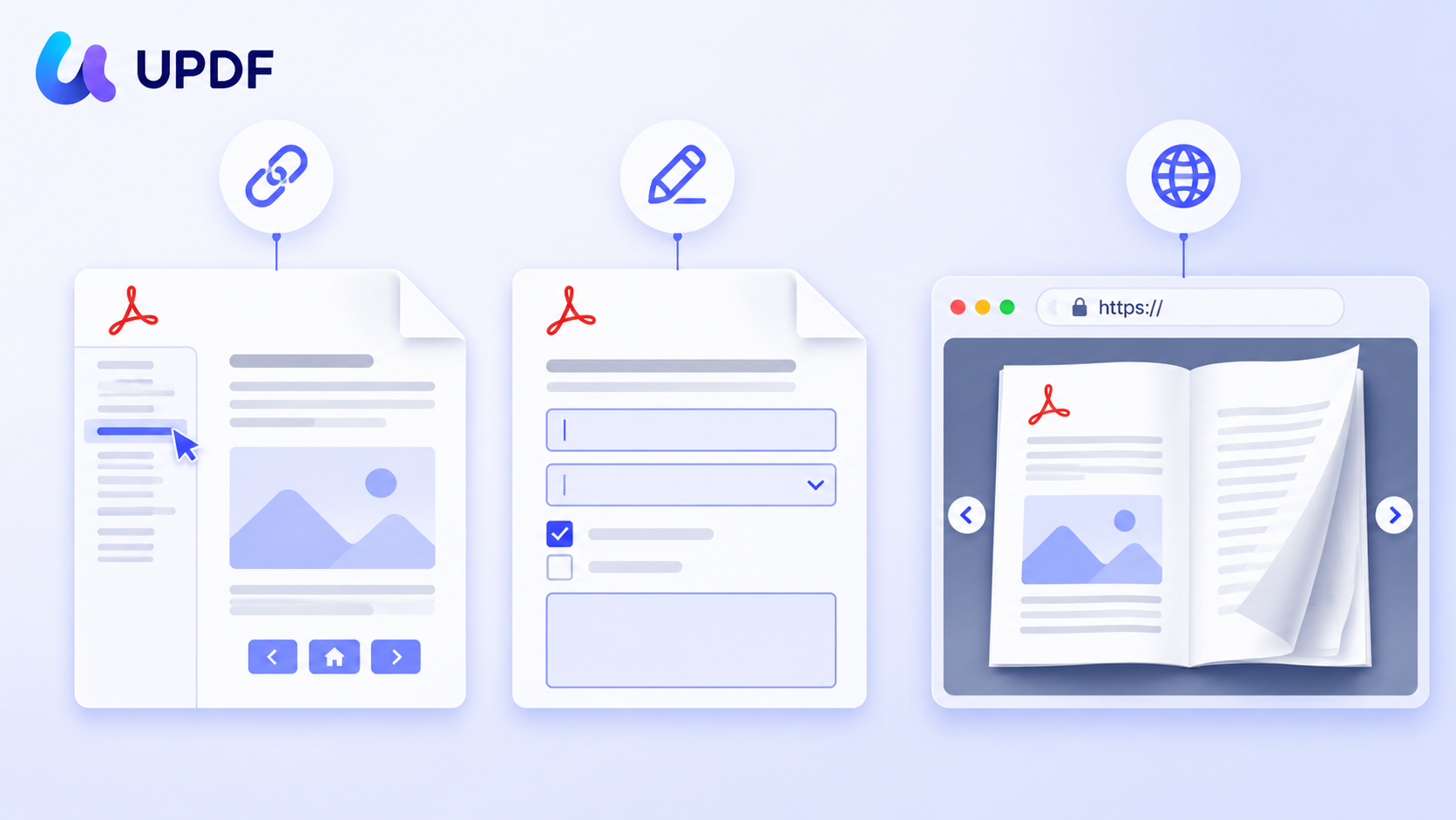
A useful physical analogy: an interactive PDF is a printed brochure with working QR codes — you hand it over and it's theirs. A flipbook is a display copy chained to a stand in a showroom; visitors can browse it, but only while the showroom is open.
Part 3. UPDF — Best for Building a Real Interactive PDF File
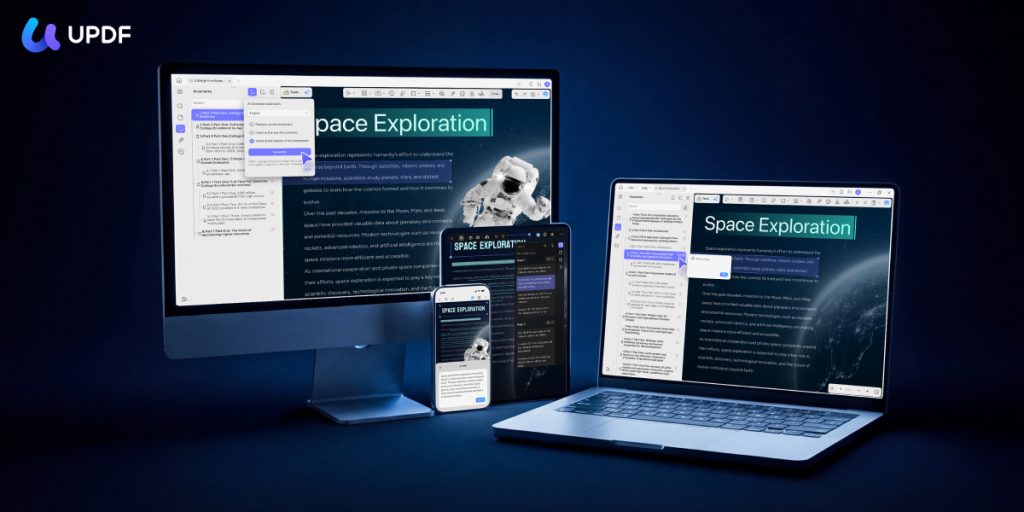
Most people searching for an interactive PDF creator already have a finished PDF. The layout is done. They just need the links, buttons, and form fields added — without rebuilding the document in a web editor or paying a subscription to host it.
That's the gap UPDF fills. It works directly on the existing file and writes the interactivity into the PDF itself, so it survives being emailed, archived, or opened offline. UPDF runs on Windows, Mac, iOS, and Android under one license — though the steps below are the desktop workflow, since building named form fields and configuring button actions is a desktop capability. The mobile apps focus on filling and signing existing forms rather than authoring new fields.
How to Create an Interactive PDF with UPDF
Step 1. Open your document in UPDF — if you don't have it yet, download UPDF for free and install it in under a minute — then load the file with Open File, or drag the PDF straight onto the UPDF window.
Windows • macOS • iOS • Android 100% secure
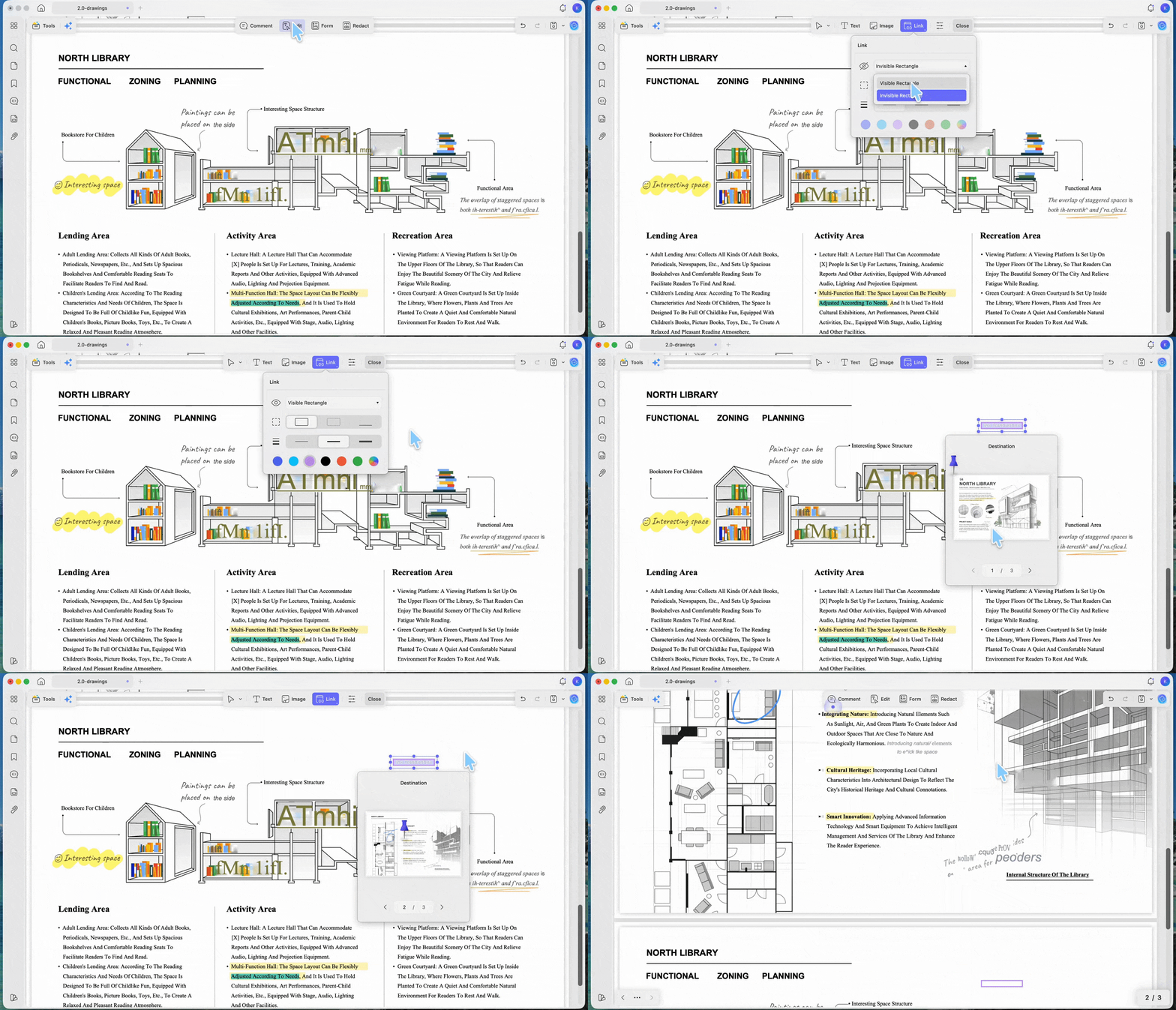
Step 2. Add clickable web links. Select Edit mode and click Link on the top toolbar. Open the link appearance settings. Choose a Visible Rectangle or Invisible Rectangle, then adjust the border style, thickness, and color if needed. Drag a rectangle over the text, image, or area you want to make clickable. Select Link to Web, then enter or paste the destination URL in the Link Address field. Click outside the link area to apply the change.
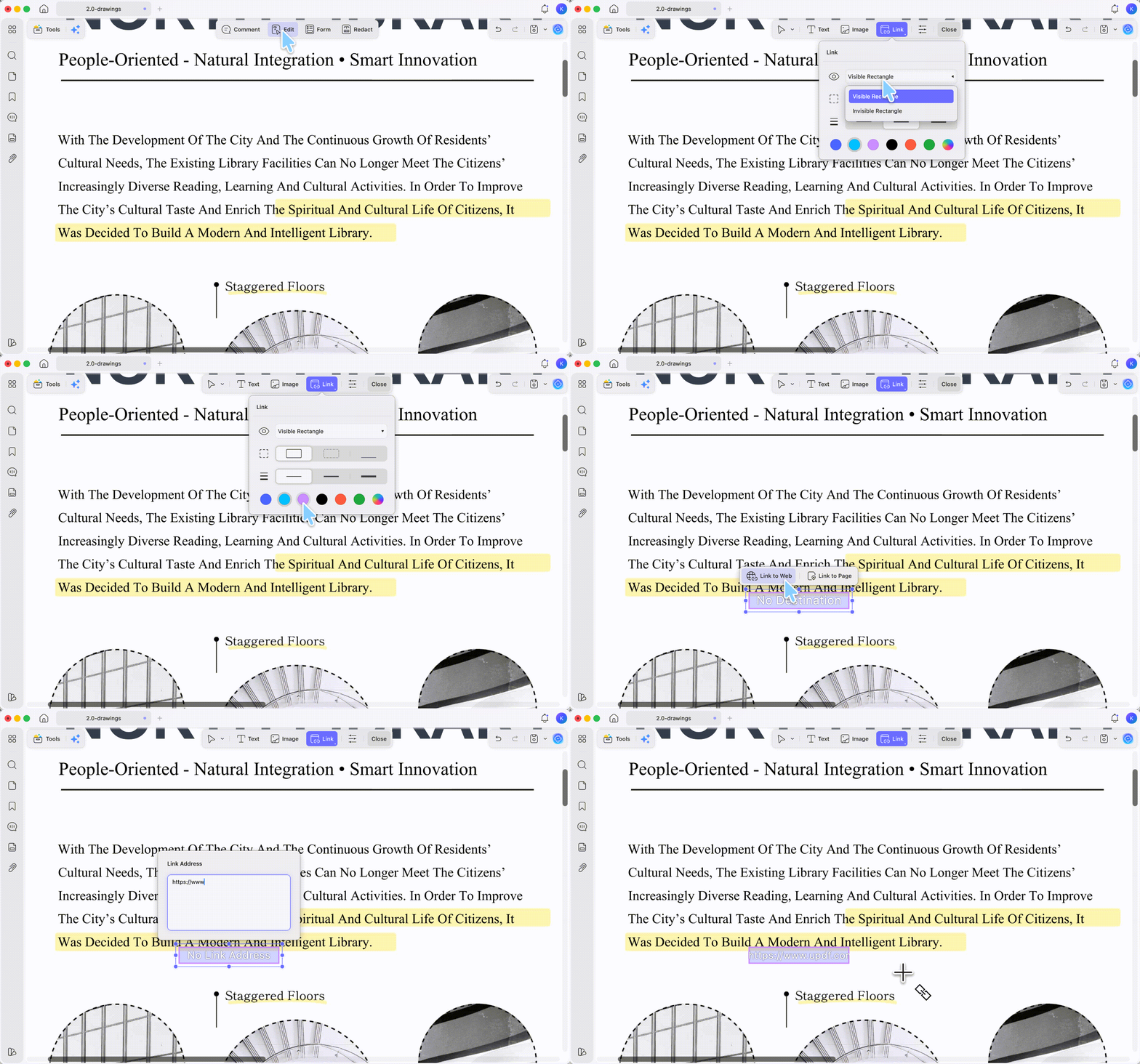
Step 3. Build a clickable table of contents. Select Link > Link to Page from the same toolbar, click where the entry should sit, then set the target page under Destination and confirm with Done. Repeat for each chapter entry. On a 40-page handbook, this is the single highest-value interactive element you can add.
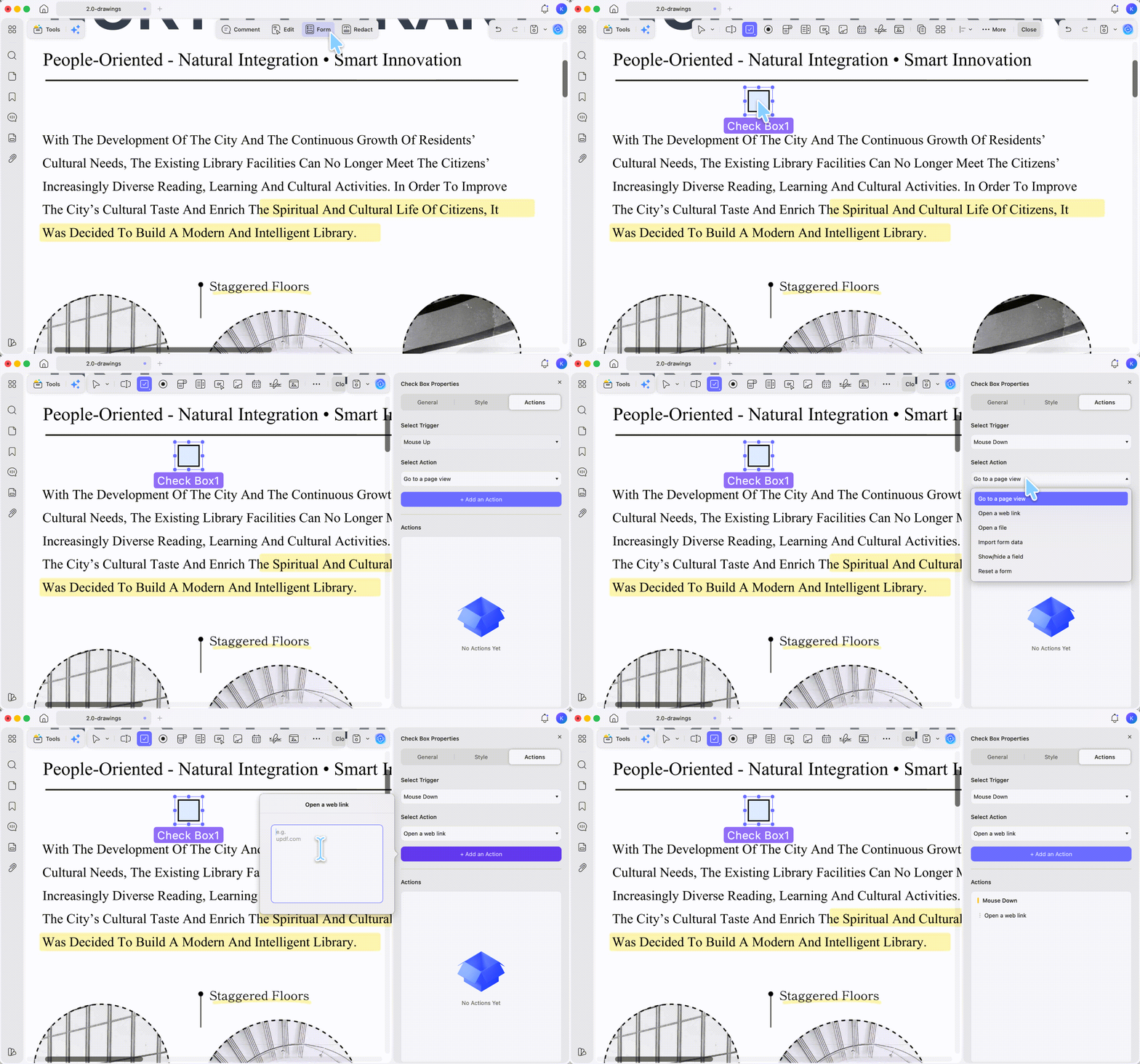
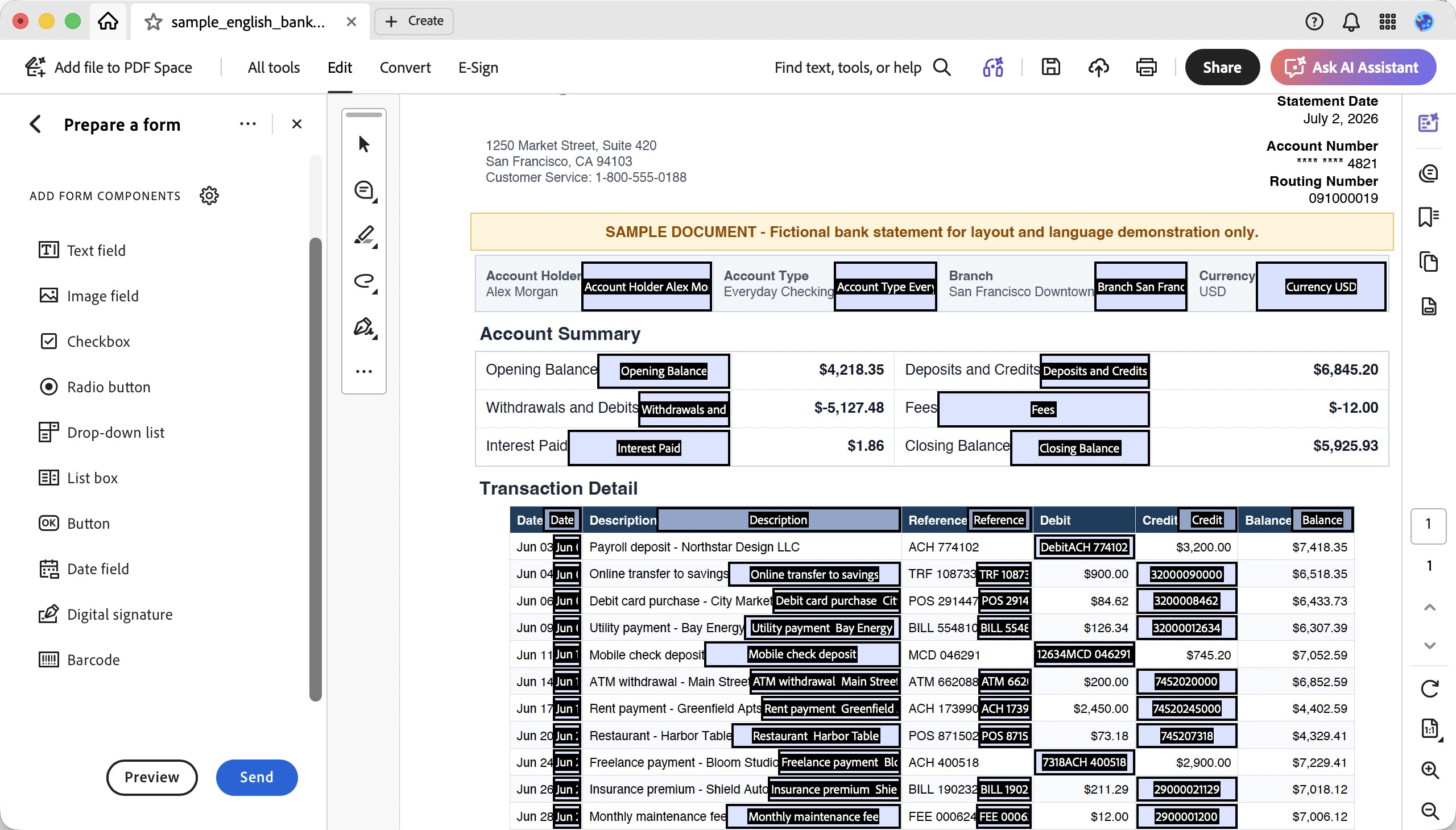
Step 4. Add action buttons and form fields. Click Form from the top, then choose any button from the top bar and click where it belongs. Double-click the button to open its properties and set the behavior under the Action tab. The same panel provides text fields, check boxes, list boxes, drop-down lists, and image fields for building a fillable form.
Step 5. Save the file. Test every link and button in a plain PDF reader before you send it — link targets that work in an editor occasionally behave differently in a viewer.
If you build client-facing documents regularly, download UPDF for free and try adding a clickable table of contents to one of your own files — installation is free, and Pro features are available when you need export or advanced tools.
Windows • macOS • iOS • Android 100% secure
For the full range of PDF editing workflows beyond interactivity, see our guide to the best PDF editor.
Think about how the finished document will be used as you prepare the file. You can get a feel for editing PDF content in UPDF from the example below.
Best for:
- adding interactivity to a PDF that already exists, fillable forms, clickable contents in long documents, and any file that must work offline.
Not for:
- page-flip animation or reader analytics — that's a hosted flipbook, covered in Part 6.
Where UPDF's AI Agents Fit
When you're wiring up a long document, two agents remove genuinely tedious steps:
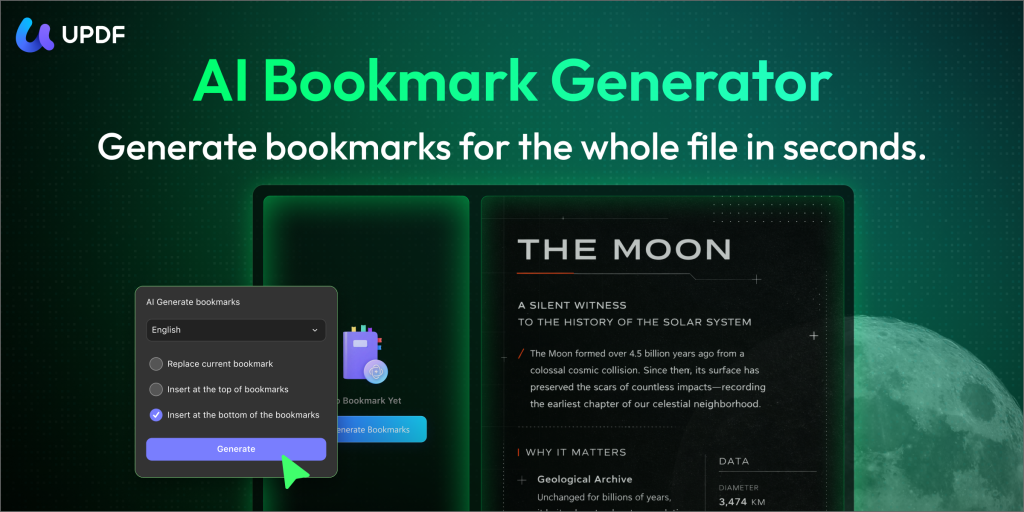
- AI Bookmark Generator — a 120-page handbook with no table of contents means manually noting every chapter's page number before you can link anything. This agent scans the document and builds the navigable chapter outline in one pass, so you're linking against a finished structure instead of scrolling to find page 87.
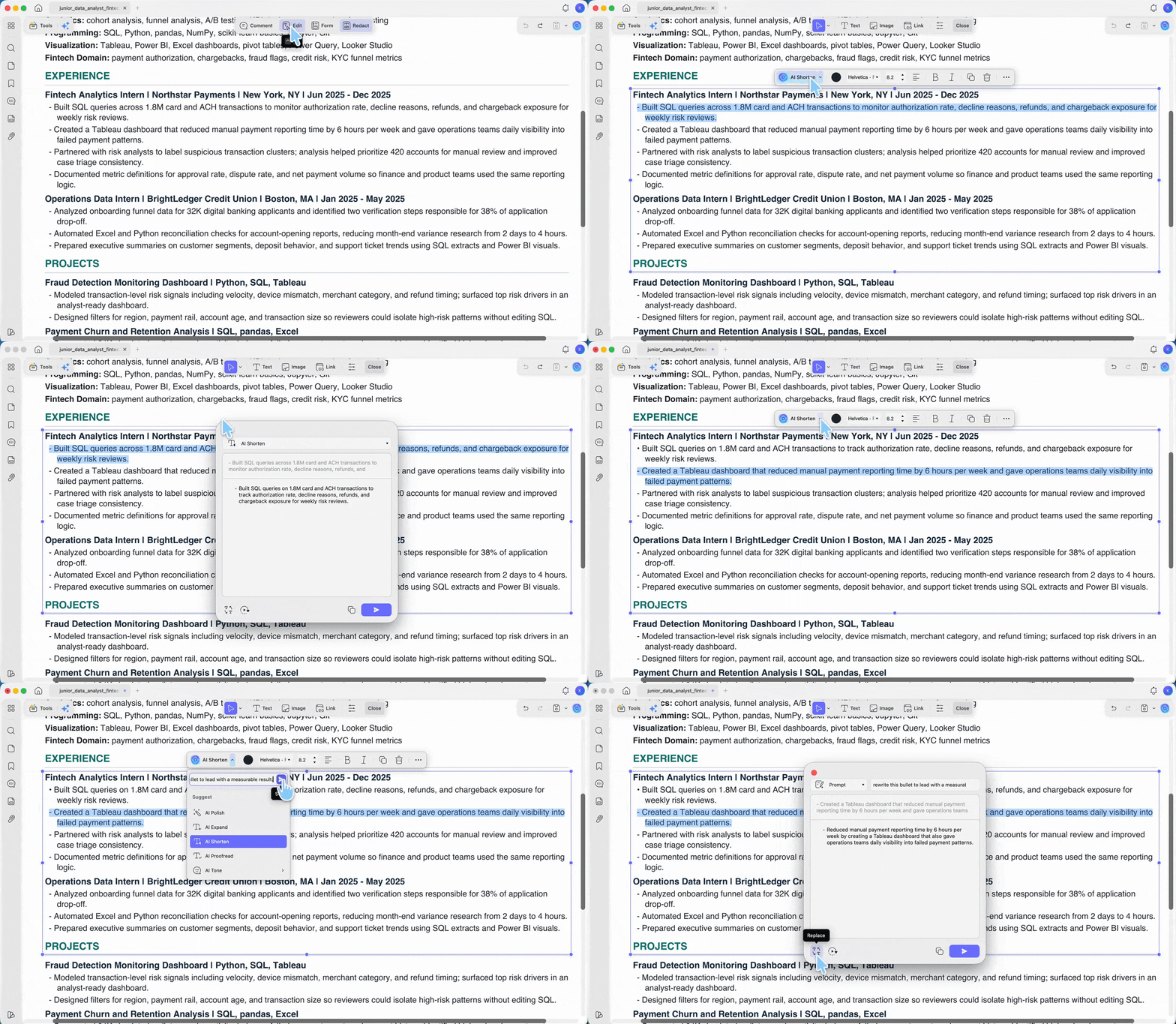
- AI Editing Suite — before you start linking, the body text usually needs a pass. Section headings that will become table-of-contents entries are often too long to read well in a contents list, and paragraphs you're about to place a call-to-action beside may be wordy. Highlight the text on the page and use AI Polish, AI Shorten, or AI Proofread to fix it in place, instead of exporting to Word, editing, and reimporting. It works on the document's existing text content — button labels and link properties are set in their own panels.
Free Tier and Pricing
UPDF's free tier lets you build and test the full interactive workflow; exported files carry a trial watermark until you upgrade.
| Plan | Price | What it covers |
|---|---|---|
| Free | $0 | Full editing and form tools; exports carry a trial watermark |
| Pro Individual | US$49.99/year | All PDF tools, watermark-free export, 7-day unlimited AI trial |
| Pro Lifetime | US$79.99 one-time | Same as Pro |
| AI Assistant | US$79/year | Unlimited AI use |
Verify current figures on the UPDF pricing page.
Windows • macOS • iOS • Android 100% secure
Part 4. Adobe Acrobat Pro — Best for Advanced Form Logic
Acrobat remains the reference implementation for PDF forms. If your form needs calculated fields, JavaScript validation, or a submit button that posts data to a web endpoint, Acrobat handles cases the lighter tools don't.
It also carries the heaviest price of the four. At $19.99/month on the annual individual plan, Acrobat Pro runs about $239.88/year — roughly three times UPDF's annual plan, and three times UPDF's lifetime price every single year.
Adobe's consumer Acrobat Pro plan is subscription-based. Adobe does still offer Acrobat Pro 2024 as a desktop-only, non-renewing three-year term license paid upfront, but it is a fixed term rather than a lifetime license, and it excludes cloud services and future feature upgrades. If a genuine one-time purchase is what you're after, that distinction matters before you buy.
Best for:
- calculated fields, conditional form logic, submit-to-server buttons, and organizations already standardized on Adobe.
Not for:
- budget-conscious individuals, or anyone who just needs links and a clickable contents page — you'd be paying enterprise form-engine pricing for basic linking.
Part 5. Canva — Best for Designing the Layout From Scratch
The other three tools assume you already have a PDF. Canva is the option for when you don't — when the document doesn't exist yet and you need to design it.
Canva lets you build the layout on a drag-and-drop canvas, apply hyperlinks to text and elements, and export the result as a PDF with those links intact. For lookbooks, event programs, and single-page menus, that's often faster than laying out in a PDF editor.
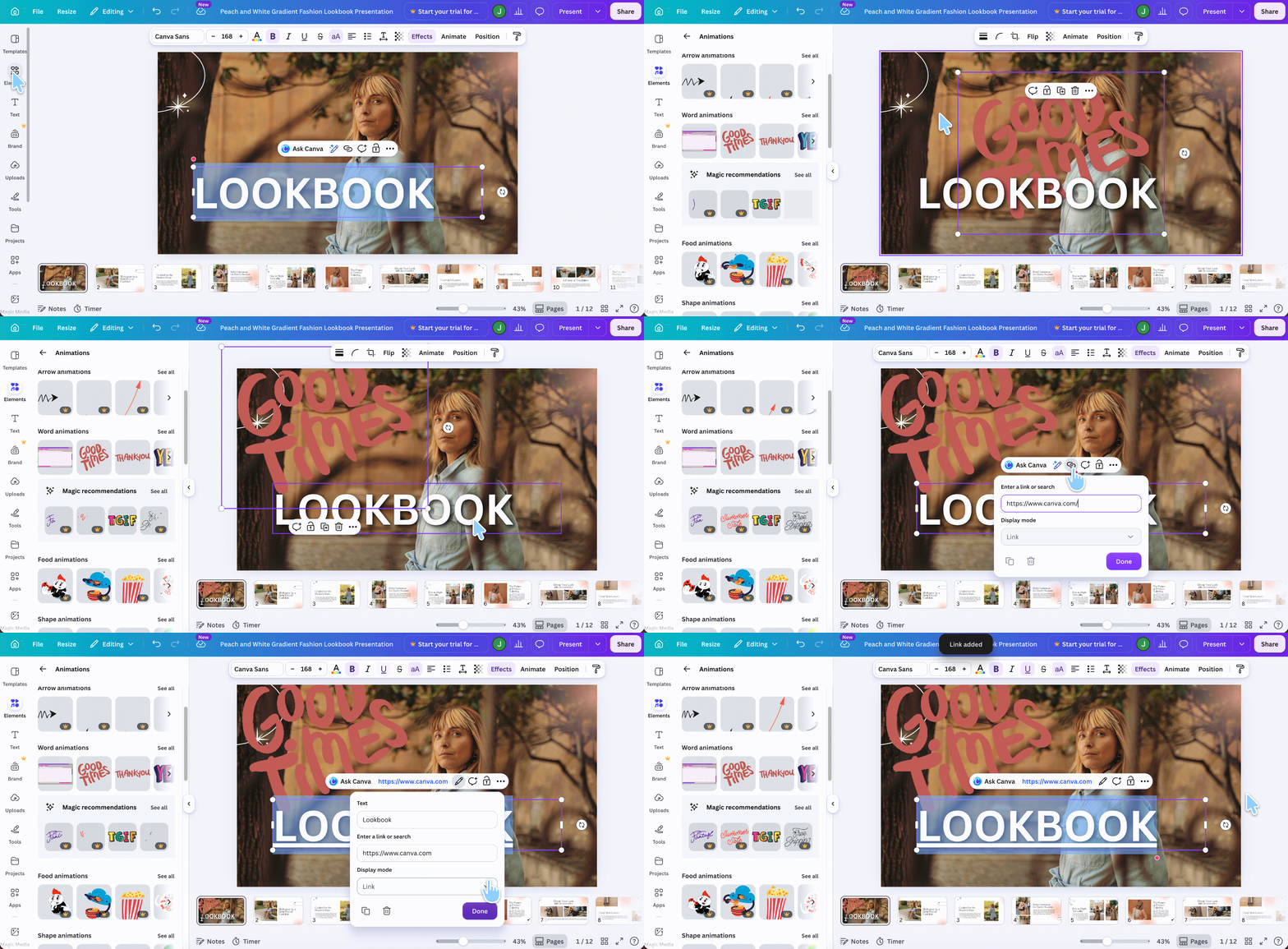
The limitation is scope. Canva's interactivity stops at hyperlinks — it does not create fillable PDF form fields, and it does not create action buttons with configurable behavior. For collecting responses, Canva's own guidance points users toward an embedded online form rather than a fillable PDF export.
Links exported from Canva also fail more often than people expect. In practice the usual suspects are a link applied to a grouped element, or an export that flattened the page to an image rather than a standard PDF — worth checking first, though Canva doesn't document these as formal causes. If a Canva export comes back with dead links, the reliable fix is to open the exported PDF in a PDF editor and re-apply the links there.
Best for:
- designing a document from scratch when visual layout matters most and hyperlinks are the only interactivity needed.
Not for:
- fillable forms, action buttons, or working on a PDF you already have.
Part 6. Flipsnack — Best for Hosted Catalogs With Reader Analytics
Flipsnack belongs in a different category from the three above, and it's worth being precise about why. It converts your PDF into a hosted flipbook: a web page with a page-turn effect, embeddable on your site, with analytics showing which pages readers actually reached.
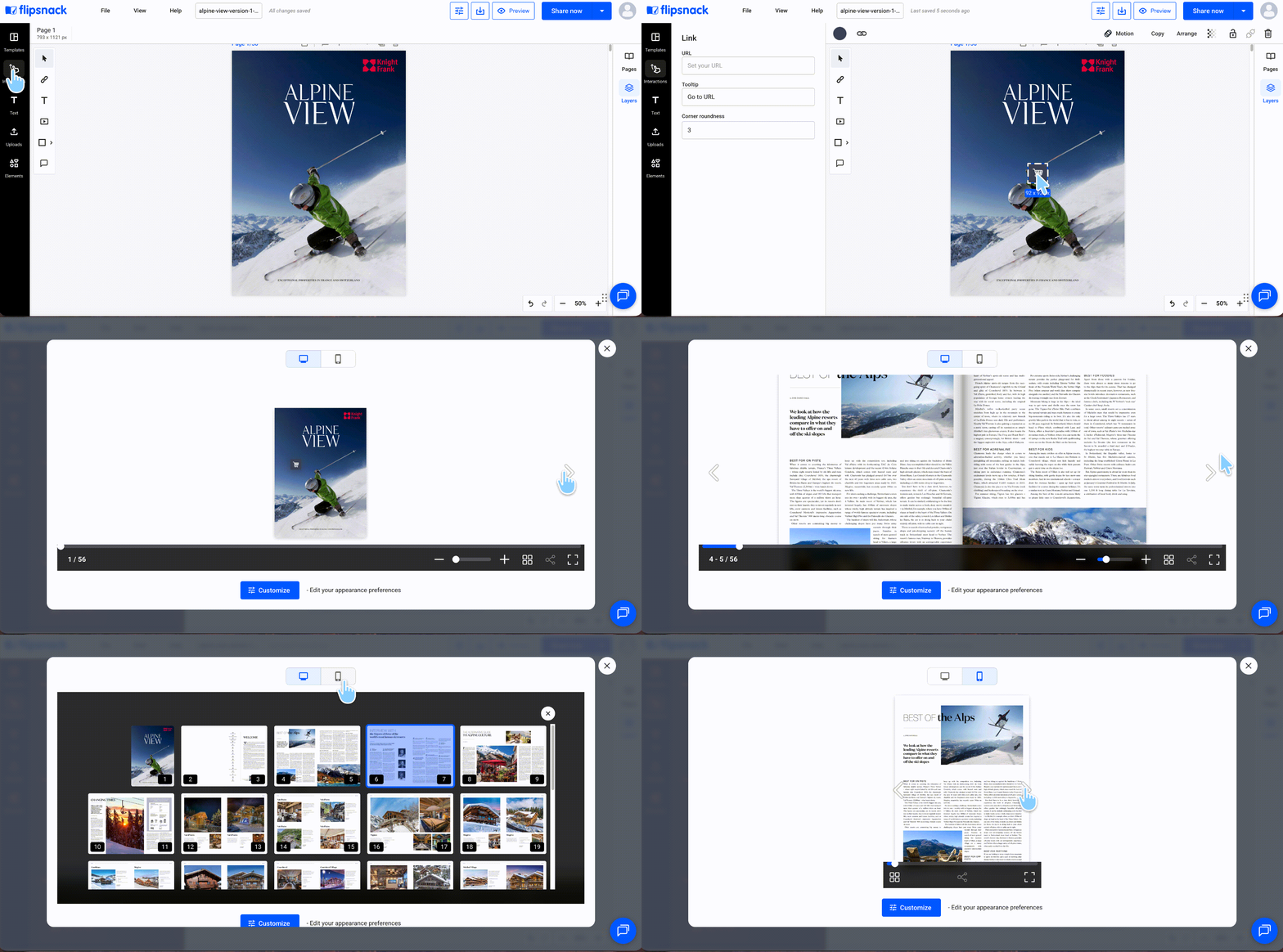
For a retail catalog or a public magazine issue, that analytics layer is a real advantage no PDF file can offer. A PDF can't tell you that 60% of readers dropped off at page 4.
The trade-offs are equally real. Flipsnack's free plan caps you at 3 flipbooks of 30 pages each and publish basic flipbooks with watermark. Paid access starts at $192/year (Starter), with Professional at $456/year.
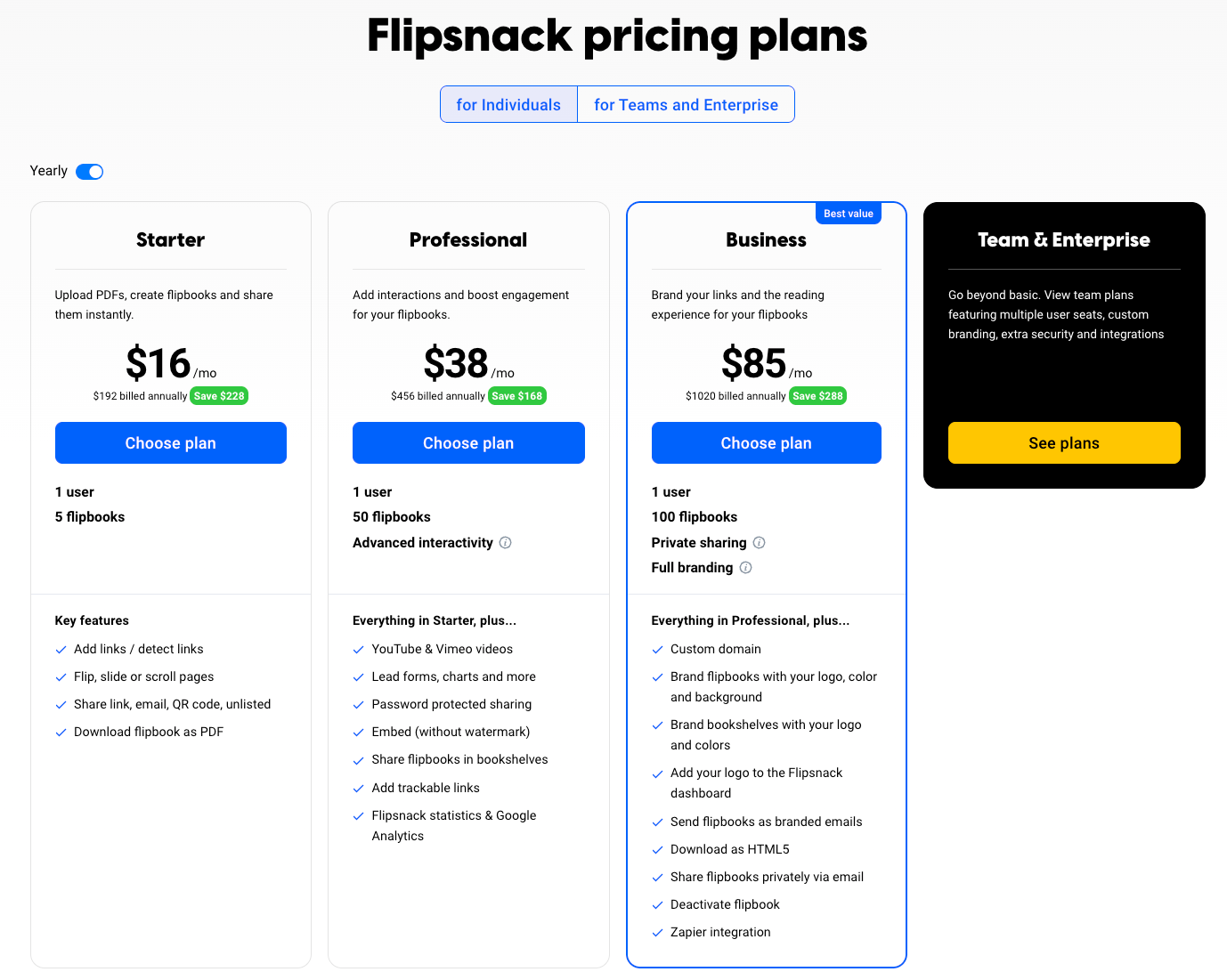
Export also isn't a clean round-trip. PDF export doesn't carry animations, and the print-optimized PDF strips links, buttons, and videos entirely. Keeping the full interactive experience in a downloadable file means the HTML5 export, which starts at the Business plan ($1,020/year). On cancellation, flipbooks keep premium features for a 21-day grace period, after which the account reverts to free limits — so anything beyond 3 flipbooks or 30 pages is affected.

Best for:
- public-facing catalogs and magazines where embedding and reader analytics matter more than owning a file.
Not for:
- anything a client needs to download, email, archive, or open offline — and not for fillable forms.
Note on the neighbors: FlippingBook (from $234/year, no free plan, 14-day trial) and FlipHTML5 (free tier with ads and a watermark; Pro $149/year) occupy the same hosted-flipbook category with the same core constraint. FlippingBook is the strictest — its documentation states the hosted flipbook itself can't be downloaded; readers can retrieve the original PDF, and self-hosting is limited to higher tiers.
Part 7. Decision Table: Capability Limits, Not Marketing Claims
| Capability / constraint | UPDF | Adobe Acrobat Pro | Canva | Flipsnack |
|---|---|---|---|---|
| Output format | Real .pdf file | Real .pdf file | Real .pdf file | Hosted web flipbook |
| Works offline after delivery | ✓ | ✓ | ✓ | Only via HTML5 export (Business plan) |
| Clickable web links | ✓ | ✓ | ✓ | ✓ (in flipbook) |
| Clickable table of contents | ✓ (Insert & Edit Link Page) | ✓ | Manual internal links only | ✓ |
| Action buttons with set behavior | ✓ (Prepare Form, desktop) | ✓ most advanced | ✗ | ✓ (within flipbook) |
| Fillable PDF form fields | ✓ — text, checkbox, dropdown, list, button, image, date (desktop) | ✓ plus calculations and JavaScript | ✗ — Canva points to online forms instead | ✗ — lead-capture forms only |
| Embedded video in the file | ✗ | ✓ | ✓ | In flipbook only, not in the PDF export |
| Reader analytics | ✗ | ✗ | ✗ | ✓ (paid tiers) |
| Platforms | Windows, Mac, iOS, Android | Windows, Mac, web, mobile | Web, mobile | Web |
| Free tier limit | Full tools; trial watermark on export | 7-day trial only | Free plan; premium assets paid | 3 flipbooks, 30 pages; downloads with watermark |
| Entry price | $49.99/yr or $79.99 lifetime | ~$239.88/yr | Pro: $144/yr; Business: $250/yr; | Starter: $192/yr; Professional: $456/yr; Business: $1020/yr |
| Main limitation | No page-flip effect or analytics | Highest cost; subscription-first | No PDF forms | Interactions don't survive PDF export |
Pricing verified against official pages, July 2026.
If you need embedded video playing inside the document itself, UPDF is not the right tool — Acrobat is. For everything else on this list, UPDF covers the workflow at a fraction of the cost.
Windows • macOS • iOS • Android 100% secure
Part 8. Edge Cases: When the Standard Method Fails
Your links work in the editor but not for the recipient. Browser-based PDF viewers (Chrome's built-in viewer, Firefox's PDF.js) support standard hyperlinks and most form fields but frequently ignore JavaScript actions and embedded media. If your audience is mixed, stick to plain URI links and Go-To-Page actions rather than scripted button behavior.
Your fillable form fields won't accept typing. The file is almost certainly protected by a permissions password that blocks form filling. Permissions restrictions are separate from an open password — the file opens fine, but editing actions are blocked. Remove the restriction first (only on files you own or are authorized to edit), then add your fields.
Links stopped working after you compressed or optimized the file. Routine image compression doesn't normally break links. The usual culprit is an optimizer or flattening setting that discards objects, forms, actions, multimedia, or external cross-references. Review those options before running the export, test the compressed copy, and keep an unoptimized master.
The recipient sees form fields but can't save their entries. Form saving and advanced actions vary by viewer — browser preview panes are the most common offender. Test the file in the reader your recipients actually use, and tell them which one to open it in if it matters.
Your interactive PDF needs to be printed. Clickable elements have no print equivalent — links, buttons, and video simply don't transfer to paper. If the document will be both printed and clicked, keep critical information visible as text rather than hiding it behind a button.
Part 9. Frequently Asked Questions
1. Can I make a PDF interactive for free?
Yes, with a watermark on export. UPDF's free tier gives you the full link, button, and form-field toolset so you can build and test the complete document; exported files carry a trial watermark until you upgrade.
2. Do interactive PDFs work on phones?
Links and navigation: yes. Forms: it varies. Hyperlinks and page-jump navigation work reliably across mobile PDF readers. Form fields work in full-featured mobile readers but may not render in lightweight built-in viewers. Note the separate point that building form fields is usually a desktop task — mobile apps are geared to filling and signing. If your audience is primarily mobile, keep interactivity to links and navigation.
3. What's the difference between a clickable PDF and a fillable PDF?
Clickable takes you somewhere; fillable collects data. A clickable PDF uses hyperlinks and navigation buttons to move the reader. A fillable PDF has named form fields the reader types into and returns. Both are interactive PDFs, and one file can be both.
Conclusion
Choosing an interactive PDF creator comes down to one question asked before any feature comparison: are you delivering a file or a link? For a real .pdf that clients can email, archive, and open offline, UPDF handles links, clickable contents, action buttons, and fillable forms, with the AI Bookmark Generator building chapter structure and the AI Editing Suite tightening the document's text before you link against it. For hosted catalogs with reader analytics, a flipbook platform is the better fit — as long as everyone understands the output is a URL, not a document.
Download UPDF for free to try adding clickable links and form fields to your own file — installation is free, and Pro features are available when you need watermark-free export or advanced tools.
Windows • macOS • iOS • Android 100% secure







 Enrica Taylor
 Enola Davis
 Thanakorn Srisuwan

 Lizzy Lozano