UPDF
UPDF
 UPDF for Windows
 UPDF for Mac
 UPDF for iPhone/iPad
 UPDF for Android
 Nomostar
 UPDF AI Online
 UPDF Sign
 IvyCraft
 Edit PDF
 Annotate PDF
 Create PDF
 PDF Form
 Edit links
 Convert PDF
 OCR
OCR PDF to Word
 PDF to Image
 PDF to Excel
 Organize PDF
 Merge PDF
 Split PDF
 Crop PDF
 Rotate PDF
 Protect PDF
 Sign PDF
 Redact PDF
 Sanitize PDF
 Remove Security
 Read PDF
 UPDF Cloud
 Compress PDF
 Print PDF
 Batch Process
 About UPDF AI
 UPDF AI Solutions
 AI User Guide
 FAQ about UPDF AI
 Summarize PDF
 Translate PDF
 Chat with PDF
 Chat with AI
 Chat with image
 PDF to Mind Map
 Explain PDF
 PDF AI Tools
 Image AI Tools
 AI Chat Tools
 AI Writing Tools
 AI Study Tools
 AI Working Tools
 Other AI Tools
 AI Bookmark Generation
 AI Bookmark Summary
 AI Watermark Generation
 AI Background Generation
 AI Sticker Generation
 AI Stamp Generation
 AI Editing Suite
 UPDF Copilot
 AI Page Management
 AI Semantic Search
 PDF to Word
 PDF to Excel
 PDF to PowerPoint
 Enterprise Solution
 Enterprise Sign
 Enterprise AI
 Enterprise Plan
 Enterprise User Guide
 Enterprise Webinar
 IT
IT Education
 Construction
 Financial Service
 Healthcare
 Insurance
 Legal
Legal Manufacturing
 Government
 Researchers & PhDs
 Solopreneurs & Freelancers
 Lawyers & Legal Professionals
 Real Estate Agents & Brokers
 Education Solution
 Customer Stories
 User Guide
 UPDF Tricks
 FAQs
FAQs UPDF Reviews
 Download Center
 Blog
Blog Newsroom
 Tech Spec
 Updates
 UPDF vs. Adobe Acrobat
 UPDF vs. Foxit
 UPDF vs. PDF Expert

Choosing a PDF reader for Mac depends on what you actually do with PDFs. Apple Preview is enough for quick viewing and basic markup, while students, professionals, and people working with scanned files may need stronger search, annotation, OCR, form, or AI tools.
Looking for more than a PDF reader? If you need to change existing text, images, or other PDF content, see our guide on how to edit a PDF on Mac. This article focuses specifically on choosing the best Mac PDF reader for viewing, searching, annotating, filling forms, and reading PDFs efficiently.
Quick Answer: Apple Preview is the best free starting point because it is built into macOS and handles everyday viewing, search, markup, signatures, and forms. UPDF for Mac is the better all-around choice if you also need OCR for scanned PDFs, advanced annotation, AI-assisted reading, conversion, and cross-platform access. Adobe Acrobat Reader suits Adobe users, while Skim is a lightweight option for research papers.
If Preview feels too limited for scanned documents, long papers, or detailed review work, UPDF for Mac brings stronger search, annotation, OCR, AI-assisted reading, forms, and cross-platform access into one app. Its current Black Friday offer provides up to 48% off, plus a free lifetime aJoysoft PDF Password Remover for Windows with eligible purchases. Download UPDF below to test the Mac reading workflow with your own files before choosing a plan.
Windows • macOS • iOS • Android 100% secure
Part 1. Quick Comparison of the Best PDF Readers for Mac
The table gives you the practical differences first. “Free reading” means you can open and read standard PDFs without paying; advanced tools may require a paid plan. Product availability and plan limits were checked against current product information in October 2026 and can change.
| PDF reader | Best for | Free reading | Annotation and search | OCR / forms | Main limitation |
|---|---|---|---|---|---|
| Apple Preview | Basic everyday reading | Yes | Basic markup and text search | No OCR / fills many forms | No advanced OCR, AI, or full PDF editing |
| UPDF | Best all-around Mac workflow | Yes | Advanced annotation, search, bookmarks, AI | OCR and form tools available | Some advanced actions require an upgrade |
| Adobe Acrobat Reader | Adobe ecosystem and shared reviews | Yes | Comments, highlighting, search | Forms; OCR is a paid feature | Many advanced tools require Acrobat Pro |
| PDF Expert | Polished Apple-focused experience | Basic access | Fast reading and annotation | Form support; advanced tools vary by plan | Most productivity features are paid |
| Foxit PDF Reader | Business forms and collaboration | Yes | Annotation, search, shared review tools | Forms; OCR depends on paid products | Interface can feel busy |
| Skim | Academic papers and notes | Yes | Notes, highlights, search, note export | No OCR / limited forms | Focused on reading rather than full PDF work |
| Kdan PDF Reader | Cross-device reading | Basic access | Markup, search, document organization | Plan-dependent | Advanced features require a subscription |
| Highlights | Researchers extracting notes | Limited | Highlighting, notes, citation-focused workflow | Not its main focus | Specialized rather than general-purpose |
| Nitro PDF Pro | Advanced office PDF work | Trial | Reading, markup, search | OCR and forms available | More than casual readers need |
For a wider platform comparison, see our guide to the best free PDF readers.
Four Differences That Matter More Than a Feature Count
- Reading several PDFs: In our Mac comparison, UPDF kept multiple files in tabs within one window and also allowed separate windows. Nitro PDF Pro 26.2 opened each document in its own window. Both approaches work, but tabs are easier when you compare several reports side by side.
- Working with scanned PDFs: Search does not work on image-only pages until OCR creates a text layer. UPDF lets you choose custom page ranges and different outputs for editable, text-and-picture, or searchable PDFs. Nitro separates current-page and whole-document OCR. PDF Expert uses a simpler default recognition workflow.
- Reviewing many annotations: A useful comment panel should do more than show a list. UPDF can jump to a comment, reply, hide annotations, and export all or selected annotation types. PDF Expert and Nitro can locate annotations, but the Mac versions tested offered fewer list-management and export controls.
- Presenting a PDF: UPDF can start a full-screen slideshow from the first or current page. This is useful for reports, portfolios, and teaching material. We did not find an equivalent slideshow control in the tested Nitro Mac version.
These are workflow differences rather than scorecard trivia. A reader that saves one step every time you search a scan, switch documents, or review comments can be a better fit even when two products both claim to support “reading” and “annotation.”
Part 2. 9 Best PDF Readers for Mac
Each option below is assessed as a reader first—not simply as a long feature list. Pay particular attention to its best use case and limitation.
1. Apple Preview – Best Built-In Free PDF Reader for Mac
Best for: Mac users who want to open, search, sign, annotate, and fill common PDF forms without installing another app.
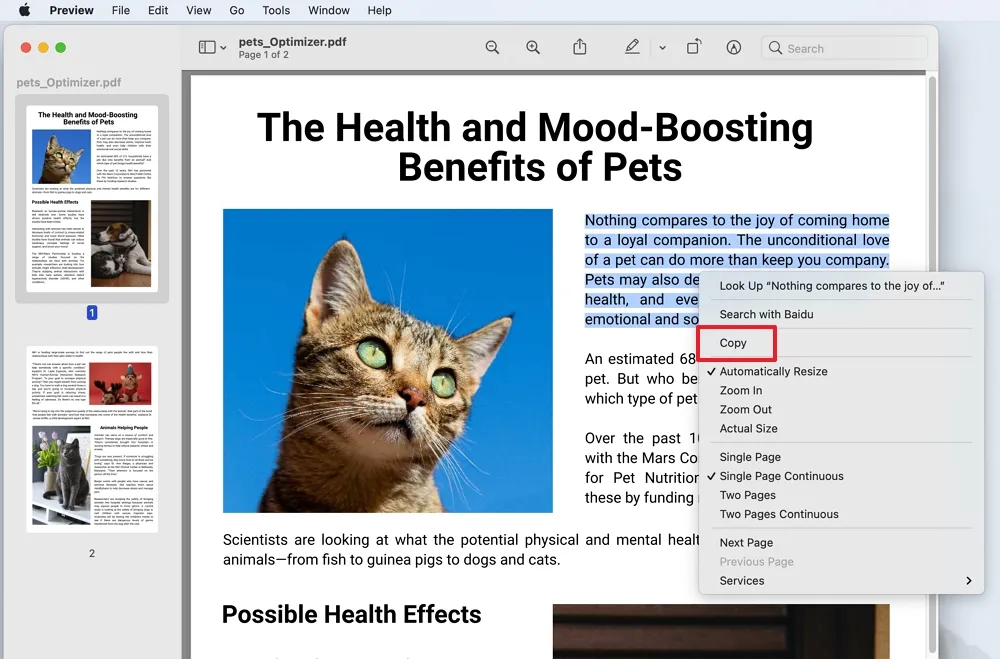
Preview comes with macOS, launches quickly, and covers the basics well. You can use thumbnails and a table of contents to navigate, search selectable text, highlight or add notes, create a signature, fill many interactive forms, and rearrange or export pages. It is the sensible first choice for occasional PDF reading.
- Pros: Built in, free, simple, and well integrated with macOS.
- Cons: No built-in OCR for turning image-only pages into searchable text, no document chat or summarization, and no full editing of existing PDF text.
2. UPDF for Mac – Best All-Around PDF Reader for Mac
Best for: People who read long or scanned PDFs and want stronger navigation, annotation, OCR, forms, AI assistance, and occasional editing in one Mac app.
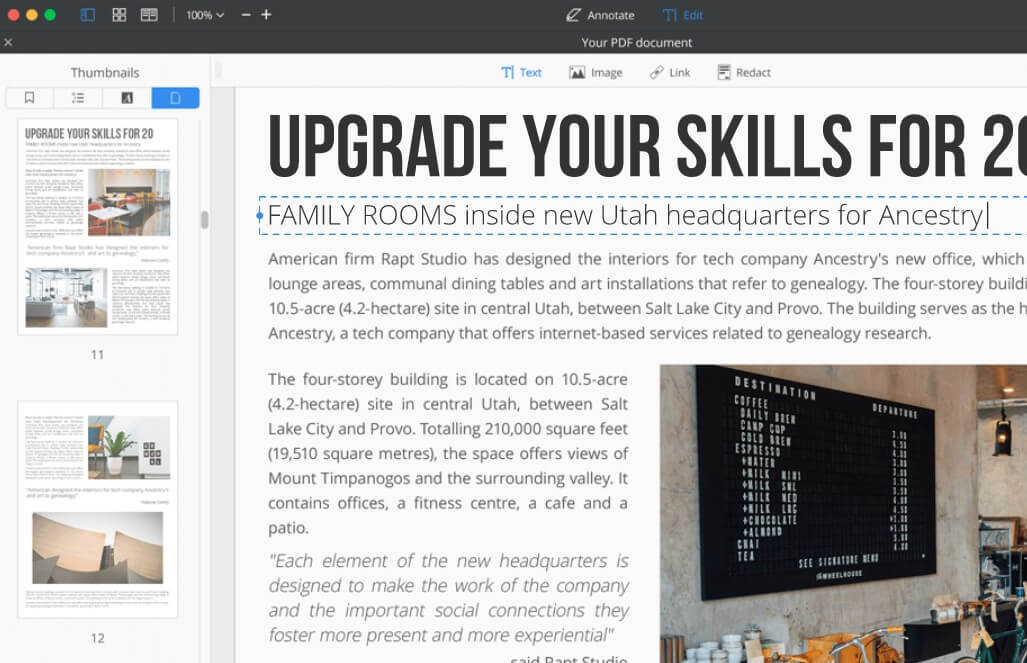
UPDF keeps common reading controls easy to reach. On Mac, you can switch between single-page, continuous, two-page, and two-page continuous views, show the cover separately, or fit the page to the window, width, or height. Thumbnails, bookmarks or the table of contents, comments, form fields, and attachments are available from the left sidebar. You can also enter a page number directly, use keyboard-assisted zoom, open several PDFs in tabs, move a document to a new window, or start a full-screen presentation from the first or current page.
The annotation workflow goes beyond basic text highlighting. UPDF can highlight selected text, an image, or a rectangular page area, and lets you adjust color, opacity, and marker thickness. Underline, strikethrough, squiggly lines, text boxes, callouts, shapes, sticky notes, stamps, file attachments, and measurement tools cover both study and professional review. The Comments panel can jump to the marked location, support replies, hide annotations, and export all comments or selected annotation types for a separate review record.
The following video was recorded for UPDF 2.0. UPDF has since moved beyond that release, but the core Mac reading, annotation, editing, and document-management workflow shown in the video remains similar, so it is still a useful overview of how the app works.
For image-only documents, OCR can process a custom page range and create an editable PDF, a text-and-picture output, or a searchable PDF that keeps the original page appearance. The Mac version supports selecting more than one recognition language in a mixed-language file and includes controls for images, page headers and footers, color, resolution, and MRC compression. These choices matter when a small searchable archive and a layout-faithful editable copy require different outputs.
UPDF AI can summarize a long PDF, explain selected passages, translate content, and answer questions about the document. UPDF 3.0 also adds reading-focused tools such as Semantic Search for finding related ideas beyond exact keywords, plus AI-generated bookmarks and bookmark summaries for navigating long files faster. Form tools, PDF conversion, page organization, protection, and editing remain available when your task goes beyond reading. This makes UPDF useful for people who start with reading but regularly need to extract, review, or reuse information afterward.
- Pros: Broad reading and annotation toolkit; OCR and AI for difficult documents; works across macOS, Windows, iOS, and Android.
- Cons: Reading is free, but some advanced saving, AI, OCR, editing, and conversion actions are governed by the current free-trial or paid-plan limits.
Want a Mac PDF reader that also supports annotation, forms, OCR, and editing? Download UPDF for Mac and try it with your own PDFs.
Windows • macOS • iOS • Android 100% secure
3. Adobe Acrobat Reader – Best for the Adobe Ecosystem
Best for: Users who receive Adobe review files, fill standard forms, or already use Adobe Document Cloud.
Adobe Reader for Mac opens, searches, prints, comments on, and signs PDFs. Its familiar commenting tools and cloud connections work well in teams that standardize on Adobe. In our Mac comparison, Acrobat’s comment panel could combine filters such as reviewer, date, annotation type, and color, which is useful in a formal review with many contributors.
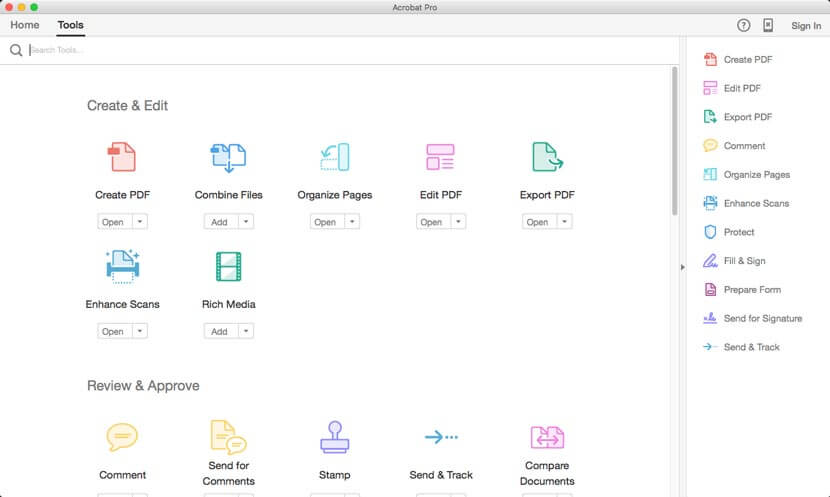
Adobe’s Scan & OCR workflow can recognize a scan and move directly into text editing, although the recognized page may be broken into many text boxes. The tested Mac build offered broad language support. These OCR and editing capabilities belong to Acrobat’s paid workflow rather than the basic free Reader, so do not choose Reader on the assumption that every Acrobat tool is included.
- Pros: Widely recognized format support, dependable form and comment workflow, and close integration with Adobe services.
- Cons: The app is heavier than simple readers and many advanced tools require a subscription.
4. PDF Expert – Best Mac-Native Premium Experience
Best for: Apple users who value a polished interface and frequently move between Mac, iPhone, and iPad.
PDF Expert emphasizes fast document opening, smooth navigation, tabs, search, annotation, and Apple-platform continuity. In PDF Expert 3.11.4 for Mac, highlight, underline, and strikethrough were all directly visible, so common text markup required fewer menu steps. The tradeoff in our test was less control over transparency and line thickness, and its annotation list mainly filtered by color. UPDF offered more sorting and review options, including annotation type and author.
Its OCR workflow is simpler: the tested version used a default recognition mode, supported fewer selectable languages than UPDF, and did not turn recognized text directly into an editable result in the same way. PDF Expert can fill and sign documents, but our Mac test did not find tools for creating form fields such as text boxes, checkboxes, radio buttons, or dropdowns. It remains a polished reader, but these distinctions matter if “forms” means form creation rather than form completion.
- Pros: Clean interface, responsive reading experience, and strong Apple-device integration.
- Cons: The most useful productivity features are not all included in basic free access; verify current OCR availability for your plan and device.
5. Foxit PDF Reader – Best for Business Forms and Reviews
Best for: Office users who need comments, signatures, forms, and shared-review features.
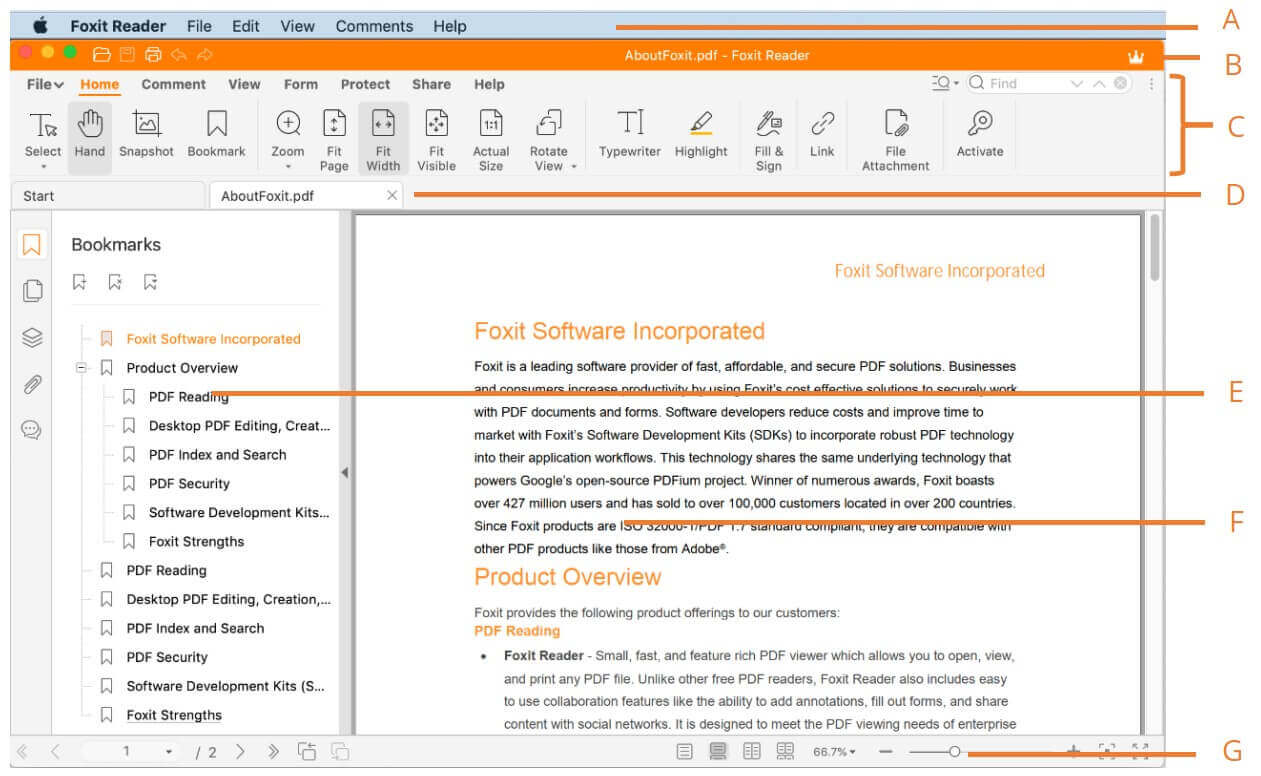
Foxit PDF Reader for Mac combines viewing, search, annotation, form filling, and signing with collaboration and cloud connections. It offers more controls than Preview, although the ribbon-style interface can feel crowded if you only want to read.
- Pros: Capable free reader, practical business form tools, and cross-platform availability.
- Cons: Some editing, OCR, conversion, and security features require separate paid products or plans.
6. Skim – Best Free Reader for Academic Papers
Best for: Students and researchers who mainly read and annotate scientific papers.
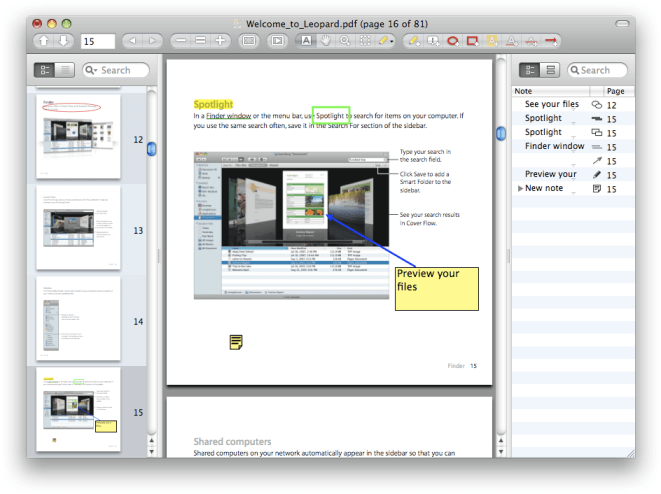
Skim is a free, open-source Mac PDF reader built around notes and academic review. It supports text highlighting, snapshots, navigation, full-screen presentation, and exporting notes as text. Its narrow focus keeps it lightweight, but it is not intended to replace an OCR or full PDF editing suite.
- Pros: Free, lightweight, research-friendly annotation, and useful note export.
- Cons: No built-in OCR or AI and limited support for broader document workflows.
7. Kdan PDF Reader – Best for Cross-Device Reading
Best for: Users who want a similar reading and markup workflow across desktop and mobile devices.
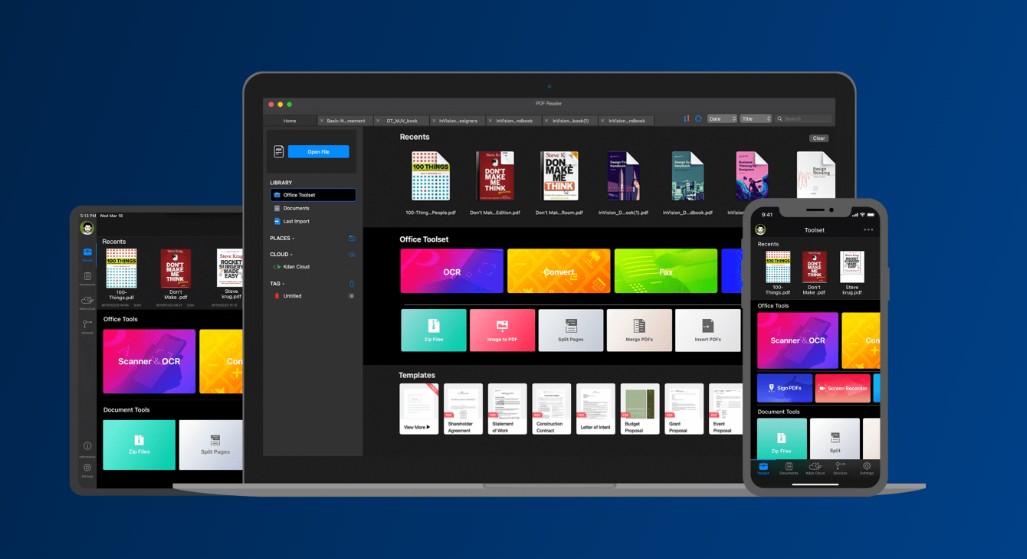
Kdan PDF Reader provides page navigation, search, annotation, signatures, and document organization across multiple platforms. Basic use is approachable, but several advanced tools and cloud services are tied to paid access, so check the current Mac plan against the exact features you need.
- Pros: Multi-platform support and a good selection of markup tools.
- Cons: Subscription boundaries may be excessive for someone who only needs a simple reader.
8. Highlights – Best for Turning Research Notes into Usable Text
Best for: Researchers who want to collect highlights, notes, and citation-related information while reading.
Highlights is designed around active reading rather than general office PDF work. It can extract annotations into a structured notes view and fits well with research workflows on Apple devices. That specialization is valuable for papers, but it is less suitable for business forms, OCR-heavy archives, or advanced editing.
- Pros: Focused annotation workflow and useful note extraction for research.
- Cons: Free access is limited and it is not an all-purpose PDF suite.
9. Nitro PDF Pro – Best for Advanced Office PDF Work
Best for: Mac professionals who need a traditional desktop PDF application for reading plus OCR, forms, editing, and document production.
Nitro PDF Pro is the successor in the product line previously associated with PDFpen. In Nitro PDF Pro 26.2 for Mac, the core reading controls covered thumbnails, page-number jumps, zoom, single-page, facing-page, and continuous views, plus sidebars for the table of contents, annotations, attachments, and form fields. It handled ordinary navigation well, but each PDF opened in a separate window rather than tabs in one window, and we did not find UPDF-style PDF slideshow controls.
Its annotation tools cover text highlighting, notes, text boxes, callouts, shapes, attachments, and basic measurement. The tested highlight tool focused on selectable text; it did not show the same controls for rectangular-area or image highlighting, opacity, and marker thickness. Nitro OCR can recognize the current page or the entire document and can clear an existing OCR layer. UPDF offered custom page ranges, multiple output modes, simultaneous language selection, and more control over retained images, resolution, color, and compression.
Nitro remains a capable office PDF application, especially when editing, forms, and document production matter. For reading alone, however, its paid desktop scope and multi-window workflow may be more than a casual user needs.
- Pros: Mature desktop feature set and useful tools for forms and scanned files.
- Cons: Paid software with more complexity than basic PDF reading requires.
Part 3. Which Mac PDF Reader Should You Choose?
- Choose Preview if you only open ordinary PDFs, make occasional marks, sign documents, and fill standard forms.
- Choose UPDF if scanned PDFs, OCR, long-document navigation, AI summaries, advanced annotation, or cross-platform work are part of your routine.
- Choose Adobe Acrobat Reader or Foxit if your team already uses their review, form, or cloud ecosystem.
- For students and researchers: choose Preview for free basic reading, Skim for focused academic annotations, or UPDF when your papers include scans and you need OCR, AI summaries, organized comments, and access across devices.
- Choose PDF Expert if Apple-native polish is your priority and you are comfortable with paid features.
- Choose Nitro PDF Pro if you need a full editor rather than a reader alone.
Before paying, test the app with three files: a normal text PDF, a scanned PDF, and an interactive form. Check search accuracy, scrolling speed, annotation export, form behavior, and whether saved files reopen correctly in another viewer.
Save Up to 48% This Black Friday
Get the complete UPDF toolkit during Black Friday: save up to 48% and receive a free lifetime aJoysoft PDF Password Remover for Windows with eligible purchases.
Part 4. How This List Was Evaluated
This update focuses on the tasks behind “PDF reader Mac” searches: opening and navigating documents, text search, annotation, bookmarks, forms, scanned-file OCR, reading assistance, macOS availability, and free-use limitations. The detailed comparisons above draw on internal hands-on checks of UPDF and Nitro PDF Pro 26.2 on Mac, PDF Expert 3.11.4 on Mac, and a current Adobe Acrobat Mac build. Foxit findings from a Windows comparison were not treated as proof of identical Mac behavior. The remaining tools were assessed from their current Mac availability and official product information.
Product names, interfaces, plan boundaries, and free limits can change. The version numbers make the hands-on observations reproducible, while the recommendation still asks you to test the current Mac release with your own text PDF, scan, and form before purchasing.
We did not rank products by the length of their feature lists. A lightweight reader can be the better choice when it completes the intended reading task with less friction. For more ways to work with a document after opening it, see our guide on how to read a PDF efficiently.
FAQs About PDF Readers for Mac
Does Mac have a built-in PDF reader?
Yes. Preview is included with macOS and can open, search, annotate, sign, print, and fill many PDFs. It is sufficient for basic reading but lacks advanced OCR, AI, and full PDF editing.
What is the best free PDF reader for Mac?
Apple Preview is the best no-install option for basic reading. UPDF is a stronger free-to-try choice when you need more reading layouts, annotation tools, or a path to OCR and AI features. Skim is a useful free option for academic papers.
Is Preview enough for reading PDFs on a Mac?
Preview is enough for standard text PDFs, simple annotations, signatures, and many forms. Choose another reader if you need OCR for scanned pages, advanced comment management, AI summaries, cross-platform syncing, or full text editing.
Which Mac PDF reader can search scanned documents?
A scanned PDF needs OCR before its image-only text becomes searchable. UPDF, Nitro PDF Pro, and paid Adobe tools offer OCR-related workflows; check the current plan and supported languages before use.
Can a free Mac PDF reader fill forms?
Yes. Preview, Adobe Acrobat Reader, Foxit PDF Reader, and UPDF can handle common PDF form workflows. Form behavior can vary, so test complex calculations, dynamic fields, and signatures with the specific document you need to submit.
Conclusion
The best PDF reader for Mac is the one that matches your documents. Start with Preview for simple files. If you regularly work with scans, long reports, detailed annotations, forms, or AI-assisted reading, UPDF provides a more complete workflow without making basic reading difficult. Download it and test the free version with your own PDFs before upgrading.
Windows • macOS • iOS • Android 100% secure







 Enid Brown
 Enola Davis
 Enola Miller