 UPDF
UPDF
 UPDF for Windows
 UPDF for Mac
 UPDF for iPhone/iPad
 UPDF for Android
 Nomostar
 UPDF AI Online
 UPDF Sign
 IvyCraft
 Edit PDF
 Annotate PDF
 Create PDF
 PDF Form
 Edit links
 Convert PDF
 OCR
OCR PDF to Word
 PDF to Image
 PDF to Excel
 Organize PDF
 Merge PDF
 Split PDF
 Crop PDF
 Rotate PDF
 Protect PDF
 Sign PDF
 Redact PDF
 Sanitize PDF
 Remove Security
 Read PDF
 UPDF Cloud
 Compress PDF
 Print PDF
 Batch Process
 About UPDF AI
 UPDF AI Solutions
 AI User Guide
 FAQ about UPDF AI
 Summarize PDF
 Translate PDF
 Chat with PDF
 Chat with AI
 Chat with image
 PDF to Mind Map
 Explain PDF
 PDF AI Tools
 Image AI Tools
 AI Chat Tools
 AI Writing Tools
 AI Study Tools
 AI Working Tools
 Other AI Tools
 AI Bookmark Generation
 AI Bookmark Summary
 AI Watermark Generation
 AI Background Generation
 AI Sticker Generation
 AI Stamp Generation
 AI Editing Suite
 UPDF Copilot
 AI Page Management
 AI Semantic Search
 PDF to Word
 PDF to Excel
 PDF to PowerPoint
 Enterprise Solution
 Enterprise Sign
 Enterprise AI
 Enterprise Plan
 Enterprise User Guide
 Enterprise Webinar
 IT
IT Education
 Construction
 Financial Service
 Healthcare
 Insurance
 Legal
Legal Manufacturing
 Government
 Researchers & PhDs
 Solopreneurs & Freelancers
 Lawyers & Legal Professionals
 Real Estate Agents & Brokers
 Education Solution
 Customer Stories
 User Guide
 UPDF Tricks
 FAQs
FAQs UPDF Reviews
 Download Center
 Blog
Blog Newsroom
 Tech Spec
 Updates
 UPDF vs. Adobe Acrobat
 UPDF vs. Foxit
 UPDF vs. PDF Expert

Quick answer:
If you've ever needed to edit words in a PDF, you know how tricky it can be without the right tool. If clicking the text selects the whole block as an image instead of letting you type, the file is a scanned PDF — it has no real text layer yet, and you need to run OCR first. That single distinction decides which method below actually works for your file.
This guide covers all three cases: editing existing words, adding new words, and editing words locked inside a scanned PDF. Text editing works across Windows, Mac, iOS, and Android. For scanned PDFs, UPDF OCR works on Windows, mobile, and Apple-chip Macs using the website build; it is unavailable on Intel Macs and the Mac App Store build. For the full range of PDF editing tasks beyond text — images, links, pages, and more — see the pillar guide on how to edit a PDF.
Part 1. Which method do you need?
Pick the row that matches your file before you start — it saves you from running the wrong tool.
| Your situation | Method | Best for |
| The text is already selectable | Edit existing words | Contracts, reports, forms you typed or exported |
| You need to insert new text | Add new words | Filling gaps, adding a clause, labeling a figure |
| Clicking text selects an image | Run OCR first | Scanned pages, photographed documents, faxes |
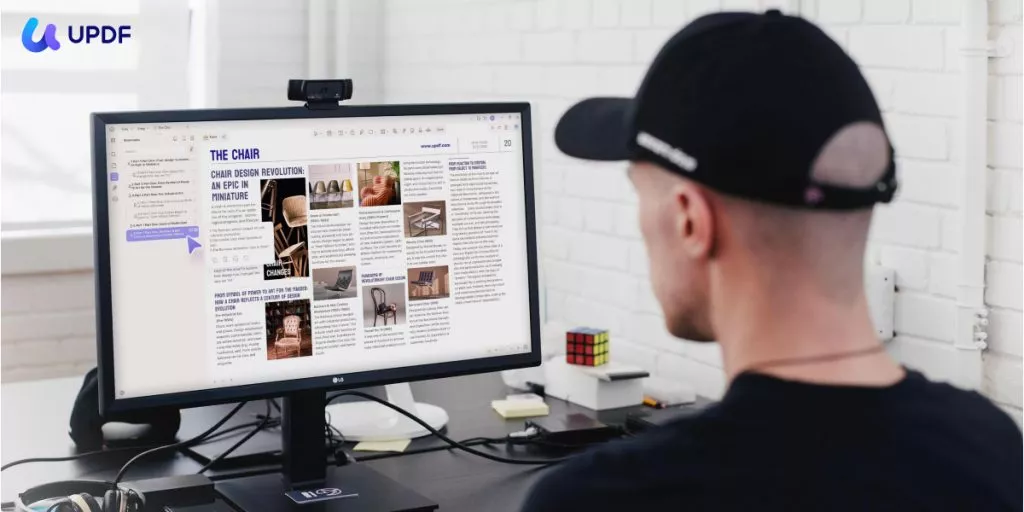
Ready to change the words in your PDF? Download UPDF, open your document, and edit existing text directly while preserving its original font and layout. Scanned PDF? Run OCR first to make the text editable.
Windows • macOS • iOS • Android 100% secure
Part 2. How to Edit Existing Words in a PDF
When a price, a date, or a name in a contract is wrong, you don't want to rebuild the document in Word and re-export it. UPDF lets you click straight into the existing text and retype it in place, keeping the original font, size, and layout. If your task is deleting an obsolete clause rather than replacing a few words, see the PDF text remover comparison before choosing a method. Open the document in UPDF — if you don't have it yet, download UPDF for free and install it in under a minute — then follow these steps.
Windows • macOS • iOS • Android 100% secure
Step 1. Click "Open File" on the home screen and select your PDF.
Step 2. Click Edit in the top toolbar to switch into edit mode.
Step 3. Click the text you want to change. A purple border appears around the text block — now delete, retype, or correct the words. Use the right-hand panel to match font, size, color, and alignment to the surrounding text.
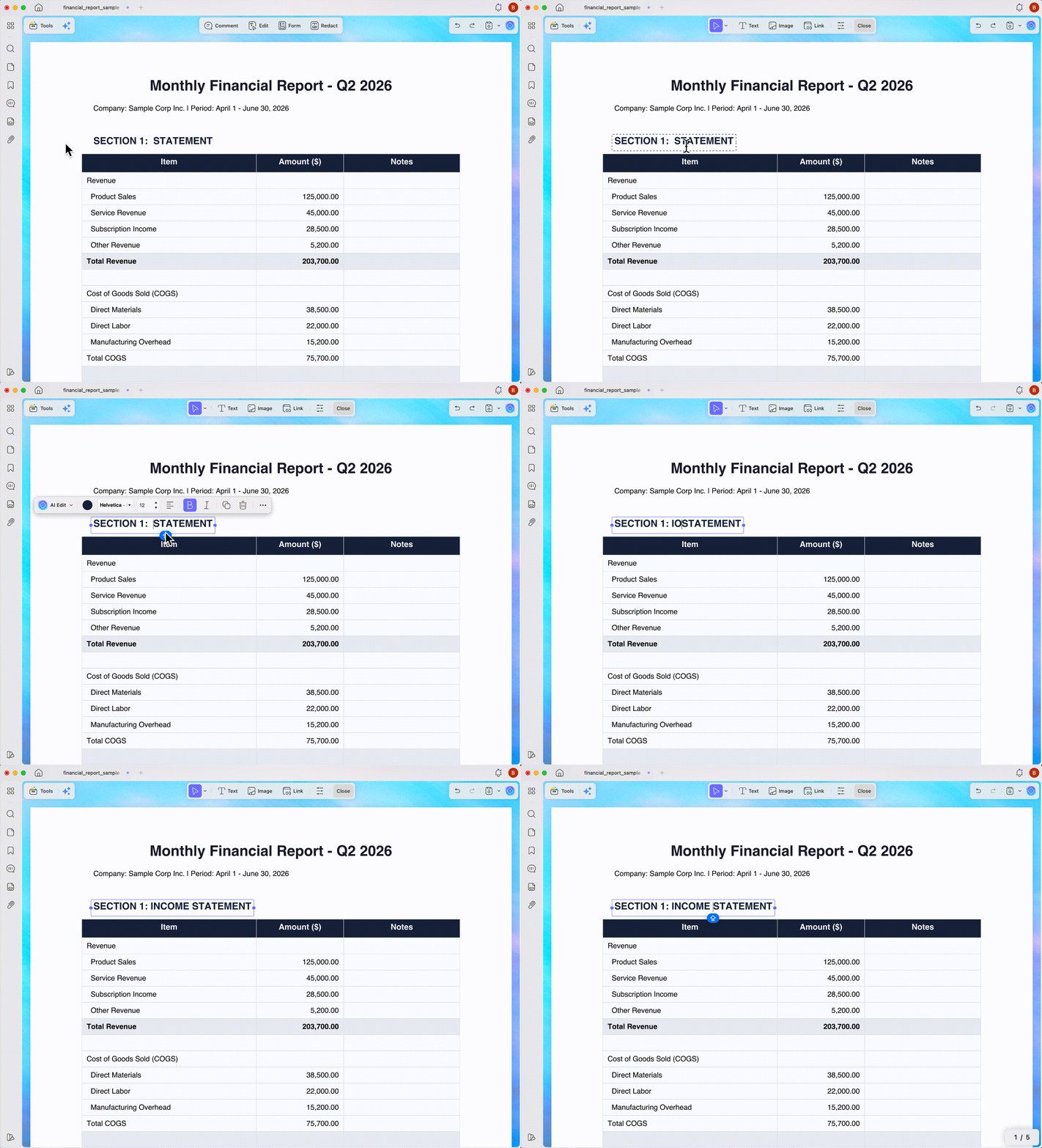
Step 4. Click Save (or Save → Save As Other to keep the original untouched).
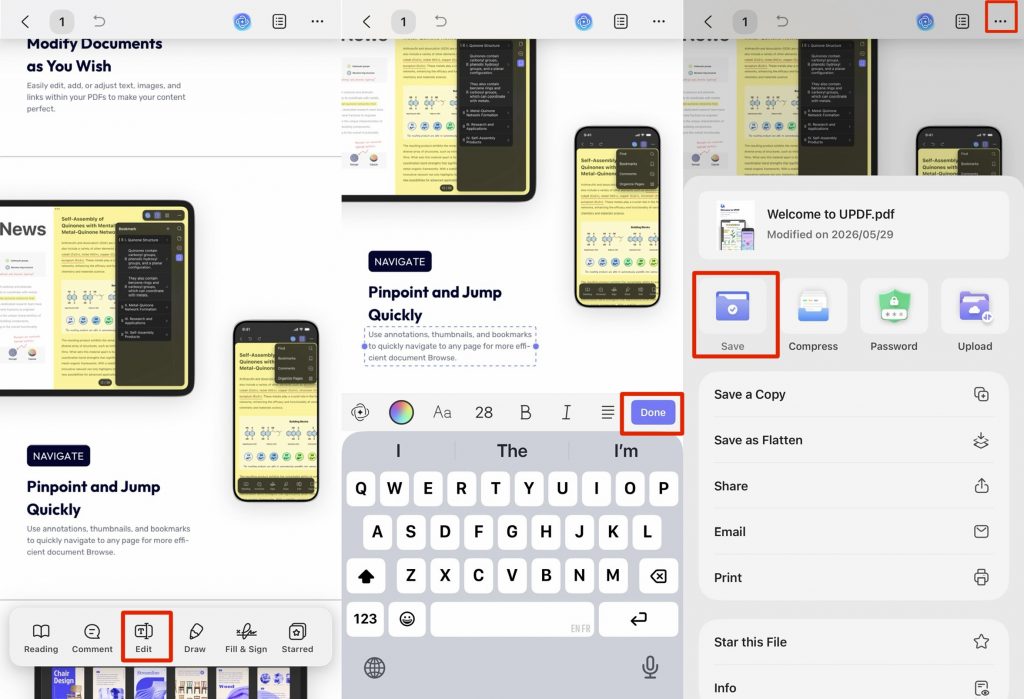
On iOS / Android:
Open the file in the UPDF app, tap the Edit icon, then tap the text to place your cursor and retype. Tap Done > three-dot icon > Save to save the updated file.
Best for:
- Files where the text is already selectable and you only need to correct or replace wording.
Not for:
- Scanned or photographed documents — clicking there selects an image, not text.
Part 3. How to Add New Words in PDF
Adding text to PDF is a different action from editing it: instead of clicking existing words, you place a new text box wherever you need it — a missing clause, a caption under a figure, or a note in a margin.
To add new words to a PDF using UPDF, follow these simple steps:
Step 1. Open the PDF in UPDF and click Edit in the top toolbar.
Step 2. Click Text to activate the add-text tool.
Step 3. Click the spot in the page where the new words should go, then type directly from your keyboard.
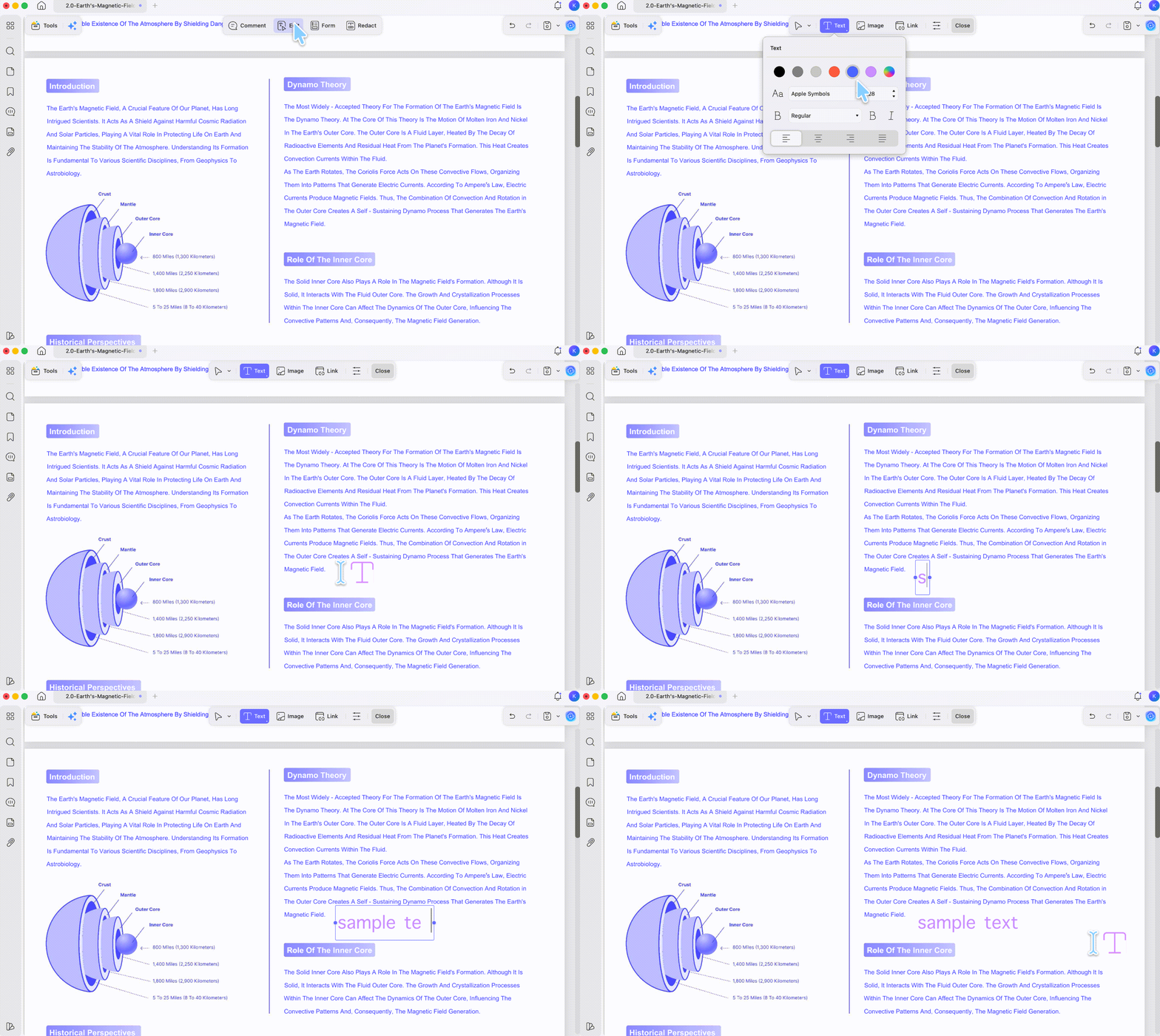
Step 4. Adjust font, size, color, and alignment in the right panel so the new text blends with the rest of the page.
On iOS / Android:
Open the file in the UPDF app, tap Edit, then click Text to activate the add-text tool. Tap the spot on the page, and type the new words with the on-screen keyboard.
Best for:
- Inserting content that isn't there yet — a new line, a label, a missing field.
Not for:
- Rewording text that already exists — use Part 1's click-to-edit instead.
Part 4. How to Edit Words in a Scanned PDF (with OCR)
A scanned PDF is a picture of a page — the words are pixels, not text, which is why clicking them does nothing. Optical Character Recognition (OCR) reads those pixels and rebuilds a real, editable text layer underneath. UPDF's OCR supports 38 languages, so a scanned invoice or a faxed contract becomes editable like any normal PDF.
Step 1. Open the scanned PDF in UPDF. Go to the left-side Tools panel and choose OCR.
Step 2. Pick a layout option such as "Text and pictures only", "Text under the page image" or "Text over the page image" to preserve how the page looks.
Step 3. Choose the document language so the text is recognized accurately.
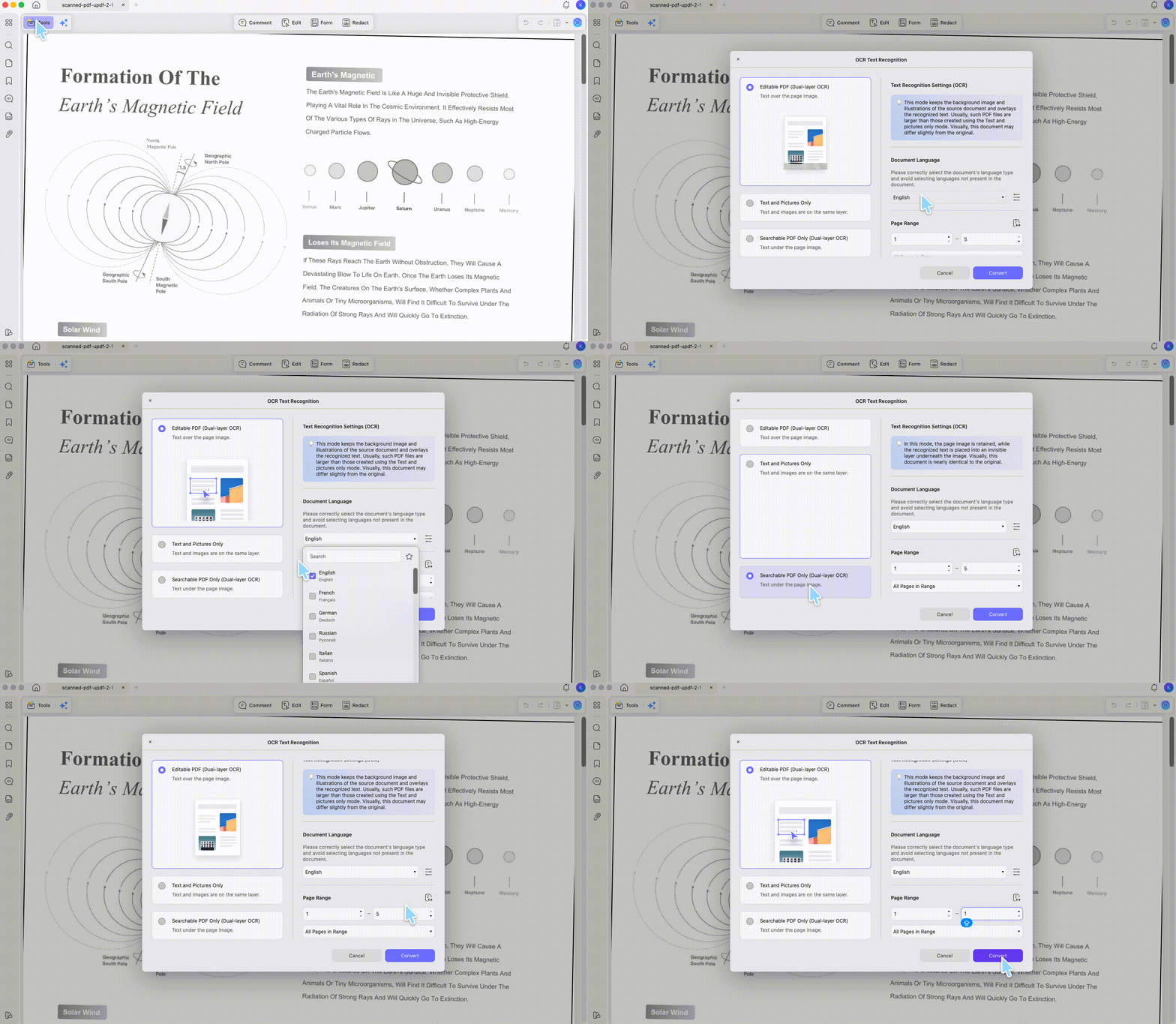
Step 4. After OCR finishes, click Edit in the top toolbar. The previously locked text is now selectable — change words exactly as in Part 2.
On iOS / Android:
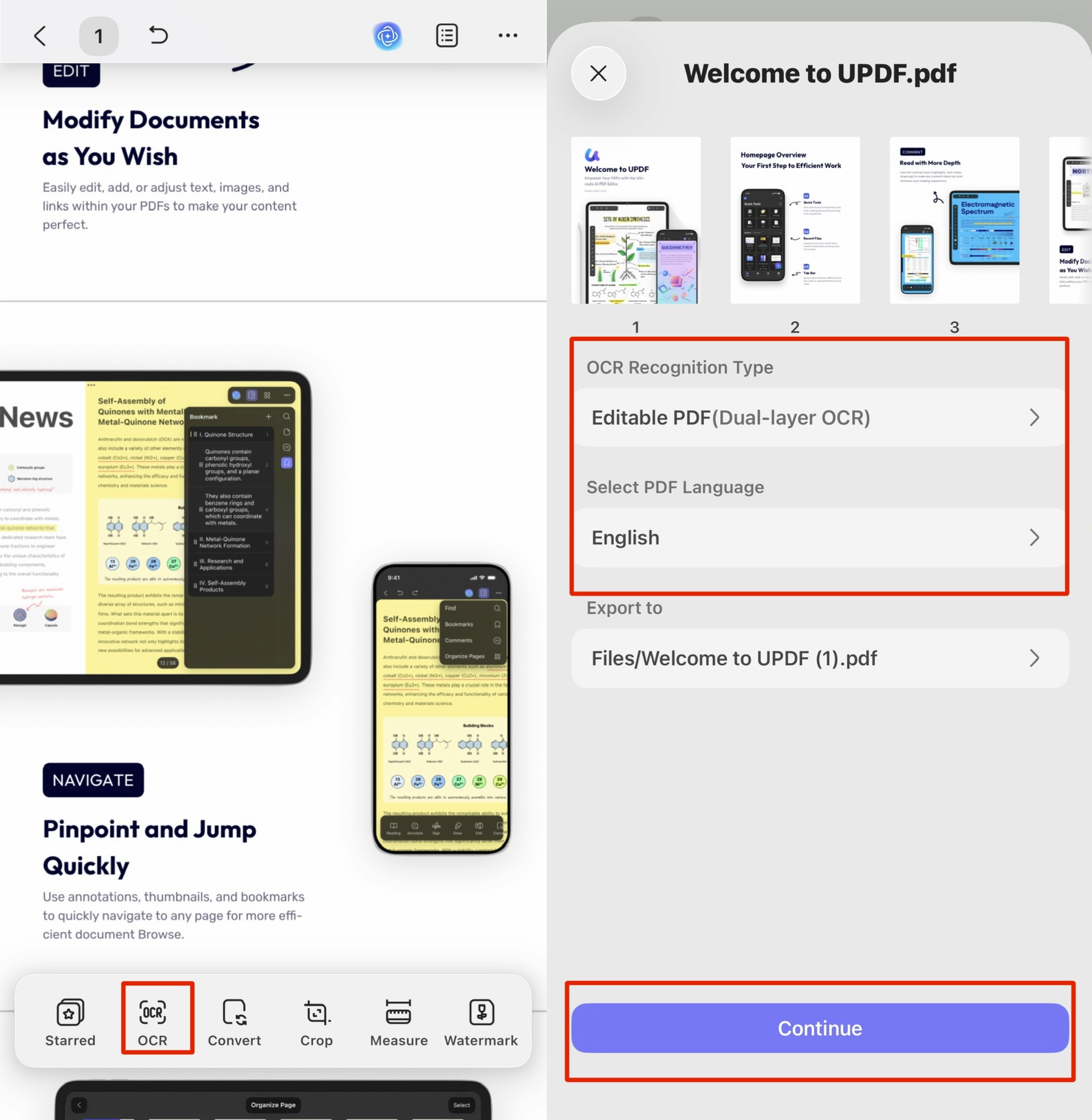
Open the scanned file in the UPDF app, tap OCR, then choose the language and layout option, and click Continue to run it. Once it finishes, tap Edit and the recognized text becomes editable on your phone.
You can also follow the video tutorial below to perform OCR with UPDF.
Best for:
- Scanned, photographed, or faxed documents where no text layer exists yet.
Not for:
- Files that are already digital text — OCR is unnecessary; go straight to Part 2.
Part 5. Regular PDF vs. Scanned PDF — Why Editing Behaves Differently
The single reason "my PDF won't let me edit" happens is the text layer. This table shows what to expect from each file type and where the limits are — including UPDF's own.
| File type | What happens when you click text | What you need |
| Regular (digital) PDF | Purple edit box appears; you can type | UPDF Edit mode (Part 2). Free to try (trial watermark on export); |
| Scanned / image PDF | The whole page selects as an image | Run OCR first (Part 4), then edit. Free tier includes 5 OCR uses. |
| Password / permission-locked PDF | Editing is greyed out or blocked | Remove the restriction first — only if you own or are authorized to edit the file. |
Part 6. Edit Words Faster with UPDF's AI Editing Suite
Correcting one word is quick. Rewriting a long clause, tightening a wordy paragraph, or fixing the tone of a whole section by hand is not — and exporting to Word just to rephrase a sentence wastes time. UPDF's AI Editing Suite lets you select text inside the PDF and rewrite, shorten, or proofread it in place, so the edit-export-reimport cycle disappears.
Step 1. Open the PDF in UPDF and click Edit in the top toolbar.
Step 2. Select the words, sentence, or paragraph you want to rework.
Step 3. Click the drop-down arrow on the UPDF AI floating toolbar to expand the menu, and choose an action — AI Polish, AI Expand, AI Shorten, AI Proofread or AI Tone.
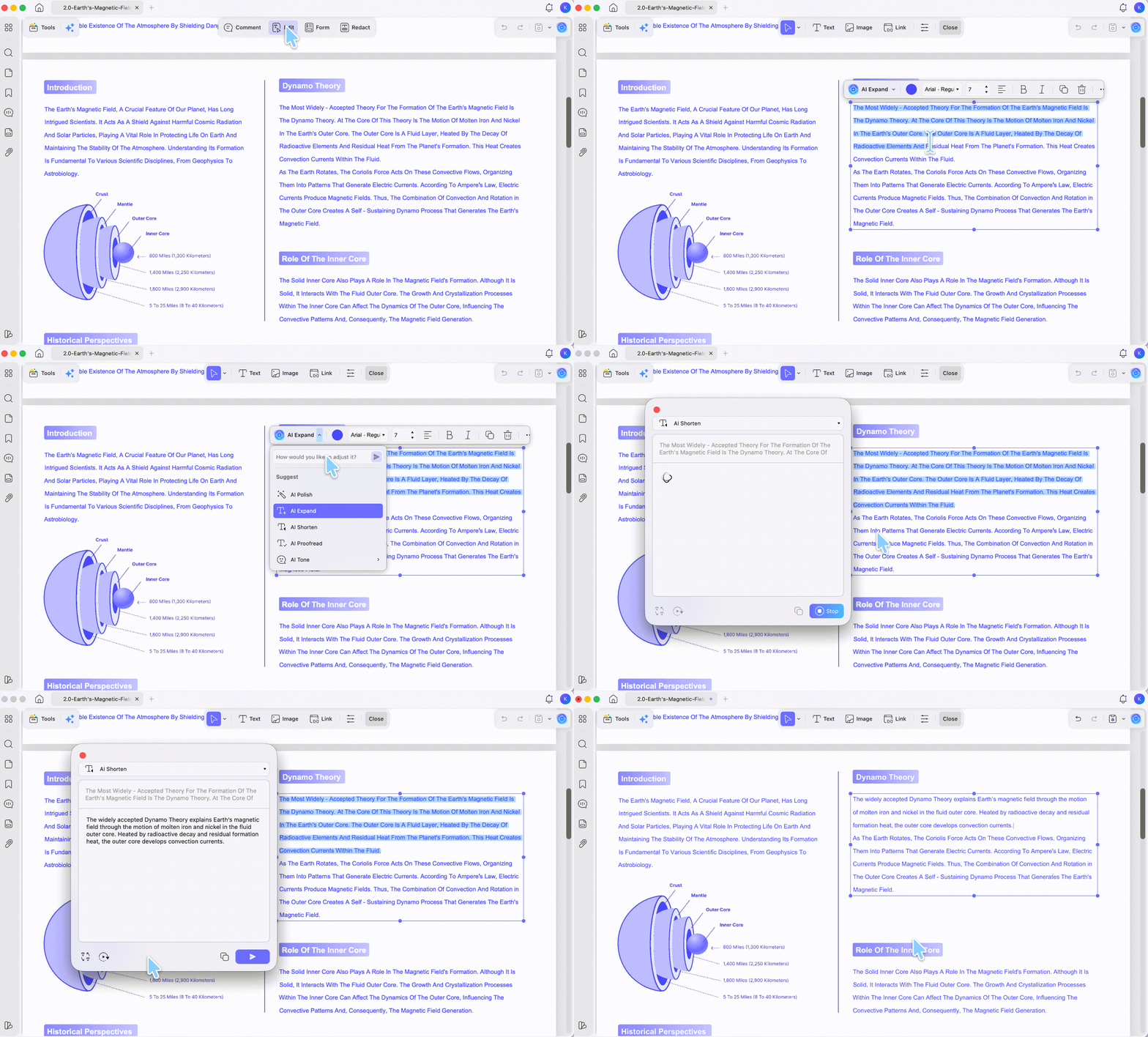
Step 4. Review the suggested text and click Replace to apply it directly into the PDF, then Save.
Part 7. Troubleshooting: When You Still Can't Edit Words in a PDF
The text still won't edit after OCR
If words remain locked after OCR runs successfully, the recognized text layer probably wasn't created — usually because the output was set to an image-only mode, or the scan quality was too low for the characters to be read. Re-run OCR with "Editable PDF" selected and, if needed, a higher resolution.
OCR won't run at all on the file
If OCR is greyed out or blocked, the PDF is likely permission-protected — protected files block editing and OCR alike. Remove the restriction first, and only on files you own or are authorized to change.
Edited text shifts the layout or changes font
This usually means the original font isn't installed on your device, so UPDF substitutes the closest match. Pick a visually similar installed font in the right panel, or keep edits to the same line length to avoid reflow.
OCR text has small recognition errors
Low scan resolution or the wrong language setting causes this. Re-run OCR at a higher resolution and confirm the correct language is selected, then correct any remaining characters manually in Edit mode.
Part 8. FAQs About Editing Words in PDF
1. Why do my edits disappear or revert when I reopen the file?
You likely closed without saving the edited copy. Use Save → Save As Other to write a new file, and check you reopened the saved version rather than the original. If edits revert mid-session, the PDF may be opened from a cloud folder that's syncing an older copy.
2. Will editing a PDF mess up the original formatting?
Usually no, if the font is available. UPDF edits text in place and keeps surrounding layout intact. Formatting only shifts when the original font isn't installed locally, in which case a substitute font is used — choose a close match to keep the look consistent.
3. How do I edit a PDF that was created from a photo?
Run OCR first, then edit. A photographed document is an image with no text layer, so UPDF's OCR (Part 4) rebuilds an editable layer before you can change the words. Tip: dragging a PPT, Excel, Word, or image file into the UPDF desktop app converts it to PDF automatically, ready for editing.
Conclusion
Editing words in a PDF comes down to one question — does the file have a real text layer? If it does, UPDF's Edit mode lets you change or add words directly on Windows, Mac, iPhone, or Android; if the file is scanned, OCR rebuilds that layer first. For heavier rewriting, the AI Editing Suite rephrases and proofreads text in place without leaving the PDF.
Download UPDF for free to try editing words on your own file — installation is free, and Pro features are available when you need export or advanced tools. For other editing tasks like images, links, and pages, see the full guide on how to edit a PDF.
Windows • macOS • iOS • Android 100% secure






 Delia Meyer
 Enola Miller
 Enola Davis
 Enid Brown