 UPDF
UPDF
 UPDF for Windows
 UPDF for Mac
 UPDF for iPhone/iPad
 UPDF for Android
 UPDF AI Online
 UPDF Sign
 Edit PDF
 Annotate PDF
 Create PDF
 PDF Form
 Edit links
 Convert PDF
 OCR
OCR PDF to Word
 PDF to Image
 PDF to Excel
 Organize PDF
 Merge PDF
 Split PDF
 Crop PDF
 Rotate PDF
 Protect PDF
 Sign PDF
 Redact PDF
 Sanitize PDF
 Remove Security
 Read PDF
 UPDF Cloud
 Compress PDF
 Print PDF
 Batch Process
 About UPDF AI
 UPDF AI Solutions
 AI User Guide
 FAQ about UPDF AI
 Summarize PDF
 Translate PDF
 Chat with PDF
 Chat with AI
 Chat with image
 PDF to Mind Map
 Explain PDF
 PDF AI Tools
 Image AI Tools
 AI Chat Tools
 AI Writing Tools
 AI Study Tools
 AI Working Tools
 Other AI Tools
 PDF to Word
 PDF to Excel
 PDF to PowerPoint
 Enterprise Solution
 Enterprise Sign
 Enterprise AI
 Enterprise Plan
 Enterprise User Guide
 Enterprise Webinar
 Banking
 Healthcare
 Insurance
 Legal
Legal Manufacturing
 Government
 Education Solution
 Customer Stories
 User Guide
 UPDF Tricks
 FAQs
FAQs UPDF Reviews
 Download Center
 Blog
Blog Newsroom
 Tech Spec
 Updates
 UPDF vs. Adobe Acrobat
 UPDF vs. Foxit
 UPDF vs. PDF Expert

This article reviews the top tools for smoother PDF navigation across desktop and mobile devices. It compares ten options for speed, clarity, and bookmark handling, helping readers quickly see which ones work best. If you need a dependable PDF reader with bookmarks for daily use, this guide gives a clear answer. For anyone tired of weak bookmark support, UPDF stands out as the once-and-for-all solution.
Part 1. Top 10 PDF Readers with Bookmarks
Choosing the right PDF reader with bookmarks depends on your device, budget, and workflow. Some tools simply display existing bookmarks, while others let you create, edit, reorder, and now even generate bookmarks automatically with AI support for long files. Thus, review the table below to select the one that fits your needs:
| Tool | Key Functions | Bookmark Support | Price | System Support | Overall Feelings | Review Score |
| UPDF | Read, annotate, edit, convert, and AI assist | Add, rename, reorder, AI generate, summarize | $49.99 per year | Windows, Mac, iOS, Android | Modern, simple, and cross-platform, but full power needs an upgrade | 4.5/5 (G2) |
| Adobe Acrobat | Read, sign, edit, convert | Create and manage bookmarks | $179.88 per year | Windows, Mac, iOS, Android, Web | Reliable and powerful, but heavier and pricier with a busier interface | 4.5/5 (G2) |
| Foxit | Read, annotate, sign, collaborate | Add, edit, delete; some auto-bookmark tools | $159.47 per year | Windows, Mac, iOS, Android, Web | Fast and business-friendly, but the interface can feel dense | 4.0/5 (PCWorld) |
| Okular | Read and annotate documents | Supports document navigation tools | Free | Linux, Windows, Mac | Excellent open-source flexibility, but less polished for mainstream users | N/A |
| Zathura | Minimal keyboard-driven reading | Best for existing structure and quick navigation | Free | Linux, BSD | Lightweight and efficient, but complex for users who dislike keyboard commands | N/A |
| Evince | Simple document viewing | Add, rename, and delete bookmarks | Free | Linux | Clean and straightforward, but the feature set stays basic | N/A |
| Firefox | Built-in browser PDF viewing | Saves current view links, light editing | Free | Windows, Mac, Linux | Convenient and accessible without installation, but not full bookmark management | 4.4/5 (G2) |
| SumatraPDF | Lightweight reading | Good navigation, lean interface | Free | Windows | Very fast and simple, but editing depth remains minimal | 4.0/5 (TechRadar) |
| Sioyek | Research-focused reading | Strong marks and bookmark workflows | Free | Windows, Mac, Linux | Excellent for academic reading, but less beginner-friendly | N/A |
| PDFgear | Read, annotate, edit, AI tools | Add and manage bookmarks | Free | Windows, Mac, iOS | Generous free feature set, but less refined than UPDF | 4.8/5 (G2) |
After comparing every option in this table, readers can explore both free and paid tools with greater clarity. Each option offers different strengths for navigation, editing, speed, and ease of use. By reviewing them side by side, users can make a balanced choice that best matches their own reading and workflow needs.
Part 2. Steps to Use Top 1 PDF Readers with Bookmarks --- 100% Working
UPDF does more than open files and display page thumbnails during long reading sessions. It gives users simple bookmark tools that make reports, textbooks, and manuals easier to navigate. So, if you don’t PDF bookmark extension, then follow the steps below to manage bookmarks smoothly with UPDF, it also has powerful AI bookmark generation and summarizing with just one click!
Windows • macOS • iOS • Android 100% secure
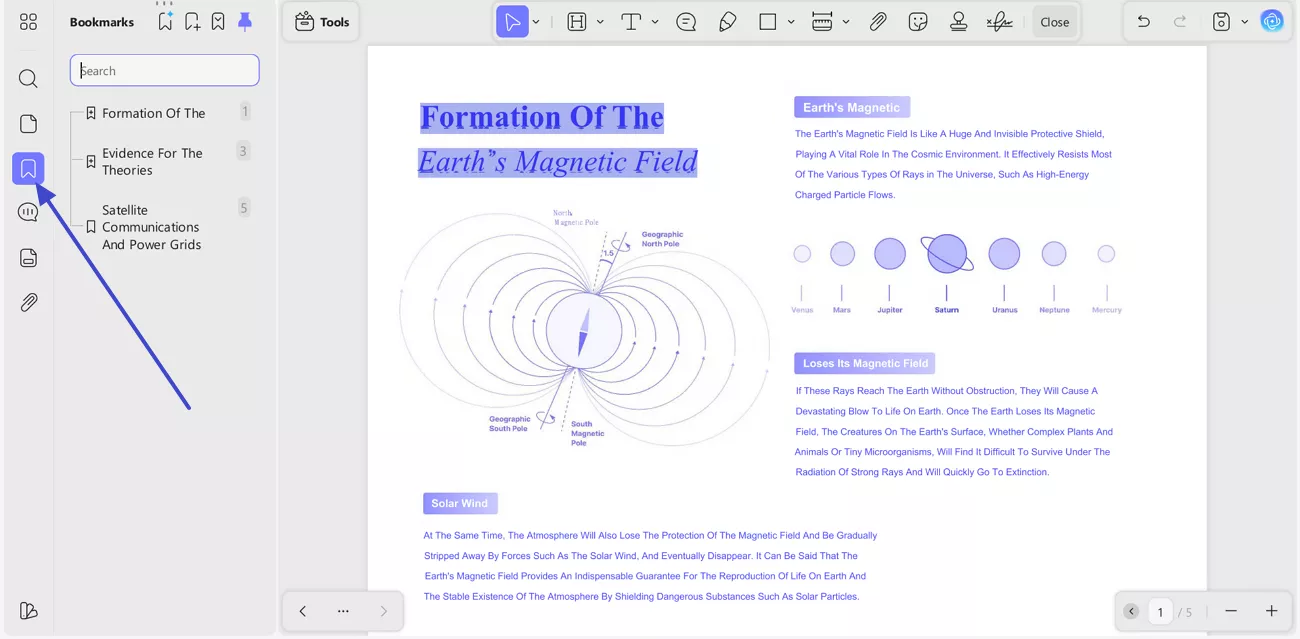
Step 1. Access the Bookmark Panel in UPDF
First, open your PDF in UPDF and click the “Bookmark” icon on the left sidebar. This opens the bookmark panel, where you can view existing entries and manage document navigation more easily.
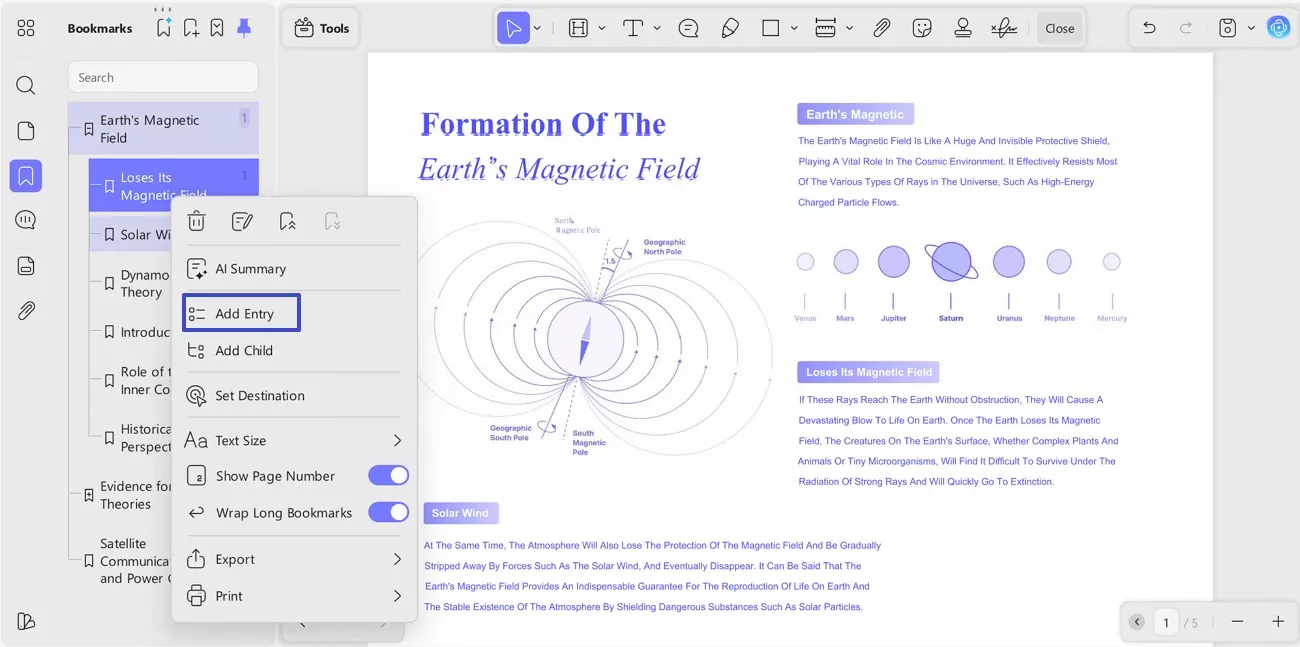
Step 2. Add a New Bookmark Entry
Next, choose the section where you want to create a bookmark clearly. Open the bookmark options menu, then pick “Add Entry” to insert it. This step helps mark important sections for faster access later.
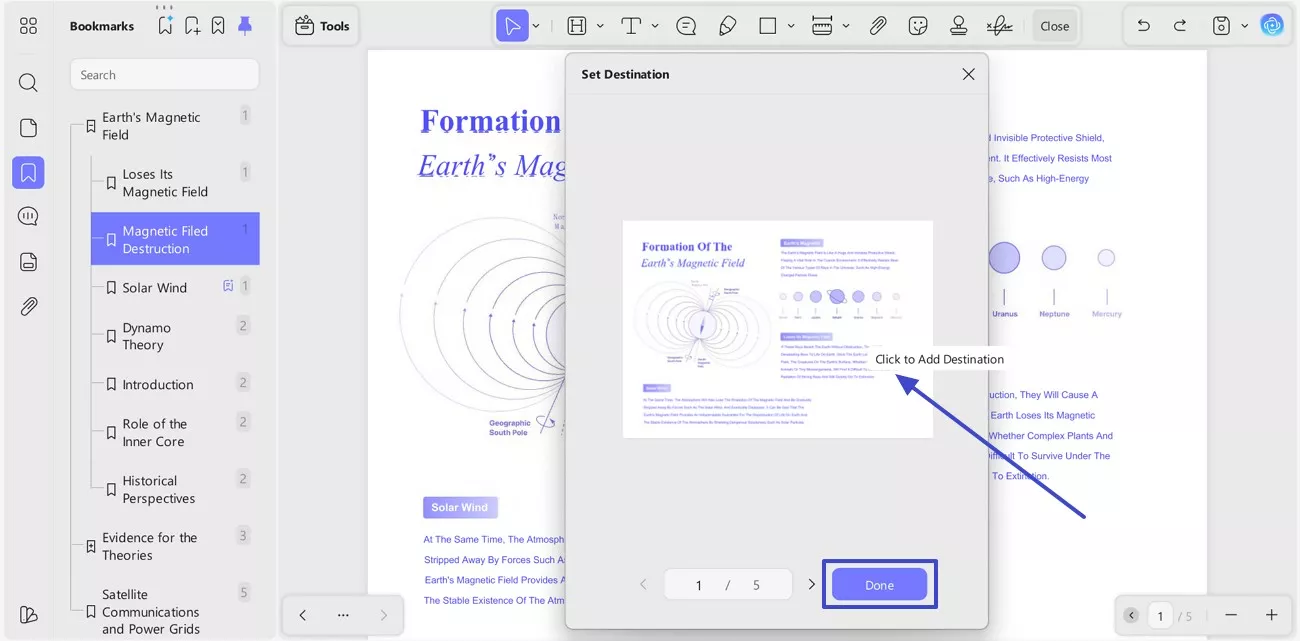
Step 3. Set the Bookmark Destination
After adding the entry, assign it to the correct page location immediately. Next, choose “Set Destination”, select the exact section shown in the preview, then press “Done” to confirm. This makes the bookmark jump to the right content instantly.
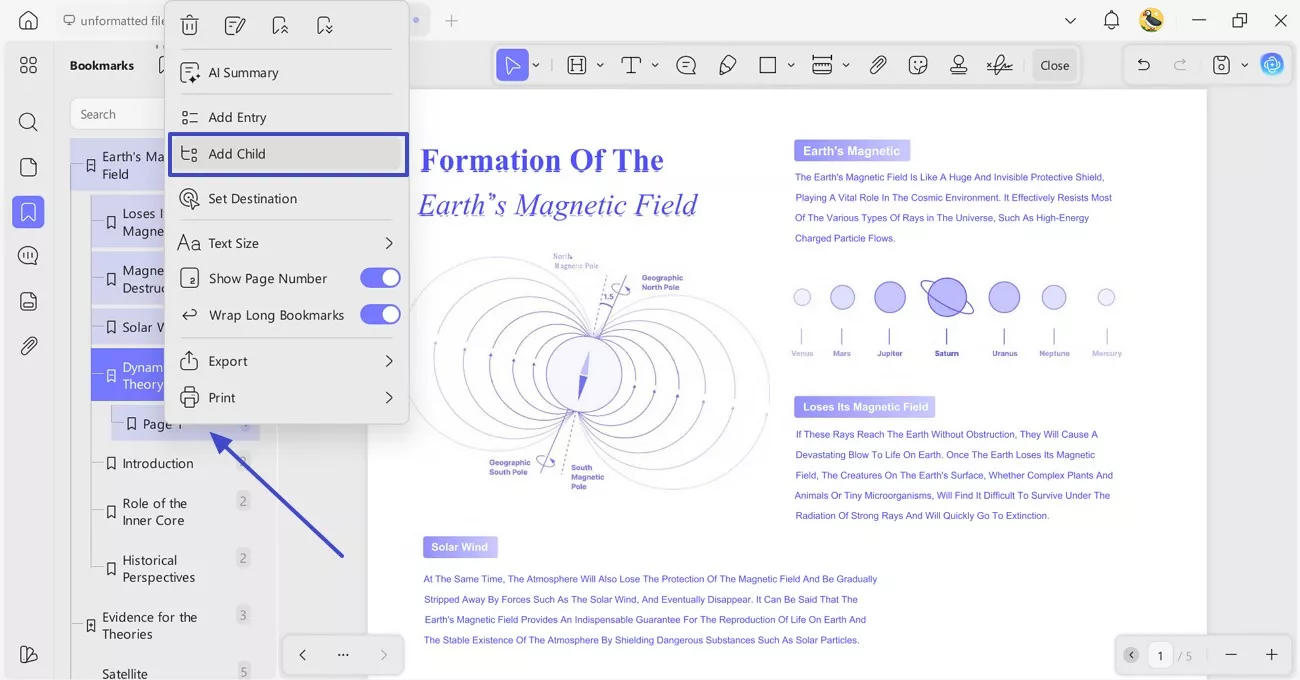
Step 4. Add a Child Bookmark
If one topic contains smaller subtopics, create a child bookmark under it. Select the main bookmark first, then click “Add Child” from the options menu. This keeps long PDFs organized with a clearer reading structure.
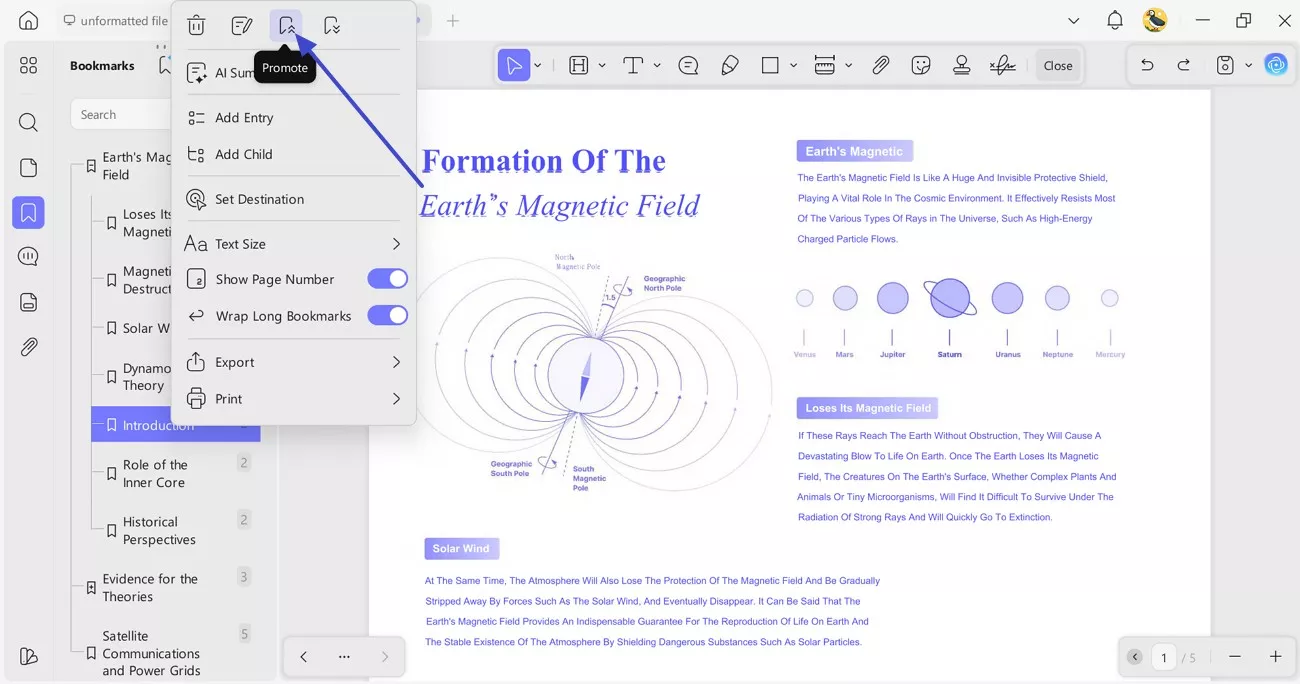
Step 5. Promote a Bookmark in UPDF
Sometimes a bookmark needs to move higher in the document hierarchy later. In that case, select the bookmark and select the “Promote” option above. This lifts it upward and makes it a higher-level heading.
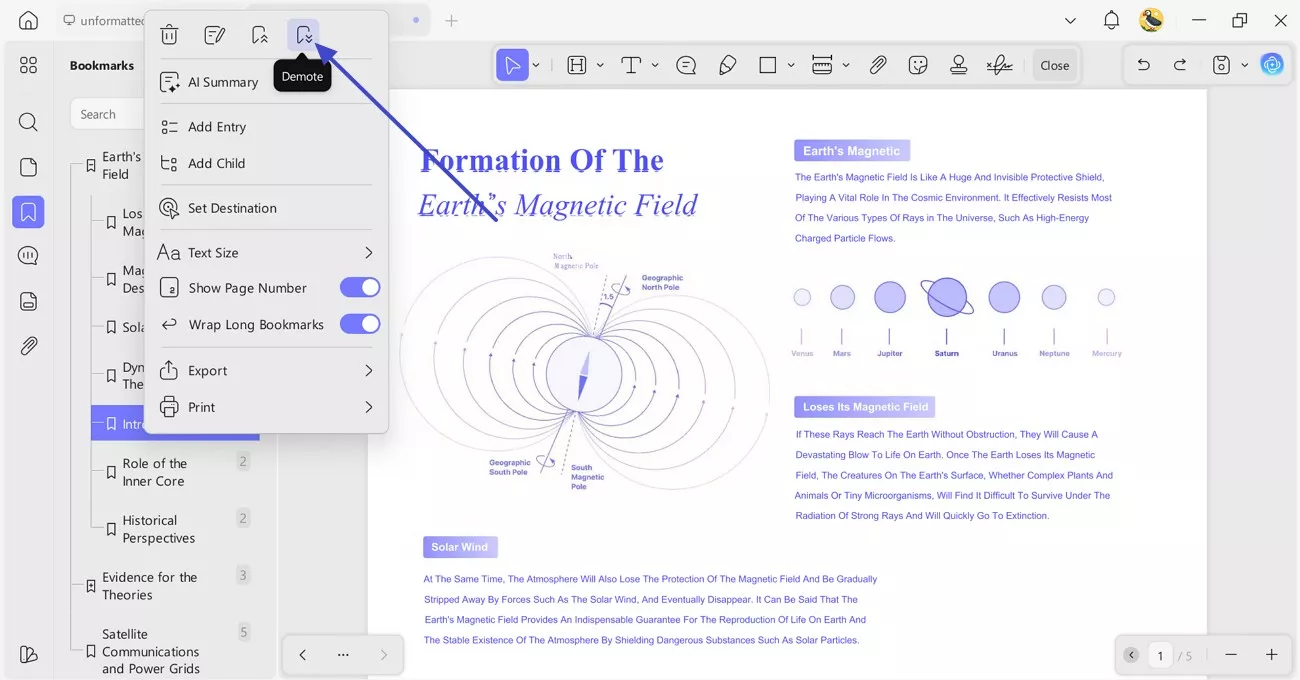
Step 6. Demote a Bookmark in UPDF
If a bookmark belongs under another heading, use the “Demote” option instead. This helps group related points under broader document sections neatly.
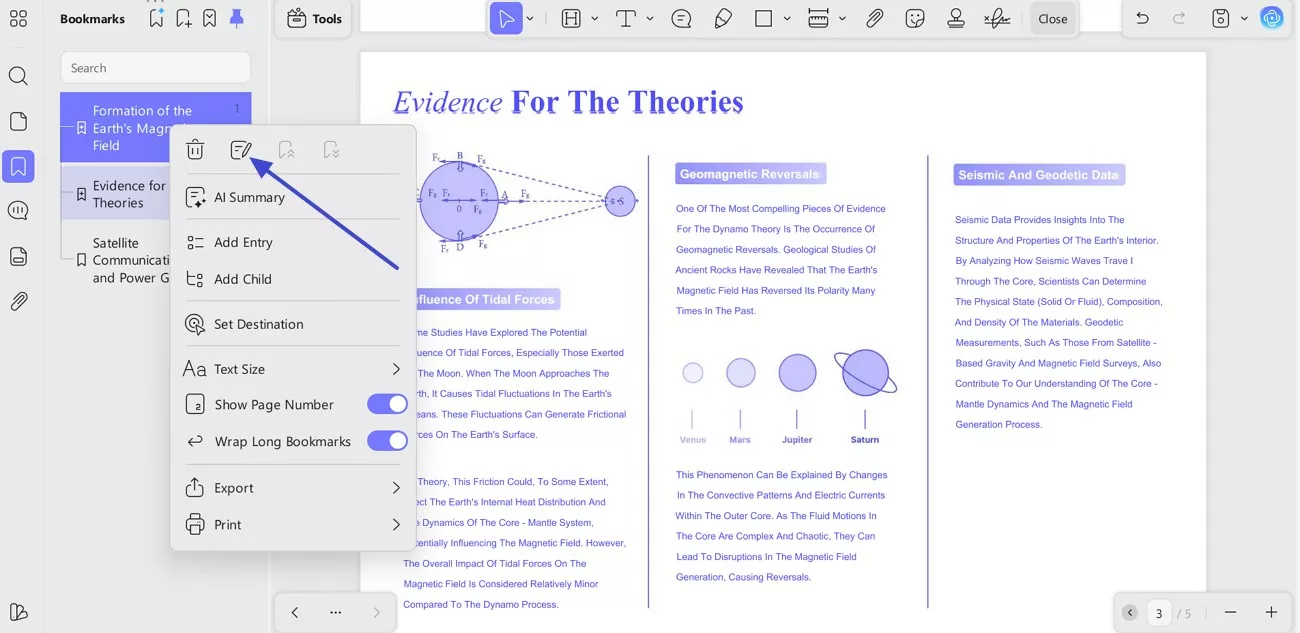
Step 7. Edit the Bookmark Name
To make navigation clearer, edit bookmark names so each title stays meaningful. Thus, right-click to choose the “Edit” icon and rename the selected bookmark using precise wording. Better bookmark names help readers scan long documents much faster.
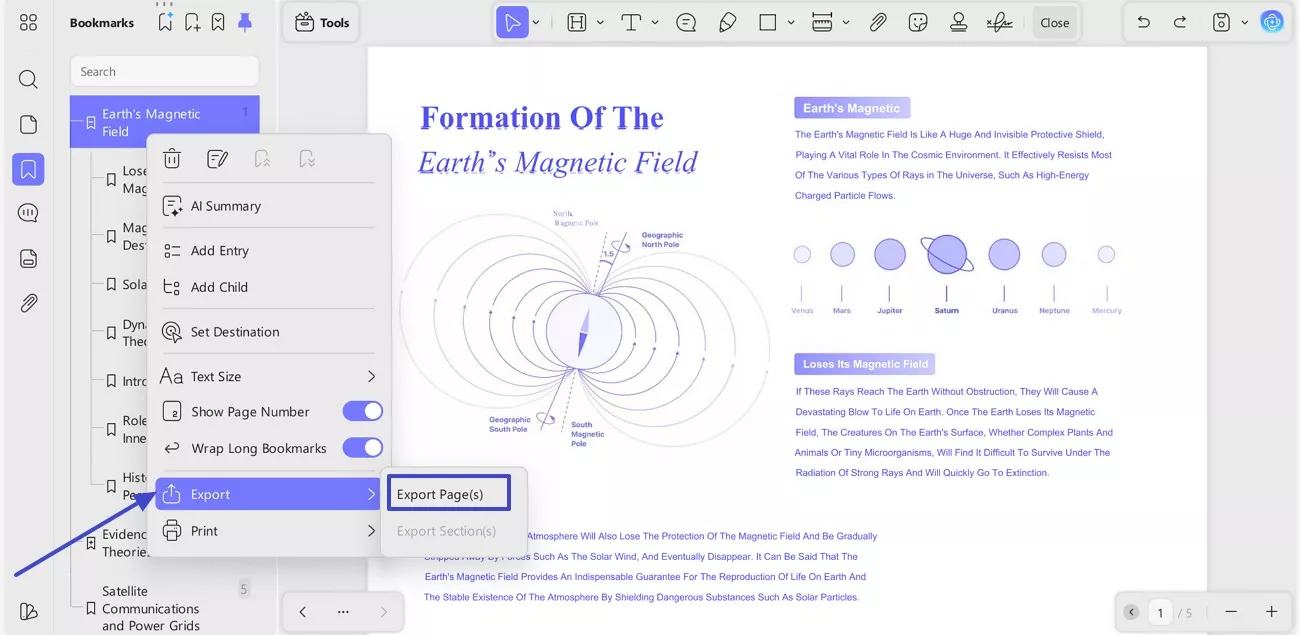
Step 8. Export Pages from Bookmarks
Finally, open the bookmark menu, choose “Export”, then select “Export Page(s)” to continue. This is useful for sharing only selected sections from larger PDFs.
Bonus Tips: How to Automatically Generate Bookmarks in PDF?
Long PDFs often become harder to scan when sections lack a clear structure. UPDF solves that problem with its new AI bookmark tools. It can detect headings, build parent and child entries, reorganize messy outlines, and even translate bookmarks into different languages. That makes PDF reader with bookmarks workflows faster, cleaner, and far easier for everyday reading.
Moreover, UPDF adds another helpful upgrade for readers handling dense reports or study files. Its AI can summarize selected bookmarks instantly. This turns bookmarks into quick reading guides instead of simple navigation links only. Adhere to the steps below to try this feature with ease:
Windows • macOS • iOS • Android 100% secure
Step 1. Generate Bookmarks Automatically in UPDF
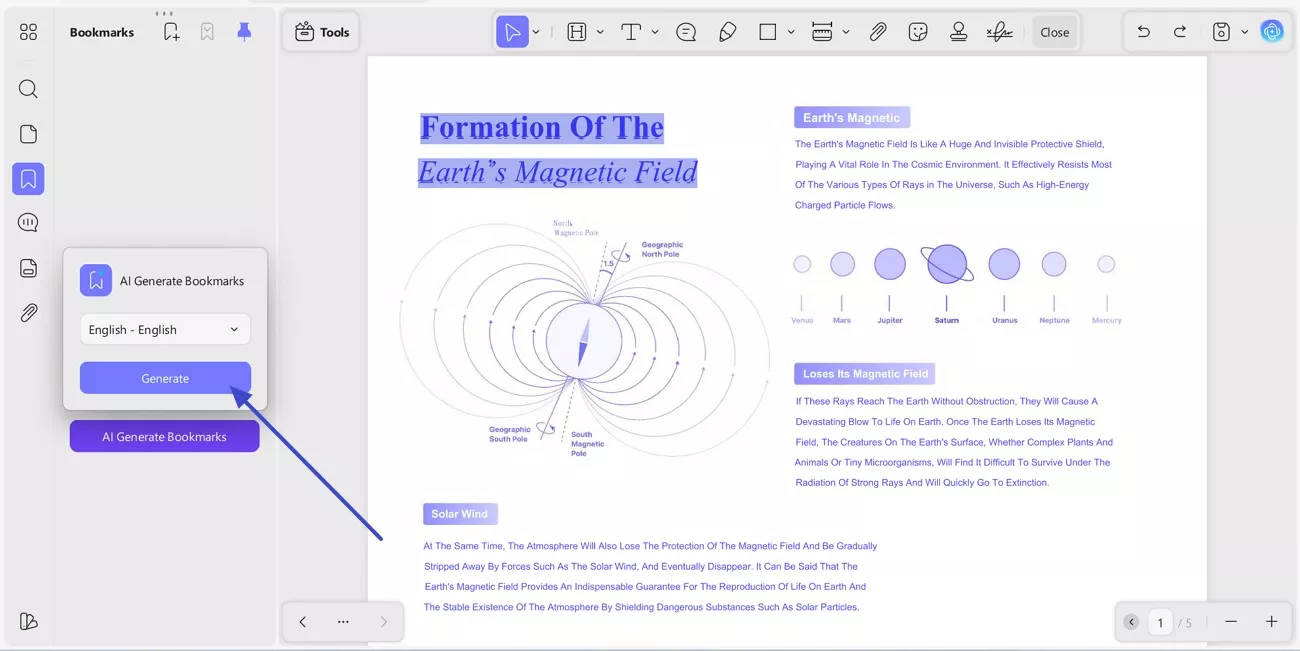
To start, access the Bookmarks panel and pick “AI Generate Bookmarks” on the left side. Then choose the “Language” option, UPDF supports 26 languages, like Americans can read Korean documents and generate bookmarks in English! If needed and press “Generate”. This creates a structured bookmark list automatically in your referred language, which is helpful when the PDF has no outline yet, and even with existing bookmarks, UPDF also supports one-click bookmark generation and replacement using AI.
Step 2. Choose AI Summary for the Selected Bookmark
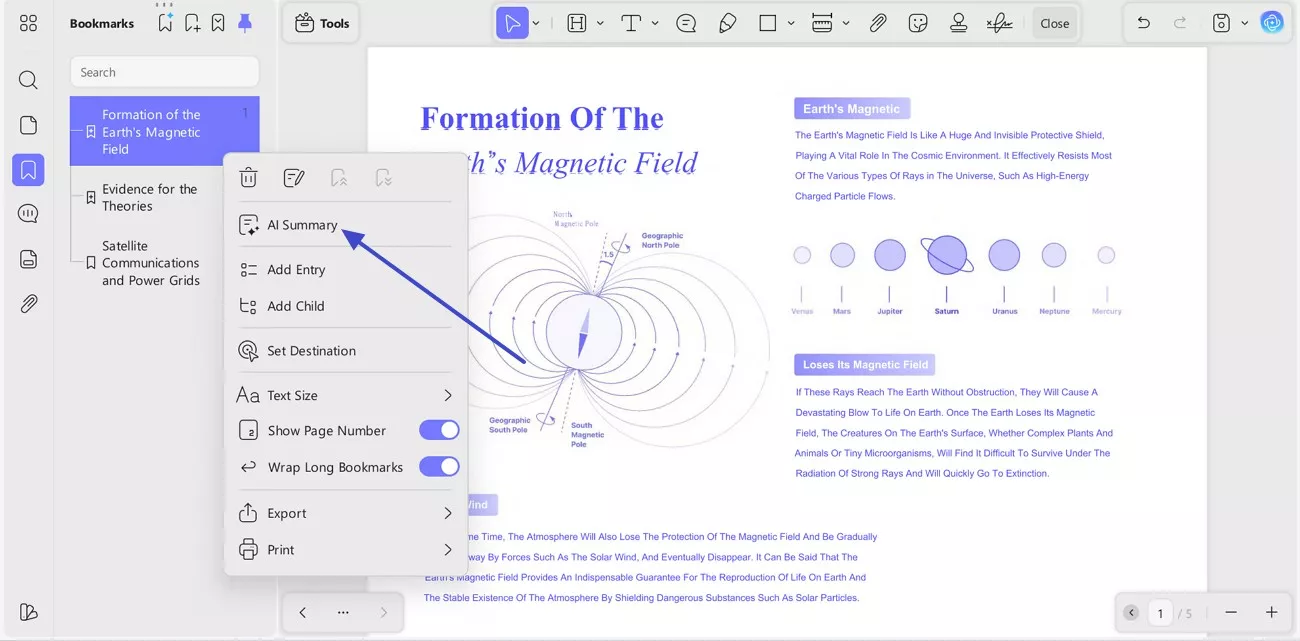
After the bookmark list appears, select the chapter or section you want summarized. Then open the bookmark options menu and pick “AI Summary”. This tells UPDF to create a short summary for that bookmarked section.
Step 3. Review and Manage the Summary
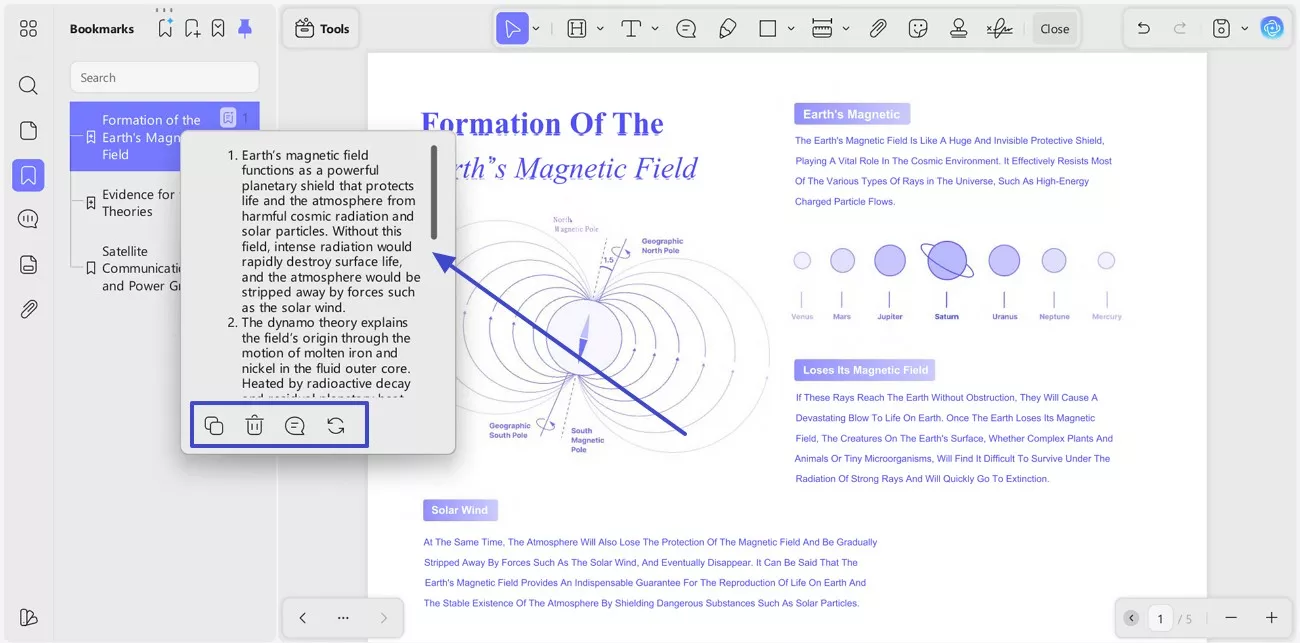
Once the summary is generated, a “Popup” will appear beside the selected bookmark. You can read the key points quickly and use the action buttons below it. These options let you copy, delete, view, or regenerate the summary when needed.
Conclusion
To conclude, choosing the right tool makes long PDFs easier to read, search, and organize every day. Whether you study, work, or review reports on a desktop or need a "PDF reader with bookmarks iOS" option, UPDF - top PDF reader with bookmark tool delivers the smoothest experience overall for most users. Moreover, follow this guide for better bookmark control, or download UPDF now for faster, smarter, and cleaner PDF navigation.
Windows • macOS • iOS • Android 100% secure





 Lizzy Lozano

 Enya Moore

- DrMeridian