 UPDF
UPDF
 UPDF for Windows
 UPDF for Mac
 UPDF for iPhone/iPad
 UPDF for Android
 UPDF AI Online
 UPDF Sign
 Edit PDF
 Annotate PDF
 Create PDF
 PDF Form
 Edit links
 Convert PDF
 OCR
OCR PDF to Word
 PDF to Image
 PDF to Excel
 Organize PDF
 Merge PDF
 Split PDF
 Crop PDF
 Rotate PDF
 Protect PDF
 Sign PDF
 Redact PDF
 Sanitize PDF
 Remove Security
 Read PDF
 UPDF Cloud
 Compress PDF
 Print PDF
 Batch Process
 About UPDF AI
 UPDF AI Solutions
 AI User Guide
 FAQ about UPDF AI
 Summarize PDF
 Translate PDF
 Chat with PDF
 Chat with AI
 Chat with image
 PDF to Mind Map
 Explain PDF
 PDF AI Tools
 Image AI Tools
 AI Chat Tools
 AI Writing Tools
 AI Study Tools
 AI Working Tools
 Other AI Tools
 AI Bookmark Generation
 AI Bookmark Summary
 AI Watermark Generation
 AI Background Generation
 AI Sticker Generation
 AI Stamp Generation
 AI Editing Suite
 UPDF Copilot
 AI Page Management
 AI Semantic Search
 PDF to Word
 PDF to Excel
 PDF to PowerPoint
 Enterprise Solution
 Enterprise Sign
 Enterprise AI
 Enterprise Plan
 Enterprise User Guide
 Enterprise Webinar
 Banking
 Healthcare
 Insurance
 Legal
Legal Manufacturing
 Government
 Education Solution
 Customer Stories
 User Guide
 UPDF Tricks
 FAQs
FAQs UPDF Reviews
 Download Center
 Blog
Blog Newsroom
 Tech Spec
 Updates
 UPDF vs. Adobe Acrobat
 UPDF vs. Foxit
 UPDF vs. PDF Expert

Dark mode inverts a PDF reader's color scheme — switching white backgrounds to dark gray or black, with light-colored text — reducing screen glare and eye strain during extended reading sessions or in low-light environments. Foxit PDF Reader supports dark mode on both desktop and mobile, though the method for enabling it differs by platform.
This guide walks through how to enable dark mode in Foxit PDF Reader on Windows, Mac, iOS, and Android, covers the key limitations of Foxit as a reading tool, and its better alternative - UPDF.
Windows • macOS • iOS • Android 100% secure
Part 1. Does Foxit PDF Reader Have Dark Mode?
Yes - Foxit Reader does offer a fantastic PDF Dark Mode feature. It's the perfect solution for those late-night reading marathons or in a dimly lit environment. With Foxit PDF Reader Dark Mode enabled Foxit Reader's interface transforms into a sleek and visually appealing design, making reading a breeze on your eyes. Not only does it reduce eye strain, but it also adds a touch of elegance to your PDF viewing experience.
One important distinction: Foxit's desktop dark mode changes the page background color rather than inverting the actual PDF content — meaning PDF pages with white backgrounds become dark, but images and embedded graphics retain their original appearance. This is the standard implementation for most PDF readers.
Part 2. How to Enable Dark Mode in Foxit PDF Reader (Desktop and Mobile)
Are you seeking to switch to Dark Mode with Foxit Reader? Look no further! If you're tired of the conventional bright interface, follow these simple steps to activate Dark Mode and enjoy the visual elegance it brings to your PDF reading experience.
On Windows/Mac:
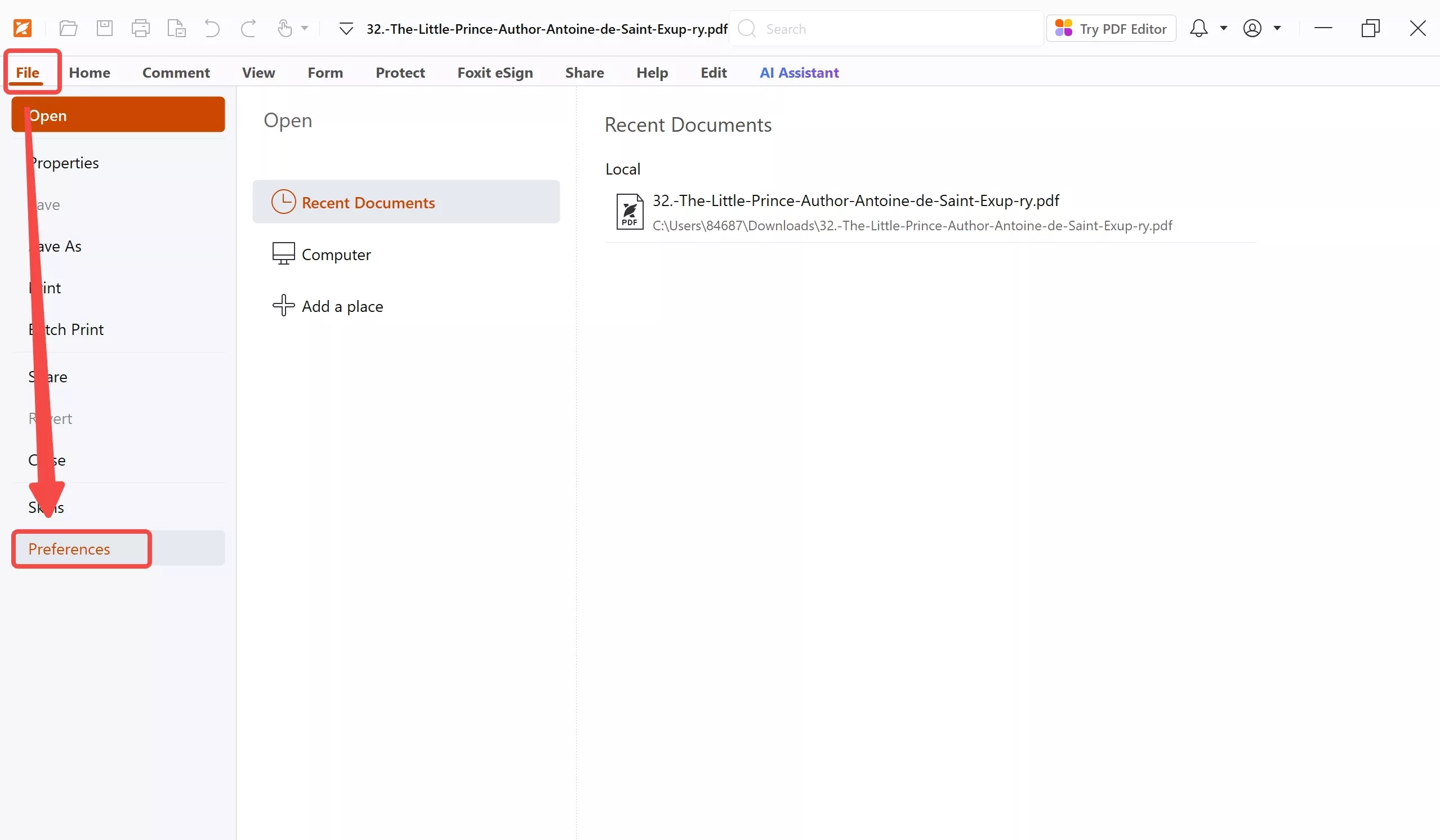
Step 1. Open Foxit PDF Reader. Click File in the top-left menu bar → select Preferences from the list.
Step 2. In the Preferences window, click Accessibility in the left sidebar.
Step 3. Under the Document Colors Options section, check Replace Document Colors. Then choose a dark color from the Page Background color picker, or select Use Windows color theme if Windows is already set to Dark Mode system-wide.
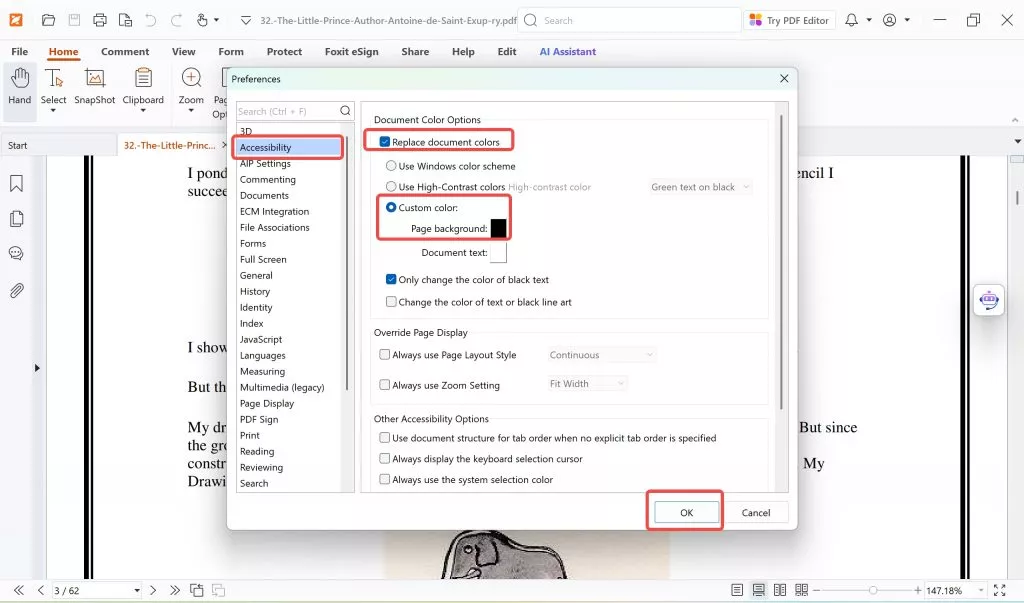
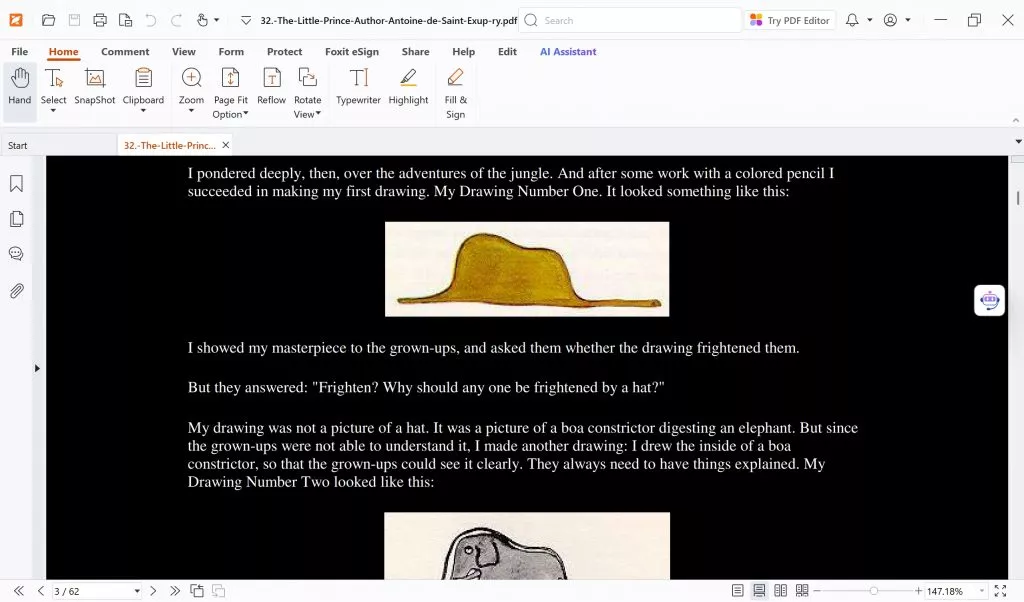
Step 4. Click OK to apply. The document background will change to the selected dark color.
For Phone Users (iOS/Android):
Note:
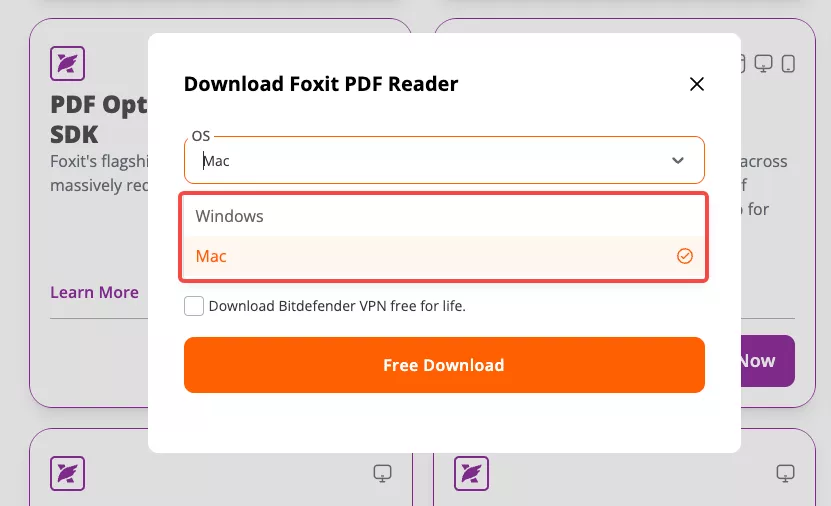
Here are the steps to enable Foxit Reader dark mode for phone users:
- Open the Foxit Reader app on your smartphone or tablet.
- Open a PDF file and tap "Reading" on the bottom toolbar. .
- Choose a dark color from the Page Background color picker.
- The interface will instantly switch to a darker theme, providing a more comfortable reading experience.
Also Read: Adobe Acrobat Dark Mode: Enabling, Limitations & Alternatives
Part 3. Limitations of Using Foxit Reader
Foxit Reader, while being a popular PDF reader, does have some limitations that may make it less appealing compared to other options available in the market. Here are a few disadvantages to consider when using Foxit Reader:
Discontinued Mobile Support & Forced Migration
The mobile iteration of Foxit Reader has effectively reached its end-of-life, having vanished from digital storefronts across numerous regions with no further software patches anticipated. With the desktop platforms now taking clear priority, users clinging to the outdated mobile app risk running unsupported software. This leaves existing mobile users in a difficult position, as they are compelled to adapt to the newly branded Foxit PDF Editor Mobile, creating unnecessary friction and disruption for those who preferred the simplicity of the original reader.
Steep Learning Curve
Foxit Reader can be a bit challenging for beginners due to its extensive range of features and customization options. It may take some time to navigate through the interface and become familiar with its functionalities, which could be a drawback for users seeking a more user-friendly and intuitive experience.
Complicated Interface
Some users find the interface of Foxit Reader to be overwhelming and cluttered. The abundance of menus, buttons, and options can make it difficult to locate specific features or perform simple tasks, resulting in a less streamlined user experience.
Limited Free Version
The free Foxit PDF Reader covers reading and basic annotation, but advanced features — including PDF editing, form creation, and document signing without watermarks — require upgrading to Foxit PDF Editor, which is priced significantly higher than comparable tools. As of 2026, Foxit PDF Editor starts at $129.99/year for individuals.
Frequent Upsells and Ads
Foxit Reader's free version often includes advertisements and promotional offers for their paid products, which can be intrusive and distracting during document viewing. These constant upsells may disrupt the reading experience and could be viewed as an annoyance by users who prefer a more focused and ad-free environment.
Compatibility Issues
Some users have reported compatibility issues when opening certain PDF files in Foxit Reader. In some cases, complex layouts, embedded fonts, or interactive elements may not display correctly or function as expected. This lack of seamless compatibility can be frustrating, mainly when working with files that rely heavily on complex formatting.
Part 4. Exploring a Superior PDF Reader with Dark Mode Compared to Foxit
When it comes to PDF editing, UPDF emerges as an exceptional alternative that surpasses Foxit Reader, offering a range of advanced features, including a sleek Dark Mode. UPDF supports dark mode on Windows, Mac, iOS, and Android — all four platforms follow the system-level dark mode setting automatically, so there's no per-app configuration needed once your device is set to dark mode. You can download UPDF via the below button to compare it with Foxit. The, follow the below guide to enable dark mode on your computer or device.
Windows • macOS • iOS • Android 100% secure
How to Enable Dark Mode in UPDF?
On Mac/Win:
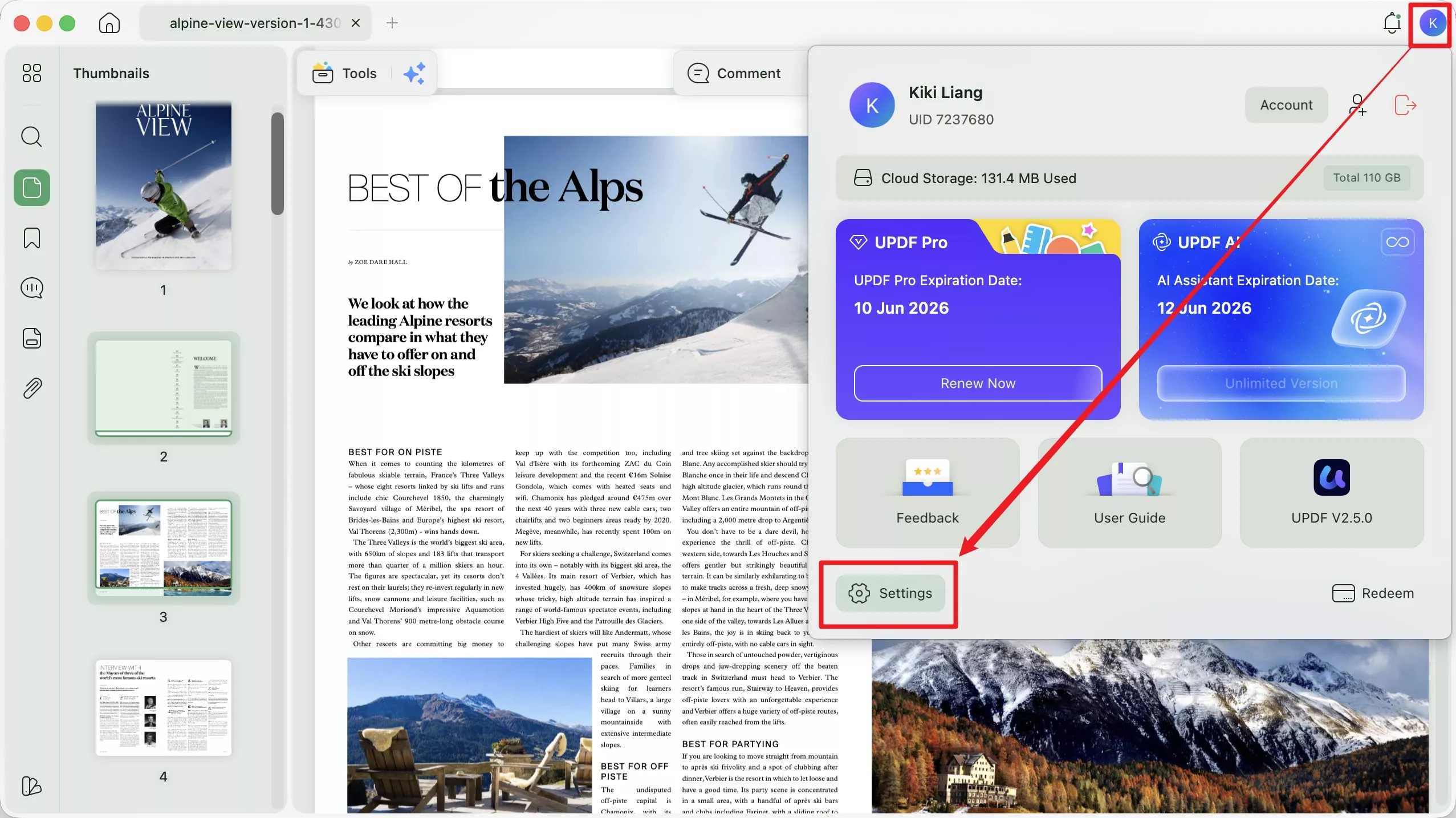
Step 1. Open UPDF → click your profile on the top-right corner → Settings (gear icon) → System Settings → Appearance.
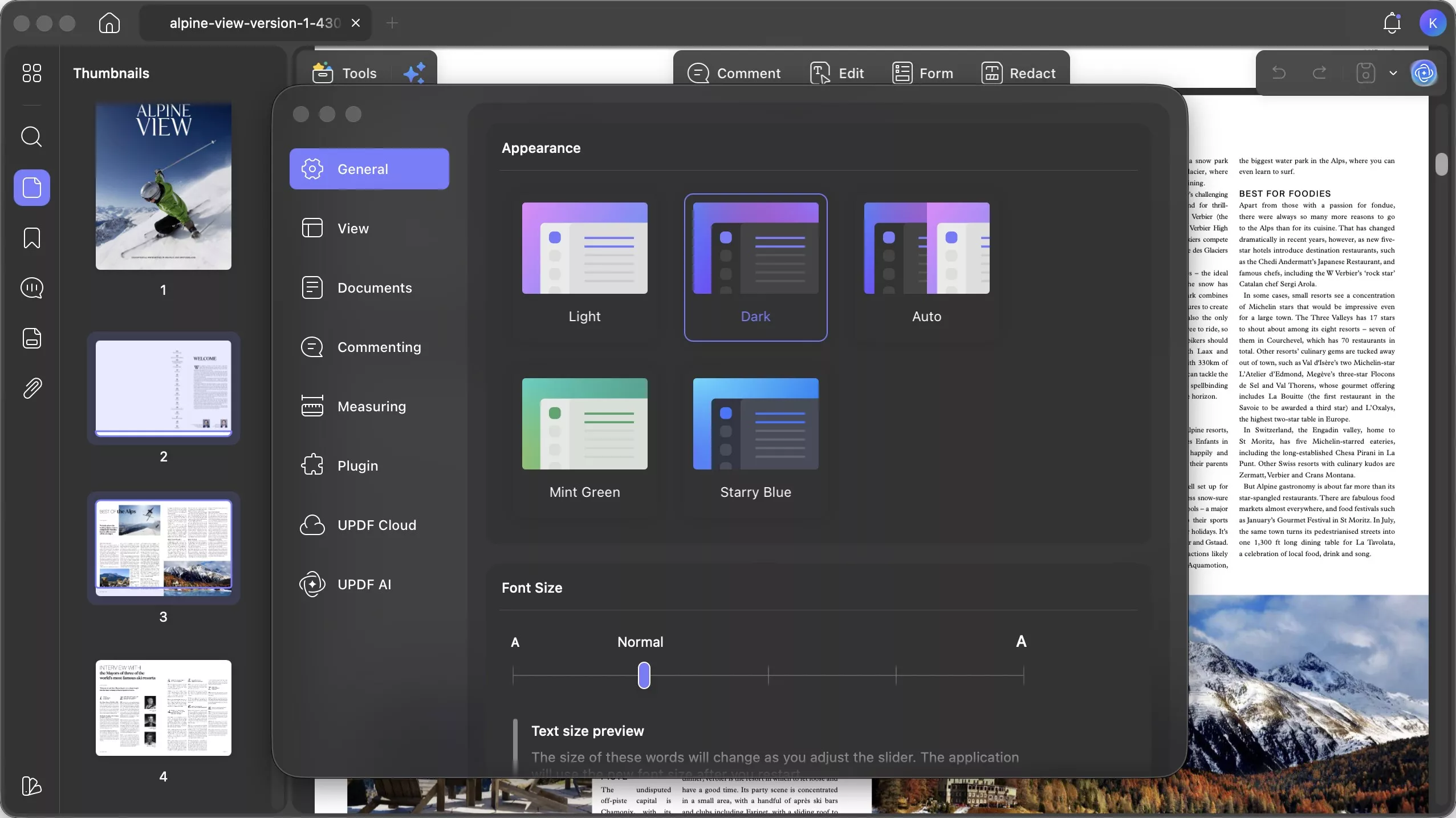
Step 2. Select Dark. UPDF will immediately reflect the change.
On iPhone/Android:
Step 1. Enable dark mode on your phone:
iPhone/Android: Settings → Display & Brightness → select Dark.
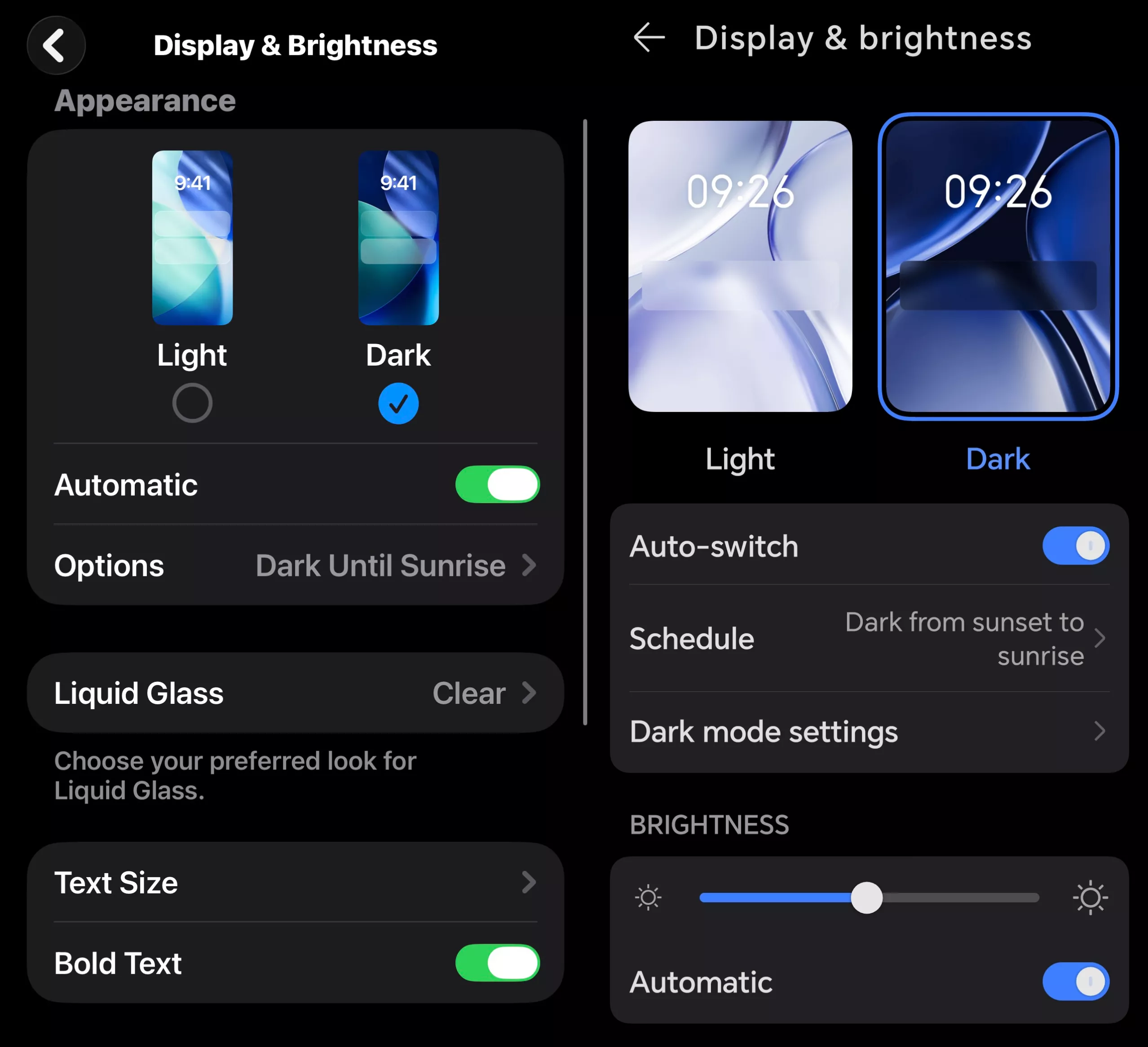
Step 2. Open UPDF — the interface and PDF backgrounds switch to dark mode automatically.
Why Choose UPDF Over Foxit for Reading and Working with PDFs?
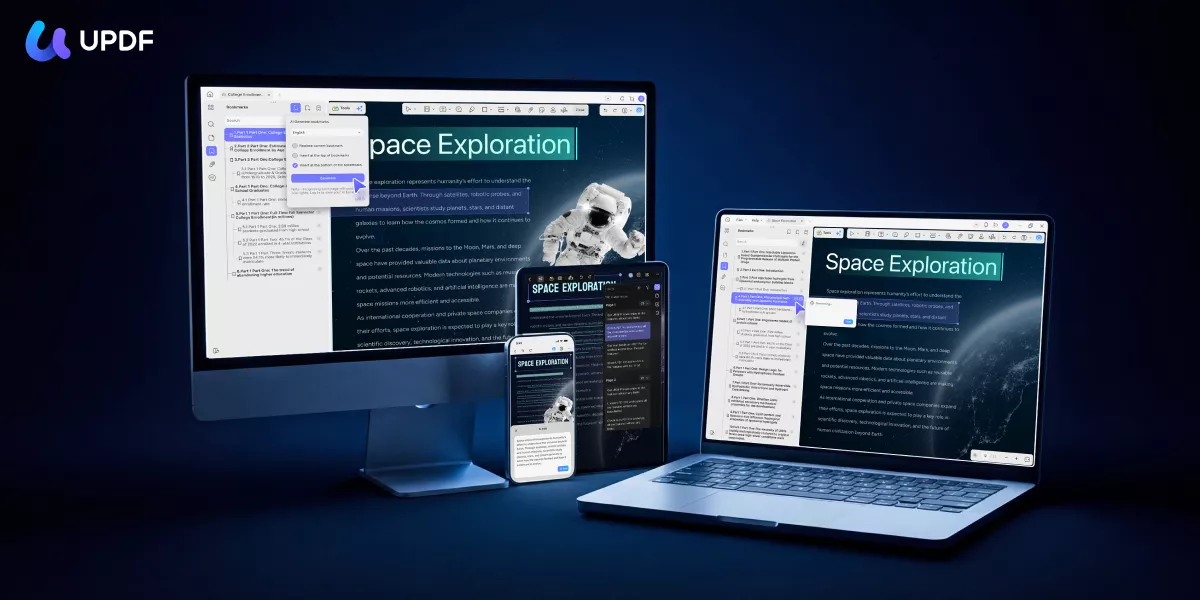
While Foxit PDF Reader has long been a go-to option for basic PDF viewing, its mobile version has been pulled from select app stores and is no longer updated, leaving many users without proper mobile support. In contrast, UPDF delivers a consistently up-to-date experience across Windows, macOS, iOS, and Android—all under a single license. Beyond broader platform support, UPDF also stands out with a more intuitive interface, built-in AI tools (such as chatting with PDFs, summarizing, and translating), and robust features for annotating, editing, converting, and organizing PDFs (free to use with trial watermark added). For users seeking a modern, all-in-one PDF solution without the limitations of Foxit’s fragmented offerings, UPDF is the more flexible and future-ready choice.
Windows • macOS • iOS • Android 100% secure
Reading experience
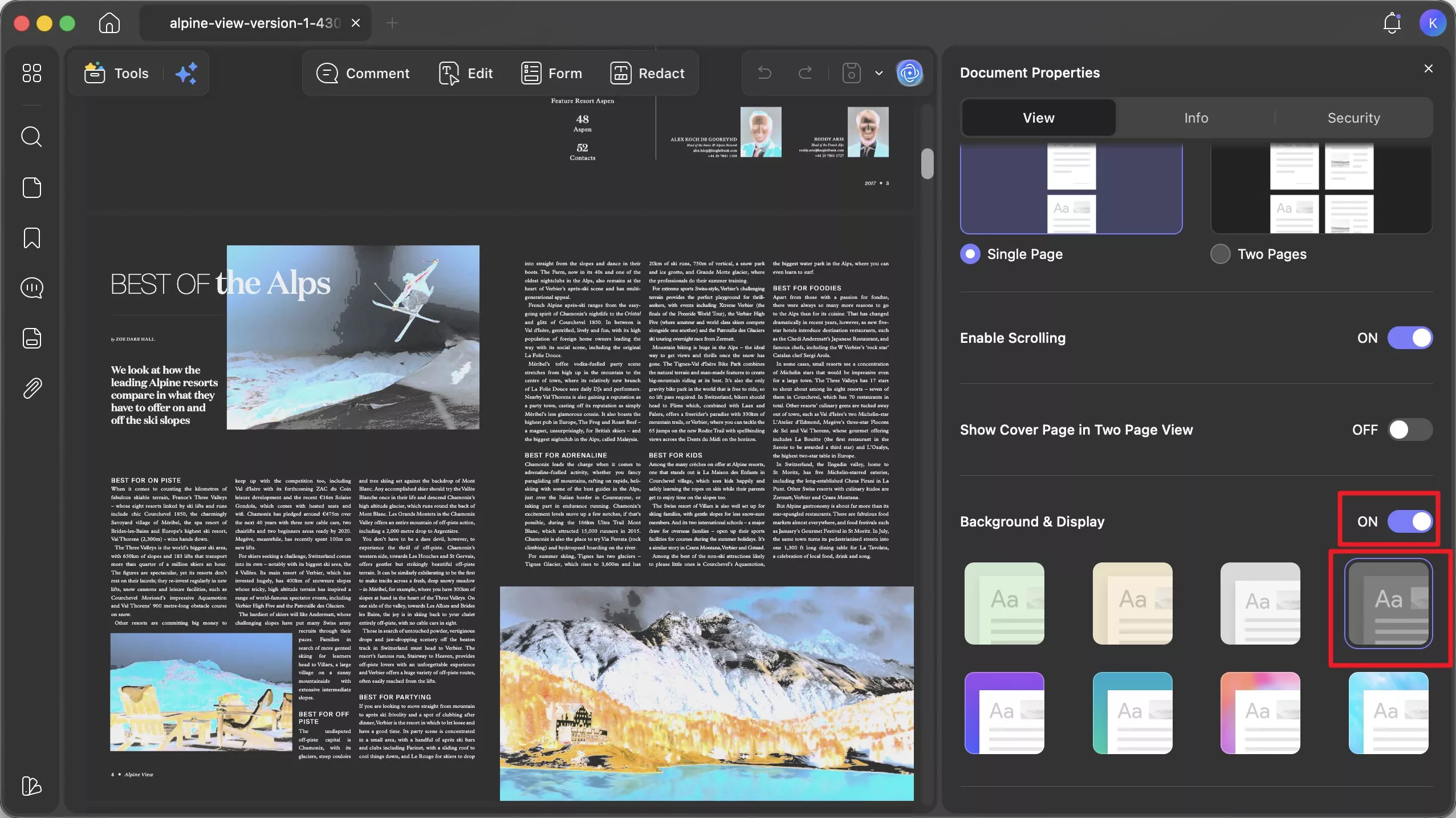
UPDF's dark mode applies cleanly across all reading modes — single-page, two-page, scrolling, and slideshow — with warm and cool theme options (amber, cool blue) that go beyond a simple black background. Additionally, you can modify the colors in Background & Display to invert the actual PDF content — meaning not only do pages with white backgrounds turn dark, but images and embedded graphics are also inverted. The interface is uncluttered by ads or upsell prompts.
AI-powered Reading Tools
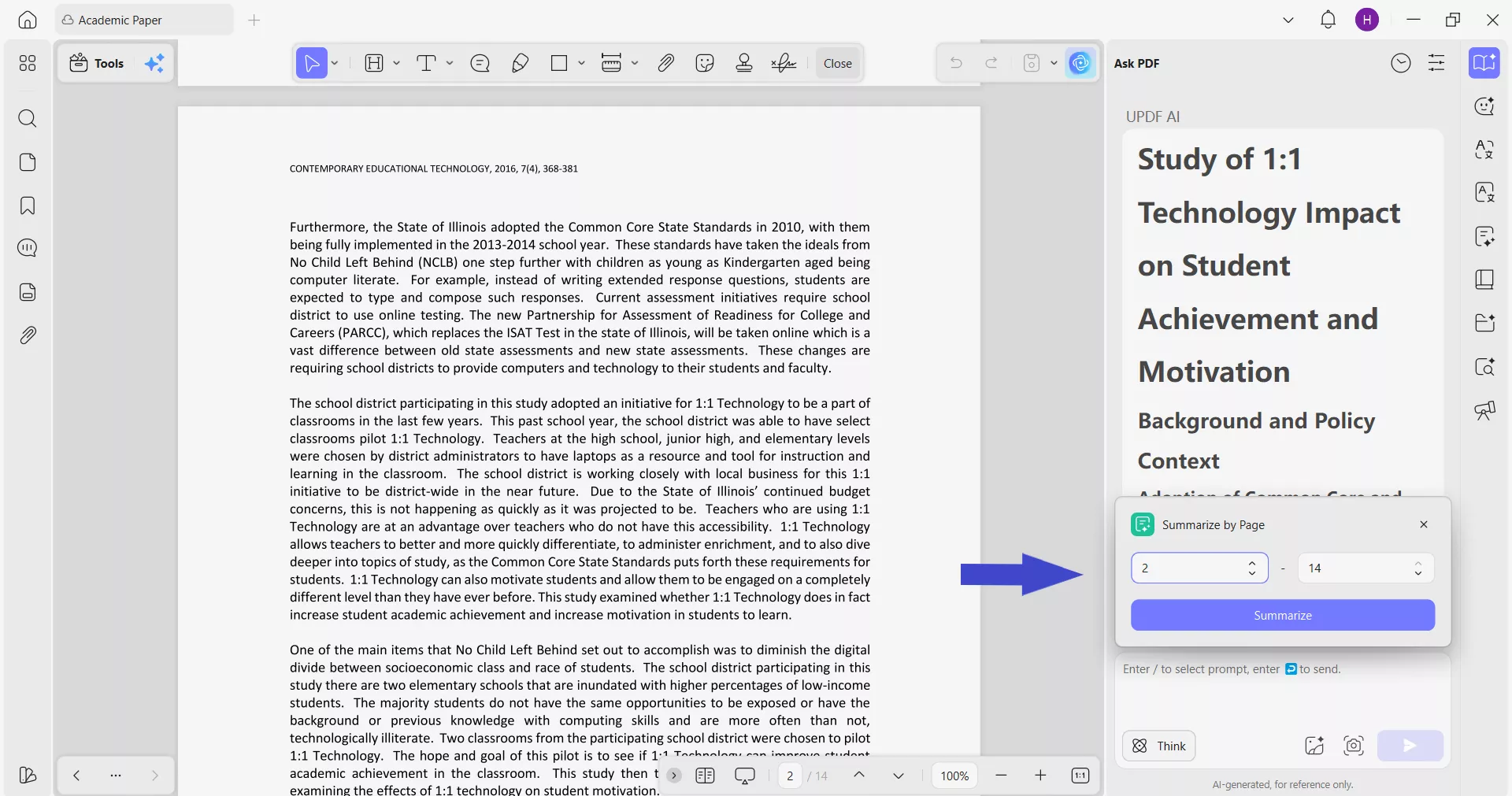
- Chat with PDF: Open any document in UPDF and ask questions about its content in plain language. Instead of scrolling through a long report or contract in dark mode, you can ask "What are the key obligations in section 4?" and get an instant answer. This is especially useful for dense documents that require active engagement, not just passive reading.
- AI Bookmark Generator: Many PDFs you open in dark mode — research papers, downloaded ebooks, multi-chapter reports — have no built-in table of contents. UPDF's AI Bookmark Generator automatically scans the document structure and creates a navigable chapter outline in one click, making long-session dark mode reading significantly more structured.
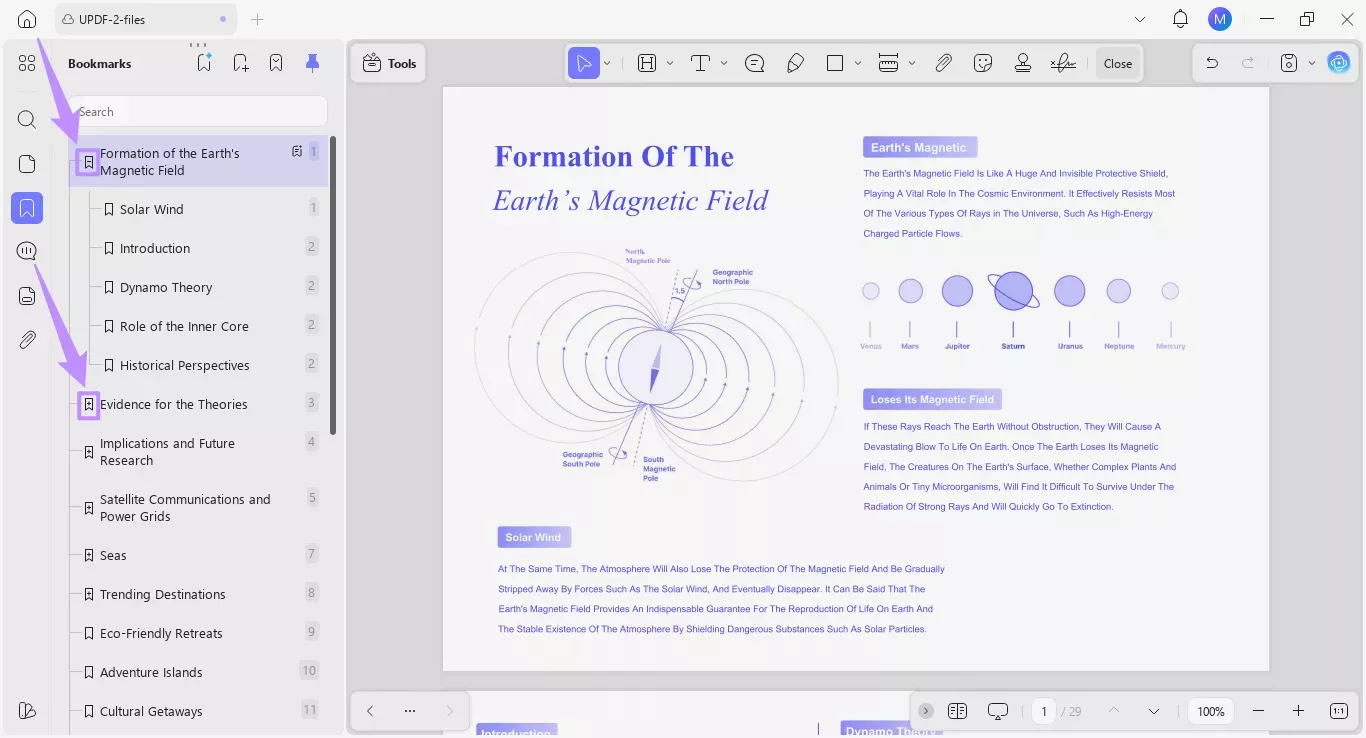
- AI Bookmark Summarizer: Once bookmarks are generated, this agent produces a concise summary for each chapter or section — letting you preview what each part covers before committing to a full read, ideal for late-night sessions when you want to prioritize which parts to read.
- AI Semantic Search: UPDF surfaces synonyms alongside exact keyword matches, so you can find relevant passages in a long PDF without remembering the exact wording. Particularly useful when reading in dark mode on a document you've only partially read.
- Summarize and Translate: Select any passage and ask UPDF AI to summarize the key points, or translate the text into another language — directly within the PDF, without switching tools.
Editing and annotation
UPDF supports editing text and images directly within PDF files, all standard annotation tools (highlights, sticky notes, stamps, shapes, freehand drawing), OCR in 38 languages for scanned documents, and conversion to and from 14 formats including Word, Excel, and PowerPoint.
Cloud Integration
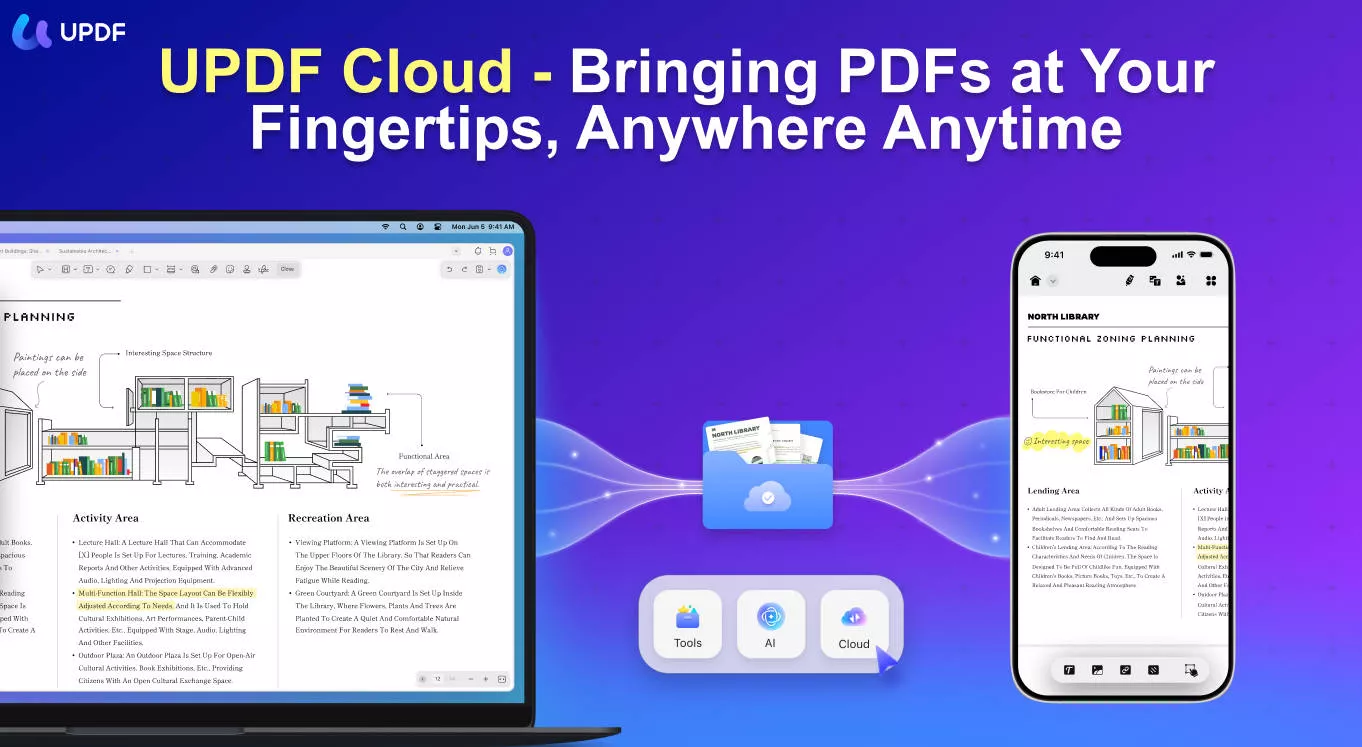
UPDF seamlessly integrates with UPDF Cloud, providing users with convenient cloud storage and synchronization options. This allows for easy access to documents across multiple devices, ensuring a smooth and seamless workflow. While Foxit dark mode also offers cloud integration, UPDF's integration is known for its user-friendly and reliable performance.
It is impossible to include all features here, you can download UPDF to test it on your own or read this review article to learn more.
Windows • macOS • iOS • Android 100% secure
Part 5. Foxit Reader Vs. UPDF, Which is the Best Option for Dark Mode?
Choosing the best PDF reader and editor can greatly impact your productivity and reading experience. Let's compare Foxit Reader and UPDF to determine which option is the ultimate choice for your PDF needs.
| Features | Foxit Reader | UPDF |
|---|---|---|
| Dark Mode | ||
| Sign PDF | ||
| Fill PDF Forms | ||
| Annotate PDF | ||
| AI Chat | ||
| Edit PDF | ||
| OCR | ||
| Flatten PDF | ||
| Save PDF as PDF/A | ||
| Supported Devices | Mac, Win (Mobile unsupported in some regions) | Mac, Win, iOS, Android |
| Rating | 3.8 | 4.8 |
It is clear that UPDF is the best choice if you want a PDF reader with dark mode, more features, and more stable performance. If you are impressed by UPDF, you can purchase its pro version with a big discount.
Conclusion
Enabling dark mode in Foxit PDF Reader is straightforward on both desktop and mobile. For most users, this provides a comfortable reading experience for low-light sessions. If you find yourself wanting more from your PDF reader — AI-assisted reading, cleaner navigation through long documents, a completely ad-free interface, or PDF editing without paying extra (although a trial watermark is added) — UPDF addresses all of those gaps in one app.
Download UPDF for free and try it on your next dark-mode reading session — no subscription required to get started.
Windows • macOS • iOS • Android 100% secure






 Enya Moore
  Enid Brown
 Lizzy Lozano
 Enola Miller
 Enola Davis