 UPDF
UPDF
 UPDF for Windows
 UPDF for Mac
 UPDF for iPhone/iPad
 UPDF for Android
 Nomostar
 UPDF AI Online
 UPDF Sign
 IvyCraft
 Edit PDF
 Annotate PDF
 Create PDF
 PDF Form
 Edit links
 Convert PDF
 OCR
OCR PDF to Word
 PDF to Image
 PDF to Excel
 Organize PDF
 Merge PDF
 Split PDF
 Crop PDF
 Rotate PDF
 Protect PDF
 Sign PDF
 Redact PDF
 Sanitize PDF
 Remove Security
 Read PDF
 UPDF Cloud
 Compress PDF
 Print PDF
 Batch Process
 About UPDF AI
 UPDF AI Solutions
 AI User Guide
 FAQ about UPDF AI
 Summarize PDF
 Translate PDF
 Chat with PDF
 Chat with AI
 Chat with image
 PDF to Mind Map
 Explain PDF
 PDF AI Tools
 Image AI Tools
 AI Chat Tools
 AI Writing Tools
 AI Study Tools
 AI Working Tools
 Other AI Tools
 AI Bookmark Generation
 AI Bookmark Summary
 AI Watermark Generation
 AI Background Generation
 AI Sticker Generation
 AI Stamp Generation
 AI Editing Suite
 UPDF Copilot
 AI Page Management
 AI Semantic Search
 PDF to Word
 PDF to Excel
 PDF to PowerPoint
 Enterprise Solution
 Enterprise Sign
 Enterprise AI
 Enterprise Plan
 Enterprise User Guide
 Enterprise Webinar
 Banking
 Healthcare
 Insurance
 Legal
Legal Manufacturing
 Government
 Education Solution
 Customer Stories
 User Guide
 UPDF Tricks
 FAQs
FAQs UPDF Reviews
 Download Center
 Blog
Blog Newsroom
 Tech Spec
 Updates
 UPDF vs. Adobe Acrobat
 UPDF vs. Foxit
 UPDF vs. PDF Expert

Quick answer:
That single path works in every version of Adobe Acrobat — but what you can do next differs sharply. Acrobat desktop lets you delete with a keyboard key or a right-click; Acrobat online's Organize Pages tool offers neither, so you delete from a floating toolbar instead; and the Acrobat Reader mobile app has no Select All at all, so you tap pages one by one.
Those differences are the part most guides skip, and they're exactly where a five-second job turns into a five-minute one. Below I cover all three Acrobat surfaces — desktop, web, and the Reader mobile app — then show the same task in UPDF, which keeps the same shortcuts on Windows, Mac, iOS, and Android so you don't have to relearn the steps per device.
Part 1. How to Delete a Page in Adobe Acrobat (Desktop)
The desktop version of Adobe Acrobat Pro gives you the most complete page-deletion controls of any Acrobat surface, including range-based selection and keyboard shortcuts.
Step 1. Open your PDF in Adobe Acrobat, click All Tools in the top menu, then choose Organize Pages. The page thumbnails appear in the main workspace.
Step 2. Select the pages you want to remove. You can drag the cursor across several thumbnails to select a block, or open the Page Selected dropdown to target pages by rule — Even Pages, Odd Pages, Landscape Pages, Portrait Pages, All Pages, or a typed page range such as 2-5, 8.
Step 3. Delete the selection. On desktop you have three ways to do it: click the Delete button in the floating toolbar, right-click the selection and choose Delete Pages, or press the Delete key on your keyboard. Save with Ctrl + S (Windows) or Cmd + S (Mac).
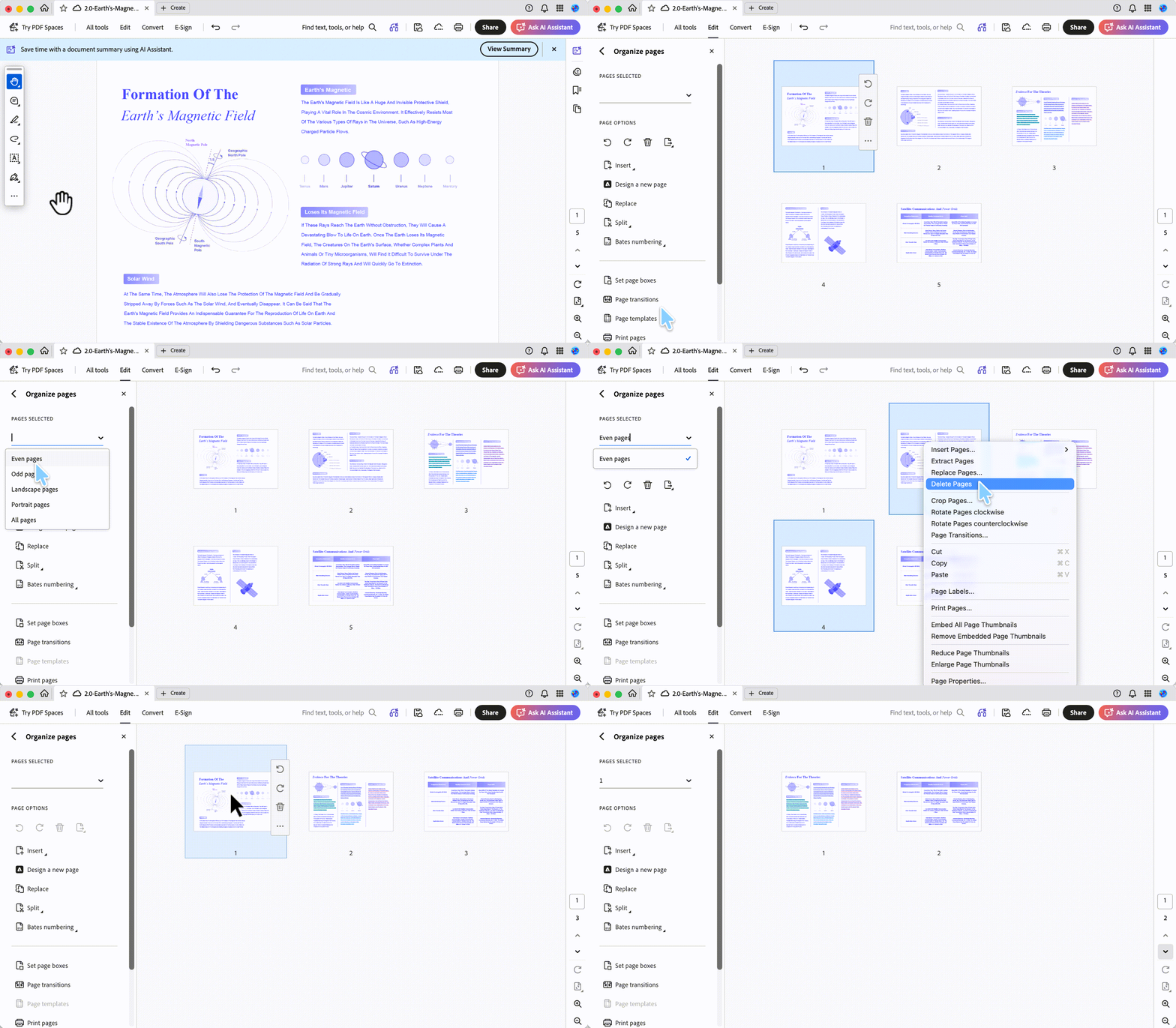
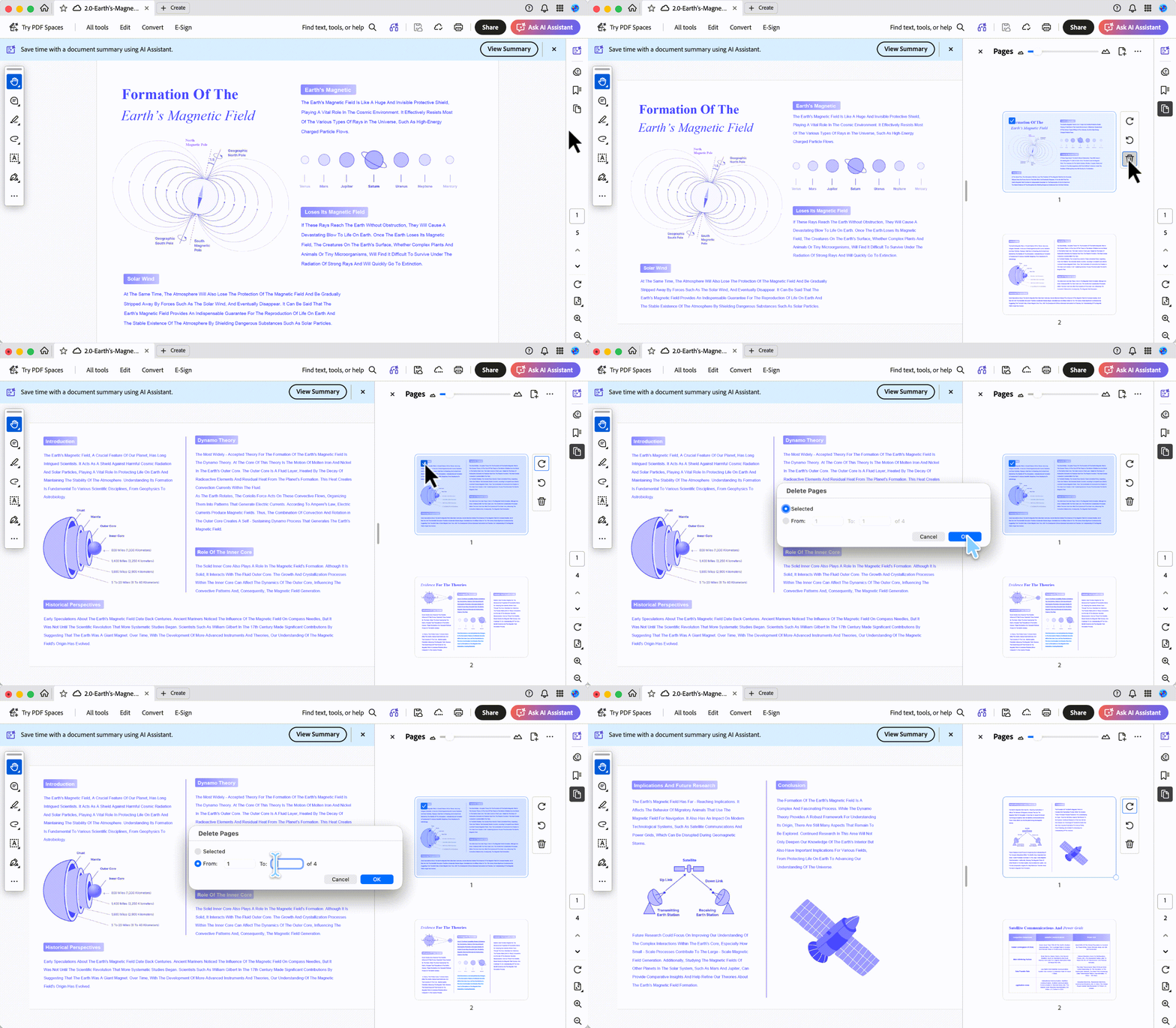
You can also delete straight from the left-hand thumbnail panel: select one or more page thumbnails, then click the Delete button from the floating toolbar, right-click the selection and choose Delete Pages or press the keyboard Delete key — no need to open Organize Pages for a quick single-page removal.
Best for:
- desktop users on Acrobat Pro who need rule-based selection (every blank odd page, every landscape page) or keyboard-speed deletion.
Not for:
- a quick deletion on a computer that doesn't already have Acrobat installed — the desktop app is a heavy install, so for a one-off page removal on a borrowed machine, the online tool or a lightweight editor gets you there faster.
Part 2. How to Delete a Page in Adobe Acrobat Online
If you don't have the desktop app installed, Acrobat's web tools can delete pages from a browser — but with fewer input options than desktop.
Step 1. Sign in at the Adobe Acrobat online tools and upload the PDF. (Acrobat online requires a file upload and account sign-in before any editing begins — worth noting if the document is sensitive. Because the file has to upload to Adobe's servers first, a large PDF or a slow connection can make loading noticeably sluggish.)
Step 2. Open the Organize Pages tool. Tick the checkbox on each page thumbnail you want to remove, or click Select All at the top to select every page in the file.
Step 3. Click the Delete (trash) icon in the floating toolbar, then save your changes.
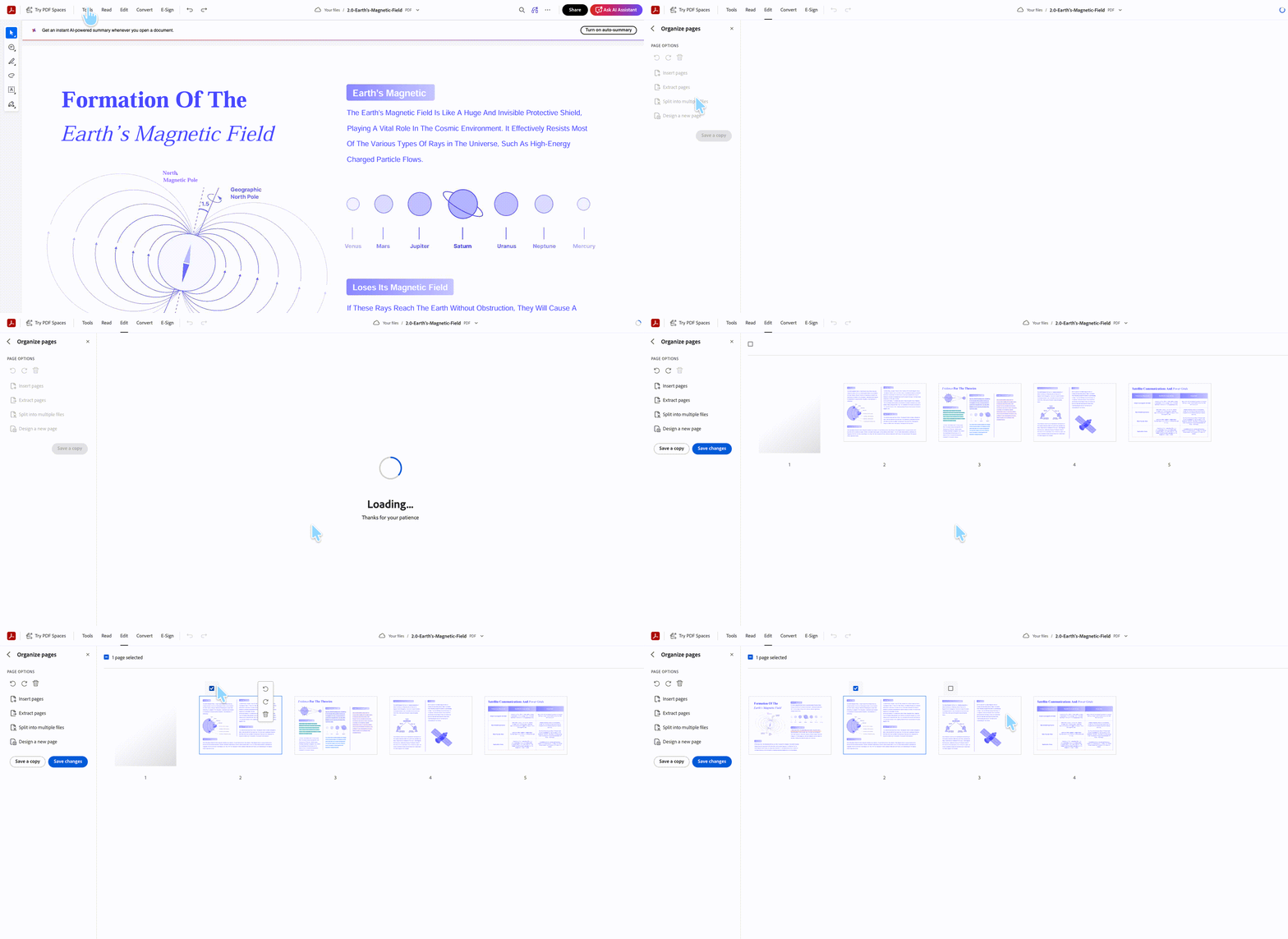
The catch is inside the Organize Pages tool specifically: there's no right-click delete and no keyboard Delete key, so the floating toolbar button is the only way to remove a selected page.
From the left-hand thumbnail panel, you can still select a page and press the keyboard Delete key — the keyboard limitation only applies inside the Organize Pages workspace. Either way, high-volume cleanup is slower than on desktop.

Best for:
- a quick deletion on a borrowed or locked-down computer where you can't install software.
Not for:
- sensitive contracts, invoices, or ID scans — every file is uploaded to Adobe's servers first. For private documents, a local desktop tool keeps the file on your machine.
Part 3. How to Delete a Page in the Acrobat Reader Mobile App
On a phone or tablet, page deletion lives inside the free Acrobat Reader mobile app under its tools menu.
Step 1. Open the PDF in the Acrobat Reader mobile app and tap More tools.
Step 2. Tap Organize Pages.
Step 3. Tap the page thumbnail you want to remove (it becomes selected), then tap the Delete (trash) icon at the bottom. Repeat for each page.
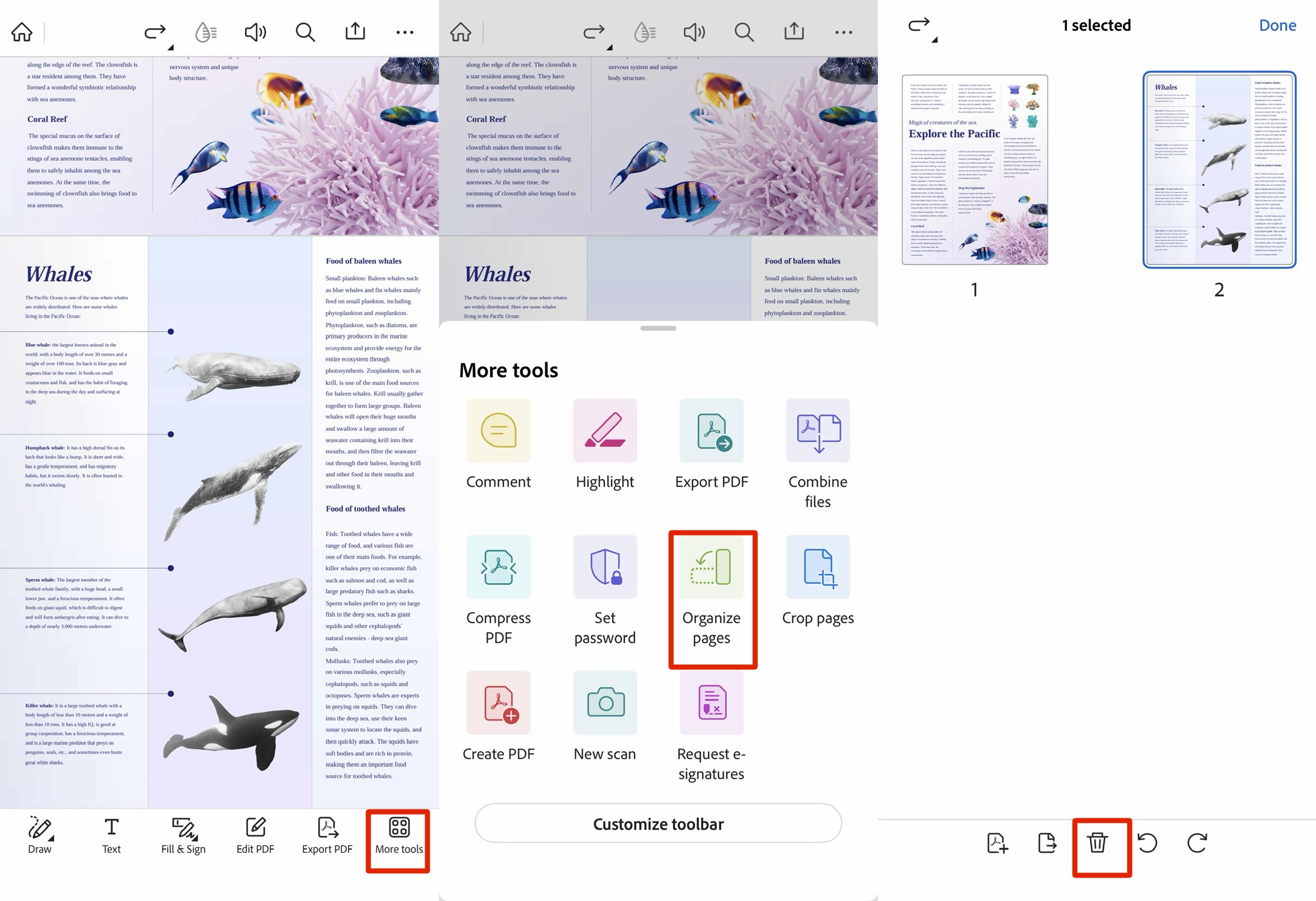
The mobile limitation to know upfront: the Acrobat Reader mobile app has no Select All button, so you must tap and delete pages one at a time. Removing 20 scattered pages means 20 separate taps — fine for one stray page, tedious for a bulk cleanup.
Best for:
- deleting a single page on the go.
Not for:
- clearing many pages from a long scanned document on mobile — there's no batch selection.
Part 4. How to Delete Pages in UPDF: The Same Steps on Every Device
This is where the per-surface inconsistency in Adobe Acrobat — keyboard shortcut on desktop, no shortcut online, no Select All on mobile — stops being a problem. UPDF keeps the same page-deletion controls on Windows, Mac, iOS, and Android, and lets you delete from either the thumbnail panel or the full Organize Pages workspace.
On Windows and Mac
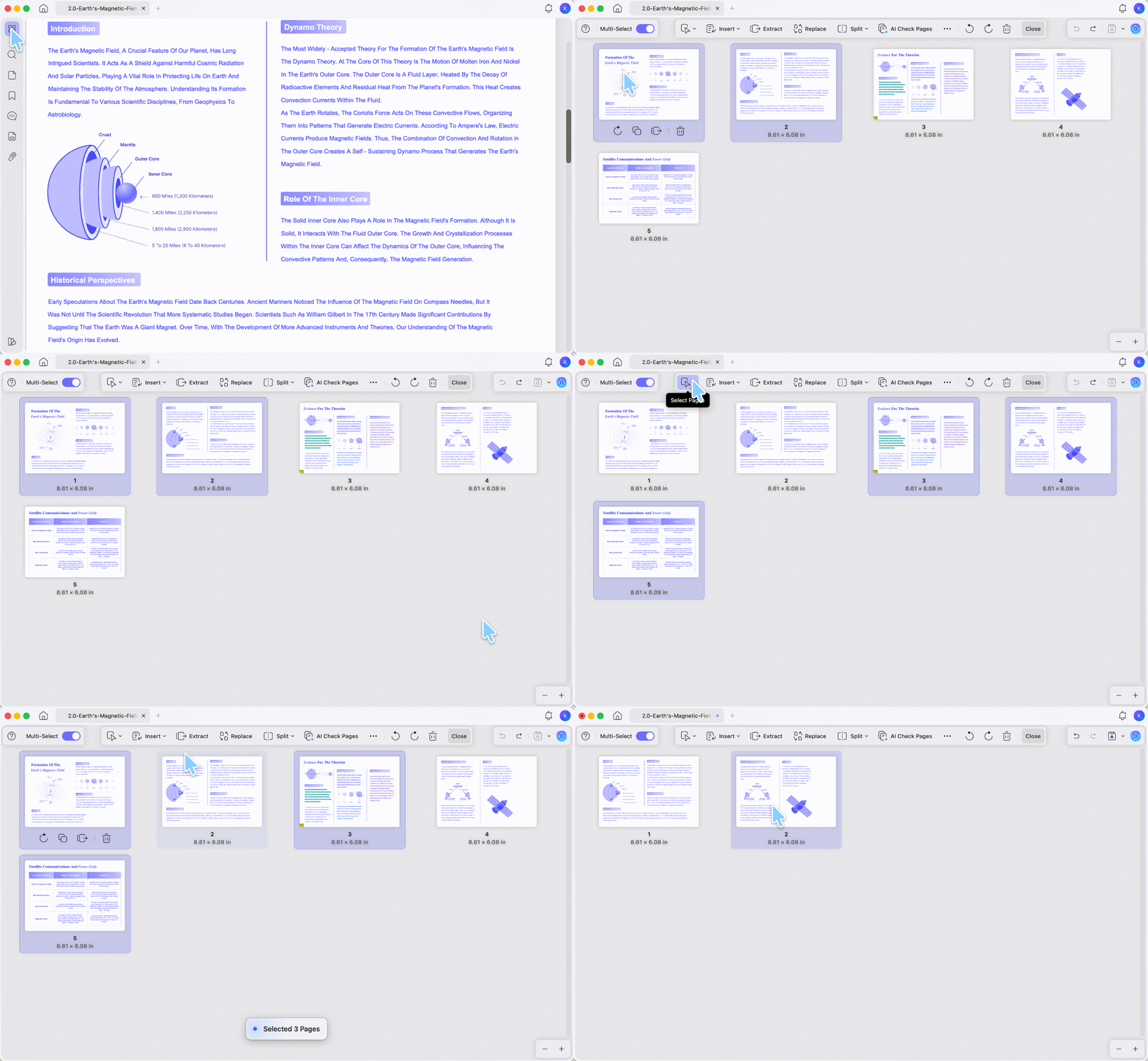
Step 1. Open the document in UPDF — if you don't have it yet, download UPDF for free and install it in under a minute — then click Organize Pages in the left panel to see all page thumbnails.
Windows • macOS • iOS • Android 100% secure
Step 2. Select the pages to remove. Turn on Multi-Select to pick several thumbnails, drag the cursor across a block of pages, or use the top Select button for rule-based options — Even Pages Only, Odd Pages Only, Landscape Pages, Portrait Pages, All Pages in Range, or a typed page range.
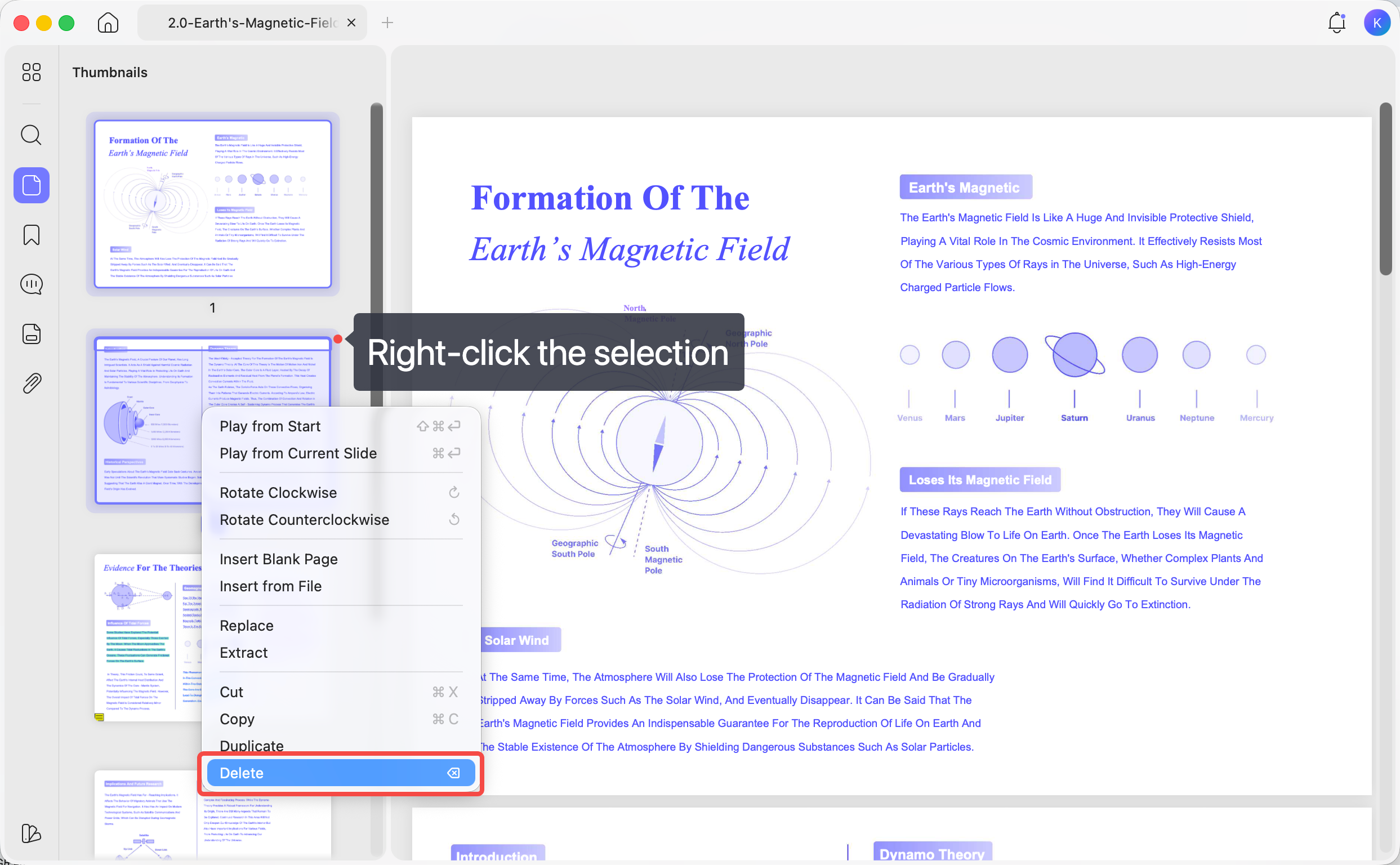
Step 3. Delete the selection by clicking the top Delete button, right-clicking and choosing delete, or pressing the keyboard Delete key. Save with Ctrl + S (Windows) or Cmd + S (Mac).
One Windows/Mac difference to note: from the thumbnail panel specifically, UPDF for Windows lets you multi-select pages before right-clicking or pressing Delete, while UPDF for Mac selects one page at a time in that panel. For multi-page work on Mac, use the Organize Pages workspace, where full multi-select is available.
On iOS and Android
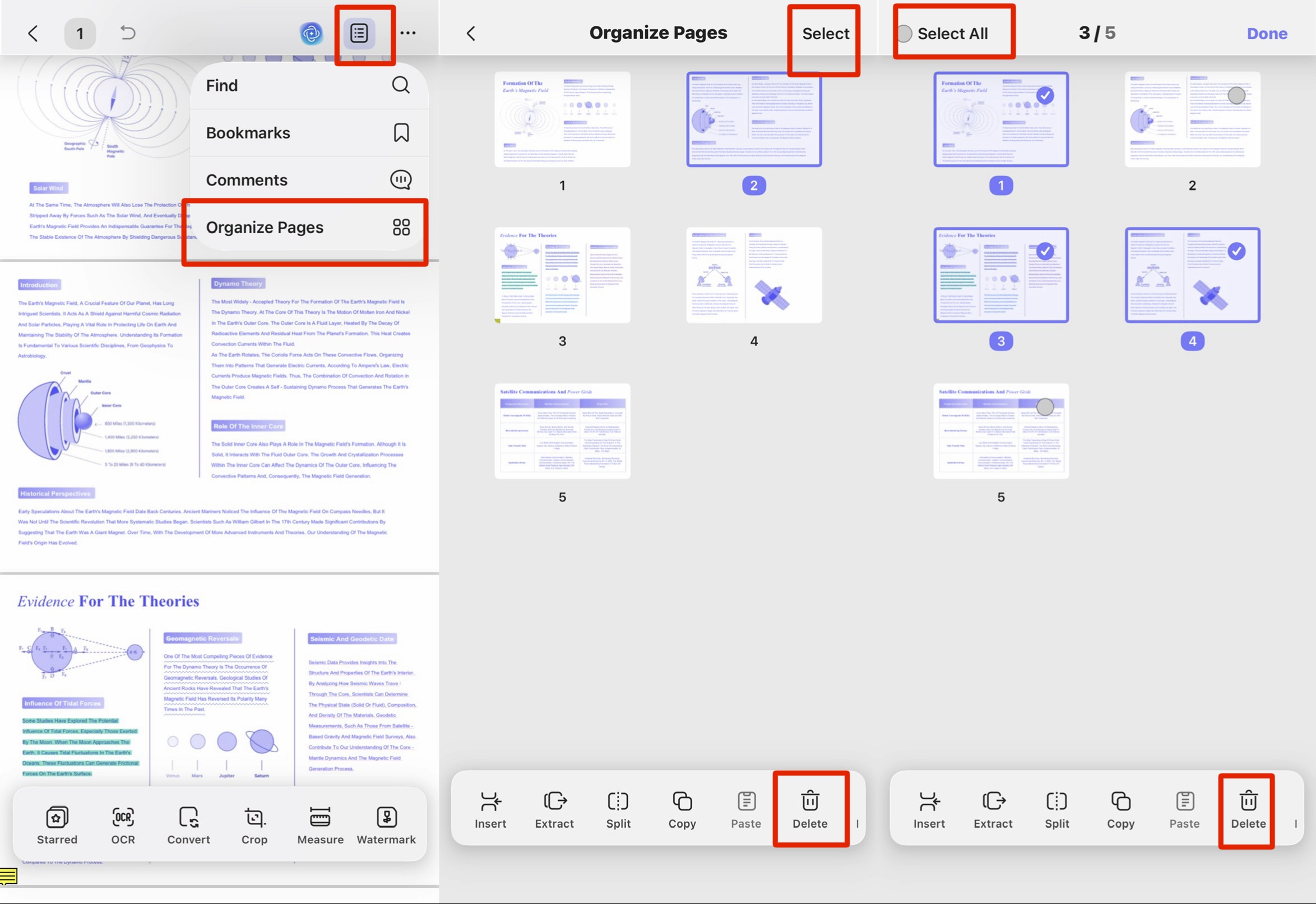
Step 1. Download UPDF from App Store or Play Store. Then, open the PDF in UPDF and tap the thumbnail icon in the top-right corner, then tap Organize Pages.
Step 2. Tap Select in the top-right to choose multiple pages, or tap Select All in the top-left to select every page at once — the batch selection the Acrobat Reader mobile app doesn't offer.
Step 3. Tap the Delete button at the bottom to remove the selected pages.
Best for:
- anyone who switches between a desktop and a phone and doesn't want to relearn the steps, or who needs batch page deletion on mobile.
Not for:
- users who only ever touch PDFs inside Acrobat's own ecosystem and never need cross-device or offline editing.
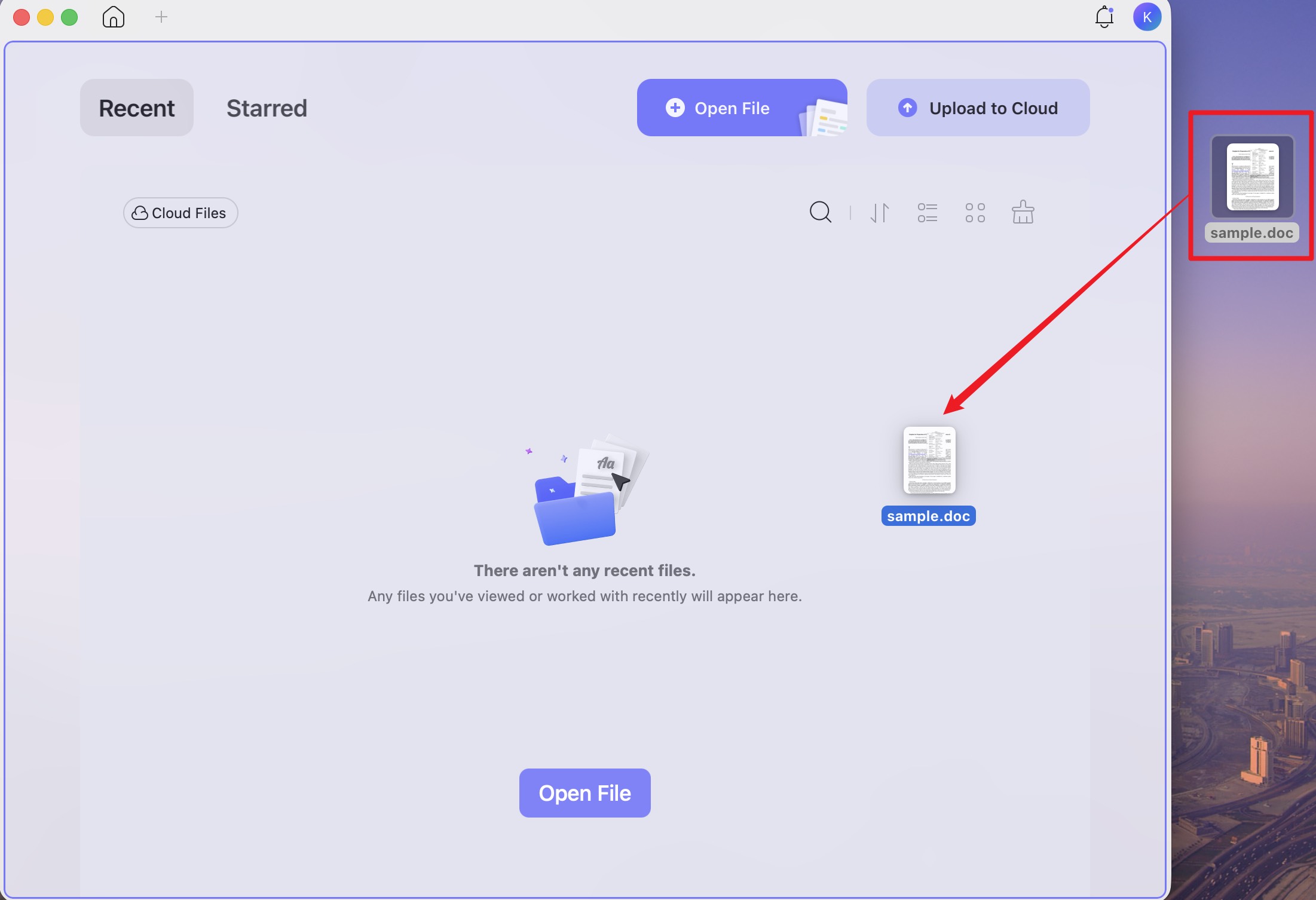
One more time-saver worth knowing: in the UPDF desktop app you can drag and drop a Word, Excel, PowerPoint, or image file directly onto the app, and it converts to PDF automatically — handy when the pages you need to clean up started life in another format.
Download UPDF for free to try deleting pages on your own file — installation is free, and Pro features are available when you need watermark-free export or advanced tools.
Windows • macOS • iOS • Android 100% secure
Let AI Find the Pages Worth Deleting
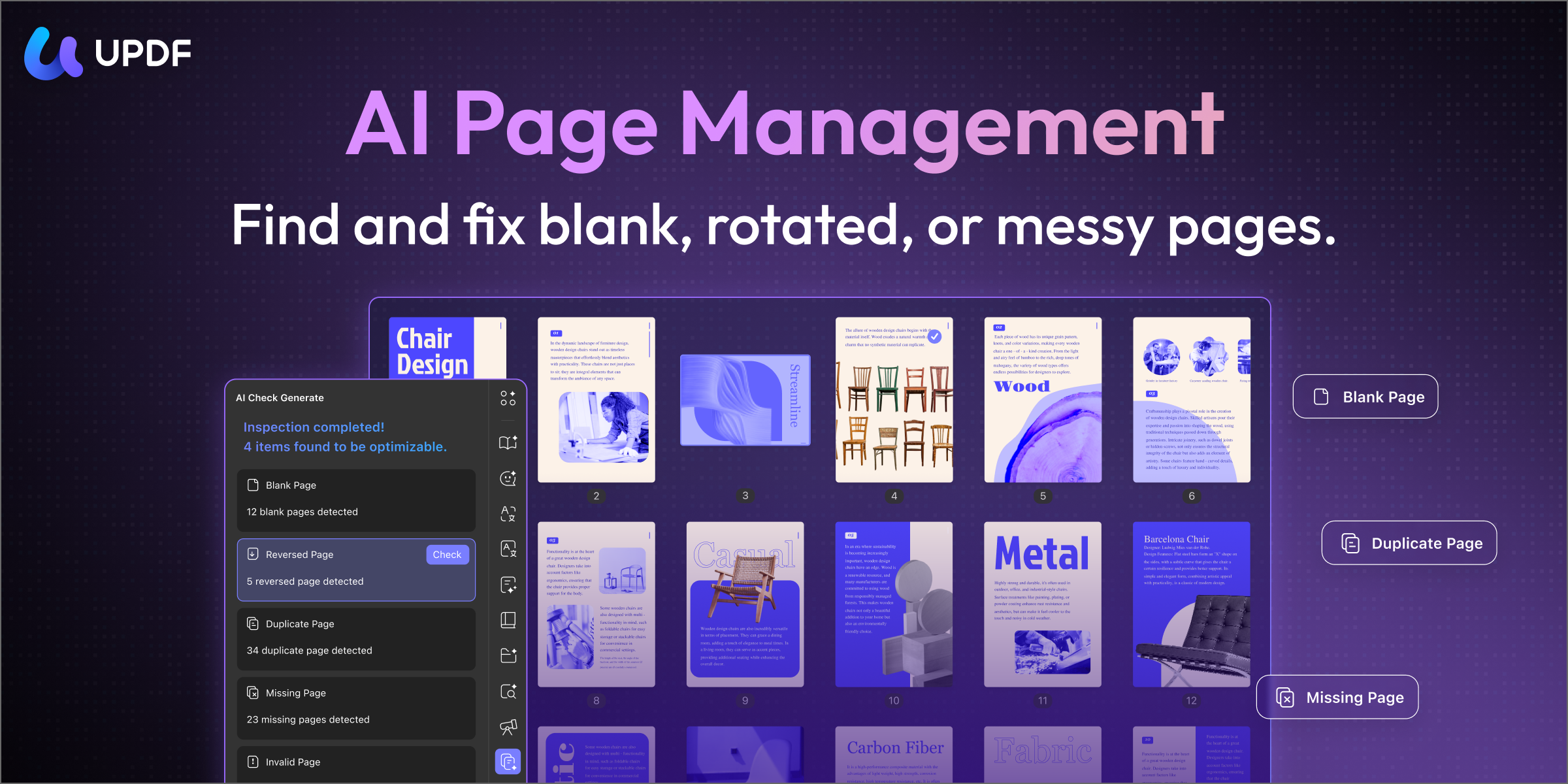
Manual deletion assumes you already know which pages to remove. When you don't — a 200-page scan with blank separator sheets, duplicated pages, or upside-down inserts — UPDF's AI Page Management scans the document and flags blank, reversed, and duplicate pages so you can clear them in one pass instead of scrolling through every thumbnail. Adobe Acrobat has no equivalent auto-detection for this kind of cleanup.
Step 1. Open the PDF in UPDF and click Organize Pages in the left sidebar.
Step 2. Click AI Check Pages in the top toolbar. UPDF scans the document and lists the pages that need attention — blank pages, scanned pages, inverted orientation, page-numbering breaks, annotated pages, and size inconsistencies — in the AI Check Pages panel on the right.
Step 3. Click any blank-page item in the list to jump straight to that page, confirm it's the one you want gone, then use the suggested action - Delete to remove it. Re-run AI Check Pages when you're done and UPDF confirms the document is clean.
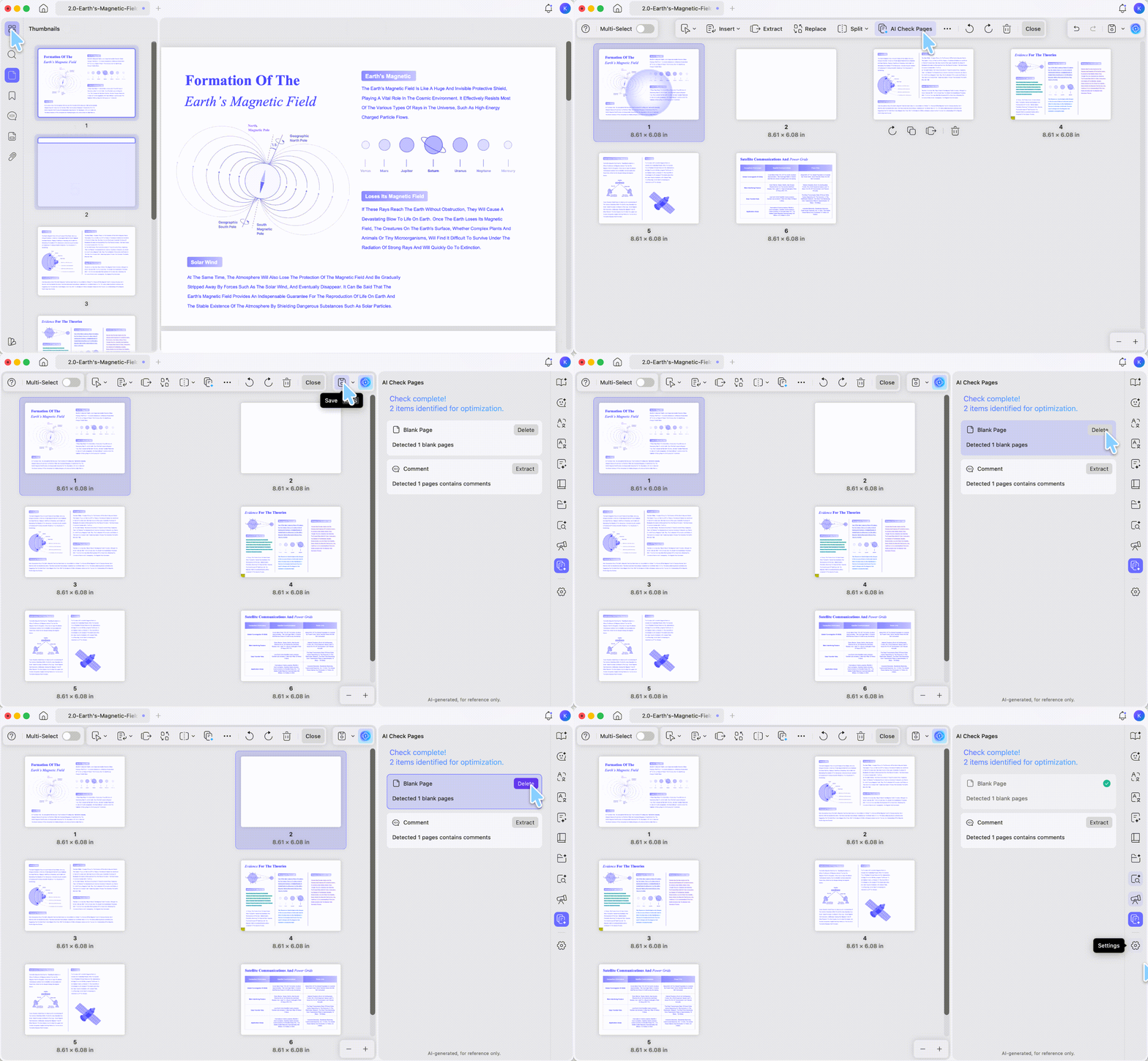
The point isn't a single magic button — it's that AI Page Management surfaces every blank page in seconds so you delete the right ones, rather than eyeballing a long document and hoping you caught them all.
Part 5. Adobe Acrobat vs. UPDF: Page Deletion Compared
Both tools delete pages. The differences that matter are where you can do it, how you select, and what it costs.
| Capability | Adobe Acrobat | UPDF |
|---|---|---|
| Delete with keyboard Delete key | Desktop; online thumbnail panel only (not in online Organize Pages) | Desktop |
| Right-click to delete | Desktop only (not online) | Desktop |
| Select All on mobile | No (Reader mobile app) | Yes (iOS & Android) |
| Rule-based selection (even/odd/landscape/range) | Desktop | Desktop |
| Works offline (no file upload) | Desktop & mobile apps; online uploads files | Desktop & mobile apps keep files local |
| AI blank/duplicate page detection | No | Yes (AI Page Management) |
| Price (individual) | $239.88/year subscription | $79.99 one-time (Pro lifetime) or $49.99/year |
| Lifetime license | Discontinued | Yes — $79.99 one-time |
UPDF's free tier lets you delete pages and try the workflow at no cost; a trial watermark is added on export, and watermark-free saving plus advanced tools come with Pro. Adobe no longer sells a true perpetual Acrobat license, so the recurring subscription is the only individual path to its desktop editor.
Part 6. When the Standard Steps Don't Work (Edge Cases)
A few situations stop page deletion cold, regardless of tool:
- "The Delete option is greyed out." The PDF likely has a permissions (owner) password restricting editing. You'll need the password to remove the restriction before any page can be deleted — and you should only do this on files you own or are authorized to edit.
- "I deleted the wrong page and already saved." If you saved over the original, the page is gone. Before deleting in bulk, work on a copy so the source file stays intact.
- "My document is over 300 pages and the tool struggles." Very large files are heavier to render thumbnail-by-thumbnail; splitting the document, deleting in each part, then merging back is often faster than fighting one giant file.
Part 7. FAQ
1. Does deleting a page in Adobe Acrobat reduce the file size?
Usually yes, but only after you save. Deleting pages removes their content on save; for a bigger reduction, run a compress or "Reduce File Size" step afterward.
2. Can I recover a page I deleted by mistake?
Only if you haven't saved over the original — undo (Ctrl/Cmd + Z) reverses it before saving, but a saved-over file can't be restored without a backup.
3. Do I need an internet connection to delete pages?
Not with the installed apps. The Acrobat and UPDF desktop apps both work offline, and so do their mobile apps — page deletion happens on your device. Only Acrobat's online tool requires an upload and a connection.
Conclusion
Deleting a page in Adobe Acrobat comes down to one path — Organize Pages, select, Delete — but the experience splits by surface: full keyboard and right-click control on desktop, a toolbar-only flow online, and one-by-one tapping in the Reader mobile app. If you move between devices or need batch selection on a phone, UPDF runs the same deletion steps everywhere, keeps files local on desktop, and adds AI Page Management to auto-flag blank and duplicate pages Acrobat can't detect on its own.
Download UPDF for free to try deleting pages on your file — installation is free, and Pro features are available when you need watermark-free export or advanced tools.
For the full set of page tools — insert, extract, split, rotate, and reorder — see the complete guide on how to organize PDF pages.
Windows • macOS • iOS • Android 100% secure





 Enola Miller
 Lizzy Lozano
 Engelbert White