 UPDF
UPDF
 UPDF for Windows
 UPDF for Mac
 UPDF for iPhone/iPad
 UPDF for Android
 Nomostar
 UPDF AI Online
 UPDF Sign
 IvyCraft
 Edit PDF
 Annotate PDF
 Create PDF
 PDF Form
 Edit links
 Convert PDF
 OCR
OCR PDF to Word
 PDF to Image
 PDF to Excel
 Organize PDF
 Merge PDF
 Split PDF
 Crop PDF
 Rotate PDF
 Protect PDF
 Sign PDF
 Redact PDF
 Sanitize PDF
 Remove Security
 Read PDF
 UPDF Cloud
 Compress PDF
 Print PDF
 Batch Process
 About UPDF AI
 UPDF AI Solutions
 AI User Guide
 FAQ about UPDF AI
 Summarize PDF
 Translate PDF
 Chat with PDF
 Chat with AI
 Chat with image
 PDF to Mind Map
 Explain PDF
 PDF AI Tools
 Image AI Tools
 AI Chat Tools
 AI Writing Tools
 AI Study Tools
 AI Working Tools
 Other AI Tools
 AI Bookmark Generation
 AI Bookmark Summary
 AI Watermark Generation
 AI Background Generation
 AI Sticker Generation
 AI Stamp Generation
 AI Editing Suite
 UPDF Copilot
 AI Page Management
 AI Semantic Search
 PDF to Word
 PDF to Excel
 PDF to PowerPoint
 Enterprise Solution
 Enterprise Sign
 Enterprise AI
 Enterprise Plan
 Enterprise User Guide
 Enterprise Webinar
 IT
IT Education
 Construction
 Financial Service
 Healthcare
 Insurance
 Legal
Legal Manufacturing
 Government
 Researchers & PhDs
 Solopreneurs & Freelancers
 Lawyers & Legal Professionals
 Real Estate Agents & Brokers
 Education Solution
 Customer Stories
 User Guide
 UPDF Tricks
 FAQs
FAQs UPDF Reviews
 Download Center
 Blog
Blog Newsroom
 Tech Spec
 Updates
 UPDF vs. Adobe Acrobat
 UPDF vs. Foxit
 UPDF vs. PDF Expert

Create and Fill Forms on iOS
Creating and filling out paper forms is time-consuming and inconvenient. With UPDF for iOS, you can create and complete PDF forms directly on your iPhone or iPad in just a few taps. Open the form, create form fields, enter your details, and you’re done—no printing or scanning needed.
This guide shows you how to quickly create and fill out PDF forms using UPDF on iOS, so you can handle documents anytime, anywhere.
Windows • macOS • iOS • Android 100% secure
How to Create the PDF Form?
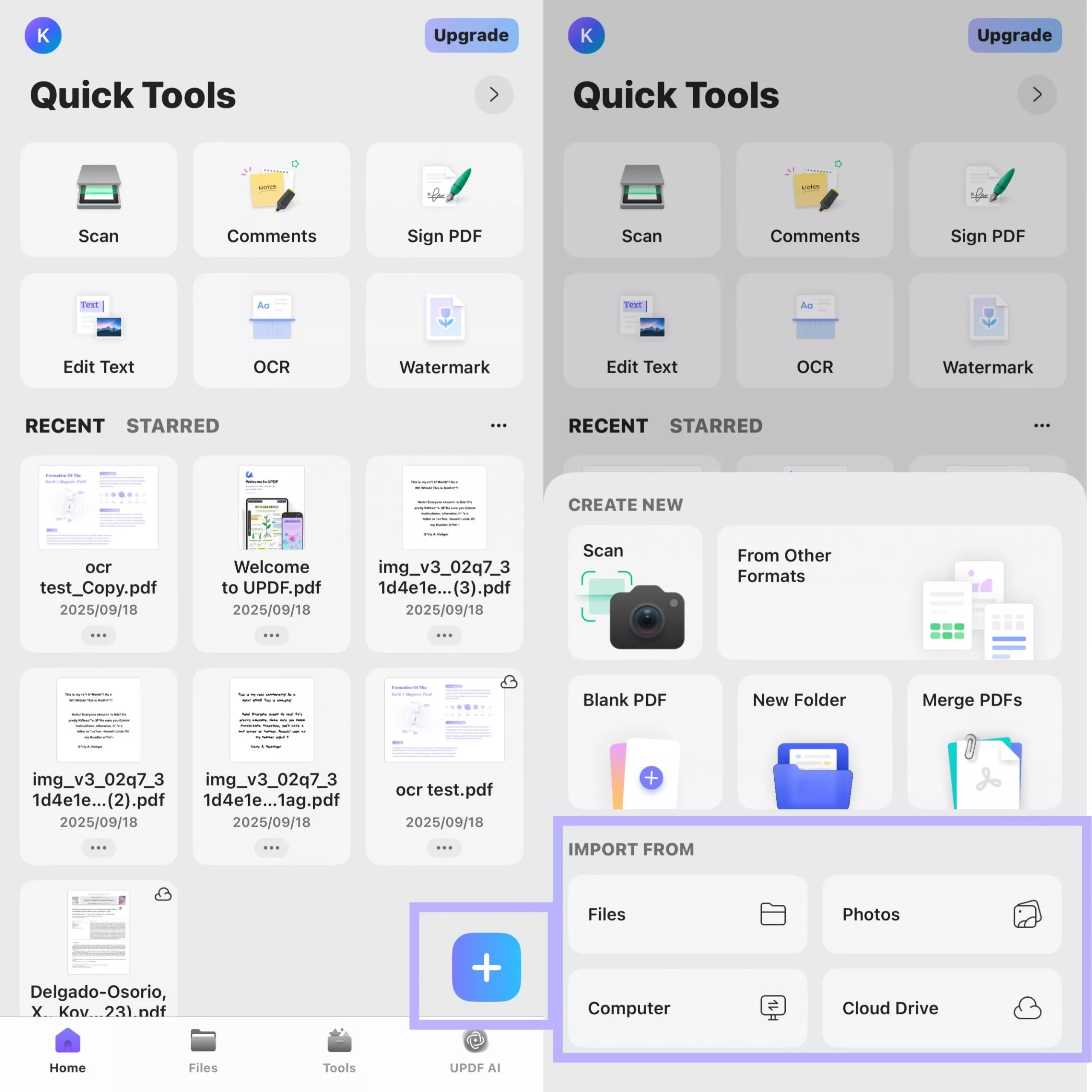
Step 1. Import your form into UPDF and open.
- Import a PDF form by tapping the "+" symbol in the bottom-right corner or choosing any existing PDF files.
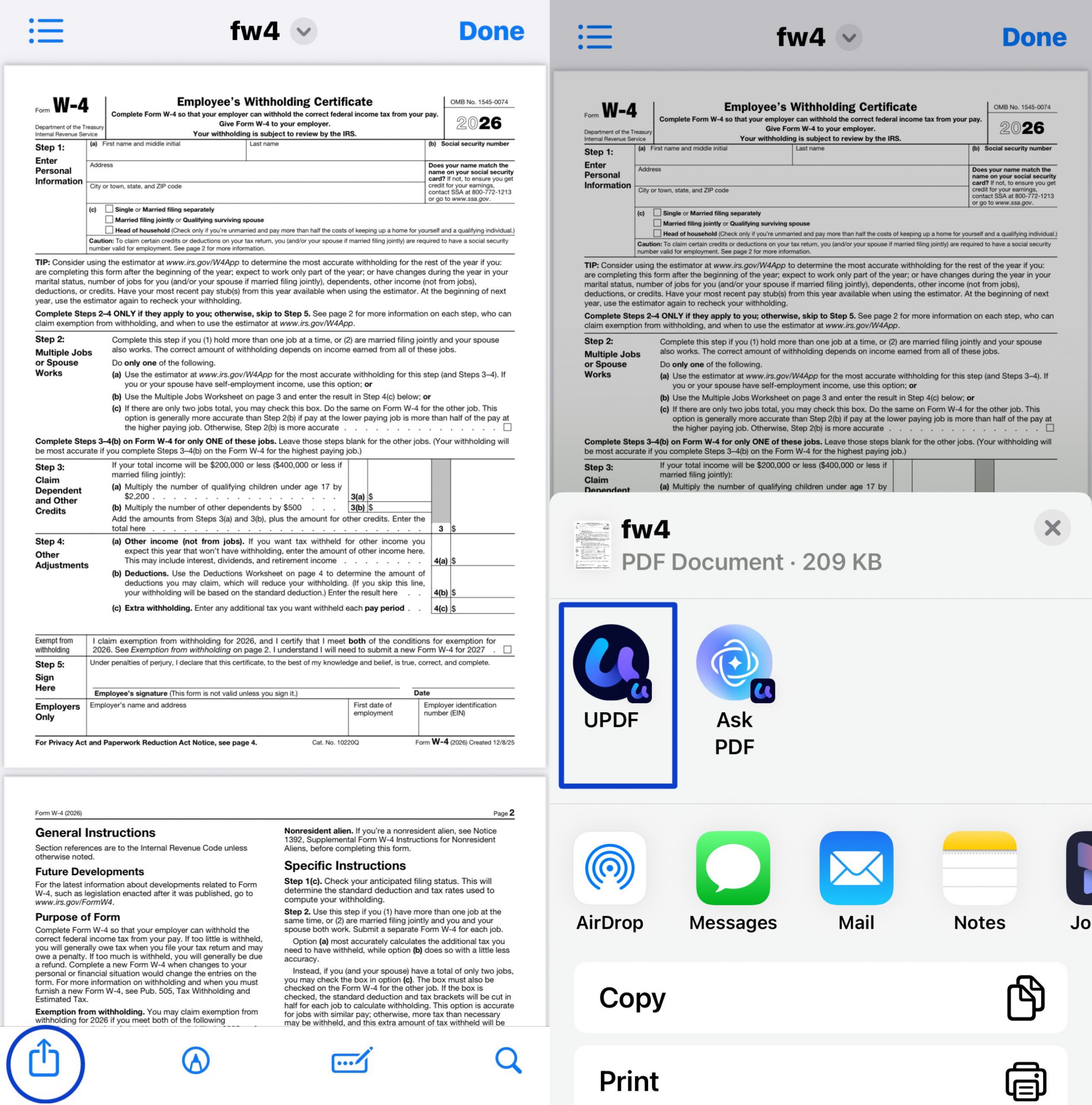
- Alternatively, you can open your PDF form in UPDF directly from the system "Share" menu.
Step 2. Create Form Fields for Data Entry
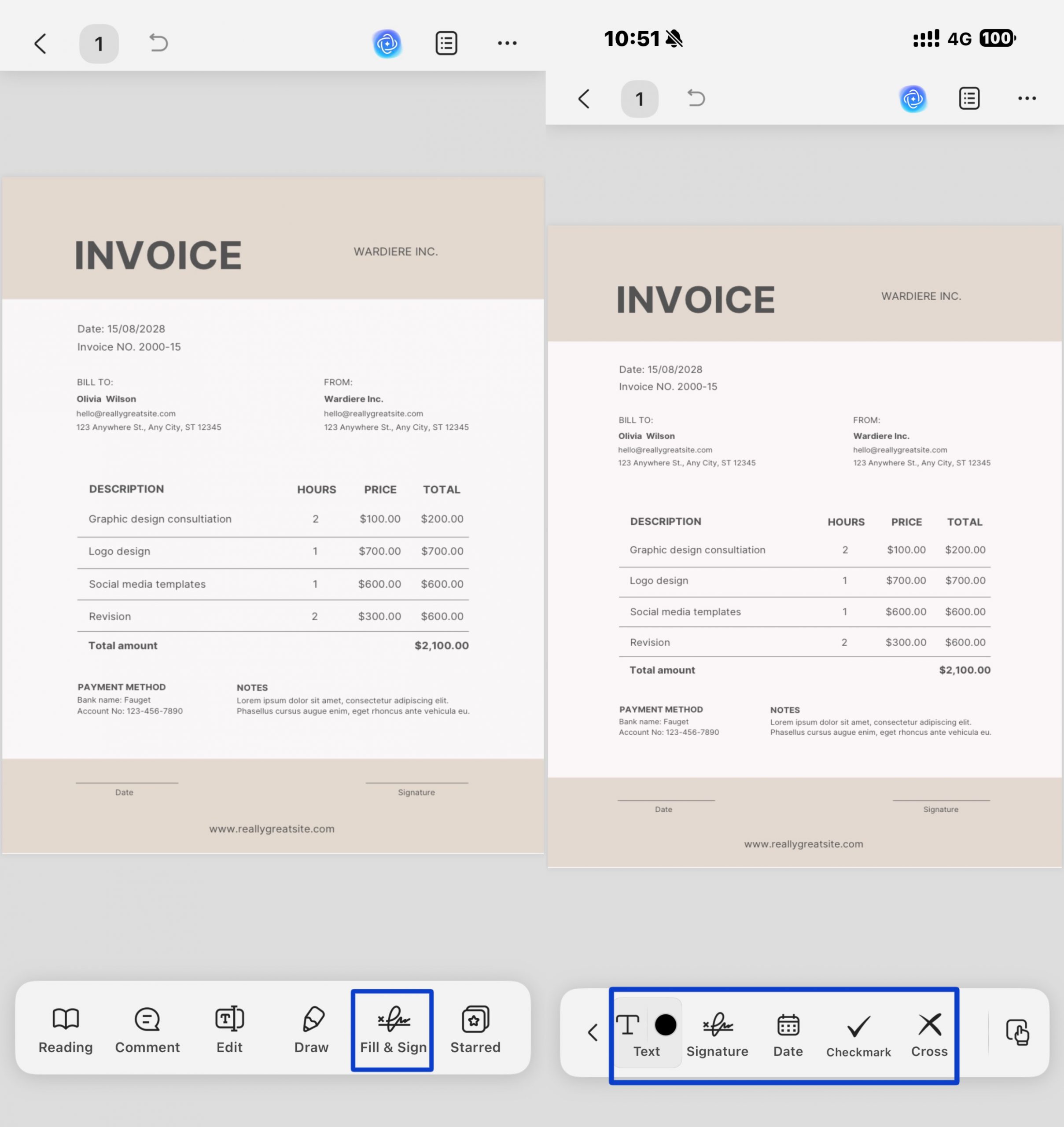
Click the Fill & Sign button and then select the Text, Signature, Date, Checkmark or Cross option to create form fields. For example, when you select the Text option, a color button will appear next to this Text button. You can then select the text color you want to add. After making the selection, simply tap the area on the page where you want to add the text field.
Step 3. Fill the Form Fields
Tap the form field where you want to add new text, then type your content using the keyboard.
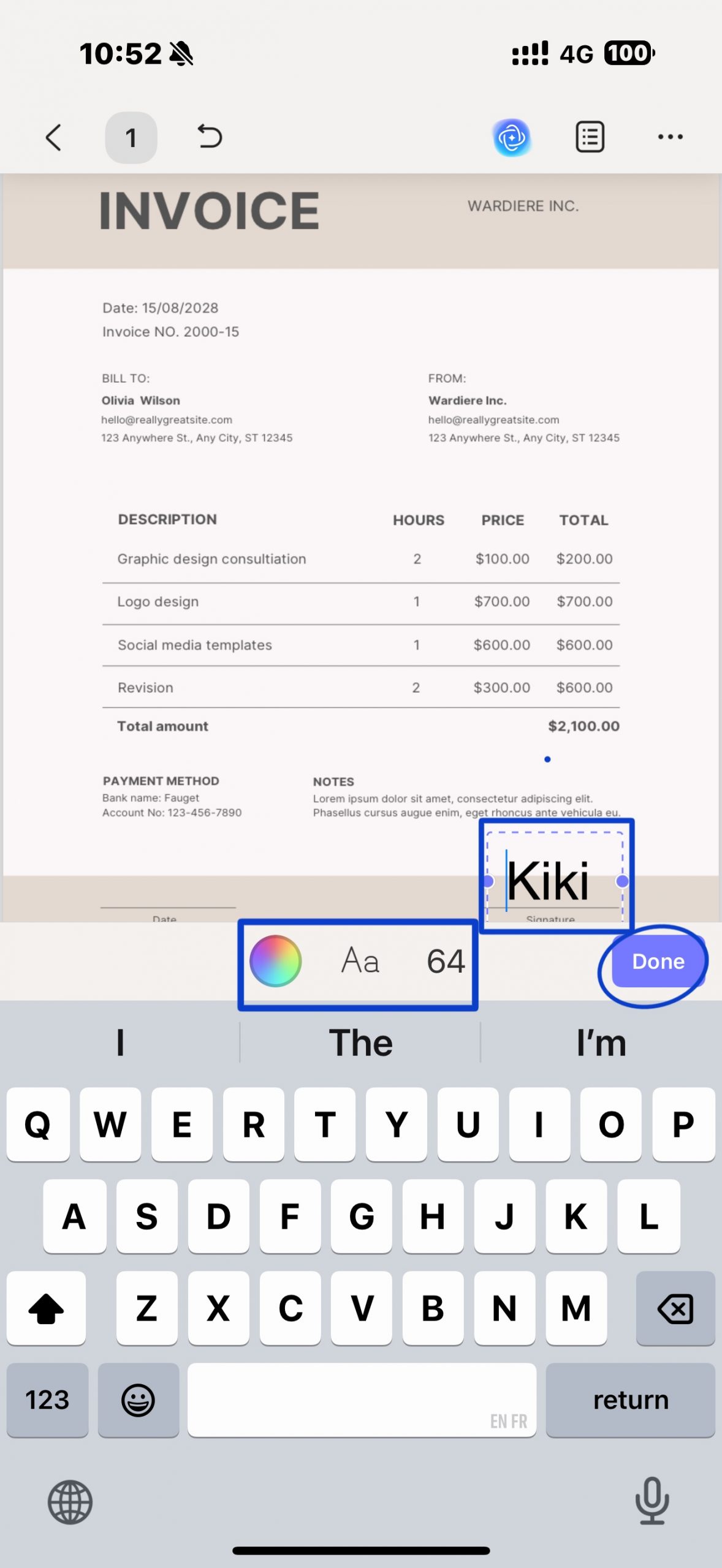
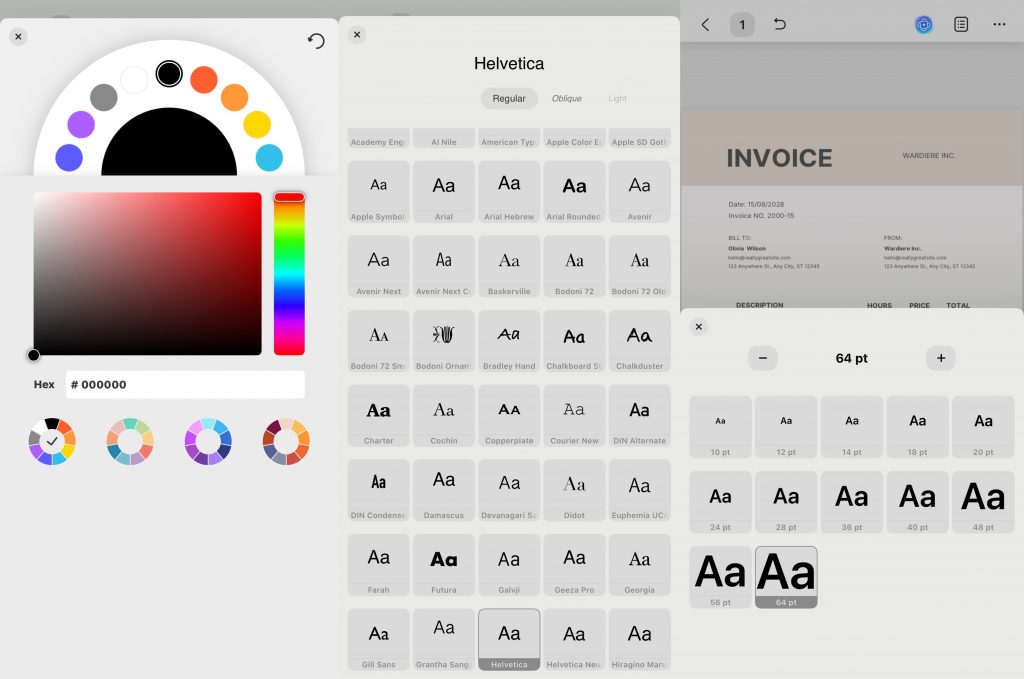
To adjust the text’s appearance, use the formatting icons above the keyboard: the colorful circle for color, the “Aa” for font style, and the number for font size. Once you’re satisfied with the settings, tap the "Done" button to finalize and save the filled text.
- Insert a Date into a Form Field
Tap the Date button on the bottom toolbar, then tap the location where you want to insert the date on the page, and UPDF will automatically add the current date.
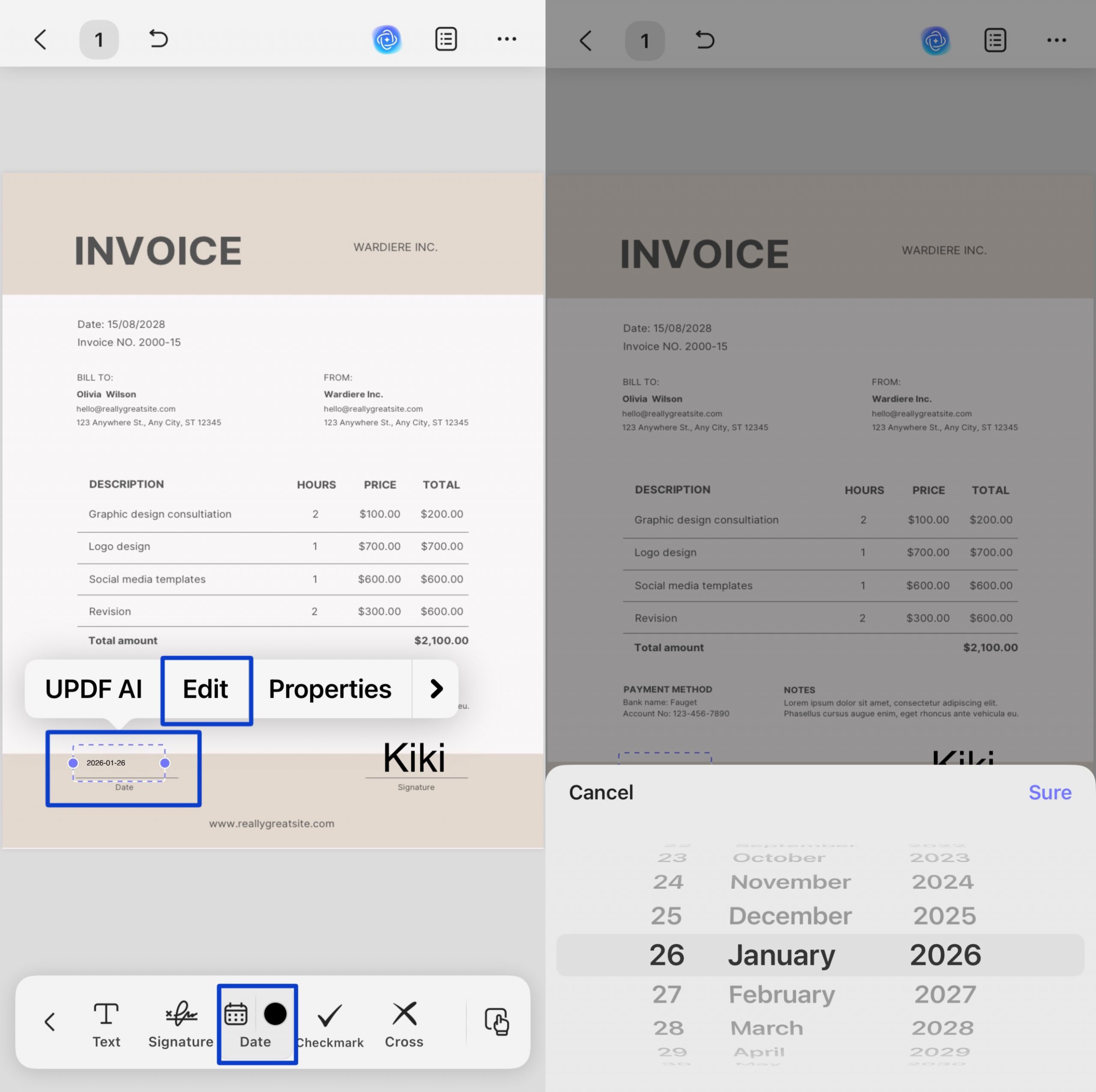
Users can click on this inserted date form field, then in the popped-up floating toolbar select "Edit," choose the desired date in the pop-up calendar, and press "Sure" to fill the date into the date field.
- Add a Signature to a Form Field
Tap the Signature button in the right‑hand tool panel, choose Handwrite Signature or Scan Signature to create your signature, and place the signature onto the signature field.
For specific instructions, please check this user guide: Sign PDF on iOS
- Mark a Field with a Checkmark or Cross
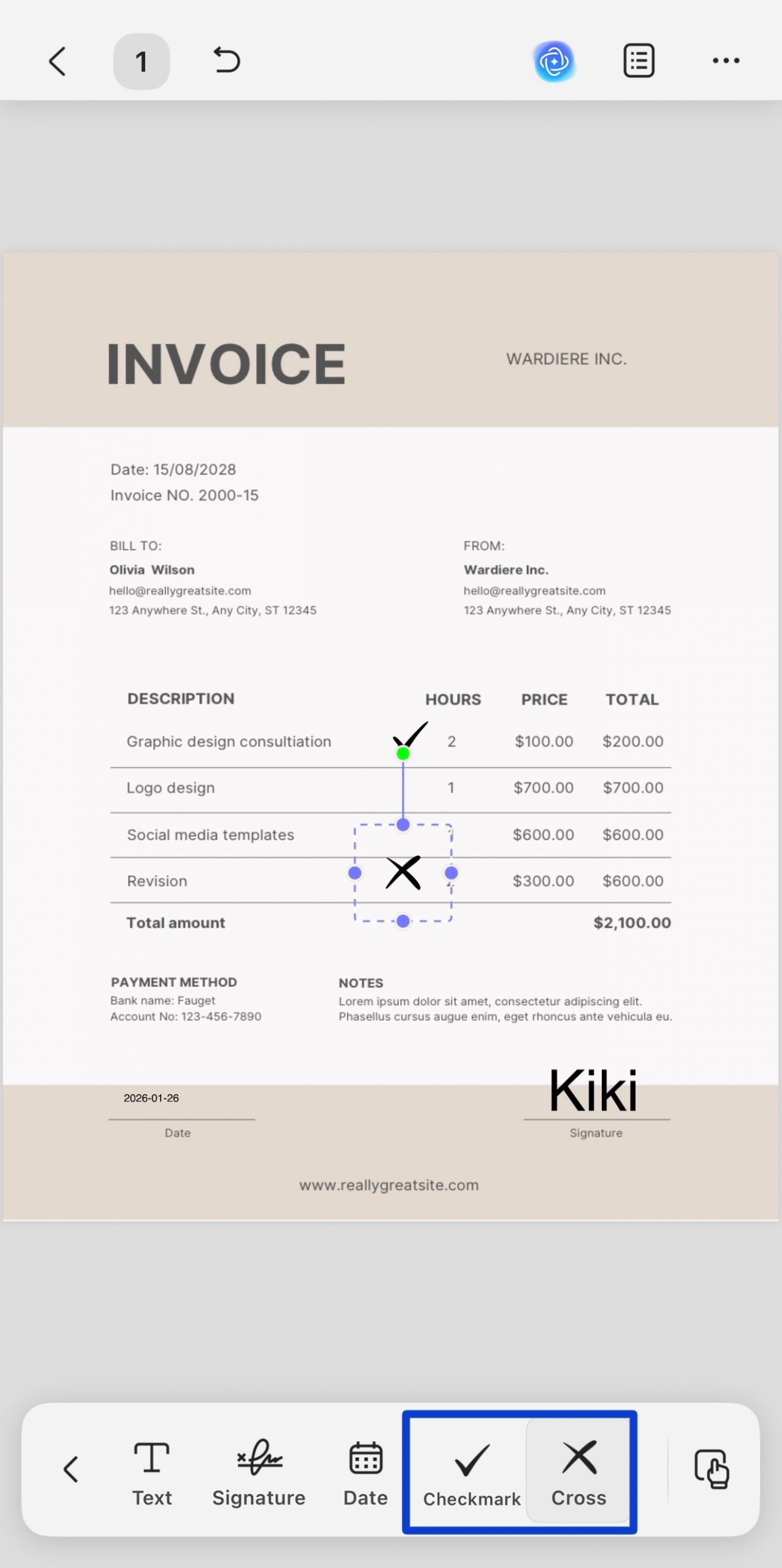
Tap the Checkmark or Cross icon on the bottom toolbar to apply the selected mark on the PDF.
How to Fill Out the PDF Form?
Step 1. Open your PDF form with UPDF.
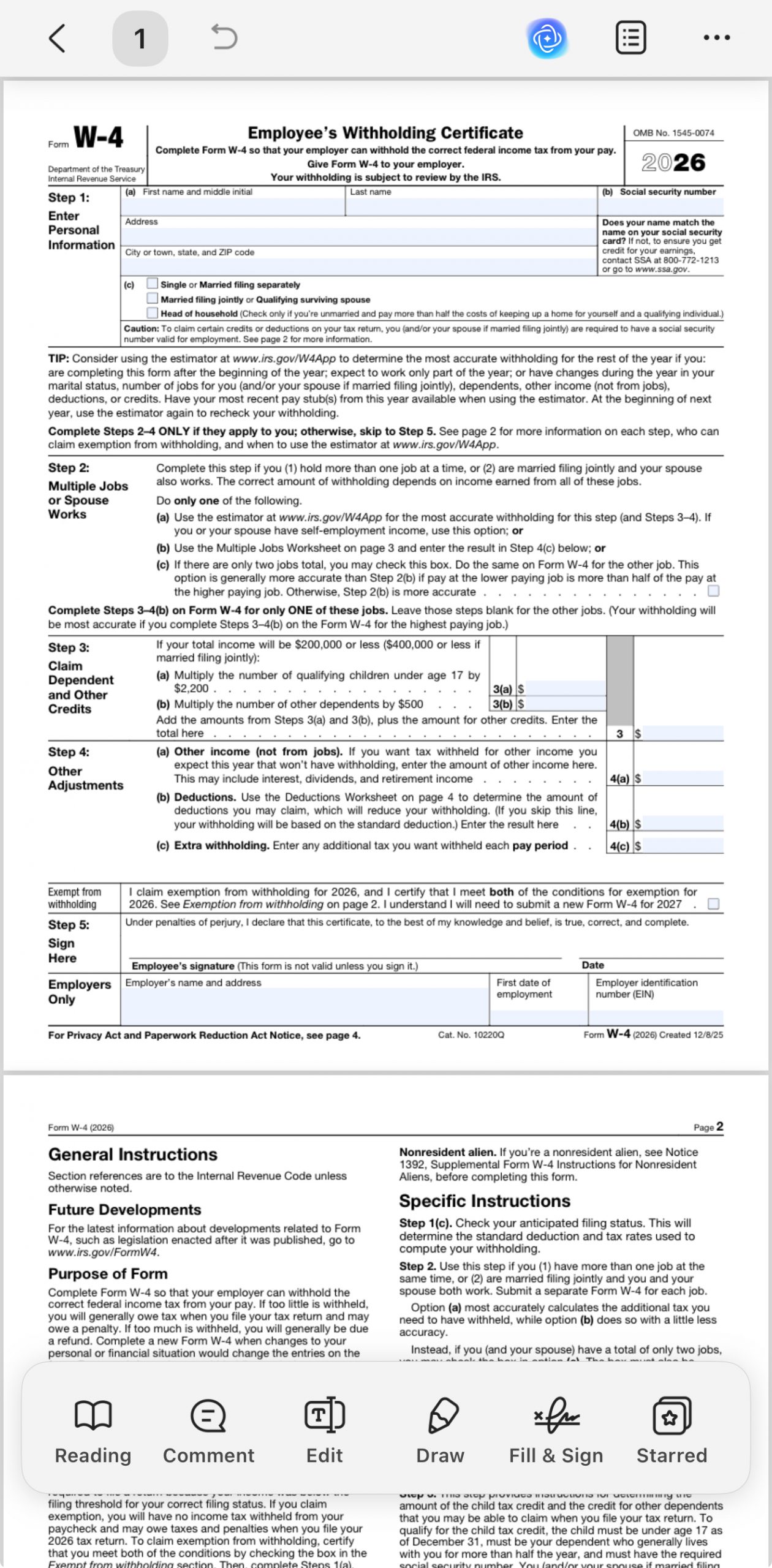
- After you open the form with UPDF, UPDF will automatically highlight the existing fields for you, helping you quickly locate the sections that need to be filled out.
Step 2. Tap to fill out the form.
- Tap directly on a form field that needs to be filled out. A pop-up window will appear, allowing you to enter your information.
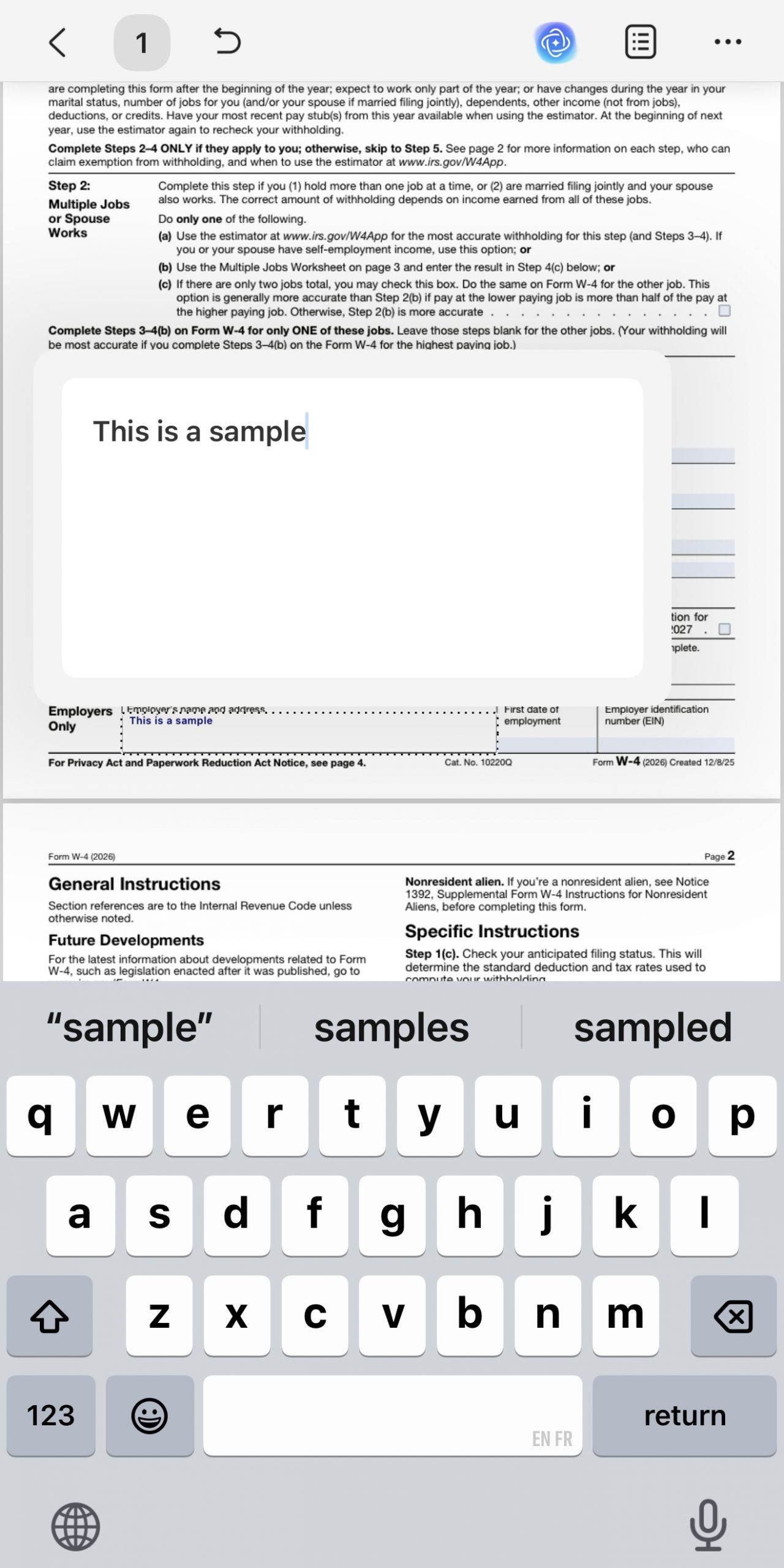
- After entering the text, tap a blank area of the form to exit the current field. Then, tap another form field to continue entering information. Repeat this process until all form fields are completed.