 UPDF
UPDF
 UPDF for Windows
 UPDF for Mac
 UPDF for iPhone/iPad
 UPDF for Android
 Nomostar
 UPDF AI Online
 UPDF Sign
 IvyCraft
 Edit PDF
 Annotate PDF
 Create PDF
 PDF Form
 Edit links
 Convert PDF
 OCR
OCR PDF to Word
 PDF to Image
 PDF to Excel
 Organize PDF
 Merge PDF
 Split PDF
 Crop PDF
 Rotate PDF
 Protect PDF
 Sign PDF
 Redact PDF
 Sanitize PDF
 Remove Security
 Read PDF
 UPDF Cloud
 Compress PDF
 Print PDF
 Batch Process
 About UPDF AI
 UPDF AI Solutions
 AI User Guide
 FAQ about UPDF AI
 Summarize PDF
 Translate PDF
 Chat with PDF
 Chat with AI
 Chat with image
 PDF to Mind Map
 Explain PDF
 PDF AI Tools
 Image AI Tools
 AI Chat Tools
 AI Writing Tools
 AI Study Tools
 AI Working Tools
 Other AI Tools
 AI Bookmark Generation
 AI Bookmark Summary
 AI Watermark Generation
 AI Background Generation
 AI Sticker Generation
 AI Stamp Generation
 AI Editing Suite
 UPDF Copilot
 AI Page Management
 AI Semantic Search
 PDF to Word
 PDF to Excel
 PDF to PowerPoint
 Enterprise Solution
 Enterprise Sign
 Enterprise AI
 Enterprise Plan
 Enterprise User Guide
 Enterprise Webinar
 Banking
 Healthcare
 Insurance
 Legal
Legal Manufacturing
 Government
 Researchers & PhDs
 Solopreneurs & Freelancers
 Lawyers & Legal Professionals
 Real Estate Agents & Brokers
 Education Solution
 Customer Stories
 User Guide
 UPDF Tricks
 FAQs
FAQs UPDF Reviews
 Download Center
 Blog
Blog Newsroom
 Tech Spec
 Updates
 UPDF vs. Adobe Acrobat
 UPDF vs. Foxit
 UPDF vs. PDF Expert

Quick Answer:
A screenshot records only what the iPhone displays at that moment—including the current zoom, crop, and screen resolution. A formal PDF-to-image conversion renders the original page into a separate image file. That distinction matters when you need every page, readable small text, consistent dimensions, or a clean JPG without interface elements.
Part 1. Screenshot or PDF-to-Image Conversion: Which Should You Use?
| What you need | Recommended method | Why |
|---|---|---|
| Capture a small visible section quickly | iPhone screenshot | Fast and built in, but limited by the current screen view |
| Save every PDF page as a separate image | UPDF PDF to Image | Converts the document pages rather than capturing the display |
| Export a PDF specifically as JPG/JPEG | UPDF PDF to Image + JPEG | Creates standard image files for sharing or uploading |
| Combine a multi-page PDF into one continuous image | UPDF PDF to Long Image | Joins the pages vertically in reading order |
| Keep a sensitive document off a browser-based converter | Convert in the UPDF iOS app | Avoids submitting the PDF to a third-party online conversion page |
Use a screenshot only when the screen view is the final content you want. If the destination asks for "a JPG," "all pages," or a readable document image, export the PDF formally. Cropping several screenshots by hand can produce inconsistent margins, missing lines, duplicated content, and page-order mistakes.
Part 2. How to Save a PDF as a Photo on iPhone/iPad?
To save a PDF as a photo, I recommend using UPDF for iOS for its advanced features. This converter transforms files to images easily, letting you choose output formats, including JPEG or GIF. Afterward, you just have to pick the destination, such as Photos and Files.
Most importantly, this app preserves layout and image quality while carrying out this simple conversion. So, download UPDF for iOS through the button below or the App Store to convert PDFs to images on iPhone in seconds.
The right output depends on whether you need the full page or a particular visual. The next video takes a practical look at converting PDFs in UPDF.
Windows • macOS • iOS • Android 100% secure
Steps to Convert PDFs to Images on iPhone Using UPDF
Best for:
- Exporting clean images from a single- or multi-page PDF while choosing the output format.
Not for:
- Capturing one small paragraph instantly; opening the full conversion workflow would take longer than a simple screenshot.
Take guidance from the steps below to learn how to save a PDF as a photo on iPhone:
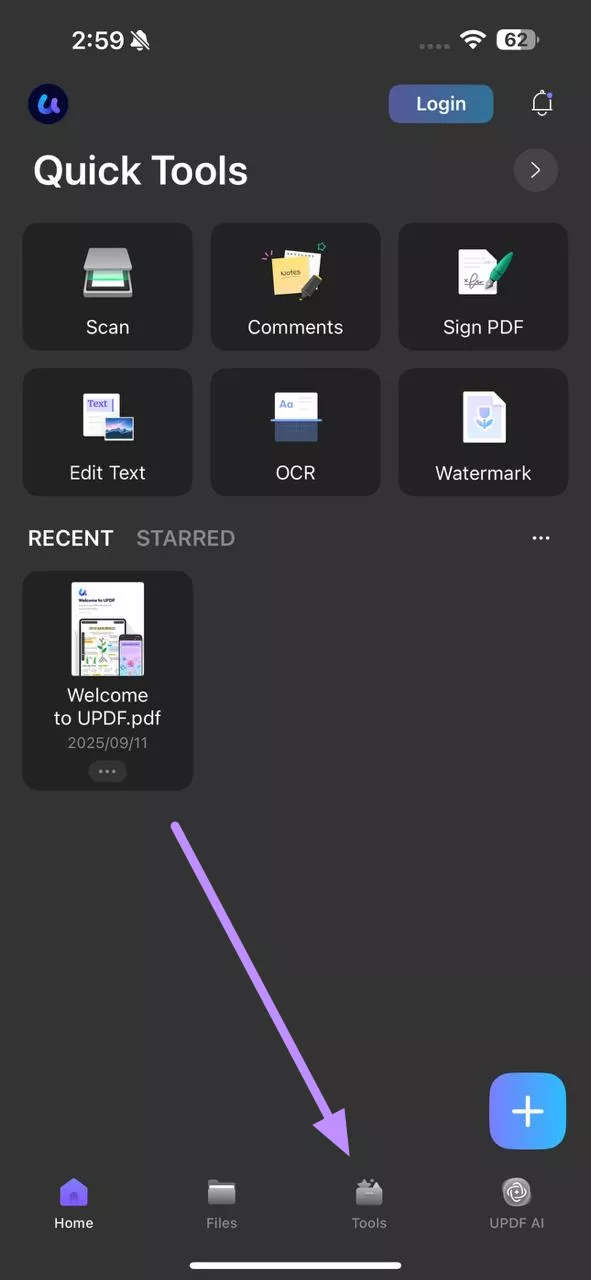
Step 1. Access the PDF Tools Screen
Start the process by downloading and installing UPDF on your iOS device. Now, launch this application and access the Tools tab from its home screen.
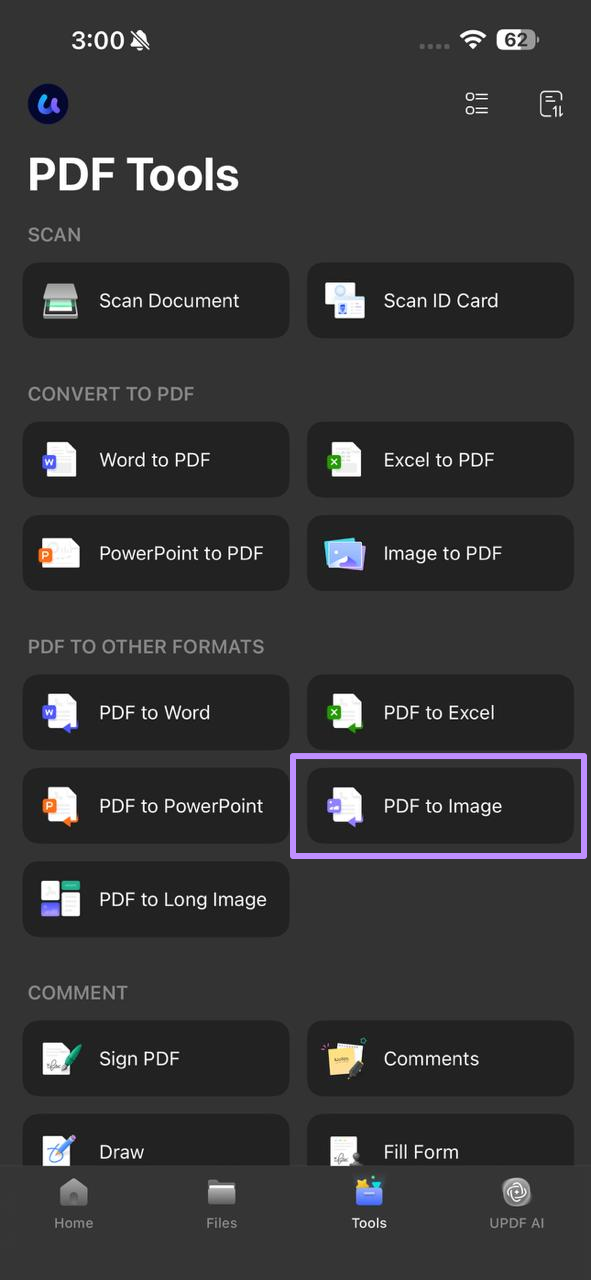
Step 2. Enter PDF to Image and Import a File
Within the PDF Tools screen, tap on the PDF to Image button under the PDF to Other Formats section. Now, simply import the file you want to convert into images.
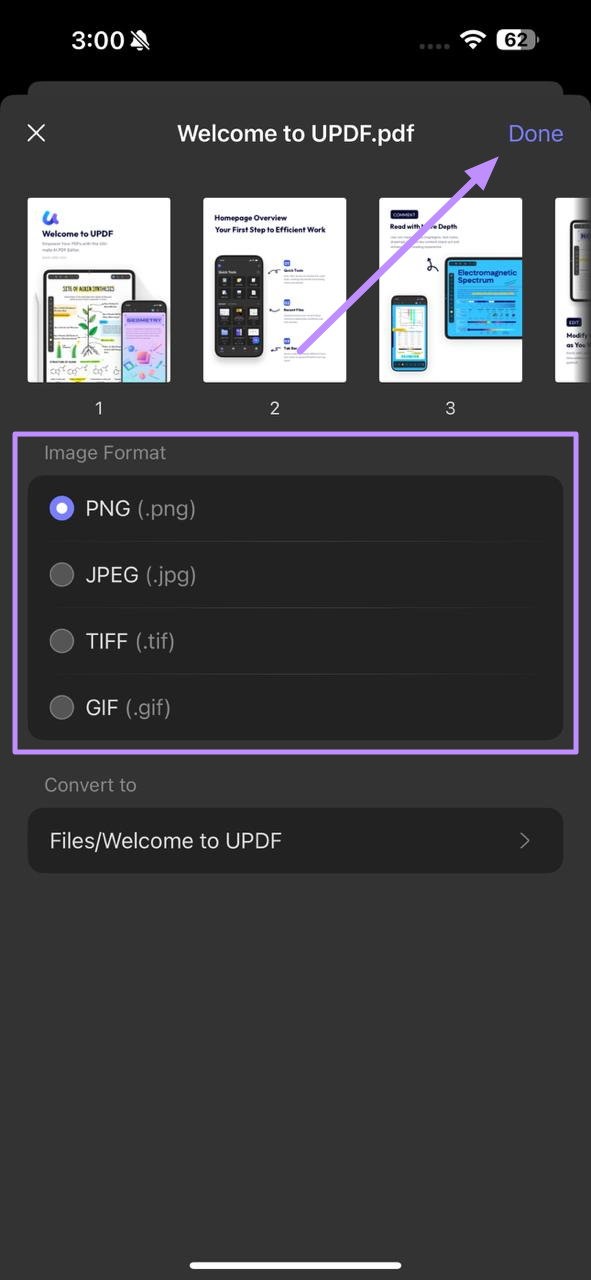
Step 3. Choose Image Format and Finalize Conversion
Once the file gets uploaded, pick your desired format, such as PNG, under the Image Format section. Finally, select the location to save your file and hit Done to complete the PDF to image on iPad conversion.
Other Key Features of UPDF
Other than PDF to photo transformation, UPDF can help you with other capabilities.
- Sign PDFs: UPDF allows you to add electronic signatures directly to your PDF files. You can use drawn, typed, or image-based signatures to sign contracts and forms directly within the app. This makes signing contracts or agreements seamless.
- Add Comments: With UPDF, you can annotate PDFs without any effort by highlighting or underlining text. It also lets you insert sticky notes, text boxes, and drawings into your file. It makes reviewing documents and sharing clear feedback with others fast and effective.
- Edit Text: This tool makes text editing simple within your PDFs. You can modify fonts, colors, and sizes without breaking the document’s format. It also allows inserting or deleting text, so updating reports becomes accurate.
- OCR Recognition: Its OCR converts scanned pages and images into searchable text. With this tool, you can recognize multiple languages and export accurate text. Using this app, you can turn picture-based PDFs into copyable content without manual retyping with ease.
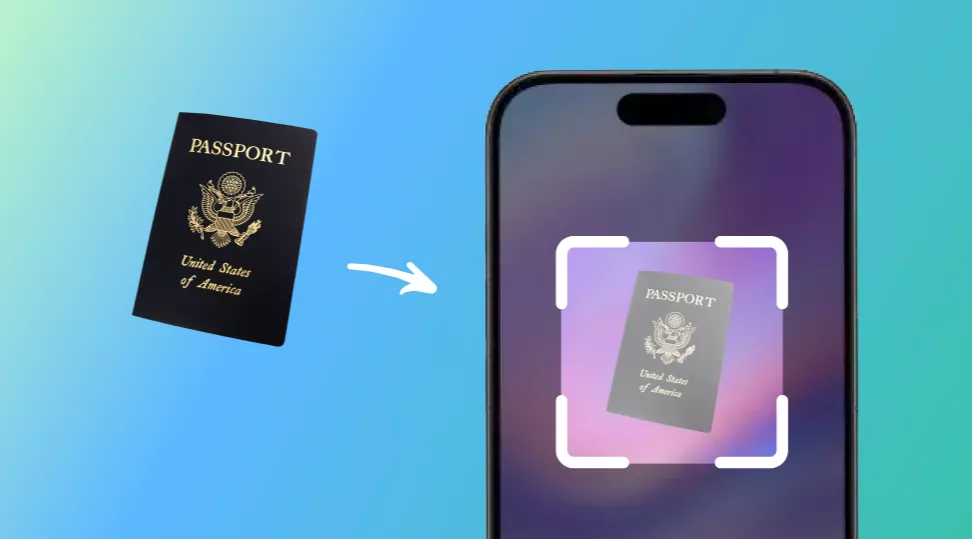
- Scan Documents and ID Card: After converting PDF to image on iPhone, UPDF turns your camera into a scanner for documents, receipts, and ID cards. Then, you can auto-crop and enhance scans for clarity.
- Set Passwords for Documents: Using this application, you get to protect sensitive files with passwords and permissions in UPDF. Moreover, this tool restricts opening, printing, or editing by applying strong encryption and access controls.
- Optimize PDF Size: UPDF can compress documents to reduce file size while keeping acceptable quality. While doing this, you can choose compression levels for images and create smaller files ideal for emailing.
Part 3. How to Convert PDF to One Single Long Image on iOS?
Best for:
- Sharing instructions, receipts, chat records, or other content that should be read as one continuous vertical image.
Not for:
- Portals that require one JPG per page or viewers who need to print pages at their original dimensions.
Besides converting iOS PDF to image individually, UPDF for iPhone also lets you turn an entire PDF into one single long image. This is perfect for keeping content continuous, making it easy to read or share without flipping pages.
While doing so, you just have to pick from different formats, including JPEG and PNG. So, download UPDF now to try this app yourself. Let’s walk through the simple steps below to learn how to convert PDF to image on iPhone:
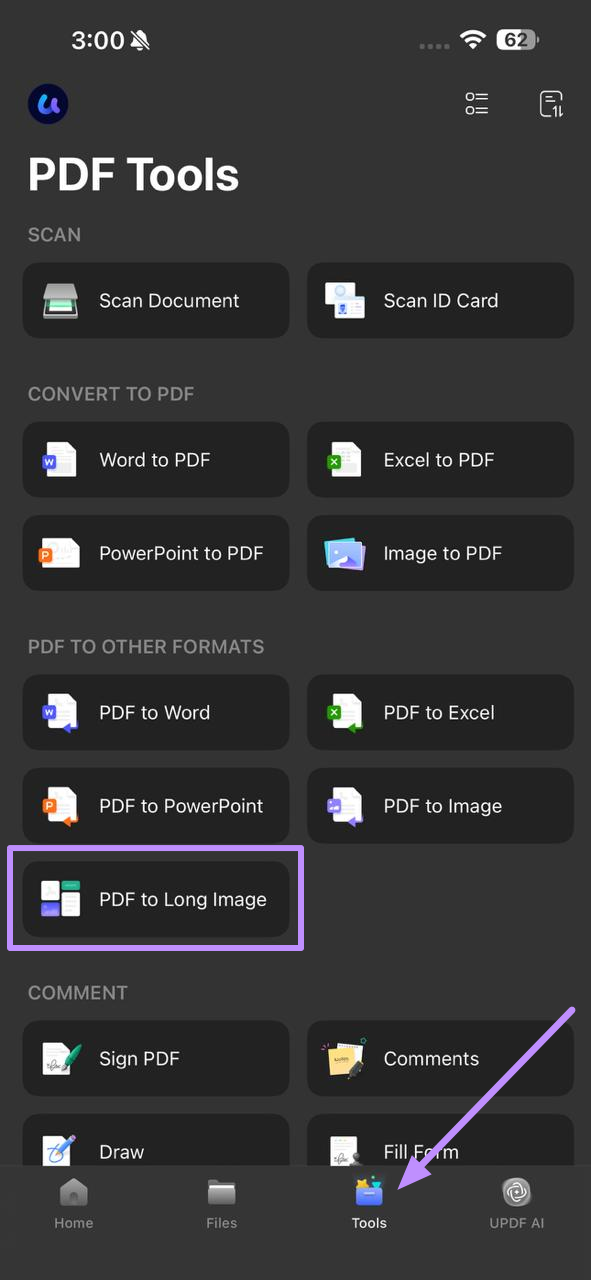
Step 1. Import a File Within PDF to Long Image
Upon launching UPDF on iPhone, enter the PDF Tools screen after clicking Tools. Within the PDF to Other Formats section, tap PDF to Long Images and import a file.
Step 2. Select Format and Finalize Conversion
On the next screen, choose the format under the Image Format section. Now, select the location within the Convert To menu and tap Done to save the converted image.
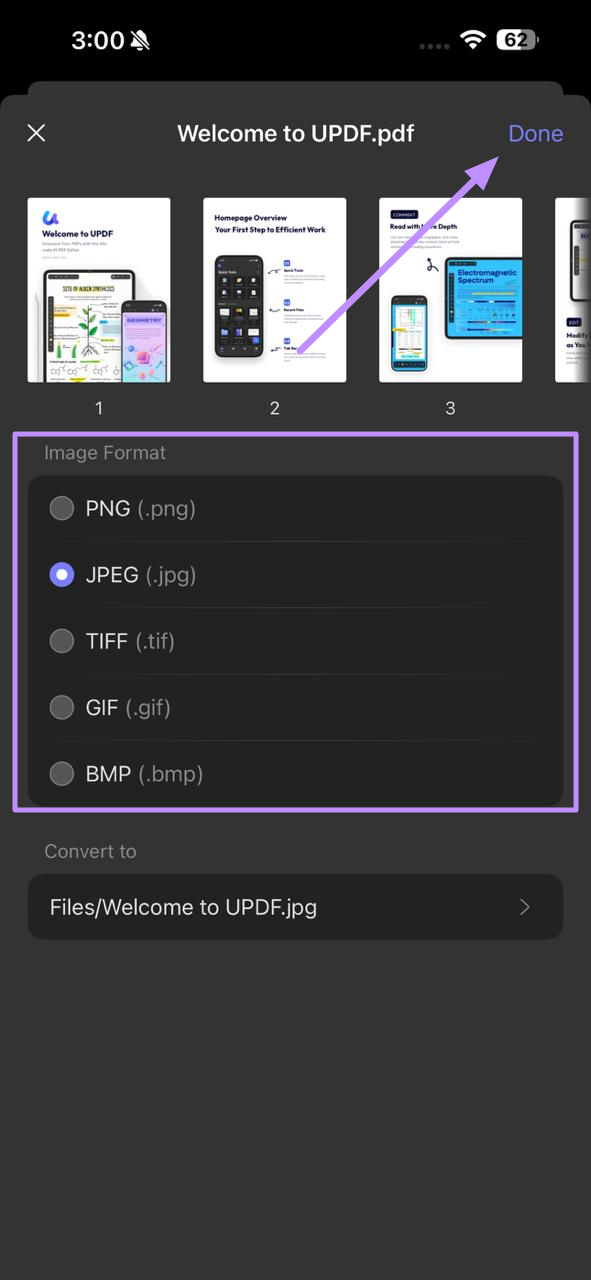
A long image is convenient for scrolling, but its height grows with every page. Some messaging apps and websites compress, downscale, or reject unusually large images. Use separate page images when legibility or upload compatibility matters more than continuous scrolling.
To turn all PDF pages into one shareable image without manually stitching screenshots, use UPDF's dedicated long-image workflow.
Windows • macOS • iOS • Android 100% secure
Part 4. How to Convert the JPG Images Back to PDF
Image conversion removes PDF features such as selectable text, searchable text layers, links, bookmarks, form fields, and page-level document structure. If the recipient later needs a document again, convert the images back into a PDF.
In UPDF for iOS, import the JPG files, select the required images, and choose Convert to PDF. For detailed single-image and batch instructions, see how to convert JPG to PDF on iPhone.
Keep the original PDF until the image-based workflow is finished. A PDF recreated from JPG files preserves the page appearance, but it does not automatically restore the original text layer, links, forms, or accessibility structure.
FAQS
Q1. How to Convert PDF to Image on iPhone/iPad without an App?
You can try using online tools, such as PDF24 PDF to images converter, to transform files into photos without an app. This application lets you choose different format types and image resolution while converting files.
Q2. Which tool is the best iPhone PDF to Image Converter for Free?
The best free iOS PDF to image converter is the UPDF application for iPhone. It allows you to convert up to 2 PDFs into images per day without any cost. With support for different formats, it is perfect for everyday use.
Conclusion
To summarize, converting PDF files into photos is now simpler than ever with the right tool. If you’ve been searching for a reliable iPhone PDF to image solution, UPDF has you covered. From saving PDFs as photos to creating one long image, this application makes the process quick and accurate.
Download the UPDF app today from the App Store and make PDF handling smarter. When satisfied with the functionality, purchase its paid version for limitless conversions.
Windows • macOS • iOS • Android 100% secure





 Enrica Taylor
 Enid Brown

