UPDF
UPDF
 UPDF for Windows
 UPDF for Mac
 UPDF for iPhone/iPad
 UPDF for Android
 Nomostar
 UPDF AI Online
 UPDF Sign
 IvyCraft
 Edit PDF
 Annotate PDF
 Create PDF
 PDF Form
 Edit links
 Convert PDF
 OCR
OCR PDF to Word
 PDF to Image
 PDF to Excel
 Organize PDF
 Merge PDF
 Split PDF
 Crop PDF
 Rotate PDF
 Protect PDF
 Sign PDF
 Redact PDF
 Sanitize PDF
 Remove Security
 Read PDF
 UPDF Cloud
 Compress PDF
 Print PDF
 Batch Process
 About UPDF AI
 UPDF AI Solutions
 AI User Guide
 FAQ about UPDF AI
 Summarize PDF
 Translate PDF
 Chat with PDF
 Chat with AI
 Chat with image
 PDF to Mind Map
 Explain PDF
 PDF AI Tools
 Image AI Tools
 AI Chat Tools
 AI Writing Tools
 AI Study Tools
 AI Working Tools
 Other AI Tools
 AI Bookmark Generation
 AI Bookmark Summary
 AI Watermark Generation
 AI Background Generation
 AI Sticker Generation
 AI Stamp Generation
 AI Editing Suite
 UPDF Copilot
 AI Page Management
 AI Semantic Search
 PDF to Word
 PDF to Excel
 PDF to PowerPoint
 Enterprise Solution
 Enterprise Sign
 Enterprise AI
 Enterprise Plan
 Enterprise User Guide
 Enterprise Webinar
 IT
IT Education
 Construction
 Financial Service
 Healthcare
 Insurance
 Legal
Legal Manufacturing
 Government
 Researchers & PhDs
 Solopreneurs & Freelancers
 Lawyers & Legal Professionals
 Real Estate Agents & Brokers
 Education Solution
 Customer Stories
 User Guide
 UPDF Tricks
 FAQs
FAQs UPDF Reviews
 Download Center
 Blog
Blog Newsroom
 Tech Spec
 Updates
 UPDF vs. Adobe Acrobat
 UPDF vs. Foxit
 UPDF vs. PDF Expert

Quick answer:
Why your PDF won't let you copy: you tried to select a sentence and nothing highlighted, Ctrl+F finds no matches, and pasting into a translator gives you nothing — so you're stuck retyping by hand. That's because the file is a scan or photo: every page is just an image, with no real text underneath. OCR (Optical Character Recognition) reads that image and rebuilds a genuine text layer, turning the picture back into words you can select, search, copy, and edit. In other words, it lets you make the PDF searchable. The six methods below all do this — the only choice is whether you want the whole file recognized, just one region, or a quick browser fix.
Which Method Do You Need? (Quick Routing Table)
Match your situation to the right method, then jump to that section. UPDF covers every row — on desktop, mobile, and in the browser.
| Your situation | Method | Best for |
|---|---|---|
| Whole scanned file, need editable/searchable text on your computer | Desktop OCR | Multi-page contracts, textbook chapters, archived paperwork |
| A scan on your phone, no computer nearby | Mobile OCR (iOS & Android) | A photographed receipt or a contract that arrives by email |
| Just one passage, table, or handwriting from a page | Desktop AI chat-with-image (screenshot the PDF) | Pulling a quote, messy handwriting, a chart you can't select |
| Text trapped in a photo on your phone | Mobile AI chat-with-image (upload image) | A snapshot of a whiteboard, a menu, a printed note |
| A specific area of a page, grabbed in one action | Right-drag "Copy as Text" on desktop | Snatching a paragraph, a cell, or a labeled region fast |
| No install allowed, quick one-off | UPDF AI Online (auto OCR or image chat) | A borrowed or work computer where you can't install software |
Part 1. How to Recognize Text in a Scanned PDF with Desktop OCR
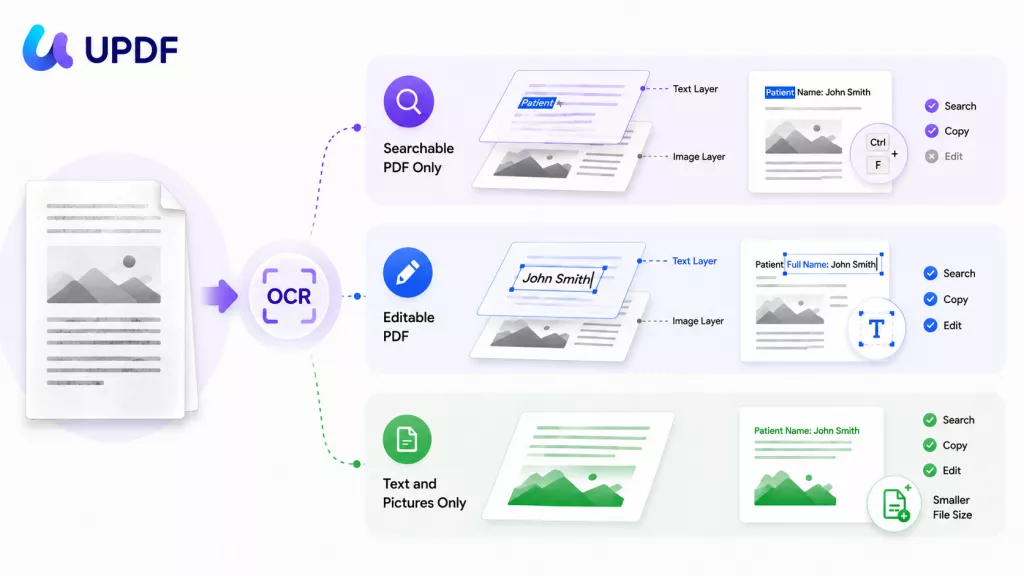
Running OCR is the standard way to make a scanned PDF searchable and editable. When you open a scanned PDF and nothing selects, UPDF's OCR tool reads the page image and rebuilds a genuine text layer, so the once-flat scan behaves like a normal PDF — you can select, search, copy, and edit. UPDF's OCR tool recognizes text in 38 languages and preserves the original layout and fonts.
Open the document in UPDF — if you don't have it yet, download UPDF for free and install it in under a minute — then follow the steps.
Windows • macOS • iOS • Android 100% secure
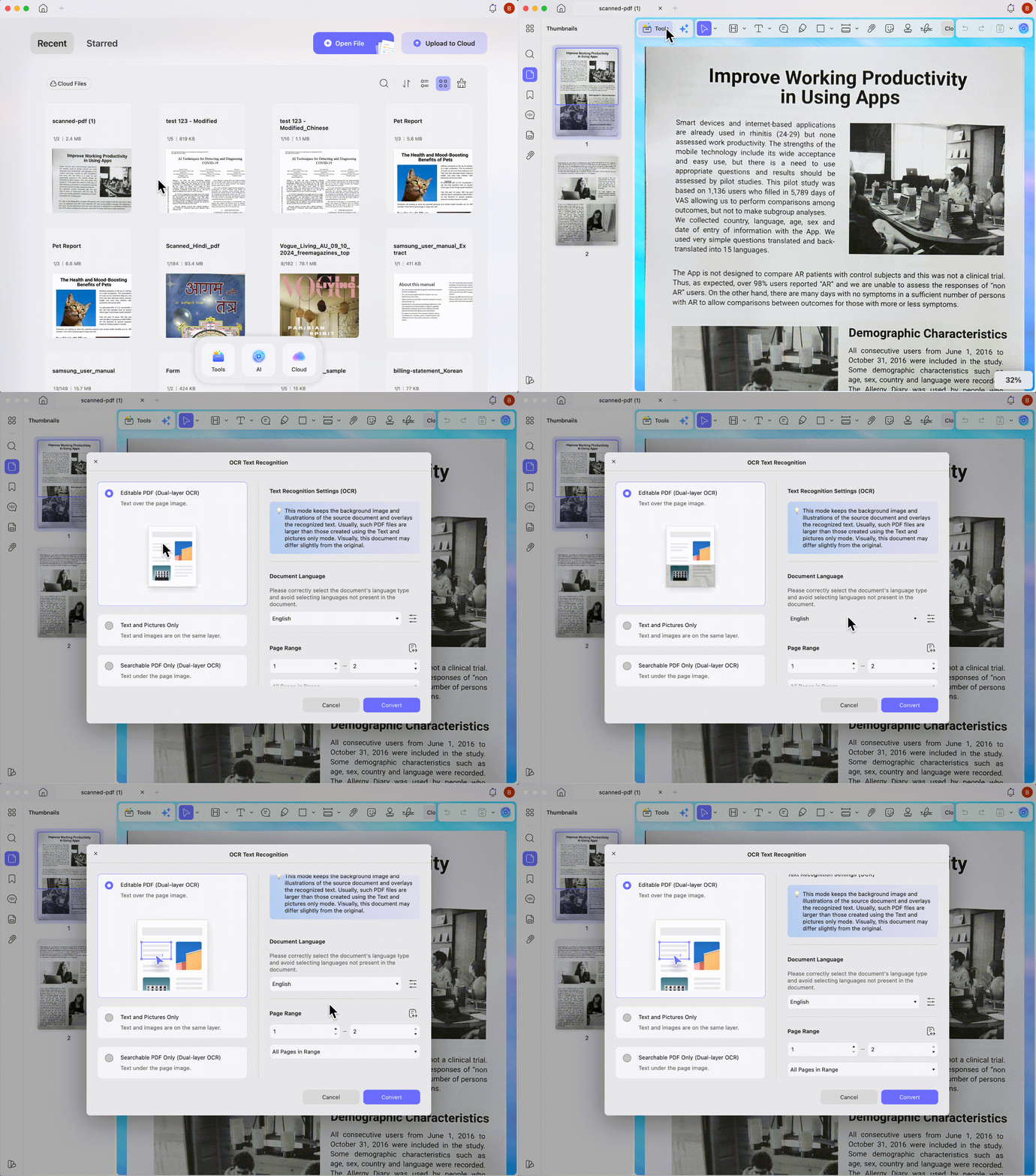
Step 1. Launch UPDF and click Open File to import your scanned PDF. For a loose image, drag it onto the UPDF home window to open it.
Step 2. Go to leftside Tools → OCR.
Step 3. Under Document Type, choose Editable PDF (text over or under the page image) so you can both search and edit. Pick Searchable PDF Only instead if you only need to find text without changing it.
Step 4. Set the document language and page range. You can tick more than one language at once for a mixed-language file — no need to split it.
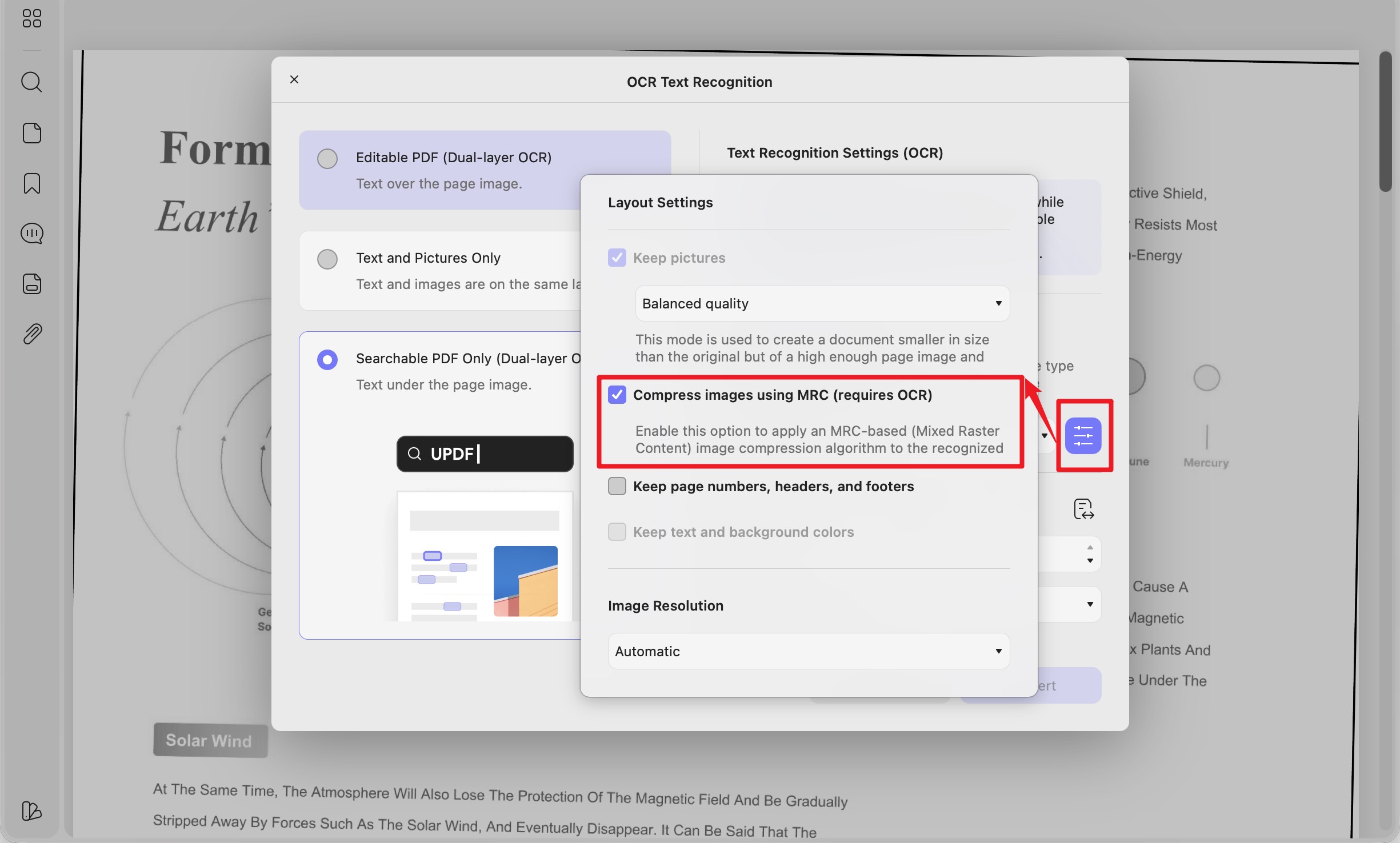
Step 5. Click the gear icon next to the Layout dropdown for advanced options such as MRC compression, then click Convert.
Step 6. When OCR finishes, the recognized PDF opens in a new tab. Click Edit in the top toolbar to correct text, or just select and copy what you need.
Accuracy reminder: OCR is recognition, not magic — always proofread numbers in invoices, IDs, and contracts, since a misread "0/O" or "1/l" changes meaning. A clean 300 DPI scan reads far more accurately than a dim, skewed phone photo.
Best for:
- Whole scanned documents you want to keep editing on your computer — contracts, receipts, textbook pages, archived files.
Not for:
- A single quote or a page of handwriting — running full OCR is overkill there; jump to the AI method in Part 3.
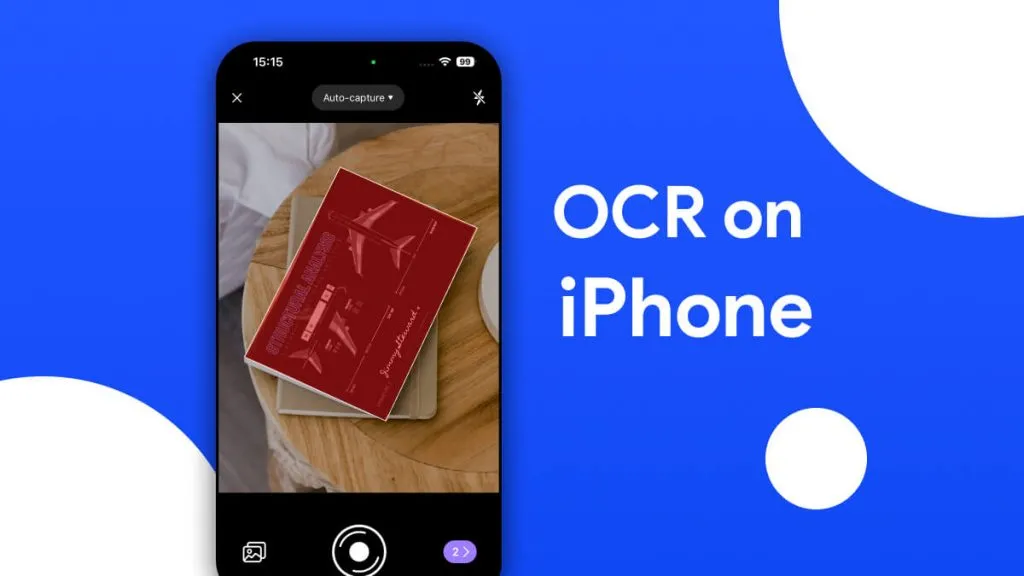
Part 2. How to Recognize Text in a Scanned PDF on iPhone, iPad & Android
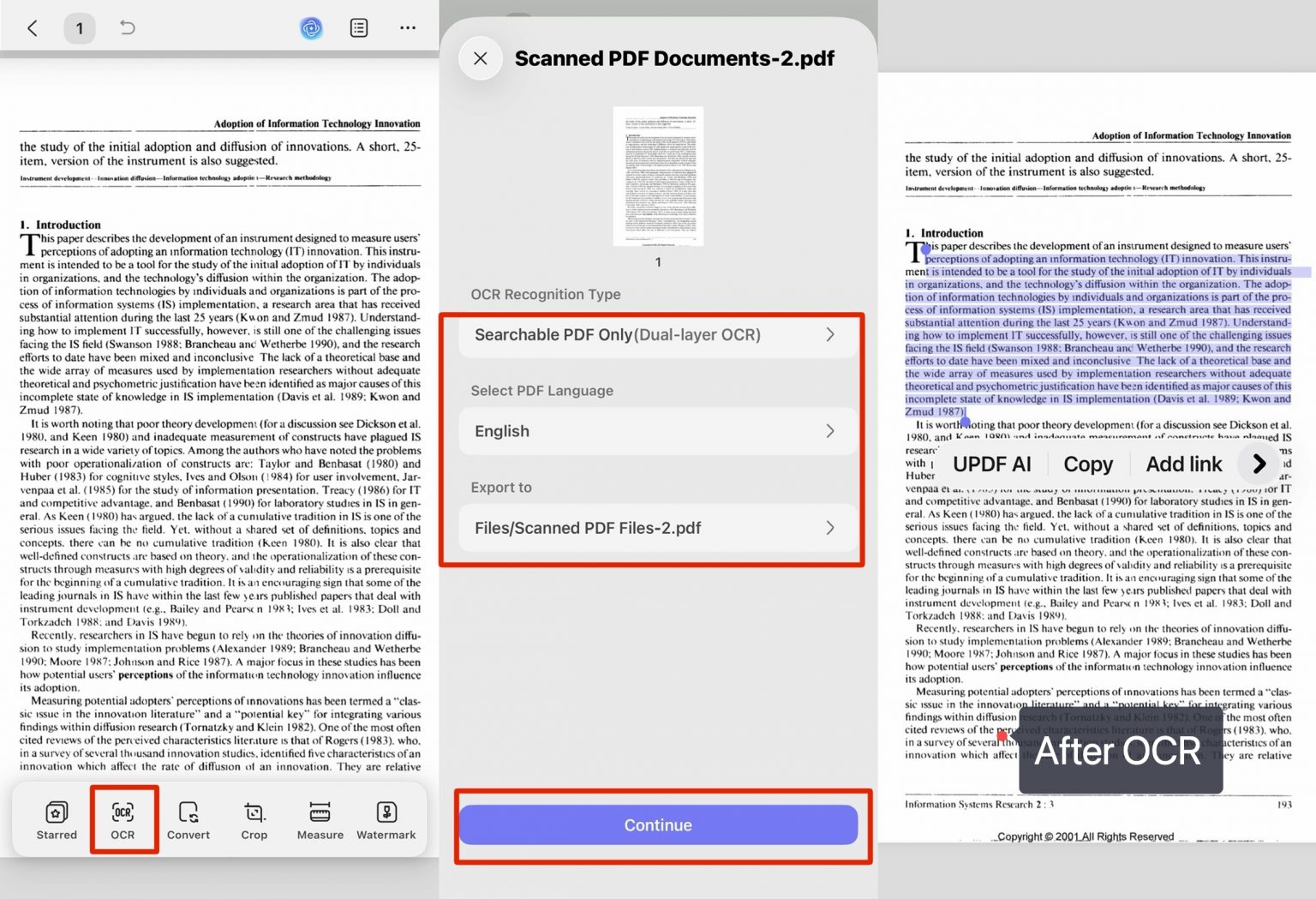
One UPDF license covers desktop and mobile, so you can make the PDF searchable on the device in your hand. UPDF's mobile OCR is full-featured — the same three output modes as desktop (Editable PDF, Text and Pictures Only, Searchable PDF Only) — not a stripped-down version. Install UPDF for iOS or UPDF for Android, then open your file. The steps are identical on both platforms.
Step 1. Tap the + button to import your scanned PDF (or an image).
Step 2. Tap OCR at the bottom, set the language and layout, then tap Continue. The recognized file saves to your UPDF files automatically.
Step 3. Tap Edit on the OCR'd file to select, copy, or rewrite the text, then save.
Best for:
- Quick recognition away from your desk — a photographed receipt, a scan that lands in your inbox.
Not for:
- Long multi-page OCR jobs, which run faster and proof more easily on desktop.
Part 3. How to Recognize Handwriting or a Single Passage with Desktop AI
When OCR struggles — messy handwriting, a stylized font, a chart you can't select — UPDF's built-in AI reads the image directly and returns the text. On desktop you don't even need to export anything: the Screenshot tool grabs the region straight off the open PDF and sends it to the AI. This is the chat with image feature, and it handles handwritten and printed text in effectively any language.
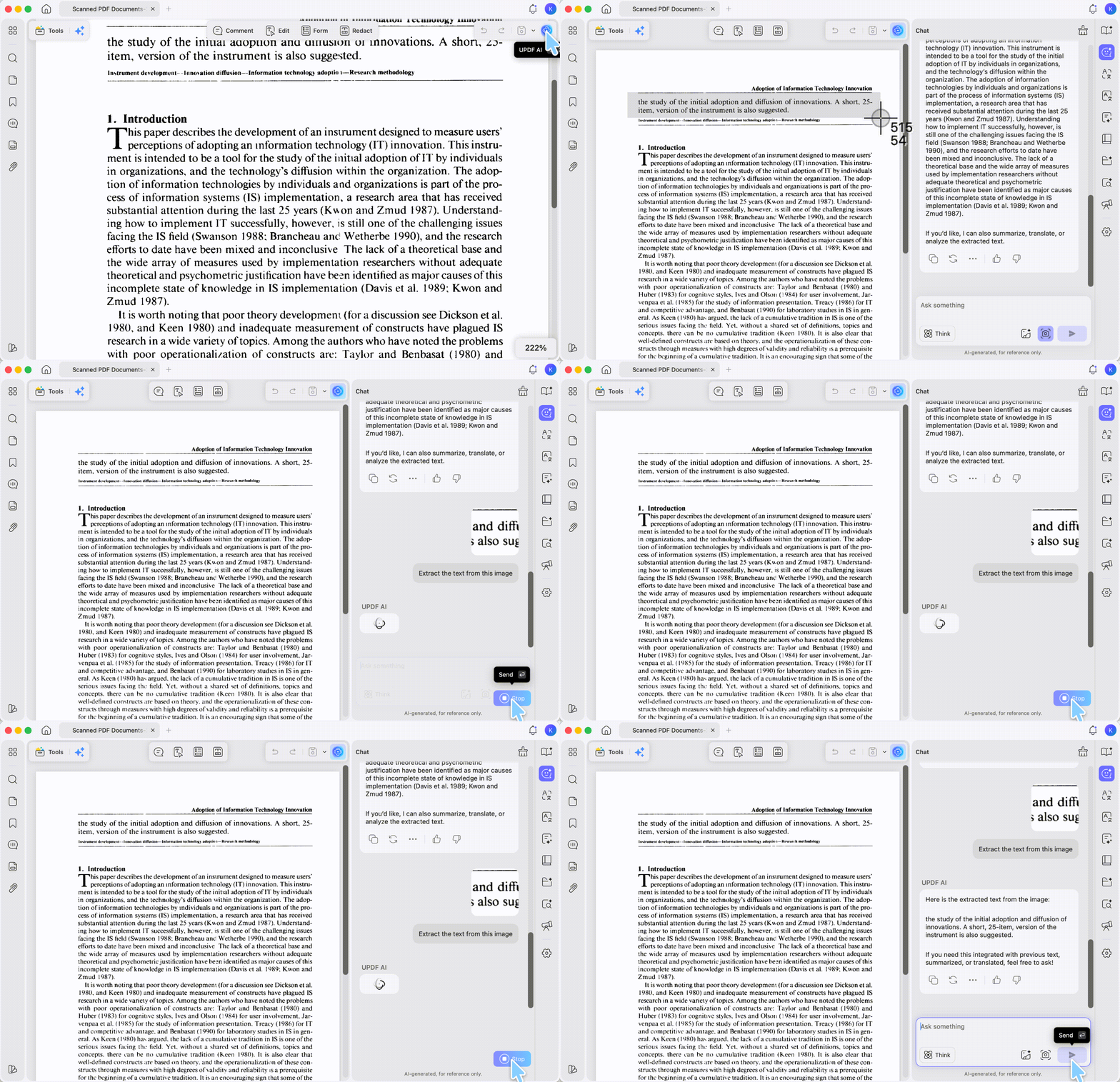
Step 1. Open the PDF in UPDF, then click UPDF AI in the lower-right corner and switch to Chat mode at the top.
Step 2. Navigate to the page you need, then click the Screenshot tool at the bottom right.
Step 3. Click and drag over the area with the text or handwriting. When you release, the screenshot lands in the UPDF AI message box.
Step 4. Type a prompt — Extract the text from this image — and hit Send. UPDF AI returns the text in seconds; click the Copy icon to paste it wherever you need.
Best for:
- Handwriting, one quoted passage, a table or diagram that OCR mangles, or a language your OCR list doesn't cover. The free tier includes 100 AI uses to get started.
Not for:
- A 40-page file — screenshotting page by page is slow; use Part 1's OCR for whole documents.
Part 4. How to Recognize Text From an Image on Your Phone with AI
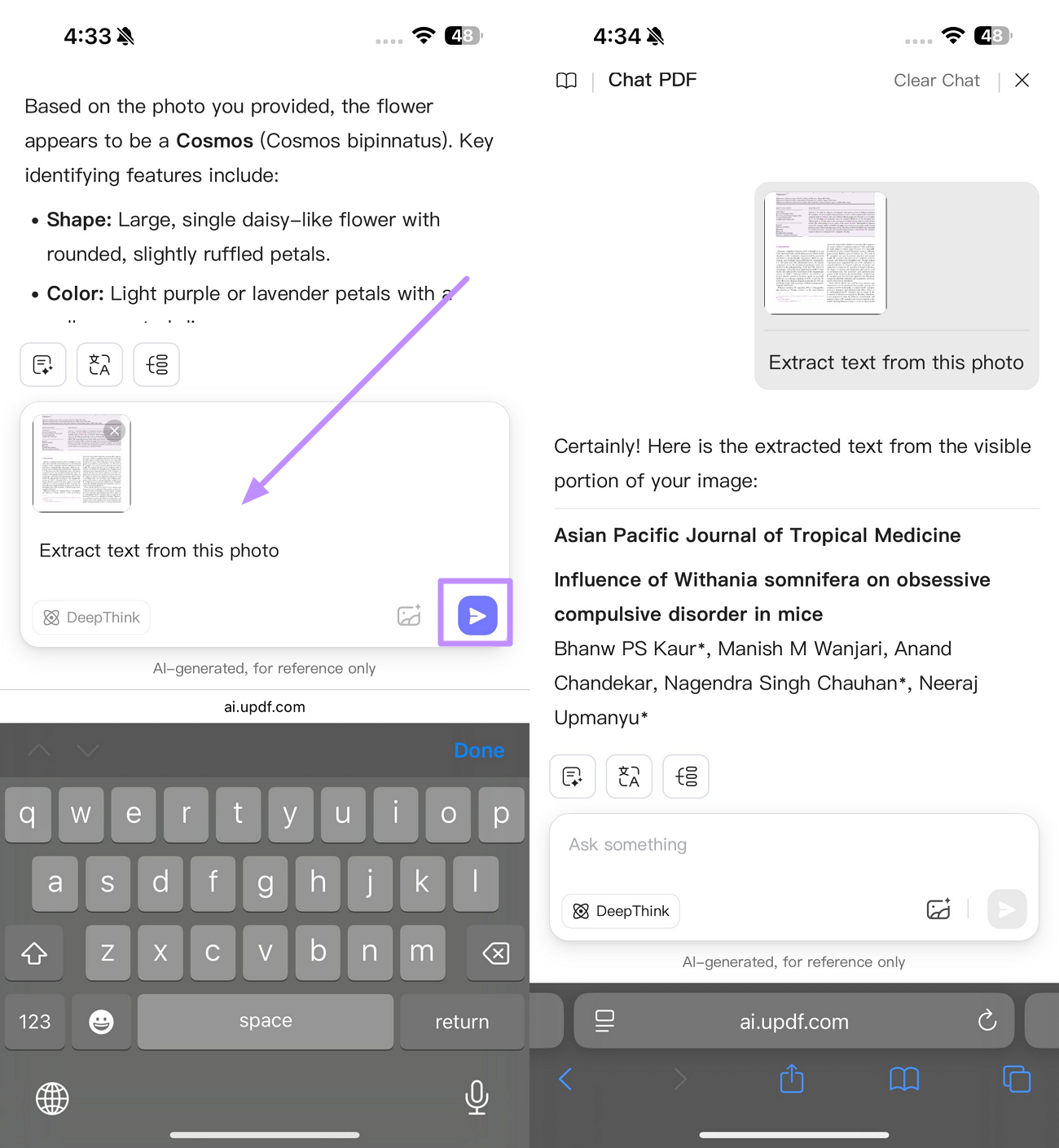
On mobile, UPDF AI's chat-with-image works from an uploaded picture rather than an in-app screenshot — so snap or save the image first, then hand it to the AI. This is the practical route when the text lives in a photo: a whiteboard shot, a printed note, a foreign menu.
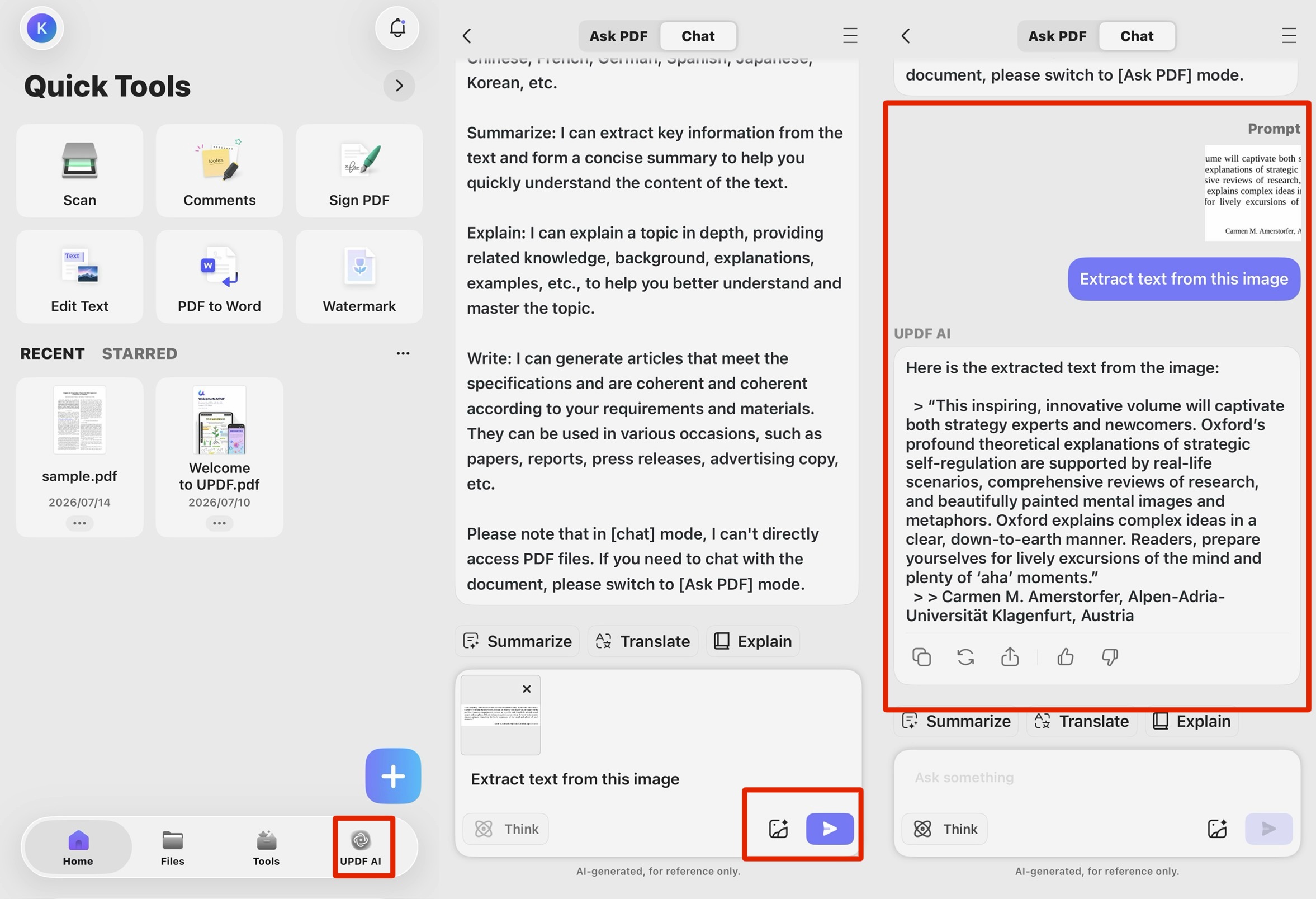
Step 1. Open UPDF on your phone and tap UPDF AI, then switch to Chat mode.
Step 2. Tap the image icon and select the photo containing the text.
Step 3. Enter a prompt such as Extract text from this image and send. Copy the recognized text and paste it into any app.
Best for:
- Text stuck inside a photo on your phone — notes, signs, receipts, handwriting.
Not for:
- Recognizing an entire multi-page scanned PDF on mobile — use the mobile OCR flow in Part 2 for that.
Part 5. How to Grab Text From Any Area with Right-Drag "Copy as Text"
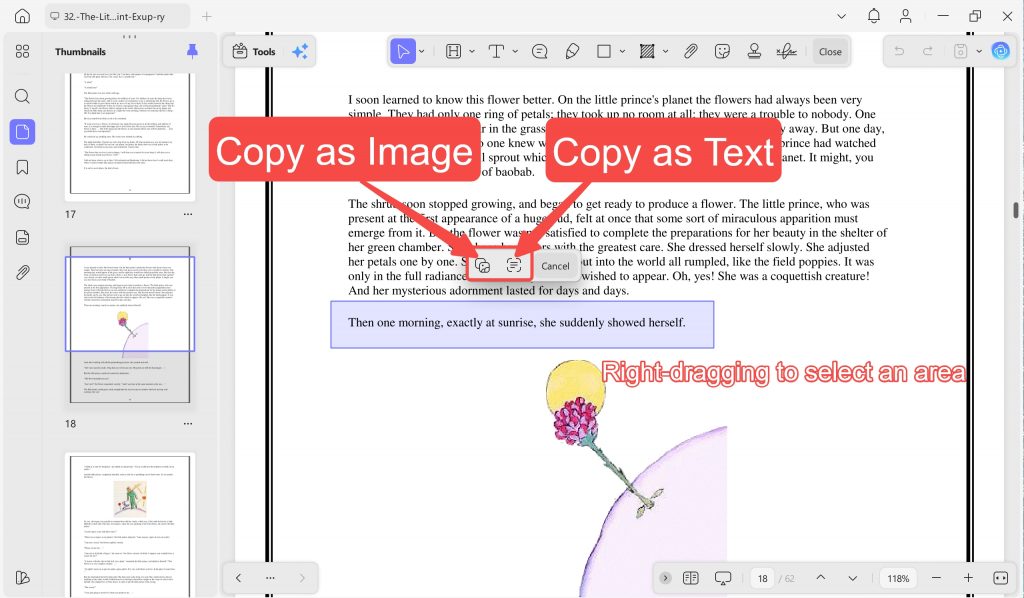
UPDF has a faster shortcut for a single region: hold the right mouse button and drag a box around the area you want. When you release, a floating menu appears with Copy as Image and Copy as Text — choosing Copy as Text recognizes the text inside that box and puts it straight on your clipboard. There's no full-file OCR pass and no AI prompt; you box the region and paste.
Step 1. Open the PDF in UPDF. Right-click and drag to draw a box around the paragraph, table cell, or labeled area you want.
Step 2. Release the mouse. In the floating menu, click Copy as Text (or Copy as Image if you'd rather keep the region as a picture).
Step 3. Paste the recognized text into Word, an email, or any editor with Ctrl + V / Cmd + V.
Best for:
- Quickly lifting one region — a paragraph, a figure caption, a single table cell — without converting the whole document.
Not for:
- Recognizing an entire multi-page scan — box-selecting page after page is tedious; run full OCR (Part 1) instead. On the free tier, copying recognized text may require Pro.
Part 6. How to Recognize Text in a PDF Online (No Install)
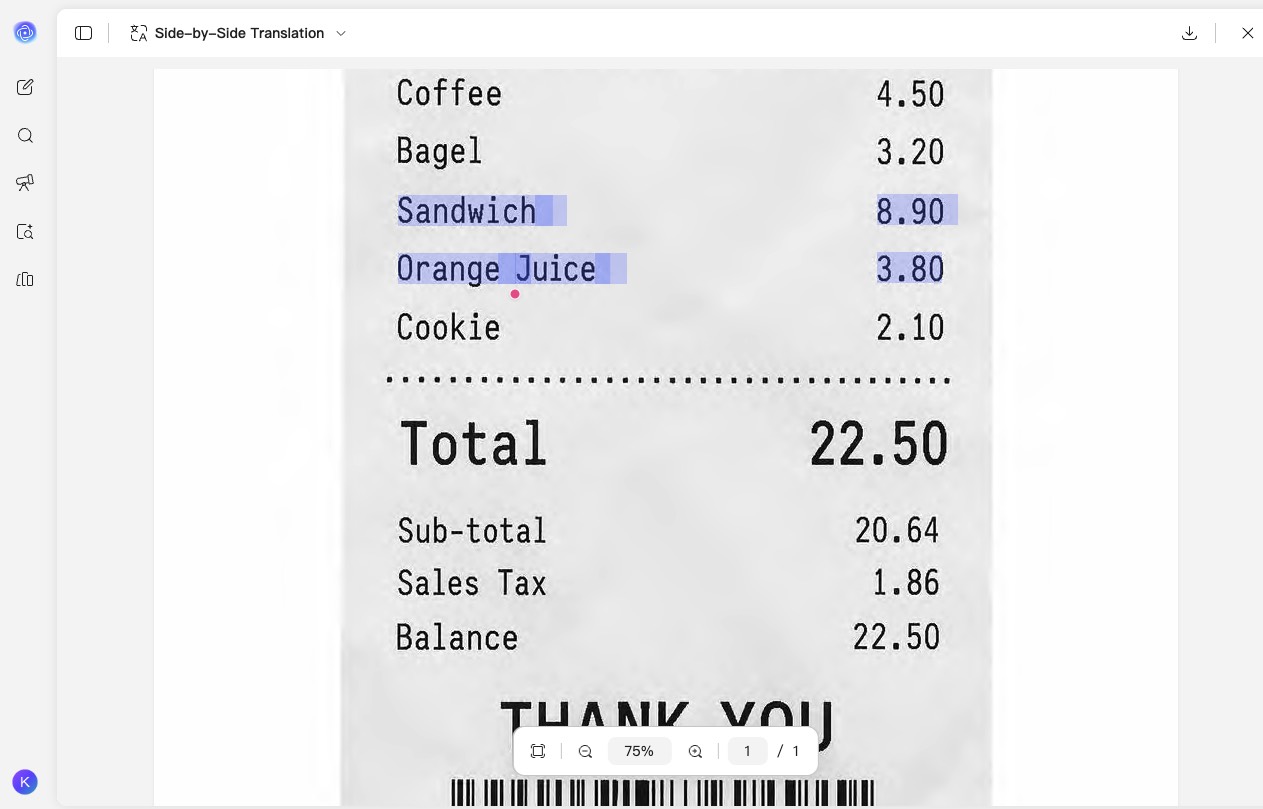
On a borrowed or locked-down computer where you can't install software, UPDF AI Online recognizes text right in the browser. It gives you two paths, depending on whether you want the whole file converted or just one chunk of text.
Path A — Auto-OCR a whole scanned PDF:
Step 1. Click the button below to open UPDF AI Online in your browser.
Step 2. Upload your scanned PDF and click Send.
Step 3. UPDF AI Online runs OCR automatically and then you can copy the text.
Path B — Extract text from one image or screenshot:
Step 1. In UPDF AI Online, click the image icon (or paste a screenshot straight into the message box).
Step 2. Upload a JPG or PNG of the page or region — handwritten or printed.
Step 3. Enter Extract the text from this image, send, and copy the result.
Privacy and limits: the online route uploads your file to UPDF's servers, so for contracts, IDs, and financial documents the desktop app (which processes everything locally) is the safer choice. Online free use covers 5 documents, and it's best for short files — for large or 100-page-plus PDFs, use the desktop OCR in Part 1.
Download UPDF for free to try recognizing text on a scan of your own — installation is free, and Pro features are available when you need watermark-free export or batch OCR.
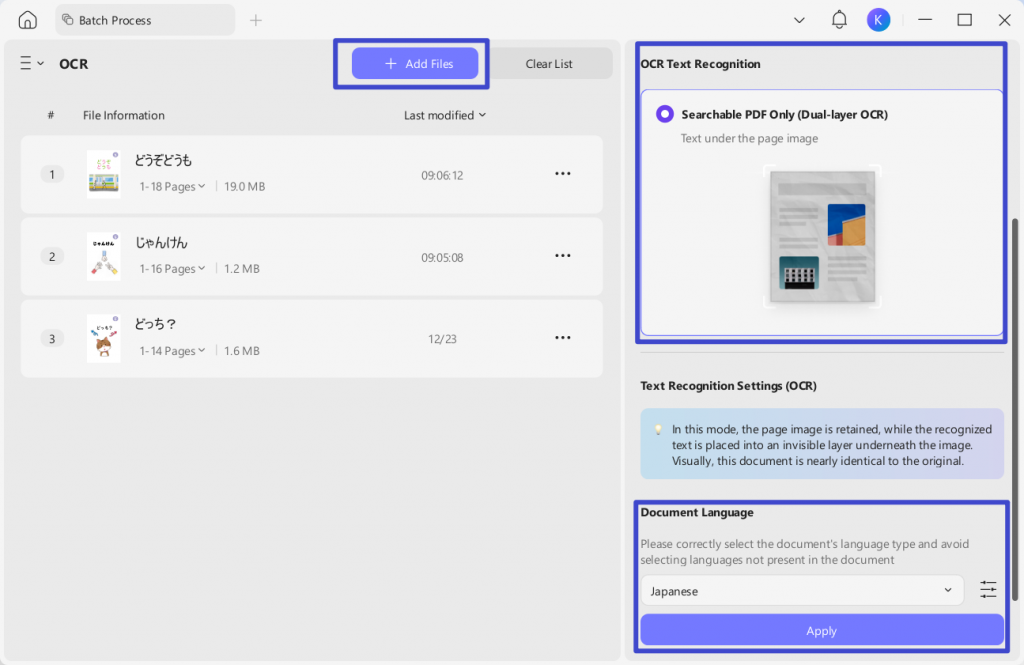
Windows • macOS • iOS • Android 100% secure
Part 7. Comparison: Which UPDF Method Fits Your File?
Every method recognizes text, but each has a boundary worth knowing before you start.
| Method | Recognizes | Platform | Keeps a text layer? | Watch out for |
|---|---|---|---|---|
| Desktop OCR | Whole scanned/image PDF | Windows, Mac | ✓ — permanent | Free tier: 5 OCR uses; Pro for watermark-free export & batch |
| Mobile OCR | Whole scanned PDF | iOS, Android | ✓ — permanent | Slower on long files than desktop |
| Desktop AI (screenshot) | One region, handwriting, charts | Windows, Mac | ✗ — one-time read | 100 free AI uses; page-by-page for long docs |
| Mobile AI (upload image) | Text inside a photo | iOS, Android | ✗ — one-time read | Uploads image only, no in-app screenshot |
| Right-drag Copy as Text | One boxed area of a page | Windows, Mac | ✗ — one-time grab | Region-by-region only, not whole files; Pro may be needed |
| UPDF AI Online | Whole file (auto-OCR) or one image | Any browser | One-time read | Uploads to server; 5 free docs; not for huge/batch files |
Mac note: UPDF's desktop OCR runs on the web-download version for Apple Silicon Macs and on Windows; the Intel-Mac and Mac App Store builds don't include OCR. On those, use the screenshot route or UPDF AI Online instead.
Part 8. Edge Cases: When Recognition Still Fails
- You ran OCR but the text still won't select. The scan is likely too low-resolution or skewed. Re-scan at 300 DPI, straighten (deskew) the page, and run OCR again — recognition quality depends heavily on a clean, upright image.
- The recognized text is full of wrong characters. You probably left the wrong document language set. An English-only pass on a French, German, or Arabic file misreads accented and non-Latin characters. Re-run with the correct language (or tick several for a mixed-language file).
- OCR is greyed out or blocked. The PDF is permission-protected against editing. Enter the password or remove the restriction first — only on files you own or are authorized to edit — then run OCR. See how to remove PDF security.
- The file is over 300 pages. UPDF's OCR handles up to 300 pages per file. For a longer document, split it, OCR each part, then merge the results back together.
- Handwriting comes back garbled from OCR. Traditional OCR isn't built for cursive. Switch to the AI screenshot route (Part 3) — it reads handwriting far more reliably than a standard OCR pass.
Part 9. FAQ
1. Can I recognize text in a scanned PDF using Apple Live Text on Mac or iPhone?
On a Mac or iPhone, Live Text can pull words out of a photo or screenshot, so it's handy for a quick grab. But it doesn't run on a scanned PDF directly — you'd first screenshot the page — and it's Apple-only, so it's no help on Windows or Android. For a whole scanned document, or cross-platform work, UPDF's OCR recognizes the entire file in one pass.
2. Do I need to OCR a PDF that came from Word?
No. A PDF exported from Word already has a live text layer, so its text selects and copies straight away. OCR is only for scans and photos.
3. Does recognizing text change how the PDF looks?
Mostly no, but not pixel-for-pixel. In the Editable PDF (Dual-layer OCR) mode, the recognized text sits over the original page image, so at normal viewing it looks the same. Two things can alter the look: switching on MRC compression (a Mixed Raster Content option, off by default, that re-encodes the image to shrink the file and can slightly soften it), or later editing the text, where a substituted font may shift the appearance. Left on the defaults, the page keeps its original look — you've only added a searchable, copyable text layer underneath.
4. Can I search recognized text after reopening the PDF?
Yes. Save the OCR output as a PDF and reopen that saved file; its recognized text layer remains searchable. If you only copied a selected region or used AI image chat, that action does not add a text layer to the original PDF.
Conclusion
Recognizing text in a PDF comes down to one question: is it a scan or a digital file? If the text won't select, OCR software rebuilds the layer for the whole document; if you only need one passage or some handwriting, UPDF AI's chat-with-image reads it on the spot; and for a single region, right-dragging Copy as Text grabs it in one action. UPDF handles all of these — desktop and mobile OCR, AI screenshot and image recognition, and browser-based UPDF AI Online. If you're recognizing a scanned PDF so you can edit it afterward, the same workflow also lets you make a PDF editable in the same app.
UPDF is an all-in-one PDF editor with built-in OCR software that handles recognition, editing, and export in the same app — no separate tool needed. Download UPDF for free to try recognizing text on your own scanned file — installation is free, and Pro features are available when you need watermark-free export or batch OCR.
Windows • macOS • iOS • Android 100% secure





 Enrica Taylor
  Enola Davis
 Lizzy Lozano