 UPDF
UPDF
 UPDF for Windows
 UPDF for Mac
 UPDF for iPhone/iPad
 UPDF for Android
 Nomostar
 UPDF AI Online
 UPDF Sign
 IvyCraft
 Edit PDF
 Annotate PDF
 Create PDF
 PDF Form
 Edit links
 Convert PDF
 OCR
OCR PDF to Word
 PDF to Image
 PDF to Excel
 Organize PDF
 Merge PDF
 Split PDF
 Crop PDF
 Rotate PDF
 Protect PDF
 Sign PDF
 Redact PDF
 Sanitize PDF
 Remove Security
 Read PDF
 UPDF Cloud
 Compress PDF
 Print PDF
 Batch Process
 About UPDF AI
 UPDF AI Solutions
 AI User Guide
 FAQ about UPDF AI
 Summarize PDF
 Translate PDF
 Chat with PDF
 Chat with AI
 Chat with image
 PDF to Mind Map
 Explain PDF
 PDF AI Tools
 Image AI Tools
 AI Chat Tools
 AI Writing Tools
 AI Study Tools
 AI Working Tools
 Other AI Tools
 AI Bookmark Generation
 AI Bookmark Summary
 AI Watermark Generation
 AI Background Generation
 AI Sticker Generation
 AI Stamp Generation
 AI Editing Suite
 UPDF Copilot
 AI Page Management
 AI Semantic Search
 PDF to Word
 PDF to Excel
 PDF to PowerPoint
 Enterprise Solution
 Enterprise Sign
 Enterprise AI
 Enterprise Plan
 Enterprise User Guide
 Enterprise Webinar
 IT
IT Education
 Construction
 Financial Service
 Healthcare
 Insurance
 Legal
Legal Manufacturing
 Government
 Researchers & PhDs
 Solopreneurs & Freelancers
 Lawyers & Legal Professionals
 Real Estate Agents & Brokers
 Education Solution
 Customer Stories
 User Guide
 UPDF Tricks
 FAQs
FAQs UPDF Reviews
 Download Center
 Blog
Blog Newsroom
 Tech Spec
 Updates
 UPDF vs. Adobe Acrobat
 UPDF vs. Foxit
 UPDF vs. PDF Expert

Many Linux apps can highlight a PDF or add notes, but far fewer can replace existing text, edit images, run OCR, and preserve the original layout. The right choice therefore depends on whether you need full content editing, simple markup, page management, or visual design work.
This guide compares five native Linux PDF editors by editing depth, OCR, Linux Mint compatibility, and free-version limits. It also explains when UPDF for Android may be useful on a Chromebook that supports Android apps or on a separate Android phone or tablet.
If that Android workflow matches your setup, you can try UPDF free while comparing it with the native Linux options below.
Download UPDF free for Android and try it with your own PDF.
Windows • macOS • iOS • Android 100% secure
Disclosure: UPDF does not currently provide a native Linux desktop application. Availability on a Chromebook depends on Google Play support and whether the device lists the Android app as compatible.
Part 1. Best Linux PDF Editors Compared
Start with the task you need to complete. “PDF editing” can mean changing existing words and images, adding annotations, rearranging pages, or modifying visual objects, and not every Linux PDF tool handles all four.
| Tool | Best for | Platform | Existing text/images | OCR | Free limitation |
|---|---|---|---|---|---|
| Xodo PDF Studio | Professional, full PDF workflows | Native Linux | Yes | Yes | Demo watermarks saved files; full trial requires a payment method |
| Master PDF Editor | Editing, forms, and document controls | Native Linux | Paid/full mode | Yes | Unregistered use is limited; demo output is watermarked |
| LibreOffice Draw | Free edits to simple PDFs | Native Linux | Yes, with layout risk | No | Free and open source; no watermark |
| Okular | Annotations, forms, and reading | Native Linux | No | No | Free and open source; no watermark |
| Inkscape | Graphics and design-heavy PDF pages | Native Linux | Visual objects and some text | No | Free and open source; no watermark |
| UPDF for Android | Compatible Chromebooks and Android devices | Not native Linux | Yes | Yes | Free edited output may include a watermark |
For a broader explanation of content editing, annotation, and page operations, see how to edit a PDF. A recent Linux community discussion also shows why users should check page tools and watermark restrictions instead of assuming every free editor offers full editing.
Part 2. Xodo PDF Studio — Best Full PDF Editor for Linux
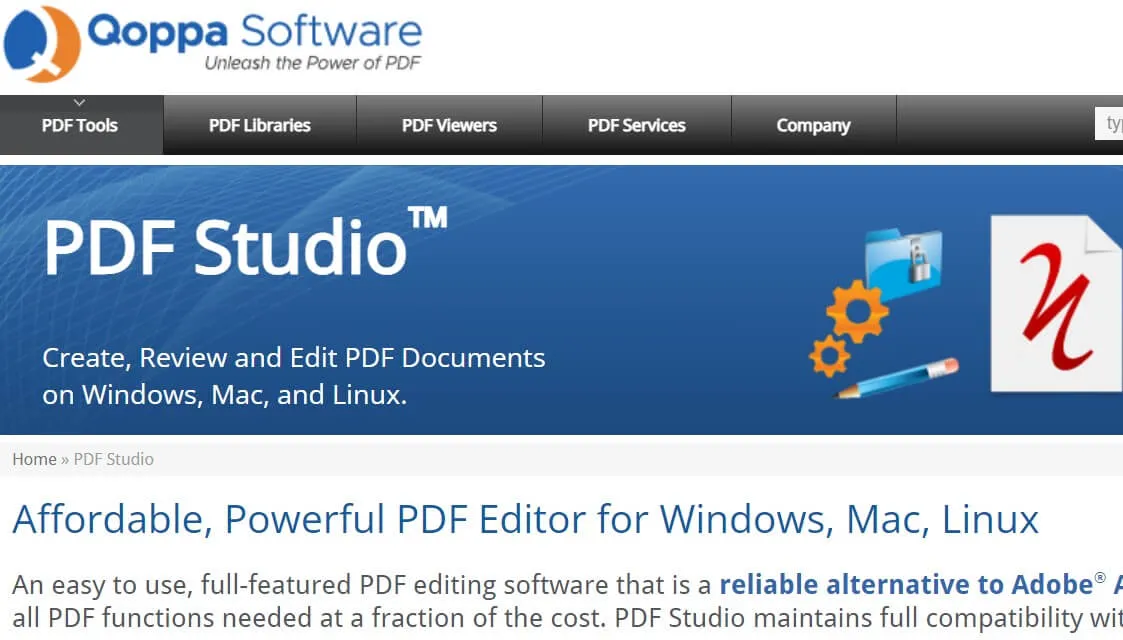
Best for: Professionals who need one native Linux application for text and image editing, OCR, forms, redaction, conversion, security, and batch processing.
Xodo PDF Studio is a native desktop PDF editor for Linux, Windows, and macOS. It can edit existing text and images, recognize scanned documents with OCR, create and fill forms, organize pages, convert files, redact sensitive content, and automate repeated tasks. It works offline after installation and supports distributions including Mint, Ubuntu, Debian, Fedora, and Arch Linux.
Free limitation: Xodo offers a downloadable demo, but documents saved in demo mode receive a watermark. Its unrestricted trial requires a payment method. A perpetual desktop license is available, but buyers should confirm the current support and upgrade period before purchasing.
Pros
- Combines content editing, OCR, forms, redaction, conversion, and batch tools.
- Supports major Linux distributions, including Linux Mint.
- Offers offline processing and a perpetual-license option.
Cons
- There is no completely free editing edition.
- Demo output is watermarked, and the full trial requires payment details.
- The interface and feature set may be more than occasional users need.
If your main task is correcting a sentence rather than managing a complete workflow, this guide to editing words in a PDF explains the difference between replacing existing text and adding a new text box.
Part 3. Master PDF Editor — Best for Editing and Forms
Best for: Linux users who need direct PDF content editing, form creation, signatures, document security, and several installation formats.
Master PDF Editor provides a native Linux build that can edit or add formatted text, insert and modify images, create interactive form fields, annotate documents, manage pages, apply security settings, and work with digital signatures. Current downloads include DEB, RPM, AppImage, tarball, Snap, and repository options, making it practical across Ubuntu-based, Debian-based, Fedora, and Arch setups.
Free limitation: The unregistered version is intended for personal, noncommercial viewing, form filling, commenting, and printing. The demo can be used to test broader features, but its output is watermarked. Ignore advice that recommends relying on the abandoned version 4 solely to avoid current licensing limits; old software may lack security and compatibility updates.

Pros
- Edits existing PDF text, images, and objects in the licensed version.
- Includes form, security, page, bookmark, and signature controls.
- Provides packages for several Linux distributions and installation methods.
Cons
- Full editing requires a commercial license.
- Demo output includes a watermark.
- Advanced document controls can take time to learn.
For scanned documents, first determine whether you need searchable text or fully editable content. The workflow is explained in how to make a scanned PDF editable.
Part 4. LibreOffice Draw — Best Free PDF Editor for Linux Mint
Best for: Free changes to short, simple PDFs where small layout shifts are acceptable.
LibreOffice Draw imports a PDF as editable text boxes and graphic objects. This makes it useful for correcting short text, moving elements, inserting images, and exporting the result back to PDF without a watermark. LibreOffice is readily available on Linux Mint and many other distributions.
The tradeoff is layout fidelity. Complex tables, uncommon fonts, multi-column pages, and tightly positioned designs may shift during import or export. Draw also does not provide a built-in OCR workflow, so image-only scans remain images unless they are processed separately.

Pros
- Free, open source, and widely available in Linux repositories.
- Can modify text boxes, images, shapes, and other imported objects.
- Exports edited documents to PDF without adding a watermark.
Cons
- Complex layouts and fonts may change.
- No built-in OCR for scanned PDFs.
- Large documents can be slower and harder to manage.
If you only need to place new wording on a page rather than rewrite existing content, see how to add text to a PDF.
Part 5. Okular — Best for Annotation and Form Filling
Best for: Reading, reviewing, highlighting, commenting on, and filling PDFs without changing their original page content.
Okular is KDE’s document viewer and a strong choice for PDF markup. It supports highlights, freehand drawing, shapes, stamps, notes, underlining, and strikethrough. Users can fill supported PDF forms, inspect digital signatures, and navigate long documents through thumbnails, bookmarks, and the table of contents.
Okular is not a full content editor: it does not replace existing paragraph text or modify embedded images, and it has no built-in OCR workflow. Choose it when the task is review or form completion rather than document rewriting.

Pros
- Free and open source with strong KDE integration.
- Offers a useful range of annotation and navigation tools.
- Supports PDF forms and signature inspection.
Cons
- Cannot directly edit existing PDF text or images.
- Does not include OCR.
- It is better suited to review than complete PDF production.
Part 6. Inkscape — Best for Visual PDF Page Editing
Best for: Posters, certificates, diagrams, logos, and other design-heavy PDF pages that need precise object-level changes.
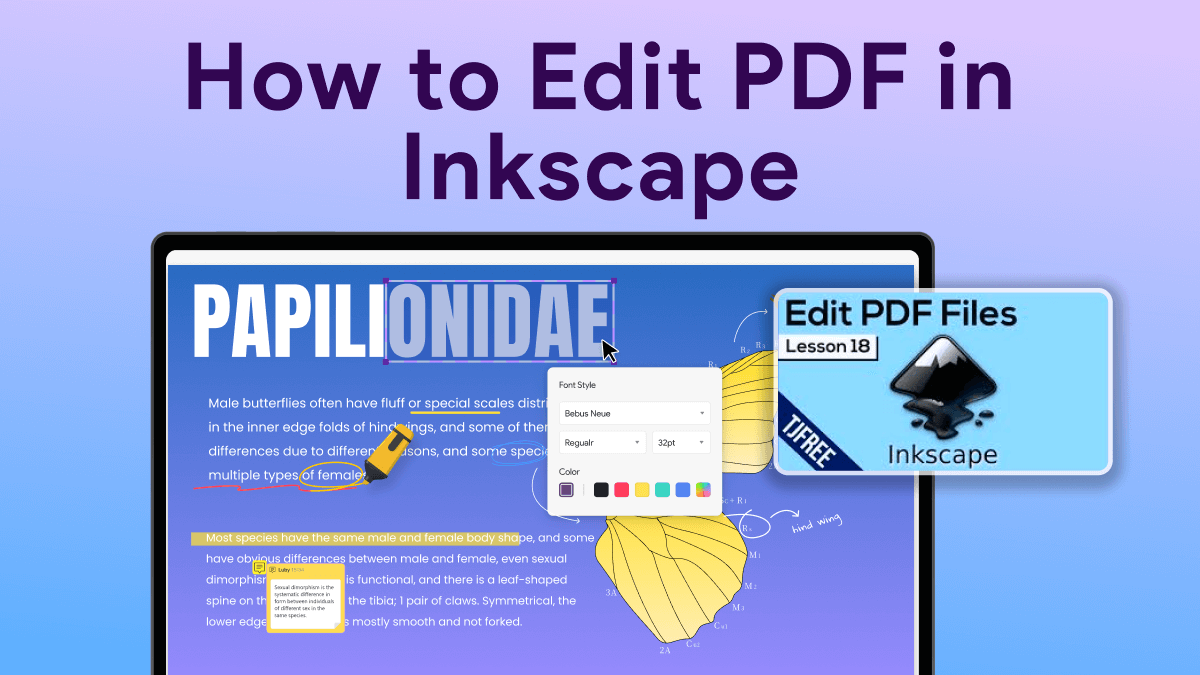
Inkscape is an open-source vector graphics editor rather than a traditional document editor. It can import PDF pages and expose many visual elements as editable vectors, making it useful for moving shapes, adjusting graphics, and changing text that remains available as text objects. Modern Inkscape versions also support multi-page documents.
Results depend on the PDF structure and installed fonts. Missing fonts may be substituted, some text may import as vector paths instead of editable characters, and interactive PDF features such as forms are not preserved reliably. It is therefore better for visual corrections than contracts, reports, or scanned documents.
Pros
- Excellent control over vector graphics, paths, shapes, and layers.
- Free and open source.
- Useful for design-oriented PDF pages and precise visual adjustments.
Cons
- Not designed for long text-heavy PDF workflows.
- Font substitution or outlined text can prevent normal text editing.
- No built-in OCR, form workflow, or full document-management toolset.
Part 7. UPDF for Android — Best for Compatible Chromebooks and Android Devices
Best for: People who use a Chromebook with Google Play support or an Android phone or tablet alongside a Linux computer and want one mobile app for editing, OCR, annotations, conversion, and page management.
UPDF does not have a native Linux desktop build. However, where a Chromebook supports Android apps and lists UPDF as compatible, the Android version can edit existing PDF text and adjust font, size, color, style, and alignment. It can also add, crop, replace, extract, move, or delete images.
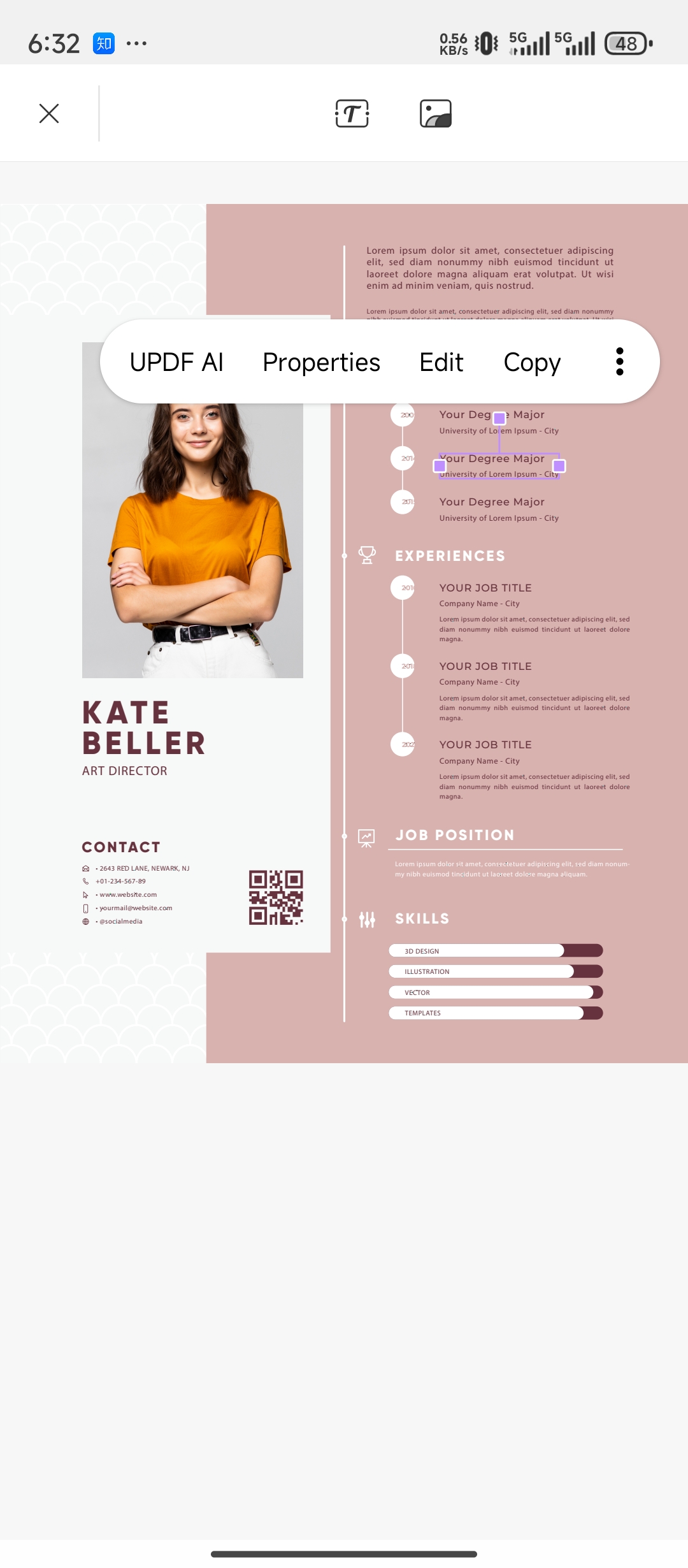
Its page tools can insert, reorder, rotate, extract, copy, and delete pages. If page structure is the main concern, see how to organize PDF pages before editing the content.
UPDF for Android also provides multilingual OCR for scanned PDFs, converts PDFs to Word, Excel, PowerPoint, and image formats, and includes highlights, notes, shapes, stamps, and signatures. Split-screen viewing can display two PDFs at once, which is useful when checking a revised file against its source.

Key limitations to consider
- There is no native UPDF desktop application for Linux.
- Android-app support varies by Chromebook model and administrator settings.
- Regular Linux desktops would require unofficial compatibility layers that UPDF does not support.
- PDFs saved after using premium editing features in the free version may include a trial watermark.
If your device is compatible, download UPDF for Android and follow this Android PDF editing guide to test text, image, OCR, annotation, and page workflows with your own document.
Download UPDF free for Android and try it with your own PDF.
Windows • macOS • iOS • Android 100% secure
Part 8. Best PDF Editor for Linux Mint
The best Linux Mint PDF editor depends on the Mint edition and the task. Standard Linux Mint editions are Ubuntu-based, so DEB packages and Ubuntu-compatible repositories are usually the simplest choices. Linux Mint Debian Edition, or LMDE, is Debian-based, so users should follow the vendor’s Debian instructions instead of assuming every Ubuntu package will work.
| Need | Recommended tool | Why it fits Linux Mint |
|---|---|---|
| Full professional editing | Xodo PDF Studio | Officially lists Mint support and includes editing, OCR, forms, security, and batch tools. |
| Editing and form creation | Master PDF Editor | Provides DEB, AppImage, tarball, Snap, and repository installation options. |
| Free basic content changes | LibreOffice Draw | Widely available and practical for simple PDFs when layout shifts are acceptable. |
| Annotations and form filling | Okular | Easy to obtain through Linux repositories and strong for review workflows. |
| Visual object editing | Inkscape | Available through Linux repositories and suited to graphics-heavy pages. |
For the keyword “PDF editor Linux Mint,” LibreOffice Draw is the easiest free starting point, while Xodo PDF Studio or Master PDF Editor is more appropriate when existing content, OCR, forms, or document security must be edited directly.
Part 9. Which Linux PDF Editor Should You Choose?
Choose the tool that matches the file rather than the longest feature list:
- Full professional PDF editing: Xodo PDF Studio.
- Direct editing, forms, and flexible Linux installation: Master PDF Editor.
- Free edits to short, simple documents: LibreOffice Draw.
- Highlights, comments, forms, and reading: Okular.
- Graphics, diagrams, and design-heavy pages: Inkscape.
- A supported Chromebook or separate Android workflow: UPDF for Android.
FAQs About Linux PDF Editors
Which Linux PDF editor is best for full editing?
Xodo PDF Studio and Master PDF Editor provide native Linux versions with direct content-editing tools. Both are commercial choices for users who need more than annotations or simple visual changes.
Is there a free PDF editor for Linux without a watermark?
LibreOffice Draw, Okular, and Inkscape are free, open-source options that do not add output watermarks. They serve different purposes and do not collectively offer the same all-in-one editing and OCR workflow as a commercial PDF editor.
Which PDF editor works best on Linux Mint?
LibreOffice Draw is a practical free choice for simple edits. Xodo PDF Studio and Master PDF Editor are stronger when you need direct content editing, OCR, forms, or document security. Check whether you use standard Linux Mint or LMDE before choosing an installer.
Can LibreOffice Draw edit existing PDF text?
It can import many PDF text and graphic objects for editing, but complex layouts, columns, and fonts may shift. It is better for short and visually simple documents.
Which Linux PDF editors support OCR?
Xodo PDF Studio and Master PDF Editor provide OCR capabilities for scanned documents. Confirm the current edition and language support before purchasing.
Does UPDF support Linux?
UPDF does not currently offer a native Linux desktop application. Its Android version may work on a Chromebook that supports Google Play and lists the app as compatible, or on a separate Android device.
Can Android PDF editors run on a regular Linux desktop?
Not through an officially supported UPDF desktop installation. Third-party Android compatibility layers may exist, but compatibility, security, and feature behavior can vary and are not officially supported by UPDF.
Conclusion
Xodo PDF Studio is the most complete native option in this list, while Master PDF Editor provides broad editing and installation choices. LibreOffice Draw works for simple free changes, Okular is better for reviewing and filling forms, and Inkscape is the strongest fit for graphics-focused pages. Linux Mint users should choose packages according to whether they use the standard Ubuntu-based edition or LMDE.
UPDF is not a native Linux editor, but its Android app is a practical alternative on a compatible Chromebook or a separate Android device. If that setup fits your workflow, download it free to test PDF text and image editing, OCR, annotations, conversion, and page management.
Download UPDF free for Android and try it with your own PDF.
Windows • macOS • iOS • Android 100% secure







 Enola Miller
 Enid Brown

 Enola Davis
 Lizzy Lozano