 UPDF
UPDF
 UPDF for Windows
 UPDF for Mac
 UPDF for iPhone/iPad
 UPDF for Android
 Nomostar
 UPDF AI Online
 UPDF Sign
 IvyCraft
 Edit PDF
 Annotate PDF
 Create PDF
 PDF Form
 Edit links
 Convert PDF
 OCR
OCR PDF to Word
 PDF to Image
 PDF to Excel
 Organize PDF
 Merge PDF
 Split PDF
 Crop PDF
 Rotate PDF
 Protect PDF
 Sign PDF
 Redact PDF
 Sanitize PDF
 Remove Security
 Read PDF
 UPDF Cloud
 Compress PDF
 Print PDF
 Batch Process
 About UPDF AI
 UPDF AI Solutions
 AI User Guide
 FAQ about UPDF AI
 Summarize PDF
 Translate PDF
 Chat with PDF
 Chat with AI
 Chat with image
 PDF to Mind Map
 Explain PDF
 PDF AI Tools
 Image AI Tools
 AI Chat Tools
 AI Writing Tools
 AI Study Tools
 AI Working Tools
 Other AI Tools
 AI Bookmark Generation
 AI Bookmark Summary
 AI Watermark Generation
 AI Background Generation
 AI Sticker Generation
 AI Stamp Generation
 AI Editing Suite
 UPDF Copilot
 AI Page Management
 AI Semantic Search
 PDF to Word
 PDF to Excel
 PDF to PowerPoint
 Enterprise Solution
 Enterprise Sign
 Enterprise AI
 Enterprise Plan
 Enterprise User Guide
 Enterprise Webinar
 IT
IT Education
 Construction
 Financial Service
 Healthcare
 Insurance
 Legal
Legal Manufacturing
 Government
 Researchers & PhDs
 Solopreneurs & Freelancers
 Lawyers & Legal Professionals
 Real Estate Agents & Brokers
 Education Solution
 Customer Stories
 User Guide
 UPDF Tricks
 FAQs
FAQs UPDF Reviews
 Download Center
 Blog
Blog Newsroom
 Tech Spec
 Updates
 UPDF vs. Adobe Acrobat
 UPDF vs. Foxit
 UPDF vs. PDF Expert

View and Read PDF on iOS with UPDF
How to View PDF in iOS
In UPDF for iOS, multiple PDF viewing modes are supported. Follow the steps below to change the viewing mode freely.
- Import a PDF file with multiple pages by tapping on the + symbol in the bottom right corner.
- Tap on the Reading icon on the bottom of the screen. Tap Page View.
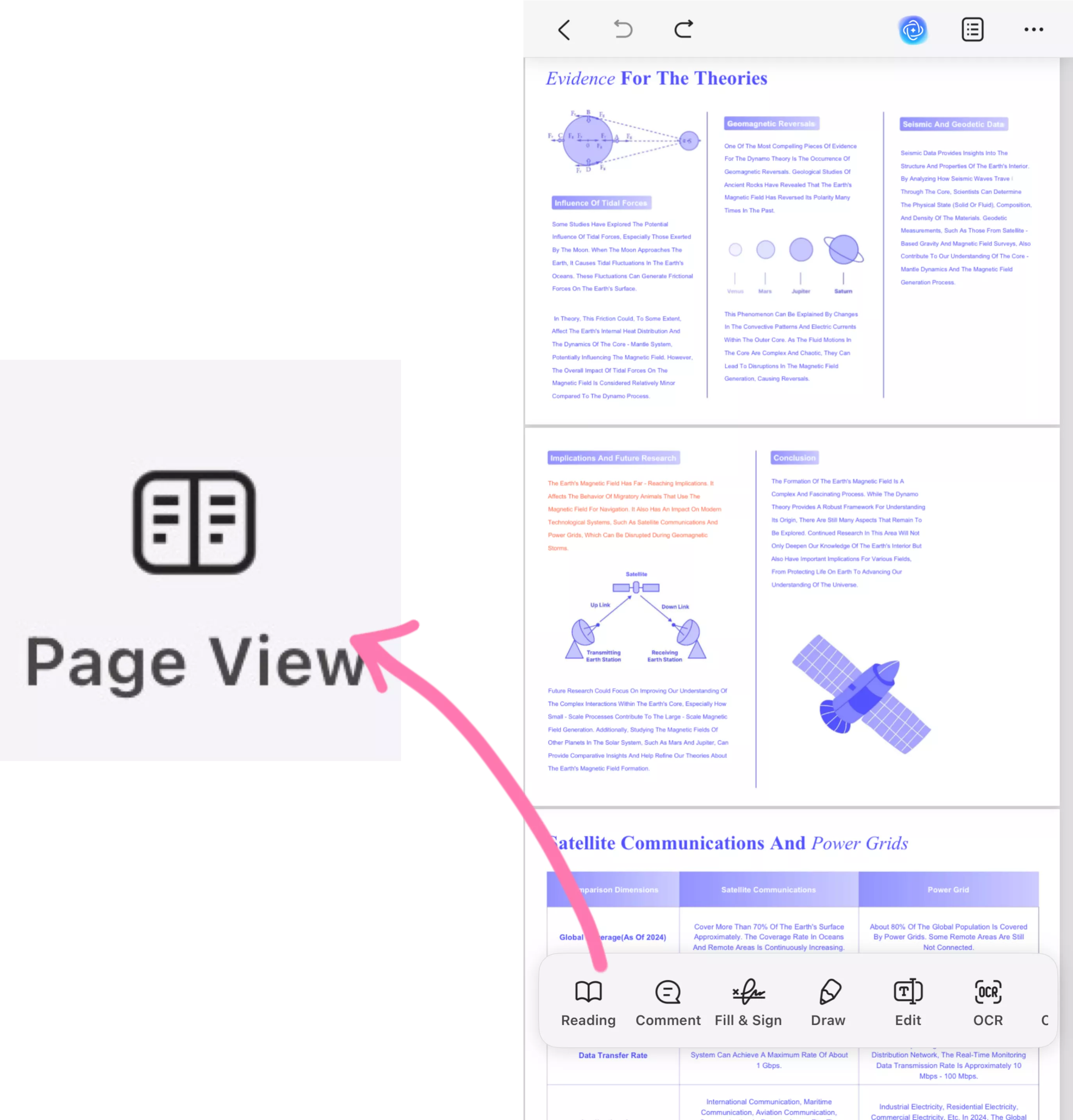
- Let's take a look at these handy buttons from the pop-up window:
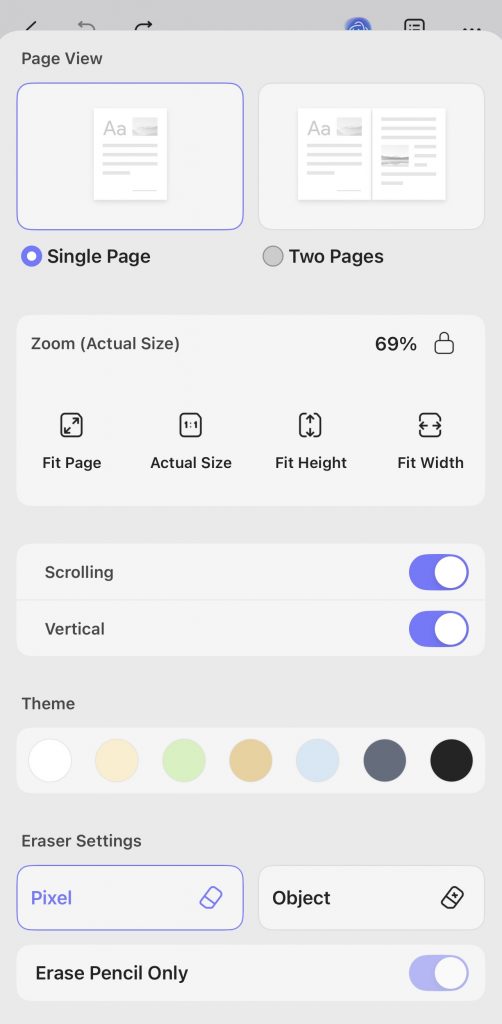
- Page View: This section allows you to choose between "Single Page" and "Two Pages" view modes for your document.
- Zoom (Actual Size):
- Displays the current zoom level, which is 69% in this case. There is also a lock icon next to the zoom percentage, you can lock the zoom at the current setting.
- "Fit Page": Adjusts the view so that the entire page fits on the screen.
- "Actual Size": Shows the document at its real - life size as defined in the source file.
- "Fit Height": Scales the document so that the height of the page fills the available screen space.
- "Fit Width": Scales the document so that the width of the page fills the available screen space.
- Scrolling: This enables or disables smooth scrolling functionality within the document viewer.
- Vertical: You can decide whether to view the document horizontally or vertically — it’s up to you how you want to read it.
- Theme: You can change the overall color theme of the document-viewing interface.
- Eraser Settings:
- "Pixel": A pixel-based eraser precisely removes content by deleting individual pixels.
- "Object": Removes entire elements (like shapes, drawings, or grouped objects) as single units, rather than erasing individual pixels.
- You could toggle on "Erase Pencil Only". This will limit erasing to only pencil marks, protecting other annotations.
How to Read Selected Text Aloud in iOS
This section allows selected text and UPDF will read aloud for you! Here's how to use it.
- Open UPDF and tap the "+" button. Select the method to import your PDF.
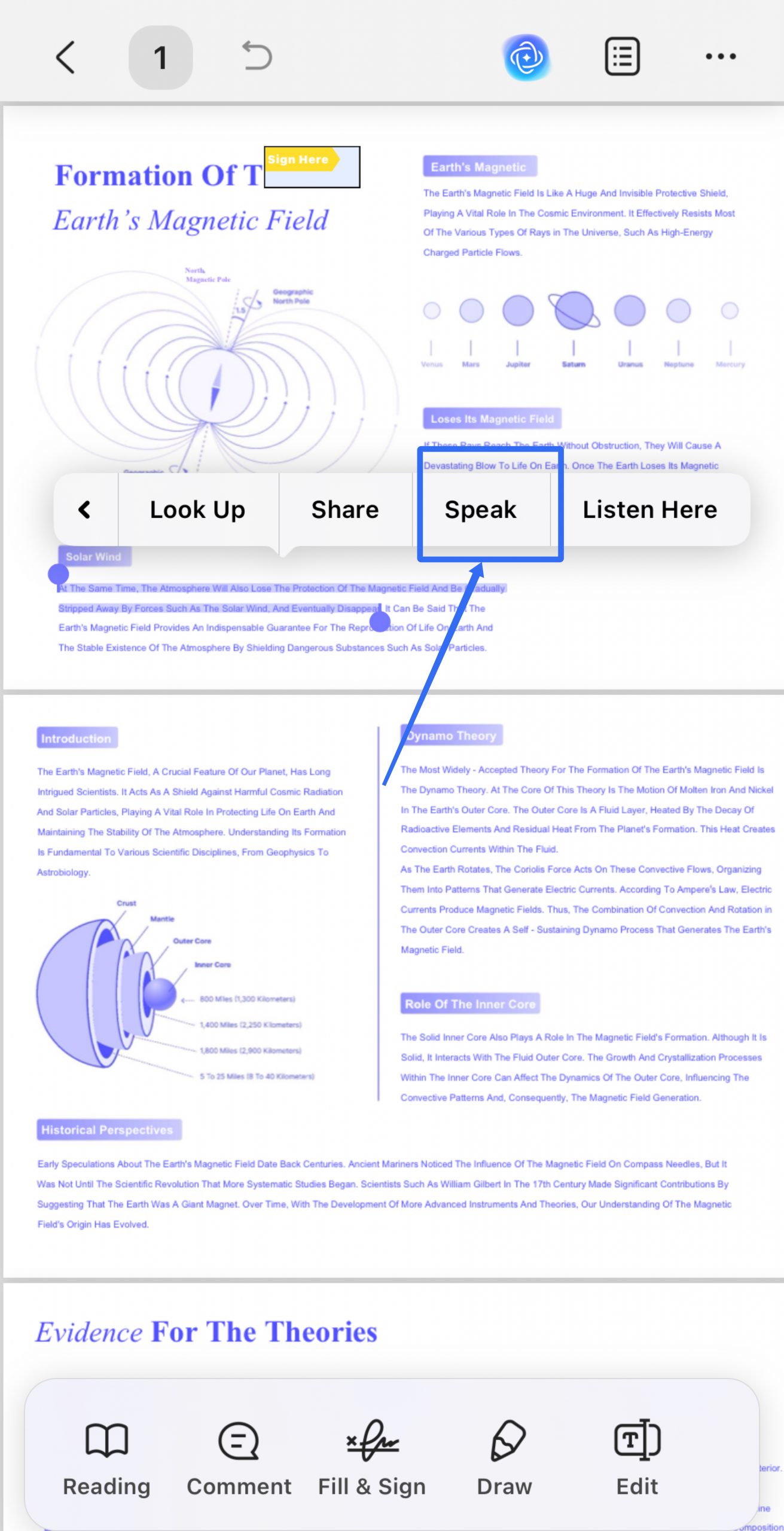
- Once your file opens, tap and hold the text to select it. Then, drag the selection handles and adjust the selection area manually to choose your desired text.
- A menu will pop up. Tap the right arrow from here until you see the "Speak" option.
- Tap "Speak." UPDF will start reading your PDF out loud.
How to Read Full-text Aloud in iOS
This section allows you to use UPDF to read the full text aloud instead of selecting sentences one by one. Follow the steps below to read the full text aloud.
- Simply click on Reading and select Read Aloud, and UPDF will effortlessly read your PDF files for you.
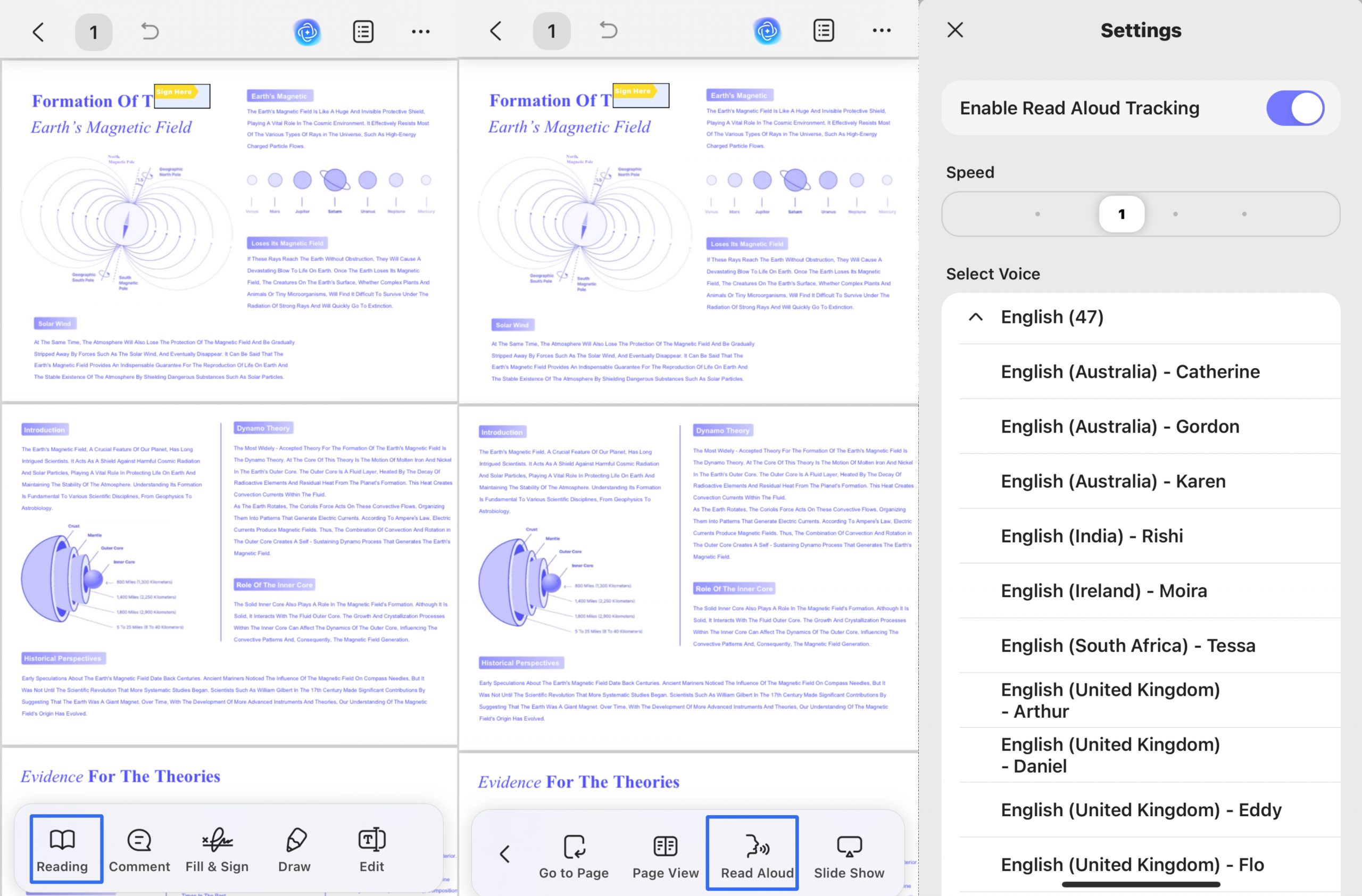
- Here are some handy buttons you can adjust your reading experience:
- Speed: you can adjust the reading pace to your preference.
- Select Voice: It supports 39 different languages, and for English in particular, it offers 47 distinctive voices from various regional accents