UPDF
UPDF
 UPDF for Windows
 UPDF for Mac
 UPDF for iPhone/iPad
 UPDF for Android
 Nomostar
 UPDF AI Online
 UPDF Sign
 IvyCraft
 Edit PDF
 Annotate PDF
 Create PDF
 PDF Form
 Edit links
 Convert PDF
 OCR
OCR PDF to Word
 PDF to Image
 PDF to Excel
 Organize PDF
 Merge PDF
 Split PDF
 Crop PDF
 Rotate PDF
 Protect PDF
 Sign PDF
 Redact PDF
 Sanitize PDF
 Remove Security
 Read PDF
 UPDF Cloud
 Compress PDF
 Print PDF
 Batch Process
 About UPDF AI
 UPDF AI Solutions
 AI User Guide
 FAQ about UPDF AI
 Summarize PDF
 Translate PDF
 Chat with PDF
 Chat with AI
 Chat with image
 PDF to Mind Map
 Explain PDF
 PDF AI Tools
 Image AI Tools
 AI Chat Tools
 AI Writing Tools
 AI Study Tools
 AI Working Tools
 Other AI Tools
 AI Bookmark Generation
 AI Bookmark Summary
 AI Watermark Generation
 AI Background Generation
 AI Sticker Generation
 AI Stamp Generation
 AI Editing Suite
 UPDF Copilot
 AI Page Management
 AI Semantic Search
 PDF to Word
 PDF to Excel
 PDF to PowerPoint
 Enterprise Solution
 Enterprise Sign
 Enterprise AI
 Enterprise Plan
 Enterprise User Guide
 Enterprise Webinar
 IT
IT Education
 Construction
 Financial Service
 Healthcare
 Insurance
 Legal
Legal Manufacturing
 Government
 Researchers & PhDs
 Solopreneurs & Freelancers
 Lawyers & Legal Professionals
 Real Estate Agents & Brokers
 Education Solution
 Customer Stories
 User Guide
 UPDF Tricks
 FAQs
FAQs UPDF Reviews
 Download Center
 Blog
Blog Newsroom
 Tech Spec
 Updates
 UPDF vs. Adobe Acrobat
 UPDF vs. Foxit
 UPDF vs. PDF Expert

Import Files
There are several different ways to import files into UPDF based on the source location of the files. UPDF supports all formats accepted by iOS devices, such as PDF, PowerPoint, Word, Excel, images (JPG, PNG, BMP), XML, video, audio, and more. The four main file import processes are outlined below:
1. Import from Files
This function allows you to import files from various other sources such as iCloud Drive, your local device, and your Downloads folder. You can also import files that were recently deleted.
- Tap the + symbol on the bottom right.
- Choose "Files" as your import source.
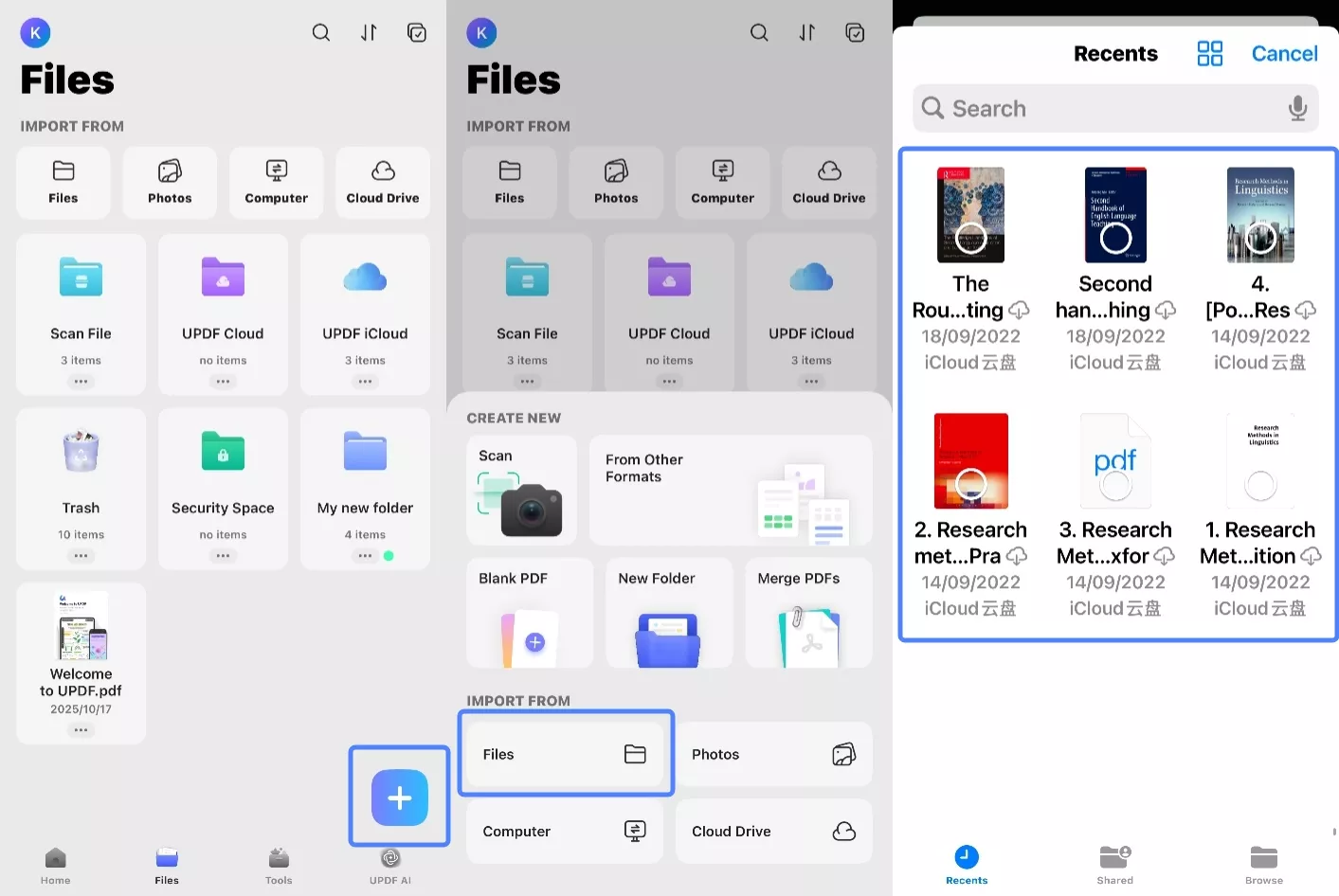
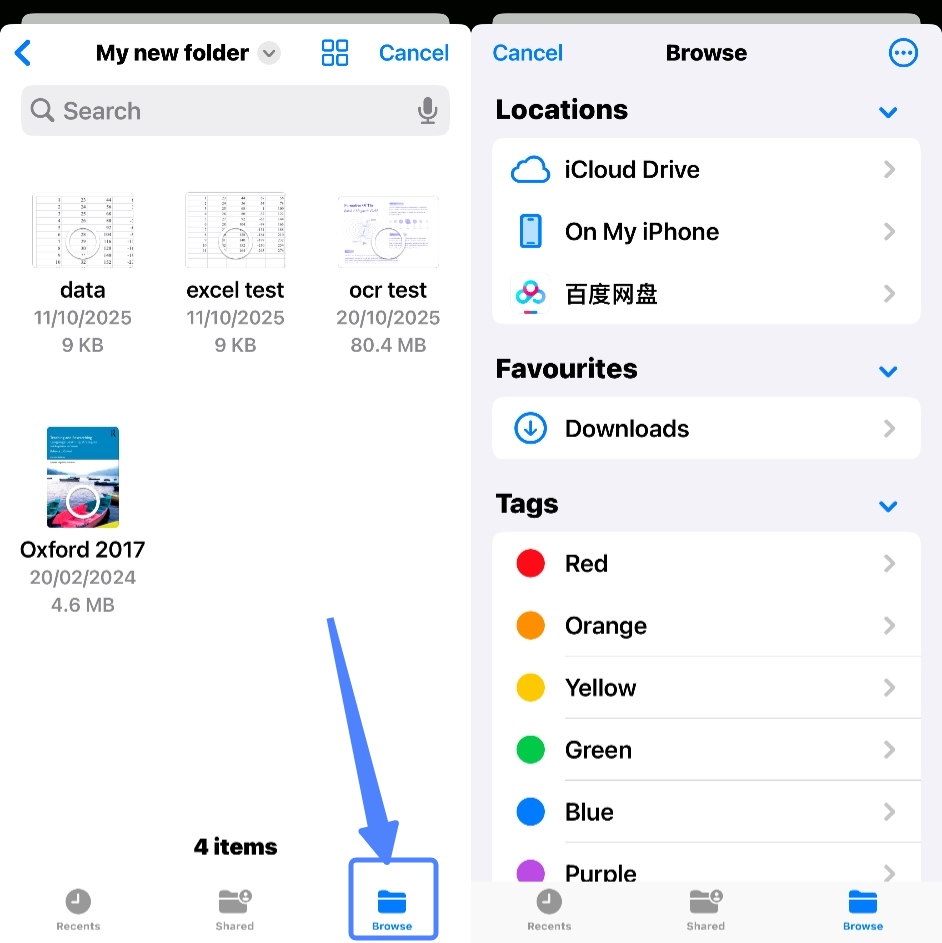
- See the Recent Files list and select files to import; alternatively, you can click the "Browse" back button to access the aforementioned locations
- Tap a file to import it instantly into UPDF.
2. Import from Photos
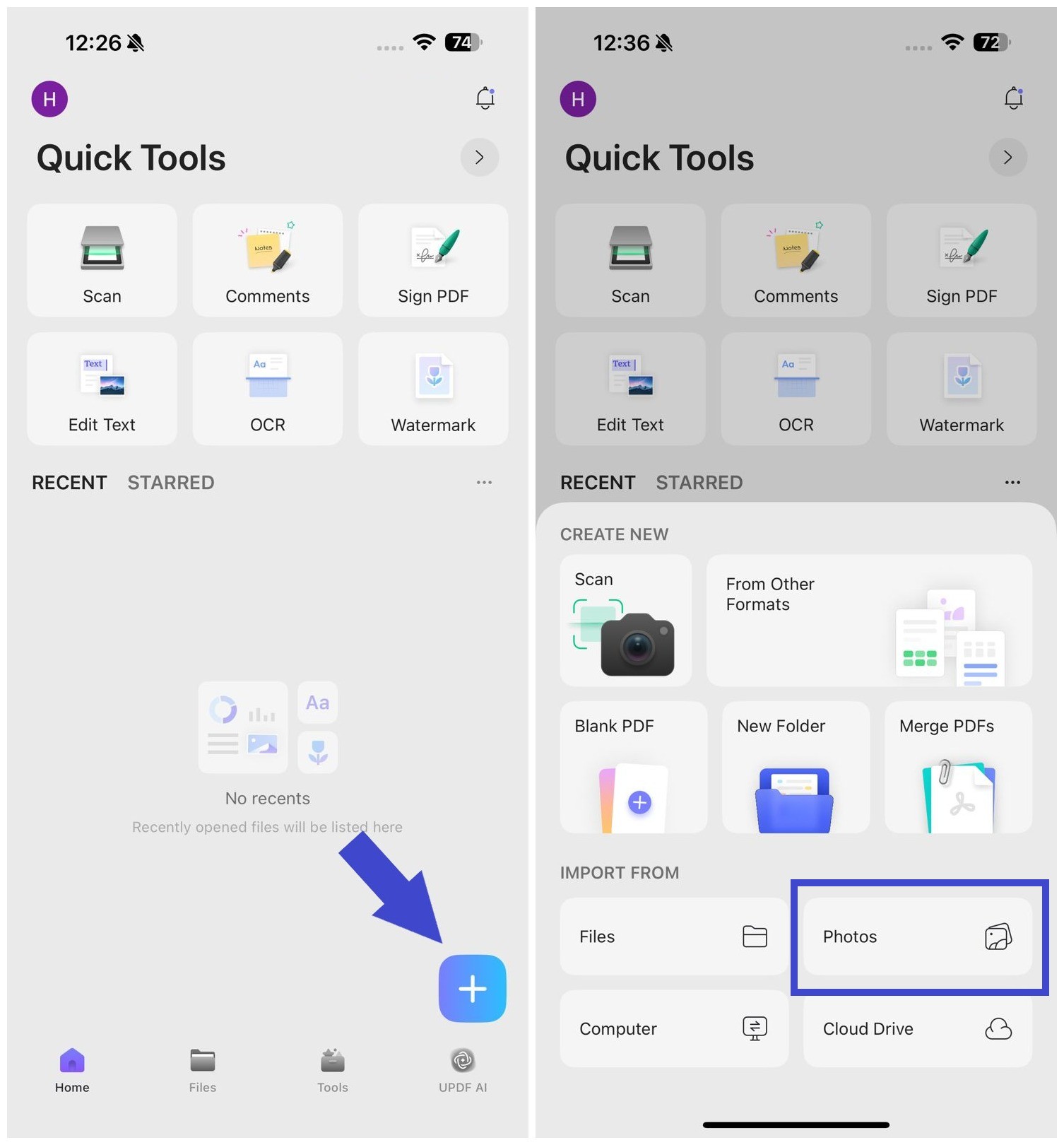
- Tap the + symbol on the bottom right.
- Choose "Photos" as your import source.
- You can choose multiple photos by tapping them or sliding to make your selection.
- Tap "Add" once you've selected the photos to import into UPDF.
3. Import from Computer
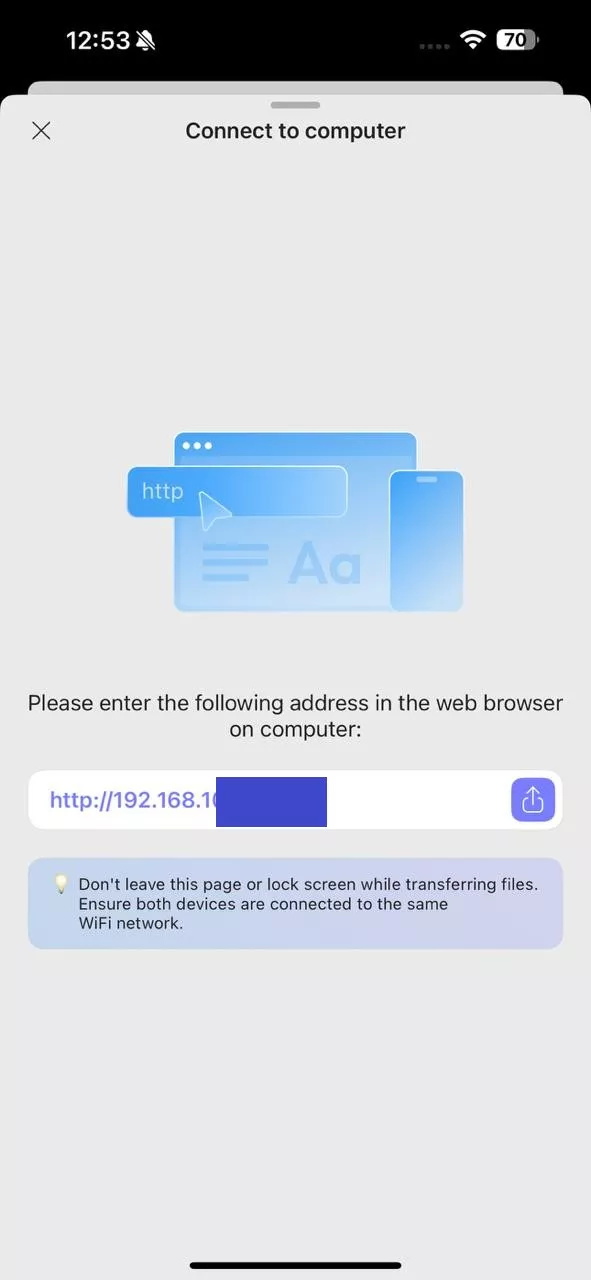
This feature allows you to import files from your computer without using any cables. You can do this by connecting both devices to the same Wi-Fi and following the steps shown below:
- Tap the + symbol on the bottom right.
- Choose "Computer" as your source.
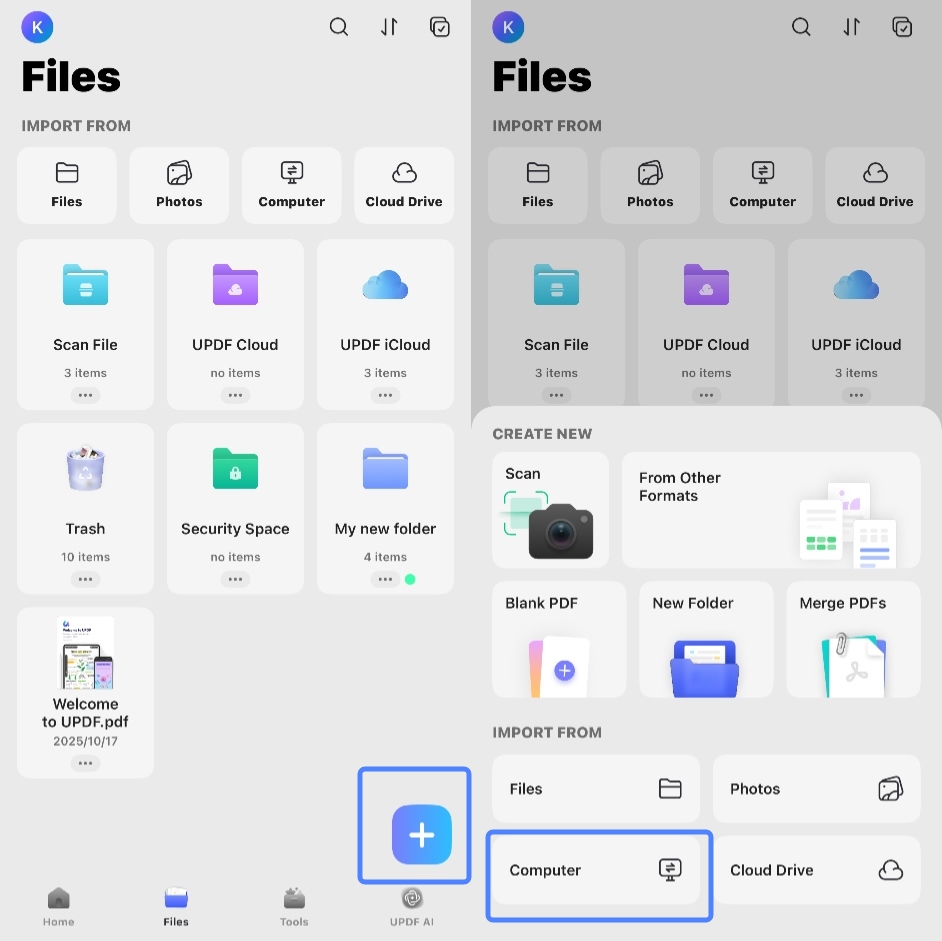
- You will now see a URL on your iOS device screen - enter this into the address bar of a new browser tab on your computer and hit Enter.
- You can now see your UPDF folders in your browser window - use the "Upload Files" button to import files from your local computer memory.
Important Note:
4. Import from Cloud Drive
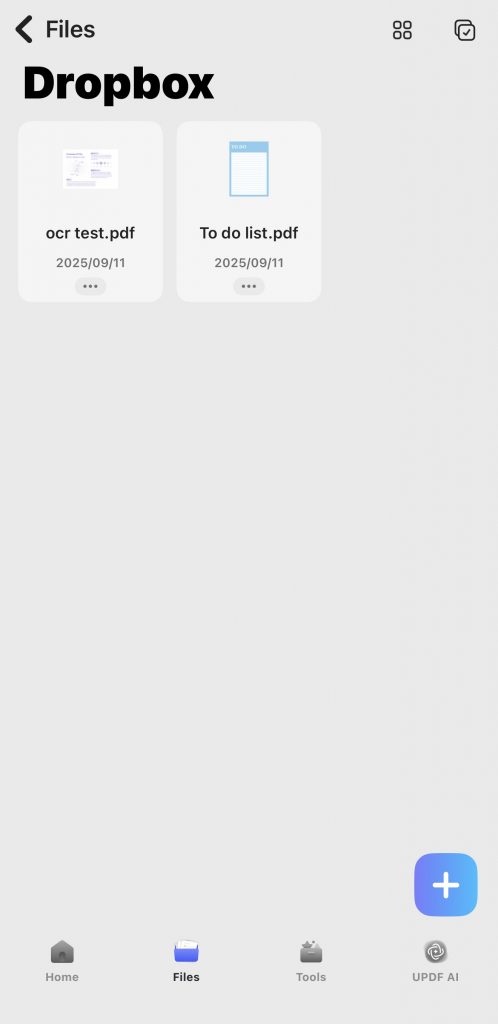
Other than importing documents from your phone and computer, you can also import them from your cloud drive (Dropbox). The steps include:
- Tap the + symbol on the bottom right.
- Choose "Cloud Drive" as your import source.
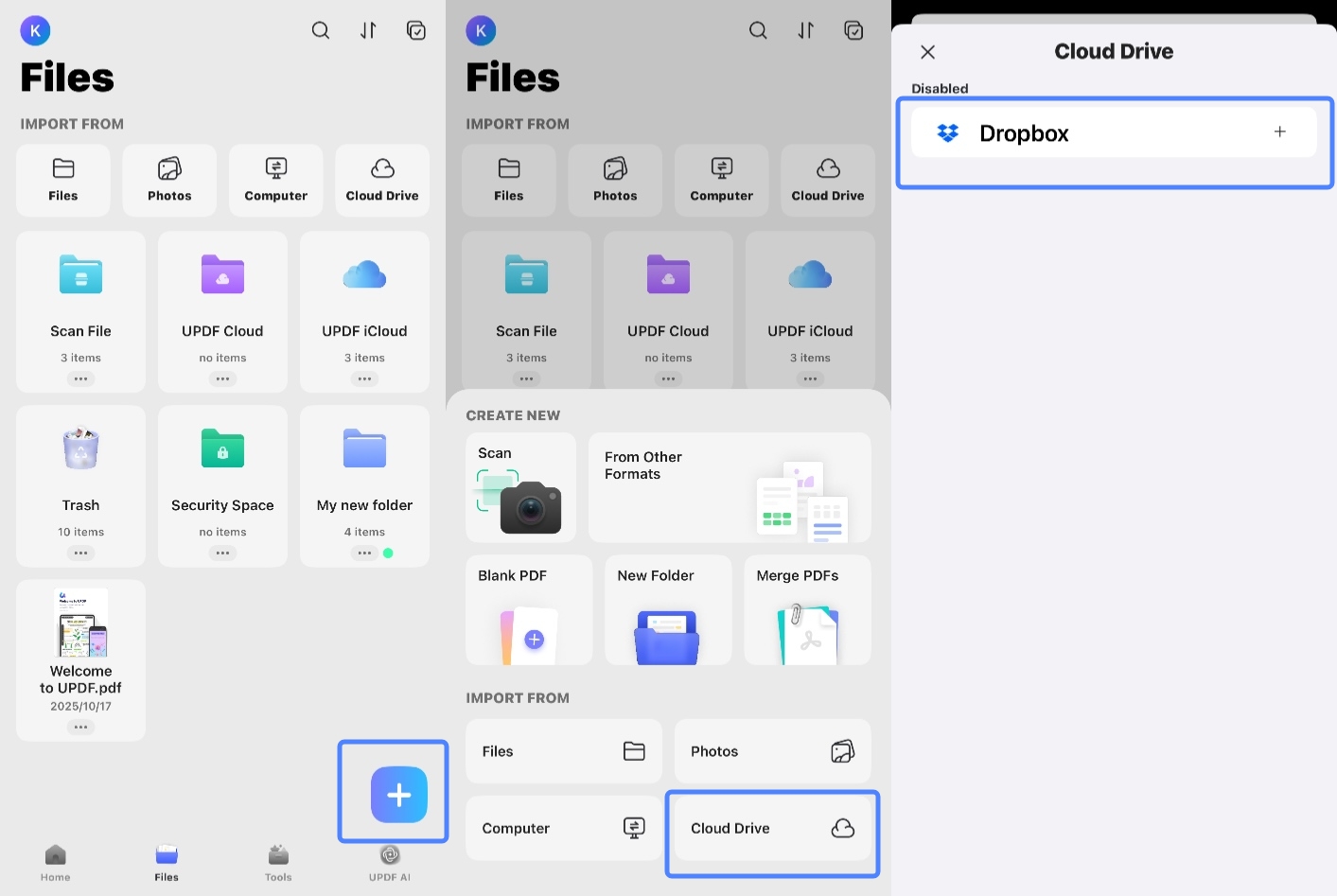
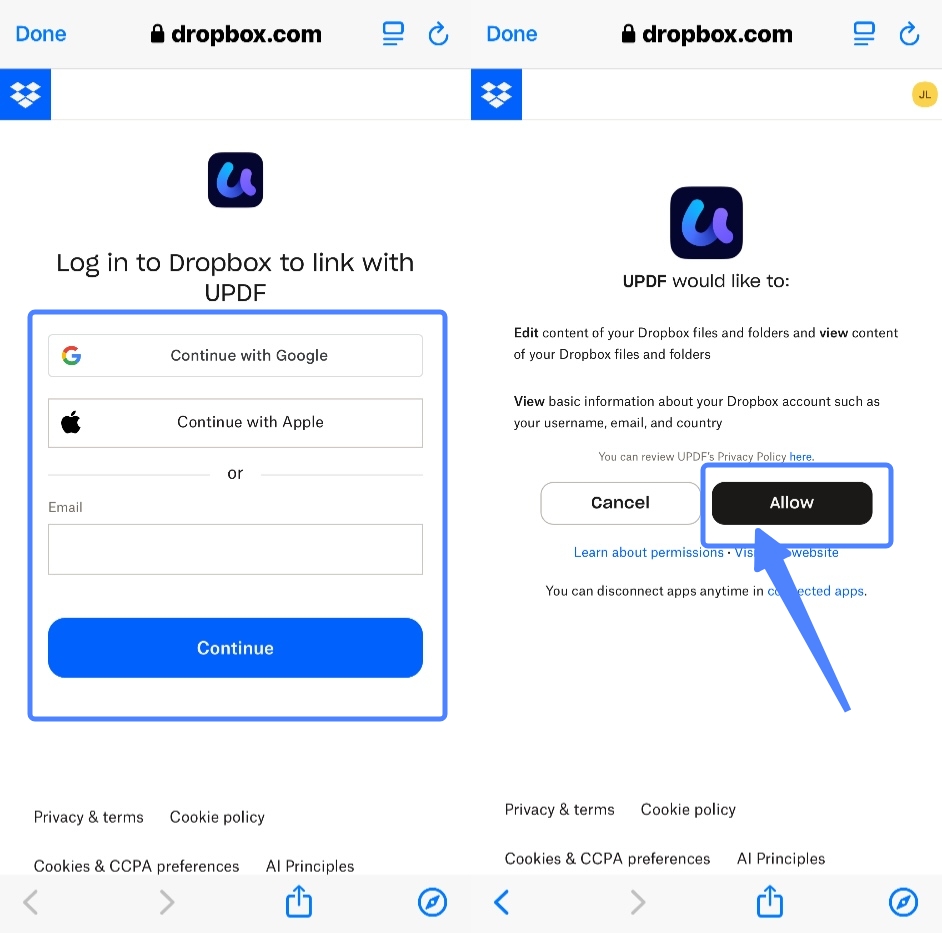
- Click Dropbox to link your Dropbox account. After logging in, please click "Allow" to grant UPDF edit and view permissions for your Dropbox files and folders.
- Tap a file to import it instantly into UPDF.