 UPDF
UPDF
 UPDF for Windows
 UPDF for Mac
 UPDF for iPhone/iPad
 UPDF for Android
 Nomostar
 UPDF AI Online
 UPDF Sign
 IvyCraft
 Edit PDF
 Annotate PDF
 Create PDF
 PDF Form
 Edit links
 Convert PDF
 OCR
OCR PDF to Word
 PDF to Image
 PDF to Excel
 Organize PDF
 Merge PDF
 Split PDF
 Crop PDF
 Rotate PDF
 Protect PDF
 Sign PDF
 Redact PDF
 Sanitize PDF
 Remove Security
 Read PDF
 UPDF Cloud
 Compress PDF
 Print PDF
 Batch Process
 About UPDF AI
 UPDF AI Solutions
 AI User Guide
 FAQ about UPDF AI
 Summarize PDF
 Translate PDF
 Chat with PDF
 Chat with AI
 Chat with image
 PDF to Mind Map
 Explain PDF
 PDF AI Tools
 Image AI Tools
 AI Chat Tools
 AI Writing Tools
 AI Study Tools
 AI Working Tools
 Other AI Tools
 AI Bookmark Generation
 AI Bookmark Summary
 AI Watermark Generation
 AI Background Generation
 AI Sticker Generation
 AI Stamp Generation
 AI Editing Suite
 UPDF Copilot
 AI Page Management
 AI Semantic Search
 PDF to Word
 PDF to Excel
 PDF to PowerPoint
 Enterprise Solution
 Enterprise Sign
 Enterprise AI
 Enterprise Plan
 Enterprise User Guide
 Enterprise Webinar
 IT
IT Education
 Construction
 Financial Service
 Healthcare
 Insurance
 Legal
Legal Manufacturing
 Government
 Researchers & PhDs
 Solopreneurs & Freelancers
 Lawyers & Legal Professionals
 Real Estate Agents & Brokers
 Education Solution
 Customer Stories
 User Guide
 UPDF Tricks
 FAQs
FAQs UPDF Reviews
 Download Center
 Blog
Blog Newsroom
 Tech Spec
 Updates
 UPDF vs. Adobe Acrobat
 UPDF vs. Foxit
 UPDF vs. PDF Expert

Add and Edit Text in PDF on iOS
Editing and adding text to an existing PDF are one of the most in-demand features for iOS users. Now, with the latest version of UPDF, you can add any text in any style to your desired PDF file from your mobile phone. Let's quickly discuss how you can add and edit the text in glimpses.
1. How to Add Text in PDF on iOS
- Open a PDF in UPDF by tapping it.
- Tap on the Edit icon on the bottom of the mobile screen.
- A small pop-up menu will appear at the bottom of the screen. Click on the T symbol to create a text box on your PDF.
- Now you can type whatever you want to add to your PDF file.
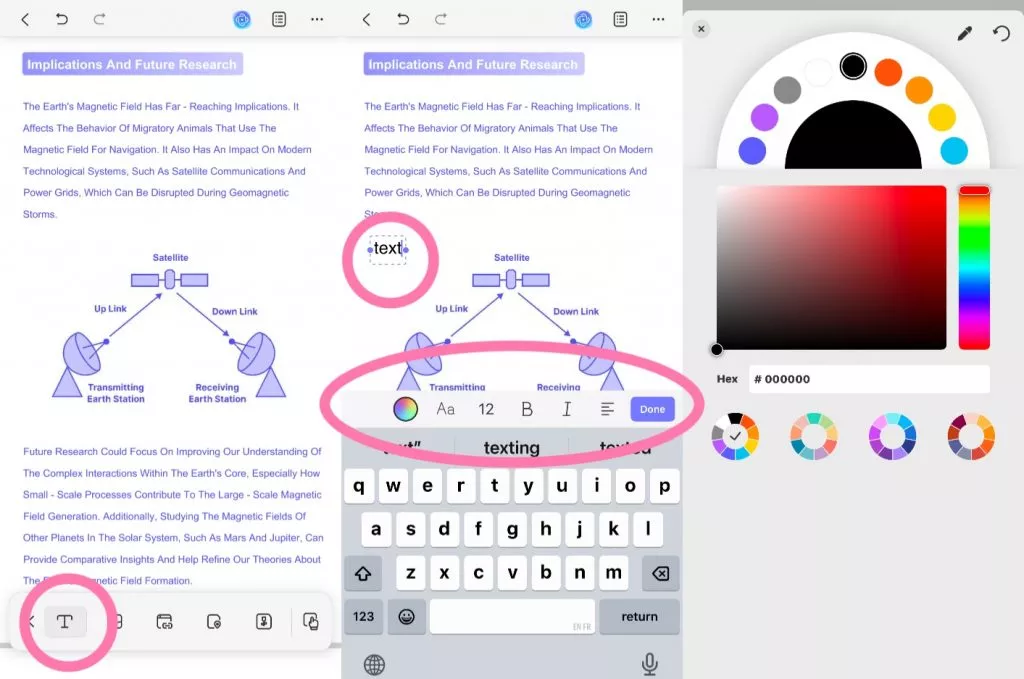
- You can change the color, size, style, and alignment of the text by selecting the required option from the bar.
2. How to Edit Existing Text in PDF on iOS
- Open your desired PDF in the UPDF iOS app.
- Tap the Edit Icon on the bottom-right corner of the screen.
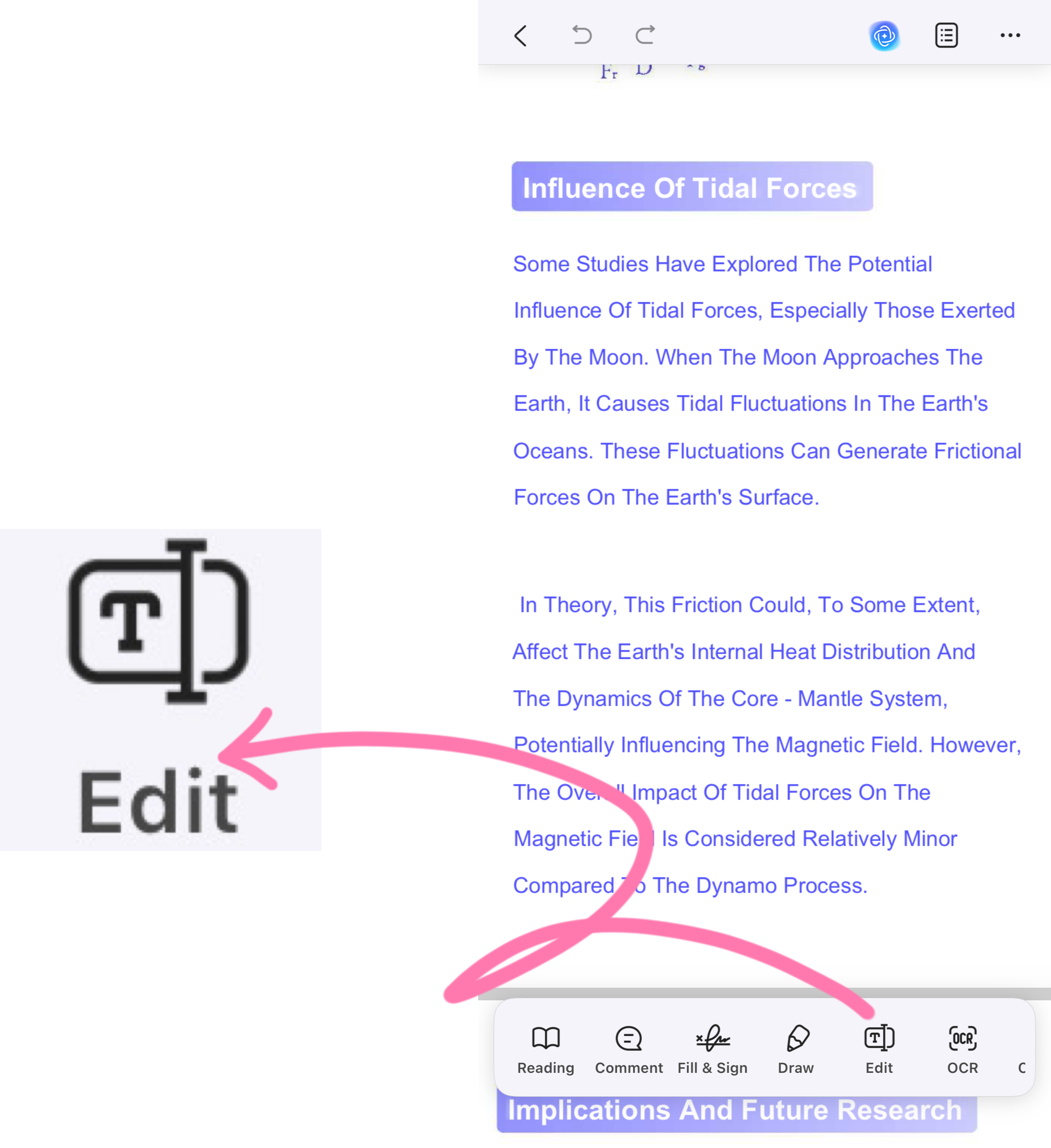
- Select the T shape icon from the bottom of the screen.
- Now, tap on any text to edit, delete, copy, cut, and replace from the PDF file.
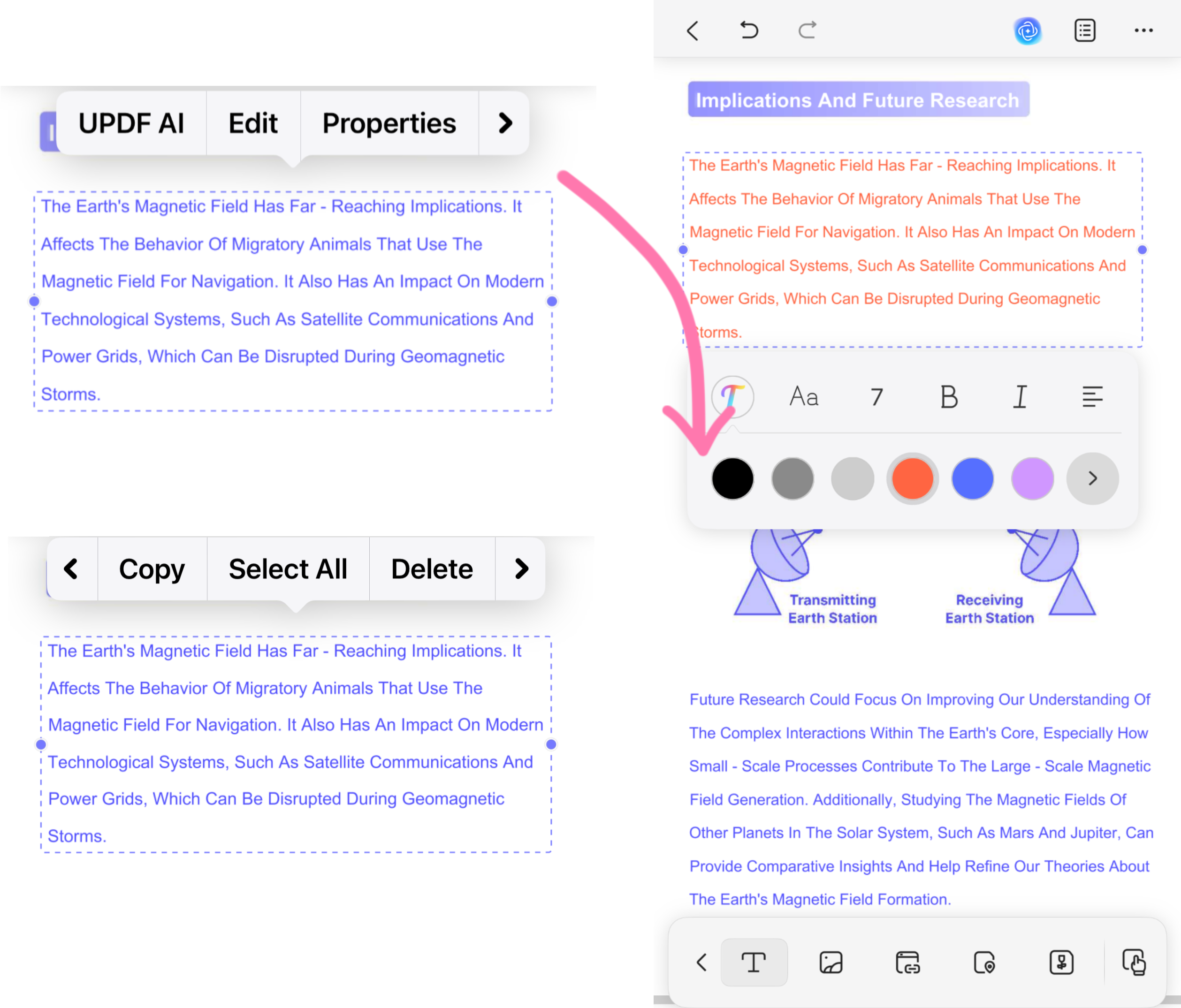
- You can also modify font size, style, color, and alignment by tapping on Properties from the pop-up tag that appears above the text.
Besides, UPDF for iOS offers other quick ways to paste text to PDF by long-pressing the blank space in the file, so you can also choose an alternative way from the following given options.