UPDF
UPDF
 UPDF for Windows
 UPDF for Mac
 UPDF for iPhone/iPad
 UPDF for Android
 Nomostar
 UPDF AI Online
 UPDF Sign
 IvyCraft
 Edit PDF
 Annotate PDF
 Create PDF
 PDF Form
 Edit links
 Convert PDF
 OCR
OCR PDF to Word
 PDF to Image
 PDF to Excel
 Organize PDF
 Merge PDF
 Split PDF
 Crop PDF
 Rotate PDF
 Protect PDF
 Sign PDF
 Redact PDF
 Sanitize PDF
 Remove Security
 Read PDF
 UPDF Cloud
 Compress PDF
 Print PDF
 Batch Process
 About UPDF AI
 UPDF AI Solutions
 AI User Guide
 FAQ about UPDF AI
 Summarize PDF
 Translate PDF
 Chat with PDF
 Chat with AI
 Chat with image
 PDF to Mind Map
 Explain PDF
 PDF AI Tools
 Image AI Tools
 AI Chat Tools
 AI Writing Tools
 AI Study Tools
 AI Working Tools
 Other AI Tools
 AI Bookmark Generation
 AI Bookmark Summary
 AI Watermark Generation
 AI Background Generation
 AI Sticker Generation
 AI Stamp Generation
 AI Editing Suite
 UPDF Copilot
 AI Page Management
 AI Semantic Search
 PDF to Word
 PDF to Excel
 PDF to PowerPoint
 Enterprise Solution
 Enterprise Sign
 Enterprise AI
 Enterprise Plan
 Enterprise User Guide
 Enterprise Webinar
 IT
IT Education
 Construction
 Financial Service
 Healthcare
 Insurance
 Legal
Legal Manufacturing
 Government
 Researchers & PhDs
 Solopreneurs & Freelancers
 Lawyers & Legal Professionals
 Real Estate Agents & Brokers
 Education Solution
 Customer Stories
 User Guide
 UPDF Tricks
 FAQs
FAQs UPDF Reviews
 Download Center
 Blog
Blog Newsroom
 Tech Spec
 Updates
 UPDF vs. Adobe Acrobat
 UPDF vs. Foxit
 UPDF vs. PDF Expert

Dual Screen Mode
UPDF for iPad supports dual screen mode, which puts two UPDF windows side by side, making it easier to move files to and from.
There are two methods to make dual screen mode with UPDF. You can easily access dual-screen mode by doing the following:
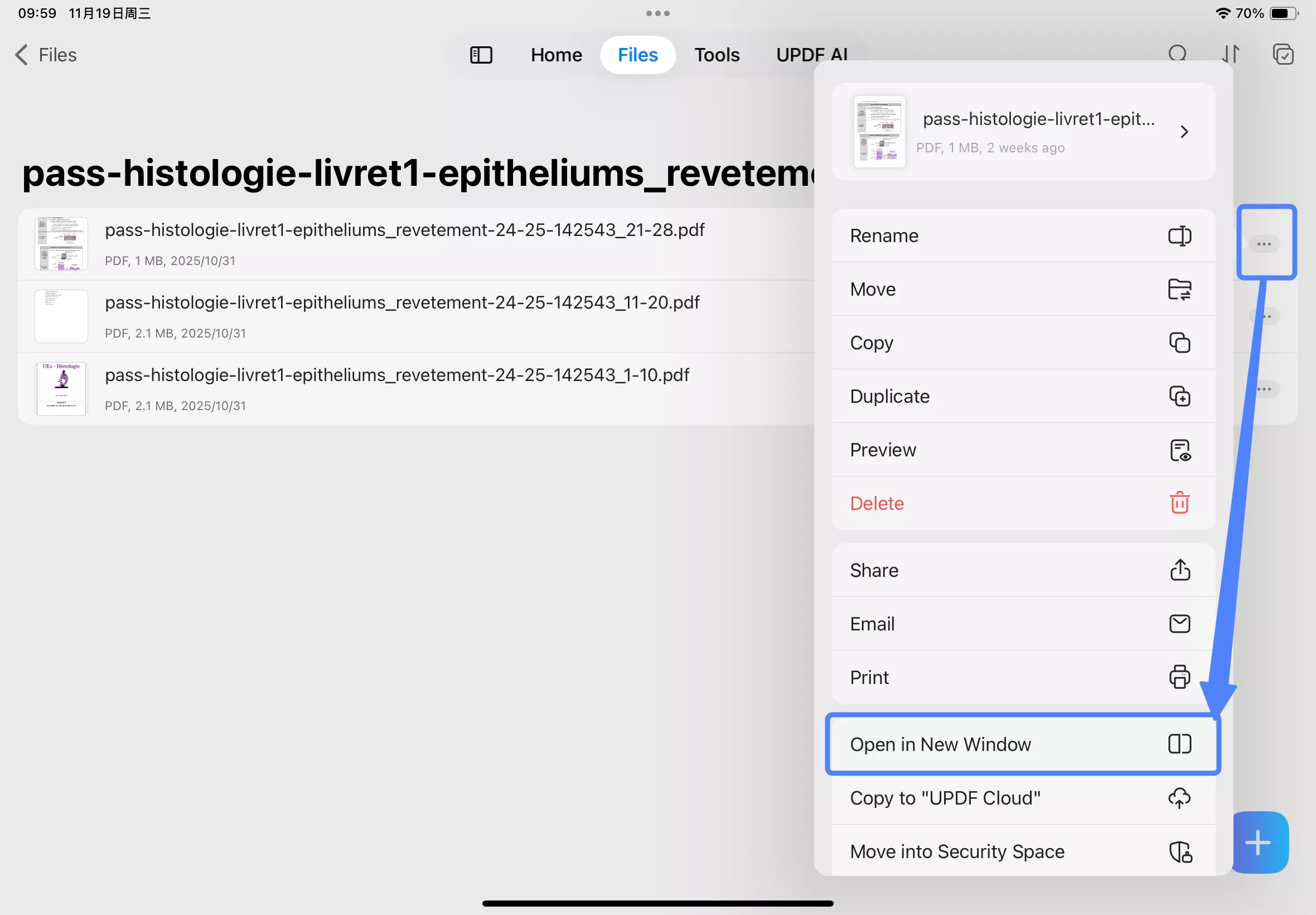
Method 1: Use the "Open in New Window" Option
- Click the "…" of the file, and select "Open in New Window" option.
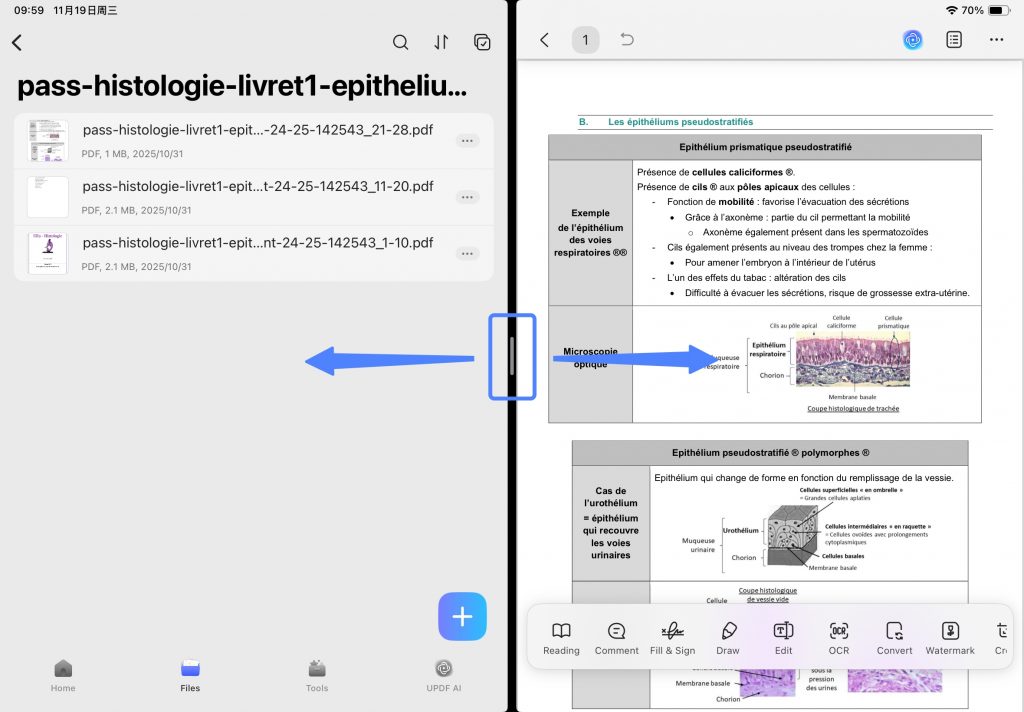
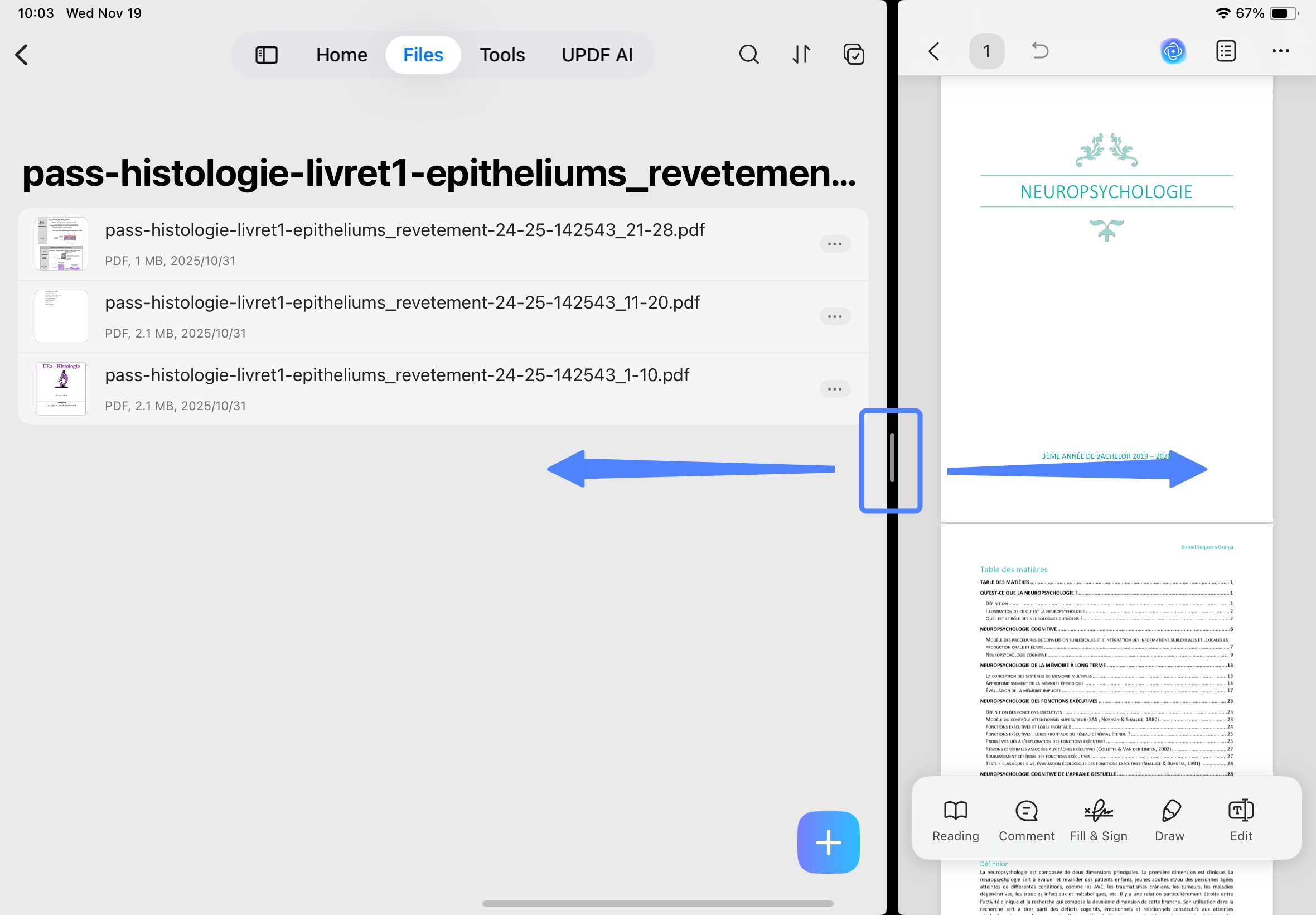
- This will automatically split your screen into two. Adjust the divider to resize the app windows as needed. If you need to exit Split View, simply drag the divider to the left or right edge of the iPad.
Method 2: Tap the "…" on the Top Tab
- Tapping the tab at the top of the window, and find there the Multitasking button ("…"). Tap it.
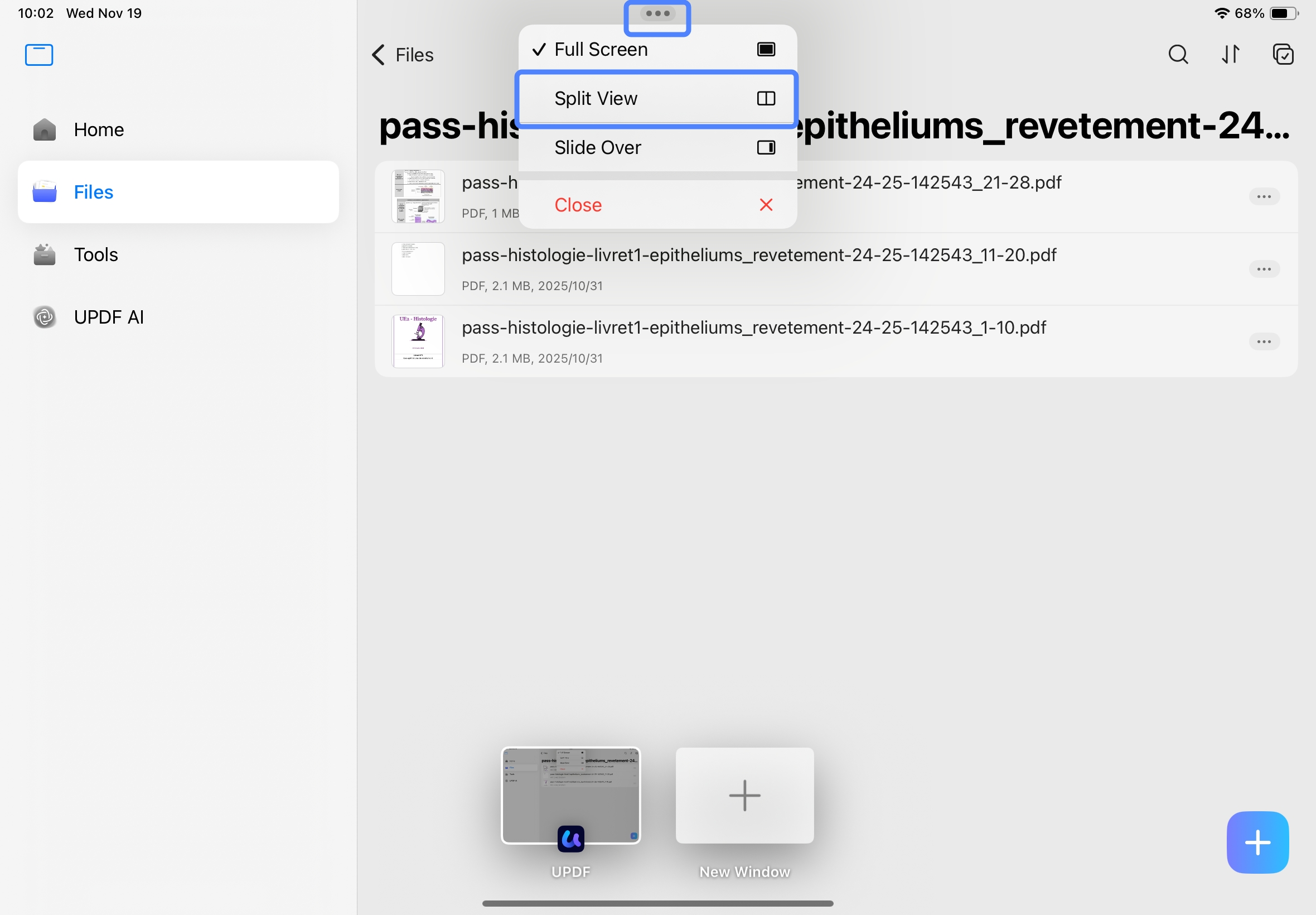
- Select the layout you want. For example, "Split View".
- Tap the second app you want to show on the other half screen. For example, UPDF.
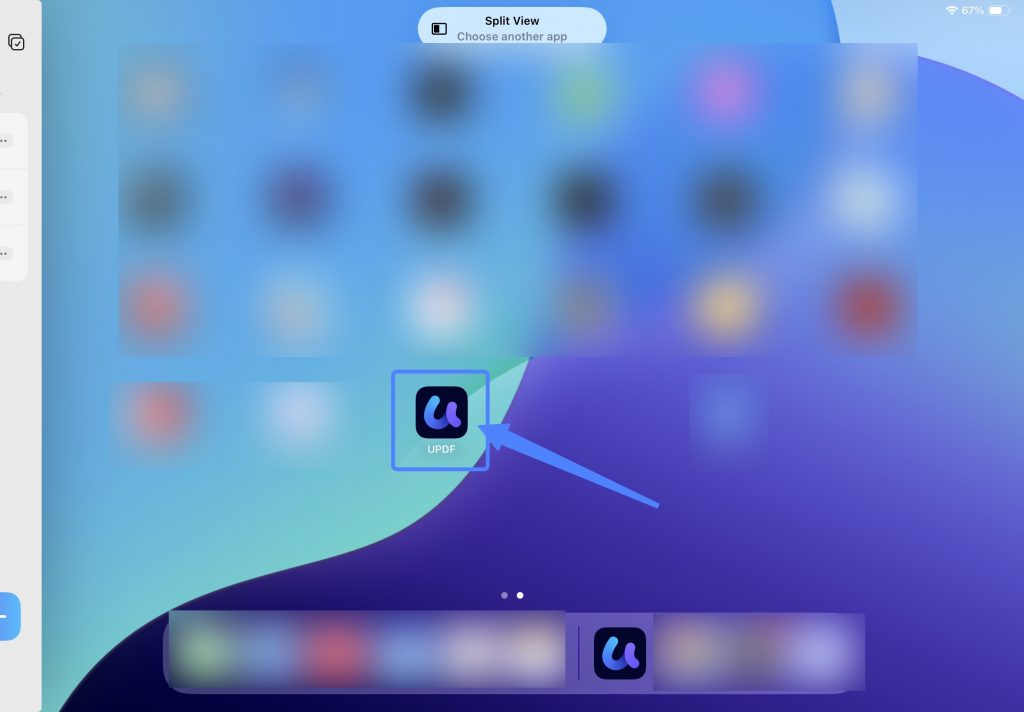
This will cause the screen to split into two, each showing a separate view of the UPDF interface that you can control independently of each other. If you need to exit Split View, simply drag the divider to the left or right edge of the iPad.
Method 3: Set up iPad to work in multiple windows
To enable split screen using another method, activate the Windowed Apps feature on your iPad by following these steps:
- Open the Settings application. Then, scroll down the menu and select "Multitasking & Gestures." Finally, choose the "Windowed Apps" option to complete the setup.
- Now, the app you're currently using moves to the front, while all other open apps appear in the recently used apps list on the left side of the screen.
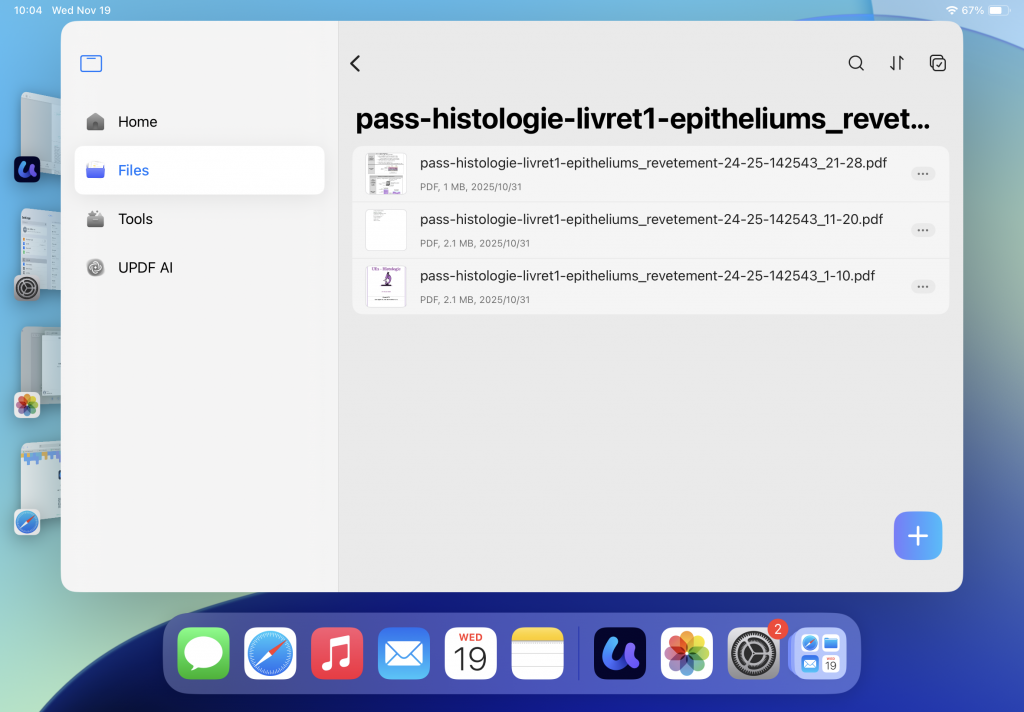
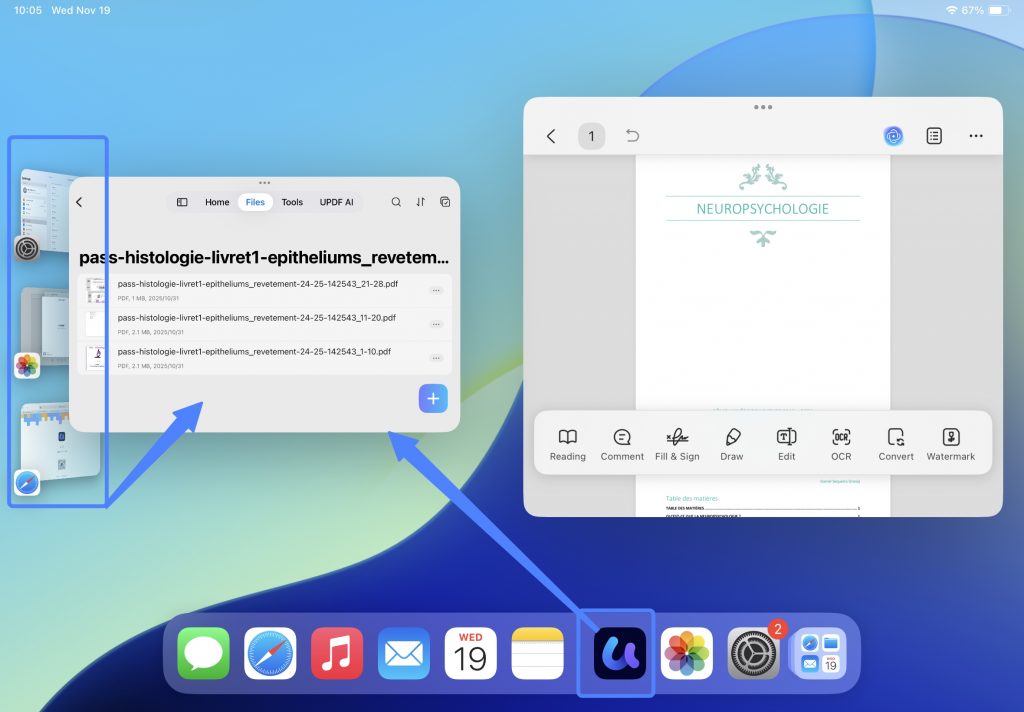
- You can drag the second app from the recently used apps list on the left to the center of the screen to enable split-screen mode. You can also open the second app from your iPad Home Screens, or in App Library.
- Drag the resize handle in the bottom-right corner of the window to resize these windows.
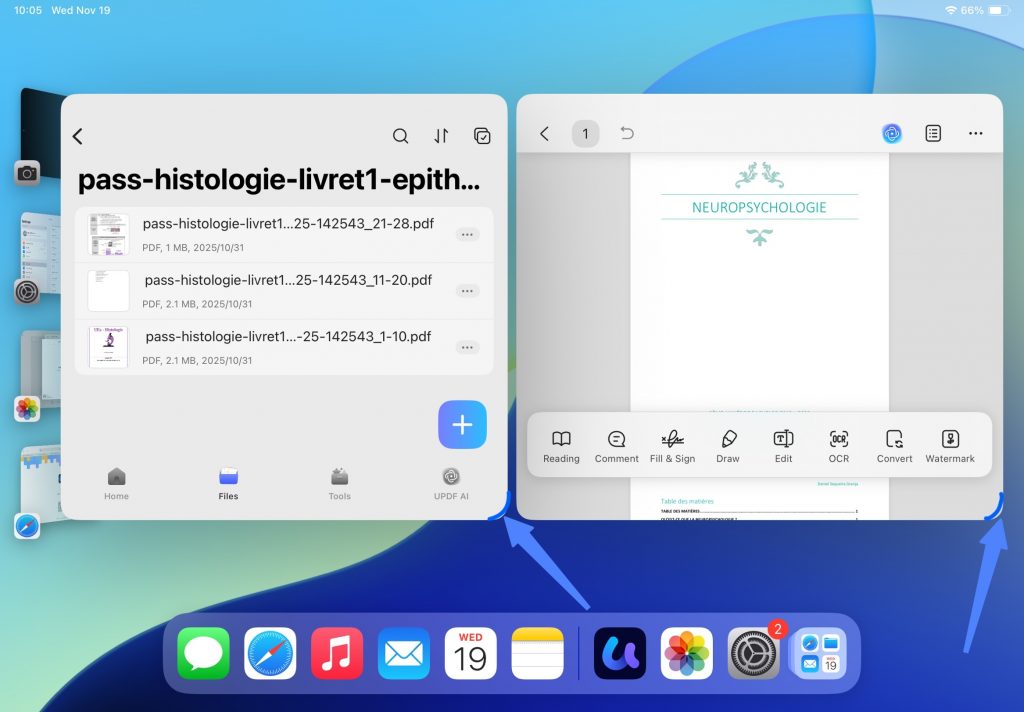
- To exit split view, go to the Settings app on your iPad. Tap "Multitasking & Gestures", then select "Full Screen Apps".
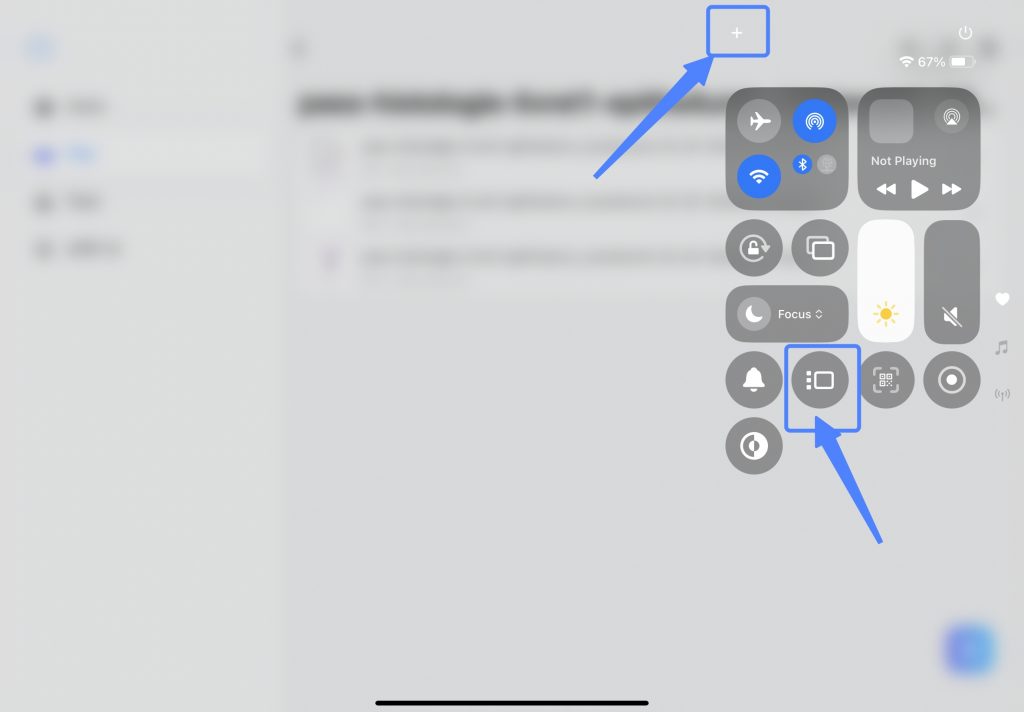
- You can also add Multitasking & Gestures to your iPad's Control Center. Swipe down from the top-right corner of your iPad screen to open Control Center, then tap the "+" button in the top-left corner of Control Center. Search for "Multitasking & Gestures" and add it to Control Center. Now you can easily enable or disable split-screen mode directly from the Control Center.