 UPDF
UPDF
 UPDF for Windows
 UPDF for Mac
 UPDF for iPhone/iPad
 UPDF for Android
 Nomostar
 UPDF AI Online
 UPDF Sign
 IvyCraft
 Edit PDF
 Annotate PDF
 Create PDF
 PDF Form
 Edit links
 Convert PDF
 OCR
OCR PDF to Word
 PDF to Image
 PDF to Excel
 Organize PDF
 Merge PDF
 Split PDF
 Crop PDF
 Rotate PDF
 Protect PDF
 Sign PDF
 Redact PDF
 Sanitize PDF
 Remove Security
 Read PDF
 UPDF Cloud
 Compress PDF
 Print PDF
 Batch Process
 About UPDF AI
 UPDF AI Solutions
 AI User Guide
 FAQ about UPDF AI
 Summarize PDF
 Translate PDF
 Chat with PDF
 Chat with AI
 Chat with image
 PDF to Mind Map
 Explain PDF
 PDF AI Tools
 Image AI Tools
 AI Chat Tools
 AI Writing Tools
 AI Study Tools
 AI Working Tools
 Other AI Tools
 AI Bookmark Generation
 AI Bookmark Summary
 AI Watermark Generation
 AI Background Generation
 AI Sticker Generation
 AI Stamp Generation
 AI Editing Suite
 UPDF Copilot
 AI Page Management
 AI Semantic Search
 PDF to Word
 PDF to Excel
 PDF to PowerPoint
 Enterprise Solution
 Enterprise Sign
 Enterprise AI
 Enterprise Plan
 Enterprise User Guide
 Enterprise Webinar
 IT
IT Education
 Construction
 Financial Service
 Healthcare
 Insurance
 Legal
Legal Manufacturing
 Government
 Researchers & PhDs
 Solopreneurs & Freelancers
 Lawyers & Legal Professionals
 Real Estate Agents & Brokers
 Education Solution
 Customer Stories
 User Guide
 UPDF Tricks
 FAQs
FAQs UPDF Reviews
 Download Center
 Blog
Blog Newsroom
 Tech Spec
 Updates
 UPDF vs. Adobe Acrobat
 UPDF vs. Foxit
 UPDF vs. PDF Expert

Quick answer:
Every tool here edits the original text rather than pasting a box over it — so the catch most roundups skip isn't the click, it's what happens on save: whether the tool embeds your new font into the file. Embed it, and the document looks right on any device; skip embedding, and a machine without that font quietly swaps in a fallback, shifting your spacing and line breaks. That's the difference between a font change that holds and one that breaks on someone else's screen.
This article reports what each tool actually does, whether font editing is free or locked behind a paywall, and which platforms each runs on. If you want to skip the testing and edit text with a font panel that behaves like a word processor, you can download UPDF for free and try it on your own file first. For example, if a proposal needs both a corrected price and a matching font, first edit the words in the PDF, then compare how your chosen editor saves the new typeface.
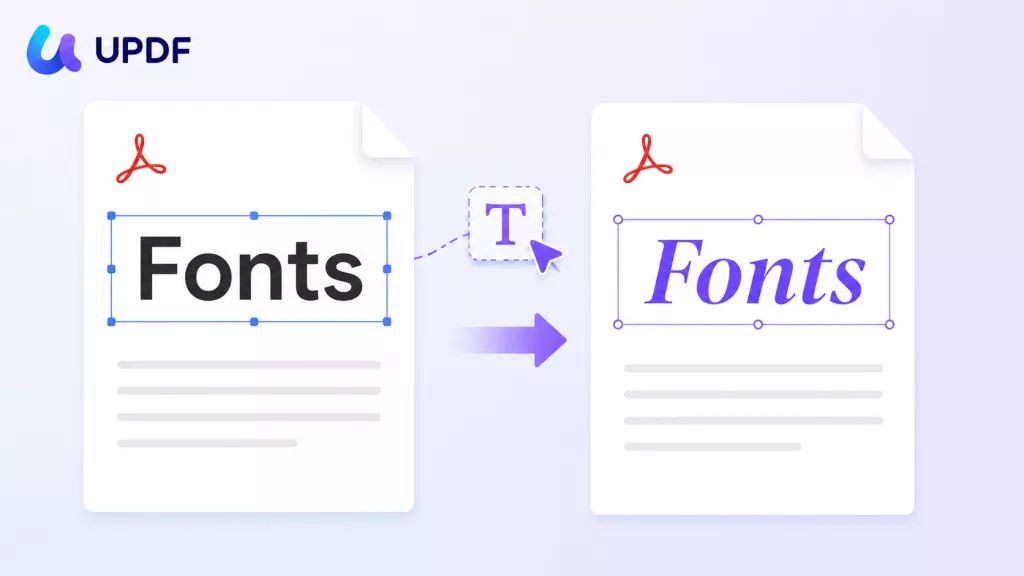
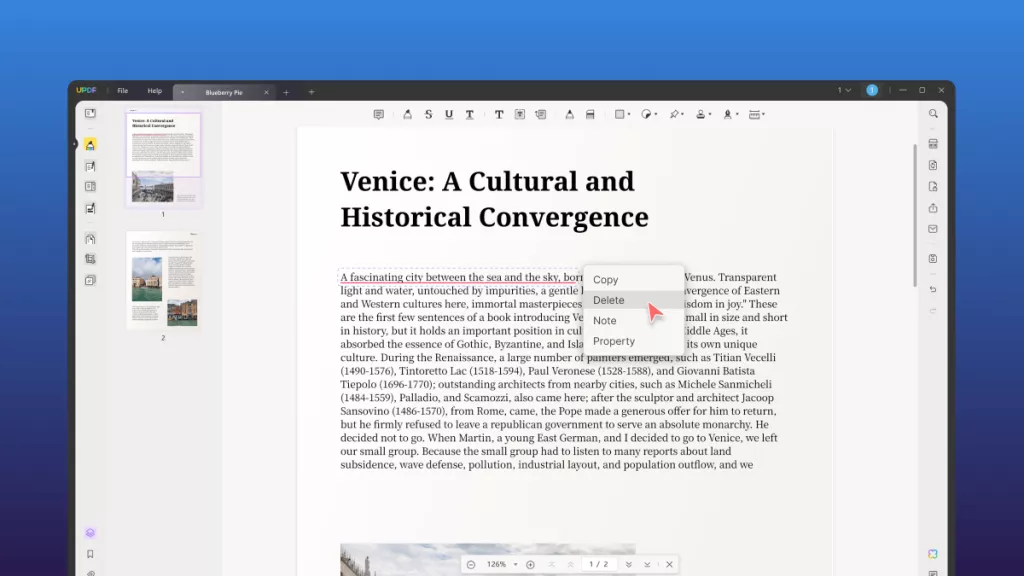
Check how the new formatting sits alongside the rest of the page. The example below shows the workflow for editing PDF content in UPDF.
Windows • macOS • iOS • Android 100% secure
Part 1. What "Changing a Font" in a PDF Really Means (Read This First)
Most "how to change PDF font" articles stop at "click the dropdown." That misses the mechanic that determines whether your edit survives on someone else's screen.
A PDF stores text as characters mapped to a specific font, and that font is either embedded (a copy of the font travels inside the file) or merely referenced by name. The behavior is defined by the PDF format specification, ISO 32000-1, which is why embedding — not the editor's dropdown — is what keeps a font stable across devices. When you change a font, one of two things happens on save:
- Embedded replacement: the editor rewrites the text object with your new font and tucks a copy (or a subset) of that font inside the PDF. The change is real and portable — it looks the same everywhere.
- Referenced only / substitution: the new font's name is recorded but the font itself isn't packed in. On a device that doesn't have that font installed, the viewer swaps in a fallback like Helvetica or Times New Roman. Character widths differ, so lines re-wrap and spacing shifts. This is why a PDF sometimes "changes font on its own."
Think of an embedded font as ink pressed into the paper — it travels with the page. A referenced-only font is more like a note that says "use Helvetica here," and hopes the other computer has it. All 10 tools below edit the real text; where they differ is how reliably that change survives once the file leaves your machine.
Part 2. How I Tested These 10 PDF Font Changers
I judged all of them on five dimensions rather than vague "ease of use":
| Test dimension | What I checked |
|---|---|
| Edits the real text | Does changing the font rewrite the original text object? (All 10 do — none overlay a new box.) |
| Font-library reach | System-wide fonts, or a bundled set? I counted the two online tools' lists directly; desktop tools draw on system fonts, which is a far larger pool. |
| Weight & style control | Bold / Italic / Bold Italic handled as real styles, or only fake-bolded? |
| Free to change fonts? | Is text editing usable for free, or is it trial-locked / watermarked / paywalled? |
| Platform reach | Windows, Mac, Linux, iOS, Android, or browser-only? |
Versions referenced, as of July 2026:
| Tool | Version |
|---|---|
| UPDF | 2.5.4 |
| Adobe Acrobat | 2026.001.21691 |
| PDF Reader Pro | 5.3.0 |
| Cisdem PDFMaster | 4.1.0 |
| LibreOffice | 26.2.4.2 |
| PDFgear | 2.25 |
| iLovePDF | Current web build |
| Soda PDF | Current web build |
| Foxit PDF Editor for Mac | 2026.1.2 |
| Nitro PDF Pro for Mac | 26.2 |
Prices below were checked on July 17, 2026, for the U.S. market, before applicable taxes. Promotional prices, renewal rates, and monthly-vs-annual math may differ — confirm on each vendor's current pricing page.
Part 3. Which PDF Font Changer Fits You? (Quick Routing)
If you don't want to read all 10, match your situation to a pick:
| If you are… | And you need to… | Best pick |
|---|---|---|
| A professional editing branded contracts or brochures | Change fonts and keep the layout intact, on desktop or phone | UPDF |
| On a locked-down corporate machine already standardized on Adobe | Stay inside an existing Acrobat compliance workflow | Adobe Acrobat |
| A Mac user who refuses subscriptions | Buy once and edit locally, including files with Chinese fonts | Cisdem PDFMaster, UPDF or PDF Reader Pro (one-time license provided) |
| Broke and just need it done | Change a font and save with zero cost and no watermark | PDFgear |
| Editing occasionally in a browser | Swap a font on a low-stakes file without installing anything | iLovePDF or Soda PDF |
| Already living in open-source tools | Change fonts for free without buying software | LibreOffice Draw |
Part 4. The 10 Best PDF Font Changers, Compared
1. UPDF — Strongest all-round font control across desktop and mobile
Windows • macOS • iOS • Android 100% secure
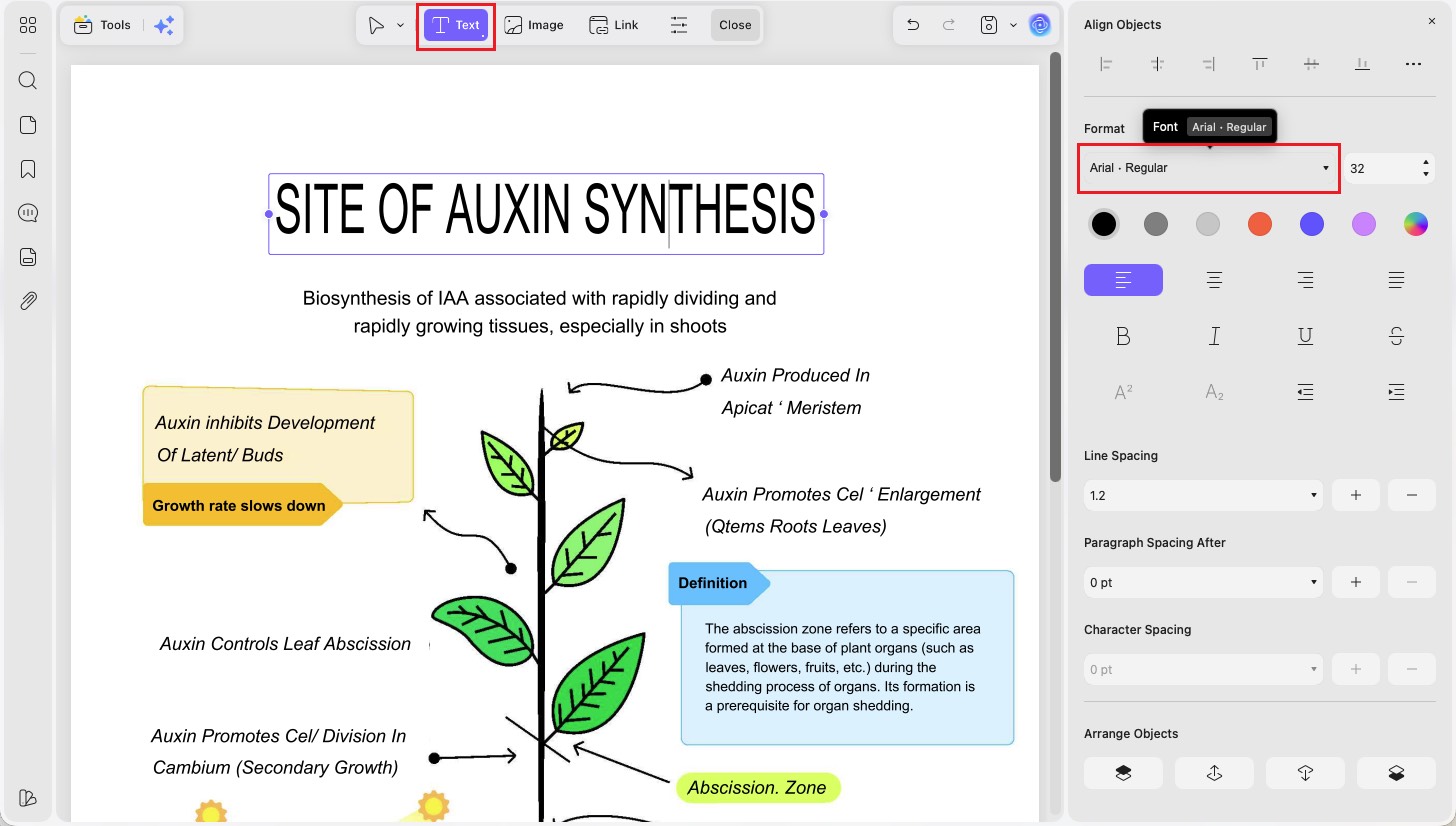
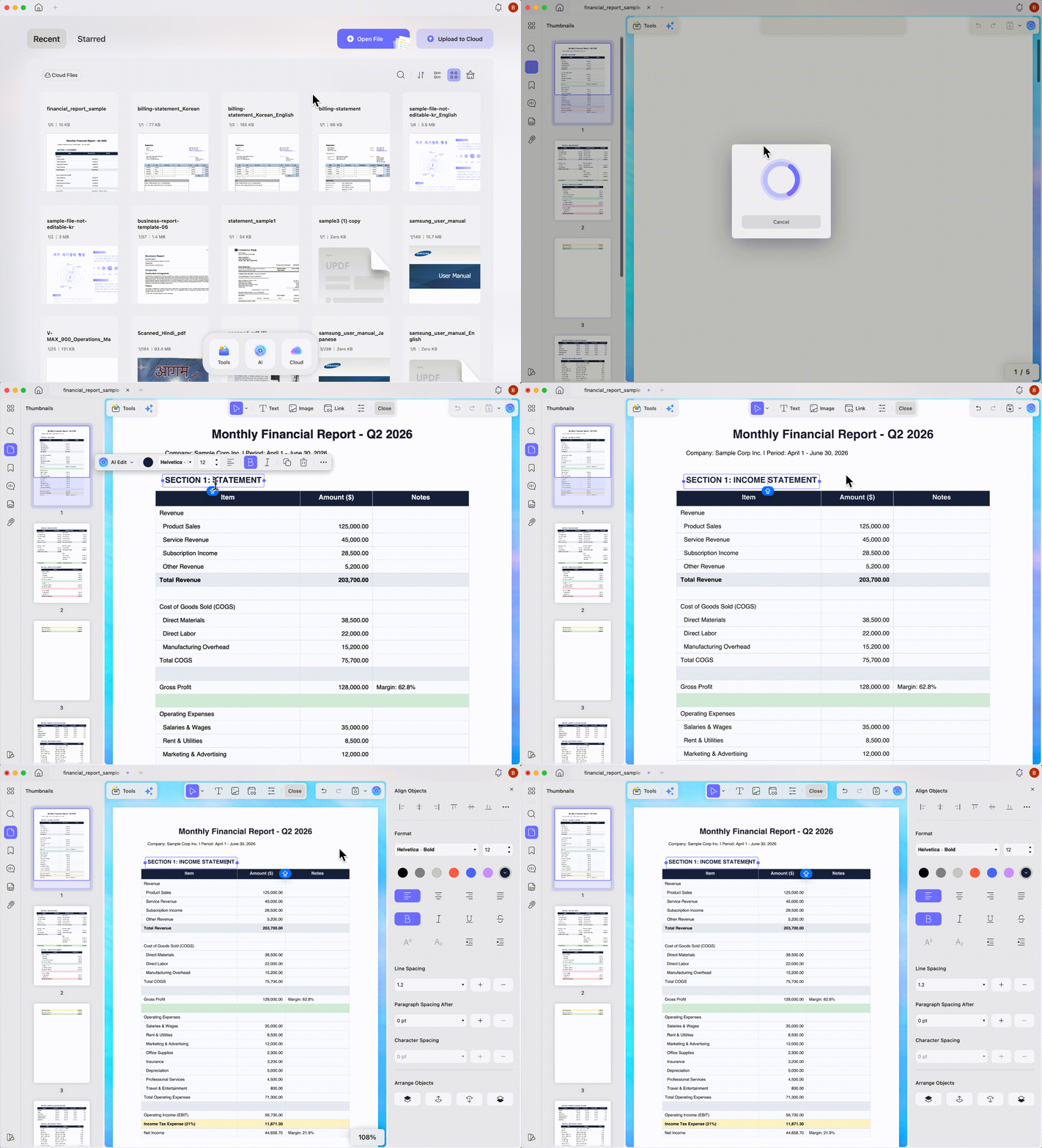
UPDF treats a font change like a word processor does. Under Edit mode, Select text, right-click and open the Properties panel, and the Font dropdown lists the family and weight together (e.g. Arial · Regular), with size beside it. Below that sit color (including a gradient picker), four alignment modes, Bold/Italic/Underline/Strikethrough, sub/superscript, and — the part most tools omit — Line Spacing, Paragraph Spacing After, and Character Spacing. When you retype into the box, the frame re-flows instead of dropping your text onto a second line.
The reason it lands at number one isn't a longer feature list; it's that the frame re-flows as you type (no manual box-dragging), the spacing controls give you the finest layout adjustment of any tool here, and the same editing works on Windows, Mac, iOS, and Android from one license — so a font fix you start on your desktop finishes on your phone without a second tool.
Best for:
- editing fonts on contracts, brochures, and forms where the layout has to survive the change, on any device.
Skip if:
- you just need to change a font on one throwaway file and don't want to install anything — a browser tool like iLovePDF is lighter for that.
If you want font editing that behaves like Word and travels across your devices, download UPDF for free and change a font on one of your own PDFs before deciding.
Windows • macOS • iOS • Android 100% secure
Watch the video tutorial below
2. Adobe Acrobat — Best for locked-in corporate Adobe workflows
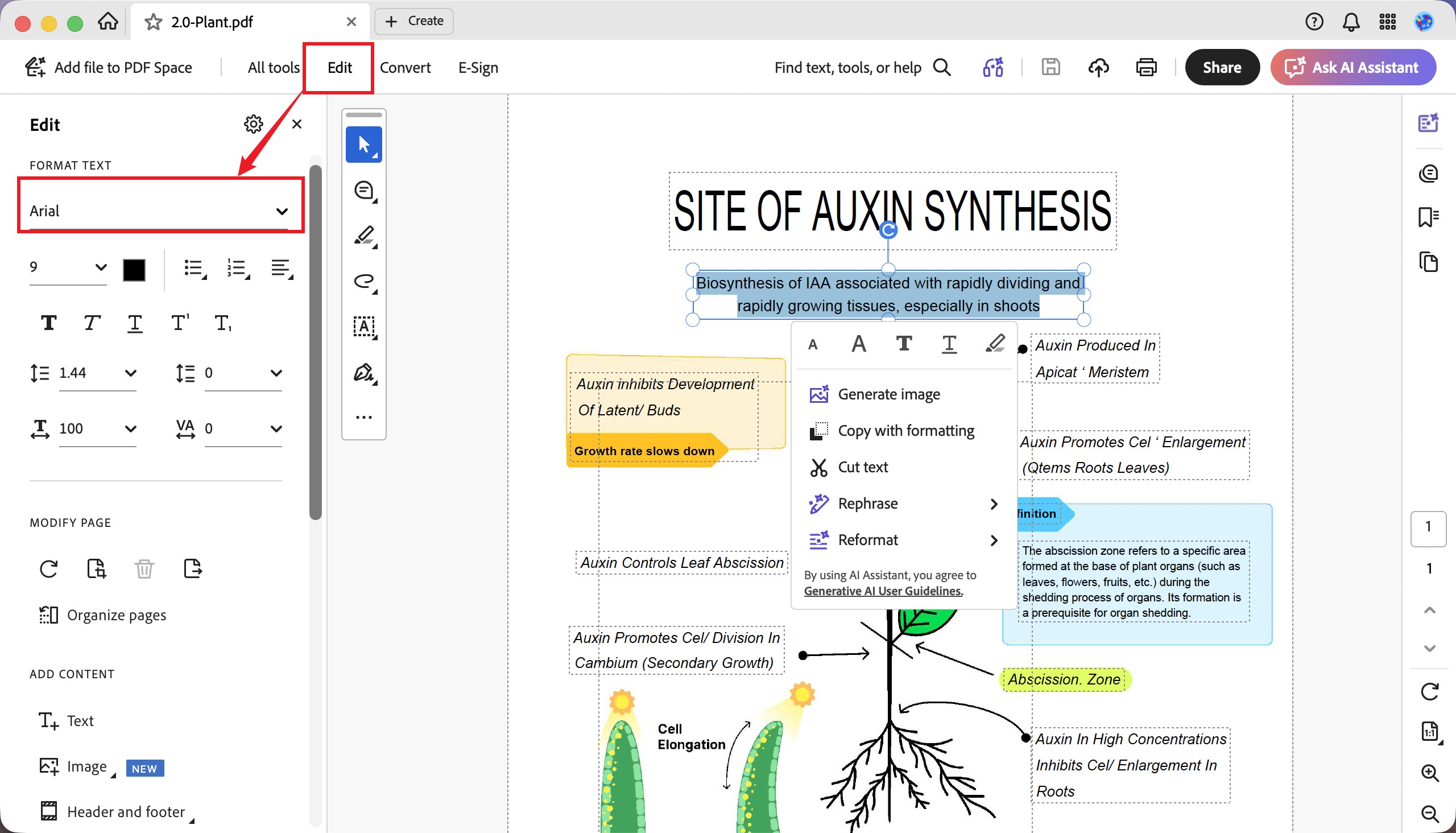
Acrobat changes fonts through Edit → FORMAT TEXT, where the font dropdown sits atop a dense panel of size, color, weight, line spacing, and character-scaling controls. You select the text object first, then the panel activates. Font replacement is real and its substitution engine is genuinely good at approximating missing fonts — Acrobat's own tooling maps a close fallback rather than mangling the line.
Where it falls down for this specific task is cost and weight. The editing panel is powerful but the workflow is heavier than the job usually warrants, and it's the most expensive option here by a wide margin.
Best for:
- teams already standardized on Adobe whose compliance or archival policies require Acrobat.
Skip if:
- you're an individual who just wants to swap a font — you'd be paying enterprise-tier pricing for a five-second edit.
Free access:
3. PDF Reader Pro — Best for granular weight/style selection via a two-level font menu
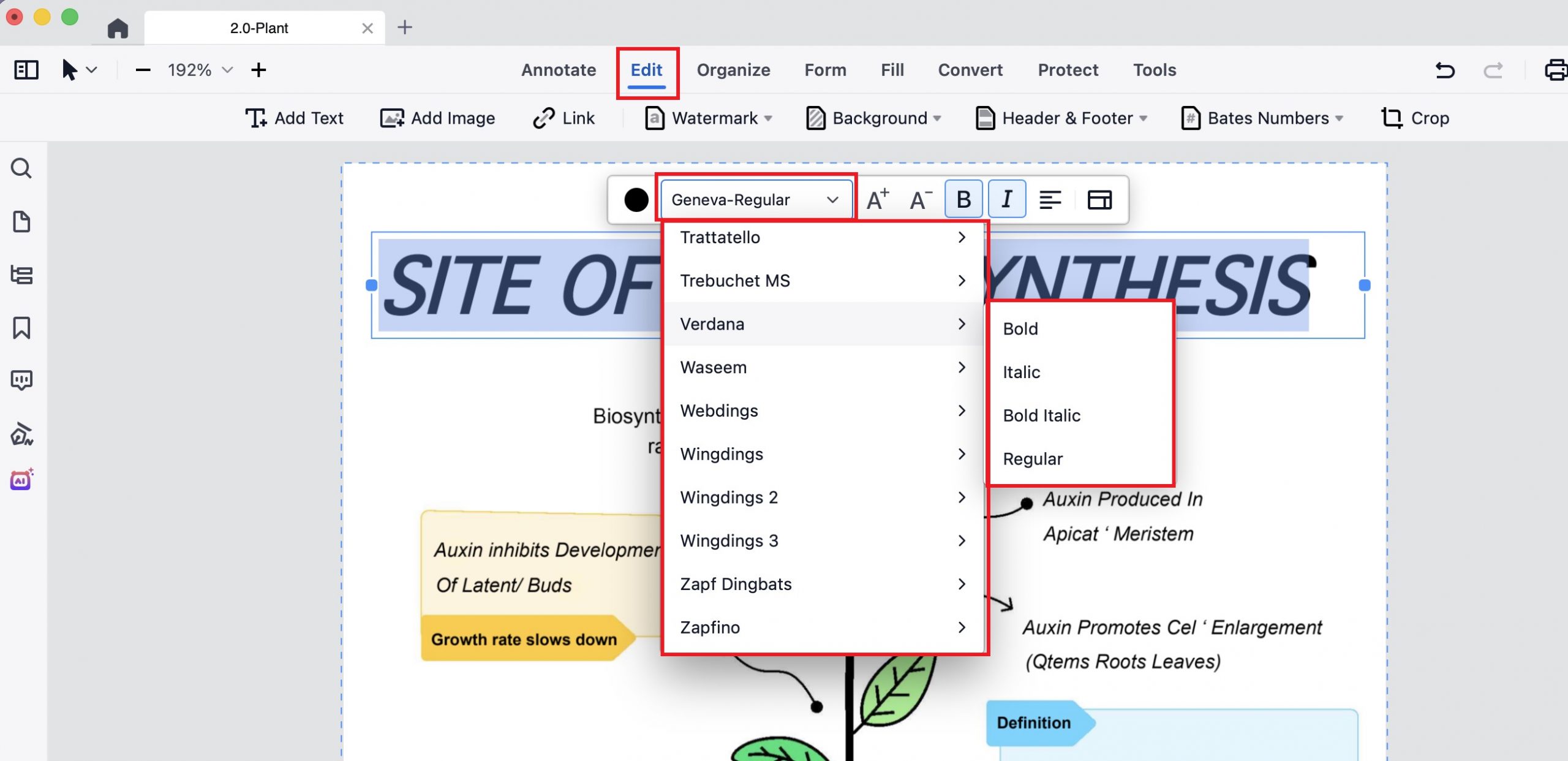
On PDF Reader Pro, you enter Edit, select the text, and a floating toolbar appears above it with the font dropdown (mine showed Geneva-Regular). Its standout detail: the font list is a two-level menu — pick a family like Verdana, then a flyout offers Bold / Italic / Bold Italic / Regular. That's cleaner weight control than the single-layer dropdowns most rivals use.
Best for:
- users who want precise, explicit weight/style selection
Skip if:
- you want a single license that spans all your devices — its permanent option covers just one machine, so a multi-platform license like UPDF's fits a mixed Mac/Windows/phone setup better.
Free access:
4. Cisdem PDFMaster — Best for Mac users working with documents that contain CJK fonts
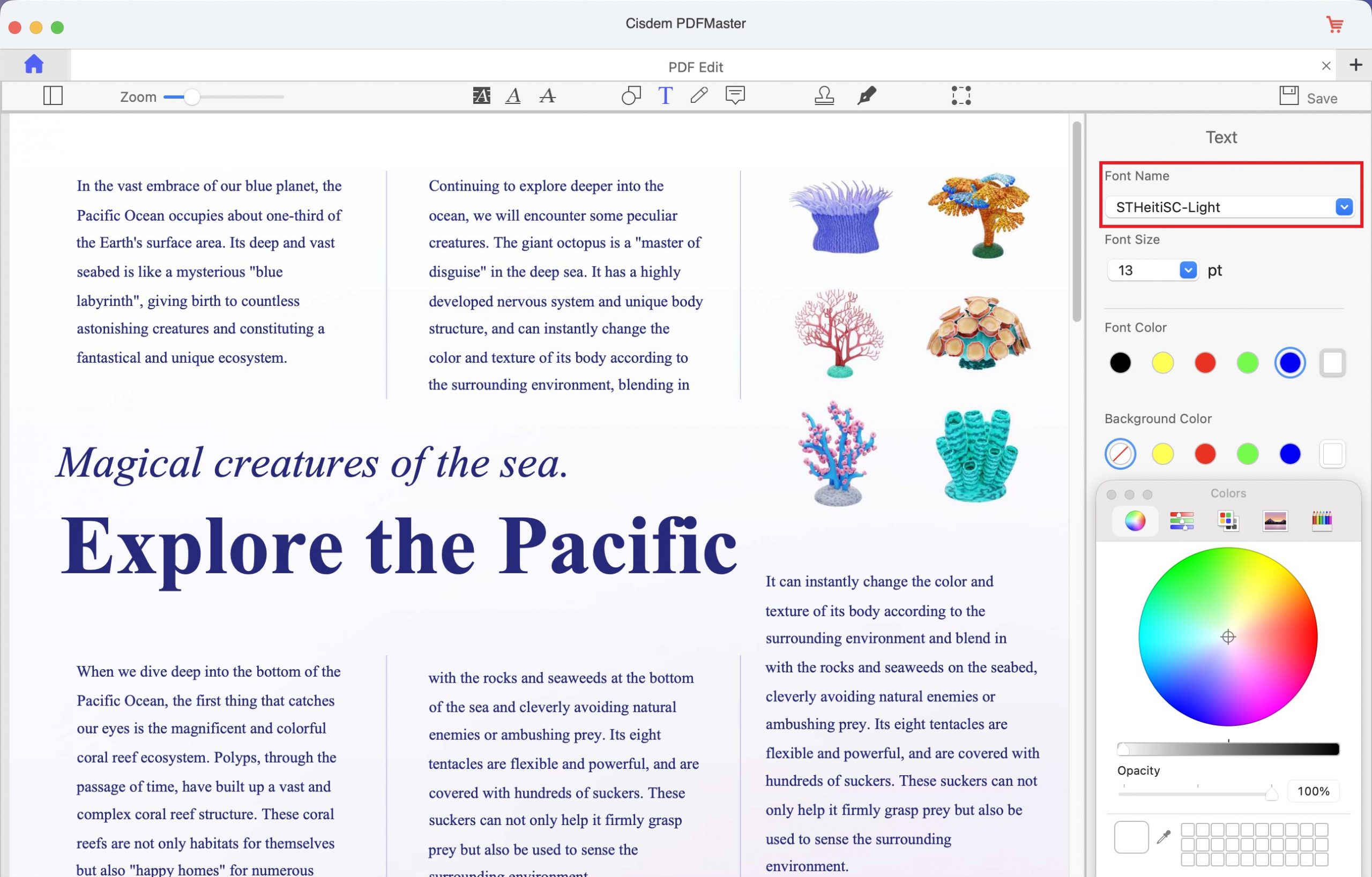
Cisdem PDFMaster puts font editing behind the T (text) icon; select text and a right-side Text panel exposes Font Name, Font Size, Font Color, and Background Color, and it hooks into the native macOS Colors wheel with an opacity slider. In the screenshot the font field showed STHeitiSC-Light, a Simplified Chinese font — so it at least reads and displays CJK fonts already in the document, which some Western-focused editors don't.
Weight isn't a separate flyout here; you pick it through the font name itself (e.g. the "-Light" variant), which is simpler but less explicit than PDF Reader Pro's sub-menu.
Best for:
- Mac users who want a buy-once app and often open documents that already contain Chinese/Japanese/Korean fonts.
Skip if:
- you want a dedicated Bold/Italic style menu rather than choosing weight via font-name variants.
Free access:
5. LibreOffice Draw — Best genuinely free desktop route (with a real caveat)
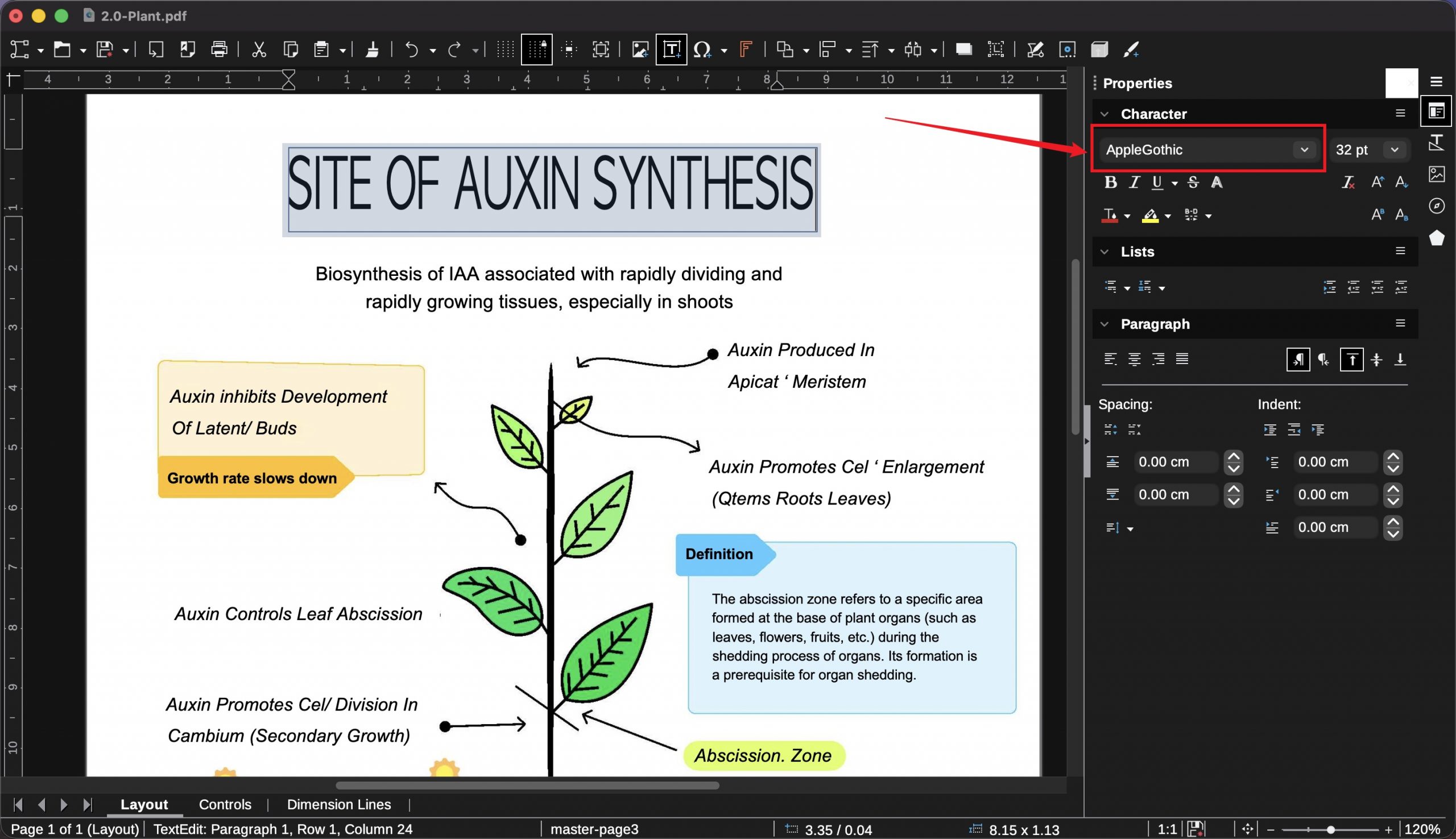
LibreOffice has no dedicated PDF editor; you open the PDF in LibreOffice Draw, select the text, and change fonts from the right-side Properties → Character panel. Because Draw taps your entire system font library, it has the widest font selection of any tool here, and it's free and open-source with no watermark when you get it from the project's website.
The caveat is real: Draw imports a PDF as an editable drawing, so on complex or graphic-heavy layouts it frequently re-positions elements, substitutes fonts, or breaks spacing on import. It's a capable font changer for simple pages and a risky one for polished, multi-element documents.
Best for:
- users already in the open-source ecosystem changing fonts on simple, text-light PDFs for free.
Skip if:
- your file has a designed layout you can't afford to have shuffled on import.
Free access:
6. PDFgear — Best free tool that edits real text and embeds fonts at zero cost
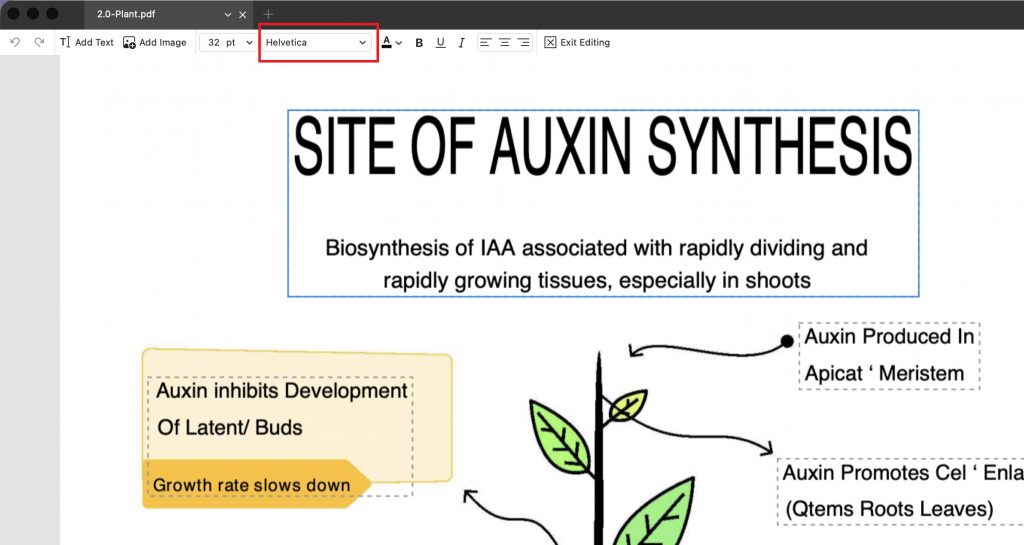
PDFgear is the free option that behaves like a paid one. Enter text editing and a top toolbar exposes the font dropdown (mine showed Helvetica) alongside size, color, and separate B/U/I buttons. It changes the existing text and preserves the original font and formatting — and it does this with no watermark, no signup, and no feature gate, processing files locally. For a genuinely free tool, that combination of real text editing plus zero restrictions is rare.
The trade-off is a leaner toolbar than the paid desktop suites, and font styling relies on the standalone B/I/U buttons rather than a dedicated weight menu.
Best for:
- anyone who wants to change fonts and save a clean, watermark-free file at zero cost.
Skip if:
- you need the deepest typographic controls (fine character-spacing, paragraph spacing) that pro suites include.
Free access:
7. Nitro PDF Pro — Best for print-bound files that need font embedding
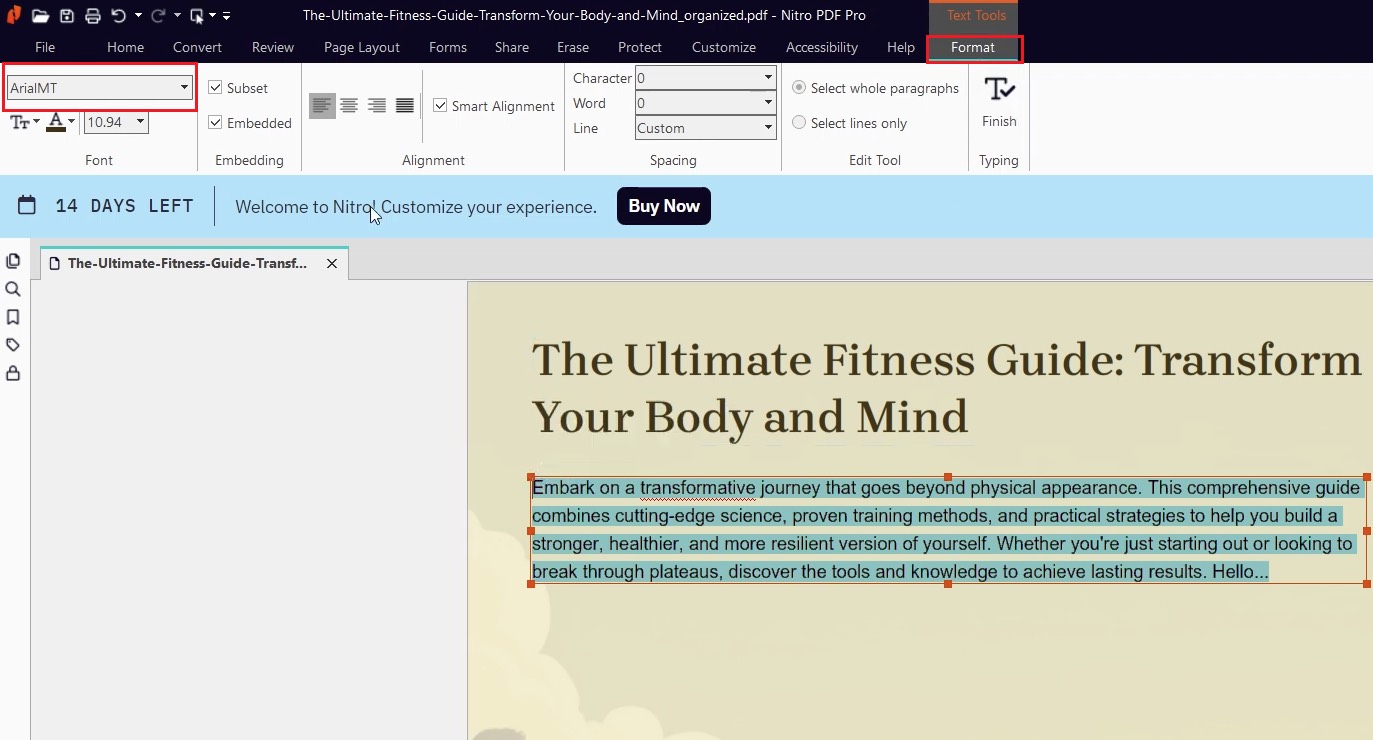
In Nitro PDF Pro on Windows, selecting text reveals a Text Tools → Format ribbon tab, with the font dropdown inside a Font group. Nitro exposes something the consumer tools hide: an Embedding group with Subset / Embedded toggles, so you can embed the font subset directly — useful when a file is headed to print or a submission portal that rejects non-embedded fonts.
Note the platform split is real here. The ribbon shown is the Windows product; the Mac app uses a different interface. On Mac you select text with the Edit tool to reveal the Editing Bar (press Command + Shift + E if it's hidden), then change the font from the Font dropdown there, or open the system font panel via Format → Font → Show Fonts (Command + T). Nitro's Mac build leans on the macOS Font Book for matching, so if the document's font isn't installed it picks the closest available substitute.
Best for:
- print/production workflows where embedding the changed font is non-negotiable.
Skip if:
- you're a casual user — the ribbon depth and licensing are overkill for a quick swap.
Free access:
8. Foxit PDF Editor — Best Office-style ribbon for frequent editors
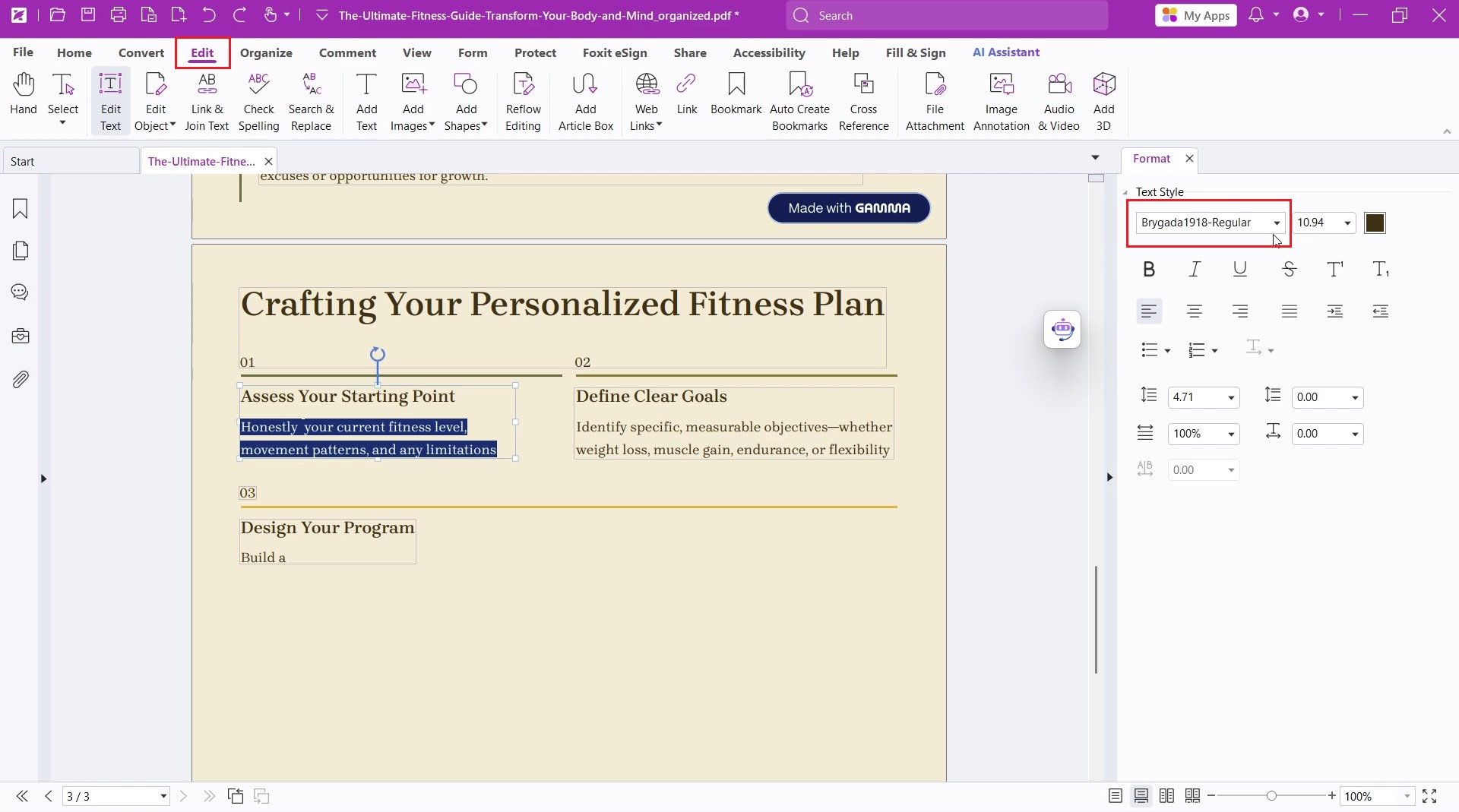
In Foxit PDF Editor on Windows, font changes route through Edit → Edit Text, then a right-side Format → Text Style panel with the font dropdown (the demo showed Brygada1918-Regular), size, color, full B/I/U/S, and a complete set of paragraph, line-spacing, and character-spacing controls. If you live in Microsoft Office, the ribbon feels immediately familiar, and its font handling is thorough.
Unlike Nitro, Foxit keeps the same ribbon layout on Mac — matching the Windows path, and it edits text within a paragraph like Word.
Best for:
- people who edit PDFs often and want an Office-familiar ribbon with deep formatting controls.
Skip if:
- you want the lightest possible tool for a one-off font change.
Free access:
9. iLovePDF Online — Best browser tool for a quick, low-stakes swap (10-font cap)
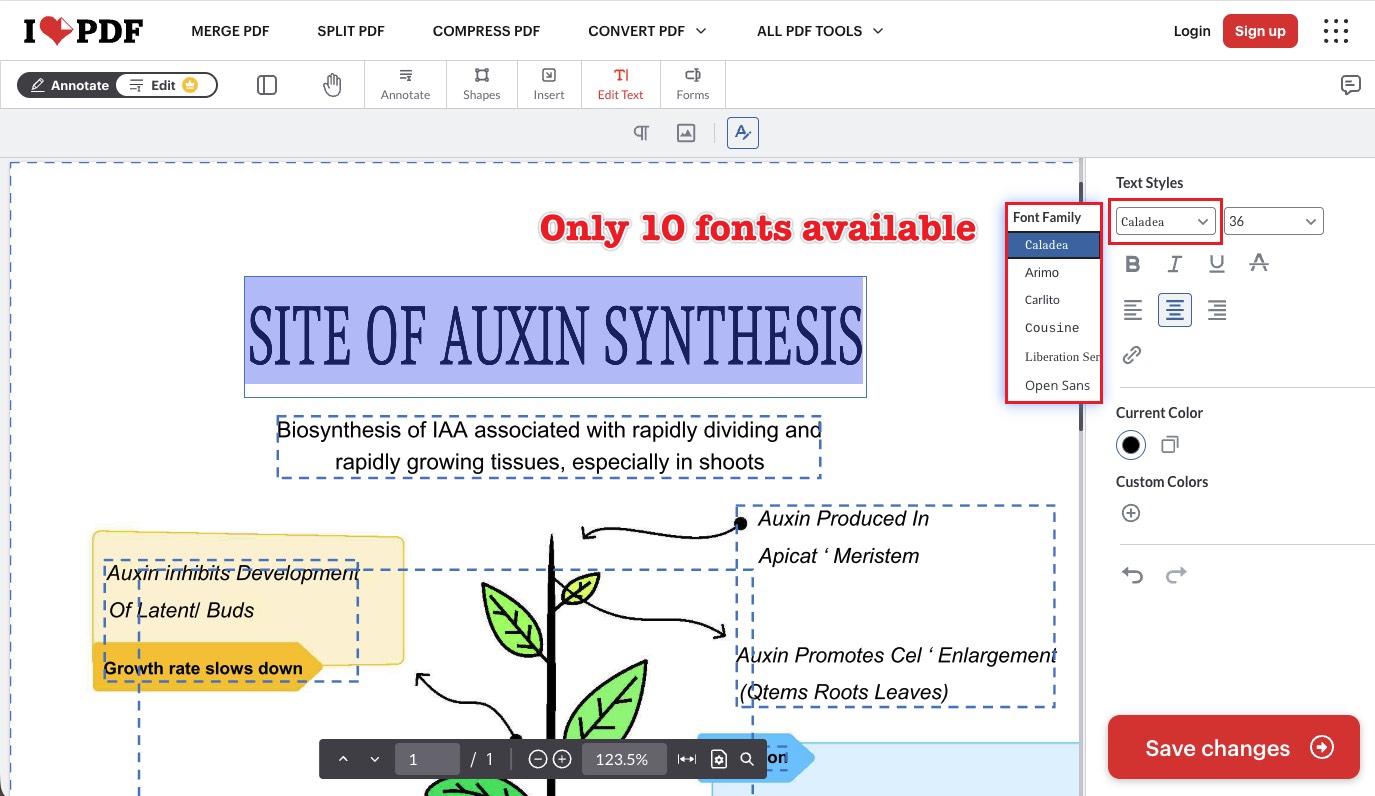
In iLovePDF's web editor, switch to Edit → Edit Text, select text, and a right-side Text Styles panel appears with a Font Family dropdown (mine showed Caladea), plus size, B/I/U, alignment, and color. The blocking limit: the font list holds only 10 fonts (Caladea, Arimo, Carlito, Cousine, Liberation Sans, Open Sans, and a few more). That's fine for a generic swap and useless for matching a brand typeface.
Two real constraints, though: it uploads your file to a temporary server to process the edit (worth noting for confidential documents), and — the bigger one for font work — that 10-font list means an embedded, portable result only ever uses one of those ten generic faces. There's no way to pull in your own installed or brand font.
Best for:
- signing forms or swapping a font on a non-confidential file with no install.
Skip if:
- you need a specific font, work offline, or handle sensitive documents.
Free access:
10. Soda PDF Online — Best online option with a searchable font list
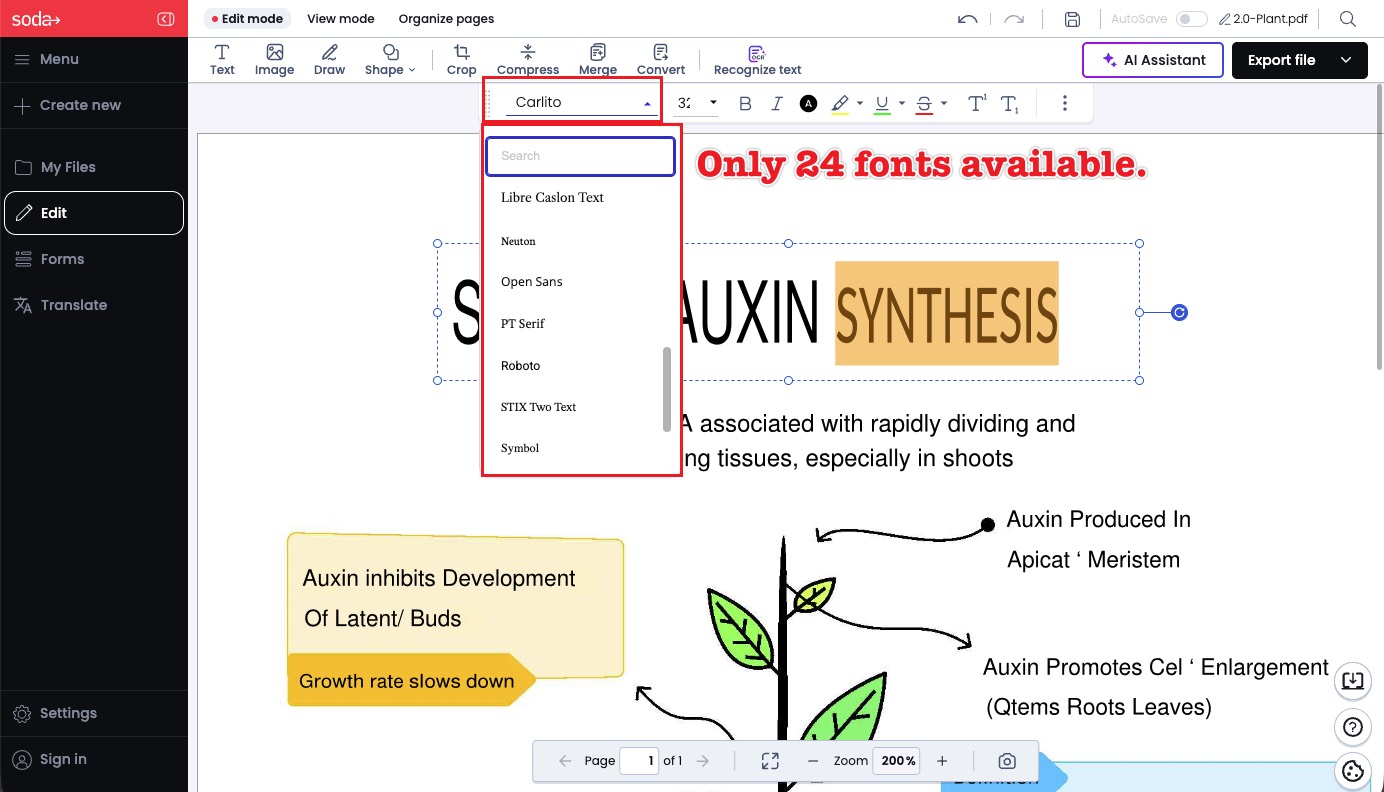
Soda PDF's Edit mode shows a font dropdown in the top toolbar that — unlike iLovePDF — includes a search box and a larger list of 24 fonts (Libre Caslon Text, Neuton, Open Sans, PT Serif, Roboto, STIX Two Text, and more), plus size, B/I, color, highlight, underline, strikethrough, and sub/superscript. It runs as both a desktop app and an online tool.
More fonts than iLovePDF, but still a bounded list rather than your system library, and saving an edit requires a paid plan rather than a free tier.
Best for:
- browser editing where you want a bit more font choice and a search box.
Skip if:
- you just need to change a font on one throwaway file and don't want to install anything — a browser tool like iLovePDF is lighter for that.
Free access:
Part 5. Side-by-Side Comparison (Including Limitations)
| Tool | Edits real text? | Font source | Free to change fonts? | Price | Platforms | Main limitation |
|---|---|---|---|---|---|---|
| UPDF | ✓ | System fonts + weights | Yes; export adds trial watermark | $49.99/yr · $79.99 lifetime | Win/Mac/iOS/Android | Watermark on free export |
| Adobe Acrobat | ✓ | System fonts | No (paid only) | ~$239.88/yr | Win/Mac/web/mobile | Most expensive here |
| PDF Reader Pro | ✓ | System fonts, 2-level weight menu | No (7-day trial, then paid) | $59.99–79.99/yr · $99.99 permanent | Win/Mac/iOS/Android | Permanent license = 1 machine |
| Cisdem PDFMaster | ✓ | System fonts | No (7-day trial) | $49.99/yr · $79.99 lifetime | Mac (+Win) | Weight via font-name only |
| LibreOffice Draw | ✓ | Full system library (widest) | Free from site ($8.99 via Mac App Store) | Free | Win/Mac/Linux | Breaks complex layouts on import |
| PDFgear | ✓ | System fonts | Yes, fully free, no watermark | Free | Win/Mac/iOS/Web | Leaner toolbar |
| Nitro PDF Pro | ✓ | System fonts | No (14-day trial) | Standard $15/mo (Win/Mac/iOS); Classic $270/3yr (Win only) | Win/Mac/iOS | Perpetual license retired |
| Foxit PDF Editor | ✓ | System fonts | No (paid Editor) | $129.99/yr · Editor+ $159.99/yr | Win/Mac/mobile | Overkill for one-off edits |
| iLovePDF | ✓ | 10 bundled fonts only | Free Basic (web, limited) | Premium $60/yr | Web (apps = Premium) | 10-font cap; uploads file |
| Soda PDF | ✓ | 24 bundled fonts, searchable | Preview only; saving needs paid plan | PRO ~$7.32/mo (billed yearly) | Desktop + online | No free save; bounded font list |
The pattern that actually sorts these tools isn't overlay vs. real editing — all 10 edit the real text. It's two things: how large a font pool you can draw from (the two browser tools cap you at 10 and 24 bundled fonts, while desktop editors reach your whole system library), and how cleanly the new font embeds so it survives on another device. UPDF sits at the top because it re-flows the layout as you edit, embeds on save, and runs on every platform from one license. PDFgear is the standout if your only constraint is budget, and LibreOffice is the free fallback for simple pages if you already use it.
Windows • macOS • iOS • Android 100% secure
Part 6. Edge Cases: When Changing the Font Fails
"I changed the font but it snapped back to Arial when I reopened the file." The new font wasn't embedded on save, so the viewer substituted a fallback. Use a tool that embeds (or subsets) the font — Nitro's explicit Embedding toggle, or a desktop editor that embeds by default — and confirm the font shows as "Embedded" in the file's font properties.
"The font dropdown is greyed out / the text won't select." The page is a scanned image, not live text. There's no font to change until you run OCR to convert the scan into editable text first; only then does the font panel apply.
"My brand font isn't in the list." Online tools (iLovePDF's 10, Soda's 24) only offer bundled fonts. Matching a specific brand typeface requires a desktop editor that reads your installed system fonts — or installing that font on the machine first.
"After I switched fonts, some characters turned into boxes or blanks." The new font doesn't include those glyphs — common when you apply a Latin-only font to text with accented, Chinese, Japanese, or Korean characters. Pick a font that covers the script (for CJK, a tool that reads your system CJK fonts, like Cisdem on Mac), rather than a bundled Western-only face.
"The font won't embed even though I enabled embedding." Some commercial fonts carry licensing flags that forbid embedding. Swap to a font with embedding permissions (common system fonts or open licenses like Google Fonts) and re-apply.
Part 7. Frequently Asked Questions
1. Can I change a PDF font for free without a watermark?
Yes. PDFgear changes fonts on the original text for free with no watermark or signup, and LibreOffice Draw does it free for simple pages. UPDF also lets you edit fonts free — the watermark only appears if you export the saved file on the free tier.
2. Why does my PDF font change by itself when I edit it?
The original font isn't embedded or installed, so the editor substitutes a lookalike. Because the substitute has different character widths, spacing and line breaks shift. Embedding the font at save time prevents this.
3. Does changing the font in a PDF change it everywhere in the document?
No. Font changes apply only to the text block you select. To restyle a whole document you must select each block, which is why bounded-font browser tools get tedious for long files.
4. Which PDF font changer works on both desktop and phone?
UPDF and PDF Reader Pro both edit fonts on Windows, Mac, iOS, and Android. UPDF uses one license across all four; iLovePDF's mobile/desktop apps require its Premium plan.
Conclusion
Changing a PDF font is less about finding a dropdown and more about what happens on save: whether your new font is embedded so the document holds together on someone else's screen, and whether you could reach the font you actually wanted in the first place. All 10 tools edit the real text; they part ways on font-library reach — the two browser tools cap you at 10 and 24 bundled faces, while desktop editors tap your whole system library — and on how cleanly they embed. For font changes that re-flow the layout, embed on save, and follow you from desktop to phone on a single license, UPDF is the pick I'd reach for first, with PDFgear as the strongest free alternative and LibreOffice as the open-source fallback for simple files.
Download UPDF for free to change a font on your own PDF — installation is free, and Pro features are available when you need watermark-free export or advanced formatting. For the full picture of layout-safe editing, see UPDF's guide to the best PDF editor.
Windows • macOS • iOS • Android 100% secure








 Lizzy Lozano
 Engelbert White
 Enola Miller
Free access: