UPDF
UPDF
 UPDF for Windows
 UPDF for Mac
 UPDF for iPhone/iPad
 UPDF for Android
 Nomostar
 UPDF AI Online
 UPDF Sign
 IvyCraft
 Edit PDF
 Annotate PDF
 Create PDF
 PDF Form
 Edit links
 Convert PDF
 OCR
OCR PDF to Word
 PDF to Image
 PDF to Excel
 Organize PDF
 Merge PDF
 Split PDF
 Crop PDF
 Rotate PDF
 Protect PDF
 Sign PDF
 Redact PDF
 Sanitize PDF
 Remove Security
 Read PDF
 UPDF Cloud
 Compress PDF
 Print PDF
 Batch Process
 About UPDF AI
 UPDF AI Solutions
 AI User Guide
 FAQ about UPDF AI
 Summarize PDF
 Translate PDF
 Chat with PDF
 Chat with AI
 Chat with image
 PDF to Mind Map
 Explain PDF
 PDF AI Tools
 Image AI Tools
 AI Chat Tools
 AI Writing Tools
 AI Study Tools
 AI Working Tools
 Other AI Tools
 AI Bookmark Generation
 AI Bookmark Summary
 AI Watermark Generation
 AI Background Generation
 AI Sticker Generation
 AI Stamp Generation
 AI Editing Suite
 UPDF Copilot
 AI Page Management
 AI Semantic Search
 PDF to Word
 PDF to Excel
 PDF to PowerPoint
 Enterprise Solution
 Enterprise Sign
 Enterprise AI
 Enterprise Plan
 Enterprise User Guide
 Enterprise Webinar
 IT
IT Education
 Construction
 Financial Service
 Healthcare
 Insurance
 Legal
Legal Manufacturing
 Government
 Researchers & PhDs
 Solopreneurs & Freelancers
 Lawyers & Legal Professionals
 Real Estate Agents & Brokers
 Education Solution
 Customer Stories
 User Guide
 UPDF Tricks
 FAQs
FAQs UPDF Reviews
 Download Center
 Blog
Blog Newsroom
 Tech Spec
 Updates
 UPDF vs. Adobe Acrobat
 UPDF vs. Foxit
 UPDF vs. PDF Expert

Quick answer:
The others each handle some of these well but stumble on at least one — a paywall, a missing mode, a clumsy workflow, or a gap on mobile.
The expert catch most lists miss: removing text isn't one job, it's two. You either delete it in edit mode (the text lifts off so you can retype or reflow) or you redact it (the underlying data is destroyed so it can never be recovered). Pick the wrong one for a contract and you either can't edit freely or you leak data you thought was gone.
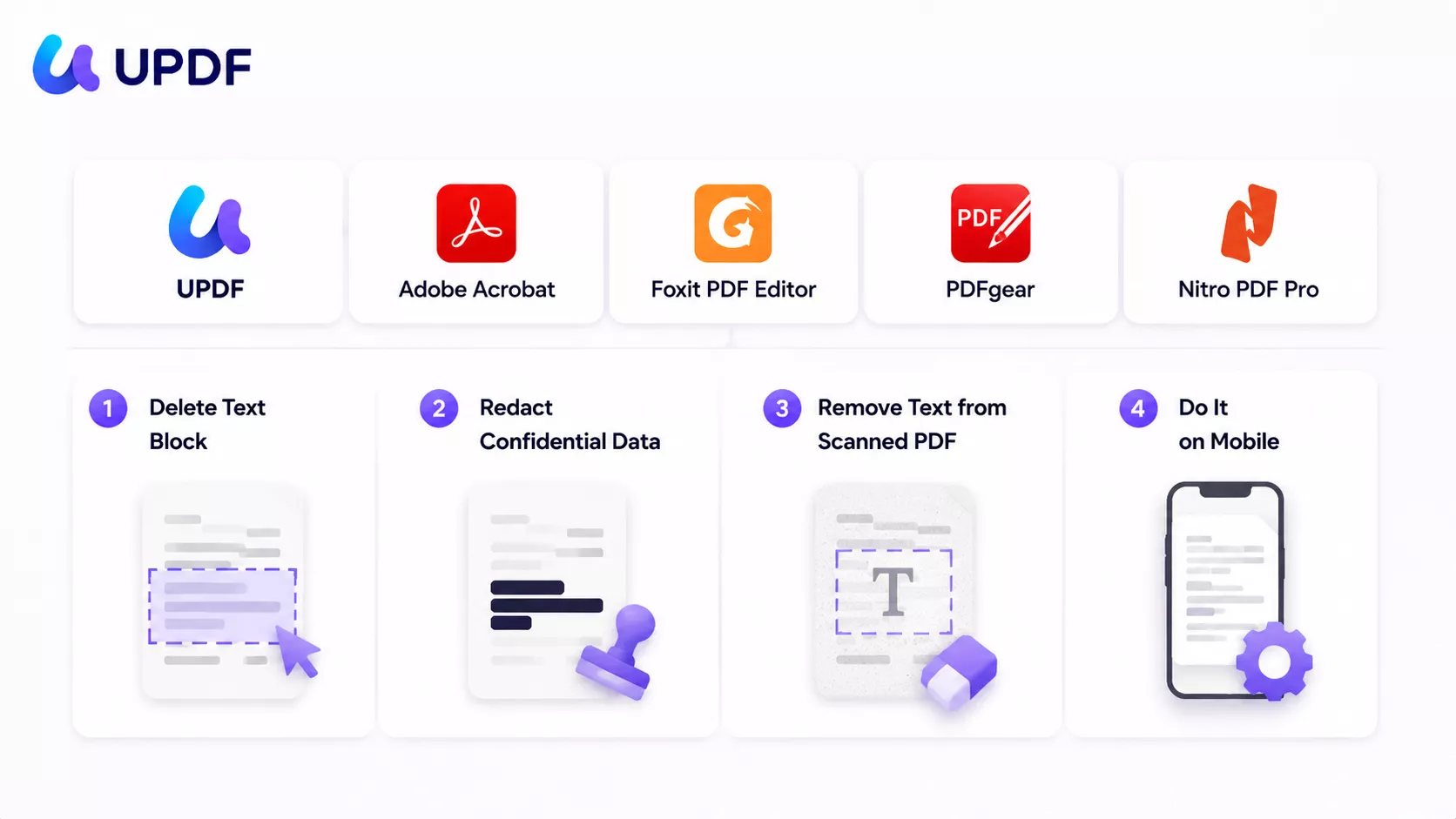
That distinction is why ranking editors by interface polish is useless. So we ran five of the most-recommended tools — UPDF, Adobe Acrobat, Foxit PDF Editor, PDFgear, and Nitro PDF Pro — through the same four real tasks: deleting a text block, redacting confidential data, removing text from a scanned (image-only) PDF, and doing it on mobile. The results separate them fast.
If you want the full editing workflow behind any of these tasks, our PDF editor guide covers it end to end. This article is about which tool to choose. For a concrete deletion walkthrough, see how to remove text from a PDF; for confidential details, use the true redaction guide.
Part 1. Delete vs. Redact vs. OCR — What's the Difference?
Before the tools, three terms people use interchangeably and shouldn't:
- Delete = removing text in edit mode. The text is a real, editable object; you select the block and remove it, then the space reflows. Best when you're changing the document.
- Redact = permanently destroying text and the data beneath the visible mark. A black box drawn in an annotation tool is not redaction — the text still sits underneath, copy-pasteable. True redaction strips the data at the file level. This is the distinction NIST SP 800-88 draws between merely clearing a mark and purging the data, and improper redaction of personal data can be a reportable breach under GDPR Article 17.
- OCR = optical character recognition, needed when your PDF is a scan — an image of a page with no real text layer. You can't delete text that the file doesn't know is text; OCR creates that text layer first.
Summary: delete is for editing, redact is for destroying, OCR is the prerequisite step that makes a scanned page editable at all.
Part 2. Which Tool Should You Choose?
Match the tool to who you are and what you're removing, then read its full test results below.
| If you are… | …doing this | Best pick |
|---|---|---|
| In-house counsel / paralegal | Redacting names and figures in contracts before disclosure, with a preview and legal codes | Adobe (preview) or UPDF (legal codes + AI find-and-redact) |
| HR / recruiter | Deleting old salary or personal details from scanned offer letters before reuse | UPDF — OCR to editable, then delete |
| Accountant / finance | Wiping line items from scanned invoices and editing on the go between desk and phone | UPDF — editable OCR carries to mobile |
| Student / freelancer on a budget | Removing text from regular (digital) PDFs for free, no watermark | PDFgear |
| Existing Adobe-ecosystem team | Keeping Adobe-style redaction preview but cutting the per-seat cost | Foxit |
| Office already standardized on Nitro | Deleting text blocks in everyday documents | Nitro (but plan for the 2026 license change) |
Part 3. How We Judged Each Tool
Five axes, all tested on the same files:
| What we tested | Why it matters |
|---|---|
| Select-all-text deletion | Can you clear a whole page in one move, or only one text block at a time? |
| True redaction | Is there a real redaction tool — with preview, color, and legal codes — or just a black box? |
| Scanned-PDF OCR | Does OCR produce editable text you can then delete, or only searchable text you can't touch? |
| Mobile support | Can you remove text on a phone, and does the app keep OCR/redaction? |
| Free access & price | What can you do for free, and what does removing the limits cost? |
Test conditions (June 2026). All findings below are based on hands-on testing in June 2026 with the versions listed. Software updates may change behavior, menus, or pricing after this date.
| Tool | Desktop version | Mobile version |
|---|---|---|
| UPDF | v2.5.4 | v2.5.3.0630 |
| Adobe Acrobat | v2026.001.21662 | Reader v26.05.00 |
| Foxit PDF Editor | v2026.1.1.70276 | v2026.4.3.0603 |
| PDFgear | v2.25 | v2.23 |
| Nitro PDF Pro | v26.1.1 | v26.1 |
Part 4. UPDF — Best Overall for Delete, Redact, and Scanned Files
UPDF was the strongest all-rounder in this test: it handled all three desktop tasks — delete, redact, OCR — well, and it carries editable OCR over to its mobile app. It works like a PDF text remover and a full editor in one: detect the font automatically, delete the text, and the layout holds.
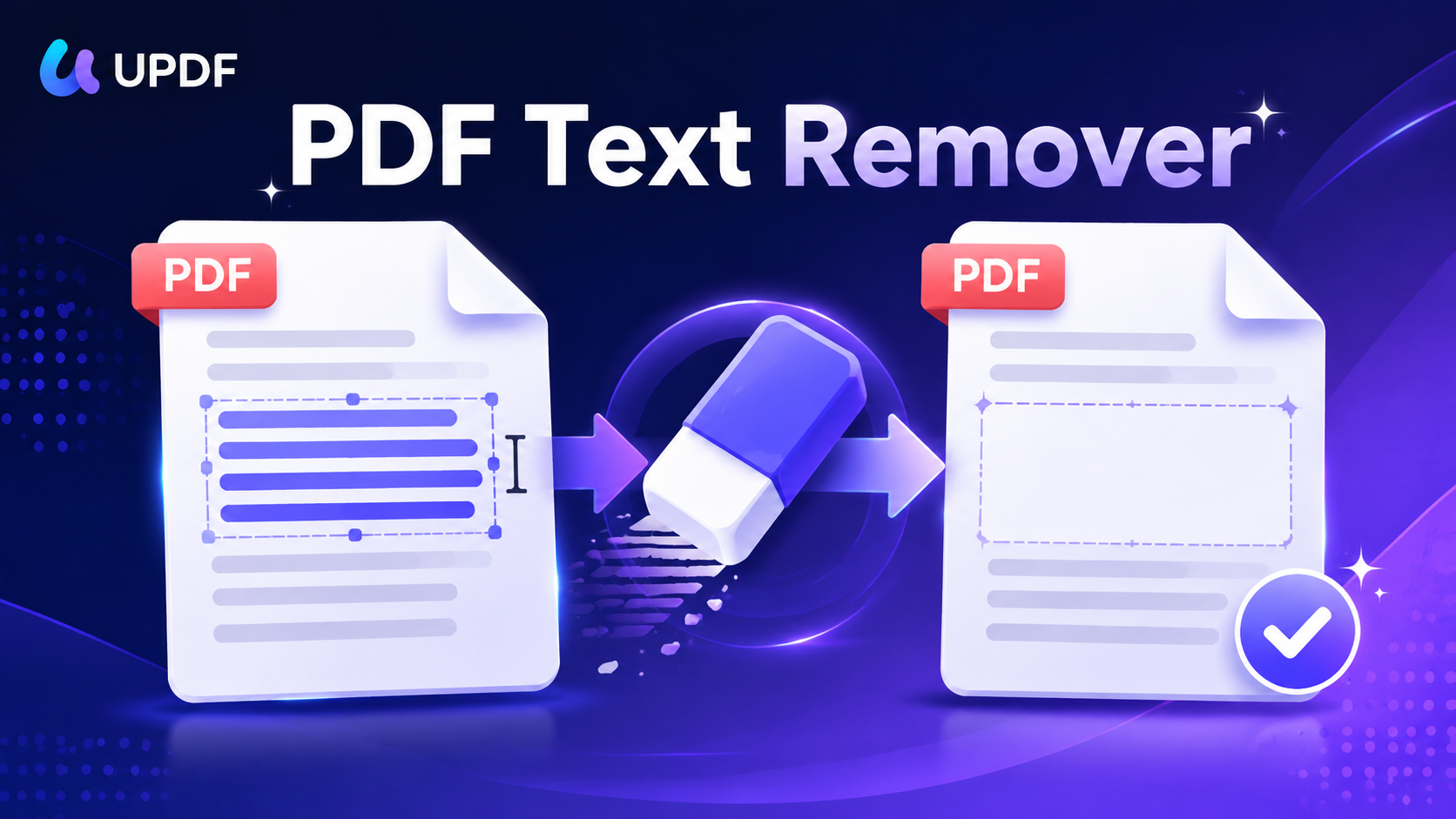
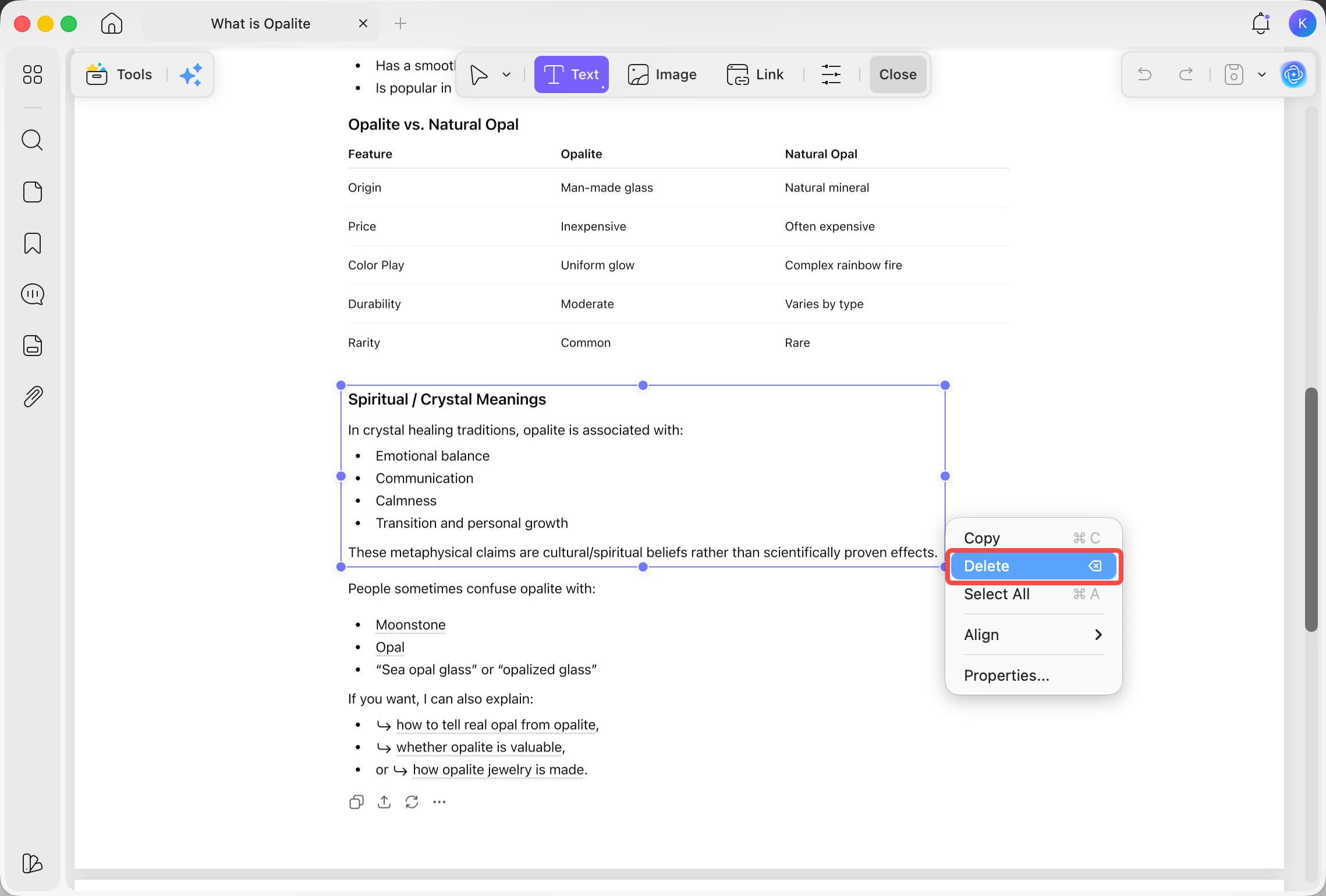
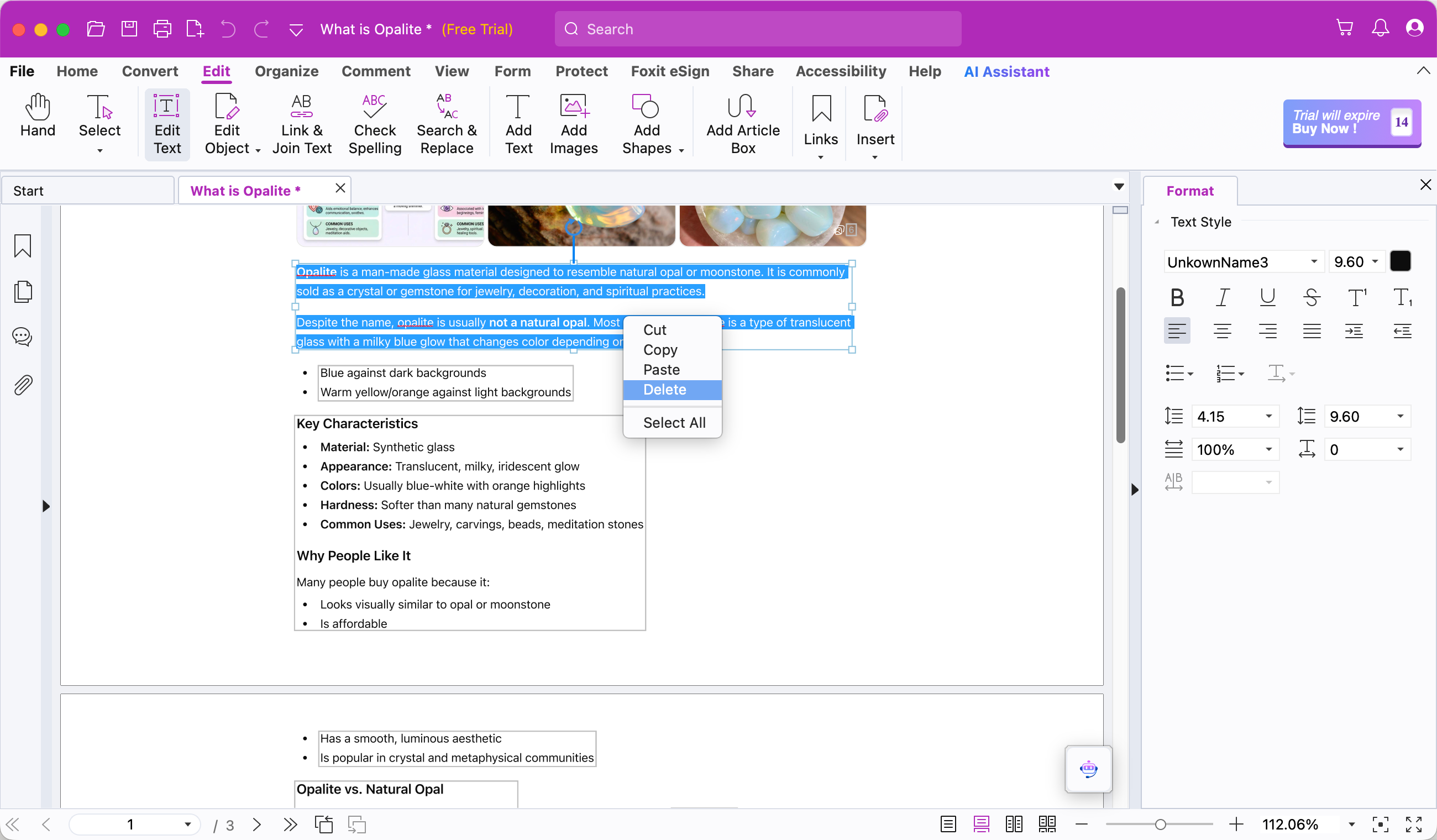
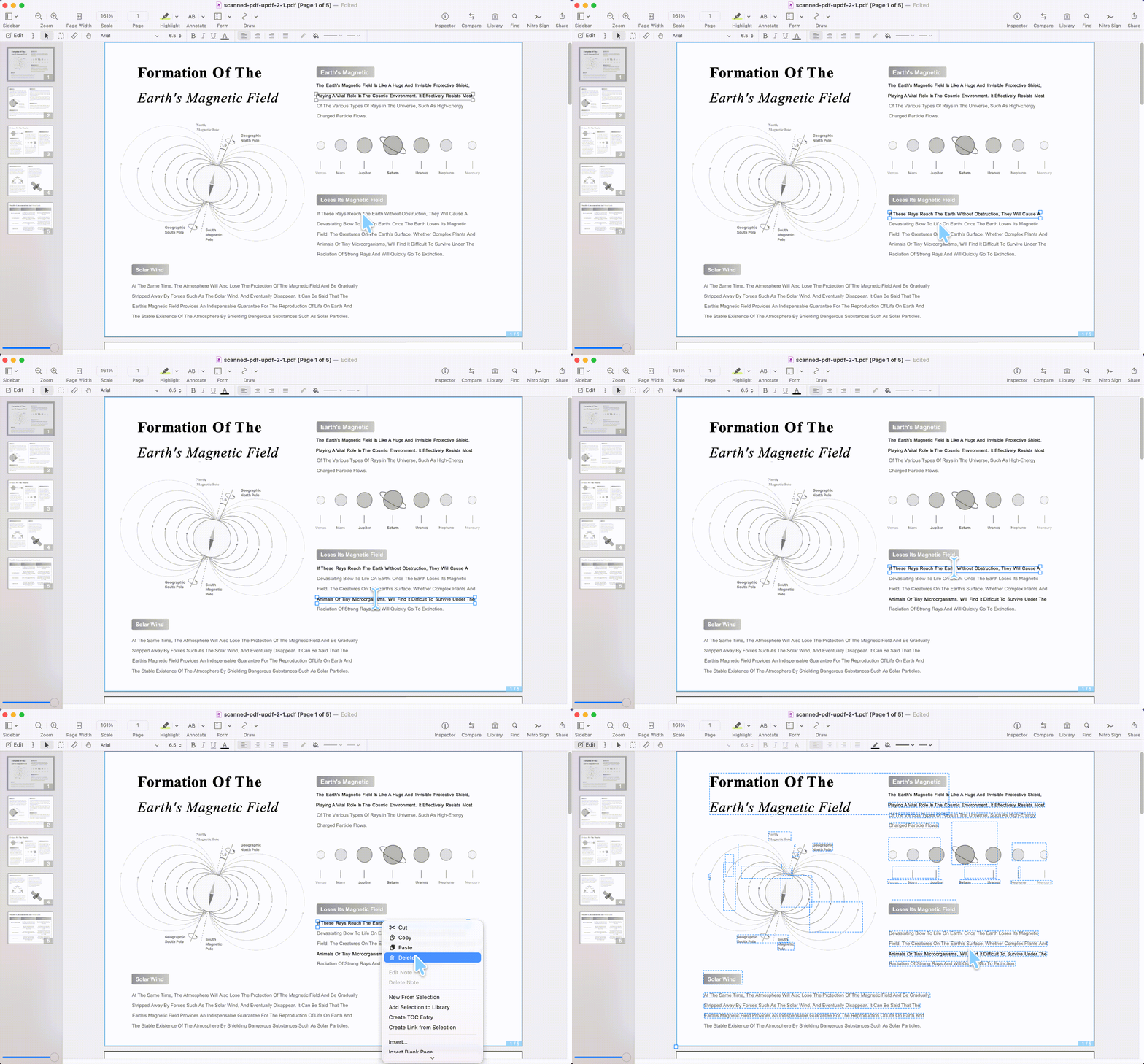
Deleting text. First enter edit mode: open the PDF and click Edit in the top toolbar. From there, on Windows you can right-click Select All (or Ctrl/Cmd+A) to grab every text block on a page at once, then delete them in one move from the floating toolbar, right-click menu, or Delete key. On Mac, you can only select one text block at a time: select the block and delete the whole block from the floating toolbar, right-click menu, or Delete key; to clear all the text inside one block, use right-click Select All (or Ctrl/Cmd+A within the block); and to remove just a specific phrase inside a block, drag-select that text with the mouse, then delete. The platform difference worth knowing: on Mac there's no whole-page select-all-blocks, so you work block by block.
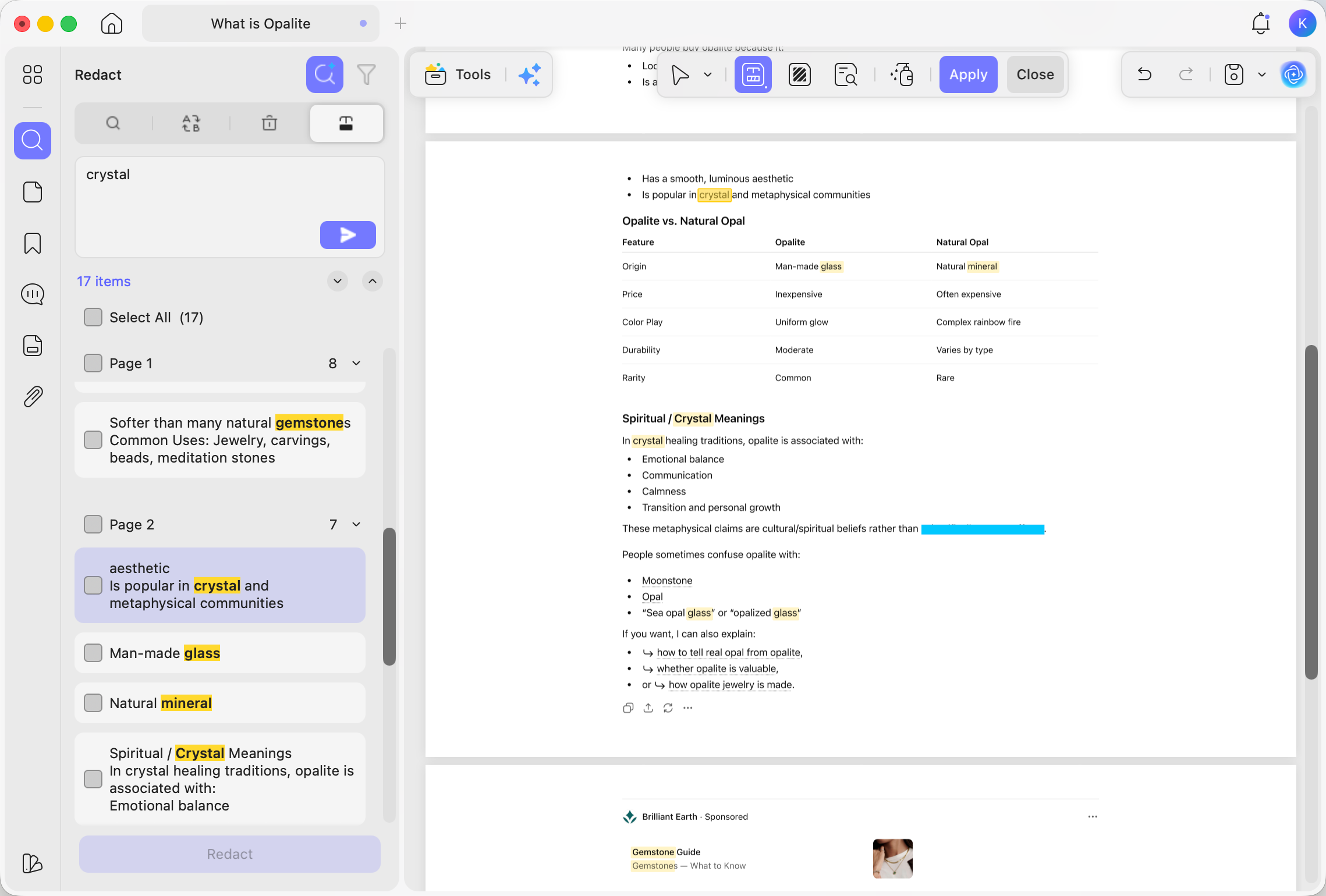
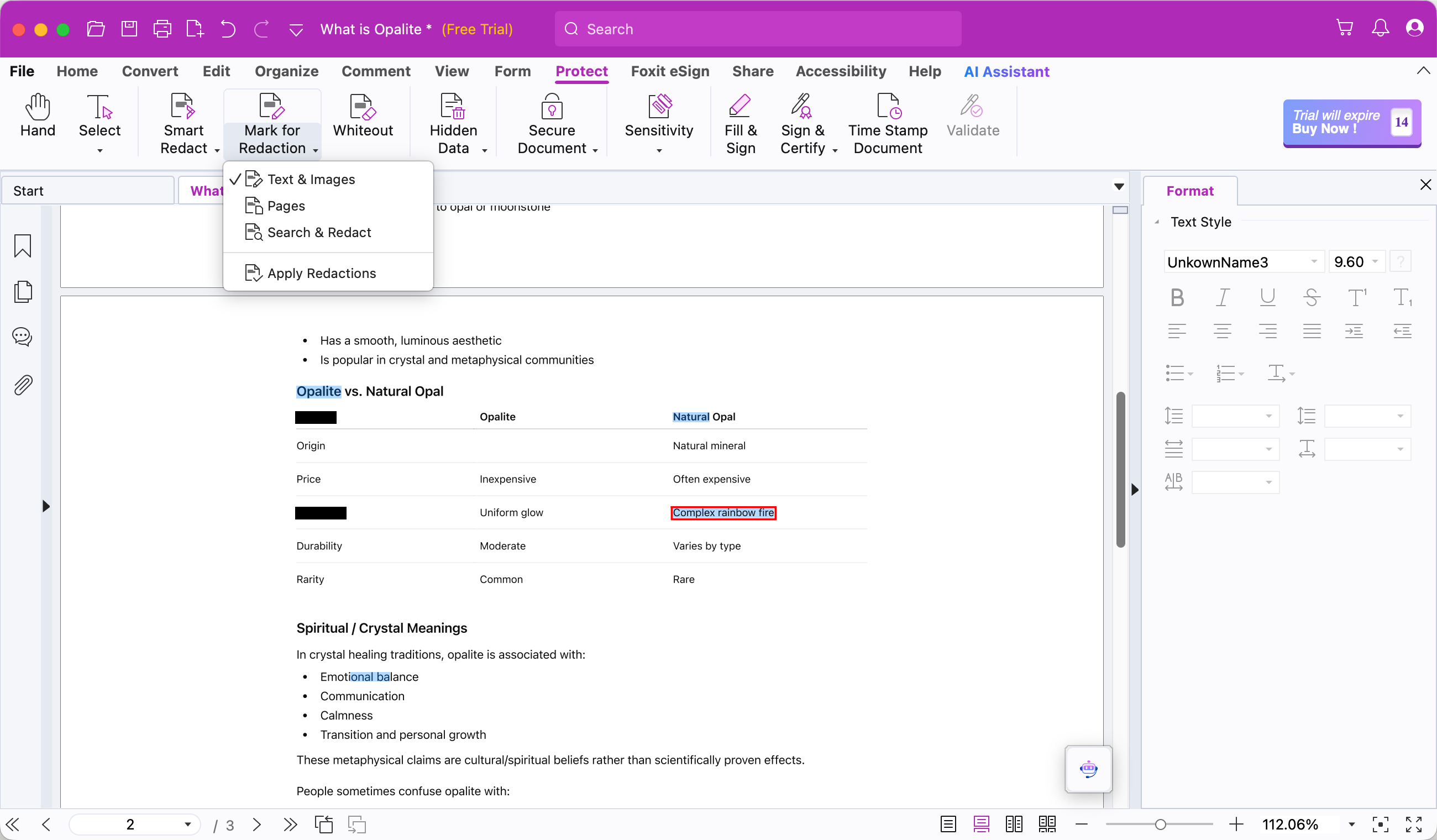
Redacting text. UPDF offers all three modes — redact text & images, redact pages, and find-and-redact — and lets you set the redaction color or a text overlay, including the U.S. Privacy Act and U.S. FOIA compliance codes. Unlike Adobe, it skips the red-outline preview; instead the mark applies immediately but stays reversible until you click Apply, and once saved the data is gone for good. Its find-and-redact also includes an AI search option (equivalent to UPDF's AI Semantic Search, which surfaces synonyms so results include related terms, not just exact matches) — something Adobe's find-and-redact doesn't have.
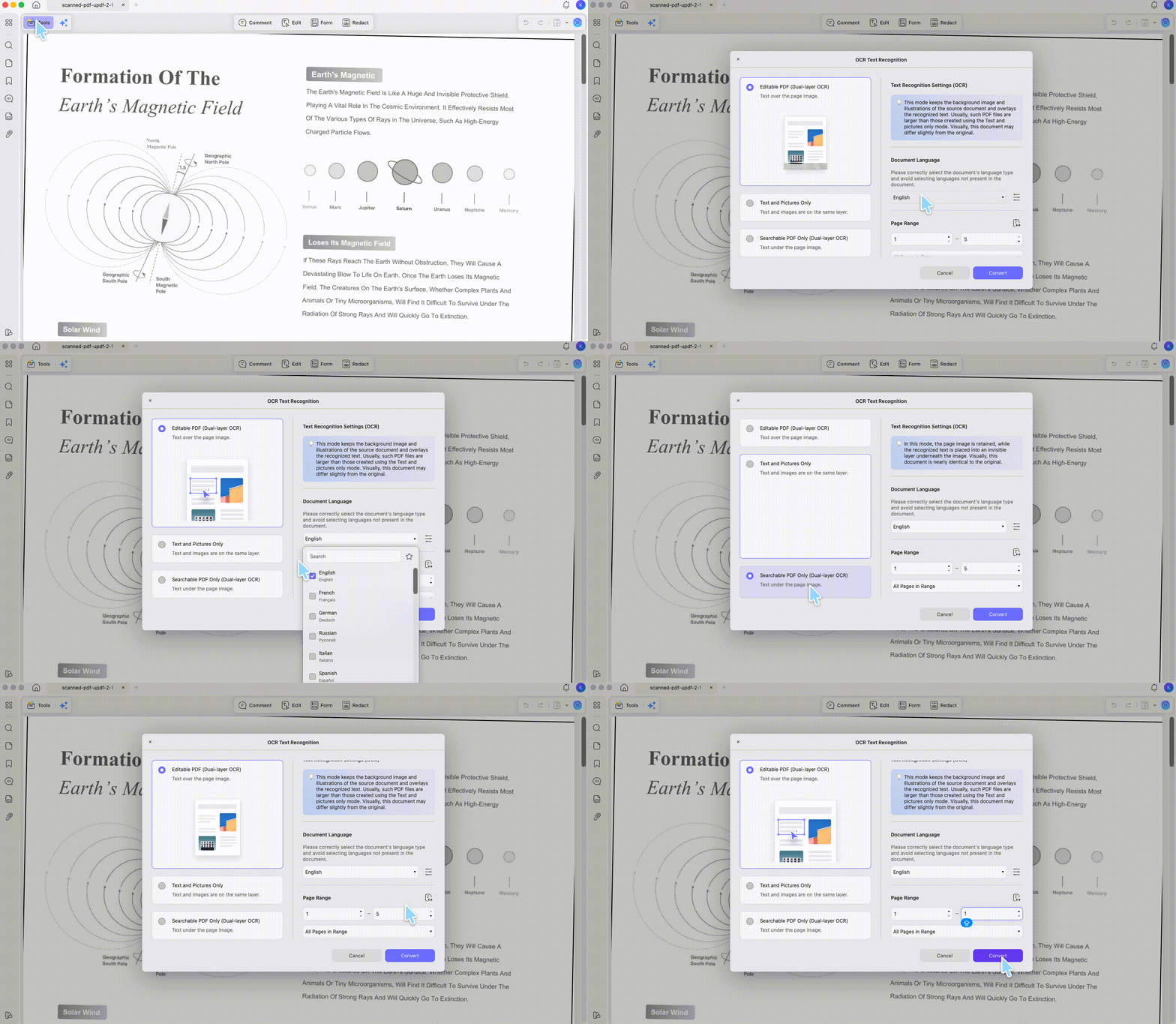
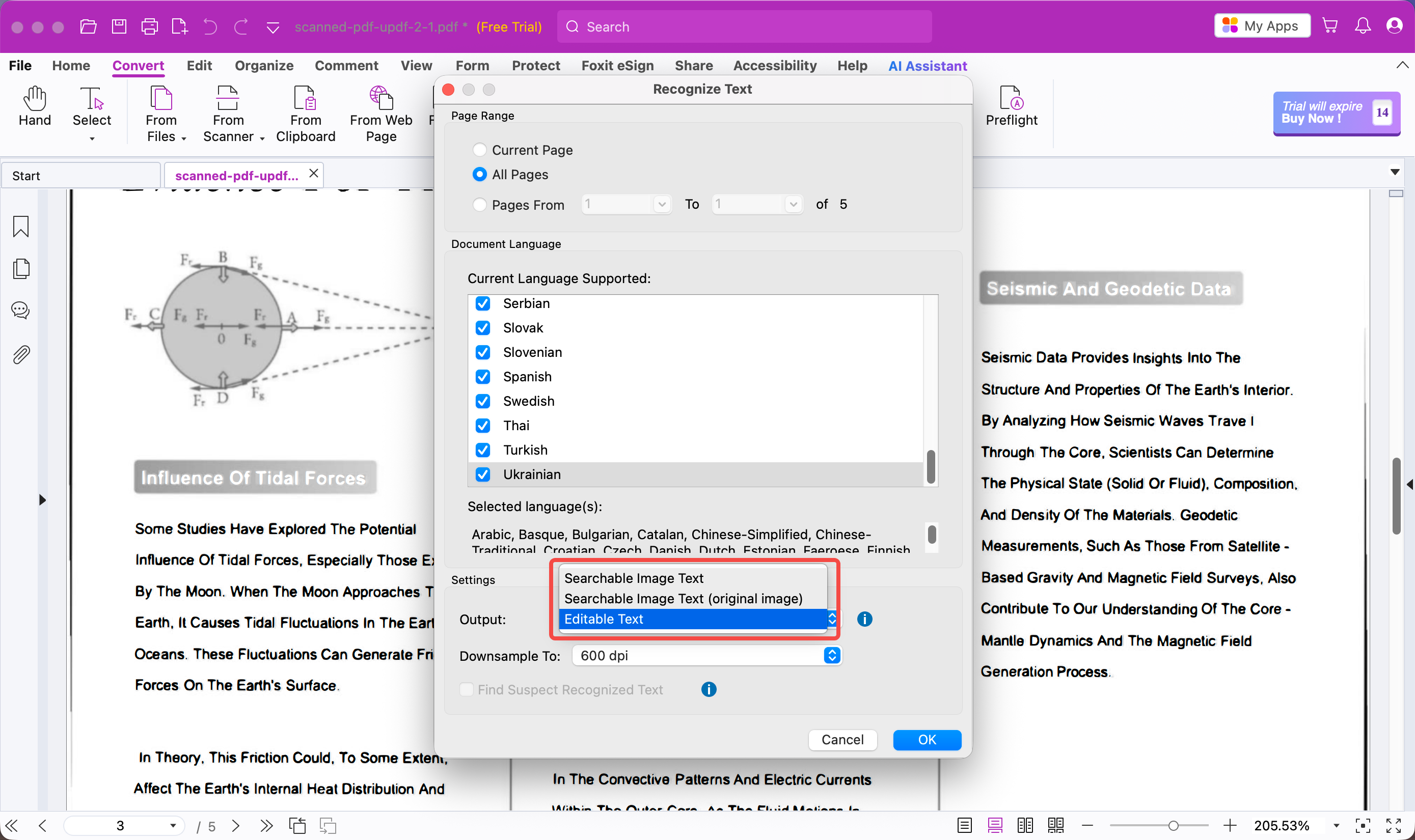
Scanned files. UPDF's OCR supports 38+ languages and three output modes: editable PDF, text & pictures only, and searchable PDF only. Crucially, it generates a copy for you to save rather than overwriting your original, auto-deskews the scan, and the text edges stay clean. Pick Editable PDF and you can then go into edit mode and delete or rewrite the recognized text — the whole point of OCR-then-remove that some tools here miss.
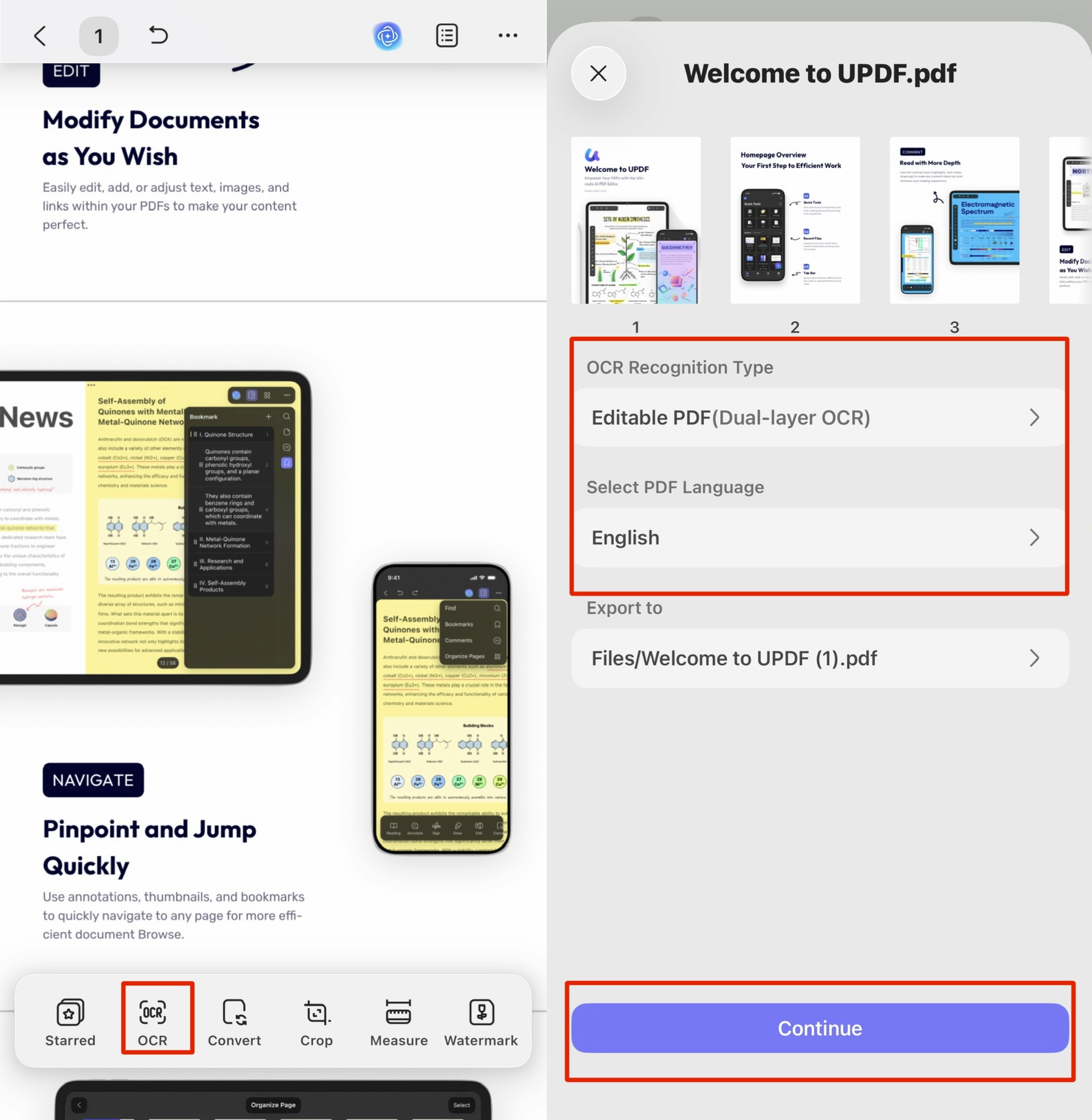
Mobile. The iOS/Android app mirrors the desktop OCR — language, output mode, page range, and the saved copy all carry over — and you can edit text on a regular PDF with formatting intact. Redaction, though, is a desktop-only feature; the mobile app doesn't include it, so compliance-grade removal should be done on the desktop version.
If you regularly handle contracts, invoices, or scanned forms, download UPDF for free to try deletion and redaction on a copy of your file first — installation is free and you can export right away (with a trial watermark), and Pro removes that watermark and unlocks unlimited OCR and batch work.
Windows • macOS • iOS • Android 100% secure
Best for:
- anyone who needs delete, true redaction (desktop), and scanned-file OCR — with the OCR-and-edit workflow also working on mobile.
Skip if:
- you only ever need to white-out one word once and never touch a scan — a free lightweight tool will do.
Free access & price: Free version edits and removes text but adds a trial watermark on export and caps OCR at 5 uses and AI at 100 uses. Pro is US$49.99/year or a US$79.99 one-time lifetime license (both cover 4 devices across Windows, Mac, iOS, Android, and include a 7-day unlimited-AI trial). A separate AI Assistant plan is US$79/year.
Part 5. Adobe Acrobat — Strongest Redaction Preview, at the Highest Price
Adobe Acrobat remains the reference tool for redaction specifically.
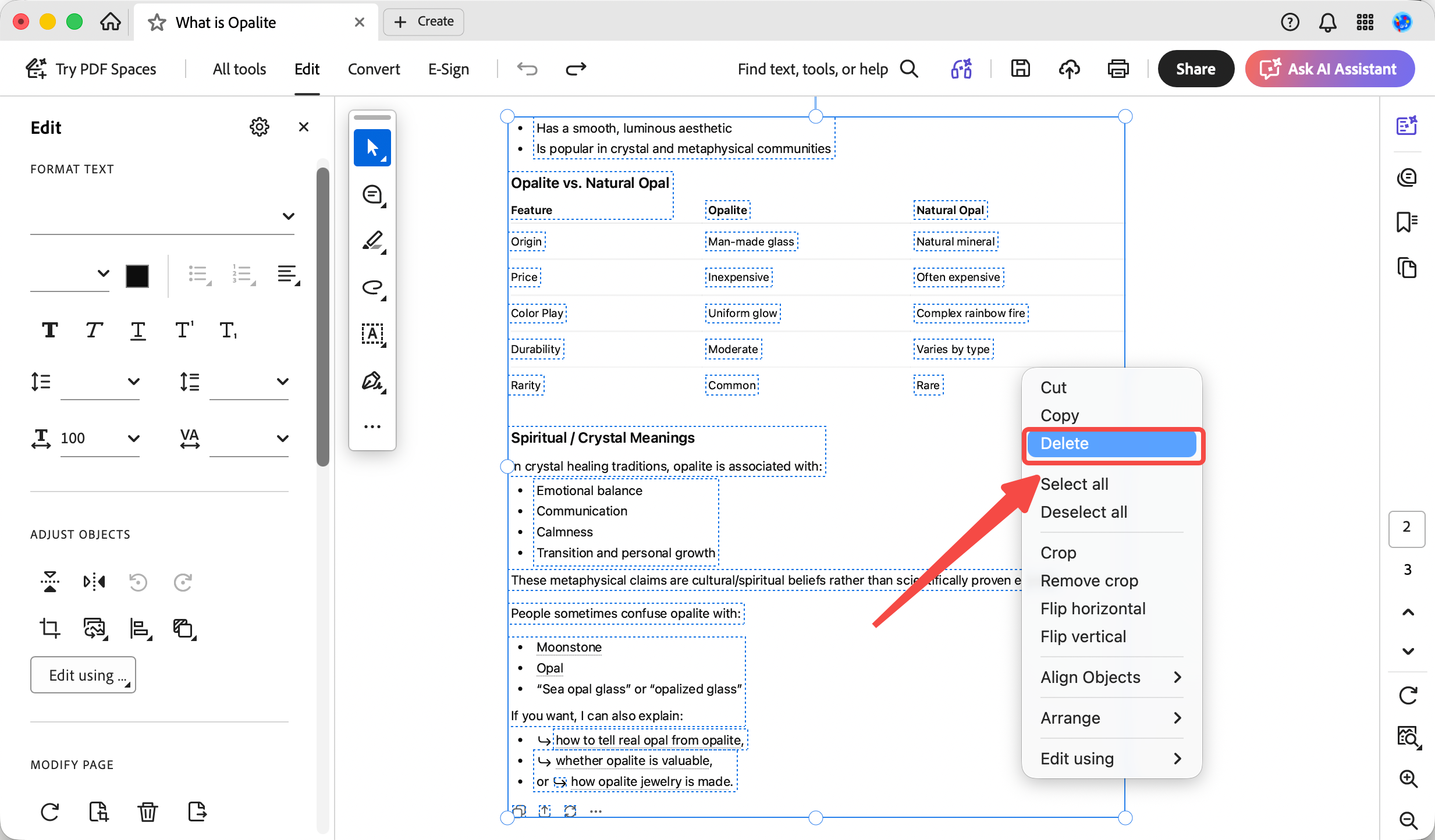
Deleting text. Enter edit mode, then right-click Select All on a page (or per-page Ctrl/Cmd+A) to grab the page's text and delete it.
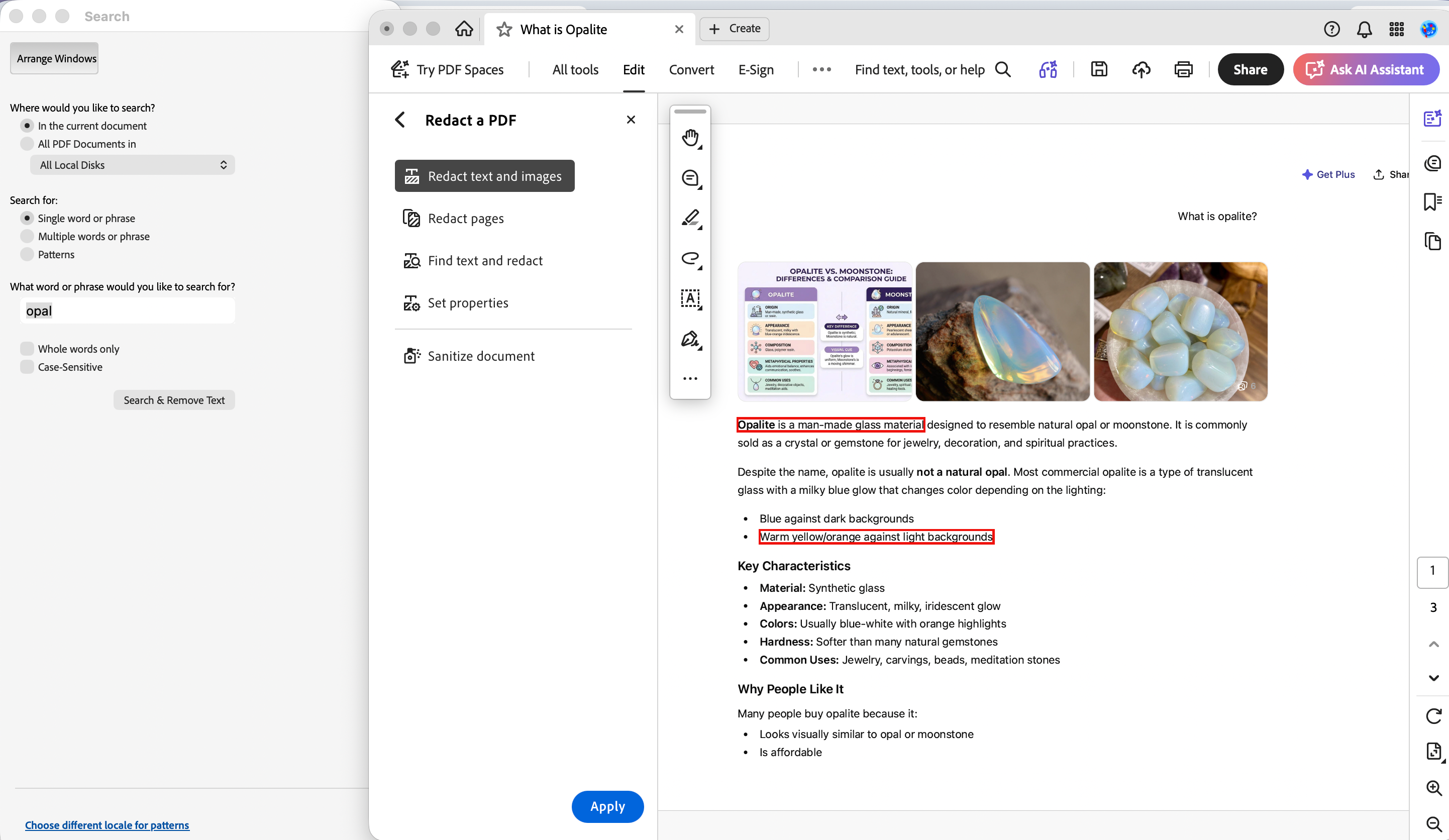
Redacting text. Its three redaction modes (redact text & images, redact pages, find-and-redact) all show a red-outline preview before you commit — you see exactly what will be blacked out, then click Apply to burn it in, after which a saved file can't be recovered. It also offers the U.S. Privacy Act and FOIA overlay codes.
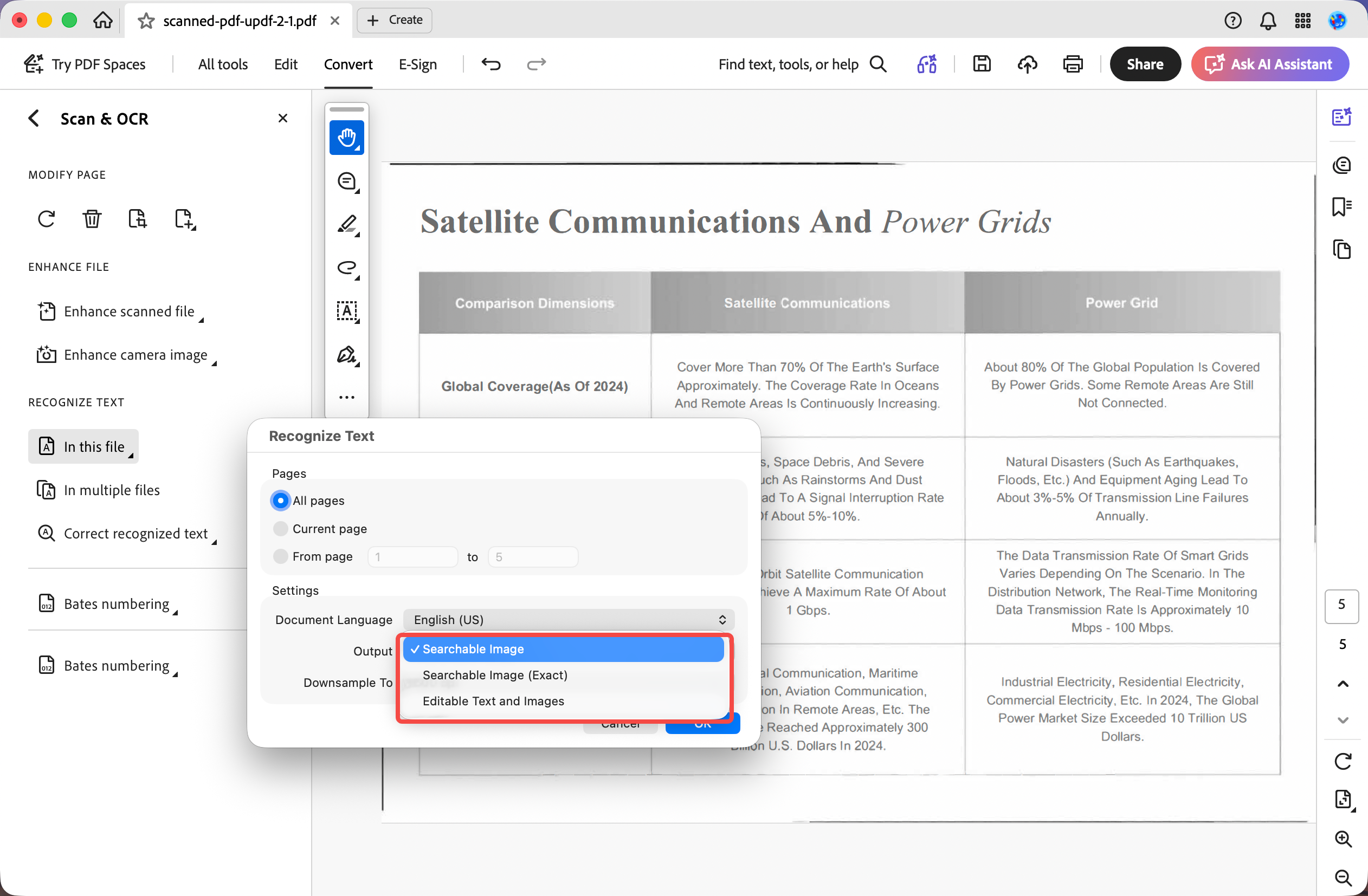
Scanned files. OCR supports 42 languages with three output modes (searchable image, searchable image exact, editable text & images). OCR runs directly on the open file without generating a separate copy — but as long as you don't hit save, the original on your device stays untouched, and you can use Save As to keep the OCR'd result as a new copy so the source file is left unaffected.
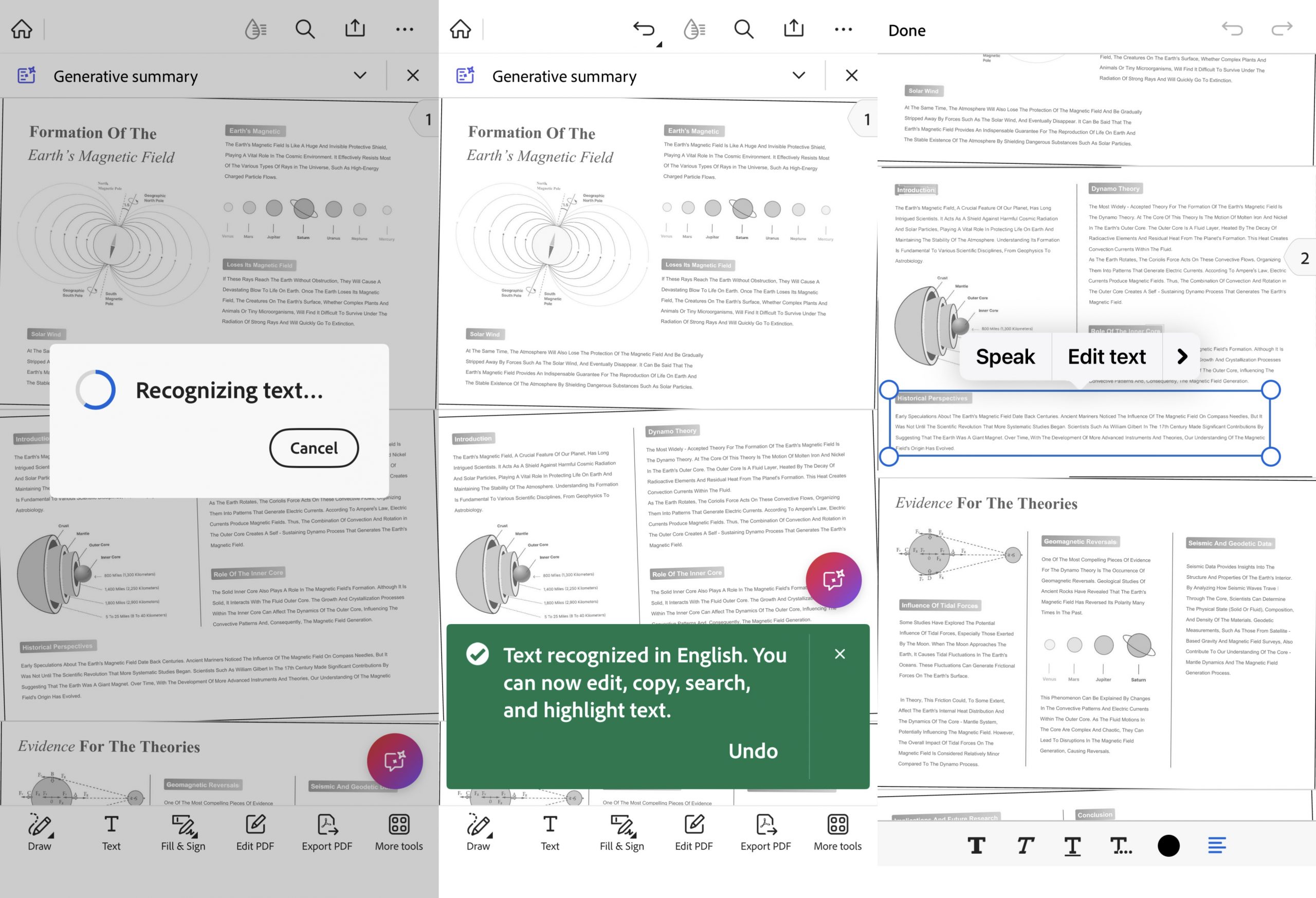
Mobile. In Acrobat Reader, you start OCR by choosing Recognize Text from the bottom More tools menu; you can't pick an output mode or a language, but Reader auto-detects the document's language during recognition. You can then tap recognized text to delete it. OCR runs on the source file without making a copy, and you can edit text on a regular PDF with formatting retained — but the mobile app has no redaction.
Best for:
- legal and compliance users who want a visual preview of every redaction before applying it.
Skip if:
- budget matters — it's the priciest option here, and editing and redaction need the paid Acrobat Pro plan.
Free access & price: On the desktop, the free Acrobat Reader only views, prints, and comments — editing, OCR, and redaction require Acrobat Pro, which lists at US$239.88/year ($19.99/mo on an annual commitment); Adobe no longer sells a true perpetual license. The mobile Acrobat Reader app is different: it bundles a PDF text editor and Recognize Text (OCR) in the app, though some capabilities (and OCR page capacity) are gated behind a subscription. There's no desktop-style redaction on mobile.
Part 6. Foxit PDF Editor — Solid Redaction, but Key Pieces Are Paywalled
Foxit matches Adobe on most redaction features but paywalls a key piece.
Deleting text. Deletion is per-block: select a text block and you can Select All within that block to clear its text, but clicking a block and hitting Delete only removes part of its content, not the whole block.
Redacting text. Foxit covers the same three redaction modes as Adobe and also gives you the red-outline preview. The catches: redaction color is limited to black or white-out only (no custom colors), and it doesn't offer the U.S. Privacy Act / FOIA compliance codes. Foxit does have a Smart Redact feature aimed at privacy/sensitive data with country-specific presets (US, UK, AU, CA), but it requires a separate subscription — the free version only processes 2 documents for it.
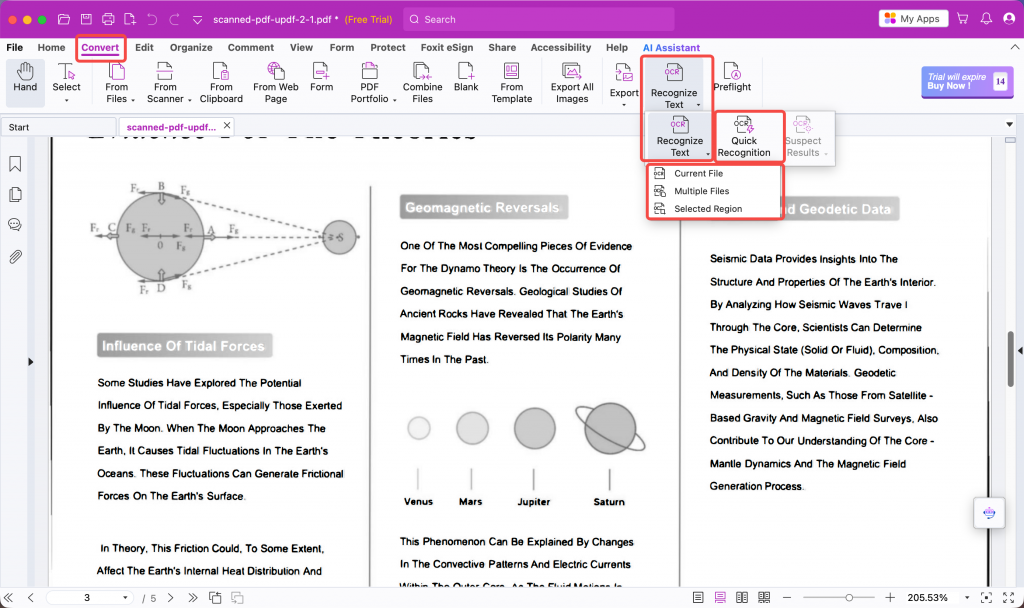
Scanned files. OCR supports 41 languages with three output modes — but the entry point matters: Convert > Recognize Text gives you editable output, while Quick Recognition only produces searchable (non-editable) text. First-time users who pick the wrong one will think OCR "didn't work." We also found OCR'd scan text looked slightly soft at the edges.
Like Adobe, Foxit runs OCR on the open file without a separate copy, so the original stays safe until you save — or use Save As to keep the OCR'd version separately.
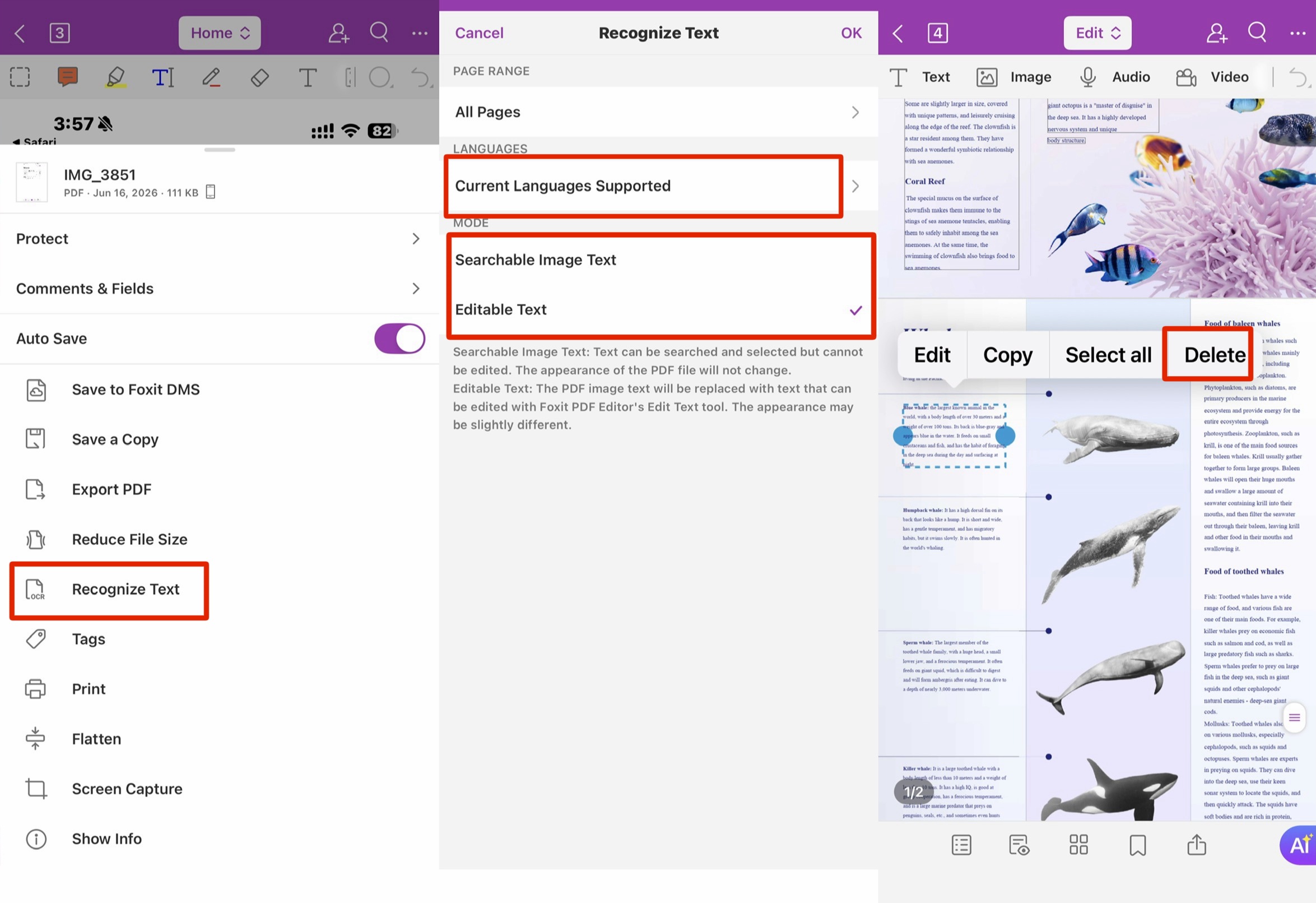
Mobile. Foxit supports 40-language OCR with two output modes (searchable image text or editable text), lets you edit text on a regular PDF with formatting retained, and — unlike Adobe and UPDF on mobile — it does include redaction.
Best for:
- existing Foxit users who want Adobe-style redaction preview at roughly half Adobe's price.
Skip if:
- you need custom redaction colors, legal codes, or want Smart Redact without a second subscription.
Free access & price: Free Foxit PDF Reader covers viewing; editing needs PDF Editor, which starts around US$129.99/year for the standard plan, with Foxit PDF Editor+ (mobile, eSign, more cloud) around US$159.99/year. A perpetual license exists but is Window only - $209.99/one time.
Part 7. PDFgear — Genuinely Free and Mac-Friendly, but Thin Past Plain Deletion
PDFgear is the budget answer: completely free, no watermark on export, and no registration — you download it and start editing immediately, which is why it replaces the older Mac-trial-gated options on this list.
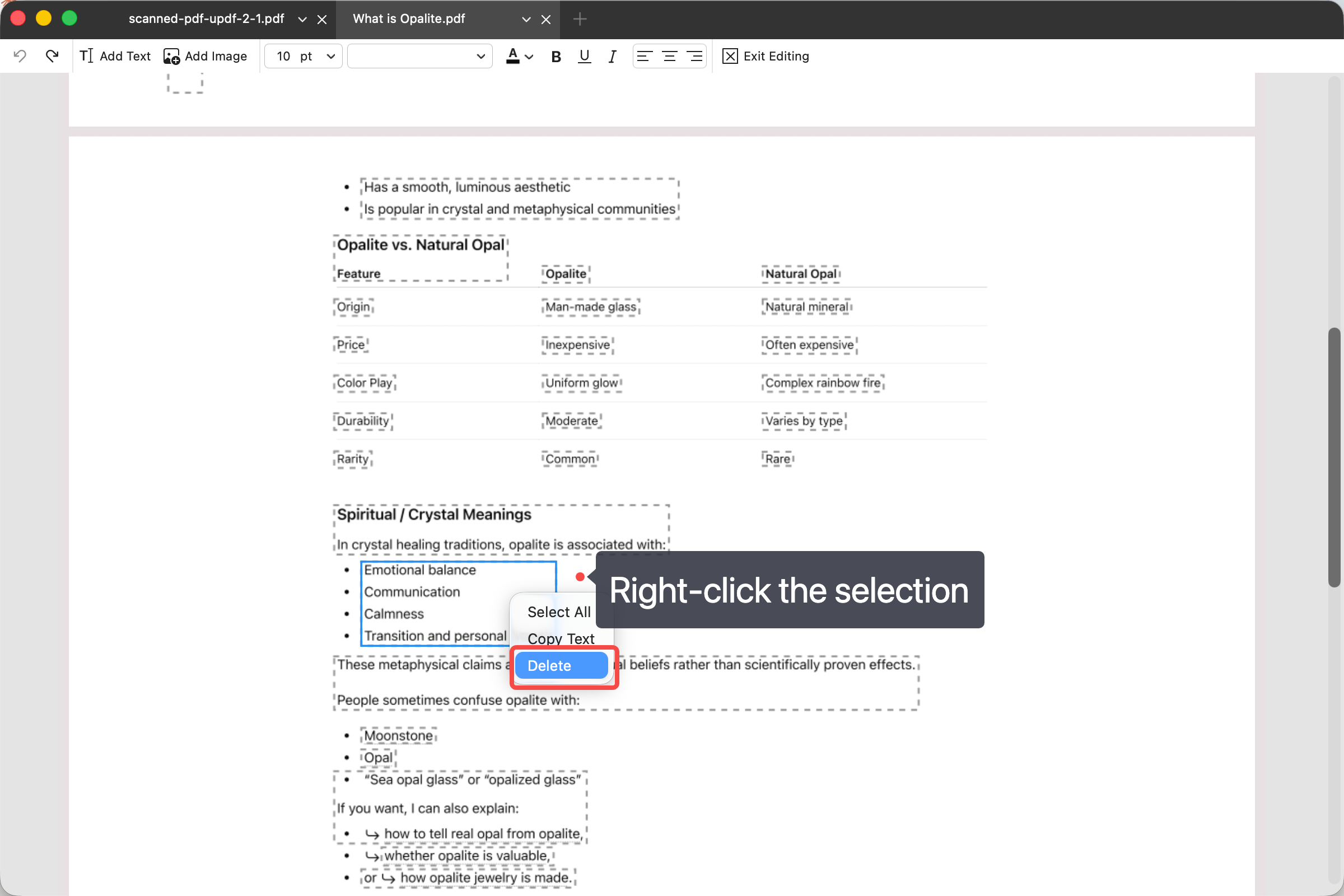
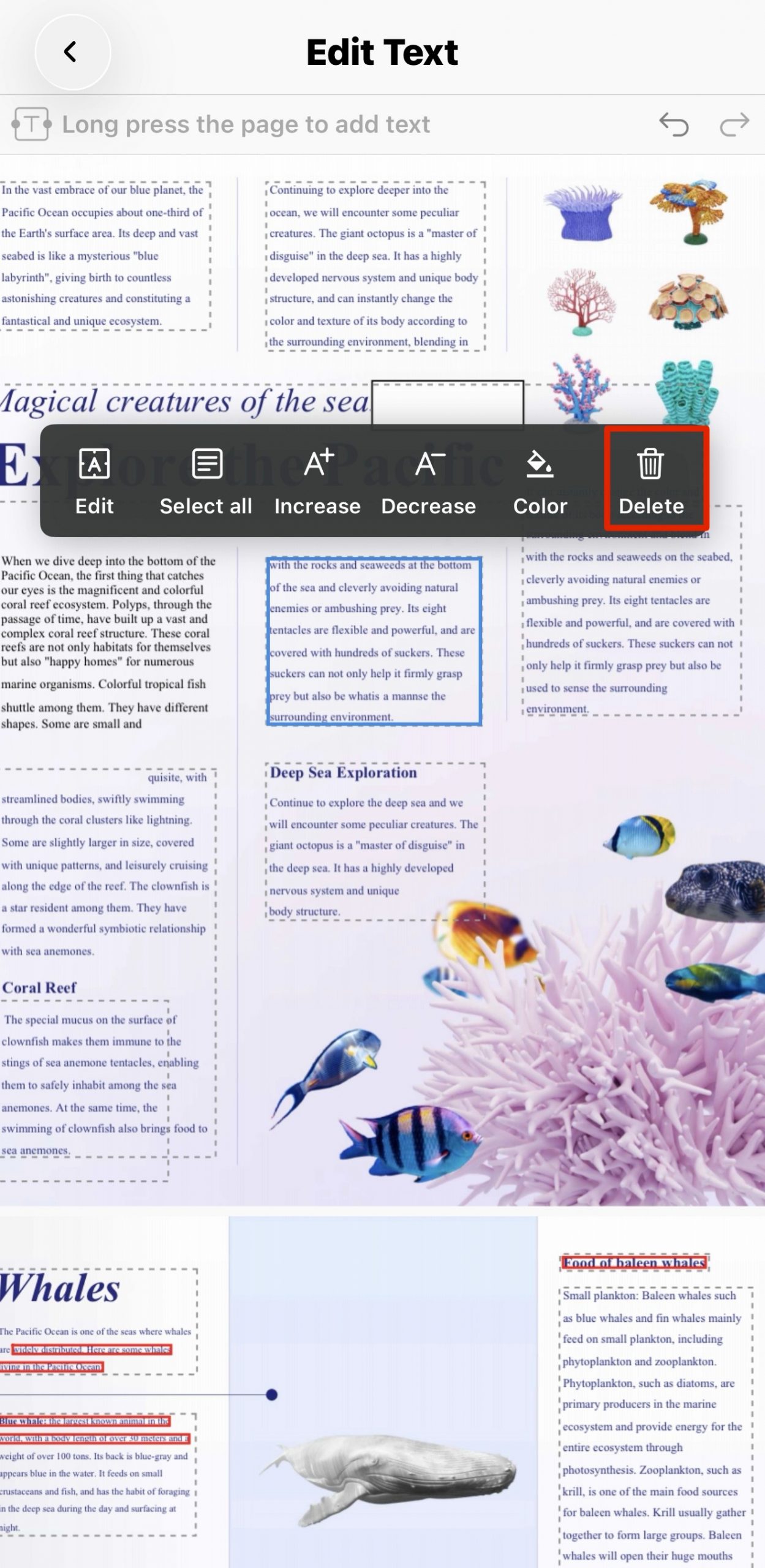
Deleting text. In edit mode, select a single text block and delete it via right-click or the Delete key. Editing is block-by-block only.
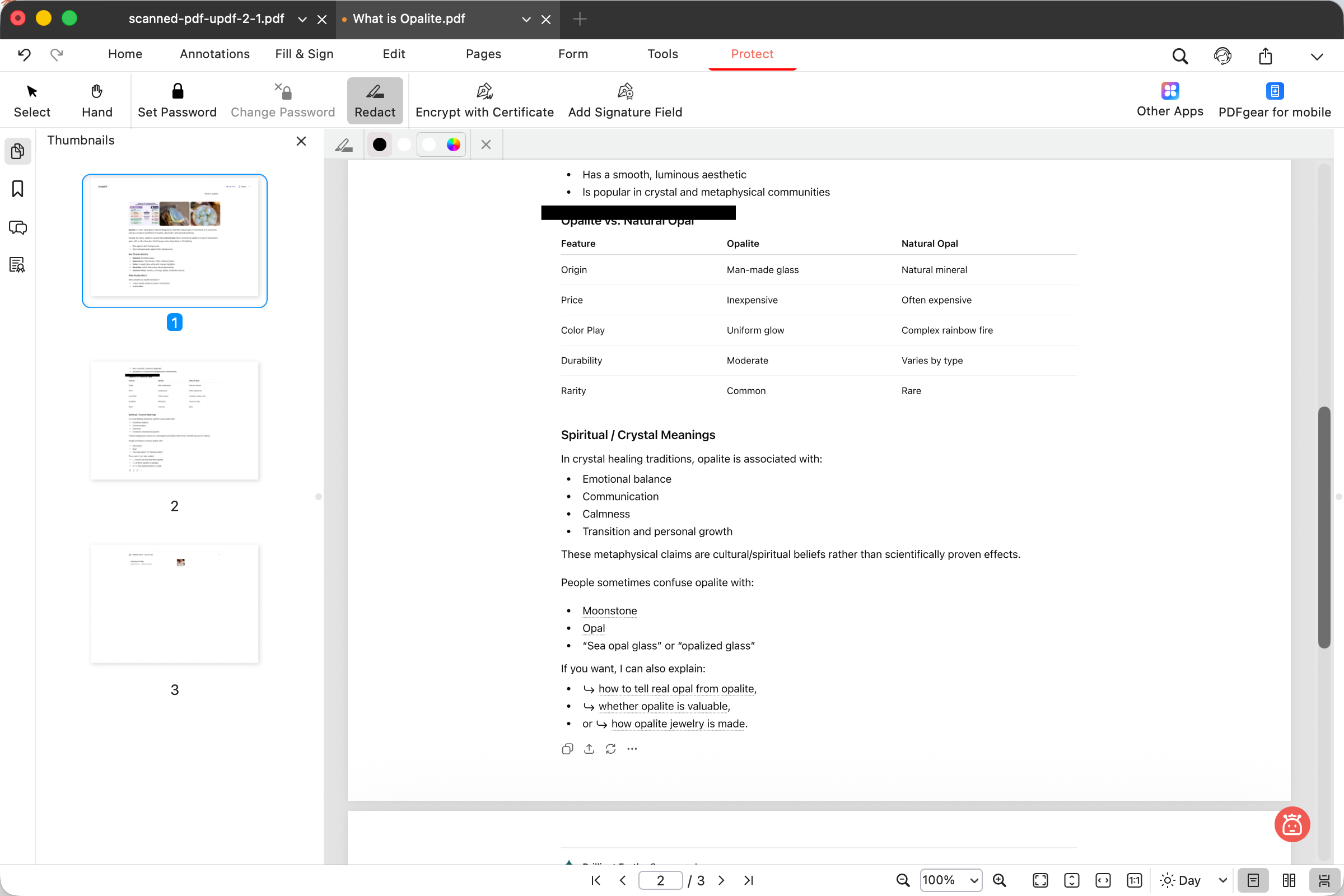
Redacting text. On the desktop, PDFgear does have a redaction tool, but it's bare-bones: you can only drag a box over an area, which covers content immediately with no preview, no delete key, and no legal compliance codes — to undo you can only press Ctrl/Cmd+Z in sequence, and you can't selectively undo one box among several. The covered area also won't auto-fit the text size.
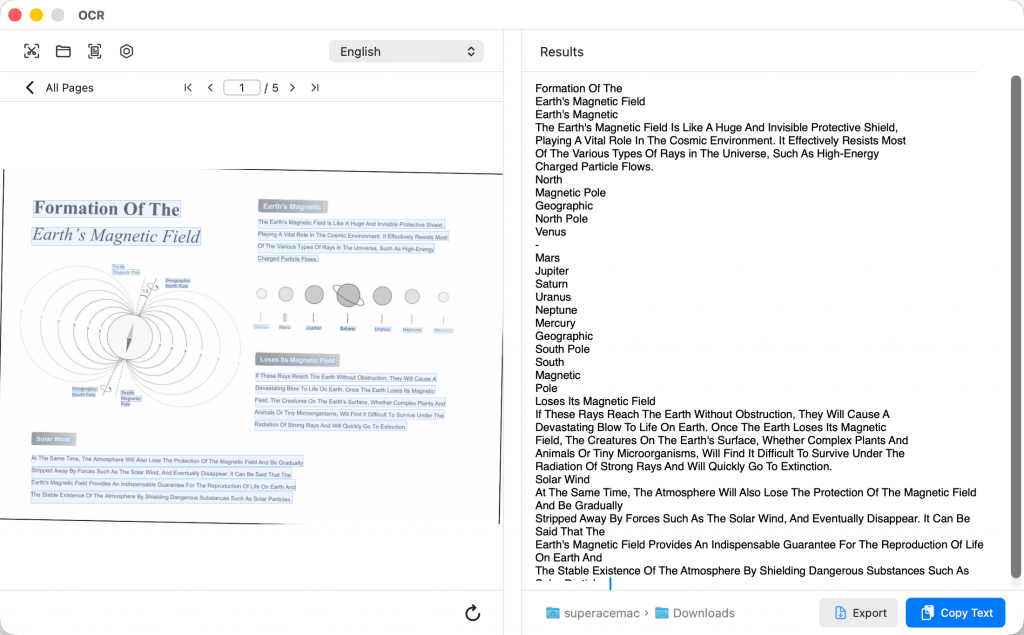
Scanned files. PDFgear's desktop OCR exists (OCR to searchable PDF, current-file OCR, and screenshot OCR), but here's the catch for removing text from the original file: neither mode lets you delete text from the source PDF. Current-file OCR drops the original layout and only exports a plain .txt — you can freely edit that exported text file, but it's a separate document, not your PDF. OCR to searchable PDF keeps the layout, but the recognized text stays searchable-only — you can't enter edit mode and delete it from the PDF. So PDFgear can recognize a scan, but it can't help you remove text from the scanned PDF itself.
Mobile. PDFgear's mobile app has no OCR and no redaction at all — it only edits text on regular PDFs (with formatting retained).
Best for:
- users on any platform who need free, no-watermark deletion on regular (already-digital) PDFs.
Skip if:
- you need to remove text from a scanned file or want compliance-grade redaction with preview and legal codes.
Free access & price: Fully free, all features, no watermark, no page limits.
Part 8. Nitro PDF Pro — Capable Deletion, but the Licensing Is in Flux
Nitro deletes text capably, but its licensing is changing.
Deleting text. In edit mode, select a text block and Select All within it to clear the text. Its limitation: there's no way to select all text blocks on a whole page at once.
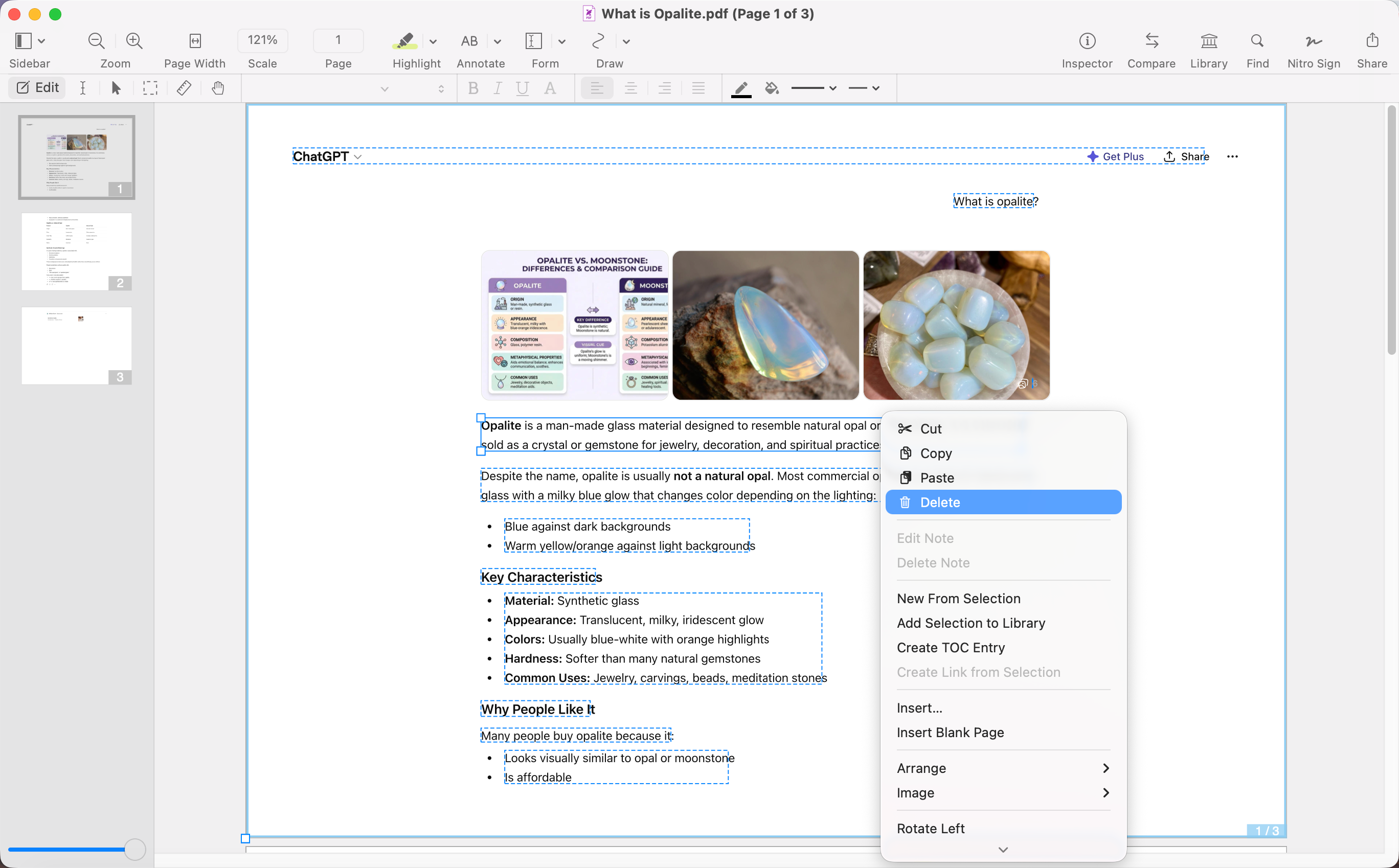
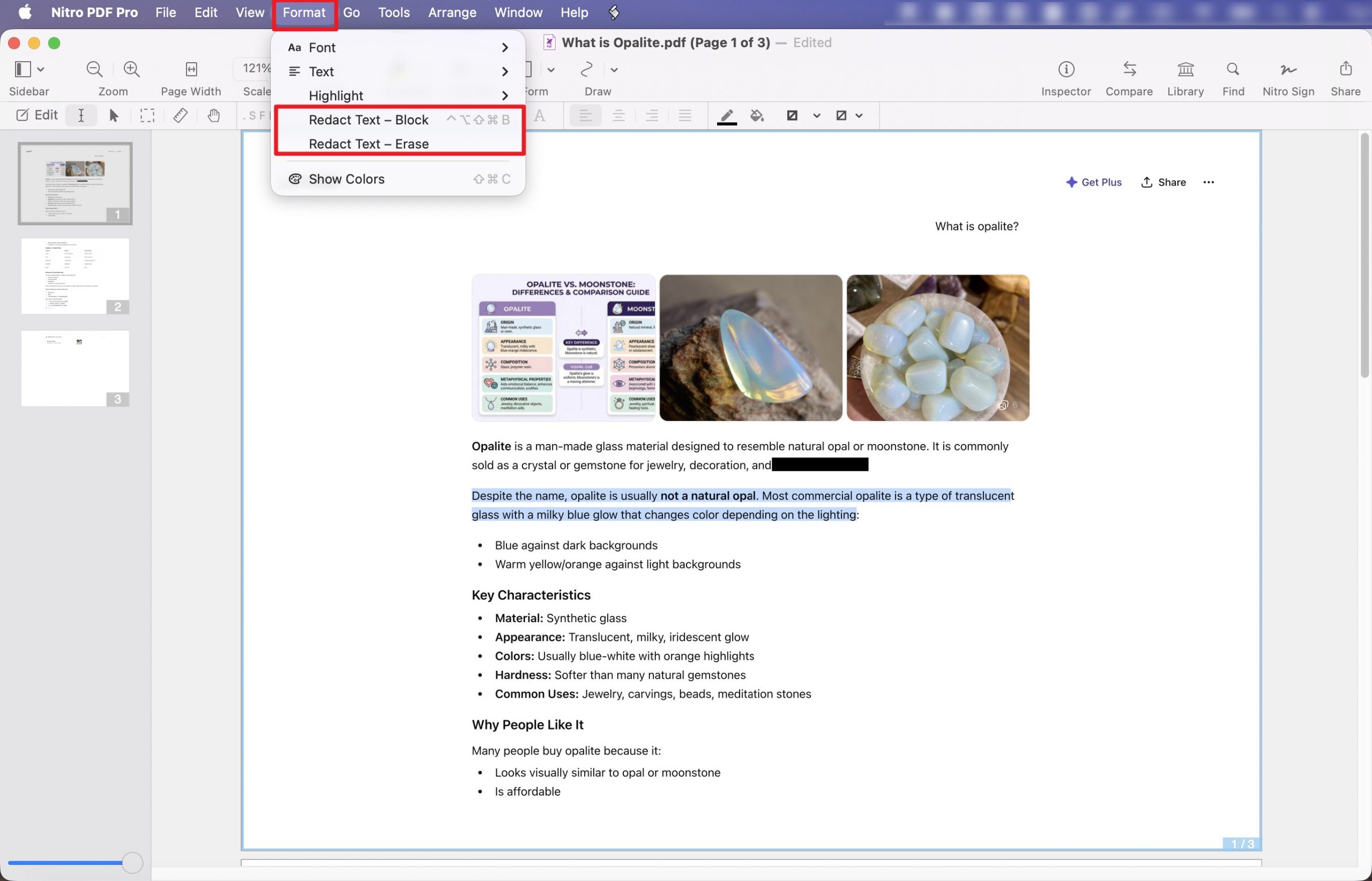
Redacting text. Nitro's redaction has two modes (Redact Text-Block and Redact Text-Erase) but no redact-image or redact-page option, no red-outline preview, and no U.S. Privacy Act / FOIA codes; you can set a redaction color. The redaction toolbar isn't pinned, so every single redaction means re-clicking Format > Redact — tedious on a document with many marks.
Scanned files. Nitro's OCR overwrites the source file — even without saving, the OCR'd version replaces your original on disk, so you must duplicate the file first (or roll back via File > Revert to > Browse All Versions).
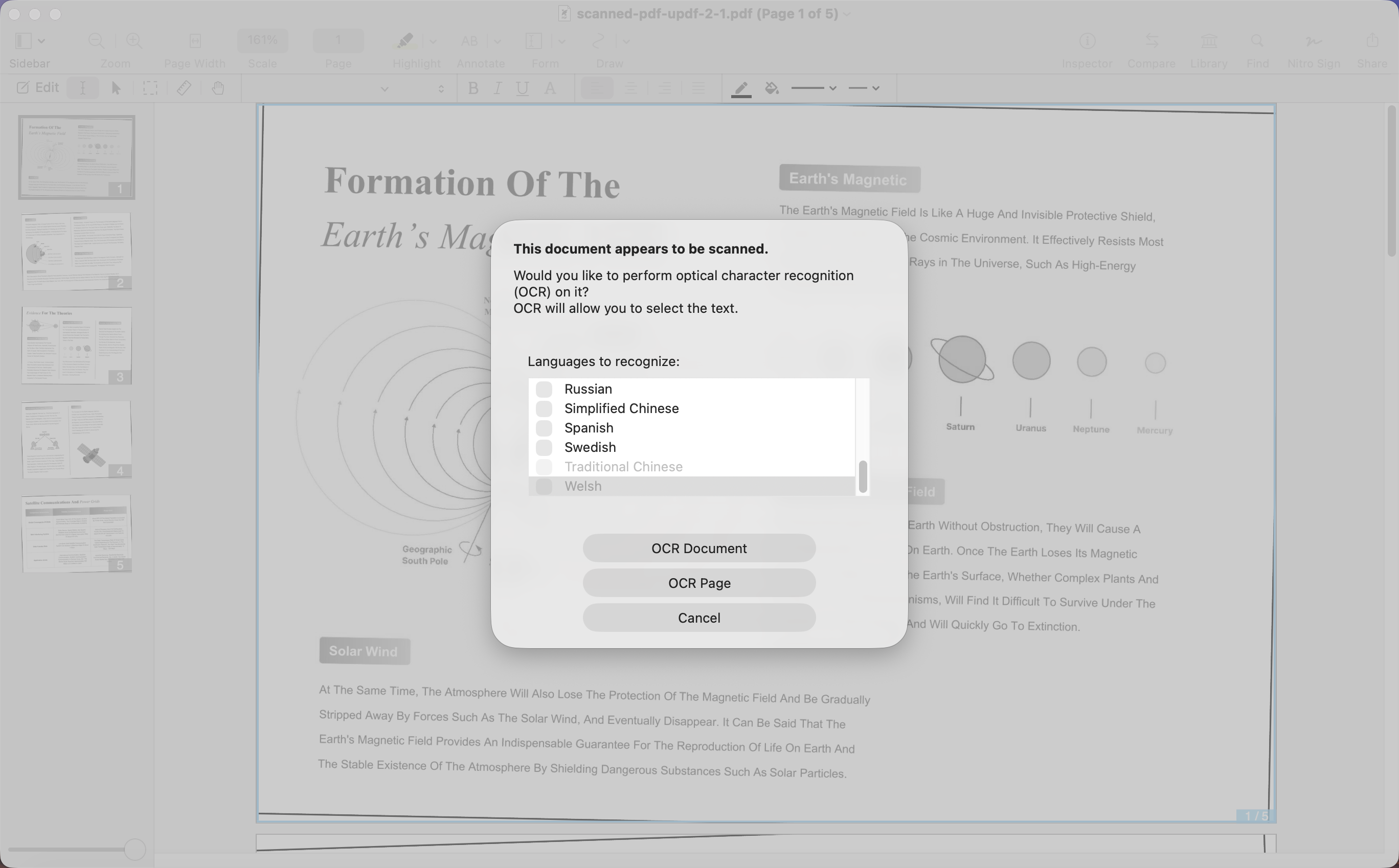
Editing after OCR is also fiddly: double-clicking a text block darkens the text inside it, but you can't precisely select a specific word or phrase — trying to drag-select with the mouse moves the entire block instead. As a result, you're left deleting a whole block (via right-click or the Delete key) rather than a specific piece of text.
Mobile. The mobile app has redaction (rRedact Text-Block and Redact Text-Erase) but no OCR. To edit or delete text you first tap Correct Text; selection isn't precise, and tapping Correct Text shifts the original text layout.
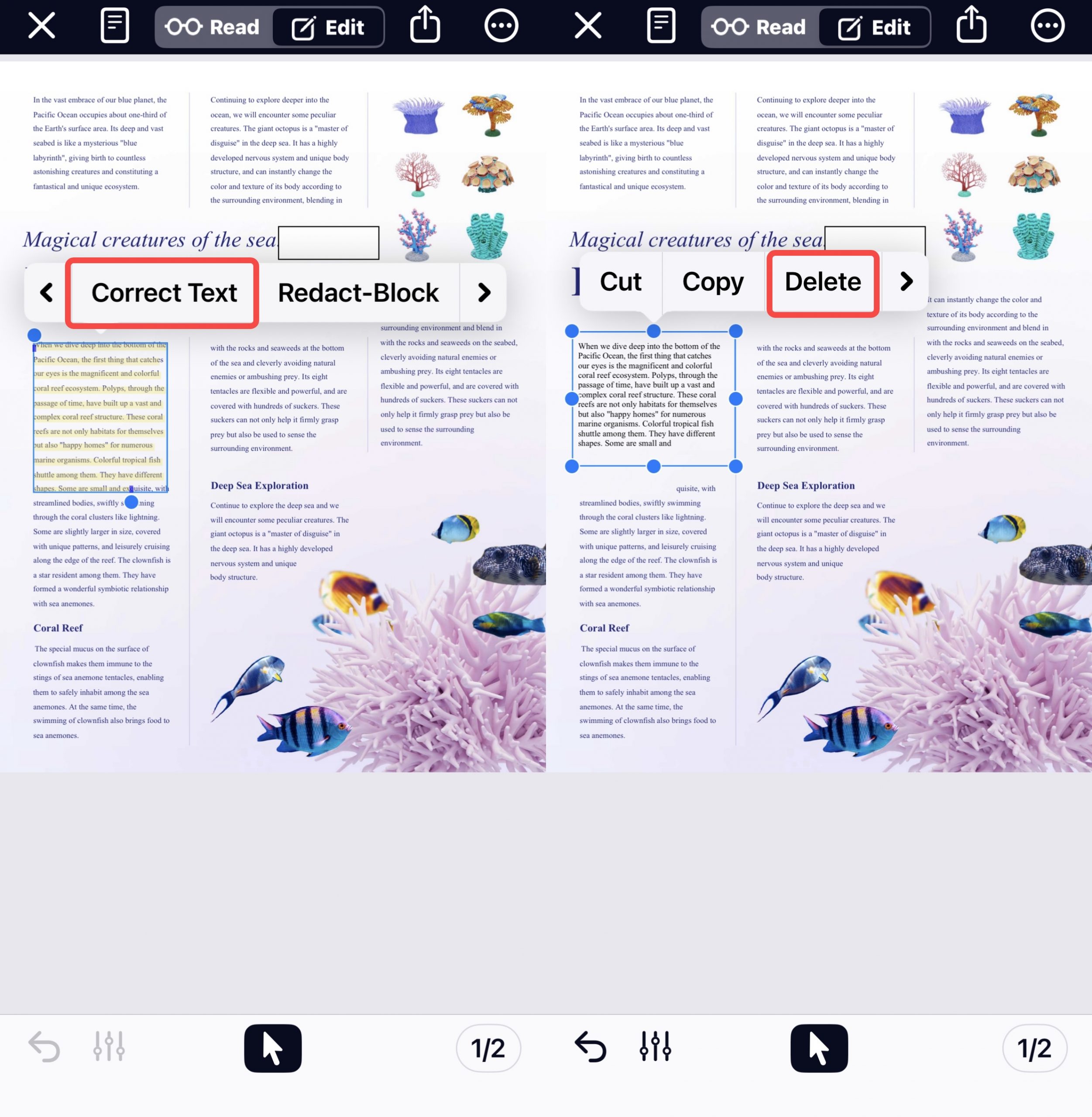
On licensing: Nitro is moving to subscriptions, and all existing perpetual Nitro PDF Pro licenses on Windows expire by December 31, 2026. The old "buy it once" framing no longer holds.
Best for:
- people already inside a Nitro workflow (Windows or Mac) who mainly delete whole text blocks.
Skip if:
- you want a lasting perpetual license (it's being sunset) or precise post-OCR editing.
Free access & price: No permanent free plan; 14-day free trial. Nitro PDF Standard runs about US$15/month (billed annually); the one-time Classic three-year, Windows-only license runs about US$270.
Part 9. Comparison Chart: 5 PDF Text Removers in 2026
Desktop
| UPDF | Adobe Acrobat | Foxit PDF Editor | PDFgear | Nitro PDF Pro | |
|---|---|---|---|---|---|
| Select all text blocks on a page | ✅ (Windows); per-block (Mac) | ✅ | Per-block only | Per-block only | Per-block only) |
| True redaction | ✅ — 3 modes, color, legal codes | ✅ — 3 modes + preview, legal codes | ✅ — preview, but B/W only, no legal codes | Basic — area cover only, no preview/codes | 2 modes, no preview/codes |
| OCR for scanned PDFs | ✅ — 38+ langs, editable output, saves a copy | ✅ — 42 langs, editable output | ✅ — 41 langs (must pick Recognize Text) | ✅ but can't delete from source PDF | ✅ — overwrites source file |
| Edit text after OCR | ✅ (editable PDF mode) | ✅ | ✅ (Recognize Text mode) | ❌ (searchable/.txt only) | Imprecise (block-level) |
| Local vs. upload | Local | Local | Local | Some functions upload | Local |
| Free tier | Edit free; watermark on export; 5 OCR, 100 AI | Desktop Reader: view/comment only | Reader only (view) | Fully free, no watermark | 14-day trial only |
| Price | $49.99/yr or $79.99 lifetime | $239.88/yr | from ~$129.99/yr | Free | ~$15/mo; ~$270/3-yr Classic |
| Platforms | Win, Mac | Win, Mac | Win, Mac, Web, Linux | Win, Mac | Win, Mac |
Mobile
| UPDF | Adobe Acrobat Reader | Foxit PDF Editor | PDFgear | Nitro PDF Pro | |
|---|---|---|---|---|---|
| Delete/edit text | ✅ keeps format | ✅ keeps format (tap to delete) | ✅ keeps format | ✅ keeps format | ✅ via Correct Text (layout shifts) |
| OCR for scanned PDFs | ✅ — full options + saved copy | ✅ — auto language, no mode choice | Yes — 40 langs, 2 modes | ❌ | ❌ |
| Redaction | ❌ | ❌ | ✅ | ❌ | ✅ (2 modes) |
| Platforms | iOS, Android | iOS, Android | iOS, Android | iOS, Android | iOS |
For the underlying editing skills these tools share — selecting, reflowing, and rewriting text — see the full AI Editing Suite guide or watch the video tutorial below.
Part 10. FAQ
1. Is a black box over text the same as redaction?
No. A box drawn with an annotation tool still has the original text underneath, copy-pasteable. Only a real redaction tool destroys the data so it can't be recovered after saving.
2. Will removing text mess up the layout?
In a true editor that detects fonts (like UPDF on desktop), deleting a block reflows cleanly. After OCR, some tools shift the layout — on Nitro's desktop app, selecting within a block tends to drag the whole block, and on its mobile app tapping Correct Text shifts the text layout too, so precise edits get harder either way.
3. Can I remove text from a password-protected PDF?
Only after entering or removing the permissions password, and only on files you're authorized to edit. The lock, not the tool, is usually why text "won't delete."
4. Can I remove text from a digitally signed PDF?
Editing a signed PDF may be blocked or invalidate the digital signature. Ask for an unsigned source file, make the needed change, and have the final version signed again. Keep the signed original for reference.
Conclusion
Removing text from a PDF comes down to one upfront decision — are you editing the document (delete) or destroying data (redact) — and whether your file is a real PDF or a scan that needs OCR first. In our testing, UPDF covered all three desktop tasks — deletion, true redaction with legal codes, and editable-output OCR — in one app and carried its OCR-and-edit workflow over to mobile, which is why it came out on top overall here. Its find-and-redact also adds AI Semantic Search (synonym-aware), and the AI Editing Suite helps rewrite text in place once it's removed. The right pick still depends on your priority: Adobe for redaction preview, Foxit for a cheaper Adobe-style option, PDFgear for free deletion on regular PDFs, Nitro if you're already in its workflow.
Download UPDF for free to try deleting or redacting text on your own file — installation is free and you can export with a trial watermark, while Pro removes the watermark and unlocks unlimited OCR and batch processing.
Windows • macOS • iOS • Android 100% secure




 Lizzy Lozano
 Enrica Taylor