 UPDF
UPDF
 UPDF for Windows
 UPDF for Mac
 UPDF for iPhone/iPad
 UPDF for Android
 Nomostar
 UPDF AI Online
 UPDF Sign
 IvyCraft
 Edit PDF
 Annotate PDF
 Create PDF
 PDF Form
 Edit links
 Convert PDF
 OCR
OCR PDF to Word
 PDF to Image
 PDF to Excel
 Organize PDF
 Merge PDF
 Split PDF
 Crop PDF
 Rotate PDF
 Protect PDF
 Sign PDF
 Redact PDF
 Sanitize PDF
 Remove Security
 Read PDF
 UPDF Cloud
 Compress PDF
 Print PDF
 Batch Process
 About UPDF AI
 UPDF AI Solutions
 AI User Guide
 FAQ about UPDF AI
 Summarize PDF
 Translate PDF
 Chat with PDF
 Chat with AI
 Chat with image
 PDF to Mind Map
 Explain PDF
 PDF AI Tools
 Image AI Tools
 AI Chat Tools
 AI Writing Tools
 AI Study Tools
 AI Working Tools
 Other AI Tools
 AI Bookmark Generation
 AI Bookmark Summary
 AI Watermark Generation
 AI Background Generation
 AI Sticker Generation
 AI Stamp Generation
 AI Editing Suite
 UPDF Copilot
 AI Page Management
 AI Semantic Search
 PDF to Word
 PDF to Excel
 PDF to PowerPoint
 Enterprise Solution
 Enterprise Sign
 Enterprise AI
 Enterprise Plan
 Enterprise User Guide
 Enterprise Webinar
 IT
IT Education
 Construction
 Financial Service
 Healthcare
 Insurance
 Legal
Legal Manufacturing
 Government
 Researchers & PhDs
 Solopreneurs & Freelancers
 Lawyers & Legal Professionals
 Real Estate Agents & Brokers
 Education Solution
 Customer Stories
 User Guide
 UPDF Tricks
 FAQs
FAQs UPDF Reviews
 Download Center
 Blog
Blog Newsroom
 Tech Spec
 Updates
 UPDF vs. Adobe Acrobat
 UPDF vs. Foxit
 UPDF vs. PDF Expert

PDF watermarks fall into two core types for distinct usage needs. Text watermarks are ideal for marking document status, ownership and confidentiality, with common examples including “DRAFT”, “CONFIDENTIAL”, “FOR REVIEW”, and “DO NOT COPY”. In contrast, image watermarks serve brand protection and professional visual identity purposes, such as company logos, personal signatures and custom graphics. Not all online watermarking tools deliver equal performance for both text and image watermarking.
Example: For a one-time draft review, add a light “DRAFT” watermark online, then download and inspect every page to make sure the mark does not cover totals, signatures, or form fields. For a related workflow, see add a watermark with a desktop PDF editor.
This guide specifically focuses on online PDF watermark solutions — the quickest, no-installation option for adding watermarks. We will cover the top free online tools, walk you through step-by-step usage instructions, and clarify when to switch to desktop software for higher privacy, batch processing, or advanced customization.
Windows • macOS • iOS • Android 100% secure
Part 1. Add Watermark to PDF Online (No Installation)
Here are the top 9 online tools; all of them support both text and image watermarks. Adobe Acrobat online can't support adding a watermark online; the full desktop application is needed for adding watermarks.
The most important thing is to find the right tool for your needs; the steps for adding watermarks are essentially the same across most online tools: Drop your file, add a watermark, then adjust settings such as font, transparency, text color, and watermark position according to your needs, then preview and download.
| Tool | Free Access | File Limits | Privacy | Customization | Batch |
|---|---|---|---|---|---|
| Soda PDF Online | Free | File of 3 Mb or less/2 files per day | Standard cloud processing, delete files within 24 hours | ✅ Position, rotation, opacity, foreground/background, page range | ❌ |
| GroupDocs.Watermark | Free | 20MB | Standard cloud processing | ✅ Position (top/bottom/center), pre‑built templates | ❌ |
| PDF Candy | Free | — | Standard cloud processing | ✅ Position, transparency | ✅ (batch on Pro Version) |
| iLovePDF | Free (limited) | — | Standard cloud processing, delete files after 2 hours | ✅ Position, opacity, Layer | ✅ (basic) |
| Proton PDF | Free | Size up to 200 MB and 500 pages | Zero‑access encryption | ✅ Position, opacity | ❌ |
| Drawboard PDF | Free | — | No‑upload local processing | ✅ Font, color, rotation, opacity, position | ❌ |
| Sejda PDF | Free (3 tasks/hour) | 50MB / 200 pages | Local processing option | ✅ Font, size, color, position, opacity, rotation, page range | ❌ |
| AvePDF | Free (5 tasks/day) | Max file size: 128 MB | Files stored 24h; heavy watermark on exports | ✅ Position, transparency, page range | ❌ |
| Smallpdf | Free (2 tasks/day) | — | Standard cloud processing | ✅ Font, text color, opacity | ❌ |
Best for privacy: Drawboard PDF and Sejda PDF process files locally (never uploaded to servers). Proton PDF offers zero‑access encryption. Best for sensitive documents.
Best free with no watermark: Proton PDF, Drawboard PDF, Sejda PDF — none add extra branding to your exports.
Watch out: Smallpdf and AvePDF add their own watermarks to free exports. Always check the watermark policy before uploading.
Batch processing: Online tools offer very limited batch capability. If you need to watermark 10+ files at once, skip to the next part for desktop solutions.
⚠️ Important:
- Never upload contracts, NDAs, financial statements, or personal IDs to unknown online tools
- For highly sensitive documents, use desktop software (covered in Part 3)
- Always check the tool's privacy policy and watermark policy before uploading
Online tools are fast and convenient — they handle most watermarking needs perfectly. However, they have limitations: privacy concerns (files uploaded to cloud), limited batch processing, file size caps, and fewer customization options. When you hit these limits, desktop software fills the gap. The next section covers when and why to switch.
Part 3. Best Offline Tool to Add Watermarks to a PDF
Online tools work well for most watermarking tasks — but they have clear limits. Here's when you should consider switching to desktop:
| Limitation | Online Tools | Desktop Software | When This Matters |
|---|---|---|---|
| Privacy | Files uploaded to cloud | ✅ 100% local processing | Contracts, NDAs, financial reports, personal data |
| Batch processing | Most only handle 1 file | ✅ Unlimited batch | Law firms, agencies, marketing teams — 50+ files at once |
| File size | Often capped at ~100MB | ✅ No limits | Large engineering drawings, scanned books, high‑res PDFs |
| Customization | Basic options (position, opacity) | ✅ Full control — tile patterns, variable data, precise positioning | Professional branding, security printing |
| Internet | Requires connection | ✅ Fully offline | Remote work, travel, unstable connections |
UPDF eliminates all core drawbacks of web-based PDF watermark tools. Unlike online services that upload files to remote servers, it runs fully offline to guarantee absolute data privacy without cloud storage. It unlocks robust batch processing to apply unified watermarks to whole PDF folders, with no restrictions on file size—even oversized scanned books and high-resolution engineering drawings work seamlessly without internet access.
This desktop editor delivers unmatched layout flexibility, offering diagonal, horizontal, tiled, and centered preset watermark modes and customizable X/Y coordinates for pixel-level precise positioning. Financially, it stands out against subscription competitors: UPDF requires a one-time perpetual license fee of $79.99, while Adobe Acrobat Pro charges a $240 annual subscription that costs up to $1,200 over five years. As a permanent low-cost alternative, UPDF balances robust offline security, advanced watermark customization and long-term affordability far better than online tools or expensive subscription PDF software.
In addition, it is widely acclaimed for its AI Generate Watermark feature, which can efficiently apply watermarks without unnecessary delays. Users can reduce the risk of exposing sensitive documents to potential online threats with the tool's priority to safety. Ultimately, you can guarantee a smooth and fast workflow with improved productivity by using UPDF.
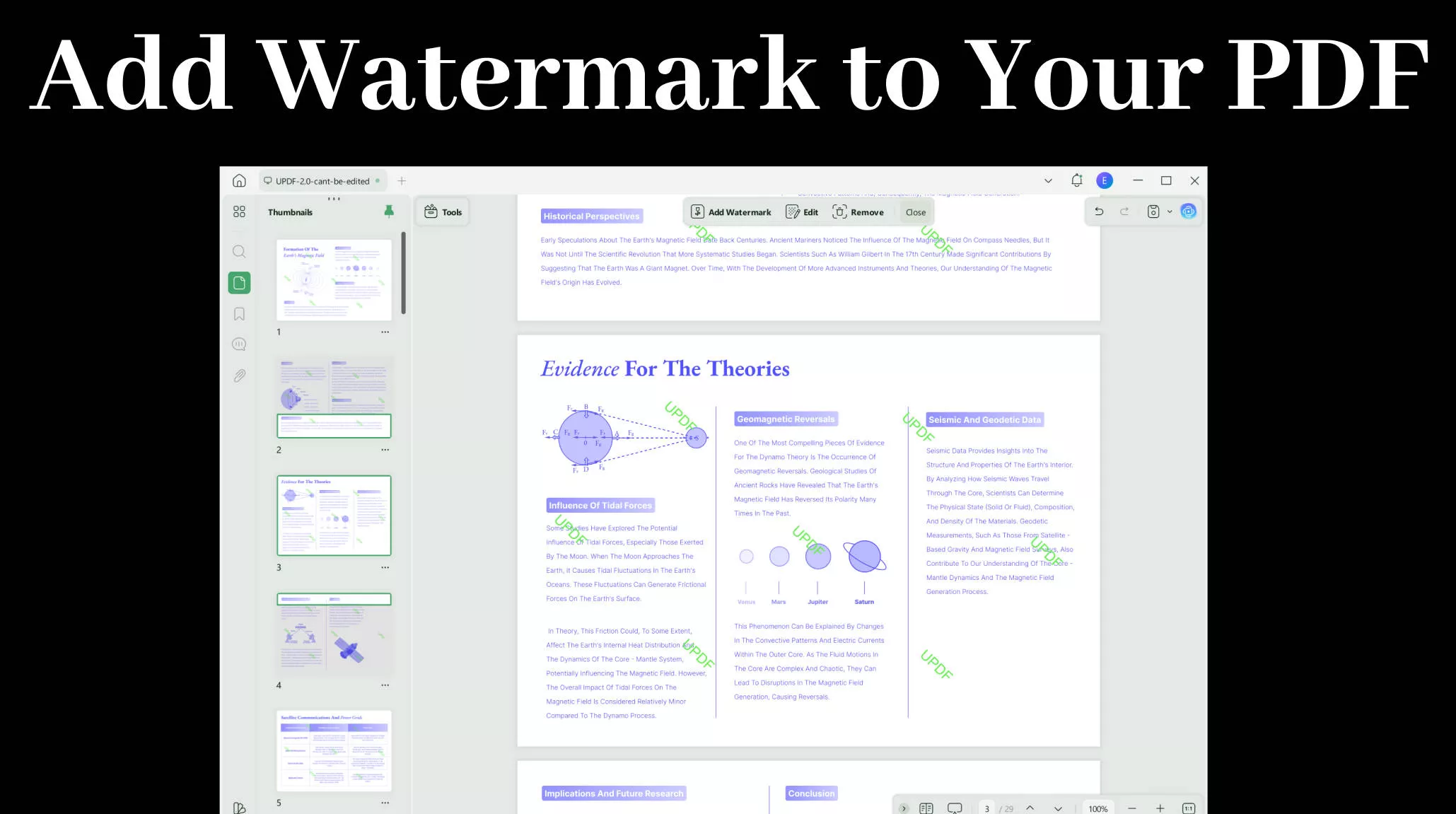
How to Add Watermarks to PDF with UPDF?
Let's look into the steps of using UPDF to add watermarks in PDFs to make them more authentic and secure.
Windows • macOS • iOS • Android 100% secure
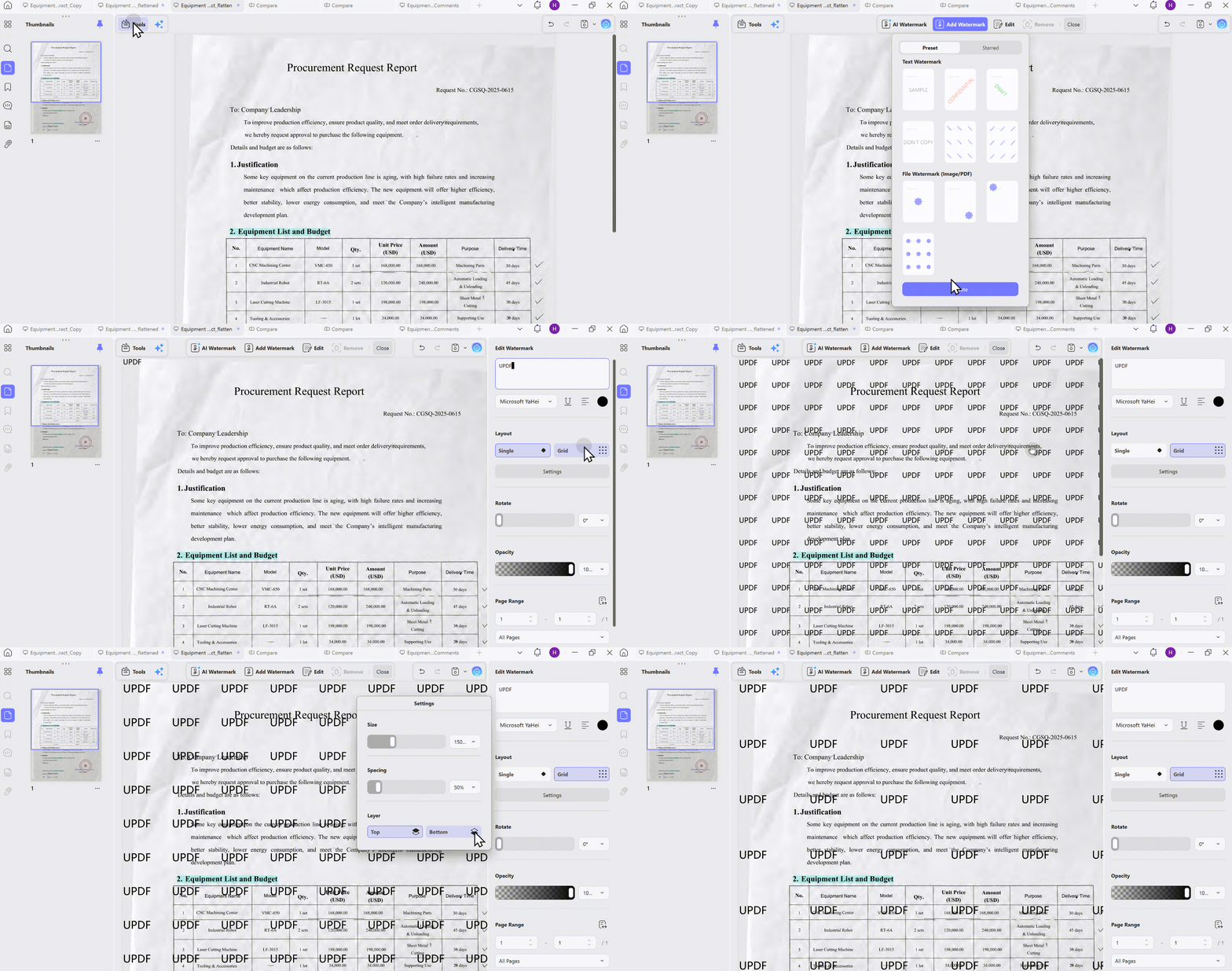
From the main window, select the "Open File" button to select the file from the device to import it into the tool. head to the left side panel and choose the "Tools" icon and choose the "Watermark" option. Afterward,hit the "Add Watermark" button to open an add watermark panel. You can also add the text watermark by selecting even or odd pages.
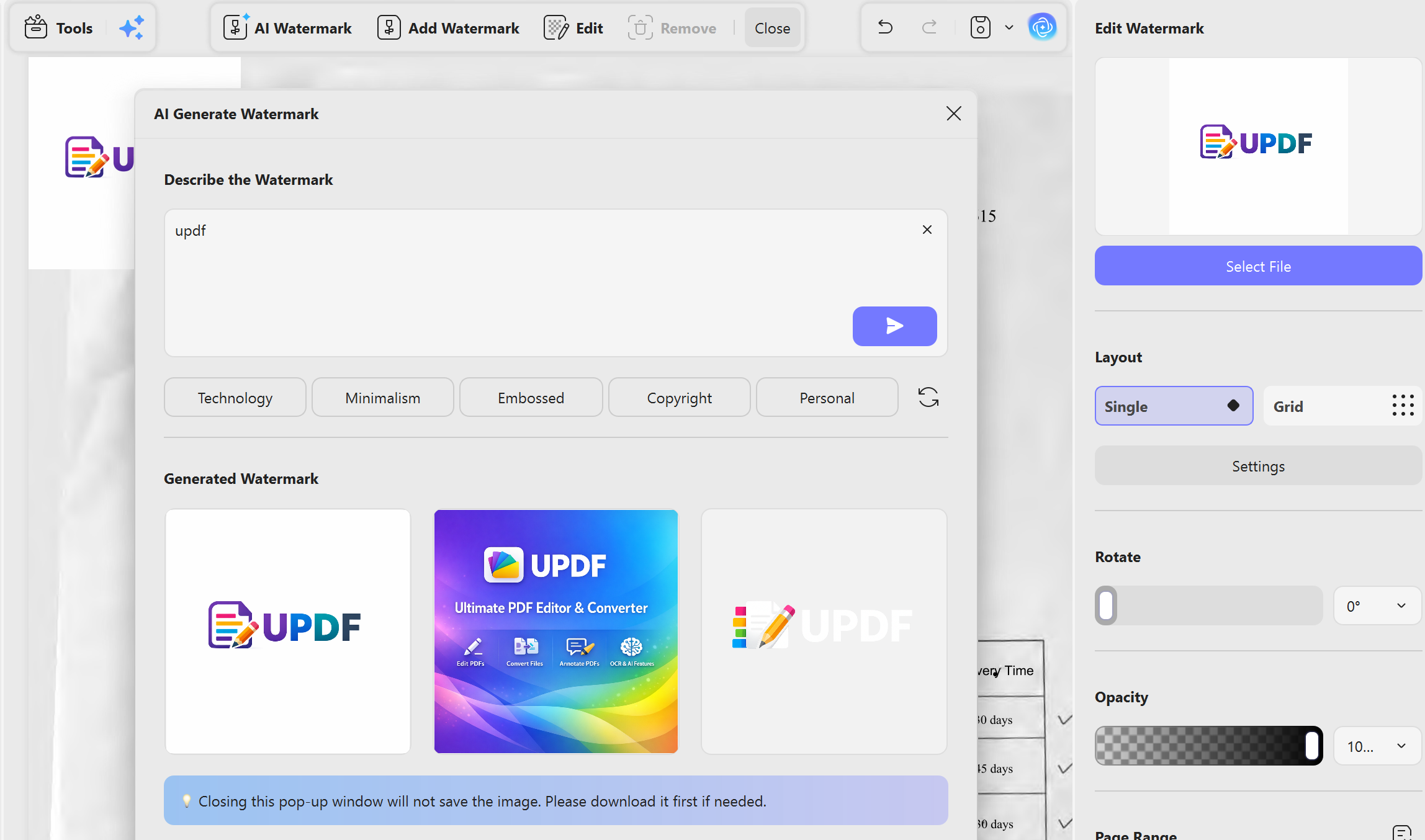
You can also upload your brand icon or logo as an image watermark, but UPDF has a more powerful AI Watermark in the top bar. Open the interface. Simply enter your preferred style and content in the dialog box, and the AI will automatically generate three high-resolution watermark images that match your description.
💡Notice:
- The generated watermark can be added to the document, downloaded locally, or saved to your collection.
- 20 preset styles are available, and you can refresh to explore more options.
- Each image is generated in high resolution at 1024 × 1024 pixels.
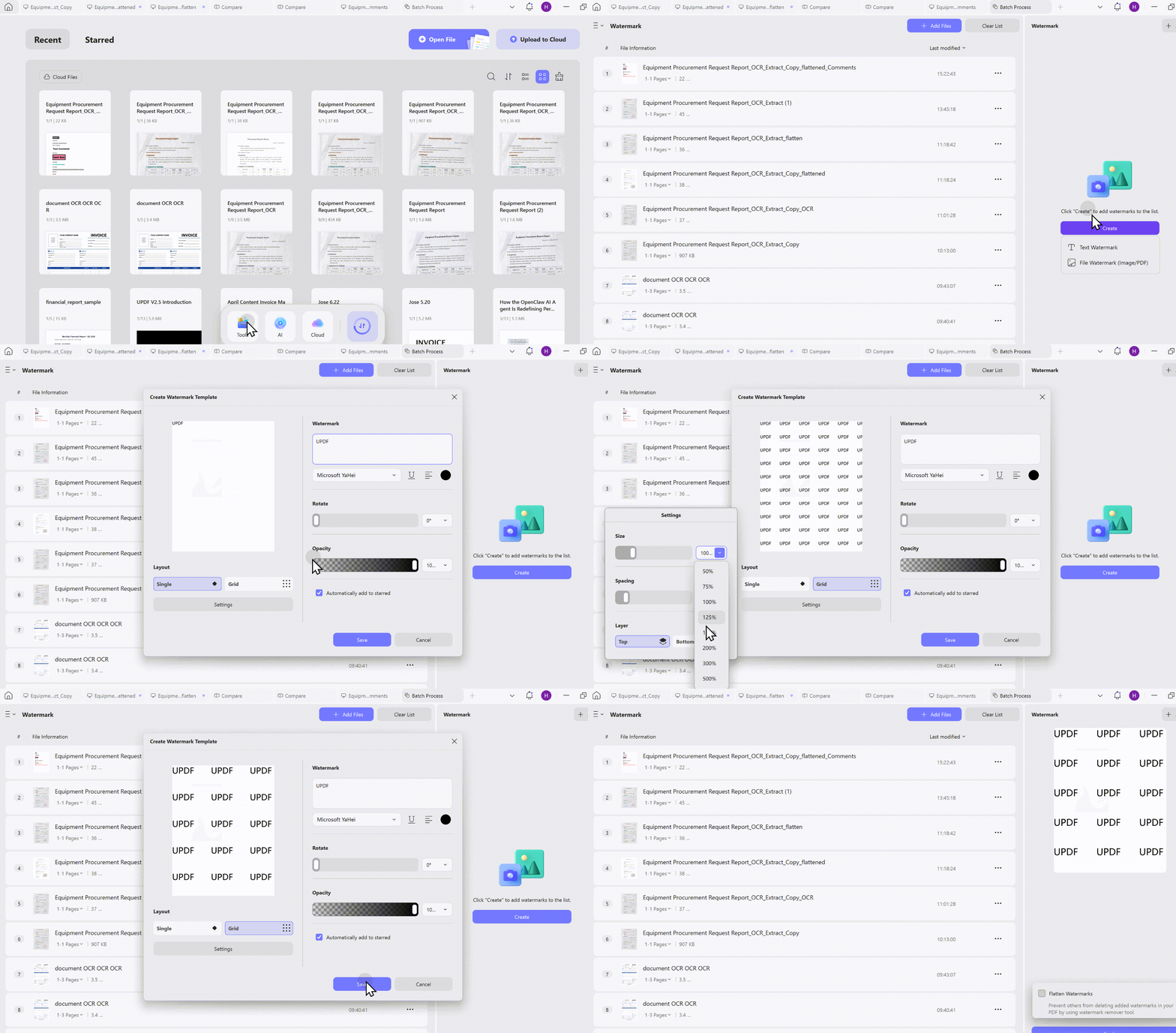
Batch adding watermarks to PDF is also simple and easy in UPDF. Click the Watermark icon from the toolbar, and then the steps are the same as the process above.
FAQ
Can I add a watermark to only some PDF pages online?
Many online tools support selected pages or page ranges. Confirm the page setting before processing the file.
Is it safe to upload a confidential PDF to an online watermark tool?
Review the provider’s privacy and deletion policy first. Use an offline editor for confidential or regulated documents.
Why is an online PDF watermark blurry?
The tool may rasterize or compress pages. Use a desktop editor when sharp vector text or print-quality output is required.
Conclusion
In conclusion, there are various ways to add a watermark to a PDF online to provide users with flexibility and ease. However, among these options, UPDF stands out as an excellent choice because it works offline. In addition, the software stays stable, offers security features, and has an easy-to-use interface.
This guide covers everything you need to add watermarks to PDFs online. If you're looking for a more comprehensive walkthrough on editing PDFs — including modifying text, replacing images, managing pages, adding annotations, and more — visit our full pillar guide: How to Edit a PDF .
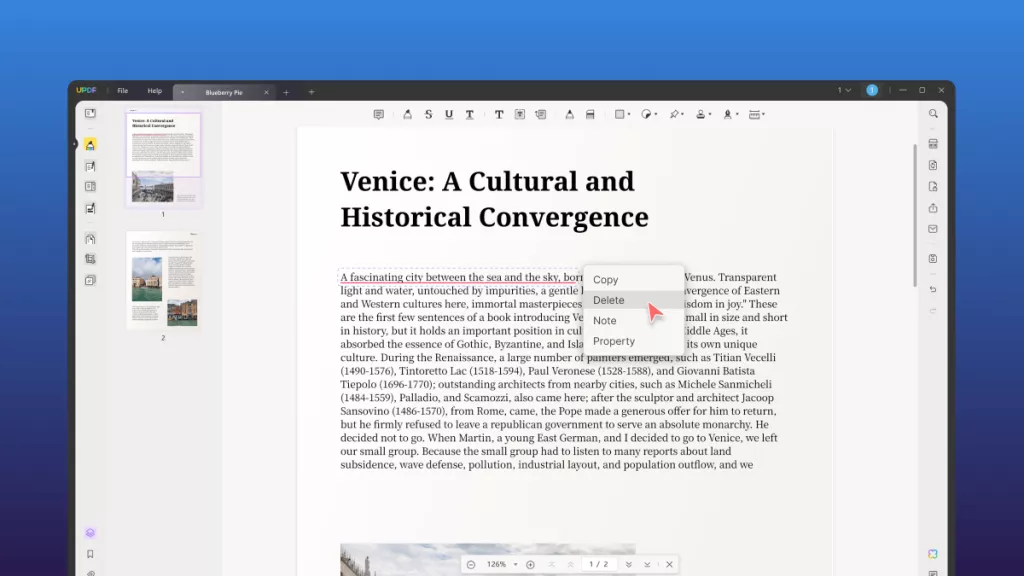
Check how the mark looks on both text-heavy pages and images. To see the PDF side of the workflow, watch the example of editing PDF content in UPDF below.
Windows • macOS • iOS • Android 100% secure







 Lizzy Lozano
 Enrica Taylor
 Enola Miller