 UPDF
UPDF
 UPDF for Windows
 UPDF for Mac
 UPDF for iPhone/iPad
 UPDF for Android
 Nomostar
 UPDF AI Online
 UPDF Sign
 IvyCraft
 Edit PDF
 Annotate PDF
 Create PDF
 PDF Form
 Edit links
 Convert PDF
 OCR
OCR PDF to Word
 PDF to Image
 PDF to Excel
 Organize PDF
 Merge PDF
 Split PDF
 Crop PDF
 Rotate PDF
 Protect PDF
 Sign PDF
 Redact PDF
 Sanitize PDF
 Remove Security
 Read PDF
 UPDF Cloud
 Compress PDF
 Print PDF
 Batch Process
 About UPDF AI
 UPDF AI Solutions
 AI User Guide
 FAQ about UPDF AI
 Summarize PDF
 Translate PDF
 Chat with PDF
 Chat with AI
 Chat with image
 PDF to Mind Map
 Explain PDF
 PDF AI Tools
 Image AI Tools
 AI Chat Tools
 AI Writing Tools
 AI Study Tools
 AI Working Tools
 Other AI Tools
 AI Bookmark Generation
 AI Bookmark Summary
 AI Watermark Generation
 AI Background Generation
 AI Sticker Generation
 AI Stamp Generation
 AI Editing Suite
 UPDF Copilot
 AI Page Management
 AI Semantic Search
 PDF to Word
 PDF to Excel
 PDF to PowerPoint
 Enterprise Solution
 Enterprise Sign
 Enterprise AI
 Enterprise Plan
 Enterprise User Guide
 Enterprise Webinar
 IT
IT Education
 Construction
 Financial Service
 Healthcare
 Insurance
 Legal
Legal Manufacturing
 Government
 Researchers & PhDs
 Solopreneurs & Freelancers
 Lawyers & Legal Professionals
 Real Estate Agents & Brokers
 Education Solution
 Customer Stories
 User Guide
 UPDF Tricks
 FAQs
FAQs UPDF Reviews
 Download Center
 Blog
Blog Newsroom
 Tech Spec
 Updates
 UPDF vs. Adobe Acrobat
 UPDF vs. Foxit
 UPDF vs. PDF Expert

Quick answer:
Google Drive OCR is a practical choice for a short, clean scan when your goal is to copy or edit the words in Google Docs. It is less suitable when you need to preserve the PDF format, retain a table or multi-column layout, process several files, or keep sensitive documents out of cloud storage.
| Your goal | Better option |
|---|---|
| Extract text from one short scan into Google Docs | Google Drive OCR |
| Keep the original PDF appearance but make its text searchable | UPDF Searchable PDF Only mode |
| Edit text inside a scanned PDF | UPDF Editable PDF mode |
| OCR several scanned PDFs together | UPDF Batch OCR |
| Process a confidential scan without uploading it to Drive | A desktop OCR workflow that fits your security policy |
If the Google method matches the first row, use the three-step guide below. If you need one of the PDF-specific outputs, UPDF provides dedicated OCR modes on desktop and mobile. You can download it free and test it with a non-confidential sample before deciding.
Windows • macOS • iOS • Android 100% secure
Part 1. What Does Google Drive OCR Produce?
OCR (optical character recognition) reads words inside an image and turns them into machine-readable text. In Google Drive, the OCR conversion is triggered when you open a PDF or supported image with Google Docs on a computer.
The result is a separate Google Doc containing the detected text. You can search, copy, correct, translate, share, or download that Doc. The original PDF remains unchanged in Drive. This distinction matters: a Google Doc with extracted text is not the same as a searchable PDF with an invisible text layer.
Google Drive may also index some text inside uploaded scans for Drive search, but that does not mean the PDF itself has been converted. Downloading or sharing the original file does not add a text layer to it.
Part 2. Supported Files and OCR Preparation
According to Google Drive Help, the conversion route supports multipage PDFs and JPEG, PNG, and GIF images. Google recommends files of 2 MB or less for this workflow.
- Resolution: Make the text at least 10 pixels high.
- Orientation: Rotate the page so the text is upright before uploading.
- Image quality: Use a sharp scan with even lighting and clear contrast.
- Fonts: Common fonts such as Arial and Times New Roman are easier to recognize.
- Language: Google detects the document language automatically.
Before running OCR, try selecting one sentence. If individual words can already be selected, the file may not need OCR. Our guide to recognizing text in a PDF explains how to distinguish a scanned page from an ordinary text PDF.
Part 3. How to OCR a Scanned PDF in Google Drive
Interface checked in October 2026. This editable-text workflow uses Google Drive and Google Docs on a computer. The Drive mobile app can scan paper documents into PDFs, but the desktop Open with Google Docs route is the clearest way to create editable text.
Step 1. Upload the PDF or Image
Open Google Drive in a desktop browser. Click New > File upload, select the scanned PDF, JPG, PNG, or GIF, and wait for the upload to finish.
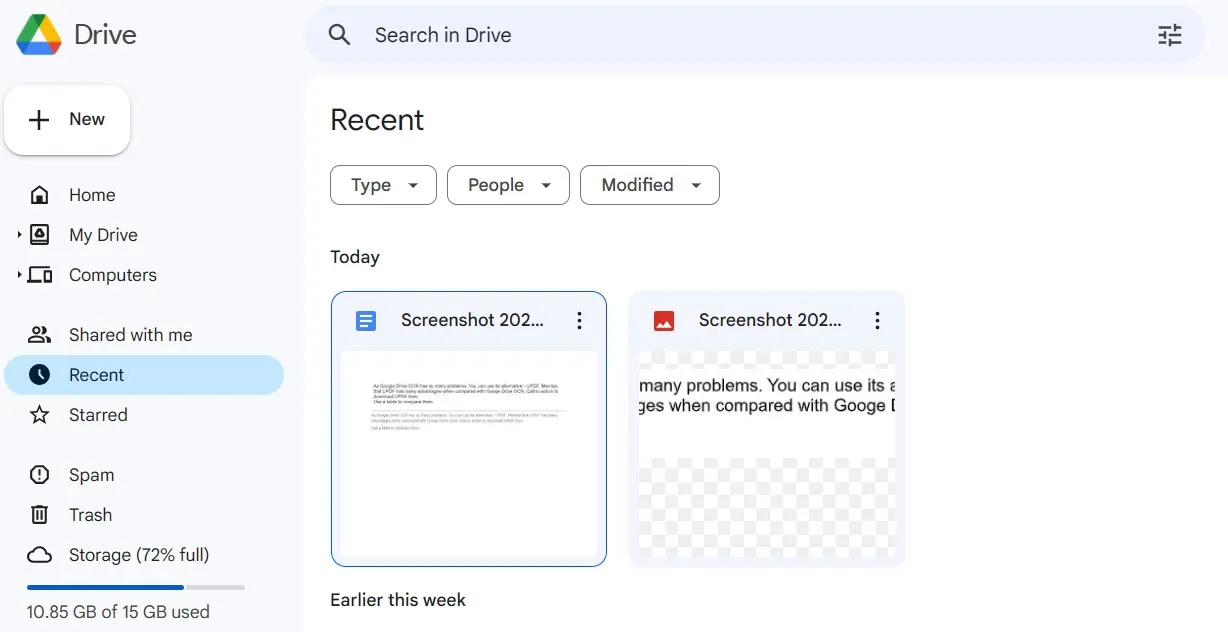
Step 2. Open the File with Google Docs
Right-click the uploaded file and choose Open with > Google Docs. Google creates a new Doc and places recognized text with the source page images.

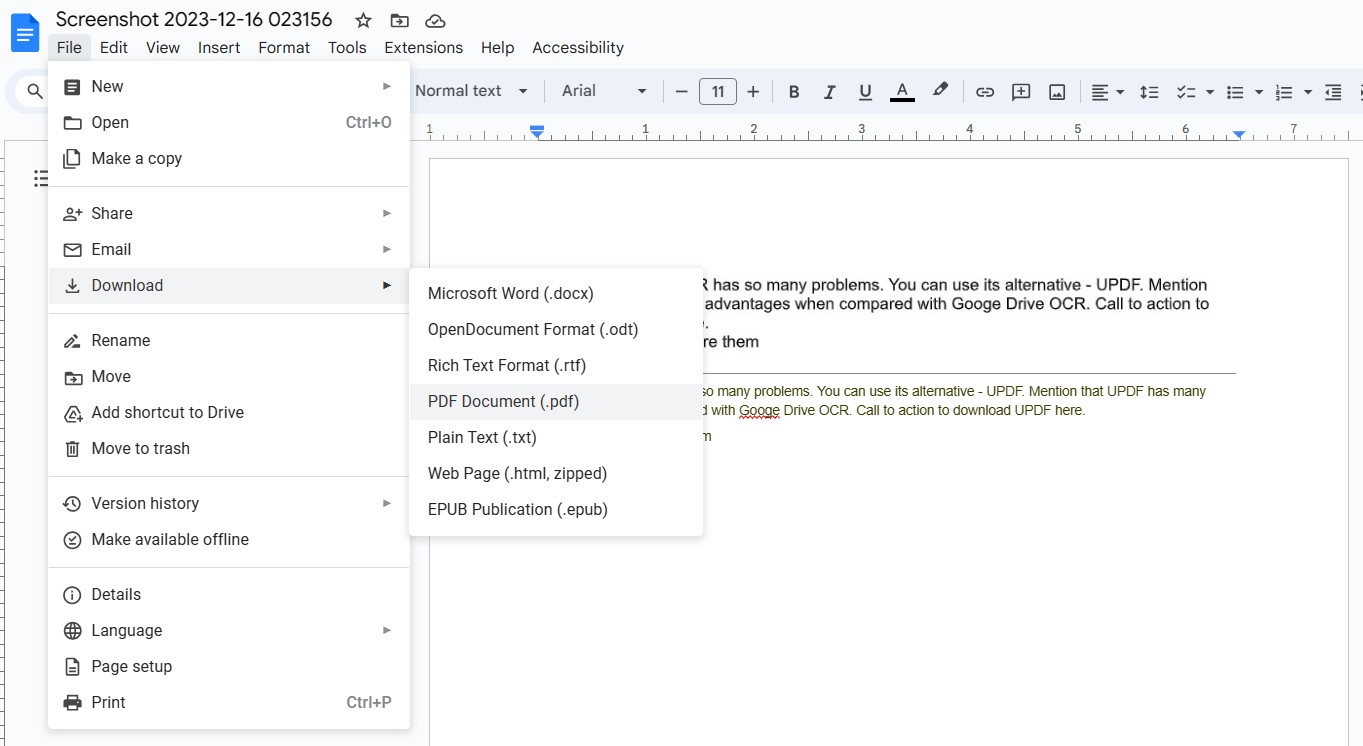
Step 3. Verify and Download the Result
Compare names, dates, totals, and punctuation with the scan before reusing the text. If needed, choose File > Download in Google Docs. The downloaded file is based on the new Doc; it is not an OCR layer added to the original scan.
If you only need selected passages rather than a full conversion, see the methods for extracting text from a PDF.
Part 4. Google Drive OCR Limitations and Fixes
Google Drive OCR is convenient, but its output should be treated as a draft. Google says bold, italics, font size, font type, and line breaks are likely to transfer. Lists, tables, columns, footnotes, and endnotes are not likely to be detected correctly.
| Problem | Why it happens | Practical fix |
|---|---|---|
| The original PDF is still not searchable | Drive created a Google Doc instead of adding a text layer to the PDF | Use a searchable-PDF OCR mode |
| Tables or columns are mixed together | Google does not reliably retain structured layouts | Split columns into separate images or use a layout-preserving OCR tool |
| Text is missing or inaccurate | The scan may be blurred, skewed, low-contrast, handwritten, or use uncommon fonts | Rescan or rotate the page and proofread the output |
| The file will not convert | The file may exceed Google's recommended 2 MB size or use an unsupported format | Reduce the file size, split the document, or use a dedicated OCR app |
| Many files must be processed | The Docs route is designed around opening files individually | Use batch OCR |
| The document is confidential | The scan must be uploaded to Google Drive | Follow your organization's policy and consider a desktop workflow |
If your real goal is to keep the same PDF appearance while making its words searchable, follow the dedicated guide to make a PDF searchable.
Part 5. When to Use UPDF Instead
Use Google Drive when a new Google Doc is the output you want. Use UPDF OCR when the PDF itself needs to become searchable or editable, when layout matters, or when you have several scans to process.
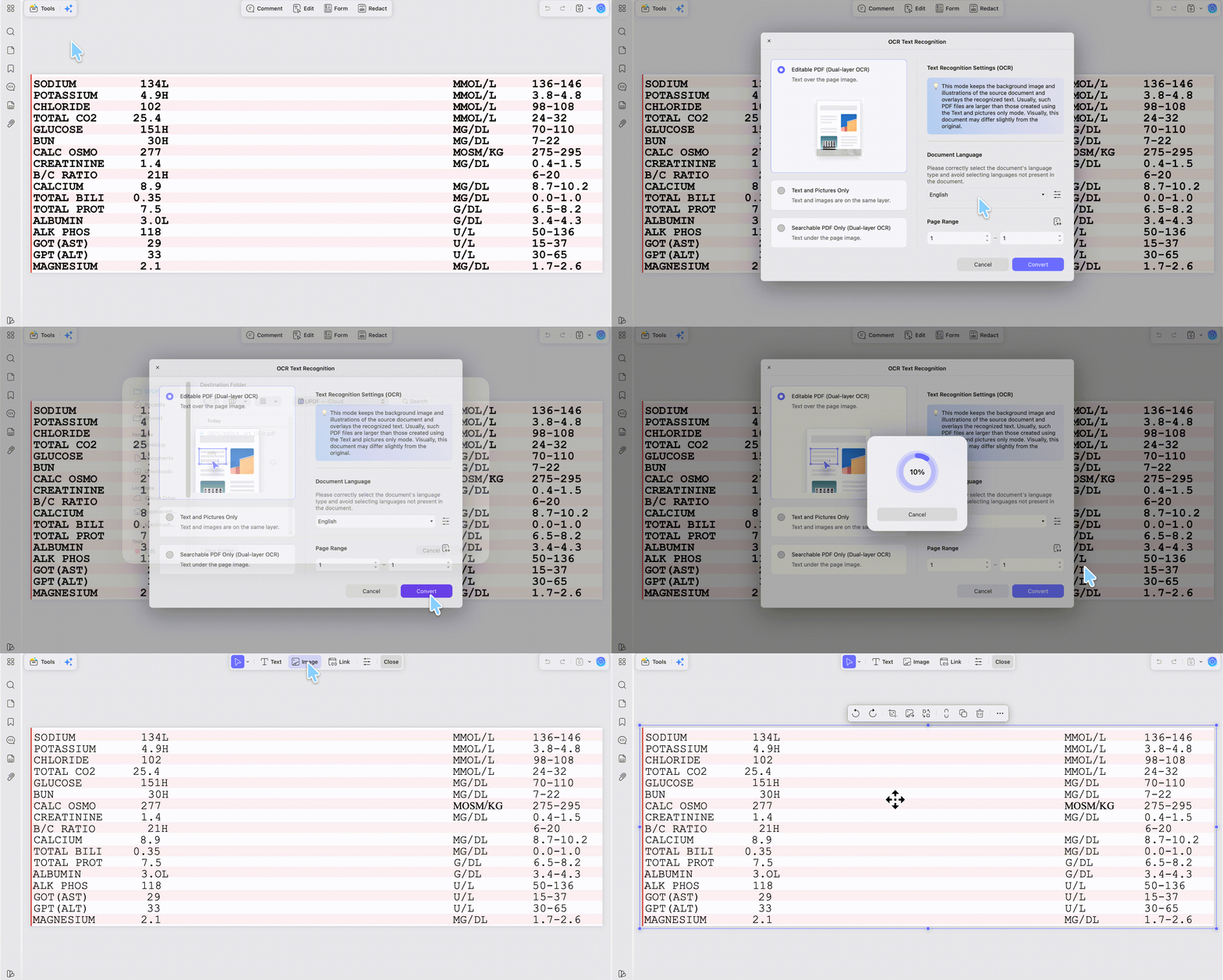
UPDF offers three output types: Editable PDF for changing recognized text, Searchable PDF Only for keeping the page image while adding an invisible text layer, and Text and Pictures Only for a simpler reconstructed file. Select the document language and page range, run OCR, and verify important details against the source.
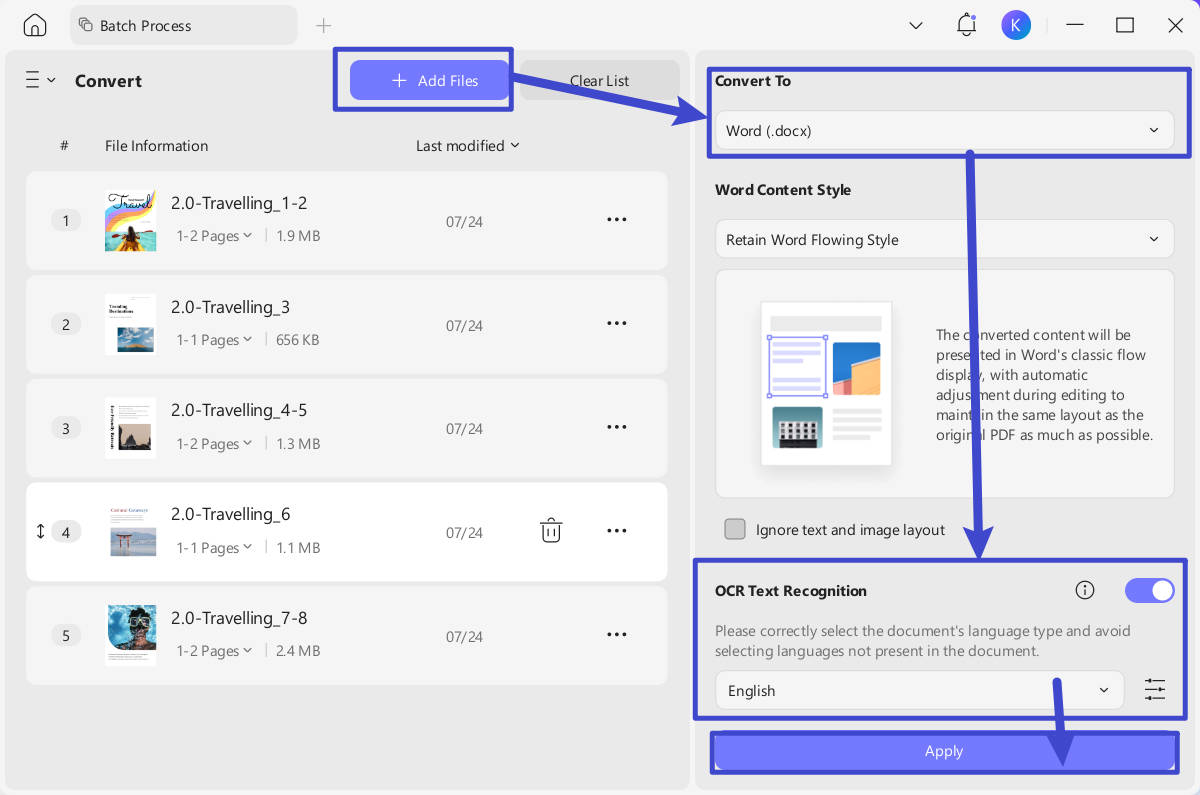
For a folder of scans, UPDF's desktop tools include Batch OCR. This is more practical than opening every file separately in Google Docs. The current batch OCR guide shows the available output modes and settings.
UPDF currently provides OCR workflows on Windows, Mac, iOS, and Android. On Mac, download the version from the UPDF website because the Mac App Store version currently does not include OCR. Feature availability can change, so check the relevant user guide before processing an important file.
If your immediate task is simply to reuse a sentence from a scan, the guide to copying text from a scanned PDF covers both OCR and targeted extraction options.
Download UPDF free and test the correct OCR mode on a sample scan. Keep Google Drive for quick text-to-Docs extraction, and choose UPDF when you need a PDF-specific result.
Windows • macOS • iOS • Android 100% secure
Part 6. Google Drive OCR vs. UPDF
| Comparison | Google Drive OCR | UPDF OCR |
|---|---|---|
| Best for | Quick extraction into Google Docs | Searchable or editable PDF output |
| Primary output | New editable Google Doc | Editable PDF, searchable PDF, or text-and-pictures PDF |
| Original PDF | Remains unchanged | A new OCR-processed PDF is created |
| Language handling | Detects the source language | Select the document language; current product information lists 38 languages |
| Complex layouts | Tables and columns may not transfer reliably | Choose the output mode that best fits layout and editing needs; proofread the result |
| Batch processing | Open files with Docs individually | Batch OCR on supported desktop versions |
| Processing environment | Cloud-based Drive and Docs workflow | App-based OCR workflow |
| Accuracy | Varies with scan quality | Varies with scan quality and selected language |
There is no honest universal accuracy percentage for every scan. For a fair comparison, run the same clean and complex pages through both methods, then check names, numbers, punctuation, reading order, and table structure.
The following video demonstrates UPDF's OCR workflow. The interface may evolve, so use the current Windows, Mac, iOS, or Android guide if a control appears in a different place.
Part 7. FAQs
Is Google Drive OCR free?
Yes. The Open with Google Docs conversion is available with a Google account. It creates a new Google Doc, so review the recognized text and formatting before using it.
Can Google Drive OCR a PDF?
Yes. Google Drive can convert a multipage PDF to text when you open it with Google Docs on a computer. Google recommends a file size of 2 MB or less for best results.
Does Google Drive OCR make the original PDF searchable?
No. The conversion creates a separate Google Doc. The original PDF remains unchanged and does not receive a searchable text layer.
Why is Open with Google Docs missing?
Make sure you are using Google Drive in a desktop browser, the upload has finished, and the file is a supported PDF, JPEG, PNG, or GIF. Then right-click the file and check the Open with menu.
Can Google Drive OCR tables or handwriting?
It may recognize some text, but complex tables, columns, and handwriting are less reliable. Google specifically notes that tables and columns are not likely to be detected correctly, so proofread the result or use a dedicated OCR workflow.
Can I run Google Drive OCR on a phone?
The Drive mobile app can scan paper documents into PDFs, but Google documents the editable-text conversion through Open with Google Docs on a computer. Use the desktop workflow when you need an editable Google Doc.
Conclusion
Google Drive OCR is a free, convenient route for moving text from a short scan into Google Docs. Prepare a clear file, use the desktop Open with Google Docs command, and proofread the output. If you need a searchable or editable PDF, preserved page appearance, or batch processing, use a dedicated PDF OCR workflow such as UPDF.






 Enid Brown
 Enola Miller

 Enya Moore