 UPDF
UPDF
 UPDF for Windows
 UPDF for Mac
 UPDF for iPhone/iPad
 UPDF for Android
 Nomostar
 UPDF AI Online
 UPDF Sign
 IvyCraft
 Edit PDF
 Annotate PDF
 Create PDF
 PDF Form
 Edit links
 Convert PDF
 OCR
OCR PDF to Word
 PDF to Image
 PDF to Excel
 Organize PDF
 Merge PDF
 Split PDF
 Crop PDF
 Rotate PDF
 Protect PDF
 Sign PDF
 Redact PDF
 Sanitize PDF
 Remove Security
 Read PDF
 UPDF Cloud
 Compress PDF
 Print PDF
 Batch Process
 About UPDF AI
 UPDF AI Solutions
 AI User Guide
 FAQ about UPDF AI
 Summarize PDF
 Translate PDF
 Chat with PDF
 Chat with AI
 Chat with image
 PDF to Mind Map
 Explain PDF
 PDF AI Tools
 Image AI Tools
 AI Chat Tools
 AI Writing Tools
 AI Study Tools
 AI Working Tools
 Other AI Tools
 AI Bookmark Generation
 AI Bookmark Summary
 AI Watermark Generation
 AI Background Generation
 AI Sticker Generation
 AI Stamp Generation
 AI Editing Suite
 UPDF Copilot
 AI Page Management
 AI Semantic Search
 PDF to Word
 PDF to Excel
 PDF to PowerPoint
 Enterprise Solution
 Enterprise Sign
 Enterprise AI
 Enterprise Plan
 Enterprise User Guide
 Enterprise Webinar
 IT
IT Education
 Construction
 Financial Service
 Healthcare
 Insurance
 Legal
Legal Manufacturing
 Government
 Researchers & PhDs
 Solopreneurs & Freelancers
 Lawyers & Legal Professionals
 Real Estate Agents & Brokers
 Education Solution
 Customer Stories
 User Guide
 UPDF Tricks
 FAQs
FAQs UPDF Reviews
 Download Center
 Blog
Blog Newsroom
 Tech Spec
 Updates
 UPDF vs. Adobe Acrobat
 UPDF vs. Foxit
 UPDF vs. PDF Expert

Chromebooks use ChromeOS instead, preventing traditional Windows .exe and Mac .dmg software installation. Many Chromebook users feel confused when they open a PDF file and need to edit it effectively. PDF editing on a Chromebook generally falls into two categories, depending on whether you need basic markup or direct content changes.
One category covers quick tasks like adding text boxes, highlighting sentences, or drawing signatures inside PDF documents. Another category focuses on directly modifying existing PDF text, swapping images, or performing OCR on scanned documents. A tool designed for one category usually cannot properly handle the other editing needs.
If you need general PDF editing tips, read our guide on how to edit a PDF or explore our Chrome PDF editor roundup instead. This guide shows how to edit a PDF on a Chromebook by choosing the right editing method for every editing requirement.
Part 1. Chromebook PDF Method Selection Matrix
Different PDF editing needs require different tools and editing methods. Use the table below to find the best method and jump to the right section:
| Your Specific Need | Software Type | Modify Original PDF Text? | Best Solution (Click to Jump) |
| Quick offline markup, signatures, or filling form boxes | Built-in ChromeOS App | No | Method 1: Built-in Gallery App |
| Browser-based editing for non-confidential files | Web Browser / Online Tool | Limited | Method 2: Online PDF Editors |
| Editing existing text, replacing images, or using AI features | Android App (Google Play Store) | Yes | Method 3: UPDF for Android |
Part 2. Step-by-Step: 3 Ways to Edit a PDF on Chromebook
Editing a PDF on a Chromebook becomes easier when you choose the right method for your needs. Each method works best for different editing tasks and user requirements on ChromeOS devices. These methods show how to edit a PDF on a Chromebook for different editing needs with simple steps.
Method 1. Use the Built-in Gallery App (Free, Offline, No Install Needed)
Best for:
- Quick offline markups, adding signatures, or typing into fillable form boxes without installing third-party tools.
Chromebooks generally include the Gallery app for opening and making simple changes to PDF files. This app is a good choice for basic PDF editing without installing another application on your Chromebook.
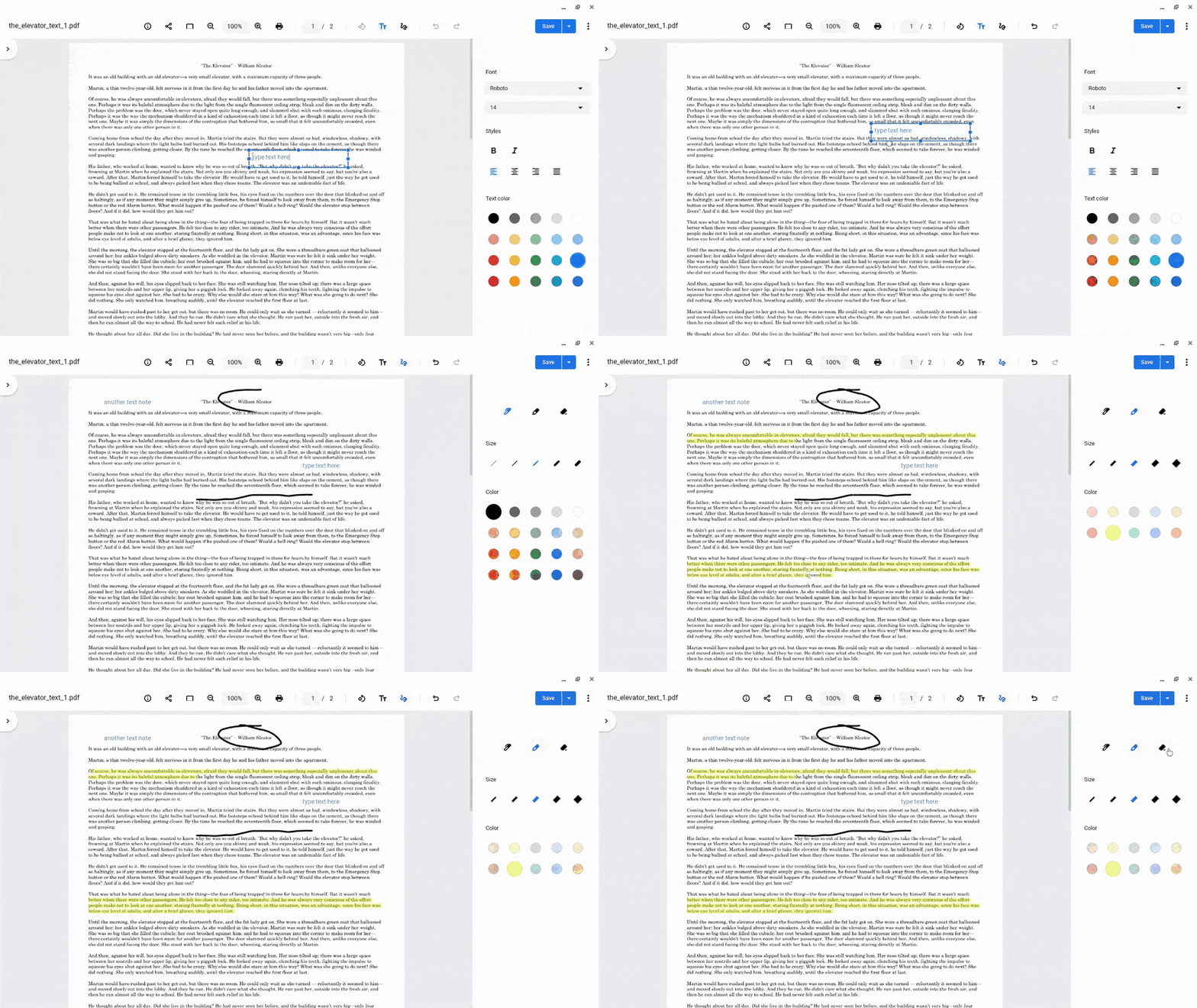
You can quickly place text boxes, highlights, and signatures on PDF files. This pre-built app works well for everyday PDF tasks like forms and simple document markups. Now, follow the steps below to edit your PDF with the built-in Gallery app on Chromebook:
Step 1. Open the Files app and double-click your PDF to open it. The PDF will open in the Gallery app by default.
Step 2. Next, to add the text, press the "Text Annotation" icon in the top toolbar and click anywhere on the PDF to add a text box. Start typing in the box to add the text.
Step 3. After that, select the "Annotate" option and choose a drawing tool. Next, drag your mouse pointer over the text to mark or highlight the text. You can also draw and place a signature on your PDF with the "Pen" tool.
Step 4. After the changes are finalized, press "Save" in the top right corner to apply changes.
Important Limitation:
- The Gallery app only adds new text, ink, and shapes on top of the existing PDF document. It cannot change or rewrite text already embedded inside the PDF document.
Method 2. Use Online PDF Editors (Adobe Acrobat Web, iLovePDF, etc.)
Best for:
- Users preferring browser-based PDF editing without installing software and comfortable uploading non-confidential files to cloud services.
Browser PDF editors help you edit PDF files without software and save time for ChromeOS users. Many people use these tools for quick PDF editing on their Chromebook. Smallpdf and other online PDF editors offer simple tools for many everyday PDF editing tasks online.
These tools are suitable for PDF files without private or sensitive information before uploading them online safely. Here is how to edit a PDF on a Chromebook using online PDF editors below:
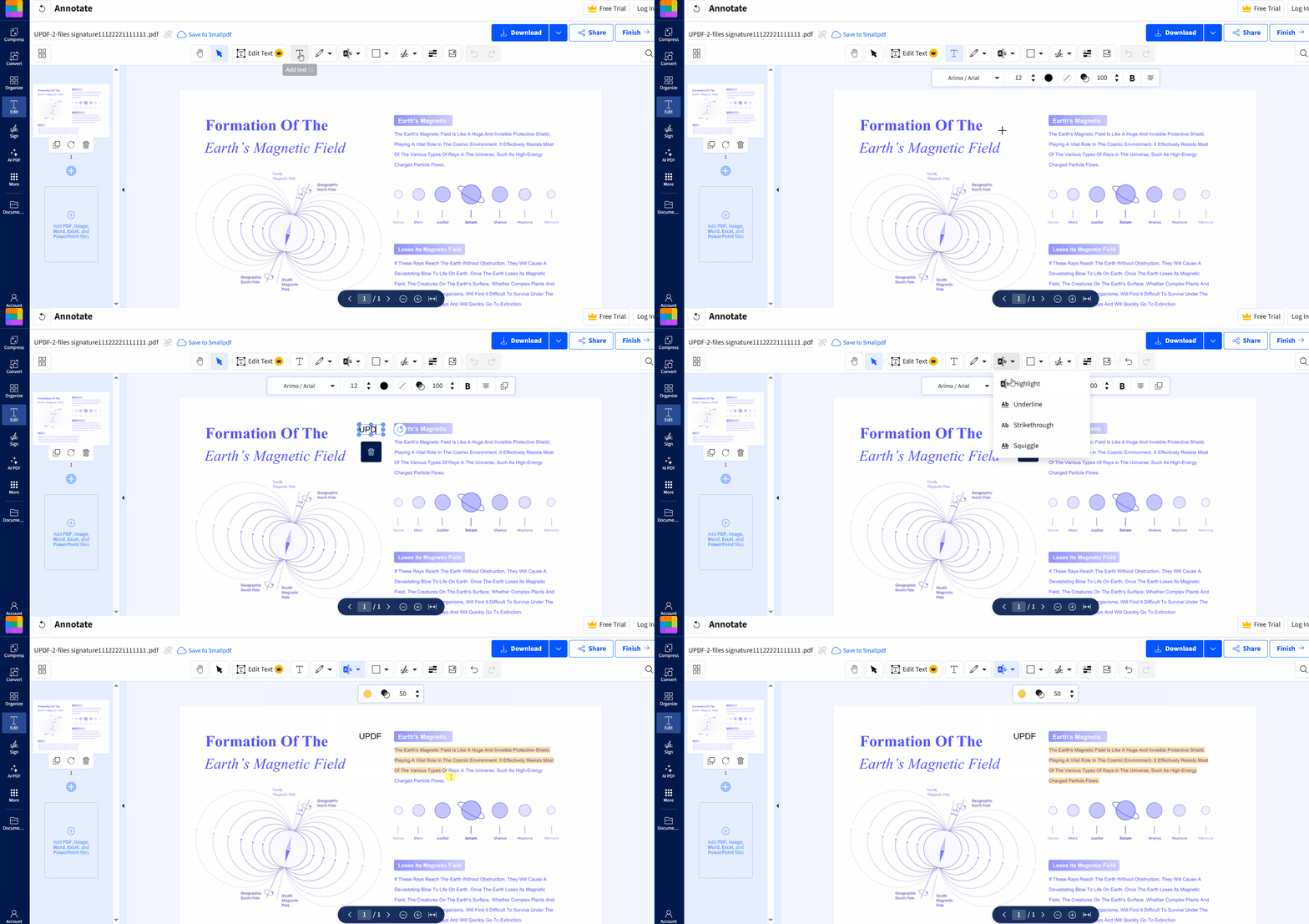
Step 1. First, access an online PDF editor like Smallpdf and upload your PDF.
Step 2. After that, choose "Add Text" and draw on the PDF to create a text box. Type the text directly within the box.
Step 3. Next, select the "Highlight" feature and drag your mouse pointer over the PDF text to highlight.
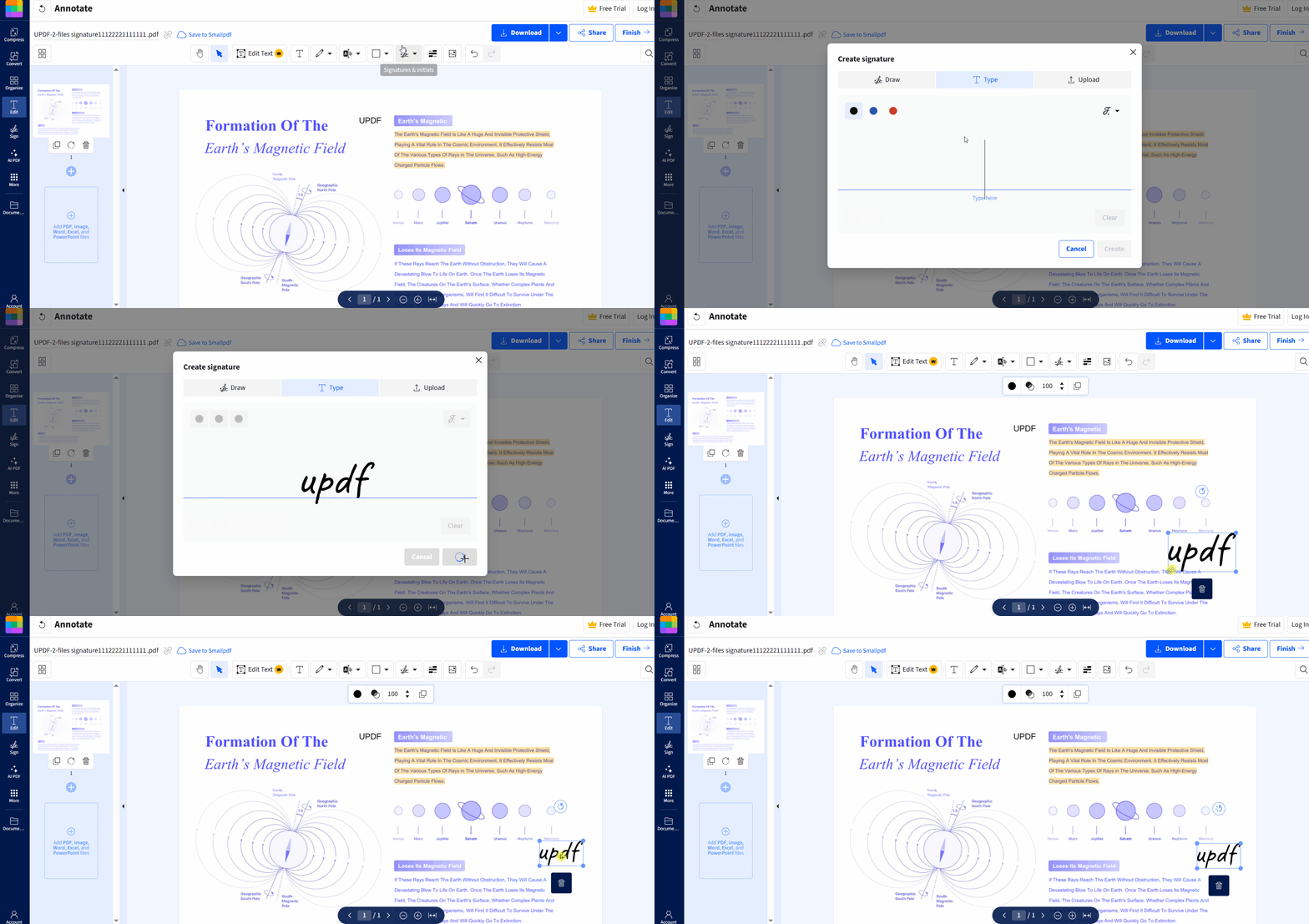
Step 4. To add signatures, press the "Signature" tool and register a new signature. After that, you can use and reuse the same signature across PDFs. Lastly, press "Download" to save the edited version.
Important Limitation:
- Most online PDF editors hide advanced editing features behind paid plans or limited free trial access. Editing original PDF text or exporting clean files often requires adding credit cards and subscribing.
Method 3. Use UPDF for Android/ChromeOS (Best for Deep Native Text Editing)
Best for:
- Edit existing PDF text, change fonts, replace images, and organize pages with desktop-style editing on Chromebooks. It also suits users needing AI summaries and advanced PDF editing beyond simple markup tools every day.
UPDF is available for Windows, macOS, iOS, iPadOS, and Android devices. Modern Chromebooks support the Google Play Store, allowing you to install the UPDF Android application easily. The app may look slightly different on some Chromebook screens because display sizes can vary. All core PDF editing, image editing, and AI tools run smoothly on supported Chromebook models today.
You can try UPDF free before deciding whether the full version meets your PDF editing needs. Saved PDF files include a small watermark during the free trial on ChromeOS devices. Paid lifetime and annual plans remove the watermark after upgrading from the free trial version.
Windows • macOS • iOS • Android 100% secure
Key UPDF Features
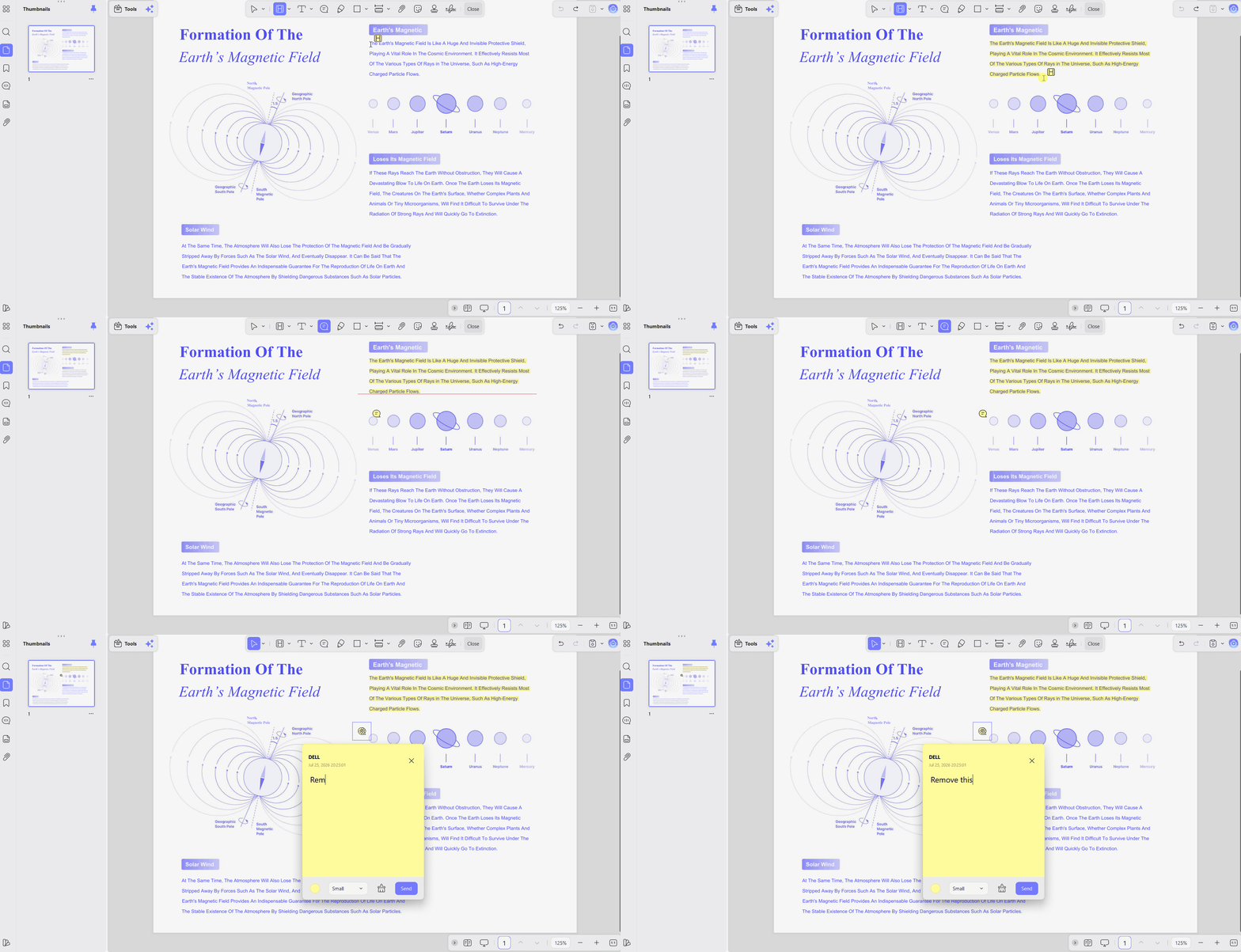
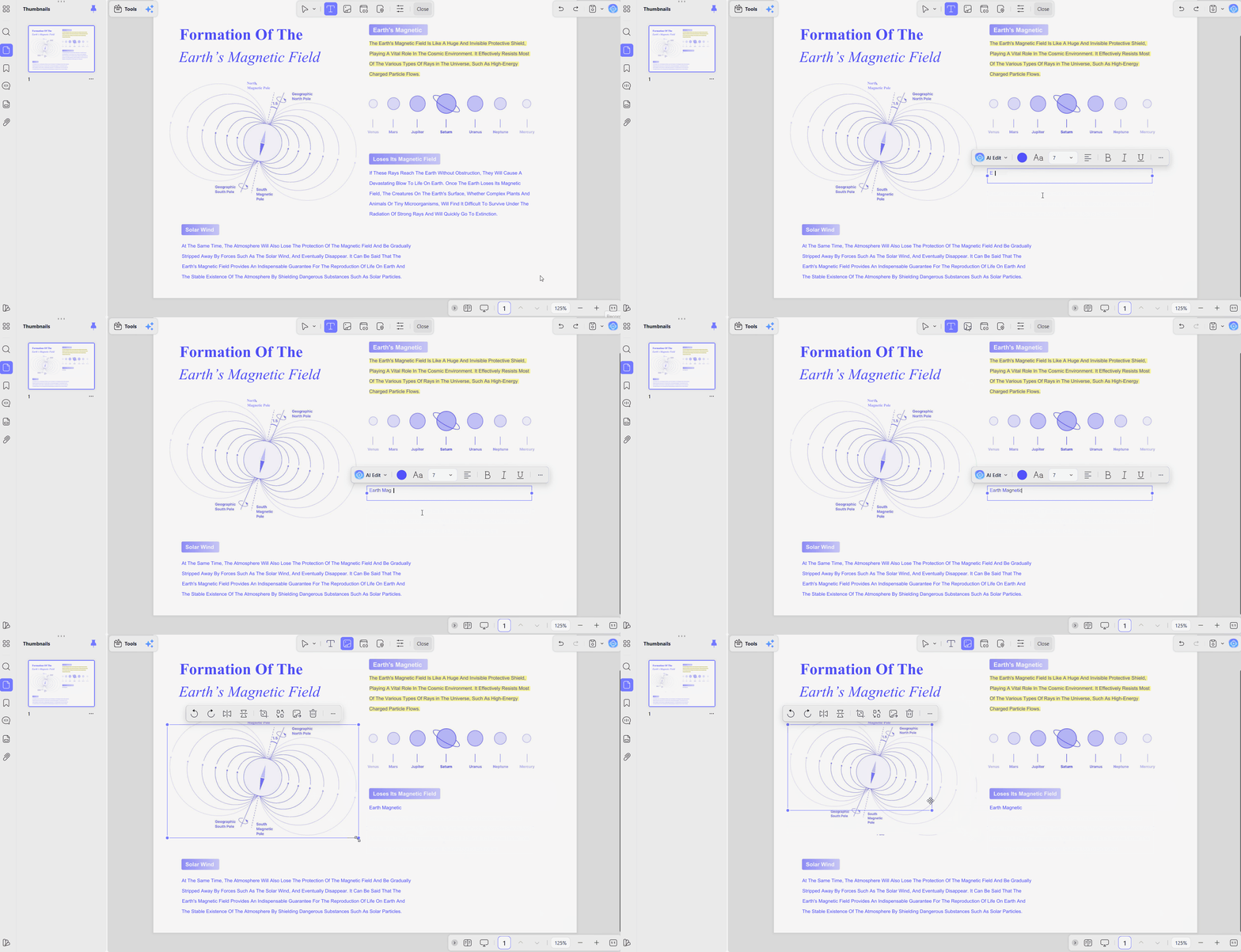
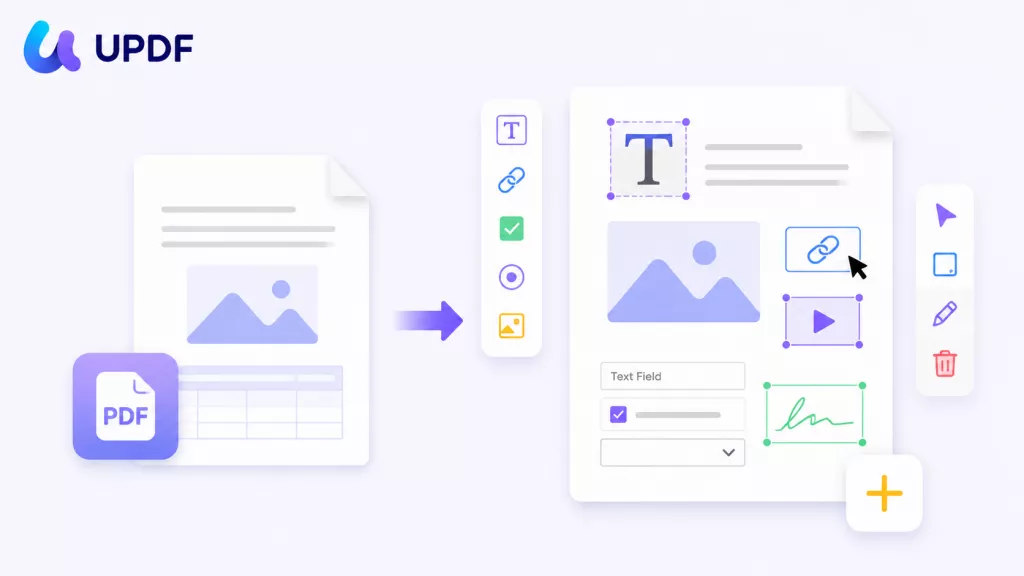
- True Native Text Editing: Edit existing PDF text without converting your document into another file format first. Change fonts, colors, fix mistakes, or delete text directly inside your PDF document.
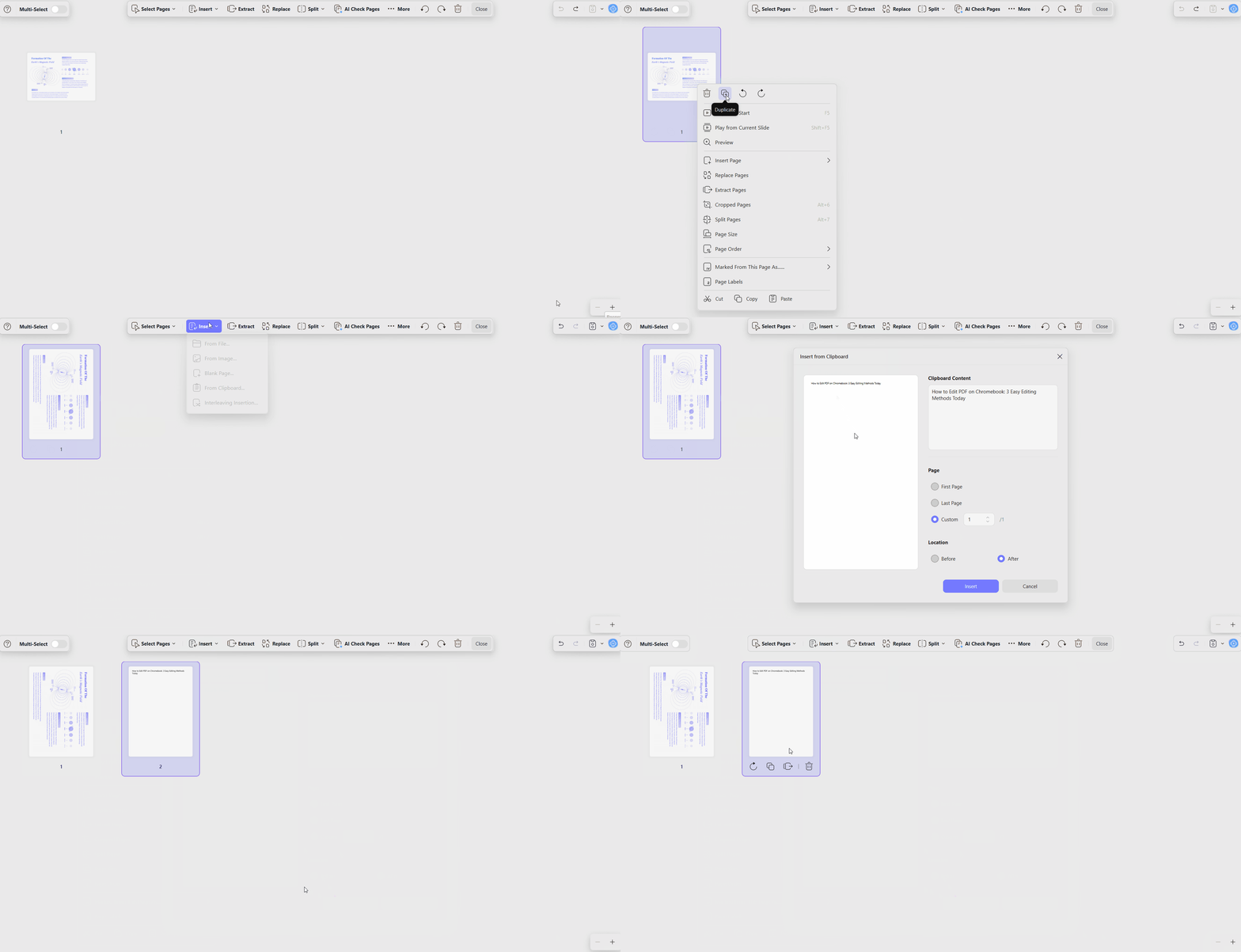
- Image & Page Management: Replace, crop, rotate, extract, or remove images inside your PDF without extra software. Rearrange, insert, delete, or extract pages from PDF files with simple editing tools.
- Rich Markup Tools: Highlight important text with highlights, squiggly underlines, and custom stamps during document review. Read our PDF highlighter Chrome guide for more markup tips and useful editing ideas.
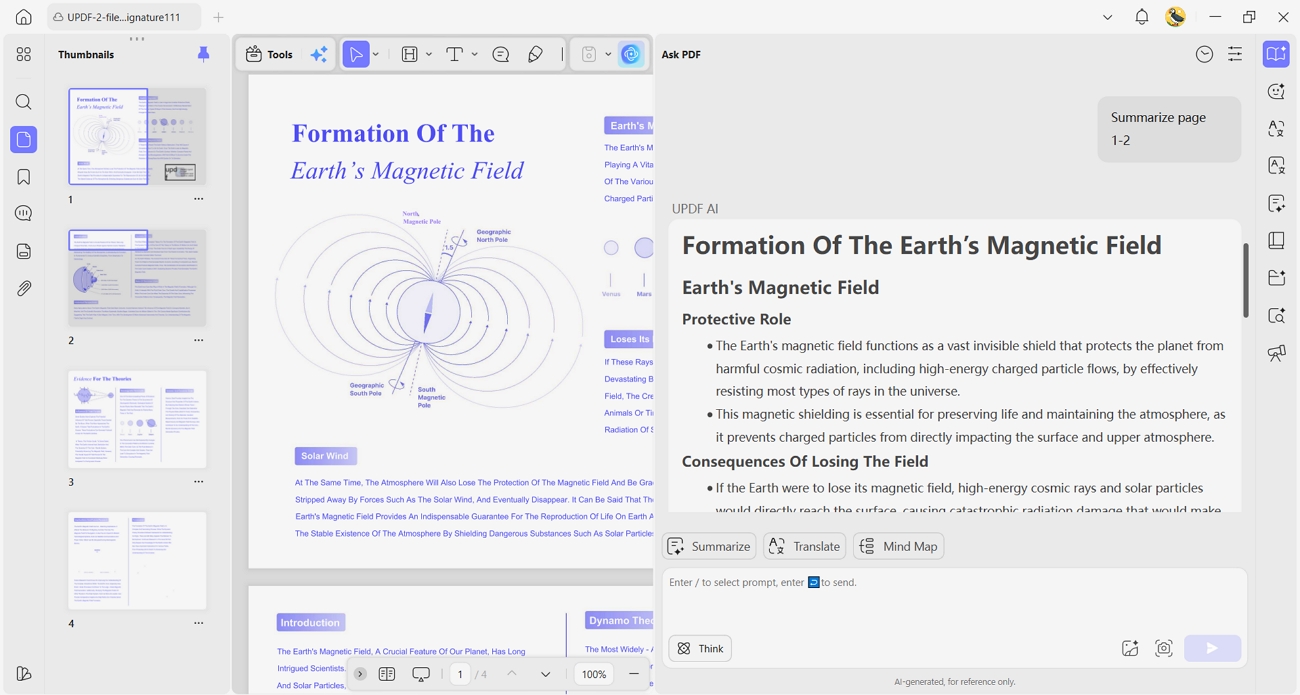
- UPDF AI Assistant: Translate documents, summarize research papers, and understand PDF content with built-in AI assistance. Chat with your PDF and find important information without reading every page manually.
How to Edit a PDF Using UPDF on Chromebook
To see how to edit a PDF using UPDF on Chromebook, follow the simple steps below:
Step 1. First, install UPDF from the Google Play Store on your Chromebook and import a PDF into it.
Step 2. Next, choose the "Edit" mode and select the text or image that you want to change or amend.
Step 3. Once the PDF editing is finalized, press the "Save" option to save the edited version. For advanced features like watermark removal, you can update to a paid license.
Frequently Asked Questions
Can I edit a PDF on a Chromebook for free without installing apps?
Yes, the built-in Gallery app lets you edit PDF files without installing extra applications for free. You can add text, draw annotations, and place signatures without an internet connection using this app. It cannot change the original text already inside your PDF document after it opens.
Why do online PDF editors ask for a credit card to edit text on Chromebook?
Most online PDF editors offer basic viewing and commenting features without charging users any money first. Advanced features like text editing, OCR, and file exports usually need paid plans or free trials. Some services also ask for billing details before you can use those advanced editing features.
How do I edit existing text in a PDF on my Chromebook?
Built-in ChromeOS tools cannot change the original text already inside a PDF document directly. Install UPDF from the Google Play Store to edit existing text on your Chromebook easily. Open your PDF, enter Edit mode, and select the text you want to change.
Conclusion
In conclusion, this guide shows how to edit a PDF on a Chromebook using the right method for everyone. Simple form filling and signing stay easy with the built-in Gallery app without extra software every time. Online web tools suit quick one-off conversions if you do not mind possible paywalls for advanced features. UPDF offers secure desktop-grade editing for PDF text and images through the Google Play Store on Chromebooks.
Download UPDF today and edit PDF files on your Chromebook for free.
Windows • macOS • iOS • Android 100% secure







 Enola Miller

 Enola Davis