 UPDF
UPDF
 UPDF for Windows
 UPDF for Mac
 UPDF for iPhone/iPad
 UPDF for Android
 Nomostar
 UPDF AI Online
 UPDF Sign
 IvyCraft
 Edit PDF
 Annotate PDF
 Create PDF
 PDF Form
 Edit links
 Convert PDF
 OCR
OCR PDF to Word
 PDF to Image
 PDF to Excel
 Organize PDF
 Merge PDF
 Split PDF
 Crop PDF
 Rotate PDF
 Protect PDF
 Sign PDF
 Redact PDF
 Sanitize PDF
 Remove Security
 Read PDF
 UPDF Cloud
 Compress PDF
 Print PDF
 Batch Process
 About UPDF AI
 UPDF AI Solutions
 AI User Guide
 FAQ about UPDF AI
 Summarize PDF
 Translate PDF
 Chat with PDF
 Chat with AI
 Chat with image
 PDF to Mind Map
 Explain PDF
 PDF AI Tools
 Image AI Tools
 AI Chat Tools
 AI Writing Tools
 AI Study Tools
 AI Working Tools
 Other AI Tools
 AI Bookmark Generation
 AI Bookmark Summary
 AI Watermark Generation
 AI Background Generation
 AI Sticker Generation
 AI Stamp Generation
 AI Editing Suite
 UPDF Copilot
 AI Page Management
 AI Semantic Search
 PDF to Word
 PDF to Excel
 PDF to PowerPoint
 Enterprise Solution
 Enterprise Sign
 Enterprise AI
 Enterprise Plan
 Enterprise User Guide
 Enterprise Webinar
 IT
IT Education
 Construction
 Financial Service
 Healthcare
 Insurance
 Legal
Legal Manufacturing
 Government
 Researchers & PhDs
 Solopreneurs & Freelancers
 Lawyers & Legal Professionals
 Real Estate Agents & Brokers
 Education Solution
 Customer Stories
 User Guide
 UPDF Tricks
 FAQs
FAQs UPDF Reviews
 Download Center
 Blog
Blog Newsroom
 Tech Spec
 Updates
 UPDF vs. Adobe Acrobat
 UPDF vs. Foxit
 UPDF vs. PDF Expert

Google Drive PDF Viewer is a built-in file-preview tool that lets you open and read PDFs stored in Drive without installing a separate app. It works well for quick viewing and sharing files with a teammate or client. For deeper reading, OCR, advanced annotations, PDF editing, and page management, you will need to step outside Drive and into a dedicated PDF tool such as UPDF.
What Is Google Drive PDF Viewer?
Google Drive PDF Viewer is part of Drive's built-in file-preview system that lets you view and open PDF files. It is not a standalone desktop PDF editor. Double-click any PDF in your Drive, and it opens either in the overlay preview or a new browser tab.
The PDF Viewer in Google Drive gives you access to basic features, including page navigation, zoom, printing, downloading, and sharing links.
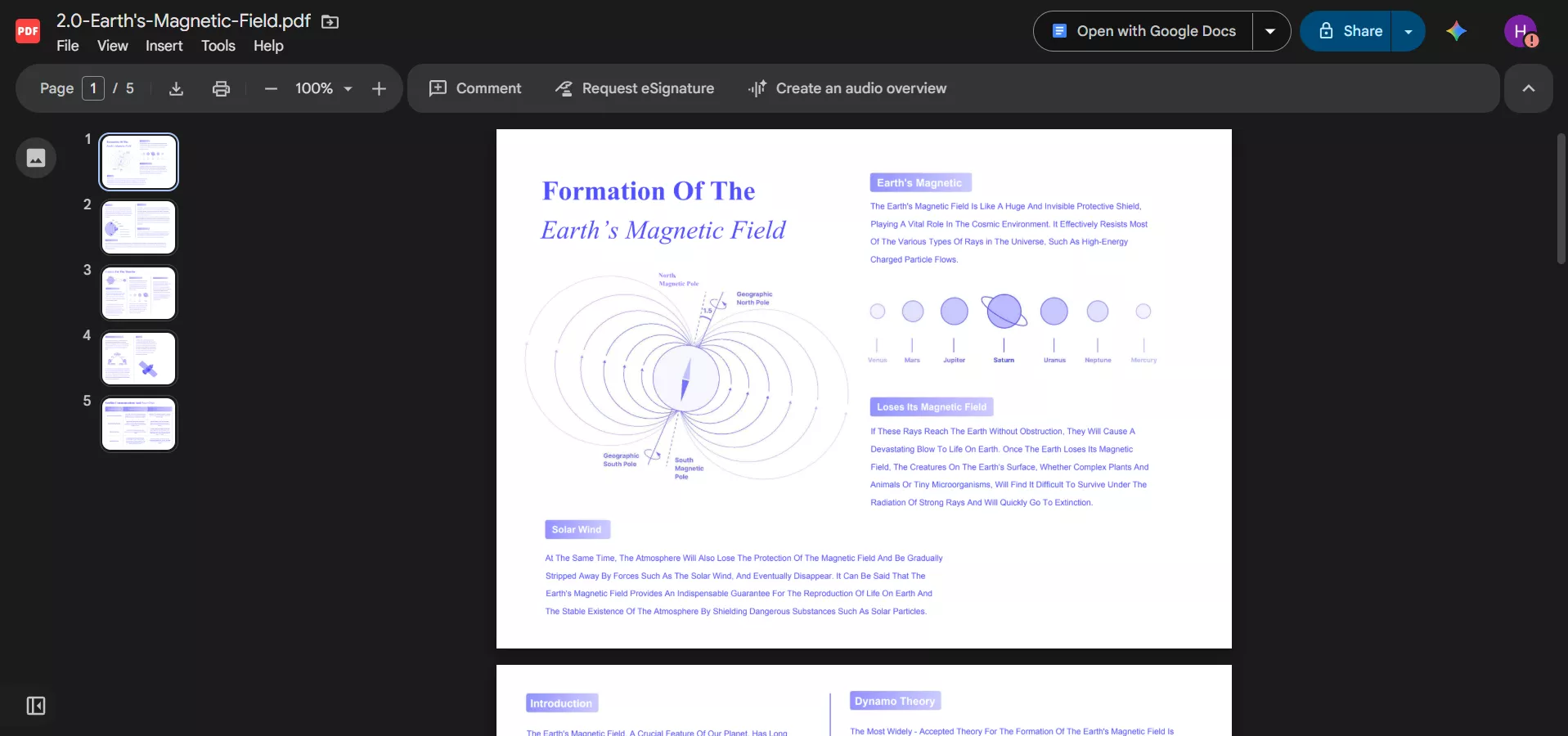
The "Open with" menu lets you hand the file off to any compatible app connected to your account, so you are not locked into Drive's own interface. Eligible Workspace and Gemini plan users also see AI summary cards when they open a PDF, plus the option to ask Gemini questions about the document's content. To learn more, read Google's official documentation about using Gemini with PDFs in Drive.
Note: Google Drive PDF Viewer is a different tool from Chrome's own built-in PDF viewer, which opens local files and downloaded PDFs outside of Drive.
How to View a PDF in Google Drive
Open a PDF in Google Drive on the Web
- Sign in to Google Drive in your browser.
- Upload the PDF or locate it in an existing folder.
- Double-click the file to open it.
- Depending on your settings, it loads in the overlay preview or a new tab.
- Use the sidebar and toolbar to navigate, zoom, print, or download.
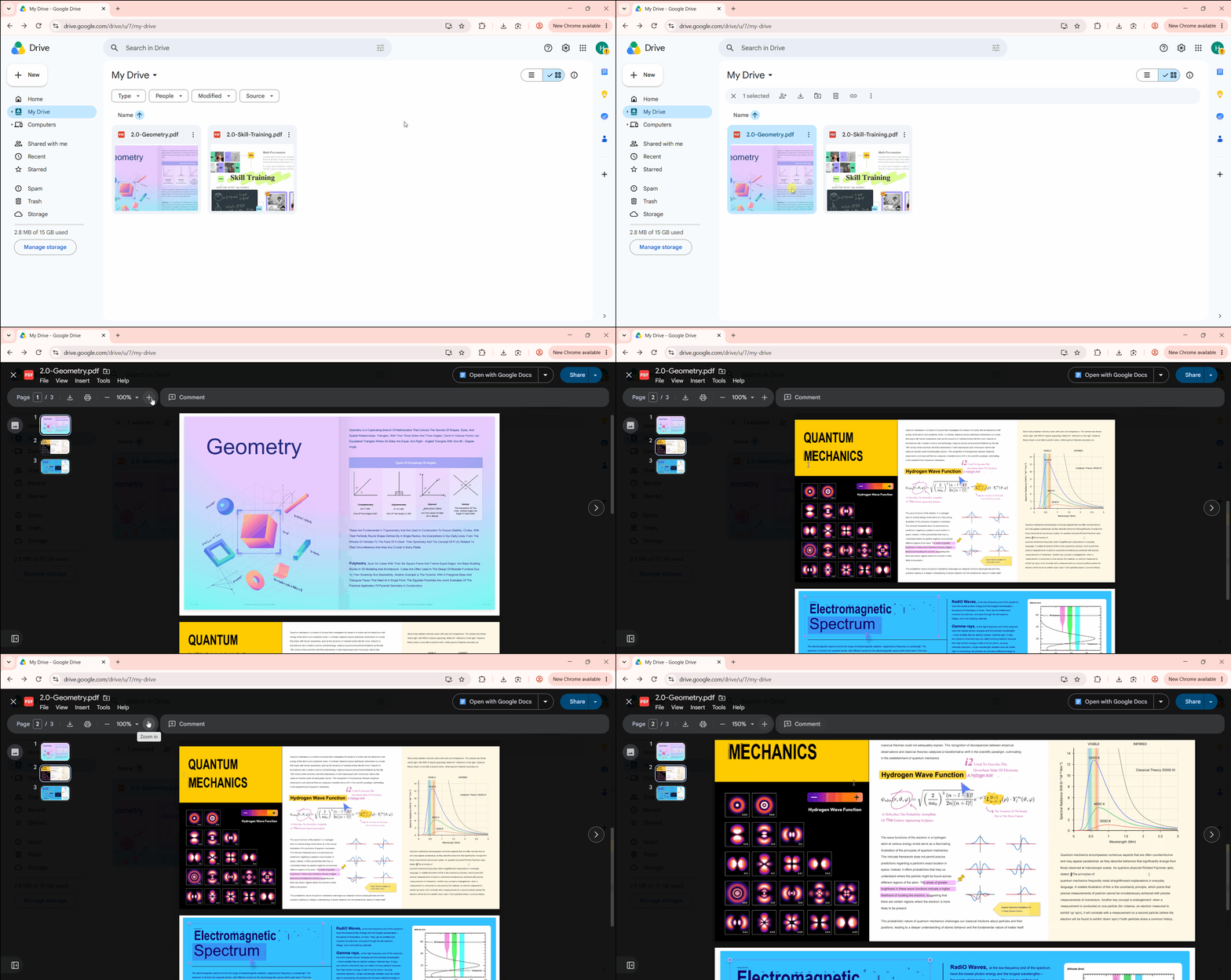
The overlay preview also shows a Share button and a three-dot menu with options like "Open with," rename, and move to folder. So, most everyday file management happens right there without leaving the preview.
Open a PDF in the Google Drive Mobile App
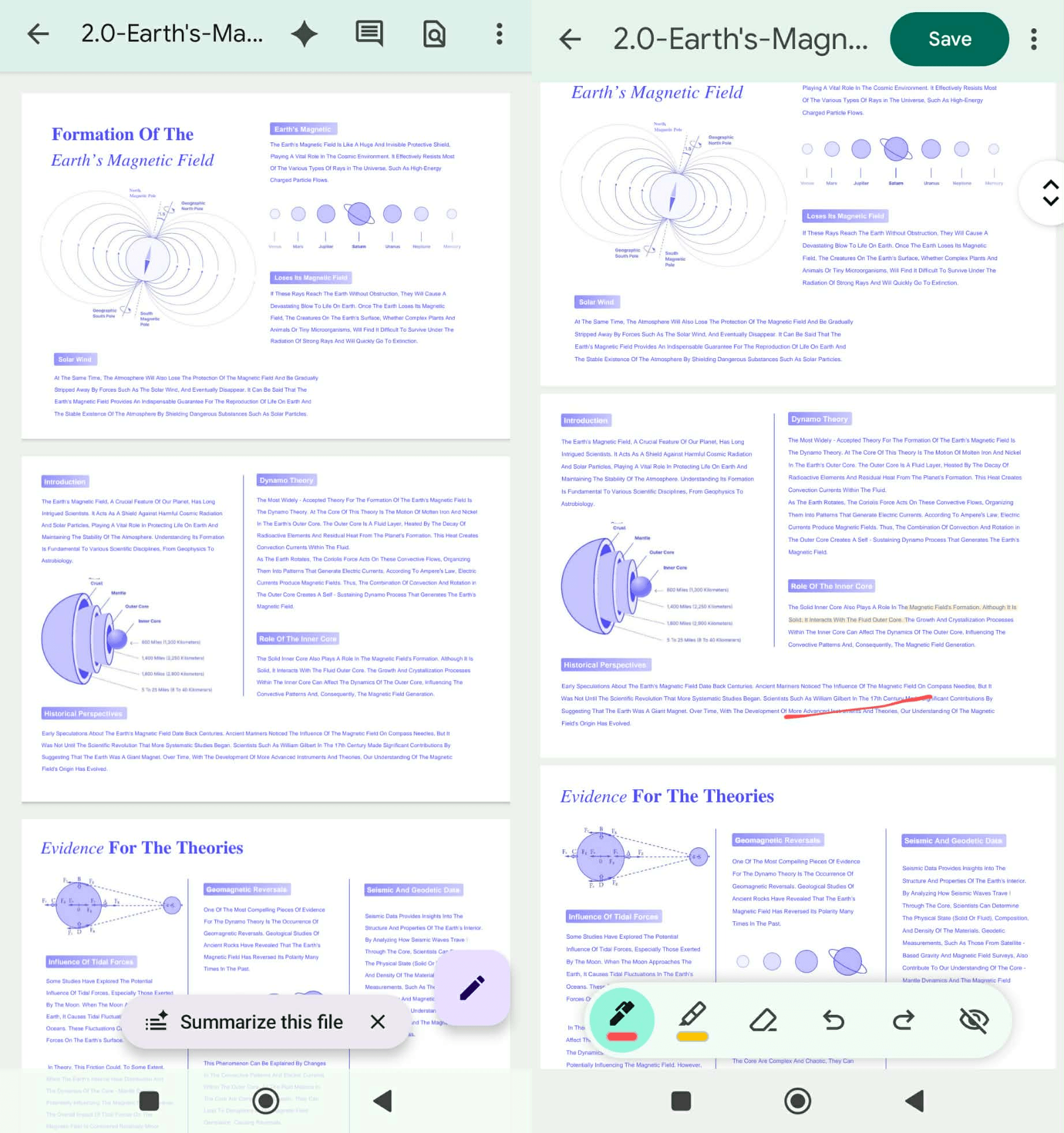
Google Drive's Android and iOS apps have a similar starting approach. Tap the file in the Drive app, and it opens in preview mode. After that, the two platforms diverge a bit.
On Android, tapping the pencil icon in the bottom corner brings up a small annotation toolbar with a pen, highlighter, and eraser, all with adjustable brush size and color, plus undo and redo. iOS doesn't offer that markup toolbar inside the Drive app. However, both apps now also support using Gemini to ask document-related questions.
Tip: If you expect to read a PDF without a network connection, mark it available offline ahead of time from the file's three-dot menu, since Drive won't fetch new content once you lose your connection.
What Can and Can't Google Drive PDF Viewer Do?
| Feature | Google Drive PDF Viewer |
|---|---|
| Open and read PDFs | Yes |
| Zoom, print, and download | Yes |
| Cloud storage and sharing | Yes |
| Freehand annotation on Android | Yes, with limitations |
| Gemini summaries and Q&A | Available to eligible users |
| Edit PDF text or images | No |
| Run OCR on scanned documents | Only through Google Docs |
| Organize PDF pages | No |
PDF Viewer in Google Drive is usually sufficient when users only need to open or share a PDF. When the job involves a more focused reading environment, heavier annotation, editing text/image, or page organization, downloading the PDF and opening it in UPDF fills the gap without disrupting the rest of your Drive workflow.
UPDF lets you read PDFs with a more enhanced experience, including AI-powered smart reading, light/dark modes, multiple viewing modes, changeable backgrounds, text-to-speech, and more.
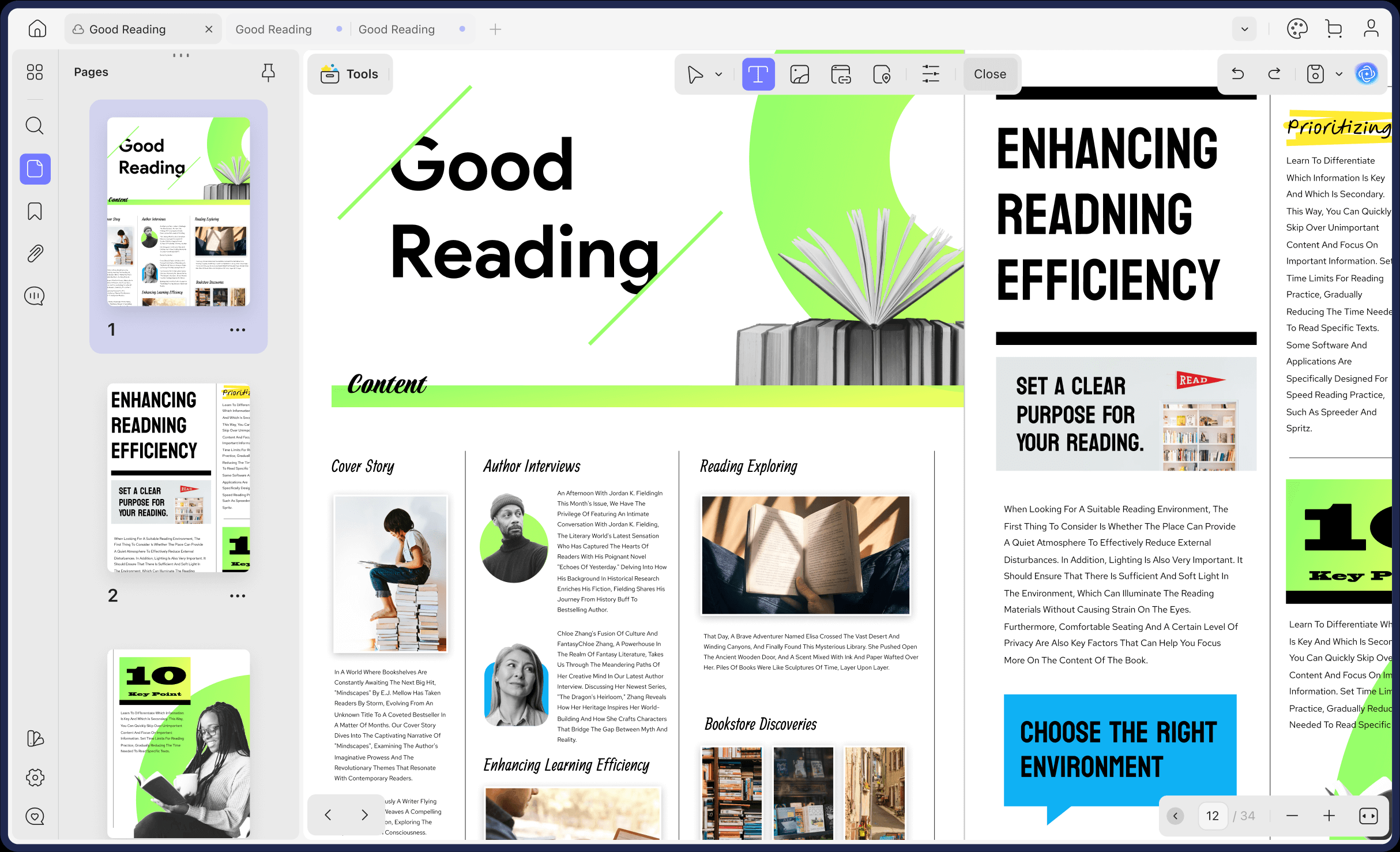
You also get a full PDF annotation toolkit to highlight, comment, add stamps/sticky notes, and more.
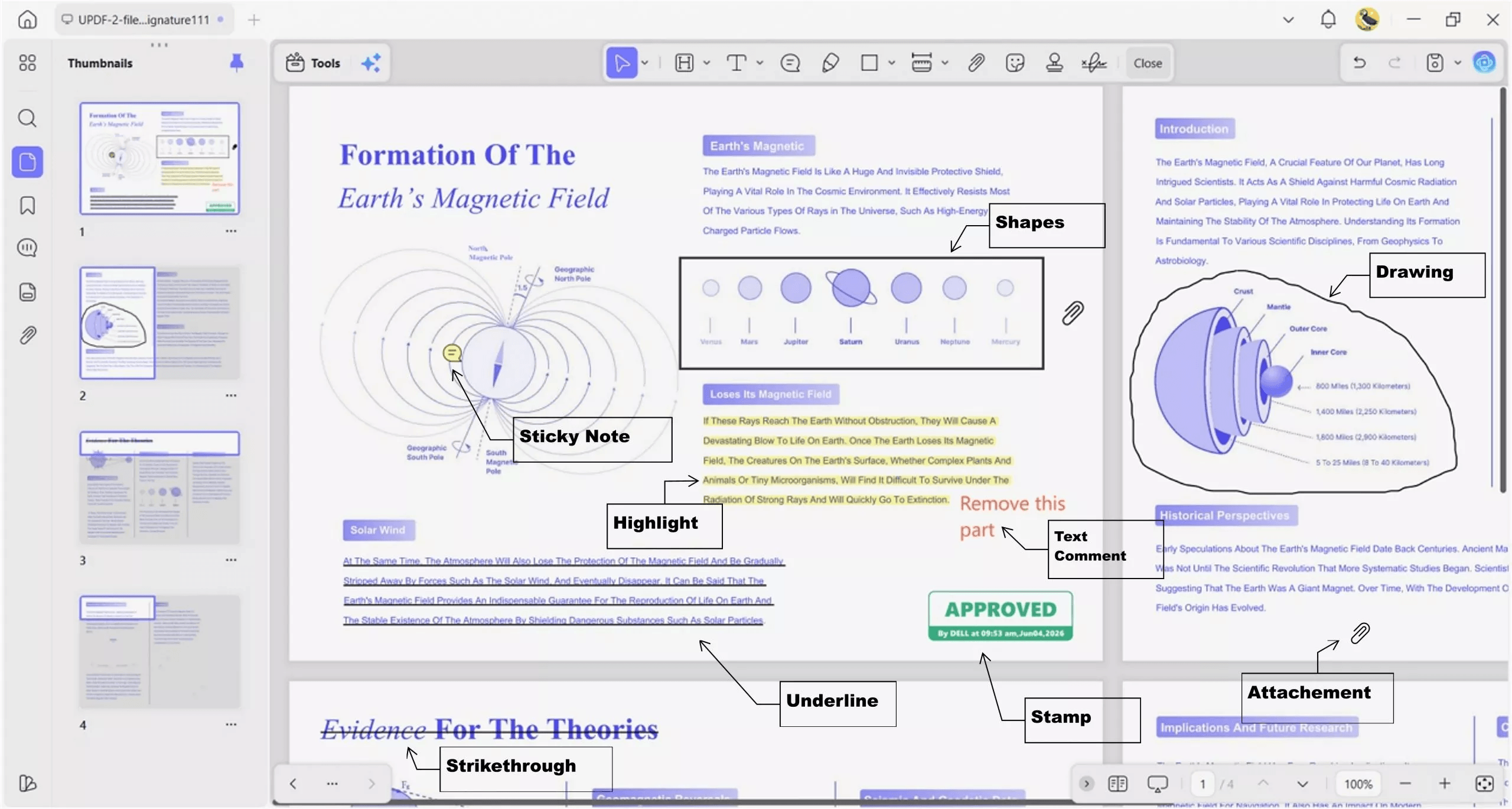
Above all, you get an advanced PDF editor at your side that can edit text/images, organize pages, perform OCR, password-protect, and more.
Download UPDF and read and handle PDFs with the tool that knows what a PDF actually needs.
Windows • macOS • iOS • Android 100% secure
How to Edit a Scanned PDF from Google Drive
Option 1: Open the Scanned PDF with Google Docs
- Right-click the scanned PDF in Google Drive.
- Choose Open with and tap Google Docs.
Docs runs its own text recognition and drops the extracted content into a new and editable document.
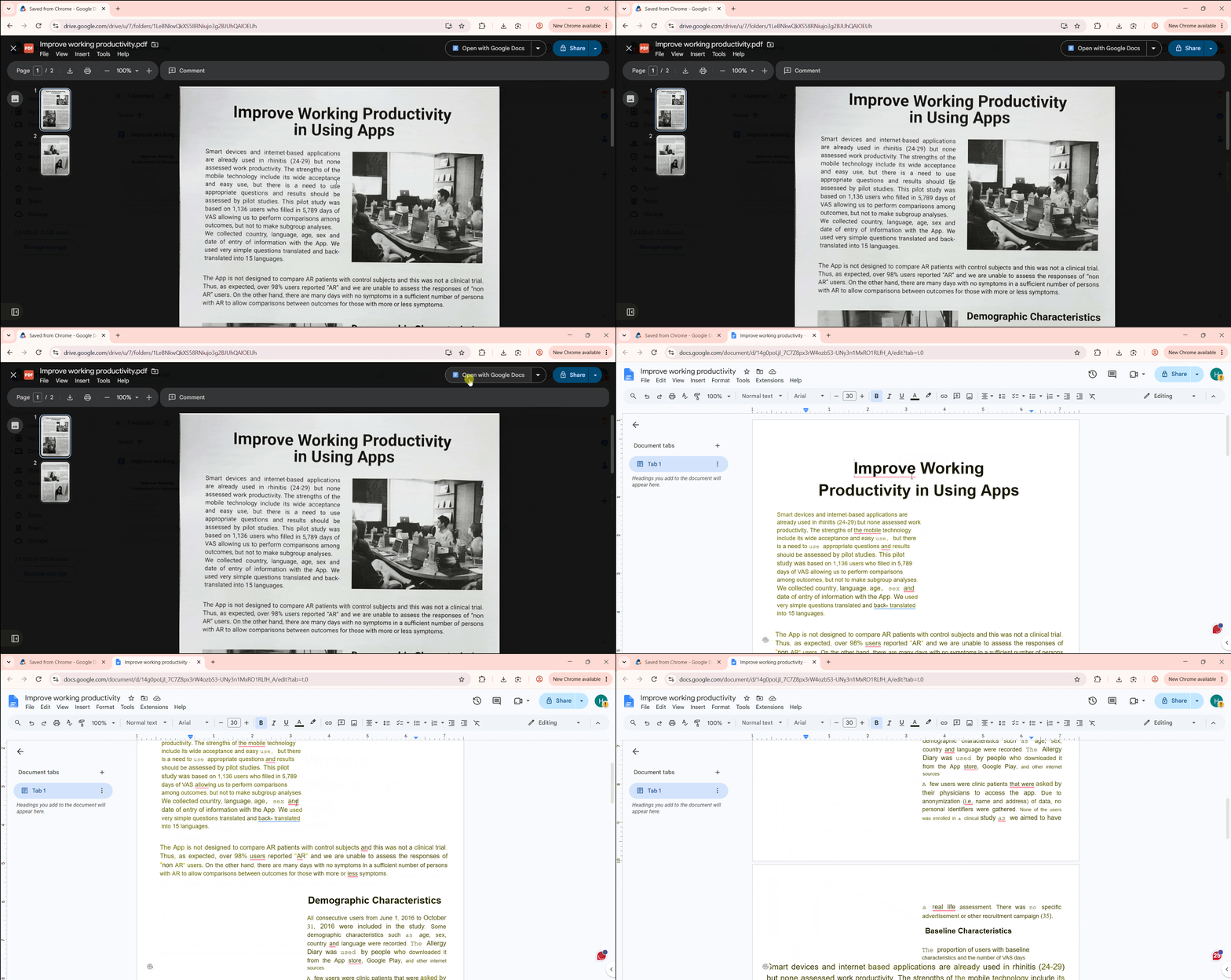
Limitation:
- This method is useful when you need to extract and rewrite text.
- It converts the content into a Google document rather than editing the original PDF.
- It won't preserve the original PDF. Fonts, columns, tables, images, spacing, and page breaks may look different from the original.
Option 2: OCR and Edit the Scanned PDF with UPDF
When you want to stay in the PDF format, download the scanned PDF from Drive and open it in UPDF. UPDF has a built-in OCR PDF feature that makes the text searchable, selectable, and editable while preserving most of the PDF's layout and font. So, run OCR in UPDF by clicking Tools > OCR.
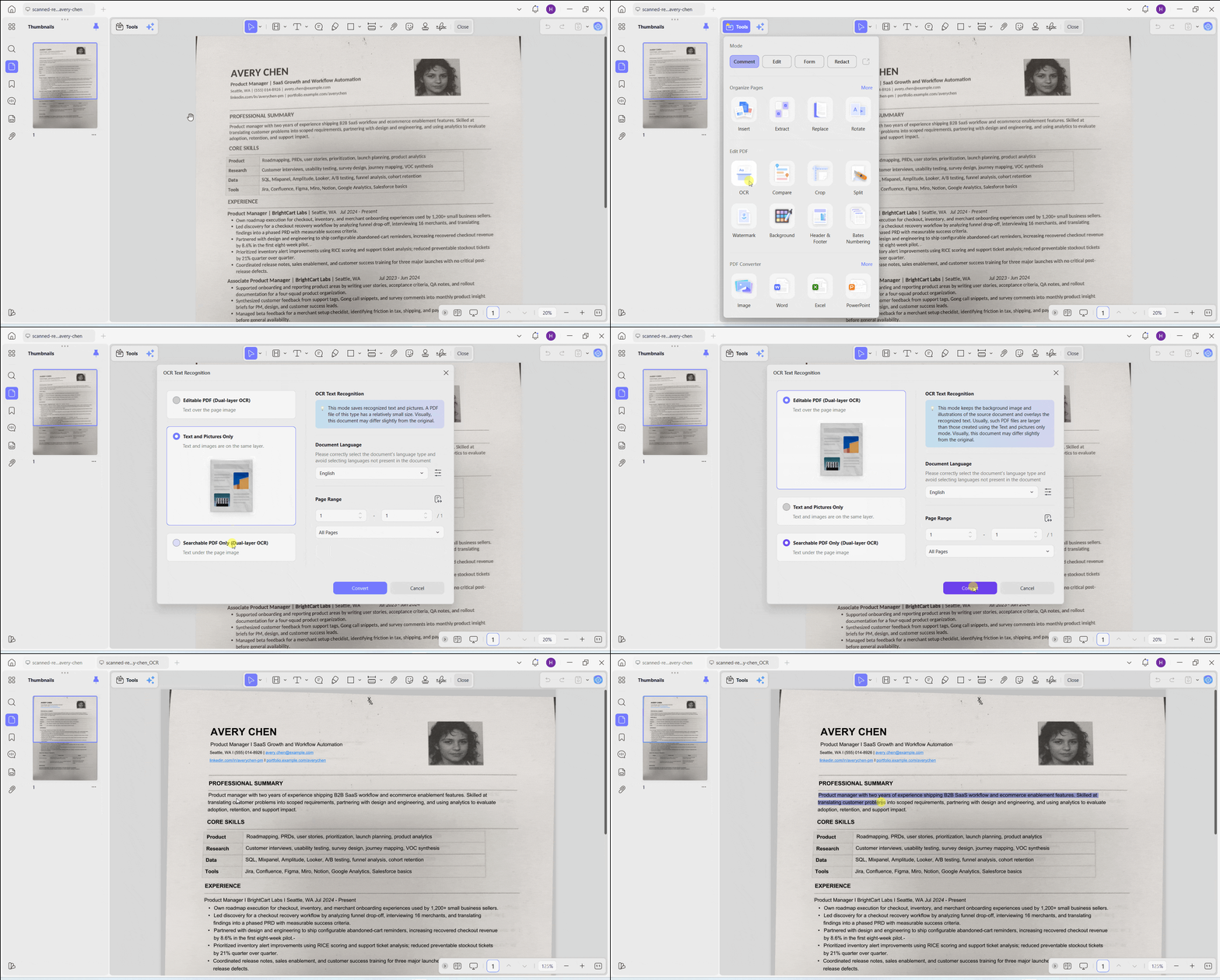
After you have completed OCR, you can use UPDF to further edit the scanned PDF. You can add/delete/replace text and images. You can also reorganize pages as needed. Once every edit is made, save the updated version and upload it back to Google Drive.
This workflow is more suitable when users want to:
- Process scanned contracts, research papers, textbooks, receipts, or forms.
- Edit the recognized content without rebuilding the entire document in Google Docs.
- Reduce unnecessary reformatting.
So, download UPDF for free, perform OCR, and edit your scanned PDF in one tool.
Windows • macOS • iOS • Android 100% secure
5 Best Google Drive PDF Viewer Alternatives
| Tool | Best For | Direct Drive Connection | Key Strength |
|---|---|---|---|
| UPDF | Deep reading, OCR, and PDF editing | No; download or locally sync the file | Reading, annotation, OCR, editing, and page management |
| Adobe Acrobat | Professional PDF workflows | Depends on platform and version | Comprehensive PDF ecosystem |
| Kami | Education and classroom collaboration | Yes | Student and teacher collaboration |
| Drawboard PDF | Stylus and pen-based annotation | Yes, via the Google Workspace add-on | Pressure-sensitive handwriting and markup |
| Lumin PDF | Browser-based editing | Yes | Lightweight editing without leaving the browser |
1. UPDF — Best for OCR, Deep Reading, and PDF Editing
UPDF is a feature-packed PDF editor. It offers dedicated reading modes, full-text search, bookmarks, highlights, and notes, which enhance the ordinary reading experience you get in the Google Drive PDF Reader.
Being a PDF editor, UPDF supports editing PDF text and images (add, delete, replace) without impacting the existing layout and fonts. You also get a powerful OCR scanner to handle scanned files and a complete page organization section to add, rearrange, replace, delete, split, or extract pages.
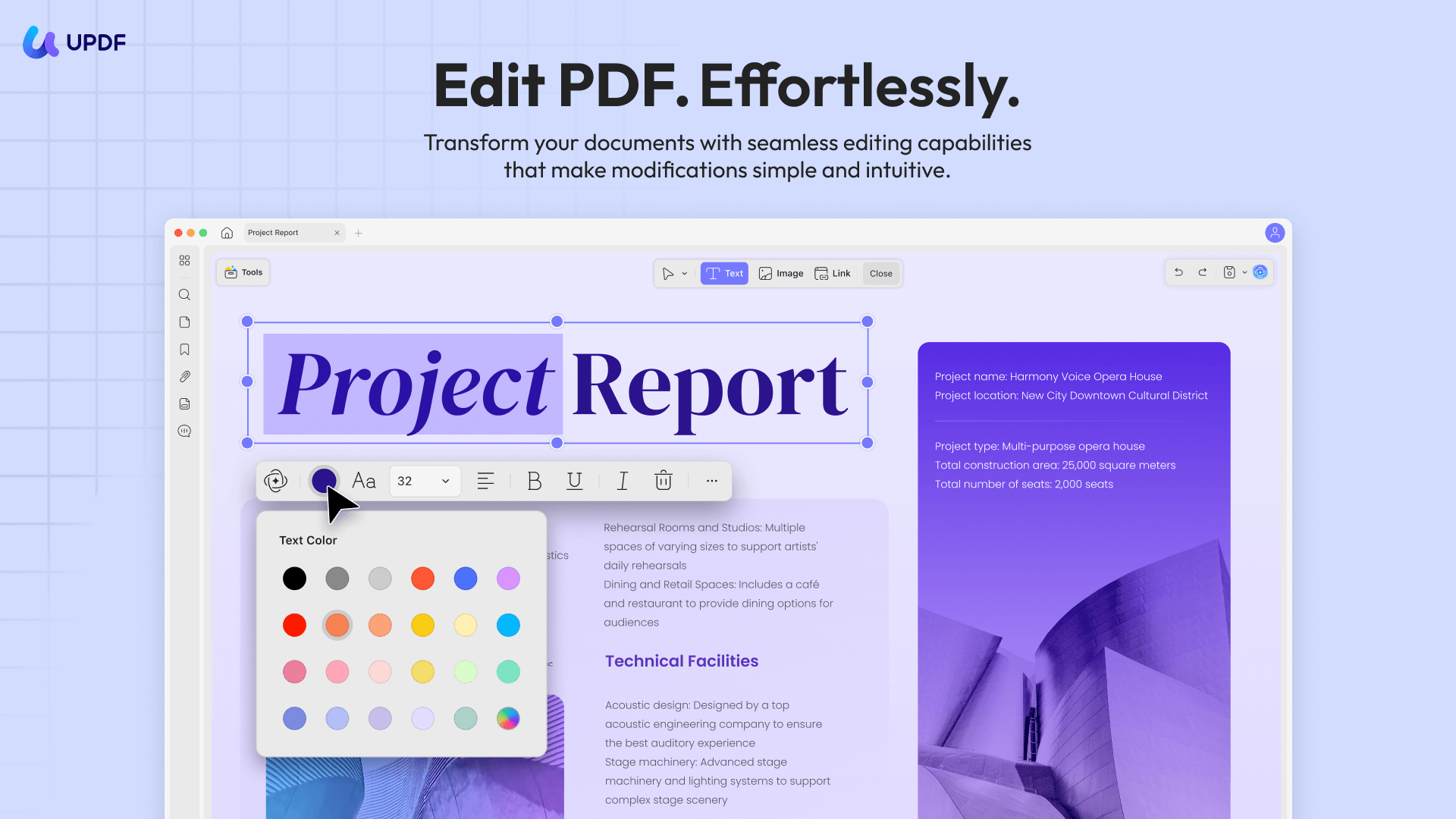
UPDF features make it suitable for long reports, research papers, textbooks, and scanned documents. However, there is no direct Google Drive plug-in. You must first download the PDF or access a locally synced copy through Google Drive for desktop, then work on it in UPDF. After you have made your edits, upload the finished file back to Drive.
In his hands-on review of Adobe Acrobat alternatives, author Nicholas C. Rossis highlights UPDF's fast performance, intuitive interface, editing and annotation tools, and page-management features. He said he chose the discounted lifetime license for UPDF over Acrobat's steeper annual cost.
So, download the PDF from Google Drive and open it in UPDF whenever you need more than basic viewing.
Windows • macOS • iOS • Android 100% secure
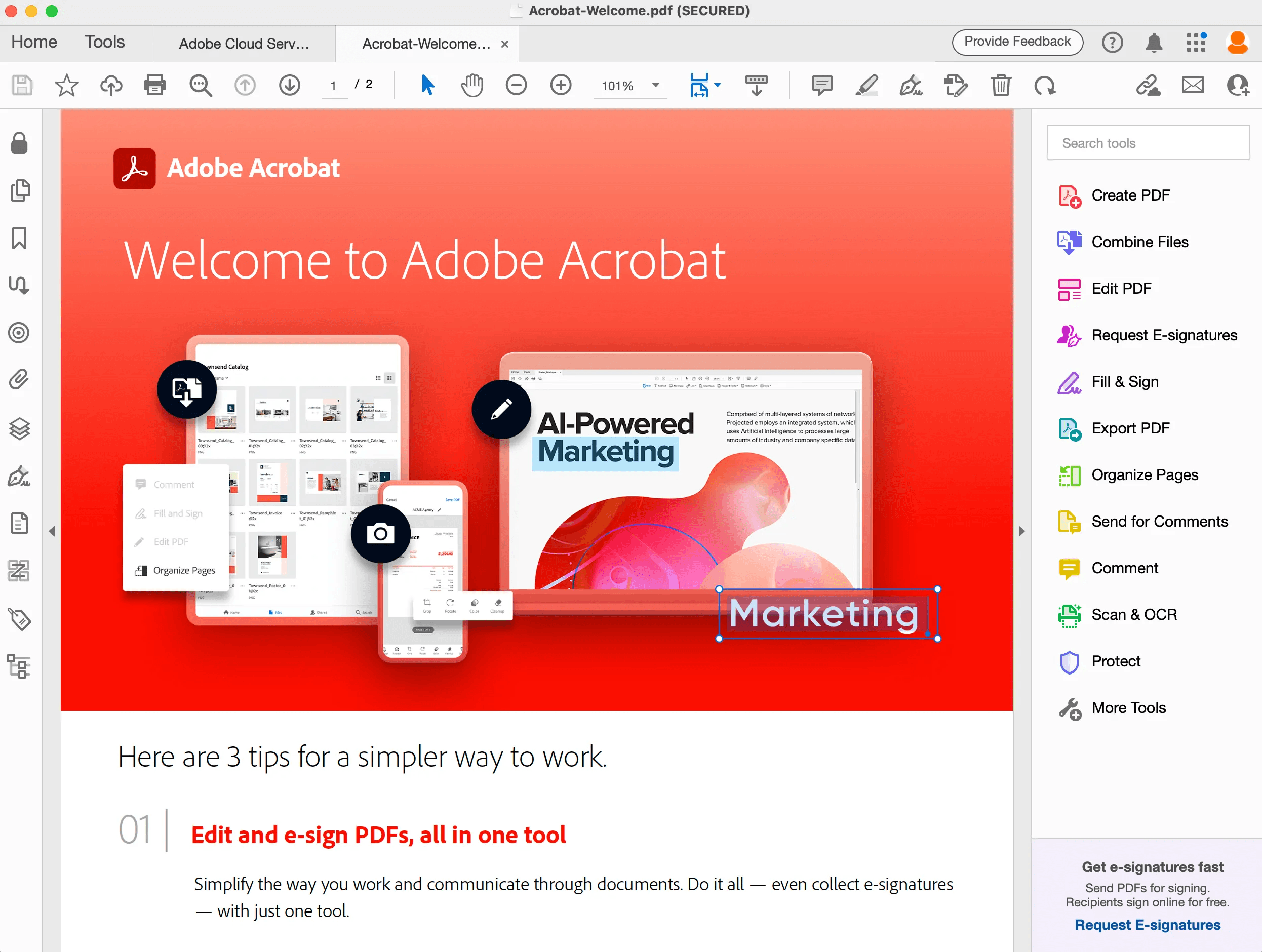
2. Adobe Acrobat — Best for Professional PDF Workflows
Acrobat remains the industry standard for advanced editing, forms, digital signatures, and Adobe's broader document ecosystem. The free Reader covers viewing and light markup, but text editing, form creation, and OCR sit behind an expensive paid Acrobat Pro subscription. Google Drive access and integration depend on which Adobe product and subscription you are using.
3. Kami — Best for Teachers and Students
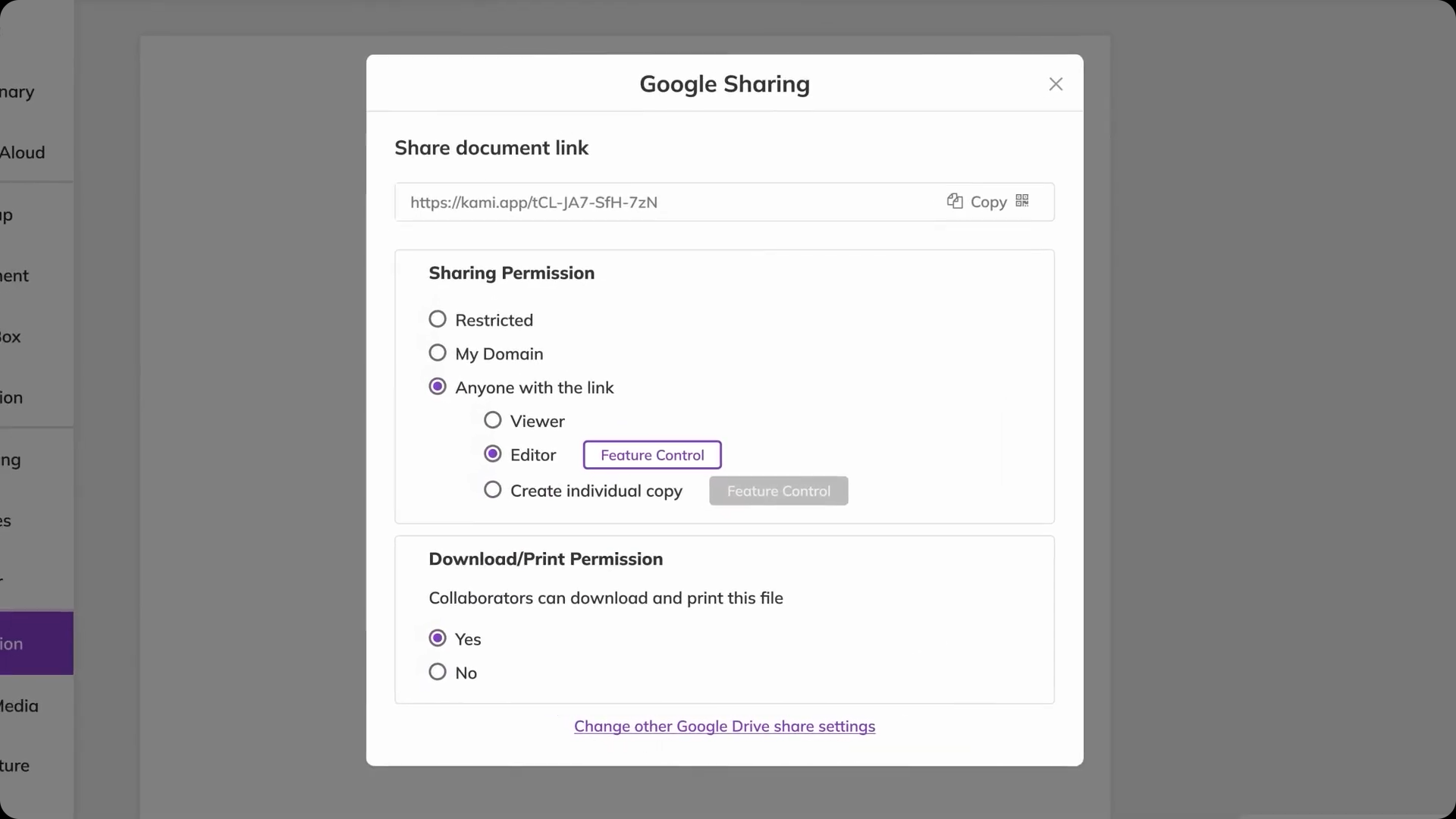
Kami is your Google Drive PDF Viewer alternative if you are involved in the academic ecosystem. It offers native Google Classroom and Drive integration, so assignments open, get marked up, and sync back without any extra exporting or file juggling.
Teachers can highlight/comment and leave audio or video feedback on a student's PDF. Similarly, students can respond with text, drawings, or voice notes of their own. So, it's a strong fit for classroom use rather than general business PDF work.
4. Drawboard PDF — Best for Stylus Annotation
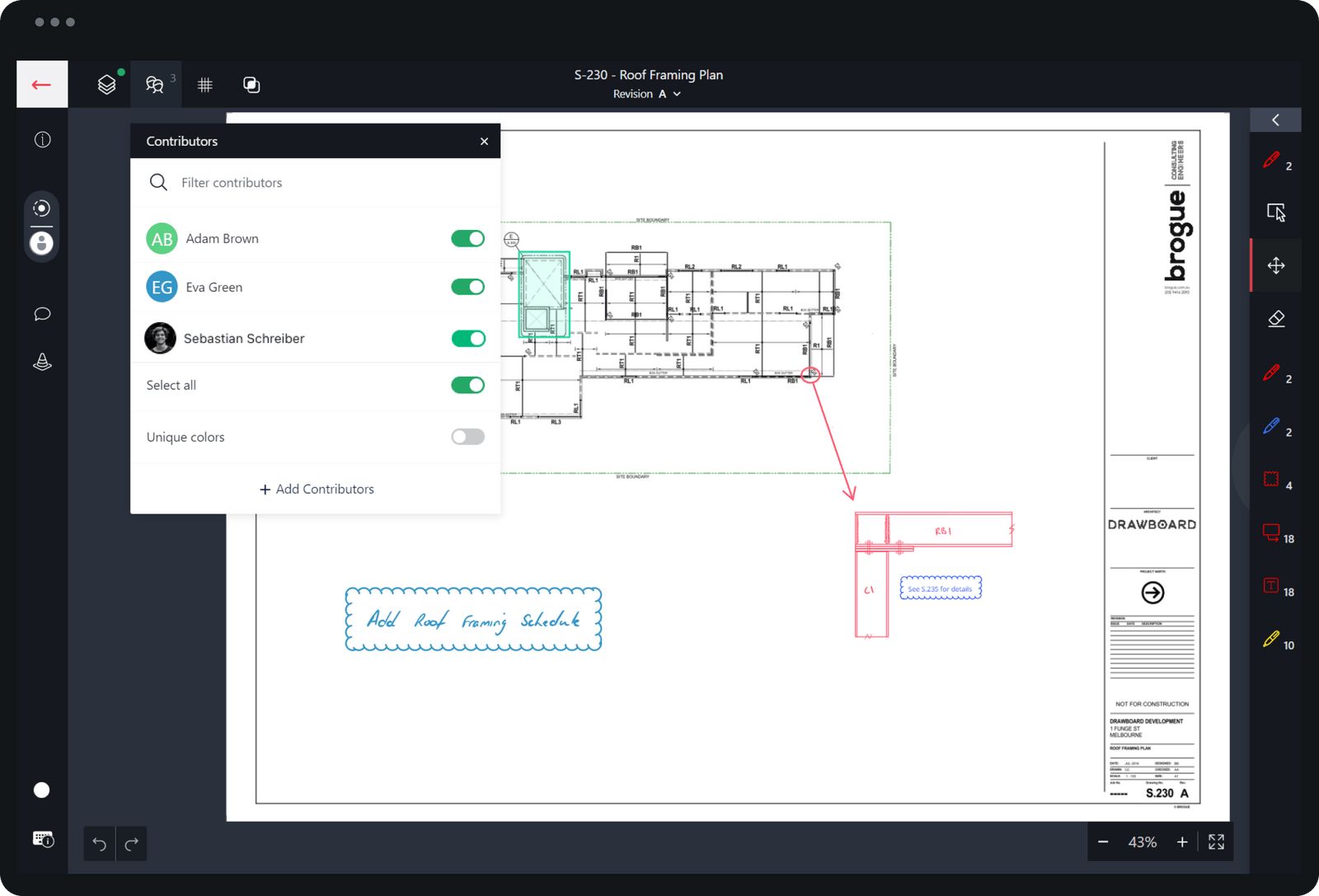
Drawboard focuses on handwriting, freehand drawing, and pressure-sensitive pen input. It is a natural choice for tablet and Surface users who prefer writing over typing. Installing the Drawboard PDF Google Workspace app lets you open a Drive file directly and sync changes back automatically.
5. Lumin PDF — Best for Browser-Based Access
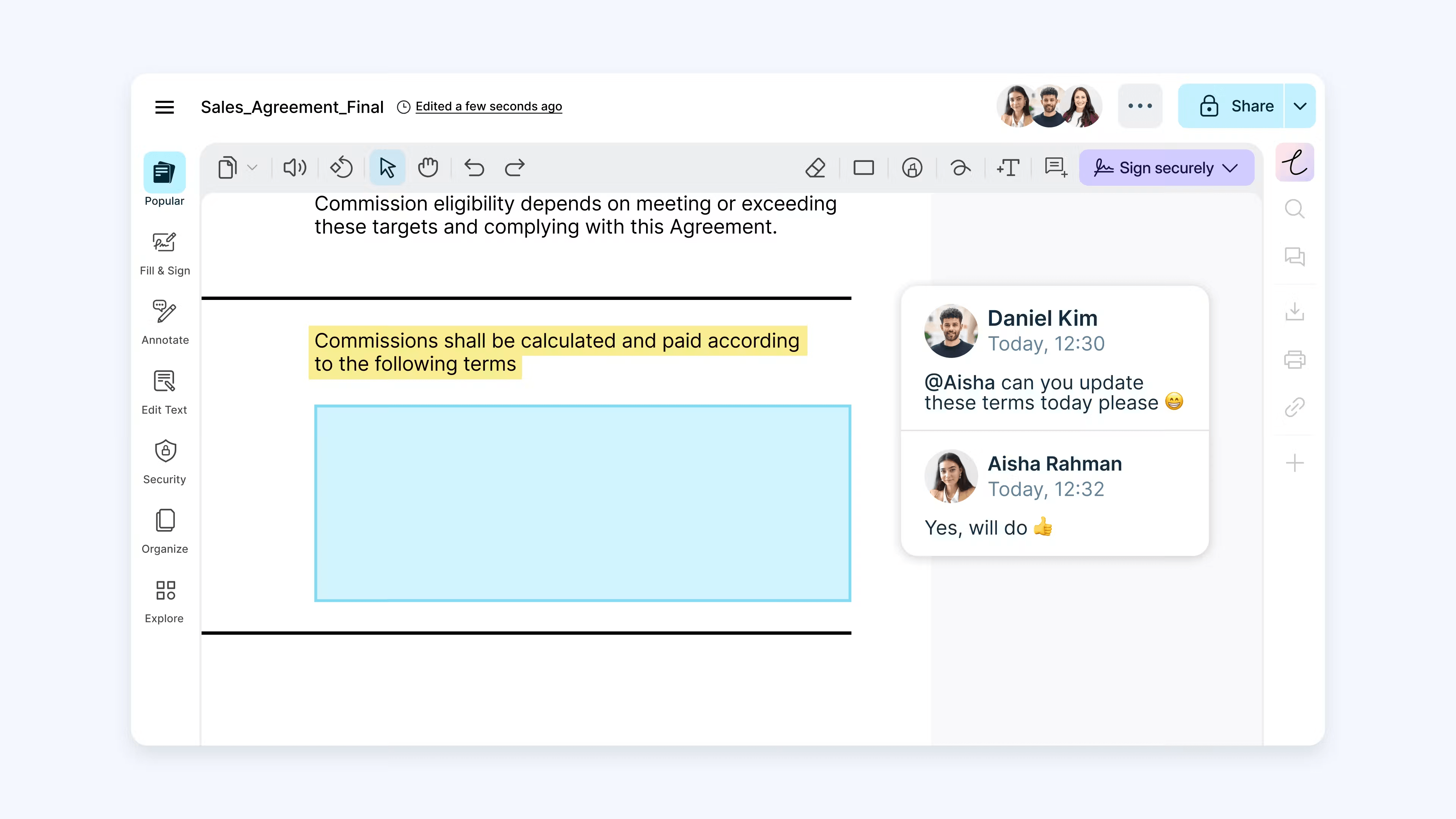
Lumin is a browser-based tool that lets you open Google Drive files directly in its editor after you have connected the Lumin app to Google Drive.
Lumin opens Drive files directly in its browser-based editor, so there's no separate download-and-upload step. The free plan covers basic editing, signatures, and annotation on a limited number of documents each month. Paid tiers add unlimited collaboration and deeper text editing. It is a suitable Google Drive PDF Reader if you need to edit, sign, or annotate a PDF without leaving your browser or juggling a separate download.
Which Google Drive PDF Viewer Should You Choose?
The choice of the right Google Drive PDF Viewer depends on the use case:
- For quick viewing and sharing: Google Drive's built-in viewer
- For extracting scanned text into a new editable document: Google Docs
- For OCR, extensive annotation, and editing while staying in PDF format: UPDF
- For advanced professional and Adobe-based workflows: Adobe Acrobat
- For classroom collaboration: Kami
- For stylus-focused annotation: Drawboard PDF
Frequently Asked Questions
Does Google Drive have a built-in PDF viewer?
Yes. Any PDF stored in Drive opens through the built-in preview without installing a separate reader. You get navigation, zoom, printing, and sharing controls right away, and eligible users also see Gemini-powered summaries and Q&A alongside the document.
Can I edit a PDF directly in Google Drive?
The built-in Google Drive PDF Viewer is not a complete PDF editor. It can handle viewing and light Android markup. However, you will need to open the file with Google Docs for a rewritable copy or send it to a connected third-party PDF editor.
Can Google Drive convert a scanned PDF into editable text?
Google Docs can recognize and extract text from a scanned PDF, but the result is a new document rather than an edited version of the original file. Also, formatting, fonts, and layout often look different from the source. So, it works best when preserving the original design isn't a priority.
How do I open a Google Drive PDF in another PDF reader?
You can download the file and open it locally on another PDF reader. You can also use Google Drive for desktop or select a compatible app from the "Open with" menu if you have connected one.
Why won't a PDF open in Google Drive?
It could happen due to missing file permissions, a network problem, a browser cache, extension conflicts, a damaged or incomplete file, or a document that's unusually large or complex. Try to clear your cache, check sharing settings, or re-download the file.
Conclusion
Google Drive PDF Viewer handles quick PDF viewing, sharing, and storage well, and Google Docs is a fast way to extract text from a scanned file when matching the original formatting doesn't matter. For advanced OCR, deep reading, extensive annotation, editing, or page management, downloading the file and working in UPDF fills in what Drive leaves out. Which option makes sense comes down to what you need to do with the PDF once it's open.
Windows • macOS • iOS • Android 100% secure






 Enrica Taylor
 Enid Brown

 Grace Curry