UPDF
UPDF
 UPDF for Windows
 UPDF for Mac
 UPDF for iPhone/iPad
 UPDF for Android
 Nomostar
 UPDF AI Online
 UPDF Sign
 IvyCraft
 Edit PDF
 Annotate PDF
 Create PDF
 PDF Form
 Edit links
 Convert PDF
 OCR
OCR PDF to Word
 PDF to Image
 PDF to Excel
 Organize PDF
 Merge PDF
 Split PDF
 Crop PDF
 Rotate PDF
 Protect PDF
 Sign PDF
 Redact PDF
 Sanitize PDF
 Remove Security
 Read PDF
 UPDF Cloud
 Compress PDF
 Print PDF
 Batch Process
 About UPDF AI
 UPDF AI Solutions
 AI User Guide
 FAQ about UPDF AI
 Summarize PDF
 Translate PDF
 Chat with PDF
 Chat with AI
 Chat with image
 PDF to Mind Map
 Explain PDF
 PDF AI Tools
 Image AI Tools
 AI Chat Tools
 AI Writing Tools
 AI Study Tools
 AI Working Tools
 Other AI Tools
 AI Bookmark Generation
 AI Bookmark Summary
 AI Watermark Generation
 AI Background Generation
 AI Sticker Generation
 AI Stamp Generation
 AI Editing Suite
 UPDF Copilot
 AI Page Management
 AI Semantic Search
 PDF to Word
 PDF to Excel
 PDF to PowerPoint
 Enterprise Solution
 Enterprise Sign
 Enterprise AI
 Enterprise Plan
 Enterprise User Guide
 Enterprise Webinar
 IT
IT Education
 Construction
 Financial Service
 Healthcare
 Insurance
 Legal
Legal Manufacturing
 Government
 Researchers & PhDs
 Solopreneurs & Freelancers
 Lawyers & Legal Professionals
 Real Estate Agents & Brokers
 Education Solution
 Customer Stories
 User Guide
 UPDF Tricks
 FAQs
FAQs UPDF Reviews
 Download Center
 Blog
Blog Newsroom
 Tech Spec
 Updates
 UPDF vs. Adobe Acrobat
 UPDF vs. Foxit
 UPDF vs. PDF Expert

Quick Answer
I once received a PDF quotation with what looked like a simple request: replace several product codes and prices in a table. But as soon as I entered a longer product code, the text in the next two columns shifted out of place. The problem was not the editing tool. It was the way the “table” had been stored inside the PDF.
Advanced insight: A PDF is designed to preserve a page's appearance. A table that looks like a grid may actually be a collection of positioned text boxes plus horizontal and vertical lines. That is why the first step is to identify what is really inside the file—not to choose an editing tool.
Part 1. First, Identify What Kind of PDF Table You Have
Open the PDF and drag your cursor across a few words inside the table. Then choose the appropriate workflow below.
| What you see | What may be inside the file | Recommended method | Best suited for |
|---|---|---|---|
| You can select text inside a cell | Positioned text and line objects | Edit the text directly in UPDF | Changing prices, codes, dates, or short phrases |
| You cannot select any text | A scanned page image | Run OCR first, then edit | Scanned invoices, paper quotations, or archived tables |
| You need to add rows or columns, edit many cells, or use formulas | No dependable spreadsheet structure remains | Convert the PDF to Excel or Word, then rebuild the table. Finally export it as PDF | Financial tables, long lists, or major layout changes |
This quick test prevents a common mistake: treating every PDF table as a grid of editable cells. A PDF editor can modify text objects, but it cannot automatically restore the original Excel formulas, row heights, column widths, or cell relationships if that structure is no longer present.
You can work more confidently once you understand how the editor handles the page. The video that follows gives you a practical view of editing PDF content in UPDF.
Part 2. How to Edit Text Inside an Existing PDF Table with UPDF
If the text is selectable and you only need to make a few changes, editing it directly in the PDF is usually the fastest option.
Step 1. Open a copy of the PDF
Make a copy before editing. For example, duplicate quotation_q3.pdf and rename it quotation_q3_revised.pdf. Table layouts can be tight, so keeping the original makes comparison and recovery much easier.
Step 2. Enter Edit mode
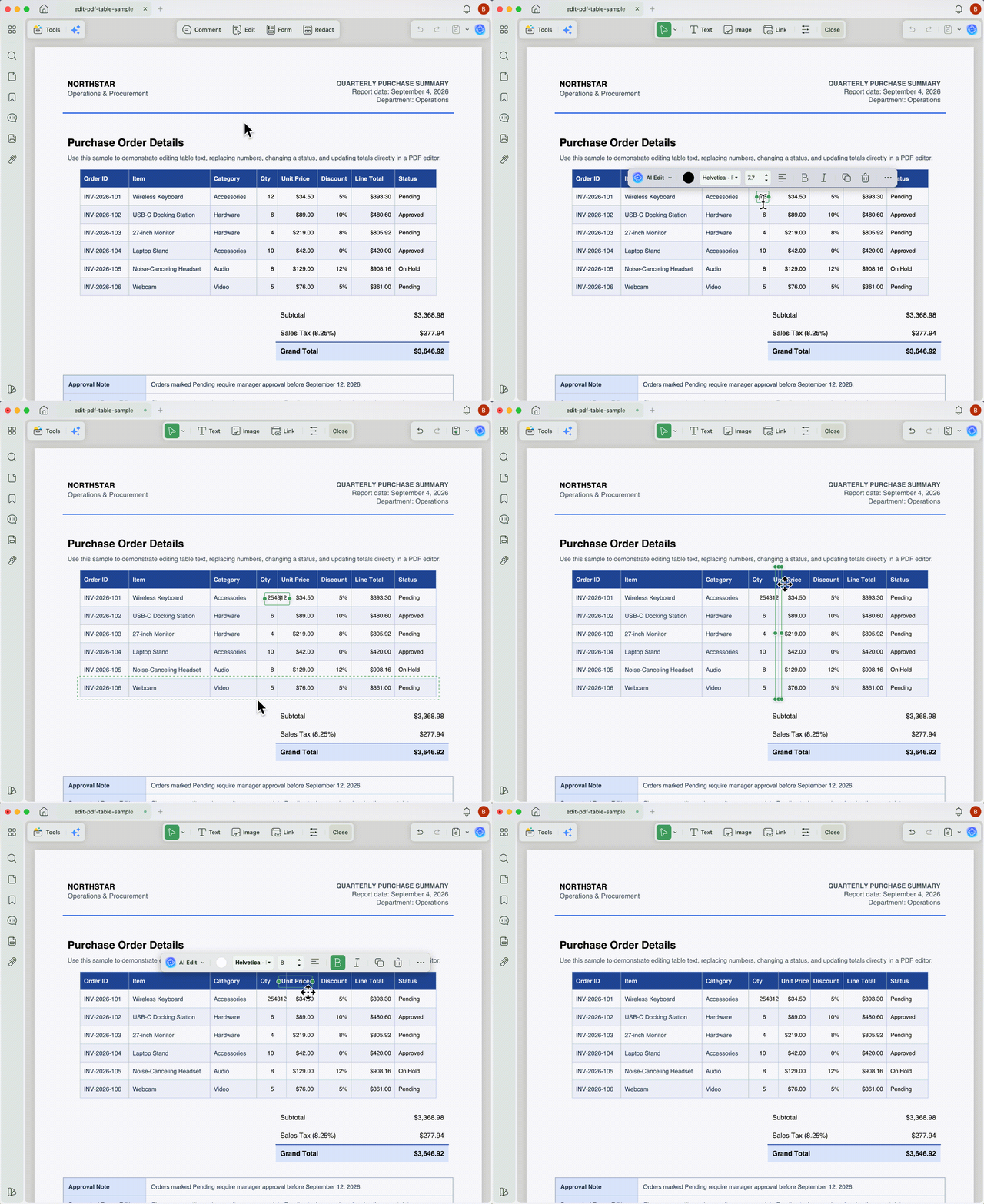
Open the file in UPDF, select Edit from the top toolbar, and click the text you want to change.
If UPDF is not installed yet, download UPDF for free and use a copy of the document to test whether the table text can be edited directly.
Windows • macOS • iOS • Android 100% secure
Step 3. Replace the text and match its formatting
Select the existing content, enter the replacement text, and check the font, size, color, and alignment.
Avoid rewriting a large amount of text in one pass. If the original value is REF-1088 and the replacement is REF-2026-06-08-001, the new value may exceed the width of the original text box. Check whether:
- the new text overlaps the next column;
- wrapping creates an inconsistent row height;
- the text baseline still aligns with the rest of the row;
- the replacement covers any table borders.
Step 4. Save and compare at normal zoom
Save the file, return to 100% zoom, and inspect the edited row, the rows above and below it, and the table as a whole. Checking one cell at 300% zoom can make it easy to miss wider alignment problems.
Best for
Not for
For a small text update, complete one full test on a copy: edit it, save it, close it, reopen it, and check the layout again.
Download UPDF for free to edit text in a PDF table. The free version can export edited files with a trial watermark; UPDF Pro removes that watermark.
Windows • macOS • iOS • Android 100% secure
Part 3. How to Edit a Scanned PDF Table
A scanned invoice, paper list, or archived form may look as if it contains text, but those letters and numbers can simply be pixels in an image. If you cannot highlight a single word, run OCR instead of placing new text boxes over the old values.
Step 1. Run OCR on the scanned PDF
Open the PDF Converter window in UPDF, enable OCR Text Recognition, choose the correct document language, and set the output as an editable PDF.
The language setting matters. OCR may confuse 0 with O, 1 with l, or misread decimal points and thousands separators. In prices, product codes, and tax rates, one incorrect character can change the meaning of the data.
Step 2. Open the OCRed file and edit the text
Open the file produced by OCR, enter Edit mode, and change the table text. Keep both the original scan and the OCRed version so you can compare them later.
Step 3. Audit high-risk fields
You do not need to reread every character, but you should verify at least the following:
- currency symbols, decimal points, and minus signs;
- product codes, order numbers, and invoice numbers;
- whether every heading still matches the correct column;
- merged cells and tables that continue across pages;
- whether totals still match the original file.
Best for
Not for
Platform note: UPDF OCR is available on Windows and iOS. On Mac, this workflow requires an Apple Silicon Mac and the version downloaded from the UPDF website. Intel Macs and the Mac App Store version do not support this OCR workflow.
Part 4. When You Should Rebuild the Table Instead
Some jobs are not really “editing text in a table.” They are redesigning the table. Rebuild it in Excel or Word if any of the following applies:
- you need to add or remove many rows or columns;
- you need to recalculate totals, taxes, or percentages;
- the new content is much longer or shorter than the original;
- the table contains many merged cells;
- you want other columns to reflow automatically when a column width changes;
- the table will be updated repeatedly in the future.
A practical workflow is:
- convert the PDF to Excel or Word;
- inspect the converted table and rebuild any broken structure;
- edit the rows, columns, formulas, and formatting in Excel or Word;
- export the completed document back to PDF;
- open the new PDF in UPDF and check the pages, links, comments, and final layout.
If you still have the original spreadsheet, edit that file instead. It is more dependable than trying to reconstruct the original table structure from a PDF.
What if I only need to add a small table?
For a simple 2×2 or 3×4 table, you can use UPDF's Comment tools to draw a rectangle and horizontal or vertical lines, then add the text. This is practical for a small grid. Manually copying and aligning lines becomes time-consuming for a large table.
Part 5. Common PDF Table Editing Problems
“I only made the product code longer. Why did the other columns move?”
This can happen when the text in a four-column packing list has been combined into one continuous text box. Extending the value in one apparent “cell” then shifts the text that visually belongs to the next columns.
The editor is working with one text object, not four independent cells. If the text cannot be separated cleanly, converting or rebuilding the table is more reliable than repeatedly adjusting spaces.
“OCR worked, but the total is wrong.”
OCR can recognize nearly every character and still miss a decimal point, minus sign, or thousands separator. That may be difficult to notice in ordinary text but serious in a financial table. Recalculate totals after OCR instead of judging the result only by how closely it resembles the original page.
“Why is the Edit tool unavailable?”
If the file has an editing-permissions password, its editing features may be restricted. This is not a table-recognition problem. Only edit a protected document when you own it or have permission; otherwise, ask the owner for an editable version or the password.
FAQs About Editing Tables in PDFs
Can I edit a PDF table like Excel?
Not completely. A PDF editor can modify text and graphic objects in the table area, but the PDF may no longer contain the original cells, formulas, or automatically reflowing row-and-column structure.
How do I edit a PDF table without changing the formatting?
Prefer replacements that are the same length or shorter. Match the original font, size, and alignment, and inspect adjacent columns after every change. Rebuilding the table is safer when extensive rewriting is required.
Can OCR recover formulas from a scanned table?
OCR primarily recognizes characters; it cannot reliably restore formulas. It can turn scanned characters into searchable or editable text, but the logic of the original Excel formulas normally does not exist in the PDF image.
Is an online PDF table editor suitable for invoices?
It depends on the sensitivity of the file. Invoices may contain company, banking, tax, and customer information. Before uploading one, check the service's retention, deletion, and model-training policies. A local PDF editor is generally more appropriate for sensitive documents.
Conclusion
The key to editing a table in a PDF is not finding a tool that promises one-click table editing. It is determining whether the file contains editable text objects, a scanned image, or a complex table that should be rebuilt. Small text changes can be made directly in UPDF. Scanned tables require OCR first. Adding rows or columns, using formulas, or making major layout changes is better handled in Excel or Word.
If the table text is selectable, start with one cell in a copy of the file. Save it, reopen it, and check the layout before editing the rest.
Download UPDF for free to edit PDF table text or process scanned tables. The free version can export files with a trial watermark; UPDF Pro removes the trial watermark.
Windows • macOS • iOS • Android 100% secure








 Enrica Taylor


 Lizzy Lozano