UPDF
UPDF
 UPDF for Windows
 UPDF for Mac
 UPDF for iPhone/iPad
 UPDF for Android
 Nomostar
 UPDF AI Online
 UPDF Sign
 IvyCraft
 Edit PDF
 Annotate PDF
 Create PDF
 PDF Form
 Edit links
 Convert PDF
 OCR
OCR PDF to Word
 PDF to Image
 PDF to Excel
 Organize PDF
 Merge PDF
 Split PDF
 Crop PDF
 Rotate PDF
 Protect PDF
 Sign PDF
 Redact PDF
 Sanitize PDF
 Remove Security
 Read PDF
 UPDF Cloud
 Compress PDF
 Print PDF
 Batch Process
 About UPDF AI
 UPDF AI Solutions
 AI User Guide
 FAQ about UPDF AI
 Summarize PDF
 Translate PDF
 Chat with PDF
 Chat with AI
 Chat with image
 PDF to Mind Map
 Explain PDF
 PDF AI Tools
 Image AI Tools
 AI Chat Tools
 AI Writing Tools
 AI Study Tools
 AI Working Tools
 Other AI Tools
 AI Bookmark Generation
 AI Bookmark Summary
 AI Watermark Generation
 AI Background Generation
 AI Sticker Generation
 AI Stamp Generation
 AI Editing Suite
 UPDF Copilot
 AI Page Management
 AI Semantic Search
 PDF to Word
 PDF to Excel
 PDF to PowerPoint
 Enterprise Solution
 Enterprise Sign
 Enterprise AI
 Enterprise Plan
 Enterprise User Guide
 Enterprise Webinar
 Banking
 Healthcare
 Insurance
 Legal
Legal Manufacturing
 Government
 Researchers & PhDs
 Solopreneurs & Freelancers
 Lawyers & Legal Professionals
 Real Estate Agents & Brokers
 Education Solution
 Customer Stories
 User Guide
 UPDF Tricks
 FAQs
FAQs UPDF Reviews
 Download Center
 Blog
Blog Newsroom
 Tech Spec
 Updates
 UPDF vs. Adobe Acrobat
 UPDF vs. Foxit
 UPDF vs. PDF Expert

Set Preferences on iOS
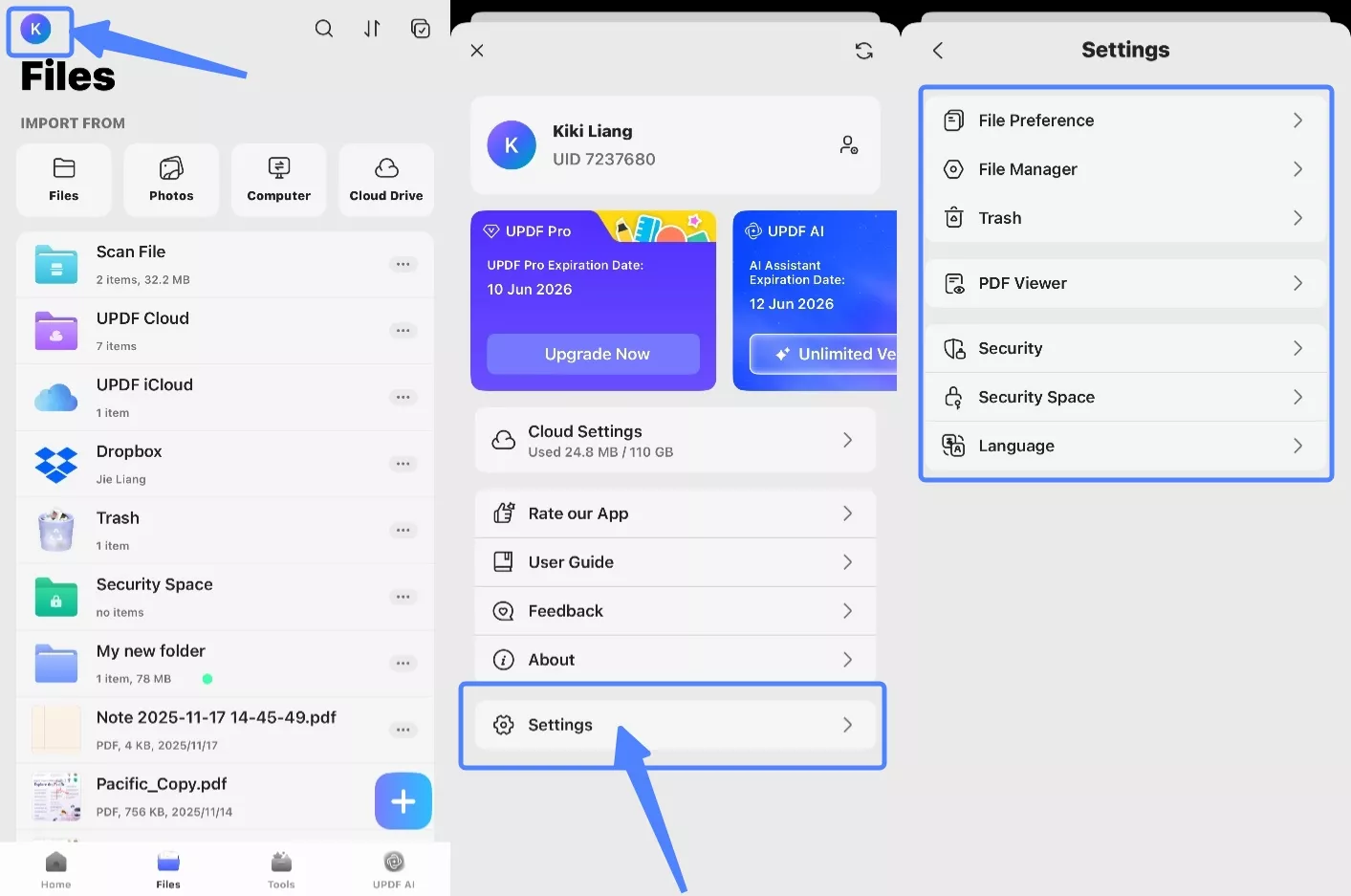
If you are an avid user of UPDF on mobile devices, making changes according to your requirements for the app or documents is critical. You can easily do this through the "Settings" option. This setting will allow you to set up:
If you want to open the "Settings" menu, click the profile button on the Home page. Afterword, choose "Settings" from the new tab. Once you click on this menu, you have different options to tinker with.
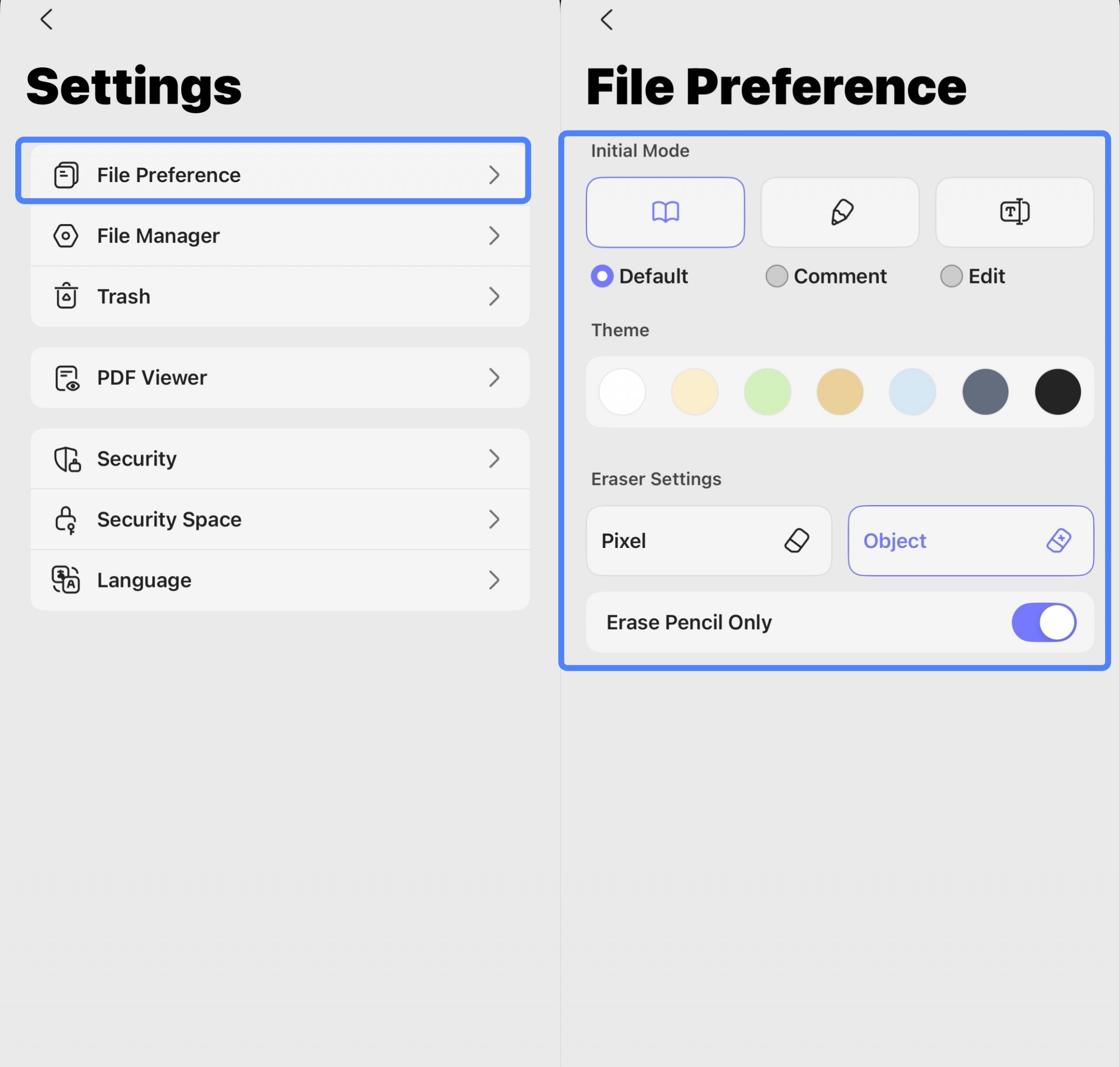
1. File Preference
The "File Preference" provides options to customize your interaction with files. You can set the "Initial Mode" for opening files, choosing between "Default (Read)", "Comment", or "Edit". You can also select a "Theme" for the app's appearance, configure "Eraser Settings" for different erasing behaviors ("Pixel" or "Object"), and toggle "Erase Pencil Only" for more precise control when using a stylus.
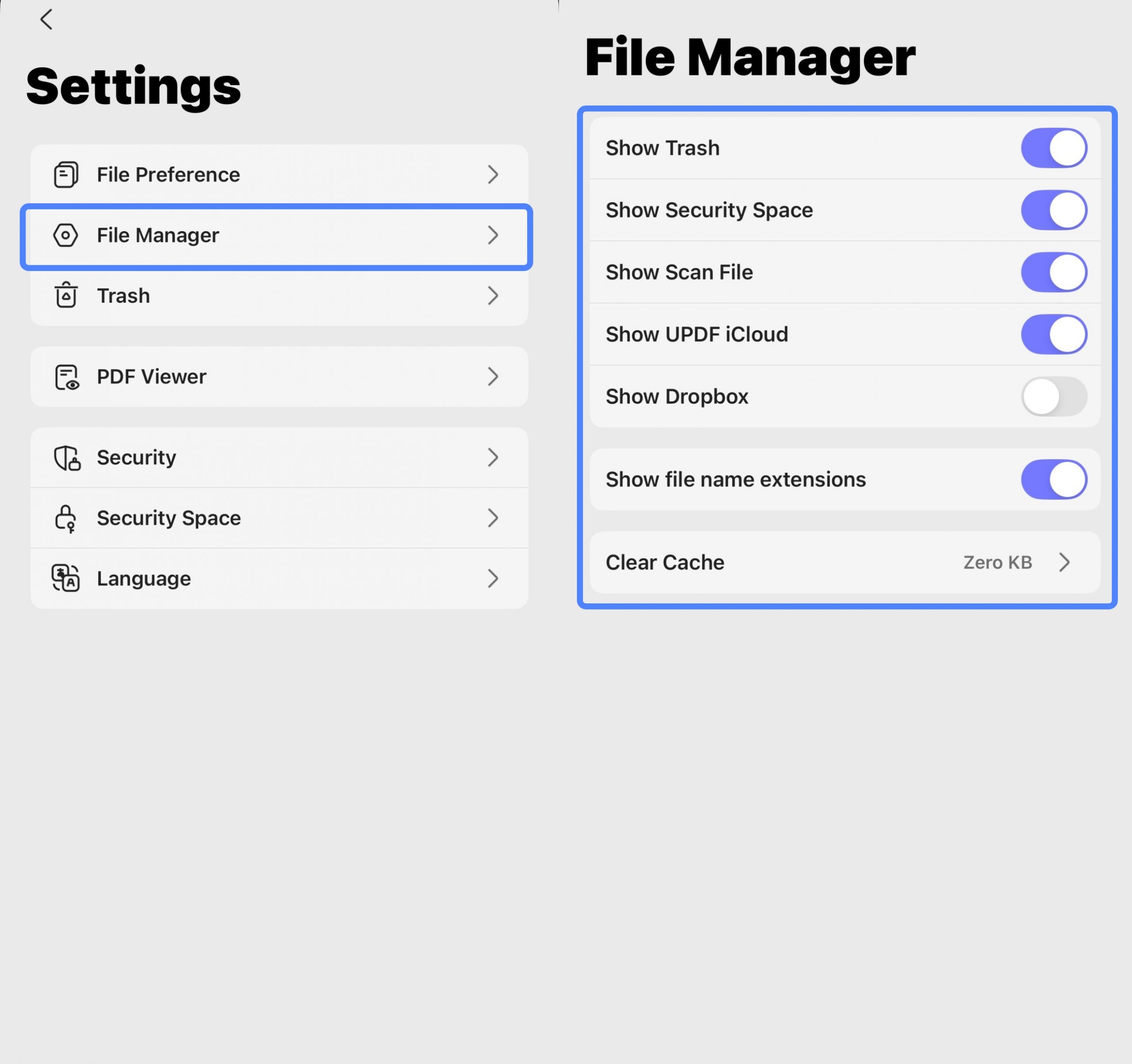
2. File Manager
The "File Manager" section lets you control which services and file types are visible in your main file browser. You can toggle the visibility of locations like "Show Trash," "Show Security Space," "Show Scan File," "Show UPDF iCloud," and "Show Dropbox," and choose to "Show file name extensions" to easily identify file types. The "Clear Cache" option allows you to free up storage space by deleting temporary files.
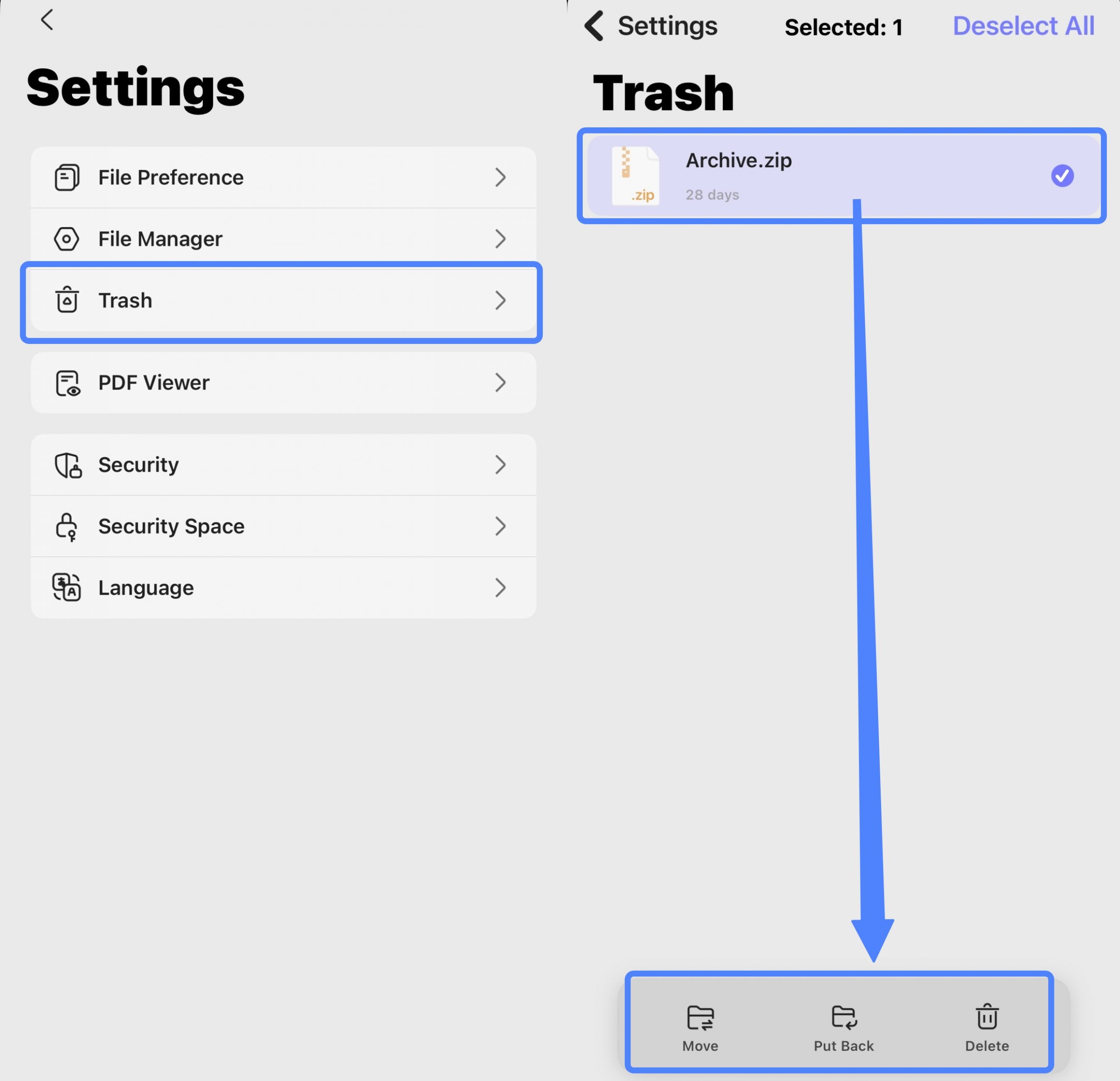
3. Trash
In "Trash" section, you can manage files you have deleted. For any file here, you can see how many days are left before it is permanently deleted. You can select a file and then choose to "Move" it to a new location, "Put Back" to its original folder, or "Delete" it immediately.
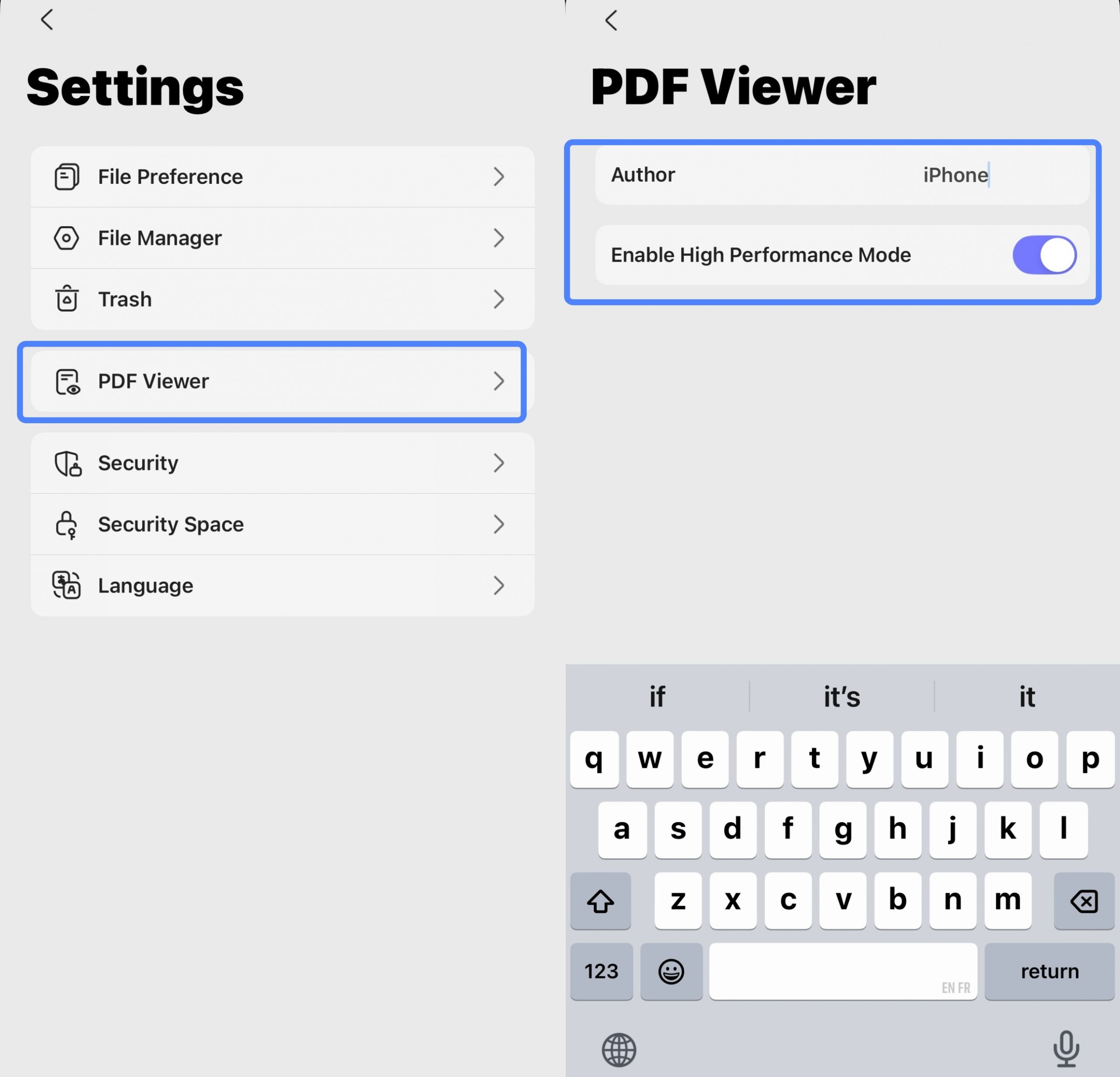
4. PDF Viewer
The PDF Viewer settings allow you to customize how you view PDFs. You can set the document's "Author" metadata and toggle on features like "Enable High Performance Mode," which likely improves the smoothness of scrolling and rendering for a better viewing experience, especially for complex documents.
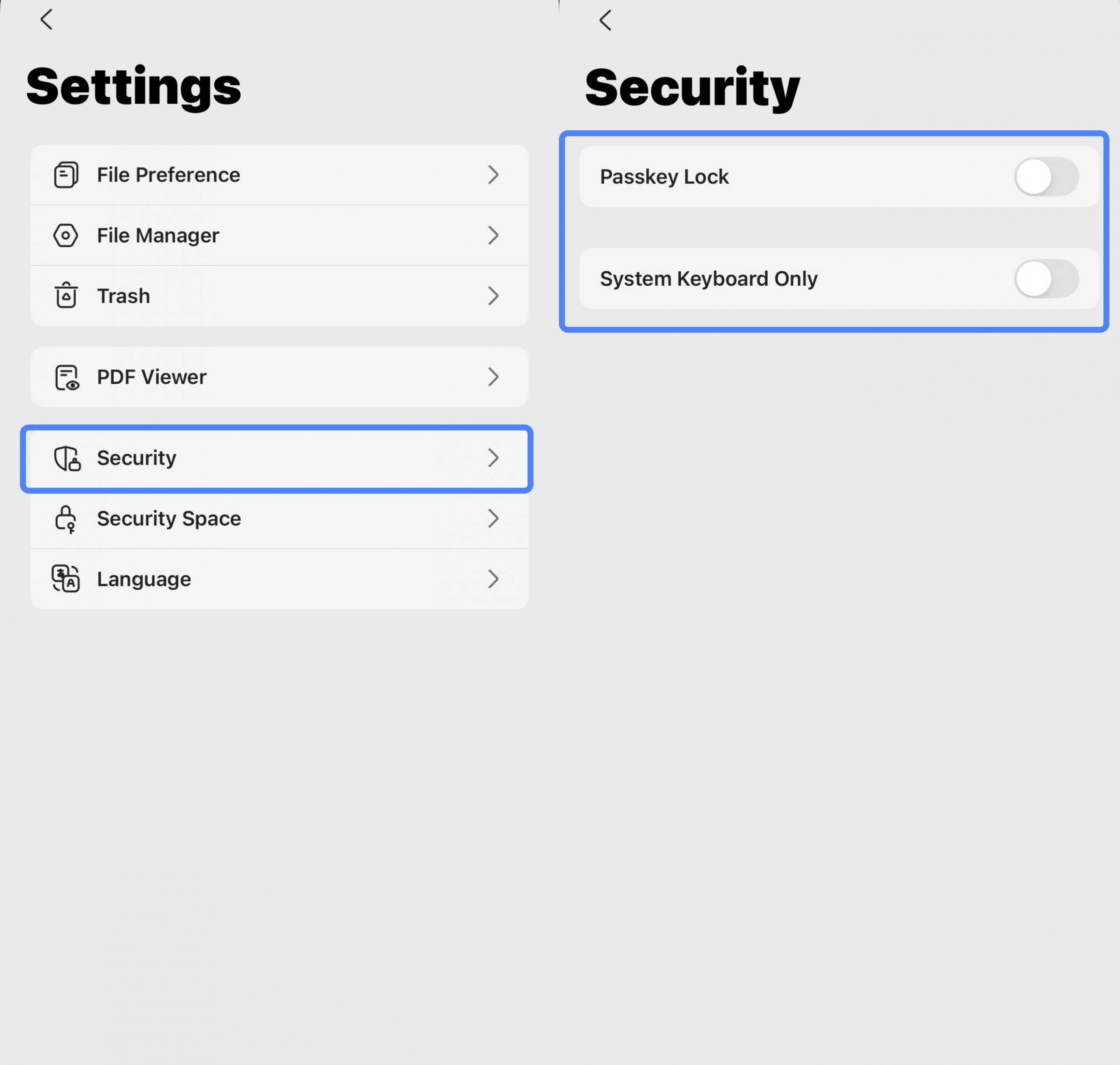
5. Security
The Security menu presents two key options to protect your data. You can activate a "Passkey Lock" to secure access to the application or specific files, and you can enable "System Keyboard Only" to prevent potential security risks by ensuring only the device's trusted system keyboard is used for any typing.
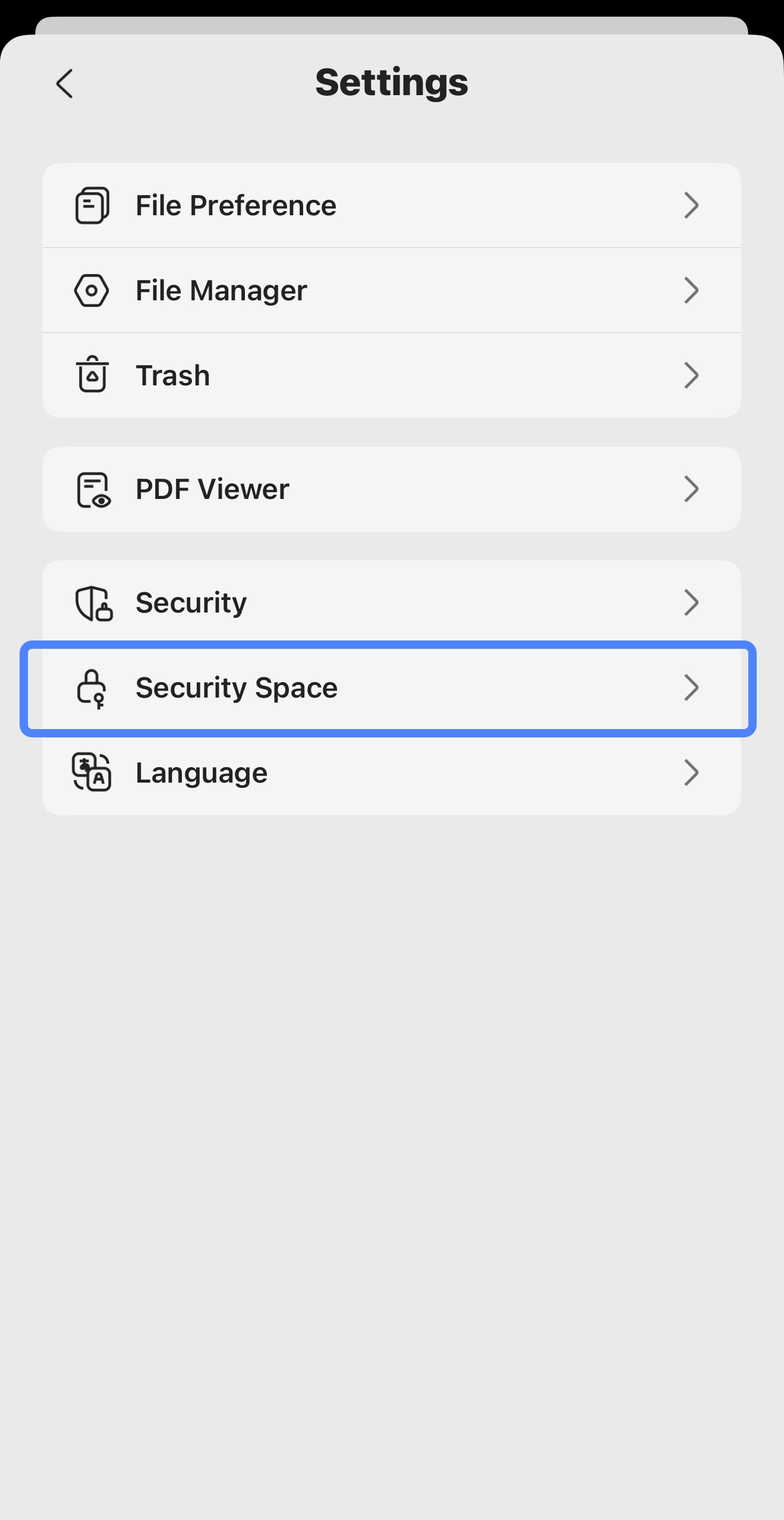
6. Security Space
Security Space is a location within the UPDF app that can be protected with a passcode or Face ID. This allows users to restrict access to certain confidential or private files and prevent others from being able to view them. Files can be moved into Security Space using the following actions:
- Tap "Security Space" and authenticate the access attempt when prompted.
- Tap the "+" symbol on the bottom right of Security Space.
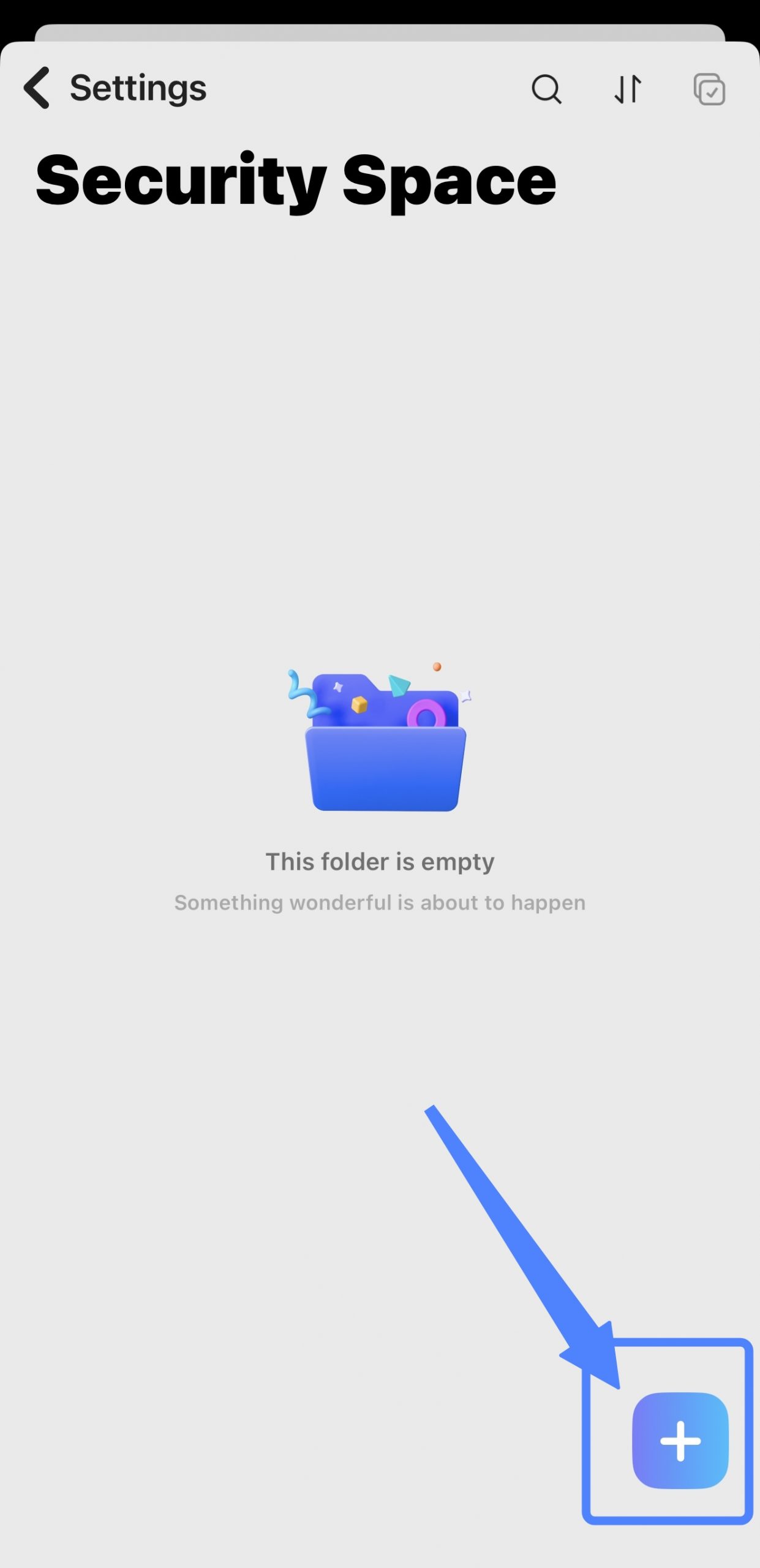
- Select one of the import options to bring files in from various locations as described in the Import section of this guide.
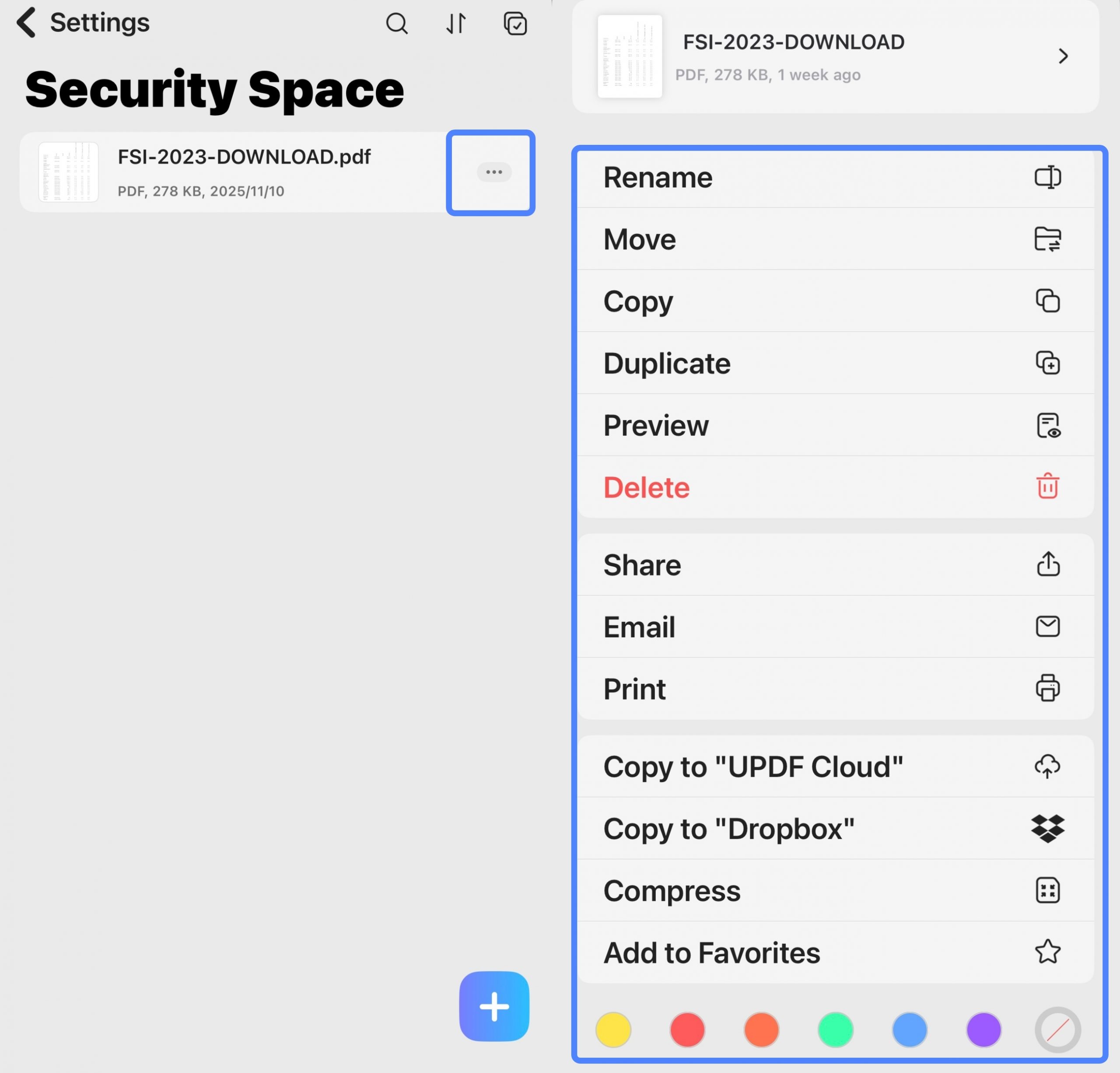
- When you click the three-dot icon for a single file, a menu appears offering actions specific to that file. You can Rename it, Move or Copy it to a different location, create a Duplicate, or Preview its contents. For sharing, you can directly Share it via other apps, send it via Email, or Print it. To back up or store copies in the cloud, use Copy to "UPDF Cloud" or Copy to "Dropbox". For organization, you can Compress it into a smaller archive or Add to Favorites for quick access. The Delete option allows you to remove the file. You can also click on the various colors provided in the options to mark the file you consider important. This will make it easier for you to find the file you need.
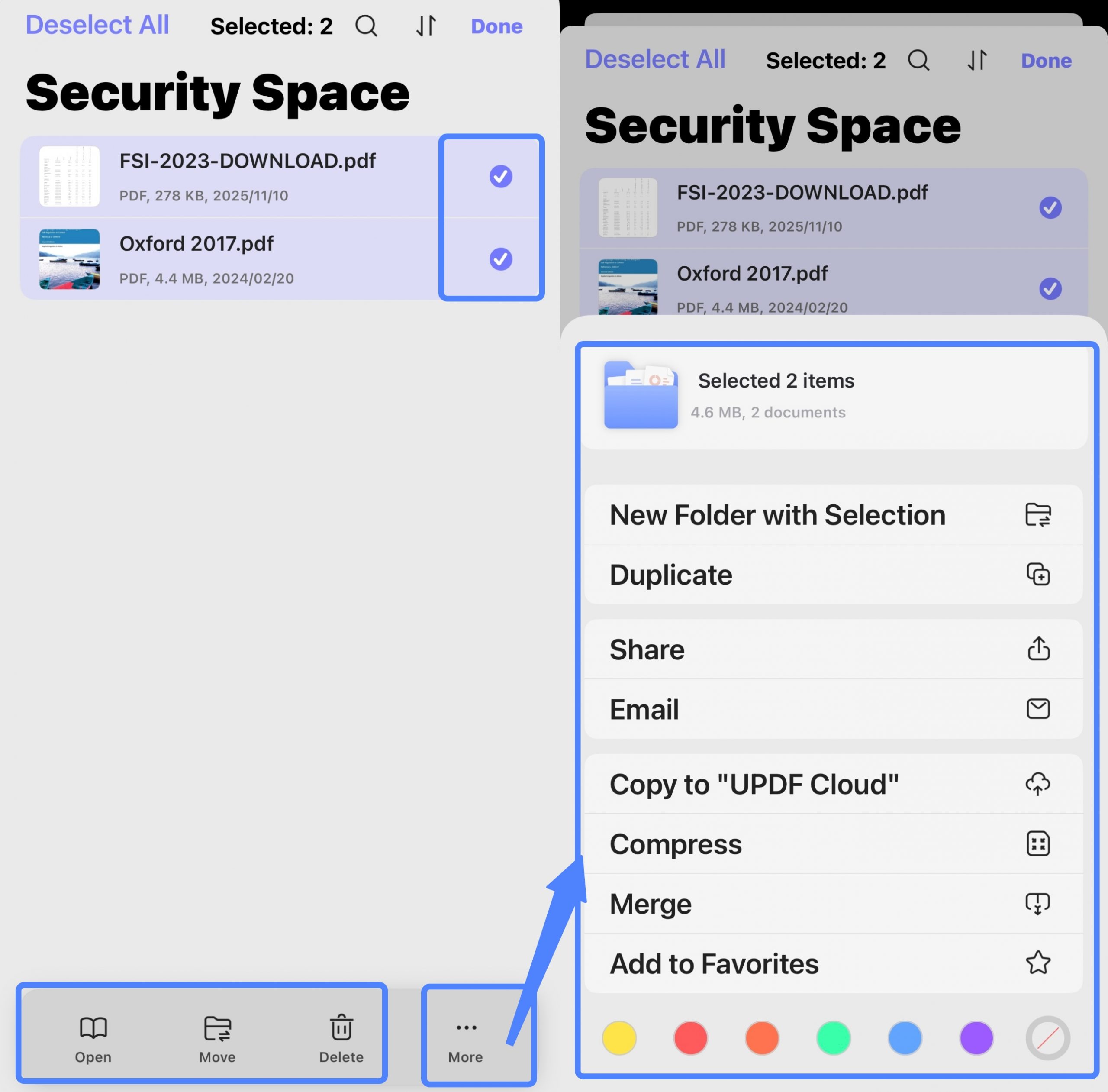
- When multiple files are selected, a different set of batch actions becomes available. You can place them into a New Folder with Selection for organization, Duplicate them all, or Compress them together into a single archive. A powerful feature for multiple PDFs is Merge, which combines them into one document. You can also Share or Email all selected files at once, Copy them to the "UPDF Cloud", or Add them all to Favorites.
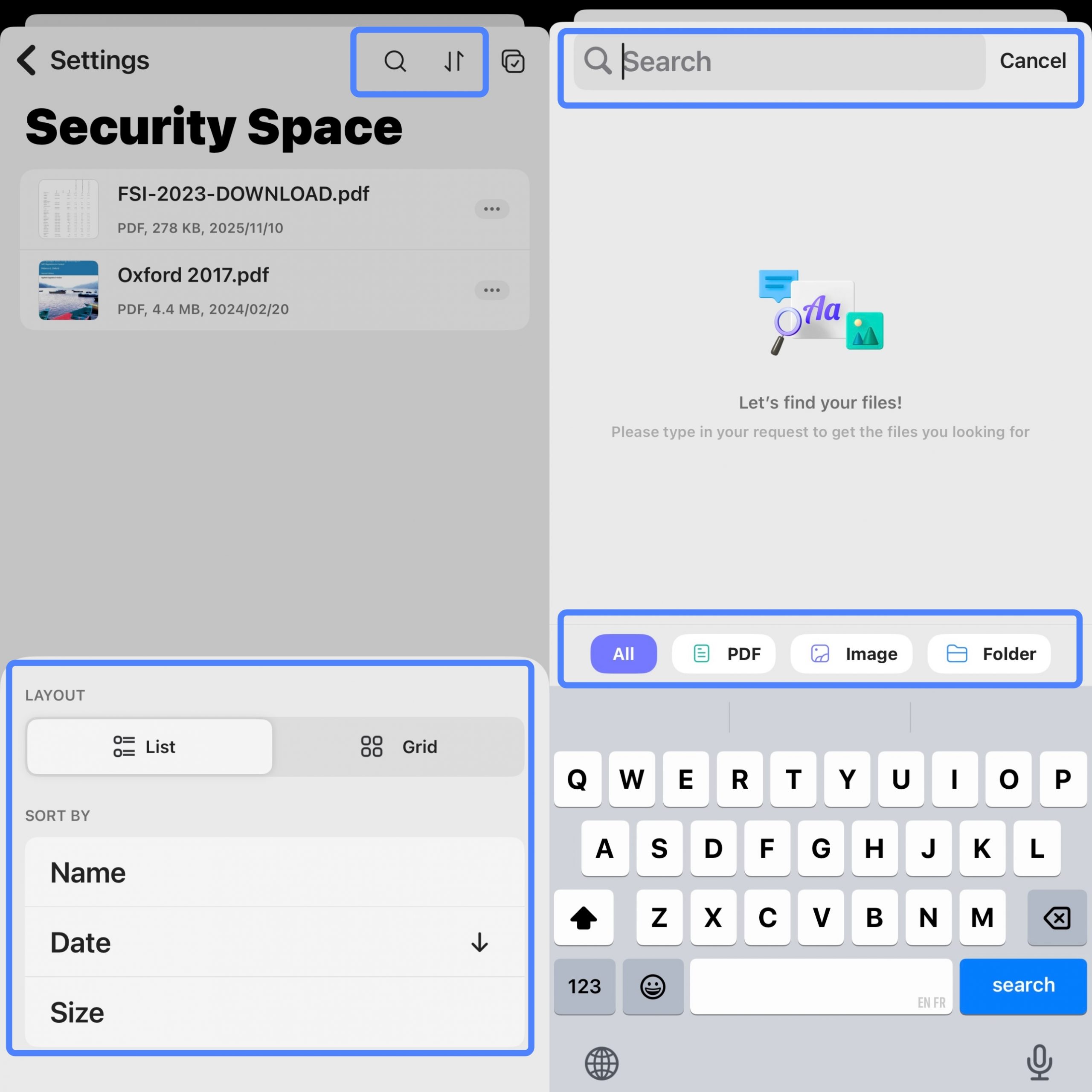
- Furthermore, the settings in Security Space on the top allow you to customize how you view and find your files. Under LAYOUT, you can switch between a List view and a Grid view. The SORT BY option lets you arrange your files by Name), Date, or Size. At the top, a search function lets you type the keyword of a file name to find a specific file quickly. Below the search bar, filter buttons—All, PDF, Image, and Folder—allow you to narrow down the visible files by their type, helping you locate what you need more efficiently.
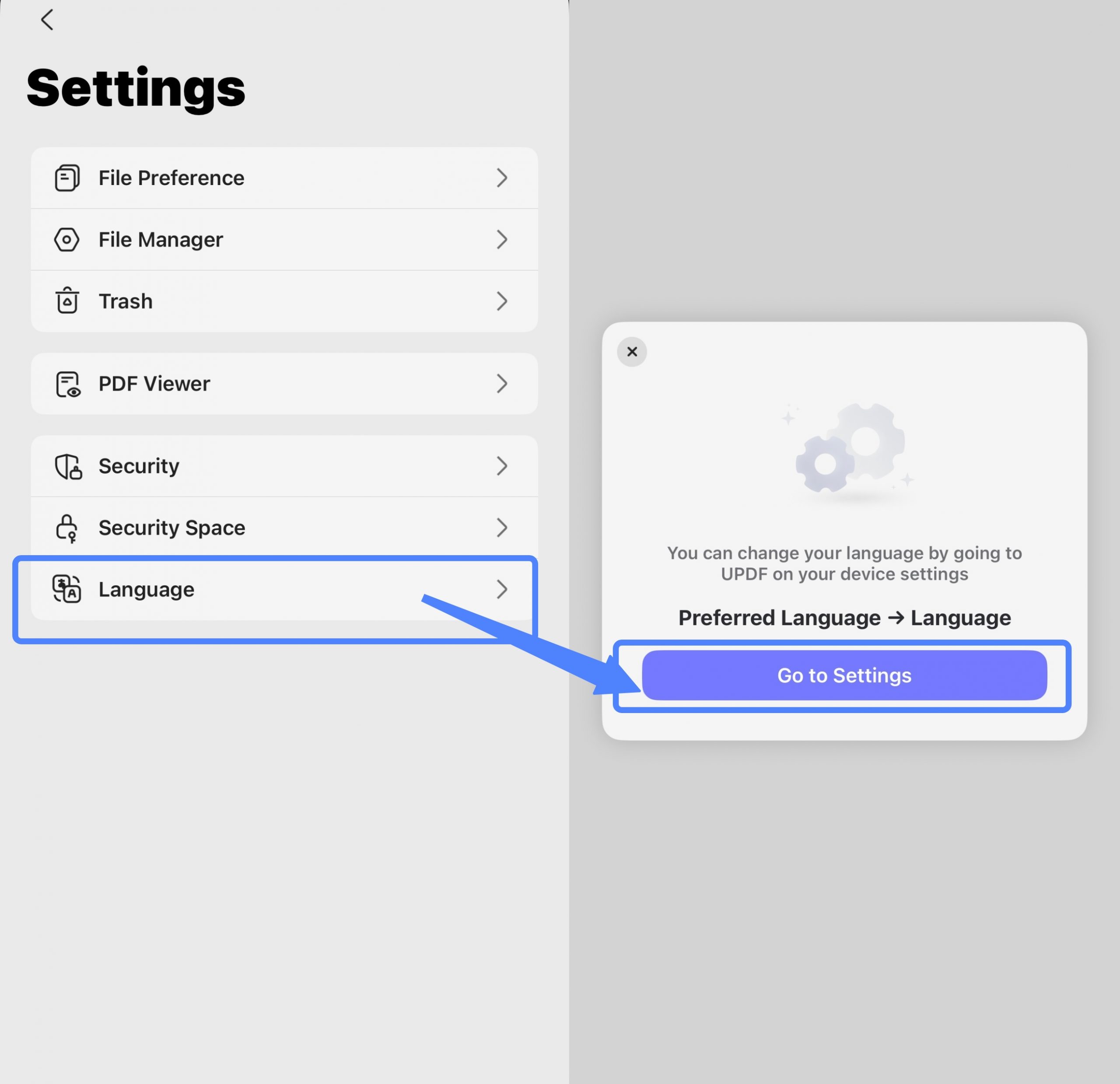
7. Language
The app's language is managed via your device's system settings. The "Language" option contains a "Go to Settings" button that directly opens the relevant menu for this change.