UPDF
UPDF
 UPDF for Windows
 UPDF for Mac
 UPDF for iPhone/iPad
 UPDF for Android
 Nomostar
 UPDF AI Online
 UPDF Sign
 IvyCraft
 Edit PDF
 Annotate PDF
 Create PDF
 PDF Form
 Edit links
 Convert PDF
 OCR
OCR PDF to Word
 PDF to Image
 PDF to Excel
 Organize PDF
 Merge PDF
 Split PDF
 Crop PDF
 Rotate PDF
 Protect PDF
 Sign PDF
 Redact PDF
 Sanitize PDF
 Remove Security
 Read PDF
 UPDF Cloud
 Compress PDF
 Print PDF
 Batch Process
 About UPDF AI
 UPDF AI Solutions
 AI User Guide
 FAQ about UPDF AI
 Summarize PDF
 Translate PDF
 Chat with PDF
 Chat with AI
 Chat with image
 PDF to Mind Map
 Explain PDF
 PDF AI Tools
 Image AI Tools
 AI Chat Tools
 AI Writing Tools
 AI Study Tools
 AI Working Tools
 Other AI Tools
 AI Bookmark Generation
 AI Bookmark Summary
 AI Watermark Generation
 AI Background Generation
 AI Sticker Generation
 AI Stamp Generation
 AI Editing Suite
 UPDF Copilot
 AI Page Management
 AI Semantic Search
 PDF to Word
 PDF to Excel
 PDF to PowerPoint
 Enterprise Solution
 Enterprise Sign
 Enterprise AI
 Enterprise Plan
 Enterprise User Guide
 Enterprise Webinar
 IT
IT Education
 Construction
 Financial Service
 Healthcare
 Insurance
 Legal
Legal Manufacturing
 Government
 Researchers & PhDs
 Solopreneurs & Freelancers
 Lawyers & Legal Professionals
 Real Estate Agents & Brokers
 Education Solution
 Customer Stories
 User Guide
 UPDF Tricks
 FAQs
FAQs UPDF Reviews
 Download Center
 Blog
Blog Newsroom
 Tech Spec
 Updates
 UPDF vs. Adobe Acrobat
 UPDF vs. Foxit
 UPDF vs. PDF Expert

Quick answer:
I tested three of the most-searched online annotators — Smallpdf, Xodo, and Lumin — on the same file, then compared them against annotating locally. Each online tool wins a different job: Smallpdf is the lightest for a one-off markup, Xodo is the only one with anchored comments and threaded replies, and Lumin syncs across your devices. What they share is the catch — most treat notes as floating stickers rather than anchored comments, and all of them upload your file to a server. If you're marking up a contract, a medical form, or a document you'll reopen on another device, that trade-off outweighs the convenience.
This is a selection guide, not a click-by-click tutorial: the goal is to help you pick the right tool for your document, not walk you through every button. If you want the full step-by-step for marking up a file, the UPDF walkthrough in how to annotate a PDF covers it in detail.
Part 1. The distinction most "annotate PDF online" roundups miss
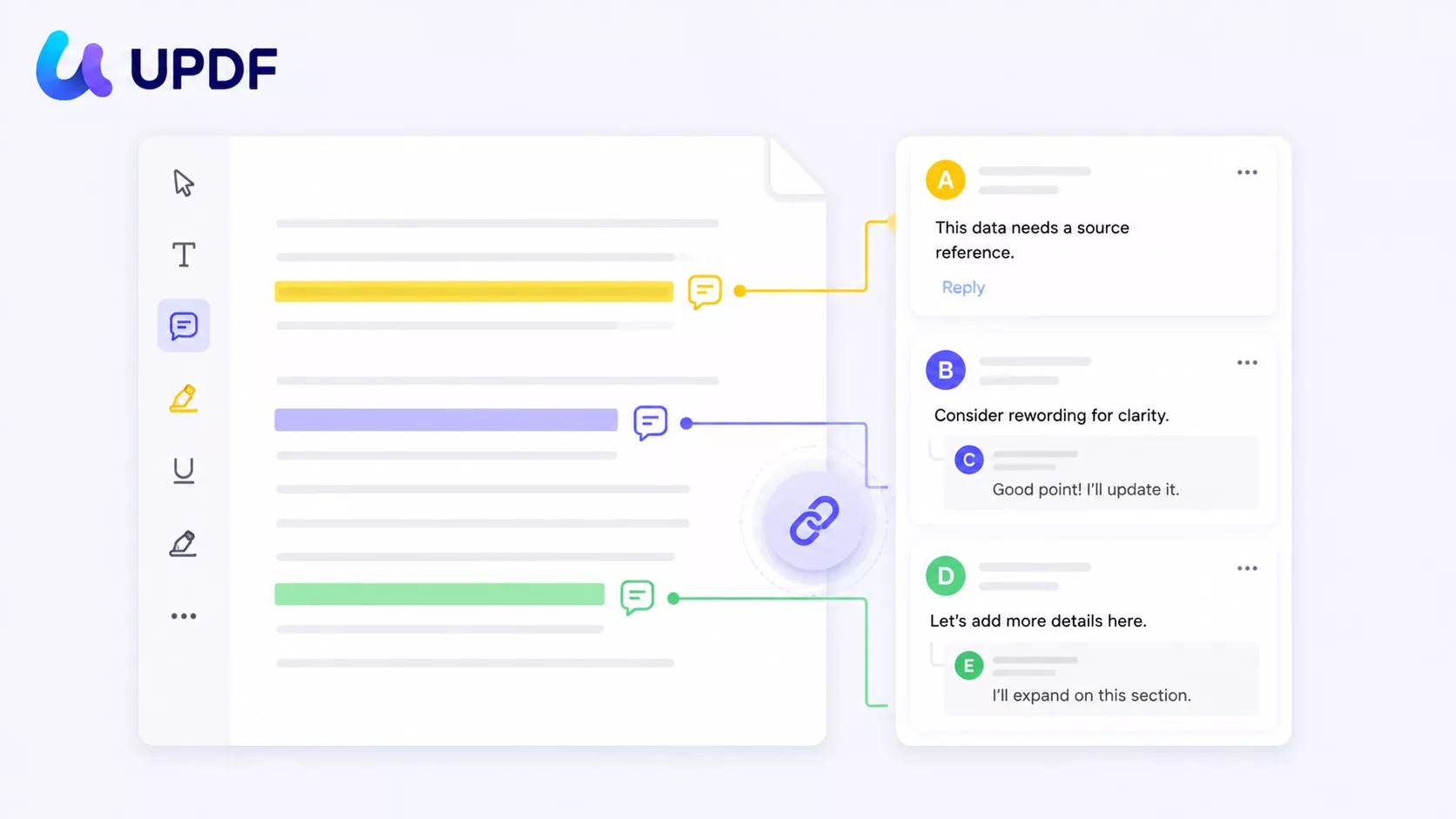
Highlighting is not the same as commenting. Almost every online tool lets you drag a yellow highlight across text. Far fewer let you anchor a comment to a specific phrase — the way Word or Google Docs does, where you select text, a note pops up on the right, and reviewers can reply in a thread.
Think of it like sticky tabs on a paper report. A highlighter marks where something matters; a margin note explains why. Most online PDF tools give you the highlighter but turn every note into a loose sticker that floats near the text instead of latching onto it. When three people review the same file, those floating notes become impossible to track. The tools below are ranked partly on how close they get to real, anchored, manageable comments — because for review work, that's the line between "usable" and "a mess by page three."
Which online annotator fits your task
| If you're doing this | Best pick | Why |
|---|---|---|
| A fast highlight or signature, no account | Smallpdf | Clean, minimal, no login for basic markup |
| Team review with anchored comments and replies | Xodo | Only one here with a real comment list, replies, and status tracking |
| Cloud access across your own devices | Lumin | Account-based sync, outline navigation |
| Contracts, IDs, medical forms, or handwriting you can't lose | UPDF | Files stay local; annotations survive across readers and devices |
Part 2. Smallpdf — cleanest for a quick, one-off markup
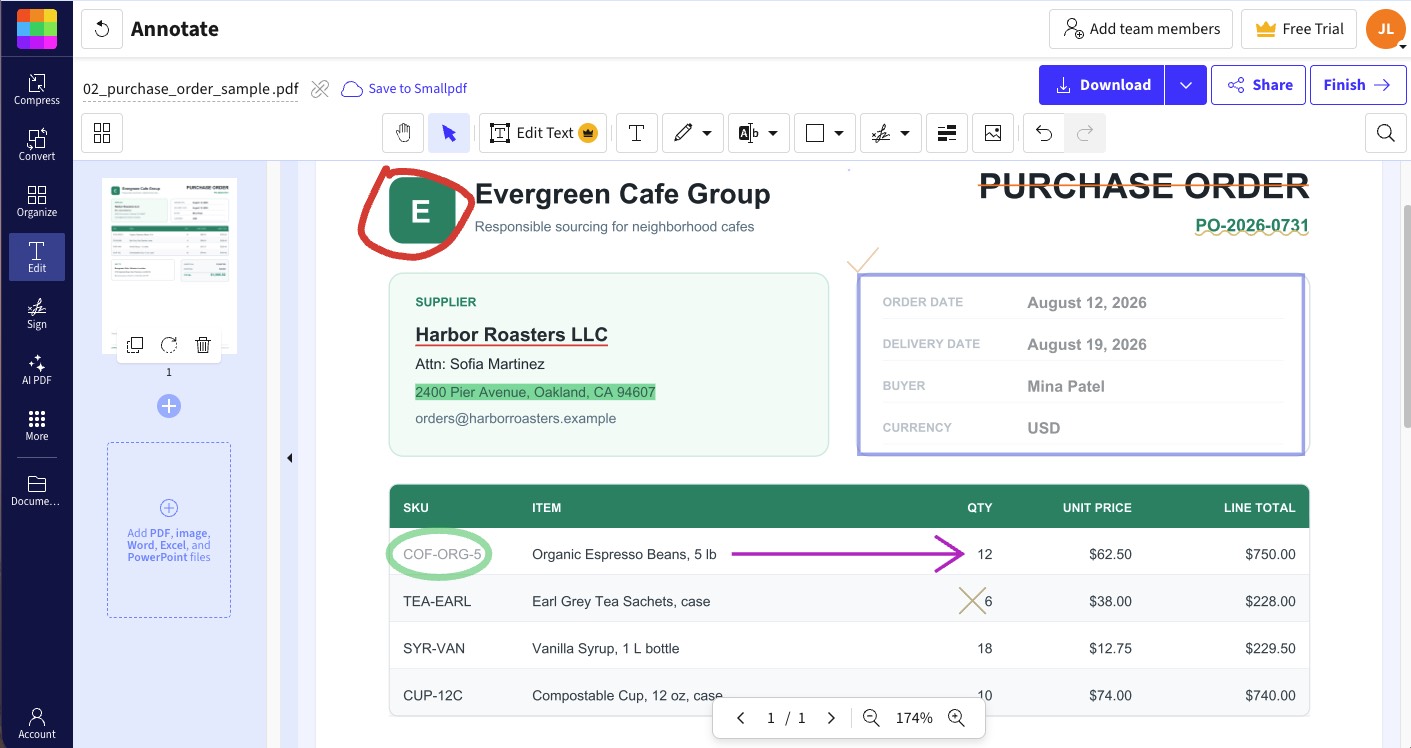
Smallpdf is the tool I'd hand someone who just needs to highlight two lines and add their signature before emailing a form back. The interface is uncluttered, and basic markup works without an account.
In testing, the annotation set covers add-text comments, text highlight, underline, strikethrough, squiggle, a pencil and highlighter for freehand, a partial eraser, basic shapes, checkmark, cross, line, and arrow. Shape appearance is more flexible than it first looks — border and fill each have their own transparent option, so you can outline content without dimming what's inside.
The real limits sit elsewhere: editing existing text is a Pro feature (7-day free trial only), lines and arrows have no style options (no dashed lines), and a free account allows only one saved signature. There's no sticky note, and no comment list in the sidebar — so there's no way to review your annotations as a managed set.
Best for:
- a fast highlight, a quick shape, or dropping a signature on a form with zero setup.
Skip if:
- you need anchored comments, sticky notes, or to manage more than a handful of marks.
Part 3. Xodo — the only online pick with real comment management
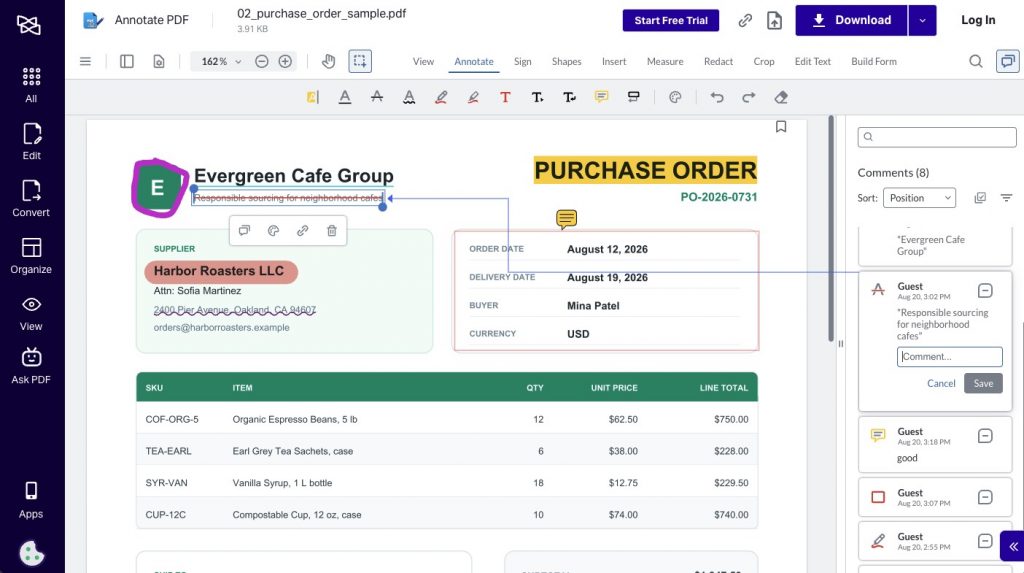
Xodo is the strongest of the three for actual review work, and it's the one I'd recommend if more than one person touches the document. It's the only tool tested here that treats annotations as a manageable, threaded system rather than loose marks.
The toolset is broad: text highlight, underline, strikeout, squiggly, freehand and freehand-highlight, free text, insert/replace-text annotations, notes, text callouts, a partial eraser, and a full shape set (rectangle, ellipse, arc, polygon, cloud, line, polyline, arrow) — and unlike Smallpdf, shapes support line styles like dashed borders, with stroke and fill color, opacity, and a transparent-fill option all set independently.
But the real differentiator is the comment panel: you can reply to selected annotations, set a status on each (Accepted, Rejected, Completed, Marked, and so on), align and distribute multiple marks, adjust their color and opacity in bulk, group them, and filter the comment list by user, color, or type. That's as close to Word-style review as online PDF tools get.
The catches: annotating and saving basic markup is free, but once you use a Pro feature like editing the existing text, saving or downloading that file pushes you toward a paid plan. Xodo Web also runs on a limited free tier — everyone gets one free action per day, with a 3-day free trial that requires a valid payment method. Xodo Web is priced at $7.99/month billed yearly ($10.99 month-to-month) as of 2026. On privacy, Xodo notes that most tools process files locally in the browser, and files that do require upload are deleted after 1 hour — better than most, but still worth knowing before you upload anything sensitive.
Best for:
- multi-reviewer markup where anchored comments, replies, and status tracking matter.
Skip if:
- you need to edit the document's existing text for free, or you can't put a card down for the trial.
Part 4. Lumin — cloud sync and outline navigation, with a document cap
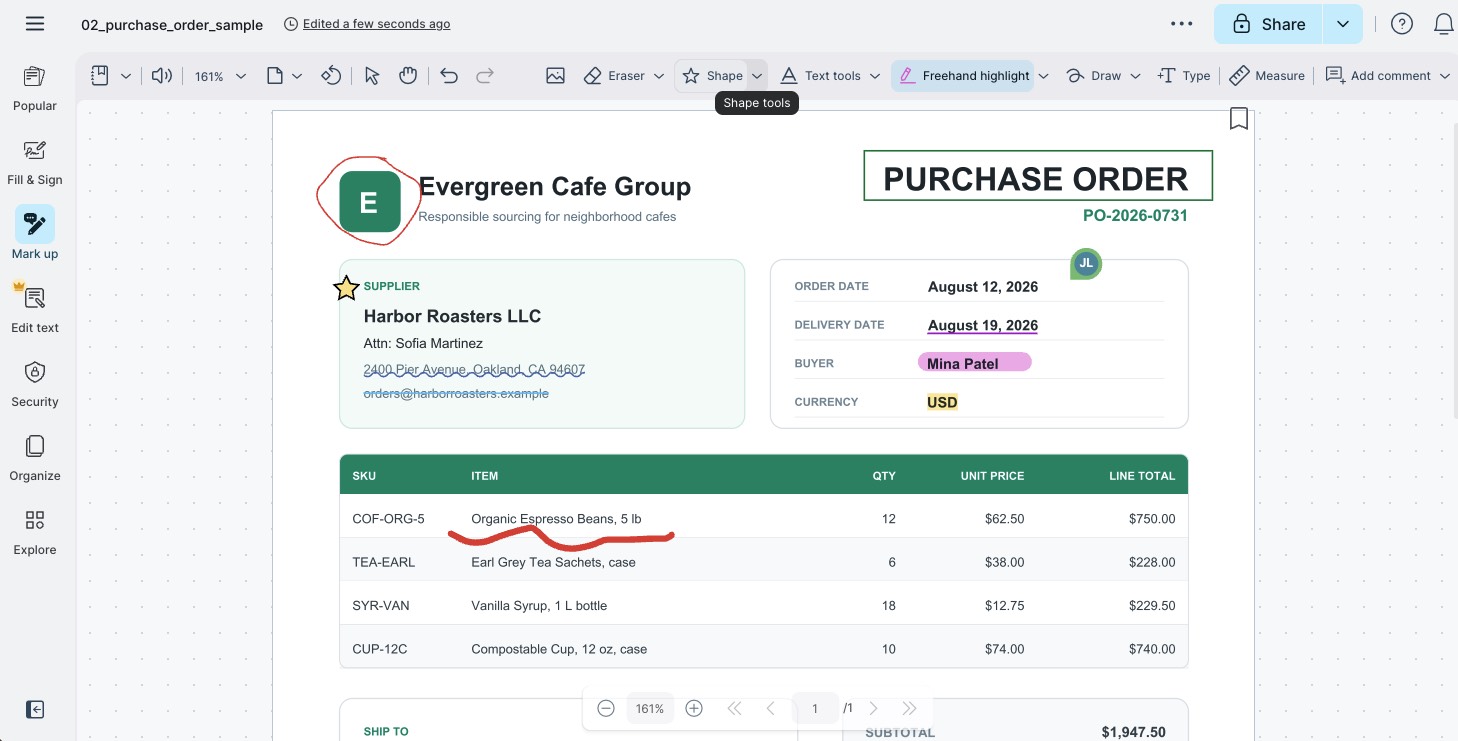
Lumin leans on cloud integration: sign in, and your files sync so you can pick up annotations on another device. Its shape tools are the most flexible of the three for appearance — rectangle, ellipse, polygon, cloud, line, polyline, arrow, tick, cross, and star, each with separately adjustable border and fill opacity (though no dashed-line styles). Text tools cover underline, squiggly, strikeout, text highlight, and a freehand highlight; the freehand pen goes up to 20 pt.
A genuinely useful touch: any annotation can be turned into a hyperlink (to a URL or page) or added to the document outline for navigation — handy on long files. But there are real ceilings. You must create an account or log in before you can even upload a file. Editing text and content requires a Pro upgrade. And the free plan restricts how many documents you can process and annotate, with paid monthly tiers still capped rather than unlimited. There's also no single comment list to see every mark at once, so managing a heavy review is awkward.
A visual review is easier to follow when notes and markings work together. For a practical example of using the PDF annotation tools in UPDF, watch the walkthrough below.
Best for:
- annotating across your own devices with cloud sync, plus in-document navigation links.
Skip if:
- you annotate many files, want no-login access, or need a unified comment list.
Part 5. When to annotate offline instead — the UPDF case
Every tool above shares three ceilings the moment your document gets sensitive or your review gets serious: your file is uploaded to someone's server, handwriting and notes don't reliably survive moving between readers, and the free tier caps how much you can save. For a contract, an invoice, a medical form, or an ID, uploading to an unfamiliar online tool is exactly the hesitation that keeps people on desktop software — and it's the right instinct.
UPDF annotates the file locally on your machine — nothing is uploaded unless you deliberately choose to share via its cloud link. Its annotation set matches or beats the online tools: sticky notes, highlight, underline, strikethrough, squiggly, text comments and text boxes (with full color, font, and size control), text callouts, stickers, stamps, file attachments, signatures, and shapes. Because the marks are written into the PDF itself rather than a browser session, they hold up when you reopen the file on Windows, Mac, iOS, or Android under a single account — the cross-device consistency the online tools promise but often lose.
Windows • macOS • iOS • Android 100% secure
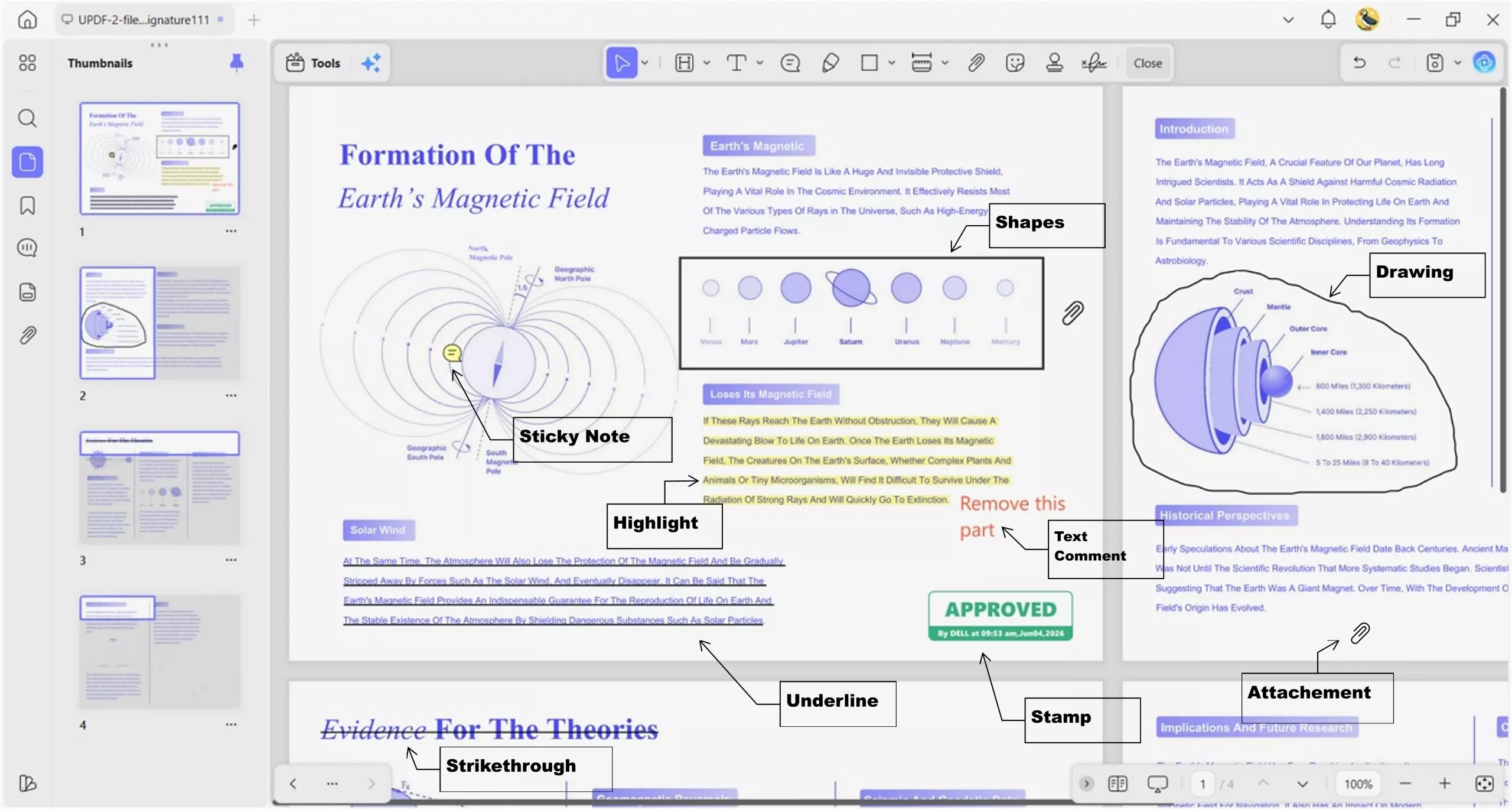
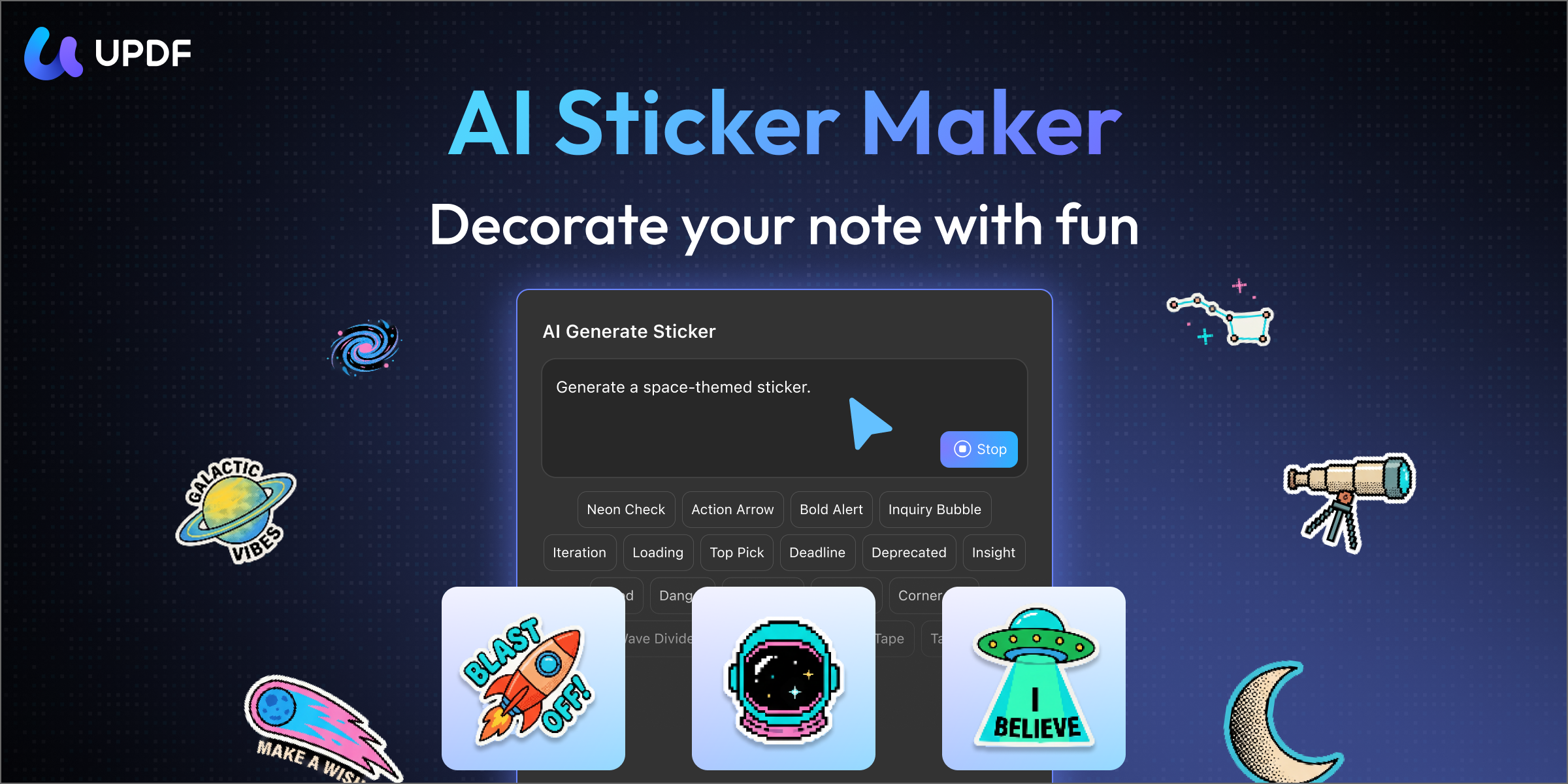
Two things UPDF does that none of the three online tools can: it uses AI to create stamps and stickers on demand, and its AI Editing Suite can rewrite, summarize, or translate the underlying text and save the result straight into a sticky note — useful when you're reviewing a document in a second language. It's also a full editor underneath, so annotation is just one step in editing, converting, or organizing the same file — which is why it shows up on roundups of the best PDF annotator tools and, for Apple users specifically, the PDF annotator for Mac guides.
One honest trade-off: UPDF's free version adds a trial watermark when you save or export an annotated file. You can annotate, review, and try everything for free — the watermark is the line, not a locked feature wall. For a walkthrough of the actual marking-up process in UPDF, how to annotate a PDF has the full step-by-step.
If you regularly review contracts or forms you can't risk uploading, download UPDF for free and annotate a copy locally first — installation is free, and Pro features are there when you need watermark-free export.
Windows • macOS • iOS • Android 100% secure
Part 6. How the four compare
| Smallpdf | Xodo | Lumin | UPDF (desktop) | |
|---|---|---|---|---|
| Anchored comments / threaded replies | ✗ | ✓ (replies + status) | Comment per mark, no list | Yes (sticky notes, comment list) |
| Sticky notes | ✗ | ✓ | ✗ | ✓ |
| Shape line styles (dashed) | ✗ | ✓ | ✗ | ✓ |
| Use without an account | Basic markup, no login | 1 action/day, then trial | Login required to upload | Local app, sign-in for save |
| Comment list / management | ✗ | ✓ (filter, group, bulk) | ✗ | ✓ |
| File handling | Server upload | Local when possible; upload deleted after 1h | Server upload (account required) | Local; upload only if you share |
| Free-tier catch | Text edit + save behind Pro | 1 action/day; text edit behind Pro | Login required; ~3-doc cap | Trial watermark on export |
| Platforms | Browser | Browser, desktop, iOS, Android | Browser | Windows, Mac, iOS, Android |
No tool here is free of limits — including UPDF, whose watermark-on-export is the honest catch. The right pick depends on whether your priority is zero-setup speed (Smallpdf), managed review (Xodo), cloud sync (Lumin), or keeping a sensitive file off a server (UPDF).
Windows • macOS • iOS • Android 100% secure
Part 7. Edge cases the tool pages won't warn you about
Handwriting that vanishes between readers. If you annotate with a stylus in one online tool and reopen the file in a different reader, ink is the first thing to break — strokes get over-smoothed, shift, or disappear entirely. This is a known weak point of browser-based annotation and the single biggest reason stylus users (students, designers, reviewers) stay on native apps. If your marks are handwritten and must survive, annotate in an app that writes ink into the PDF, not a browser session.
"I saved it, but the notes are gone." Some online tools let you annotate freely, then reveal at the download step that saving the annotated file needs a paid plan — so your session evaporates when you close the tab. Before investing an hour of markup, confirm the tool lets you export the annotated file on the free tier, not just create marks in-browser.
Compliance blocks on uploads. Many companies and universities prohibit uploading internal documents to third-party clouds. If your contract, patient record, or unreleased file falls under that policy, an online annotator isn't an option regardless of features — a local desktop tool is the only compliant route.
The mismatched-transparency box. If you need a shape that outlines content without hiding it, check whether the tool separates border and fill opacity. Smallpdf ties them together, so a visible border also dims whatever's inside the box — a small thing until you're circling a figure in a report and can no longer read it.
Part 8. FAQ
1. Do free online annotators add a watermark to my file?
Not usually to the annotations themselves — the free-tier catch is elsewhere. Smallpdf and Lumin gate text editing behind Pro, Xodo caps you at one action a day, and Lumin limits how many documents you can process. UPDF's desktop free version is the one that stamps a trial watermark on export. Always test the download before trusting a tool with real work.
2. Can the person I send the file to see my comments?
Only if they open it in a reader that supports the same annotation type. Standard highlights, notes, and shapes written into the PDF travel well; tool-specific features (threaded replies, status flags) may show as plain notes or not at all in another viewer. When in doubt, flatten a copy or confirm which reader the recipient uses.
3. Can I annotate a PDF online on my phone?
In a mobile browser, awkwardly — small toolbars and touch targets make precise markup hard. Xodo also has native iOS and Android apps, and UPDF runs on iPhone, iPad, and Android with the same annotation set as desktop, which is far smoother for stylus or finger input than a phone browser.
4. Can I annotate a scanned PDF online?
You can draw and highlight over the image, but you can't anchor comments to text that isn't recognized yet. A scanned file needs OCR first to make its text selectable — a step most quick online annotators skip.
Conclusion
Choosing an online annotator comes down to one question the roundups skip: do you need to highlight, or do you need to comment? For a fast, no-install highlight or signature, Smallpdf and Xodo both deliver; for genuine multi-reviewer markup with anchored, trackable comments, Xodo is the only online tool here that qualifies; and for cloud sync across your own devices, Lumin fits. But the moment your document is sensitive or your handwriting can't be lost, the trade-off flips — and annotating locally in UPDF, with its sticky notes, comment list, AI Editing Suite, and files that never leave your device, becomes the safer pick.
Download UPDF for free to try annotating a copy of your file locally — installation is free, and Pro features are available when you need watermark-free export or advanced tools.
Windows • macOS • iOS • Android 100% secure





 Enola Miller
 Lizzy Lozano
 Engelbert White