UPDF
UPDF
 UPDF for Windows
 UPDF for Mac
 UPDF for iPhone/iPad
 UPDF for Android
 Nomostar
 UPDF AI Online
 UPDF Sign
 IvyCraft
 Edit PDF
 Annotate PDF
 Create PDF
 PDF Form
 Edit links
 Convert PDF
 OCR
OCR PDF to Word
 PDF to Image
 PDF to Excel
 Organize PDF
 Merge PDF
 Split PDF
 Crop PDF
 Rotate PDF
 Protect PDF
 Sign PDF
 Redact PDF
 Sanitize PDF
 Remove Security
 Read PDF
 UPDF Cloud
 Compress PDF
 Print PDF
 Batch Process
 About UPDF AI
 UPDF AI Solutions
 AI User Guide
 FAQ about UPDF AI
 Summarize PDF
 Translate PDF
 Chat with PDF
 Chat with AI
 Chat with image
 PDF to Mind Map
 Explain PDF
 PDF AI Tools
 Image AI Tools
 AI Chat Tools
 AI Writing Tools
 AI Study Tools
 AI Working Tools
 Other AI Tools
 AI Bookmark Generation
 AI Bookmark Summary
 AI Watermark Generation
 AI Background Generation
 AI Sticker Generation
 AI Stamp Generation
 AI Editing Suite
 UPDF Copilot
 AI Page Management
 AI Semantic Search
 PDF to Word
 PDF to Excel
 PDF to PowerPoint
 Enterprise Solution
 Enterprise Sign
 Enterprise AI
 Enterprise Plan
 Enterprise User Guide
 Enterprise Webinar
 IT
IT Education
 Construction
 Financial Service
 Healthcare
 Insurance
 Legal
Legal Manufacturing
 Government
 Researchers & PhDs
 Solopreneurs & Freelancers
 Lawyers & Legal Professionals
 Real Estate Agents & Brokers
 Education Solution
 Customer Stories
 User Guide
 UPDF Tricks
 FAQs
FAQs UPDF Reviews
 Download Center
 Blog
Blog Newsroom
 Tech Spec
 Updates
 UPDF vs. Adobe Acrobat
 UPDF vs. Foxit
 UPDF vs. PDF Expert

Quick Answer:
Scanned PDF files prevent text selection, search, and editing capabilities. While you intend to modify the document, you may be unsure how to proceed.
Example: If a scanned lease opens as one flat image and you cannot place the cursor in a misspelled tenant name, run OCR first, then check the recognized name and numbers before editing. For a related workflow, see how to correct a PDF document.
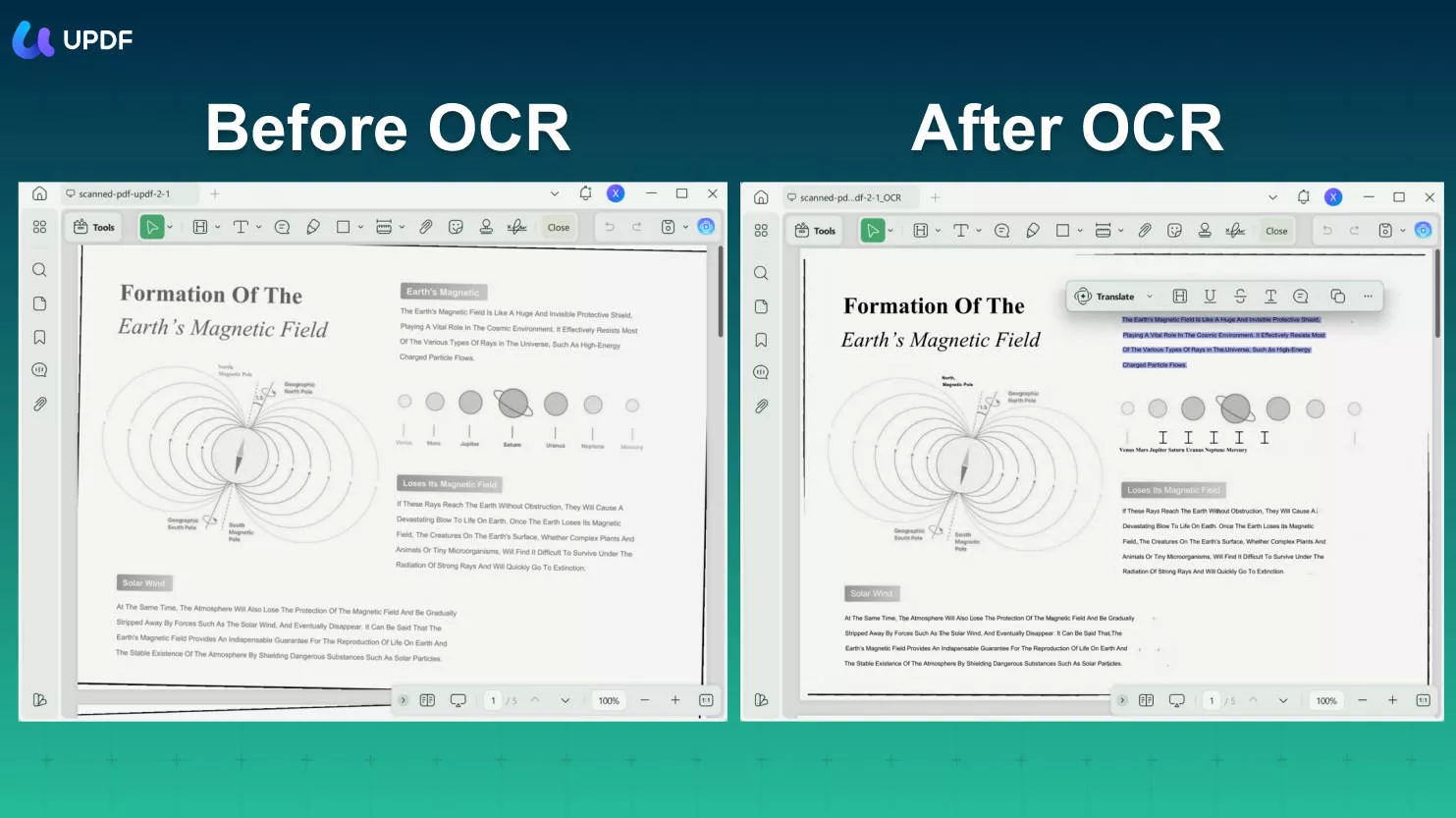
OCR (Optical Character Recognition) offers the definitive solution: it converts text embedded within scanned images into fully editable text.
Three core questions arise: which OCR tool to adopt, the corresponding operational workflow, and whether post-editing marks will be detectable.
Solutions are categorized below for quick reference based on your specific requirements.
Part 1. Diagnose the Scanned PDF Before You Edit It
Try to select one complete sentence before running any conversion. The result tells you which workflow the document needs.
| What happens in the PDF | What the file probably contains | Correct next step | Best for |
|---|---|---|---|
| Individual letters and words highlight | A normal PDF with a live text layer | Open Edit and change the text directly | Digitally created contracts, reports, and forms |
| Nothing highlights, or the page behaves like one picture | An image-only scanned PDF | Run OCR with Editable PDF | A scanned document whose wording must change |
| Search finds words, but clicking them does not create an edit box | A page image with an invisible OCR layer | Run OCR again with Editable PDF | Archives previously processed as searchable-only PDFs |
| Edit or OCR is disabled after the file opens | A protected or restricted PDF | Enter the authorized password or obtain an editable copy | Files you own or are permitted to modify |
Do not run OCR simply because the PDF "looks scanned." Some documents already have a hidden text layer. Running OCR again can introduce duplicate text, larger files, or new recognition errors.
Windows • macOS • iOS • Android 100% secure
Part 2. How to Edit a Scanned PDF without Losing Format
This is where you go when the document matters. Desktop software keeps your files on your own machine (no cloud upload), delivers the highest OCR accuracy, and preserves your original layout better than anything else. It's the professional's choice.
| Tool | Price | OCR Accuracy | Format Retention | Language Support | Batch | Pros | Cons |
|---|---|---|---|---|---|---|---|
| UPDF | One‑time payment for $79.99 | ⭐⭐⭐⭐⭐ | ⭐⭐⭐⭐⭐ | 38 languages | ✅ | Best value, auto‑enters edit mode after OCR, built‑in AI Q&A | Paid for full features |
| Adobe Acrobat Pro | Subscription ($20+/mo) | ⭐⭐⭐⭐⭐ | ⭐⭐⭐⭐⭐ | Multi‑language | ✅ | Industry standard, auto font matching, sanitize | Expensive, subscription‑based |
| PDFgear | Completely free | ⭐⭐⭐⭐ | ⭐⭐⭐ | Multi‑language | Basic | Free standout, no registration, offline | Poor OCR accuracy, Limited language support, no batch OCR, Weak formatting retention |
| Foxit PDF Editor | Paid $11/mo | ⭐⭐⭐⭐ | ⭐⭐⭐⭐ | Multi‑language | ✅ | Word‑like interface, easy to learn | No native AI document intelligence, Slow processing for large files |
| ABBYY FineReader | Paid $16/mo | ⭐⭐⭐⭐⭐ | ⭐⭐⭐⭐⭐ | 200+ languages | ✅ | Industry‑leading OCR | Expensive, Rigid language limits, No built-in AI document intelligence |
For most people, this comes down to a three‑way choice. PDFgear is the free option that actually works — it handles OCR and basic editing without costing a cent. If you need professional‑grade OCR and use it regularly, UPDF is the value champion: it costs a fraction of Acrobat (one‑time payment vs. monthly subscription) yet delivers 38‑language OCR, batch processing, and even AI‑powered Q&A on your document.
Windows • macOS • iOS • Android 100% secure
Why UPDF? Among paid desktop tools, UPDF offers the best value — one‑time payment for lifetime use, OCR in 38 languages, and the shortest workflow (OCR then auto‑enters edit mode). Plus, its built‑in AI lets you ask questions about your document, summarize content, or translate text — something no other desktop tool in this price range offers. Perfect for individuals and small teams who need professional features without being locked into a subscription.
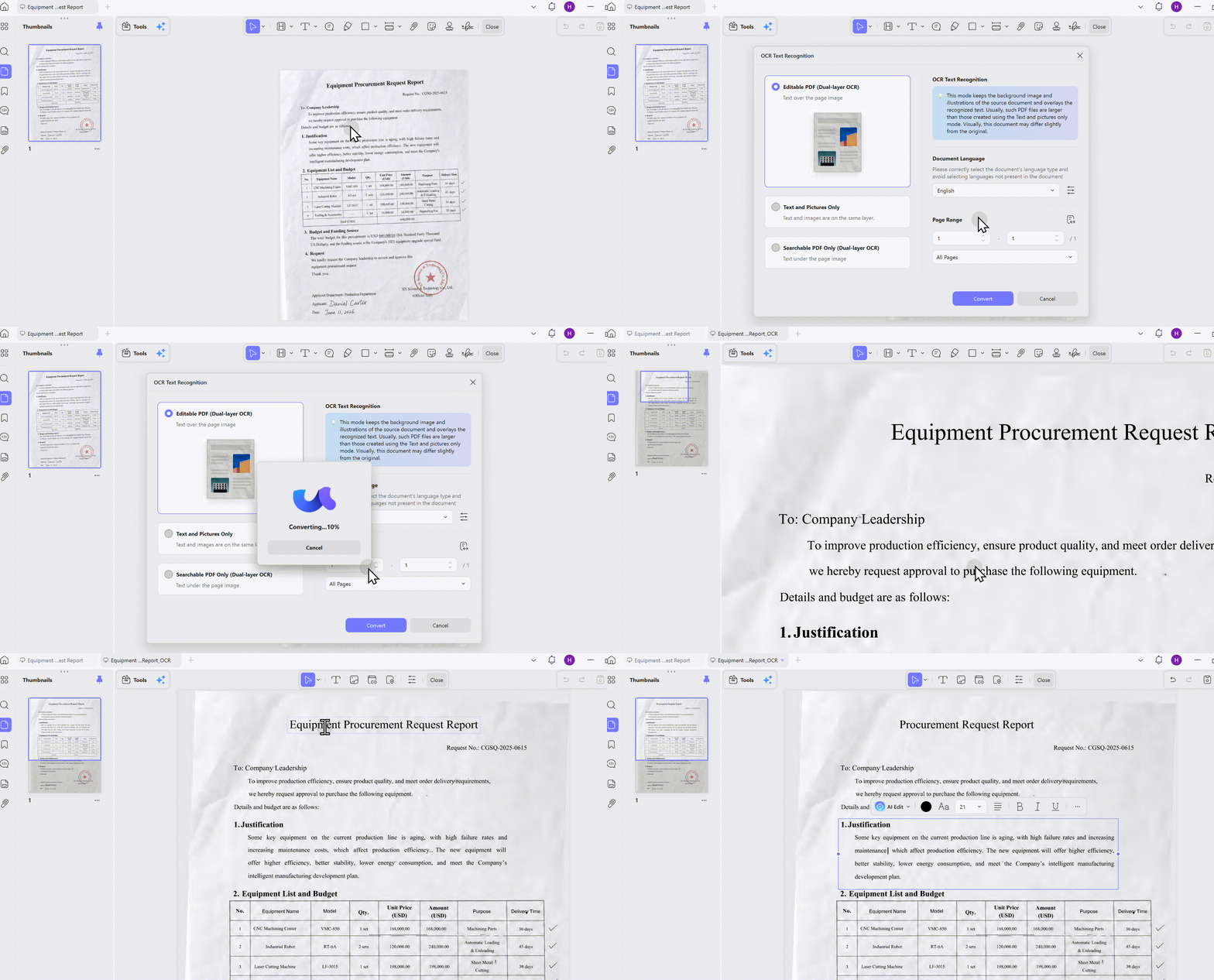
Upload your scanned PDF file into UPDF and then click the "OCR" feature; you can easily convert it into an editable PDF file.
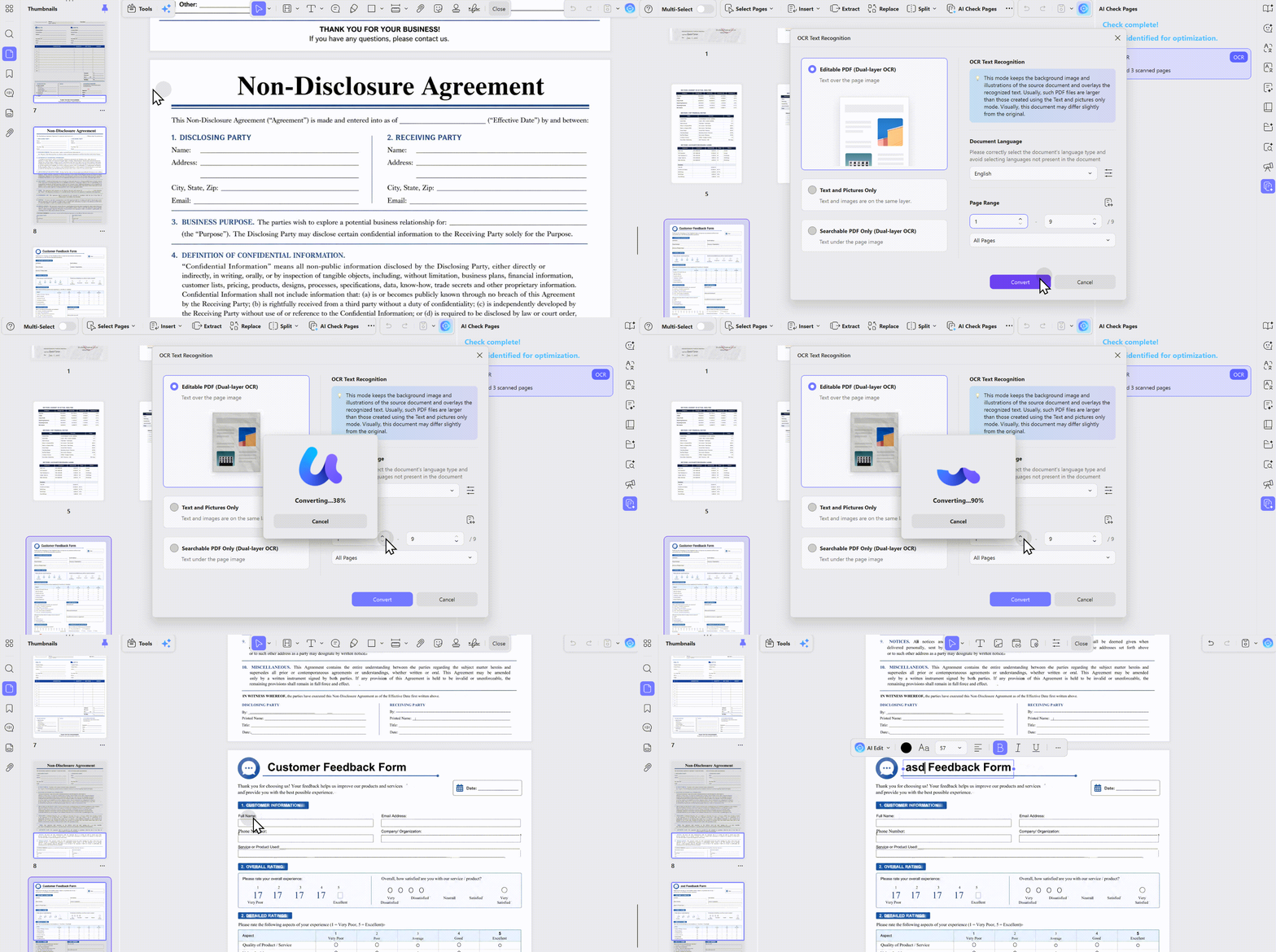
What's more, you can use "AI Check Pages" feature to detect pages from hundreds or thousands of pages that need OCR in seconds. No need to search through documents for scanned copies and convert them one by one.
In addition to using AI to analyze documents, performing batch OCR in UPDF is also very simple. Go to the Tools kit and find OCR in batch process.
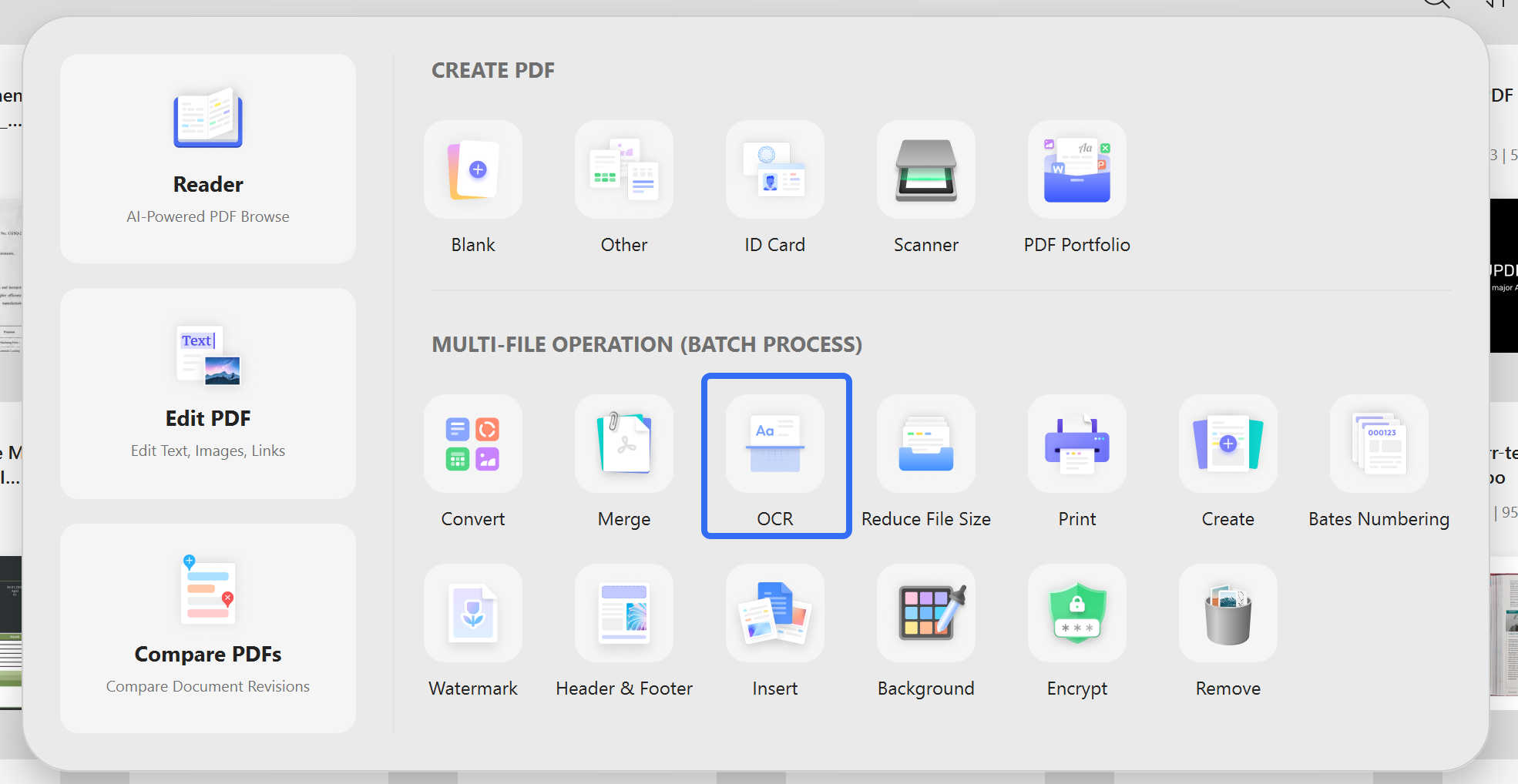
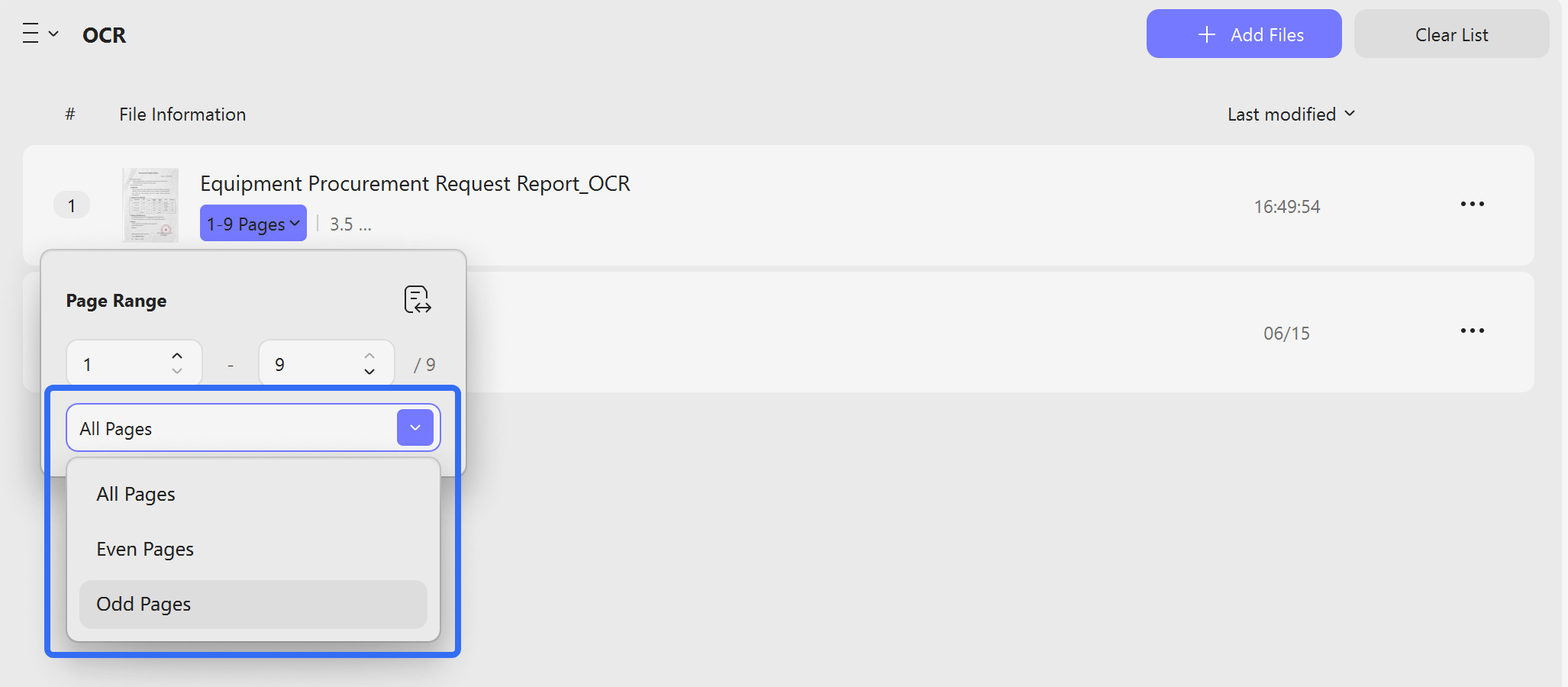
Add the files you want to convert to editable files; you can choose to convert all pages or even or odd pages according to your needs. Once it's done, click Apply to convert, then you can get the editable files on your device.
Bonus: How to Edit a Scanned PDF on iPhone/iPad
UPDF is a comprehensive PDF editor available on four platforms, including iPhone and iPad, allowing users to edit scanned PDFs with ease. Using UPDF's intuitive interface and powerful OCR feature, you can quickly convert scanned images into editable text and make necessary changes directly from your device. This makes it simple to extract, copy, or modify content in scanned PDFs without any hassle. With full editing capabilities available on iOS, UPDF ensures a smooth and efficient workflow for managing scanned documents. It is recommended to upgrade to the pro version and enjoy the hassle-free editing experience on scanned PDFs across platforms!
Steps to Edit a Scanned PDF on iPhone/iPad:
- Download and install UPDF for iOS on your iPhone or iPad if you haven't already.
Windows • macOS • iOS • Android 100% secure
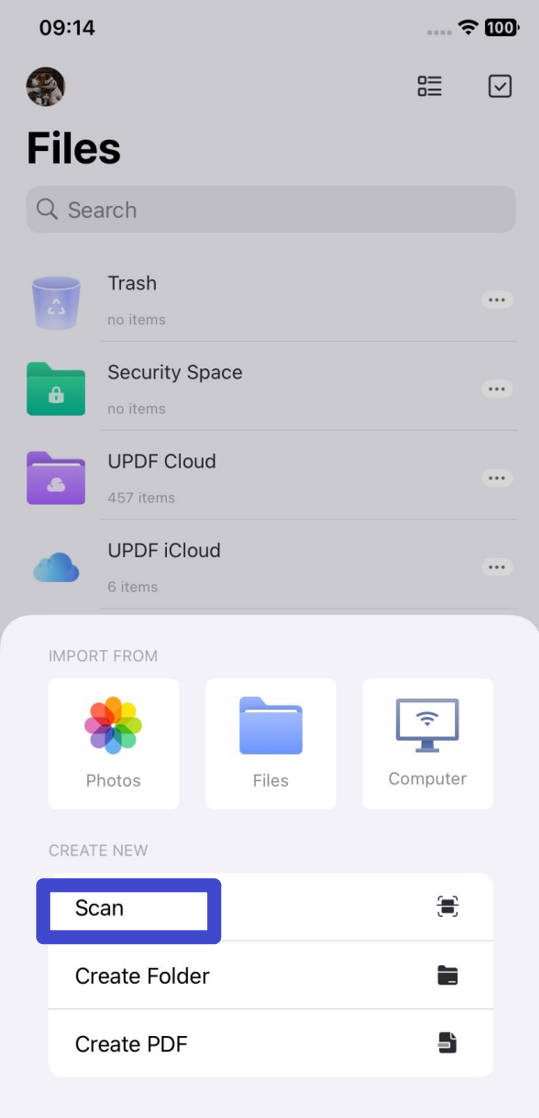
- Open the app and tap the "+" button in the bottom right corner. Select "Files" to choose a scanned PDF from your device, or "Scan" to scan a document directly into PDF format.
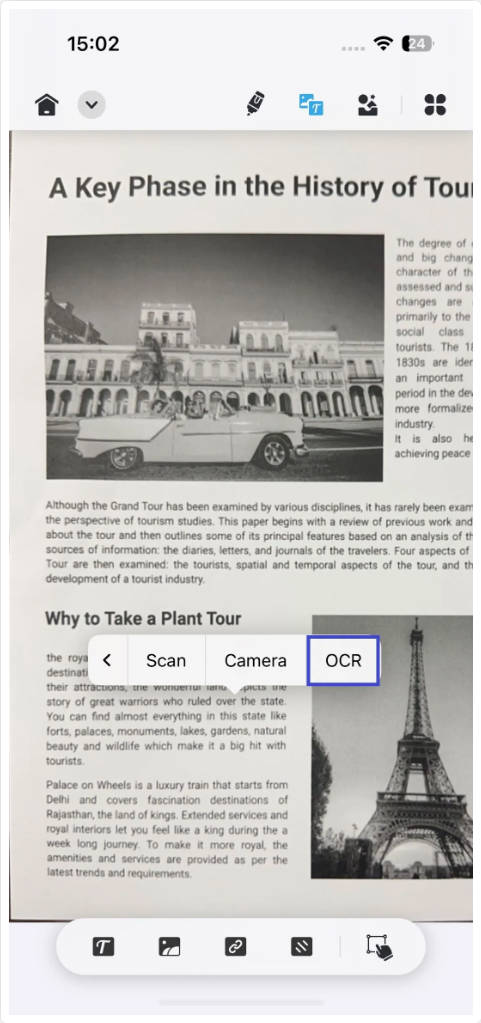
- Once your document is open, long-press on the screen and select the "OCR" option to convert the scanned PDF into editable text.
- After the conversion, long-press on the text you wish to modify, and choose "Copy" or "Share" to move or share the content.

- To paste the text into another document, open a new or existing PDF, go to 'Annotate Mode,' and select 'Text box,' or switch to 'Edit mode' and paste the text.
Following these steps makes editing scanned PDFs on iPhone or iPad quick and simple.
Note
While Android users can view and edit PDFs, they cannot directly edit scanned PDFs. To edit a scanned PDF on Android, you'll need to first convert it to an editable format using UPDF on a Windows or Mac device.
Part 3. How to Edit a Scanned PDF in Word
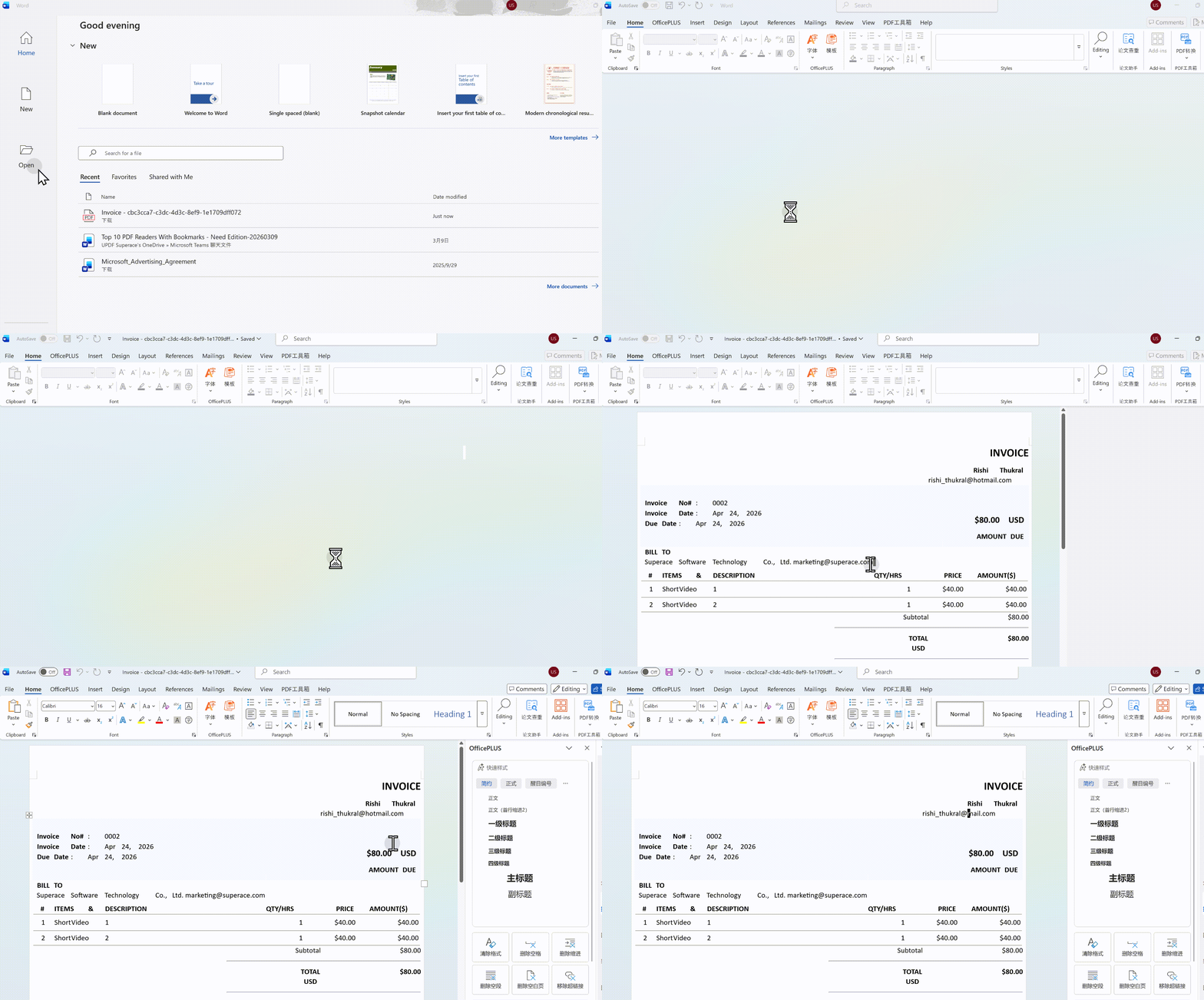
If you already have Microsoft Word installed and you're more comfortable there than in a dedicated PDF tool, this path is for you. Word has built‑in OCR that can handle basic scanned PDFs — just open the file, and Word does the rest. It's not the most powerful option, but it's the most familiar.
| Comparison Point | Word Workaround | Dedicated Desktop OCR |
|---|---|---|
| Workflow | Open scanned PDF in Word → auto‑OCR → edit → save as PDF | Open in dedicated software → OCR → edit → save |
| Format Retention | ⭐⭐ (complex layouts break easily) | ⭐⭐⭐⭐ |
| Learning Curve | Zero (everyone knows Word) | Some learning required |
| Best For | Heavy rewriting, plain text | Preserving original layout, tables, mixed content |
Word is convenient but limited. If your scanned PDF is mostly plain text with a simple structure, Word will handle it just fine. But if your document has tables, multiple columns, images, or any complex layout, Word will likely break something — and you'll spend more time fixing the formatting than you saved. For anything beyond a simple text‑heavy document, skip this path and use a dedicated desktop OCR tool instead.
Part 4: Pro Tips for Editing a Scanned PDF
Editing a scanned PDF is one thing — editing it so that no one can tell is another. This is where the pros separate from the amateurs. If you want your final document to look untouched, pay close attention to what follows.
The most obvious giveaway in any edited scanned PDF is a font mismatch. When you insert new text that looks slightly different from the surrounding content — different size, different weight, different spacing — it immediately raises suspicion.
The best tools handle this for you automatically. UPDF detects the original font used in the scanned document and applies it to any text you add or modify. You type, they match — no extra steps.
Windows • macOS • iOS • Android 100% secure
But if you're using a tool that doesn't auto‑match, you'll need to do it manually. Before you start editing, take a moment to identify the font, size, and color of the surrounding text. Most tools allow you to set these properties in the editor's formatting panel. Match them as closely as possible before inserting new text, and always check the result at 100% zoom — not zoomed in, not zoomed out.
OCR is never 100% perfect — but you can get extremely close. Most recognition errors trace back to the quality of the original scan rather than the tool itself.
Start with a good scan: aim for at least 300 DPI. Anything lower and the software is essentially guessing what characters look like. Make sure the page is flat — any skew or curvature will confuse the recognition engine. Brightness and contrast also matter: if the page is too dark, thin strokes get lost; if it's too bright, characters bleed together. A 50% mid‑tone is a safe starting point.
When you run OCR, always select the correct language of the document. This tells the engine which character sets to expect — a small step that dramatically improves accuracy, especially for accented letters or non‑Latin scripts. UPDF supports 38 languages.
Finally, treat OCR as a first pass, not a final output. Always proofread the entire document after recognition and before you start editing. Fix any misinterpreted characters early — otherwise you'll be editing the wrong text or, worse, propagating errors into your final version.
FAQs
Can you edit a scanned PDF without OCR?
Not as normal text. Without OCR, you can only annotate or cover the page image; run OCR to turn recognized characters into selectable, editable text.
Why does OCR misread text in a scanned PDF?
Blur, skew, low contrast, handwriting, and unusual fonts reduce recognition accuracy. Rescan at a higher resolution or improve the image, then proofread names and numbers.
Will editing a scanned PDF change its original layout?
It can if replacement text uses a different font or spacing. Match the font size and alignment, and review the full page after every edit.
Conclusion
Editing scanned PDFs becomes a straightforward task with UPDF's advanced OCR features. By converting scanned images into editable text, UPDF allows for efficient adjustments on any platform. Its additional capabilities, like text extraction and combining multiple scanned documents, make it a comprehensive tool for managing scanned files. UPDF ensures a smooth editing experience across devices. Explore the full range of features today and take control of your scanned PDFs with ease.
This guide covers everything you need to edit scanned PDFs. If you're looking for a more comprehensive walkthrough — including how to edit text, replace images, manage pages, add annotations, convert formats, and more — visit our full pillar guide: How to Edit a PDF.
Windows • macOS • iOS • Android 100% secure








 Italo Rossi
 Enrica Taylor
 Lizzy Lozano