 UPDF
UPDF
 UPDF for Windows
 UPDF for Mac
 UPDF for iPhone/iPad
 UPDF for Android
 Nomostar
 UPDF AI Online
 UPDF Sign
 IvyCraft
 Edit PDF
 Annotate PDF
 Create PDF
 PDF Form
 Edit links
 Convert PDF
 OCR
OCR PDF to Word
 PDF to Image
 PDF to Excel
 Organize PDF
 Merge PDF
 Split PDF
 Crop PDF
 Rotate PDF
 Protect PDF
 Sign PDF
 Redact PDF
 Sanitize PDF
 Remove Security
 Read PDF
 UPDF Cloud
 Compress PDF
 Print PDF
 Batch Process
 About UPDF AI
 UPDF AI Solutions
 AI User Guide
 FAQ about UPDF AI
 Summarize PDF
 Translate PDF
 Chat with PDF
 Chat with AI
 Chat with image
 PDF to Mind Map
 Explain PDF
 PDF AI Tools
 Image AI Tools
 AI Chat Tools
 AI Writing Tools
 AI Study Tools
 AI Working Tools
 Other AI Tools
 AI Bookmark Generation
 AI Bookmark Summary
 AI Watermark Generation
 AI Background Generation
 AI Sticker Generation
 AI Stamp Generation
 AI Editing Suite
 UPDF Copilot
 AI Page Management
 AI Semantic Search
 PDF to Word
 PDF to Excel
 PDF to PowerPoint
 Enterprise Solution
 Enterprise Sign
 Enterprise AI
 Enterprise Plan
 Enterprise User Guide
 Enterprise Webinar
 IT
IT Education
 Construction
 Financial Service
 Healthcare
 Insurance
 Legal
Legal Manufacturing
 Government
 Researchers & PhDs
 Solopreneurs & Freelancers
 Lawyers & Legal Professionals
 Real Estate Agents & Brokers
 Education Solution
 Customer Stories
 User Guide
 UPDF Tricks
 FAQs
FAQs UPDF Reviews
 Download Center
 Blog
Blog Newsroom
 Tech Spec
 Updates
 UPDF vs. Adobe Acrobat
 UPDF vs. Foxit
 UPDF vs. PDF Expert

Reversing PDF page order flips the full sequence, placing the last page first and the first page last. It changes where complete pages appear; it does not rotate the page content. This is useful when a scan, export, or print workflow produces a document in backward order.
Long-running discussions on Adobe Community and Reddit show why users want a direct command instead of scripts or page-by-page dragging. The right command, however, depends on the actual page sequence.
A backward feeder scan may produce a simple last-to-first sequence, while other duplex workflows may swap adjacent odd and even pages or separate the two sides into different blocks. Printer output is a different case: reversing the print order can fix the physical stack without changing the original PDF. For other page-management tasks, including rearranging, rotating, inserting, deleting, or splitting pages, see how to organize PDF pages before choosing the reverse-order workflow.
Scanned a multi-page document backward? Download UPDF to reverse the saved page order locally without uploading the file to a browser tool.
Windows • macOS • iOS • Android 100% secure
Quick Comparison
The five methods below solve different problems. First decide whether you need to change the saved PDF or only the order in which pages print.
| Method | Best For | Automatic Full Reversal | Saved PDF Result | File Handling |
| UPDF Desktop | Full reversal, adjacent-pair correction, two-page swaps, and manual reordering | Yes | Changes can be saved directly | Local desktop processing |
| UPDF Mobile | Manual page reordering on iPhone, iPad, or Android | No - manual drag and drop | Changes can be saved in the app | Local mobile app |
| Mac Preview | Printing sheets from last to first | Yes, for the print job | Original stays unchanged; a new PDF can be created through the print dialog | Local |
| AvePDF | Dedicated browser-based full reversal | Yes | Downloads a reversed file | Upload to a web service |
| iLovePDF | Descending page-number sort plus manual organization | Yes | Downloads an organized file | Upload to a web service |
| Adobe Acrobat/Reader | Reverse printing or creating a print-to-PDF copy; manual reordering in Acrobat | Yes, for printing | New PDF through a PDF printer; manual changes can be saved in Acrobat | Local desktop processing |
Method 1: Reverse or Rearrange PDF Pages with UPDF
Best for:
- Reversing an entire PDF, correcting adjacent odd-even page pairs, swapping two misplaced pages, or manually arranging pages on desktop and mobile.
UPDF combines automatic page-order commands with drag-and-drop controls. Its broader organize PDF pages workspace also supports inserting, extracting, replacing, splitting, rotating, and deleting pages. For a scanned document, page reversal itself does not require OCR because the operation moves complete pages.
It helps to review the document as a whole before saving the new arrangement. The demonstration below gives some context for organizing PDF pages in UPDF.
Choose the Correct Page-Order Option
| Current Sequence | Desired Result | Use This Option |
| 5, 4, 3, 2, 1 | 1, 2, 3, 4, 5 | Reverse Order |
| 2, 1, 4, 3, 6, 5 | 1, 2, 3, 4, 5, 6 | Swap Odd and Even |
| Only two pages are misplaced | Exchange those two page positions | Customize Exchange |
| Several unrelated pages are misplaced | Place each page in a custom position | Drag and drop |
Advanced insight:
Workflow A: Automatic Page-Order Correction
- Open the PDF in UPDF and select Organize Pages from the workspace toolbar.
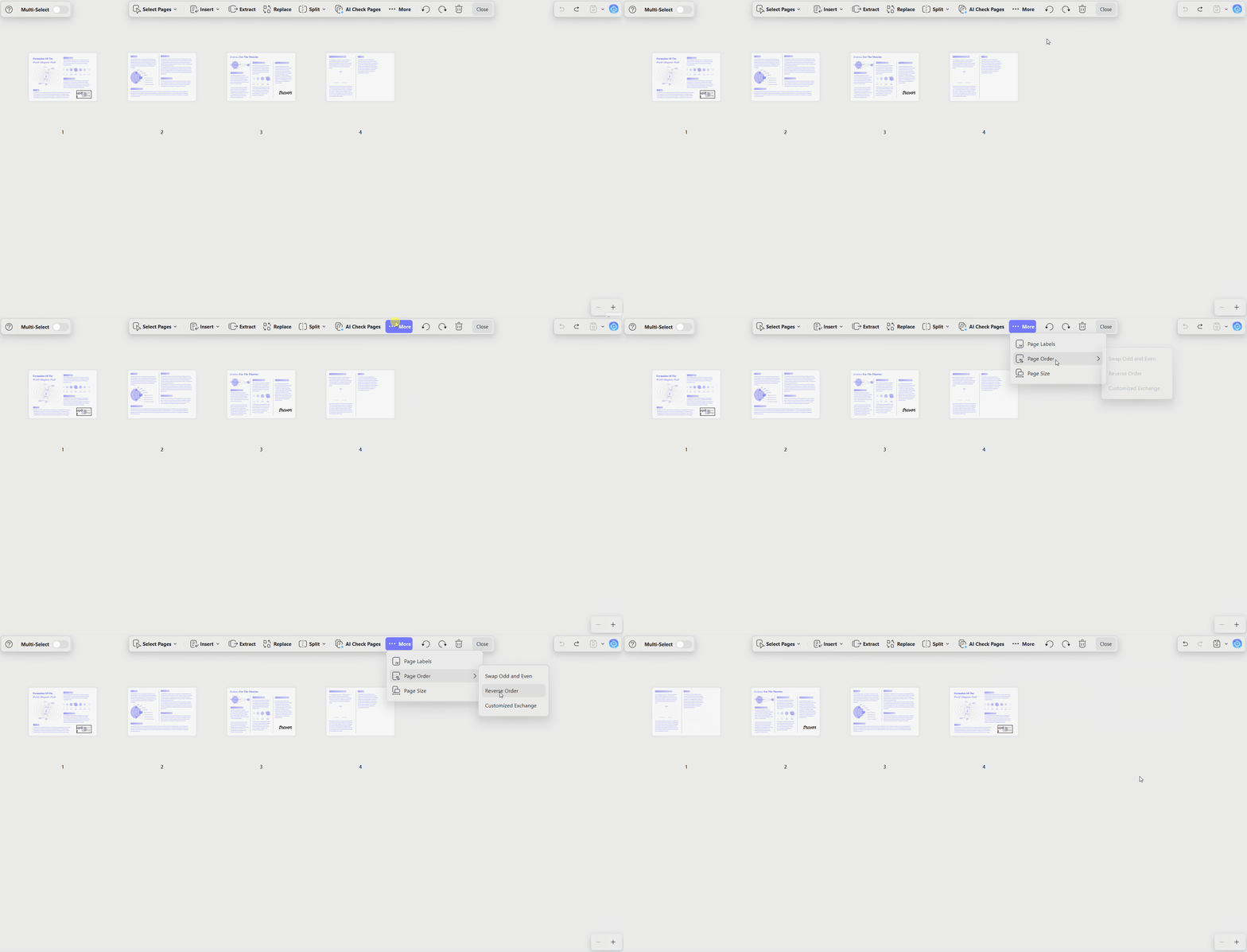
- Select More > Page Order, and then choose the command that matches the current sequence.
Reverse Order: Flips the entire PDF so the last page becomes the first.
Swap Odd and Even: Exchanges adjacent odd and even page positions across the document.
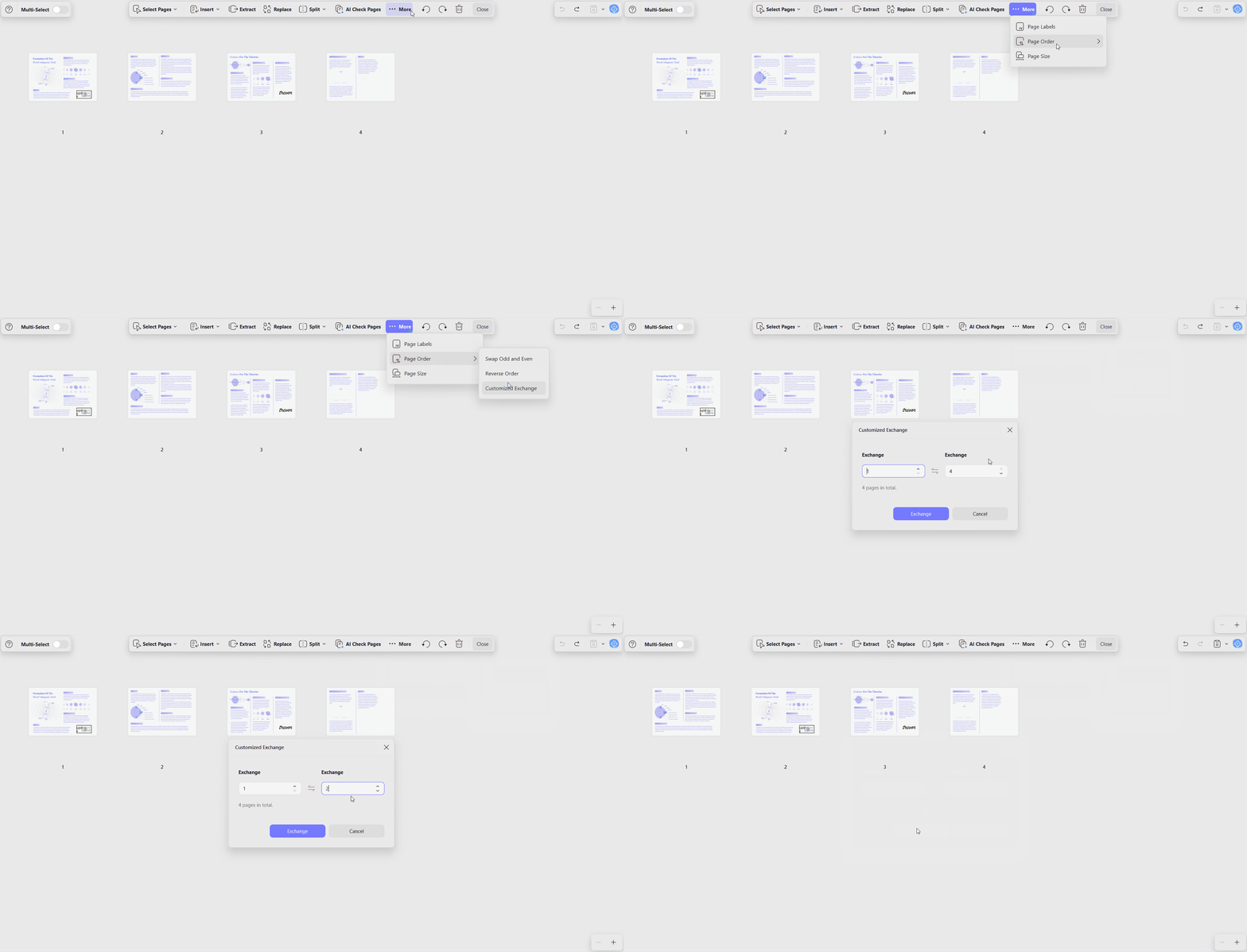
Customize Exchange: Swaps two specified page numbers without moving the remaining pages. On some Mac builds, the dialog label appears as Customized Exchange.
Save safely: Use Save As if you want to preserve the original sequence. Reopen the new file and confirm the first page, last page, and any odd-even pairs before replacing the source document.
Workflow B: Manual Drag-and-Drop Reordering
Manual reordering is better when only a few pages are misplaced or when the sequence does not follow a predictable pattern.
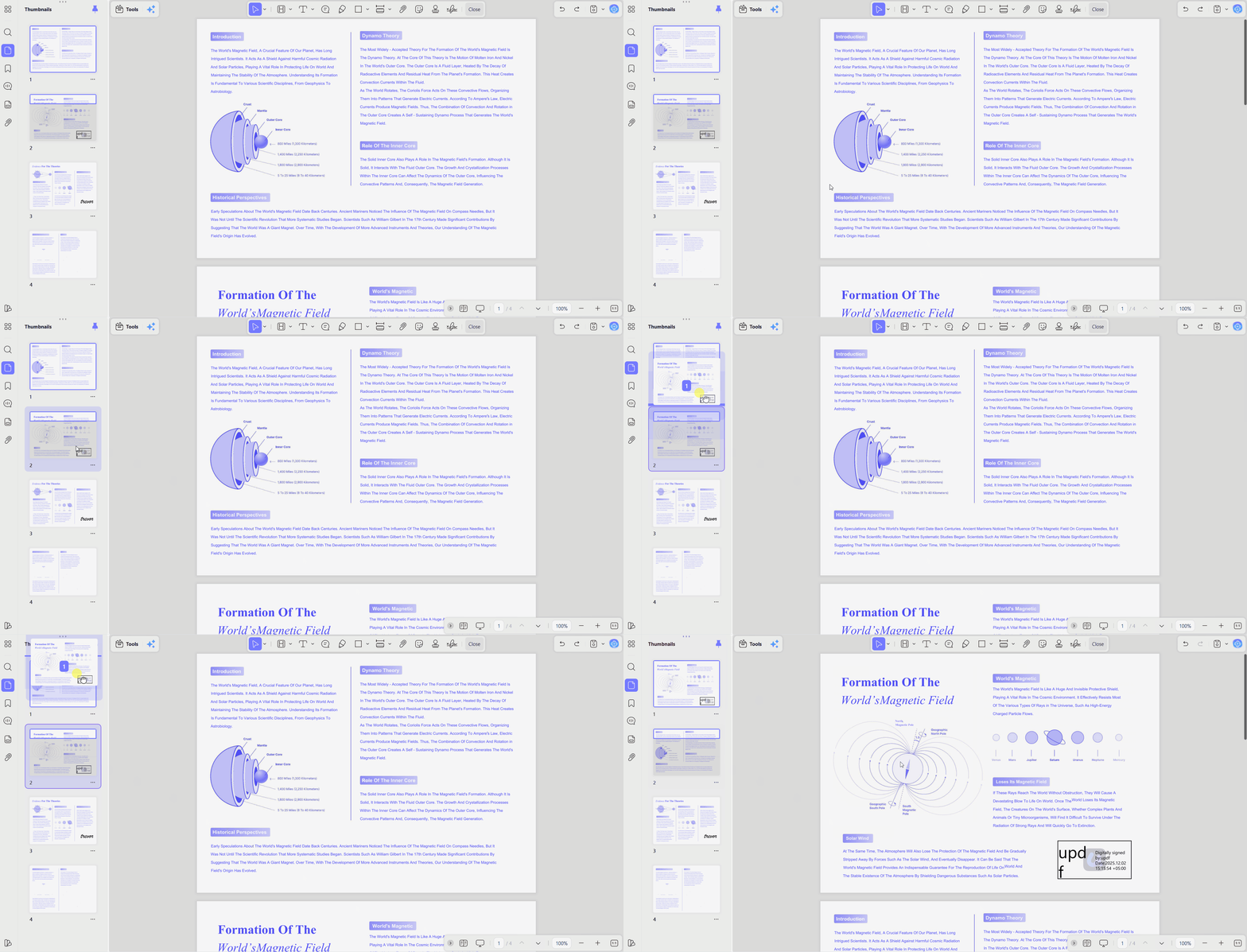
Left Thumbnail Panel. Open the thumbnail sidebar in reading mode, select the page you want to move, and drag it to the correct position. Repeat for other misplaced pages.
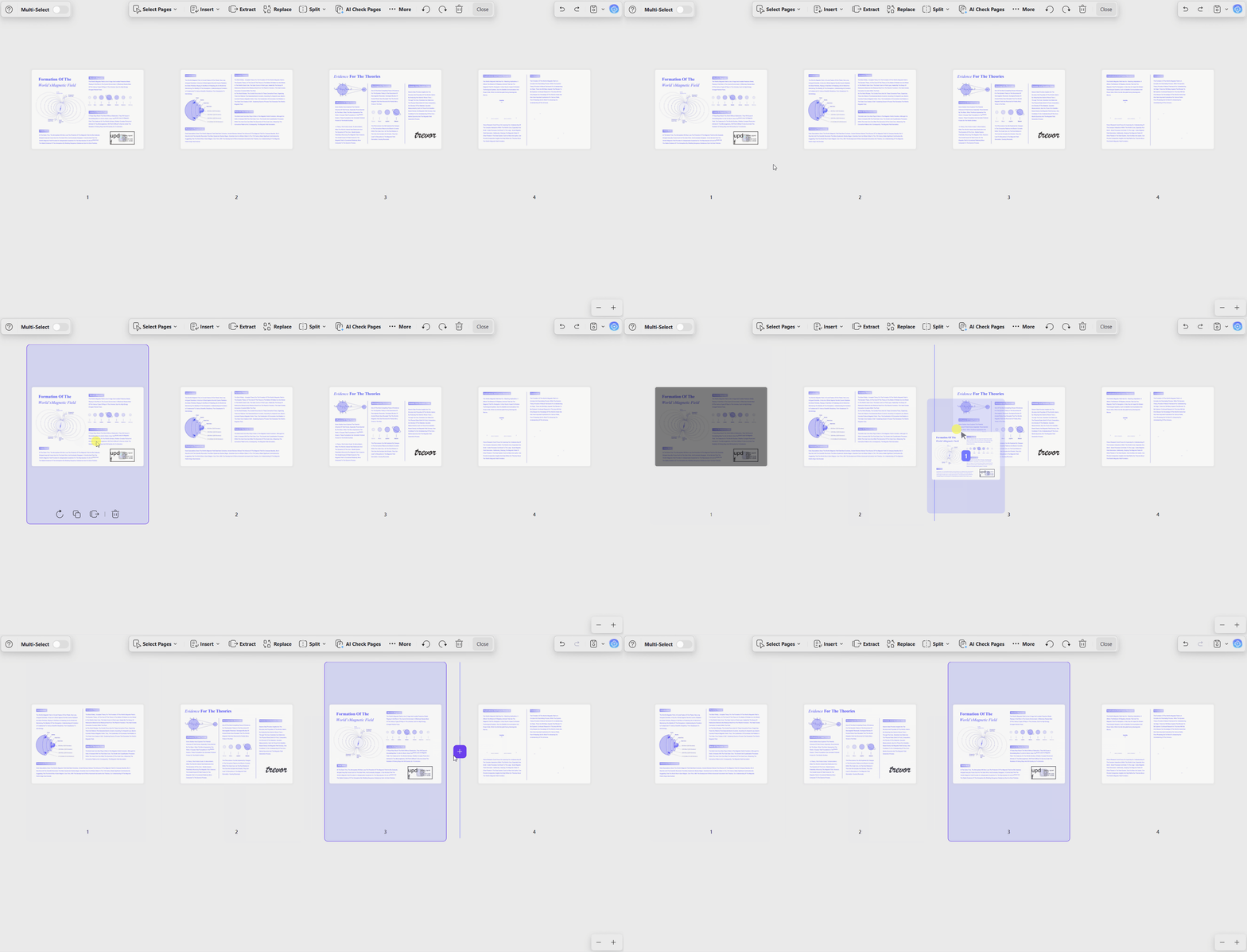
Organize Pages Grid. Open Organize Pages and drag thumbnails into the required order. The larger grid is easier to review when several pages need adjustment.
Mobile Option: Manually Reverse PDF Pages with UPDF on iPhone, iPad, or Android
Best for:
- Short PDFs and quick page-order corrections when you are away from a desktop.
The current official UPDF iOS User Guide and UPDF Android User Guide document thumbnail drag-and-drop in Organize Pages. However, the UPDF for iOS & Android versions do not support Swap Odd and Even or Customize Exchange methods. Below are the steps to reverse PDF page order manually using UPDF mobile version.
- Open the PDF in UPDF, tap the upper-right toolbar icon, and select Organize Pages.
- Drag the thumbnails into reverse sequence, moving the last page to the first position and continuing page by page.
- Save the PDF, reopen it, and check the first page, last page, and any duplex pairs.
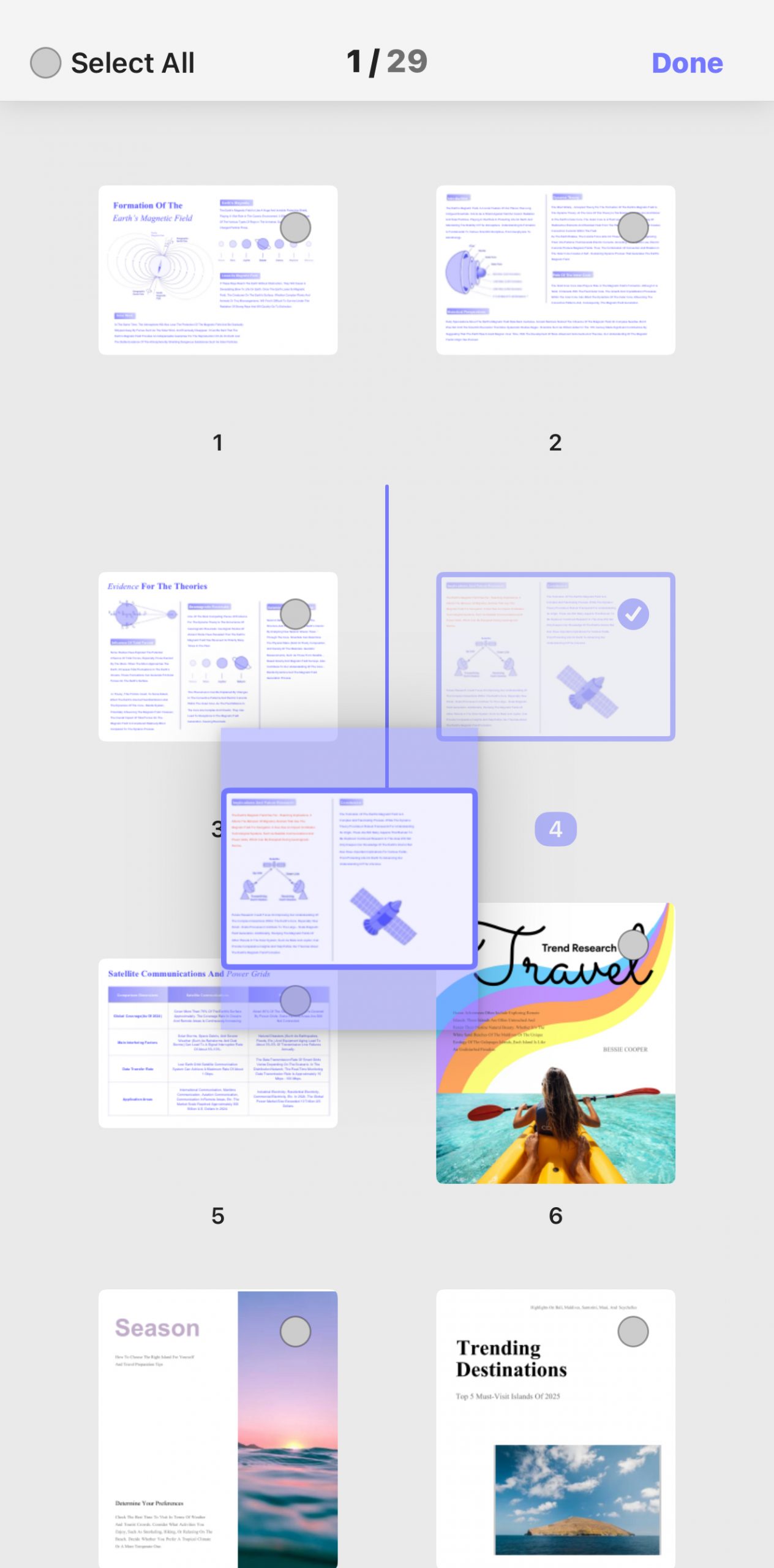
Important limitation: Mobile reordering is manual. For a long PDF, use UPDF on Windows or Mac and choose Reverse Order.
Windows • macOS • iOS • Android 100% secure
Method 2: Reverse PDF Print Order with Mac Preview
Best for:
- Mac users who need pages to print from last to first without directly rearranging the original PDF.
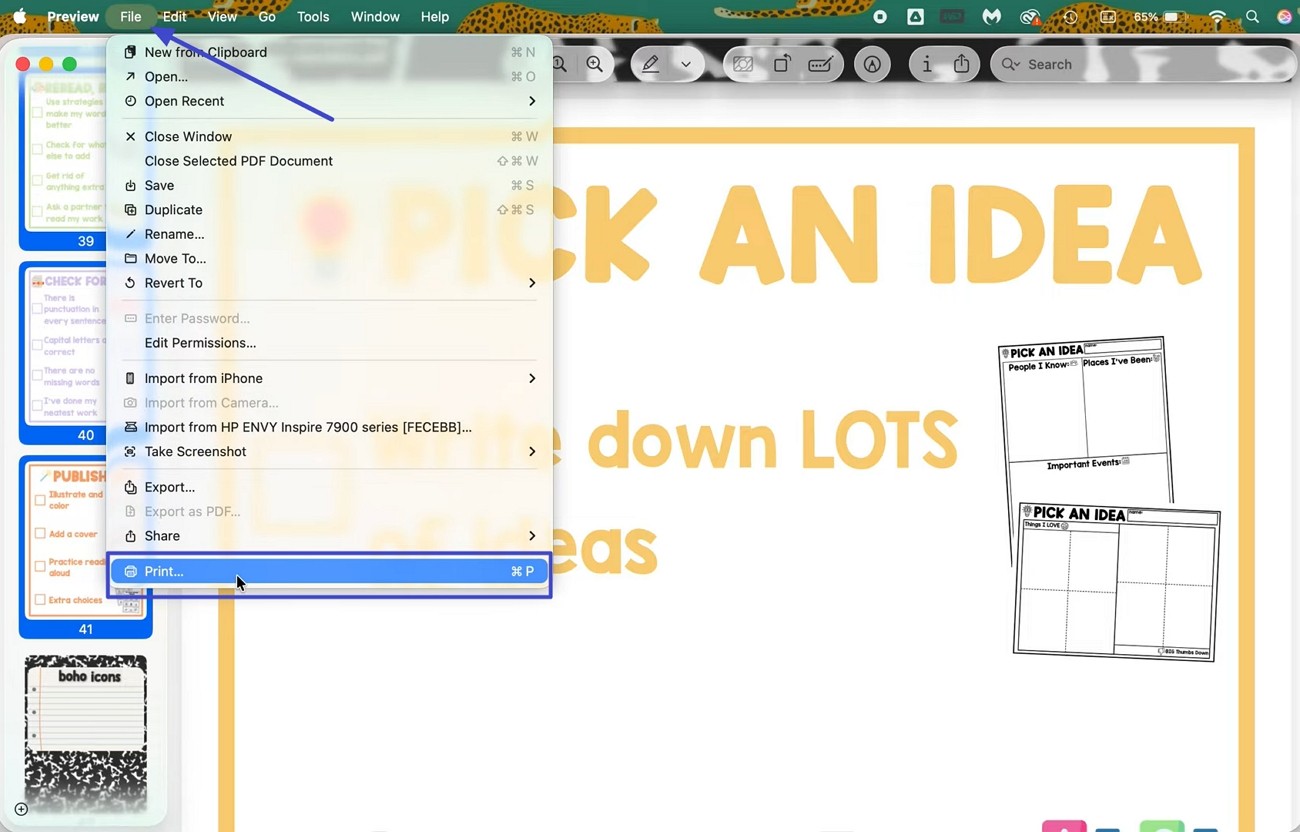
Preview uses the macOS print dialog to change the output sequence. The setting affects the print job; it is not a reverse command in Preview's page-editing tools.
1. Open the PDF in Preview and choose File > Print, or press Command + P.
2. Expand Paper Handling, set Sheet Order to Reverse, and print the document.
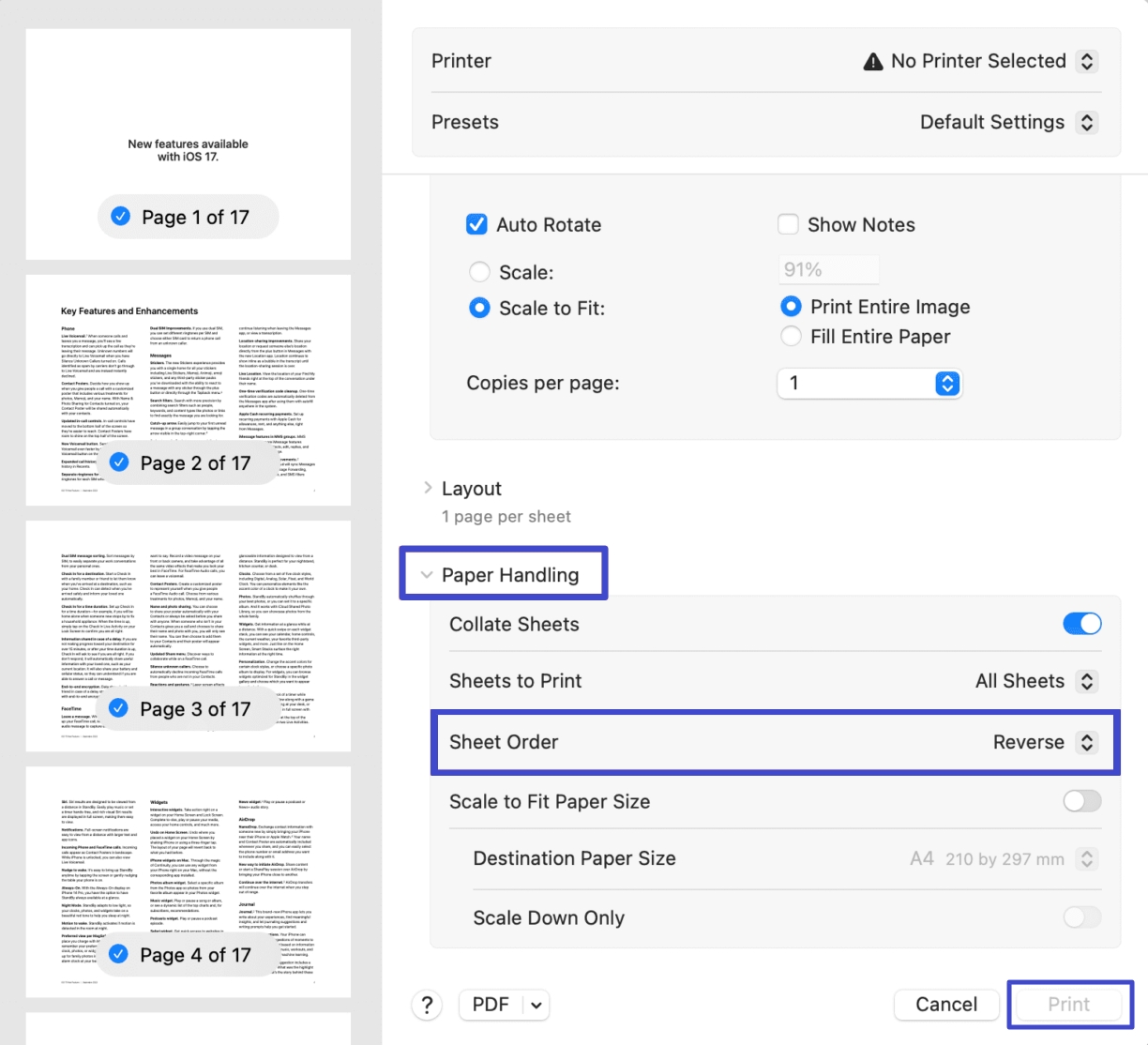
Important limitation:
Reverse Sheet Order does not change the sequence in the original PDF. If you choose Save as PDF from the PDF menu, macOS creates a new file through the print workflow. Review that new file before replacing the original, especially if the PDF contains links, forms, annotations, or other interactive elements.
Method 3: Reverse PDF Pages Online with AvePDF
Best for:
- A dedicated browser-based reversal when the file is suitable for online upload.
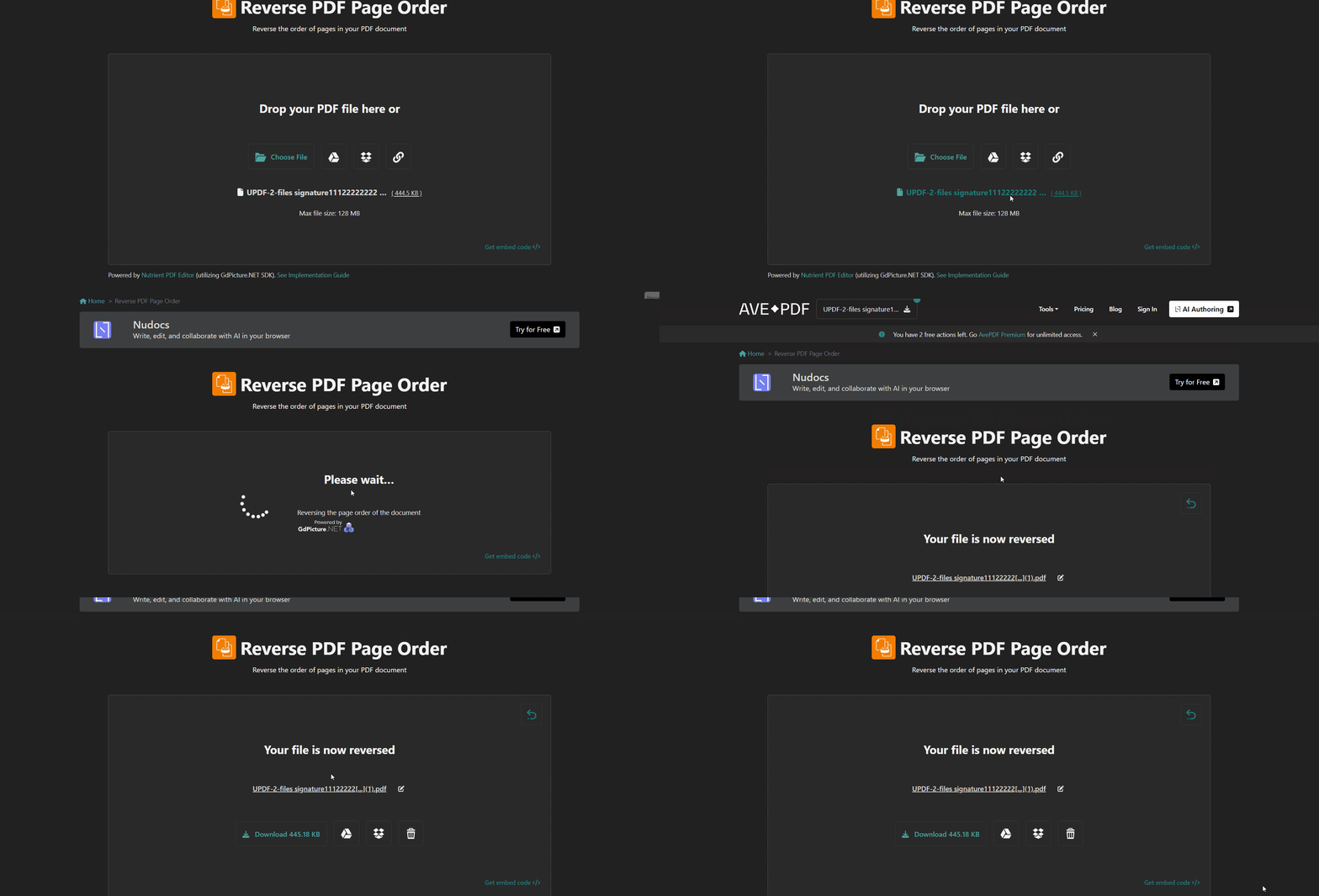
AvePDF automatically reverses a multi-page PDF after upload and provides the resulting file for download.
- Open the AvePDF Reverse PDF Page Order tool and upload a multi-page PDF.
- Wait for automatic processing, then download the reversed PDF or save it to a supported cloud service.
Privacy and limits:
This method uploads the file to AvePDF's servers. Check the current file-size limit and privacy notice shown on the tool before processing confidential contracts, financial records, personal data, or other restricted documents.
Method 4: Reverse PDF Pages Online with iLovePDF
Best for:
- Browser users who want an automatic descending page-number sort together with manual page organization controls.
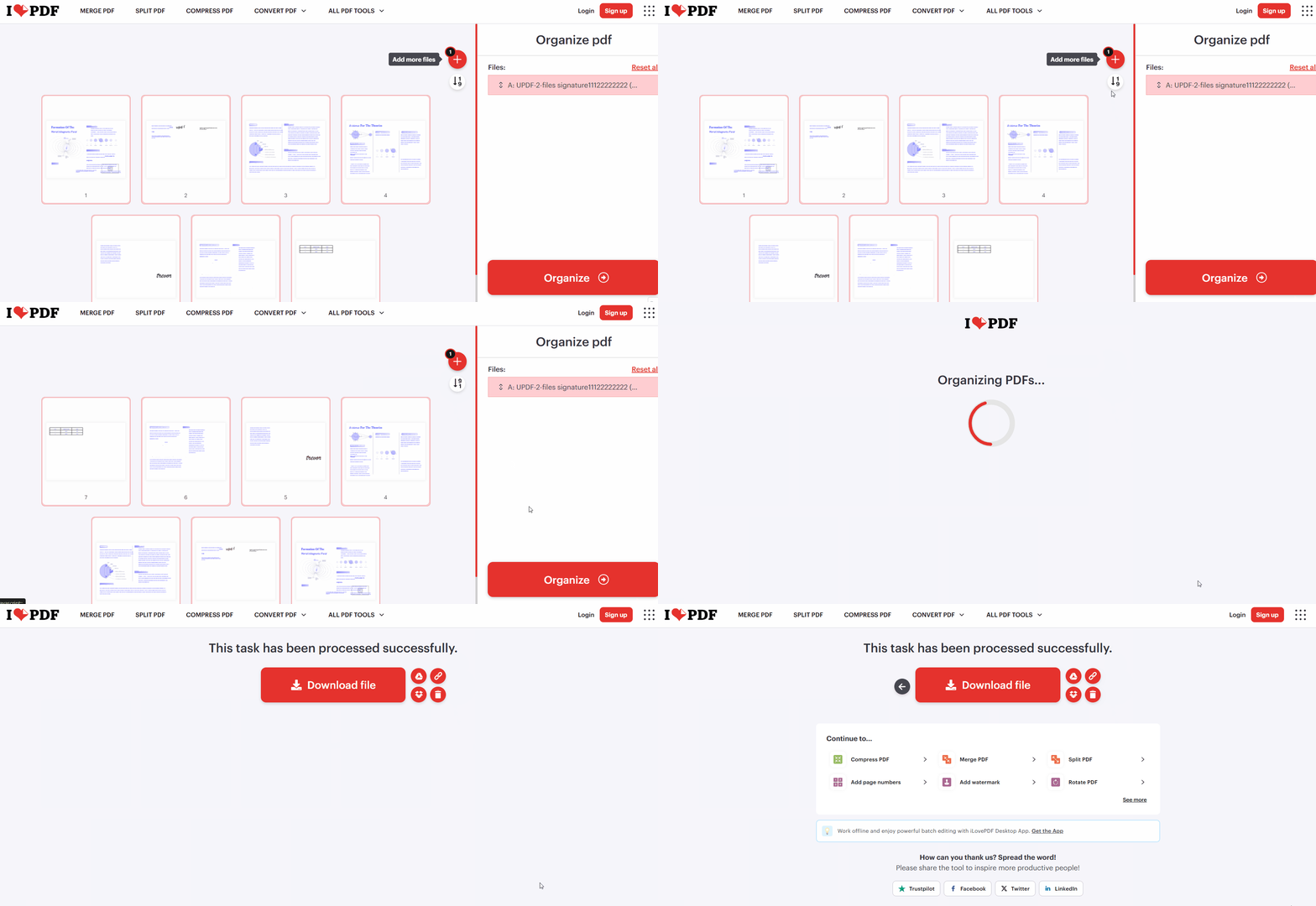
iLovePDF uses its Organize PDF workspace rather than a separate reverse-only page. The current interface can sort the thumbnails into descending numerical order, so a full reversal does not require dragging every page by hand.
- Open iLovePDF Organize PDF and upload the document.
- Select the descending page-number sort control so the highest page number appears first. Review the thumbnails, click Organize PDF, and download the result.
When not to use full reversal:
If only one or two pages are misplaced, move those thumbnails instead of reversing the complete sequence. For a different task involving page substitution, see how to replace PDF pages online.
Method 5: Reverse PDF Pages with Adobe Acrobat or Reader
Best for:
- Existing Adobe users who need reverse print output, a Windows print-to-PDF copy, or manual page movement in Acrobat's Organize Pages workspace.
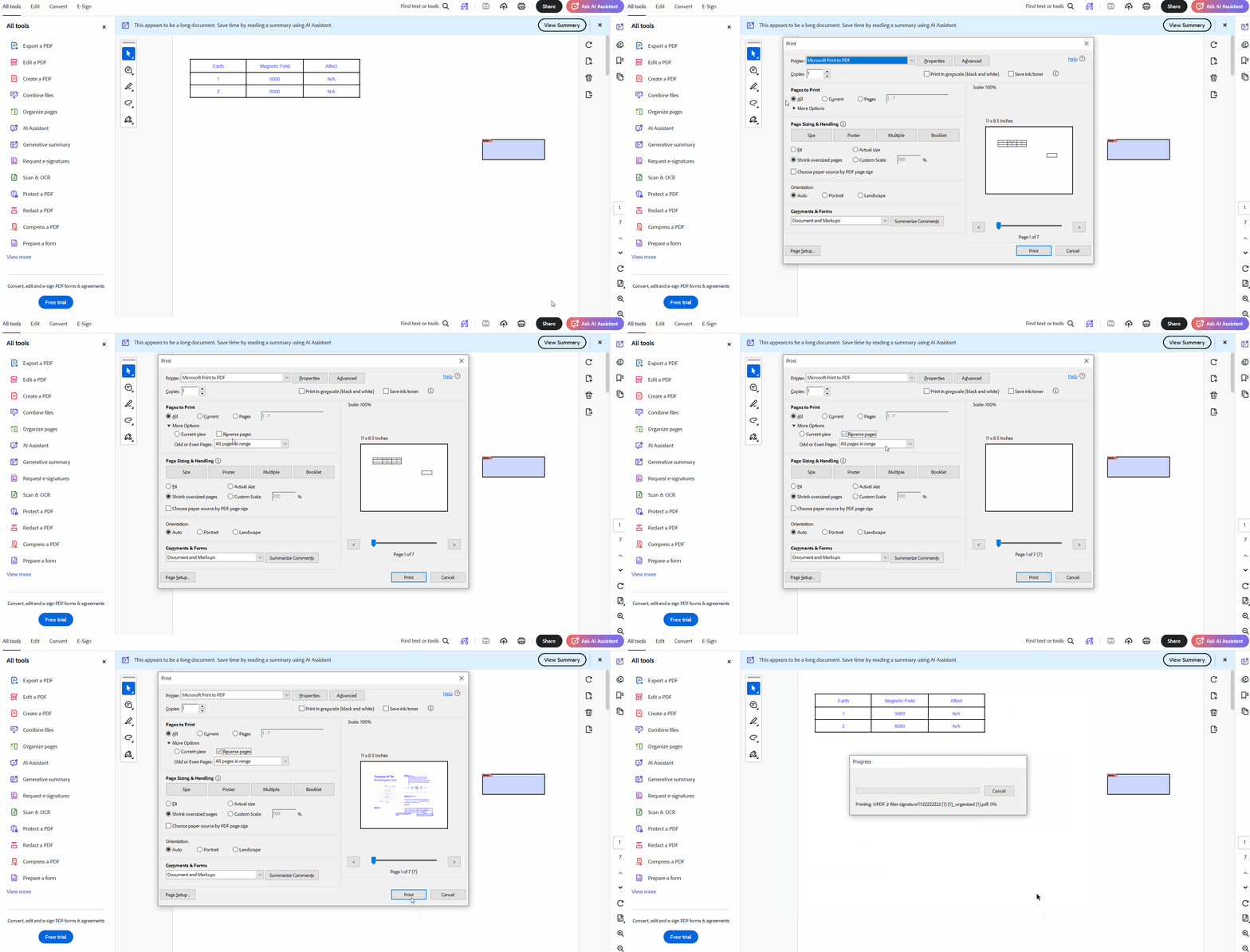
Adobe Reader and Adobe Acrobat Pro provide a Reverse pages option in the desktop print dialog. Acrobat's Organize Pages workspace supports manual drag-and-drop reordering, but Adobe's current help does not document a dedicated full-document Reverse Order command there.
Option A: Reverse Pages When Printing or Creating a New PDF
- Open the file and choose File > Print.
- Expand More Options and select Reverse pages.
- Print to a physical printer, or on Windows select Microsoft Print to PDF and save the result under a new filename.
Option B: Manually Reorder Selected Pages in Acrobat
Open All tools > Organize pages, select one or more thumbnails, and drag them to the required position. Save the PDF after reviewing the final order. This is practical for a few misplaced pages but not a one-click full reversal.
Product boundary:
Reader can reverse a print job but cannot save manual Organize Pages edits. Printing to a PDF printer creates a new file through the print workflow rather than changing the original PDF's page tree.
Frequently Asked Questions
How do I reverse the page order of a scanned PDF in one operation?
Open the PDF in UPDF, choose Organize Pages > More > Page Order > Reverse Order, and save. OCR is unnecessary because the command moves whole pages.
What is the difference between AvePDF and iLovePDF for reversing pages?
AvePDF automatically reverses the file after upload. iLovePDF combines a descending sort control with manual page organization. Both workflows upload the document.
What is the difference between Reverse Order and Swap Odd and Even in UPDF?
Reverse Order flips the full sequence; Swap Odd and Even exchanges adjacent pairs. Separate odd-page and even-page blocks require interleaving instead.
Can I reverse PDF pages on an iPhone, iPad, or Android device?
Yes, by manually dragging thumbnails in Organize Pages. For a long document, use the desktop Reverse Order command instead.
Can Mac Preview save a new PDF in reverse order?
Preview reverses the print job, not the original PDF. Save as PDF can create a new file from that print workflow; review it before replacing the original.
Do I need OCR before reversing a scanned PDF?
No. Page reversal moves whole pages and does not depend on selectable text.
What is the difference between reversing, rotating, and rearranging PDF pages?
Reversing flips the full sequence from last to first. Rotating changes page orientation without moving the page. Rearranging moves selected pages to custom positions.
Conclusion
Use Reverse Order for a full last-to-first file, Swap Odd and Even for adjacent pairs, and drag-and-drop for isolated errors. UPDF automates desktop correction and supports manual mobile reordering; the other tools above cover print or browser workflows. Save a copy and verify the first and last pages before replacing the original.
Windows • macOS • iOS • Android 100% secure






 Enrica Taylor


 Enid Brown