 UPDF
UPDF
 UPDF for Windows
 UPDF for Mac
 UPDF for iPhone/iPad
 UPDF for Android
 Nomostar
 UPDF AI Online
 UPDF Sign
 IvyCraft
 Edit PDF
 Annotate PDF
 Create PDF
 PDF Form
 Edit links
 Convert PDF
 OCR
OCR PDF to Word
 PDF to Image
 PDF to Excel
 Organize PDF
 Merge PDF
 Split PDF
 Crop PDF
 Rotate PDF
 Protect PDF
 Sign PDF
 Redact PDF
 Sanitize PDF
 Remove Security
 Read PDF
 UPDF Cloud
 Compress PDF
 Print PDF
 Batch Process
 About UPDF AI
 UPDF AI Solutions
 AI User Guide
 FAQ about UPDF AI
 Summarize PDF
 Translate PDF
 Chat with PDF
 Chat with AI
 Chat with image
 PDF to Mind Map
 Explain PDF
 PDF AI Tools
 Image AI Tools
 AI Chat Tools
 AI Writing Tools
 AI Study Tools
 AI Working Tools
 Other AI Tools
 AI Bookmark Generation
 AI Bookmark Summary
 AI Watermark Generation
 AI Background Generation
 AI Sticker Generation
 AI Stamp Generation
 AI Editing Suite
 UPDF Copilot
 AI Page Management
 AI Semantic Search
 PDF to Word
 PDF to Excel
 PDF to PowerPoint
 Enterprise Solution
 Enterprise Sign
 Enterprise AI
 Enterprise Plan
 Enterprise User Guide
 Enterprise Webinar
 IT
IT Education
 Construction
 Financial Service
 Healthcare
 Insurance
 Legal
Legal Manufacturing
 Government
 Researchers & PhDs
 Solopreneurs & Freelancers
 Lawyers & Legal Professionals
 Real Estate Agents & Brokers
 Education Solution
 Customer Stories
 User Guide
 UPDF Tricks
 FAQs
FAQs UPDF Reviews
 Download Center
 Blog
Blog Newsroom
 Tech Spec
 Updates
 UPDF vs. Adobe Acrobat
 UPDF vs. Foxit
 UPDF vs. PDF Expert

Quick answer:
PSD is a layered, Photoshop-native format. When you export it to PDF, layers are flattened into a single visual page — so if you later need to re-edit the artwork, keep the original .psd. The PDF is your shareable, print-ready copy, not a replacement for the source file.
I regularly get client mockups as .psd files and need to send them out as PDFs for review or printing — recipients rarely have Photoshop, and PSDs won't open in a browser or on most phones. Below are the five methods I actually use, split by where you're working (desktop, phone, or browser) and whether you own Adobe software.
Part 1. Which PSD to PDF Method Should You Use?
Pick your row based on your situation, then jump to that method. This is a routing table only — the step-by-step instructions are in Part 2.
| Your situation | Recommended method | Best for |
|---|---|---|
| No Photoshop, want it done locally on desktop | UPDF for Mac | Designers, freelancers sending client proofs offline |
| On an iPhone, iPad, or Android phone | UPDF mobile | Approving/sharing a mockup on the go, no computer nearby |
| Already have Photoshop open | Photoshop export | One-off export while you're mid-edit |
| Have Adobe Acrobat but not Photoshop | Adobe Acrobat | Users inside the Adobe subscription ecosystem |
| Won't install anything, one-time job | CloudConvert / FreeConvert (online) | A single non-sensitive file, any device with a browser |
Not for:
- if your PSD contains confidential client work or unreleased designs, skip the online converters (CloudConvert/FreeConvert) — they upload your file to a third-party server. Use UPDF on desktop or mobile instead, where the conversion happens locally.
Part 2. 5 Ways to Convert or Export PSD to PDF
Method 1. Convert PSD to PDF with UPDF (Mac)
UPDF is an all-in-one PDF tool that converts PSD files into PDF locally — nothing uploads to the cloud, so your designs stay on your machine. After conversion you can immediately edit text, mark up the page, compress it, or share it via a secure link. It runs on Mac (Apple Silicon), and it supports batch conversion when you have a folder of PSDs to process at once.
Here's the fastest route:
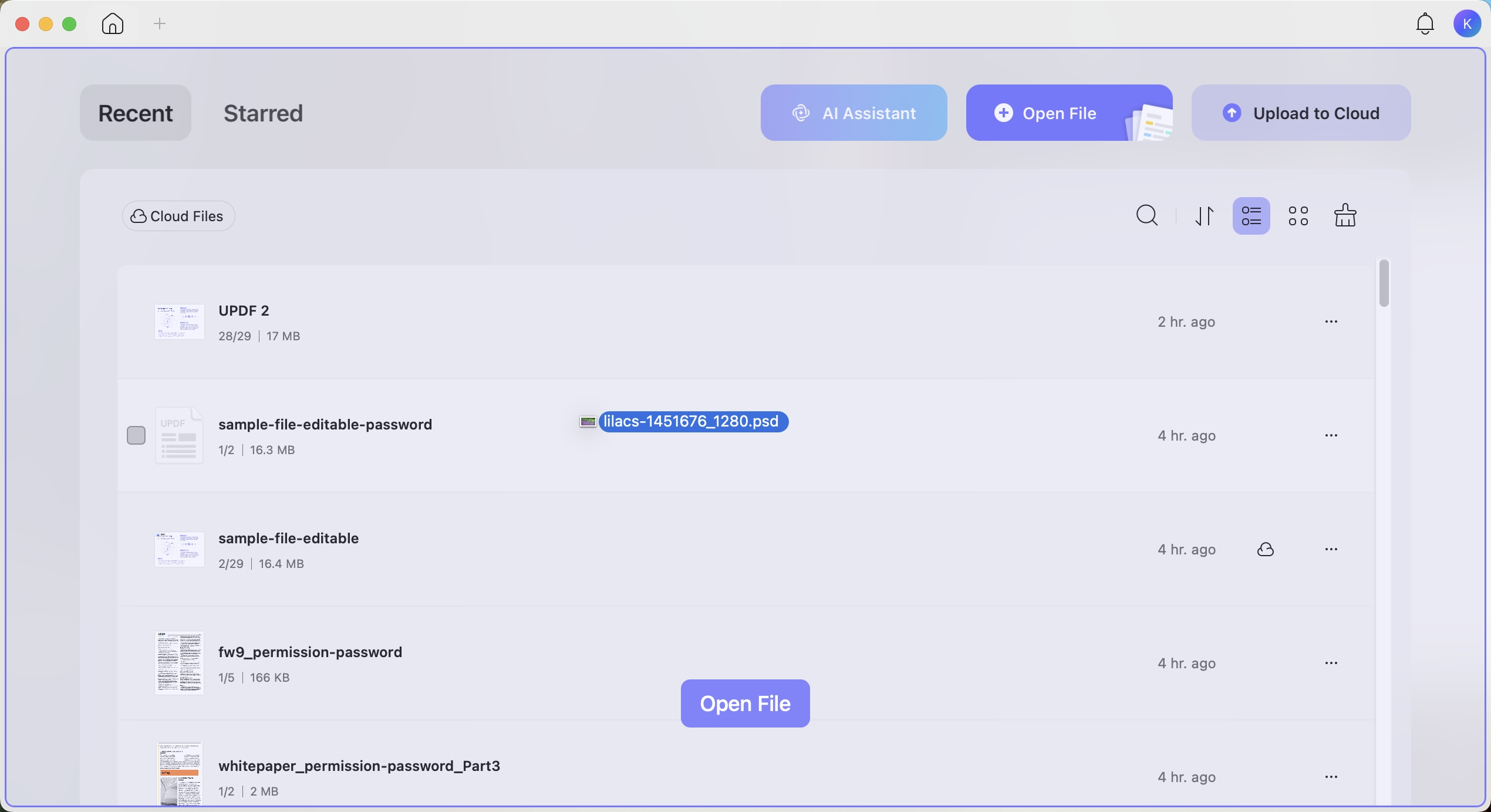
Step 1. Install and open UPDF, then drag your .psd file directly onto the UPDF. UPDF auto-detects the format and converts it to PDF — no menu navigation needed. (This drag-and-drop shortcut also works for Word, Excel, PowerPoint, and image files.)
Windows • macOS • iOS • Android 100% secure
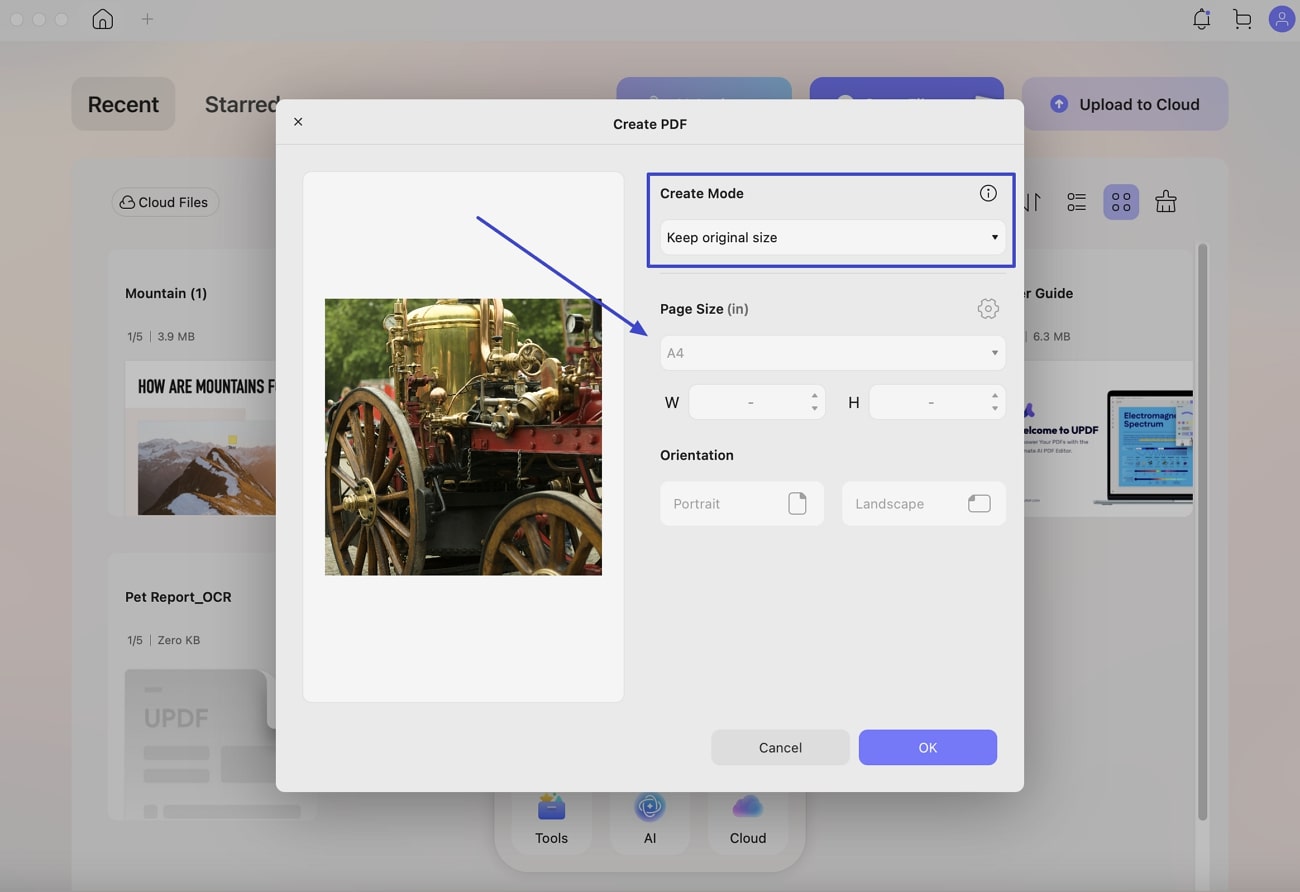
Step 2. In the setup dialog, choose your dimensions — "Keep Original Size" preserves the exact PSD canvas, or "Standard Page Size" fits it to a print size (with a custom option in your preferred unit).
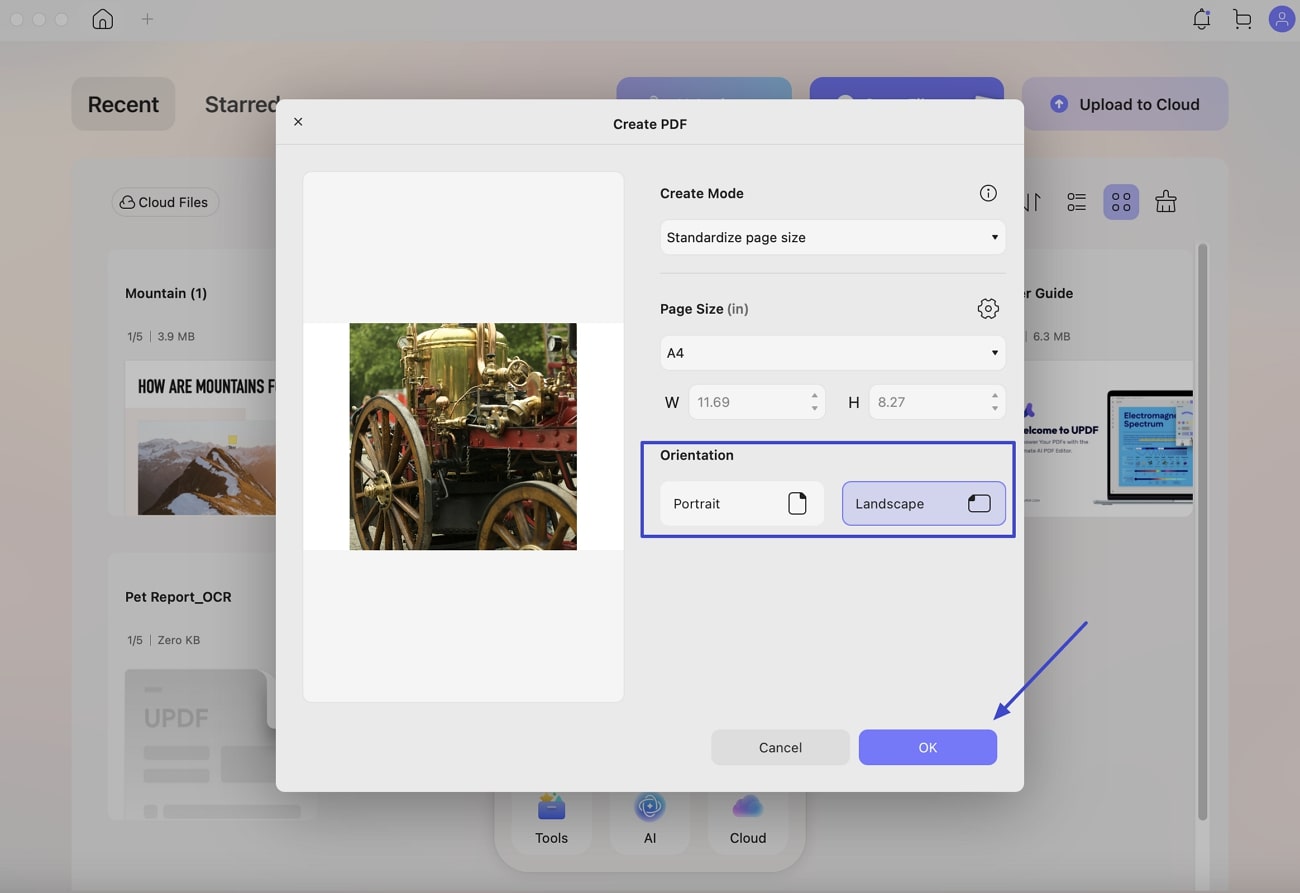
Step 3. Pick "Portrait" or "Landscape" orientation, then finish. Your PDF is ready in seconds.
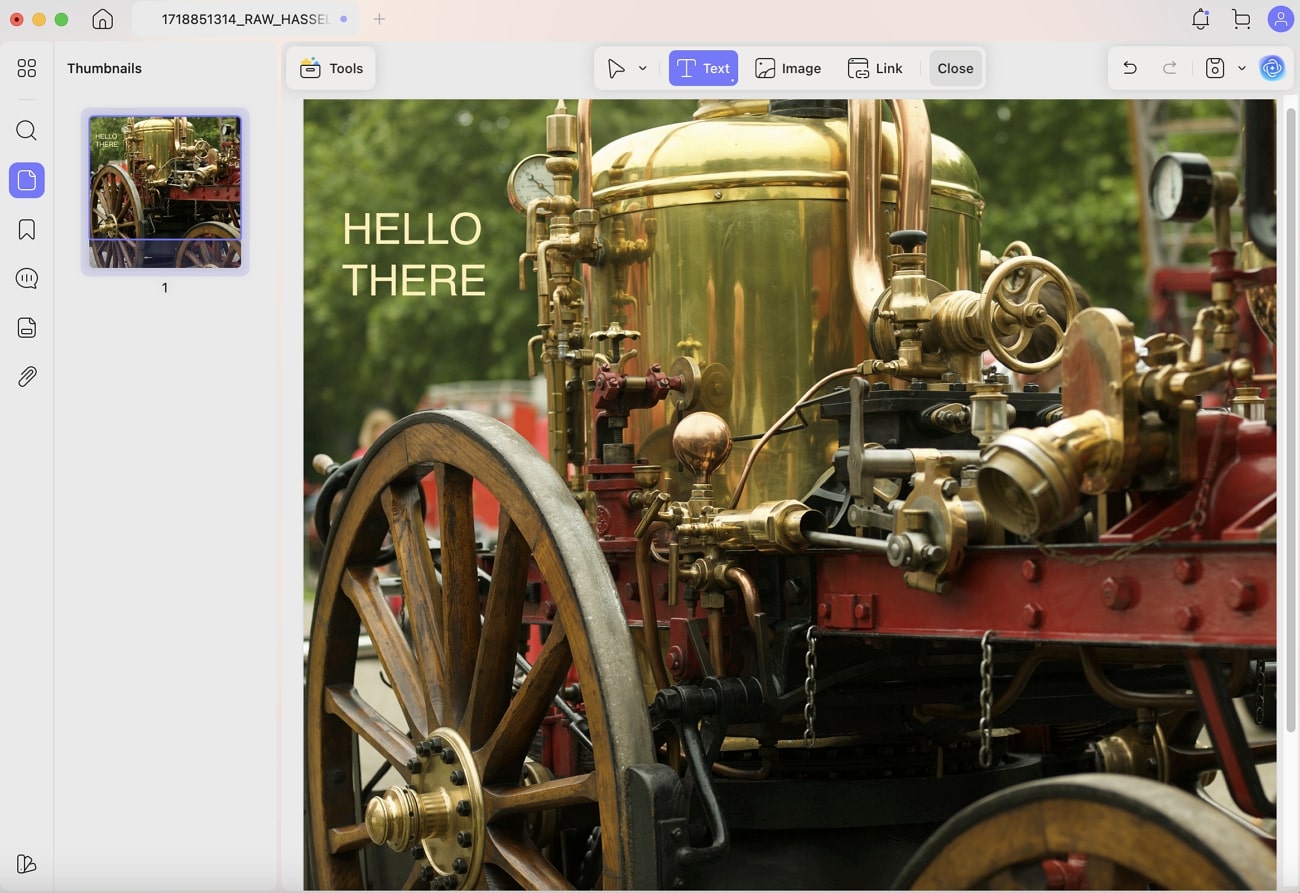
Once converted, you can edit the text, move or resize elements, and rewrite sections directly on the PDF — useful when a client wants a quick copy change without reopening Photoshop.
Want to try it on your own PSD? Download UPDF for Mac and convert your first file free.
Windows • macOS • iOS • Android 100% secure
Batch convert a folder of PSDs (desktop): If you have multiple PSDs, go to Tools → Create to turn several PSD files into PDFs in one pass.
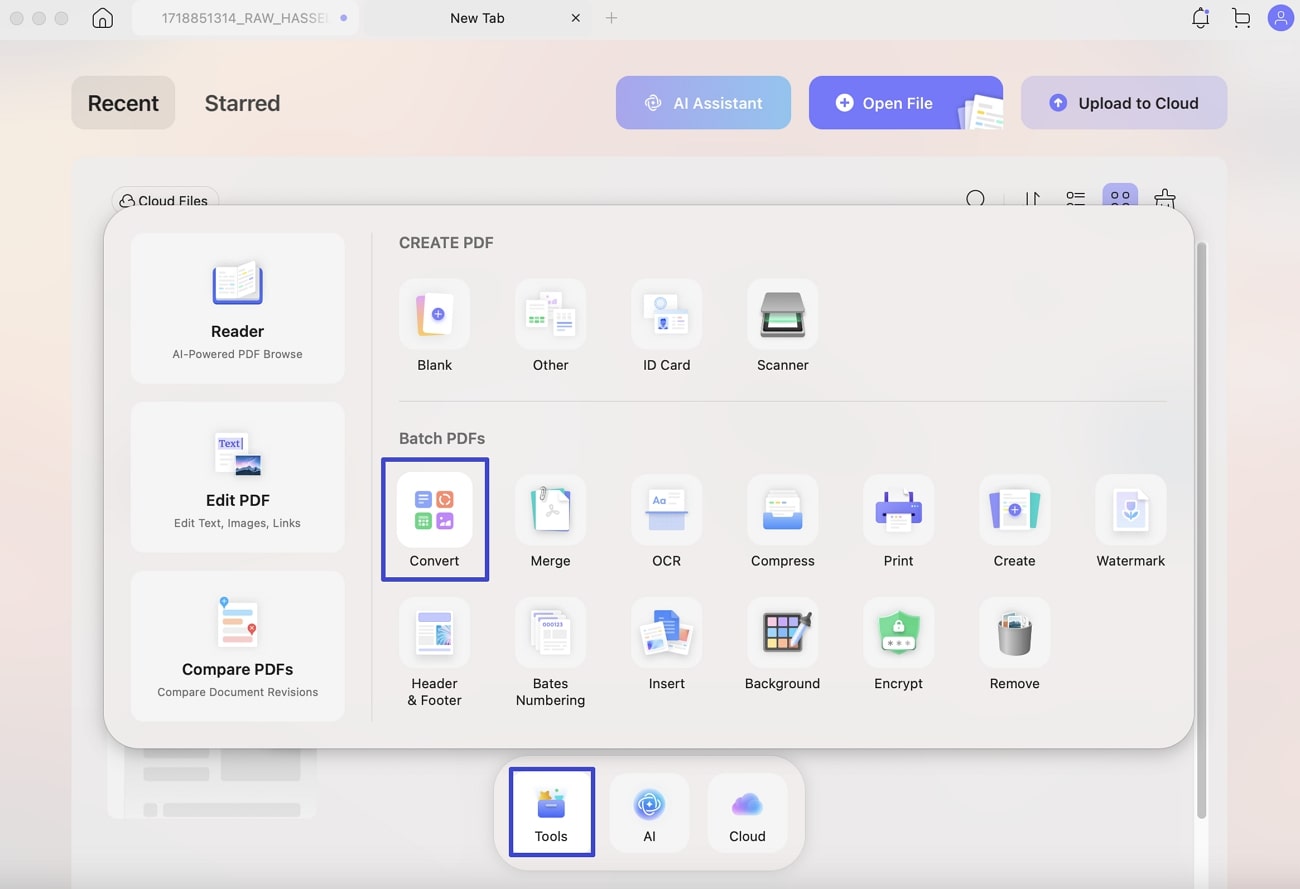
Then, use “+Add Files” to import all of the targeted PSD files and click "Apply" to convert.
Method 2. Convert PSD to PDF on iPhone, iPad & Android (UPDF Mobile)
No computer nearby? UPDF's mobile app converts PSD to PDF right on your phone or tablet — handy when a mockup lands in your inbox and you need to send back a PDF from wherever you are. The steps below are shown on iOS; Android follows the same path.
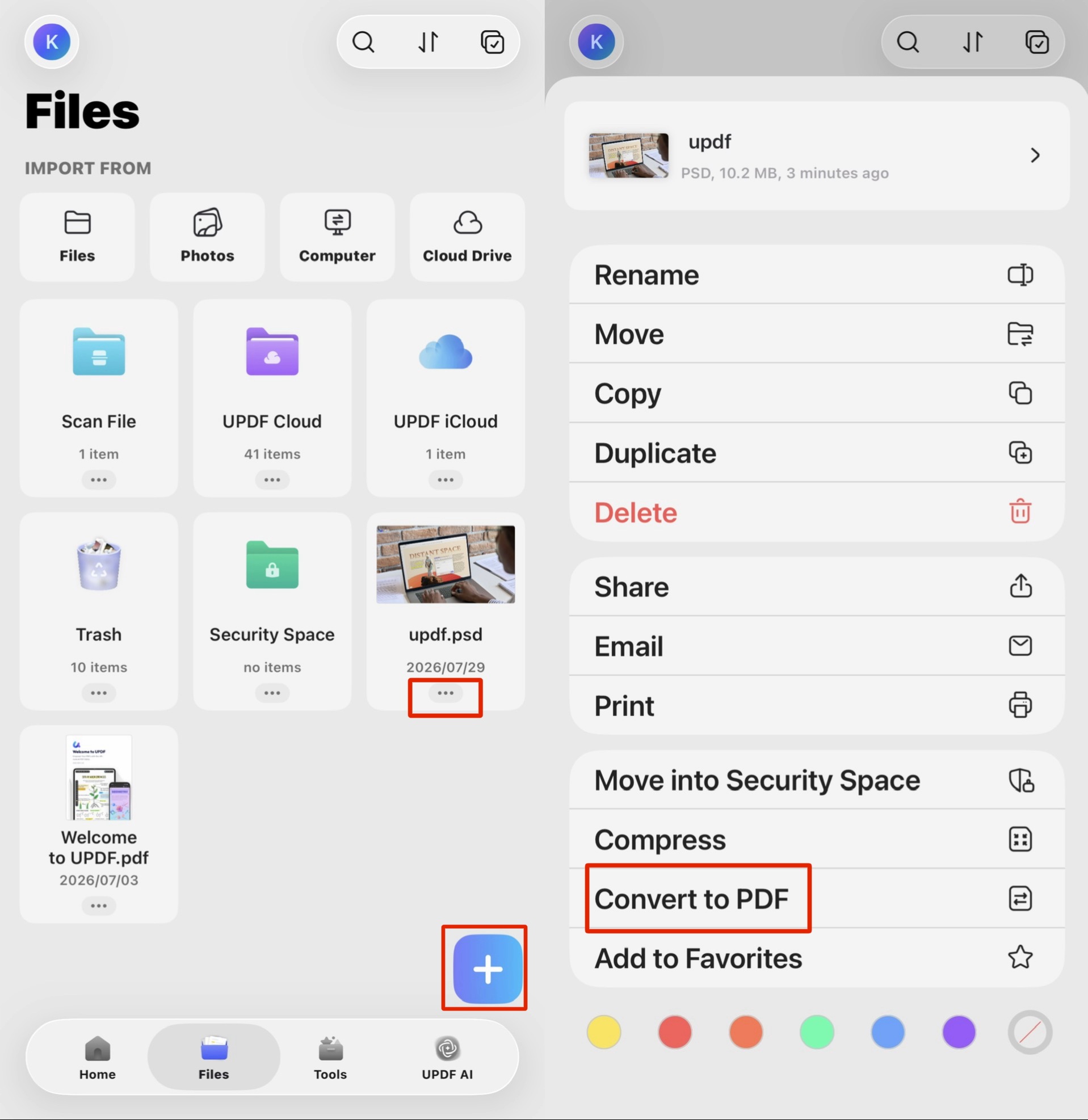
Step 1. Open UPDF and import the PSD file. Tap the "+" button to bring the .psd into your file list.
Step 2. On the PSD file, tap the "⋯" (more) button beneath it to open the action menu.
Step 3. Tap "Convert to PDF." UPDF converts the file locally and drops the new PDF into your library, ready to view, annotate, or share by email or link.
Windows • macOS • iOS • Android 100% secure
Method 3. Export PSD to PDF with Photoshop
If Photoshop is already open, its built-in export is the natural choice for a one-off file.
For a single-page PSD:
- Open the PSD in Photoshop.
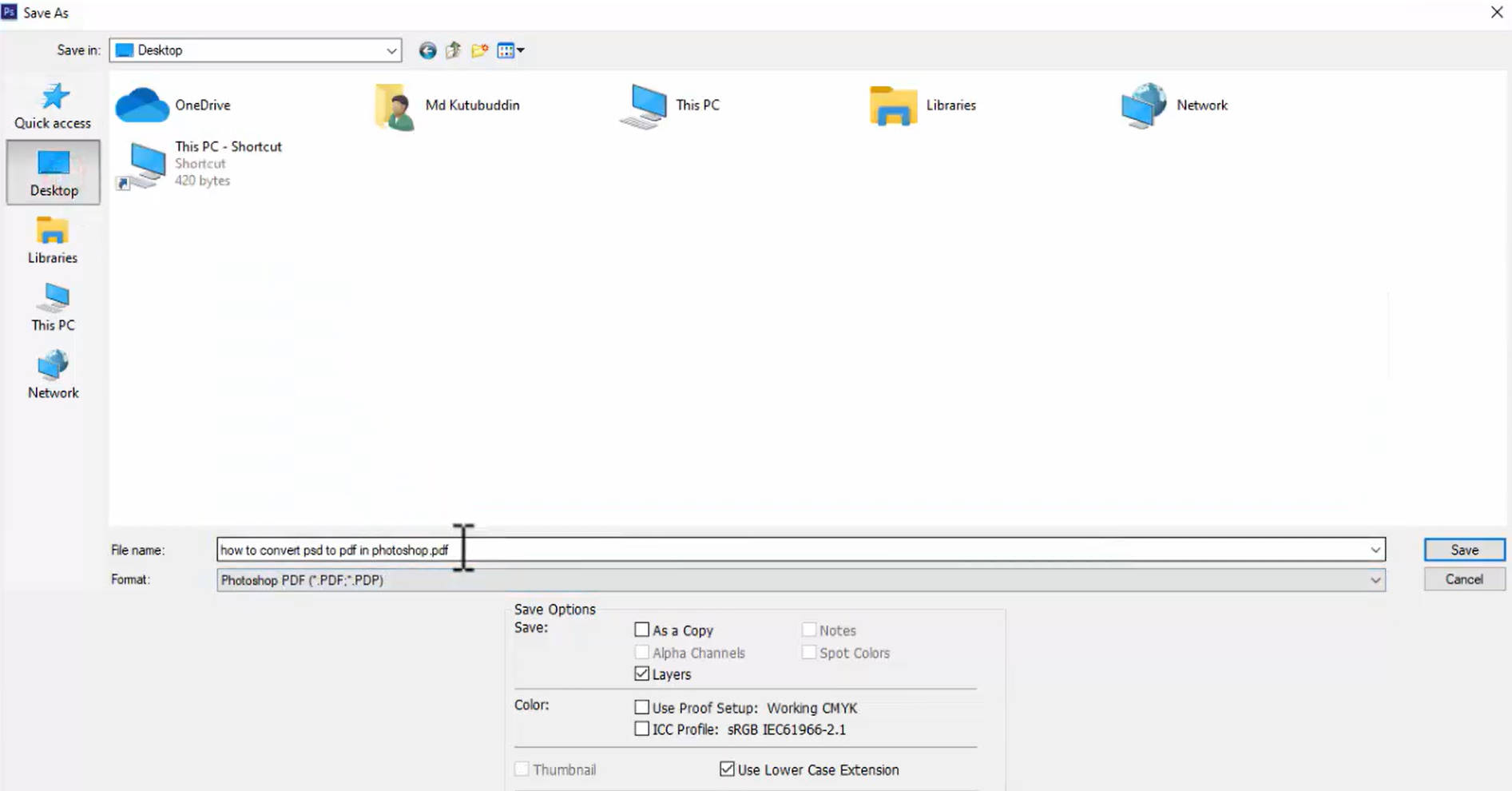
- Go to File > Save As.
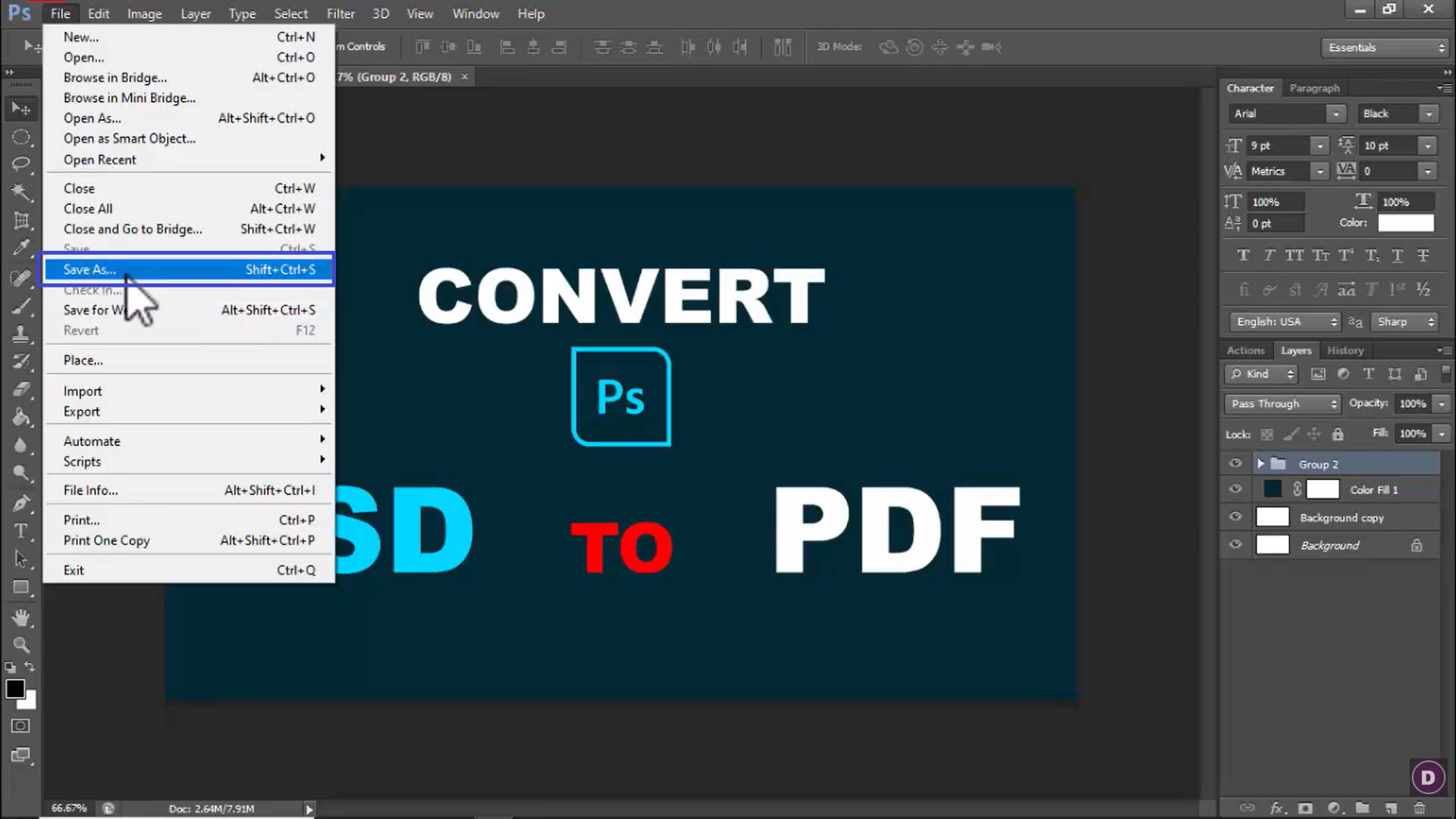
- In the dialog, rename the file and choose "Photoshop PDF" from the Format menu, then click Save.
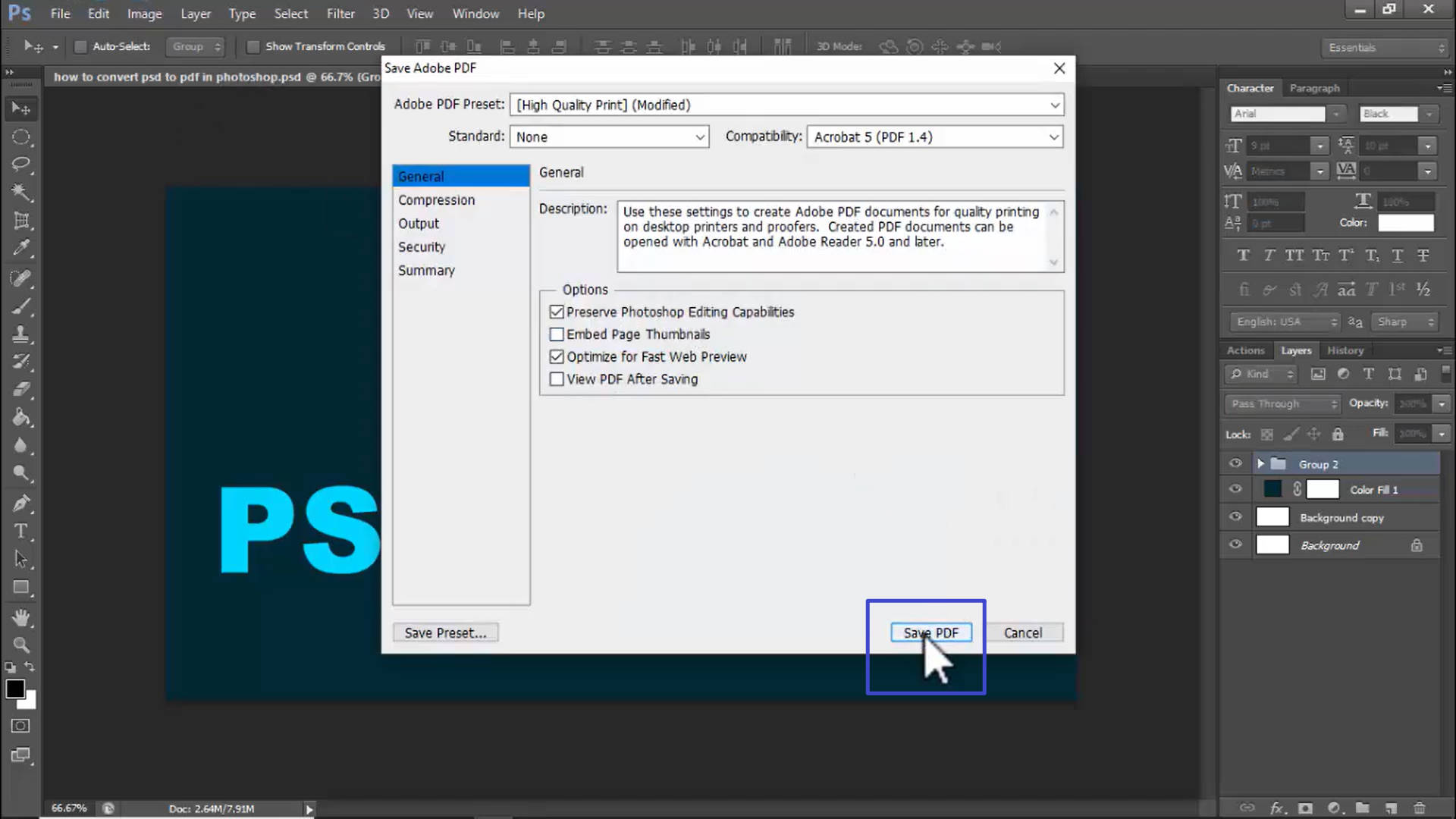
- Adjust the PDF settings (preset, compatibility, password). Tick "Preserve Photoshop Editing Capabilities" if you want to keep the layers editable. Click Save PDF.
For a multi-page PSD (combining several files):
- Go to File > Automate > PDF Presentation.
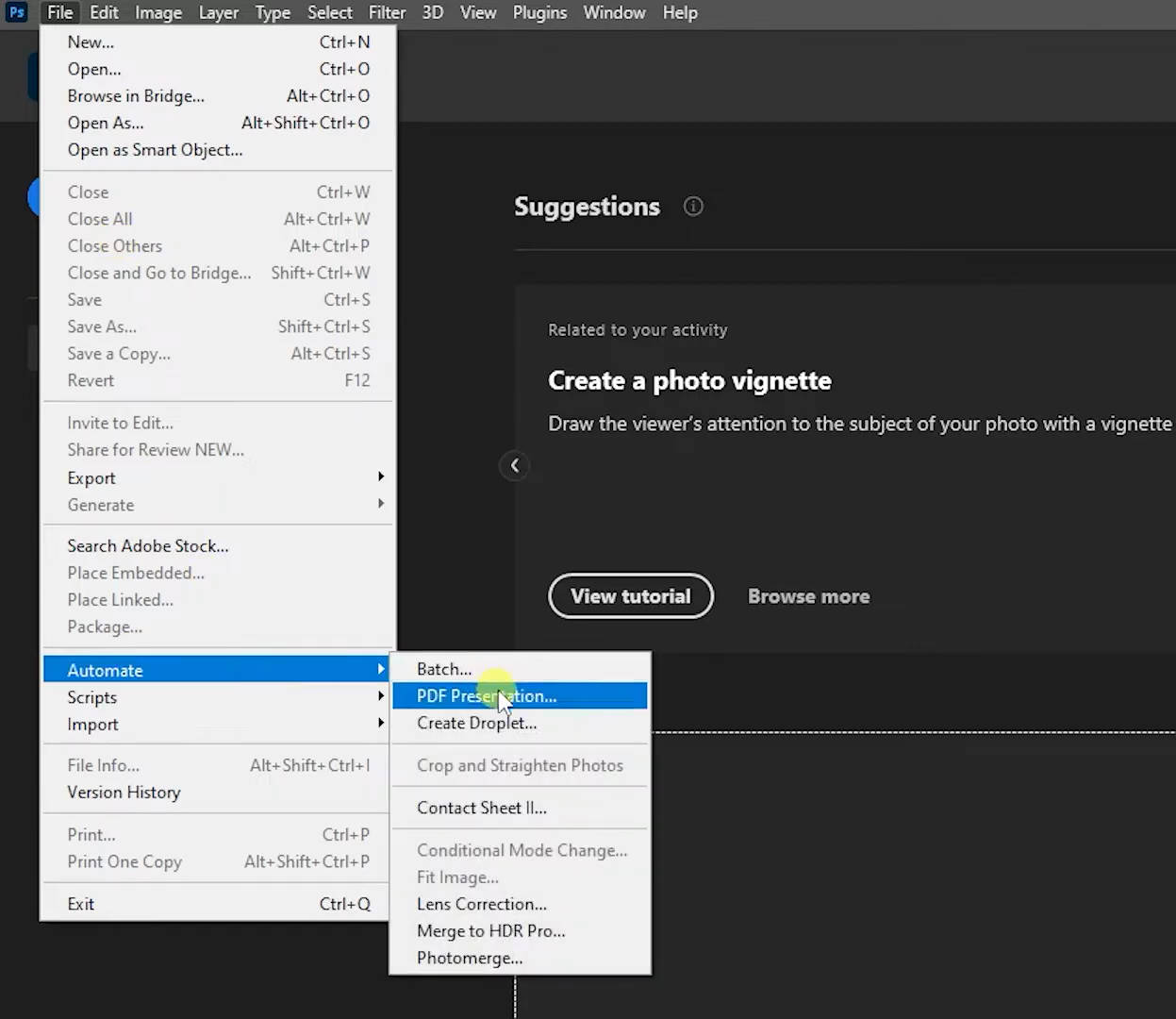
- Browse and select all your files — reorder them in the Source Files list if needed.
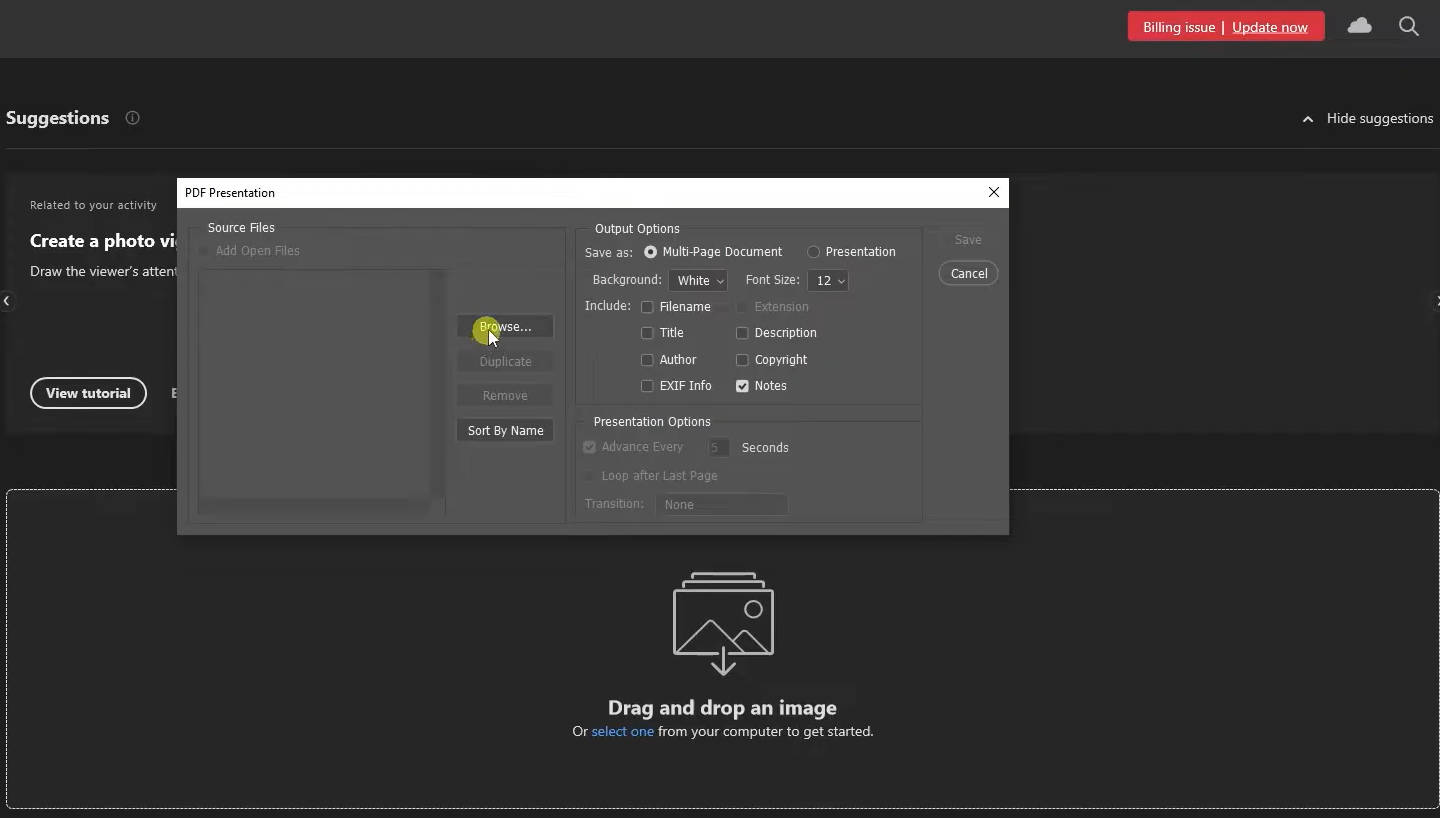
- Click Save, name the document, and set your preferences.
- Adjust settings and click Save PDF.
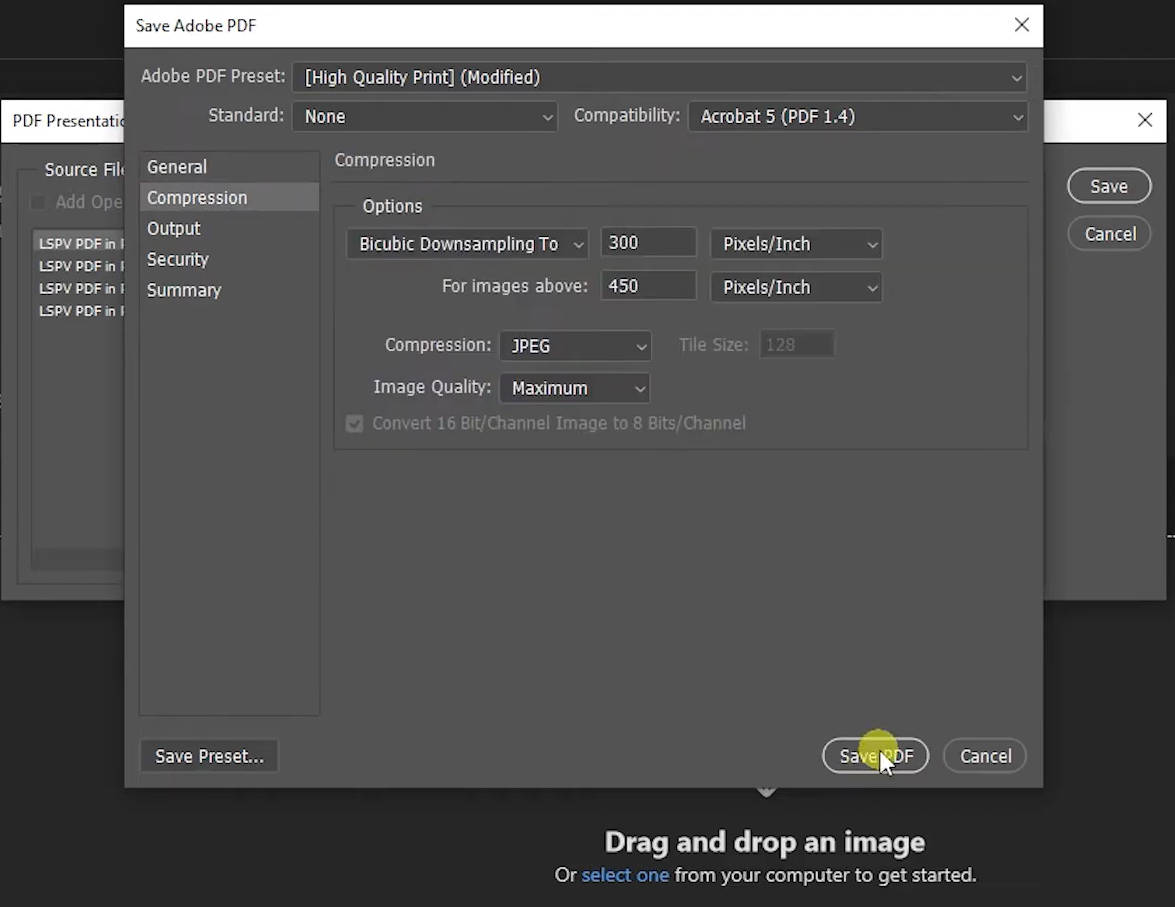
Method 4. Convert PSD to PDF with Adobe Acrobat
If you have an Acrobat subscription but not Photoshop, Acrobat can handle the conversion:
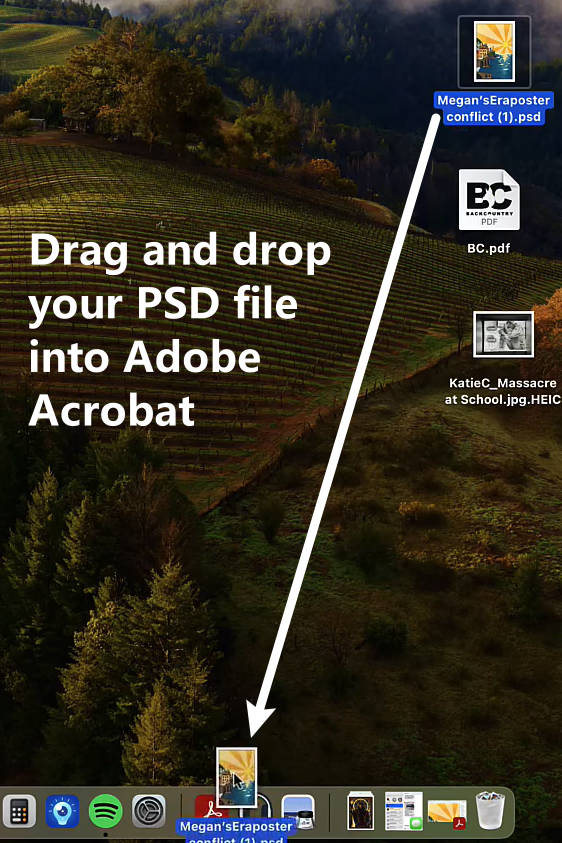
1. Drag the PSD file into Adobe Acrobat.
2. Go to File > Save As, choose a location, and save. Acrobat writes it out as a standard Adobe PDF.
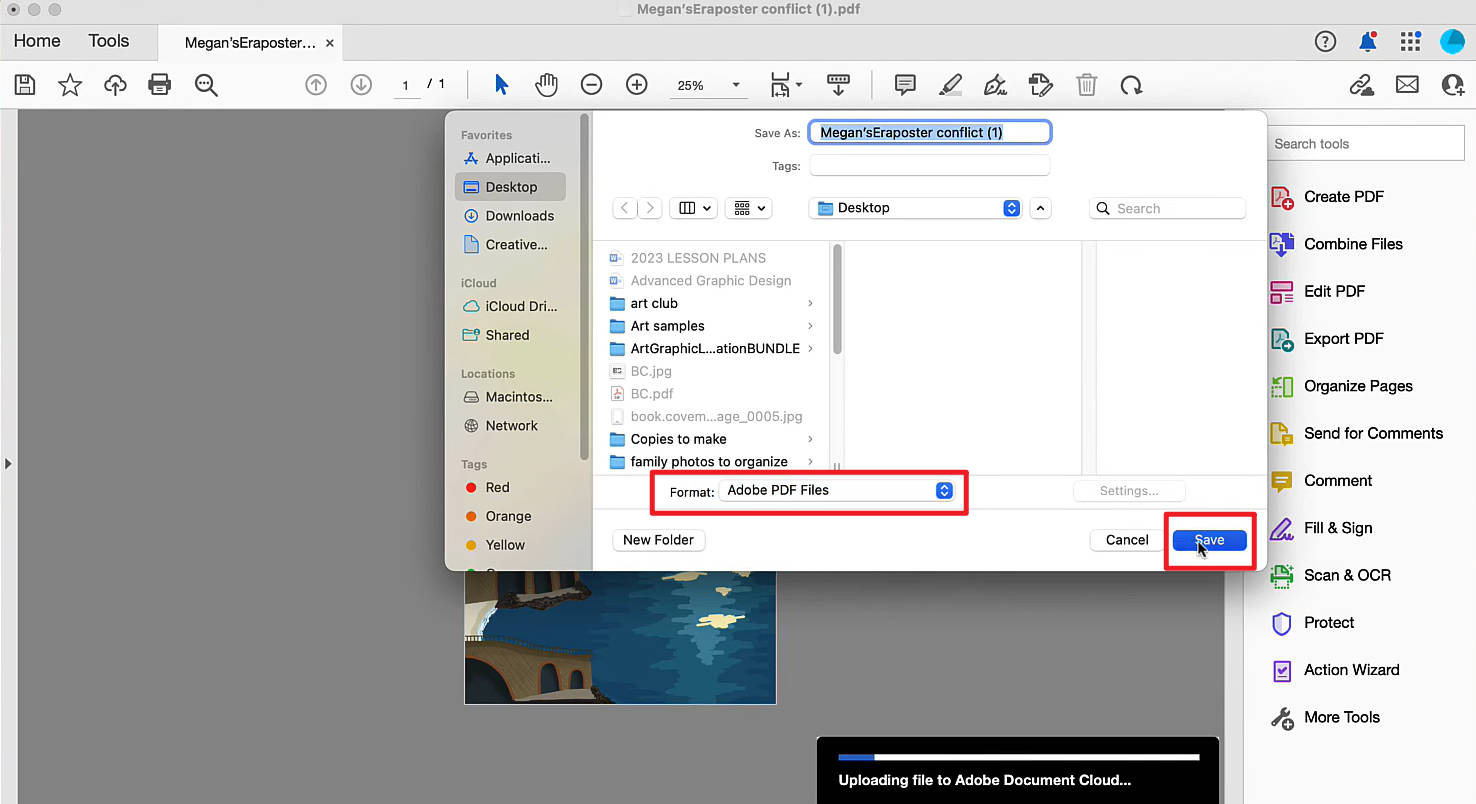
Note that this requires an active Acrobat subscription to access the save/convert feature.
Method 5. Convert PSD to PDF Online (CloudConvert & FreeConvert)
For a single, non-sensitive file on any device without installing software, a browser-based converter works.
CloudConvert:
- Go to the CloudConvert PSD-to-PDF page.
- Click Select File to upload your PSD (or pull it from Google Drive, Dropbox, OneDrive, or a URL).
- Click Convert, then Download the finished PDF.
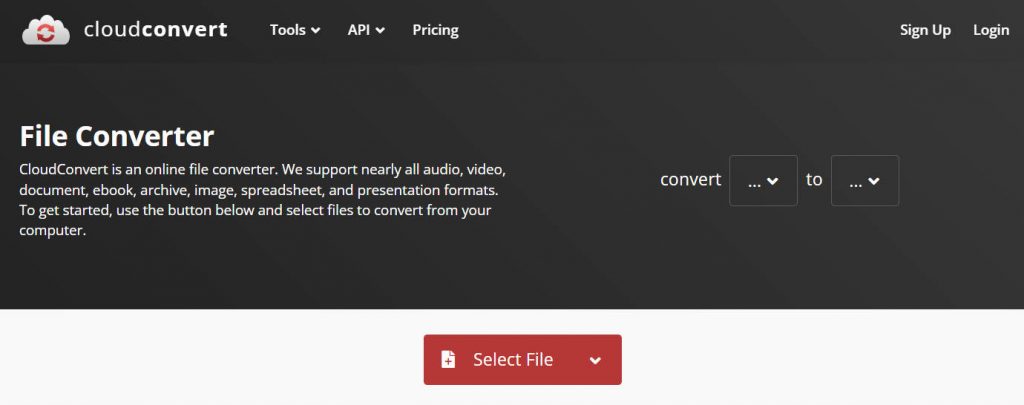
FreeConvert works the same way — upload, choose orientation/page size/margin if you want, click Convert, then Download.
Privacy caveat:
Part 3. PSD to PDF vs. PSD to Image vs. Flattened PDF — What's the Difference?
These three outputs get confused often. Here's the plain-English distinction:
| Output | What you get | Best when |
|---|---|---|
| PSD → PDF | A flat, page-format document that opens anywhere and preserves layout | Sharing proofs, printing, sending to clients without Photoshop |
| PSD → Image (PNG/JPG) | A single flat picture, no page structure | Embedding in a web page, email signature, or social post |
| SD → Layered PDF | A PDF shell that still holds layers you can reopen and edit in Photoshop | Handing a colleague a PDF while keeping the option to re-edit in Photoshop later |
Think of it as a printed photo (image), a laminated one-pager anyone can read (flat PDF), and a folder that looks flat but unzips back into editable pieces (layered PDF) — same artwork, three very different jobs.
Part 4. Edge Cases — When PSD to PDF Doesn't Behave
"My PDF only shows one flattened layer — I lost my adjustment layers." Exporting to PDF flattens the file by design. To keep editable layers, use Photoshop's Save As with "Preserve Photoshop Editing Capabilities" ticked (Method 3) — but note only Photoshop will honor those layers; a standard PDF viewer shows the flat version.
"The colors look off in the PDF compared to Photoshop." PSDs are often in RGB; print PDFs may expect CMYK. Set your color mode in Photoshop before exporting, or convert via Photoshop/Acrobat where you control the color profile, rather than a generic online tool.
"The online converter rejected my file / it's too large." Free online converters cap file size and can choke on large, high-resolution PSDs. A desktop tool like UPDF has no upload step, so file size isn't a bottleneck.
Part 5. FAQs About PSD to PDF
Q1. What software do recipients need to open the converted PDF?
None special — any PDF reader works. That's the point of converting: the recipient can open it in a browser, Preview (Mac), Adobe Reader, or on a phone, without Photoshop or any design software installed.
Q2. Can I convert a PDF back into a PSD?
Not directly — PDF doesn't store Photoshop's layer data once flattened. Your best option is to open the PDF in Photoshop (File > Open), which rasterizes each page onto a layer you can then rebuild. Expect to redo layer separation manually; a converted PDF is not a lossless round-trip back to PSD.
Q3. Why is my converted PDF blurry or low-resolution?
Usually the source PSD was exported at screen resolution (72 dpi). For print-quality PDFs, set the PSD to 300 dpi before converting, and choose "Keep Original Size" so the tool doesn't downscale your canvas.
Conclusion
PSD is perfect for design work but awkward to share — PDF fixes that with universal compatibility and locked layout. Of the five methods above, UPDF is the one I reach for most: it converts locally on both desktop and mobile (no uploads, no Photoshop), and lets me edit or annotate the result immediately. Photoshop and Acrobat suit users already inside Adobe's ecosystem, while online converters are fine for a single throwaway file. Pick the one that matches your device and privacy needs.
Windows • macOS • iOS • Android 100% secure





 Engelbert White
 Enid Brown
 Enola Davis
 Enrica Taylor
Note on the free tier: