 UPDF
UPDF
 UPDF for Windows
 UPDF for Mac
 UPDF for iPhone/iPad
 UPDF for Android
 Nomostar
 UPDF AI Online
 UPDF Sign
 IvyCraft
 Edit PDF
 Annotate PDF
 Create PDF
 PDF Form
 Edit links
 Convert PDF
 OCR
OCR PDF to Word
 PDF to Image
 PDF to Excel
 Organize PDF
 Merge PDF
 Split PDF
 Crop PDF
 Rotate PDF
 Protect PDF
 Sign PDF
 Redact PDF
 Sanitize PDF
 Remove Security
 Read PDF
 UPDF Cloud
 Compress PDF
 Print PDF
 Batch Process
 About UPDF AI
 UPDF AI Solutions
 AI User Guide
 FAQ about UPDF AI
 Summarize PDF
 Translate PDF
 Chat with PDF
 Chat with AI
 Chat with image
 PDF to Mind Map
 Explain PDF
 PDF AI Tools
 Image AI Tools
 AI Chat Tools
 AI Writing Tools
 AI Study Tools
 AI Working Tools
 Other AI Tools
 AI Bookmark Generation
 AI Bookmark Summary
 AI Watermark Generation
 AI Background Generation
 AI Sticker Generation
 AI Stamp Generation
 AI Editing Suite
 UPDF Copilot
 AI Page Management
 AI Semantic Search
 PDF to Word
 PDF to Excel
 PDF to PowerPoint
 Enterprise Solution
 Enterprise Sign
 Enterprise AI
 Enterprise Plan
 Enterprise User Guide
 Enterprise Webinar
 IT
IT Education
 Construction
 Financial Service
 Healthcare
 Insurance
 Legal
Legal Manufacturing
 Government
 Researchers & PhDs
 Solopreneurs & Freelancers
 Lawyers & Legal Professionals
 Real Estate Agents & Brokers
 Education Solution
 Customer Stories
 User Guide
 UPDF Tricks
 FAQs
FAQs UPDF Reviews
 Download Center
 Blog
Blog Newsroom
 Tech Spec
 Updates
 UPDF vs. Adobe Acrobat
 UPDF vs. Foxit
 UPDF vs. PDF Expert

To modify a PDF document on Mac, use Preview for highlights, signatures, text boxes, and basic form filling. To change existing text, images, links, page content, or scanned documents, open the file in a dedicated Mac PDF editor such as UPDF and use OCR when required.
Expert tip:
The key to understanding how to modify a PDF document on Mac is not to confuse annotation with true content editing. This guide explains how to modify a PDF file on Mac, how to add text to PDF on Mac, how to fill out a PDF form on Mac, how to edit a downloaded PDF on Mac, and which option is the best PDF editor for Mac 2026 for each type of change.
Windows • macOS • iOS • Android 100% secure
Best Way to Modify a PDF on Mac by Task
The best PDF editor Mac 2026 choice depends on what “edit” means in your document. Use this table before downloading another app:
| What you need to change | Best method | Free? | Important limitation |
|---|---|---|---|
| Highlight, draw, sign, or add a note | Preview | Yes | Adds annotations; it does not rewrite existing text. |
| Fill an interactive form or place a text box | Preview or UPDF | Preview is free | Not every PDF contains recognized form fields. |
| Replace existing text, images, or links | UPDF | Free trial | Check the final layout and embedded fonts. |
| Edit a scanned or image-only document | UPDF with OCR | Free trial | The Mac App Store build does not include UPDF OCR; use the website build on Apple silicon. |
How to Modify a PDF on Mac with Preview
If you search for “how to edit PDF on Mac Preview,” remember that Preview is primarily a viewer, form filler, page organizer, and markup tool. It is excellent for adding a signature, highlight, shape, note, or text box, but it does not directly replace the original text in the way a full PDF editor does.
1. Add Text, Markup, or a Signature in Preview
- Right-click the PDF in Finder and choose Open With > Preview.
- Select View > Show Markup Toolbar if the toolbar is hidden.
- Choose Text to add a movable text box, or use Highlight, Shapes, Note, Draw, and Sign as needed.
- Move and resize the new object, then adjust its font, color, border, or fill.
- Choose File > Export as PDF when you want a separate edited copy instead of overwriting the download.
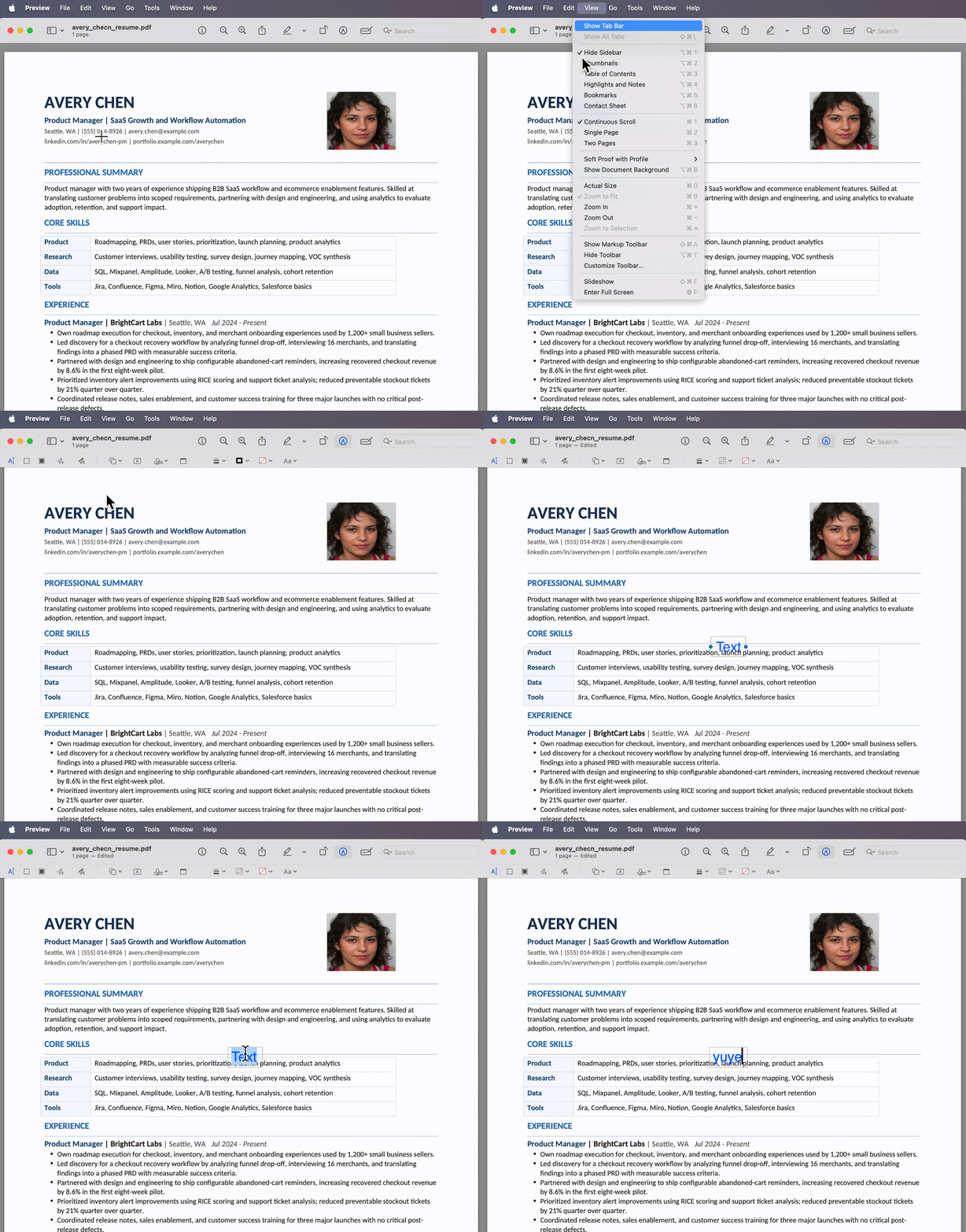
This is the simplest answer to how to edit PDF on Mac free when your change is an annotation. If you need a wider overview of editing methods, see how to edit a PDF.
2. How to Fill Out a PDF Form on Mac
- Open the form in Preview and click a recognized field.
- Type the required information and use Tab to move between fields.
- If the form has no interactive fields, open the form-filling toolbar and place a text box over each blank area.
- Add a signature from the Markup toolbar when needed, then save a copy.
How to Edit Original PDF Text on Mac with UPDF
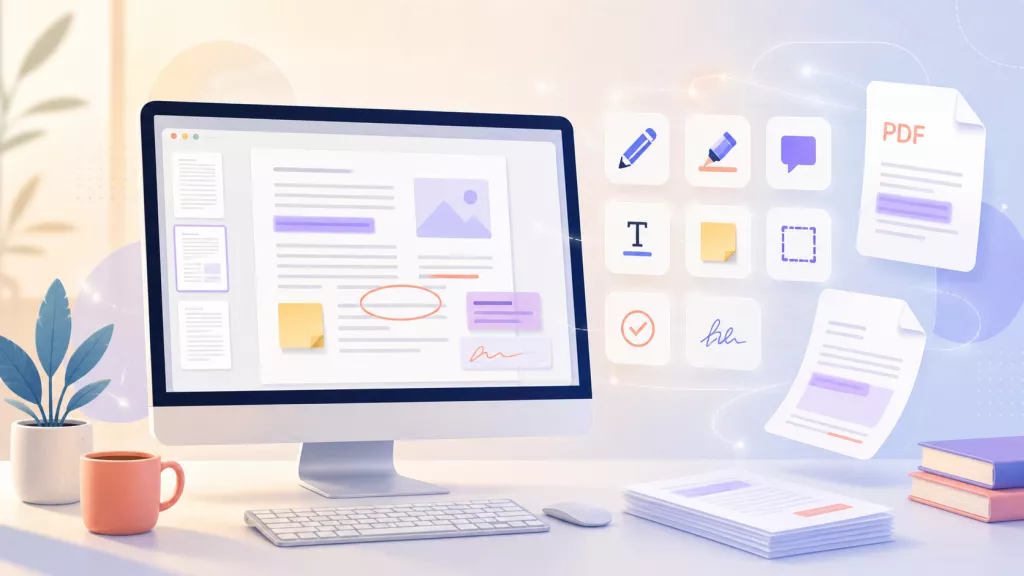
UPDF is the better option when you need to change the PDF itself rather than place markup over it. On Mac, it can edit existing text, add new text, modify images and links, organize pages, create or fill forms, and process scanned documents with OCR. This makes it practical for contracts, reports, resumes, invoices, and other layout-sensitive files.
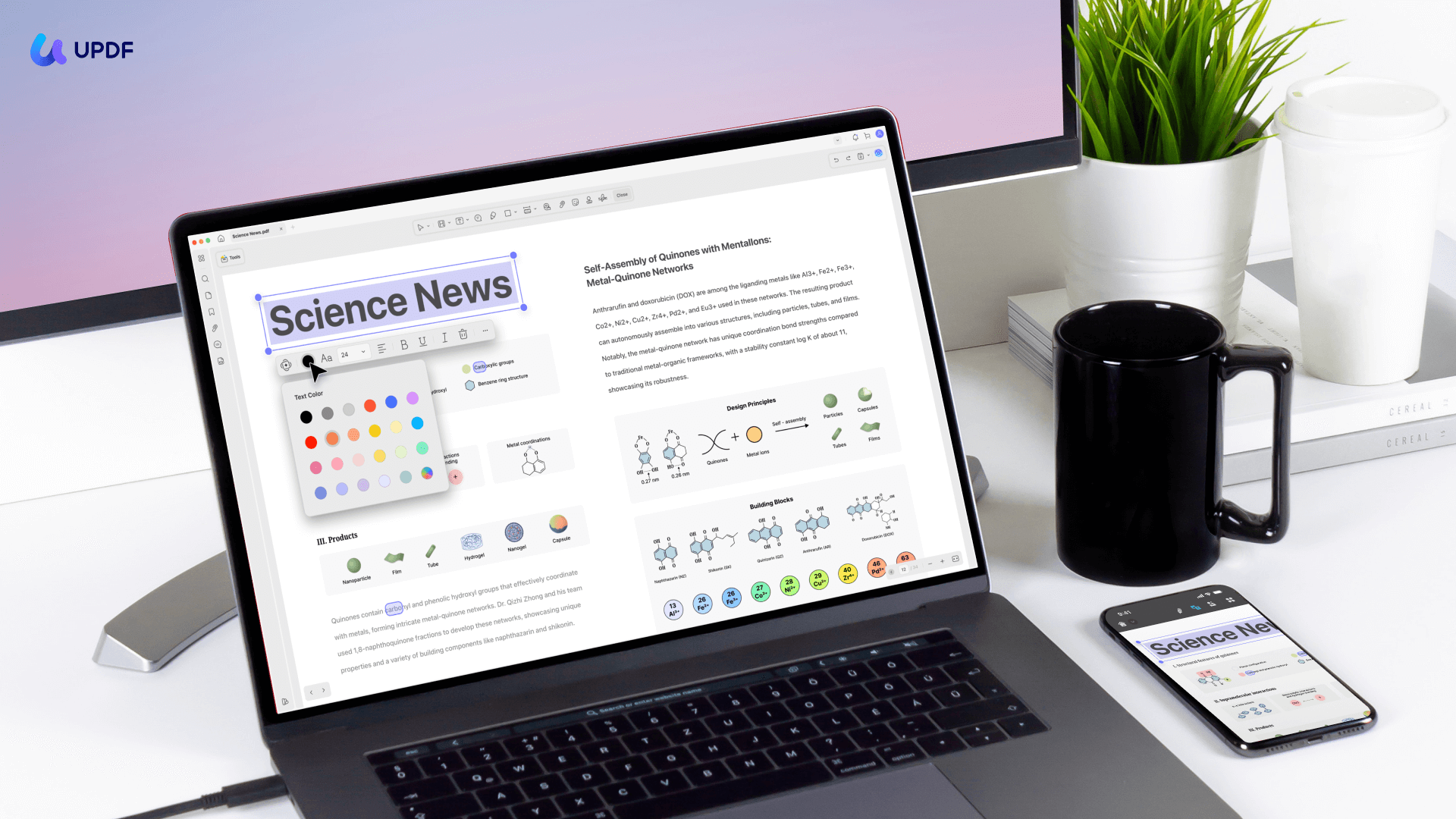
- Open the PDF in UPDF for Mac.
Windows • macOS • iOS • Android 100% secure
- Click the Edit on the top to enter the editing mode.
- Click the text you want to modify, then replace, delete, or add text.
- Adjust font, size, color, alignment, and placement as needed.
- If the PDF is scanned, run OCR first, then edit the recognized text.
- Save the edited copy after reviewing the layout.
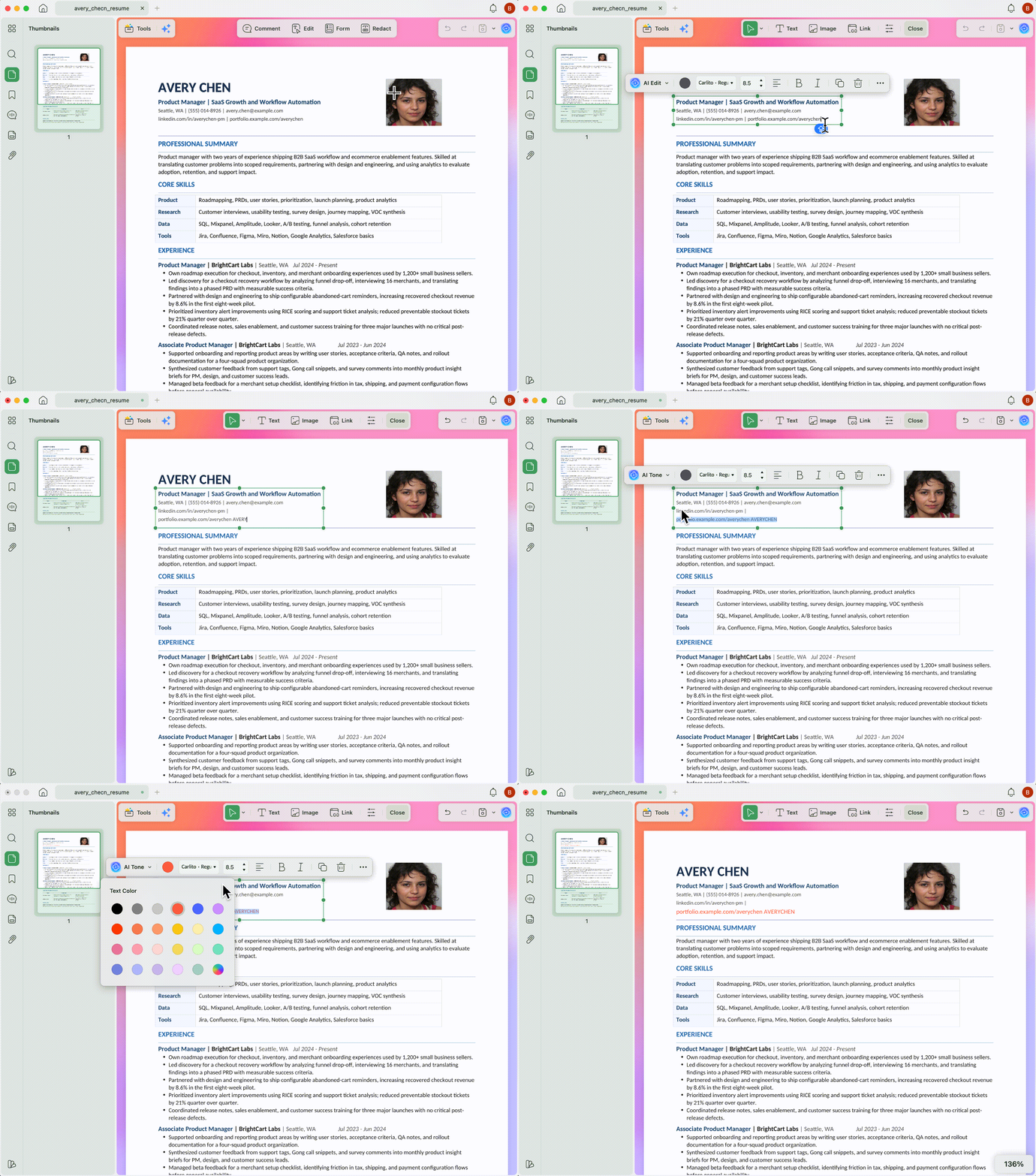
If you need a broader walkthrough, link readers to how to edit a PDF. If the user needs text insertion specifically, use how to add text to PDF near the step where text is discussed.
An edit should leave the surrounding content as clear as it was before. For a closer look at the tools, the next video covers working with PDFs in UPDF for Mac.
How to Edit a Downloaded PDF on Mac Safely
- Make a copy first: keep the original download unchanged.
- Check permissions: if editing is blocked, read how to edit read-only PDF.
- Use the right method: Preview for markup, UPDF for original text, OCR, pages, and images.
- Export and reopen: confirm the edited PDF still looks correct before sending.
Mac users who also edit on mobile can connect the workflow with PDF writer for iPad or compare Android editing in edit PDF on Android.
FAQ
How do I modify a PDF document on Mac?
Use Preview for markup, signatures, and simple forms. Use UPDF when you need to edit original text, replace images, run OCR, organize pages, or preserve layout more carefully.
Can I edit a PDF on Mac for free?
Yes. Preview is free for markup and basic form filling. For original text editing, test a dedicated editor with a copy of the file because free tools may have layout or export limits.
How do I add text to a PDF on Mac?
In Preview, use the Text tool from Markup to place a text box. In UPDF, use editing mode to add text as part of the PDF content and adjust the font, size, color, and placement.
Can I edit a scanned PDF on Mac?
Only after OCR. A scanned PDF is usually an image of text, so you need OCR to create editable text before making real text changes.
Conclusion
For quick markup, Preview is enough. For accurate PDF modification on Mac, especially original text, scanned pages, and private work files, UPDF is the safer editor to use.
Windows • macOS • iOS • Android 100% secure





 Enid Brown

 Enola Davis