 UPDF
UPDF
 UPDF for Windows
 UPDF for Mac
 UPDF for iPhone/iPad
 UPDF for Android
 Nomostar
 UPDF AI Online
 UPDF Sign
 IvyCraft
 Edit PDF
 Annotate PDF
 Create PDF
 PDF Form
 Edit links
 Convert PDF
 OCR
OCR PDF to Word
 PDF to Image
 PDF to Excel
 Organize PDF
 Merge PDF
 Split PDF
 Crop PDF
 Rotate PDF
 Protect PDF
 Sign PDF
 Redact PDF
 Sanitize PDF
 Remove Security
 Read PDF
 UPDF Cloud
 Compress PDF
 Print PDF
 Batch Process
 About UPDF AI
 UPDF AI Solutions
 AI User Guide
 FAQ about UPDF AI
 Summarize PDF
 Translate PDF
 Chat with PDF
 Chat with AI
 Chat with image
 PDF to Mind Map
 Explain PDF
 PDF AI Tools
 Image AI Tools
 AI Chat Tools
 AI Writing Tools
 AI Study Tools
 AI Working Tools
 Other AI Tools
 AI Bookmark Generation
 AI Bookmark Summary
 AI Watermark Generation
 AI Background Generation
 AI Sticker Generation
 AI Stamp Generation
 AI Editing Suite
 UPDF Copilot
 AI Page Management
 AI Semantic Search
 PDF to Word
 PDF to Excel
 PDF to PowerPoint
 Enterprise Solution
 Enterprise Sign
 Enterprise AI
 Enterprise Plan
 Enterprise User Guide
 Enterprise Webinar
 IT
IT Education
 Construction
 Financial Service
 Healthcare
 Insurance
 Legal
Legal Manufacturing
 Government
 Researchers & PhDs
 Solopreneurs & Freelancers
 Lawyers & Legal Professionals
 Real Estate Agents & Brokers
 Education Solution
 Customer Stories
 User Guide
 UPDF Tricks
 FAQs
FAQs UPDF Reviews
 Download Center
 Blog
Blog Newsroom
 Tech Spec
 Updates
 UPDF vs. Adobe Acrobat
 UPDF vs. Foxit
 UPDF vs. PDF Expert

Quick answer:
I ran into this while preparing a 28-page contract: the appendix needed a separate blank page so that two sections would not appear on the same sheet during double-sided printing. Inserting the page only takes a few seconds, but its position and size still matter. For example, adding an A5 blank page to an A4 document may cause inconsistent margins, scaling, or print output.
The methods below show how to insert a blank page in a PDF on Windows, Mac, iPhone, iPad, Android, or in a browser. You will also learn how to add several blank pages, match the existing page size, fix an incorrectly positioned page, and handle PDFs that restrict page editing.
Which method should you use?
| If You are… | Best Method | Why |
| On a Windows or Mac computer | UPDF Desktop (Organize Pages) | Precise control; choose size and orientation |
| Away from your desk, on a phone and tablet | UPDF for iPhone/iPad/Android | Add pages on mobile and keep documents synced across devices |
| Unwilling to install anything; the file is non-sensitive | iLovePDF or another online organizer | Quick browser insert; no app install or setup required |
| Working inside Adobe Acrobat, since your company already uses it | Adobe Acrobat | Use existing Acrobat tools without changing your standard workflow |
Part 1. How to Insert a Blank Page in PDF with UPDF (Windows & Mac)
UPDF places page insertion, deletion, rotation, extraction, and reordering in the same Organize Pages workspace. If your task involves more than adding an empty page, this complete guide explains how to organize PDF pages with the related page-management tools.
There are two routes: the Organize Pages panel (most control) and the right-click thumbnail shortcut (fastest).
Method 1 — Insert from the Organize Pages Panel
Step 1. Open the document in UPDF — if it is not installed, download it for free, install the Windows or Mac version, and then select Open File to open the PDF.
Windows • macOS • iOS • Android 100% secure
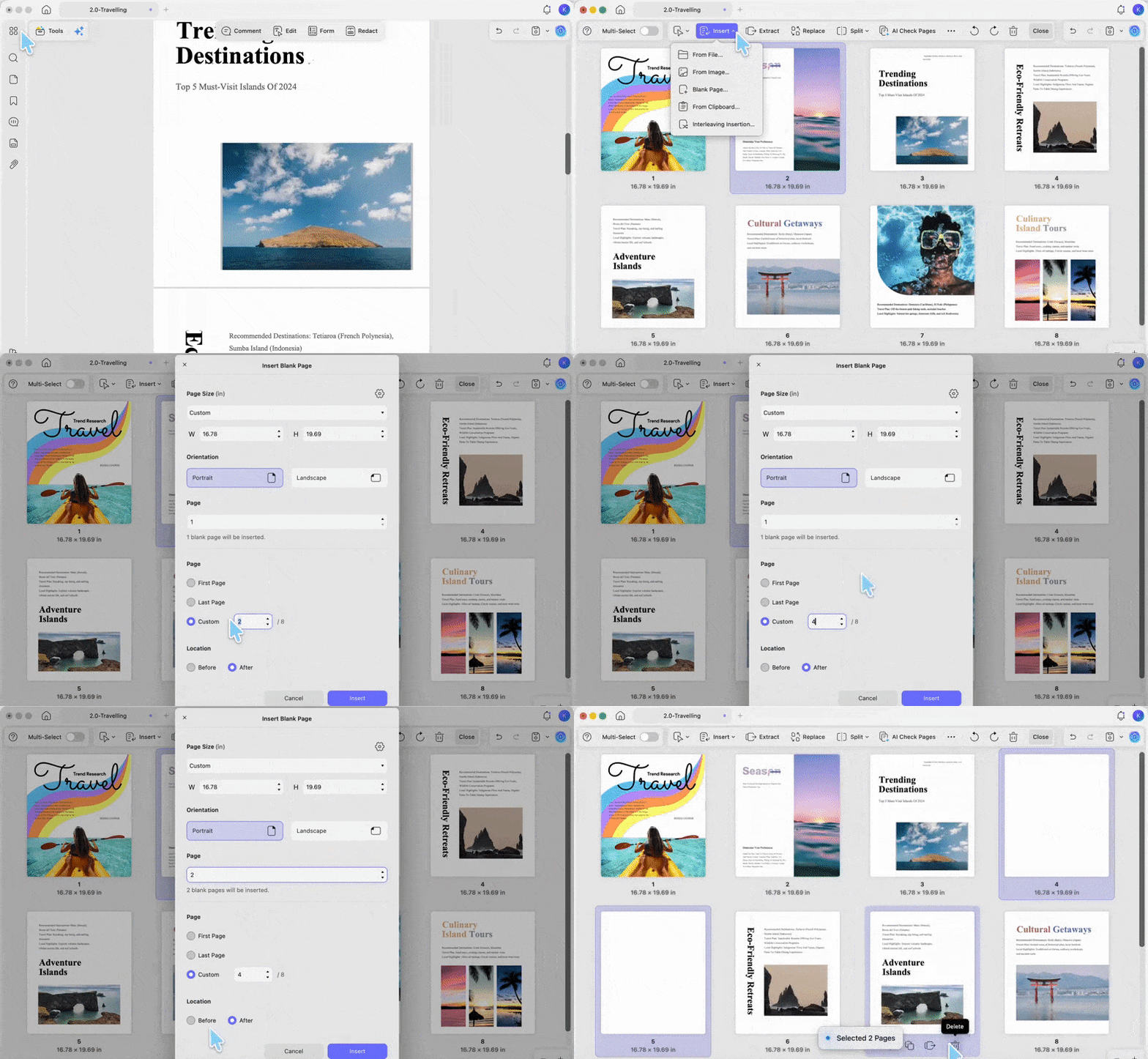
Step 2. Click Organize Pages on the left-side toolbar. Every page appears as a thumbnail. Select the page before the spot where you want the blank one to land.
Step 3. Click Insert, then choose Blank Page.
Step 4. Configure the blank page. In the insertion window, set the following options:
- Page size: Use the default size, choose a standard size such as A3, A4, or A5, or enter a custom width and height.
- Orientation: Select Portrait or Landscape.
- Number of pages: Enter how many blank pages should be inserted.
- Position: Insert the pages at the beginning, at the end, or before or after a specific page.
Step 5. Click Insert, then save with Ctrl + S (Windows) or Cmd + S (Mac).
Tip:
Match the new page size and orientation to the surrounding pages unless a different size is intentional. If the document contains mixed page sizes, check the pages immediately before and after the insertion point instead of assuming that the entire PDF uses A4 or Letter.
Method 2 — Insert a Blank Page From the Thumbnail
When I see the page thumbnails, inserting a blank page here feels faster. Go through the steps below to drop a new blank page right next to any thumbnail:
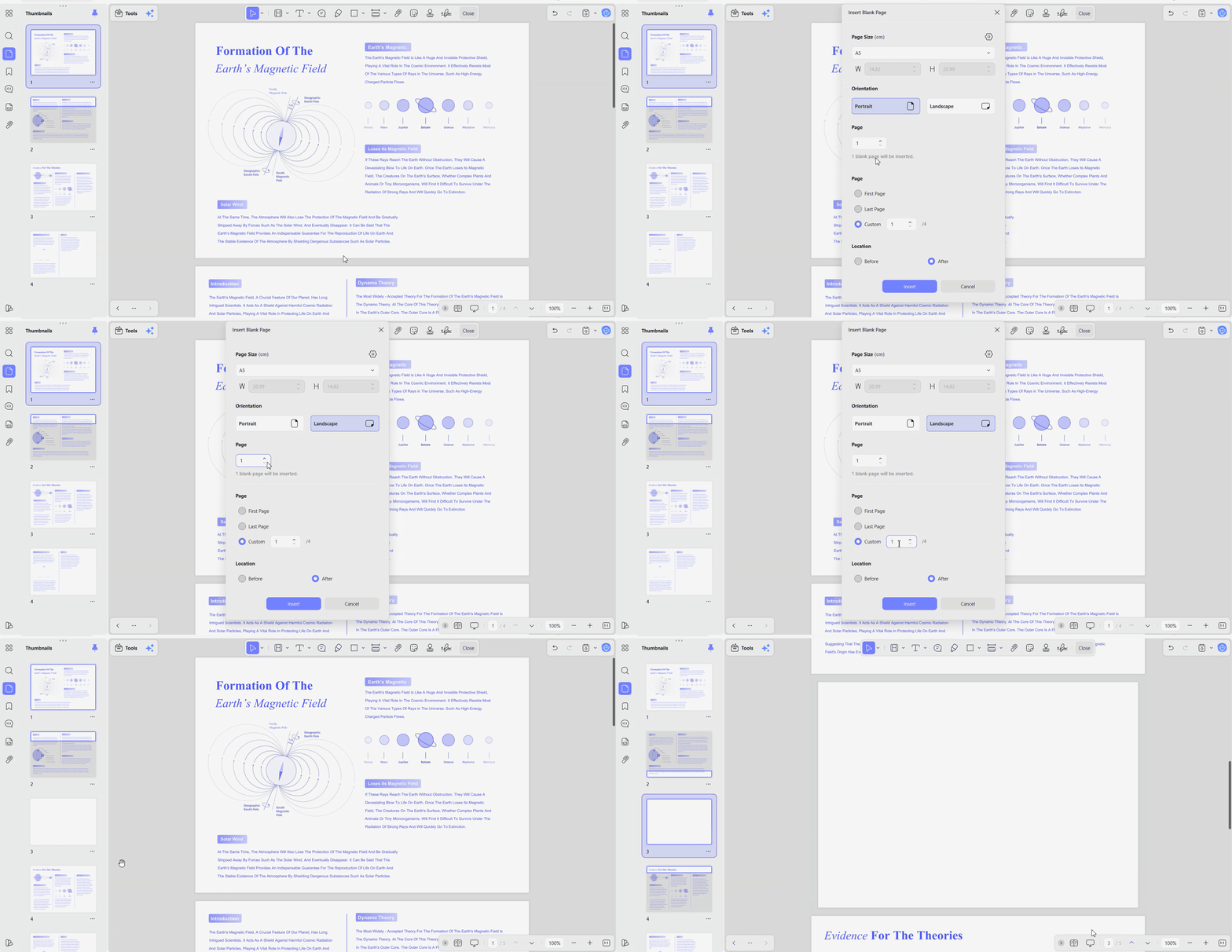
Step 1. On a PDF, access the “Thumbnail” panel on the right side and right-click any page. Then, choose the “Insert Page” option and click the “Blank Page” button.
Step 2. Here, like previously, choose the page size, orientation, and number of pages. In the “Custom” section, select the page where the blank page will be added and choose from the “Before” or “After” options. Lastly, click the “Insert” option to insert the blank page.
Download UPDF for free to insert a blank page into any PDF file. Upgrade to Pro when exporting without a trial watermark or batch processing tools is required.
The core workflow is similar on Windows and macOS, but toolbar placement and system shortcuts can differ. Mac users can follow this dedicated guide to add pages to a PDF on Mac when they also need to insert pages from another file or image.
Part 2. How to Insert a Blank Page in PDF on iPhone, iPad & Android
Most of my PDFs now arrive on my phone first, not on my laptop. Here, UPDF for Android and iOS lets me drop in a clean blank page wherever I need. That means I can fix page layout on the go instead of waiting for desktop time. Follow the steps below to learn how to add a blank page to a PDF with UPDF mobile:
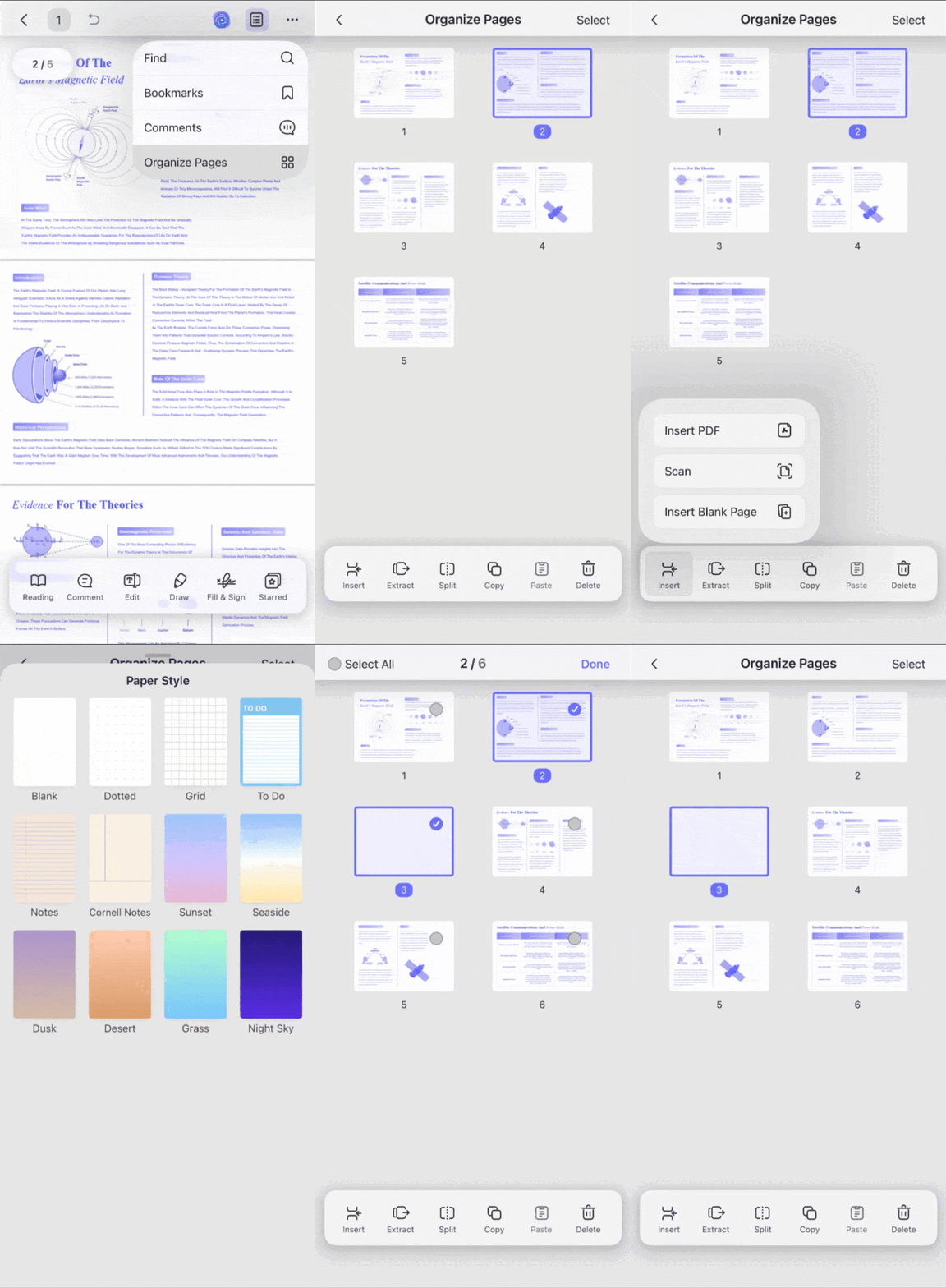
Step 1. First, open a PDF on UPDF mobile and tap on the “Organize” option in the bottom toolbar.
Step 2. Next, select a PDF page after which the page needs to be added. Afterward, expand the features toolbar and press the “Insert” option. Then, choose the “Insert Blank Page” option to add a page.
Step 3. Go back and tap on the “Save” option to directly save the PDF.
One UPDF license works on Windows, Mac, iOS, and Android with the same account. This way, I can start organizing a PDF on my laptop and finish fixing pages on my phone.
Part 3. How to Insert a Blank Page in PDF Online (No Install)
Sometimes I just want a quick online fix for simple, non-sensitive PDFs. I tried browser tools like iLovePDF to see how they handle extra pages. Uploading files made me careful about using these tools only when privacy is not a big issue.
Browser tools are suitable for a quick, non-sensitive document when installing an application is unnecessary. For additional browser-based options and their limitations, see this guide on how to insert a PDF page online.
So, go through the steps below to insert a blank page in a PDF using an online organizer:
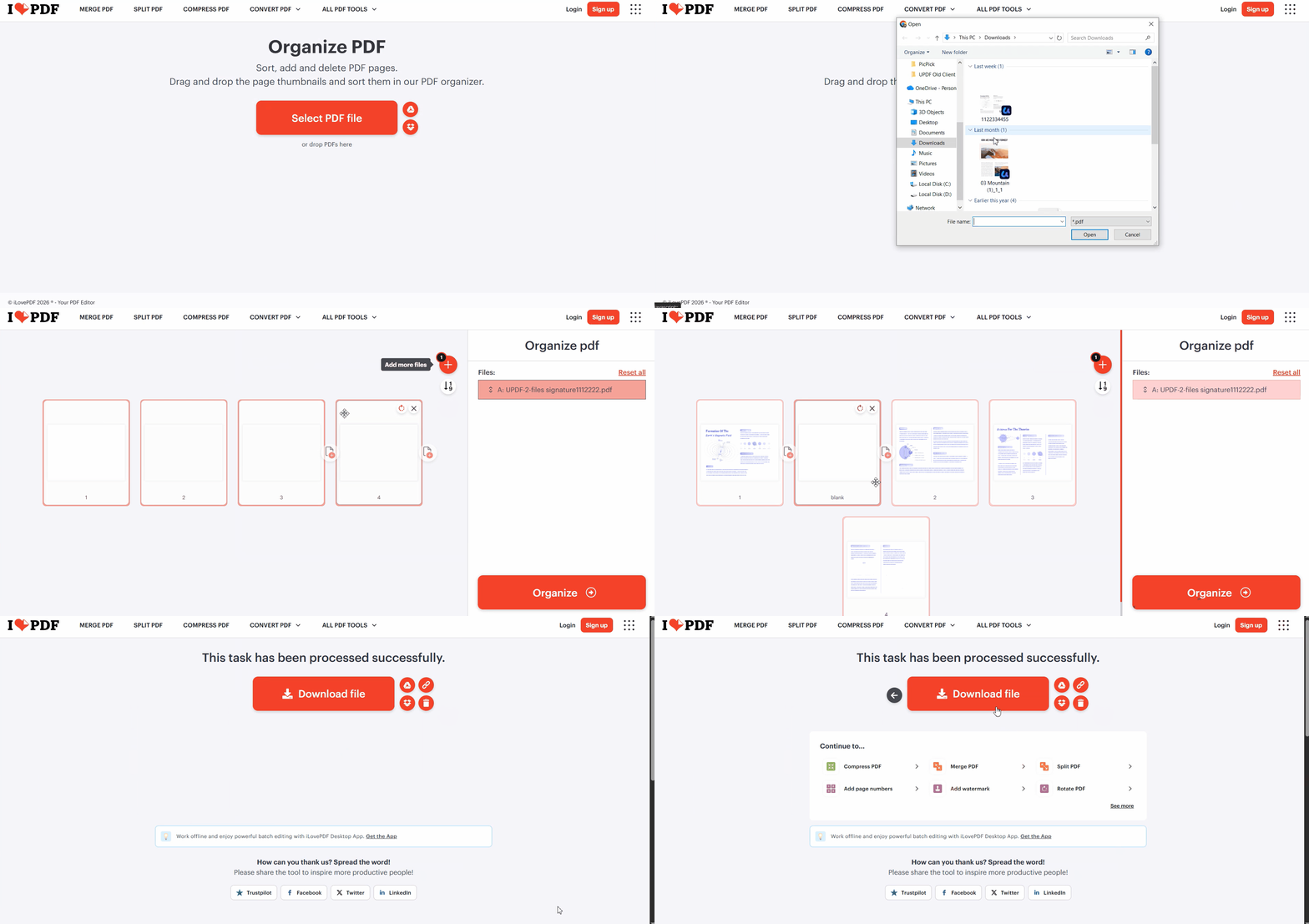
Step 1. First, visit the iLovePDF’s Organize Page webpage and click the “Select PDF File” option to upload the PDF.
Step 2. Next, click the “Add a Blank Page” option between the pages where the new page needs to be added. Then, click the “Organize” button.
Step 3. Lastly, press the “Download PDF” option to download the final PDF.
Many online PDF organizers upload the document to a remote server for processing, although some tools process files locally in the browser. Check the tool’s privacy and deletion policy before uploading contracts, financial records, or other sensitive files. What's more, online tools also need a stable internet connection, so problems can appear during longer multi-step tasks. For private or complex work, stick with UPDF on a desktop where everything stays on your machine.
Part 4. How to Insert a Blank Page in a PDF with Adobe Acrobat
Many people like me already have Acrobat at work or school, so it feels like the default. I tested Acrobat as a PDF blank page adder to match what teams already use. Acrobat provides two relevant routes: the Organize Pages panel offers the complete insertion controls, while the page-thumbnail shortcut is faster when the navigation pane is already open.
If Acrobat is already part of your workplace or school workflow, you can insert a blank page without switching applications. This separate guide explains the broader ways to add a page in Adobe Acrobat, including pages that already contain content.
Lets explore both methods in a clear way that keeps everything easy to follow.
Method 1 – Insert a Blank Page Via The Organize Pages Panel
In Acrobat, I use Organize Pages when a document needs one extra spacer page. Now, go through the steps below to drop that blank exactly where it belongs:
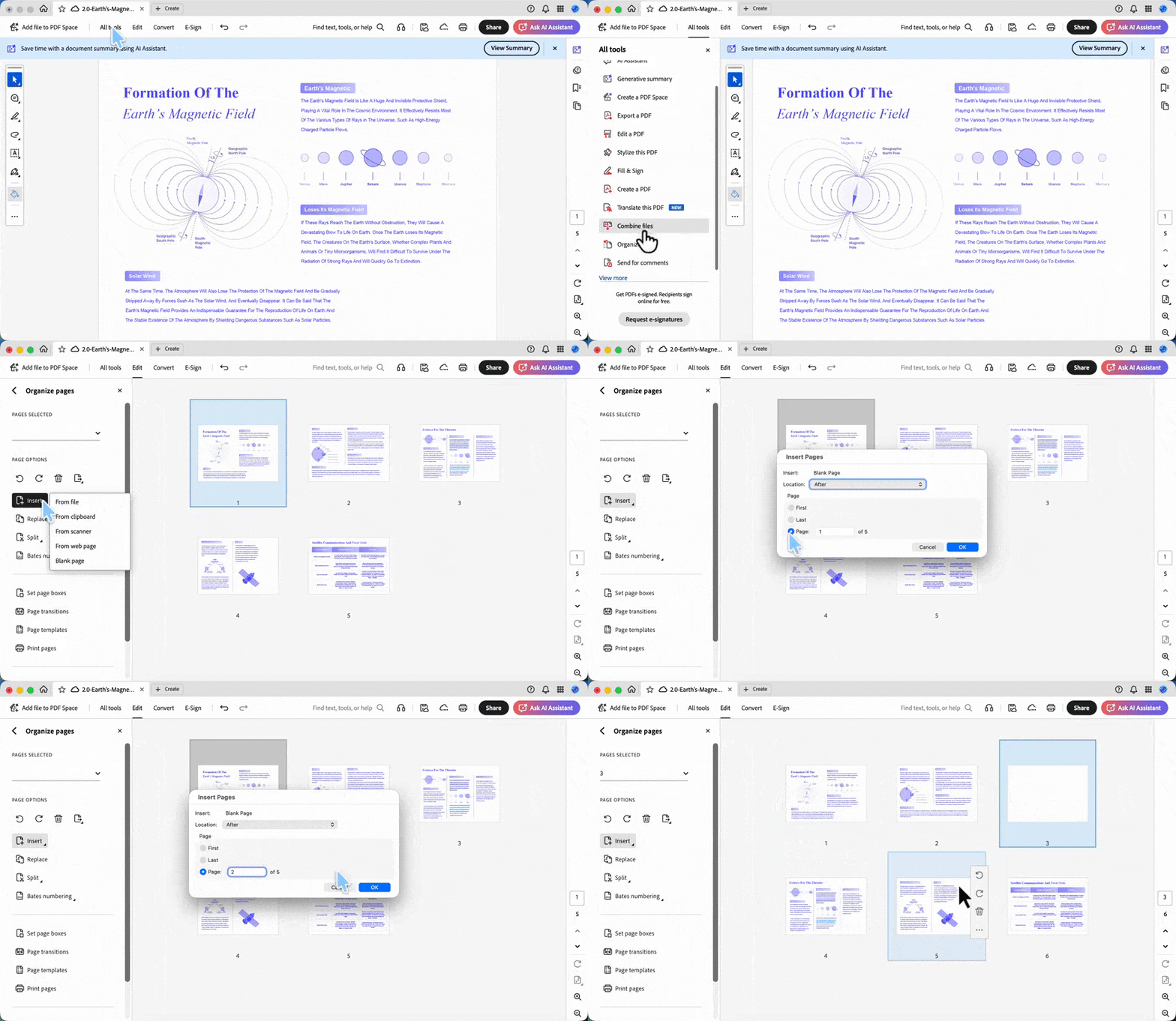
Step 1. Once you open a PDF in Acrobat, press the “All Tools” option and select the “Organize Pages” feature.
Step 2. Then, select a page and choose the “Insert” option in the left side panel. Afterward, press the “Blank Page” option, set the location of the new page, and click the “Ok” button to insert the blank page.
Method 2 – Insert a Blank Page From Thumbnail
When thumbnails are already open in Acrobat, I find it faster to drop pages right there. So, follow the steps below to add a blank page to a PDF beside any thumbnail:
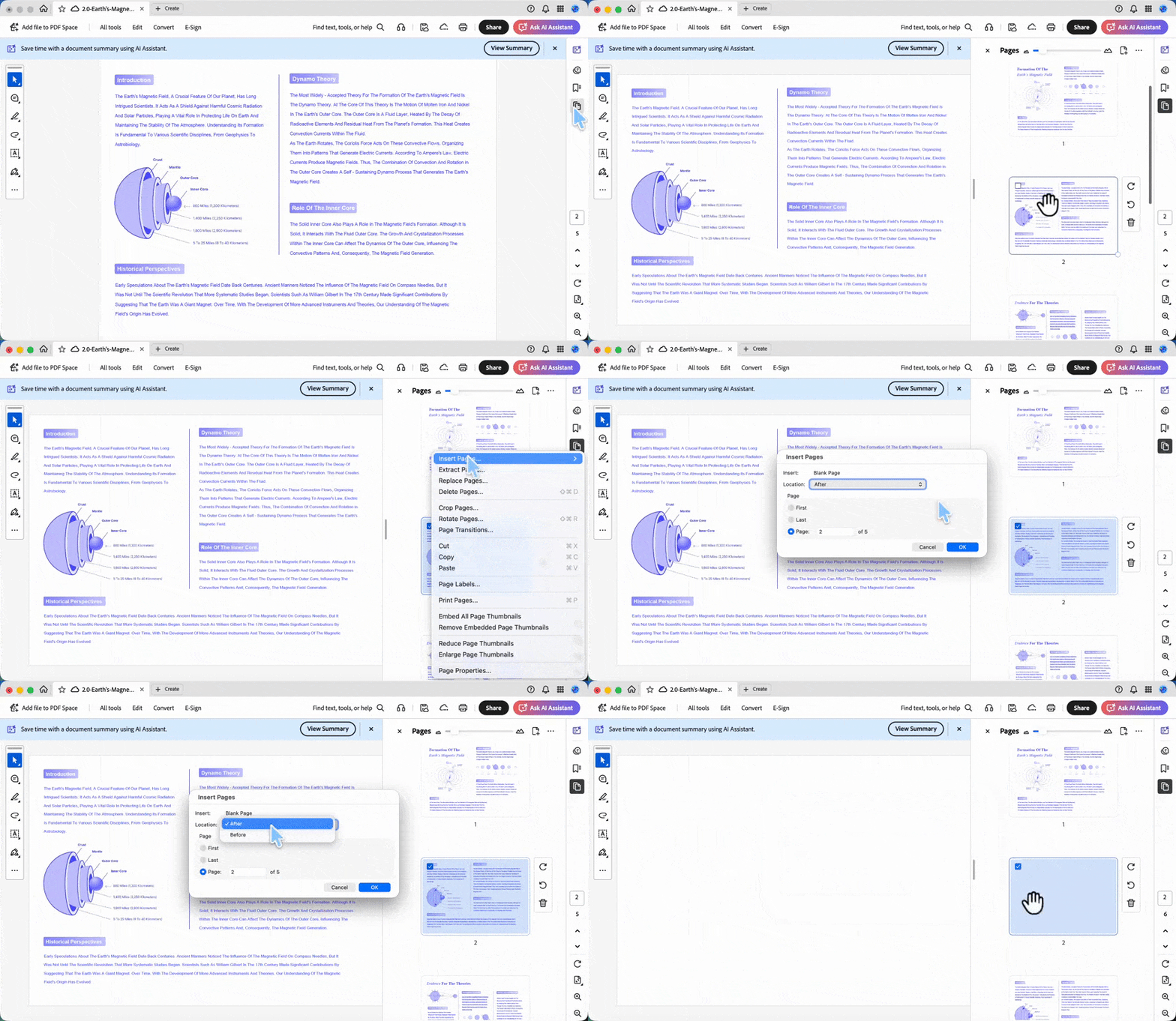
Step 1. In the right side panel of Acrobat, press the “Thumbnail” option. Then, right-click any PDF page, choose the “Insert Pages” option, and press the “A Blank Page” option.
Step 2. Next, repeat the same steps and click the “OK” button to add a new page in Acrobat.
The catch is cost: Acrobat Pro is a subscription at $239.88/year, with no perpetual-license option since Adobe retired one-time purchases. For occasional page work, that's a lot of recurring spend — which is the main reason people look for an alternative.
Part 5. Comparison: UPDF vs. Adobe Acrobat vs. iLovePDF for Inserting Blank Pages
| Feature | UPDF | Adobe Acrobat | iLovePDF |
| Set Page Size & Orientation | Yes | Yes | No separate control |
| Insert from Another PDF/Image/Clipboard | Yes | Yes | No direct insert |
| Insert Multiple Blanks at Once | Yes | Yes | Add extra blanks by duplicating |
| Works Offline | Yes | Yes | No |
| Mobile (iOS & Android) | Yes | Yes | Yes |
| Price | Starting from $49.99/year | Starting from $239/year | Free core tools, paid upgrades starting from $48/year |
| Free-tier Note | Page tools are free, and exports have a watermark until upgrade | Trial only, full use needs a subscription | Free online use with limits |
Note: Prices checked on 24th, August and may vary by region or promotion.
UPDF Desktop offers the most control over page size, orientation, quantity, and insertion source in this comparison. Acrobat is suitable for users already working in the Adobe ecosystem, while iLovePDF is more relevant to an occasional browser-based task involving a non-sensitive file.
Part 6. Edge Cases — When the Standard Method Doesn't Behave
- "The inserted page looks smaller or larger than the surrounding pages." The new page probably uses a different size or orientation. Check the neighboring pages, delete the incorrect blank page, and insert it again using the matching dimensions. If the PDF intentionally contains mixed page sizes, match the pages around the insertion point rather than the first page of the file.
- "I can't insert a page — the file is locked." A permissions password can prevent page insertion even when the PDF opens normally. Enter the correct owner password or request an unrestricted copy from the document owner. Do not suggest bypassing a restriction without authorization.
- "The inserted page's text looks tiny after I paste content." When you insert from the clipboard, the pasted text can come in at the source's scale. Switch to Edit mode and adjust the font size, or insert the source as a properly sized page via Insert > From File instead.
- "I added the blank page in the wrong position." Open Organize Pages and drag the blank-page thumbnail to the correct location. There is no need to delete and recreate it unless its size or orientation is also incorrect.
- "I need a blank page after every existing page." UPDF's Interleaving Insertion is designed to alternate pages from two PDFs, such as separately scanned odd and even pages. To use it for blank pages, first prepare a PDF containing the required number of blank pages, and then interleave that file with the original PDF.
- "The visible page numbers did not update." Inserting a blank page changes the PDF's page order, but page numbers printed inside the page content do not automatically change. If the document uses headers and footers for visible numbering, update or replace the page numbers after inserting the blank page.
FAQs
1. Can I insert several blank pages at once?
Yes. In UPDF for Windows or Mac, open Insert > Blank Page and enter the required value in Number of Pages. Then choose whether the blank pages should appear at the beginning, at the end, or before or after a specified page.
2. Will inserting a blank page change my existing content or page numbers?
The existing page content remains unchanged. However, the PDF page index changes because the new page becomes part of the document. Page numbers printed inside headers, footers, or the page design do not update automatically.
3. How do I insert a page from another PDF instead of a blank one?
To insert existing content instead of an empty page, choose Insert > From File, select the source PDF, and specify the required pages and destination. This complete guide explains how to add pages to a PDF from another PDF, image, clipboard, or other supported source.
Can I insert a blank page at the beginning or end of a PDF?
Yes. UPDF for Windows and Mac lets you insert a blank page as the first or last page, or before or after a specified page.
Can I add text or a signature to the new blank page?
Yes. After inserting the page, leave Organize Pages and open the appropriate editing, annotation, or signing tool. A blank page is a normal PDF page after insertion, so it can contain text, images, comments, drawings, or signatures.
Conclusion
Inserting a blank page comes down to one habit: open Organize Pages, use Insert > Blank Page, and match the size and position to the document — the same panel you'd use to delete or reorder pages, on desktop or mobile. UPDF gives you that control across Windows, Mac, iPhone, and Android with a one-time license option, Acrobat does the same on a subscription, and iLovePDF covers a quick non-sensitive blank in the browser.
It helps to review the document as a whole before saving the new arrangement. You can start with the video below for an introduction to organizing PDF pages in UPDF.
Download UPDF for free to try inserting, deleting, and reordering pages on your own file — installation is free, and Pro features are available when you need export without the trial watermark or batch tools.
Windows • macOS • iOS • Android 100% secure




 Enrica Taylor
 Enya Moore
 Lizzy Lozano
