 UPDF
UPDF
 UPDF for Windows
 UPDF for Mac
 UPDF for iPhone/iPad
 UPDF for Android
 Nomostar
 UPDF AI Online
 UPDF Sign
 IvyCraft
 Edit PDF
 Annotate PDF
 Create PDF
 PDF Form
 Edit links
 Convert PDF
 OCR
OCR PDF to Word
 PDF to Image
 PDF to Excel
 Organize PDF
 Merge PDF
 Split PDF
 Crop PDF
 Rotate PDF
 Protect PDF
 Sign PDF
 Redact PDF
 Sanitize PDF
 Remove Security
 Read PDF
 UPDF Cloud
 Compress PDF
 Print PDF
 Batch Process
 About UPDF AI
 UPDF AI Solutions
 AI User Guide
 FAQ about UPDF AI
 Summarize PDF
 Translate PDF
 Chat with PDF
 Chat with AI
 Chat with image
 PDF to Mind Map
 Explain PDF
 PDF AI Tools
 Image AI Tools
 AI Chat Tools
 AI Writing Tools
 AI Study Tools
 AI Working Tools
 Other AI Tools
 AI Bookmark Generation
 AI Bookmark Summary
 AI Watermark Generation
 AI Background Generation
 AI Sticker Generation
 AI Stamp Generation
 AI Editing Suite
 UPDF Copilot
 AI Page Management
 AI Semantic Search
 PDF to Word
 PDF to Excel
 PDF to PowerPoint
 Enterprise Solution
 Enterprise Sign
 Enterprise AI
 Enterprise Plan
 Enterprise User Guide
 Enterprise Webinar
 IT
IT Education
 Construction
 Financial Service
 Healthcare
 Insurance
 Legal
Legal Manufacturing
 Government
 Researchers & PhDs
 Solopreneurs & Freelancers
 Lawyers & Legal Professionals
 Real Estate Agents & Brokers
 Education Solution
 Customer Stories
 User Guide
 UPDF Tricks
 FAQs
FAQs UPDF Reviews
 Download Center
 Blog
Blog Newsroom
 Tech Spec
 Updates
 UPDF vs. Adobe Acrobat
 UPDF vs. Foxit
 UPDF vs. PDF Expert

PDF documents often contain mistakes that need to be corrected after they have been created. These errors may involve text, dates, numbers, images, formatting, or form fields. The best correction method depends on the type of PDF and the nature of the mistake.
Example: If an invoice has one wrong date and total, edit both fields, compare the corrected figures with the source record, and reopen the saved PDF to ensure the font and alignment still match. For a related workflow, see edit an invoice PDF.
No matter which systems on your devices you are using (Windows/Mac/iOS/Android) or what errors you want to fix, UPDF meets all your needs simultaneously, eliminating the need to switch back and forth between different platforms.
Windows • macOS • iOS • Android 100% secure
⏰If you need a more comprehensive understanding of PDF editing—including modifying text, adjusting images, adding annotations, converting formats, and more—please check out How to Edit a PDF.
So let's check how to correct a PDF document by defining your needs and use cases, then find the corresponding solutions you prefer.
Part 1: Can All PDF Documents Be Corrected?
The following four types of PDF documents represent four scenarios—and potential situations requiring correction—so see which one applies to you.
Scenario A: Scanned/image-based PDF
❓Q: File opens normally, but text cannot be selected, edited, or searched; content may also be skewed or blurry.
✅A: Recognizing text in a scanned document is complex. However, applications with the additional feature of OCR can handle the job very well. OCR is a smart feature that differentiates between text and images in a scanned file. Use it to scan the document and convert it into editable forms. Then make changes to your document as you like.
Scenario B: Protected PDF
❓Q: File is readable, yet text selection and editing functions are disabled due to protection restrictions.
✅A: Not all files can be opened with a single click. Confidential files are protected by a password to be accessible only to a limited audience. PDF editors like UPDF allow users to edit such files as well. Users are prompted to enter the password, after which the file can be edited like a normal PDF.
Scenario C: Regular editable PDF
❓Q: File supports editing, and content, layout, or information needs to be revised.
✅A: PDFs are like stubborn files, resisting change. But yes! With a suitable PDF editor, you can easily edit your basic PDF files the way you want!
An editable copy is most useful when the text still follows the original structure. If you want to see the interface in use, the video below covers editing PDF content in UPDF.
Scenario D: Digitally Signed PDFs
❓Q: Digital signatures ensure the integrity and security of sensitive documents and thus cannot be edited.
✅A: They follow a strictly uneditable mode because any modifications would nullify the signature. You must contact the other party to rewrite the contract for an error in such documents.
Part 2: How to Correct a PDF Document?
Now that we have discussed the different PDF formats, it's time to uncover the magic of how to correct PDF files.
| Scenario | Recommended Tools | Core Advantages | Best Use Cases |
| Scanned OCR (Desktop) | ABBYY FineReader、Adobe Acrobat Pro、UPDF | • High OCR accuracy (98%+) for multi-language & complex layouts • Preserves original formatting; adds searchable text layer • Local processing for privacy; batch OCR support | Digitize scanned contracts, books, old archives; convert image PDFs to editable/searchable files |
| Daily Editing (Desktop) | Foxit PDF Editor、UPDF、Adobe Acrobat | • Direct text/image editing like Word; auto-match fonts • Full formatting control (layout, annotations, signatures) • High compatibility; fast performance | Modify reports, edit contracts, adjust layouts, add comments; regular office PDF tweaks |
| Mobile Editing | Adobe Acrobat Reader、Foxit Mobile、Xodo、UPDF(iOS/Android) | • On-the-go editing/annotation/e-sign • Cloud sync across devices; touch/stylus support • Lightweight; fast opening for large files | Field work approvals, travel edits, quick signatures, mobile annotations; remote collaboration |
| Batch Processing | UPDF Batch、PDF24 Creator、Foxit PDF Toolkit、Stirling-PDF | • Bulk convert/merge/compress PDFs • One-click batch watermark/encrypt/rename • Multi-threaded; local processing for security | Mass report processing, archive sorting, bulk form filling; enterprise document management |
➡️All recommended tools are mainstream general PDF editors, suitable for commercial and personal daily use.
➡️For protected PDFs, please ensure you have legal authorization before unlocking or decrypting.
Why Trust UPDF?
In high-frequency PDF editing scenarios—such as OCR for scanned documents, routine editing, mobile processing, and batch or automated workflows—UPDF offers irreplaceable core advantages over tools like Adobe Acrobat, Foxit, and PDF Expert.
| Comparison Items | UPDF (Recommended) | Adobe Acrobat Pro DC | Foxit PDF Editor+ |
|---|---|---|---|
| Annual Price (USD) | $49.99/Year; $79.99 Lifetime | $239.88/Year | $159.99/Year |
| Authorized Devices | 2 desktops + 2 mobile devices, full cross-platform access | Single platform / single device only | Windows-focused, limited cross-device support |
| Mobile Editing | Full-featured iOS & Android support, touch and signature optimized | Severely limited mobile functions, poor sync | Basic mobile functions with incomplete features |
| AI & Automation | Native advanced AI: summary, translation, mind map, semantic search | Basic AI features with extra fees | No mature AI or automated workflow support |
| Cross-platform Support | Windows / Mac / iOS / Android, one-account full sync | Fragmented cross-platform experience | Windows-dominant, incomplete mobile adaptation |
| Learning Difficulty | Minimalist UI, zero threshold for beginners | Steep learning curve, complicated operation | Old-fashioned interface with higher learning cost |
| Free Version Restrictions | No time limit, only watermark on exports; free OCR trial available | Extremely limited free functions | Strict watermark and function limitations |
With an array of cutting-edge editing tools, UPDF has become the heartbeat of the PDF world. Let's see how to use UPDF correct PDF.
Windows • macOS • iOS • Android 100% secure
1: Correct Text in PDF
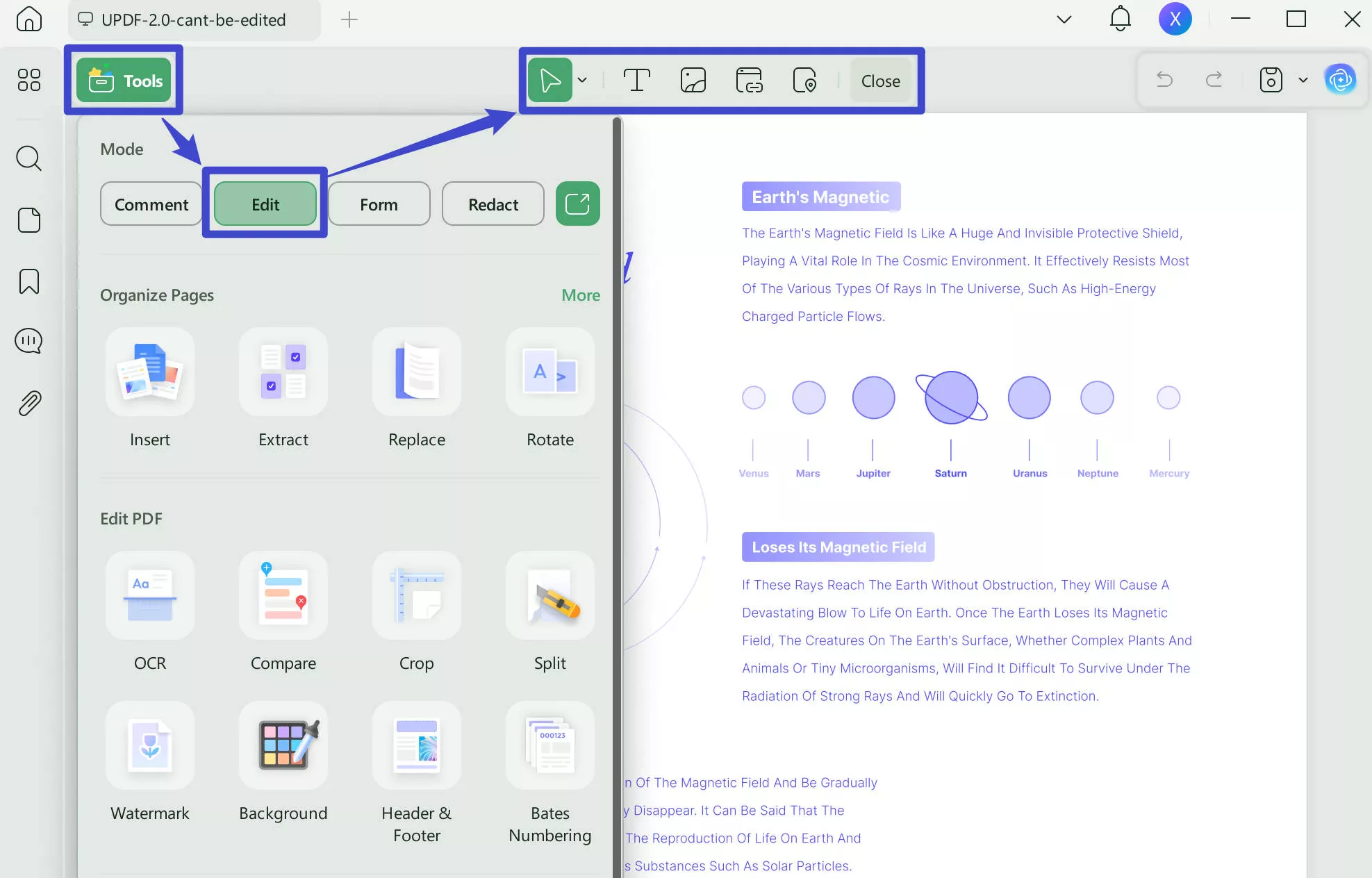
On the left side of the window, click the "Edit" icon in Tools to open the editing mode. Select the text you want to edit. Outlined by a purple border, the text is easily editable in a Word-style format.
Add, modify, or delete any text in the PDF. Besides, you can edit the font shape, size, color, etc.
2: Correct in a Scanned PDF File
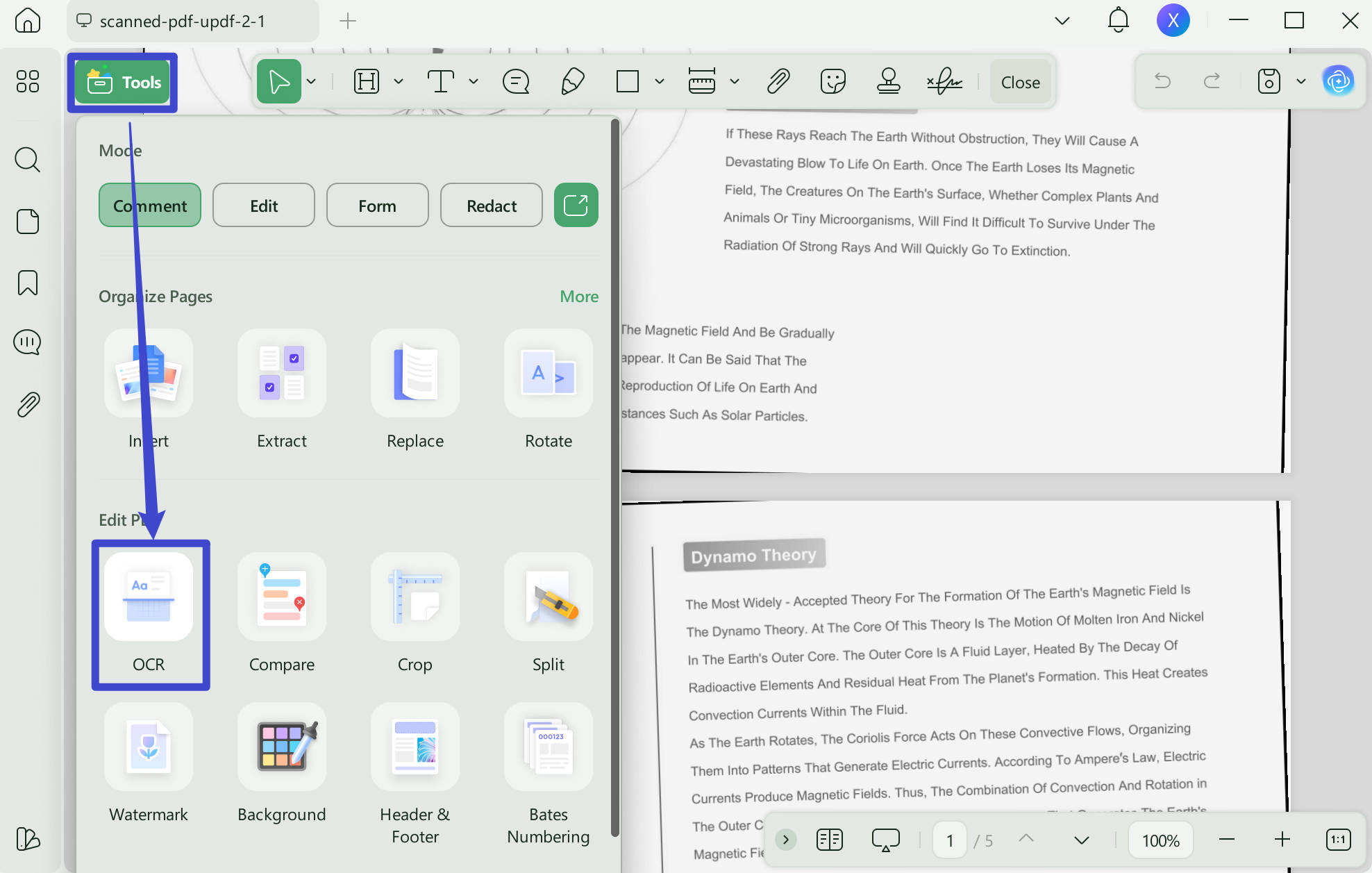
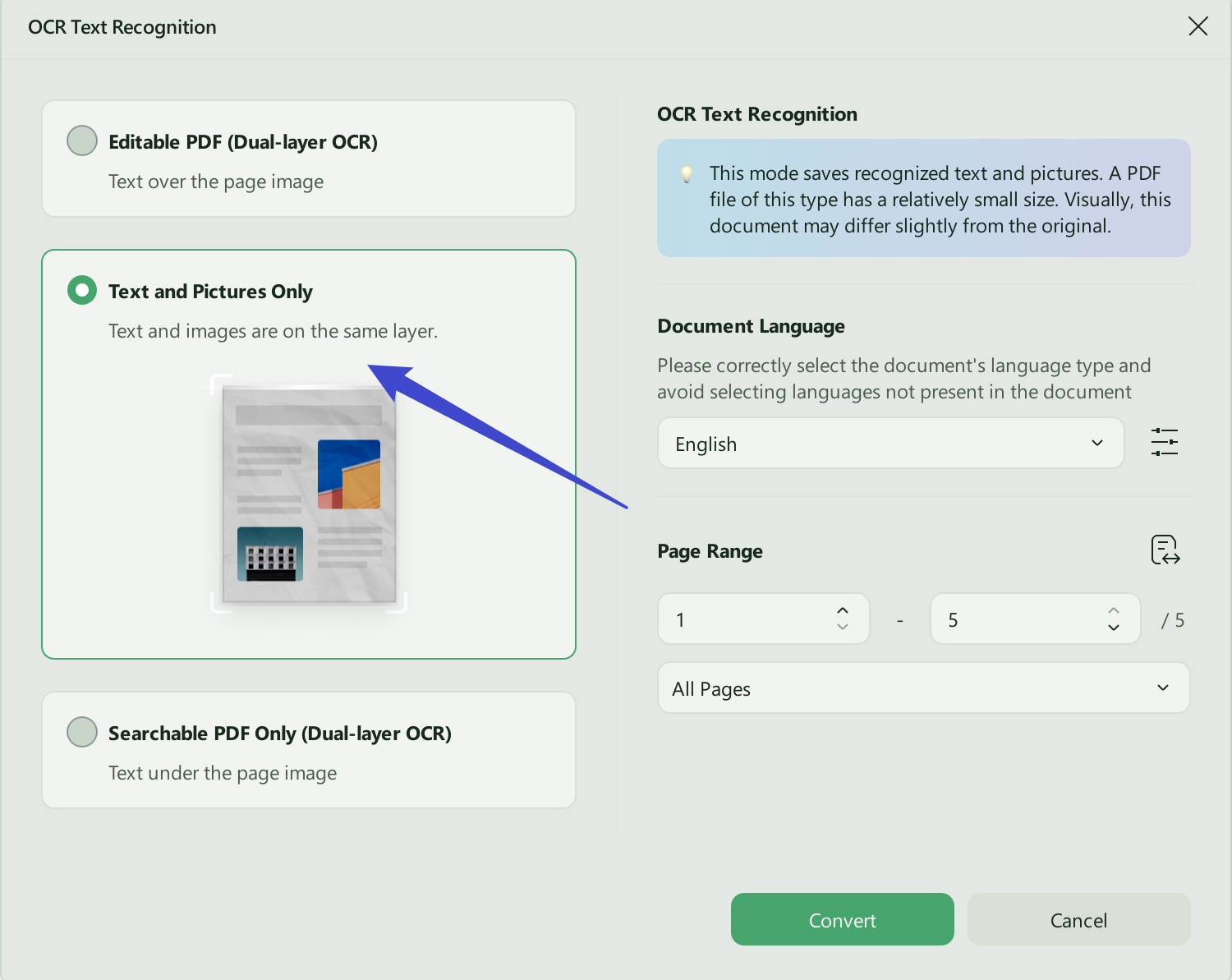
Once installed, click on the OCR button again to begin. It will offer three options: "Editable PDF", "Text and Pictures Only", "Searchable PDF Only".
Use the first option to convert your scanned document to an editable form.
Now that the file is editable, use UPDF's Edit mode to add, delete, or modify the text. Apply font, shape, size, and color text alterations if required.
Once done with the editing, convert your file back to an uneditable version. Click the OCR icon on the right and select Text and Picture Only. Now the file is an image, neither searchable nor editable.
Extra Tip: Correct PDF with UPDF AI
UPDF's relentless pursuit of innovation has led to the generation of UPDF AI - an intelligence-based PDF editor. It goes without saying that this AI-empowered software can do almost anything.
Simply use the Ask AI feature to check the document for any grammatical or typing errors. Besides, you can ask your AI genie for better alternatives. UPDF AI focuses on smart work and enhances productivity while streamlining the workflow.
Here is how to use the Ask AI feature:
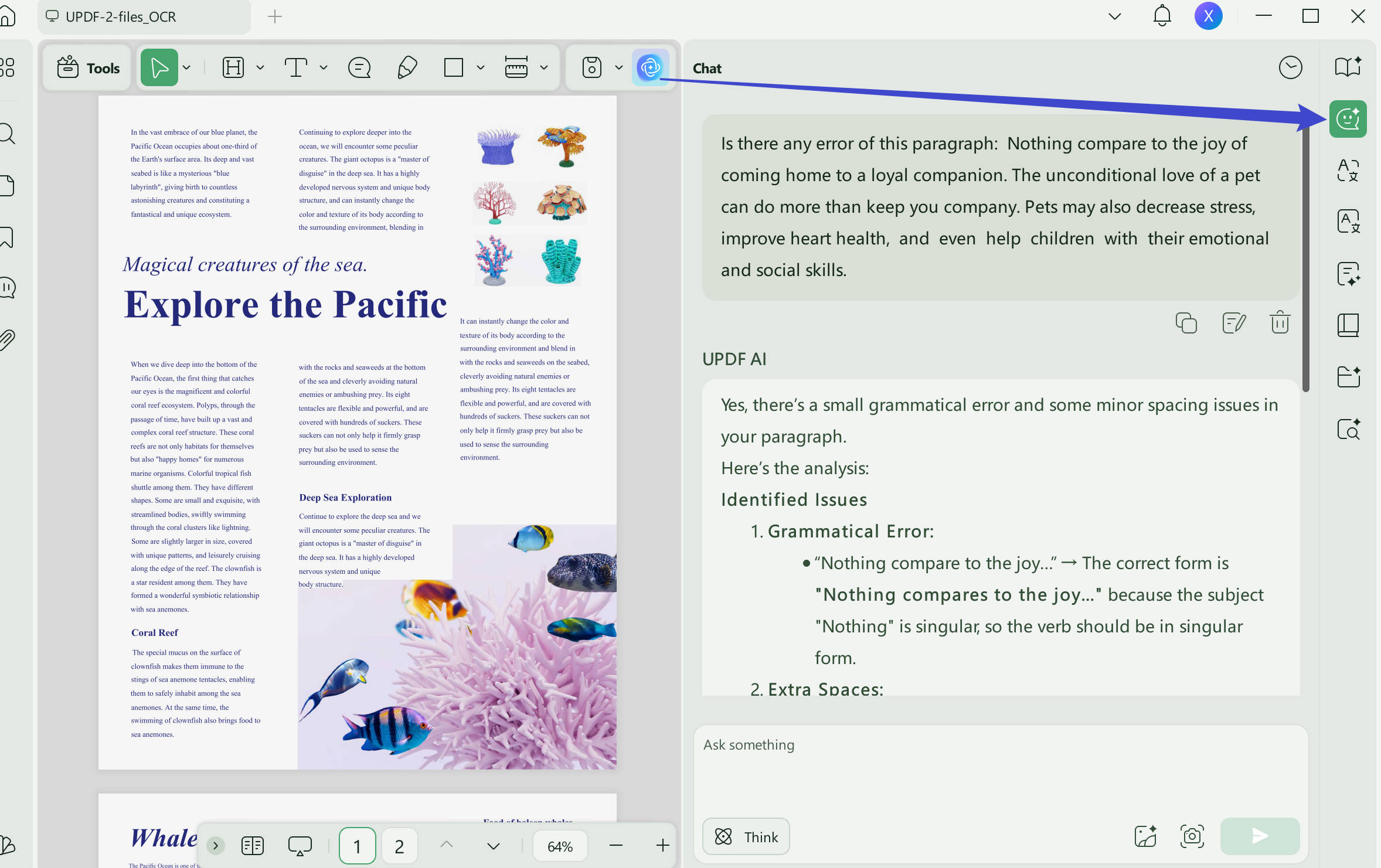
Open your file with UPDF. In the lower right corner of the screen, click "UPDF AI" icon to open the AI features.
Click the "Chat" option. Select and copy the text from your file. In the AI section, type any command: (copied text) and Enter. For example: "Is there any error of this paragraph: Nothing compares to the joy of coming home to a loyal companion. The unconditional love of a pet can do more than keep you company. Pets may also decrease stress, improve heart health, and even help children with their emotional and social skills."
The AI will follow the instructions and offer solutions. Use it for suggestions to correct all the errors in one go.
UPDF AI can speed up the hassle of manually correcting each problem. Just order your AI and see how the magic happens. It is a wish come true for all those seeking to harvest the full potential of their PDFs. Download UPDF now and get 30 questions to ask the AI.
Windows • macOS • iOS • Android 100% secure
What Else Can You Correct in a PDF File?
In this article, we have thoroughly discussed how to correct text in a PDF. But what else can UPDF help us with?
1. Images
Besides text, users can seamlessly edit the images in a file as well. With a click resize or re-place your image in the document. Additionally, you can also add borders or delete the image.
2. Page Ordering
Page ordering can be challenging, especially in long PDFs. However, UPDF allows you to efficiently manage all the pages of your file. You can adjust the page order, add new pages, or delete the old ones. Moreover, use the Split option to divide one page into two or Merge two into one.
3. Header and Footer
The header and Footer are essential for document identification and navigating through a document. It can be subject to errors. However, correct them in a blink with UPDF. Effortlessly add a new header or alter the previous one.
4. Watermark
A watermark is a sign of identity and signifies ownership of a document. Slight errors can lead to privacy and security breaches. However, it easily corrects in a few clicks with UPDF. Change, edit, or add a completely new watermark for your file.
5. Background
PDF files with their usual white background can be monotonous. UPDF allows users to add a pop of color to the files by editing the background color. Paint the background a plain color or replace it with an image.
These were a few other things that may require an edit. But whatever it is, UPDF will fix everything in a snap!
Frequently Asked Questions
Can I correct text in a PDF without the source file?
Yes, if the text is editable. If the PDF is scanned or flattened, run OCR before making corrections.
Why does corrected PDF text use a different font?
The original font may not be embedded or installed. Choose the closest available font and match its size, weight, and spacing.
How do I verify a corrected PDF before sending it?
Reopen the saved file, compare every changed value with the source, and check layout, links, and page count in a second PDF reader.
Conclusion
As a beginner, if you are wondering how to correct a PDF, this article has covered everything in detail. UPDF with its ubiquitous set of tools has redefined the way we interact with PDF files. Simply use the Edit mode to manually edit the file. Alternatively, you can use the UPDF AI to lend you a hand with all the work. Download it now.
Windows • macOS • iOS • Android 100% secure
This article focuses on "correcting" PDFs. Want to learn comprehensive editing techniques? This How to Edit a PDF is what you need.





 Lizzy Lozano

 Enola Davis

 Enola Miller