 UPDF
UPDF
 UPDF for Windows
 UPDF for Mac
 UPDF for iPhone/iPad
 UPDF for Android
 Nomostar
 UPDF AI Online
 UPDF Sign
 IvyCraft
 Edit PDF
 Annotate PDF
 Create PDF
 PDF Form
 Edit links
 Convert PDF
 OCR
OCR PDF to Word
 PDF to Image
 PDF to Excel
 Organize PDF
 Merge PDF
 Split PDF
 Crop PDF
 Rotate PDF
 Protect PDF
 Sign PDF
 Redact PDF
 Sanitize PDF
 Remove Security
 Read PDF
 UPDF Cloud
 Compress PDF
 Print PDF
 Batch Process
 About UPDF AI
 UPDF AI Solutions
 AI User Guide
 FAQ about UPDF AI
 Summarize PDF
 Translate PDF
 Chat with PDF
 Chat with AI
 Chat with image
 PDF to Mind Map
 Explain PDF
 PDF AI Tools
 Image AI Tools
 AI Chat Tools
 AI Writing Tools
 AI Study Tools
 AI Working Tools
 Other AI Tools
 AI Bookmark Generation
 AI Bookmark Summary
 AI Watermark Generation
 AI Background Generation
 AI Sticker Generation
 AI Stamp Generation
 AI Editing Suite
 UPDF Copilot
 AI Page Management
 AI Semantic Search
 PDF to Word
 PDF to Excel
 PDF to PowerPoint
 Enterprise Solution
 Enterprise Sign
 Enterprise AI
 Enterprise Plan
 Enterprise User Guide
 Enterprise Webinar
 IT
IT Education
 Construction
 Financial Service
 Healthcare
 Insurance
 Legal
Legal Manufacturing
 Government
 Researchers & PhDs
 Solopreneurs & Freelancers
 Lawyers & Legal Professionals
 Real Estate Agents & Brokers
 Education Solution
 Customer Stories
 User Guide
 UPDF Tricks
 FAQs
FAQs UPDF Reviews
 Download Center
 Blog
Blog Newsroom
 Tech Spec
 Updates
 UPDF vs. Adobe Acrobat
 UPDF vs. Foxit
 UPDF vs. PDF Expert

Many PDF tools, like Adobe Acrobat, come with heavy installers and a complex set of features. As a result, they start slowly and frequently crash on low-end systems.
As a tool designed for basic PDF reading, Slim PDF Reader removes this burden. In this article, I will review its features in detail so you can see if it's worth your time.
Being lightweight, Slim PDF lacks many useful features for handling PDFs. If you need a dedicated PDF solution, UPDF offers a full set of tools in a lightweight design, so you can handle your documents seamlessly.
Windows • macOS • iOS • Android 100% secure
Part 1: What is Slim PDF Reader?
Slim PDF Reader is a free desktop PDF reader by Investintech.com Inc. It is built around the idea of stripping away the bloatware that slows your computer down and delivers only what you need to read a PDF. The installer weighs in at just a few megabytes, which makes it one of the smallest PDF readers available. Moreover, you can download Slim PDF Reader for Windows, Mac, and Linux.
The tool loads quickly, consumes minimal system resources, and keeps its interface clean and uncrowded. That said, Slim PDF Reader is designed for reading instead of editing PDF documents. If you need to open, browse, annotate, or search a PDF without taxing your system, it gets the job done.
Part 2: Core Functions of Slim PDF Reader
Despite its small size, Slim PDF Reader offers a solid set of features to help you view and read your PDFs. After testing it, here are the key functions it offers.
1. Basic Reading and Browsing
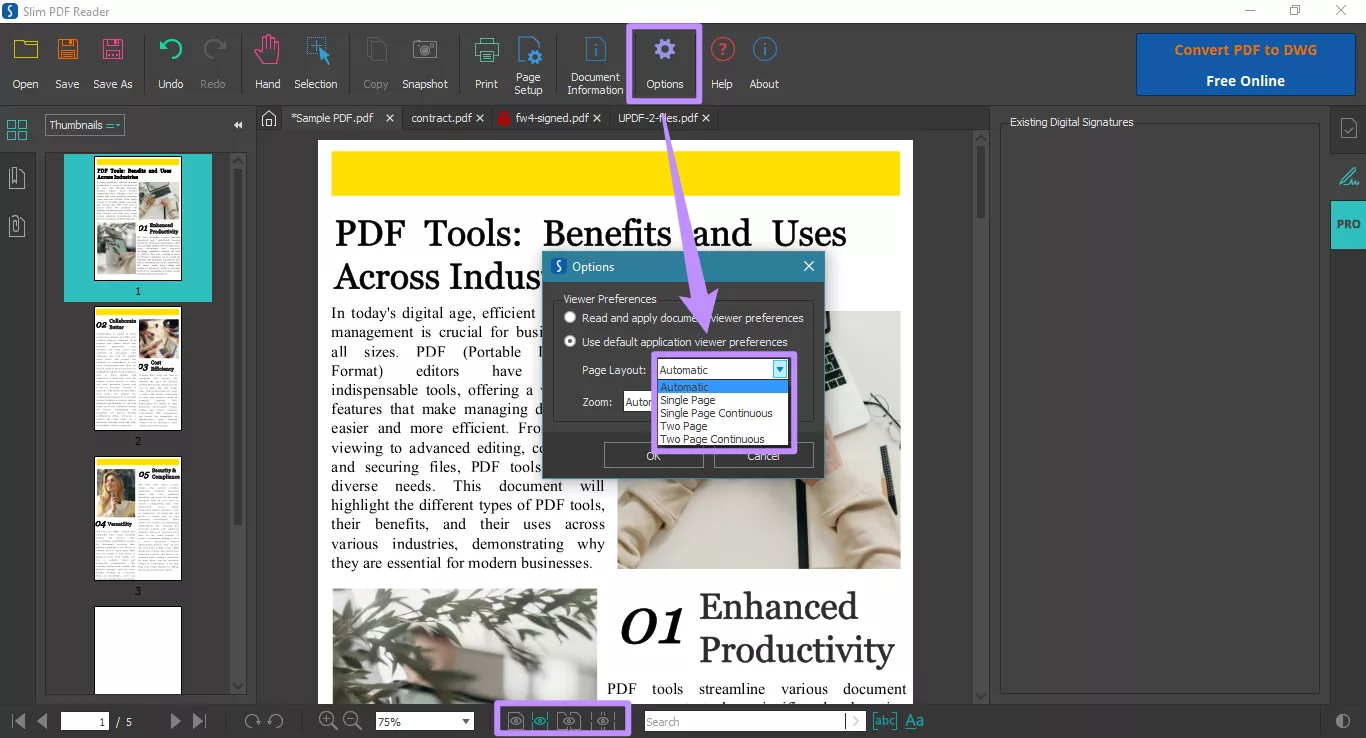
Slim PDF Viewer gives you flexible layout options to match your reading style. You can switch between single-page and two-page views, with or without continuous scrolling. Moreover, you can use light and dark modes and scale the interface to adjust the display to your screen size.
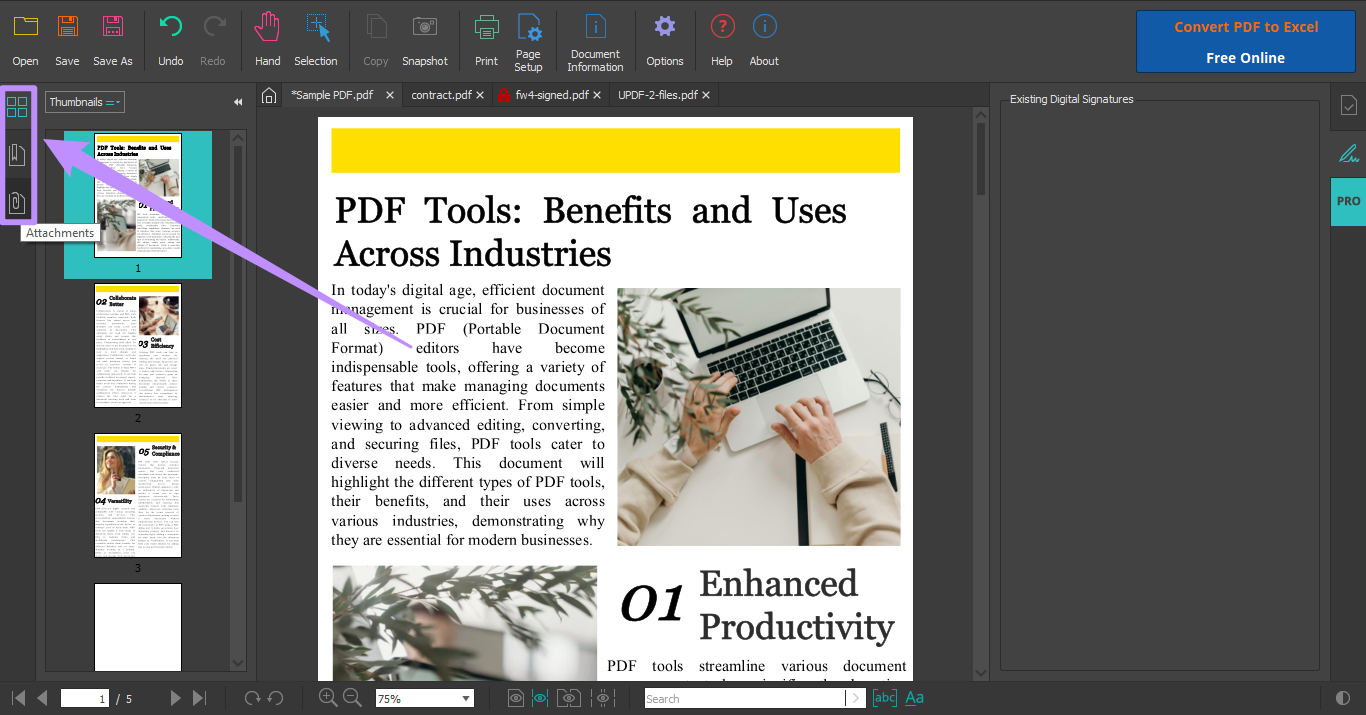
To browse PDFs, you get three options. The thumbnail panel lets you view and navigate by pages. In addition, you can use the Bookmarks panel to jump directly to a specific section. And if you have any files attached to the PDF, you can view them in one organized list for easy access.
2. Content Search and Copying
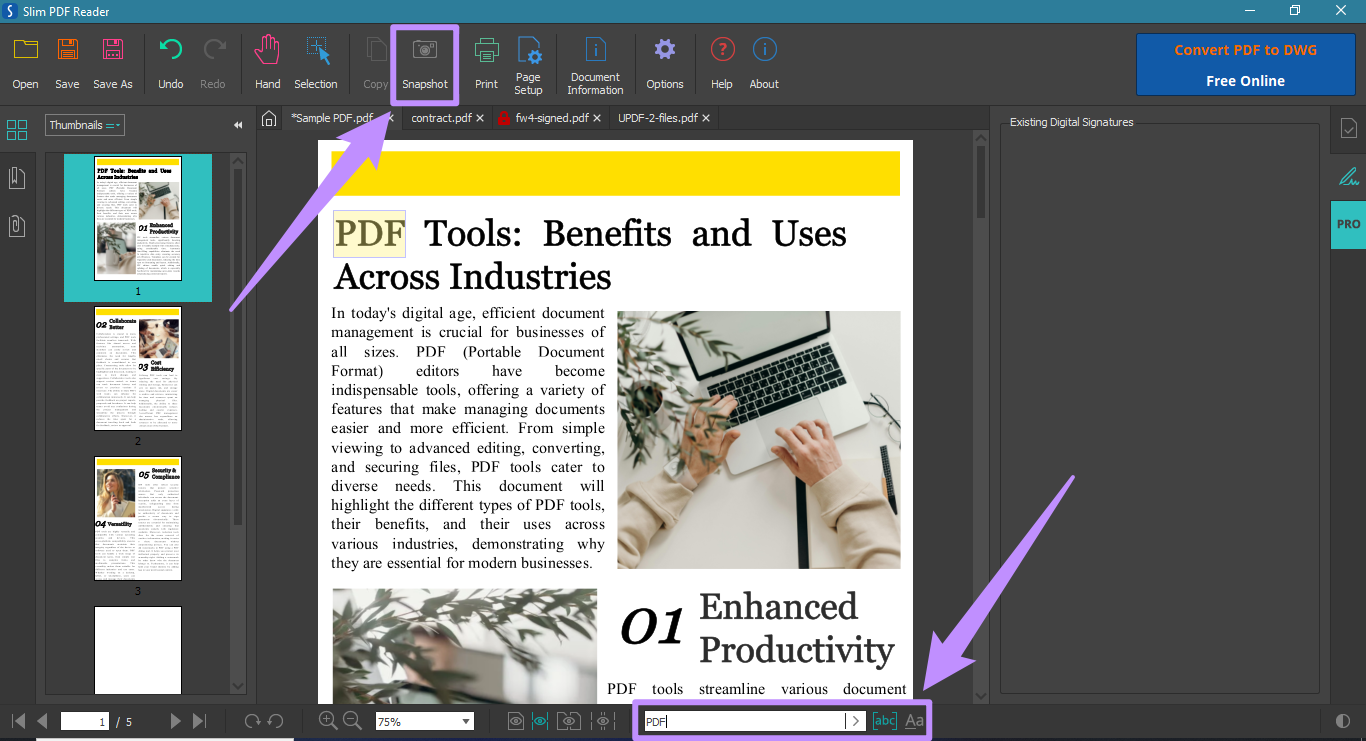
You can use the built-in keyword search bar to find specific content in your PDFs. Moreover, you can narrow your search by enabling whole-word-only or case-sensitive search. As for copying content, you can either select and copy text directly or use the snapshot tool to copy any area of the page as an image to the clipboard.
3. Comprehensive Annotation Features
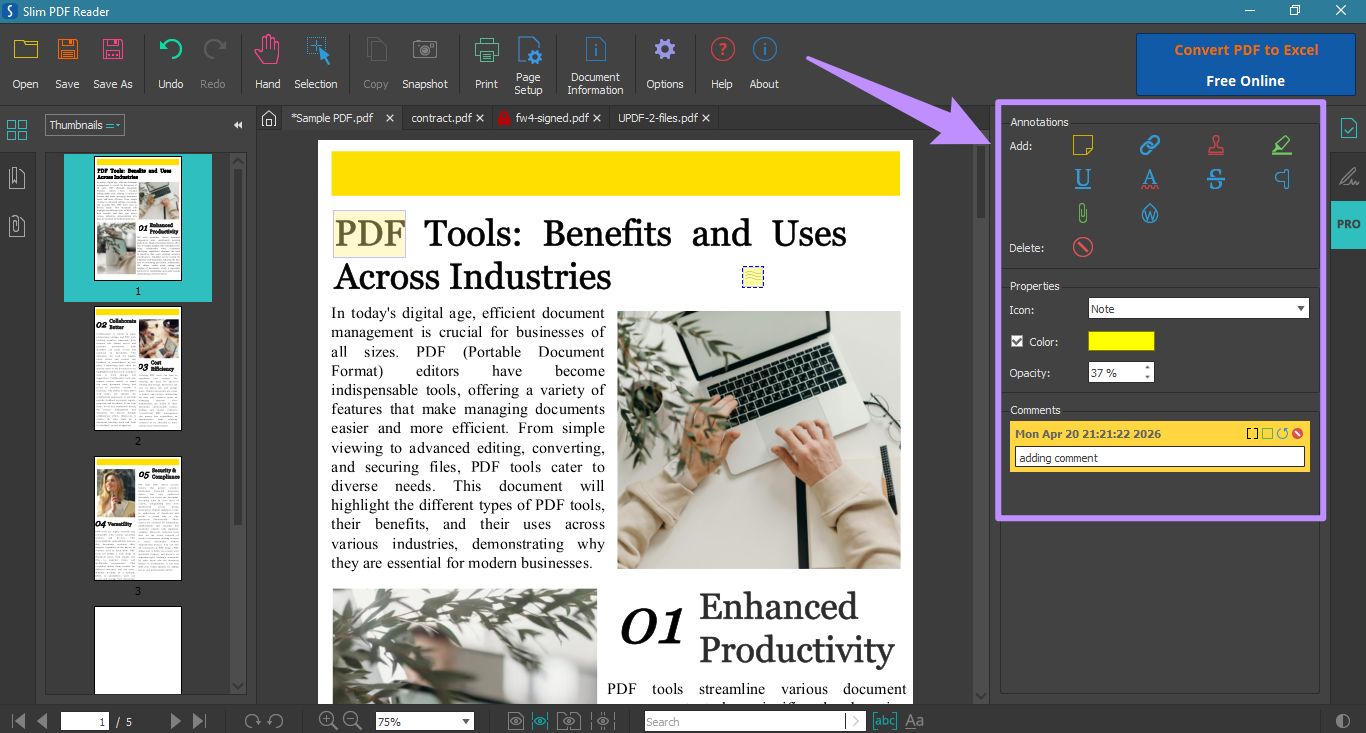
Slim PDF Viewer offers many annotation tools such as highlights, underlines, squiggly lines, and strikethroughs. You can also add sticky notes, stamps, links, attachments, and carets, then attach comments to each one. Moreover, it allows you to customize their icons, with options like checkmark, cross, help, and more. Also, you can create and apply custom watermarks to label the status of your documents.
4. Form Filling and Signature Verification
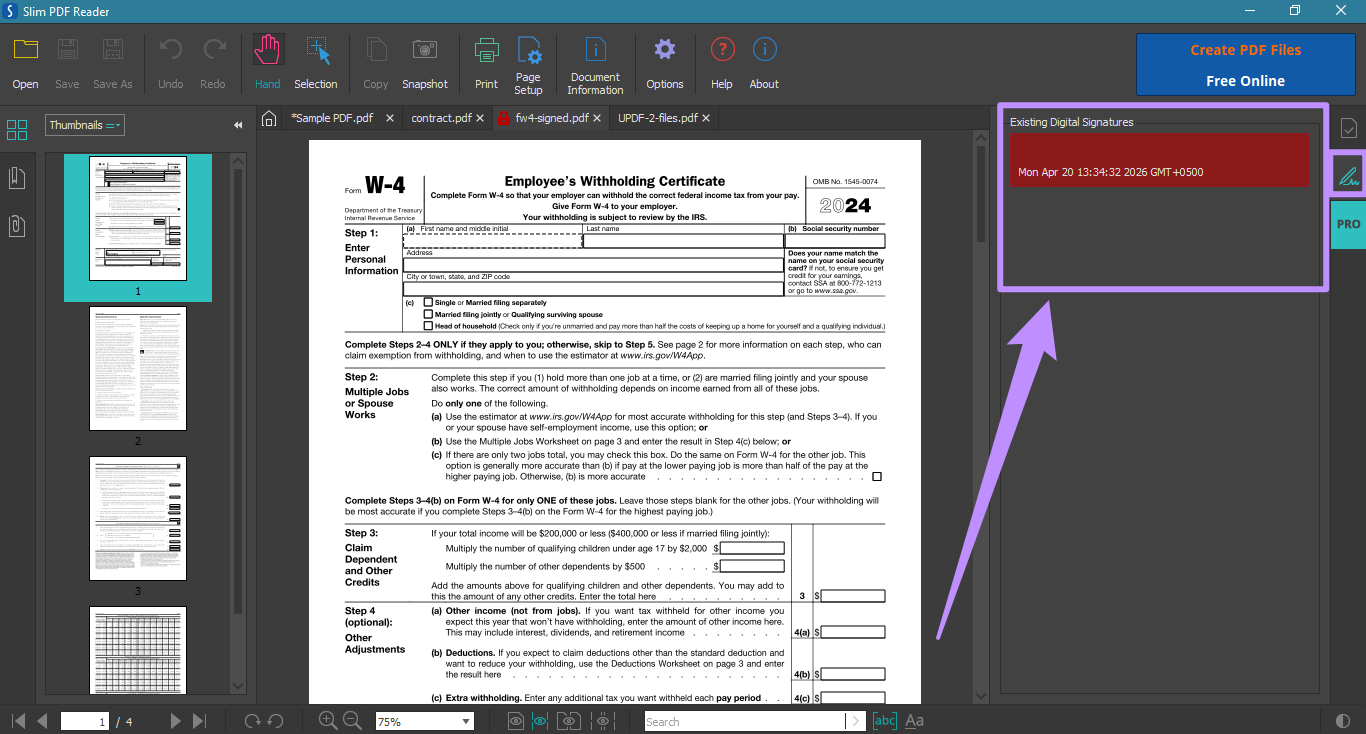
Slim PDF Reader also allows you to fill in interactive PDF forms directly within the reader. In addition, you can also view existing digital signatures embedded in the document. That said, it does not offer any option for adding new signatures or filling static PDF forms.
Part 3: True Voice for Slim PDF Reader
Real user feedback gives a clearer picture of where Slim PDF Reader delivers and where it falls short. However, it is not widely reviewed, especially on sites like G2 and Capterra. Here are some reviews I’ve managed to find.
Positive Reviews:
- Basic, Lightweight PDF Reader: “A sleek, minimalist PDF reader that only takes up a couple of megabytes on your hard drive. If you simply need the basics, SlimPDF might just be the solution for your PDF needs.” Reviewed by TechRadar .
Negative Reviews:
- Scanned PDFs: “I don’t recommend it. It doesn’t open all PDF files, and it has issues with scanned ones. I prefer using my browser to open PDFs instead,” as read on Reddit .
- Display Quality: “I was HOPING this would be the lightest thing around, BUT since it can't DISPLAY PDFs PROPERLY, it is useless,” as read on Slashdot .
Based on the community feedback and my own experience of testing the tool, here are some of its pros and cons.
Pros:
- Extremely lightweight with instant startup time.
- Available in both 1MB and 15MB sizes for convenience.
- Minimal interface for simple navigation.
- Completely free PDF reader.
- Supports all major desktop platforms.
Cons:
- Does not open all PDF file types, notably scanned PDFs.
- No support for filling non-interactive forms.
- Very limited feature set.
Part 4: Best Alternative for Slim PDF Reader
Given the many limitations of Slim PDF Reader, you might want a better option to view and read PDFs. UPDF is one of the best alternatives available with it compreshenvie feature set, cross-platform support, and AI integration.
Windows • macOS • iOS • Android 100% secure
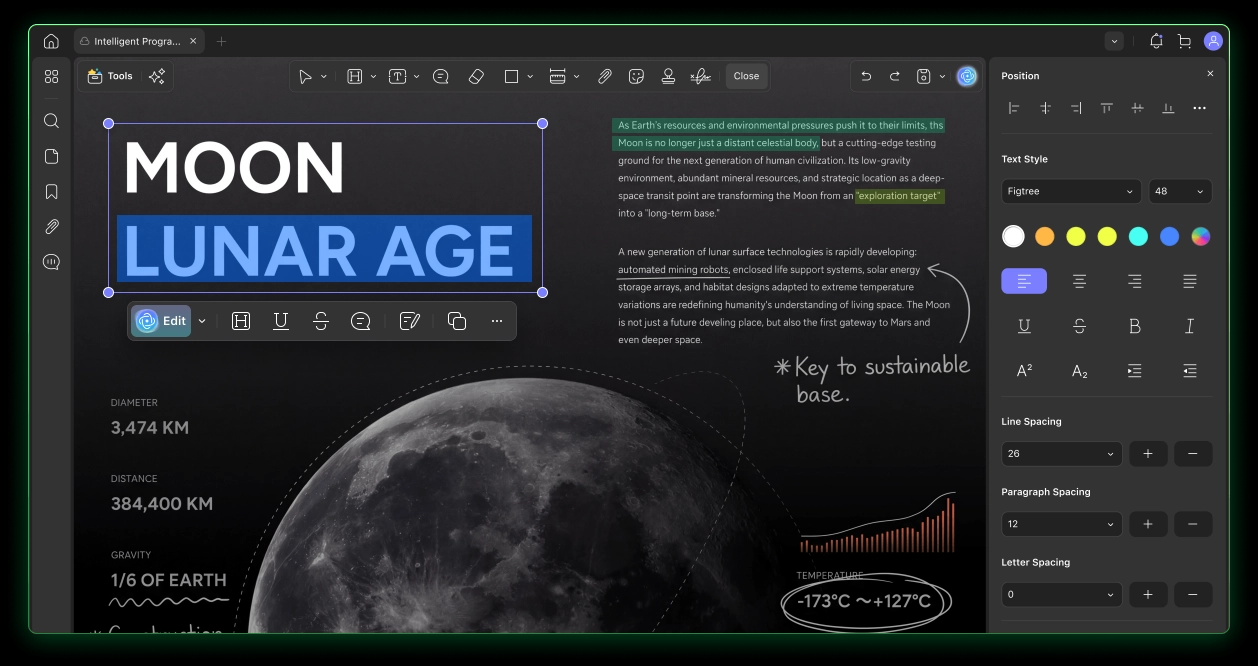
Here’s a quick rundown of UPDF VS. SlimPDF Reader, so you can decide if it’s a better option for you.
| Feature | UPDF | Slim PDF Reader |
| PDF Viewing and Reading | ✔ | ✔ |
| Light and Dark Mode | ✔ | ✔ |
| Customize PDF Background | ✔ | × |
| Read in SlideShow Mode | ✔ | × |
| Search PDF | ✔ Also includes AI Semantic Search | ✔, Basic |
| Bookmark PDF | Add, Delete, View, Navigate, Pin, AI-Generate Bookmarks | View and Navigate Bookmarks |
| Cross-Platform Support | ✔ (Windows, Mac, iOS, Android) | ✔ (Windows, Mac, Linux) |
| PDF Editing (Text, Images, Links) | ✔ | × (Only adding hyperlinks) |
| Annotation Tools | ✔(comprehensive) | ✔(basic) |
| OCR for Scanned PDFs | ✔ | × |
| PDF Conversion (Word, Excel, PPT, etc.) | ✔ (14+ formats) | × |
| Interactive Form Filling | ✔ | ✔ |
| Static Form Filling | ✔ | × |
| Digital Signature Creation | ✔ | × |
| Digital Signature Verification | ✔ | ✔ |
| Merge and Split PDFs | ✔ | × |
| PDF Compression | ✔ | × |
| Password Protection and Redaction | ✔ | × |
| AI Assistant (Summarize, Translate, Chat, Analyze, Mind Maps, AI Design, AI Edit, Copilot, etc) | ✔ | × |
| Cloud Storage | ✔ (UPDF Cloud) | × |
| Pricing | Free trial; paid plans available | Free for viewing and reading |
Why Choose UPDF?
UPDF not only offers more PDF reading and viewing features, but also lets you create, edit, fill, convert, compress, and share PDFs. It also includes a built-in AI assistant and autonomous AI agents, such as AI Bookmark Generation and a natural-language Copilot to navigate PDFs faster.
So, if you need a more dedicated PDF solution, UPDF offers more value without the steep cost of tools like Adobe Acrobat. You can get started for free or click here to upgrade to UPDF Pro , the release of the latest version, 2.5, brings with it a $10 discount valid until May 7th—allowing you to enjoy powerful features at the lowest possible price—an experience that Slim PDF simply cannot offer.
Conclusion
Slim PDF Reader is a great option for basic, everyday PDF reading needs. However, it is not suitable for editing, converting, signing, or working with scanned documents. UPDF covers all of these features in one lightweight app. You can use AI tools, OCR, and fully edit PDFs at a price that rivals most competitors. So, don’t miss out!
Windows • macOS • iOS • Android 100% secure






 Lizzy Lozano


 Enrica Taylor
 Engelbert White