UPDF
UPDF
 UPDF for Windows
 UPDF for Mac
 UPDF for iPhone/iPad
 UPDF for Android
 Nomostar
 UPDF AI Online
 UPDF Sign
 IvyCraft
 Edit PDF
 Annotate PDF
 Create PDF
 PDF Form
 Edit links
 Convert PDF
 OCR
OCR PDF to Word
 PDF to Image
 PDF to Excel
 Organize PDF
 Merge PDF
 Split PDF
 Crop PDF
 Rotate PDF
 Protect PDF
 Sign PDF
 Redact PDF
 Sanitize PDF
 Remove Security
 Read PDF
 UPDF Cloud
 Compress PDF
 Print PDF
 Batch Process
 About UPDF AI
 UPDF AI Solutions
 AI User Guide
 FAQ about UPDF AI
 Summarize PDF
 Translate PDF
 Chat with PDF
 Chat with AI
 Chat with image
 PDF to Mind Map
 Explain PDF
 PDF AI Tools
 Image AI Tools
 AI Chat Tools
 AI Writing Tools
 AI Study Tools
 AI Working Tools
 Other AI Tools
 AI Bookmark Generation
 AI Bookmark Summary
 AI Watermark Generation
 AI Background Generation
 AI Sticker Generation
 AI Stamp Generation
 AI Editing Suite
 UPDF Copilot
 AI Page Management
 AI Semantic Search
 PDF to Word
 PDF to Excel
 PDF to PowerPoint
 Enterprise Solution
 Enterprise Sign
 Enterprise AI
 Enterprise Plan
 Enterprise User Guide
 Enterprise Webinar
 IT
IT Education
 Construction
 Financial Service
 Healthcare
 Insurance
 Legal
Legal Manufacturing
 Government
 Researchers & PhDs
 Solopreneurs & Freelancers
 Lawyers & Legal Professionals
 Real Estate Agents & Brokers
 Education Solution
 Customer Stories
 User Guide
 UPDF Tricks
 FAQs
FAQs UPDF Reviews
 Download Center
 Blog
Blog Newsroom
 Tech Spec
 Updates
 UPDF vs. Adobe Acrobat
 UPDF vs. Foxit
 UPDF vs. PDF Expert

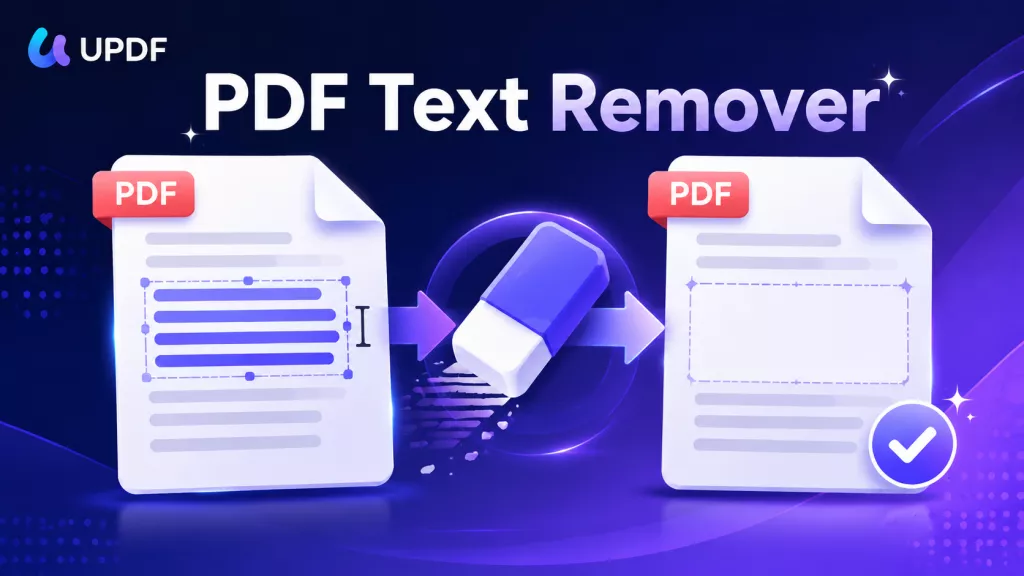
To learn how to erase text in a PDF, open your document in a professional editor. Activate the Edit panel, select the unwanted word or bounding box, then press Backspace or Delete. This method permanently removes editable content instead of simply hiding it beneath a white shape.
When you search for ways to remove text from PDF files, many online tools promise free editing. However, services such as Smallpdf and Canva often limit deeper edits to paid plans. For quick, non-confidential changes, you can edit a PDF online through a lightweight browser service instead. That said, for sensitive or professional documents, UPDF provides free desktop editing after signup without requesting card information.
Comparison of the Best Methods to Delete Text from a PDF
Before choosing a tool for yourself, review the table below to see which method best matches your device, budget, and editing needs:
| Method | Genuine Text Deletion | Supported Devices | Important Limitation | Best Application |
| UPDF | Yes, including OCR-supported documents | Windows, macOS, iOS, Android | Free exports receive trial watermarks | Detailed desktop and mobile editing |
| Smallpdf | Yes, through Pro editing | Any modern browser | Direct editing requires Pro access | Occasional browser-based corrections |
| Adobe Acrobat Pro | Yes, plus secure redaction | Windows and macOS | Paid software with extensive features | Corporate and confidential documents |
| Microsoft Edge | No, visual masking only | Windows and macOS | Original text remains underneath | Harmless temporary printouts |
| Apple Preview | No, visual masking only | macOS | Covered text remains extractable | Quick visual corrections on Mac |
How to Erase Text in PDF with UPDF
Unwanted PDF text can disrupt your layout, expose sensitive details, or require rebuilding. Therefore, UPDF gives you a precise editing workspace across Windows, macOS, iOS, and Android. You can erase text from PDF files without temporary visual masking methods. Follow the instructions below to complete the process accurately on your preferred device.
Windows • macOS • iOS • Android 100% secure
The Desktop Workflow (Windows/macOS)
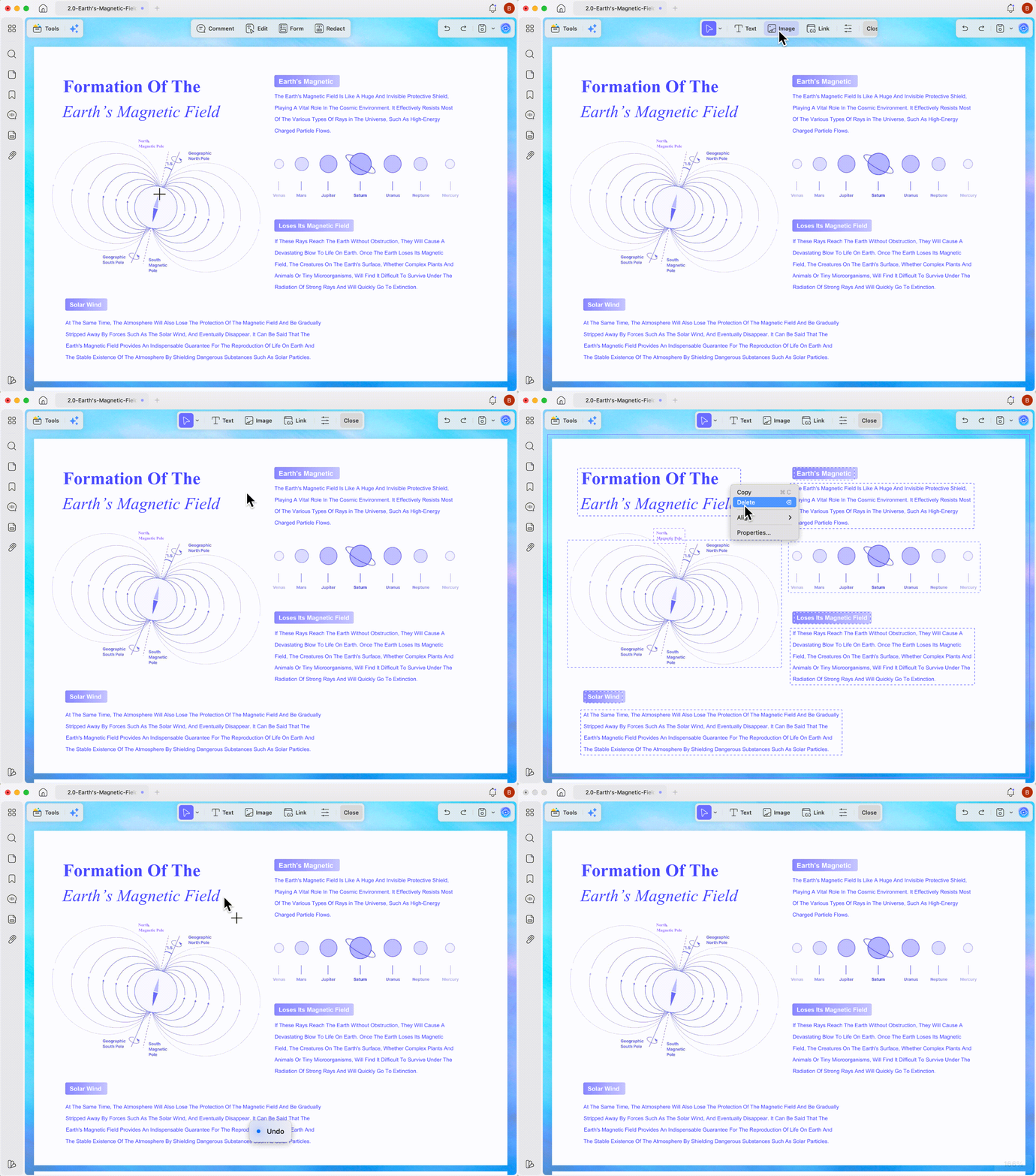
Step 1. Open your document in UPDF, then select "Edit PDF" from the left toolbar.
Step 2. Click the unwanted text and remove individual characters using "Backspace" or "Delete." Select the complete text box to erase text from the PDF without leaving unwanted wording.
Step 3. Press "Ctrl + A" on Windows or "Command + A" on Mac to select all page elements. Review the highlighted content carefully, then press "Delete" or right-click on the text box and choose "Delete" to clear the entire page.
Step 4. Press "Ctrl + Z" or "Command + Z" immediately whenever you delete the wrong content.
The Mobile Workflow (iOS/Android)
The UPDF mobile app provides a practical way to erase text in PDF files on iOS and Android. It removes unwanted words, numbers, or sentences from editable documents before saving or sharing the revised file. Follow the steps below to use this feature on mobile:
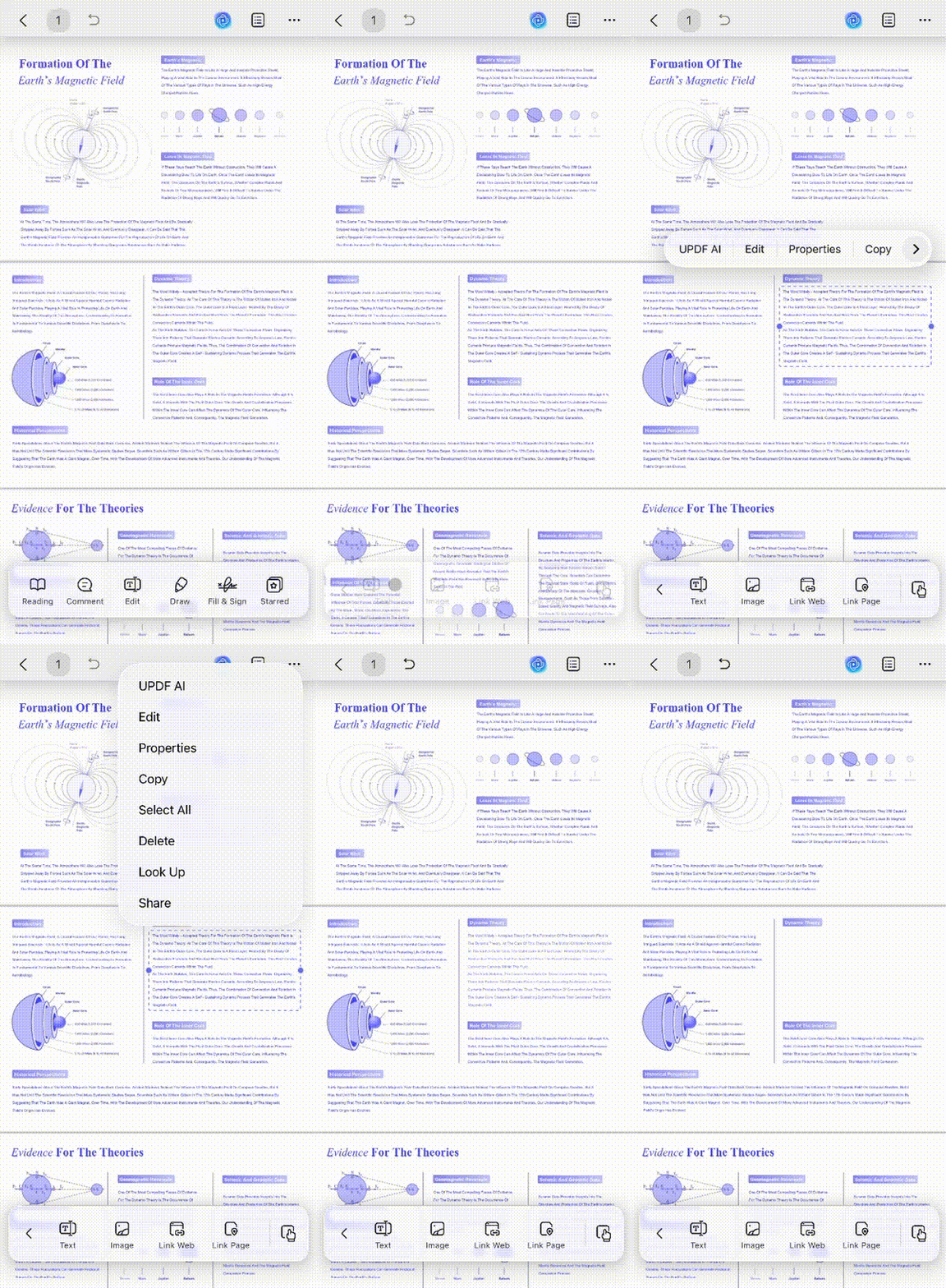
Step 1. Open the PDF in UPDF, then tap "Edit" from the available toolbar.
Step 2. Tap the unwanted word, sentence, or text block until editing options appear. Choose "Delete" from the pop-up menu to erase text in a PDF.
Alternative Ways to Remove Text from PDF Files
You can use the following methods to remove unwanted text through other available editing options:
#1 Smallpdf (The Web-Based Approach)
Best for:
- The Smallpdf method works well for correcting one typo on computers where installations are blocked.
Not for:
- Avoid it for clearing complete pages or handling repeated, high-volume editing tasks. Advanced text editing forces users to link a credit card for the 7-day trial.
Browser-based editing becomes useful when software installation is unavailable or unnecessary. With Smallpdf, you can remove text from PDF files for minor corrections without configuring desktop software. Follow these steps to upload, edit, and download the document through Smallpdf:
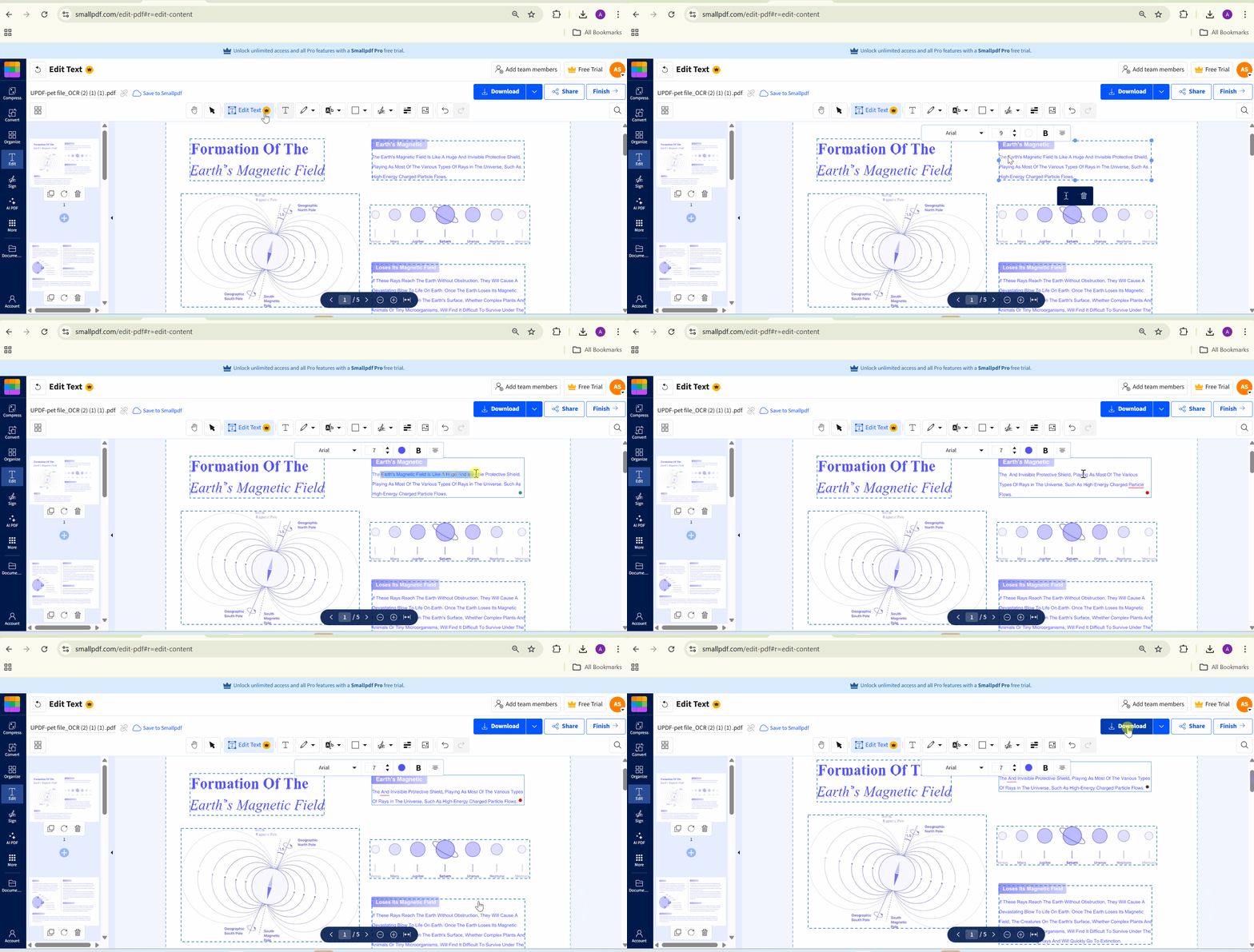
Step 1. Visit Smallpdf's Edit PDF page and upload the document from your computer.
Step 2. Choose "Edit Text," click the unwanted wording, then delete or replace the selected characters.
An edit should leave the surrounding content as clear as it was before. A helpful next reference is the following demonstration of editing PDF content in UPDF.
Step 3. Check the revised page carefully before downloading and saving the updated PDF.
2 Adobe Acrobat Pro (The Traditional Enterprise Approach)
Best for:
- Acrobat fits corporate teams already working with licensed software and regulated documents.
Not for:
- Adobe Acrobat's larger installation and extensive interface may feel excessive for occasional corrections.
Sensitive business files demand more than basic editing when confidential details must disappear permanently. Therefore, Adobe Acrobat Pro handles text changes and secure redaction while preserving document structure. Follow these steps to erase text from PDF files or protect private information:
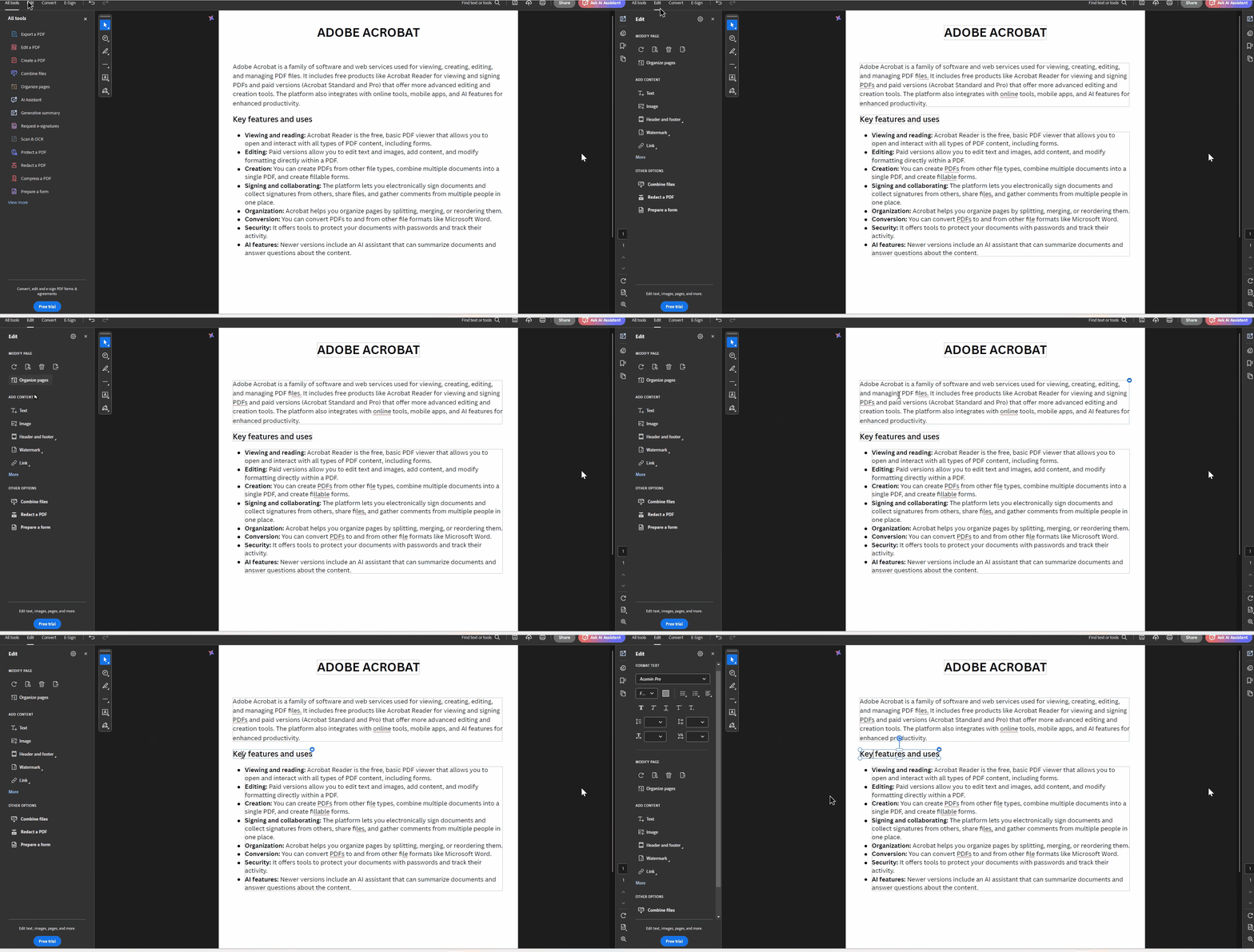
Step 1. Upload the document in Acrobat Pro and select "Edit PDF" from the Tools panel.
Step 2. Click the relevant text box, highlight unwanted characters, then press "Delete" or "Backspace."
Step 3. Select "Redact" instead when confidential details must be removed permanently and securely.
Step 4. Review the finished page, apply redactions completely, then save a separate copy.
Windows & Mac Built-In Utilities (The Visual Masking Method)
Best for:
- These tools help with emergency printouts when you only need harmless text hidden.
Not for:
- Never use visual masking for passwords, contracts, account details, or confidential records. Covered text remains searchable, selectable, and extractable beneath the white annotation layer.
Built-in utilities provide a temporary solution when dedicated PDF editing software remains unavailable. Although you may want to remove text from PDF files, these tools only cover visible content. Follow the steps below when you only need to hide nonconfidential text before printing:
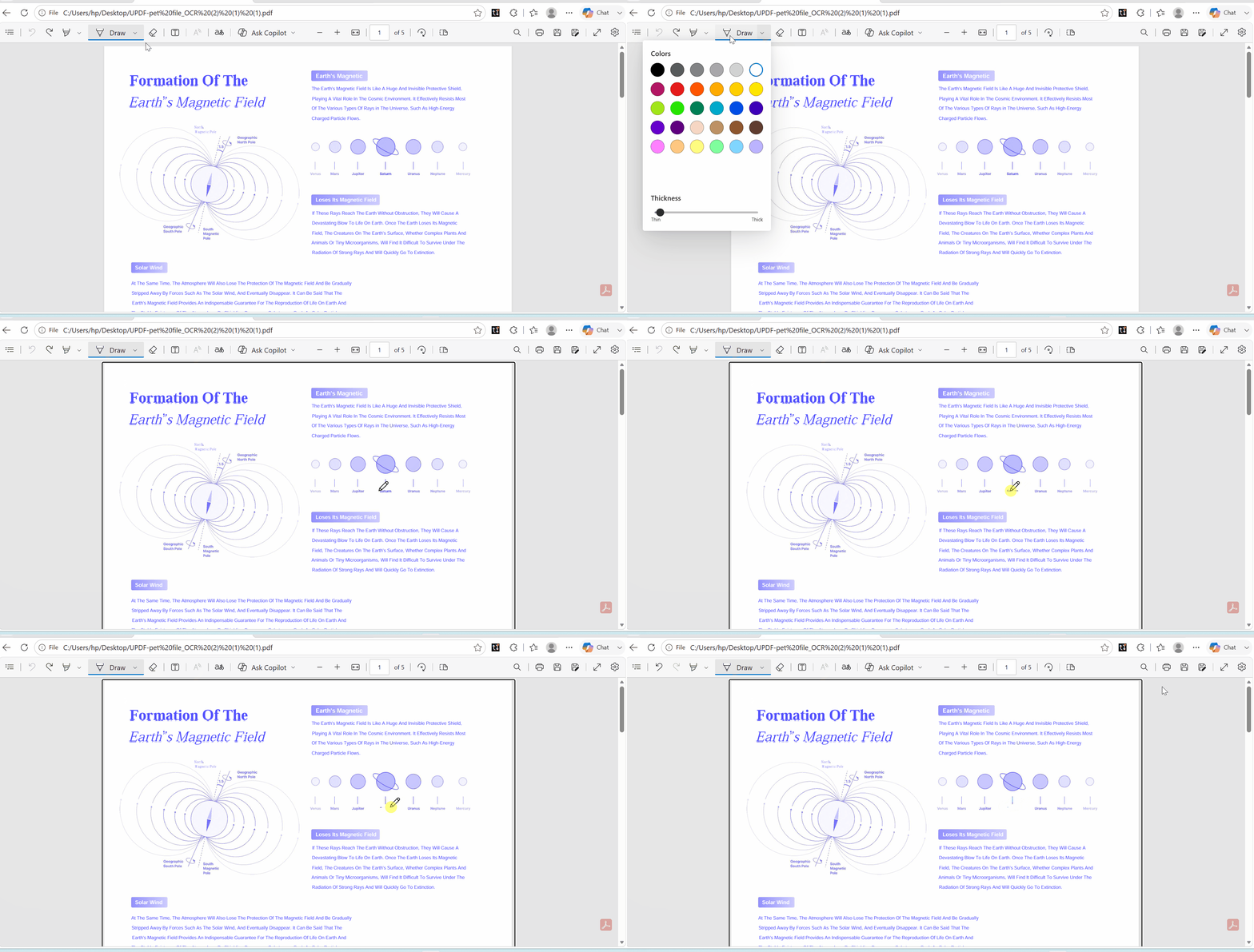
1. For Windows: Microsoft Edge
Step 1. Right-click the PDF, choose "Open with," then select "Microsoft Edge" from the menu.
Step 2. Choose "Draw," set the ink color to white, and adjust the thickness for complete coverage.
Step 3. Move the pointer across unwanted wording until every visible character becomes fully concealed.
Step 4. Save another copy and reopen it to confirm the annotation remains correctly positioned.
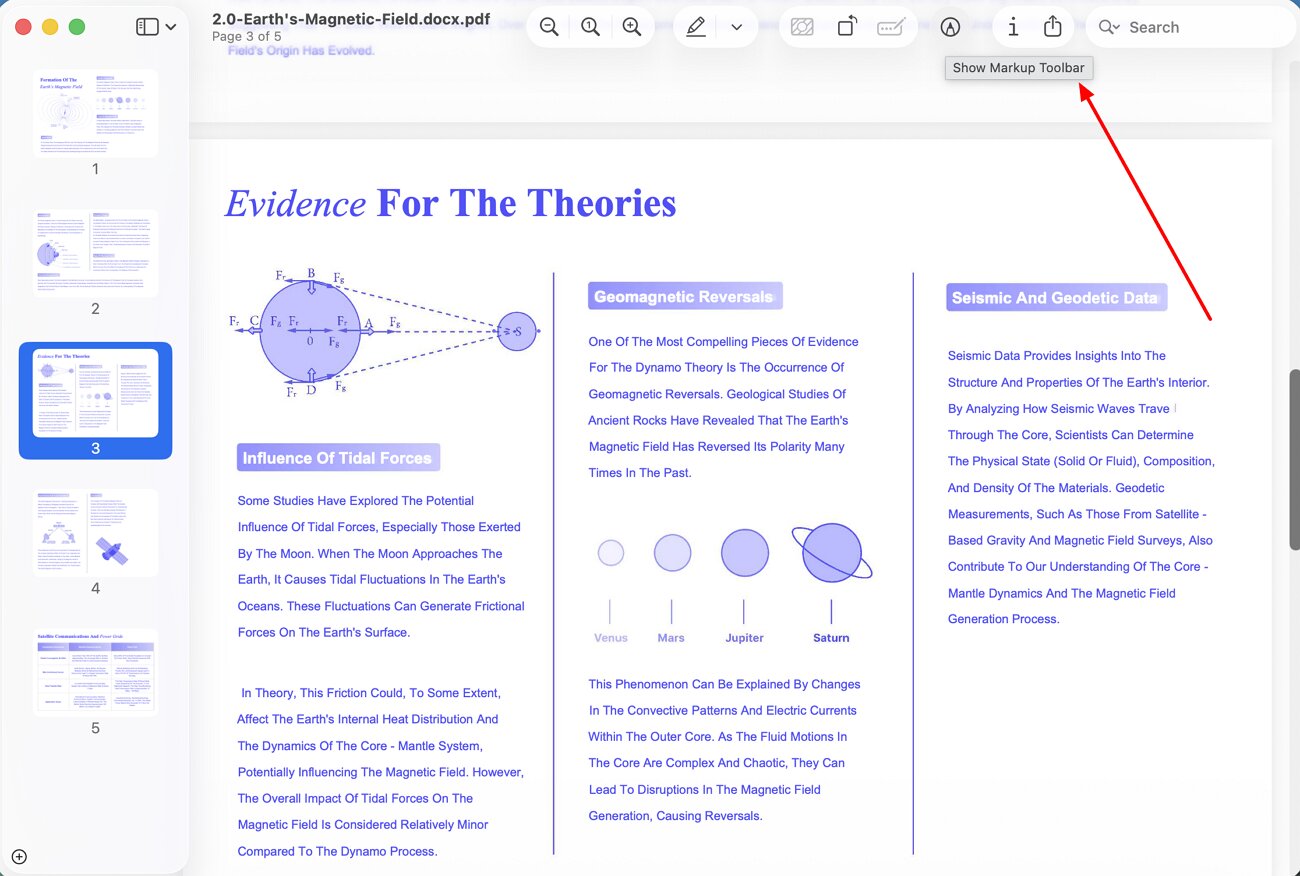
2. For macOS: Apple Preview
Step 1. Open the PDF in Preview and display the "Markup Toolbar" at the top.
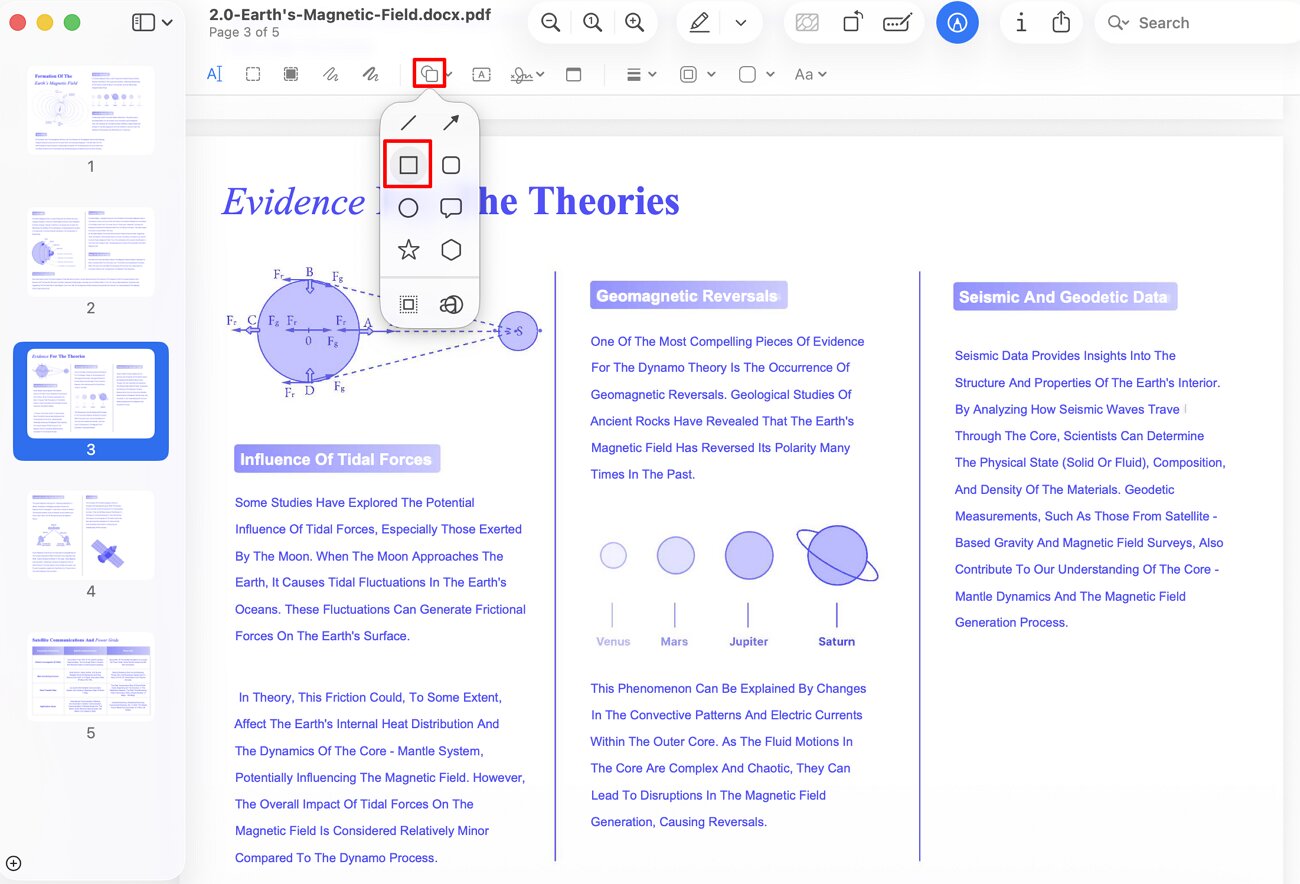
Step 2. Select "Shapes," insert a rectangle, and position it directly above the unwanted text.
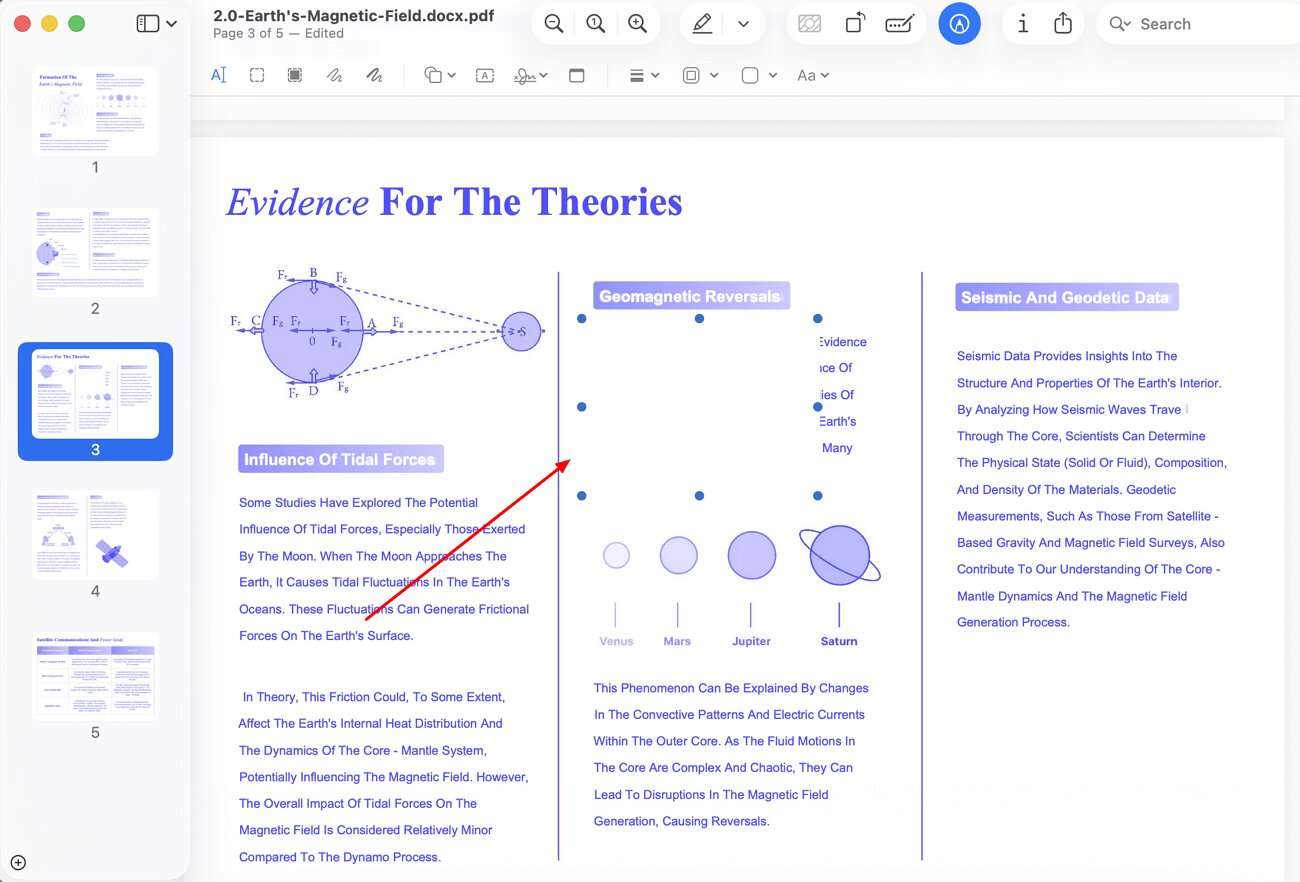
Step 3. Pick colors that match white or closely match the page background. Resize the rectangle carefully, then save the adjusted document under another filename.
Beyond Erasing: Advanced PDF Text and Image Refactoring
A clean document often requires more than deleting one incorrect sentence or an outdated text block. These advanced options help you remove text from PDF files while refining the complete layout:
- Update Text and Visuals: A corrected heading may leave nearby images, captions, or spacing misaligned across the page. Use our guide on how to edit PDF image and text layouts together for coordinated changes. For alternative software, explore the best PDF text editors suited to deeper document revisions.
- Clean Residual Elements: Stale annotations, damaged shapes, and abandoned text boxes can still weaken the final presentation. A dedicated PDF cleaner helps remove that clutter before you export or share the file.
- Rebuild Complex Documents: Larger edits may affect page order, spacing, and reading flow across several sections. Bookmark our how to edit a PDF guide before restructuring contracts, reports, or long-form documents.
Conclusion: Clean Up Your Documents and Protect Your Workflow
To conclude, understanding how to erase text from PDF files helps you choose safer editing methods. Avoid online trial traps and white overlays that leave confidential information searchable beneath the surface. For quick corrections or full-page clearing, direct deletion provides cleaner and more reliable results. UPDF remains a practical choice for precise desktop and mobile editing without the risks of temporary masking.
Windows • macOS • iOS • Android 100% secure







 Enola Miller
 Enya Moore
 Engelbert White