 UPDF
 UPDF for Windows
 UPDF for Mac
 UPDF for iPhone/iPad
 UPDF for Android
 Nomostar
 UPDF AI Online
 UPDF Sign
 IvyCraft
 Edit PDF
 Annotate PDF
 Create PDF
 PDF Form
 Edit links
 Convert PDF
 OCR
 PDF to Word
 PDF to Image
 PDF to Excel
 Organize PDF
 Merge PDF
 Split PDF
 Crop PDF
 Rotate PDF
 Protect PDF
 Sign PDF
 Redact PDF
 Sanitize PDF
 Remove Security
 Read PDF
 UPDF Cloud
 Compress PDF
 Print PDF
 Batch Process

 About UPDF AI
 UPDF AI Solutions
 AI User Guide
 FAQ about UPDF AI
 Summarize PDF
 Translate PDF
 Chat with PDF
 Chat with AI
 Chat with image
 PDF to Mind Map
 Explain PDF
 PDF AI Tools
 Image AI Tools
 AI Chat Tools
 AI Writing Tools
 AI Study Tools
 AI Working Tools
 Other AI Tools
 AI Bookmark Generation
 AI Bookmark Summary
 AI Watermark Generation
 AI Background Generation
 AI Sticker Generation
 AI Stamp Generation
 AI Editing Suite
 UPDF Copilot
 AI Page Management
 AI Semantic Search
 PDF to Word
 PDF to Excel
 PDF to PowerPoint
 Enterprise Solution
 Enterprise Sign
 Enterprise AI
 Enterprise Plan
 Enterprise User Guide
 Enterprise Webinar
 IT
 Education
 Construction
 Financial Service
 Healthcare
 Insurance
 Legal
 Manufacturing
 Government
 Researchers & PhDs
 Solopreneurs & Freelancers
 Lawyers & Legal Professionals
 Real Estate Agents & Brokers
 Education Solution
 Customer Stories
 User Guide
 UPDF Tricks
 FAQs
 UPDF Reviews
 Download Center
 Blog
 Newsroom
 Tech Spec
 Updates
 UPDF vs. Adobe Acrobat
 UPDF vs. Foxit
 UPDF vs. PDF Expert


Quick Answer:
A PDF-to-JPG converter for Mac should match the job: exporting one page is different from processing a folder of documents. The useful differences are how much repeated work each tool requires and whether its output meets your image requirements.
Rendering a complete PDF page and extracting its embedded pictures are different operations. This comparison focuses on choosing a converter; for instructions, follow our guide to converting PDF to JPG on Mac.
Part 1. Four PDF to JPG Converters for Mac
Evaluate export scope, batch handling, output controls, privacy, and free limits. The recommendations below are based on documented workflows, not a measured ranking of conversion speed or JPG sharpness. Desktop and browser services are identified separately; mobile functionality is outside this comparison.
1. UPDF for Mac — Recurring Conversion and PDF Preparation
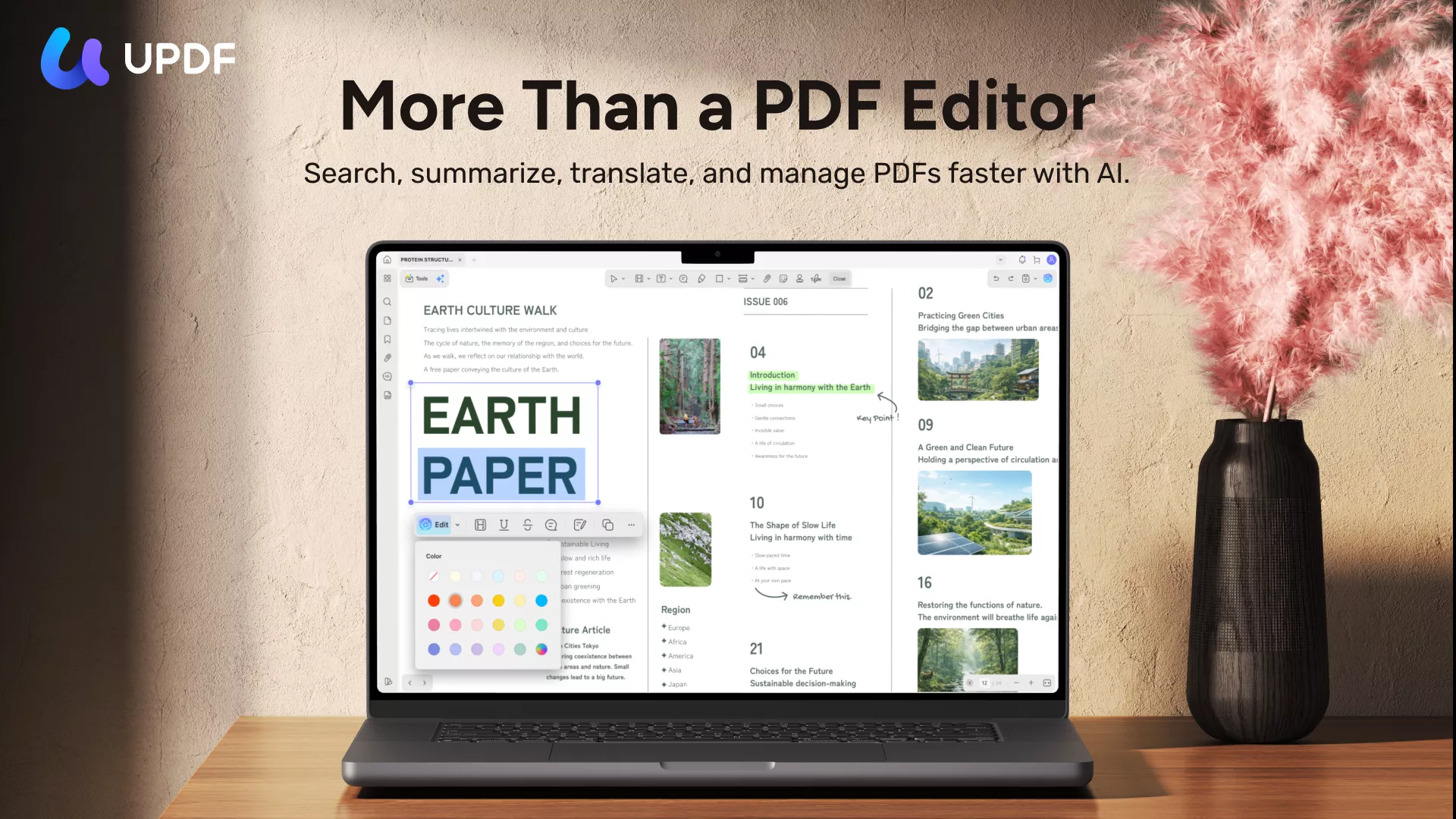
UPDF suits Mac users who regularly convert documents and also need to correct, crop, or organize the source PDF. Its Mac image export supports page selection and distinguishes separate page images, a combined long image, and embedded-image extraction.
Its dedicated Batch Convert workflow accepts multiple PDFs or folders and offers image output. For example, a collection of reports can be processed in a batch rather than opened one at a time. Review the output structure and filenames before distributing the results.
Best for:
- Recurring conversion jobs that also involve preparing the source PDF.
Skip if:
- You only need an occasional page and a built-in Mac tool already meets the requirement.

For recurring jobs, download UPDF for free to try the batch workflow on representative PDFs before processing the full collection. Installation is free; review the trial limits below before preparing final deliverables.
Windows • macOS • iOS • Android 100% secure
2. Preview — Occasional Exports Without Another Purchase
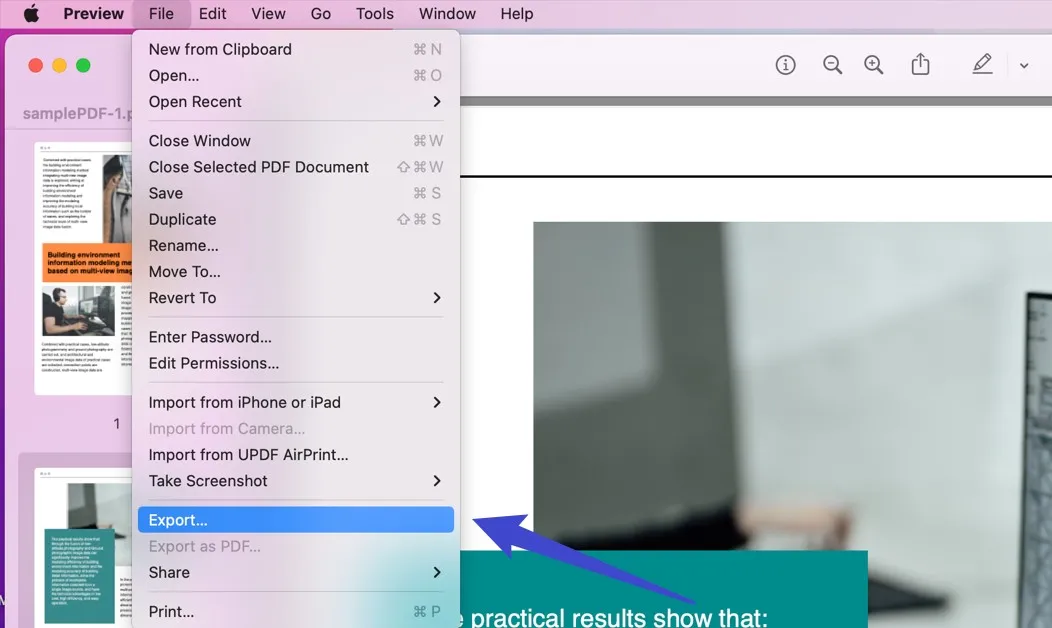
Preview is included with macOS and is a practical starting point for a small number of page images. Its JPEG export provides quality adjustment. Check the resolution shown in the export dialog and inspect the saved image at its intended display size.
Best for:
- An occasional PDF page that needs to become a JPG.
Skip if:
- You expect a dedicated folder-to-JPG batch interface with output management.
Do not assume that selecting several PDF thumbnails guarantees that the ordinary export operation will produce a JPG for every page. Verify the saved files before repeating the workflow. Preview is a useful free option, but it is not a full PDF text editor.
3. Adobe Acrobat — Existing Paid Adobe Workflows
Acrobat’s desktop image export supports JPEG, JPEG 2000, PNG, and TIFF. Adobe documents conversion settings and a separate workflow for exporting embedded raster images. Those capabilities are useful when conversion already belongs in a paid Acrobat document workflow.
Best for:
- Users with a suitable paid Acrobat plan who want to keep conversion in their existing workflow.
Skip if:
- A free built-in option already satisfies your occasional export needs.

Compare the paid desktop product with desktop alternatives. Acrobat Reader and Acrobat’s online services are different offerings. For multiple PDFs, verify the automation available in your edition rather than assuming every export dialog processes folders.
US price reference: Individual Acrobat Pro is listed at US$19.99/month with an annual commitment, billed monthly, or US$29.99/month on a month-to-month plan. Regional prices and taxes may differ.
4. Smallpdf Online — Browser Conversion Without Installation
Smallpdf adds a different choice to this list: a browser-based PDF-to-JPG service usable on Mac without installing a desktop converter. Its official tool page advertises multiple-PDF conversion. Free access has download limits; check the current plan before relying on it for a large batch.
Best for:
- Occasional conversion on a Mac where installing an app is inconvenient and uploading the document is permitted.
Skip if:
- Your document must stay on the Mac or your workflow requires predictable offline access.
This is an upload service, not a local Mac export. Review confidentiality requirements before submitting documents. Do not assume that a high-resolution marketing claim guarantees a selectable DPI value or a particular output size.
Part 2. Compare Workflows, Output Controls, and Cost
Choose by the work you repeat, not by the number of unrelated features in a product. OCR, signatures, and support on other platforms do not by themselves improve a Mac JPG export.
| Mac selection factor | UPDF | Preview | Adobe Acrobat | Smallpdf Online |
|---|---|---|---|---|
| Main fit | Recurring conversion and PDF preparation | Occasional page export | Existing paid Adobe workflow | No-install browser conversion |
| Multiple-PDF handling | Dedicated Batch Convert | Not the main strength of ordinary page export | Verify automation in the paid edition | Advertised; plan limits apply |
| Page selection | Documented page-range control | Select and export the required page | Verify the chosen export workflow | Verify available options in the current tool |
| Output controls | Confirm installed Mac version’s settings | JPEG quality and export resolution | Image conversion settings | Check current interface; no fixed DPI promised here |
| Document upload | Not required for local conversion | Not required | Not required for local desktop export | Required |
| Cost boundary | Free limits; paid Pro plans | Included with macOS | Paid desktop plan | Free download limits; paid plans |
UPDF trial limits: The official pricing FAQ lists up to two PDF conversions per day, two files per free batch, and a trial watermark when saving in the free version. Pro removes trial watermarks from exported files. See current UPDF plans and terms for the purchase price and license scope.
Smallpdf free access: Its pricing page lists limited document downloads for the Free plan and unlimited document downloads for Pro. Do not treat free browser access as unlimited batch processing.
Part 3. Judge the JPG Output Before Choosing
Check pixel dimensions: A page that looks clear as a thumbnail can become unreadable when enlarged. Compare outputs at the size where they will actually be used.
Inspect small text and thin lines: Look for artifacts around letters, chart labels, and fine rules. JPEG compression can affect these details; a successful export alone does not prove readability.
Compare total output size: A multipage PDF can produce many JPGs. Their combined size is not guaranteed to be smaller than the source. Higher pixel dimensions also mean more image data.
Check page coverage and output mode: One image per page, one long image, and embedded pictures are different deliverables. Check the file count and content before uploading the results.
Keep the source PDF: A JPG copy does not retain selectable PDF text, clickable links, or interactive form behavior. For other image-format workflows, see PDF-to-image conversion on Mac.
For a fair comparison on your own files, use the same PDF containing small text, a photograph, and a line chart. Record the app version, output settings, image dimensions, file count, and total size. Compare matching crops at the intended display size. This is an evaluation checklist, not a report of tests performed for this article.
Try your most demanding page before processing the complete folder. Download UPDF for free to assess the output and batch workflow on your own documents.
Windows • macOS • iOS • Android 100% secure
Part 4. FAQs
1. Are JPG and JPEG different output formats?
No. The extensions commonly refer to the same image format. If an upload form requires a particular extension, follow its naming requirement.
2. Does a JPG retain a PDF’s digital-signature verification?
No. A JPG may show the visible signature appearance, but it does not retain the PDF’s certificate-based signature verification. Keep the signed PDF when authenticity must be checked.
3. Does converting a PDF to JPG make sensitive information impossible to recover?
No. Conversion is not a substitute for proper redaction. Visible information can still be read or recognized with OCR. Remove sensitive content correctly in the source document and inspect the final image before sharing.
Conclusion
Choose UPDF for recurring conversion and source-PDF preparation, Preview for an occasional page, Acrobat when it already fits your paid Adobe workflow, and Smallpdf when browser access matters and uploading is permitted.
Inspect a representative output for readable text, correct page coverage, and suitable dimensions before committing to a large job. For related export formats, explore UPDF PDF conversion tools.
Need to correct or organize the PDF before exporting? Download UPDF for free to try that workflow, then review UPDF plan options if you need ongoing use.
Windows • macOS • iOS • Android 100% secure



 Enrica Taylor


 Delia Meyer