 UPDF
UPDF
 UPDF for Windows
 UPDF for Mac
 UPDF for iPhone/iPad
 UPDF for Android
 Nomostar
 UPDF AI Online
 UPDF Sign
 IvyCraft
 Edit PDF
 Annotate PDF
 Create PDF
 PDF Form
 Edit links
 Convert PDF
 OCR
OCR PDF to Word
 PDF to Image
 PDF to Excel
 Organize PDF
 Merge PDF
 Split PDF
 Crop PDF
 Rotate PDF
 Protect PDF
 Sign PDF
 Redact PDF
 Sanitize PDF
 Remove Security
 Read PDF
 UPDF Cloud
 Compress PDF
 Print PDF
 Batch Process
 About UPDF AI
 UPDF AI Solutions
 AI User Guide
 FAQ about UPDF AI
 Summarize PDF
 Translate PDF
 Chat with PDF
 Chat with AI
 Chat with image
 PDF to Mind Map
 Explain PDF
 PDF AI Tools
 Image AI Tools
 AI Chat Tools
 AI Writing Tools
 AI Study Tools
 AI Working Tools
 Other AI Tools
 AI Bookmark Generation
 AI Bookmark Summary
 AI Watermark Generation
 AI Background Generation
 AI Sticker Generation
 AI Stamp Generation
 AI Editing Suite
 UPDF Copilot
 AI Page Management
 AI Semantic Search
 PDF to Word
 PDF to Excel
 PDF to PowerPoint
 Enterprise Solution
 Enterprise Sign
 Enterprise AI
 Enterprise Plan
 Enterprise User Guide
 Enterprise Webinar
 IT
IT Education
 Construction
 Financial Service
 Healthcare
 Insurance
 Legal
Legal Manufacturing
 Government
 Researchers & PhDs
 Solopreneurs & Freelancers
 Lawyers & Legal Professionals
 Real Estate Agents & Brokers
 Education Solution
 Customer Stories
 User Guide
 UPDF Tricks
 FAQs
FAQs UPDF Reviews
 Download Center
 Blog
Blog Newsroom
 Tech Spec
 Updates
 UPDF vs. Adobe Acrobat
 UPDF vs. Foxit
 UPDF vs. PDF Expert

Quick answer:
That single distinction — Drive stores, Docs edits, and the conversion isn't lossless — is what this guide is built around. Below is the exact click path to edit a PDF in Google Drive, the specific formatting that survives conversion versus what breaks, and the fastest fix when the layout falls apart on you. For example, a one-page memo with a typo is a good candidate for Docs conversion, while a quotation with aligned prices may need direct PDF editing. If your change is inside a grid, use this PDF table editing guide to choose the right route.
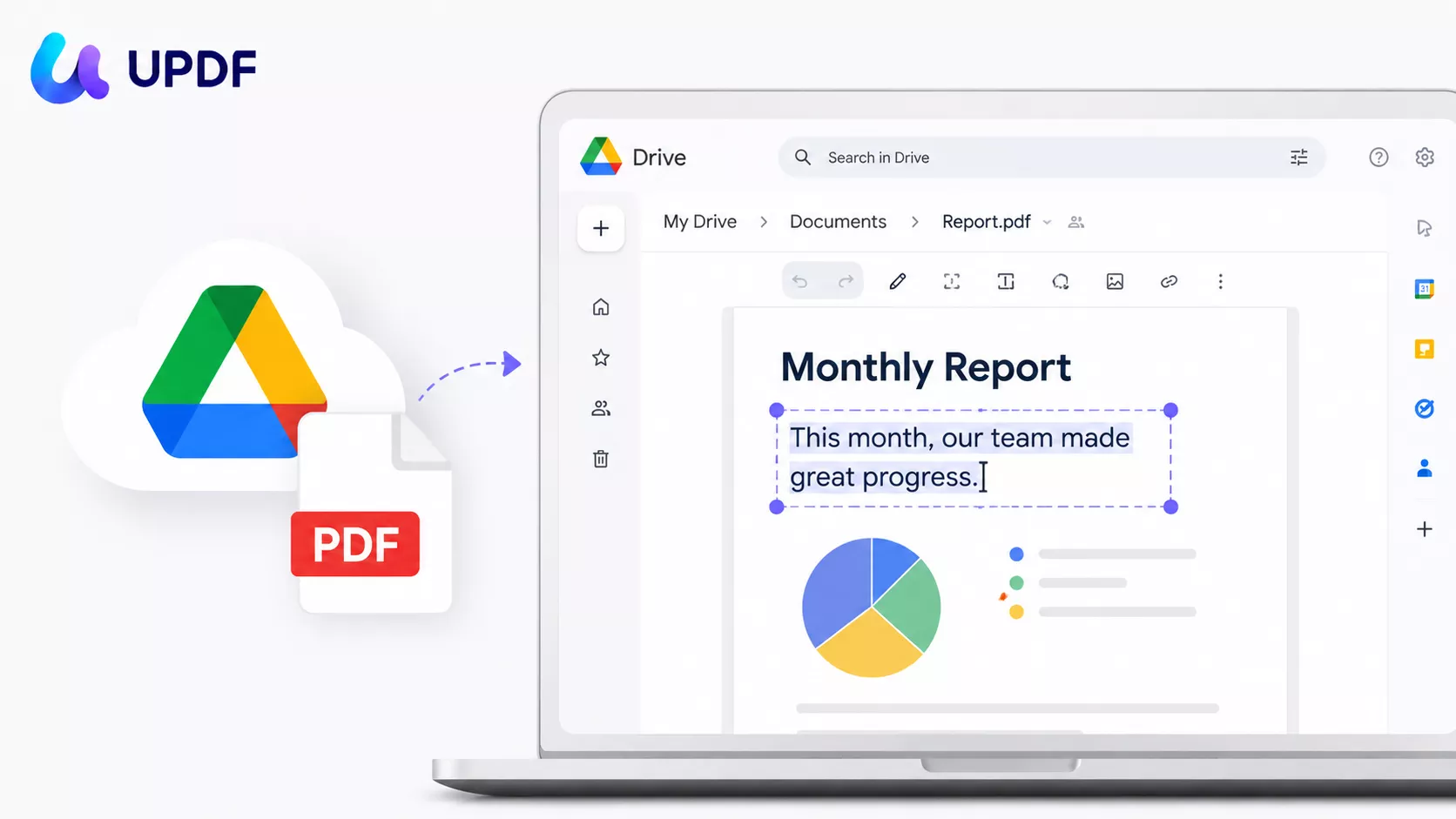
Part 1. How to Edit a PDF in Google Drive (Step by Step)
You don't edit inside Drive itself. You upload the PDF, let Google Docs convert it to an editable document, make your changes, then export a fresh PDF. Here is the full path.
Step 1. Open drive.google.com in your browser and sign in.
Step 2. Add the PDF. Click New → File upload and pick your file, or drag the PDF straight from your desktop into the Drive window. Wait for the upload to finish.
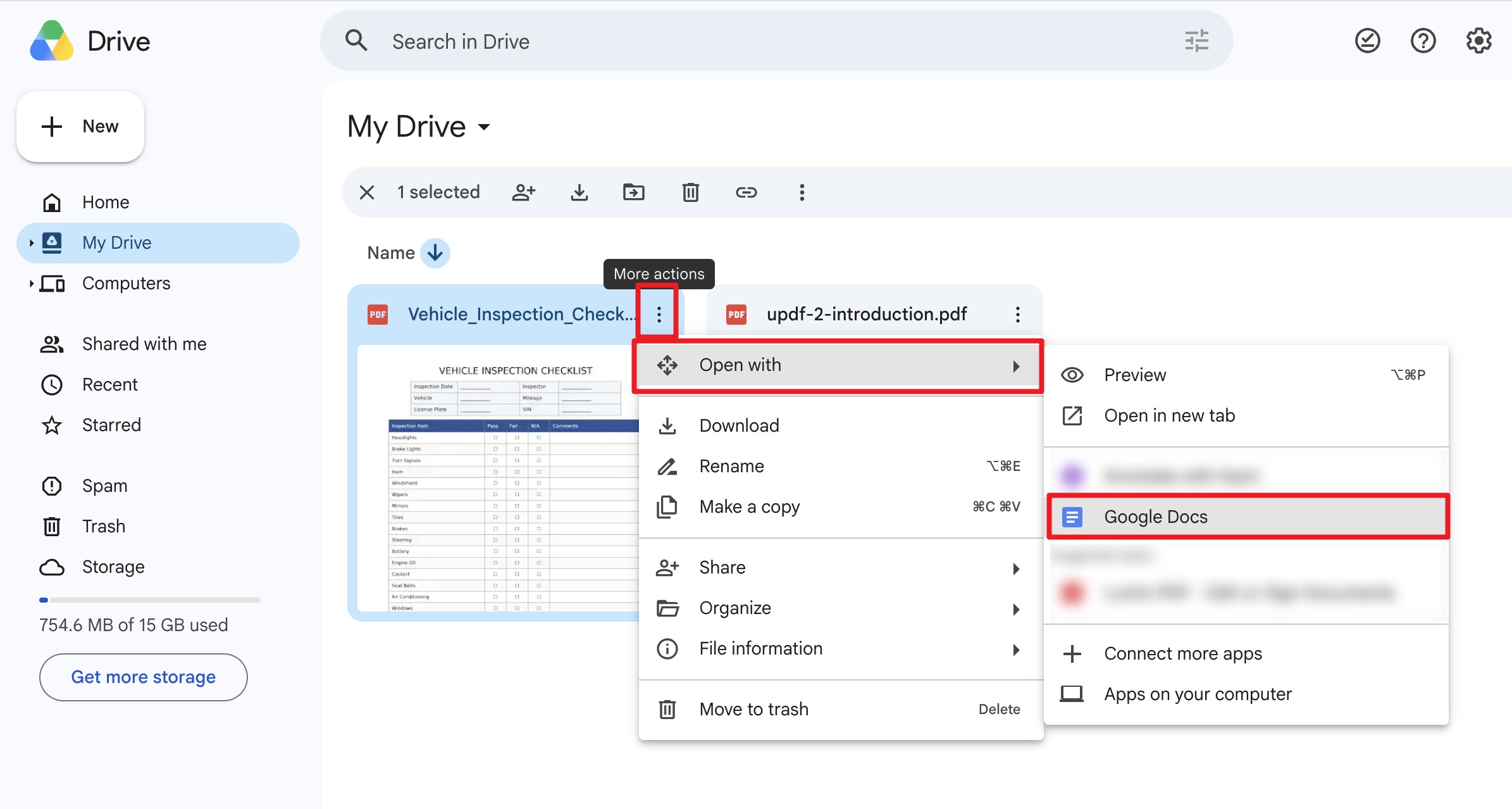
Step 3. Right-click the uploaded PDF and choose Open with → Google Docs. Google converts the file into a new, editable Google Doc in a separate tab. Your original PDF stays untouched in Drive as a backup.
Step 4. Edit the text and images in the Doc. Fix typos, rewrite paragraphs, change fonts, or use Insert → Image to add a picture. This is standard Google Docs editing — nothing PDF-specific.
Step 5. Export it back to PDF. Go to File → Download → PDF Document (.pdf). Always open the downloaded PDF and scroll through it before you send it — the export is where layout problems become visible.
That's the whole process. For a plain, text-heavy document, it works well and costs nothing. The catch shows up the moment your PDF is more than plain text.
Part 2. What Google Drive Can and Can't Edit
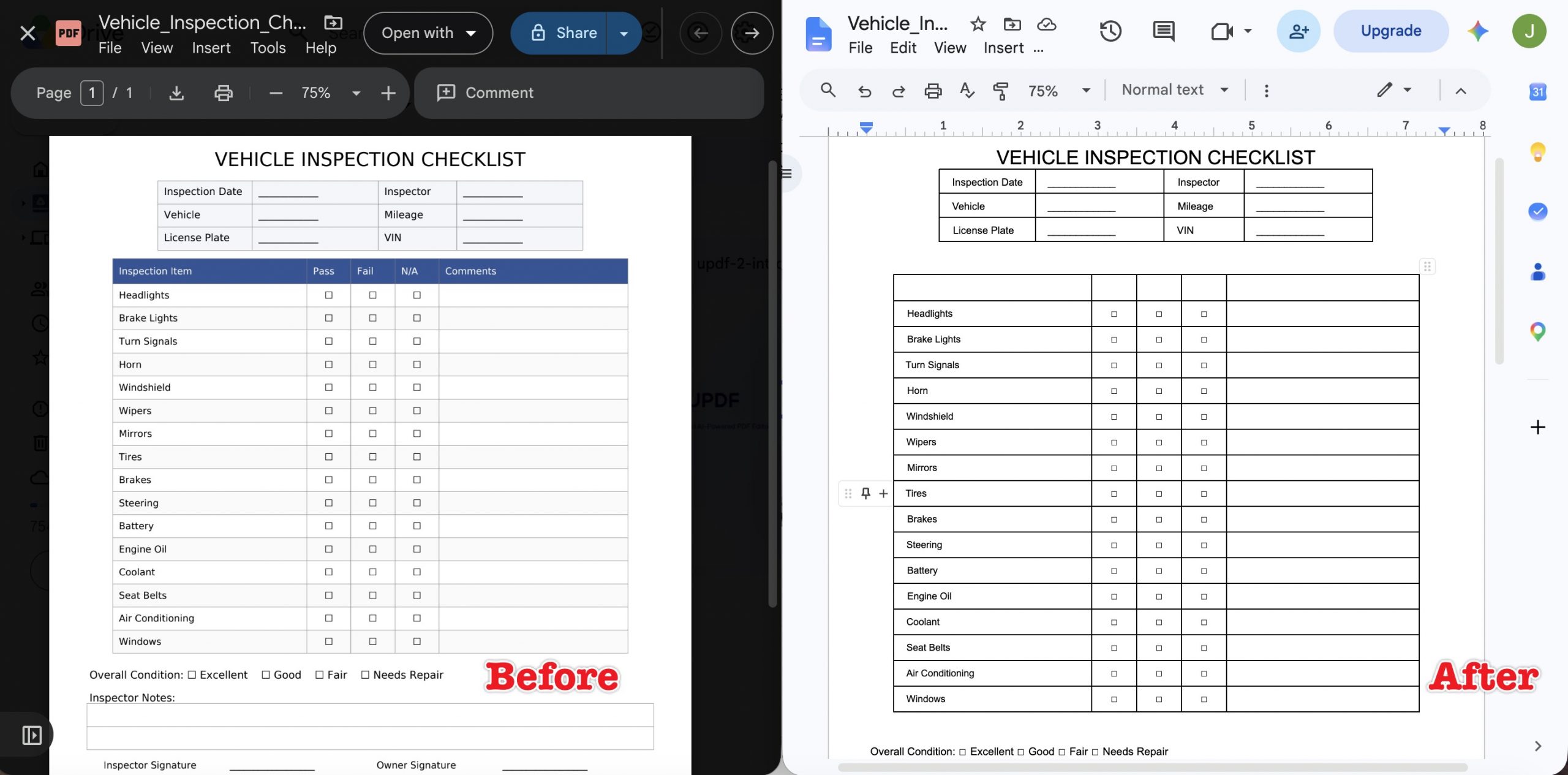
Because editing runs through a PDF-to-Google-Docs conversion, results depend entirely on how complex the original file is. Knowing this before you start saves you from editing a document that was never going to hold its shape.
| PDF element | Survives conversion? | What actually happens |
|---|---|---|
| Plain text, single column | Yes | Edits cleanly — this is Google Docs' strong suit |
| Basic bold / italic / fonts | Usually | Minor substitutions possible; easy to re-apply |
| Simple inline images | Mostly | May shift position or drop in resolution |
| Multi-column layouts | Often breaks | Columns collapse into a single flow |
| Tables | Often breaks | Cells misalign or turn into plain text |
| Headers, footers, footnotes | Frequently lost | May not carry over at all |
| Fillable forms | No | Fields, checkboxes, and dropdowns become static text |
| Hyperlinks | Sometimes | Some links break or lose their clickable state |
| Scanned / image-only PDFs | Depends on OCR | Google runs built-in OCR; accuracy drops on low-quality scans |
Two hard limits are worth flagging before you upload. Google Docs won't open a PDF larger than 50 MB, so oversized files need to be compressed or split first. And a scanned PDF is image-only — Google's built-in OCR will try to extract the text, but on faded or skewed scans the result is inconsistent, and complex scans often can't be converted into editable text at all.
The takeaway: Google Drive is genuinely fine for fixing a few lines in a simple document. It struggles the moment layout matters — contracts, invoices, catalogs, résumés, or anything with a designed structure.
Part 3. How to Fix This When Formatting Breaks — Edit the PDF Directly with UPDF
If you converted a PDF in Google Docs and the tables collapsed or the layout scrambled, the problem isn't your file — it's that you edited a converted copy instead of the PDF itself. A dedicated editor like UPDF edits the text and images inside the original PDF, so nothing is converted and nothing shifts. It works on Windows, Mac, iOS, and Android.
Here's the workflow that replaces the whole upload-convert-export-and-pray cycle:
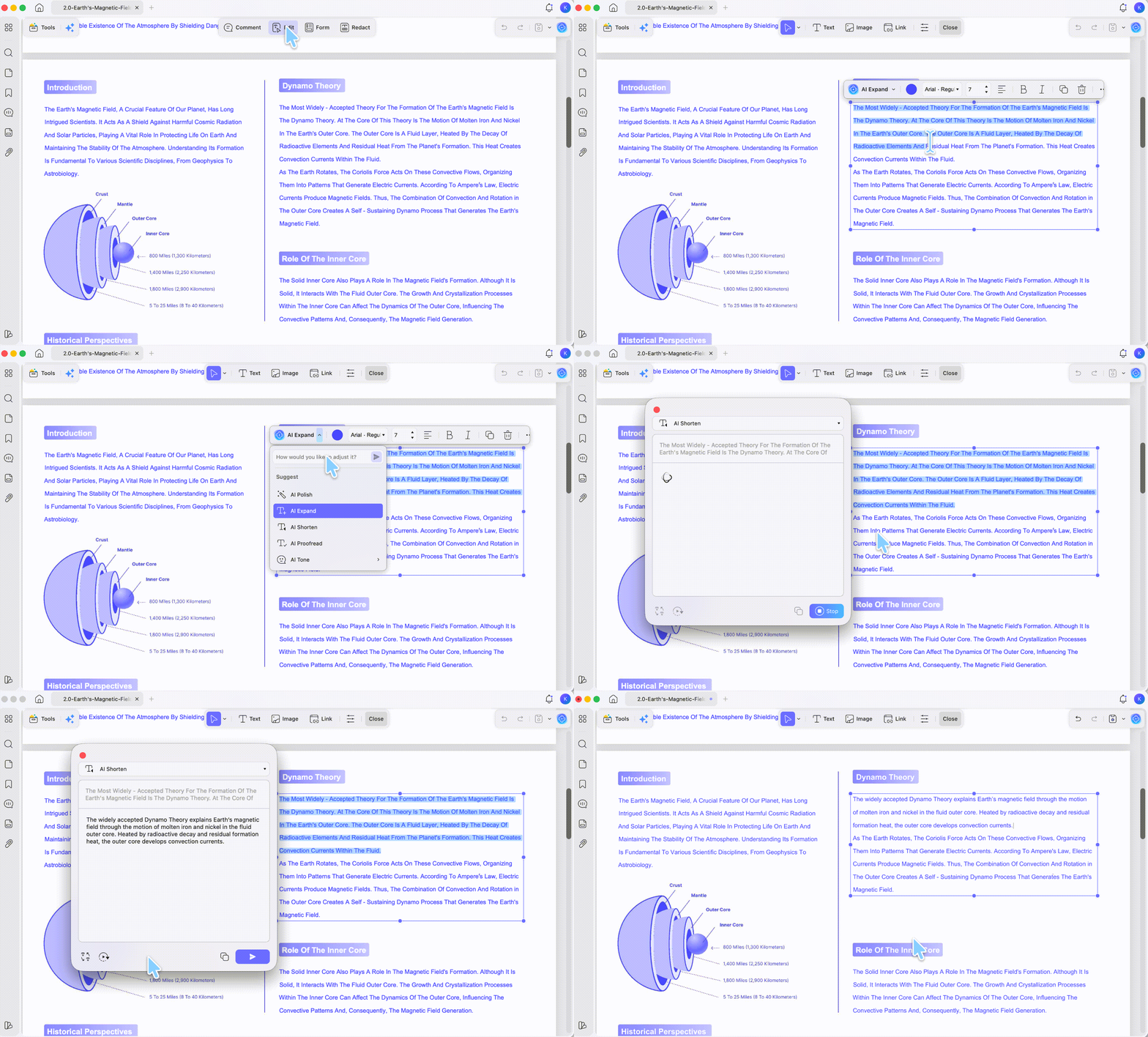
Step 1. Open your PDF in UPDF — if you don't have it yet, download UPDF for free and install it in under a minute — then click Edit in the top toolbar to enter editing mode.
Windows • macOS • iOS • Android 100% secure
Step 2. Click any text block to change wording, font, size, or color directly on the page. The layout around it stays exactly where it was. Click an image to crop, replace, rotate, or extract it.
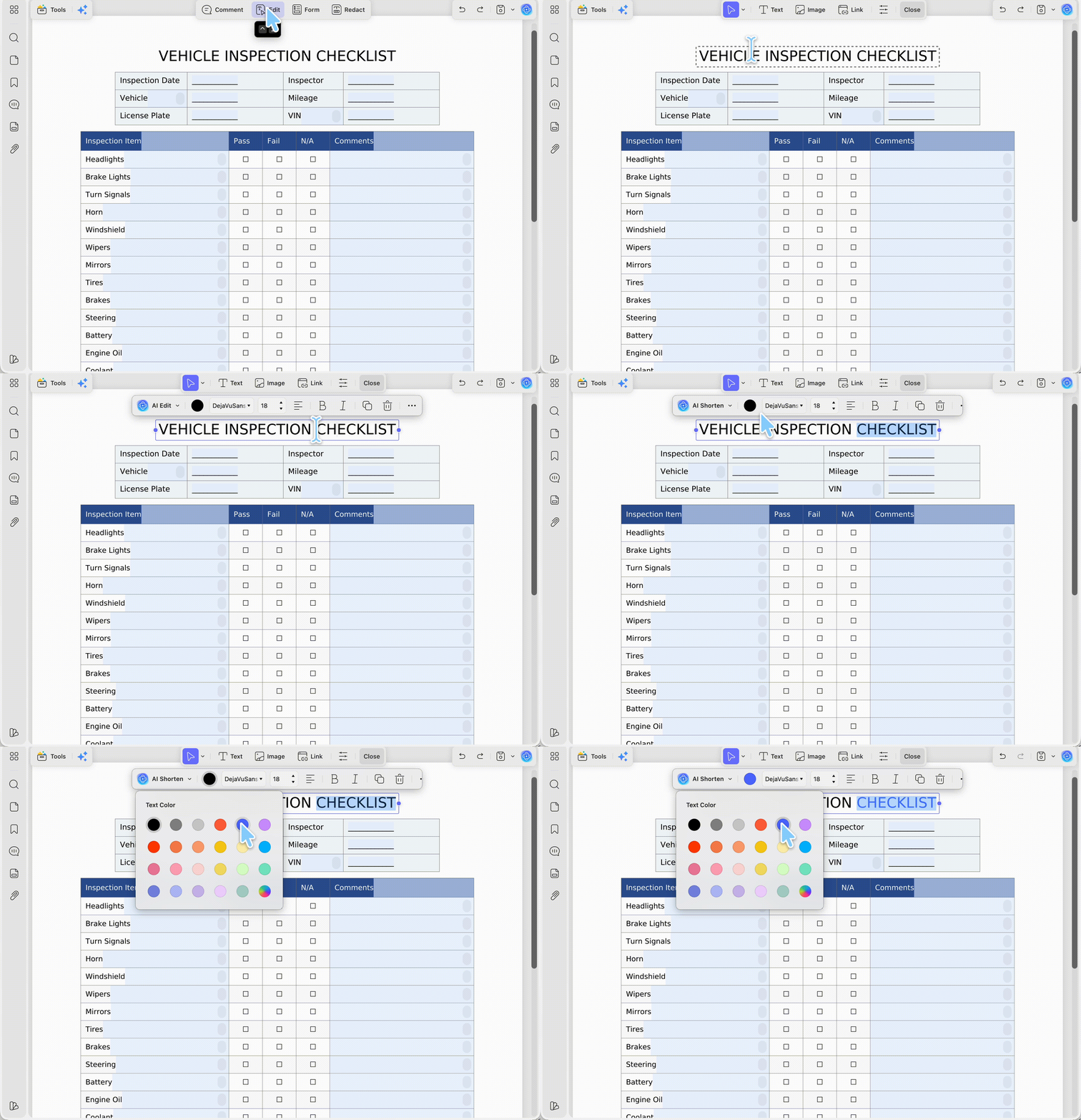
Step 3. Save the file. Because you never left the PDF format, there's no conversion step and no formatting to recover.
Three cases where editing the PDF directly matters most, and where Google Drive can't help:
- Scanned documents. UPDF's OCR tool (Tools → OCR) turns a scanned PDF into editable, searchable text before you edit — more reliable than leaning on Google Docs' built-in conversion for image-only files.
- Forms. Drive turns fillable fields into dead text. UPDF fills, creates, and edits interactive PDF forms without flattening them.
- Rewriting blocks of text. UPDF's AI Editing Suite rewrites or refines a selected passage in place, so you skip the export-to-Word, edit, re-import loop entirely.
One trust note worth stating plainly: UPDF is a desktop app that edits files locally on your machine, which matters if you're working with contracts, invoices, or anything you'd rather not upload to a browser tab. On the free version you can edit and export freely — exported files carry a trial watermark, and full export plus advanced tools come with Pro (US$64.99/year or US$94.99 lifetime; verify current pricing on the official pricing page).
Download UPDF for free to try editing your PDF directly — installation is free, and Pro features are available when you need watermark-free export or advanced tools.
Windows • macOS • iOS • Android 100% secure
Part 4. Editing PDFs on Your Phone
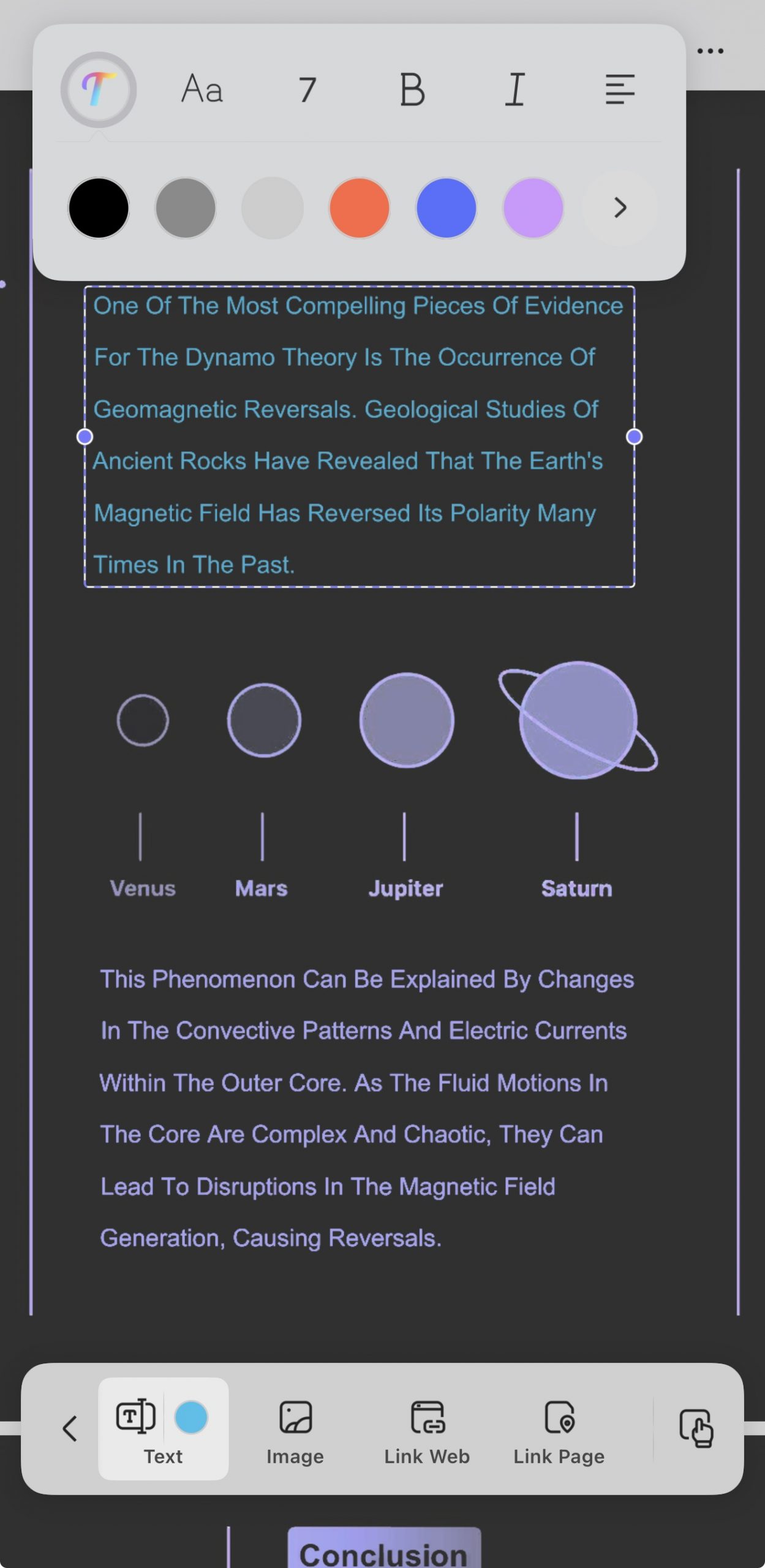
Google Drive's mobile apps preview PDFs but don't meaningfully edit them — you'd still route through the Google Docs app and hit the same conversion issues, minus the desktop's editing comfort. If you need to edit on the go, UPDF's iOS and Android apps edit text and images inside the PDF directly.
Keep a clear view of the original page while you revise the content. If you want to see the interface in use, the video below covers editing PDF content in UPDF.
Open the PDF in the UPDF app, tap Edit, then tap any text or image to change it, and save. The edits sync across your devices through the same account.
Windows • macOS • iOS • Android 100% secure
Part 5. When to Use Google Drive vs. a PDF Editor
| Your situation | Best choice | Why |
|---|---|---|
| Fix a few lines in a plain text PDF | Google Drive + Docs | Free, browser-based, no install |
| PDF has tables, columns, or a branded layout | UPDF (edit directly) | No conversion, so formatting stays intact |
| Scanned or image-only PDF | UPDF (OCR first) | More reliable text recognition than Docs |
| Fillable form to complete or edit | UPDF | Drive flattens form fields into static text |
| Editing on a phone | UPDF mobile app | Drive mobile only previews, doesn't truly edit |
The honest rule: match the tool to the file. A simple text fix doesn't need software — Google Drive handles it free. Anything where the layout has to survive is where converting through Google Docs works against you, and editing the PDF directly is the faster path.
Part 6. FAQ
1. Does editing a PDF in Google Docs change the original file?
No — it makes a separate copy. The upload stays in Drive as an untouched PDF, and Google Docs creates a new editable document from it. Your edits and the final export are a fresh file, so the original is never overwritten. If you want the change on the original, you'll replace it manually after downloading the new PDF.
2. Can two people edit the same PDF together in Google Drive?
Only after it's converted to a Doc. A PDF in Drive can be shared for viewing, but real-time co-editing needs the file opened as a Google Doc first — then standard Docs sharing and comments apply. The trade-off is the conversion reflow, so collaborators are editing a reformatted copy, not the original PDF layout.
3. Will a PDF edited in Google Docs open correctly on any device?
The exported PDF is standard and opens anywhere. Once you download it as a PDF, any reader on any device displays it normally. The risk isn't compatibility — it's that the layout may already have shifted during the Docs conversion, so check the exported file before sharing.
4. How do I edit a PDF from Google Drive without losing formatting at all?
Skip the Docs conversion and edit the PDF directly. Download the file from Drive, open it in a PDF editor like UPDF, and change the text and images in place — no format conversion happens, so tables, columns, and fonts stay put. You can re-upload the finished PDF to Drive afterward.
Conclusion
Editing a PDF in Google Drive means converting it to Google Docs — quick and free for simple text, but the conversion reshuffles anything with tables, columns, forms, or a designed layout. When the formatting has to hold, editing the original PDF directly is the reliable move: UPDF changes text and images in place, handles scanned files with its OCR tool, keeps form fields intact, and rewrites passages with its AI Editing Suite — across Windows, Mac, iOS, and Android. For the bigger picture on editing options, see the full guide on how to edit a PDF.
Download UPDF for free to try editing your PDF directly on your file — installation is free, and Pro features are available when you need watermark-free export or advanced tools.
Windows • macOS • iOS • Android 100% secure






 Enid Brown
 Lizzy Lozano