 UPDF
UPDF
 UPDF for Windows
 UPDF for Mac
 UPDF for iPhone/iPad
 UPDF for Android
 Nomostar
 UPDF AI Online
 UPDF Sign
 IvyCraft
 Edit PDF
 Annotate PDF
 Create PDF
 PDF Form
 Edit links
 Convert PDF
 OCR
OCR PDF to Word
 PDF to Image
 PDF to Excel
 Organize PDF
 Merge PDF
 Split PDF
 Crop PDF
 Rotate PDF
 Protect PDF
 Sign PDF
 Redact PDF
 Sanitize PDF
 Remove Security
 Read PDF
 UPDF Cloud
 Compress PDF
 Print PDF
 Batch Process
 About UPDF AI
 UPDF AI Solutions
 AI User Guide
 FAQ about UPDF AI
 Summarize PDF
 Translate PDF
 Chat with PDF
 Chat with AI
 Chat with image
 PDF to Mind Map
 Explain PDF
 PDF AI Tools
 Image AI Tools
 AI Chat Tools
 AI Writing Tools
 AI Study Tools
 AI Working Tools
 Other AI Tools
 AI Bookmark Generation
 AI Bookmark Summary
 AI Watermark Generation
 AI Background Generation
 AI Sticker Generation
 AI Stamp Generation
 AI Editing Suite
 UPDF Copilot
 AI Page Management
 AI Semantic Search
 PDF to Word
 PDF to Excel
 PDF to PowerPoint
 Enterprise Solution
 Enterprise Sign
 Enterprise AI
 Enterprise Plan
 Enterprise User Guide
 Enterprise Webinar
 IT
IT Education
 Construction
 Financial Service
 Healthcare
 Insurance
 Legal
Legal Manufacturing
 Government
 Researchers & PhDs
 Solopreneurs & Freelancers
 Lawyers & Legal Professionals
 Real Estate Agents & Brokers
 Education Solution
 Customer Stories
 User Guide
 UPDF Tricks
 FAQs
FAQs UPDF Reviews
 Download Center
 Blog
Blog Newsroom
 Tech Spec
 Updates
 UPDF vs. Adobe Acrobat
 UPDF vs. Foxit
 UPDF vs. PDF Expert

In a PDF, a link is stored as a link annotation—an invisible rectangle positioned at specific coordinates on the page. When you click within that rectangle, the PDF viewer executes the associated action (open a URL, go to a page, etc.).
Example: When a company handbook moves to a new domain, update one sample link first and test both the visible label and destination, including any internal page jumps. For a related workflow, see add links to a PDF.
This is why you can't always click on the text itself—you're clicking on the invisible box around the text; Formatting changes often require adjusting the rectangle, not just the text; Links can overlap or be hidden behind other elements.
So, this guide covers everything you need to know about editing links in PDFs: what types of links exist, which tools work for which scenarios, and step-by-step instructions for editing links in PDF.
Among the tools we'll cover, UPDF deserves special attention—it's one of the few PDF editors that offers full link editing (URL updates, page links, appearance customization) across Windows, Mac, iOS, and Android with a single license, all while keeping your files local for privacy. No subscription lock-in, no device limits—just a clean, modern interface that works the way you expect.
Windows • macOS • iOS • Android 100% secure
Part 1. Find Your Match for Editing Links in PDF
Before diving into specific tools, use this table to understand which tool type fits your link type and scenario:
| Your Link Type | Your Scenario | Recommended Tool Type | Why |
|---|---|---|---|
| Web Link (URL) | URL changed, need to update destination | Online or Desktop | URL updates are the most common need—most tools support this |
| Web Link (URL) | Need to modify link appearance (color, underline style) | Desktop | Online tools generally don't support appearance customization |
| Internal Page Link | Page numbers shifted after adding/deleting pages | Desktop | Need precise control over page numbers or named destinations |
| Internal Page Link | Need to batch update multiple internal links | Desktop | Online tools don't support batch operations |
| File Link | Linked file location changed | Desktop | File links require more complex path management |
| Multiple Links | Need to batch edit or delete many links | Desktop | Online free tiers don't support batch operations |
| Sensitive/Confidential Files | Don't want to upload to any server | Desktop | Files stay on your device—no upload risk |
Choose your type, then jump to the corresponding section below to know how to edit a PDF online or offline.
Part 2. How to Edit Link in PDF Online (Free)
Online PDF link‑editing tools offer quick, browser‑based access without software installation, making them convenient for occasional lightweight edits. However, they carry several practical drawbacks that may hinder complex or sensitive document workflows.
| Tool | Link Editing Capabilities | Free Limits | Privacy | Best For |
|---|---|---|---|---|
| Adobe Acrobat Online | Add, edit, delete links; modify URLs and page destinations | Free, requires Adobe account | Server processing | Users who trust Adobe quality and don't mind logging in |
| Sejda | Edit existing links, delete links, add new links | Free: 200 pages/50MB, 3 tasks/hour | Server processing, files deleted after 2 hours | Users who need reliable link editing within free limits |
| Smallpdf | Basic PDF editing including links | Free with limits | Server processing | Users who want a clean, modern interface |
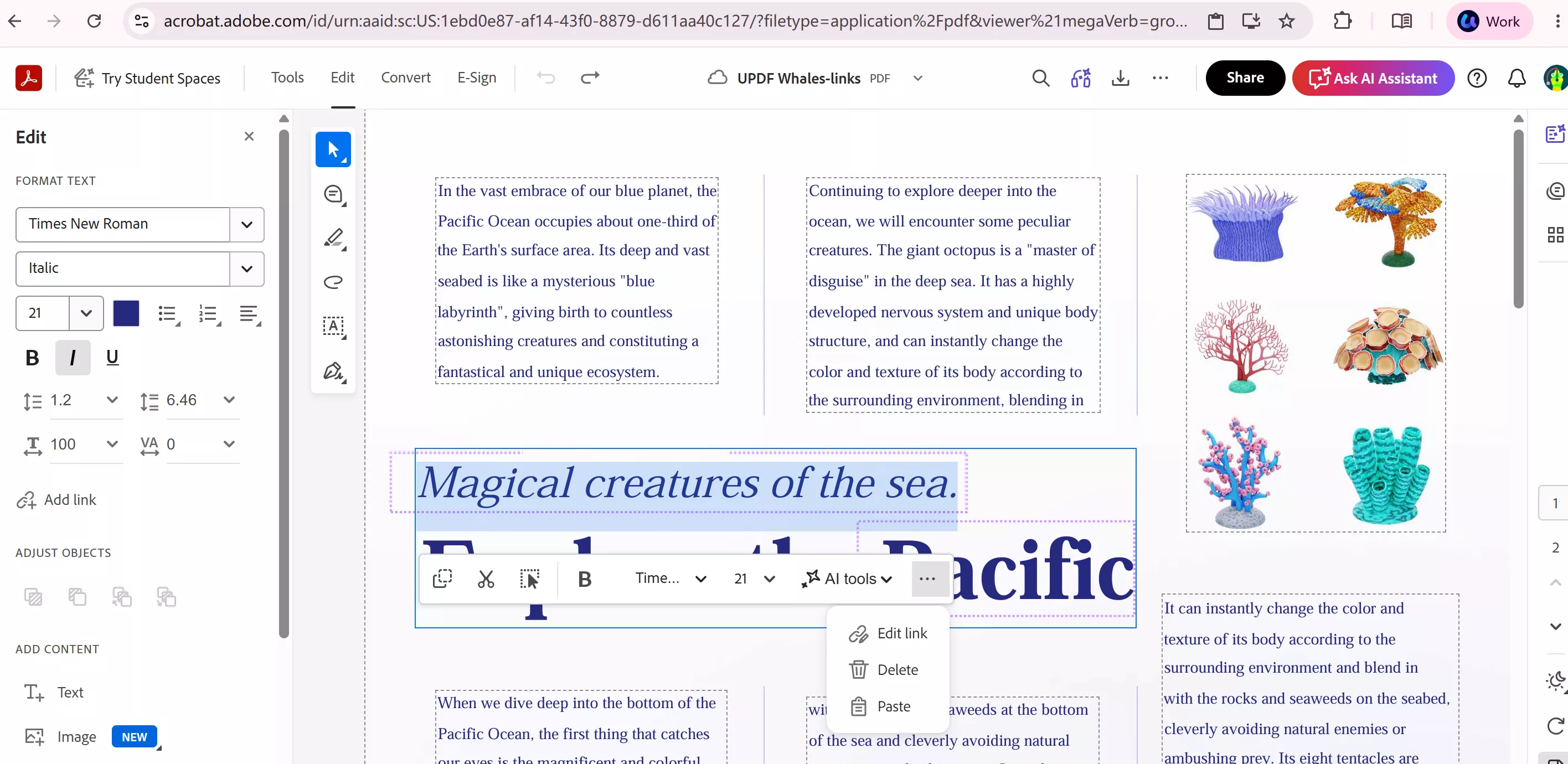
Adobe Acrobat Online — Adobe's official online PDF editor. Select Edit > Choose the text > Add or edit a link. The pointer becomes a crosshair, and all existing links (including invisible ones) become temporarily visible. Drag a rectangle to define the link area, then choose the link appearance and action type in the Create Link dialog. Supports web links, page links, and file links. Best for users who trust Adobe quality and don't mind logging in.
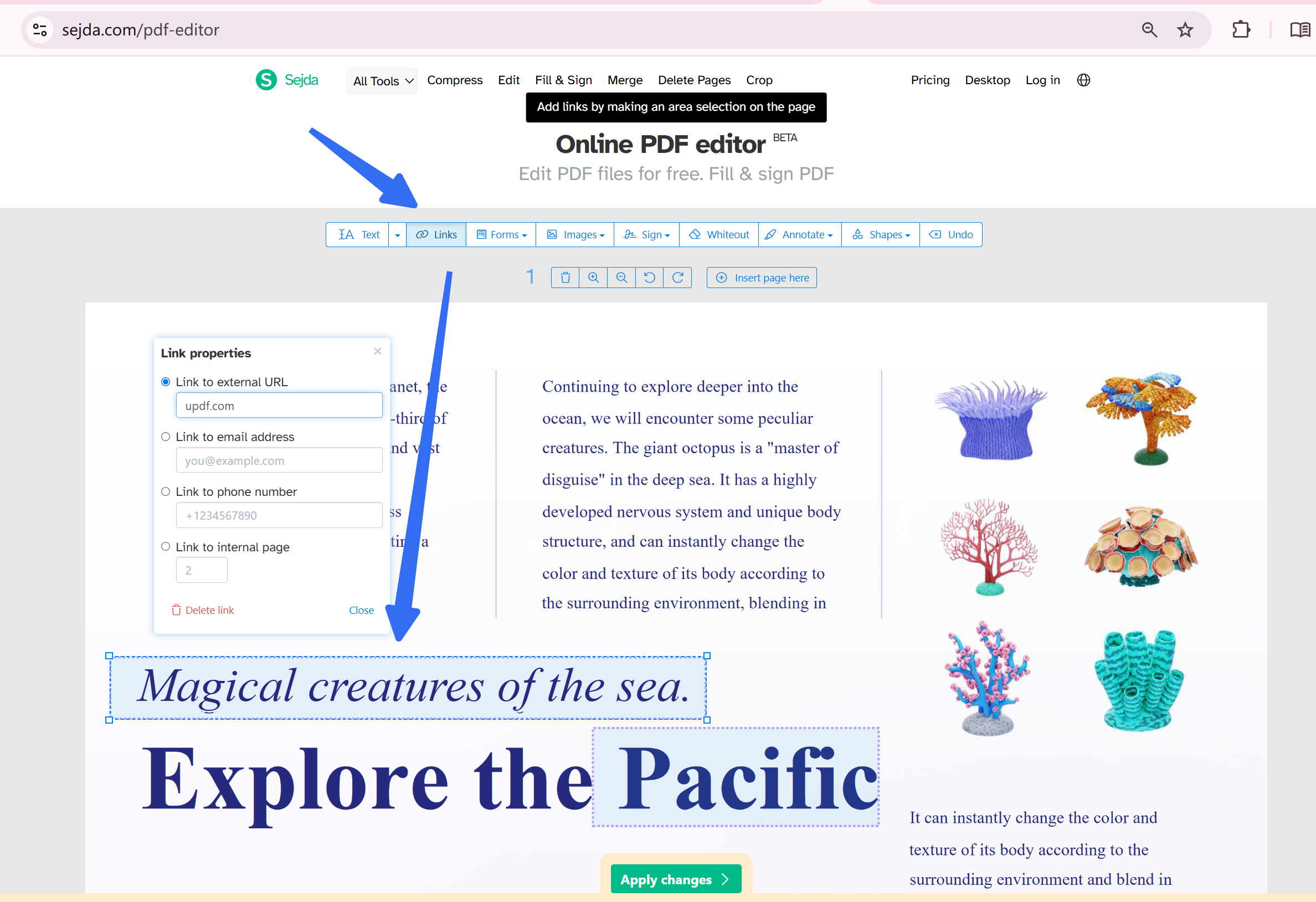
Sejda — One of the most capable free online tools for link editing. Upload your PDF, select the Links option in the toolbar, then click on any link text to edit or delete it. Free tier limits: 200 pages/50MB, 3 tasks per hour. Best for users who need reliable link editing and can work within free limits.
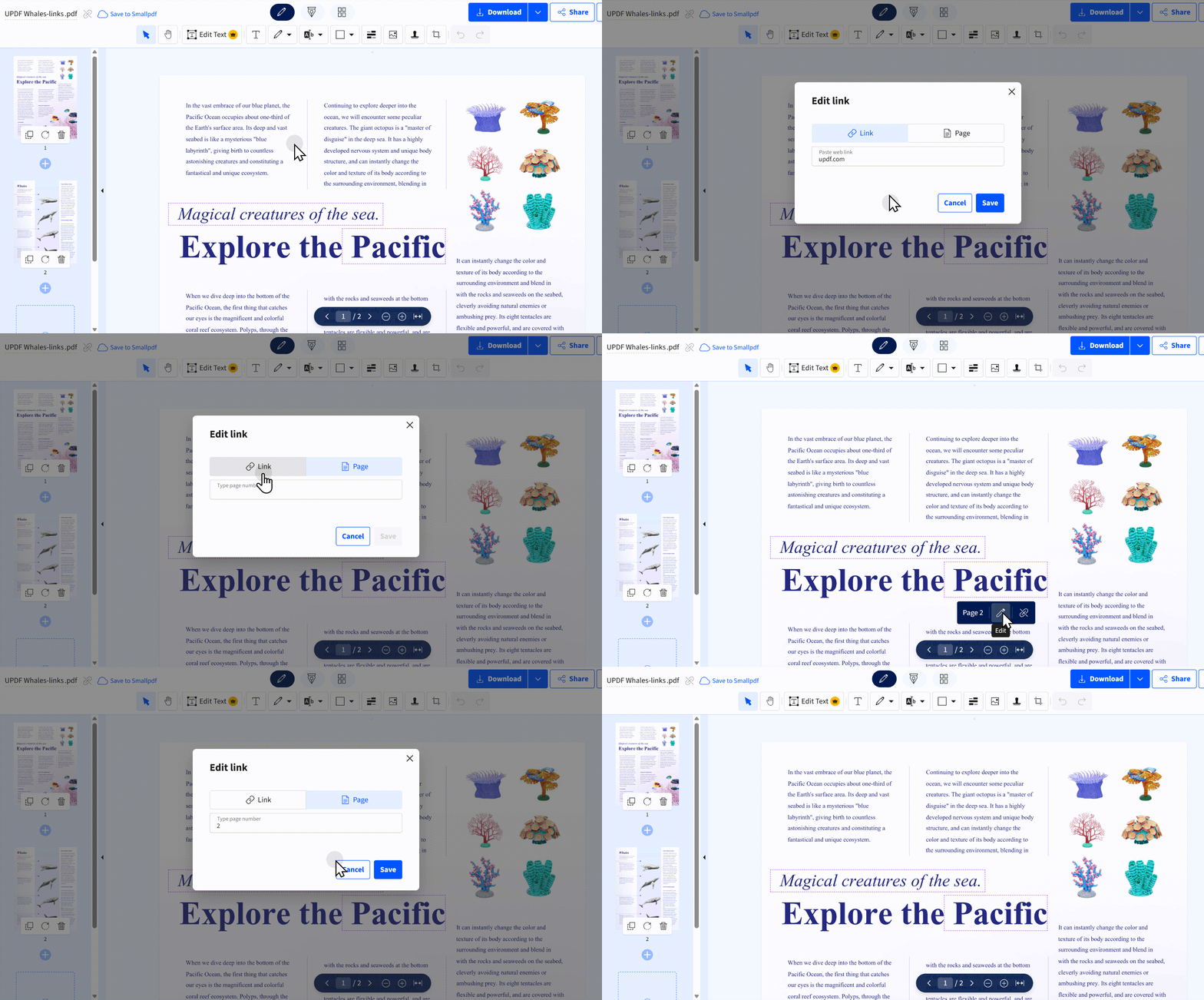
Smallpdf — Offers a clean, modern interface with 20+ PDF tools. Link editing functionality is relatively basic. Free tier has usage limits. Best for users who want a polished, modern interface.
These online PDF tools come with notable limitations, including file‑size and task‑frequency caps, lack of link‑style customization, poor batch‑processing support, and privacy risks from cloud uploads. For fewer restrictions, explore reliable desktop solutions below.
Part 3. How to Edit Links in PDF Offline with Desktop Software
Desktop software gives you more control, higher quality output, and the ability to work offline with sensitive documents.
UPDF stands out for its combination of full link editing capabilities, cross-platform support, and user-friendly interface.
You can work more confidently once you understand how the editor handles the page. The example below shows the workflow for editing PDF content in UPDF.
Windows • macOS • iOS • Android 100% secure
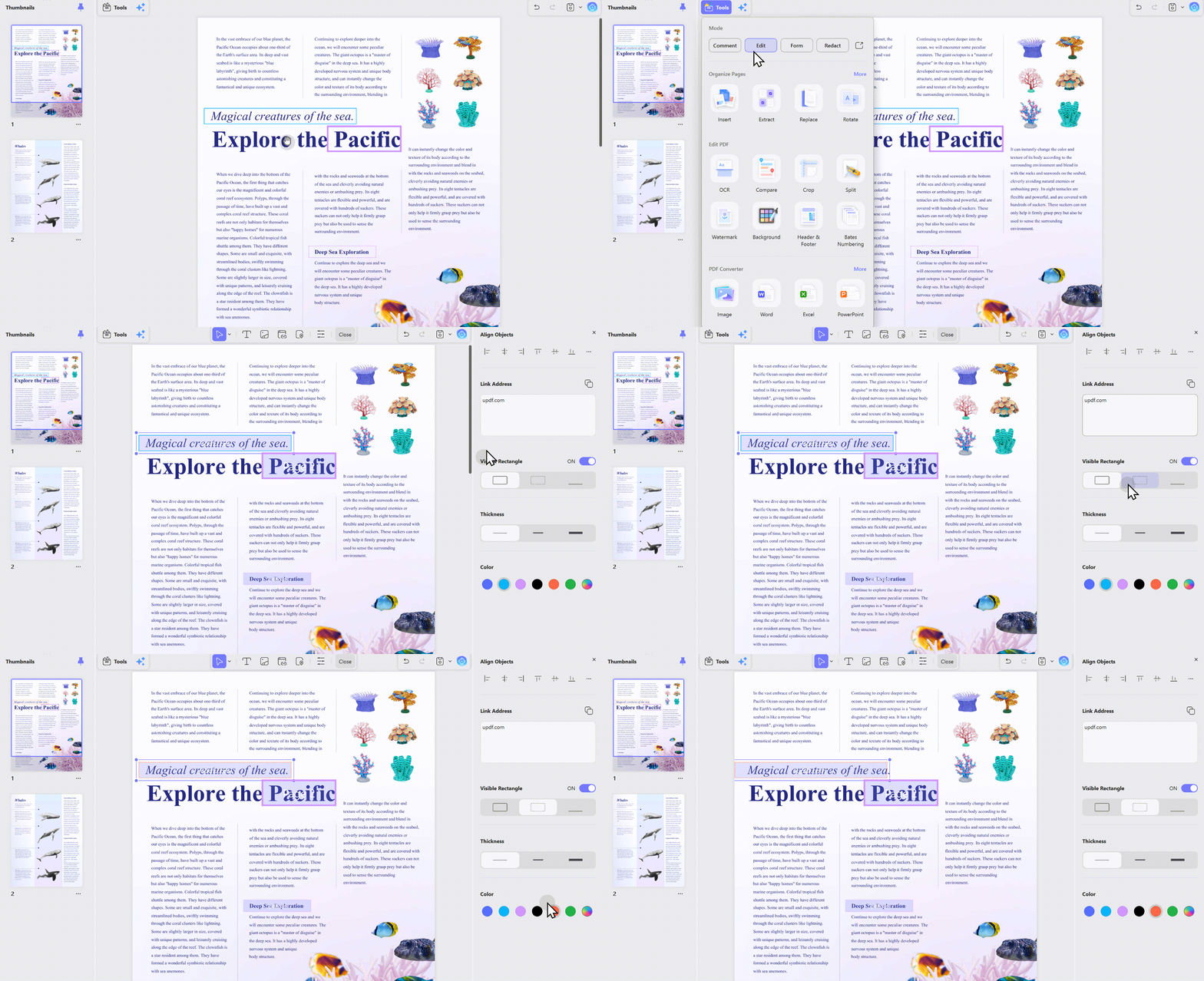
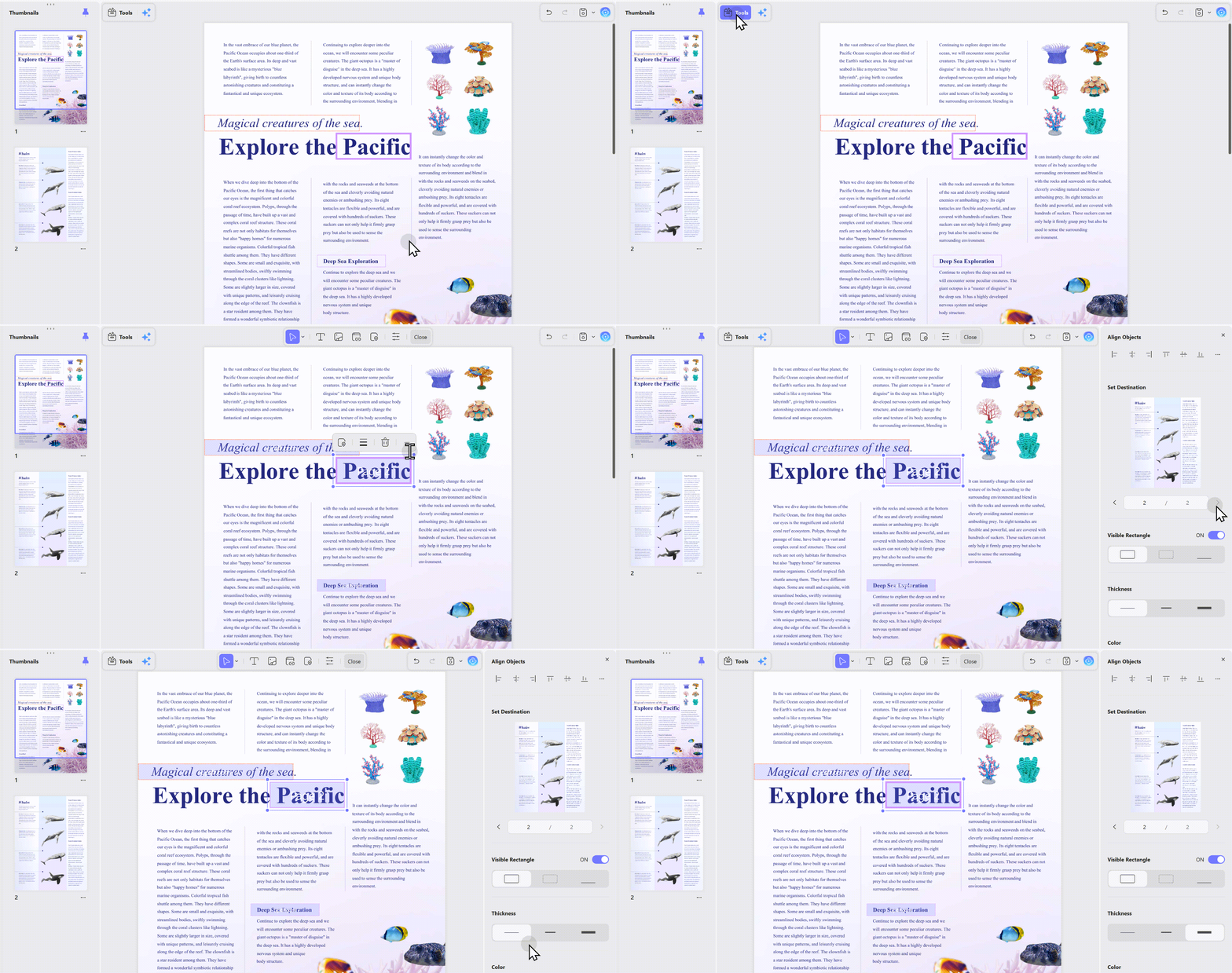
How to edit a link in UPDF:
- Download and install UPDF for Windows, Mac, iOS, or Android
- Open your PDF in UPDF
- Enter Edit mode—click the "Edit PDF" option from the top toolbar
- Click the "Link" icon in the top bar
- Select the link you want to edit by clicking on it
- Modify the link—UPDF allows you to change:
- Link type (Web link or Page link)
- URL or page number destination
- Link style (Solid, Dashed, or Underline)
- Line thickness
- Border color
- Visibility (Visible Rectangle or Invisible Rectangle)
- Save your document—the changes are permanent
For internal page links:
- Enter Edit mode from the Tools option
- Click where you want to edit a page link
- Use the page index settings to choose the target page number
- Adjust border settings and other options as needed
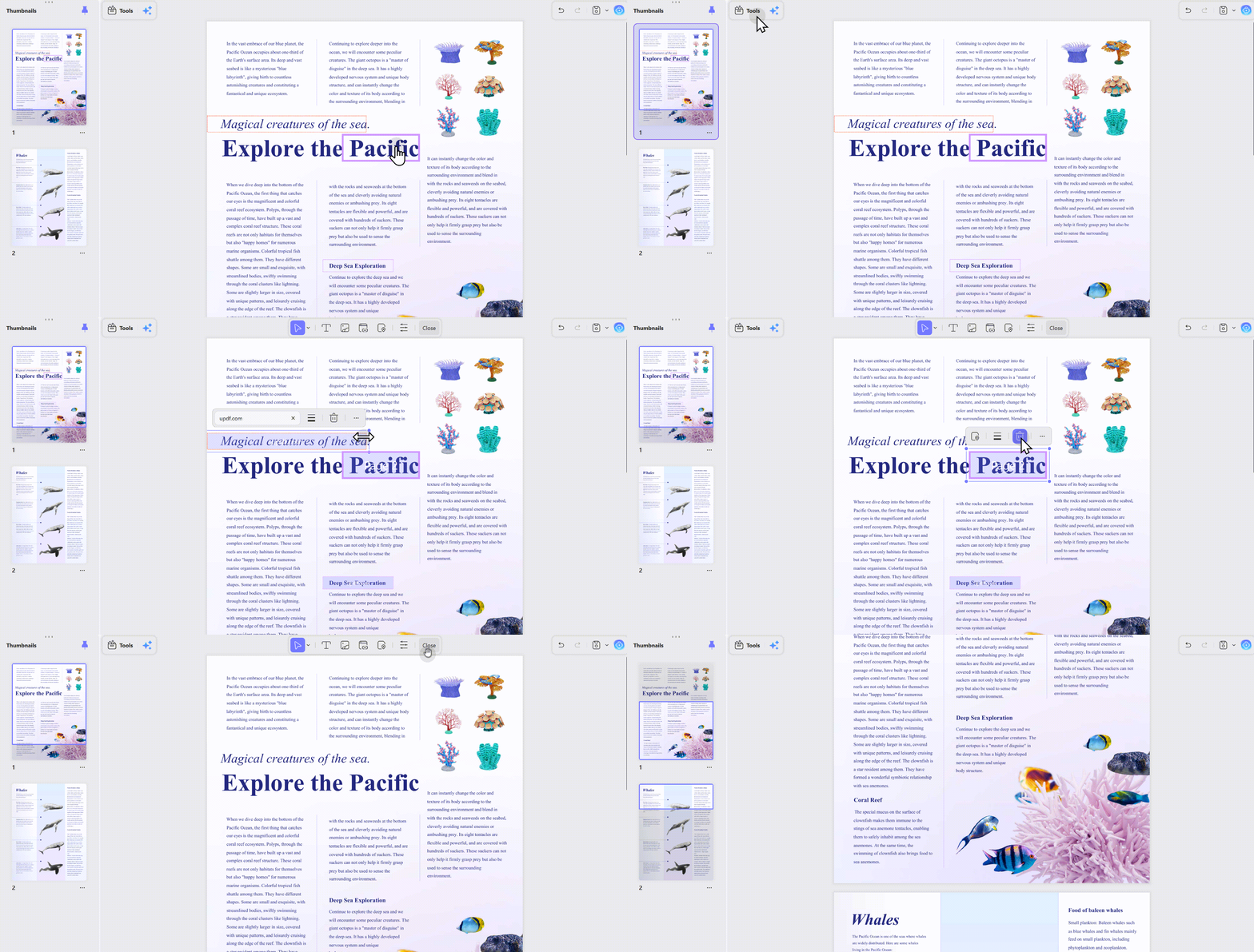
For deleting links:
- Right-click the link and select "Clear"
- Or select the link and click the trash bin icon
Why UPDF wins:
- One license, four devices—Windows, Mac, iOS, and Android
- No subscription lock-in—one-time purchase option available
- Clean, modern interface—easier to learn than Adobe Acrobat
- Full link customization—color, style, thickness, and visibility
- 100% security—local processing, files never leave your machine
Windows • macOS • iOS • Android 100% secure
Bonus
FAQ
Can I change a PDF link without changing its visible text?
Yes. Edit the link action or destination while leaving the displayed text unchanged.
Why does an internal PDF link open the wrong page?
Inserted, deleted, or reordered pages may shift the original destination. Reset the link to the correct page and view position.
How can I check all links in a PDF?
Use a PDF editor’s link tool to inspect each link area, then test external URLs and internal destinations before distribution.
Conclusion
PDF linking is a great way to create interactive documents. From professional to individual use, the integration of links has not been the finest feature of many PDF editors.
UPDF has changed the dynamics of using links in PDF documents. It has presented some great ways to use URLs and page linking in the document to develop interactive PDFs. This article has provided you with some great insights into how to edit PDF links using UPDF. You can download it for a trial.
Windows • macOS • iOS • Android 100% secure








 Engelbert White

 Lizzy Lozano