 UPDF
UPDF
 UPDF for Windows
 UPDF for Mac
 UPDF for iPhone/iPad
 UPDF for Android
 Nomostar
 UPDF AI Online
 UPDF Sign
 IvyCraft
 Edit PDF
 Annotate PDF
 Create PDF
 PDF Form
 Edit links
 Convert PDF
 OCR
OCR PDF to Word
 PDF to Image
 PDF to Excel
 Organize PDF
 Merge PDF
 Split PDF
 Crop PDF
 Rotate PDF
 Protect PDF
 Sign PDF
 Redact PDF
 Sanitize PDF
 Remove Security
 Read PDF
 UPDF Cloud
 Compress PDF
 Print PDF
 Batch Process
 About UPDF AI
 UPDF AI Solutions
 AI User Guide
 FAQ about UPDF AI
 Summarize PDF
 Translate PDF
 Chat with PDF
 Chat with AI
 Chat with image
 PDF to Mind Map
 Explain PDF
 PDF AI Tools
 Image AI Tools
 AI Chat Tools
 AI Writing Tools
 AI Study Tools
 AI Working Tools
 Other AI Tools
 AI Bookmark Generation
 AI Bookmark Summary
 AI Watermark Generation
 AI Background Generation
 AI Sticker Generation
 AI Stamp Generation
 AI Editing Suite
 UPDF Copilot
 AI Page Management
 AI Semantic Search
 PDF to Word
 PDF to Excel
 PDF to PowerPoint
 Enterprise Solution
 Enterprise Sign
 Enterprise AI
 Enterprise Plan
 Enterprise User Guide
 Enterprise Webinar
 IT
IT Education
 Construction
 Financial Service
 Healthcare
 Insurance
 Legal
Legal Manufacturing
 Government
 Researchers & PhDs
 Solopreneurs & Freelancers
 Lawyers & Legal Professionals
 Real Estate Agents & Brokers
 Education Solution
 Customer Stories
 User Guide
 UPDF Tricks
 FAQs
FAQs UPDF Reviews
 Download Center
 Blog
Blog Newsroom
 Tech Spec
 Updates
 UPDF vs. Adobe Acrobat
 UPDF vs. Foxit
 UPDF vs. PDF Expert

Need a PDF signature remover? The first thing to know is that not all PDF signatures can be removed the same way.
Simple electronic signatures—such as typed names, handwritten images, or stamps—can usually be deleted from editable PDFs. Certificate-based digital signatures are different. They're designed to protect document integrity and may lock the file after signing.
In this guide, we'll compare four PDF signature removers, explain which types of signatures they support, and help you choose the right tool for your situation.
Working with confidential PDFs? Try UPDF to remove standard signatures and edit PDFs locally without uploading your files online.
Windows • macOS • iOS • Android 100% secure
Quick Comparison: Which PDF Signature Remover Should You Choose?
Not every PDF signature remover is designed for the same task. Use the table below to quickly find the most suitable option for your situation.
| If you need to... | Recommended tool |
| Remove a handwritten or image signature | UPDF or Smallpdf |
| Edit a PDF protected by a digital signature | UPDF |
| Work entirely in a web browser | pdfFiller |
| Manage enterprise documents with certificate validation | Adobe Acrobat Pro |
Top 4 PDF Signature Removers That Can Remove Signatures without Risk
Busy teams often need to remove signatures from PDF files without breaking layouts or compliance rules. They also want one tool that handles both simple image marks and more complex, locked certificate signatures.
#1 UPDF — The Versatile PDF Editor & All-in-One Signature Remover
Best for:
Many office workers find that signed documents stay locked, even when they urgently need to update UPDF is designed for users who need more than just a signature eraser. It allows users to remove common signature elements, edit PDF content afterward, and handle restricted documents through a print-to-PDF workaround.
Unlike online-only PDF signature removers, UPDF works locally on your device, which can be useful when handling private business documents, contracts, or internal files that should not be uploaded to third-party servers.
How to Remove Signatures From a PDF Using UPDF
Now, follow the steps mentioned below to remove standard and locked digital signatures using UPDF:
Option 1. Removing Standard Signatures (Images or Visible Signature Elements)
1. First, open a signed PDF in UPDF.
Windows • macOS • iOS • Android 100% secure
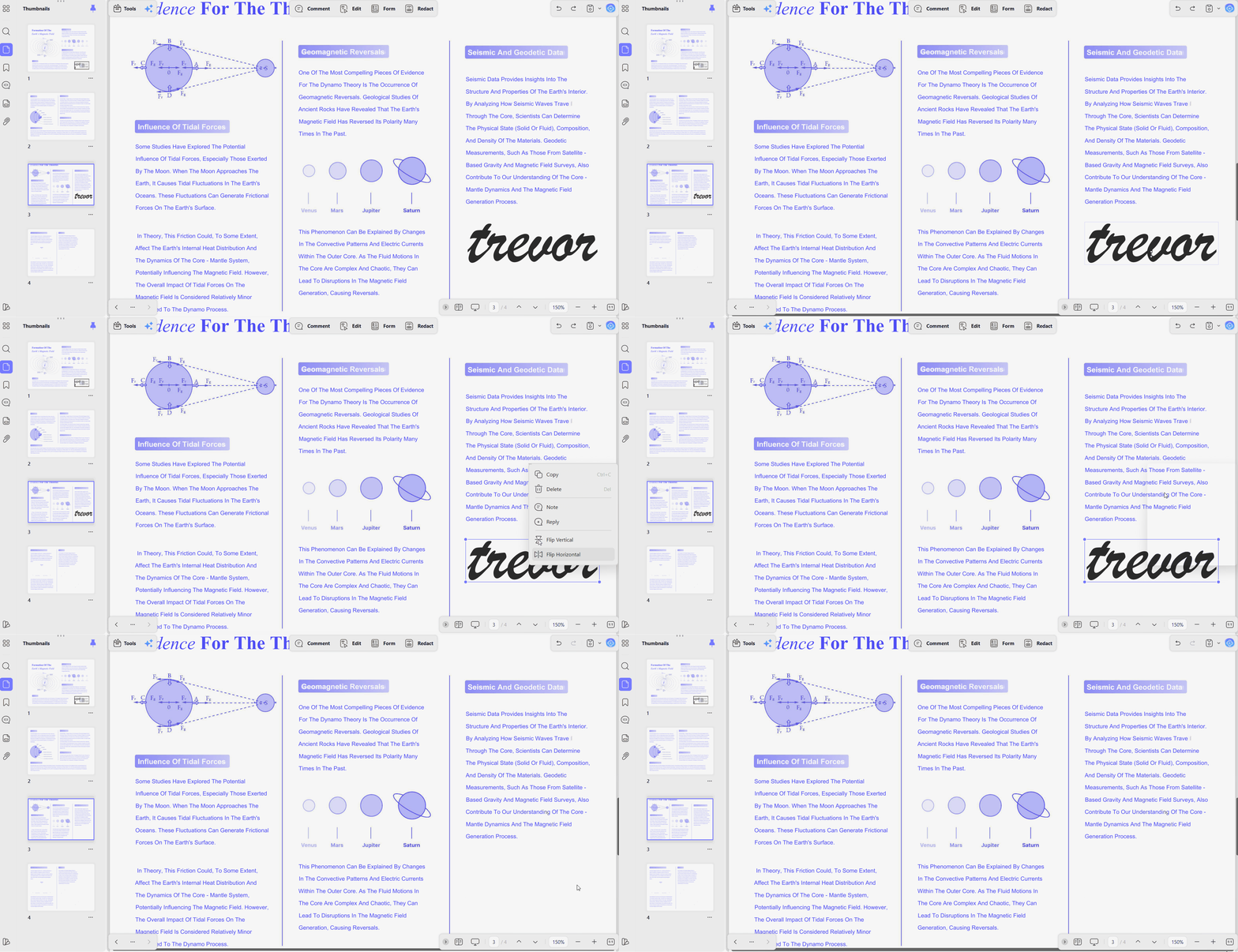
2. Next, right-click the standard signature and press the "Delete" option to clear the signature from the PDF page.
Option 2. Removing Locked Digital Signatures
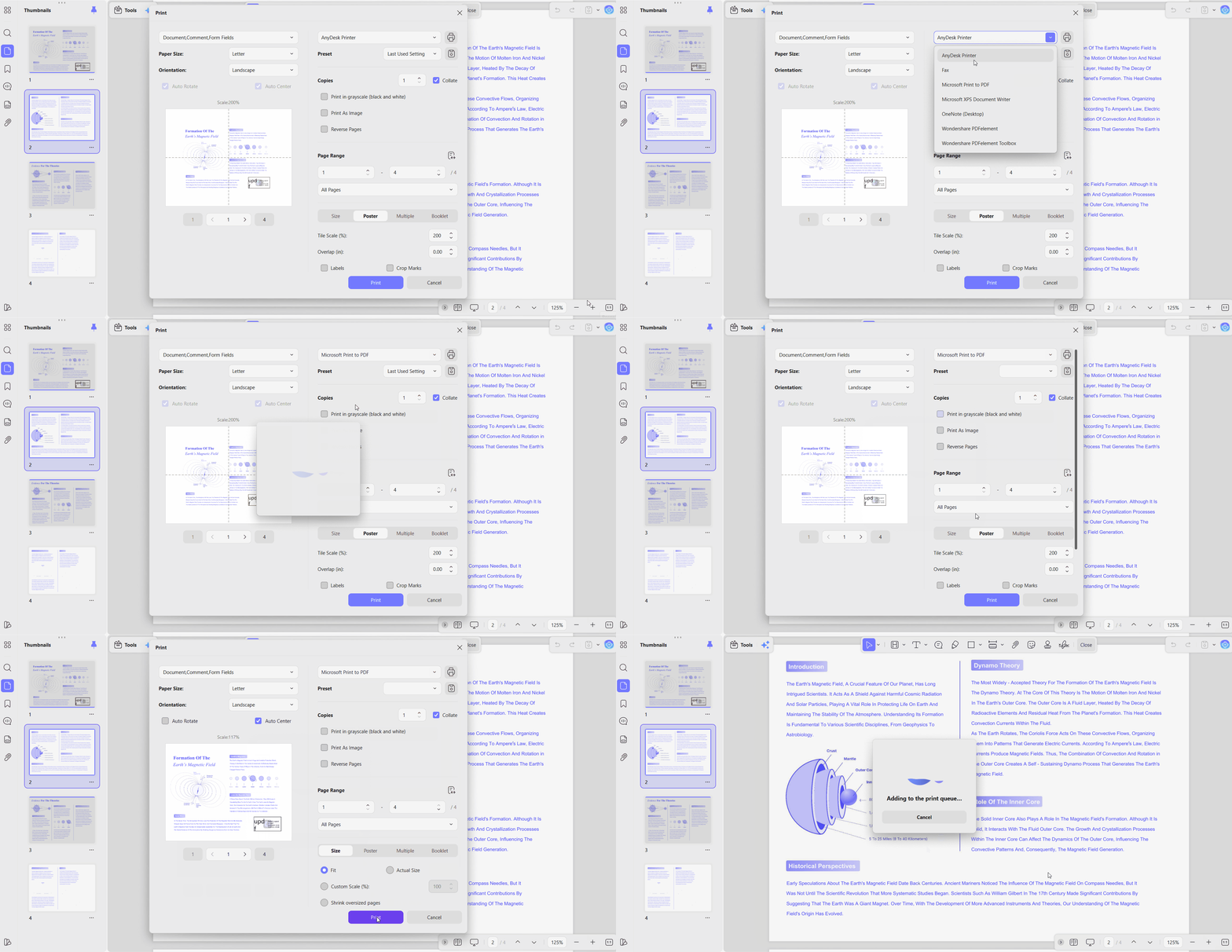
- Once you open a PDF in UPDF, access the Print interface.
- Next, choose the "Microsoft Print to PDF" printer option and click the "Print" button to save a flattened replica file.
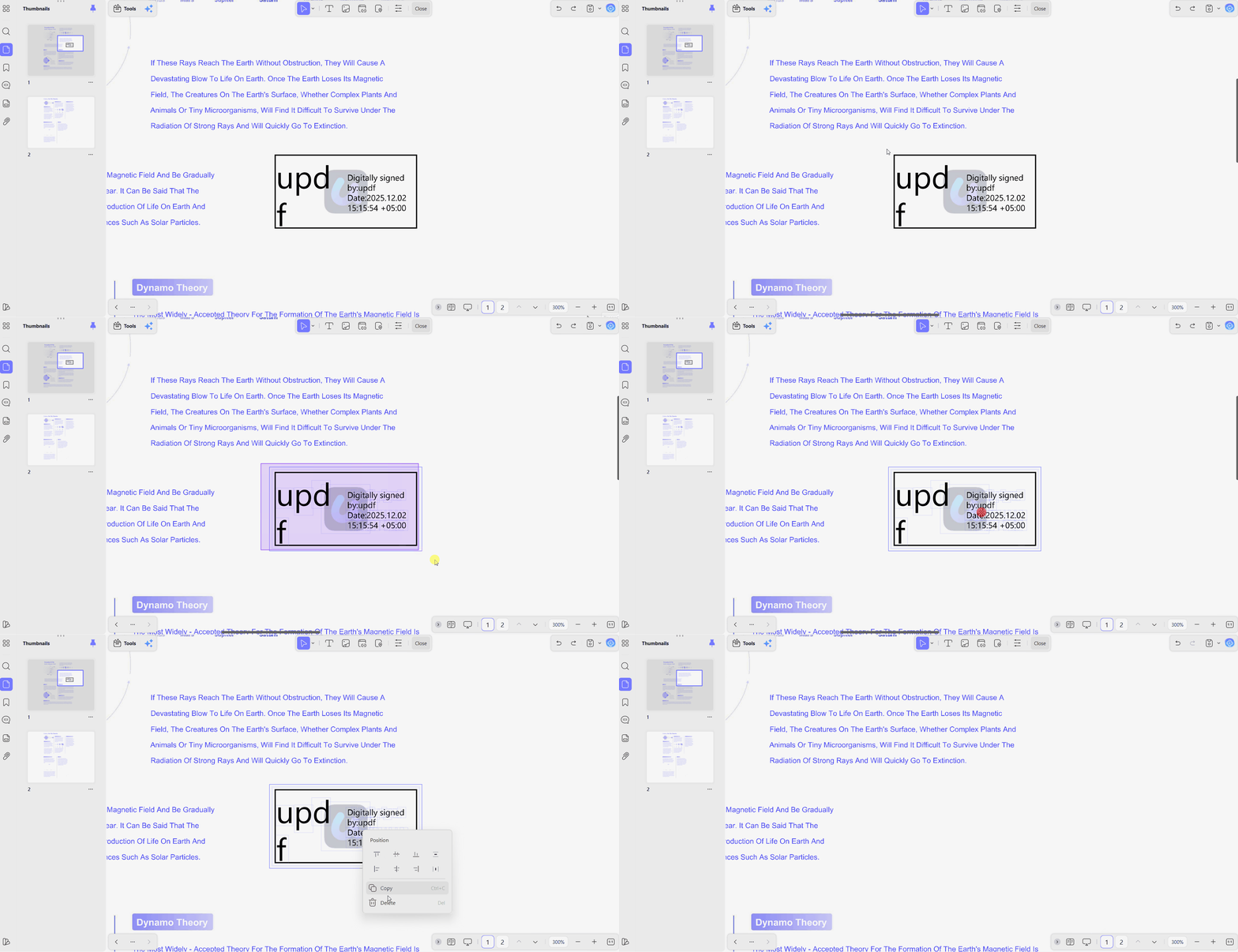
3. Next, open the flattened copy and access the "Edit" feature. Afterward, select the locked signature elements and press the "Delete" button to remove the locked digital signature.
Once your old signature blocks are removed, you may want to add fresh approval branding. For step‑by‑step layout ideas, explore our guide to using a PDF stamp creator.
Audit Trail & Metadata Warning
Expert Hands-On Review
UPDF is most useful when the problem is not only removing a signature but also continuing work on the document afterward.
After removing a signature block, users can continue editing text, adjusting layouts, or updating PDF content without moving the file into another application.
For teams working with sensitive documents, the local editing workflow is also a practical advantage compared with browser-based tools that require uploading files.
Pros:
- Handles both regular signature removal and locked signature workflows.
- Allows users to continue editing PDFs after removing signatures.
- Supports local document processing without uploading confidential files.
- Includes additional PDF editing features for updating documents after cleanup.
Cons:
- Requires installing the desktop application.
- The locked signature workflow requires creating a new PDF copy through printing.
#2 Adobe Acrobat Pro — The Traditional Enterprise Standby
Best for:
Adobe Acrobat Pro remains a common choice for companies that already rely on Adobe’s PDF ecosystem. It can identify and manage signatures in PDFs, especially when users have access to the required certificates or permissions.
However, removing a locked digital signature depends on how the PDF was signed and what security restrictions were applied. If the document creator enabled strict protection settings, Acrobat may not allow further modifications.
How to Remove a Signature from PDF Using Adobe Acrobat Pro
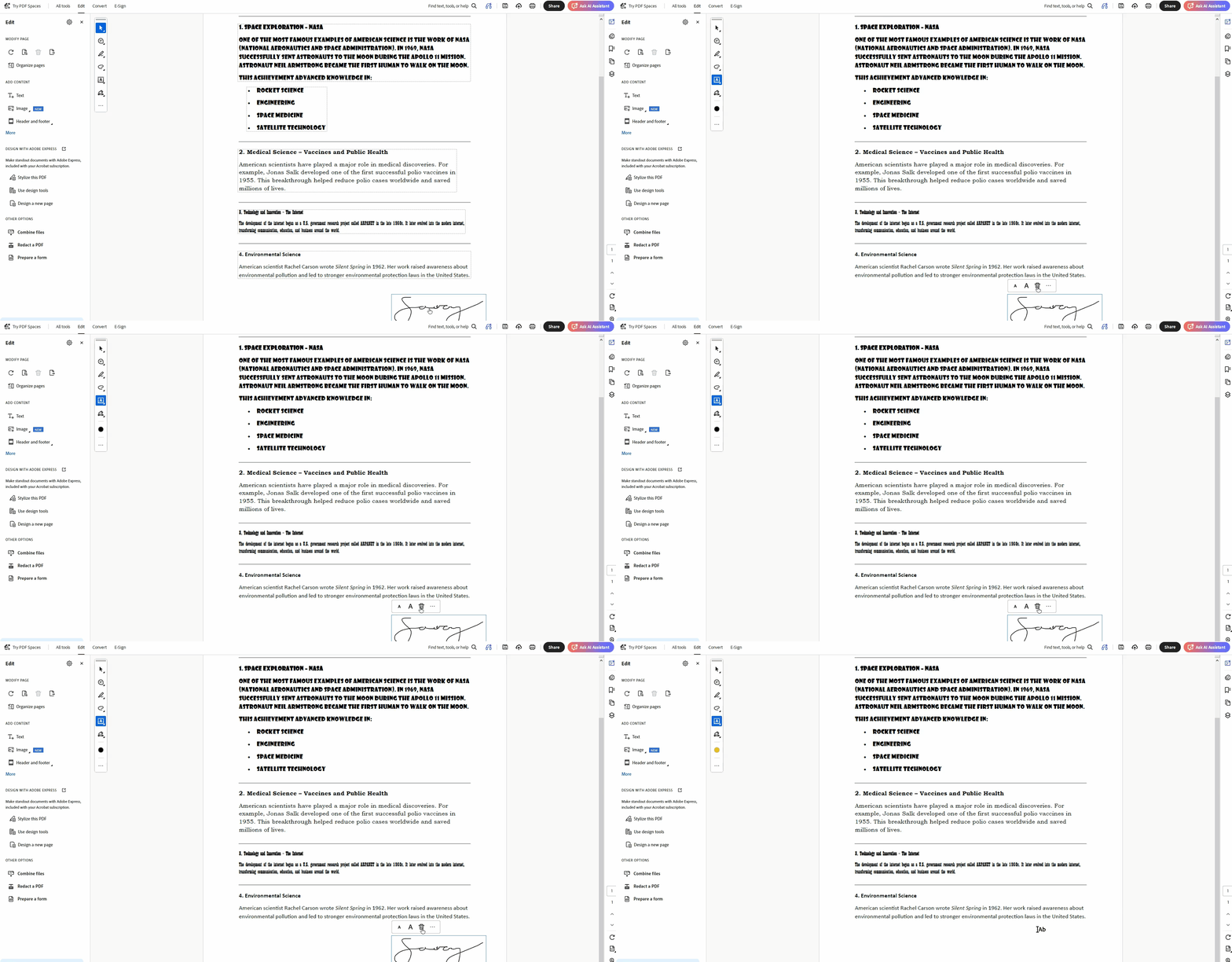
- Open the PDF file in Adobe Acrobat Pro.
- Select the signature element or open the editing tools.
- Delete the signature if the document permissions allow changes.
Expert Hands-On Review
Adobe Acrobat Pro works well for organizations already using Adobe products for document management and compliance workflows.
Its main advantage is not simply signature removal, but its broader PDF management environment, including certificate handling and enterprise document features.
However, users looking for a simple way to remove locked signatures may still encounter restrictions because digital signatures are designed to prevent unauthorized changes.
Pros:
- Works well within existing Adobe enterprise workflows.
- Validates corporate signatures against the Adobe Approved Trust List when certificates match.
- Integrates into existing enterprise licensing setups already using Acrobat for document workflows.
Cons:
- Locked PDFs may still prevent signature removal depending on document restrictions.
- Requires an Adobe Acrobat Pro subscription, which may not be ideal for occasional users.
#3 pdfFiller — The Best Online Engine for Visible Digital Signatures
Best for:
pdfFiller provides an online PDF editing workflow that allows users to upload documents and modify visible signature elements directly in the browser.
This approach can be convenient for quick document updates. However, users should consider privacy requirements before uploading contracts, financial documents, or other sensitive PDFs to an online service.
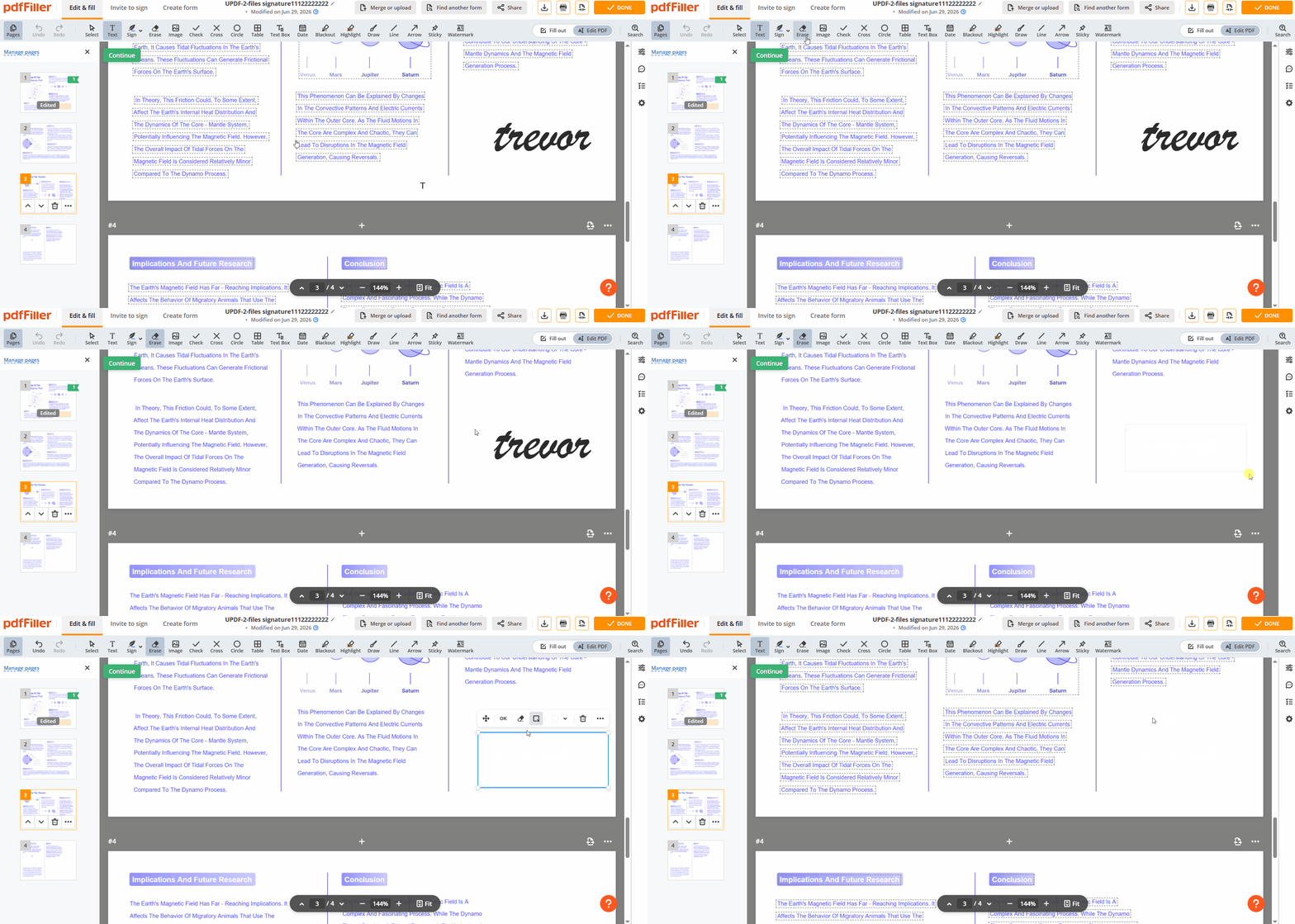
How to Remove a Signature from PDF Using pdfFiller
- Open the pdfFiller web dashboard and upload your PDF file.
- Select the editing option and choose the erase function.
- Select the signature area and remove it from the document.
Expert Hands-On Review
pdfFiller is convenient for users who need a quick browser-based solution.
The biggest advantage is accessibility—you can edit PDFs without installing software. However, because the workflow depends on uploading files online, it may not be suitable for confidential documents that require local processing.
Pros:
- Uses the same print‑style workflow to clear stubborn visible digital signatures.
- Runs entirely in the browser, ideal for remote teams avoiding desktop installs.
Cons:
- Imposes strict limits on file size and page count during editing.
- Requires uploading confidential documents to third‑party servers, raising corporate security concerns.
For more browser‑based options, explore our tools to remove a signature from a PDF online. This directory compares web platforms so you can quickly clean simple signatures without installing software.
#4 Smallpdf — The Quick Eraser for Low-Risk Image Signatures
Best for:
Smallpdf focuses on simple PDF editing tasks through a lightweight browser interface.
It can work well for basic signature removal scenarios, such as deleting a visible image signature from a document that does not contain strict digital certificate protection.
However, it is not designed to bypass locked digital signatures or advanced document security restrictions.
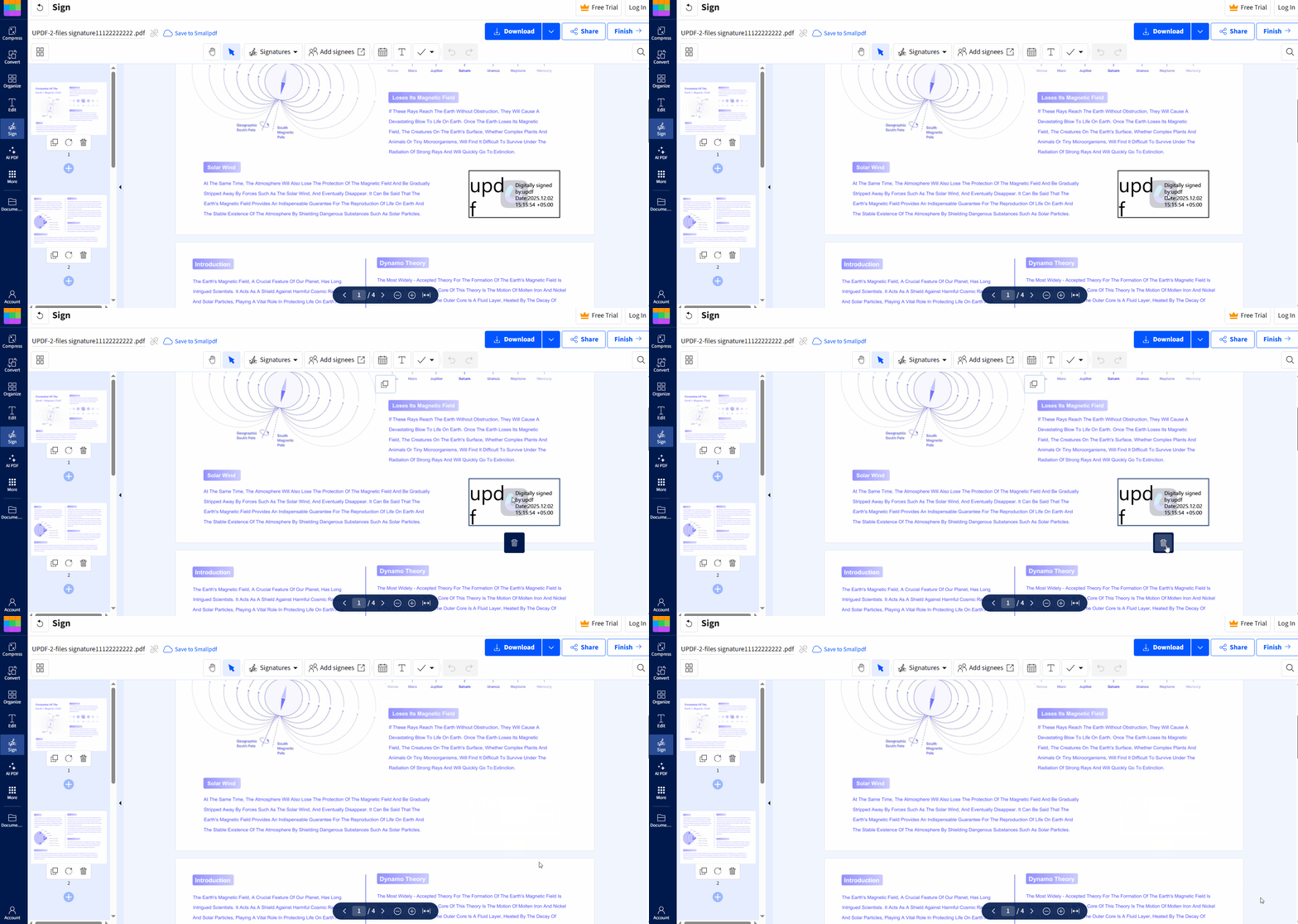
How to Remove a Signature from PDF Using Smallpdf
- Upload the PDF file to Smallpdf.
- Select the signature element in the editor.
- Delete the signature and download the updated PDF.
Expert Hands-On Review
Smallpdf is suitable when speed matters more than advanced document control.
For simple administrative files, its browser-based interface makes quick edits easy. However, users working with signed contracts or compliance-sensitive documents may need a more capable PDF editor.
Pros:
- Fast browser editor for erasing basic image or typed signature marks.
- Minimal interface keeps simple admin clean‑ups quick with almost no learning curve.
Cons:
- Lacks decoding or removal of secure certificate‑based digital signatures.
- The free tier limits you to only a few daily tasks.
Feature Comparison Matrix: Which PDF Signature Remover Is Best?
Different PDF signature removers solve different problems. The table below compares their capabilities to help you choose the right option.
| Tool | Standard Signatures | Locked Digital Signatures | Local Processing | Best Use Case | Additional Features |
| UPDF | Yes | Yes, through print-to-PDF workflow | Yes | Users who need removal + continued PDF editing | PDF editing, OCR, AI tools |
| Adobe Acrobat Pro | Yes | Depends on certificate and permissions | Yes | Enterprise Adobe users | Advanced PDF management |
| pdfFiller | Yes | Limited | No | Quick online PDF edits | Browser-based editing |
| Smallpdf | Yes | No | No | Simple visible signature removal | Basic PDF tools |
Frequently Asked Questions
Why did a signature disappear online but reappear after download?
Many cloud tools lack engines to decode compliant digital signatures under frameworks like the US ESIGN Act. Their web viewers simply skip rendering the encrypted certificate layer, so the signature looks completely invisible online. After downloading, that hidden certificate code is still locked and reappears when opened in robust local software like UPDF.
Will erasing a signature remove the metadata audit log?
Erasing a visual signature only clears the presentation layer; metadata still records document changes and events. Running an audit via a powerful PDF annotator or tracking system will show that a modification occurred. Using a print‑reconstruction method creates a new file, and its history starts from a fresh creation baseline.
What is the most legitimate way to clear a hard‑locked authorized signature?
When an editor greys out all tools, the signer likely enabled a strict finality lock during signing. Legally, the original author or authorized party should remove PDF signatures or issue an updated document version. For emergency internal restructuring, avoid untrusted web converters and follow our official guide on how to remove a signature from a PDF.
How can I tell whether my PDF contains a digital signature?
If you can click the signature and see certificate information or a signature validation panel, the document most likely contains a digital signature rather than a simple image or handwritten signature. In many PDF editors, digitally signed documents also display a notification indicating that the document has been signed or certified.
Unlike ordinary signatures, digital signatures are designed to detect document changes. Editing the file usually invalidates the signature unless the signer removes it or a new document is created using an approved workflow.
Conclusion
The best PDF signature remover depends on the type of signature you're working with.
If your document only contains a handwritten, typed, or image-based signature, lightweight tools such as Smallpdf or pdfFiller may be enough for simple visual cleanup. However, if you're dealing with certificate-based digital signatures or documents that have become locked after signing, you'll need a solution that supports more advanced editing workflows.
UPDF stands out because it handles both everyday signature removal and locked-document scenarios through its Print-to-PDF workflow. After removing the signature, you can immediately continue editing text, forms, and page content without switching to another application.
Download UPDF to remove standard signatures, work around locked digital signatures, and continue editing your PDFs in the same secure workspace.
Windows • macOS • iOS • Android 100% secure





 Enola Miller
 Lizzy Lozano
 Enid Brown
 Enola Davis
 Enrica Taylor