 UPDF
UPDF
 UPDF for Windows
 UPDF for Mac
 UPDF for iPhone/iPad
 UPDF for Android
 Nomostar
 UPDF AI Online
 UPDF Sign
 IvyCraft
 Edit PDF
 Annotate PDF
 Create PDF
 PDF Form
 Edit links
 Convert PDF
 OCR
OCR PDF to Word
 PDF to Image
 PDF to Excel
 Organize PDF
 Merge PDF
 Split PDF
 Crop PDF
 Rotate PDF
 Protect PDF
 Sign PDF
 Redact PDF
 Sanitize PDF
 Remove Security
 Read PDF
 UPDF Cloud
 Compress PDF
 Print PDF
 Batch Process
 About UPDF AI
 UPDF AI Solutions
 AI User Guide
 FAQ about UPDF AI
 Summarize PDF
 Translate PDF
 Chat with PDF
 Chat with AI
 Chat with image
 PDF to Mind Map
 Explain PDF
 PDF AI Tools
 Image AI Tools
 AI Chat Tools
 AI Writing Tools
 AI Study Tools
 AI Working Tools
 Other AI Tools
 AI Bookmark Generation
 AI Bookmark Summary
 AI Watermark Generation
 AI Background Generation
 AI Sticker Generation
 AI Stamp Generation
 AI Editing Suite
 UPDF Copilot
 AI Page Management
 AI Semantic Search
 PDF to Word
 PDF to Excel
 PDF to PowerPoint
 Enterprise Solution
 Enterprise Sign
 Enterprise AI
 Enterprise Plan
 Enterprise User Guide
 Enterprise Webinar
 Banking
 Healthcare
 Insurance
 Legal
Legal Manufacturing
 Government
 Education Solution
 Customer Stories
 User Guide
 UPDF Tricks
 FAQs
FAQs UPDF Reviews
 Download Center
 Blog
Blog Newsroom
 Tech Spec
 Updates
 UPDF vs. Adobe Acrobat
 UPDF vs. Foxit
 UPDF vs. PDF Expert

Quick Answer
Last week I tried to pull three paragraphs out of a scanned contract someone emailed me, and every paste came out blank. The PDF looked like text, but my cursor wouldn't grab a word. Below are the four situations that cover every PDF you'll meet — a normal text PDF, a bulk export to Word or Excel, a scanned or image PDF, and a locked one — with the current steps for each, plus how to do it on a phone.
One thing most guides skip: if selecting "text" highlights the whole page as a single block or pastes nothing, the file isn't really text — it's an image of text. That single distinction decides which of the methods below you actually need, so it's worth knowing before you start clicking.
Part 1. Part 1. Which Method Fits Your PDF?
| Your situation | Use this method | What it solves |
|---|---|---|
| A normal PDF — you can already select words | Method 1: Select & copy in UPDF | Grabbing a quote, a paragraph, or a few pages of text |
| You need the whole file in Word, Excel, PPT, or TXT | Method 2: Convert in UPDF, then copy | Bulk copying without losing formatting |
| A scanned PDF or image — nothing is selectable | Method 3: OCR first in UPDF, then copy | Turning a picture of text into real, copyable text |
| A password-protected (secured) PDF | Method 4: Remove the restriction in UPDF, then copy | Copying from a file that blocks selection |
Selectable Text vs. Scanned PDF vs. Secured PDF — What's the Difference?
These three are easy to confuse when copying fails. A selectable-text PDF has a real text layer — your cursor highlights individual words. A scanned (image) PDF is a picture of a page, so selection grabs the whole image and pastes nothing until OCR adds a text layer. A secured PDF has text, but a permissions password blocks copying until the restriction is removed.
In short: scanned = no text to copy yet, secured = text exists but is locked, selectable = ready to go.
Part 2. Method 1: Select and Copy Text Directly
If you can drag your cursor across words and they highlight, the PDF already contains real text — this is the fast case.
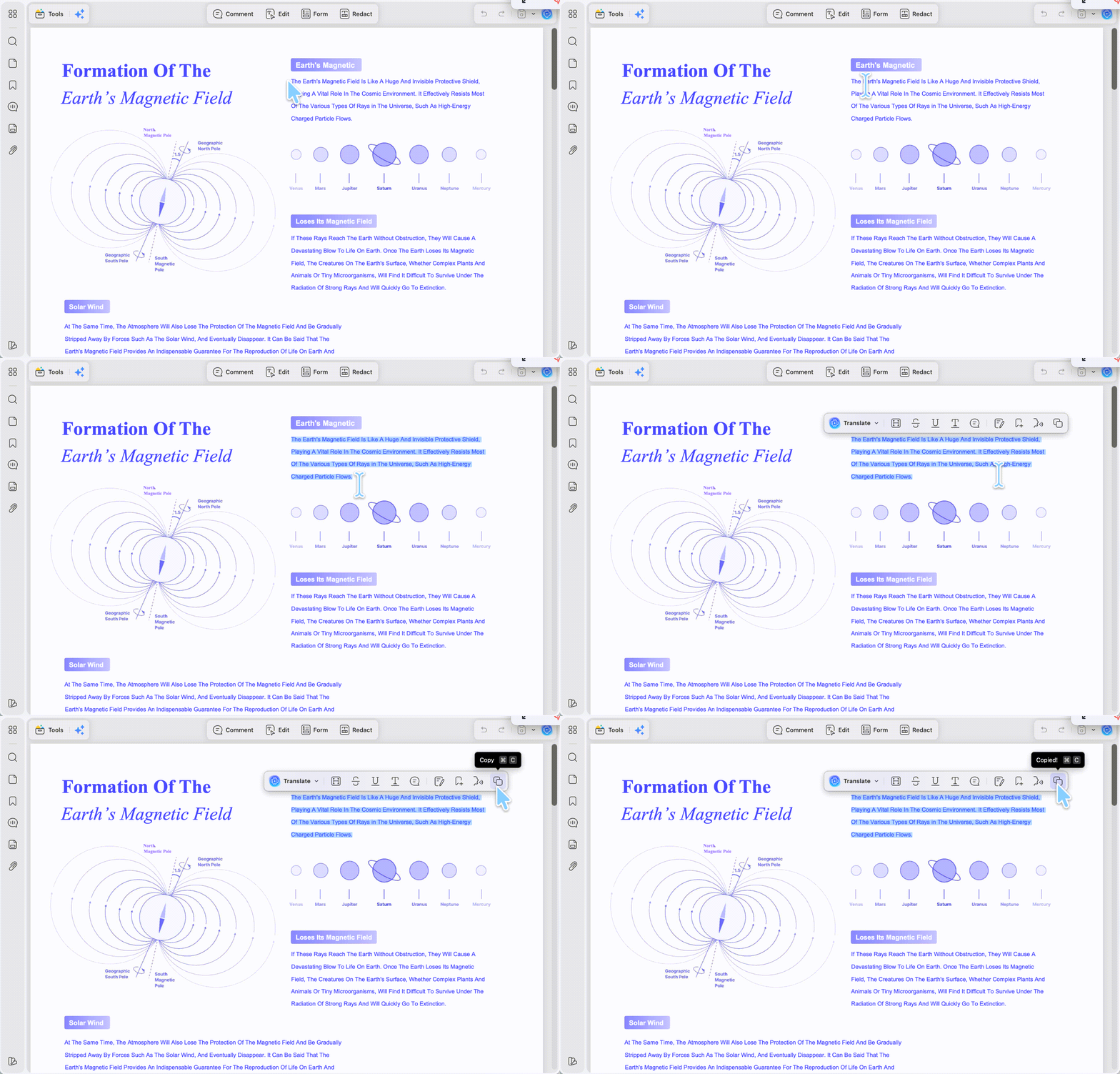
Step 1. Open the PDF in UPDF (click Open File). New documents open in Reader or Comment mode, where text is already selectable.
Step 2. Press and hold the left mouse button, then drag across the text you want. A small floating toolbar appears — click the Copy icon. Paste anywhere with Ctrl+V (Cmd+V on Mac).
Note
Best for:
- grabbing a quote, a paragraph, or a few selectable pages.
Not for:
- copying an entire long document into Word — that's faster with Method 2.
Download UPDF for free to follow along — the free version copies text without limits; the trial watermark only appears on files you export after editing, which UPDF Pro (US$49.99/year, or US$79.99 one-time) removes.
Windows • macOS • iOS • Android 100% secure
Part 3. Method 2: Convert the PDF, Then Copy Everything
When you need the whole file — not a paragraph — selecting by hand is slow and tends to break the layout. Converting the PDF to an editable format keeps the formatting intact and lets you copy in bulk.
Step 1. Open the PDF in UPDF, click Tools, and pick your target format — Word (.docx), Excel, PowerPoint, or Text (.txt).
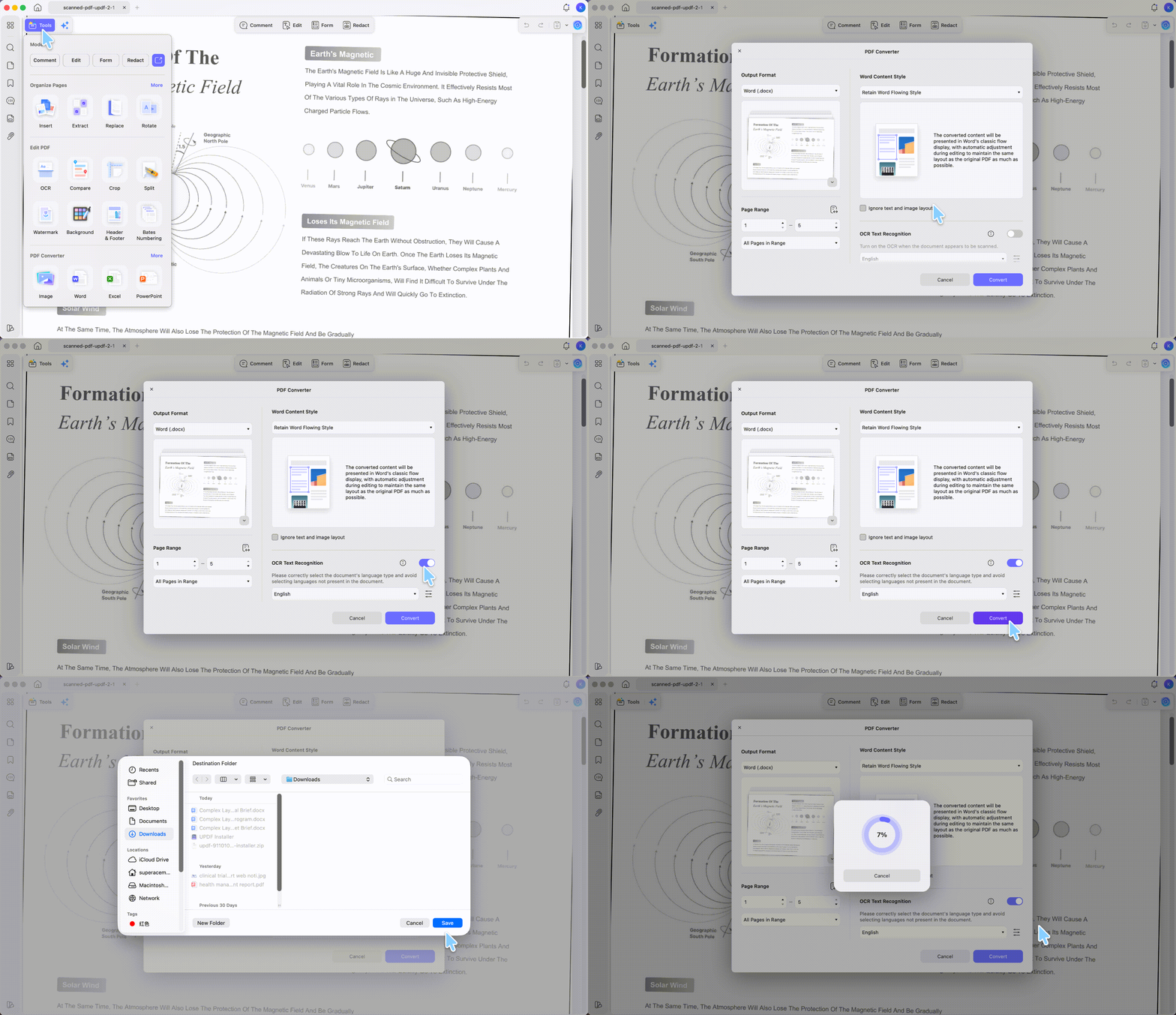
Step 2. Set the page range, click Apply, and choose where to save. Open the converted file and copy any text freely.
Tip
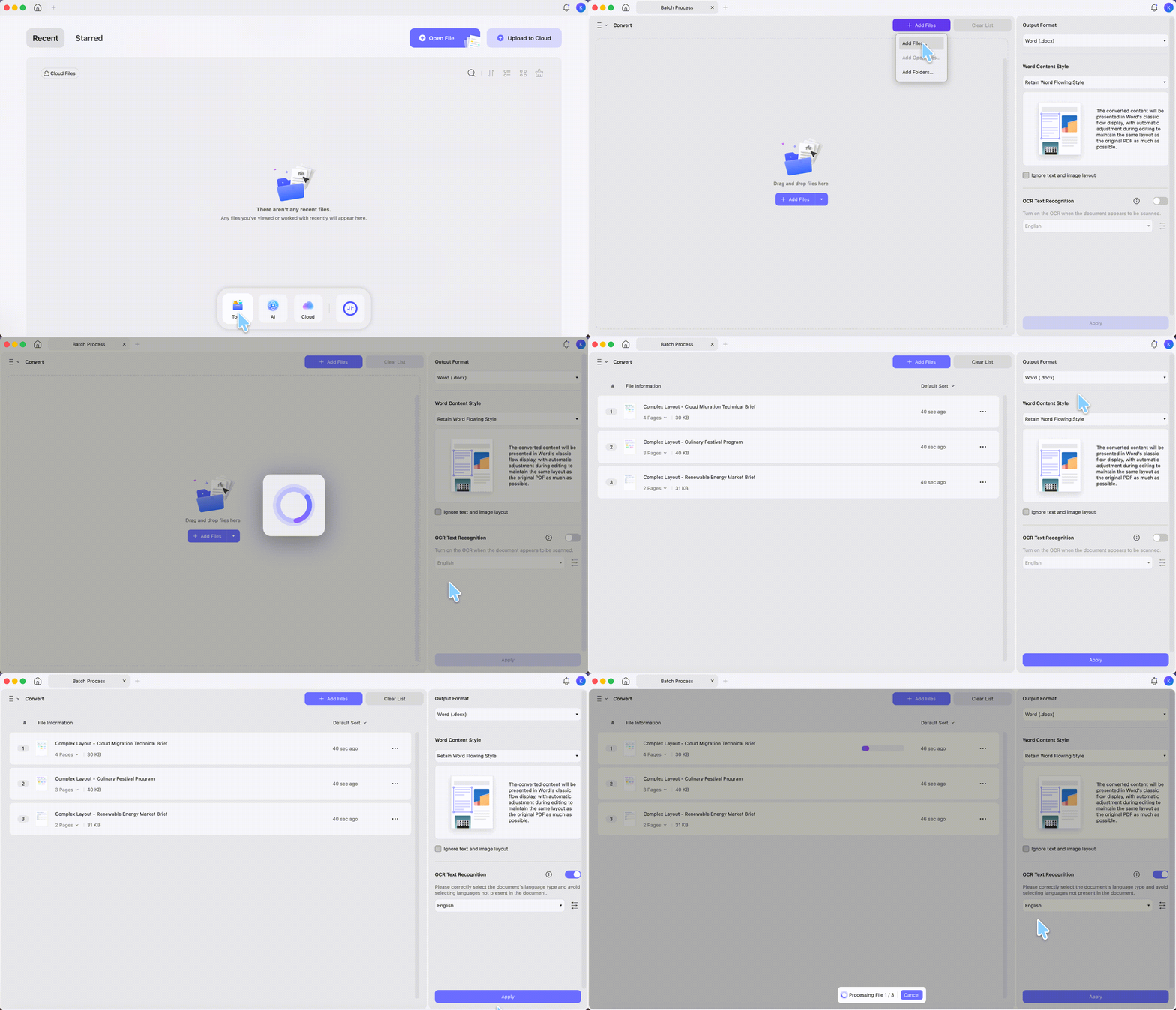
Got a stack of PDFs? From the home screen, choose Tools > Convert, add multiple files, and batch-convert them all at once. Copying text is one small slice of what editable text unlocks — for the full picture of reworking a document's words, see our guide on how to edit a PDF.
Best for:
- copying a whole document, or many documents, while preserving formatting — including scanned files, using the converter's built-in OCR.
Not for:
- grabbing a single paragraph — selecting and copying directly (Method 1) is quicker for that.
Part 4. Method 3: Copy Text from a Scanned PDF or Image (OCR)
A scanned PDF or a PDF made from a photo is just an image — there's no text layer to select. OCR (Optical Character Recognition) reads the picture and rebuilds a real text layer. Use this standalone OCR route when you want to keep working inside the PDF — selecting, editing, and copying from the file itself — rather than converting it to Word. (If you're exporting to another format anyway, the OCR toggle inside the converter in Method 2 handles both in one step.)
Step 1. Open the scanned PDF in UPDF and click OCR under Tools. (On first use, UPDF installs the OCR plugin.)
Step 2. Choose a layout such as Text and Pictures Only (or Editable PDF / Searchable PDF Only), then set the Document Language — UPDF supports 38+ languages.
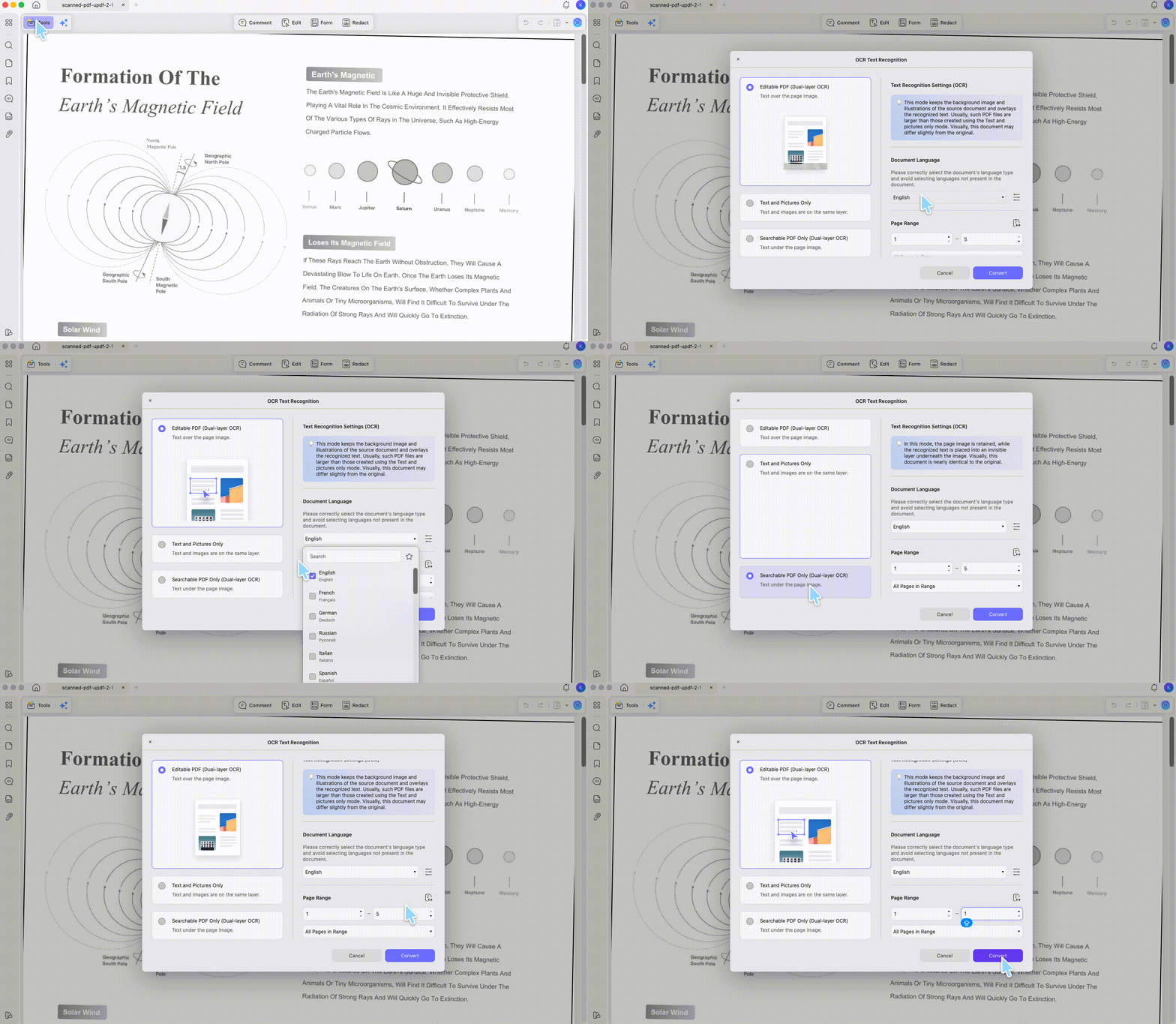
Step 3. Set the page range, click Convert, and save. The searchable copy opens automatically — now drag to select and copy the text as in Method 1, or switch to Edit mode to grab it.
Best for:
- scanned documents, photographed pages, and any PDF where text won't highlight.
Not for:
- files that already have selectable text — OCR is unnecessary there.
Part 5. Method 4: Copy Text from a Secured (Password-Protected) PDF
Some PDFs open fine but block selecting and copying because a permissions password is set. If you have the right to the document, you can lift that restriction in UPDF.
Step 1. Open the protected PDF (click Open File).
Step 2. Click the arrow next to the Save icon and choose Remove Password. UPDF saves a new, unrestricted copy.
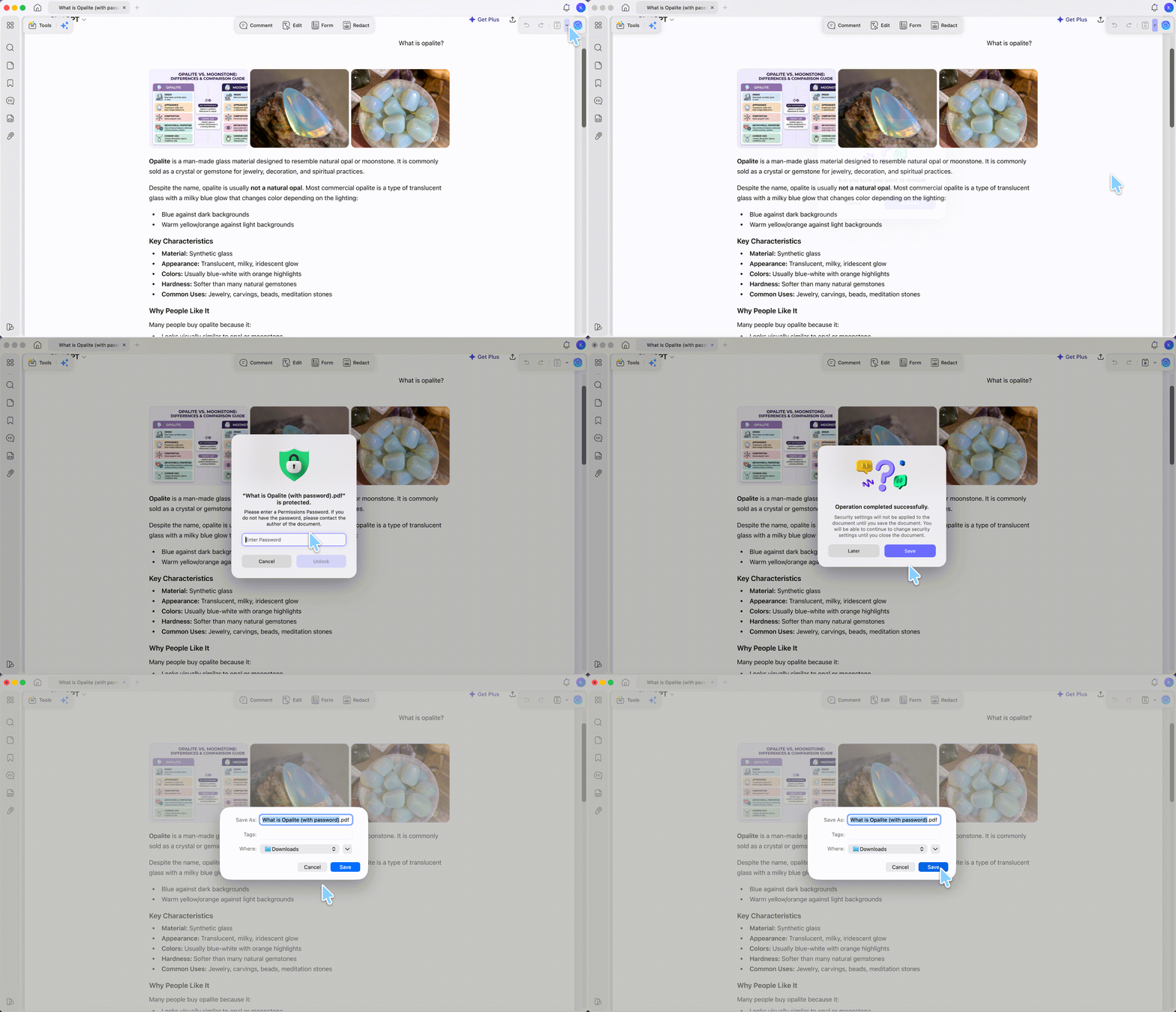
Step 3. Open that copy, select the text, and copy it as usual. For the deeper walkthrough — including open-password vs. permissions-password cases — see how to copy text from a secured PDF.
Part 6. How to Copy Text from a PDF on iPhone & Android
The steps are the same on iOS and Android. For a normal PDF, copying takes three taps:
Step 1. Download UPDF from the App Store (iPhone/iPad) or Google Play (Android), then open the app. Import the PDF by tapping +, or open it from another app via the Share menu.
Windows • macOS • iOS • Android 100% secure
Step 2. Press and hold on the text, then drag the selection handles to cover exactly what you want.
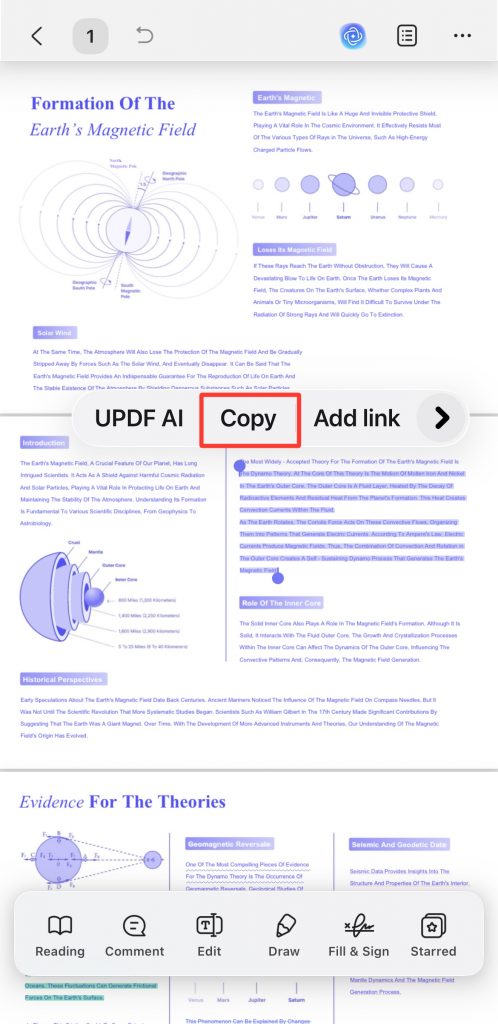
Step 3. Tap Copy in the pop-up bar. Paste it into any app — notes, email, a message.
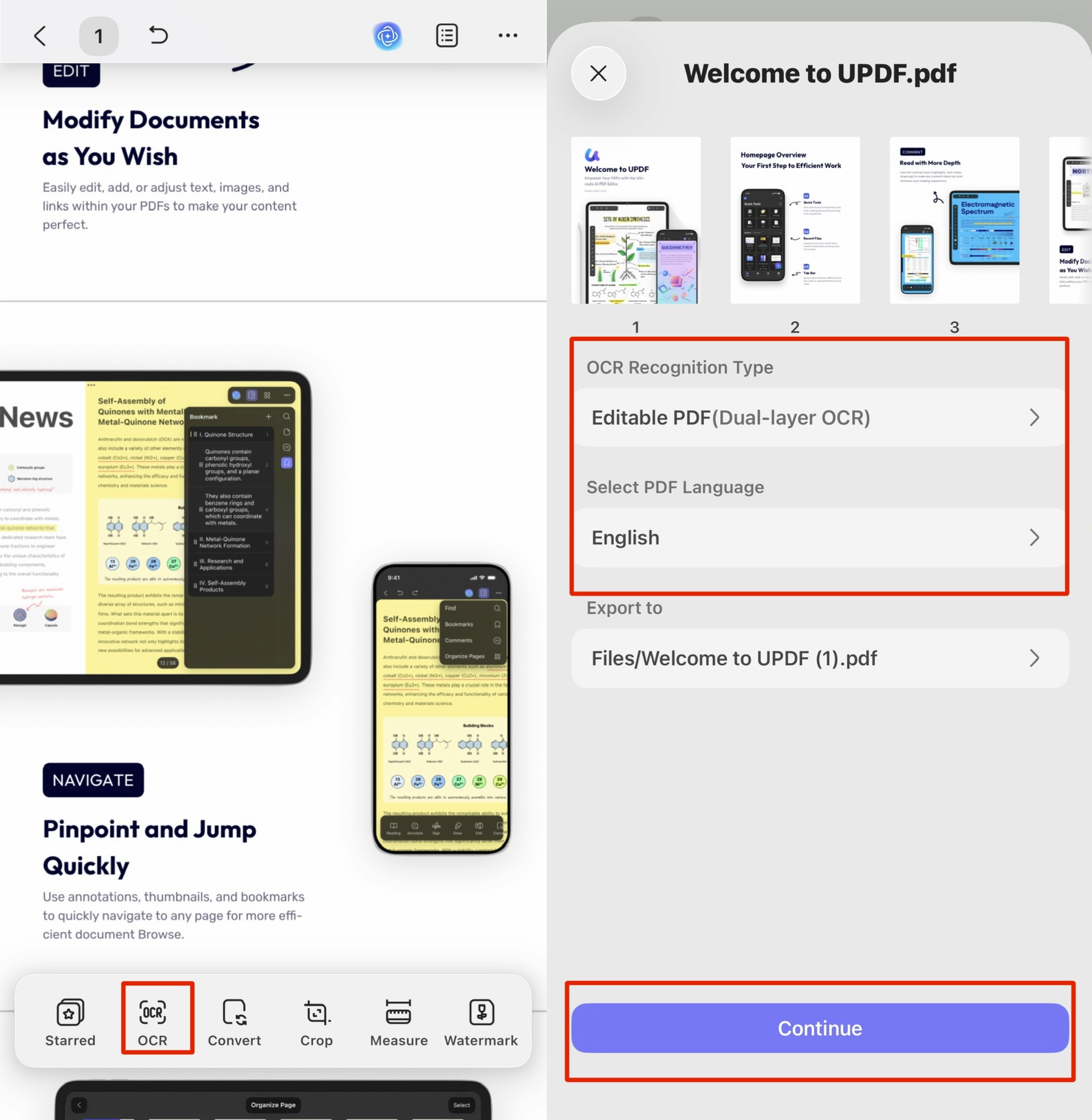
- For a scanned PDF where nothing selects, run OCR in the app first (UPDF for iOS and Android both include OCR), then press, drag, and Copy the recognized text the same way.
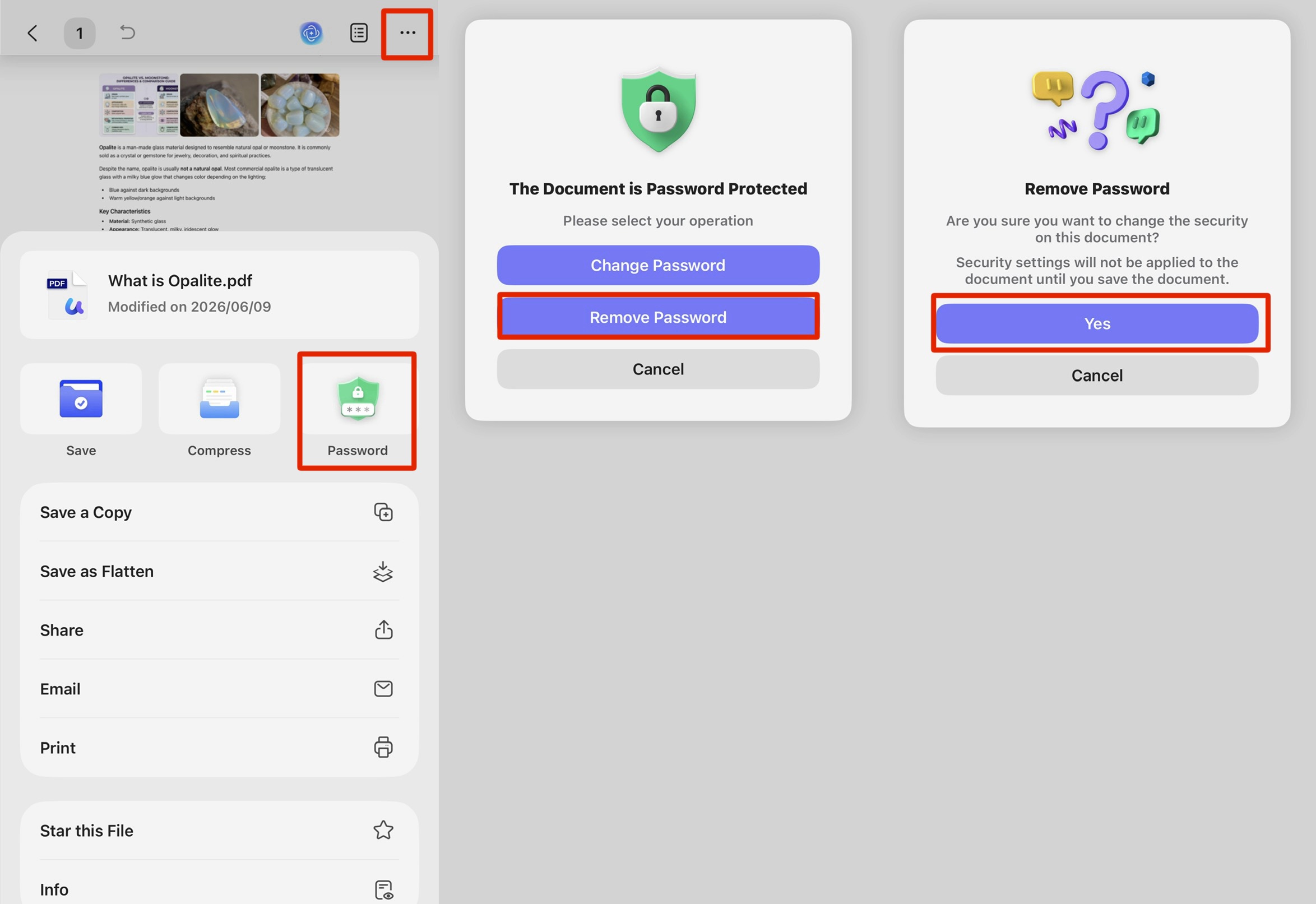
- For a secured PDF, enter the password when the file opens — once authenticated, you can select and copy normally. To stop being prompted on every open, remove the password: tap the three-dot icon at the top, choose Password, then tap Remove Password and confirm Yes. Tap the drop-down again, choose Save, and store the unlocked copy. From then on, selecting and copying works without a prompt.
Part 7. UPDF vs. Adobe Acrobat for Copying Text
| Capability | UPDF | Adobe Acrobat Pro |
|---|---|---|
| Select & copy text | ✓ Floating toolbar + keyboard shortcut | ✓ |
| Cross-page text selection | ✓ (WIN) | ✓ |
| OCR for scanned PDFs | ✓ OCR in 38+ languages | ✓ |
| Bulk convert for easier copying/extraction | ✓ Batch convert PDFs to Word, Excel, PowerPoint, images, and more | ✓ Export PDFs to Word, Excel, PowerPoint, and more |
| Remove copy/security restrictions | ✓ | ✓ |
| Price | US$49.99/year, or US$79.99 lifetime | US$19.99/month, annual plan; about US$239.88/year |
| Device/platform coverage | 1 payment covers 4 devices across Windows, Mac, iOS, and Android | Available on desktop, web, and mobile with subscription |
| User feedback | G2: 4.5/5 from 441 reviews; users often praise ease of use, editing, and affordability | G2: 4.5/5 from 5,124 reviews; users praise power and reliability, but common drawbacks include high price and slower performance |
| Best for | Users who want core PDF editing, OCR, conversion, and copy-related workflows at a lower price | Users who need Adobe’s enterprise ecosystem, integrations, and advanced document workflows |
Note: The information in this table was collected from the official UPDF and Adobe Acrobat websites on June 10, 2026. Features, prices, and plan details may change over time, so please check the official websites for the most up-to-date information before making a purchase.
Acrobat covers these workflows too. The practical difference is cost: this copy-and-extract toolkit — selection, OCR, conversion, and removing restrictions when you have permission — is available in UPDF at roughly one-fifth of Acrobat Pro’s yearly subscription price, plus UPDF offers a lifetime license option while Adobe’s main Acrobat Pro plan is subscription-based.
Part 8. Edge Cases: When Copy Still Doesn't Work
"The text highlights, but pasting gives gibberish or boxes." The PDF likely uses a non-standard or embedded font with broken character mapping. Run OCR (Method 3) to rebuild a clean text layer, then copy from the recognized version.
"Selection grabs the whole page as one block." That's an image PDF — there are no individual words to select. OCR is the fix, not a different copy command.
"I removed the password but still can't select." Removing the password lifts the permissions restriction, but if the underlying page is a scan, you still need OCR afterward. A secured scan needs both steps, in that order.
"Copy works on desktop but the formatting collapses in Word." Direct copy-paste carries text, not layout. When formatting matters, convert the PDF to Word (Method 2) instead of pasting — conversion preserves the structure.
Part 9. FAQs
1. Why is the copy option greyed out in my PDF?
The file is either a scanned image with no text layer, or it has a permissions password blocking extraction. In UPDF, run OCR for the former, remove the password for the latter.
2.Is it legal to remove a password to copy text?
Removing a permissions password is appropriate when you own the document or are authorized to use its content. It isn't appropriate for someone else's confidential or copyrighted file you have no rights to.
3. Will the original PDF change when I copy text from it?
No. Copying reads the text; it doesn't alter the file. The exceptions are running OCR or removing a password, which UPDF saves as a new copy rather than overwriting the original.
4.Can I copy text from a PDF without any software at all?
On desktop and mobile, most browsers and built-in readers let you select and copy from a normal text PDF. But they fail on the two hard cases — a scanned image won't select, and a secured file blocks copying — which is exactly where a dedicated tool with OCR and password removal becomes necessary.
Conclusion
All four methods trace back to one question — what kind of PDF you're holding. Selectable text copies directly with the floating toolbar or a shortcut; a whole document goes faster through conversion; a scan needs OCR before a single word will copy; and a secured file needs its restriction removed first. On a phone the same logic holds: press and hold to copy a normal PDF, run OCR first for a scan, or enter (or remove) the password for a secured file. For the recurring work of pulling text out of every kind of PDF, UPDF covers what Acrobat charges US$239.88 a year for, across Windows, Mac, iOS, and Android on one license. Hit the Free Download button below to open your file and start copying.
Windows • macOS • iOS • Android 100% secure






 Enid Brown
 Enya Moore
 Engelbert White
 Enola Miller