UPDF
UPDF
 UPDF for Windows
 UPDF for Mac
 UPDF for iPhone/iPad
 UPDF for Android
 Nomostar
 UPDF AI Online
 UPDF Sign
 IvyCraft
 Edit PDF
 Annotate PDF
 Create PDF
 PDF Form
 Edit links
 Convert PDF
 OCR
OCR PDF to Word
 PDF to Image
 PDF to Excel
 Organize PDF
 Merge PDF
 Split PDF
 Crop PDF
 Rotate PDF
 Protect PDF
 Sign PDF
 Redact PDF
 Sanitize PDF
 Remove Security
 Read PDF
 UPDF Cloud
 Compress PDF
 Print PDF
 Batch Process
 About UPDF AI
 UPDF AI Solutions
 AI User Guide
 FAQ about UPDF AI
 Summarize PDF
 Translate PDF
 Chat with PDF
 Chat with AI
 Chat with image
 PDF to Mind Map
 Explain PDF
 PDF AI Tools
 Image AI Tools
 AI Chat Tools
 AI Writing Tools
 AI Study Tools
 AI Working Tools
 Other AI Tools
 AI Bookmark Generation
 AI Bookmark Summary
 AI Watermark Generation
 AI Background Generation
 AI Sticker Generation
 AI Stamp Generation
 AI Editing Suite
 UPDF Copilot
 AI Page Management
 AI Semantic Search
 PDF to Word
 PDF to Excel
 PDF to PowerPoint
 Enterprise Solution
 Enterprise Sign
 Enterprise AI
 Enterprise Plan
 Enterprise User Guide
 Enterprise Webinar
 IT
IT Education
 Construction
 Financial Service
 Healthcare
 Insurance
 Legal
Legal Manufacturing
 Government
 Researchers & PhDs
 Solopreneurs & Freelancers
 Lawyers & Legal Professionals
 Real Estate Agents & Brokers
 Education Solution
 Customer Stories
 User Guide
 UPDF Tricks
 FAQs
FAQs UPDF Reviews
 Download Center
 Blog
Blog Newsroom
 Tech Spec
 Updates
 UPDF vs. Adobe Acrobat
 UPDF vs. Foxit
 UPDF vs. PDF Expert

Quick answer: Foxit PDF Reader can darken the application interface and the PDF page, but these are separate settings. Use Dark or Use system setting for the app interface; use Replace Document Colors, Change Color, or Night Mode when you want the document page itself to appear dark. The available menu name depends on your platform and Foxit version.
This guide shows how to enable Foxit Reader dark mode on Windows, Mac, iPhone, and Android, explains why the toolbar may turn dark while the PDF remains white, and introduces UPDF as a free-to-try alternative with flexible page-display options.
Windows • macOS • iOS • Android 100% secure
Part 1. Does Foxit PDF Reader Have Dark Mode?
Yes. Foxit PDF Reader supports a dark application skin and options that change how PDF pages are displayed. These controls solve different problems: a dark skin changes menus and toolbars, while PDF dark mode or document color replacement changes the page background and text for more comfortable low-light reading.
Changing document colors is a viewing preference; it does not normally rewrite the PDF. Images, charts, signatures, and other embedded graphics may retain their original colors, so review visually important pages after enabling the setting.
Part 2. How to Enable Dark Mode in Foxit PDF Reader
Choose the instructions for your device. If only Foxit’s menus become dark but the PDF page stays white, also enable the document-color option described below.
On Windows
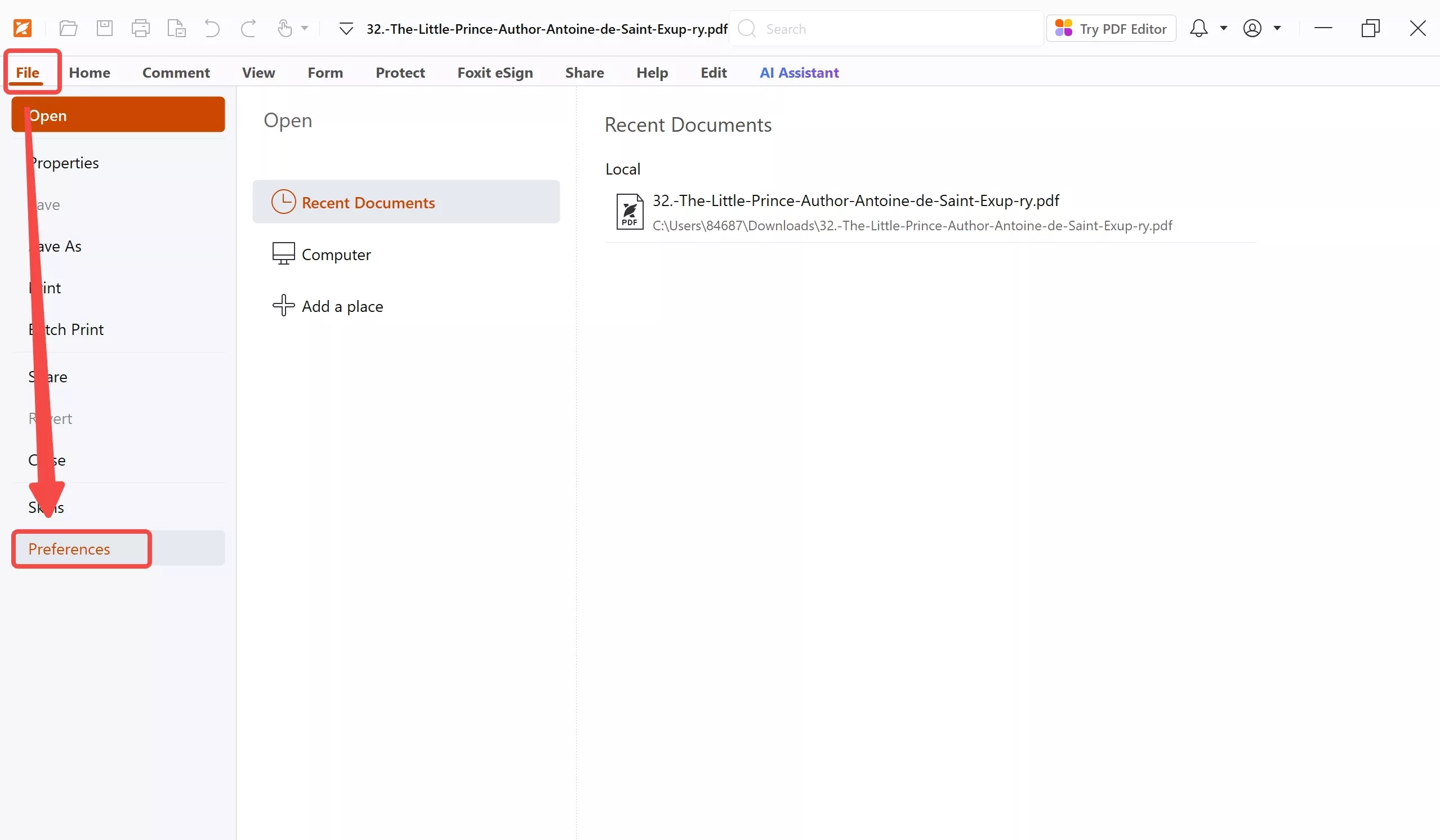
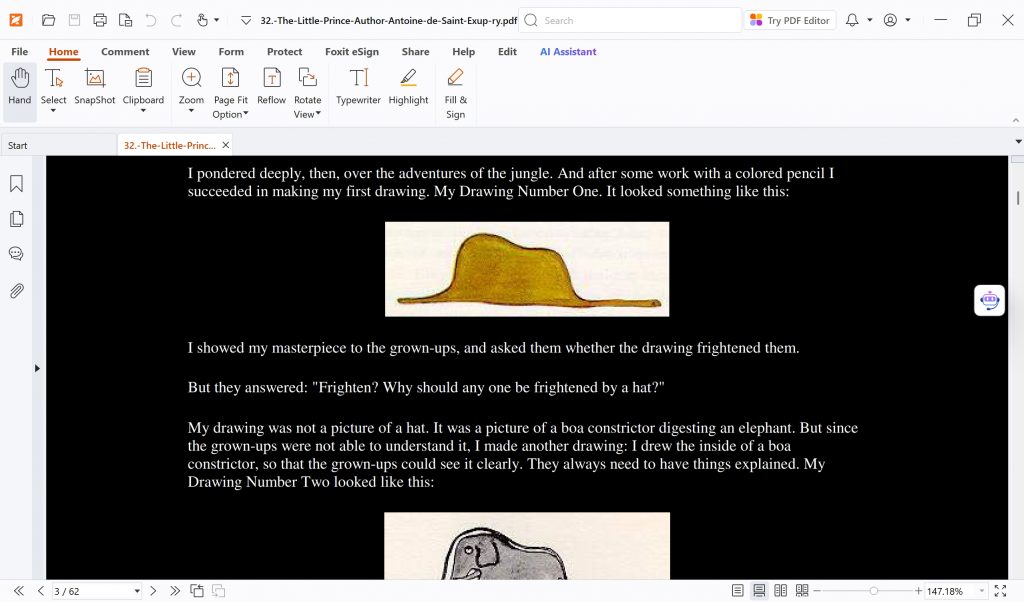
To darken the Foxit interface: open File > Skins, then select Dark. Choose Use system setting if you want Foxit to follow the Windows app mode.
To darken the PDF page:
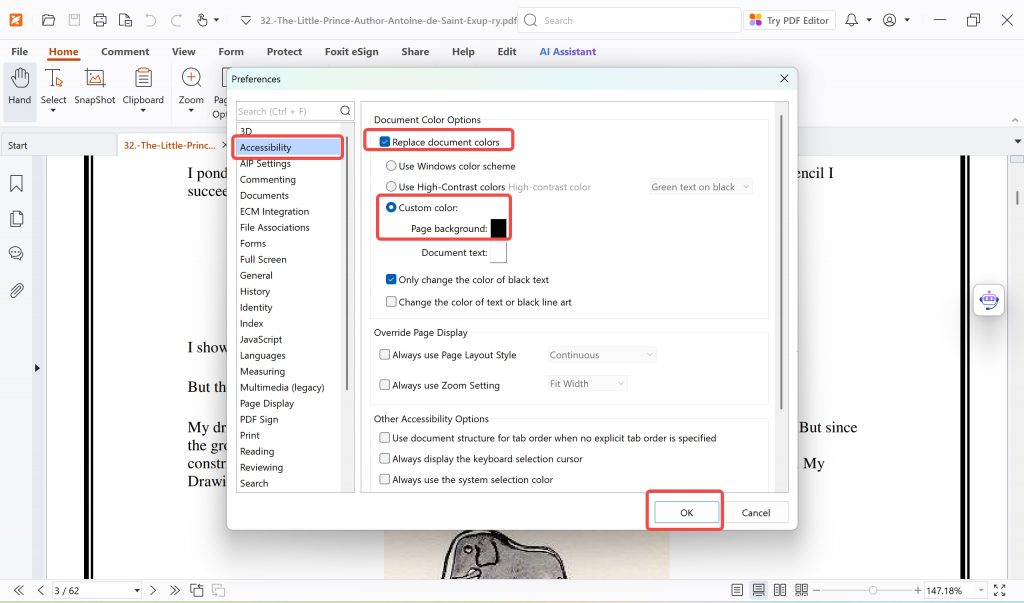
- Open Foxit PDF Reader and choose File > Preferences.
- Select Accessibility.
- Enable Replace Document Colors. Choose a high-contrast combination or set custom colors for Page Background and Document Text.
- Click OK and check the PDF page.
On Mac
For the interface, choose File > Skin or View > Skin, then select Dark or Use system setting. To change the PDF page, open Preferences > Accessibility and enable Replace document colors. In supported versions, you can also choose View > Change Color and select a preset or custom page color.
On iPhone or Android
Open a PDF in the current Foxit mobile app, open the reading or display controls, and select Night Mode or a dark page theme. The icon and menu name can differ between iOS, Android, and app versions. If the option is missing, update the app and check the View, Reading, Display, or Appearance menu.
For another platform-specific guide, see how Adobe Acrobat Dark Mode works.
Part 3. Foxit Dark Mode Not Working? Try These Fixes
- The toolbar is dark but the page is white: enable Replace Document Colors, Change Color, or Night Mode; the app skin alone does not recolor the PDF page.
- Nothing changes after choosing custom colors: confirm that Replace Document Colors is checked, then reopen the document.
- Images remain bright: document-color replacement may affect text and page backgrounds without fully inverting embedded images.
- System dark mode does not sync: select Use system setting for the interface or choose Dark manually.
- The mobile option is missing: update Foxit and check the reading/display menu; labels vary by app version.
- Colors look wrong: restore the default colors and try a preset high-contrast combination before creating custom colors.
Part 4. Limitations of Foxit Dark Mode
Foxit offers useful dark-reading controls, but the experience is not identical on every device. The application skin and PDF page colors are configured separately, menu names vary between Windows, Mac, iOS, and Android, and document-color replacement may not fully invert photographs, charts, or other embedded graphics. Custom high-contrast colors can also affect documents that rely on color to communicate meaning.
These are not reasons to avoid Foxit; they are practical points to check when dark mode does not produce the result you expected.
Part 5. Try UPDF for a More Flexible Dark Reading Experience
If you want a cleaner alternative, UPDF is free to download and try on Windows, Mac, iOS, and Android. It combines dark app appearance with flexible PDF page-display controls, so you can reduce glare without giving up annotation, editing, OCR, conversion, page organization, or AI-assisted reading.
Windows • macOS • iOS • Android 100% secure
Want to see how UPDF handles everyday PDF reading before trying it? The short video below demonstrates its core reading experience and useful document tools.
How to Enable Dark Mode in UPDF
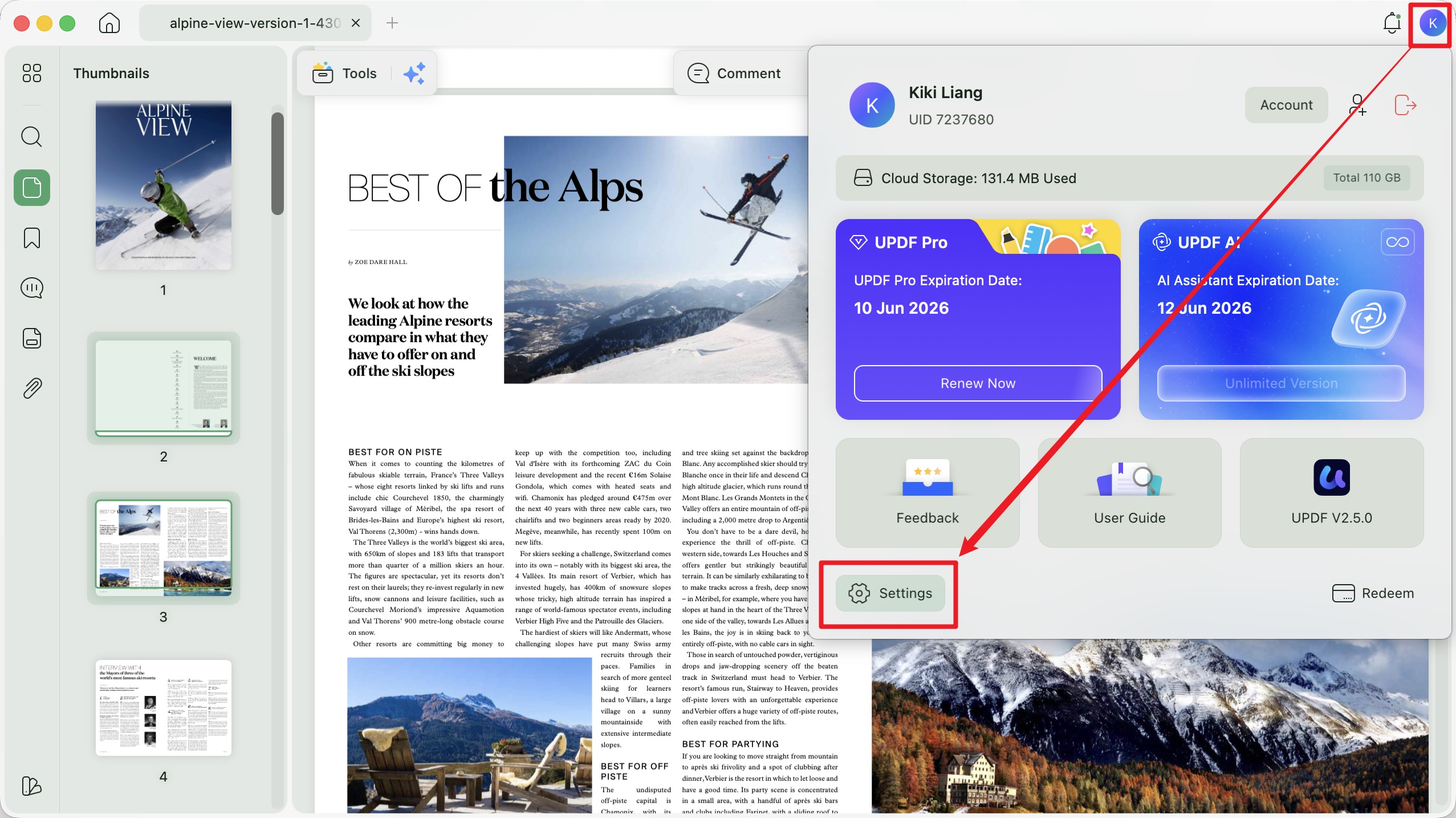
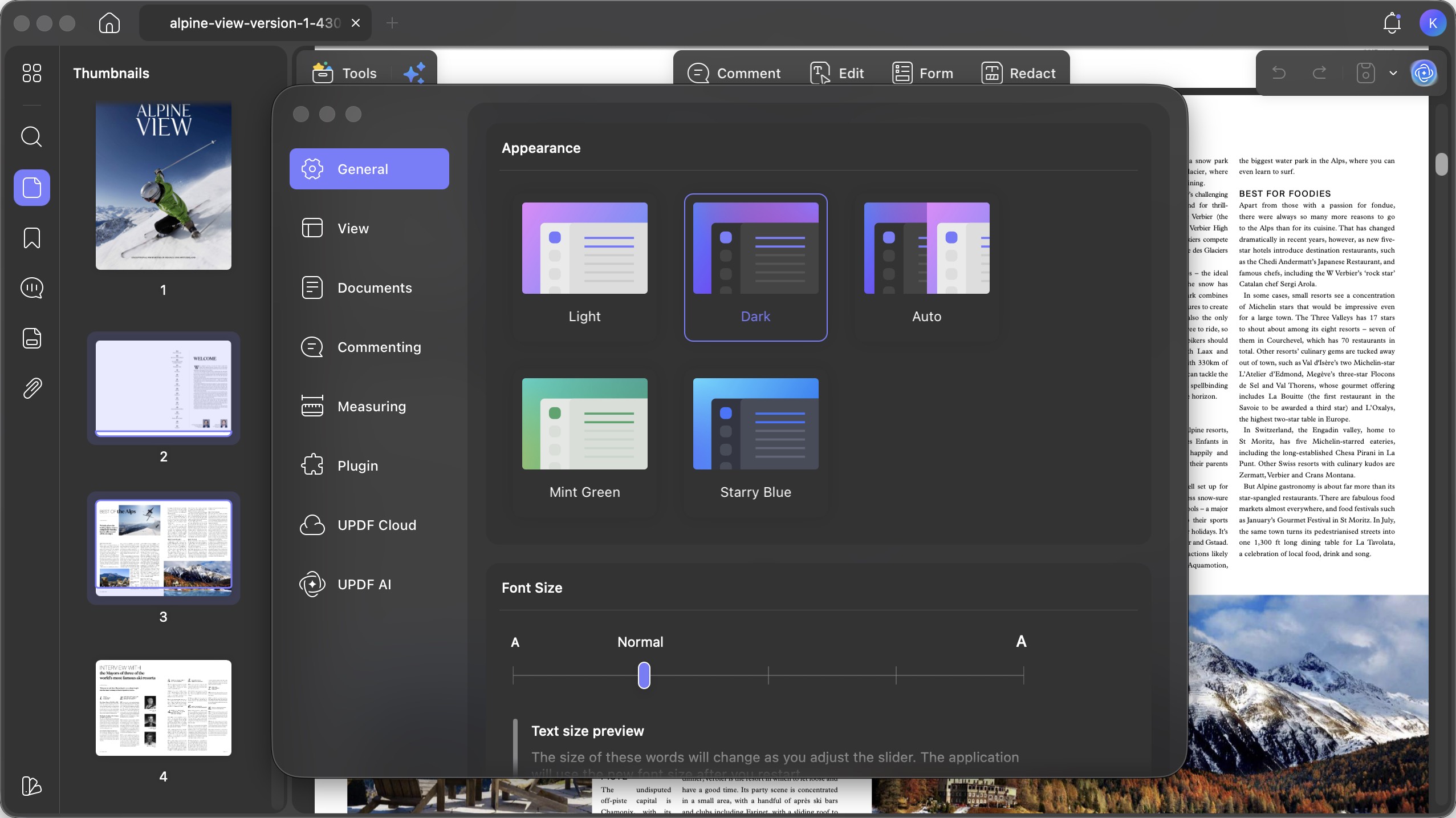
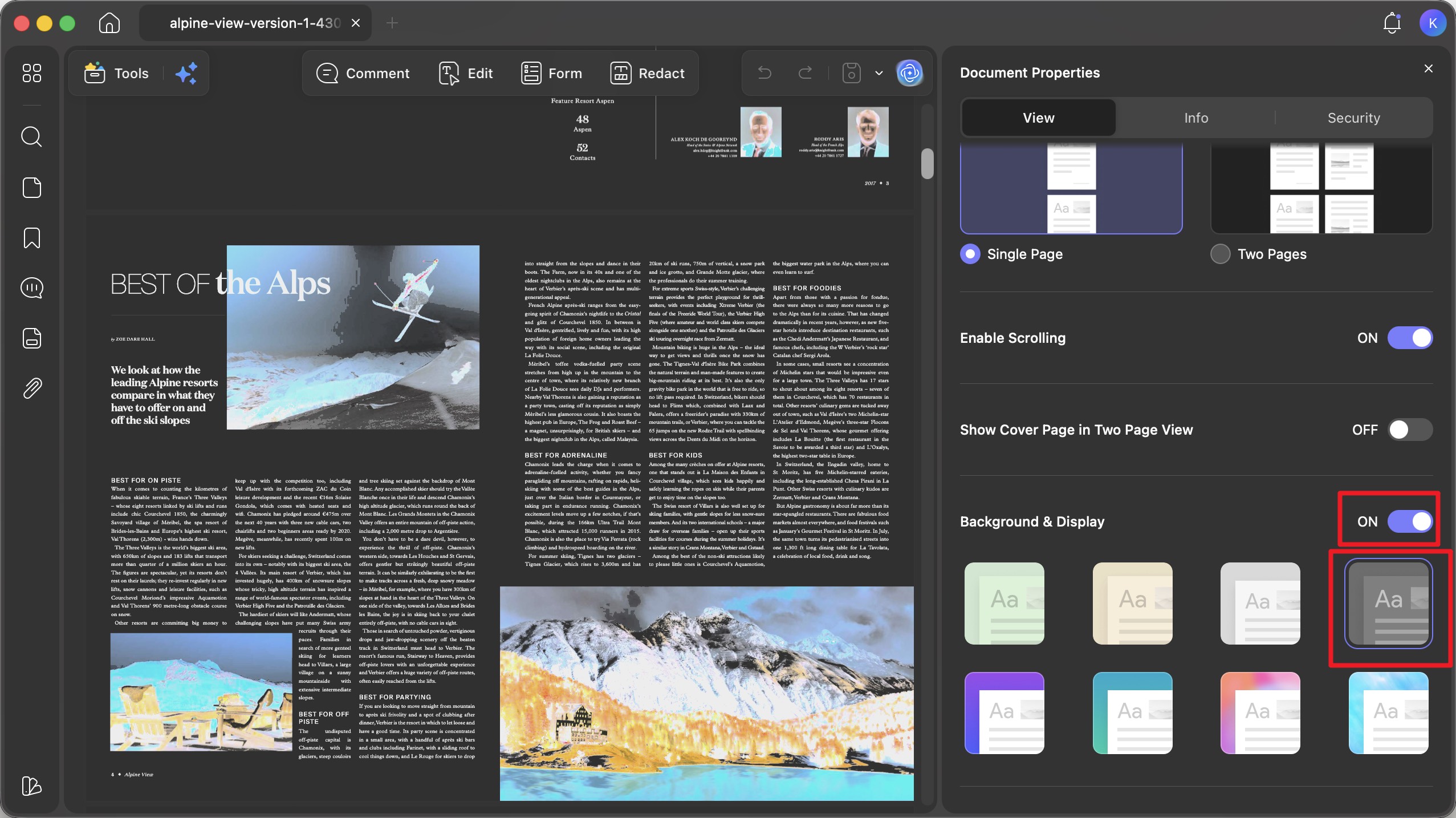
On Windows or Mac: open UPDF, go to Settings > System Settings > Appearance, and select Dark. For the PDF page itself, open the page-display controls and choose a comfortable background/display option. The desktop app also provides content-inversion controls when you need the page contents—not only the surrounding interface—to appear darker.
On iPhone or Android: enable the device’s dark appearance, then open UPDF. You can continue reading in single-page, continuous, or two-page layouts and use highlights, comments, search, bookmarks, summaries, or translations when working through longer PDFs.
Download UPDF and test the display with your own PDF to see which background and viewing mode feels most comfortable.
Windows • macOS • iOS • Android 100% secure
Part 6. Foxit Reader vs. UPDF: Which Is Better for Dark Mode?
The better choice depends on whether you only need to recolor pages or want a broader reading and document workflow.
| Dark-reading feature | Foxit PDF Reader | UPDF |
|---|---|---|
| Dark application interface | Dark skin or system setting | Dark appearance on desktop and mobile |
| Darken PDF pages | Replace Document Colors, Change Color, or Night Mode, depending on platform | Background and display controls for comfortable reading |
| Custom page/text colors | Available in desktop accessibility settings | Available through desktop display settings |
| Invert page contents | Document-color replacement may leave images unchanged | Desktop content-inversion option can also affect embedded page graphics |
| Supported platforms | Windows, macOS, iOS, Android, and web | Windows, macOS, iOS, and Android |
| Additional PDF tools | Reading and basic annotation in the free Reader; advanced tools depend on the Foxit product | Reading, annotation, editing, OCR, conversion, organization, and AI tools in one app |
Foxit is suitable if its available display controls already match your needs. Choose UPDF if you prefer an all-in-one reader and editor across desktop and mobile. You can start with the free trial and visit the UPDF pricing page if you later need the complete feature set.
Conclusion
Foxit Reader dark mode works best when you choose the correct setting for the result you want: use a dark skin for menus and toolbars, and use document-color replacement or Night Mode for the PDF page. If the page remains white, revisit the accessibility or display controls rather than changing the app skin again.
If you want more control over page appearance together with everyday PDF tools, download UPDF for free and try it during your next reading session.
Windows • macOS • iOS • Android 100% secure







 Lizzy Lozano

 Enya Moore